Fall Risk Assessments.
1. Introduction
This tutorial provides a step-by-step guide for conducting a thorough fall risk assessment in two distinct sections of Dialysis Manager. Additionally, you'll learn how to generate a Fall Risk Assessment report.
2. Treatment By Date Screen
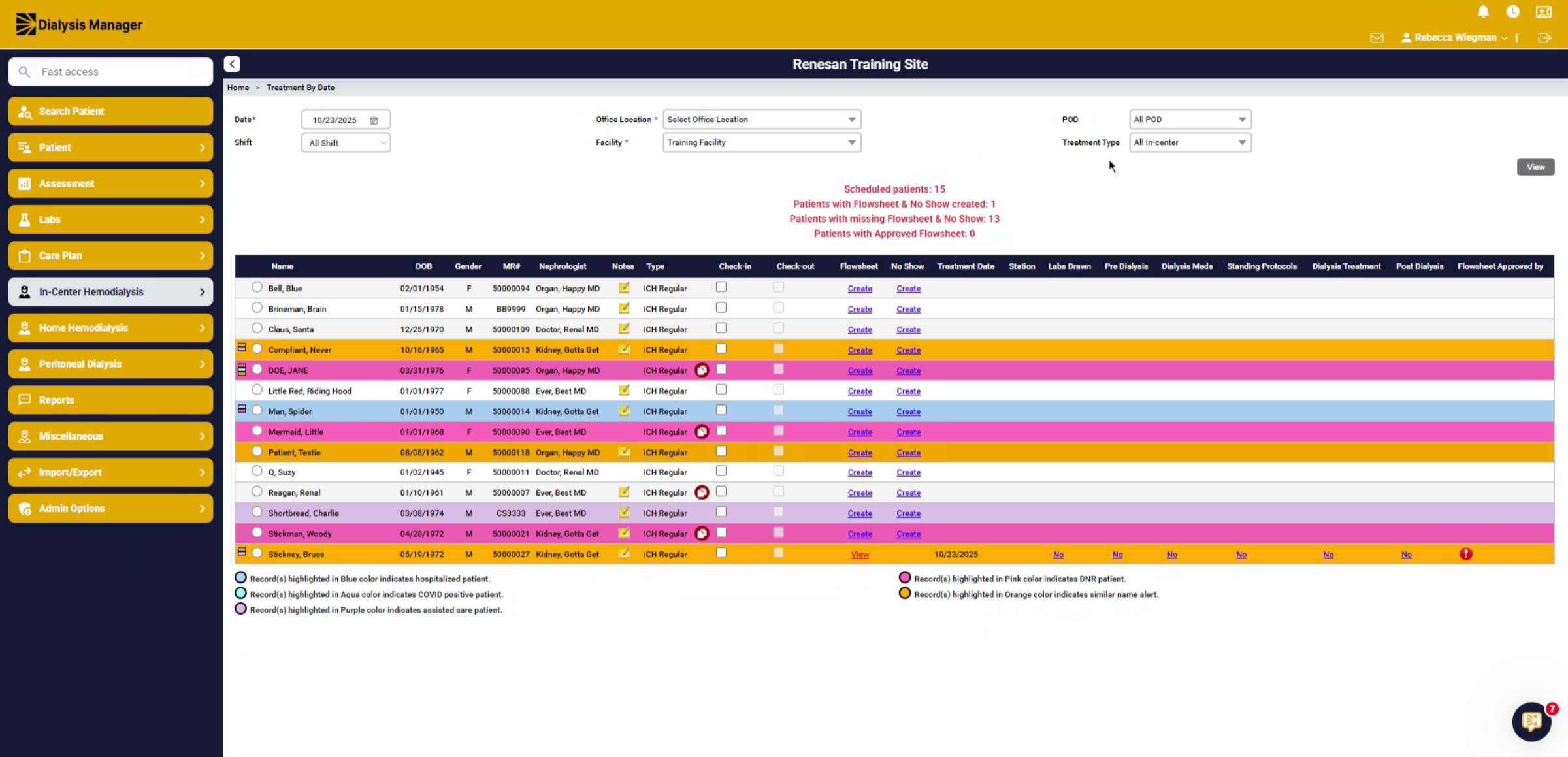
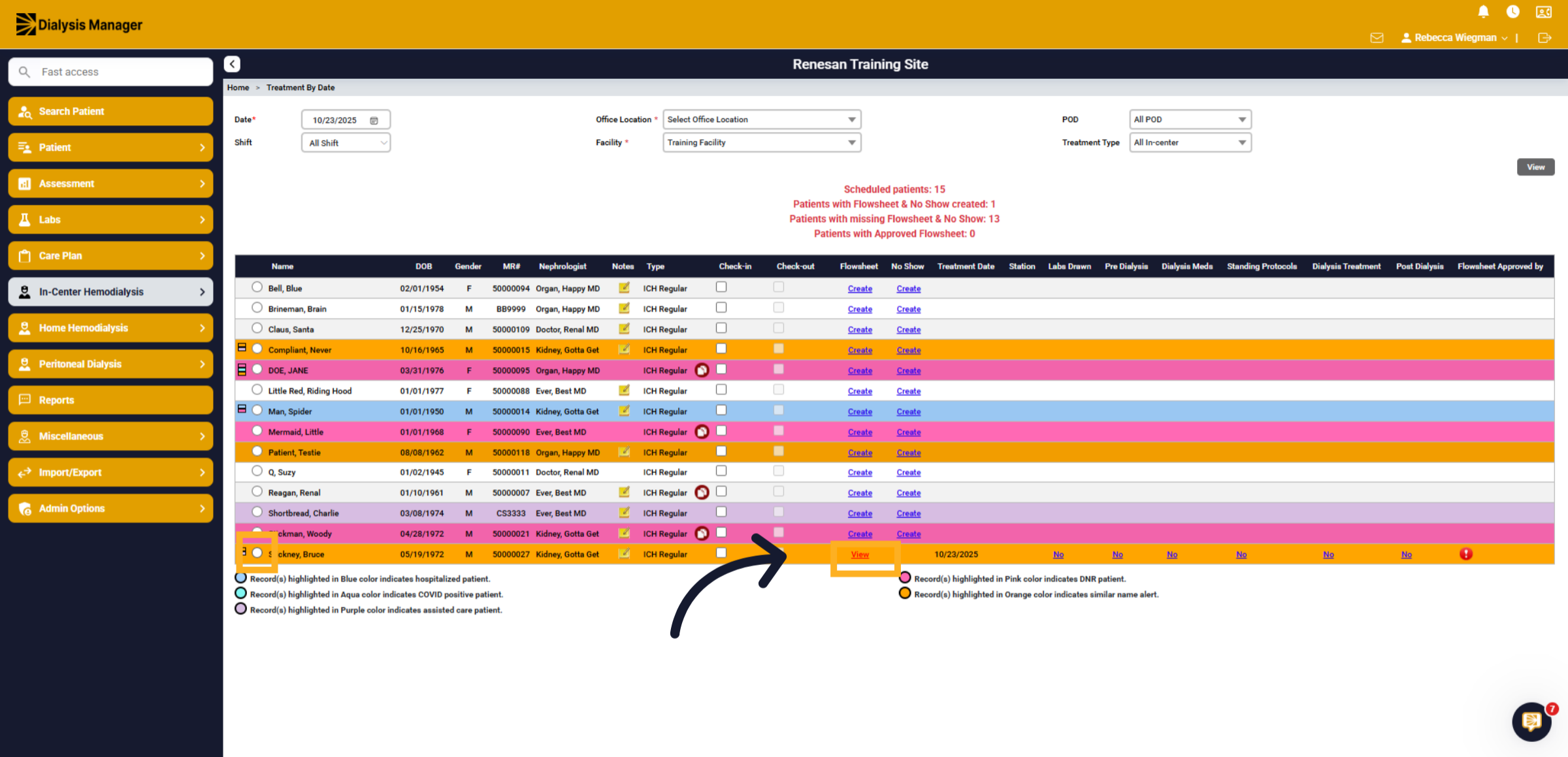
At the treatment by date screen, you can select your patient and click "Create" flowsheet or "View" if one has been opened already.
3. Pre Dialysis Tab
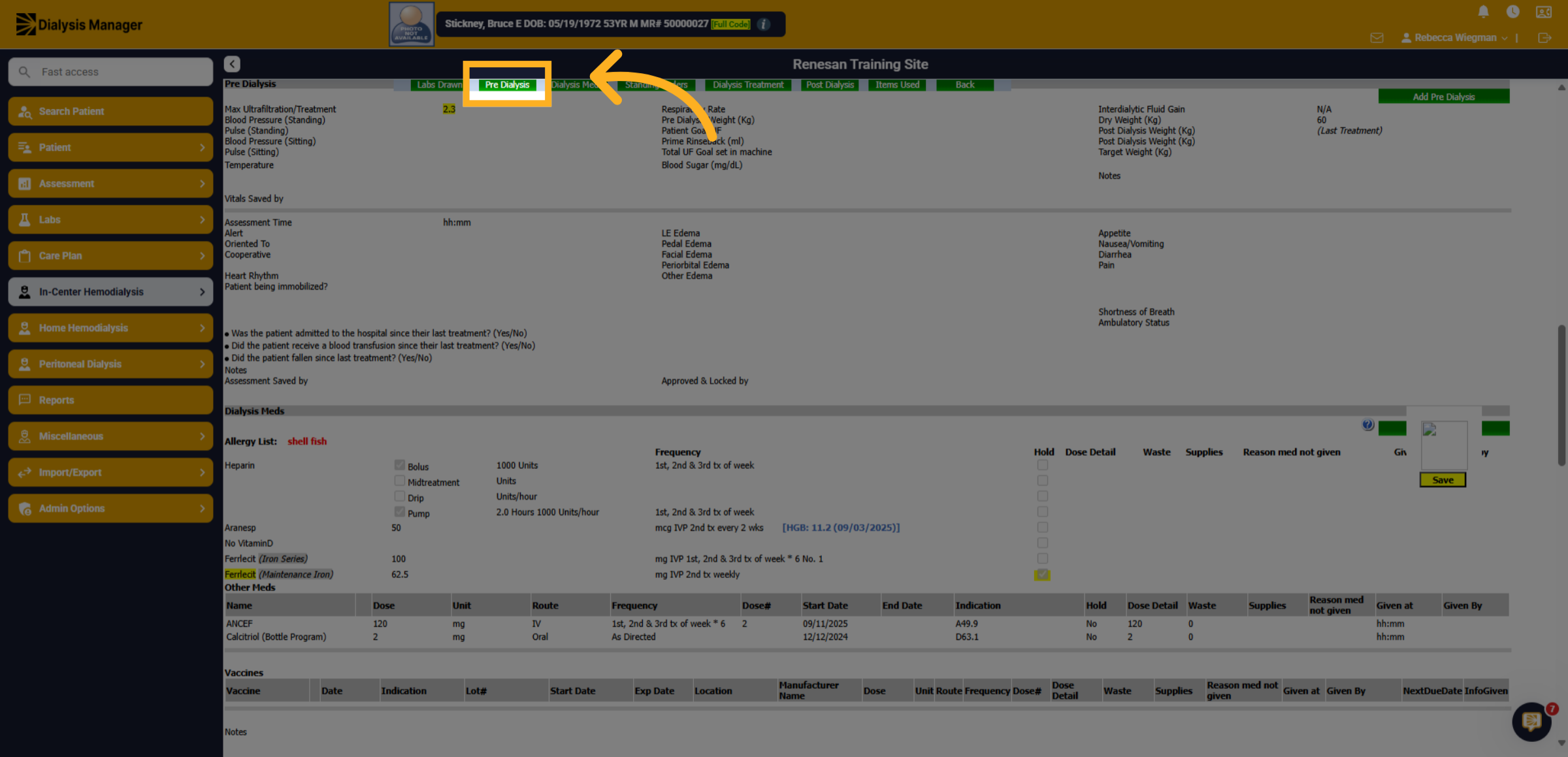
Click into the Pre Dialysis Tab
4. Has the patient fallen
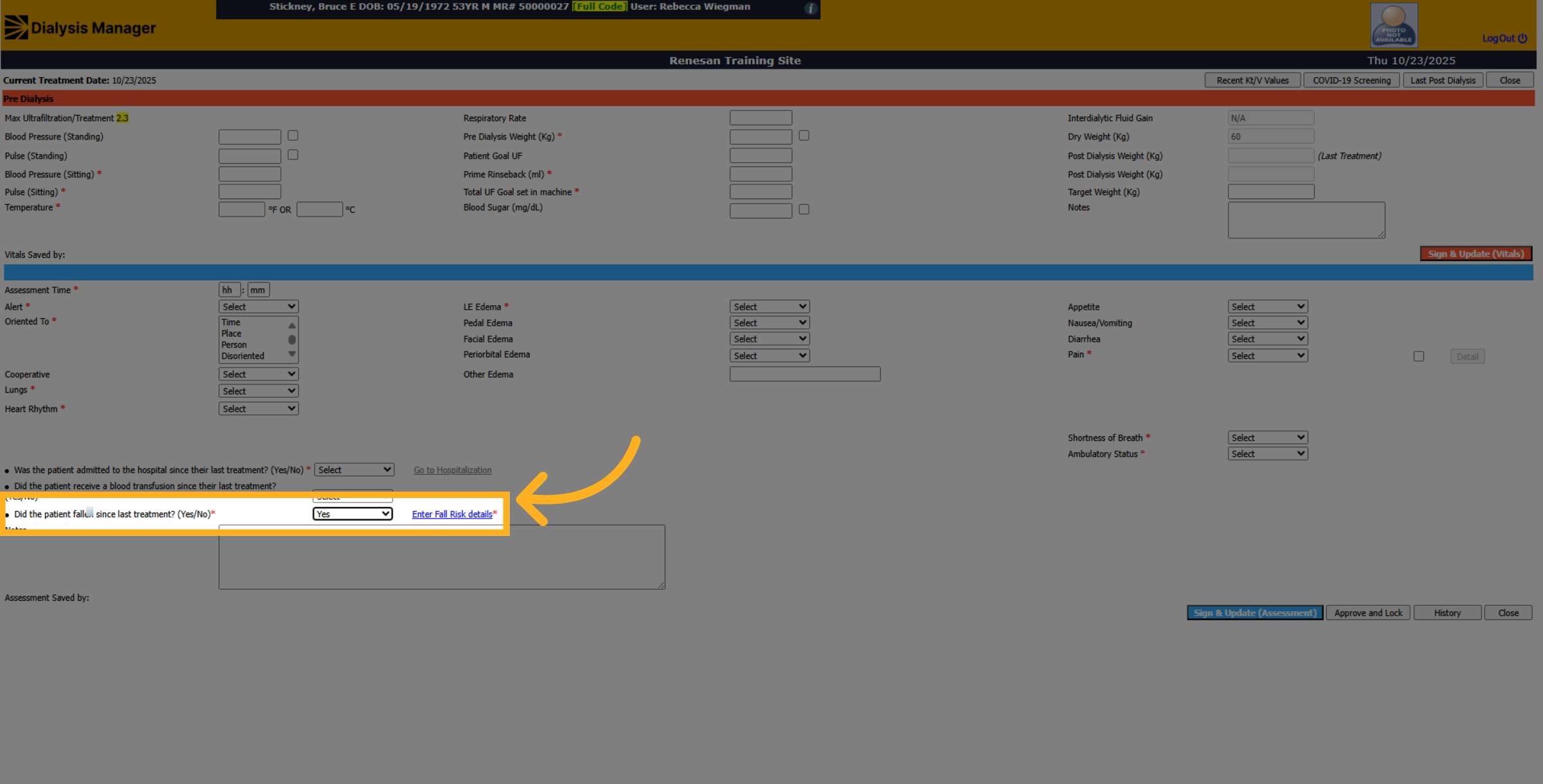
Just above the notes section inside the Pre Treatment Tab, nurses will see the question "Did the patient fall since the last treatment? When selecting "Yes" a blue hyperlink will appear with the Fall Risk Assessment.
5. Fall Risk Assessment
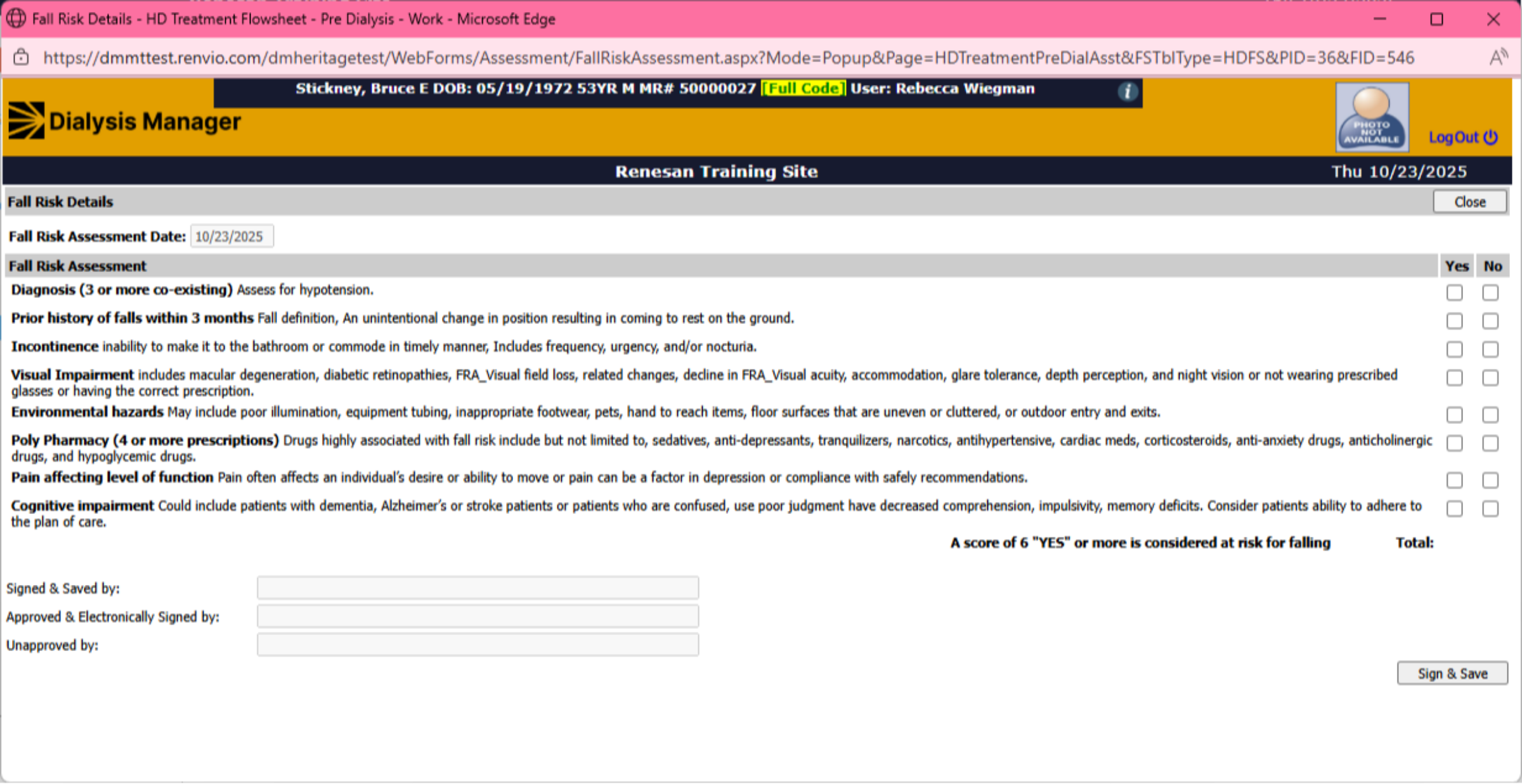
Clicking the link will direct you to the Fall Risk Assessment. Please answer the questions, then sign and save, approve and lock your responses.
6. Monthly Assessment
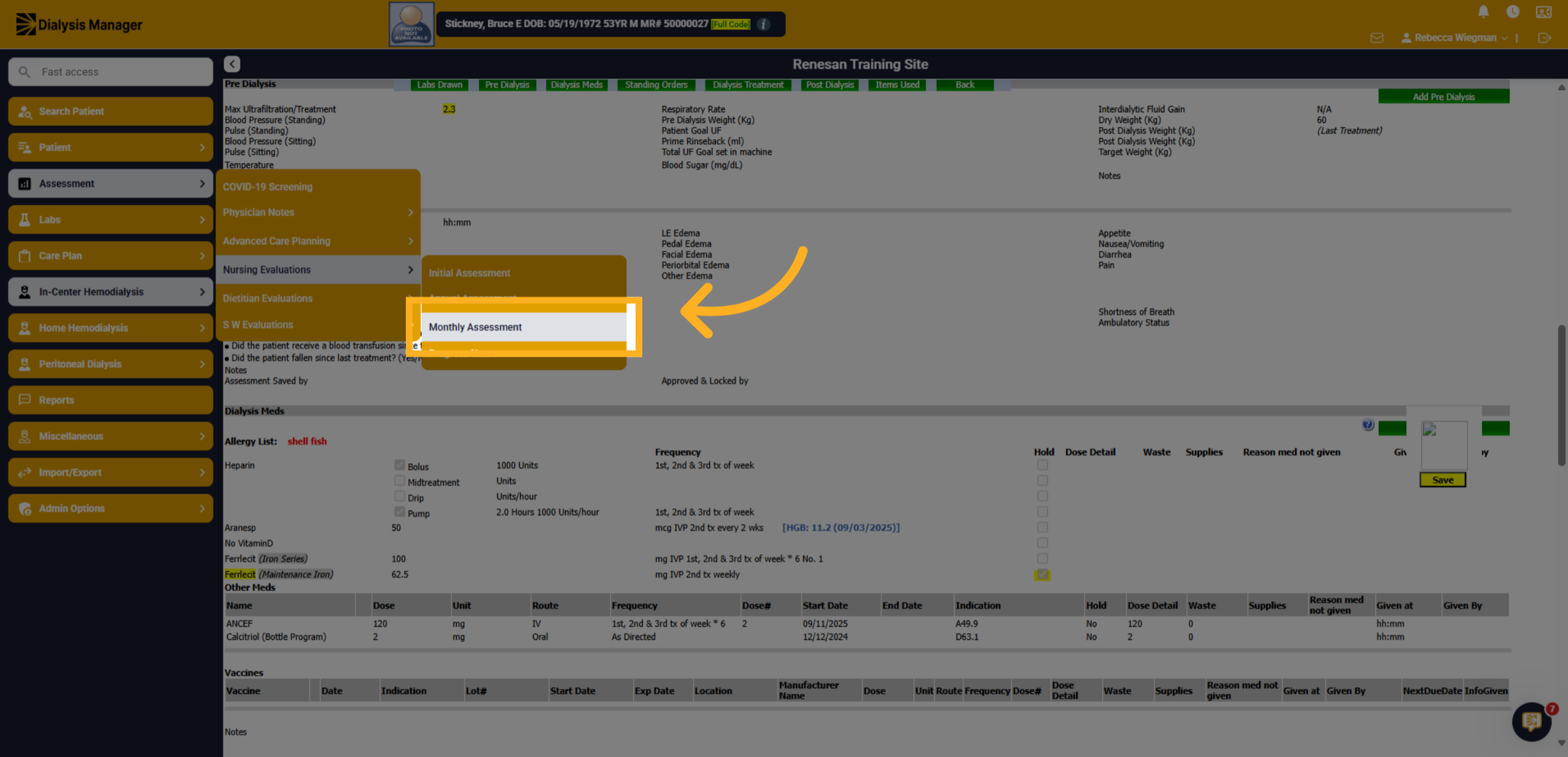
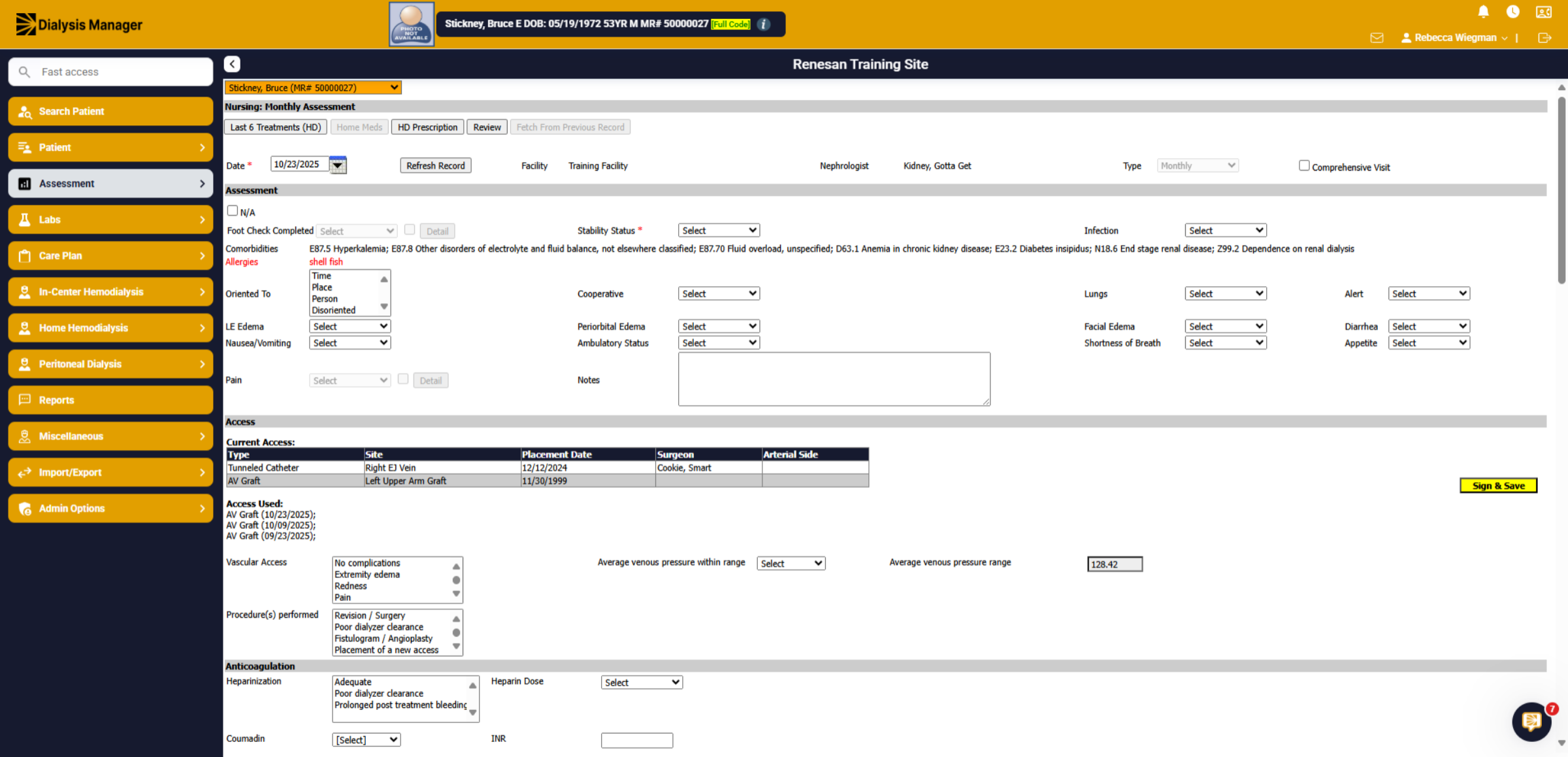
The second option to documenting a Fall Risk Assessment is in the Nursing Evaluation, Monthly Assessment.
7. Add New Assessment
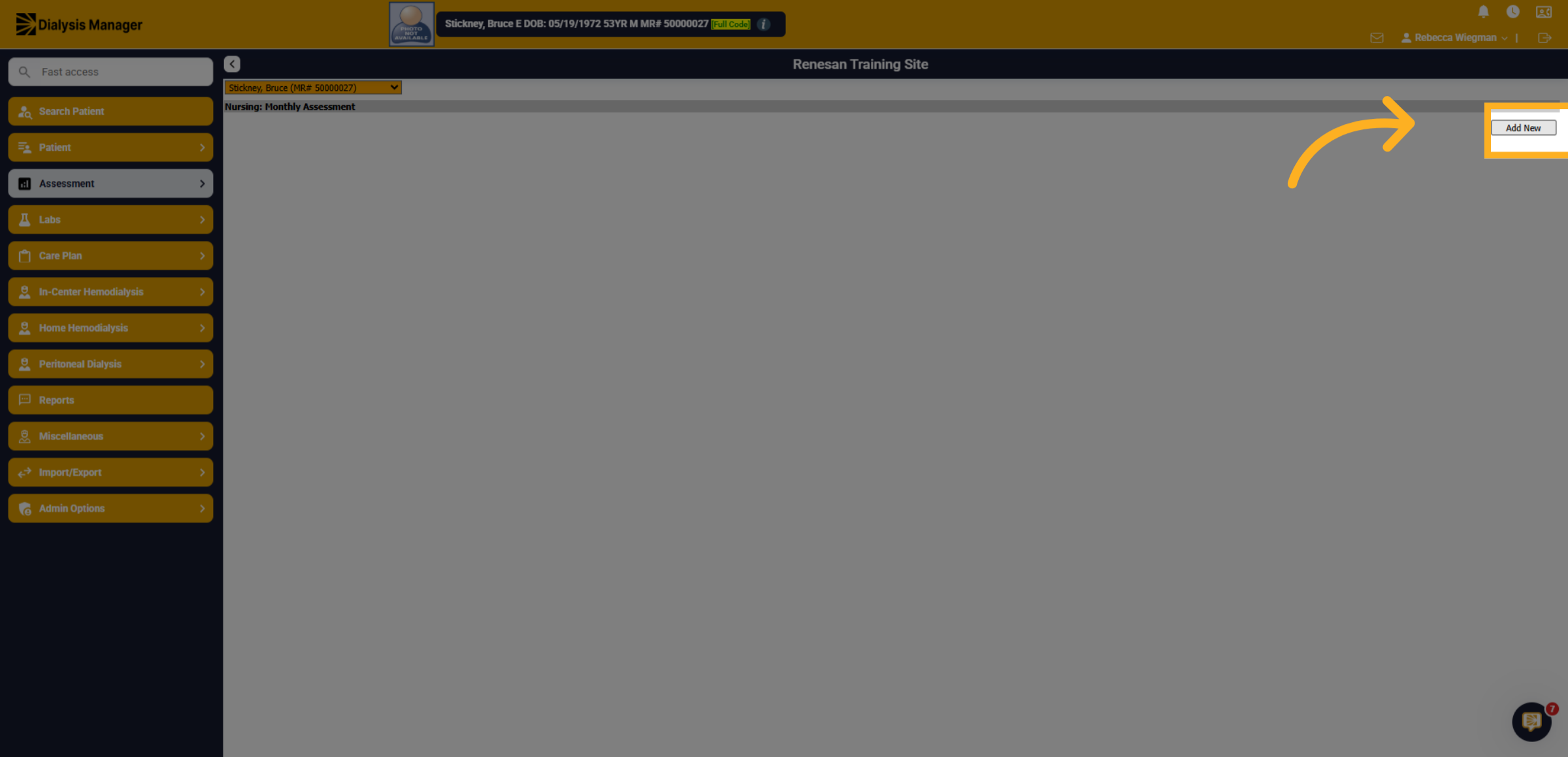
Click Add New to open the Monthly Assessment and to document the Fall.
8. Select Edema Level
Within the Monthly Assessment, ensure you complete the entire assessment. The Fall Risk questions are located near the bottom.
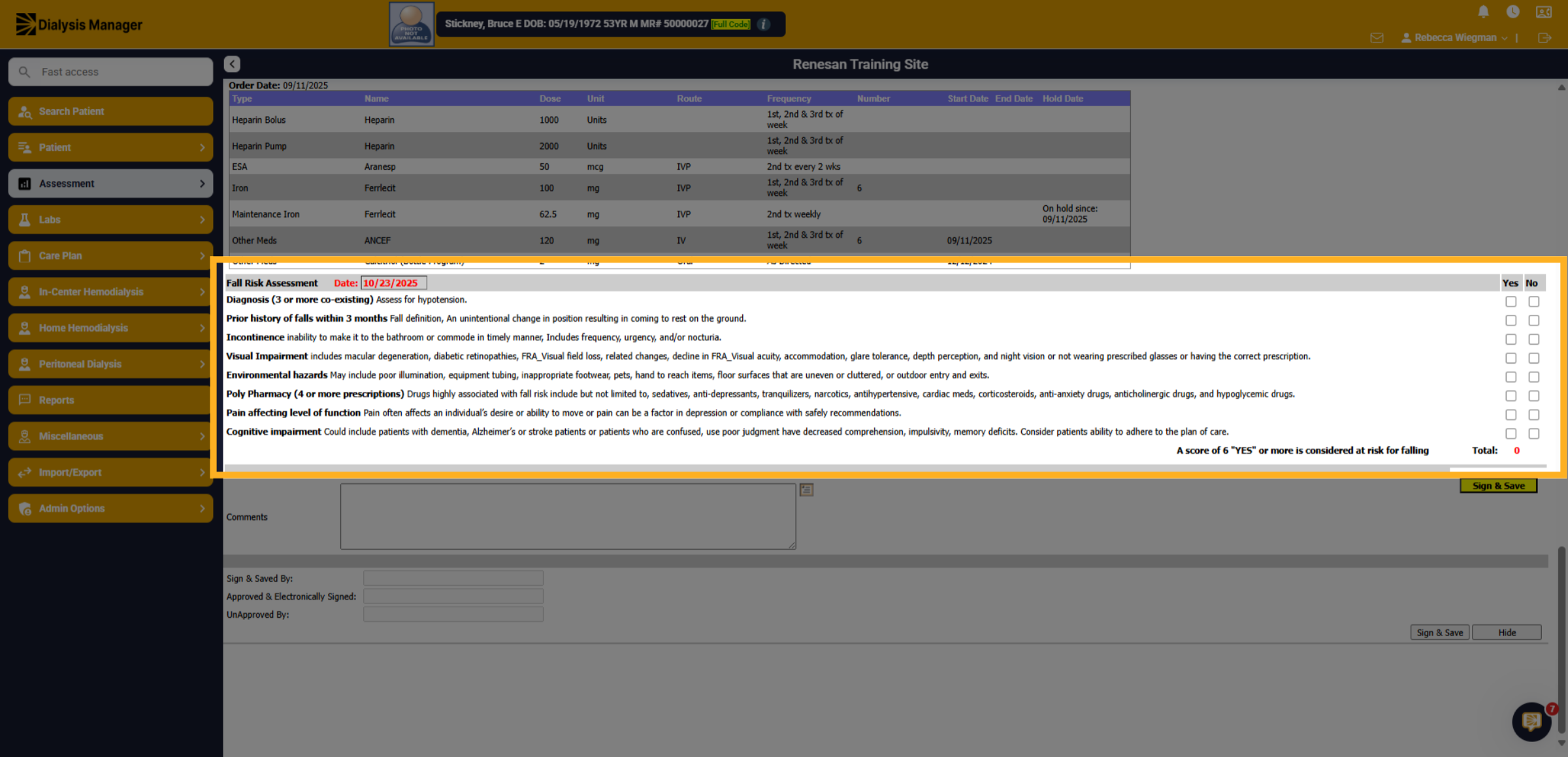
9. Fall Risk Assessment
Your date will default to the date the Monthly Assessment was opened.
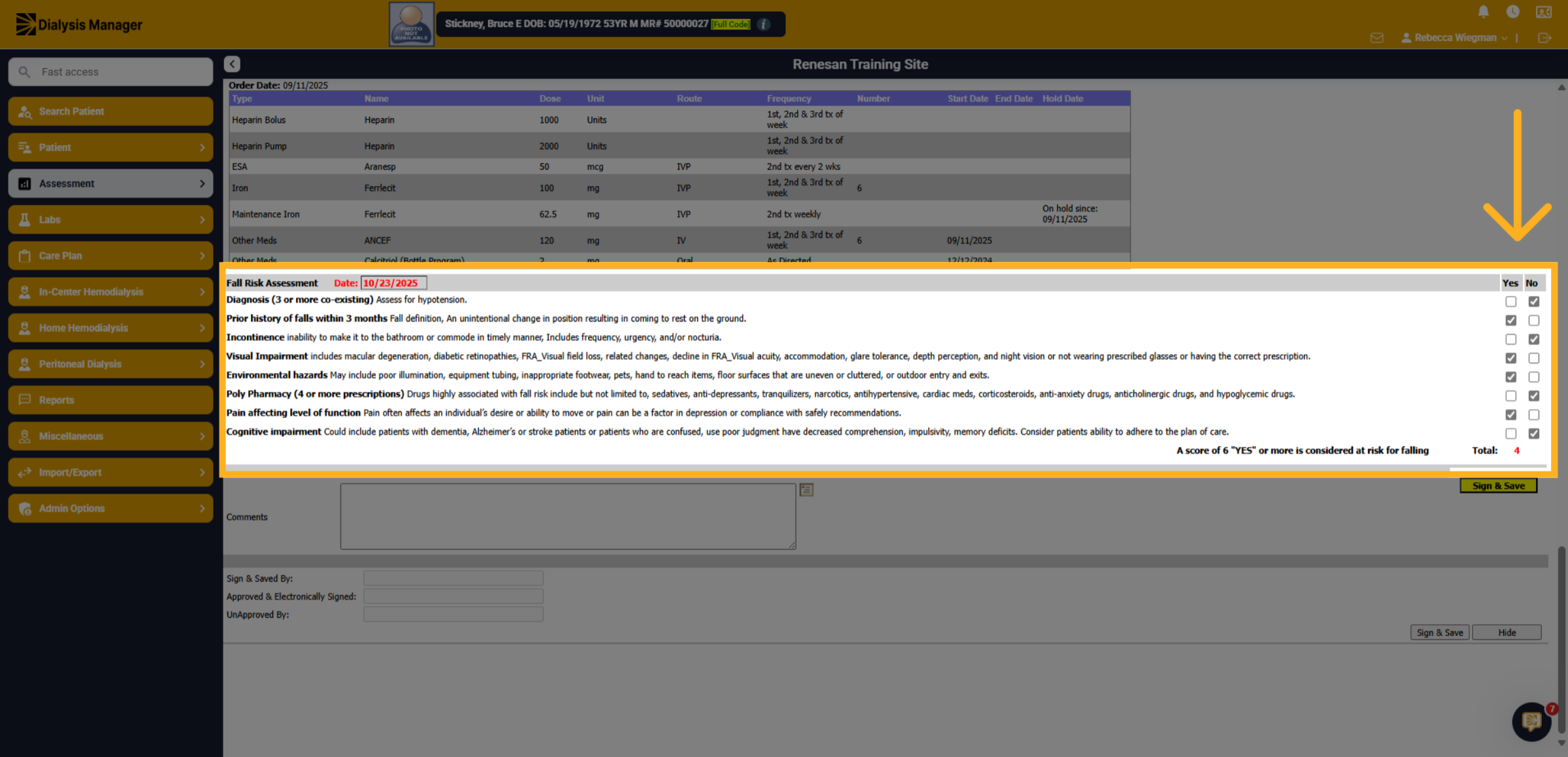
10. Yes/No
Please respond Yes or No to questions regarding prior falls in the last 3 months, visual impairment, pain affecting functionality, and more. Always remember to sign and save your documents before approving and locking them.
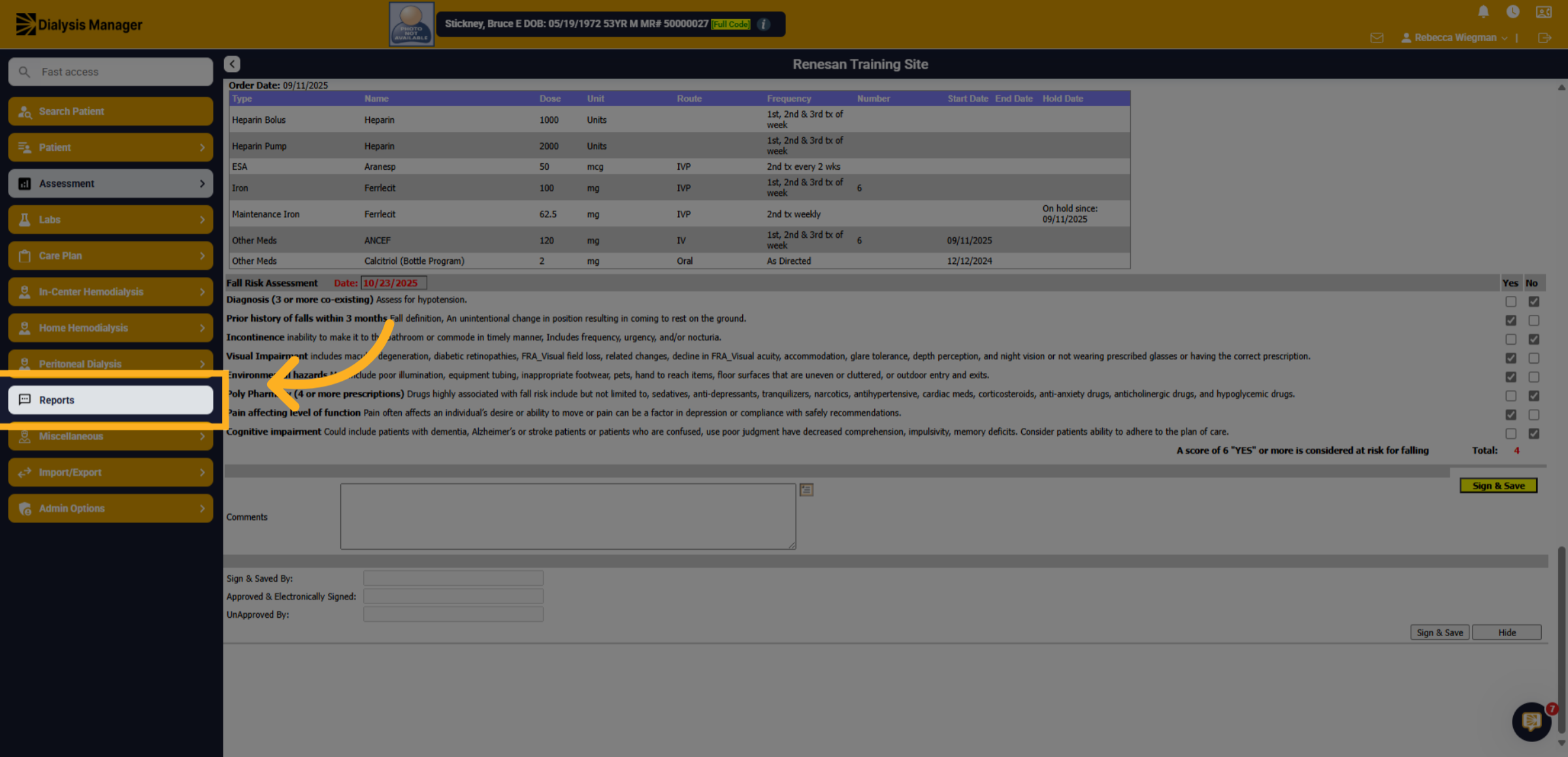
11. Reports
Let's take a moment to review the report you can generate to view the Fall Risk Assessments.
12. Assessment For HD/PD/HHD Patients
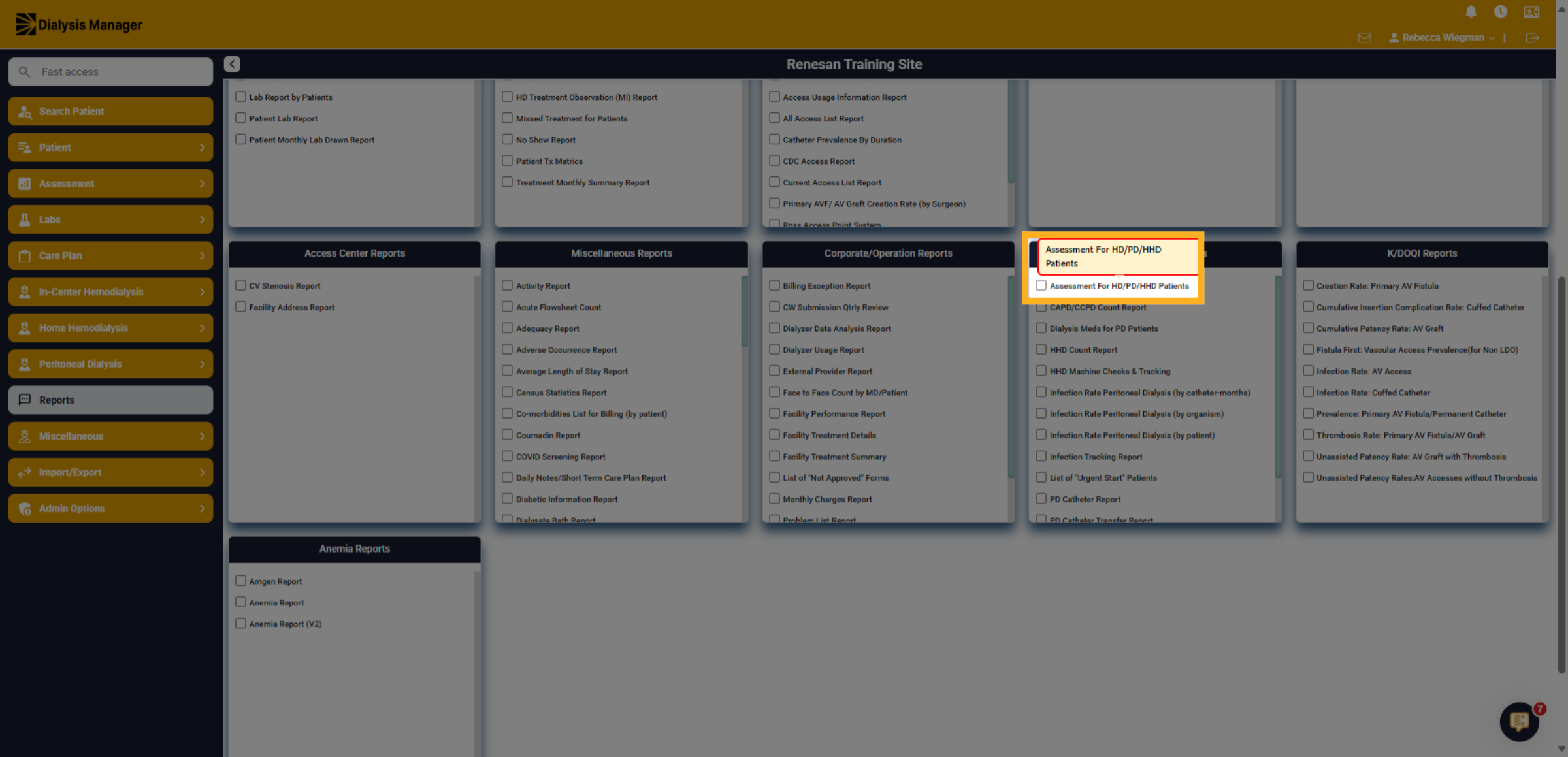
Under the "Home Program Reports" header, choose the Assessment for HD/PD/HHD Patients. Hovering over the report title will reveal a description.
13. Filter the report
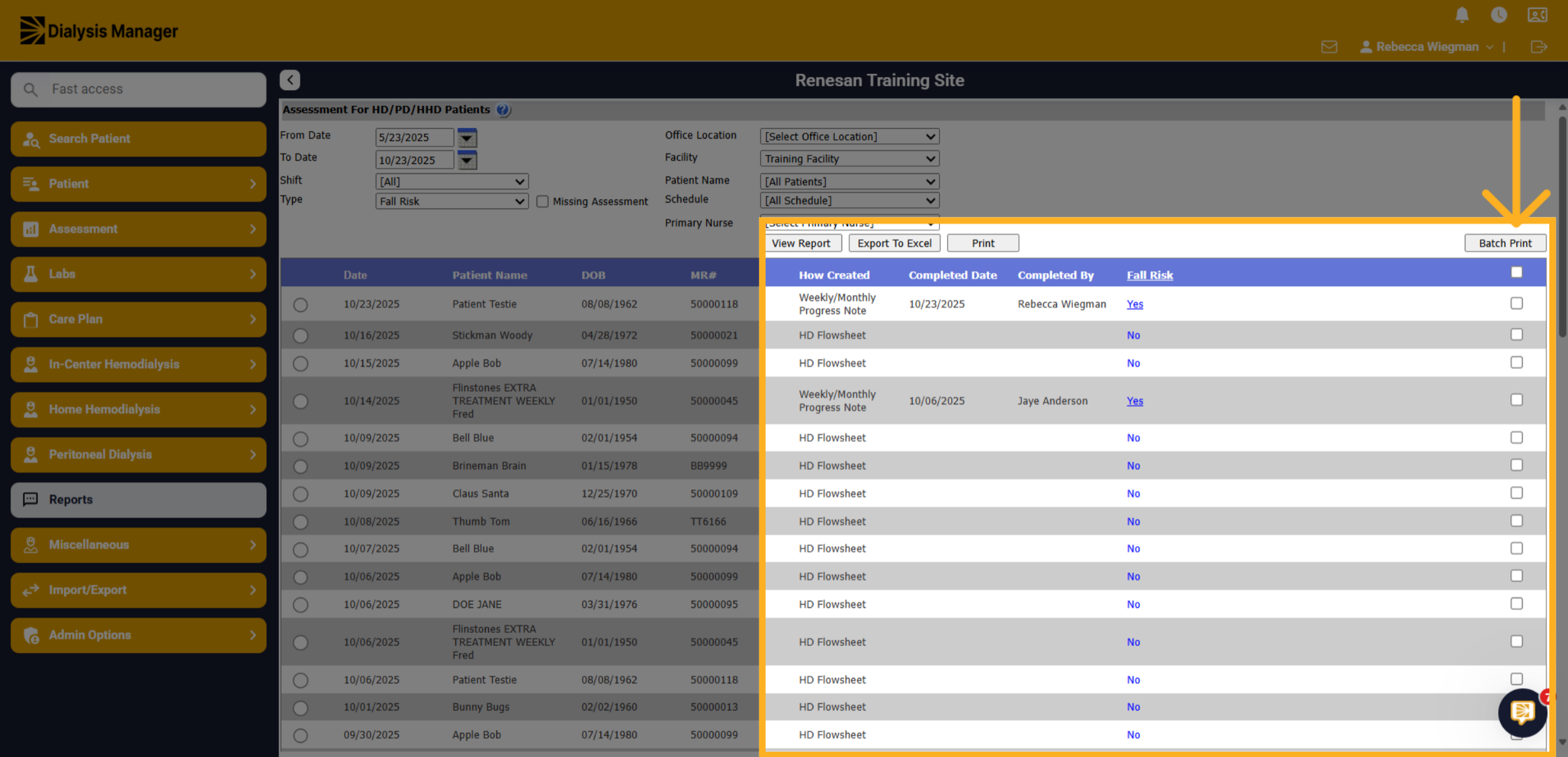
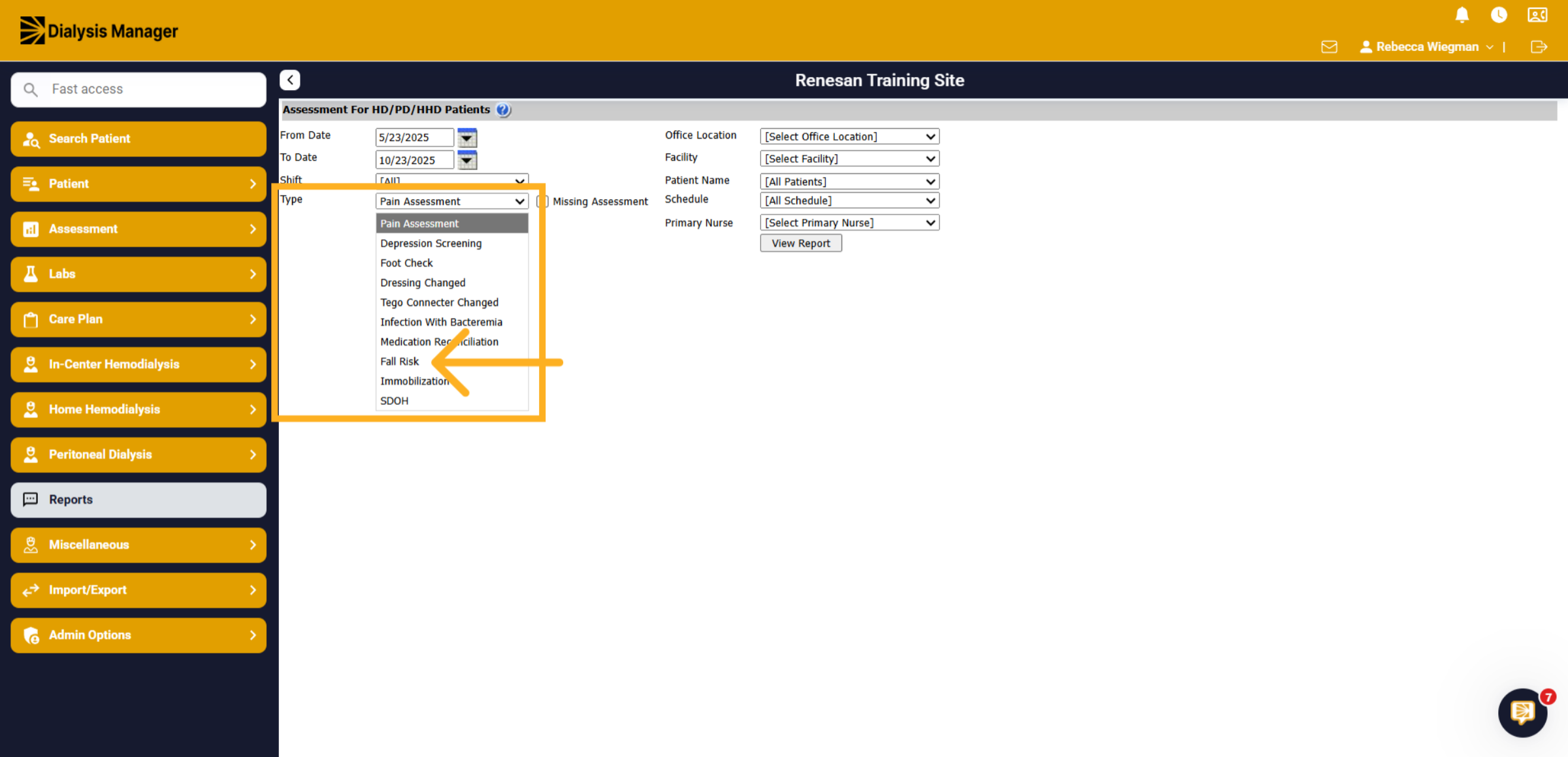
You'll need to select a date range and facility prior to running the report but also can filter by patient shift, schedule, etc. And in the "Type" dropdown be sure to choose "Fall Risk" and then click 'View Report.'
14. View Report
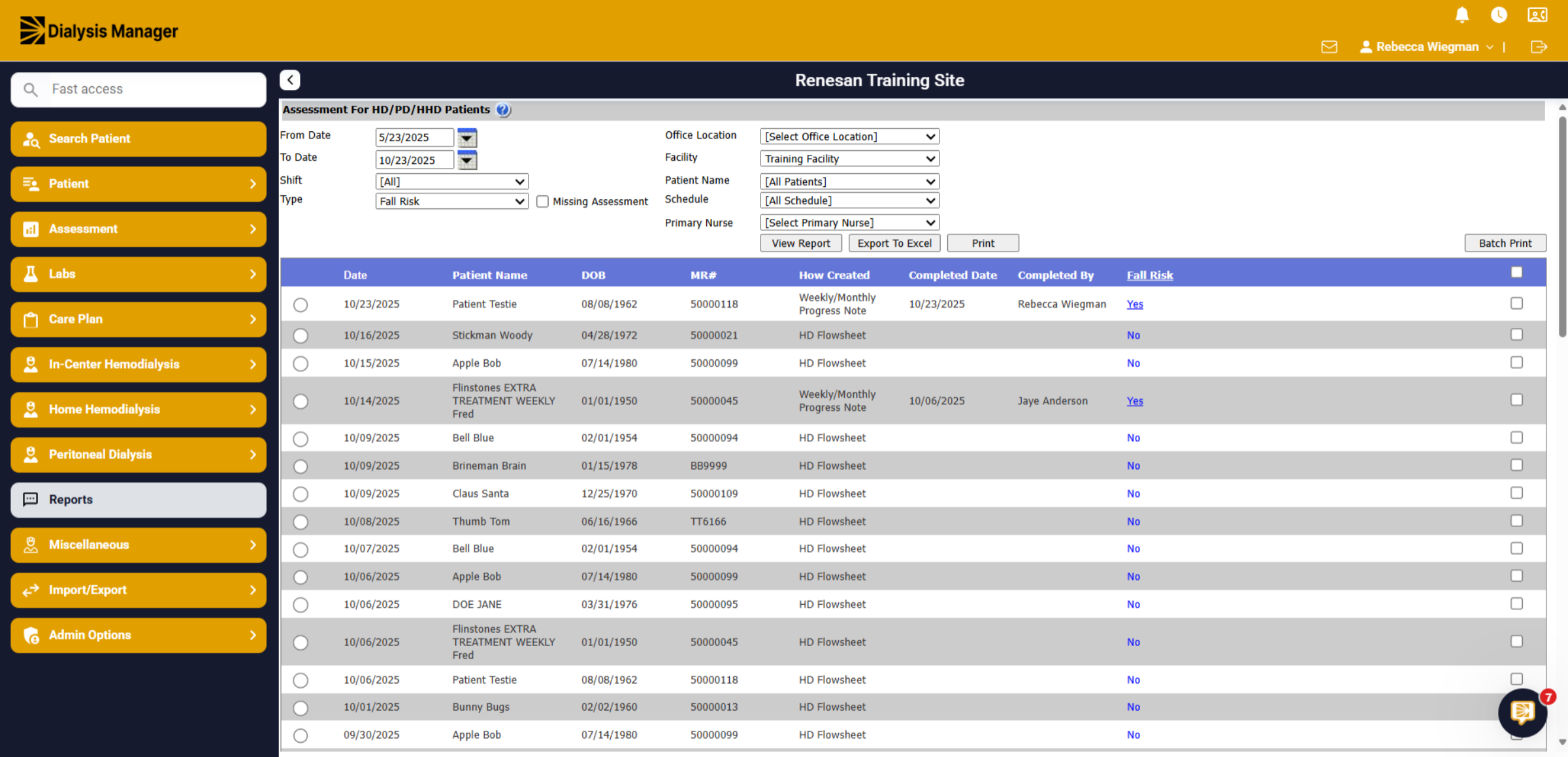
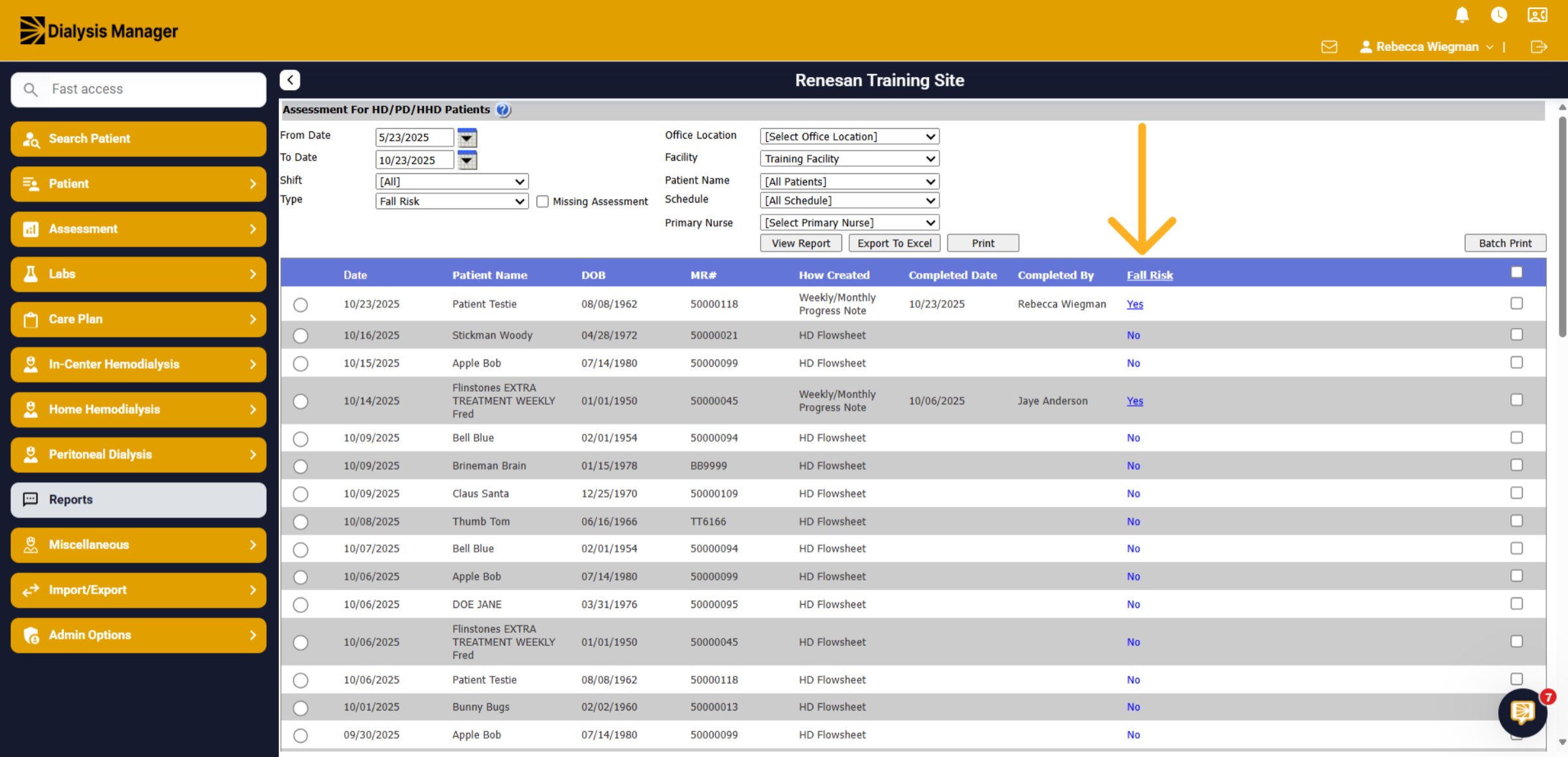
A list of patients will show below where you'll see a "How Created" column indicating if it was created from the Nursing Evaluation Monthly/Weekly Assessment or from the Flowsheet. In the Fall Risk column, you'll see a yes or no indicating if an assessment was completed. You can also click on the Fall Risk header to sort.
15. Selecting Yes
Clicking the blue "Yes" hyperlink will open the Assessment or Flowsheet for the date the assessment was completed.
16. Report
Depending on the assessment the Fall Risk was documented, it will be in a different location. Hold down the "Control" Key and the letter "F" and type Fall Risk Assessment to Find the section.
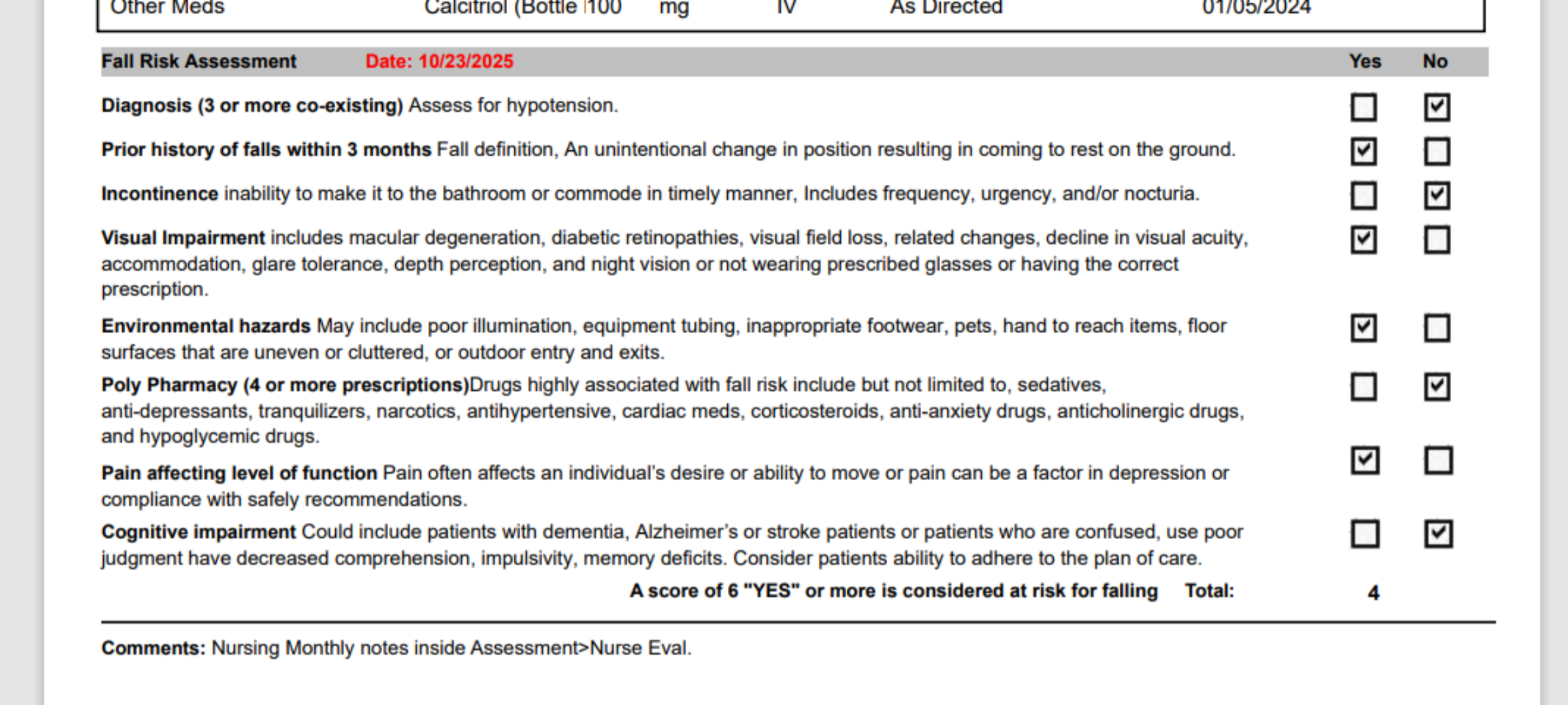
17. Selecting Yes
You'll need to select the checkbox under the batch print button for any or all patients who had a fall risk assessment in which you want to print. Click Batch Print to open the Fall Risk Assessment report for the selected patients.