Entering PD Orders.
1. Introduction
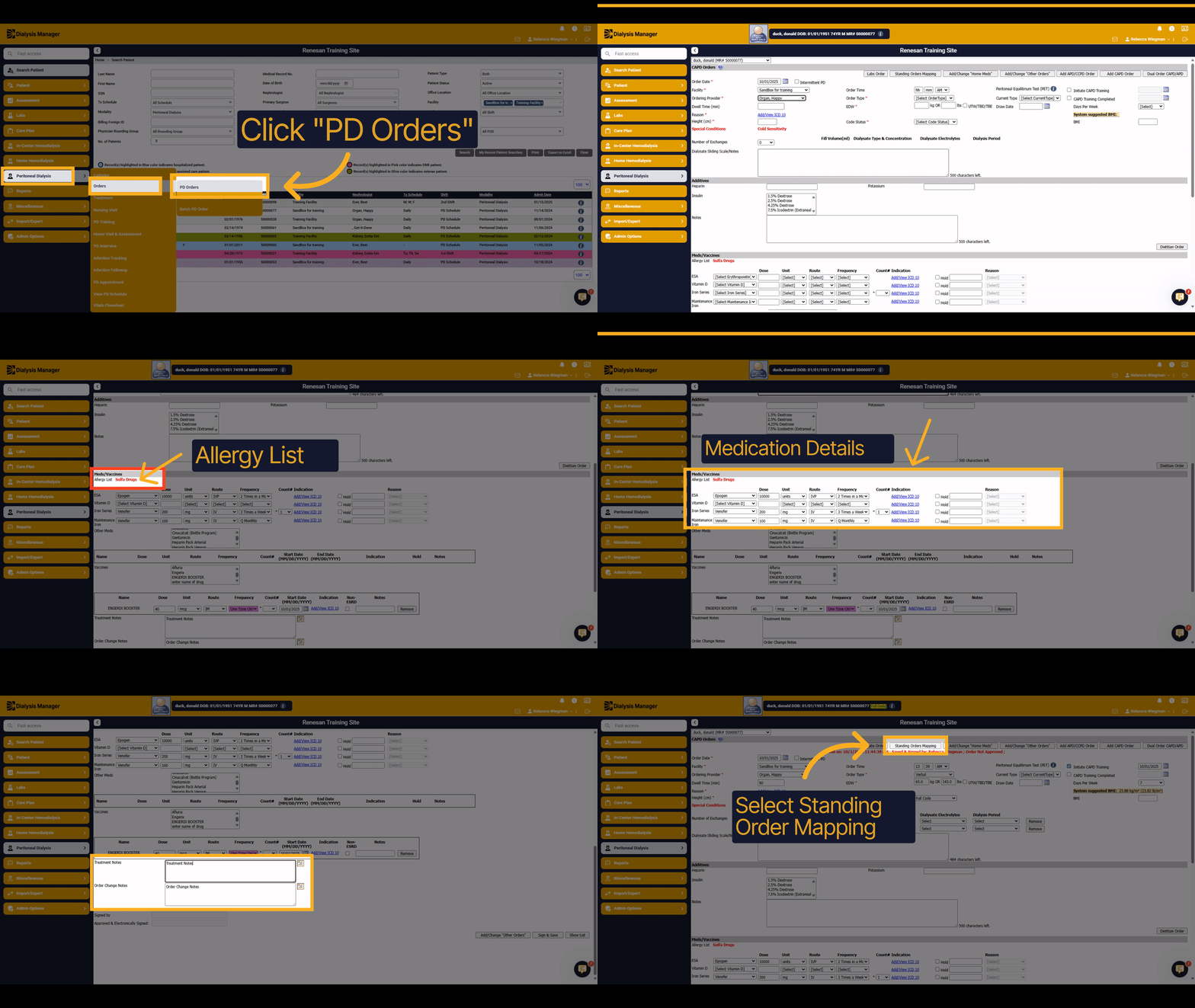
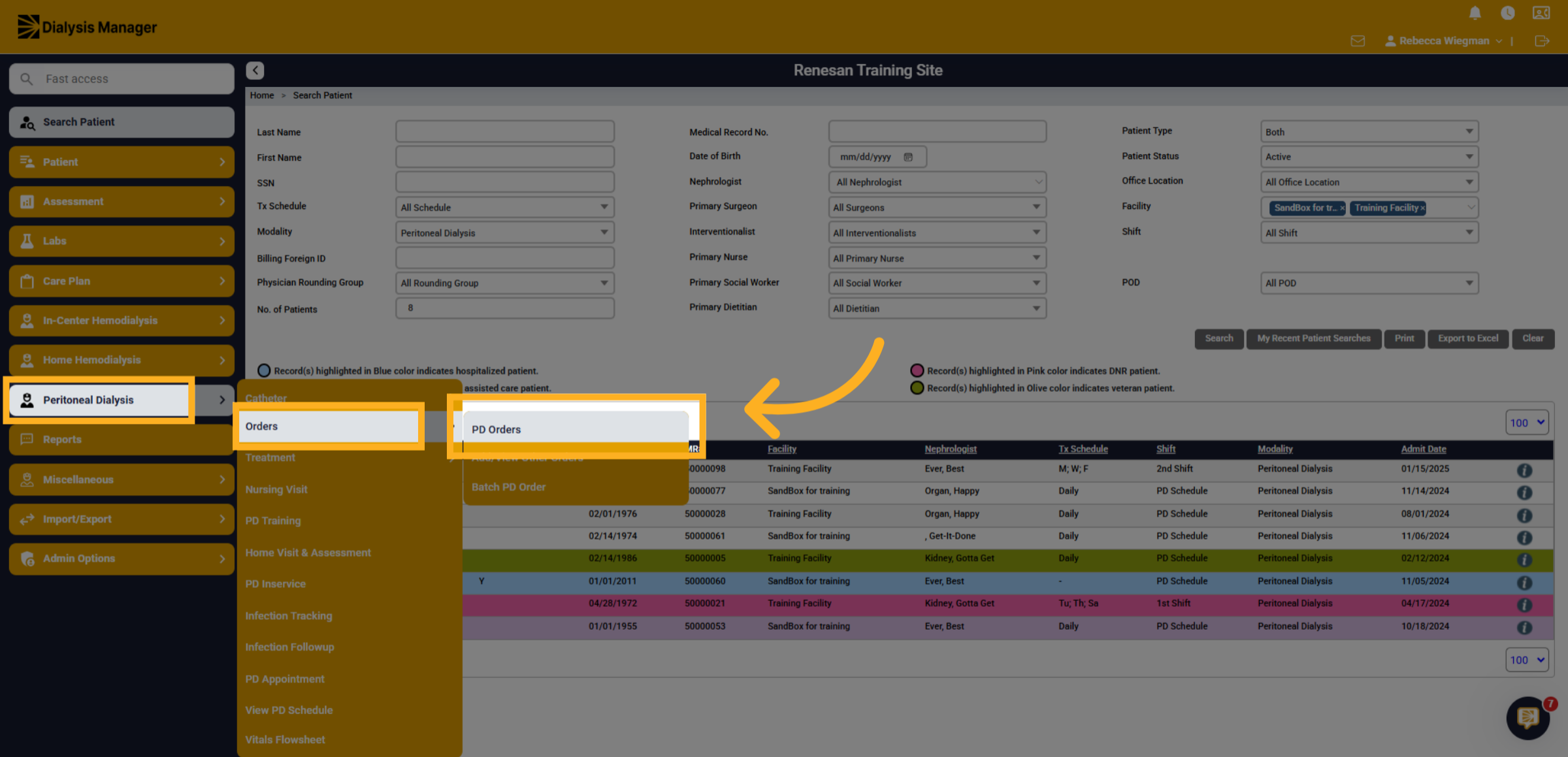
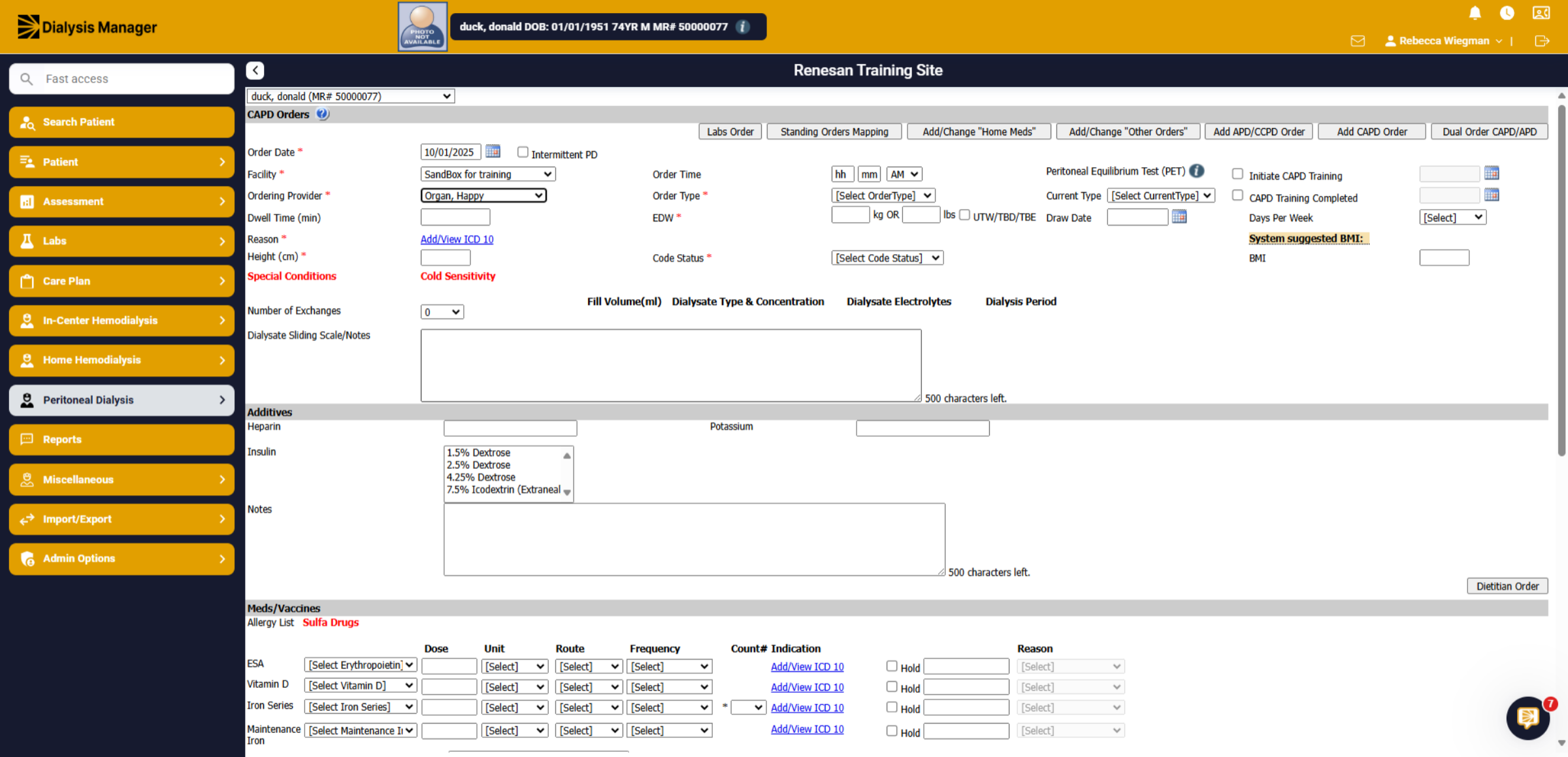
This tutorial will guide you through entering a PD Order. Once your patient is selected, go to the Peritoneal Dialysis Menu, Orders and PD Orders. Please note that Problem List, Comorbidities, Allergies, Special Conditions, etc. should be entered prior to submitting a PD Order for new patients.
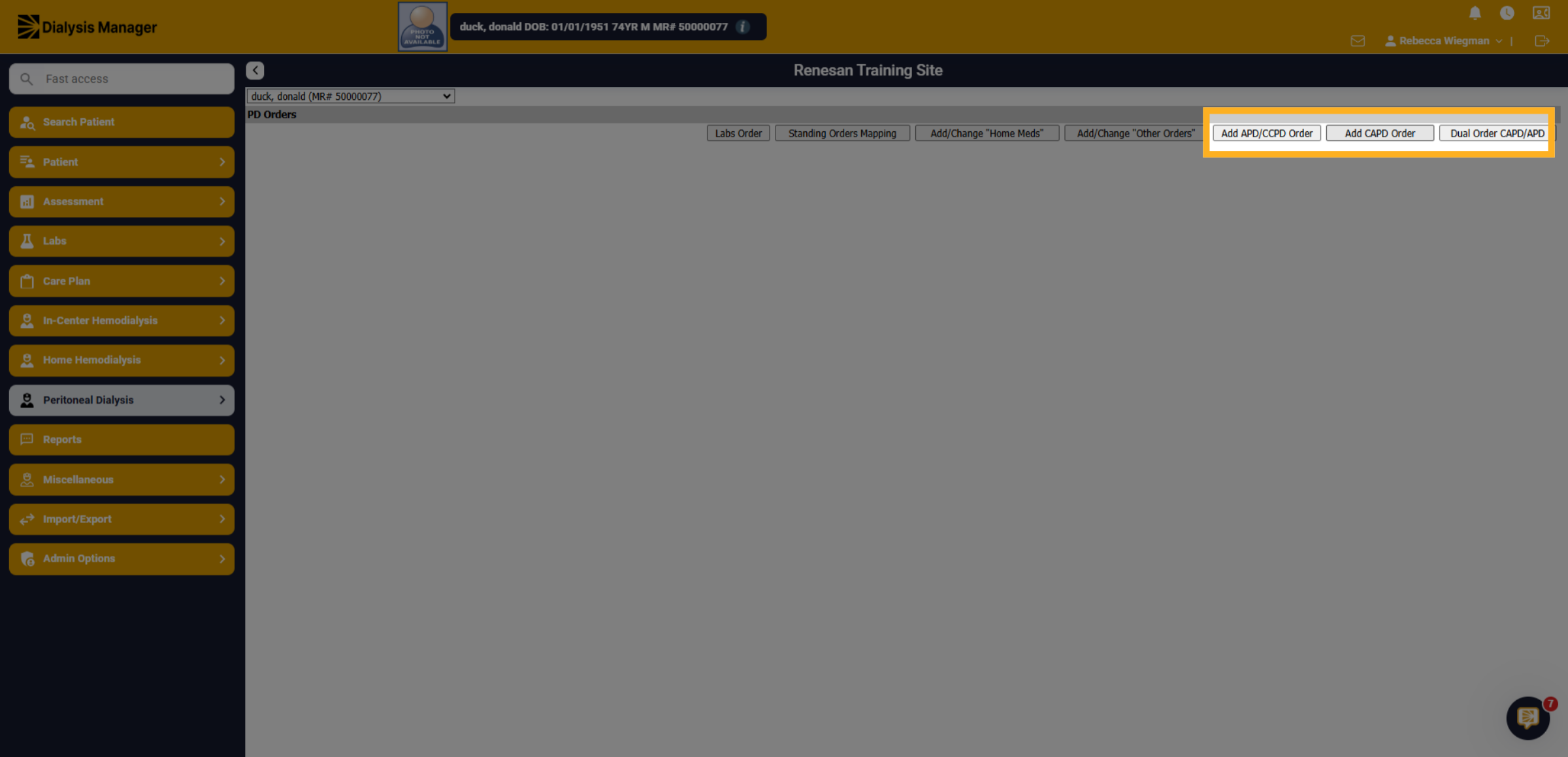
2. Click "Add CAPD Order"
Click on the Appropriate Order such as APD/CCPD Order, CAPD Order or Dual Order (CAPD/APD). Sections may vary depending on the Order type selected.
3. Entering in the Order
To complete your order, please fill out as much information as possible. Note that fields marked with a red asterisk are mandatory.
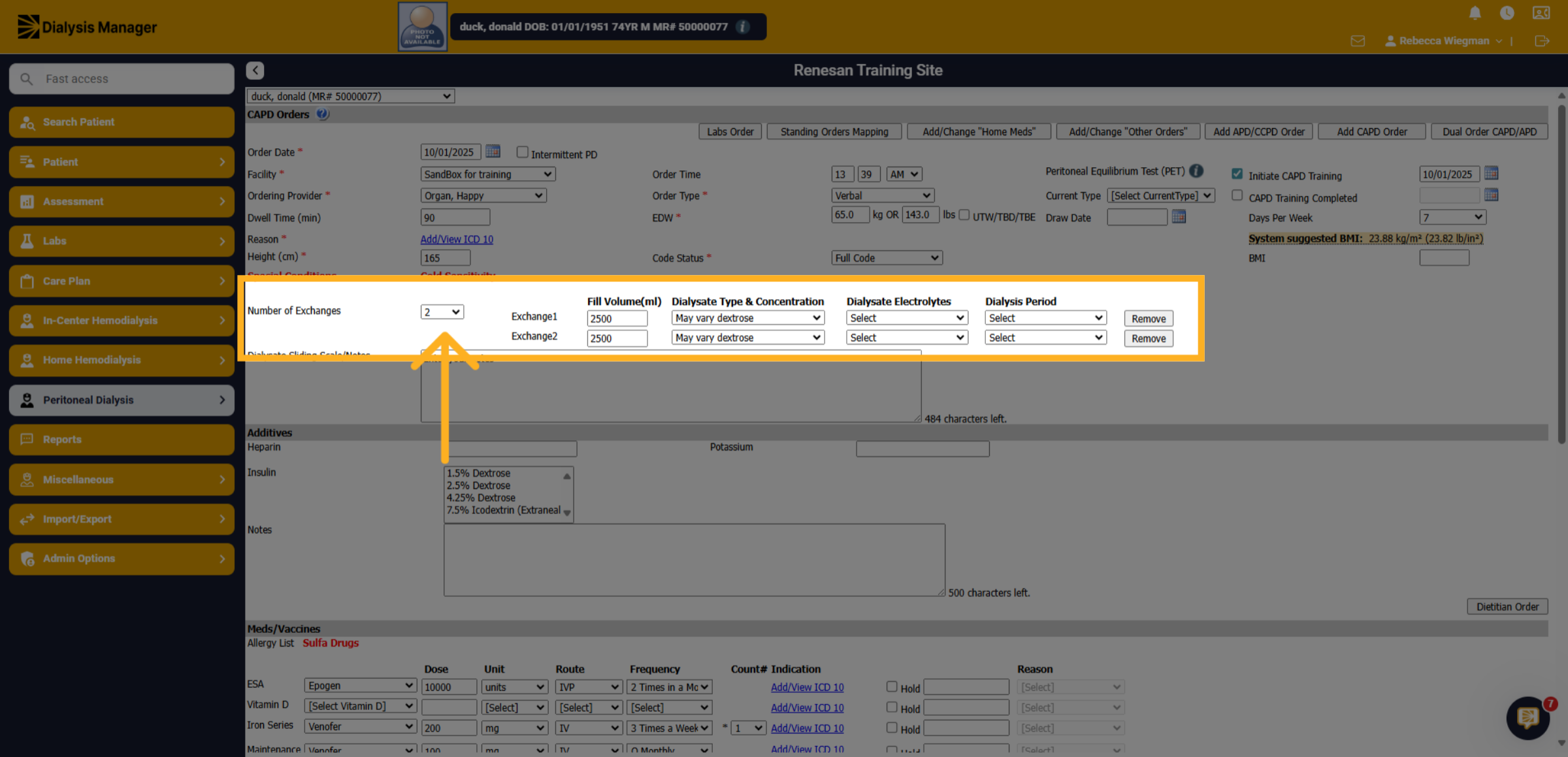
4. Number of Exchanges
When selecting the Number of Exchanges dropdown those exchanges will populate to the right!
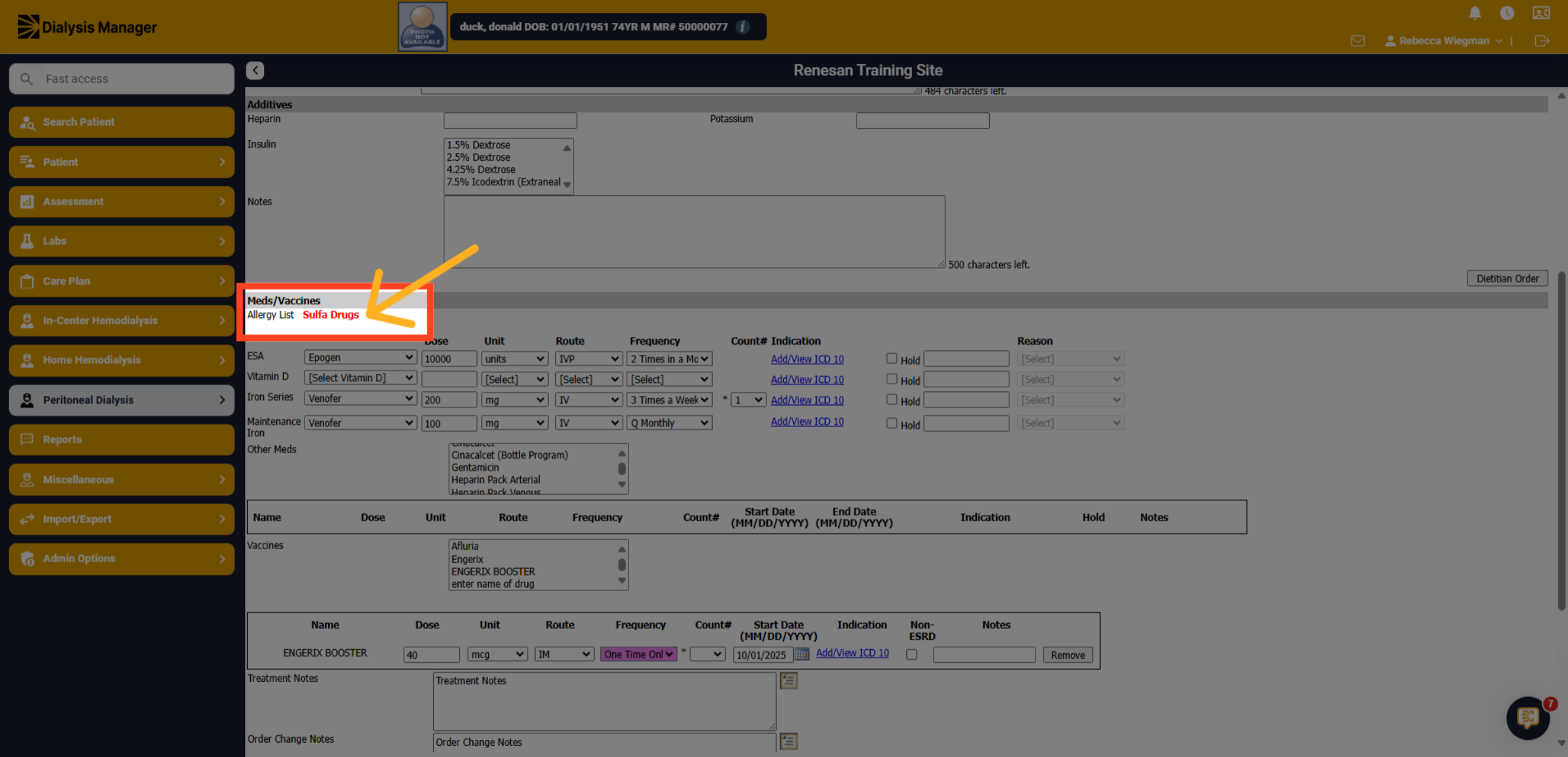
5. Allergy List
When Allergies are entered through Patient, Problem List, they will be visible on multiple screens throughout Dialysis Manager. If the patient has an allergy to a medication the system will not allow you to save the order.
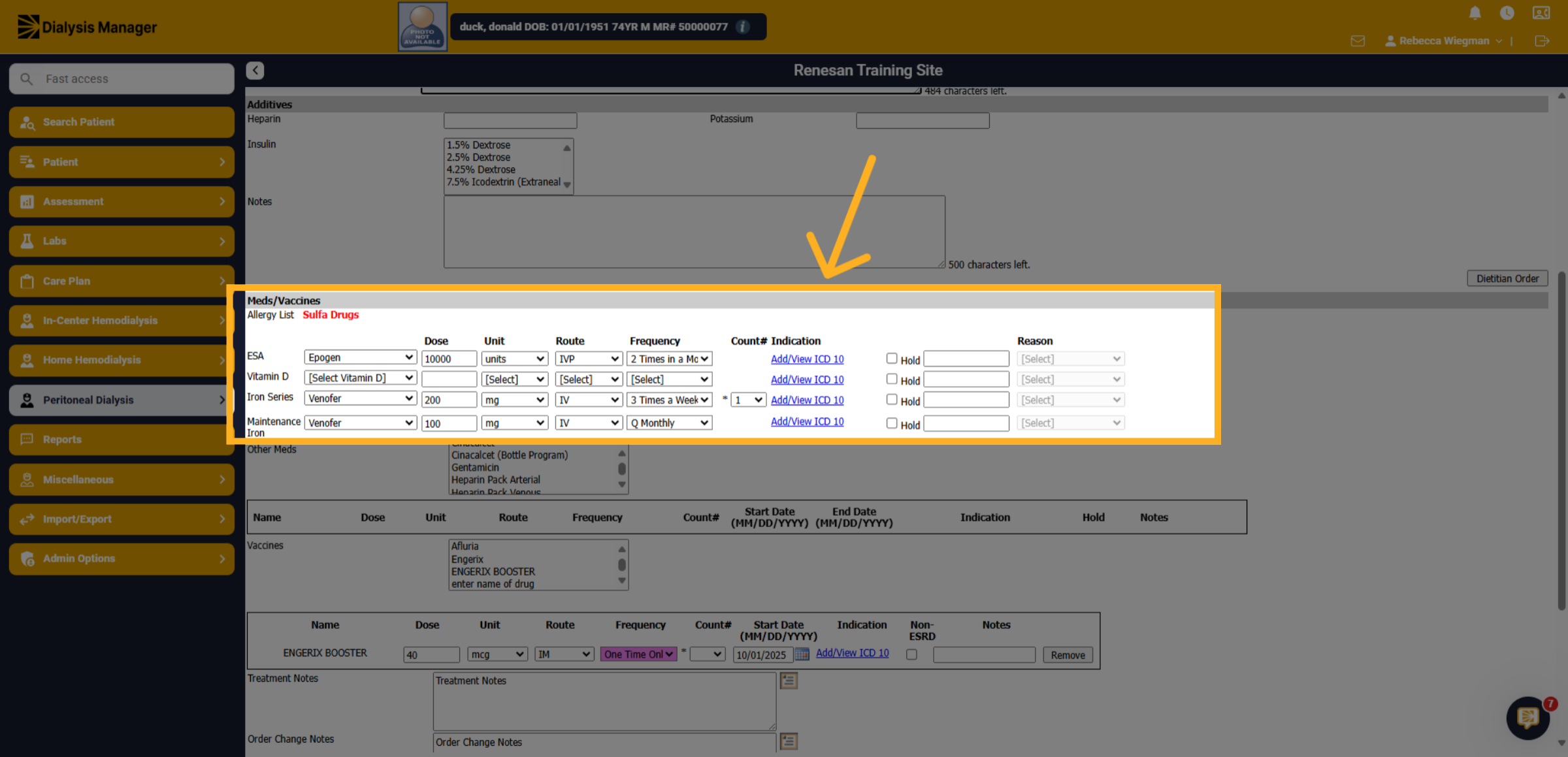
6. Medications
Select the medication the patient receives, enter the dose, unit, route frequency and select the blue hyperlink to select the ICD-10 Code for each medication selected.
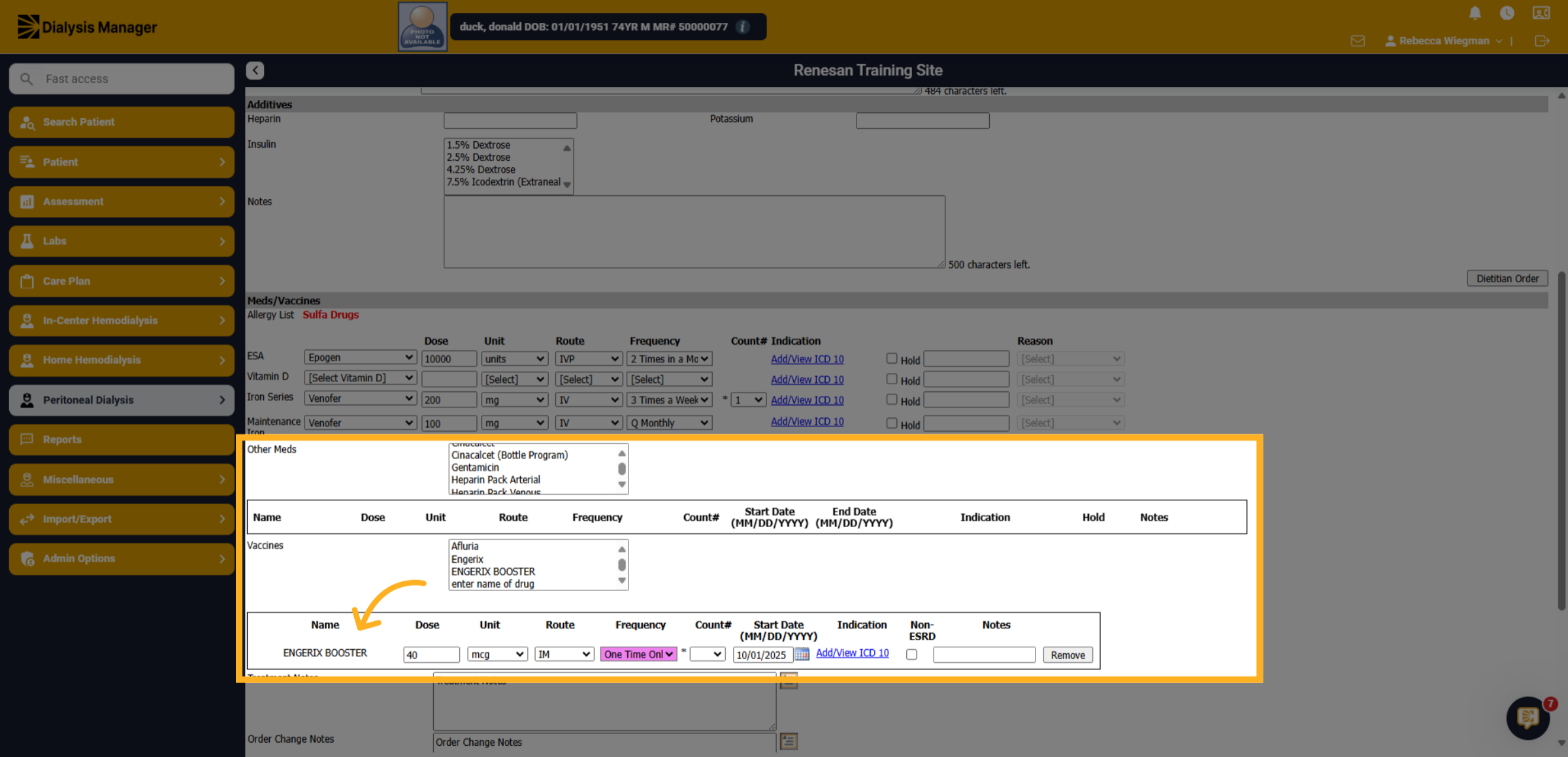
7. Other Meds and Vaccines
When selecting Other Meds or Vaccines from the box, they will drop down to enter the dose, unit, route, etc.
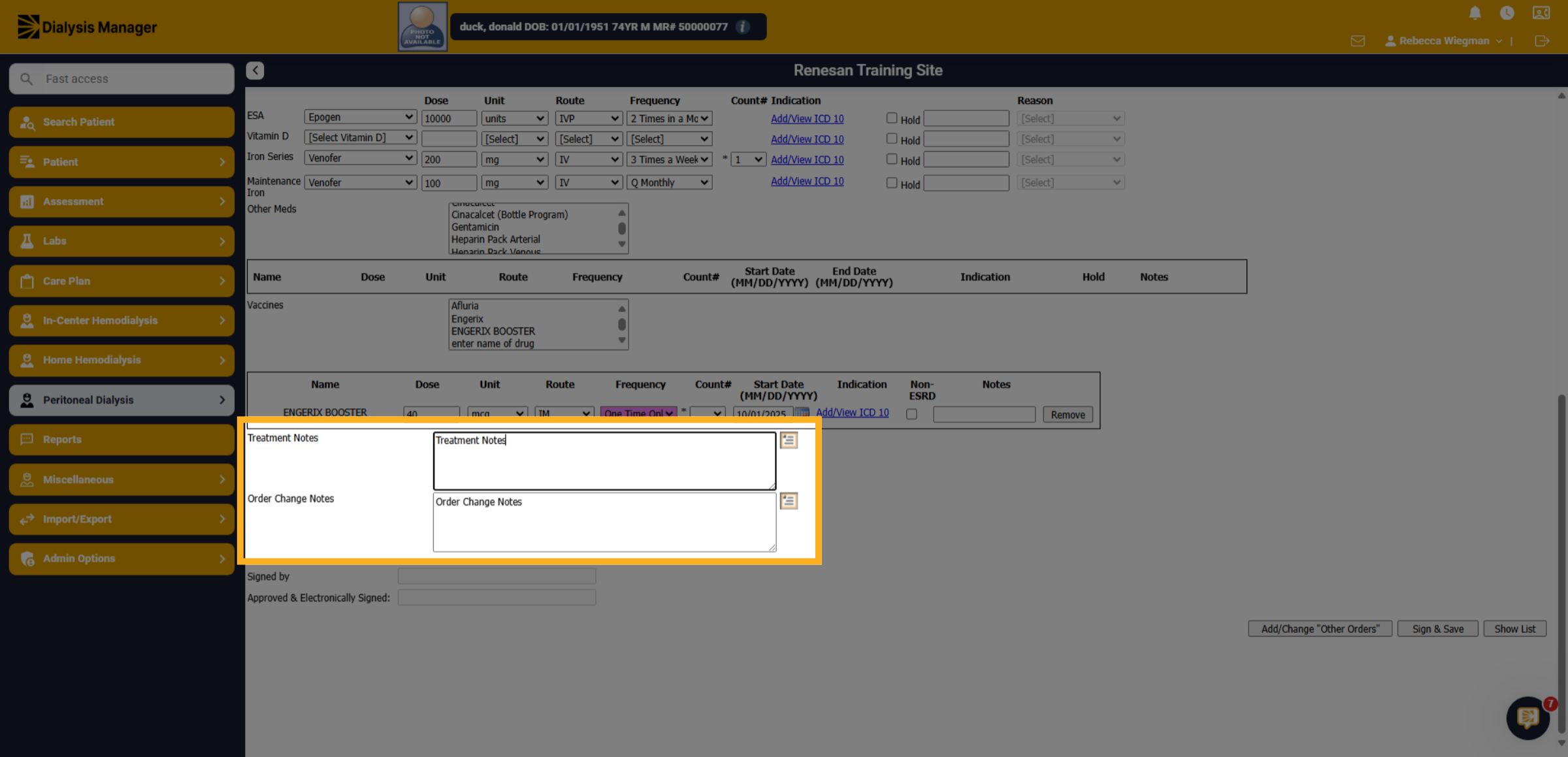
8. Click "Treatment Notes"
Click the Treatment Notes section to add any additional information regarding the patient's treatment plan or enter Order Change Notes.
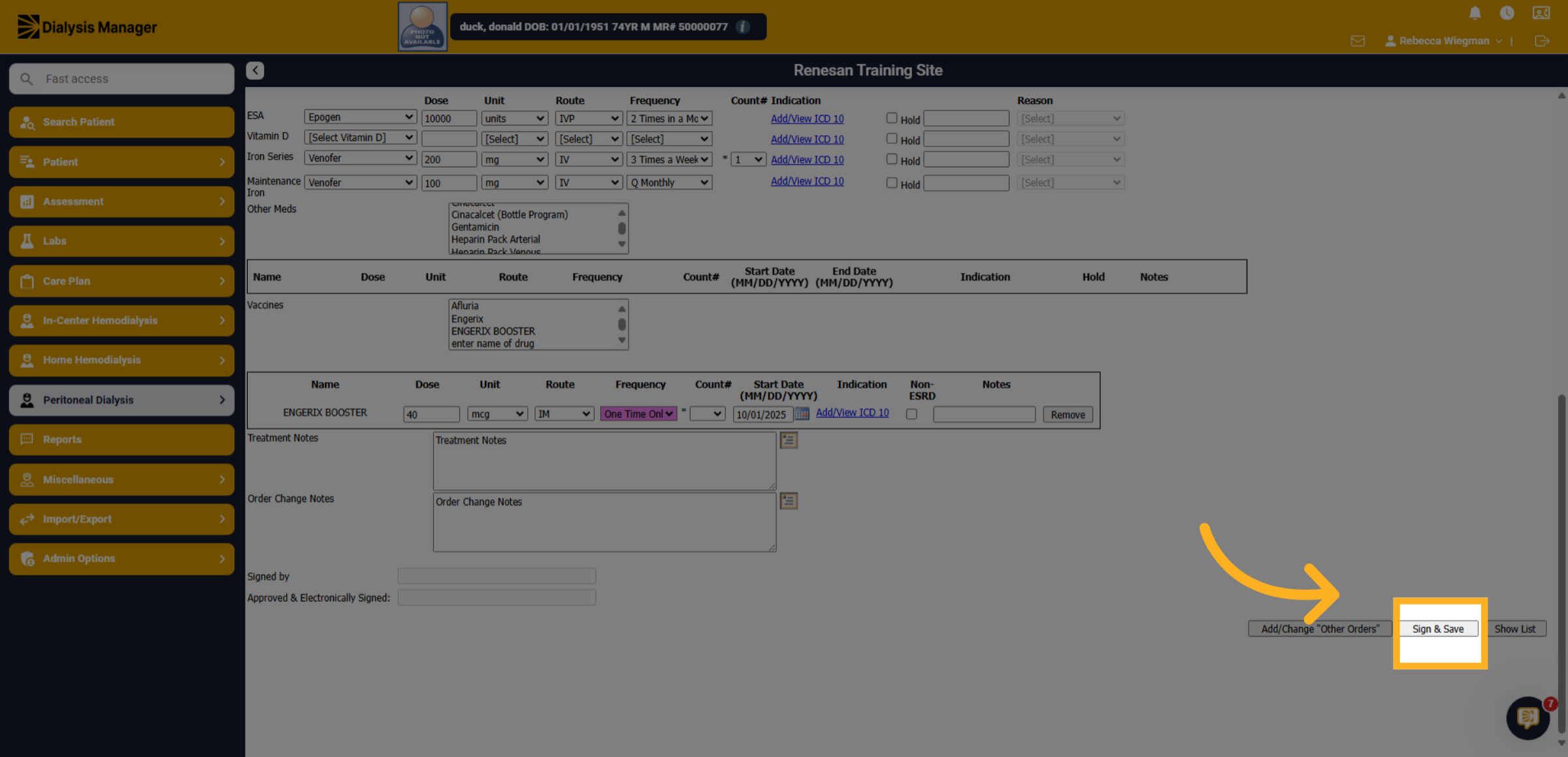
9. Click Sign & Save
Click Sign & Save to finalize and securely save the PD order.
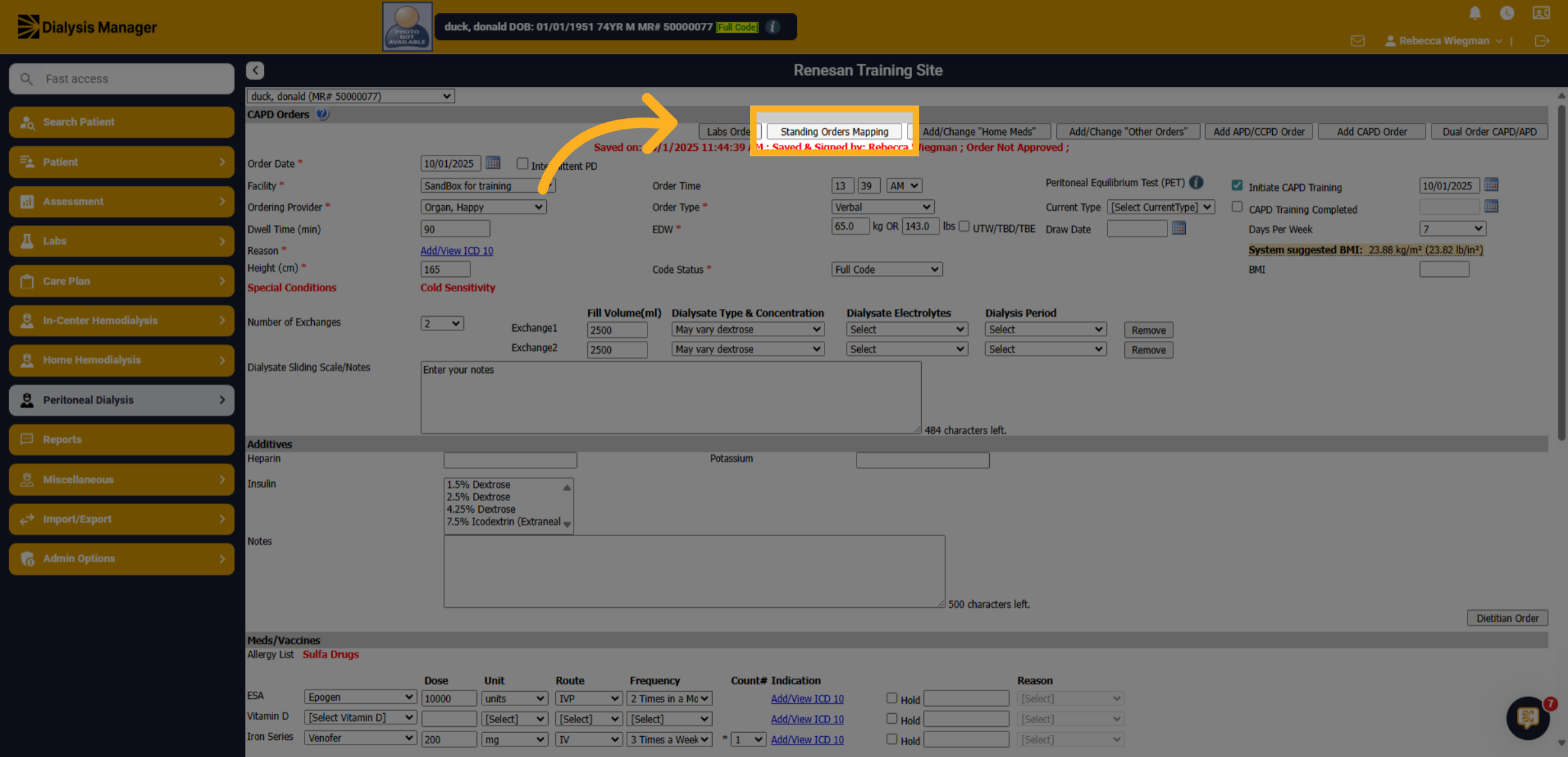
10. Click "Standing Orders Mapping"
Click Standing Orders Mapping before navigating to the next patient. Select applicable PRN medications and choose Sign & Save.