Entering and Updating PD Catheter.
1. Introduction
This tutorial guides you through entering new or updating existing peritoneal dialysis catheter records. You will learn how to input catheter details, manage status changes, and document complications to ensure accurate patient records and effective catheter management.
2. Select your Patient
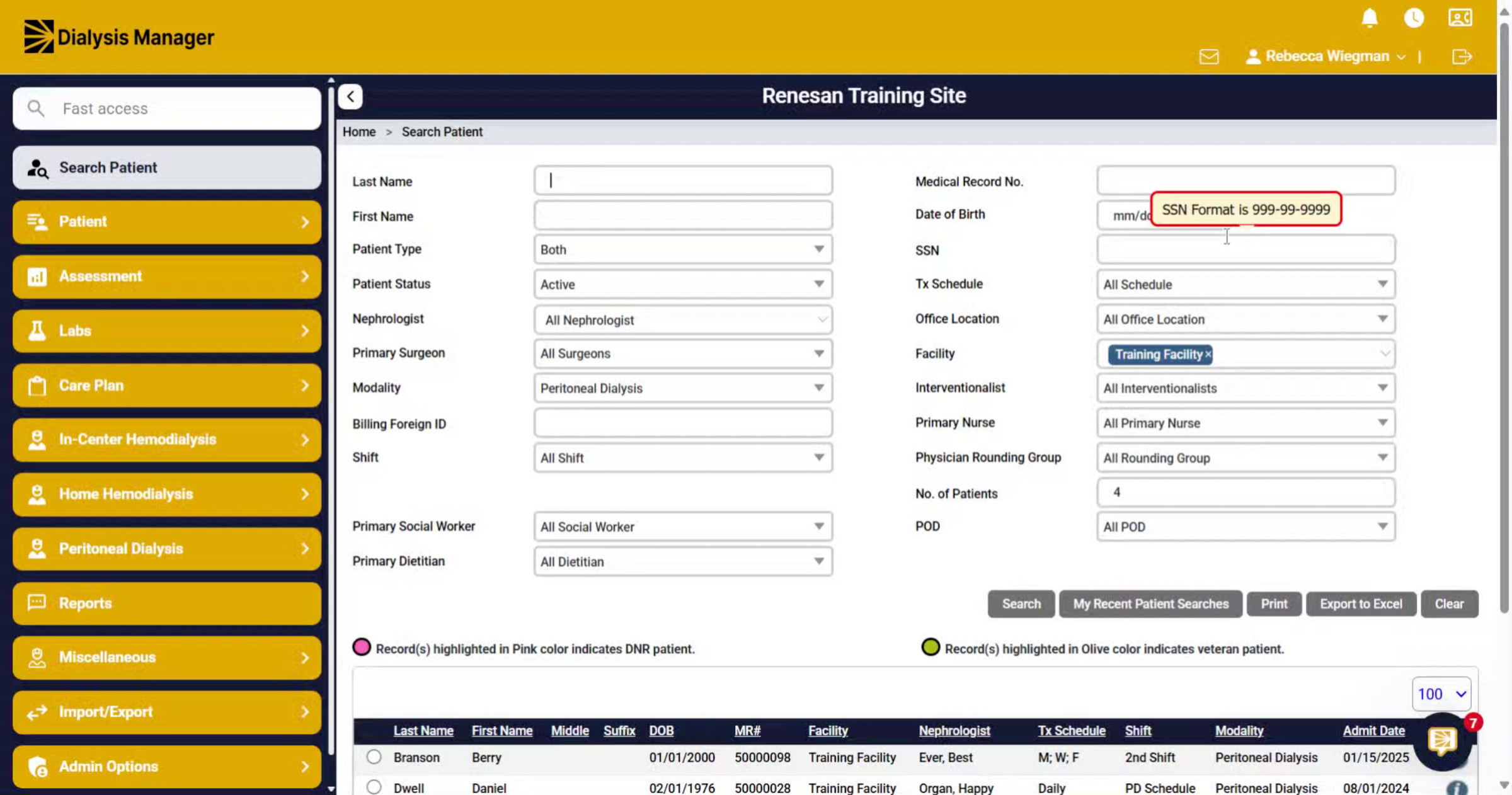
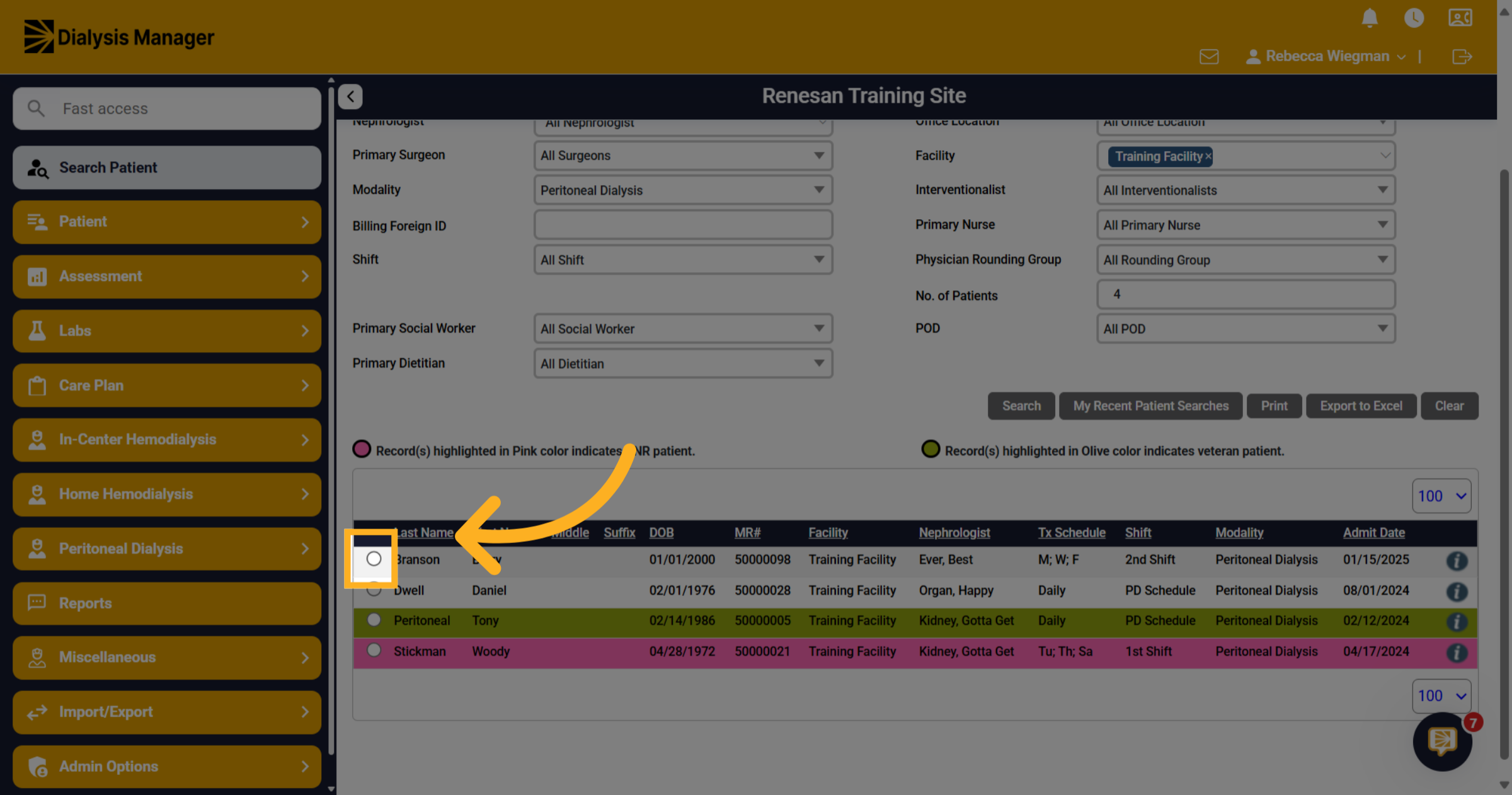
Search and select your patient by clicking on the radio button to the left of the patients name.
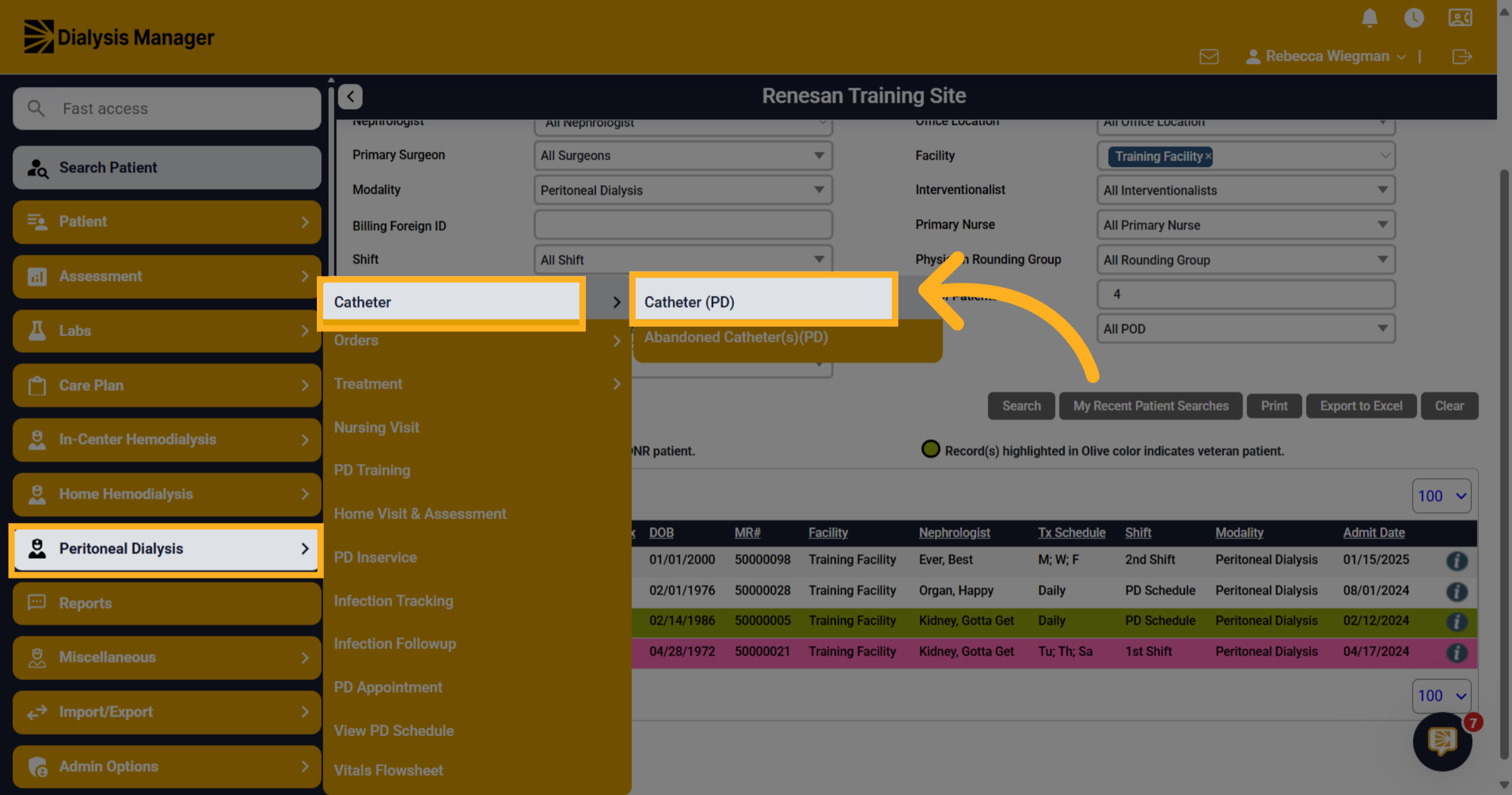
3. Click "Catheter (PD)"
Navigate to Peritoneal Dialysis, Catheter and Catheter (PD).
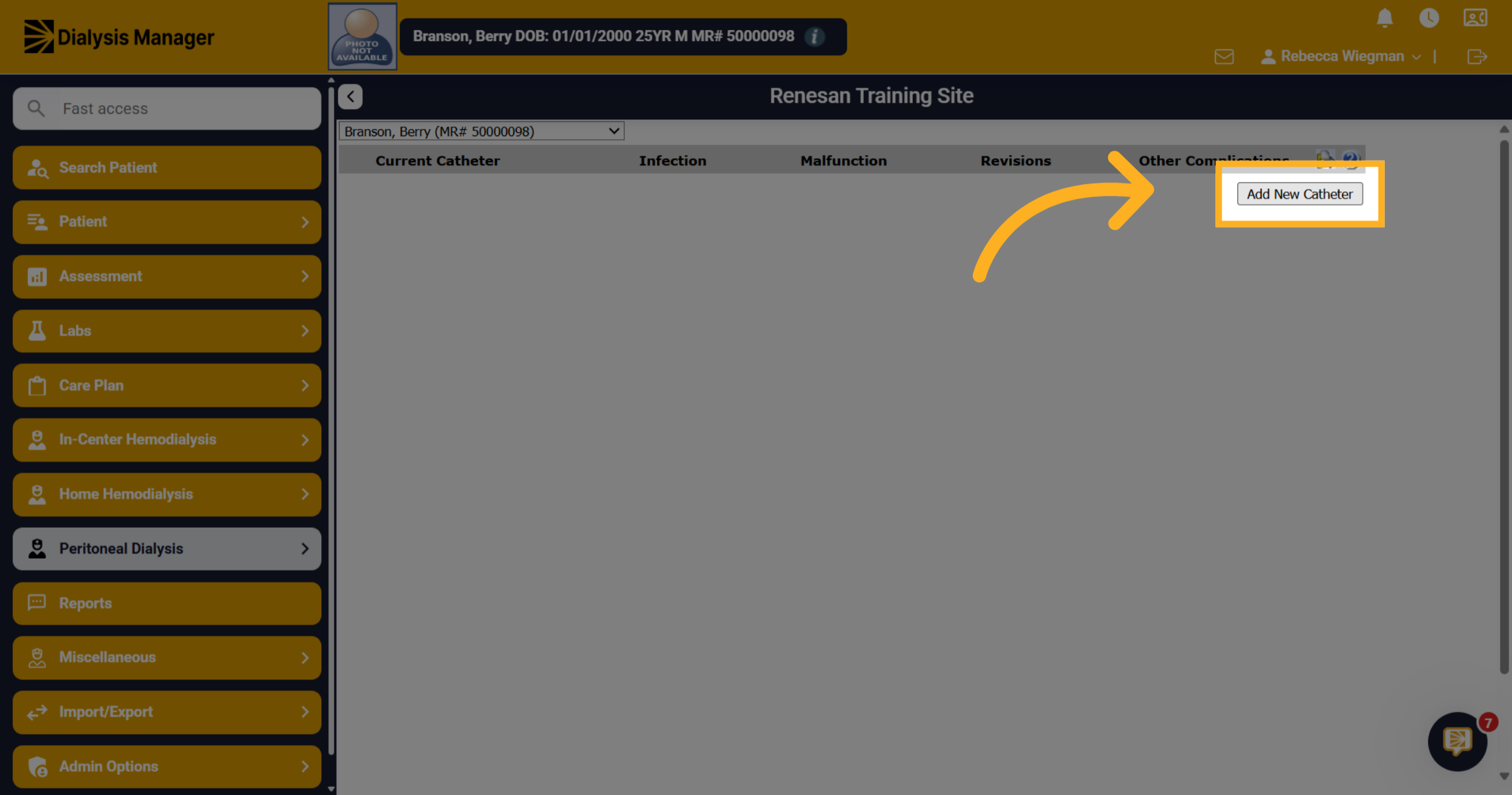
4. Click "Add New Catheter"
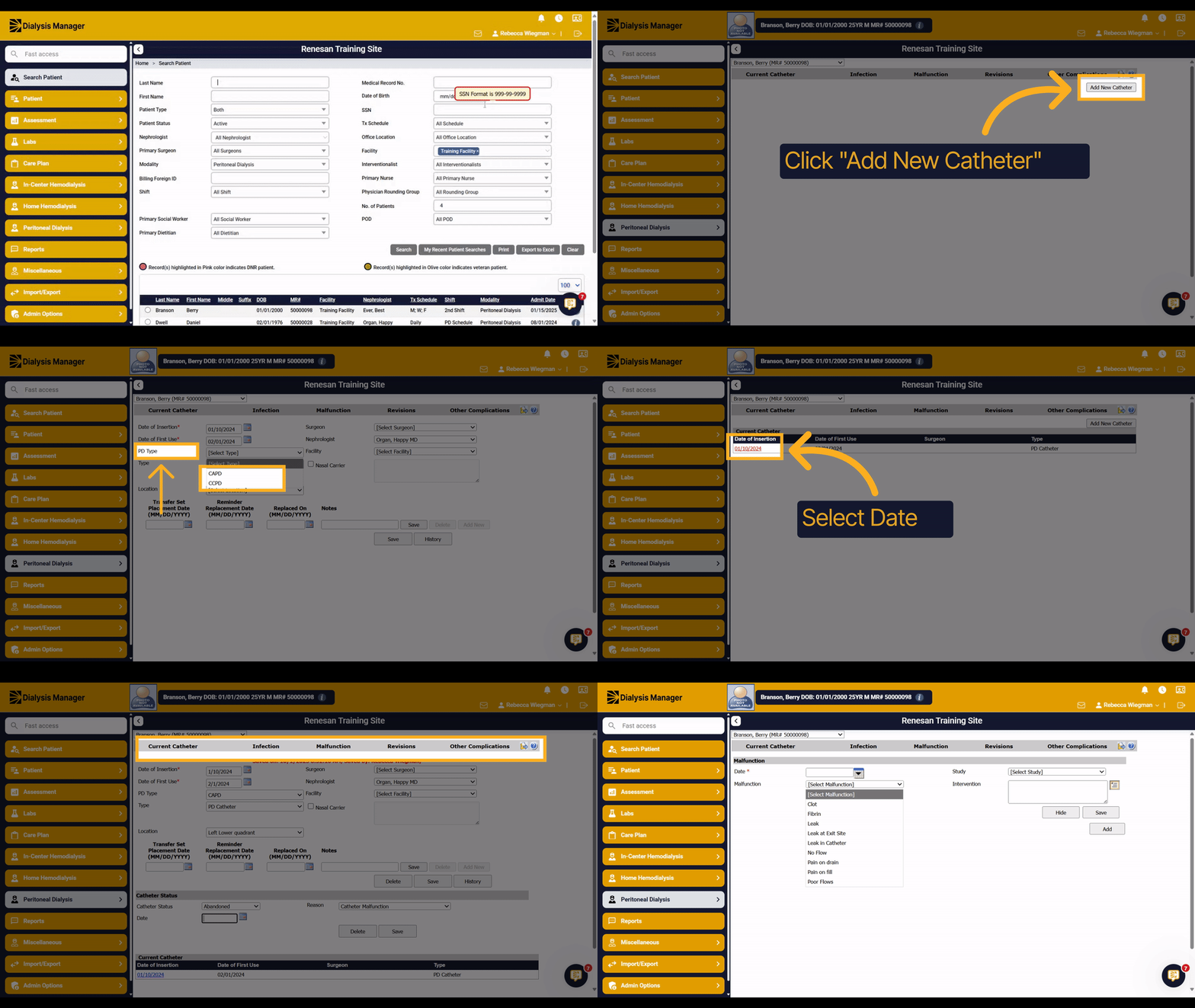
Select "Add New Catheter" to initiate the process of entering a new peritoneal dialysis catheter record.
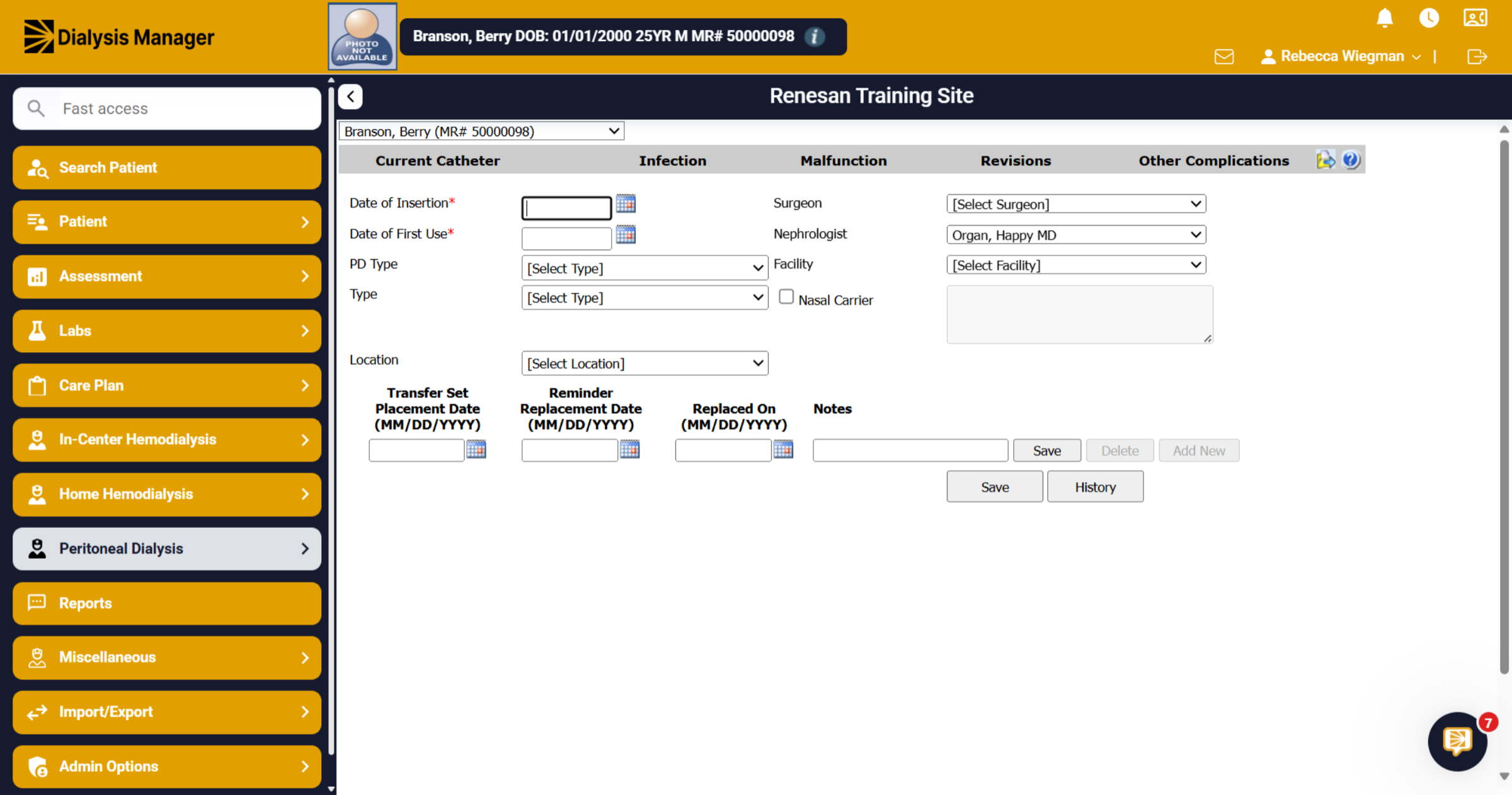
5. Enter Information
Enter the fields such as Date of Insertion, Date of First Use, PD Type and Location.
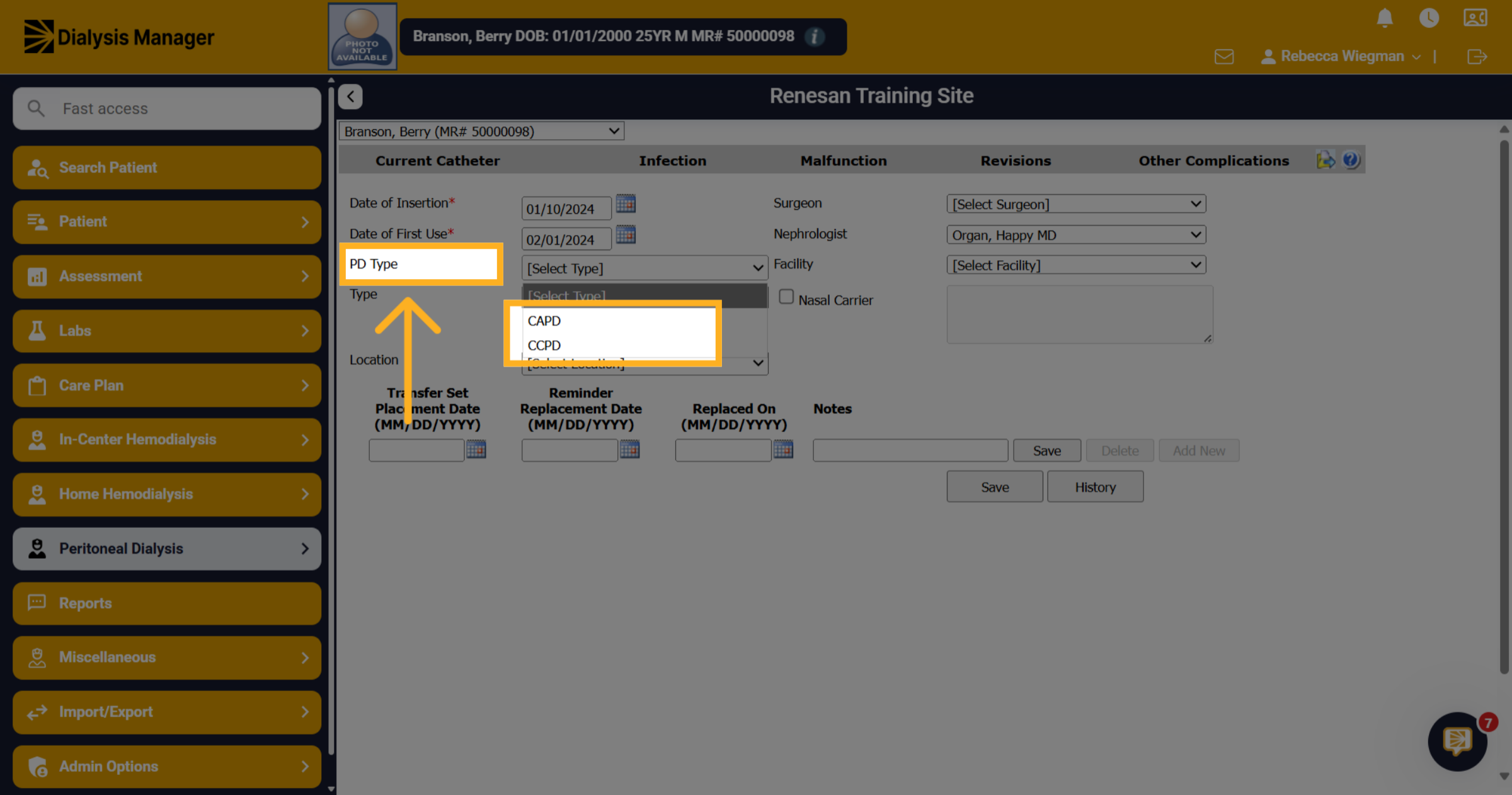
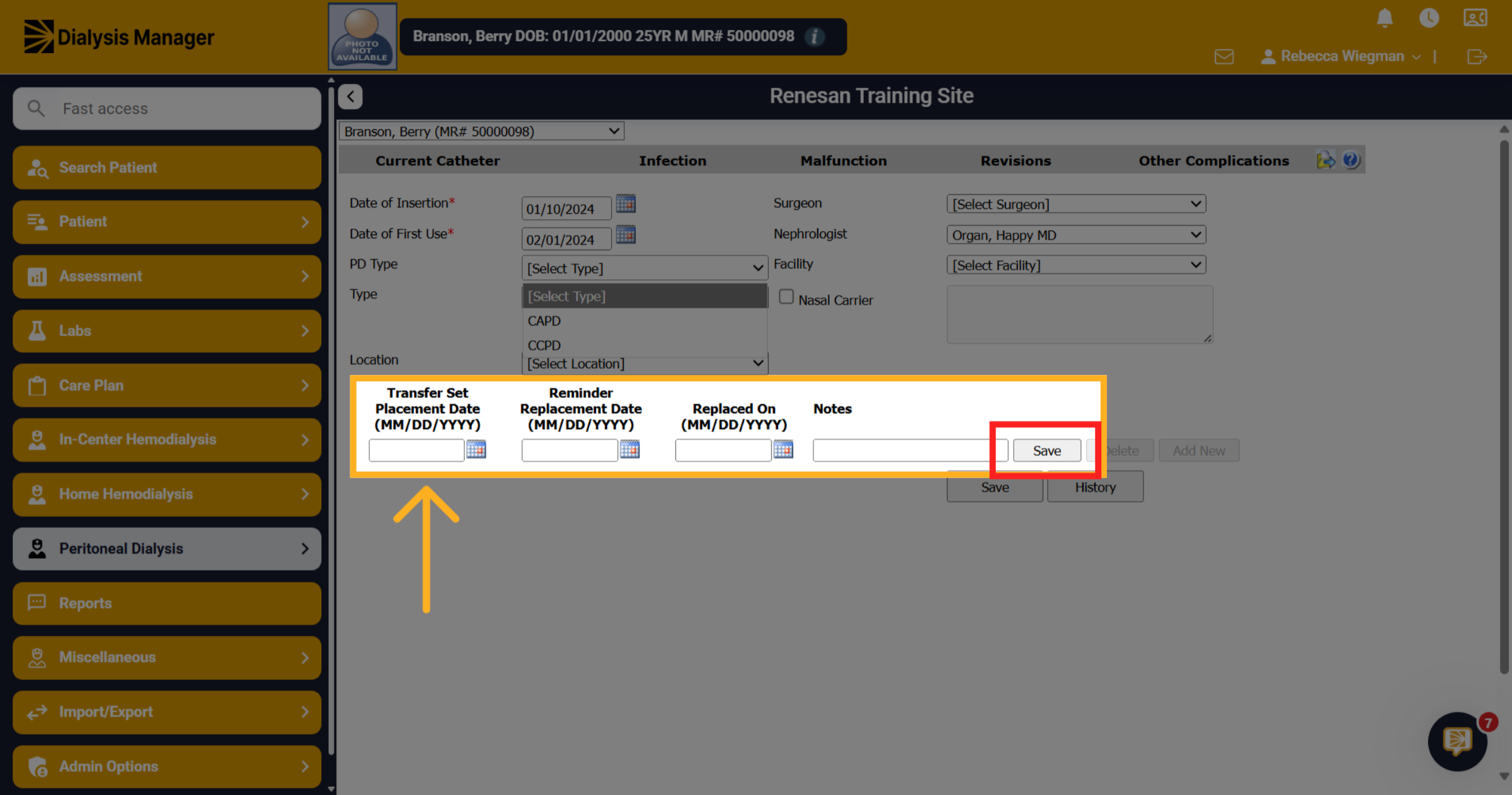
6. PD Type
Click the PD Type dropdown to choose the catheter options of CAPD and CCPD.
7. Select Location
Click the location dropdown to select the catheter placement site, options include various abdominal quadrants.
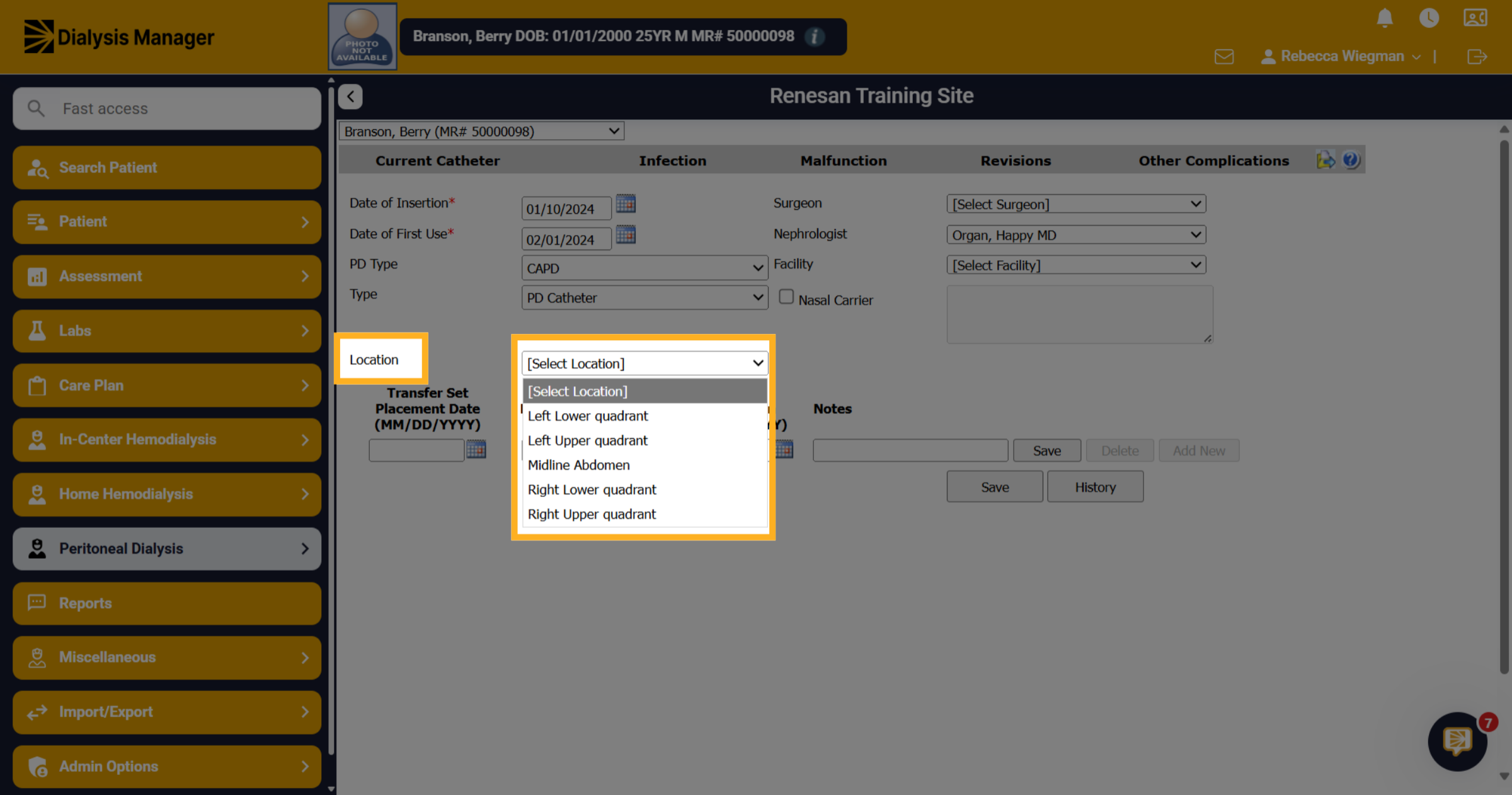
8. Transfer Set
Enter the Transfer Set Date. The Reminder Replacement date will automatically fill in for 6 months in advance. You can manually adjust that, if needed. Enter any Notes and click Save. This information will be displayed on your Nursing Visit Assessment.
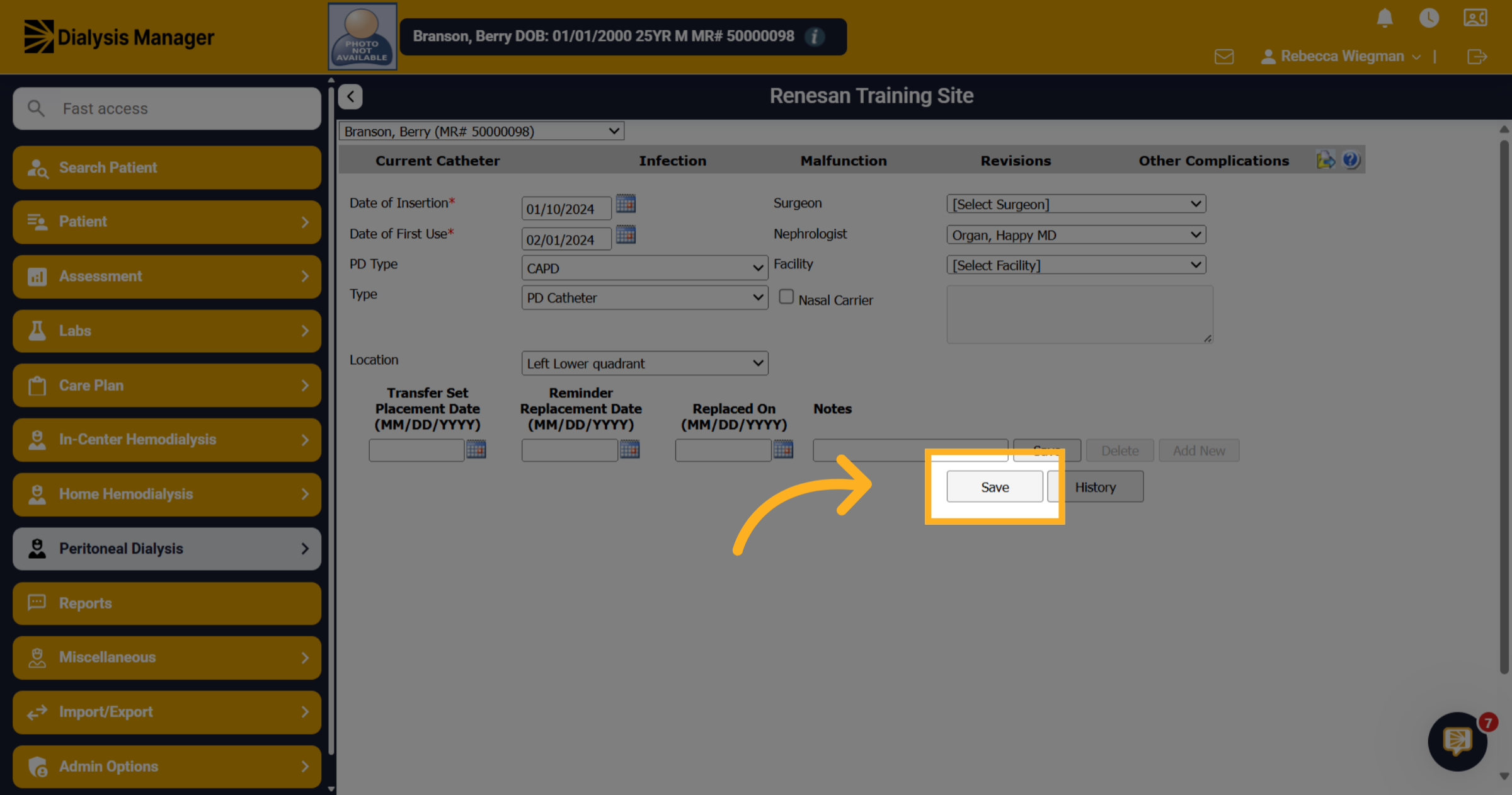
9. Click "Save"
Click the "Save" button to store the new catheter information securely in the system.
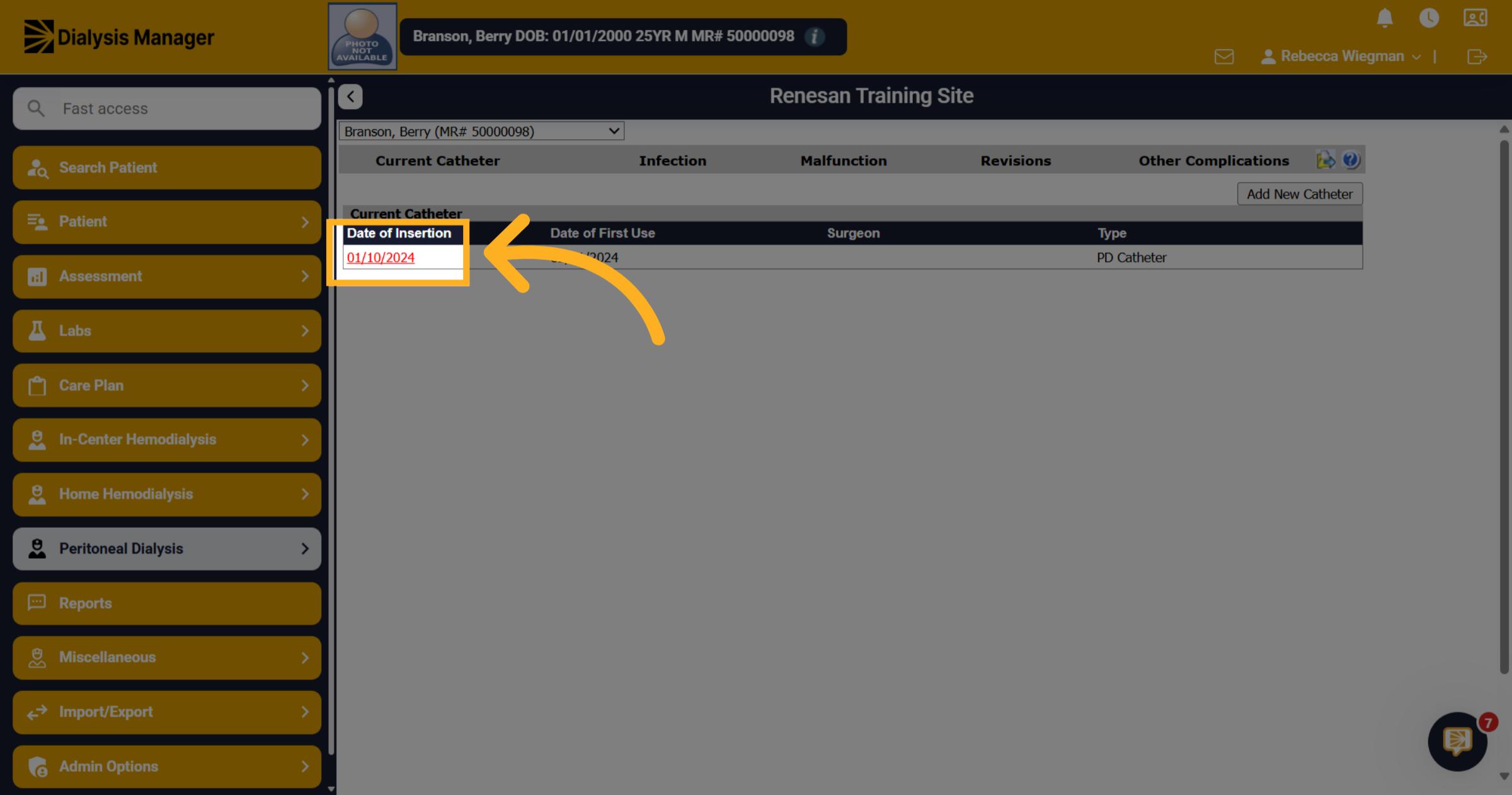
10. Select the Date
To update the catheter status or enter an infection, malfunction, revision or other complications you'll want to select the blue hyperlink date from the Catheter PD tab.
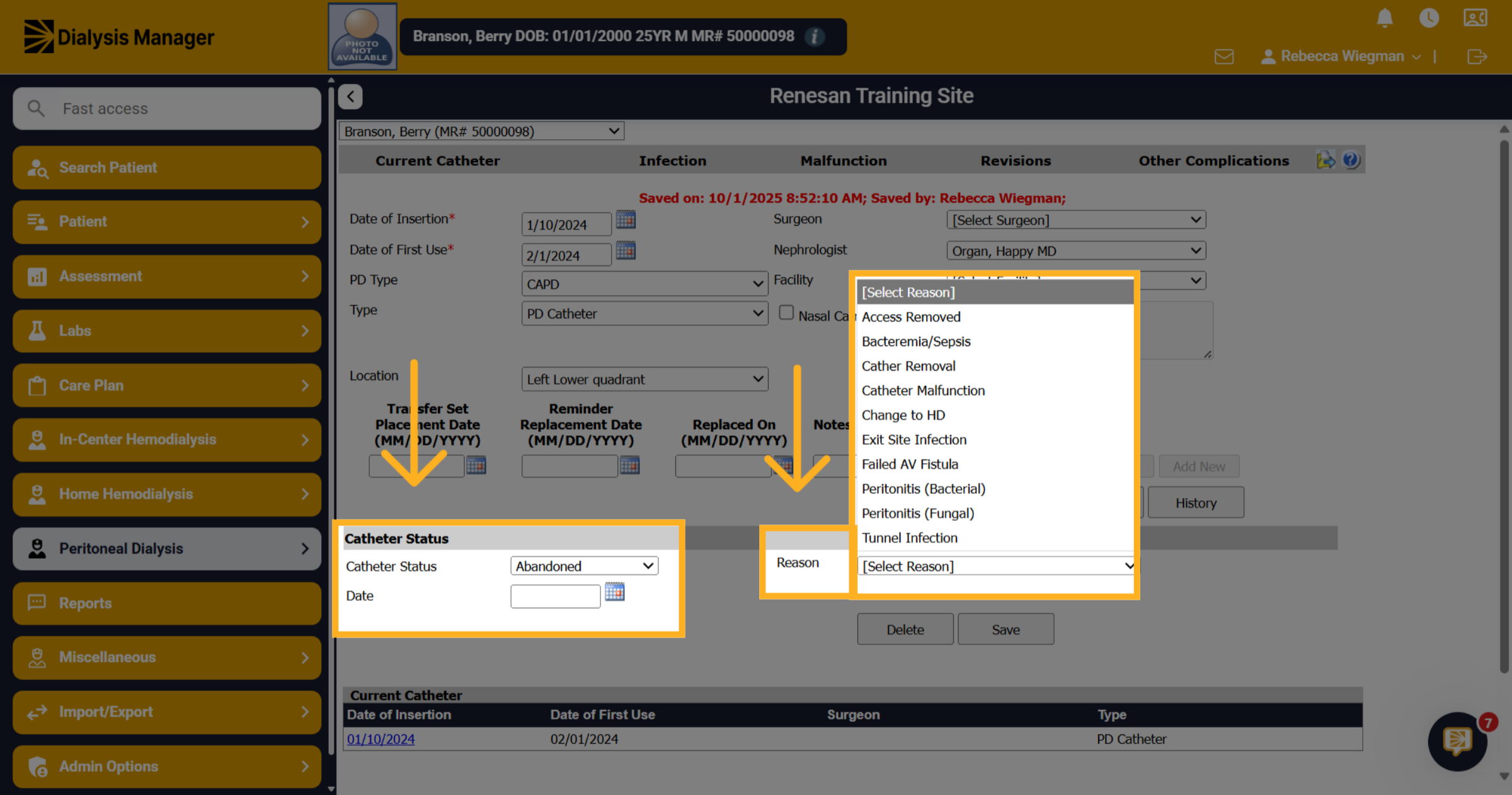
11. Catheter Status Change and Reason
Select the status field to reflect the catheters condition of Current or Abandoned. Enter the Date. Click the reason dropdown to specify why the catheter status changed, with options like Access Removed or Catheter Malfunction.
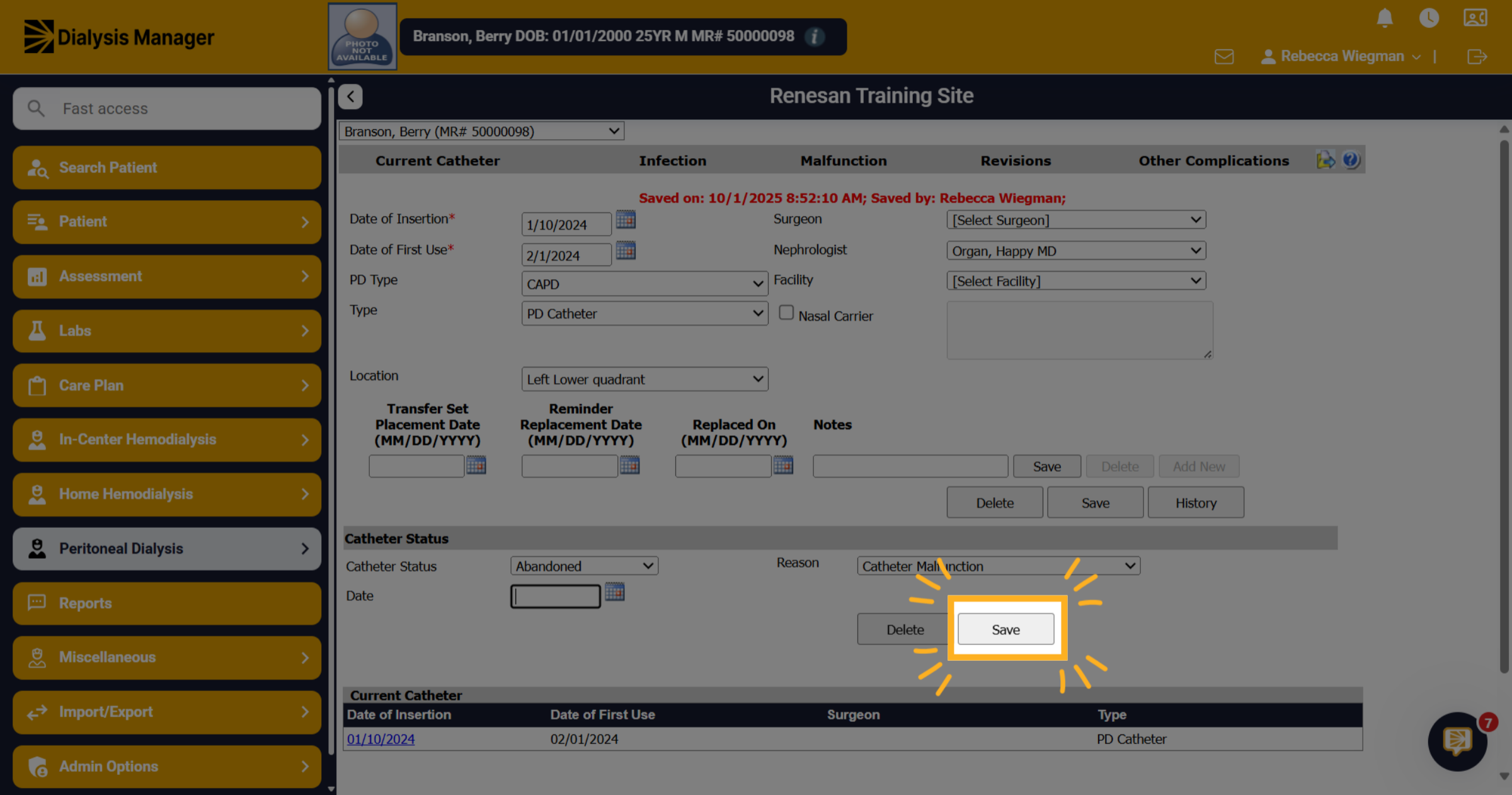
12. Save
Don't forget to always save your information!
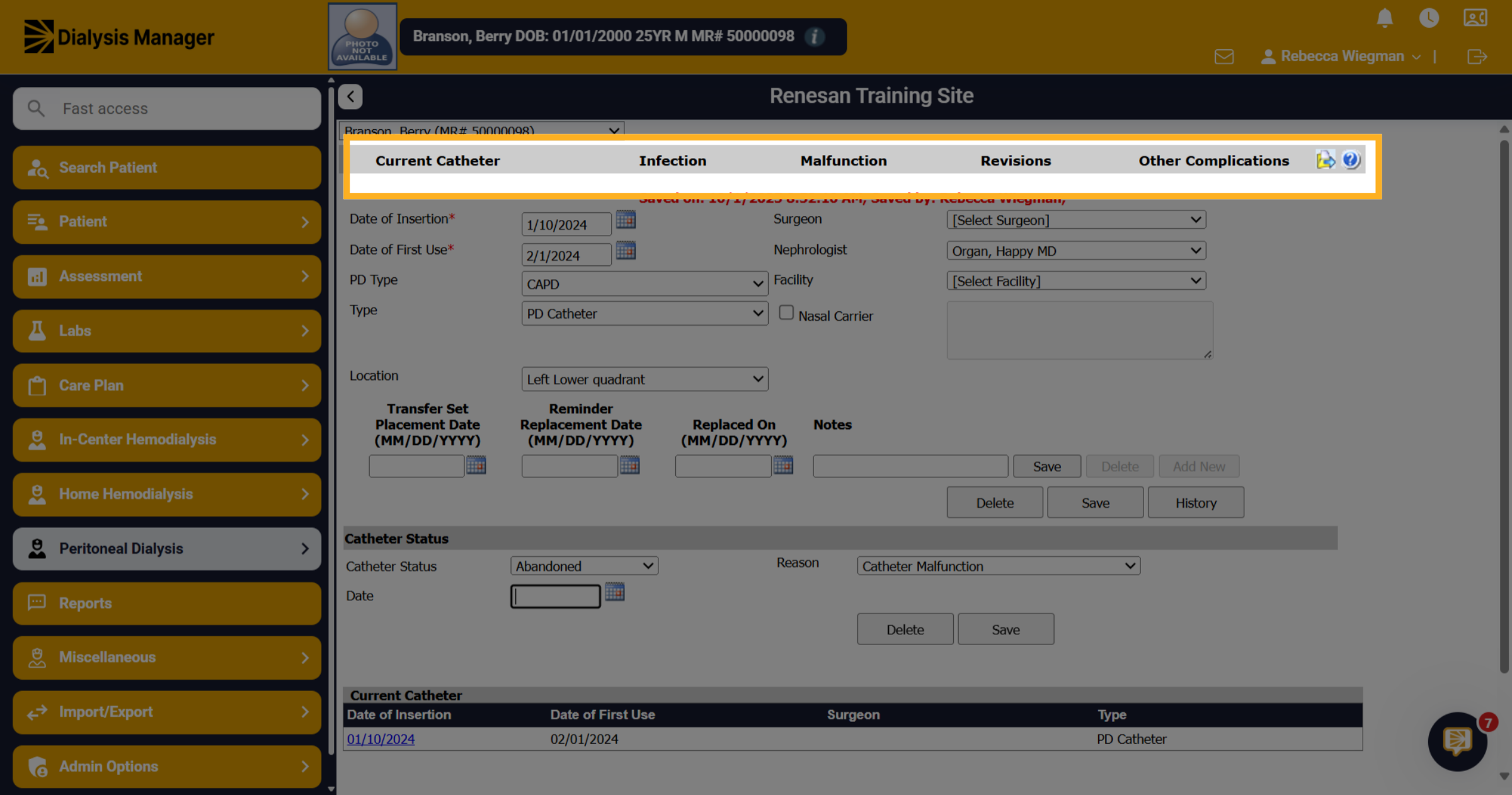
13. Additional Tabs
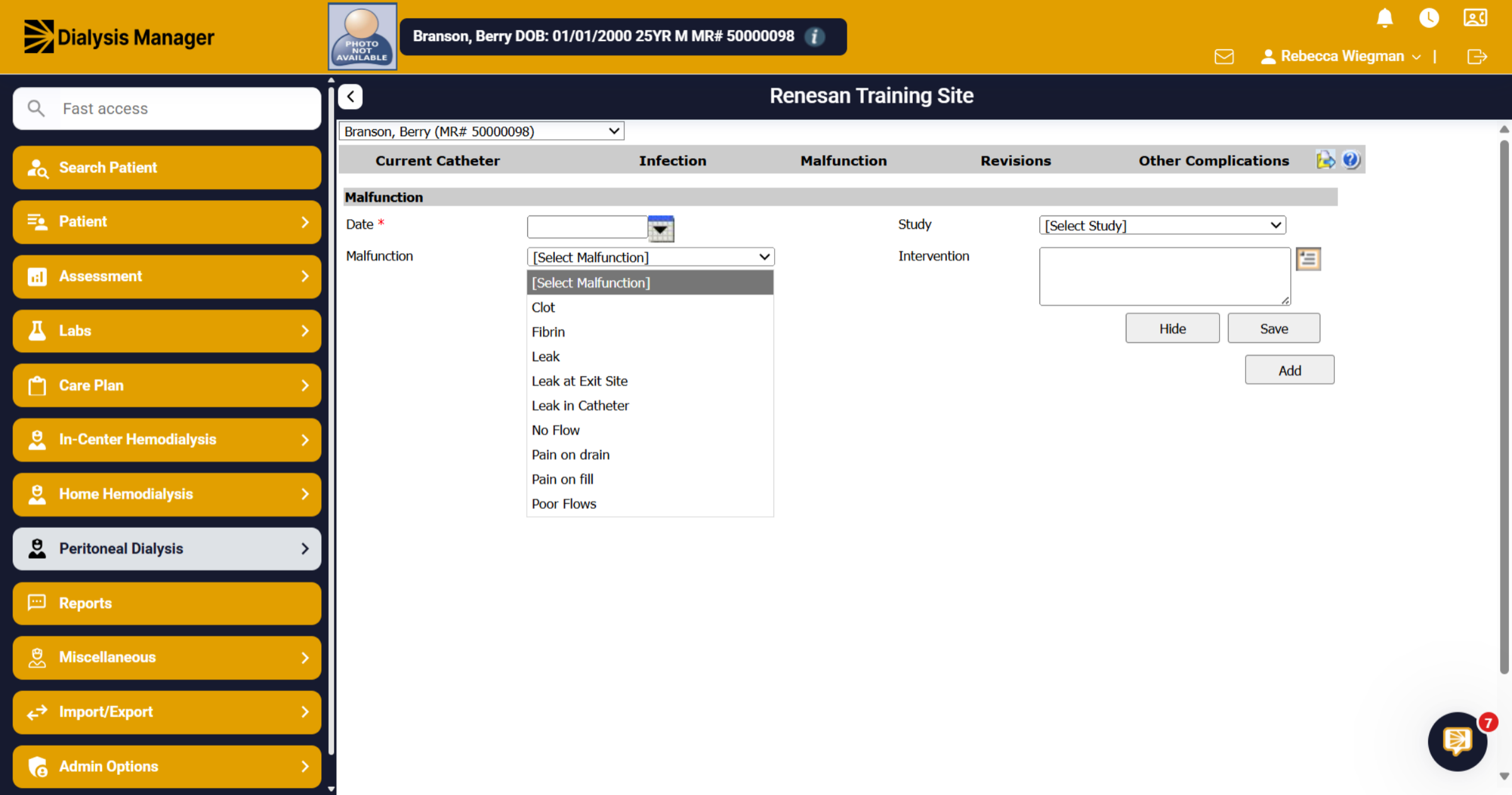
Across the top you'll have the options to view Current Catheter, enter Infections, Malfunction, Revisions, and Other Complications.
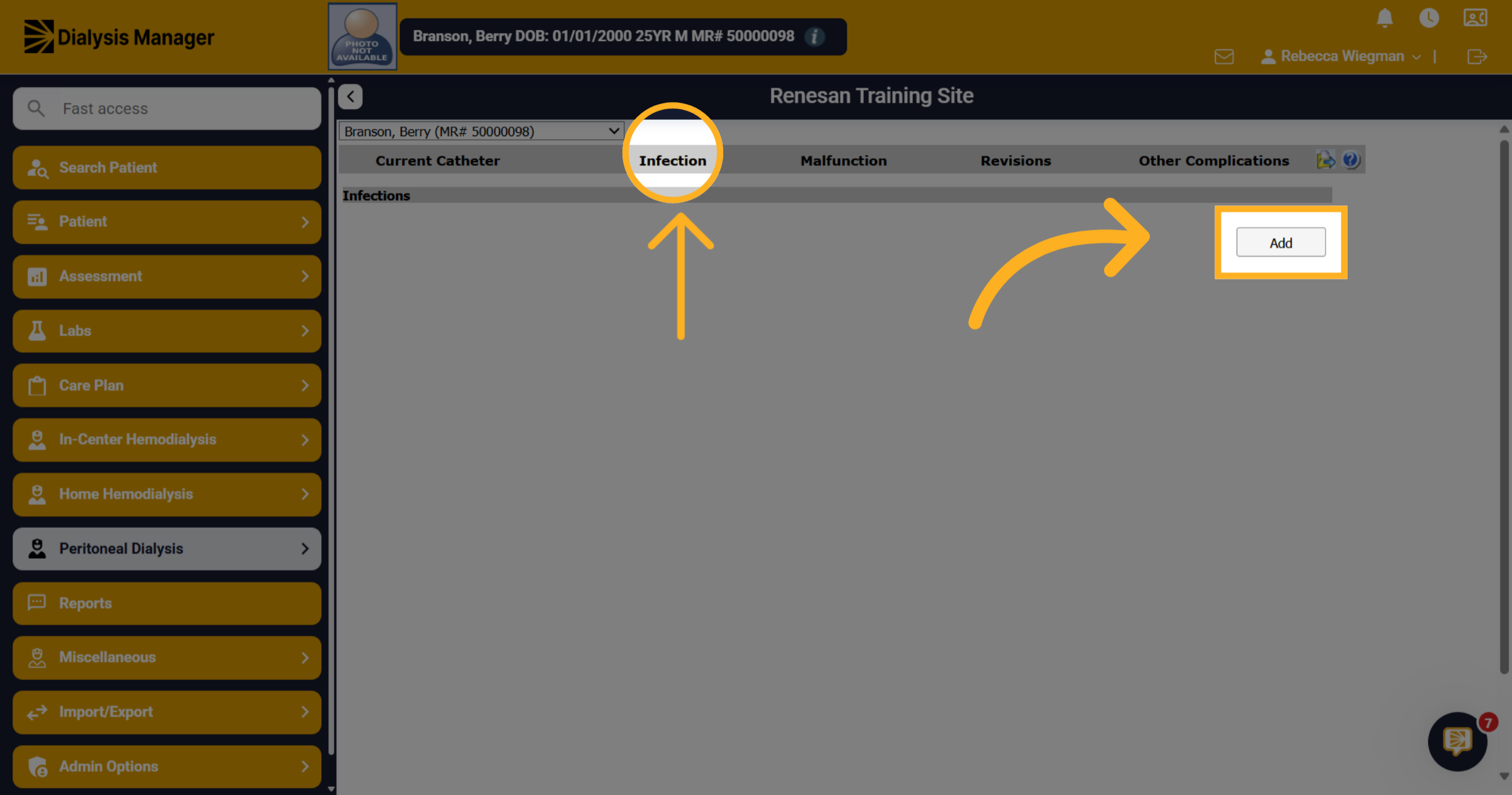
14. Select Infection
When selecting Infections and clicking "Add" you can input a new infection record associated with the catheter.
15. Infection Form
Note that any field with a red asterisk is mandatory before saving. Enter in as much information as possible before clicking Sign & Save. Your also able to go back into this infection record to document lab results. Information entered on infections will cross into PD Infection Reporting.
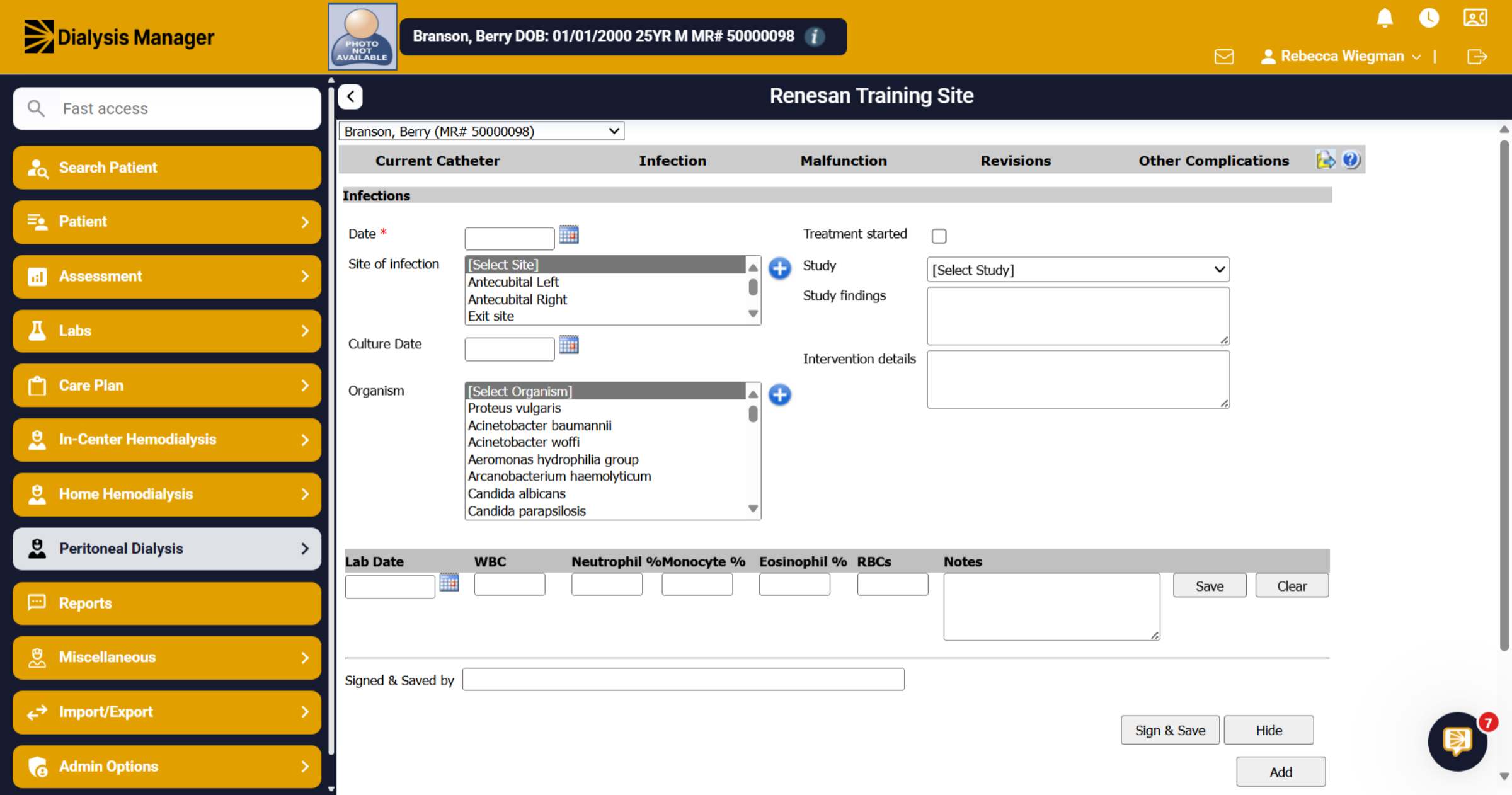
16. Other tabs
Each additional tab such as Malfunction, Revisions, Other Complications is addressed in the same manner. The staff will click the tab and "Add New" Enter the information to support each procedure then save.