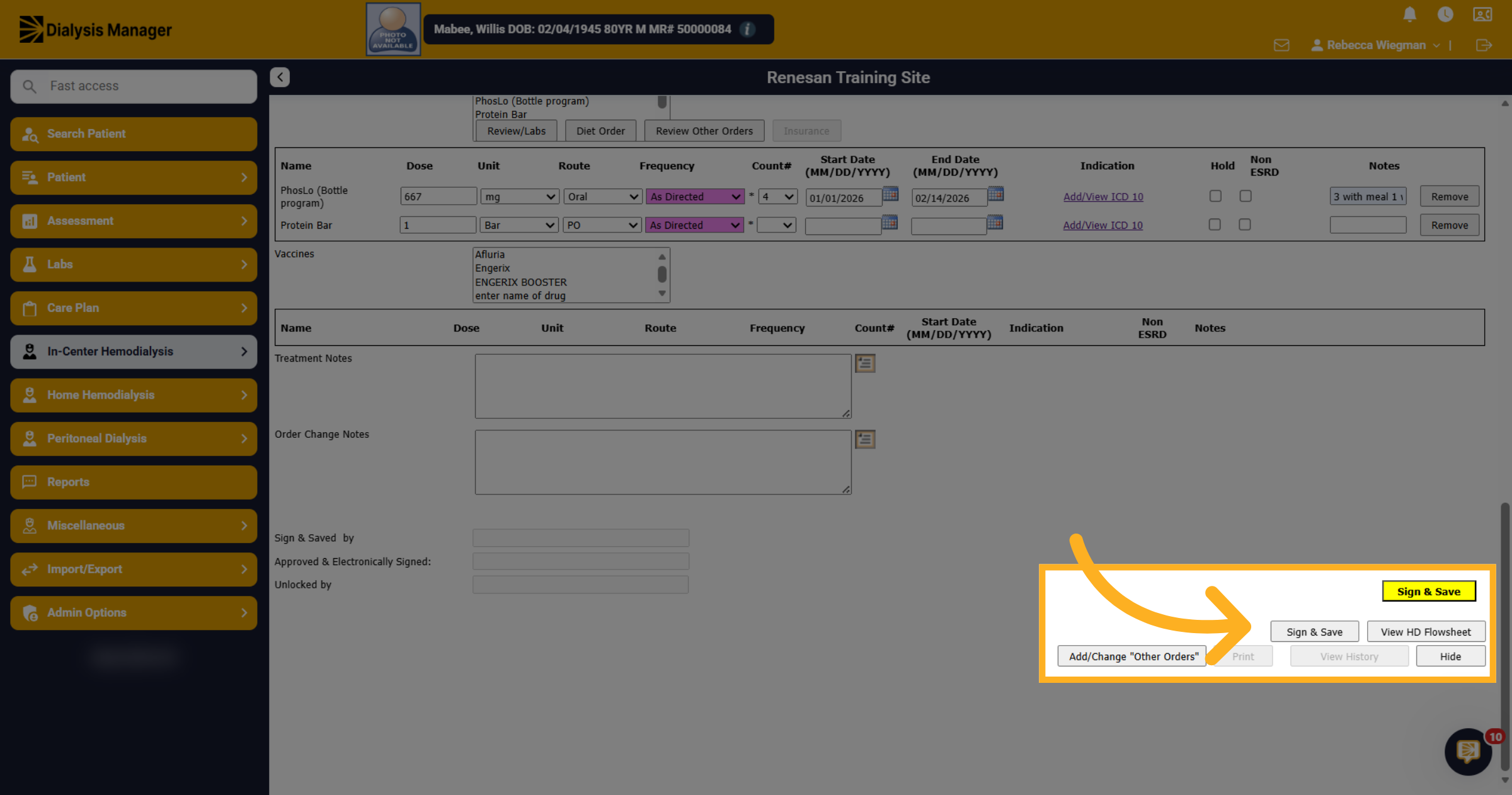
Entering a Hemodialysis Medication.
1. Introduction
To enter Hemodialysis Medications, you will need to input them into the Dialysis Order. This video will guide you through the steps of adding medication. It will also cover details regarding Smart Frequencies, dose counts, and how to place a medication on hold.
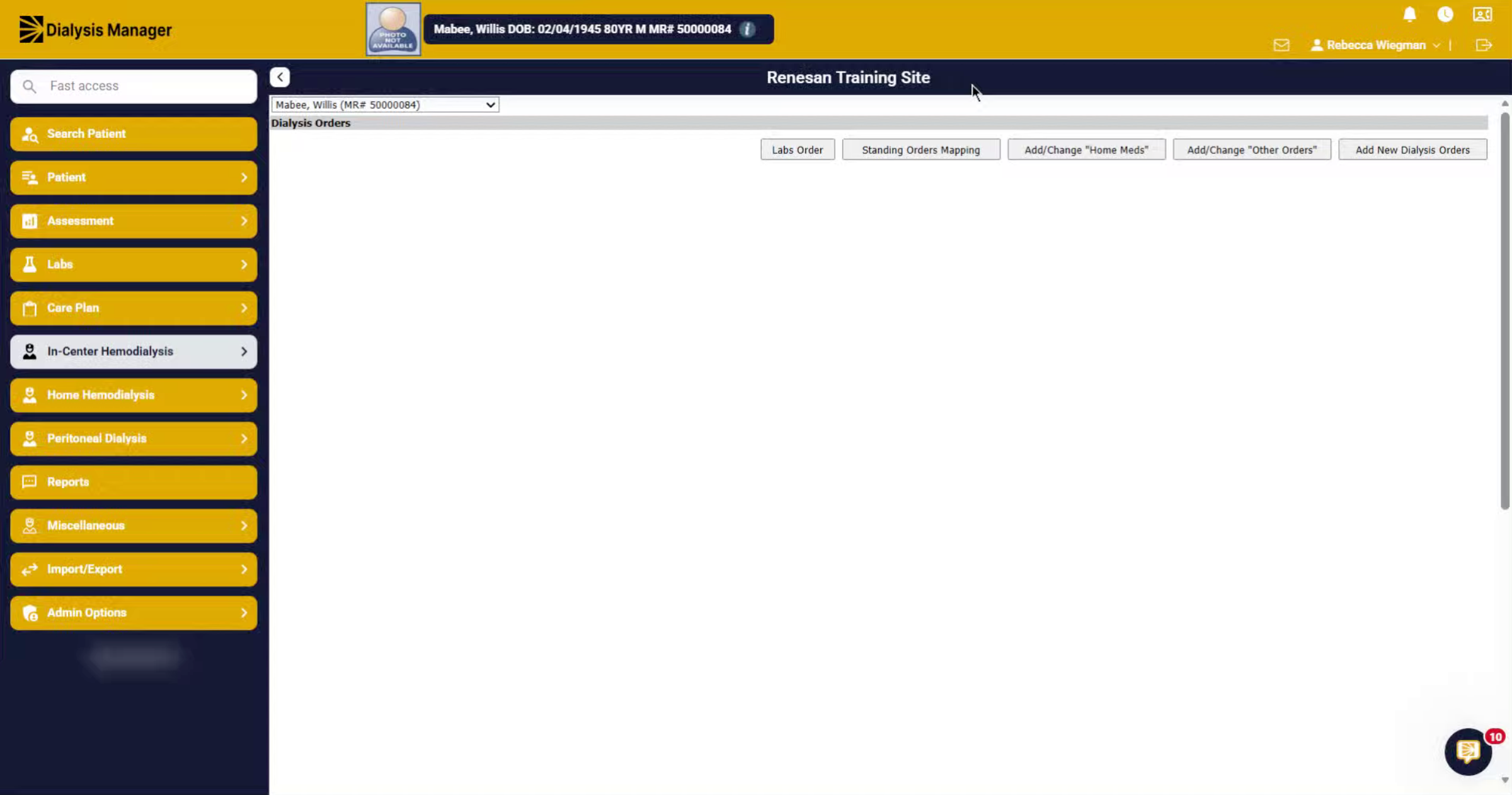
2. Access Dialysis Orders
Once you have your patient selected, you'll want to go into In-Center Hemodialysis, then Orders and Dialysis Orders.
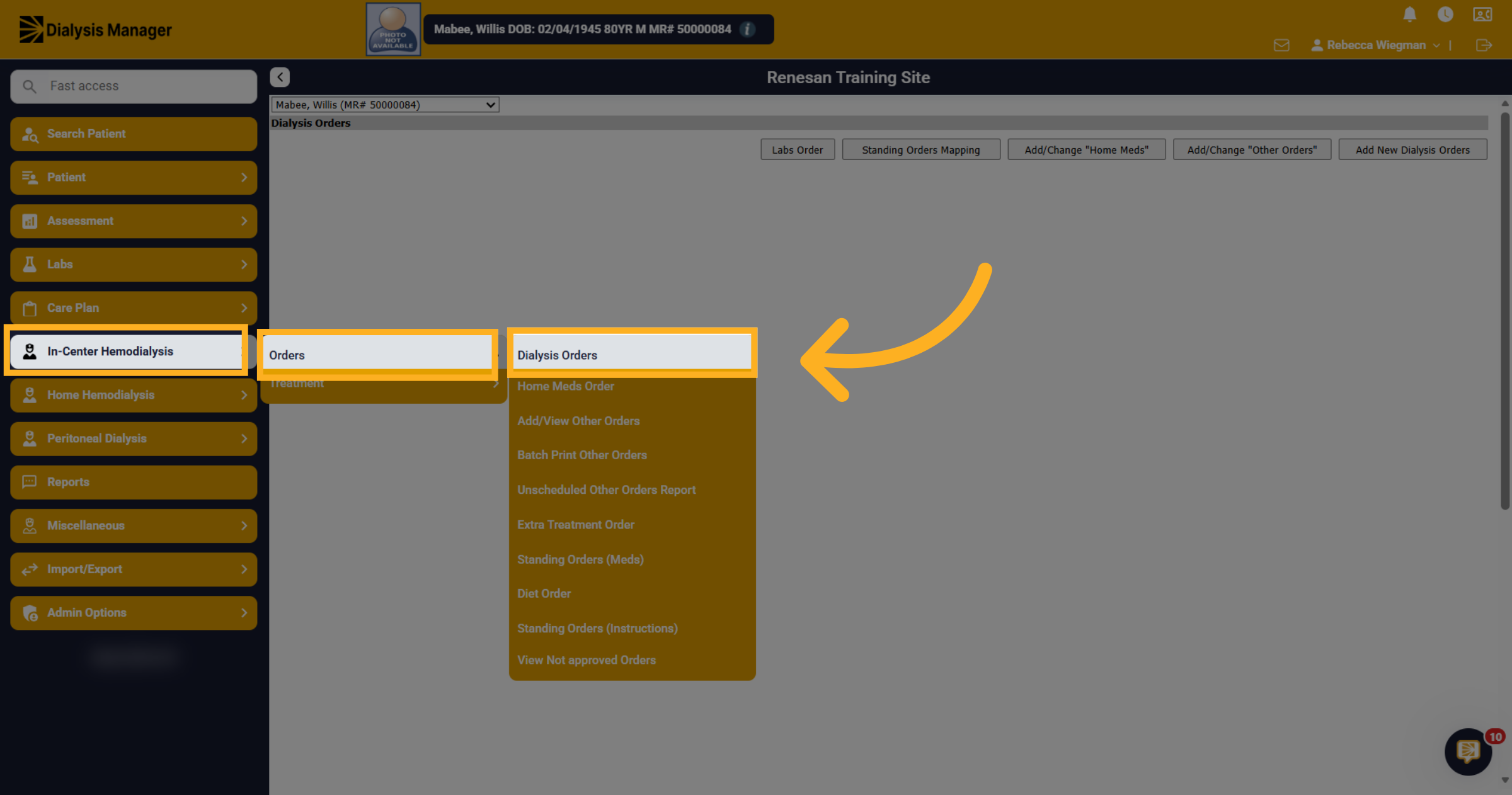
3. Add New Dialysis Orders
if the patient has any prior Dialysis Orders they will display here. You'll want to select Add New dialysis Order
4. Enter Patient Information
If the patient has a prior order, the information will flow into the new order. Review the information and proceed to the Medication Section of the Dialysis Order.
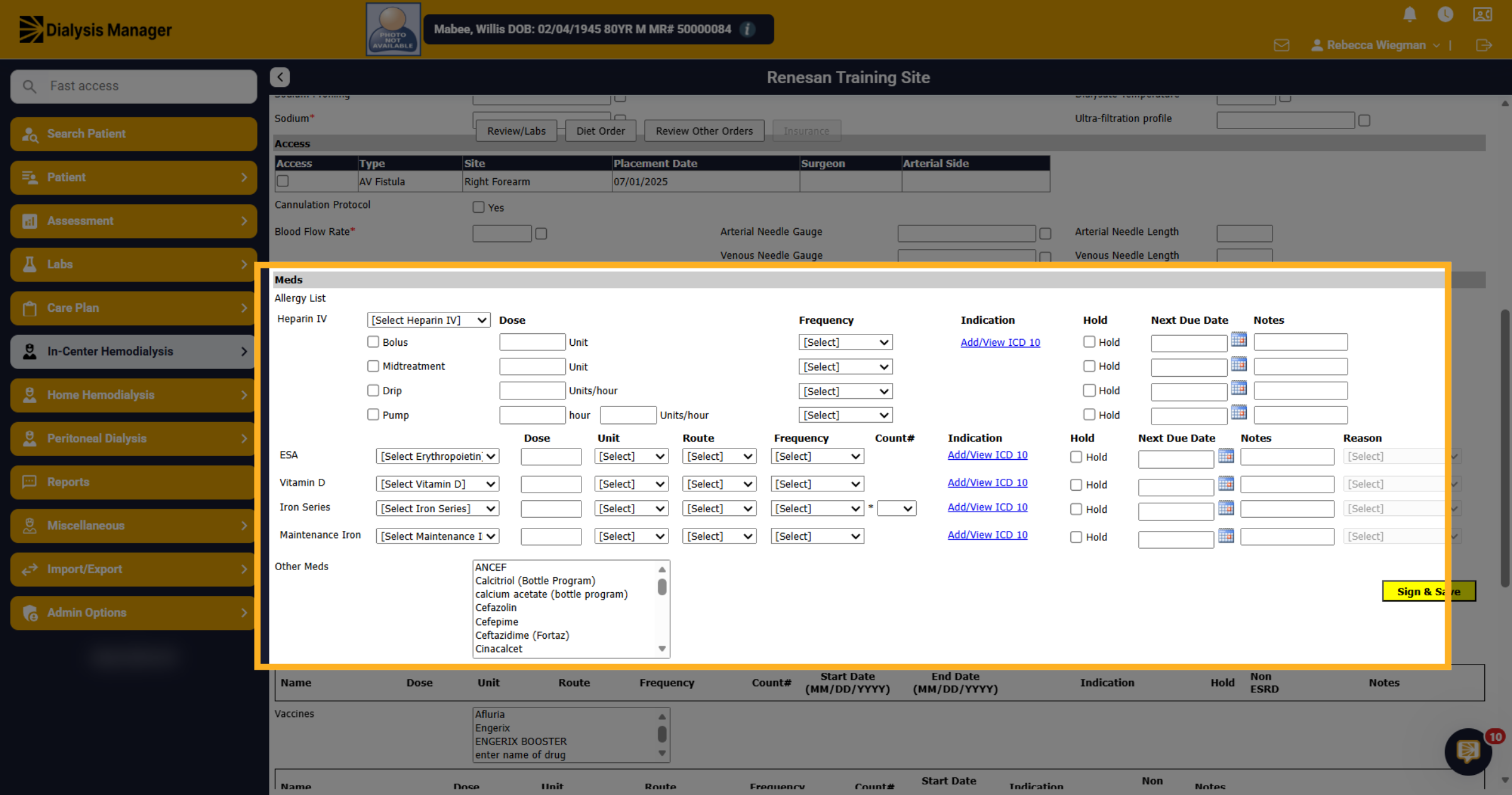
5. Medication Section
Under the Med section you'll have options for Heparin, ESAs, Vitamin D, Iron Series and Maintenance Iron. Select your medication option from the drop down.
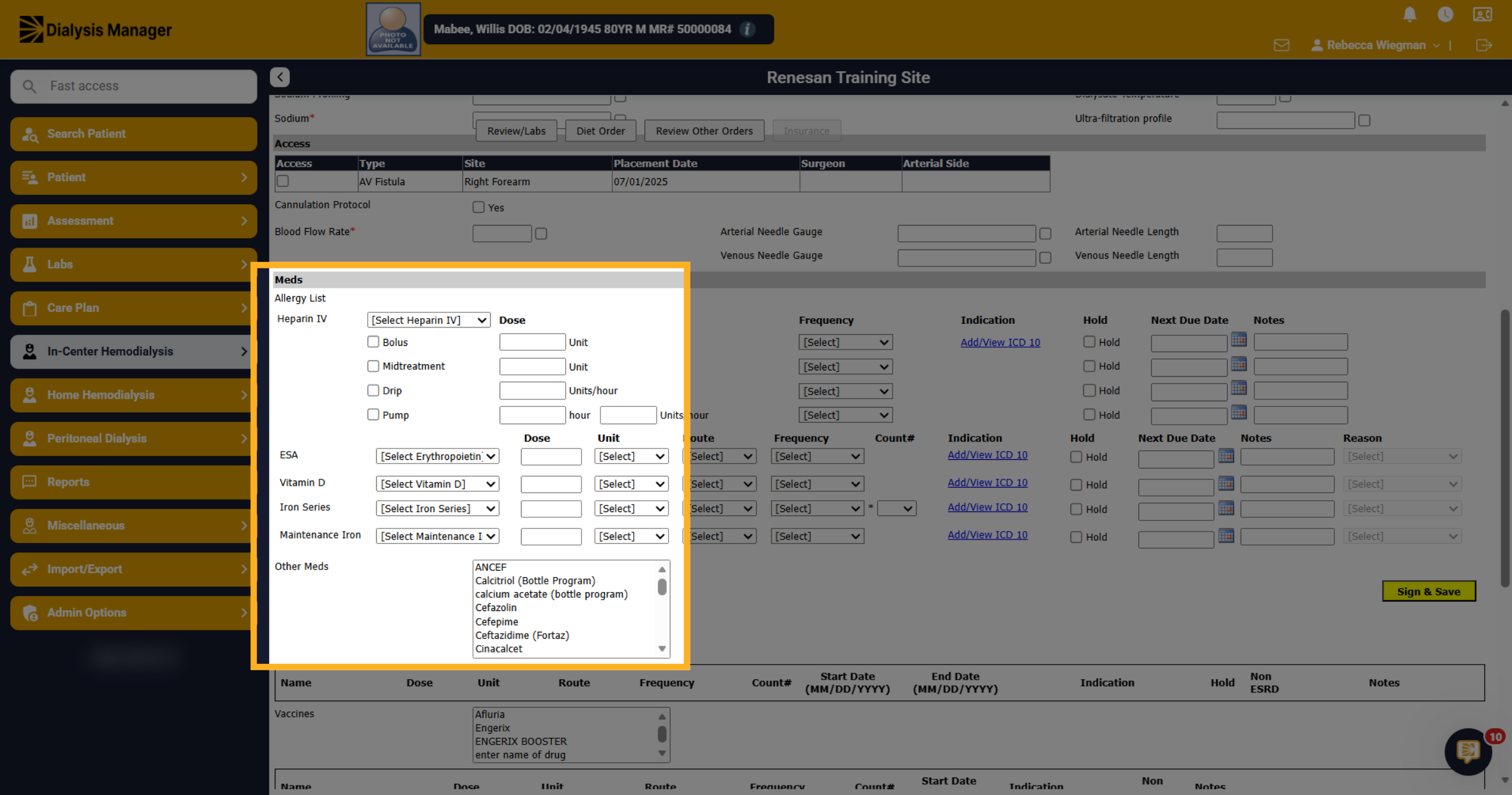
6. Heparin Options
When selecting your Heparin Medication, you'll have the option to also mark this as Bolus, Mid-treatment, Drip and/or Pump.
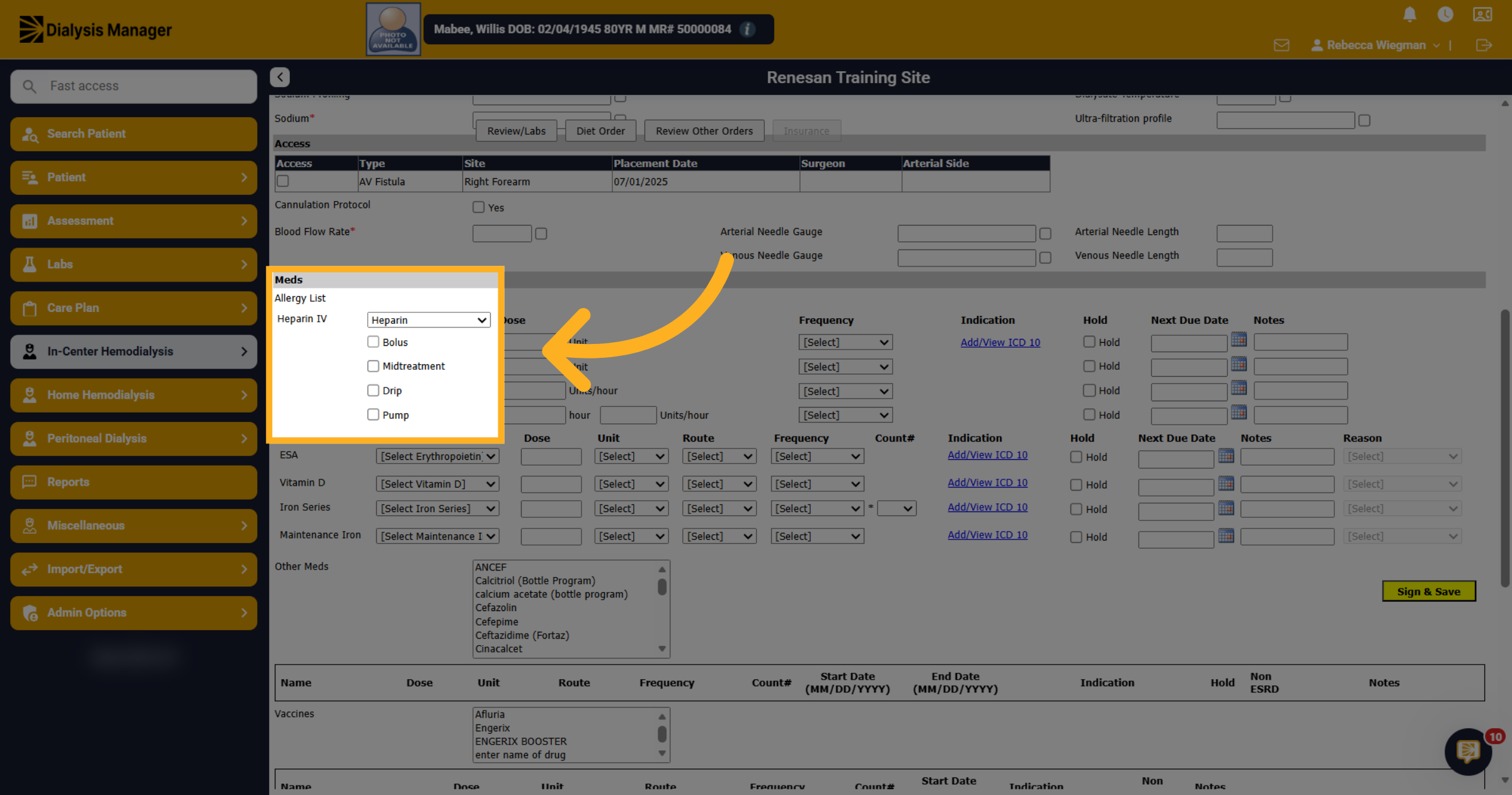
7. Dose
Enter the dose the patient will be receiving during treatment.
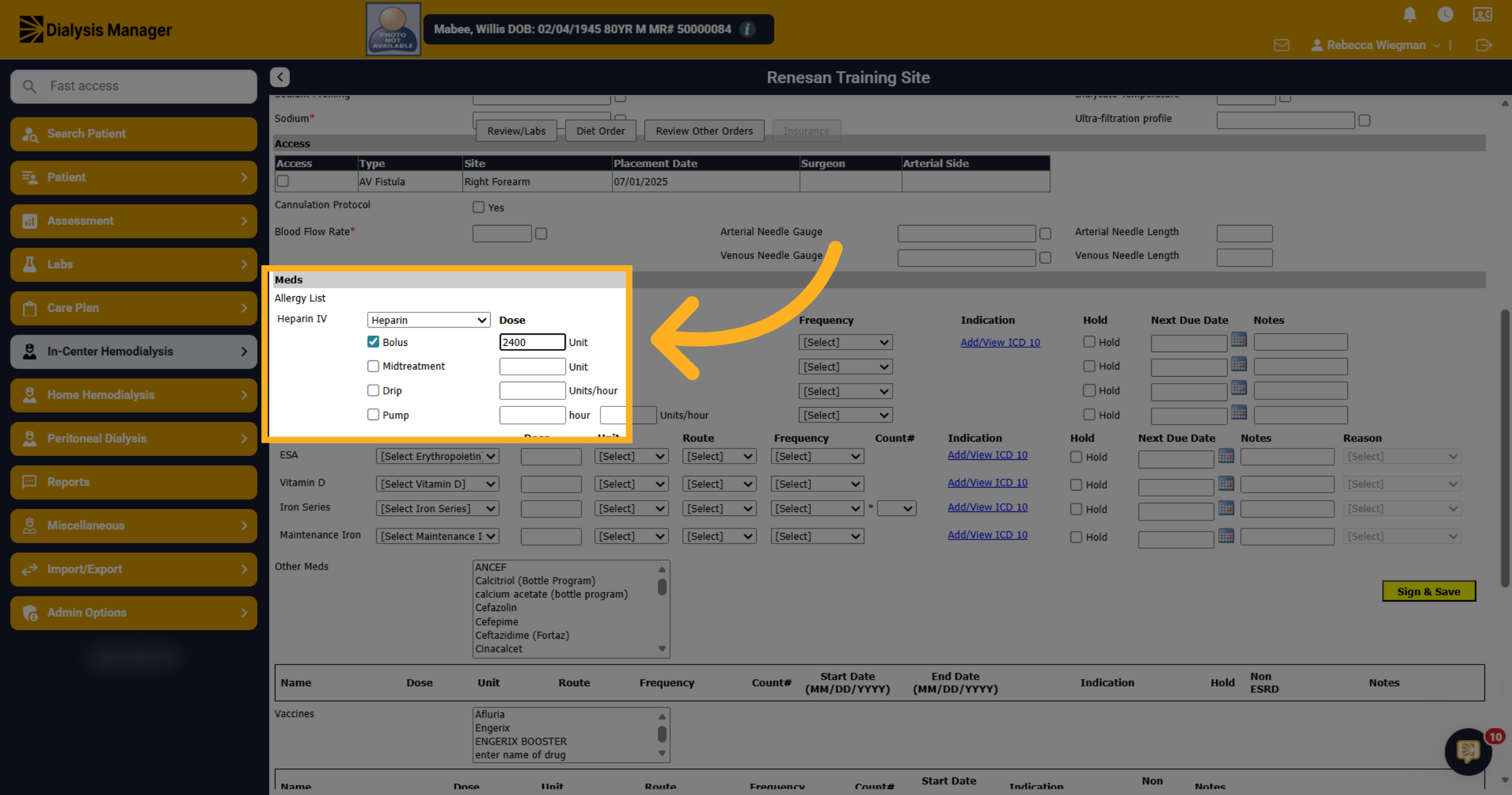
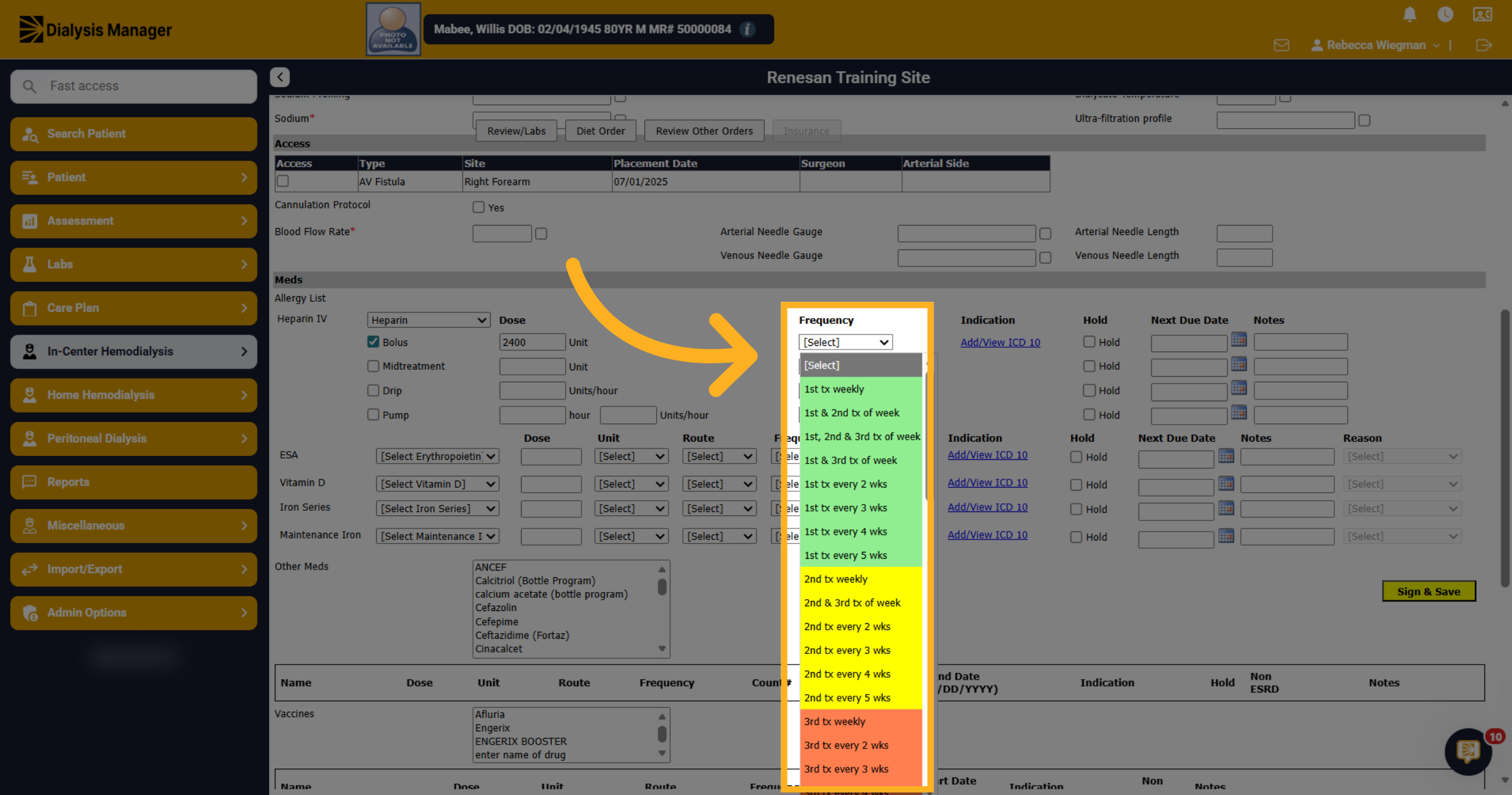
8. Frequency
Under the Frequency dropdown shows Dialysis Managers Smart Frequency. If your patient is a Monday Wednesday Friday patient their 1st treatment would be Monday, 2nd treatment Wednesday and 3rd treatment Friday. If your patient is a Tuesday Thursday Saturday patient, their 1st treatment is Tuesday, 2nd treatment Thursday and 3rd treatment Saturday. You will also have the option to select As Directed, One Time Only and/or As Needed. When using the colored Smart Frequencies, they will cross into the patient's flowsheet to assist staff in knowing when medications are due to be given. This is the recommended workflow.
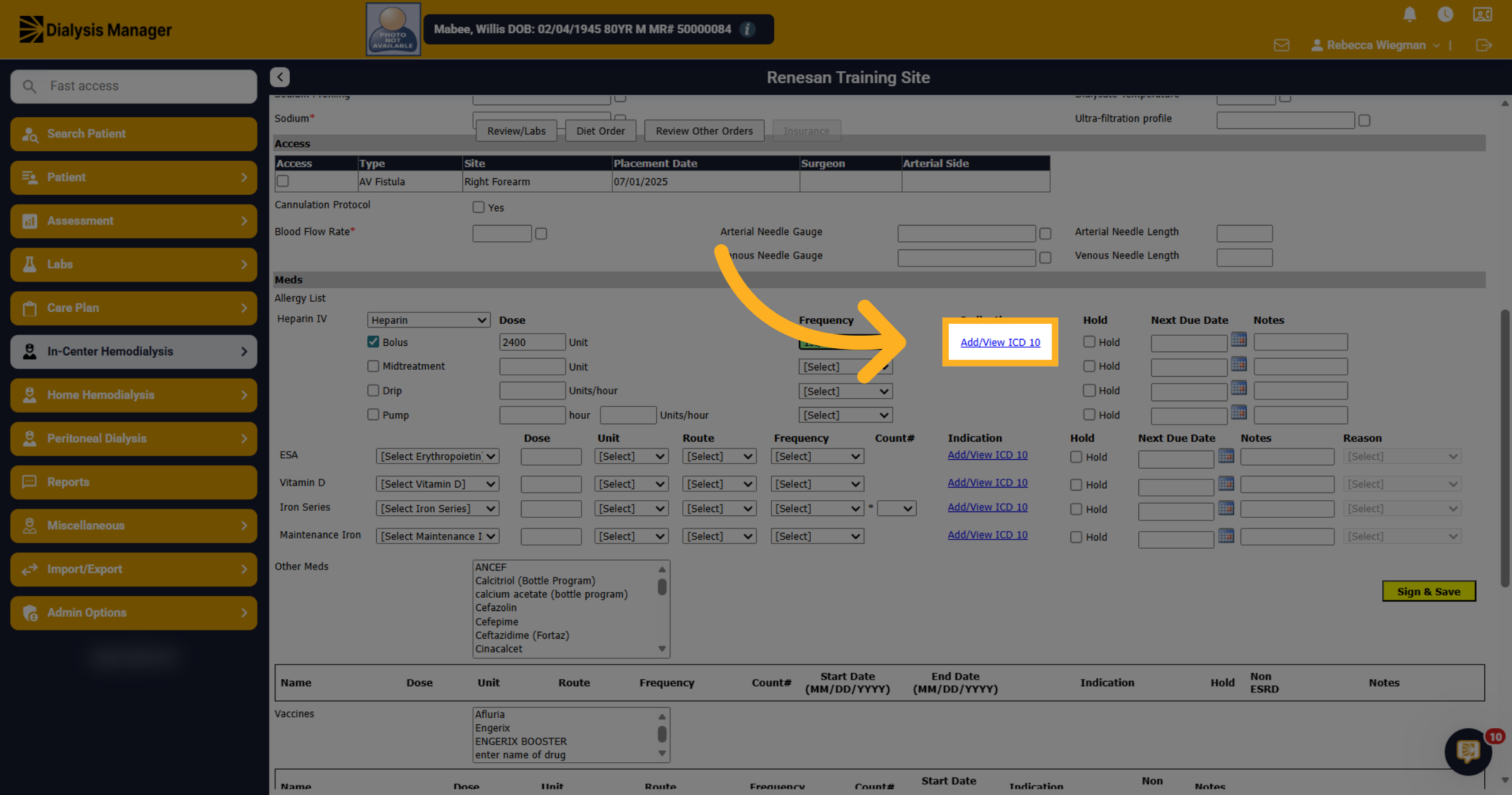
9. ICD-10
All added medications will need an ICD-10 code.
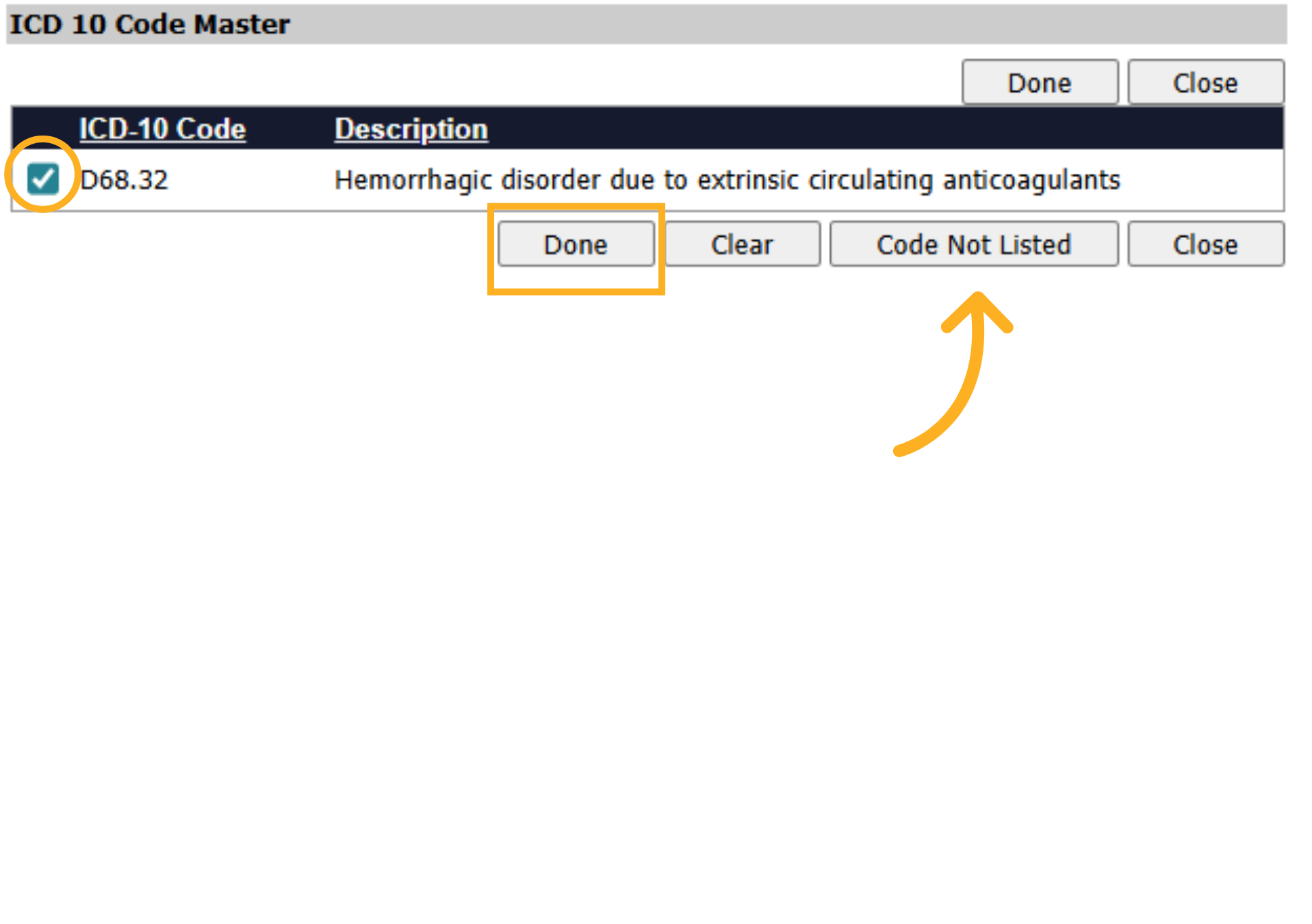
10. Add ICD 10 Code
When selecting the blue hyperlink, a screen will open with the suggested ICD-10 codes associated with that medication. Check the box and click done. If the code does not display your able to select "Code Not Listed" to search for other codes. Please contact your administrator to discuss as the suggested codes are selected due to billing purposes.
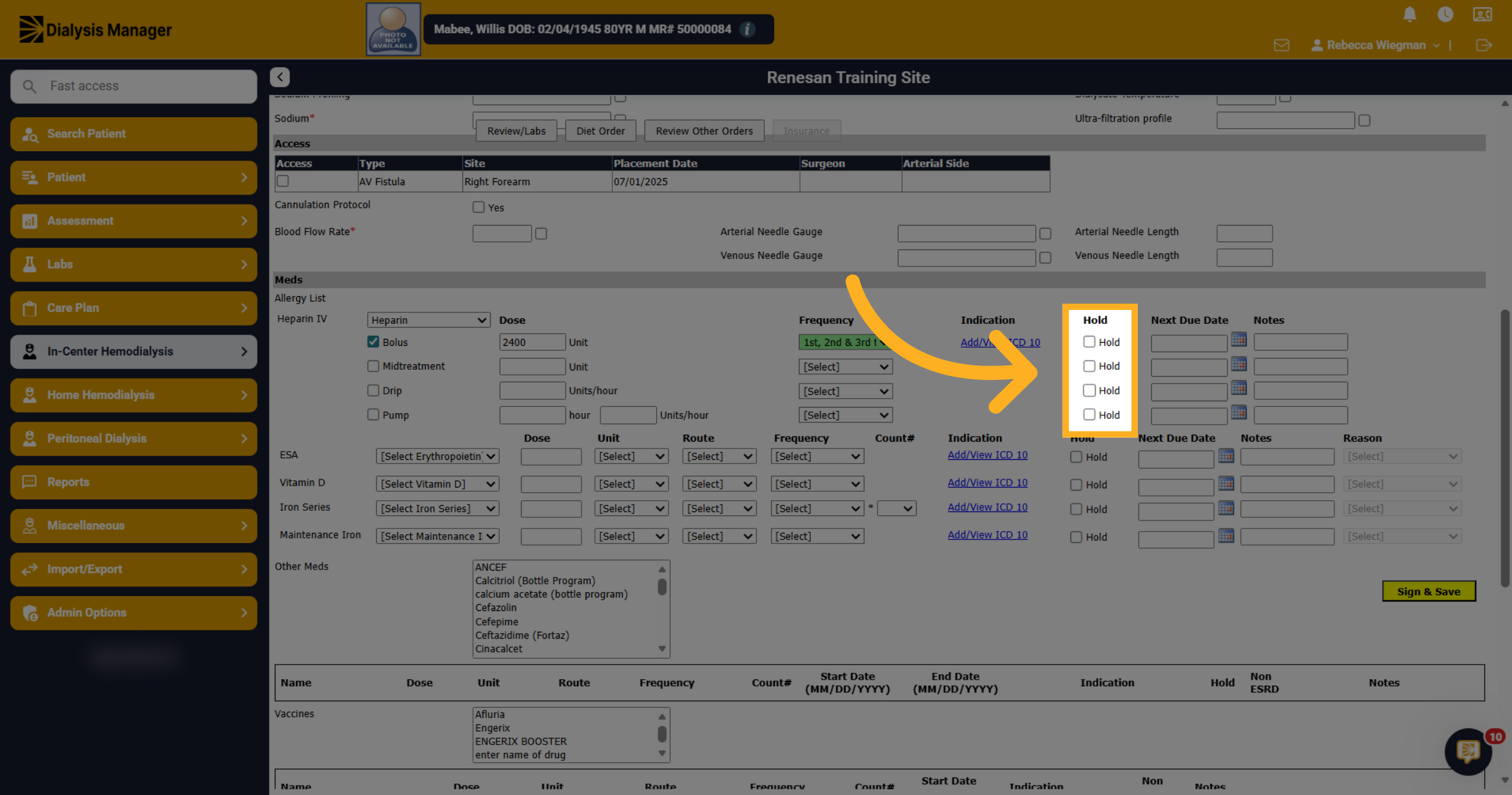
11. Hold
If you need to place a medication on Hold until a specific date or for lab results, your able to enter that information here.
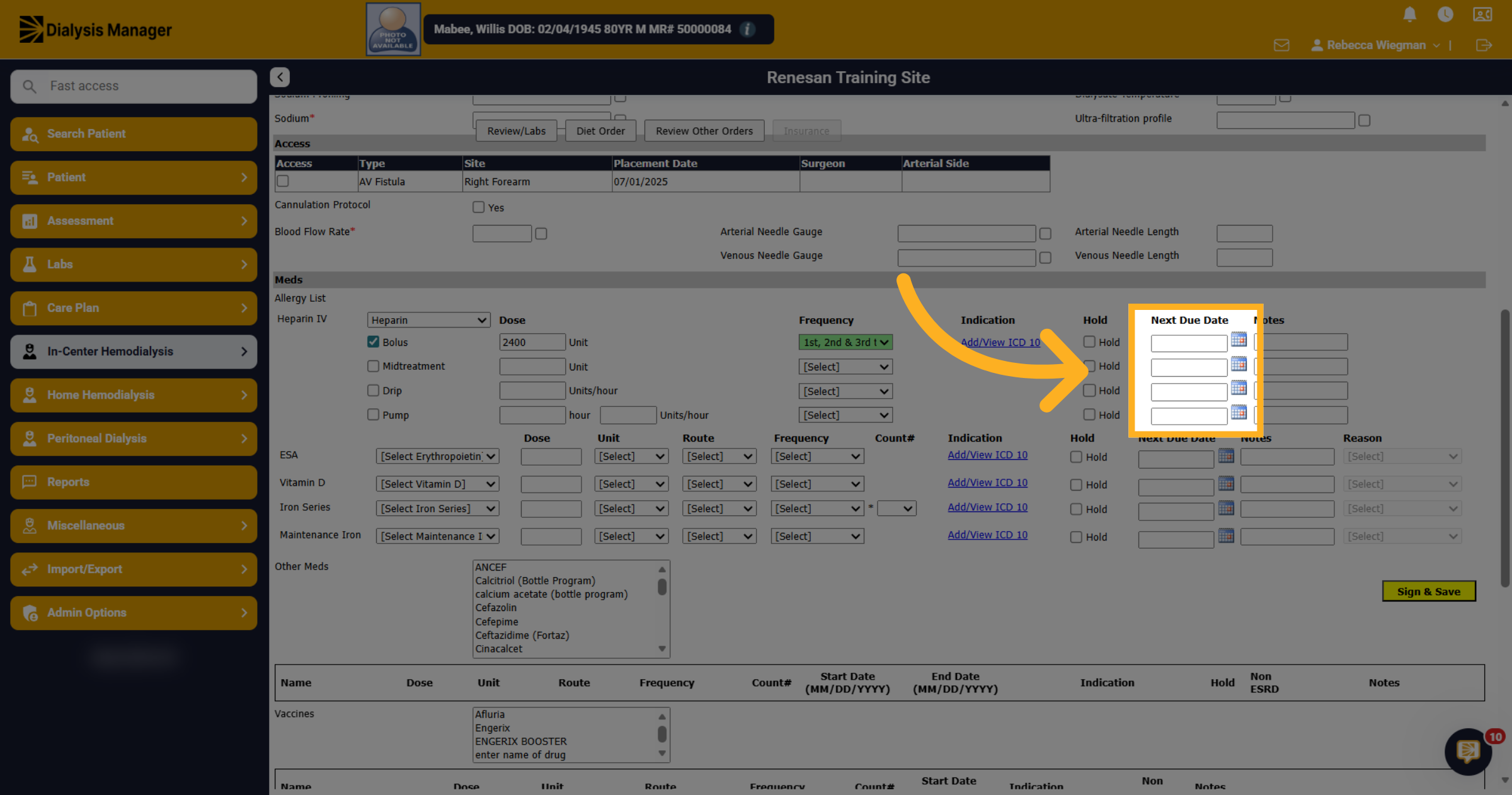
12. Next Due Date
If you need to start a medication on a specific date you can enter the Next Due Date. Otherwise, this can be left blank.
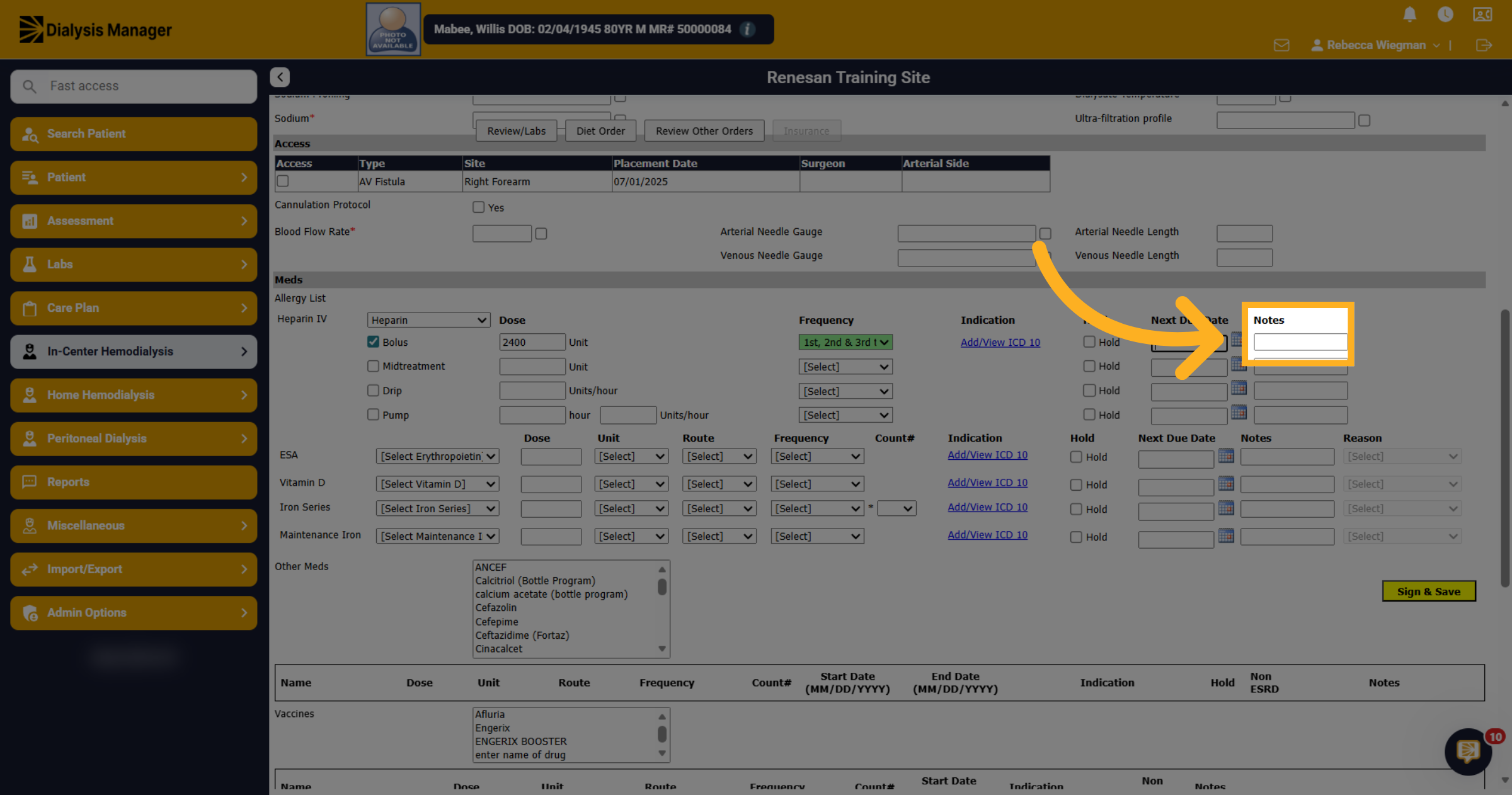
13. Notes
Enter additional notes here. these will display on the treatment flowsheet.
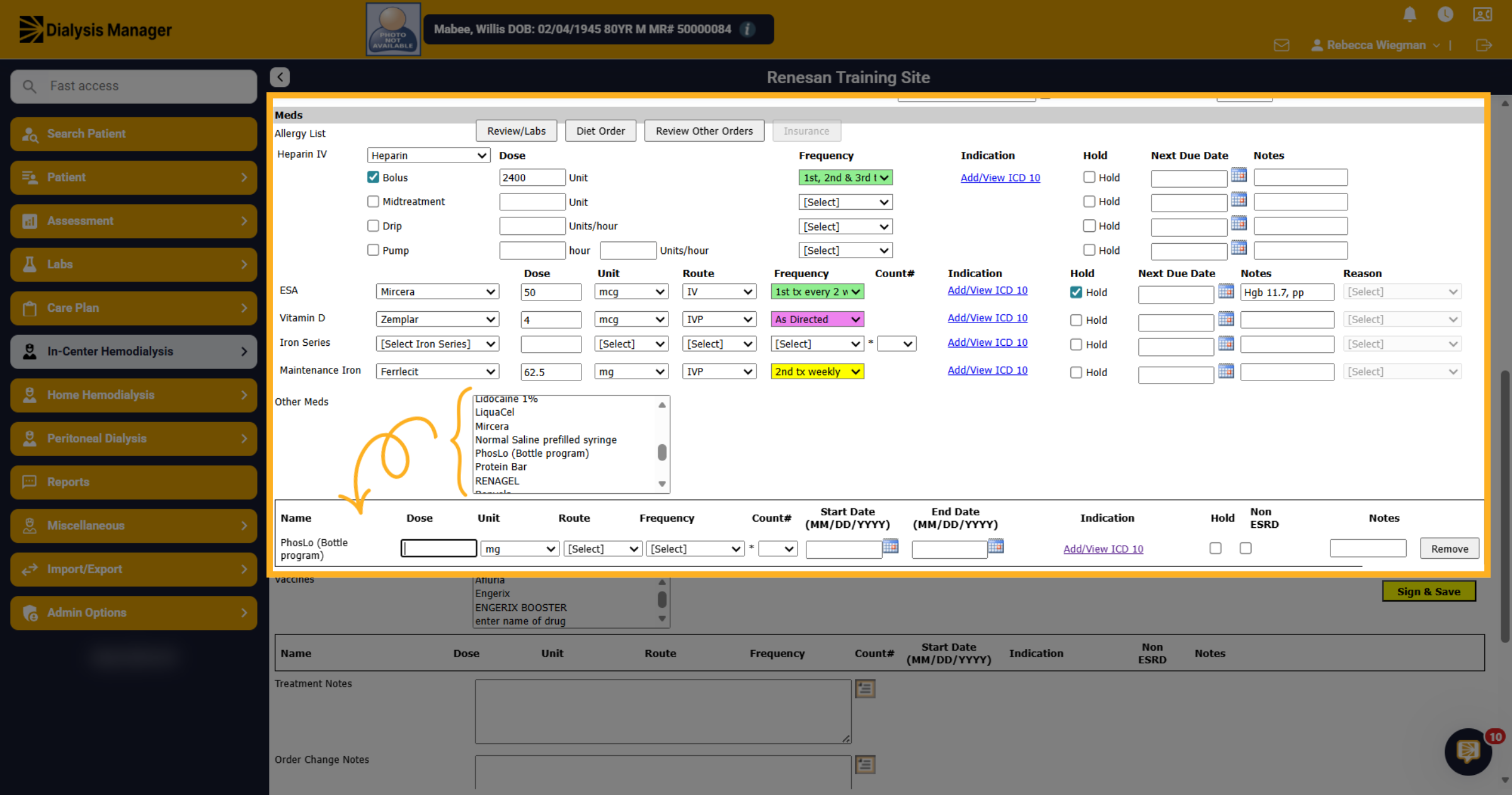
14. Other Meds
When selecting from the Other Meds box the medication will drop below where you're able to document details.
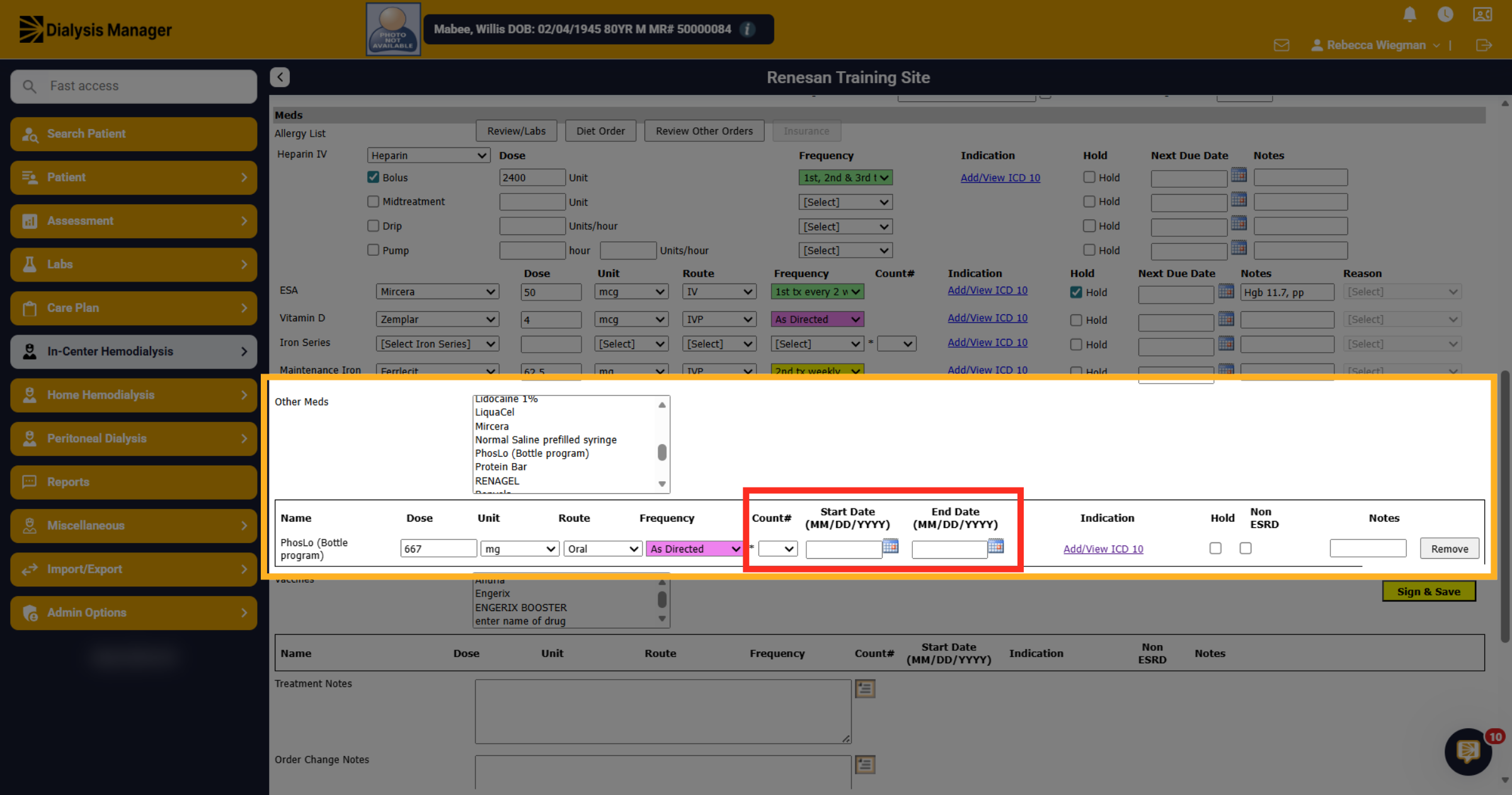
15. Count
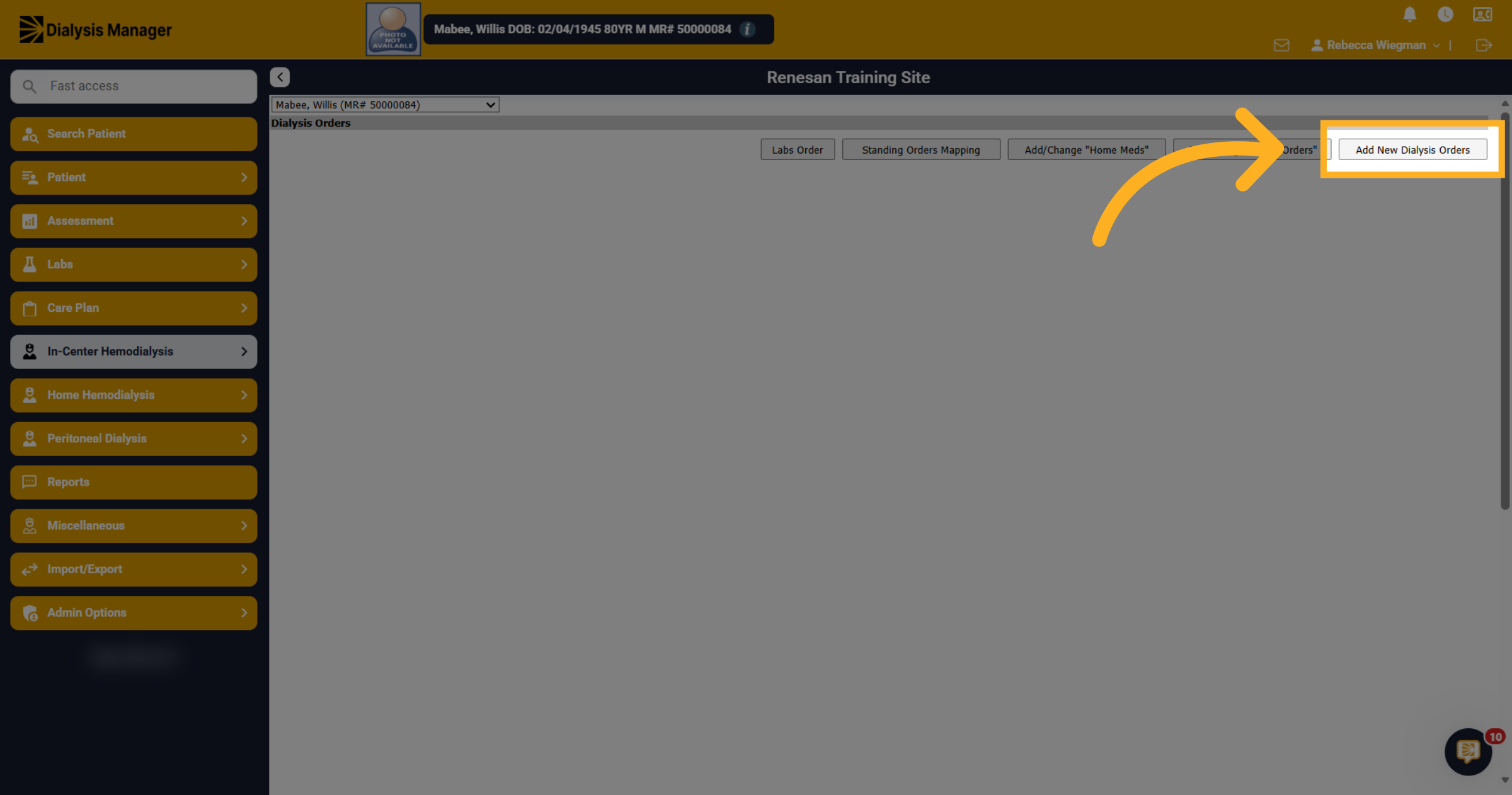
Staff are able to enter a count for the medications. Please note, if the staff is entering an Antibiotic, or any other med with a counted number of doses, and the staff enters this order with an End Date, the risk they face by entering the End Date will be if the patient skips a treatment. If they skip a treatment, then there was not a flowsheet created, so the count is still the same. However, if the End Date occurs when the patient skips a treatment, the order will be discontinued, and the number of prescribed doses will be off. If using a count, we suggest leaving the End Date blank as you will be able to enter an end date on the treatment flowsheet when completed.
16. ICD-10 Code
Again, be sure you are entering an ICD-10 code, if one is not entered, you'll receive a pop-up when clicking Sign and Save. Please Note that when hovering over the blue hyperlink an ICD-10 code that was selected will display.
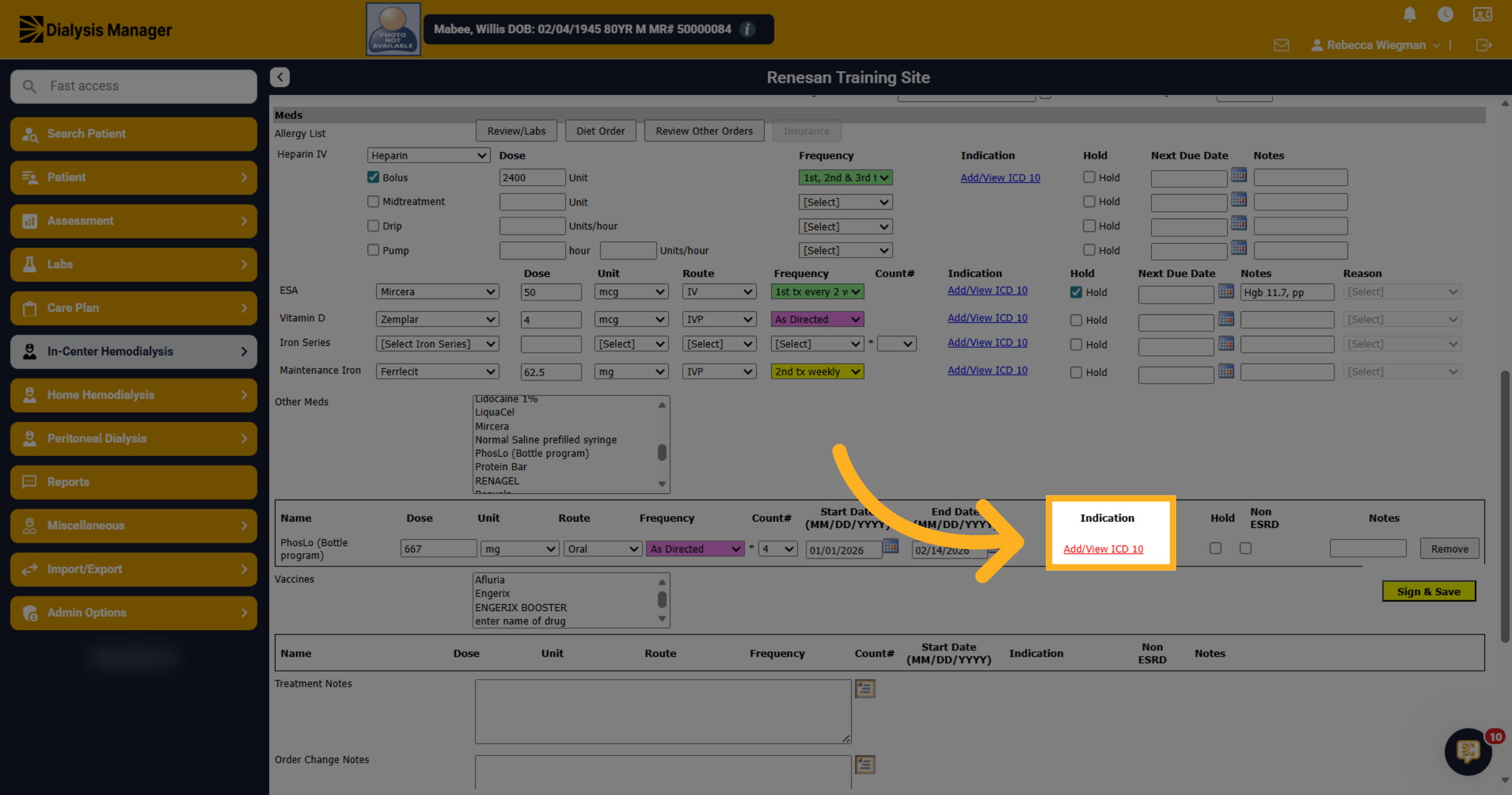
17. Sign and Save
When all information is completed and reviewed click Sign and Save! Now when opening the next flowsheet for the patient, the updated medications will be visible. Important reminder, if you need to enter medication orders for today's already started treatment, you will need to enter the order from the treatment flowsheet.