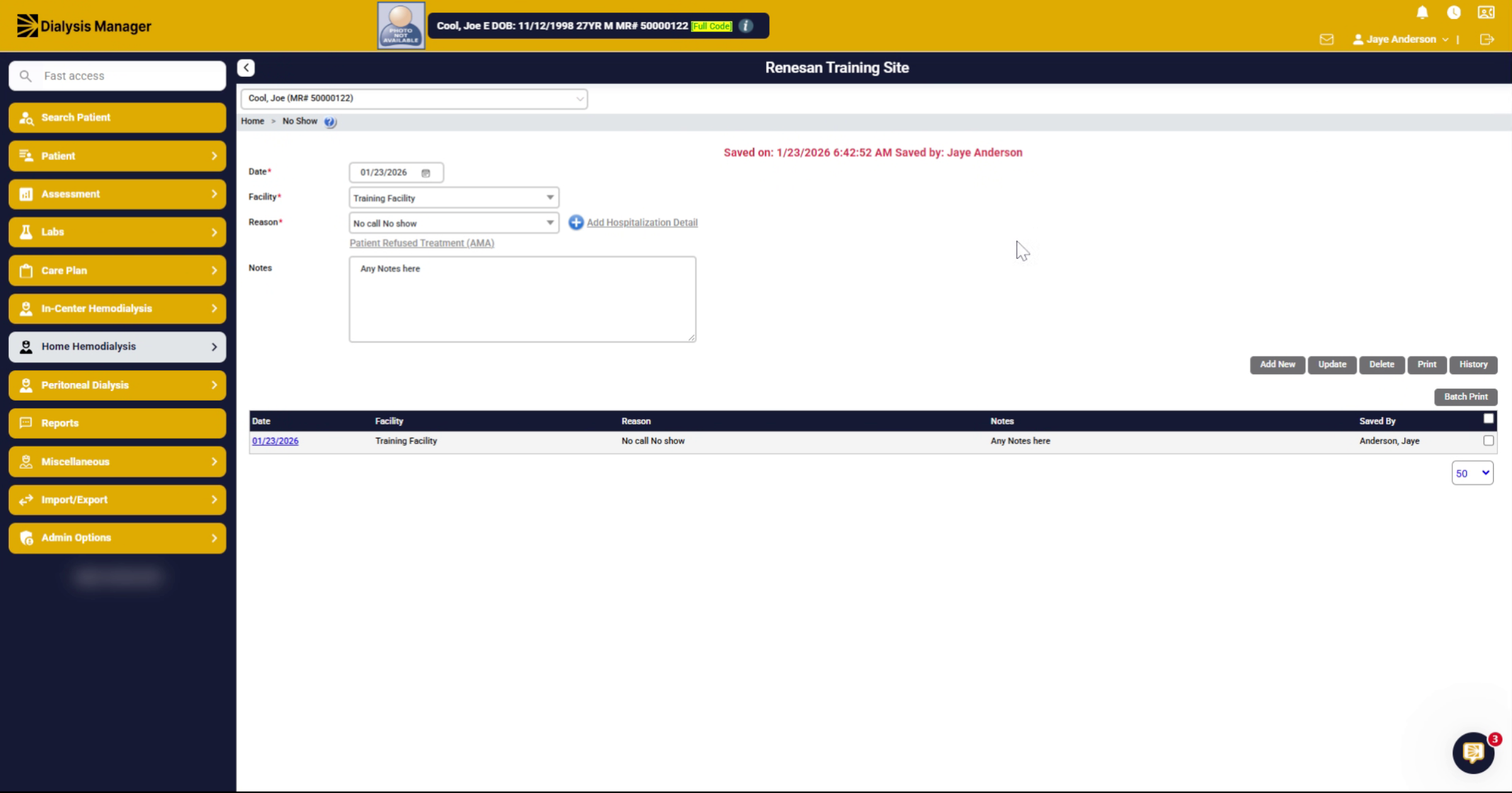
Enter No Show Records for NxStage\Home Hemodialysis Patients.
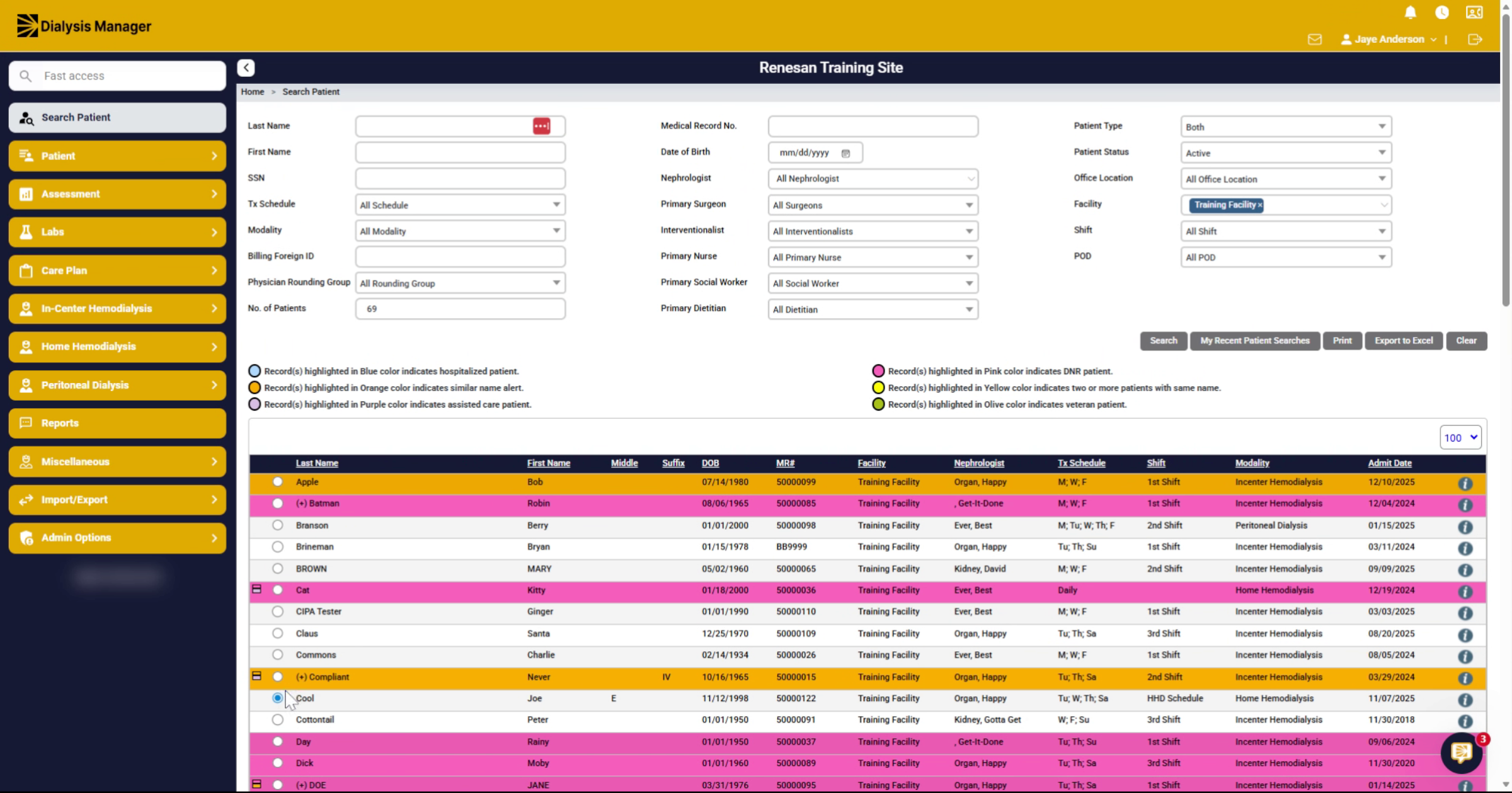
1. Select The Patient
In this video we will walk through entering a No Show for Home Hemodialysis Patients. First search and select the patient that the no show needs to be added.
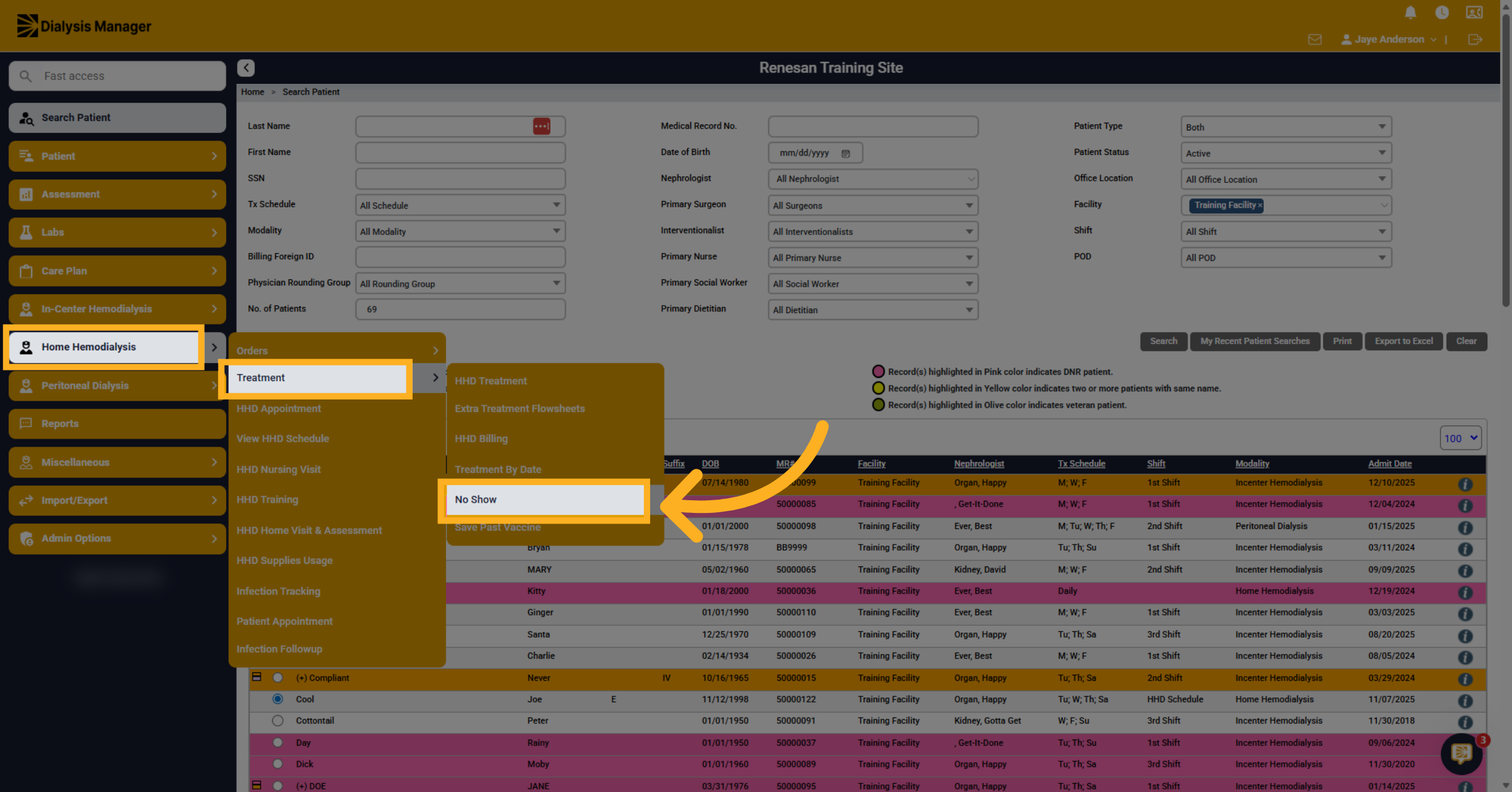
2. Select No Show Option
Navigate to the Home Hemodialysis Menu, then Treatments tab and finally No Show.
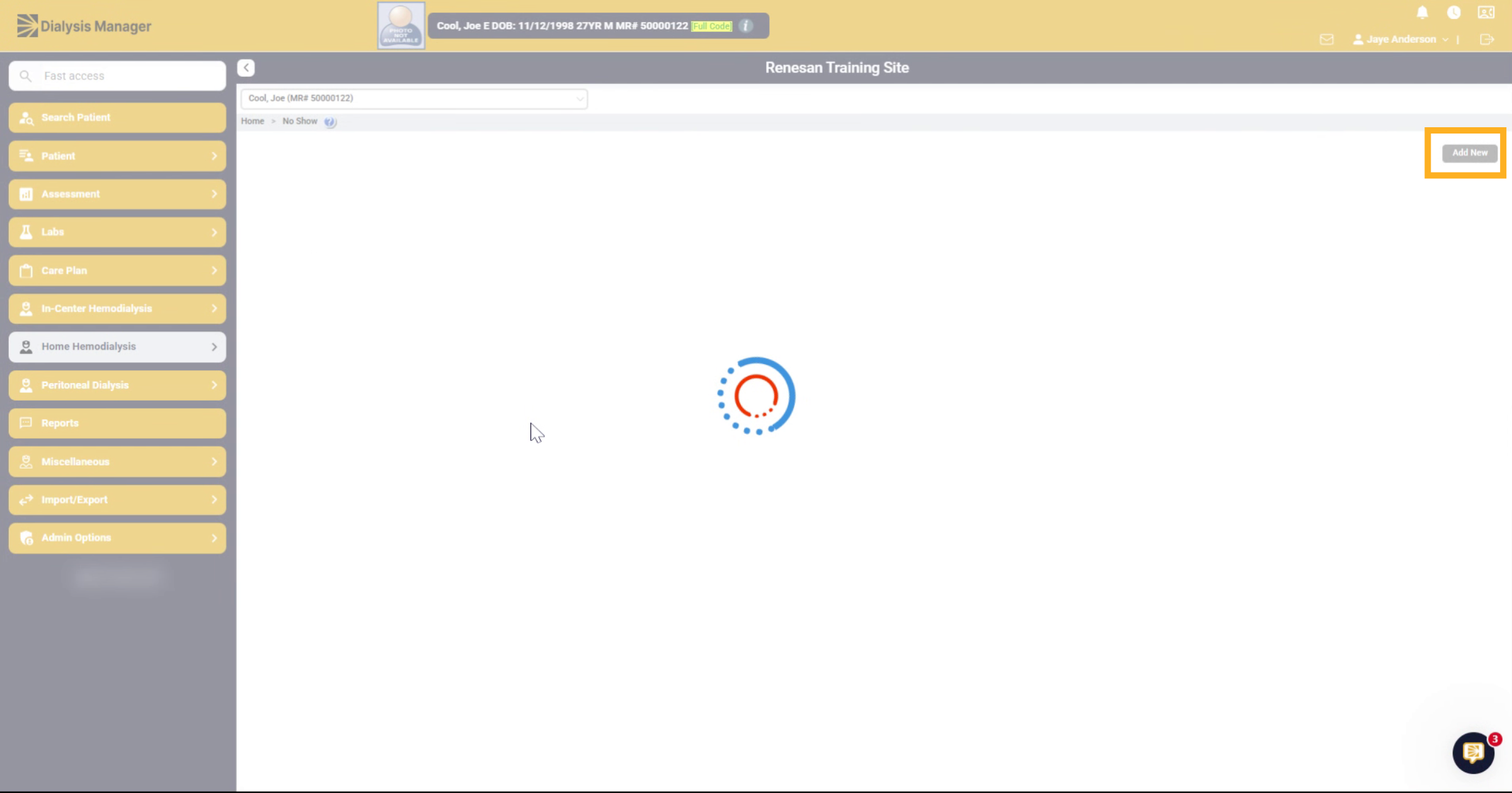
3. Add New No Show Entry
Here you will see a list of No Shows that have been entered in the past. Click Add New to enter the new entry.
4. Open Facility Selection
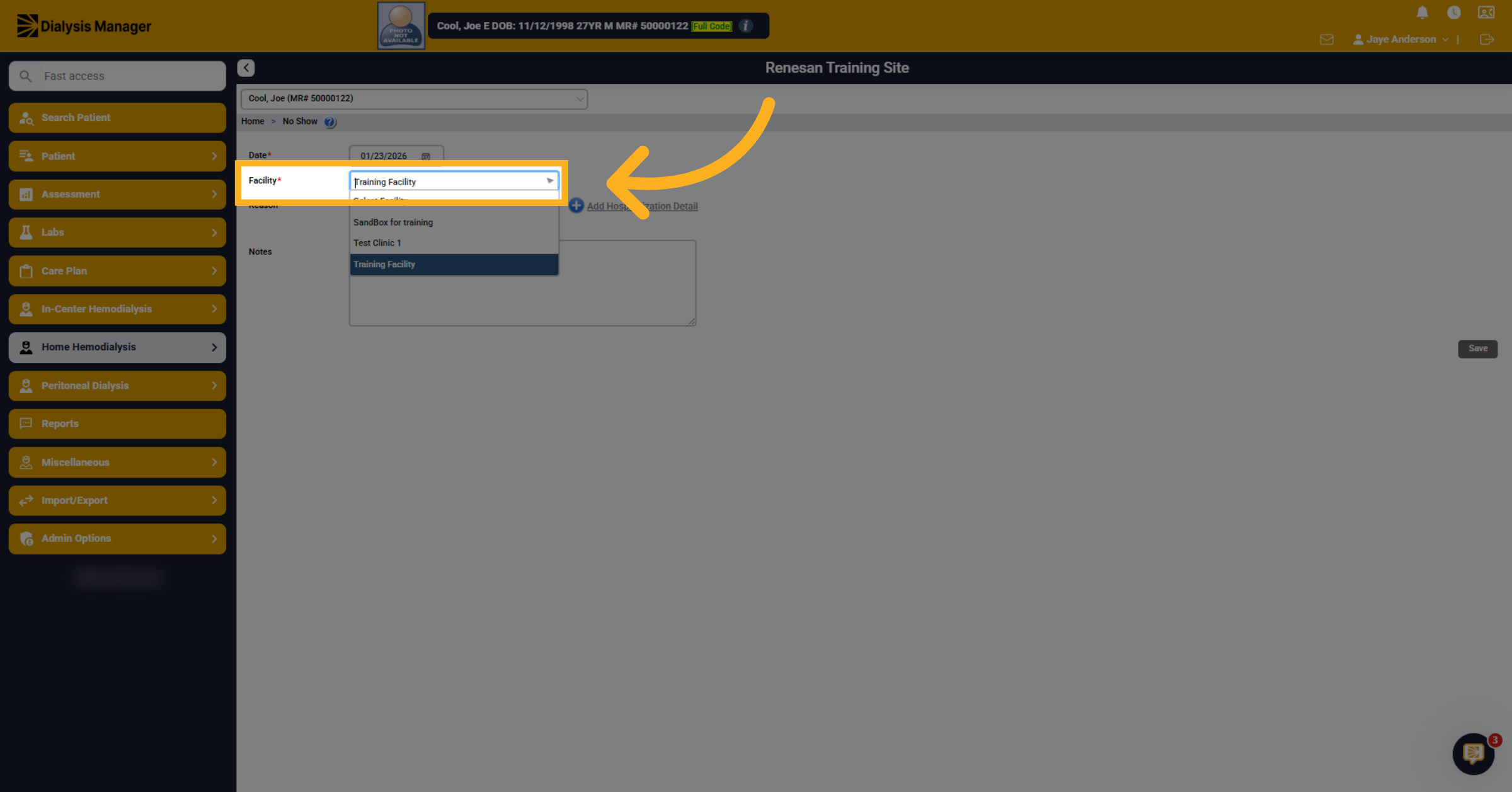
The date will default to today's date. Select the facility where the treatment was scheduled.
5. Open No Show Reason Selection
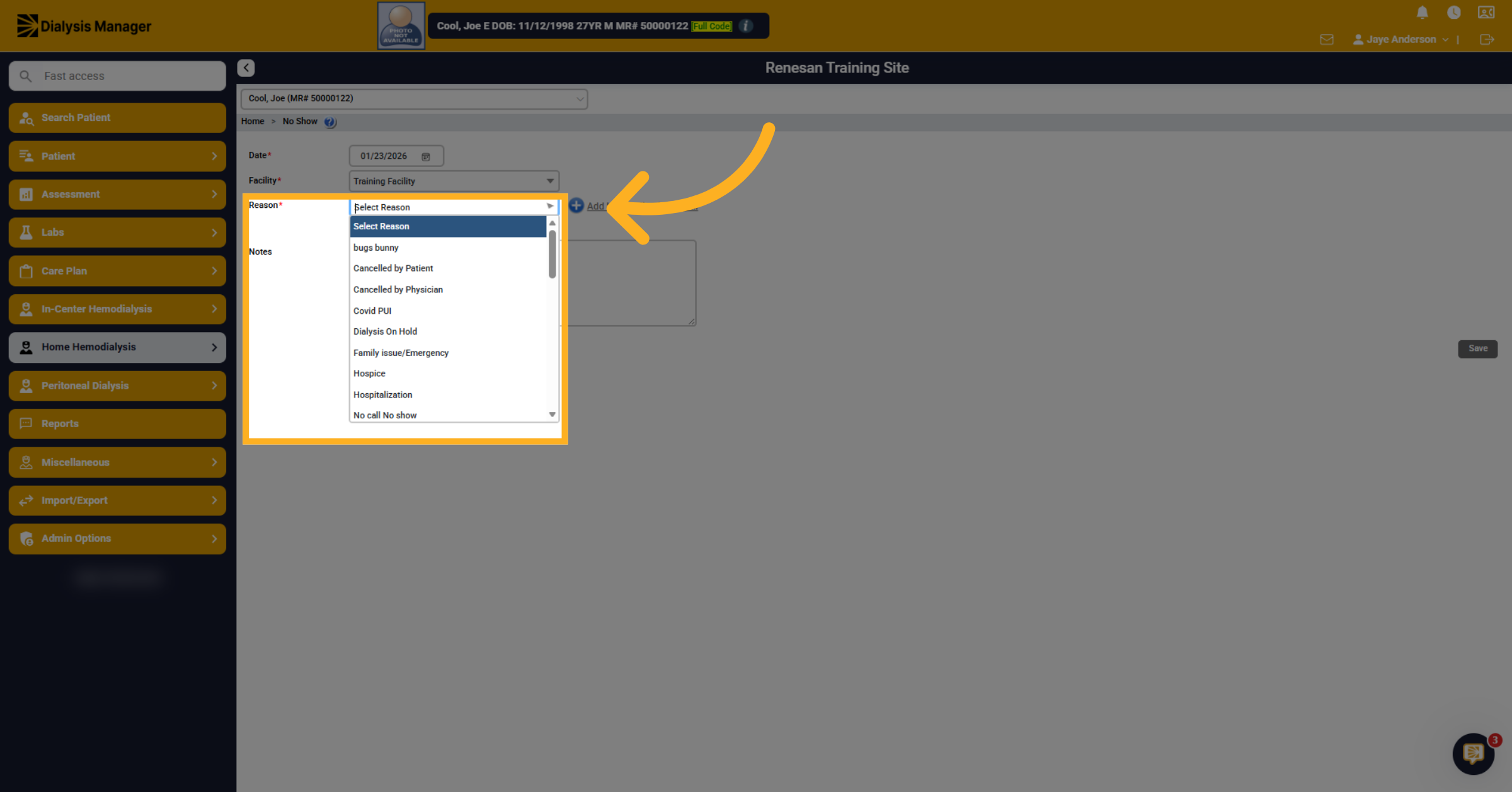
Inside the Reason dropdown, select the appropriate reasoning.
6. Save No Show Record
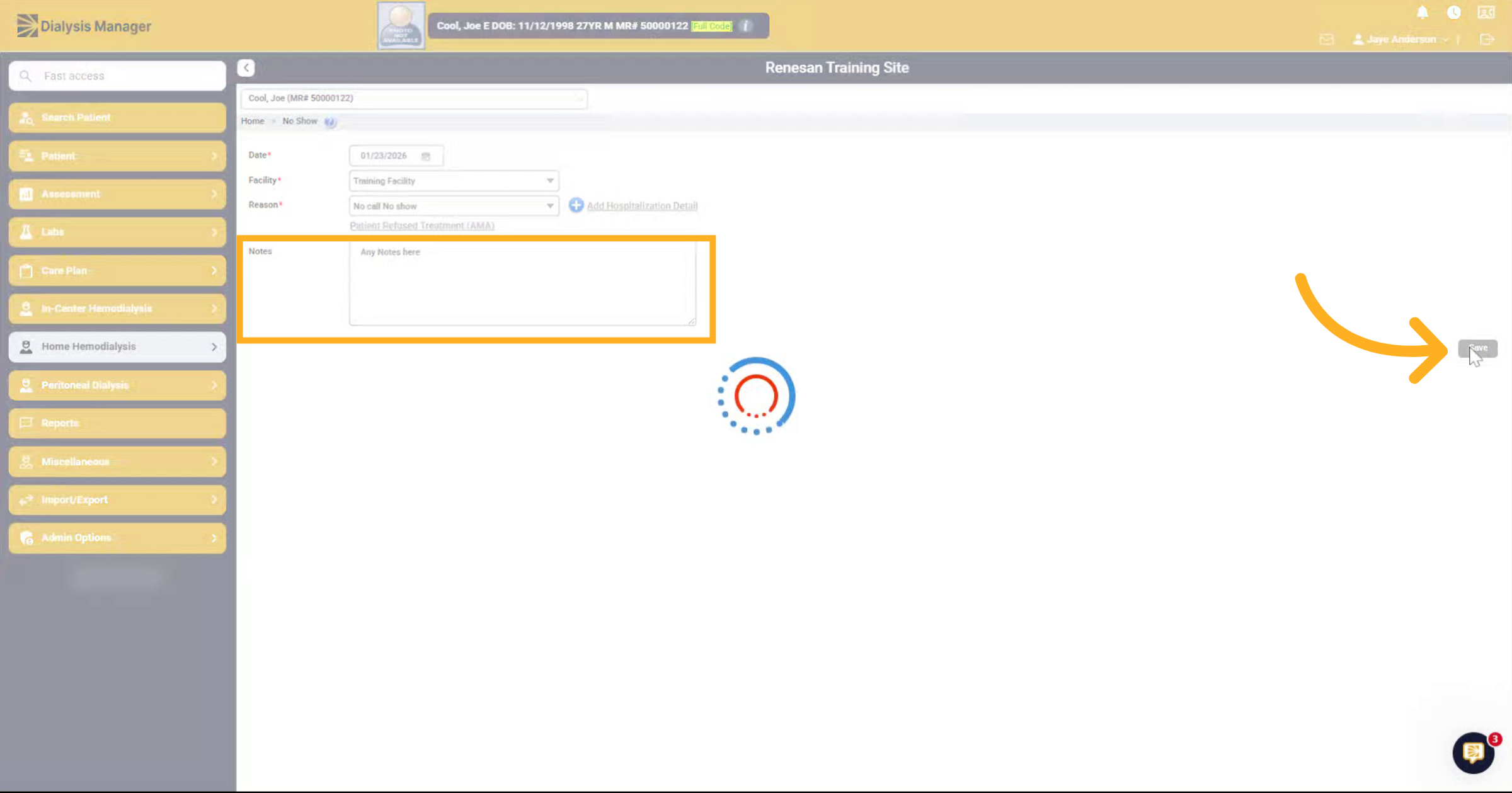
Enter any notes pertaining to the No-Show and click Save.
7. Modify Or Update No Show Entry
If you need to modify or update, you'll come into this area. Select the date. And enter any applicable notes and either update to save or you can choose delete, to remove the record.