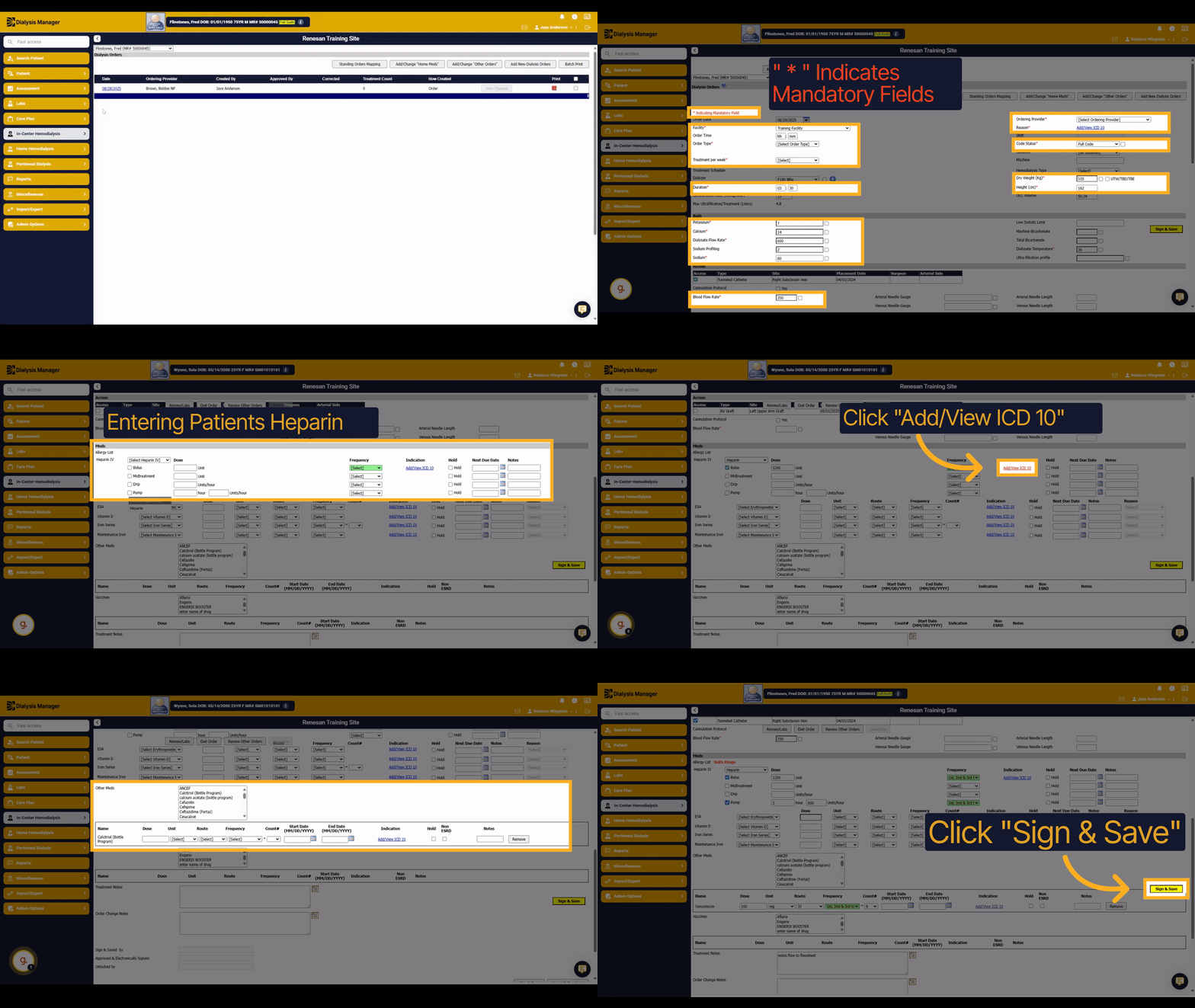
Enter In-Center Hemodialysis Order
1. Introduction
This guide will show you how to enter an In-Center Hemodialysis order efficiently. You will learn how to select the ordering provider, add medications, specify treatment frequency, and finalize the order with a signature.
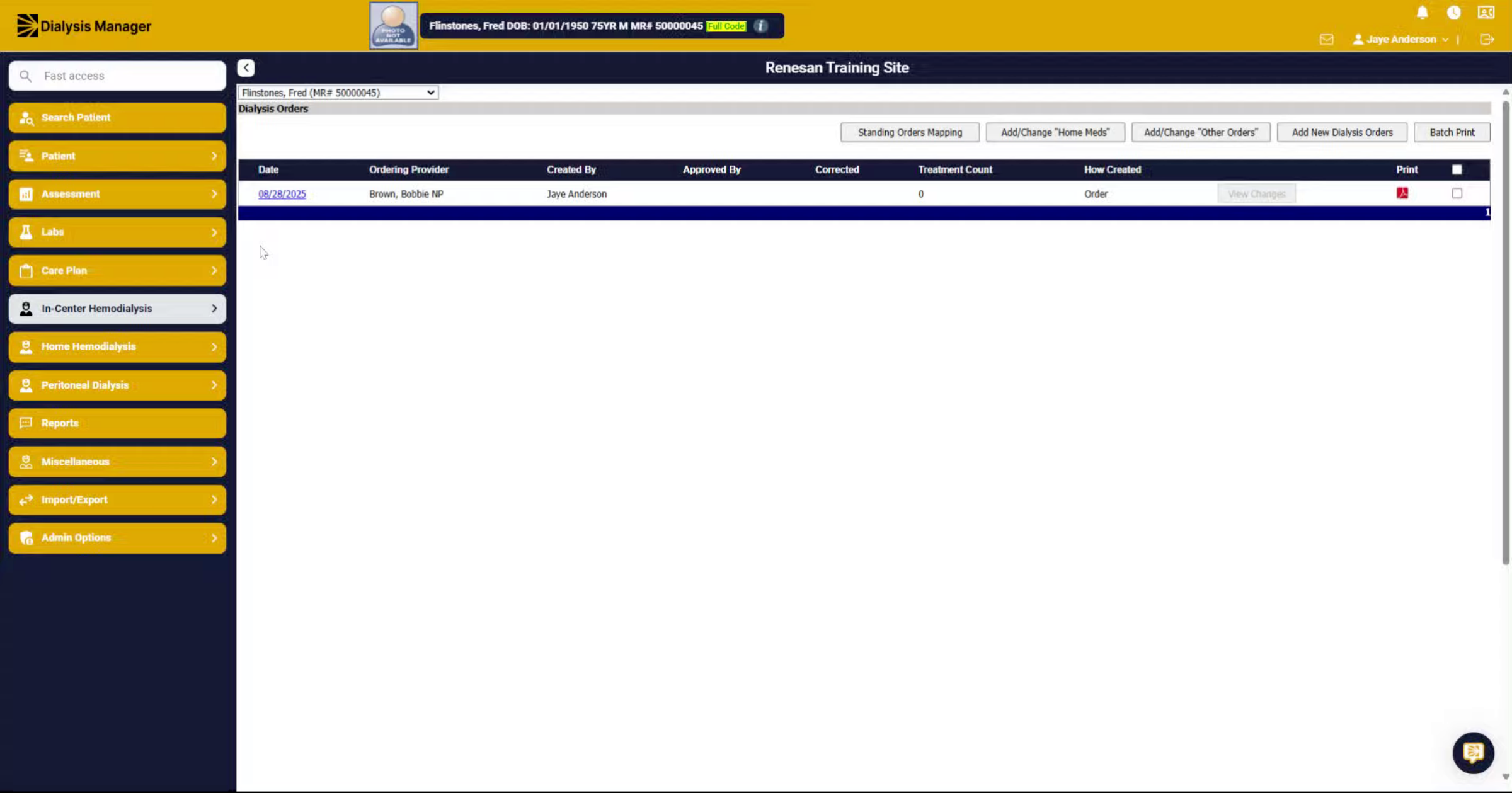
2. Click "Dialysis Orders"
Select In - Center Hemodialysis, Orders and then Dialysis Orders.
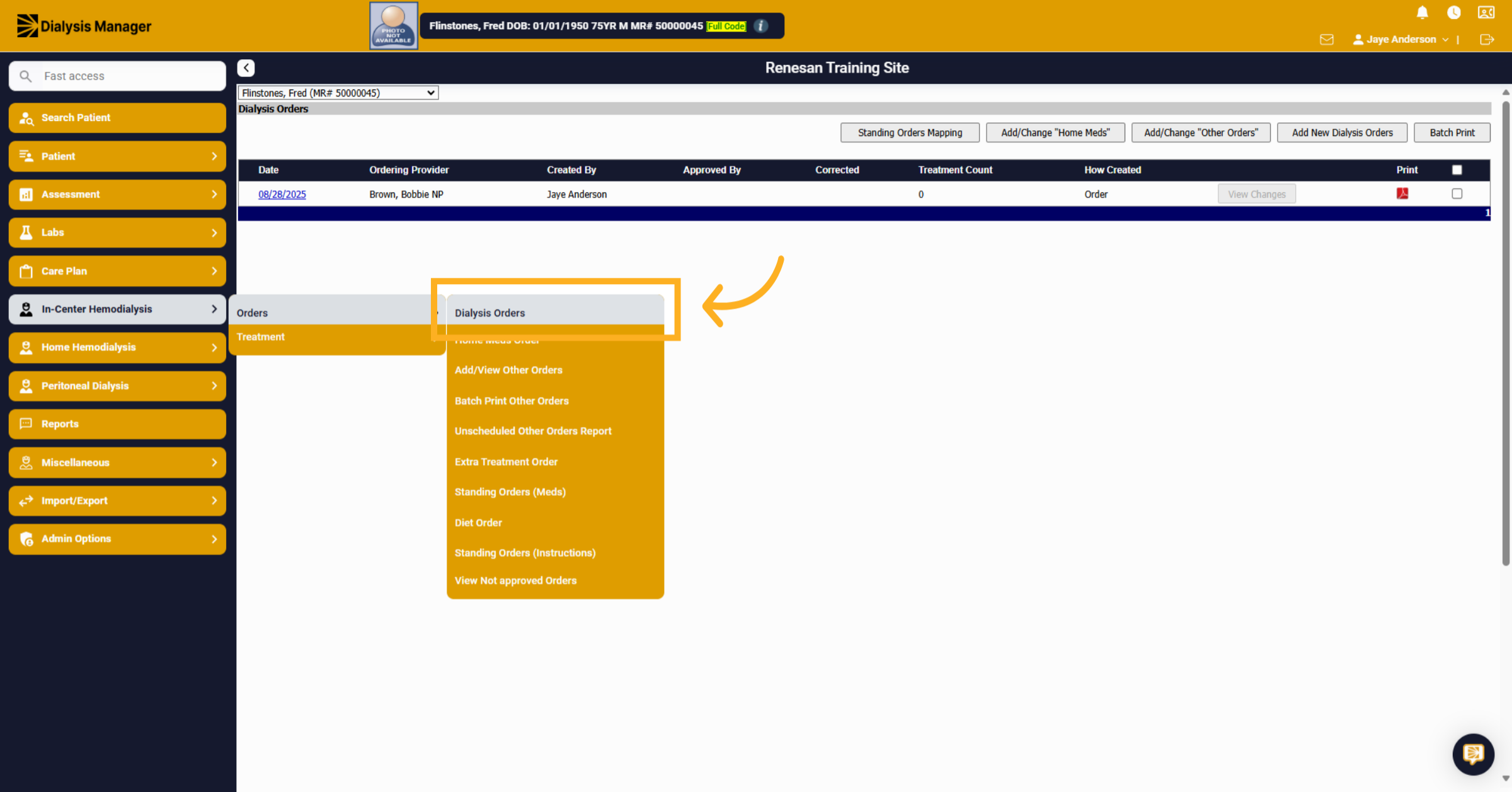
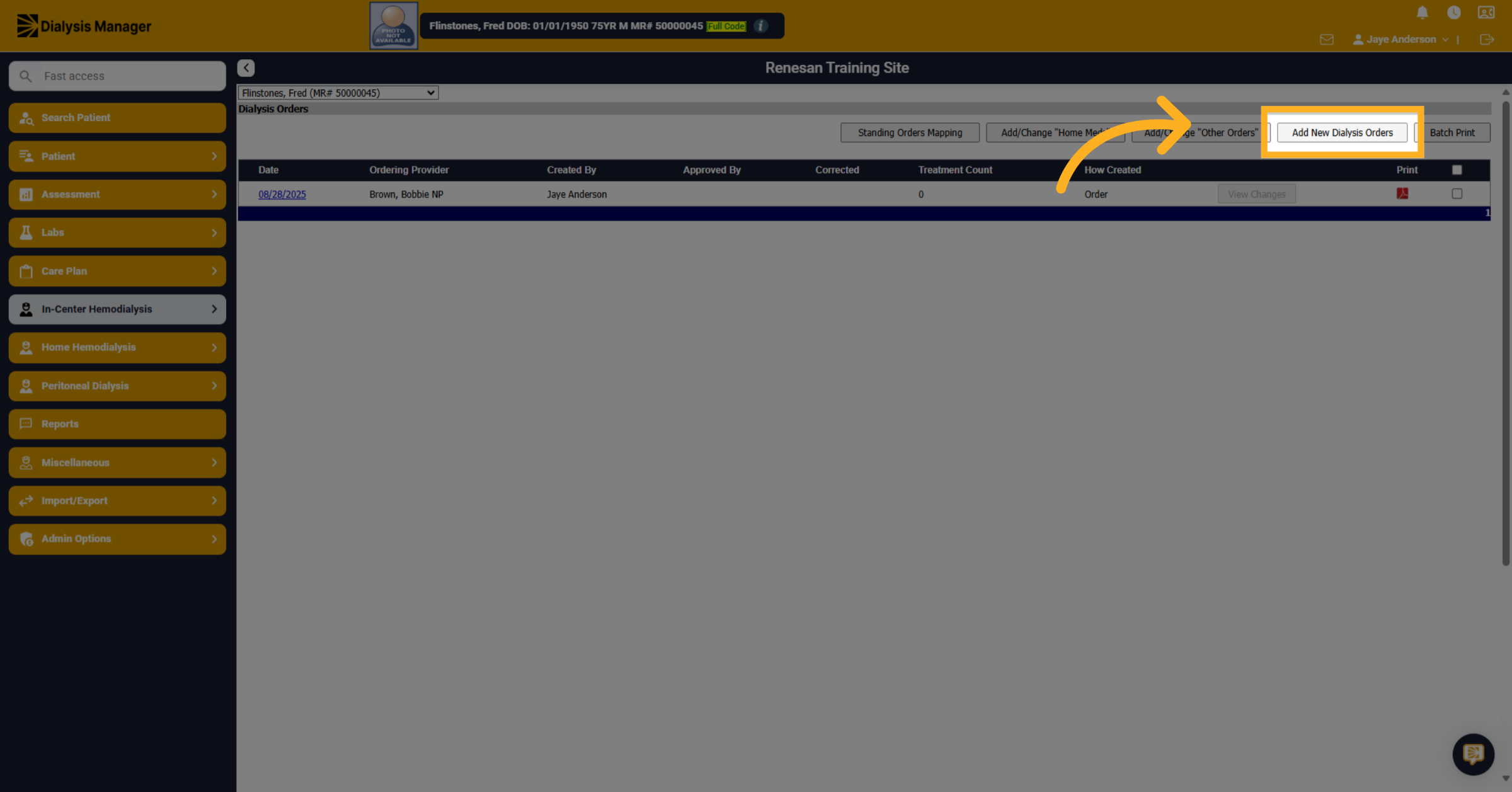
3. Click "Add New Dialysis Orders"
Click Add New Dialysis Orders to start creating a new order.
4. Mandatory Fields
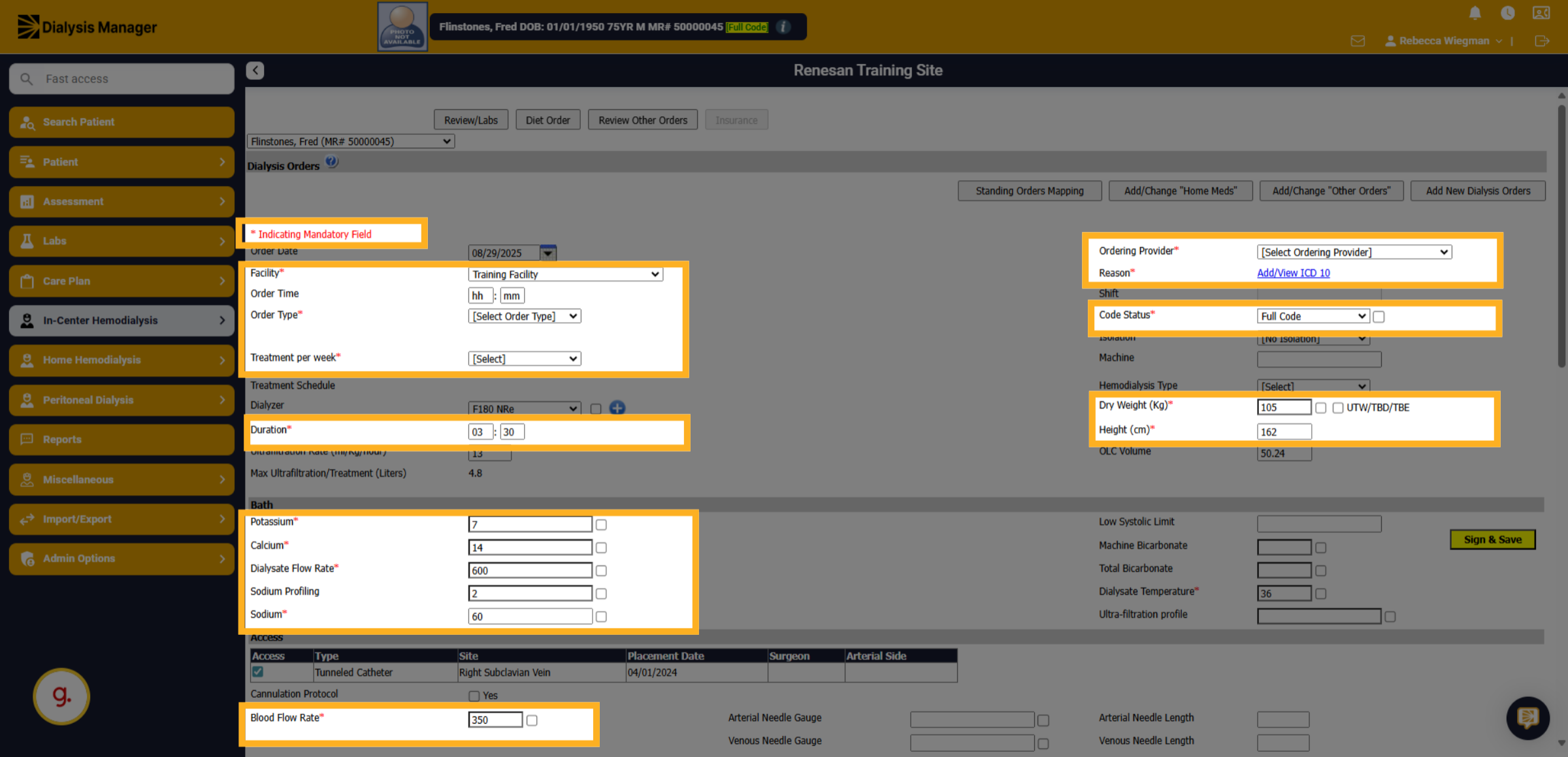
All forms within Dialysis Manager have required fields. Required fields are shown with a RED Asterisk. These fields must be selected before saving. If a required field is missed you'll receive a pop-up upon Sign & Save.
5. Click "[Select Ordering Provider]"
Click the Ordering Provider dropdown to select the provider who will sign or e-sign the order prescription.
![Click '[Select Ordering Provider]'](https://knowledgetest.renvio.com/hubfs/Intercom%20knowledge%20base/qg-2FIroXeNJHrNYcFwtsPJSFDGN82g23-2F6uztWuenAtU3yttrA2xYKB-2Fs3j9vcsBKcSuK9JgeKg37R_doc.png)
6. Click "[Select Order Type]"
Click the Order Type dropdown to specify the type of order being placed by selecting the appropriate order type such as Per Protocol or Telephone Order with Read Back.
![Click '[Select Order Type]'](https://knowledgetest.renvio.com/hubfs/Intercom%20knowledge%20base/qg-2FIroXeNJHrNYcFwtsPJSFDGN82g23-2F6uztWuenAtU3yttrA2xYKB-2FiUBbPDaogA5GBPEFQM4ba1_doc.png)
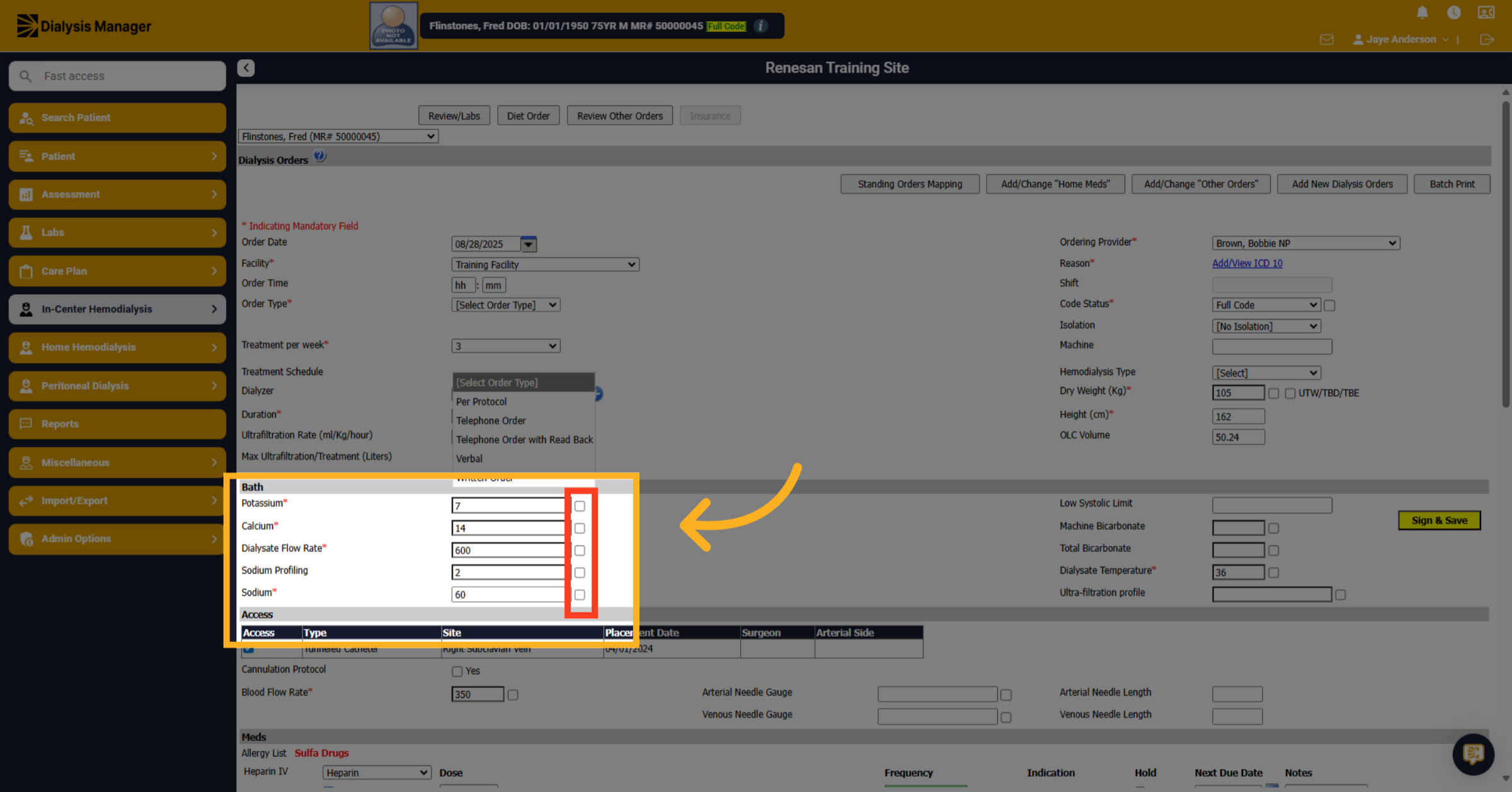
7. Not a standard dialysis setting
Check the box next to a bath item to highlight that this is not a "standard dialysis setting".
8. Heparin
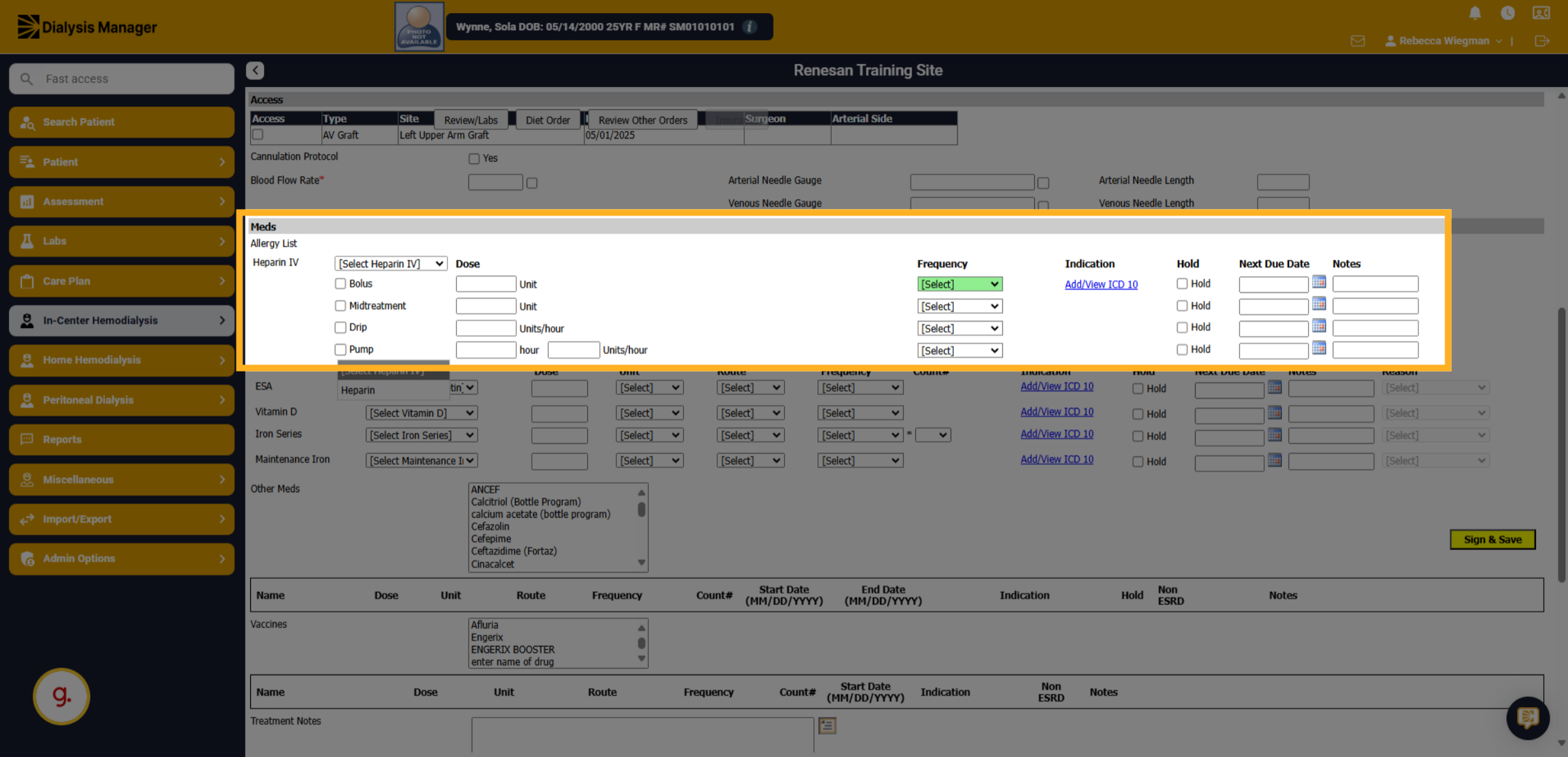
Click the Heparin intravenous option to select the Heparin type.
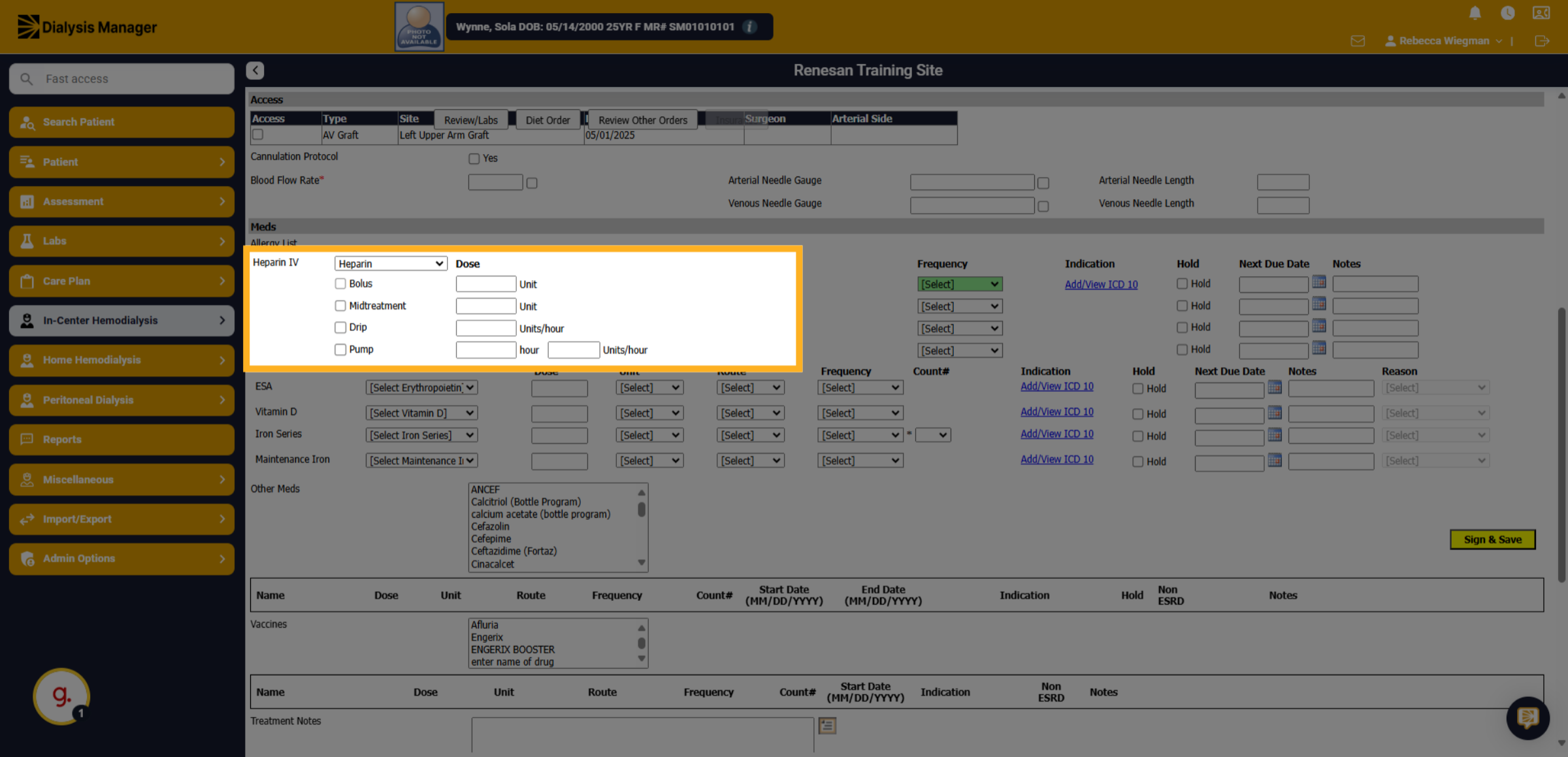
9. Click "Bolus"
Select the appropriate options.
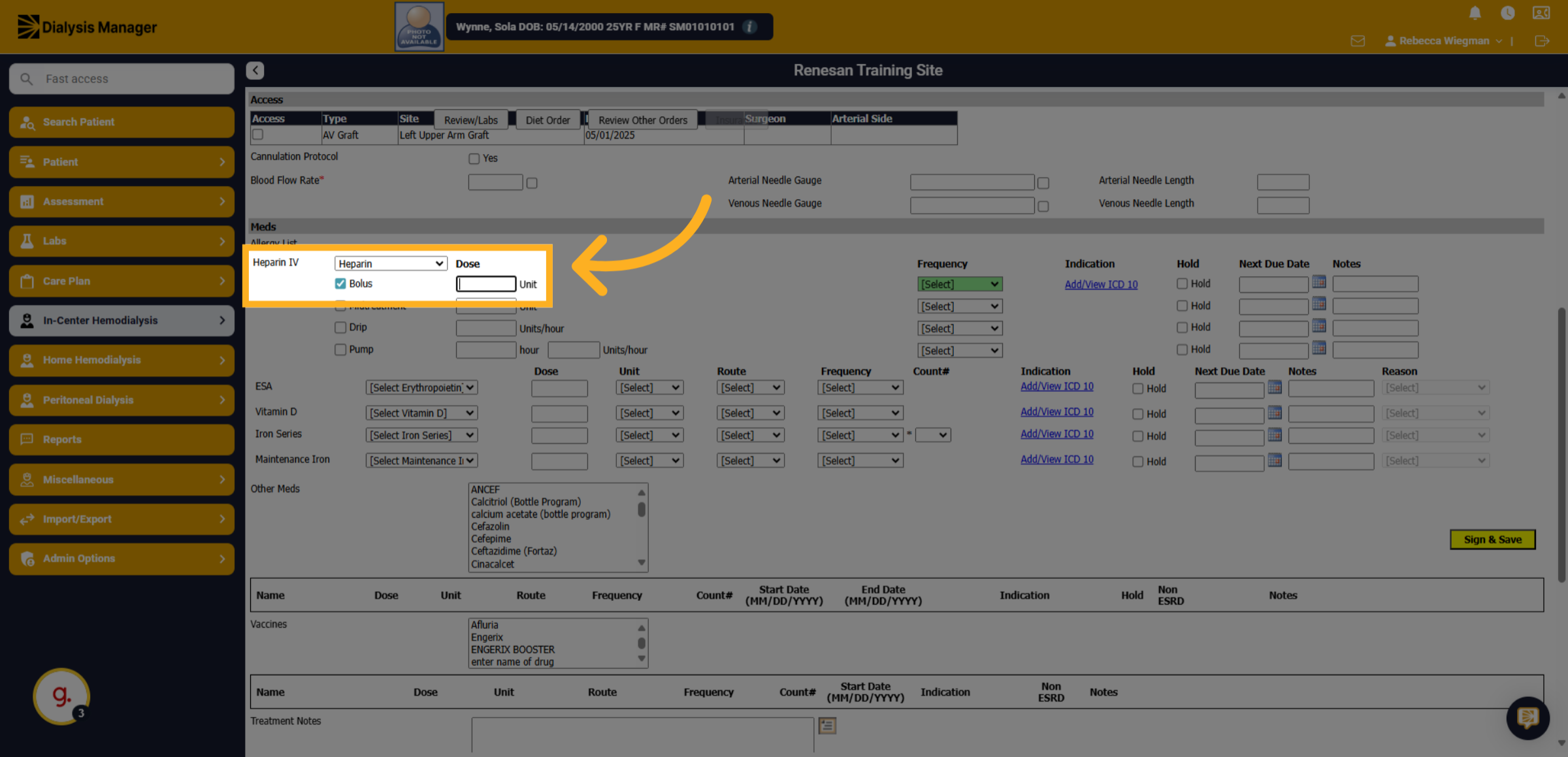
10. Dose Unit
Enter the dose unit.
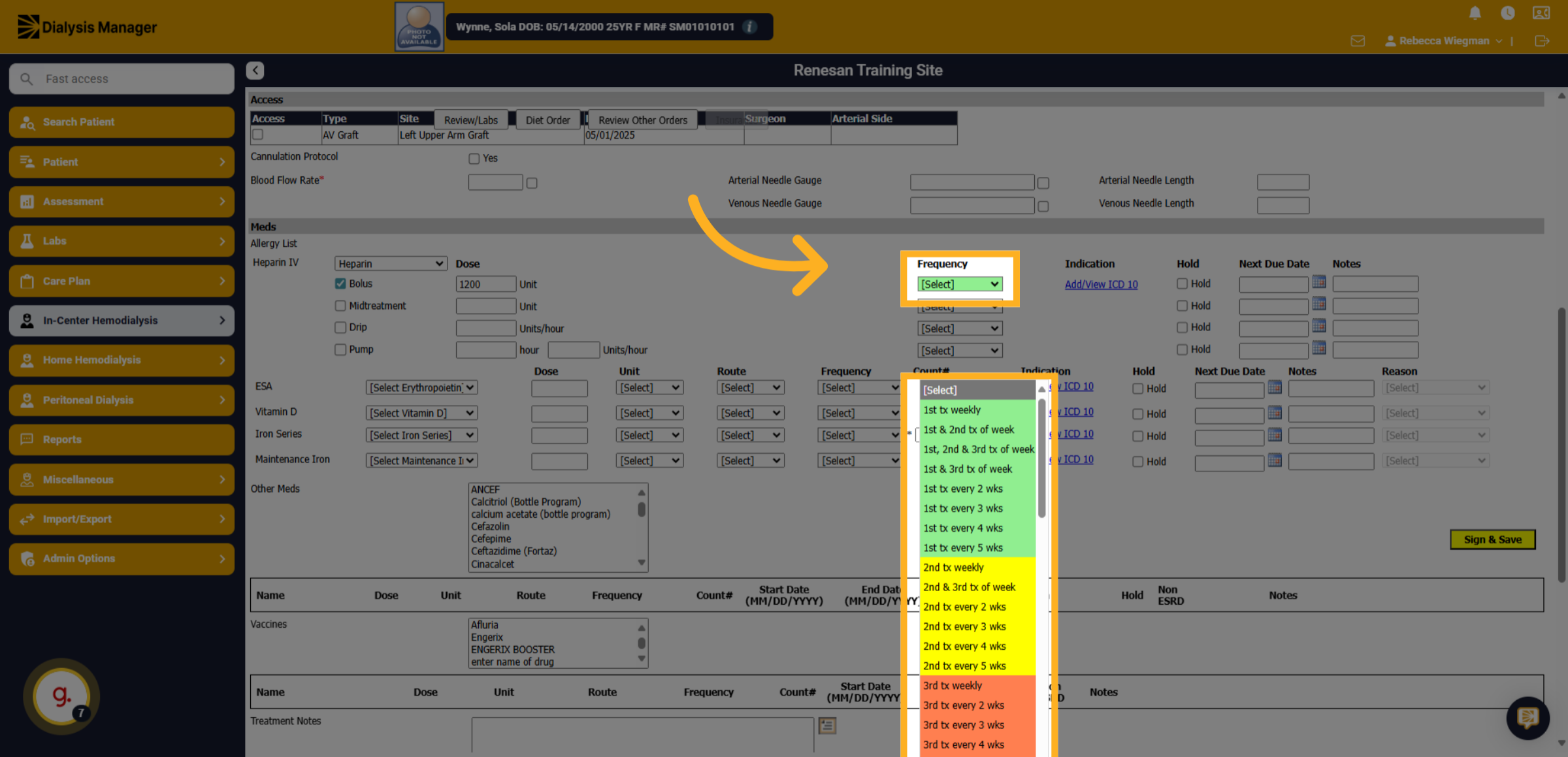
11. Click
Click the dropdown menu to view frequency options. Noting the color-coded smart frequencies.
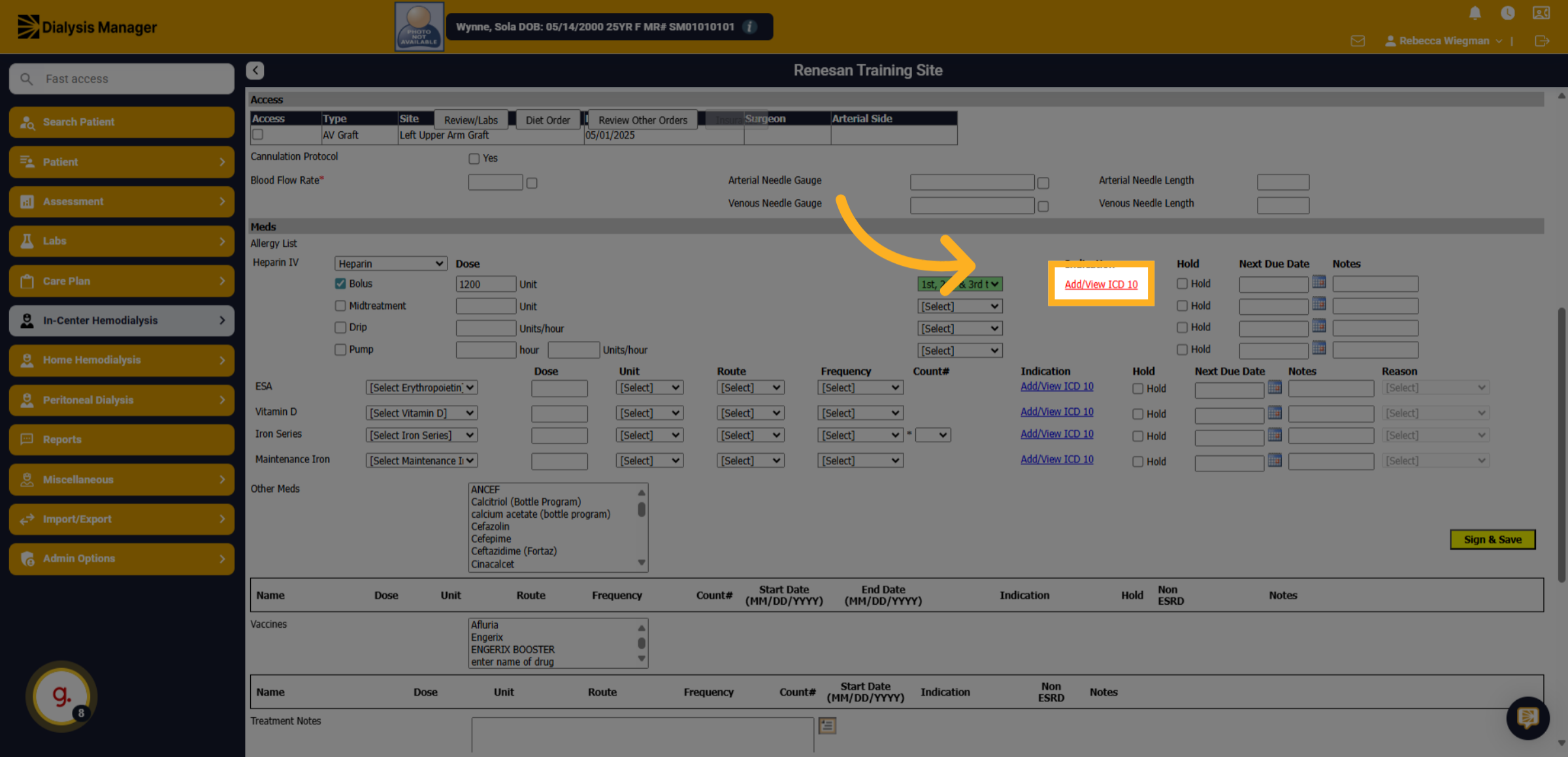
12. Click "Add/View ICD 10"
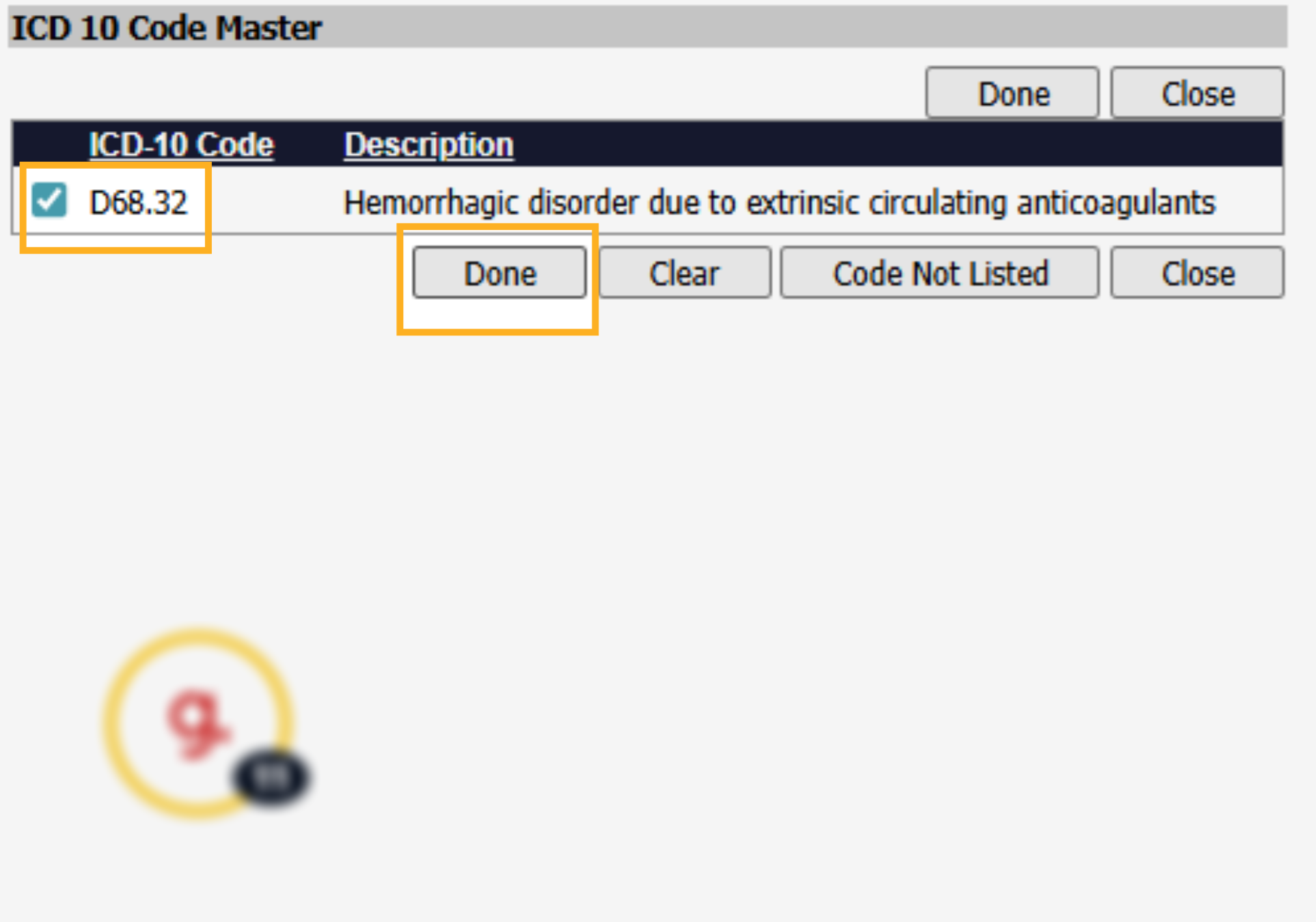
Click the ICD-10 codes input area to enter diagnosis codes relevant to the order.
13. Select ICD-10 and click Done
Select the appropriate ICD-10 code and click Done.
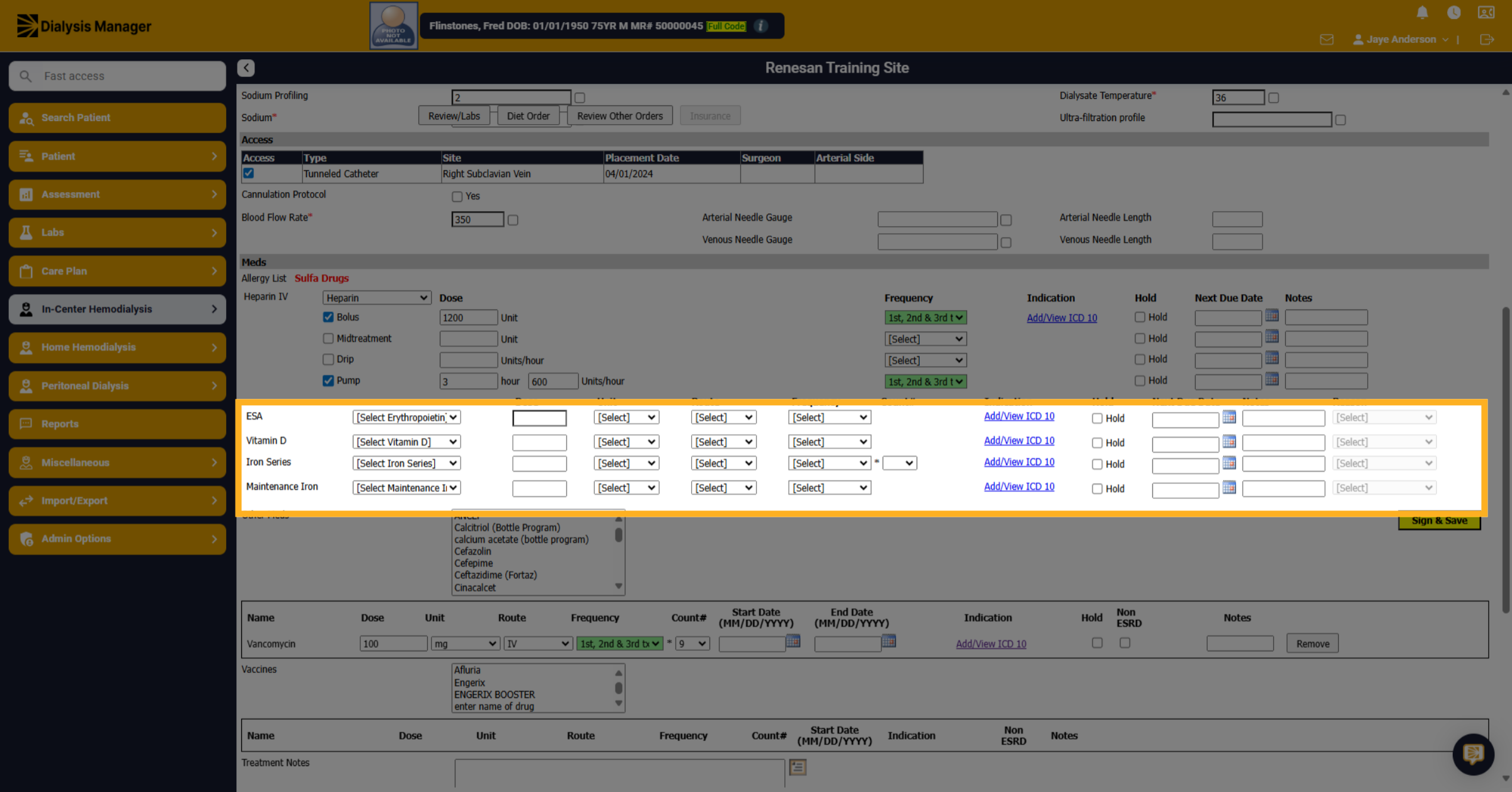
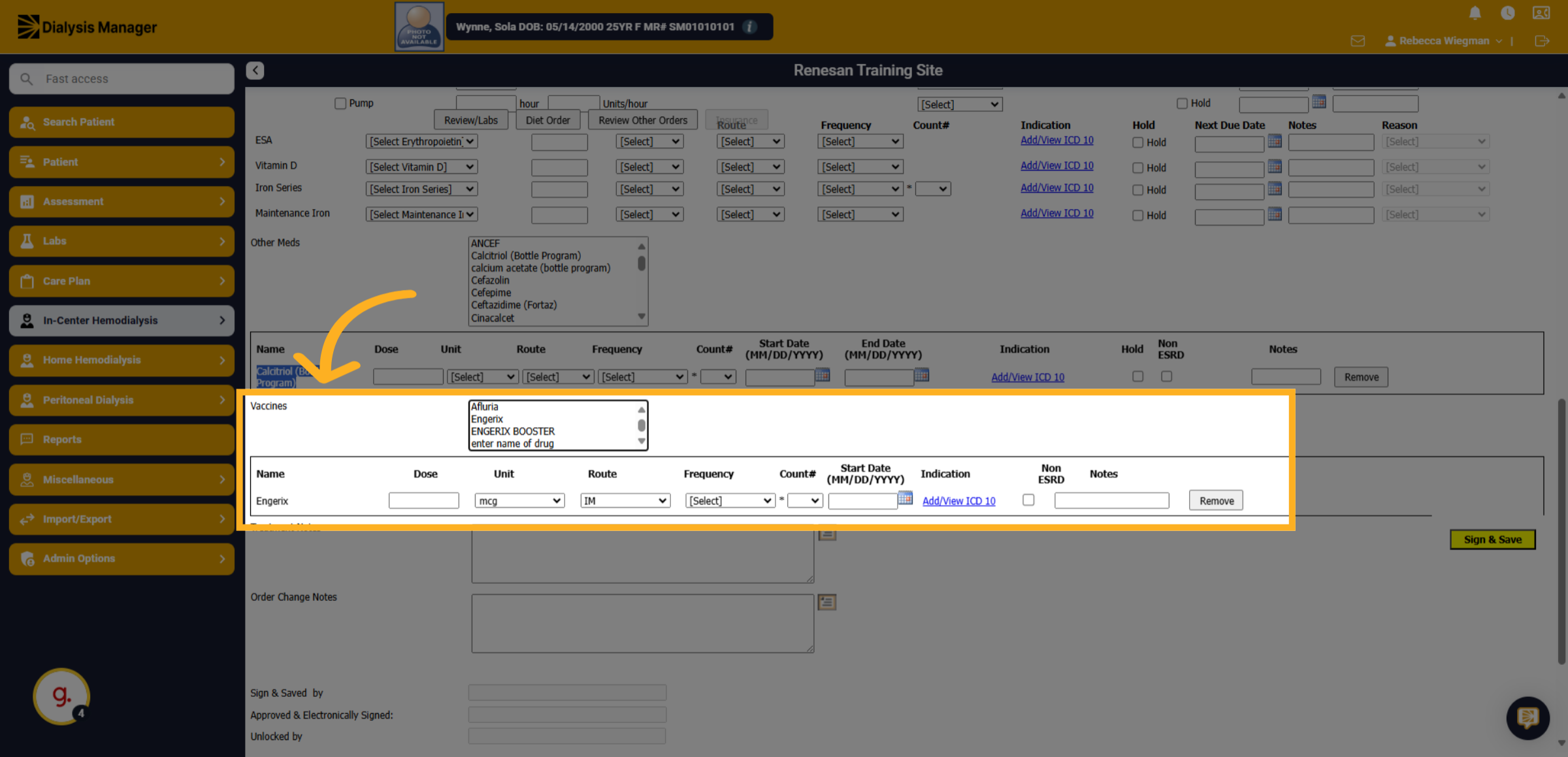
14. Additional Meds
Click on any additional medications to add it to the order if needed.
15. Selecting other meds
When selecting other meds,
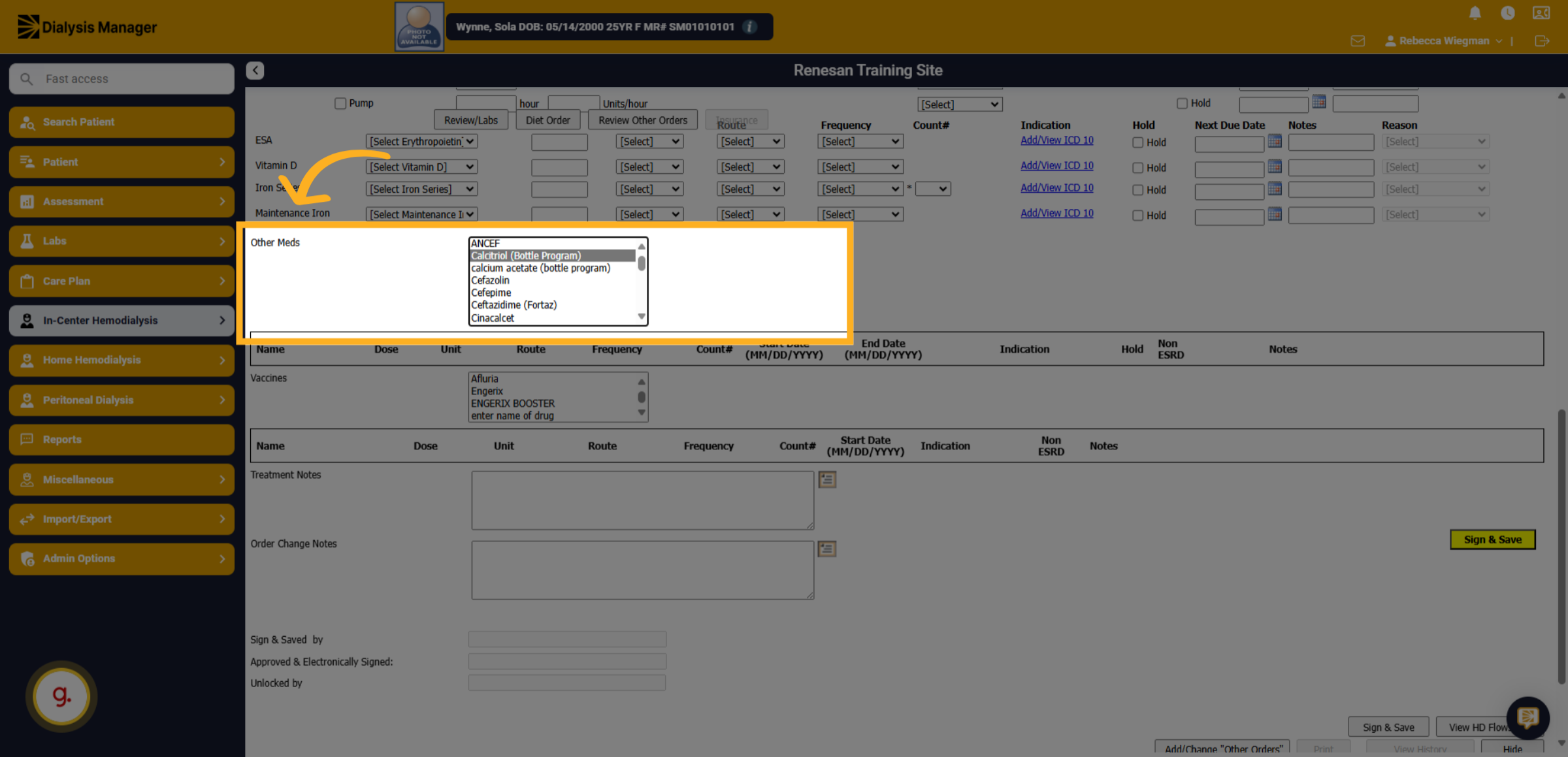
16. drops down
It drops down to enter the dose, units, route, frequency, etc.
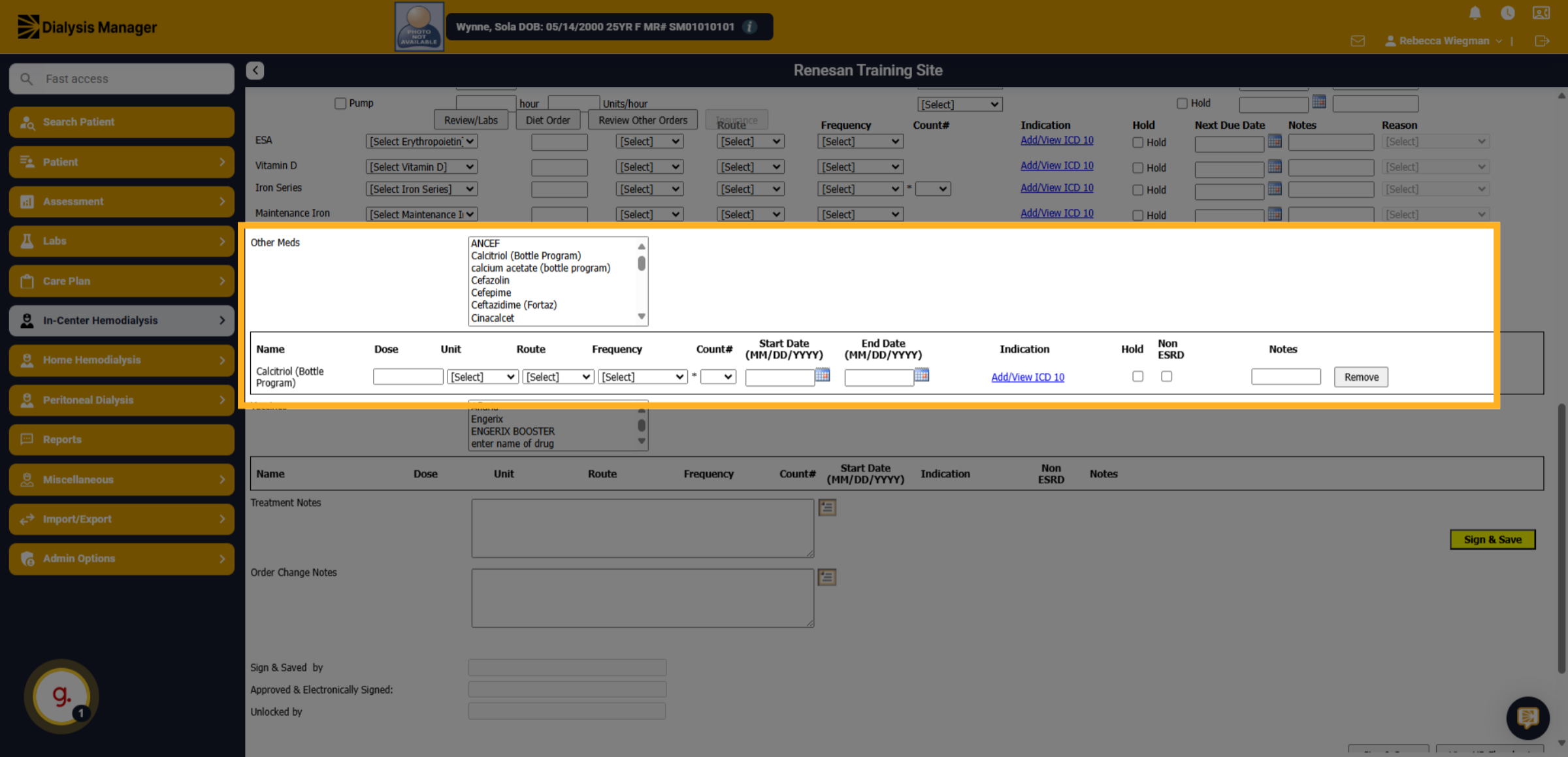
17. Vaccines
This will also happen for vaccines.
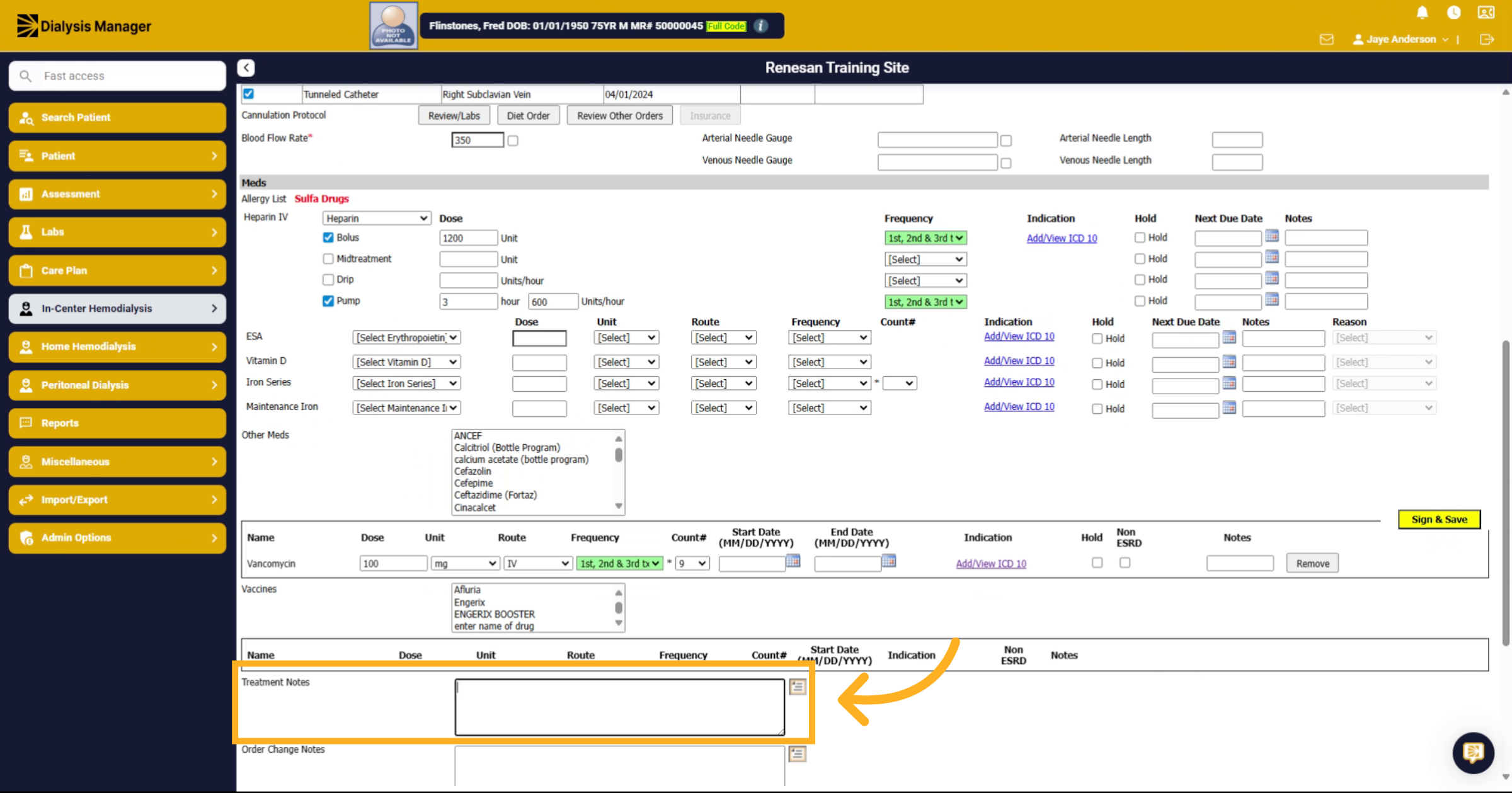
18. Fill "notes flow to flowsheet"
Fill in the notes section with treatment notes, which will flow over to the treatment flowsheet for documentation.
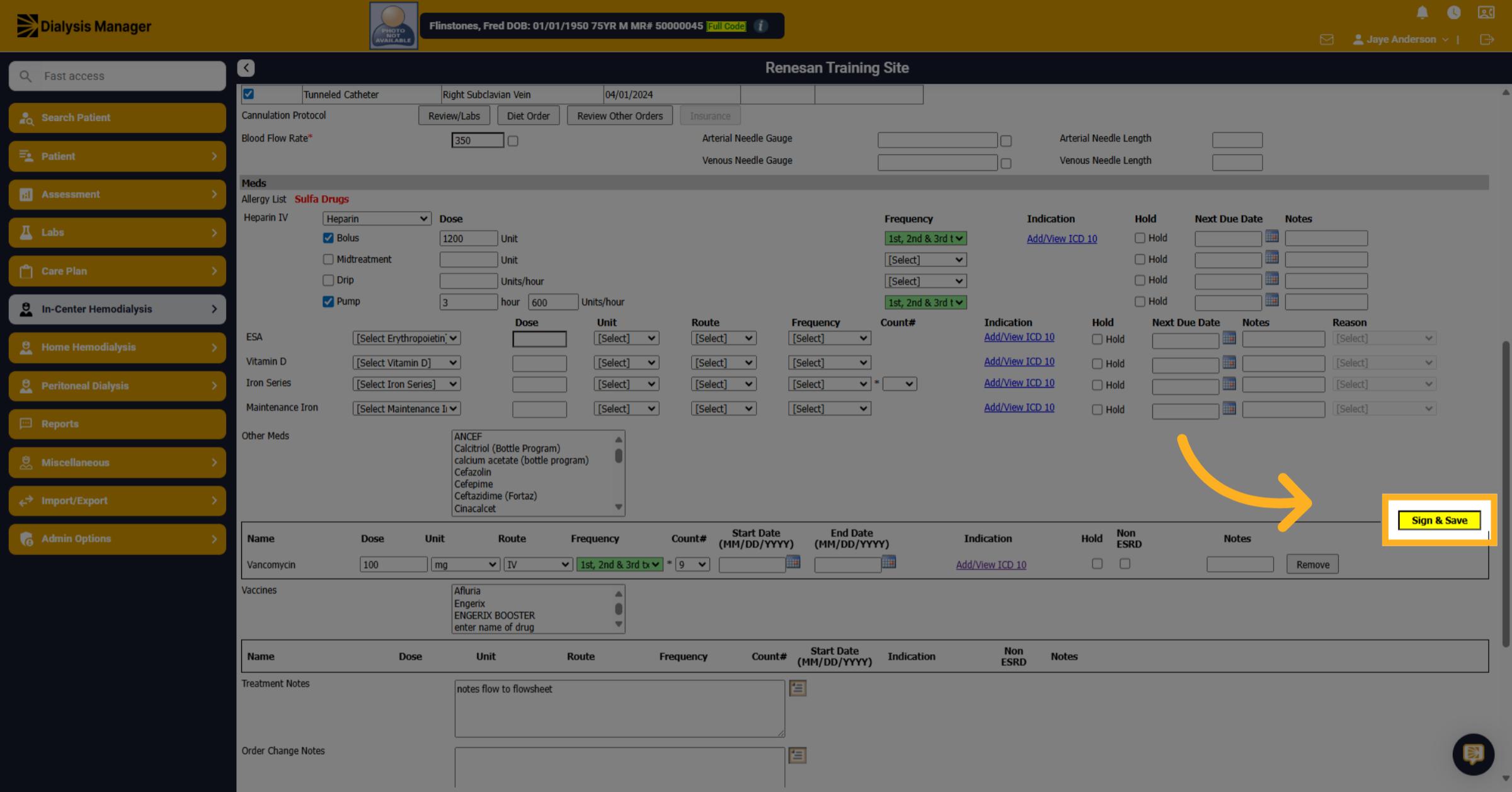
19. Click "Sign & Save"
Click Sign & Save to finalize and save the dialysis order after completing all required fields.