Emergency Printout Reports.
1. Monthly Printout for Emergencies
This tutorial will guide you through three essential reports for emergencies: the Current Dialysis Order Report, the Demographics Report, and Patient Face Sheets.
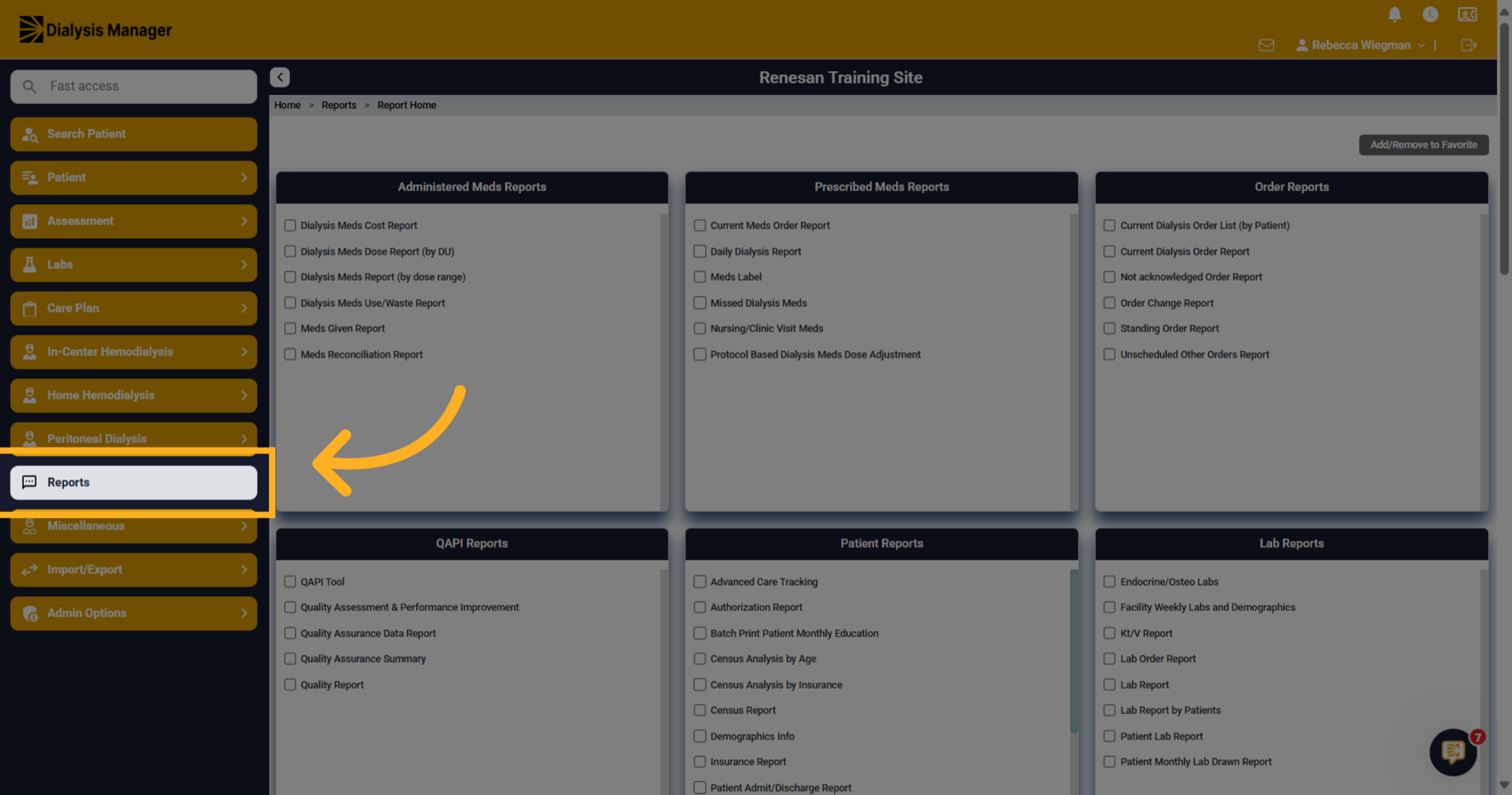
2. Current Dialysis Order Report
The Current Dialysis Order Report allows you to view all orders related to dialysis and medications that are typically given as part of dialysis treatment.
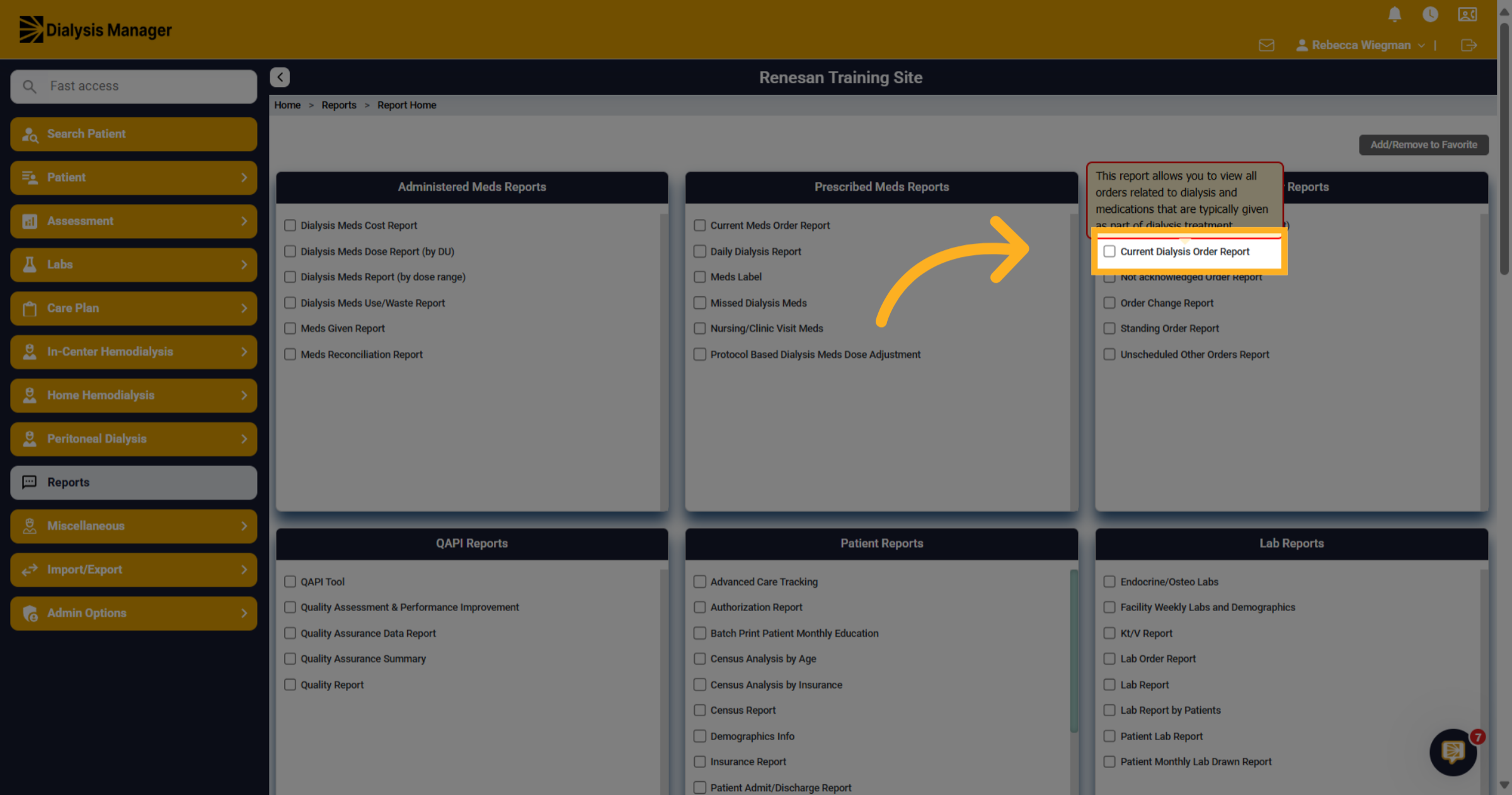
3. Current Dialysis Order Report Filters
You will need to select the Facility you are running the report for but you also have the option to select specific shifts, per schedule, assisted care facility, etc. Once those filters are selected click "Print Report"
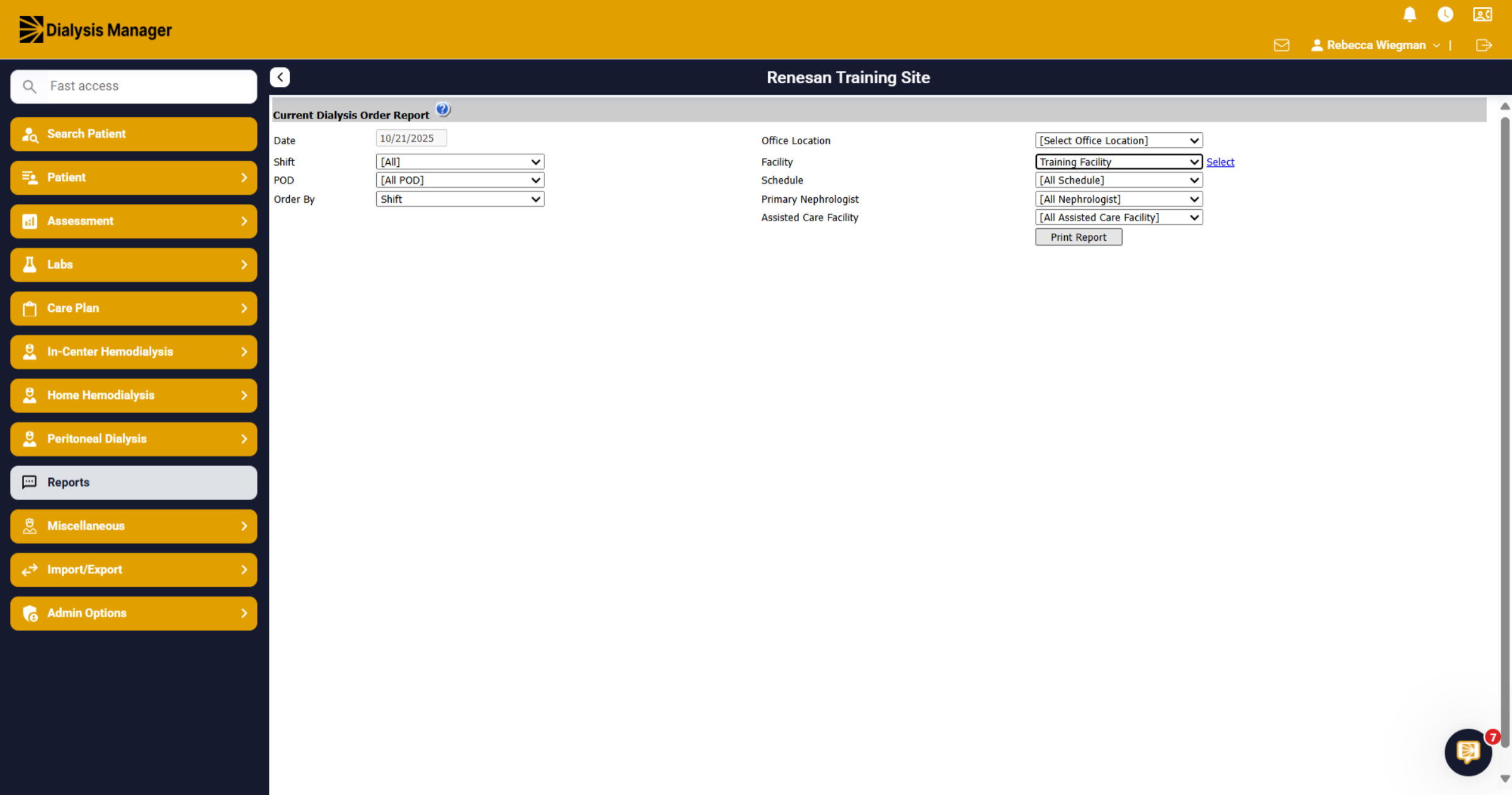
4. Current Dialysis Order Report
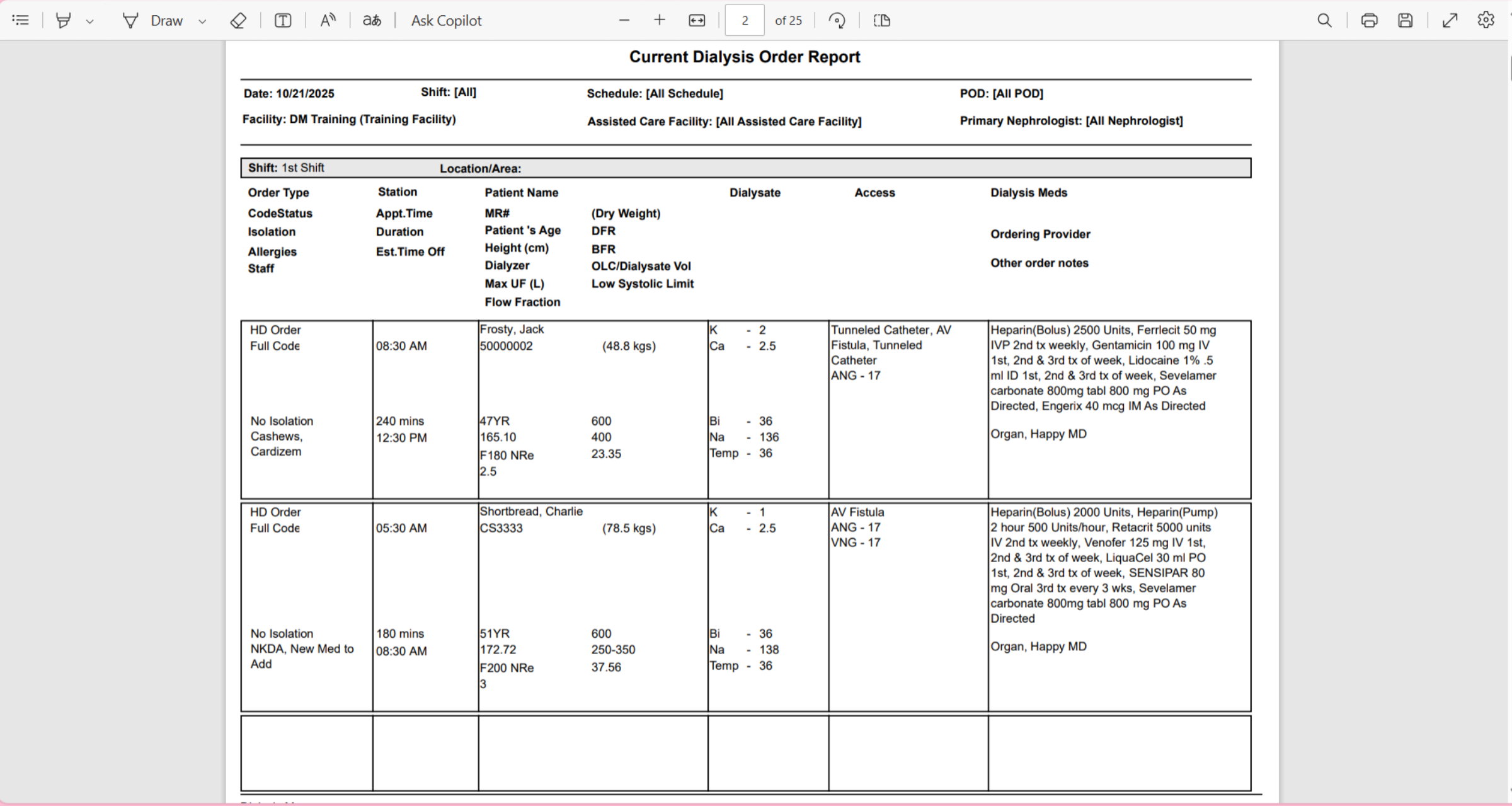
Once your report is generated, you'll have access to the total number of pages, as well as patient dialysis order details.
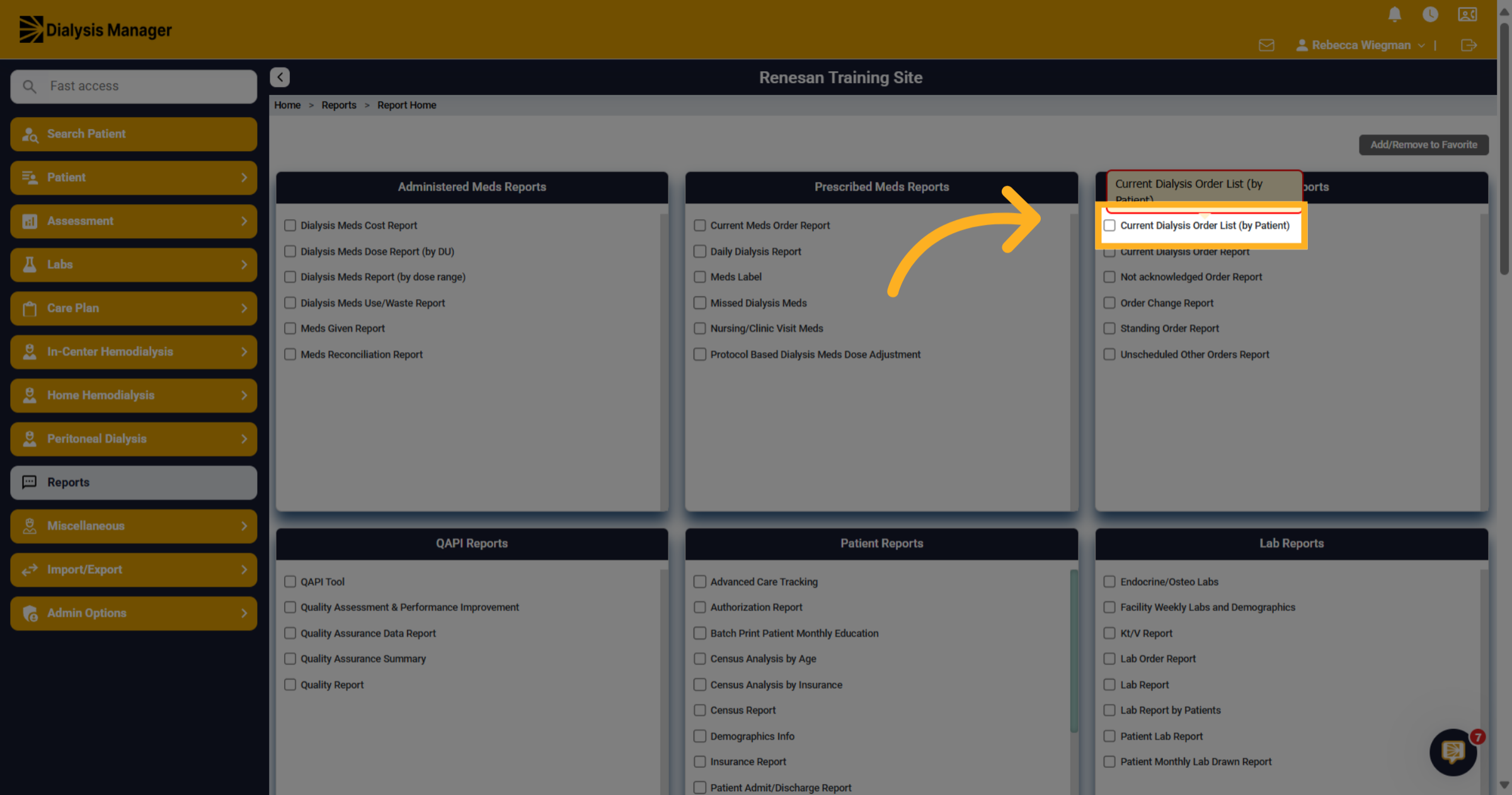
5. Current Dialysis Order List (by Patient)
The Current Dialysis Order List by Patient will accurately show you the details.
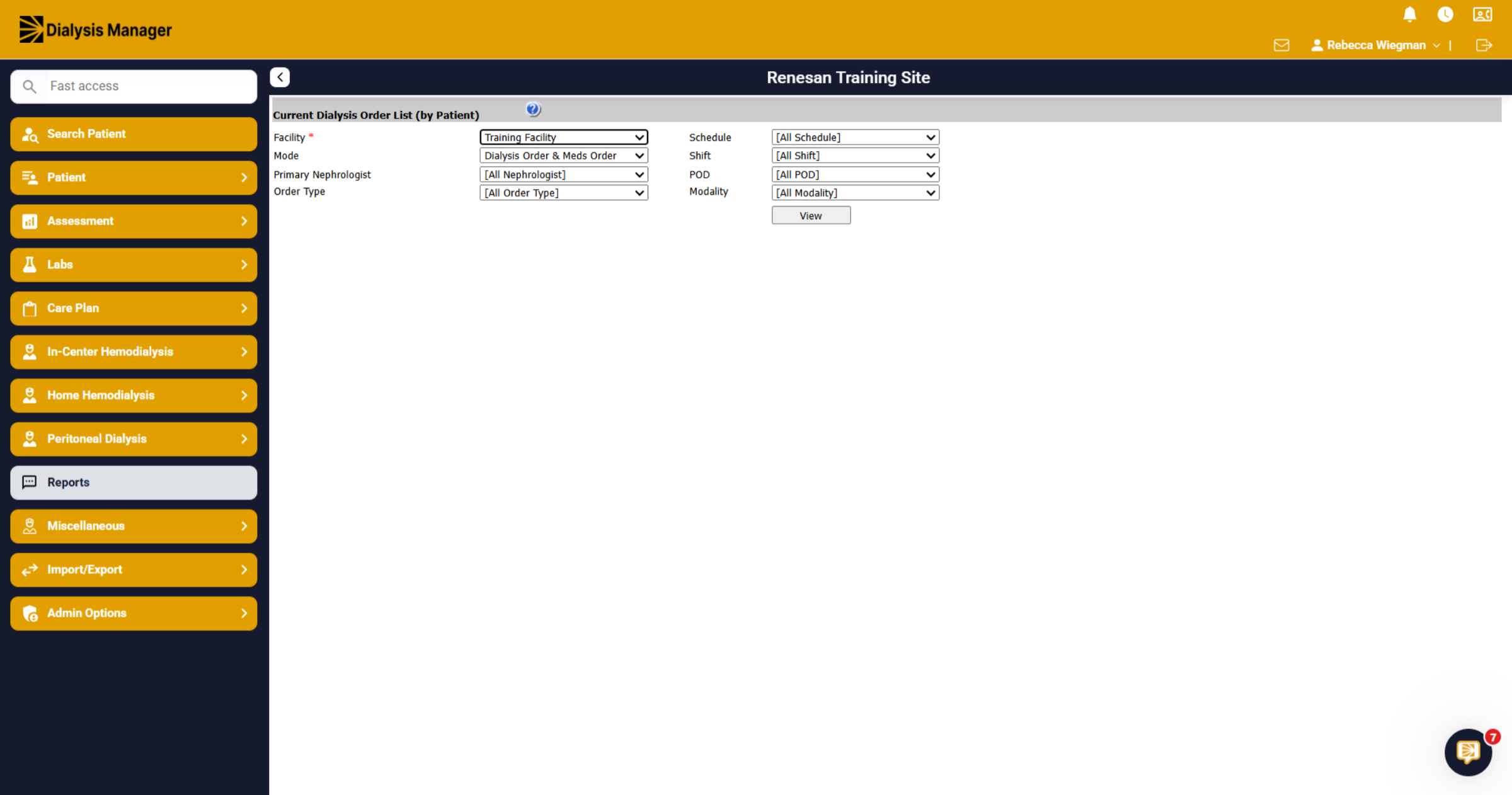
6. Current Dialysis Order List (By Patient) Filters
You will need to select the Facility you are running the report for, but you also have the option to select specific shifts, per schedule, and can also select the mode. This will display the report in a specific format. Once those filters are selected click "View"
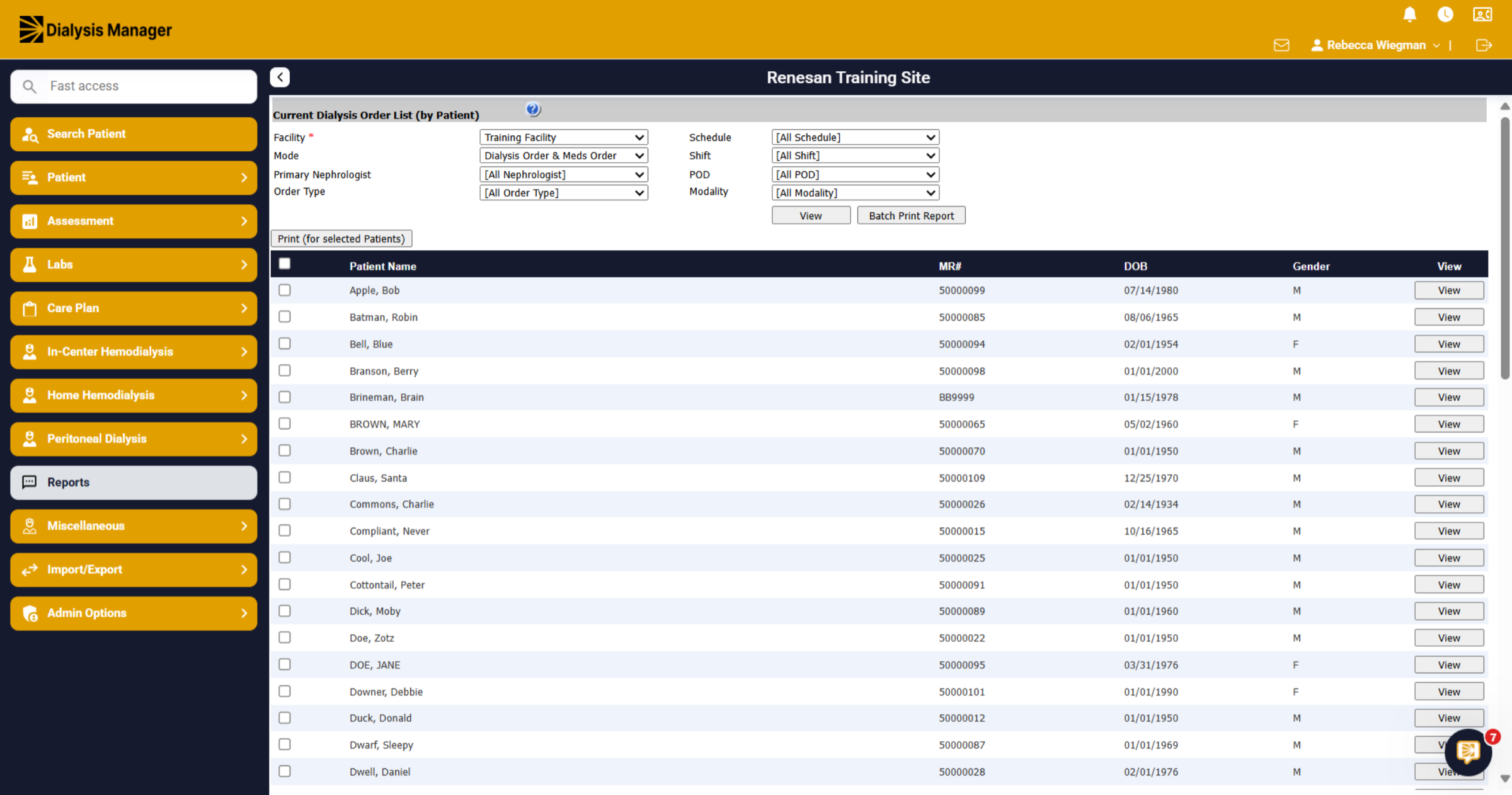
7. Batch Print Report
Based on your Mode preference, you can either select all patients to run the report or choose specific patients.
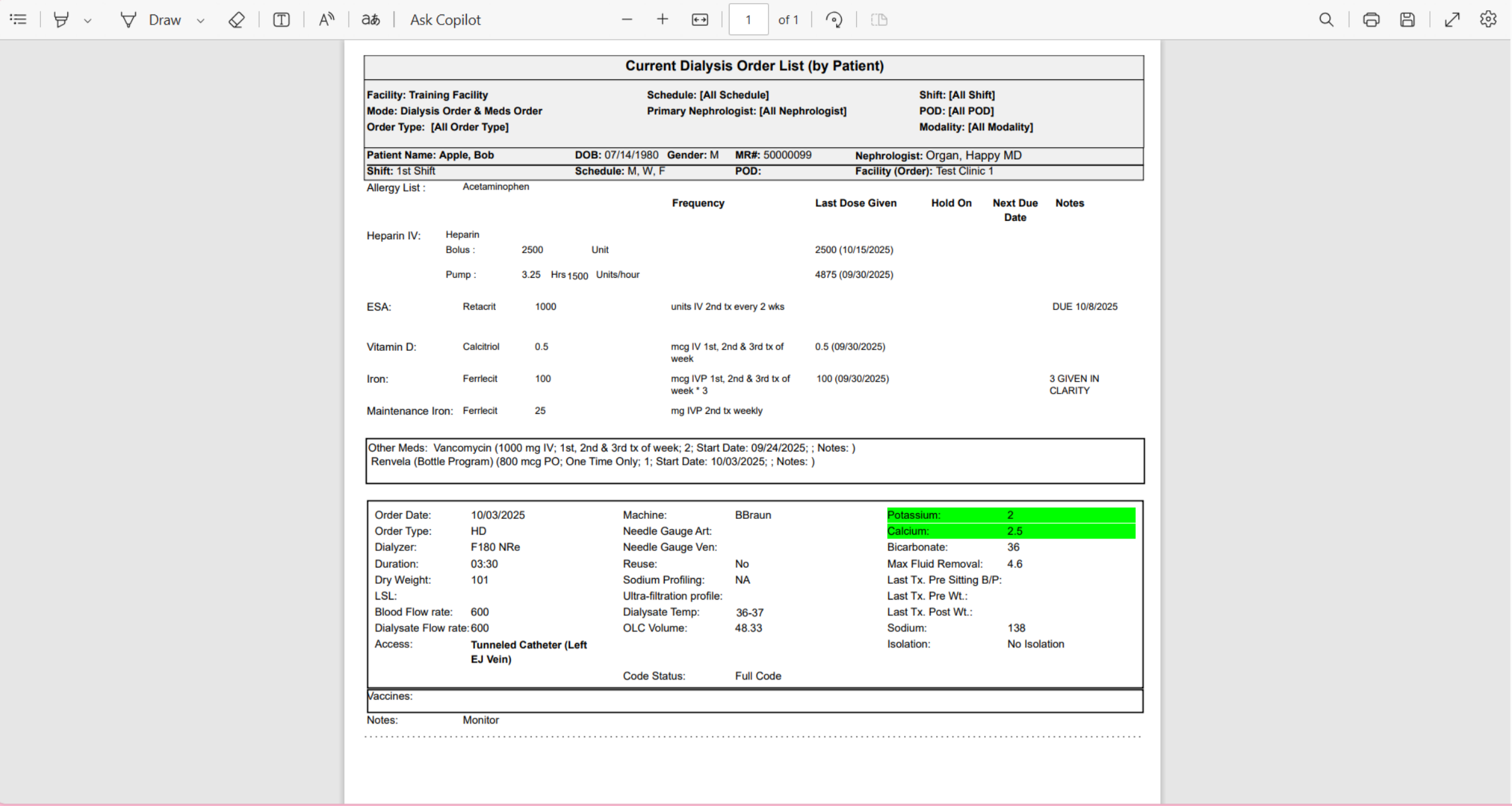
8. Dialysis Order & Med Only View
Here is the report when Dialysis Order and Med Only View are selected for the Mode.
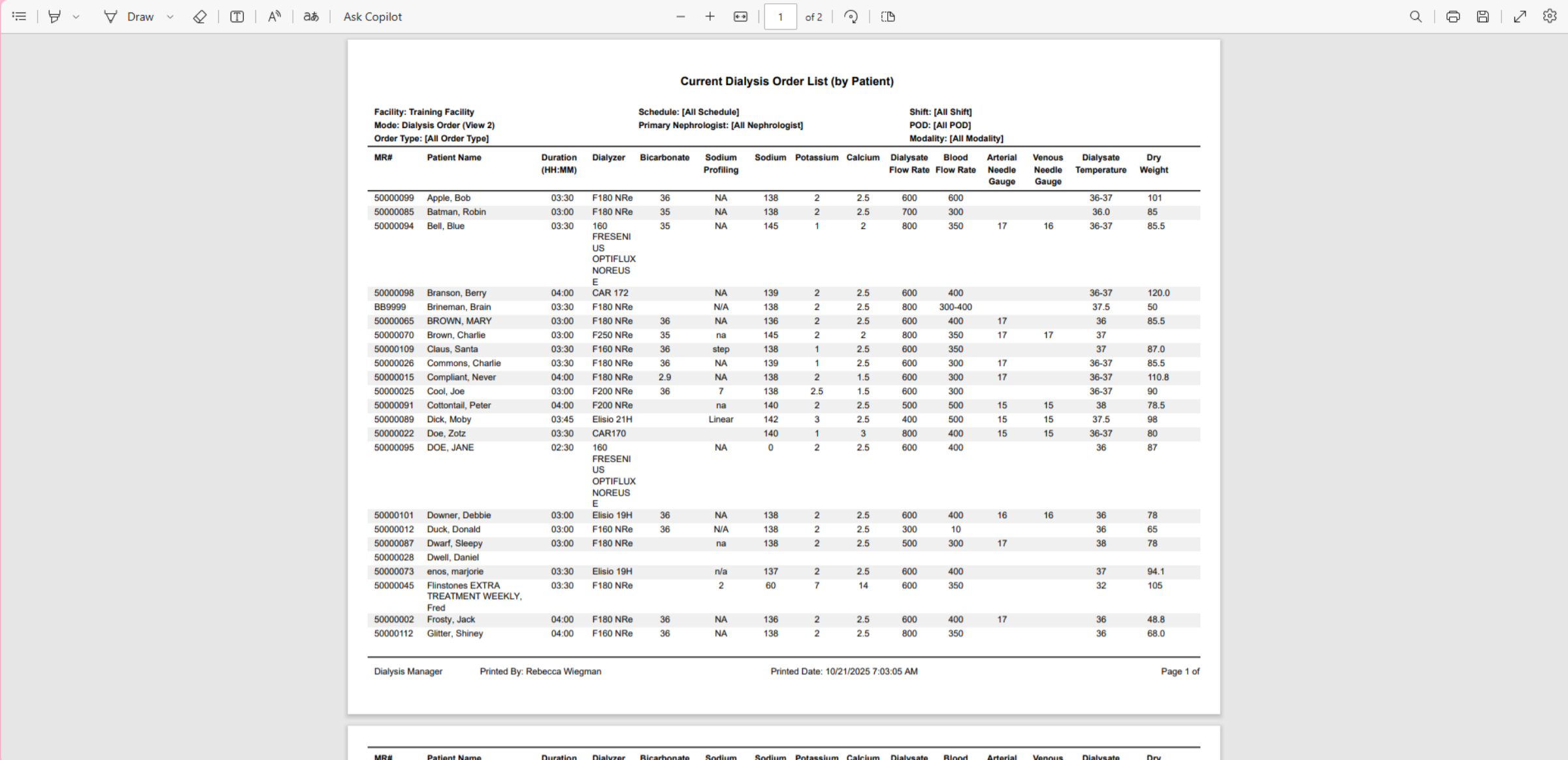
9. Dialysis Order (View 2)
This report is when Dialysis Order (View 2) is selected.
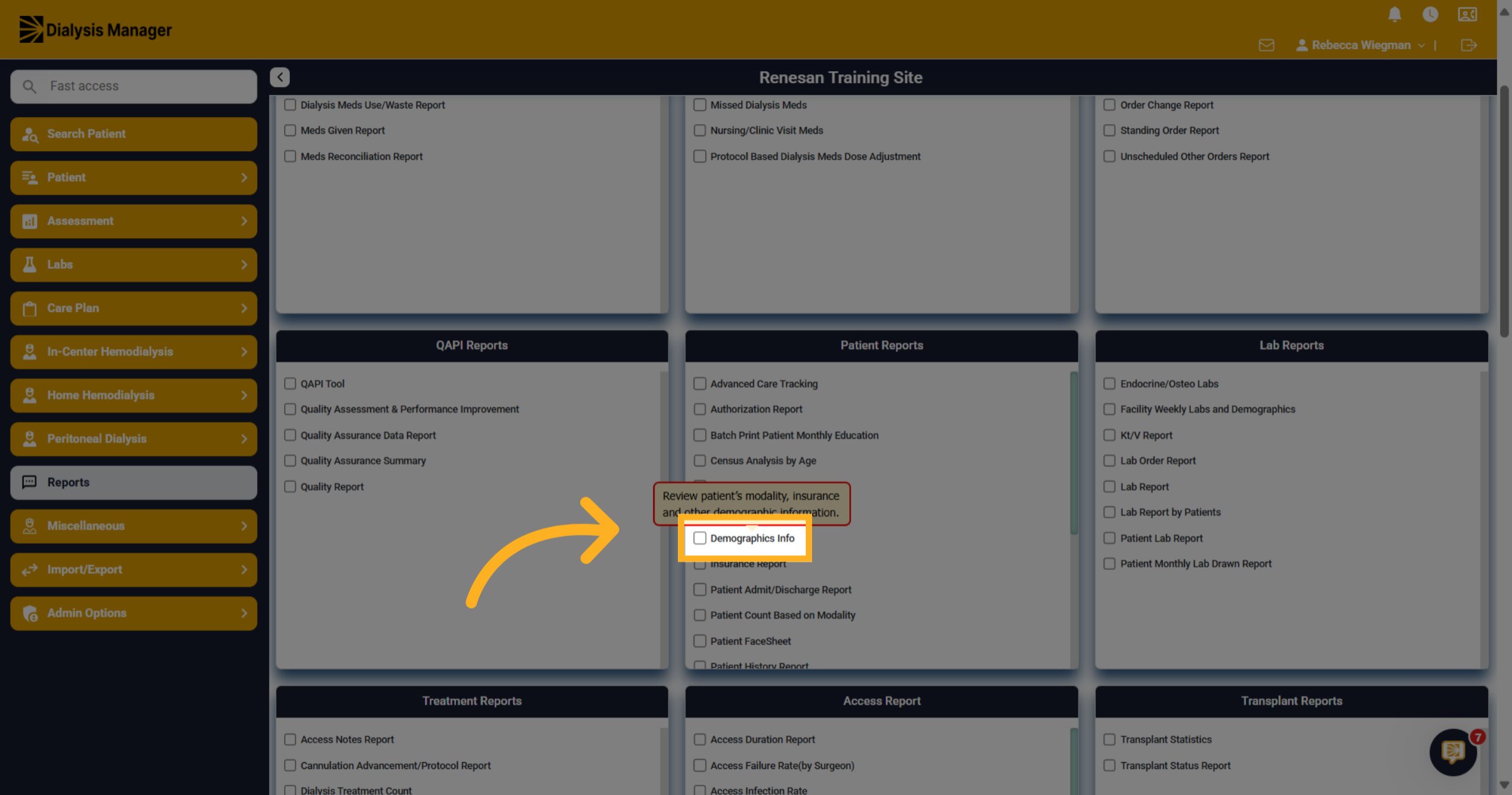
10. Demographic Info
The Demographic Info report review of patient's modality, insurance and other demographic information.
11. Demographic Info filters
When inside the Demographic Info report you'll have the ability to select multiple filter options. Please note that any fields with a red asterisk are required before running the report!
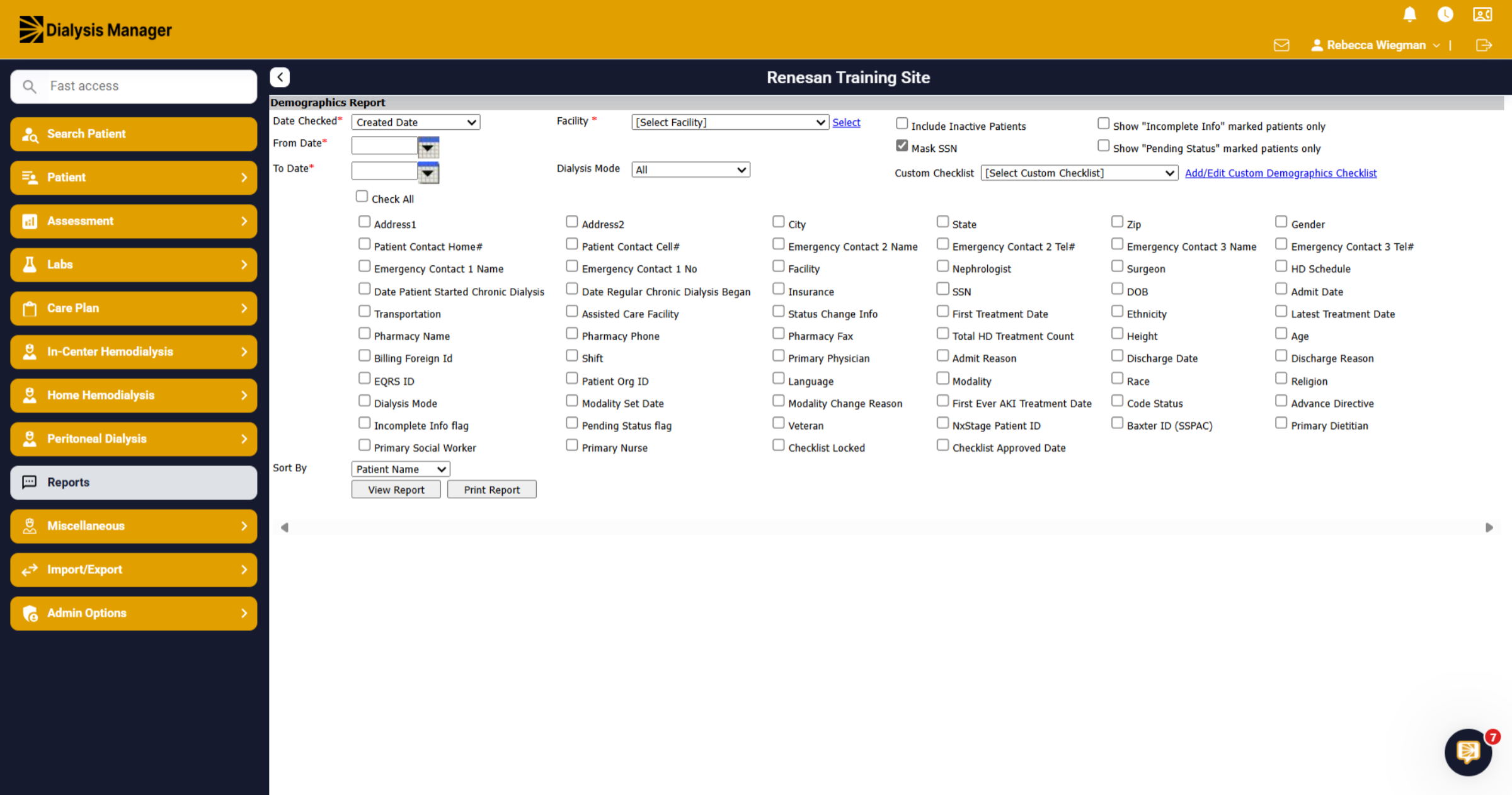
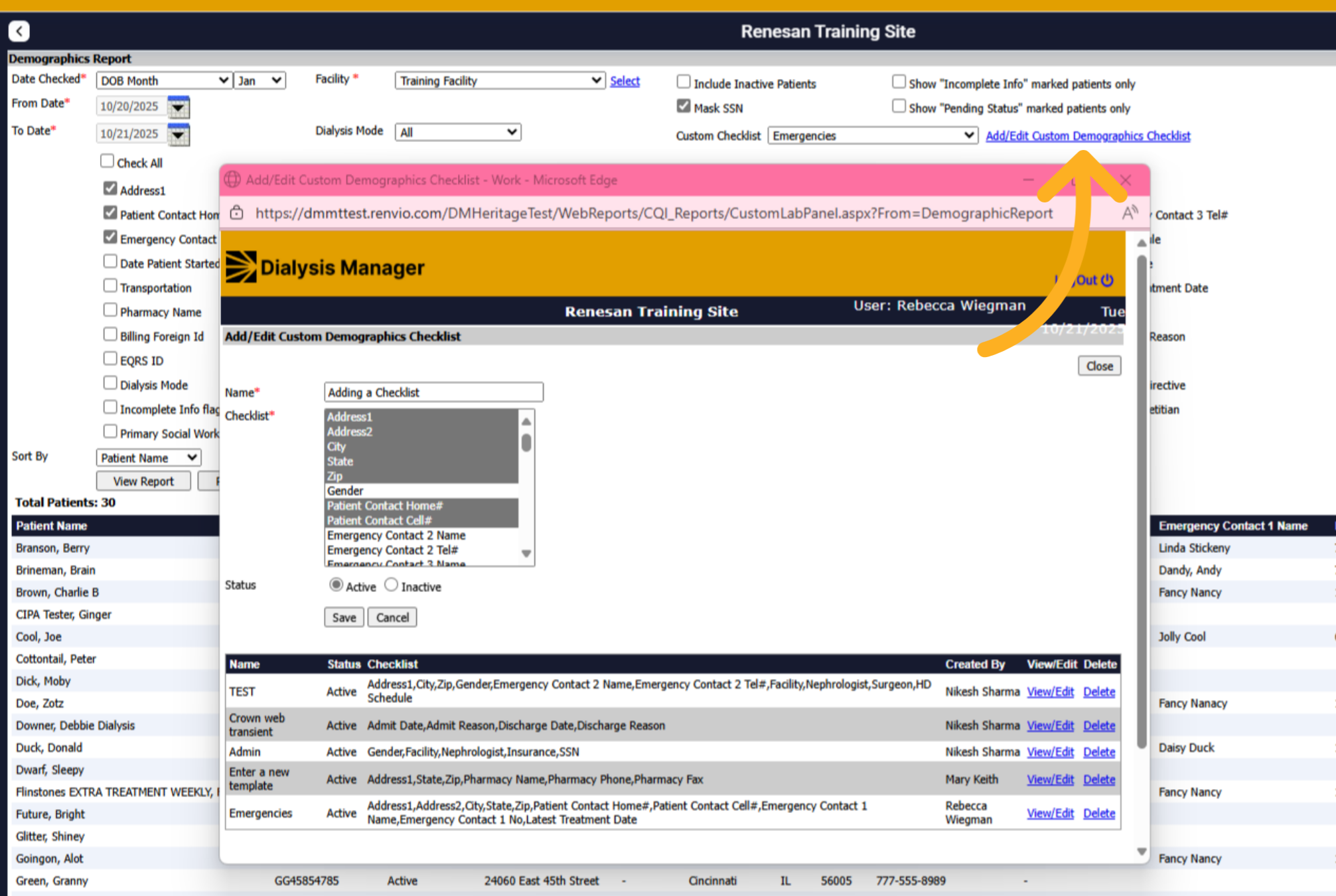
12. Add/Edit Custom Demographic Checklist
You are able to click on "Add/Edit Custom Demographic Checklist" and create a custom checklist to select. Once created your able to see in the Custom Checklist dropdown!
13. View Selected Report
Click View Report to generate the report based on selected checklist and filters. You'll be able to select specific patients or select all!
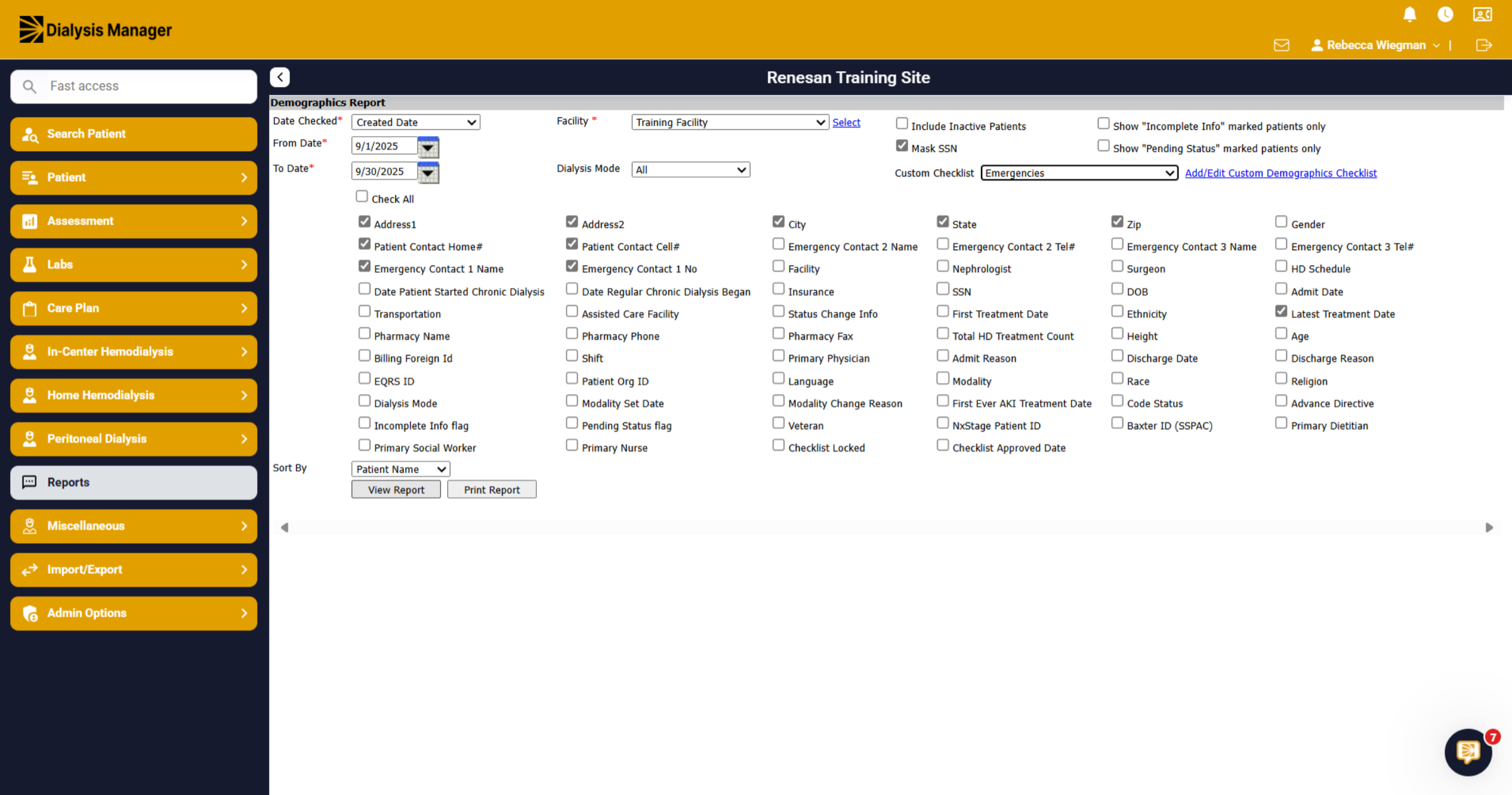
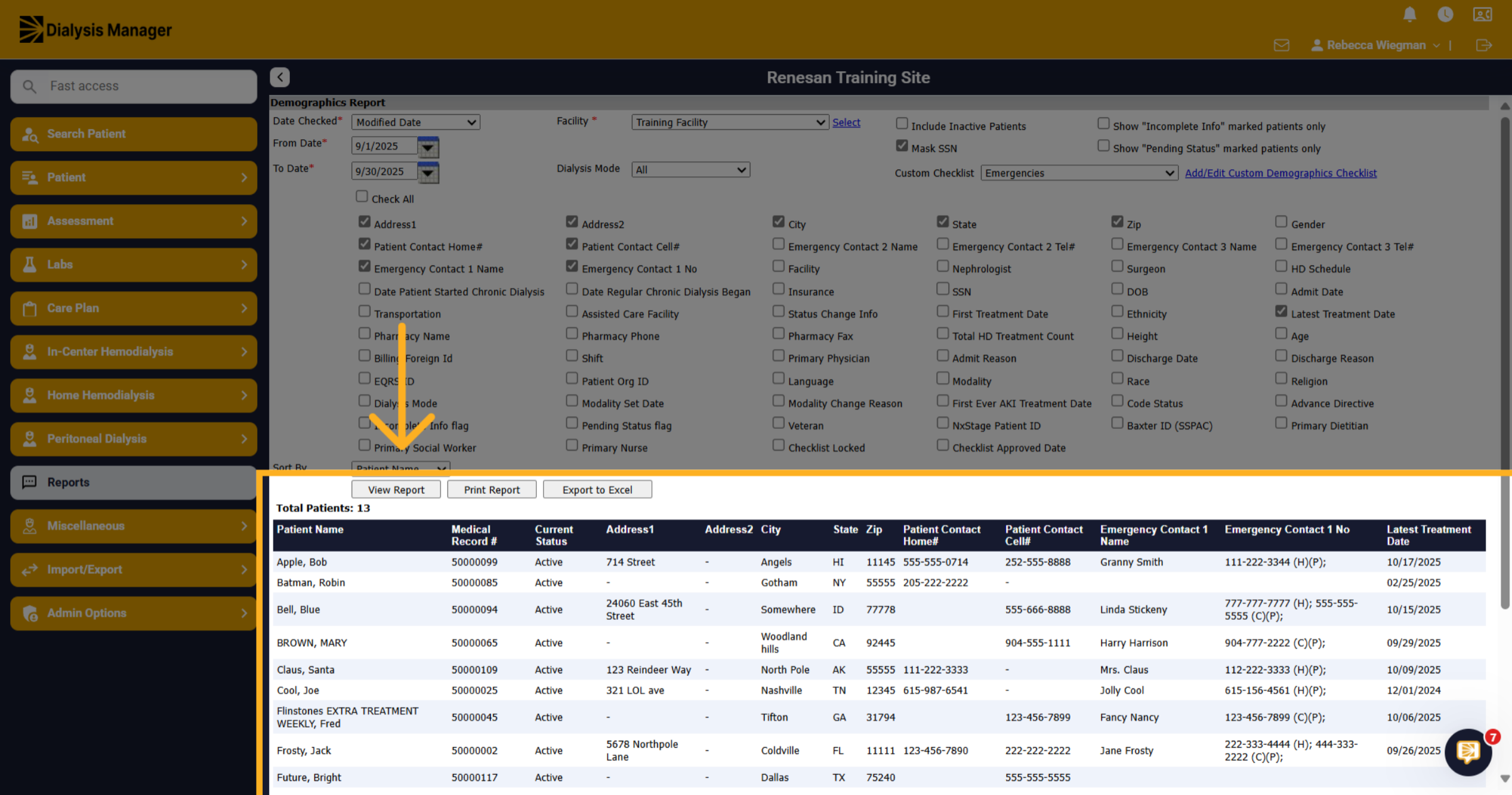
14. View Report
When you click "View Report," the patients will appear below. Please ensure that your patients are visible. Clicking "Print Report" will generate the report!
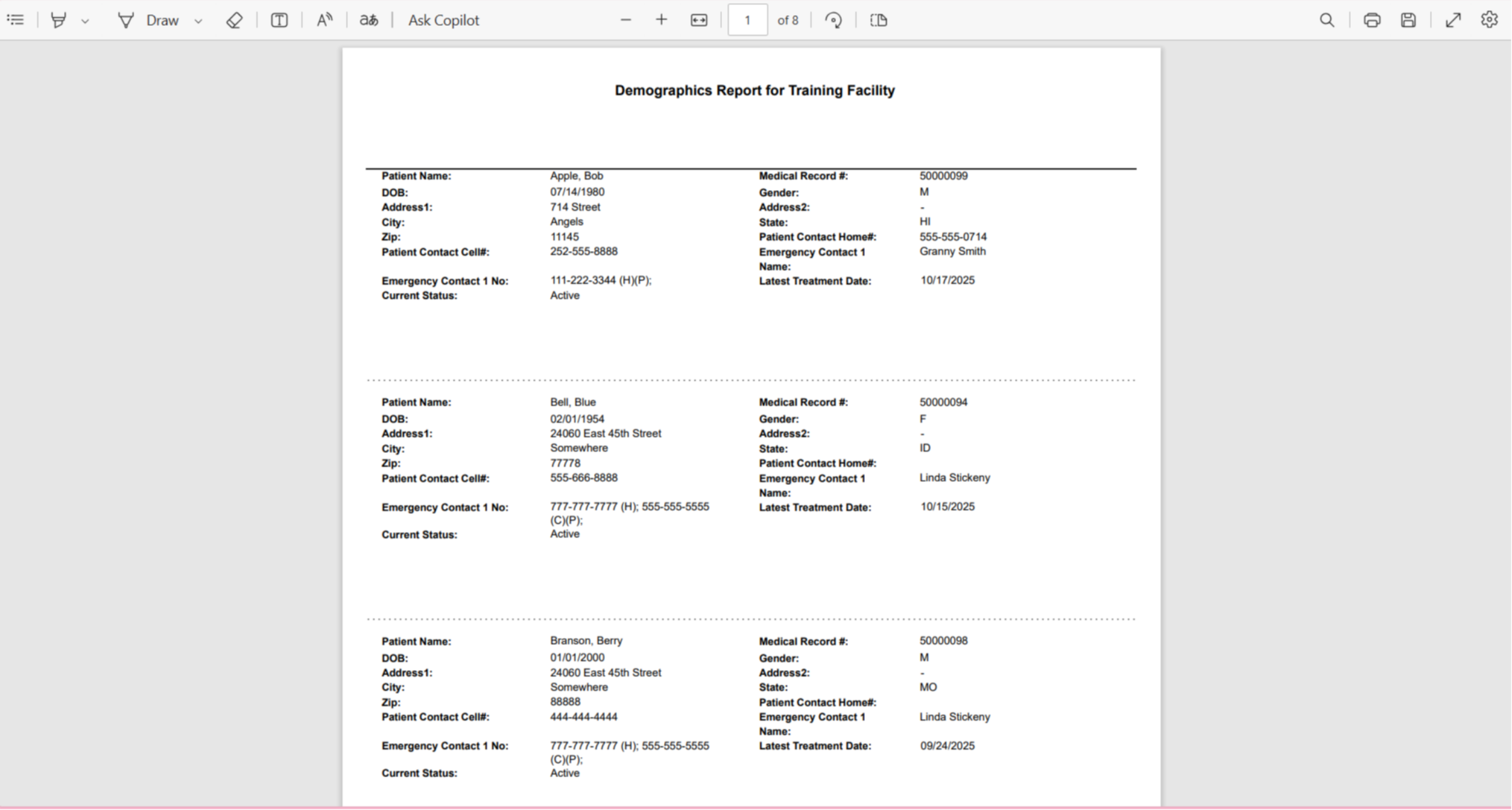
15. Demographic Report
The information selected from the filters will display!
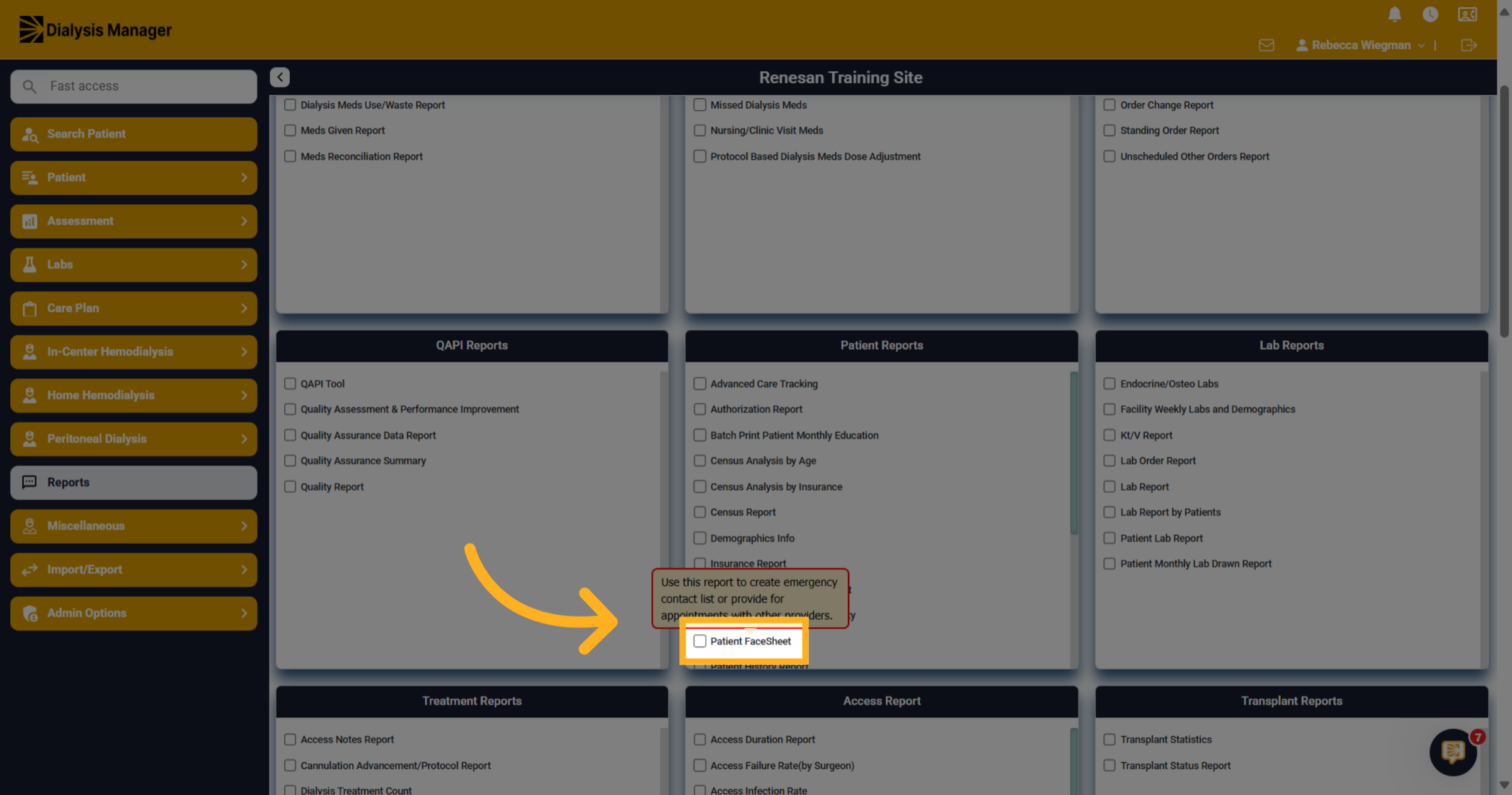
16. Patient FaceSheet
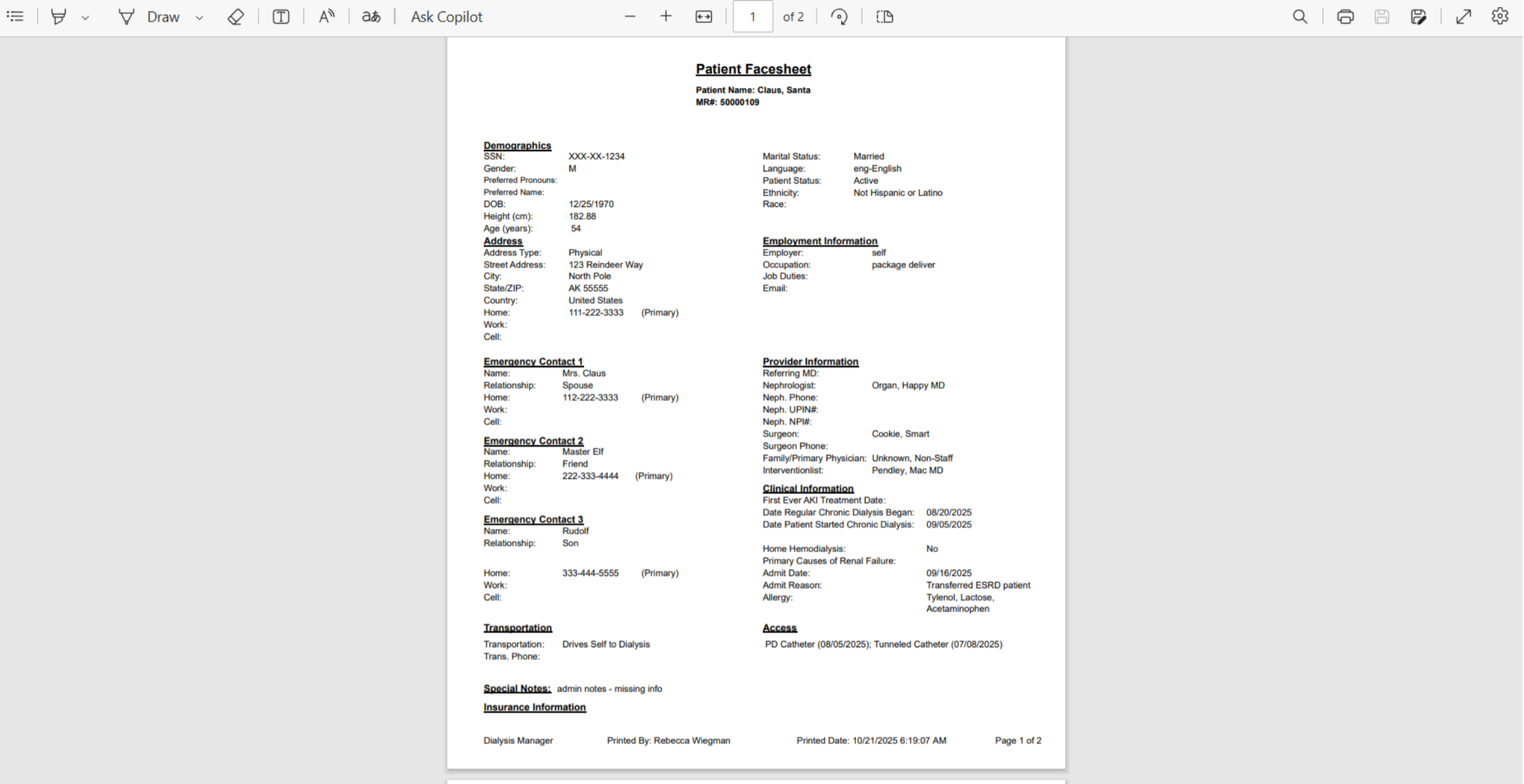
Utilizing the Patient Face Sheet allows you to generate an emergency contact list, view patient providers, clinical information, access and insurance information.
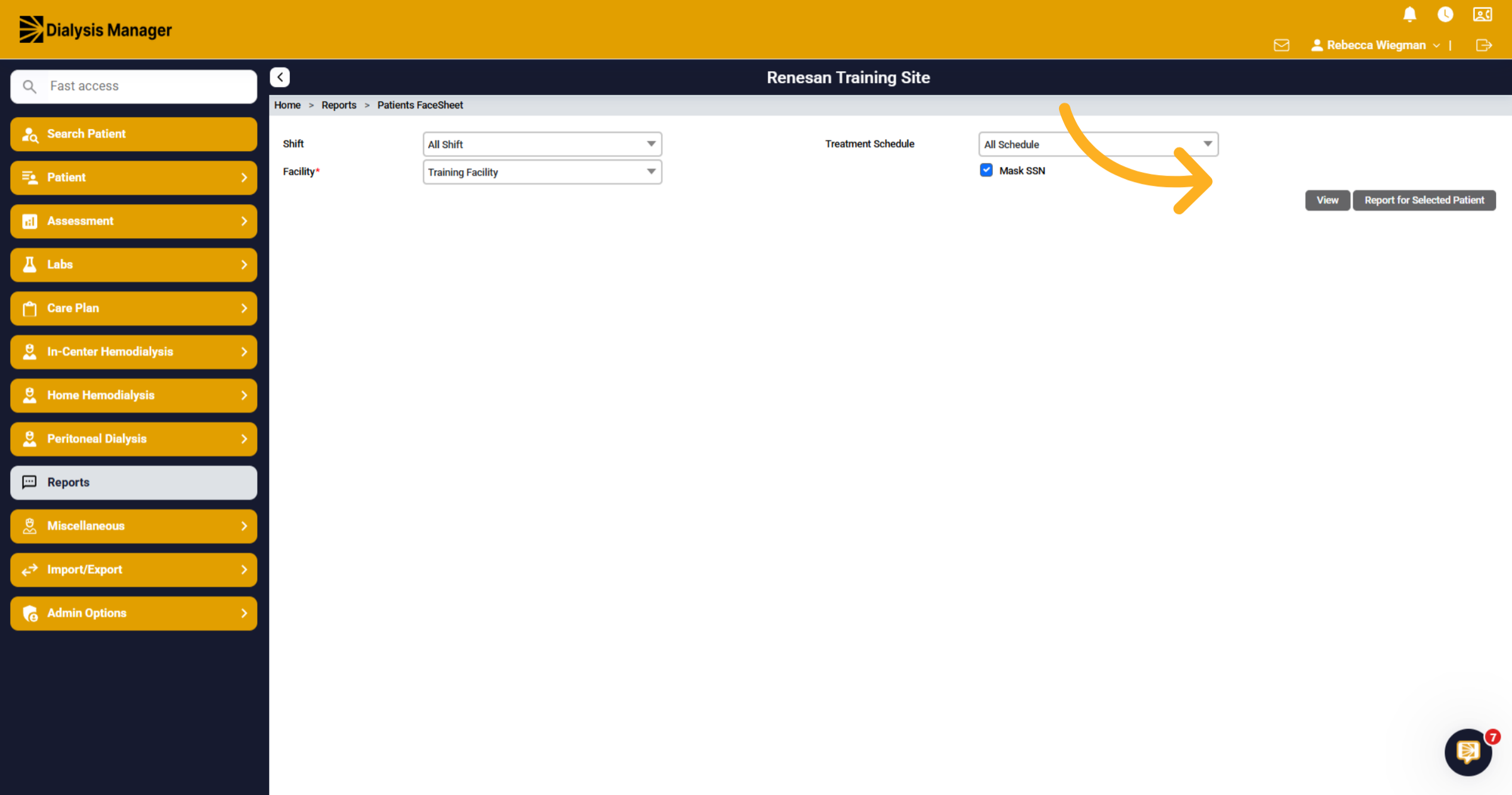
17. Patient Face Sheet filter
To view the list of patients, select a Facility and click 'View', or choose 'Report for Selected Patient' to generate the report.
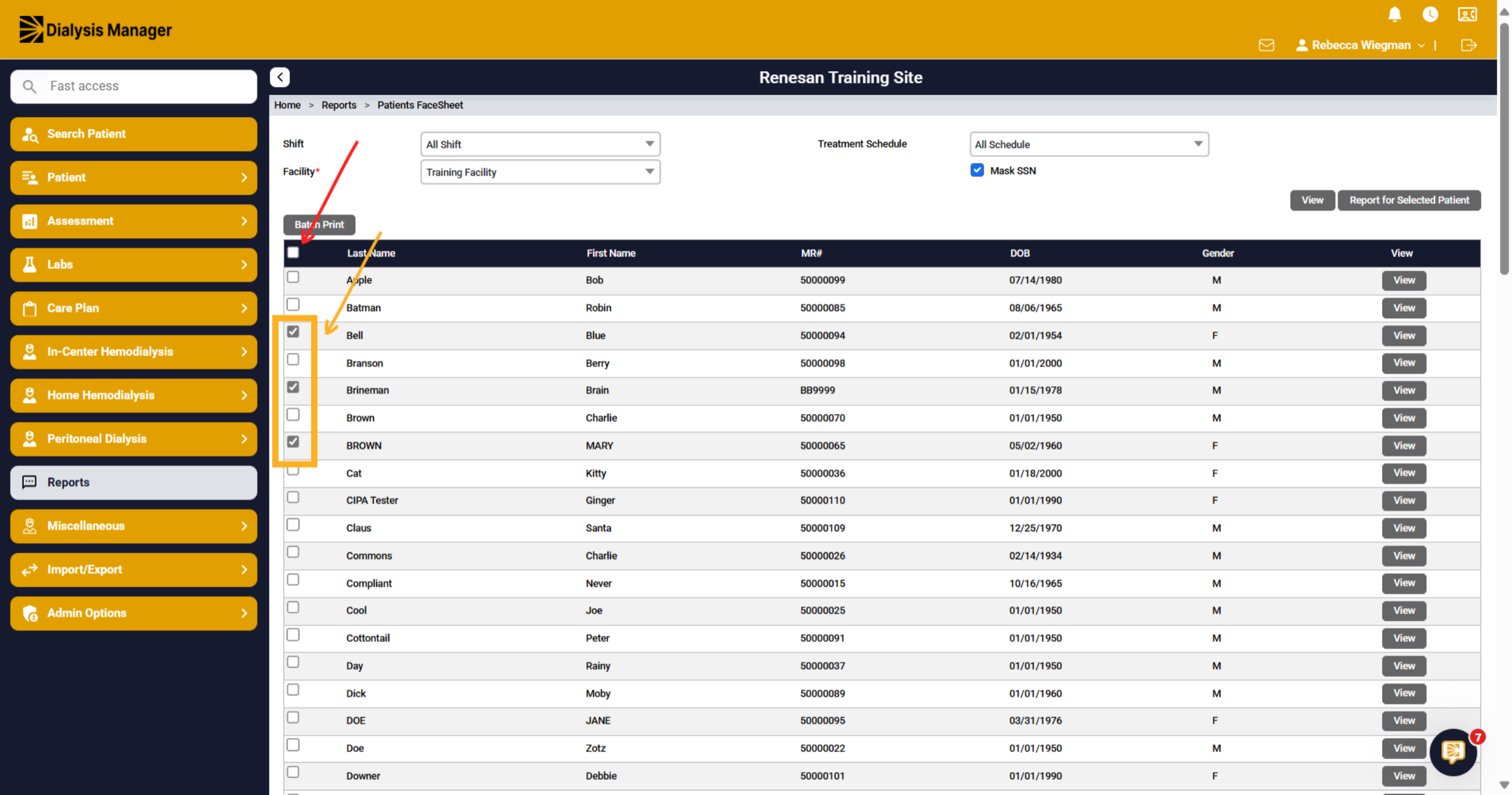
18. View Patient List
Easily choose individual patients or select all at once by selecting the check box next to their name or all from the top check box!
19. Download
Once the report runs, Select Download to print the report.
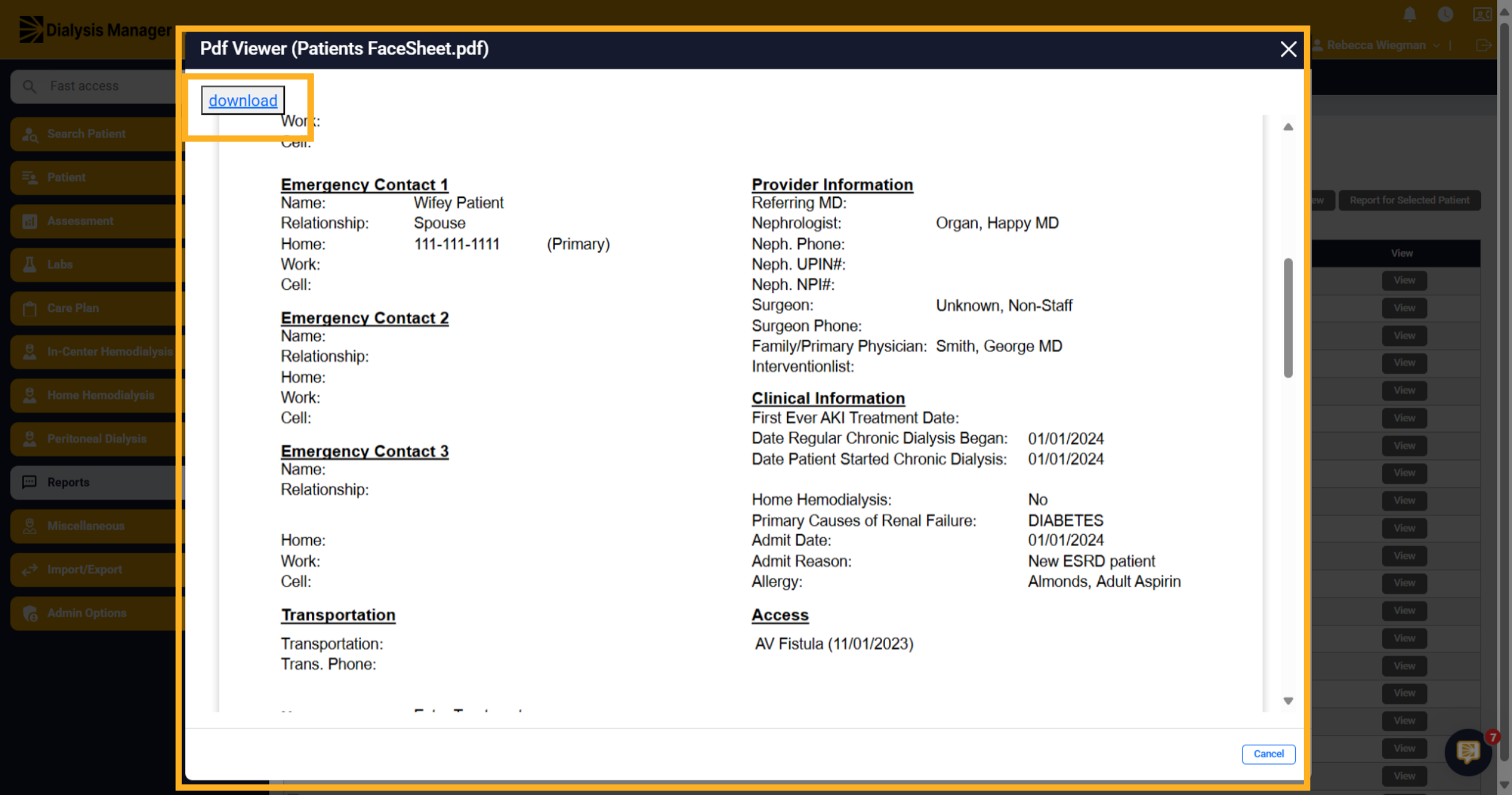
20. Patient FaceSheet
The Patient Face Sheet report will contain one patient per sheet, with the possibility of two pages for each patient.