Edit Patient Demographics Address, Contacts, Other Info, Insurance, Admit/Discharge
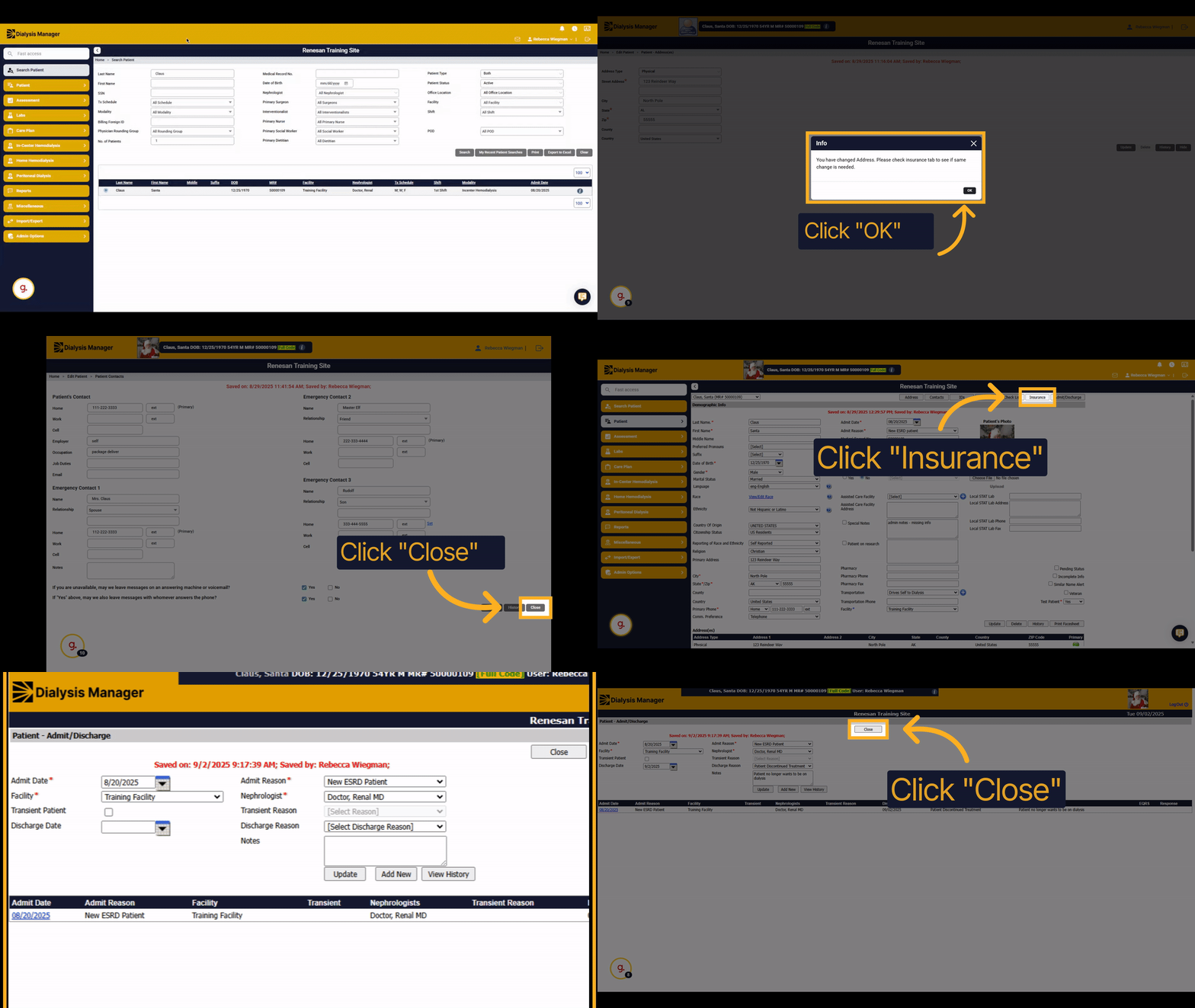
1. Introduction
Learn how to confidently edit patient demographics.
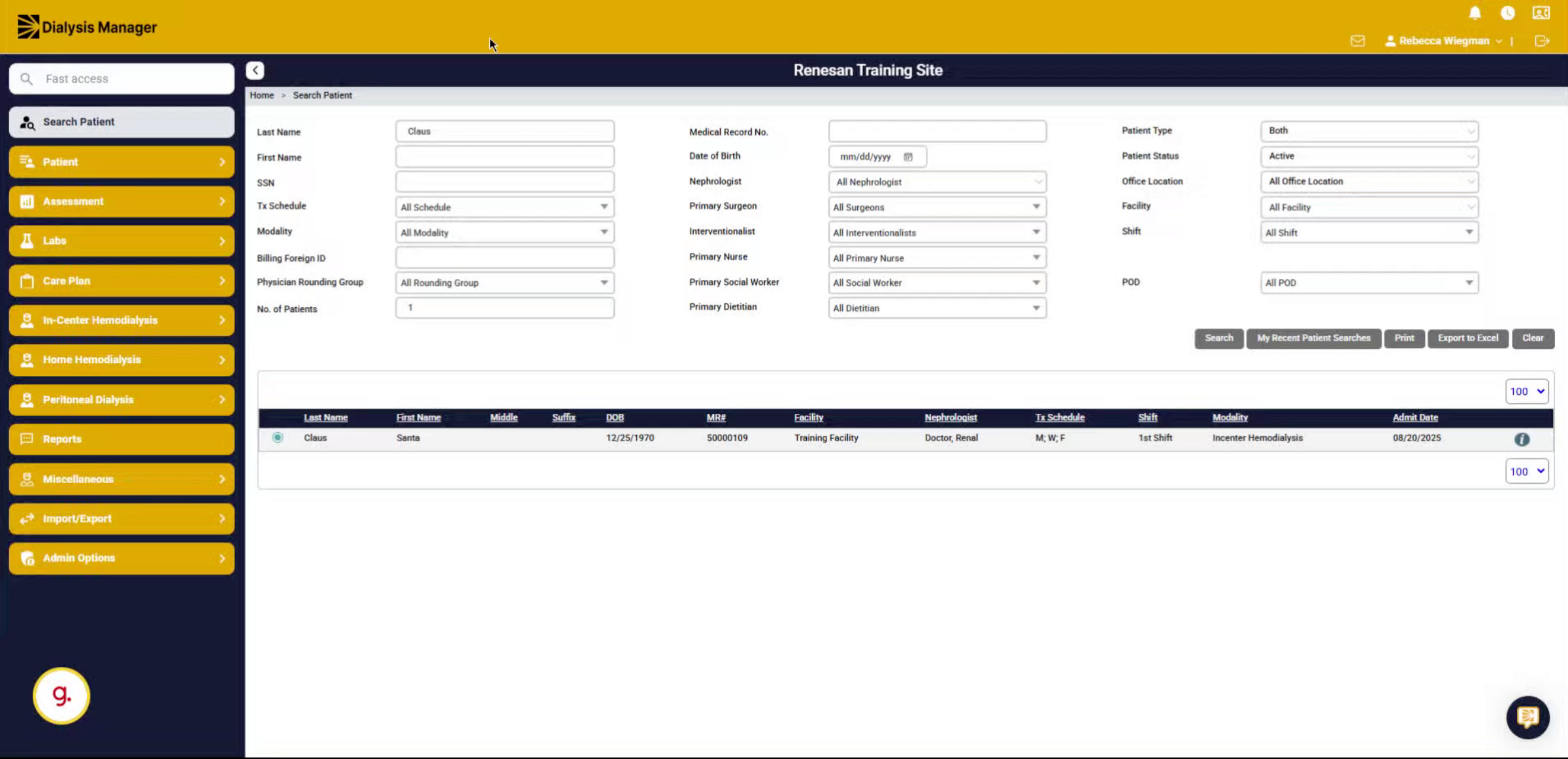
2. Click "Edit patient"
Navigate to the patient profile you want to update and select the option to edit patient details.
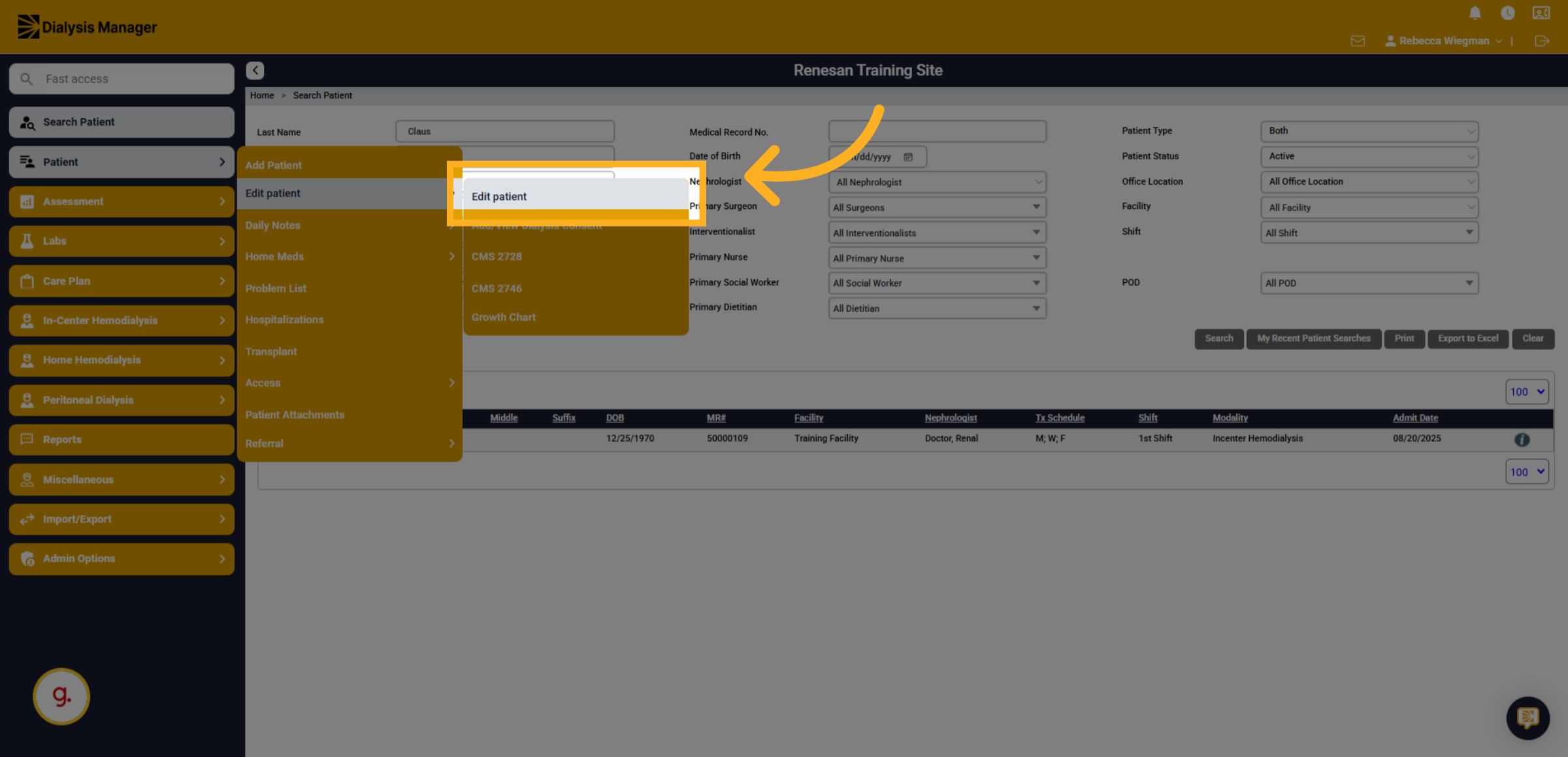
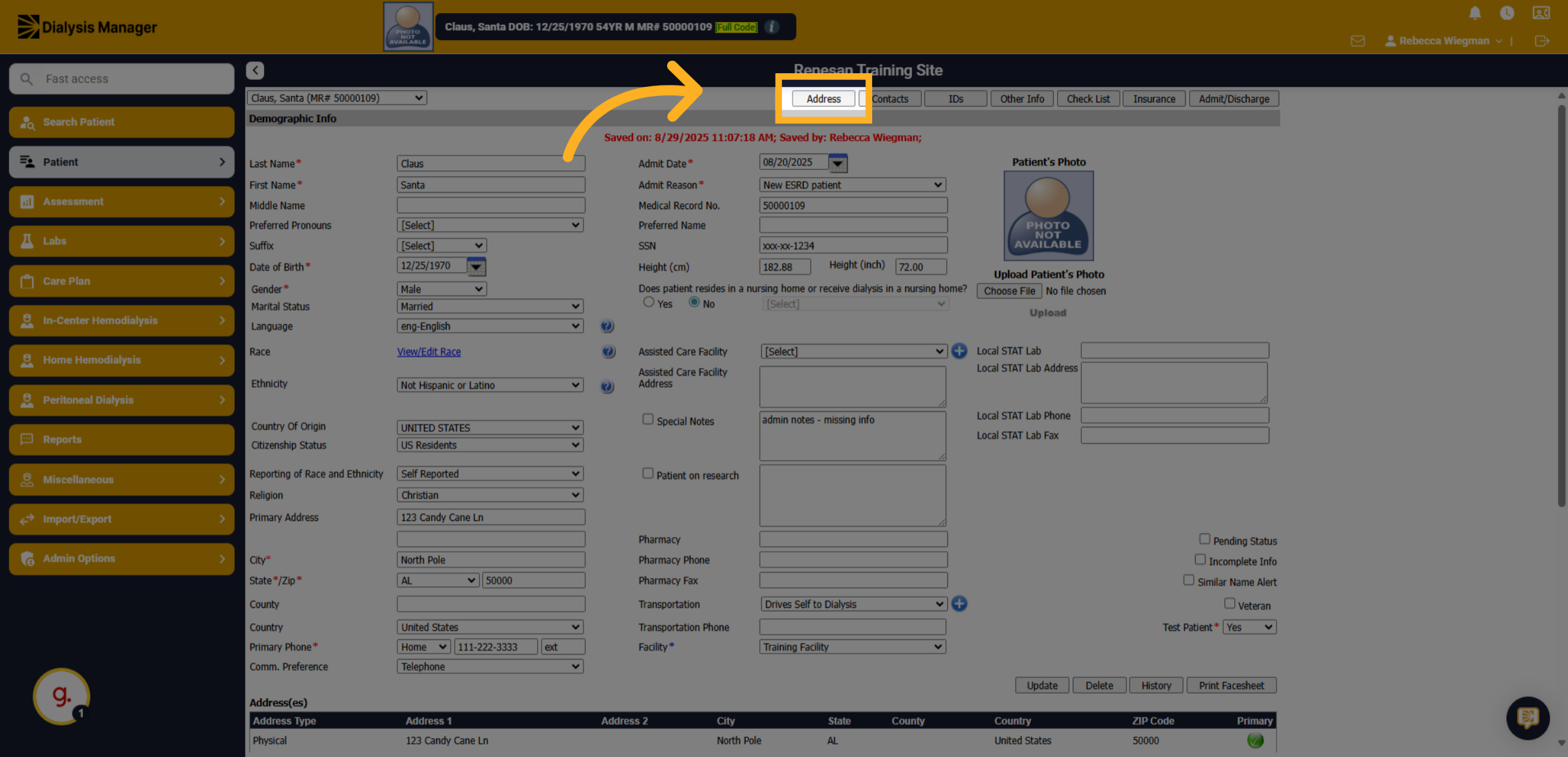
3. Click "Address"
Access the section dedicated to the patient's address information to begin modifications.
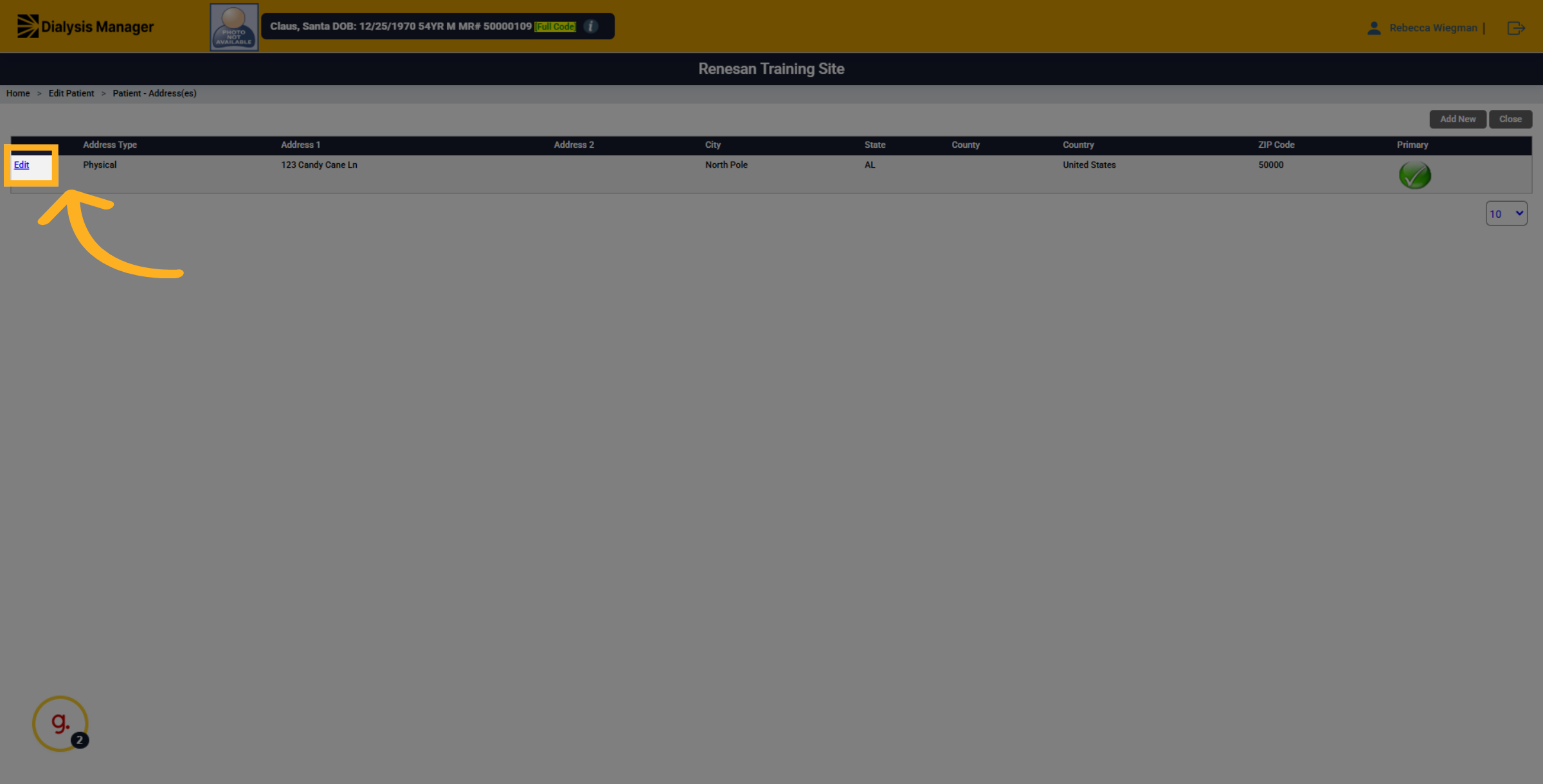
4. Click "Edit"
Initiate the editing mode for the address to enable changes.
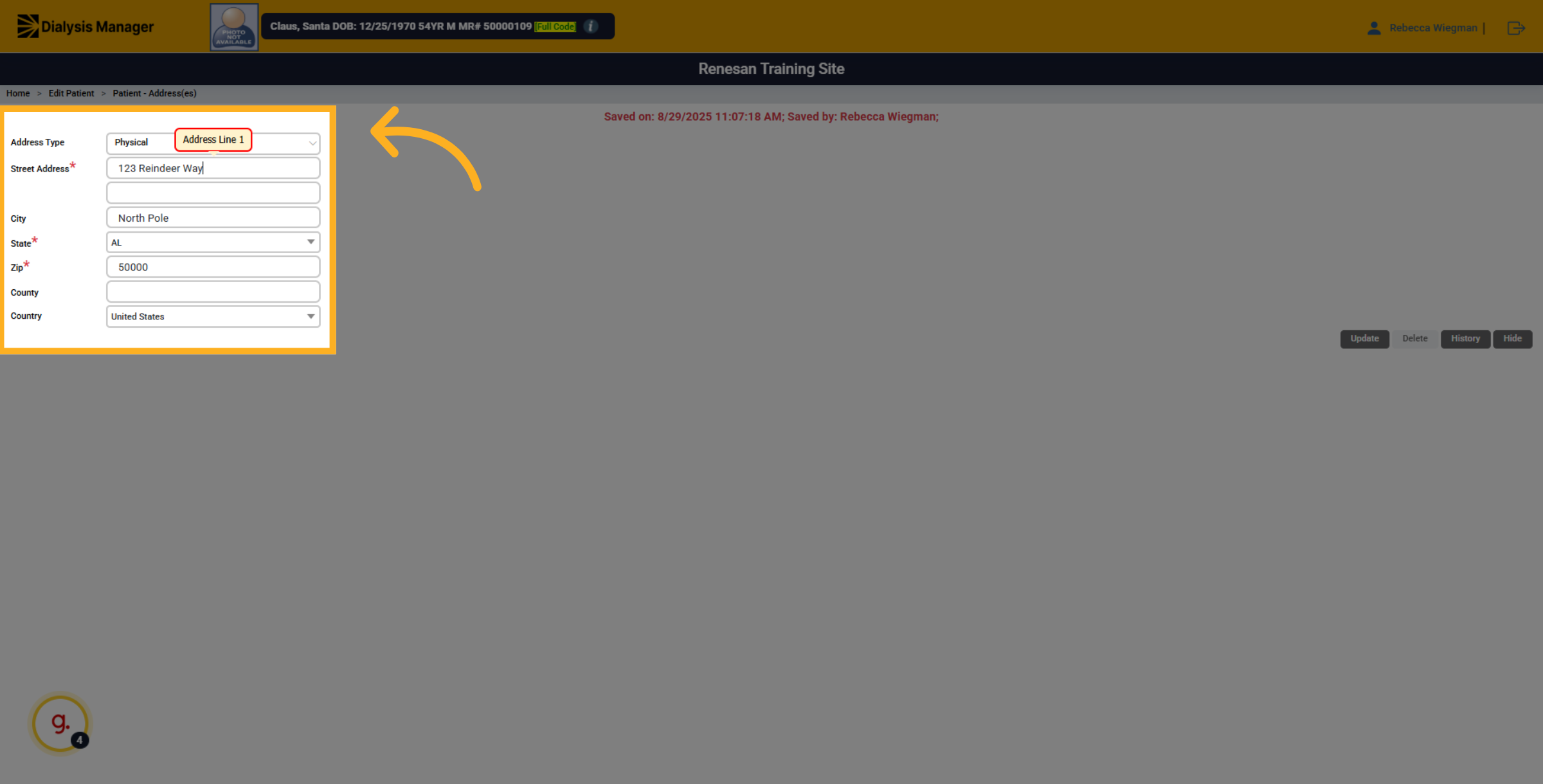
5. Fill "123 Reindeer Way"
Update the information such as the street address.
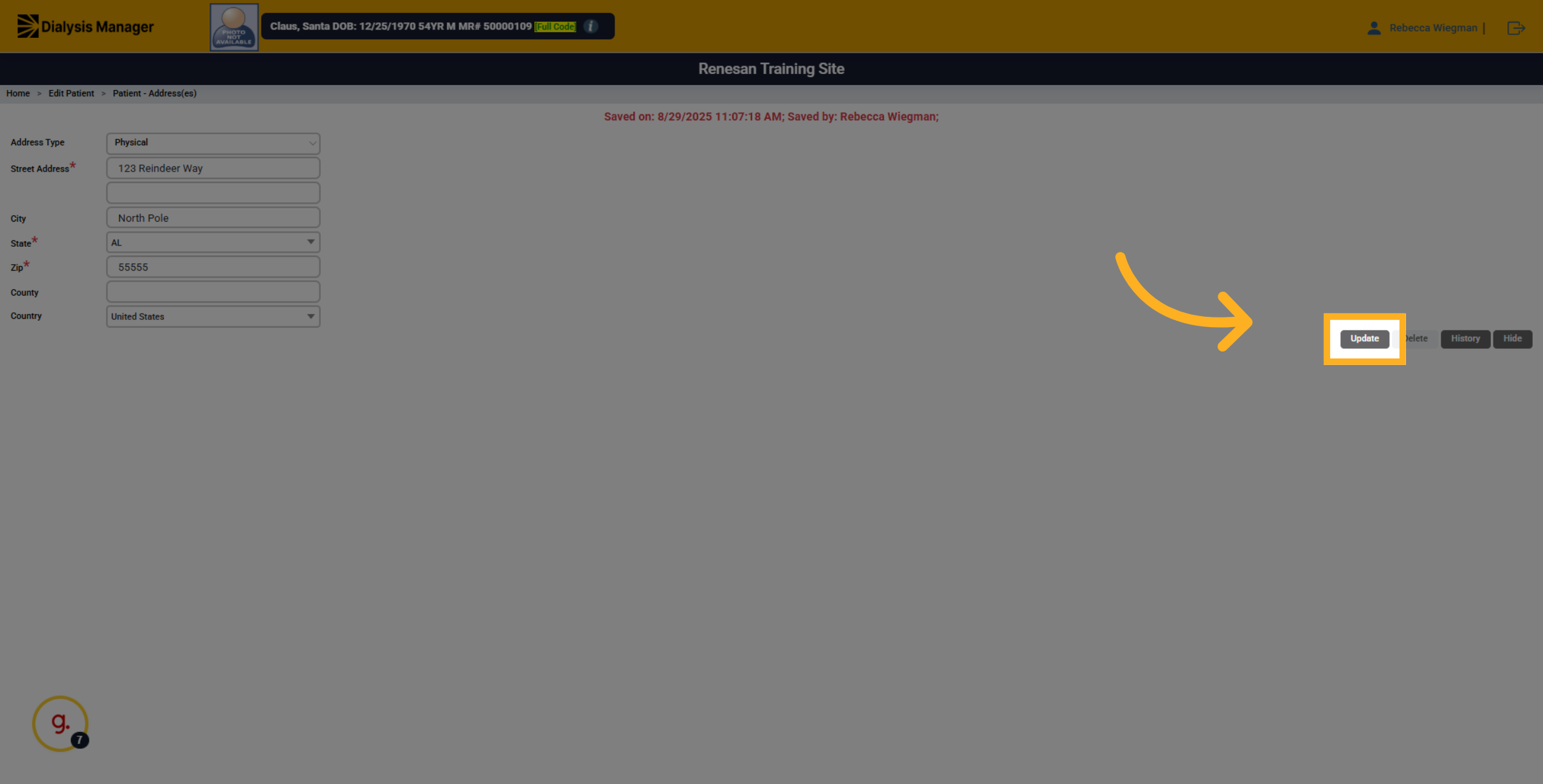
6. Click "Update"
Confirm the changes by selecting the update option to save the new address details.
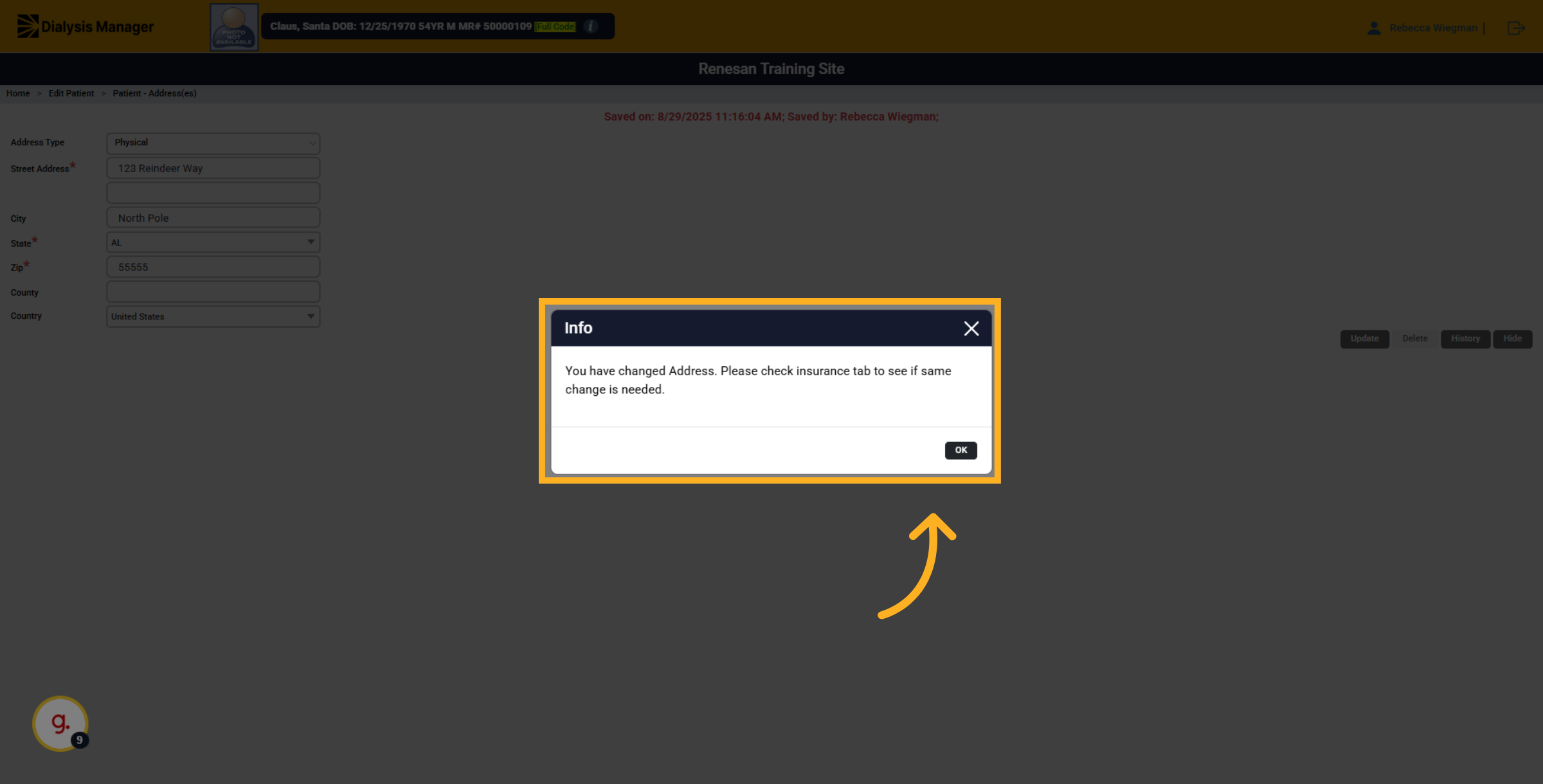
7. Click "OK"
Acknowledge the confirmation prompt to finalize the address update process.
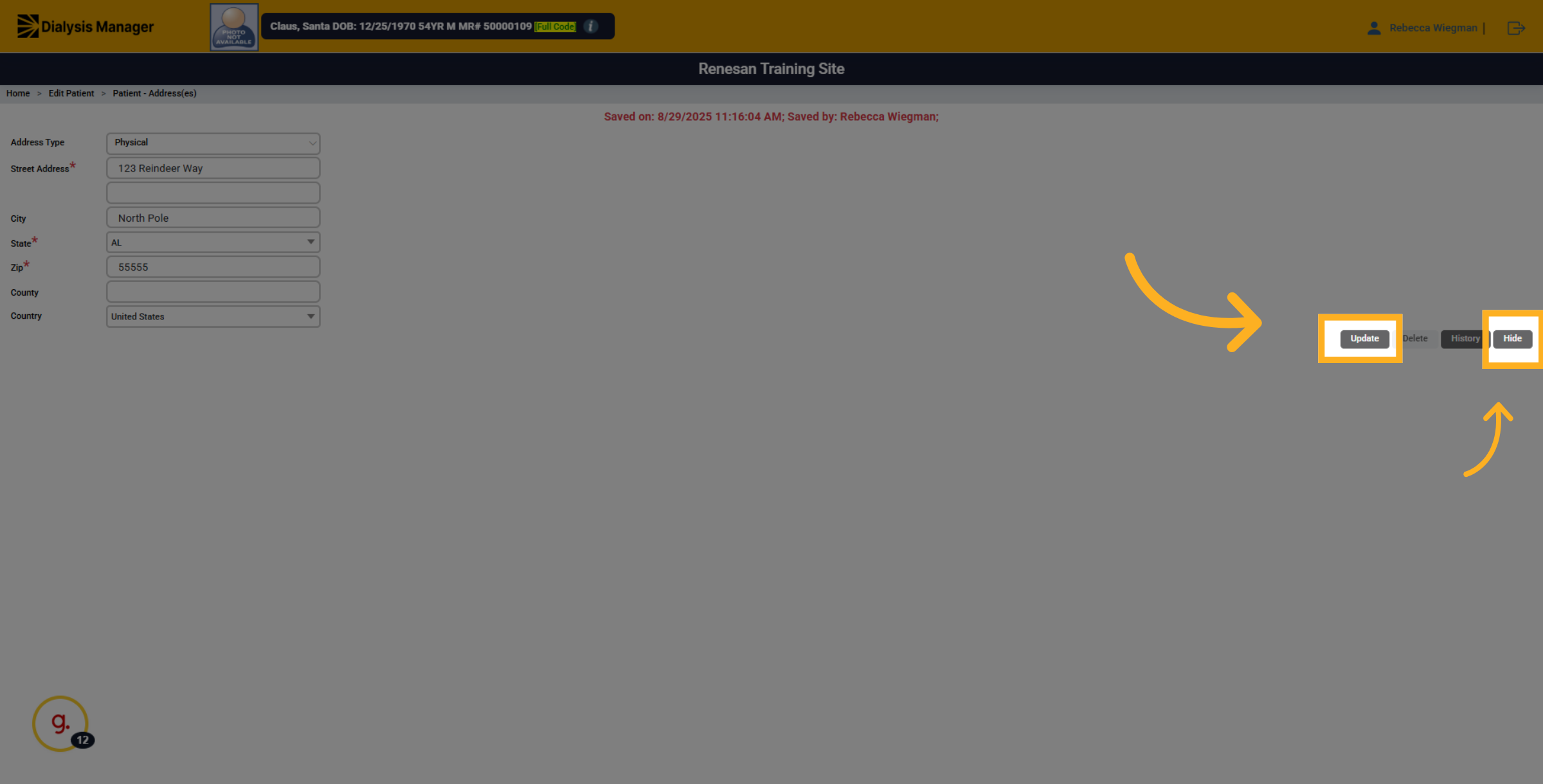
8. Click "Hide"
Click update and then Hide.
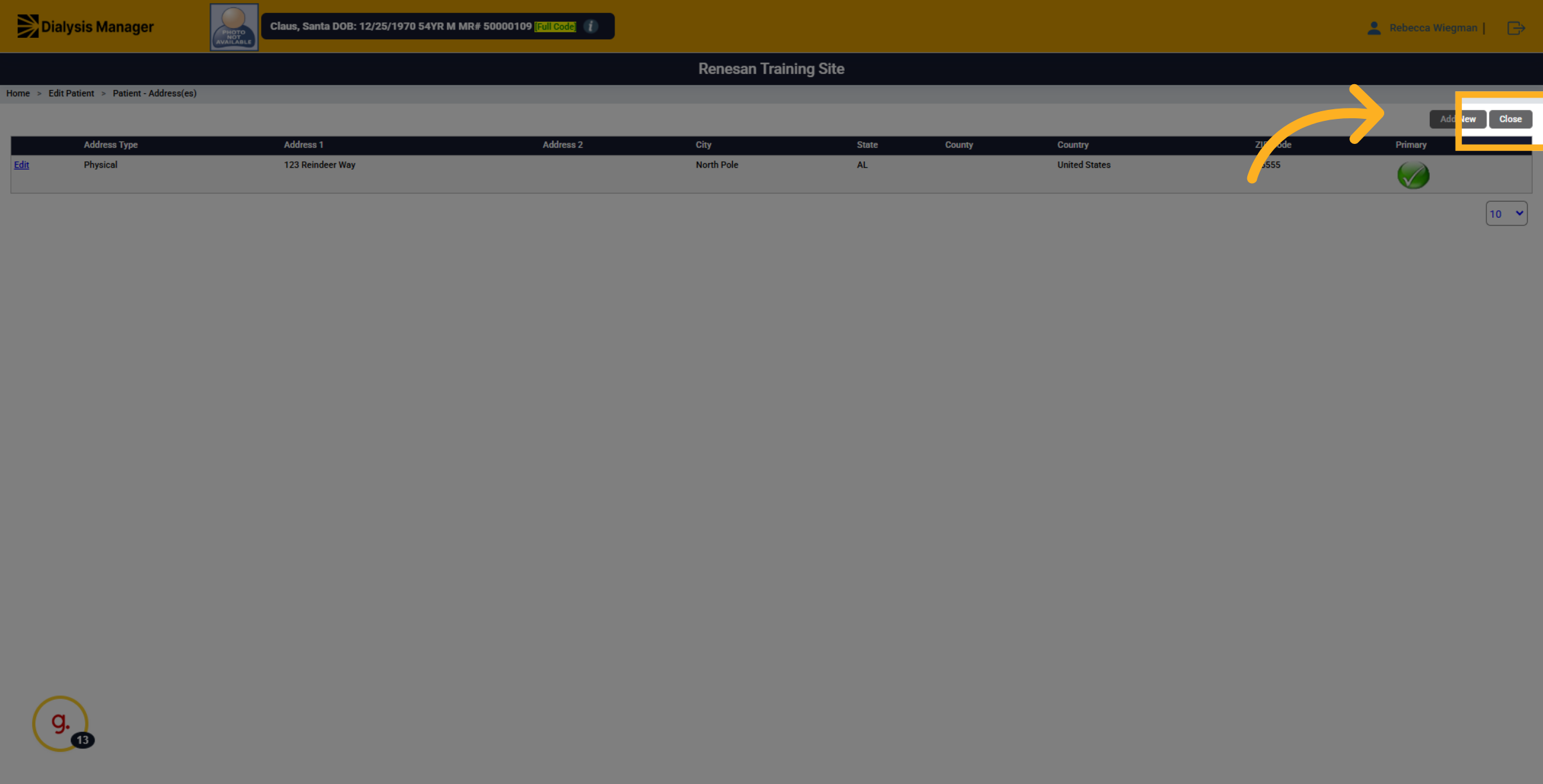
9. Click "Close"
Close the editing interface to complete the update and return to the standard patient view.
10. Click "Contacts"
Navigate to the Contacts section within the patient profile to access contact details.
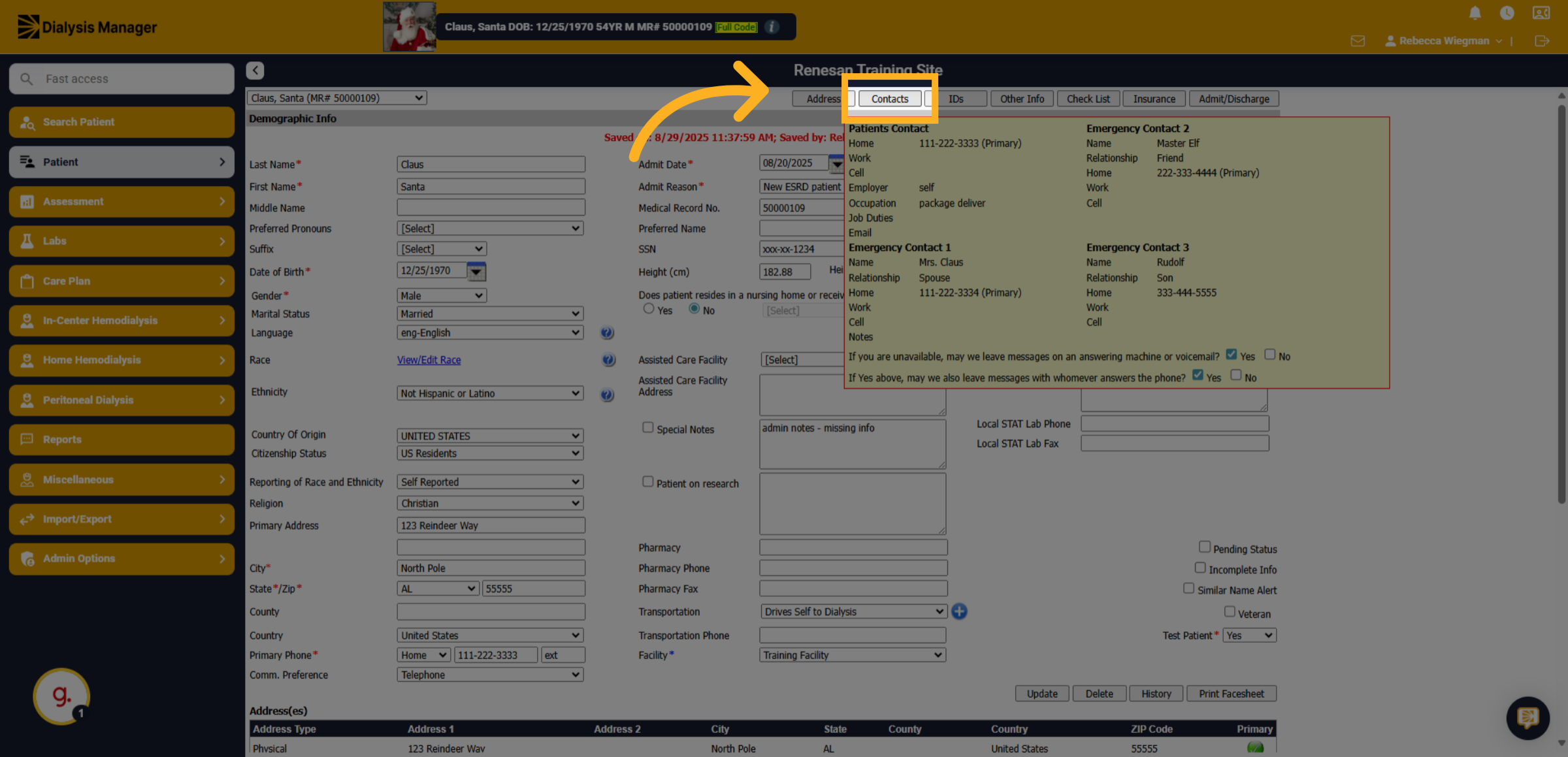
11. Emergency Contact
Locate and select the information that needs to be updated.
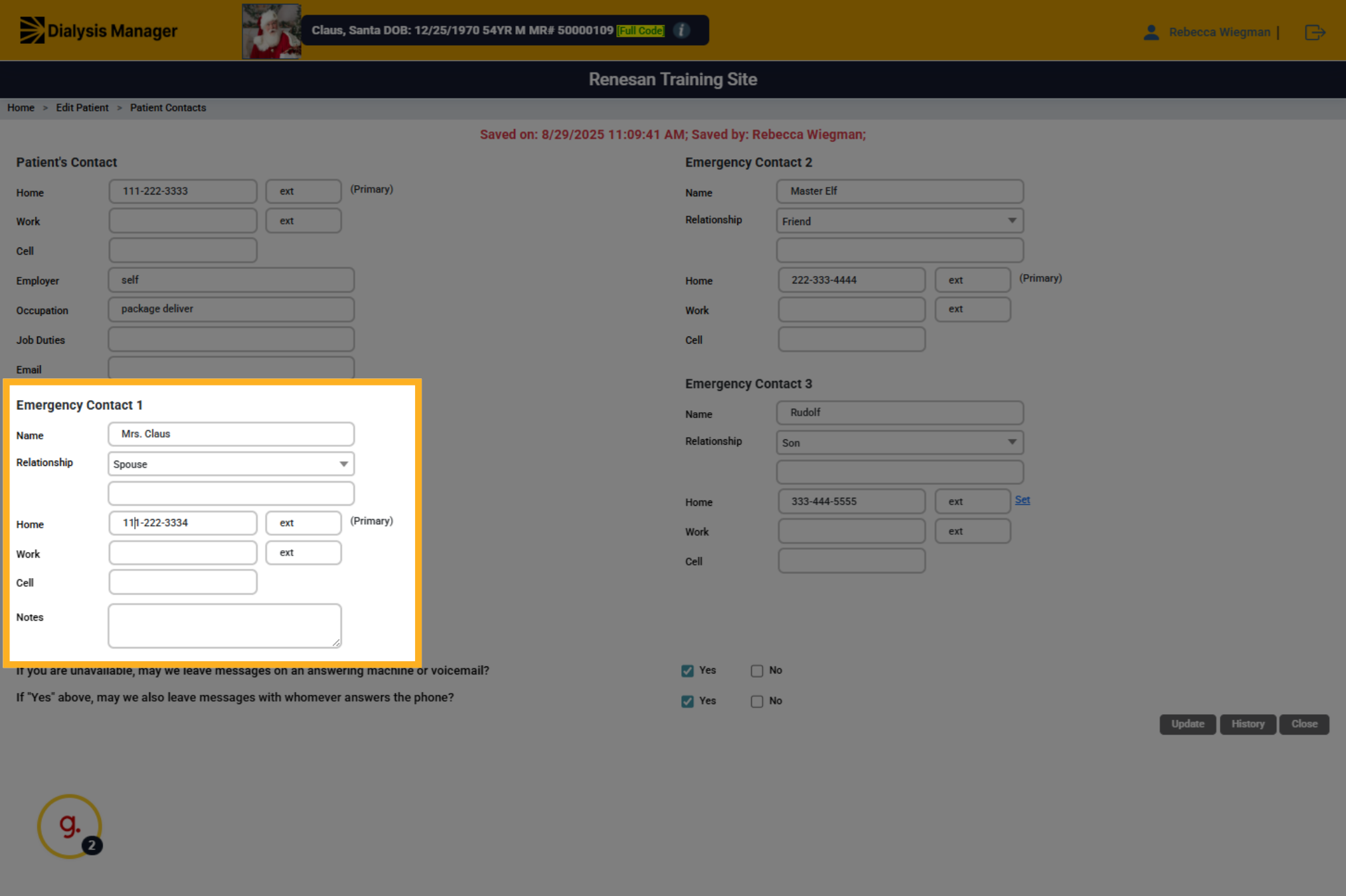
12. Update
Enter the information into the field.
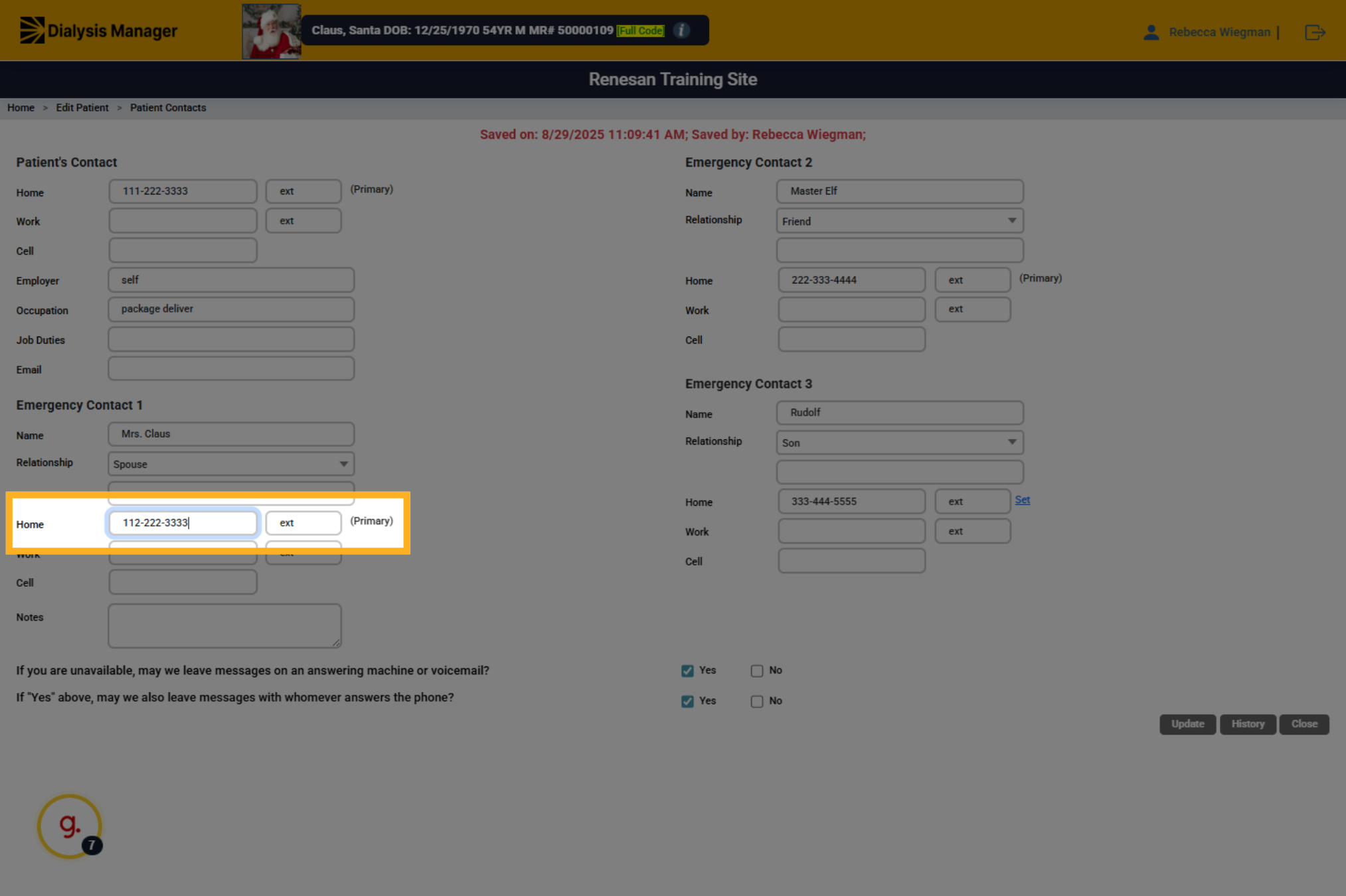
13. Click "Update"
Save your changes by clicking the Update button to apply the new contact information. Note when entering in a SSN, the number will go to xxx format when saving the document. To view the information in the future, navigate to this screen and simply click your mouse in the ssn field. The entire number will show once you click in the ssn box.
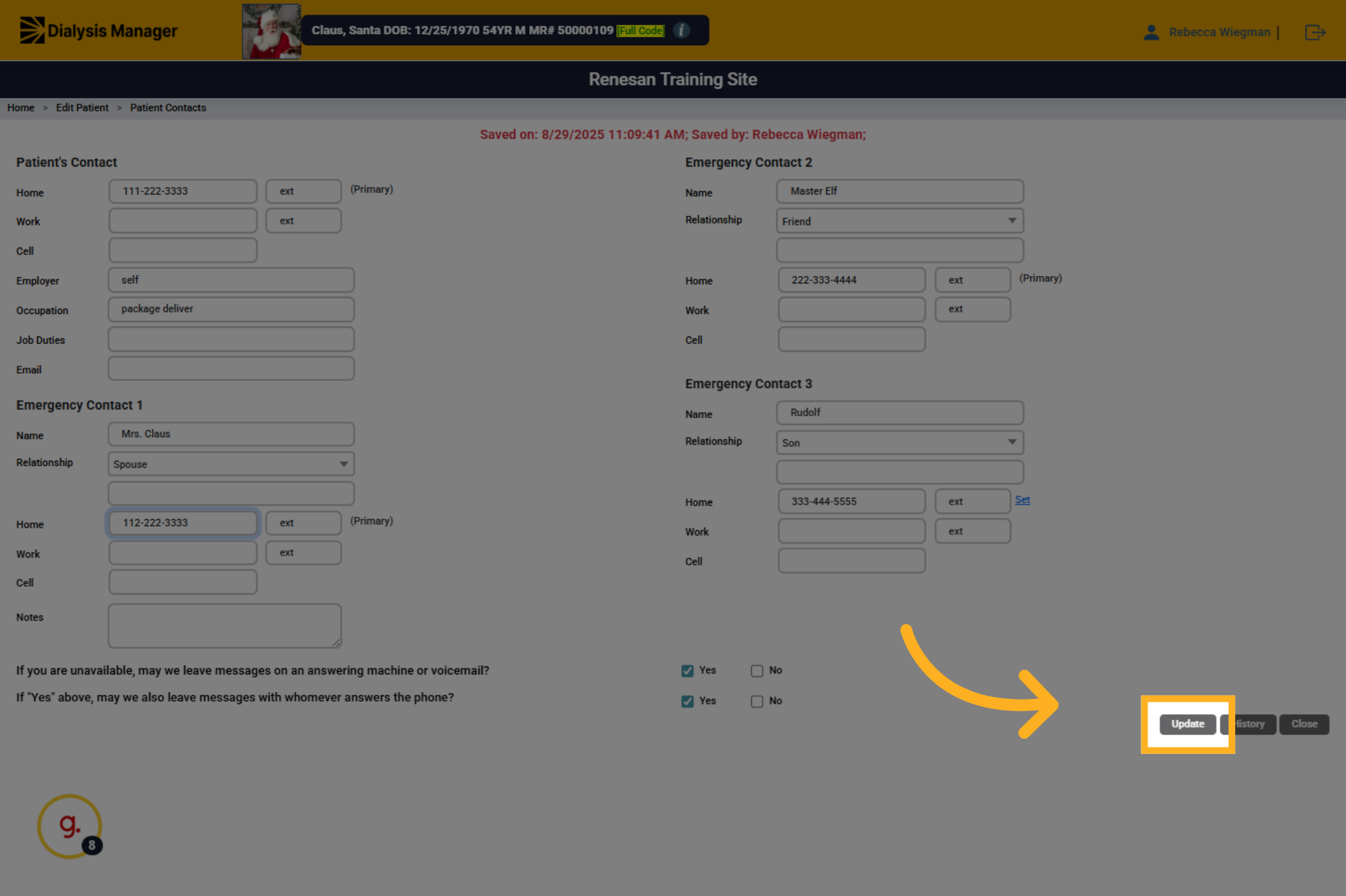
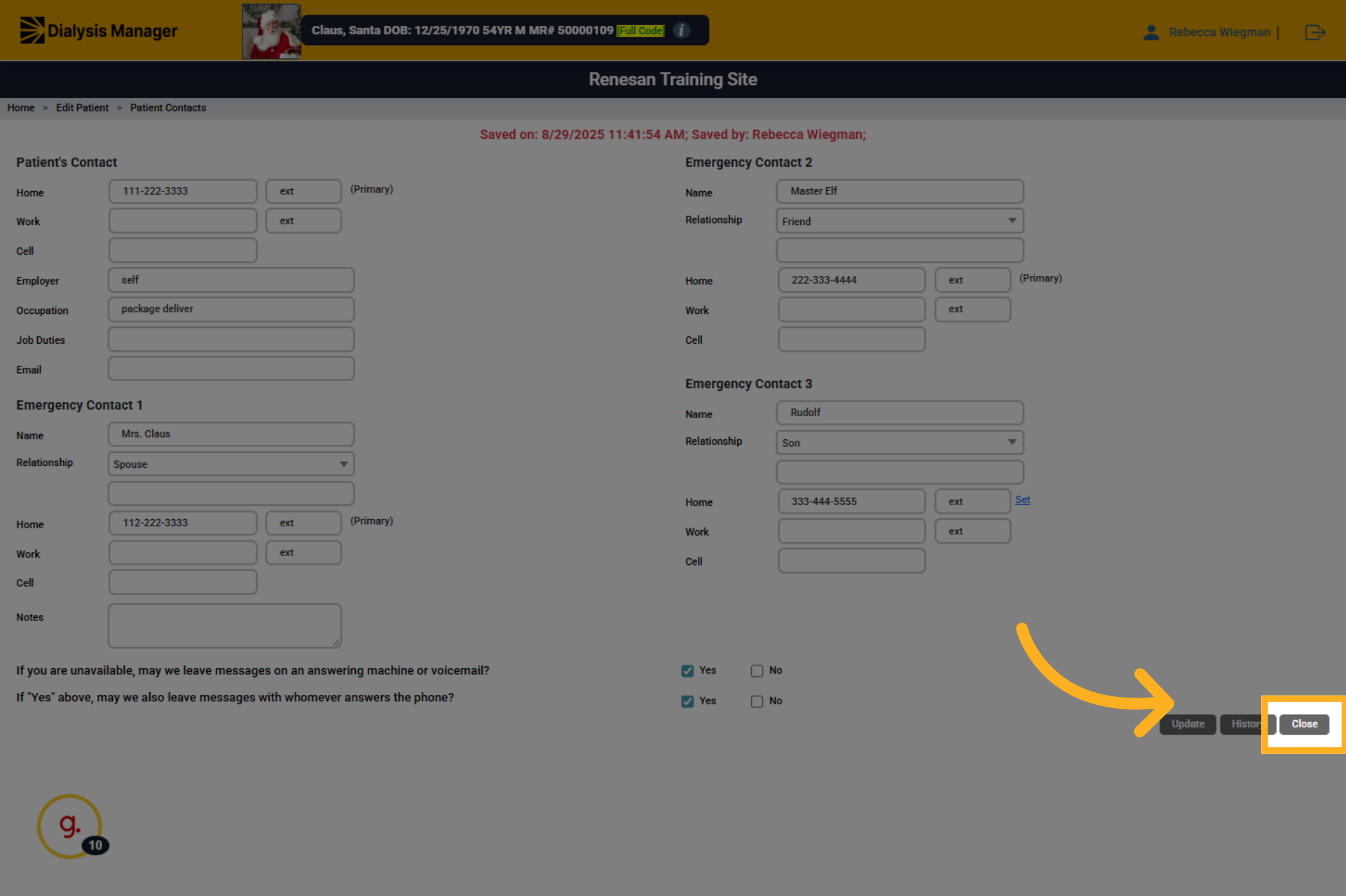
14. Click "Close"
Close the editing window to return to the main patient profile view.
15. Click "Other Info"
Select the 'Other Info' section to access additional patient details.
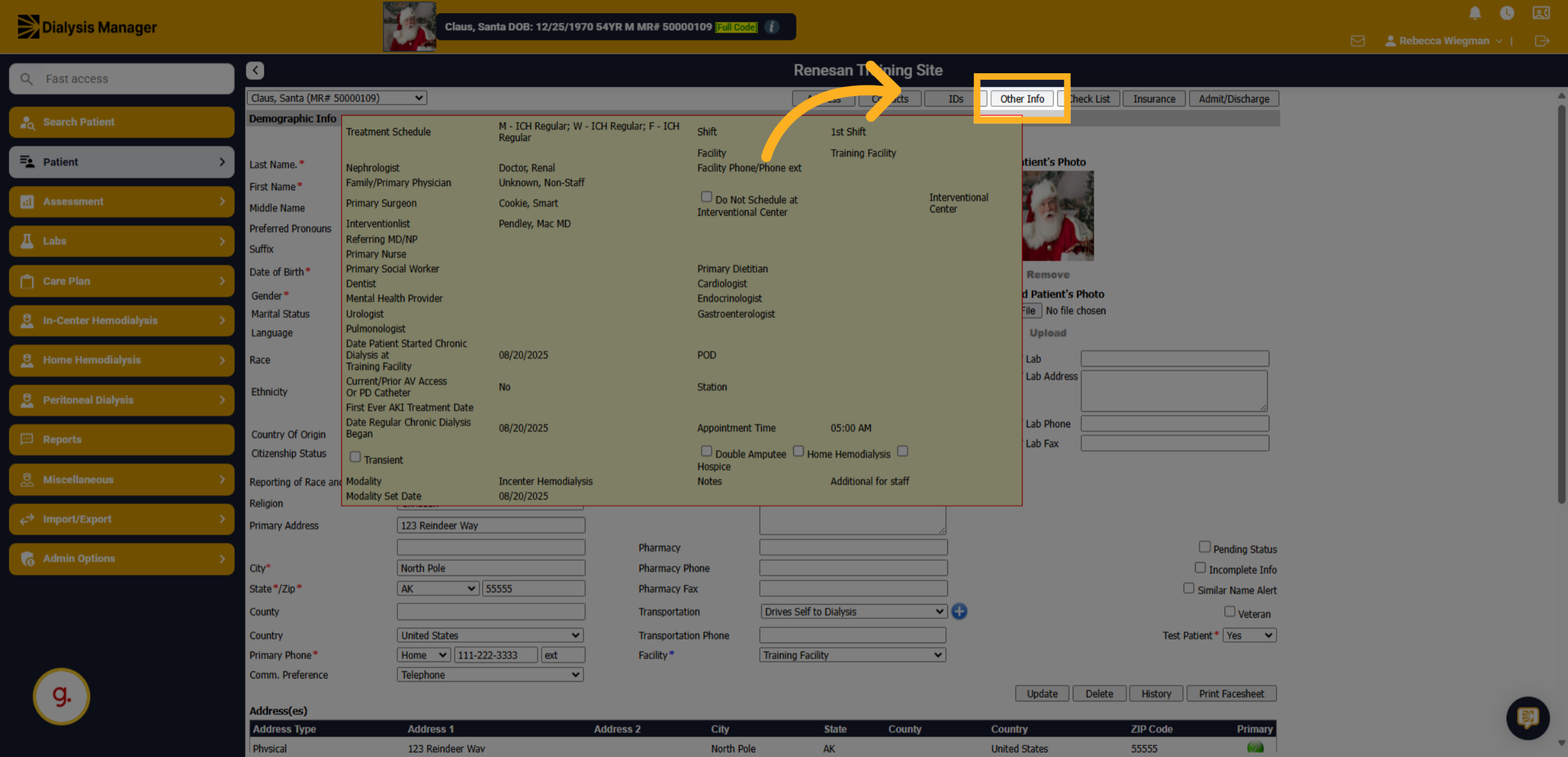
16. Other Info Page
You'll be able to see and edit the patients schedule, shift, healthcare providers, facility, Date Patient started chronic dialysis at training facility, modality and others.
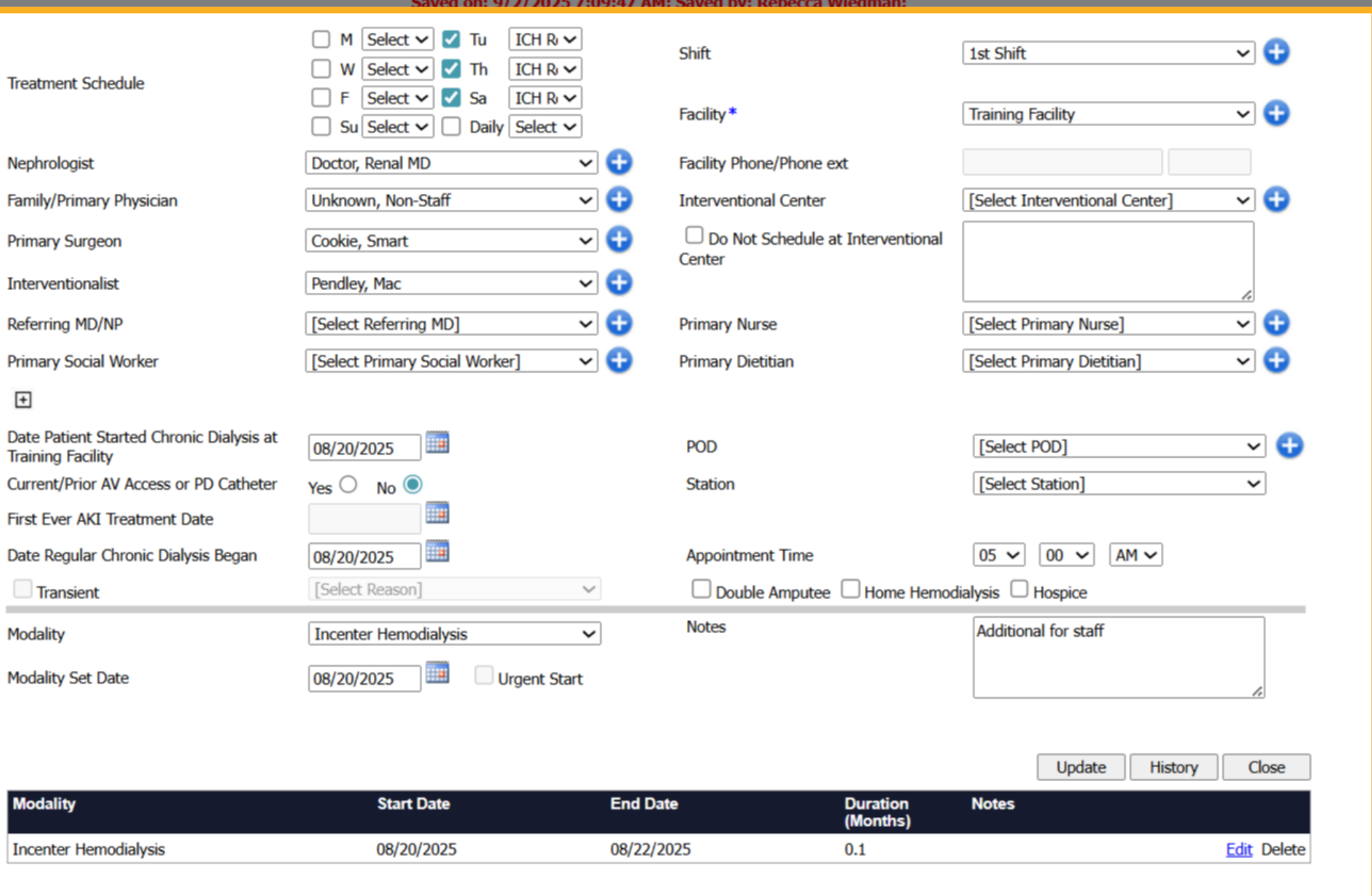
17. Click "on"
Click on the field that needs to be updated such as the patients schedule or their shift.
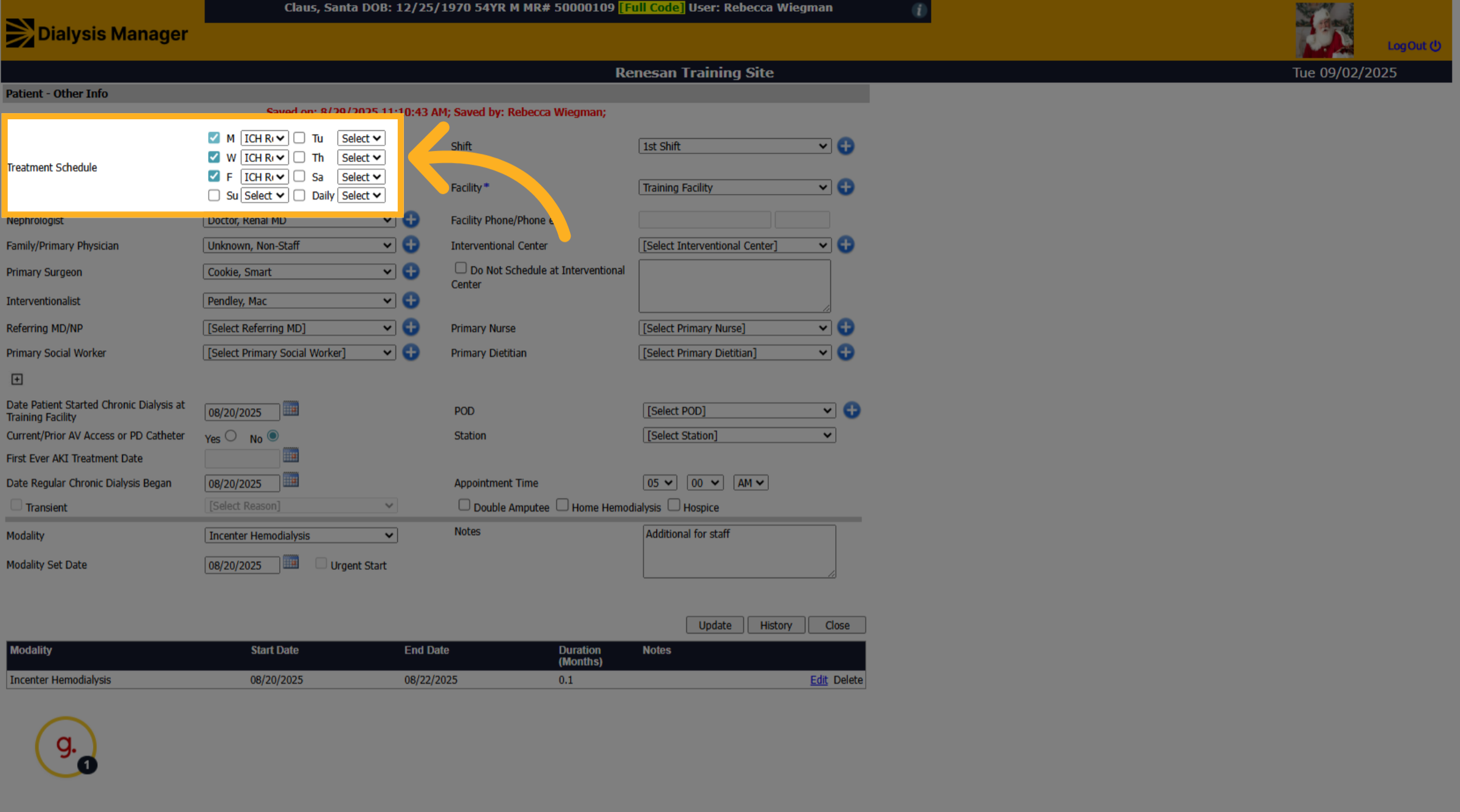
18. Click "Modality
Click the dropdown menu to select the patient's treatment modality type.
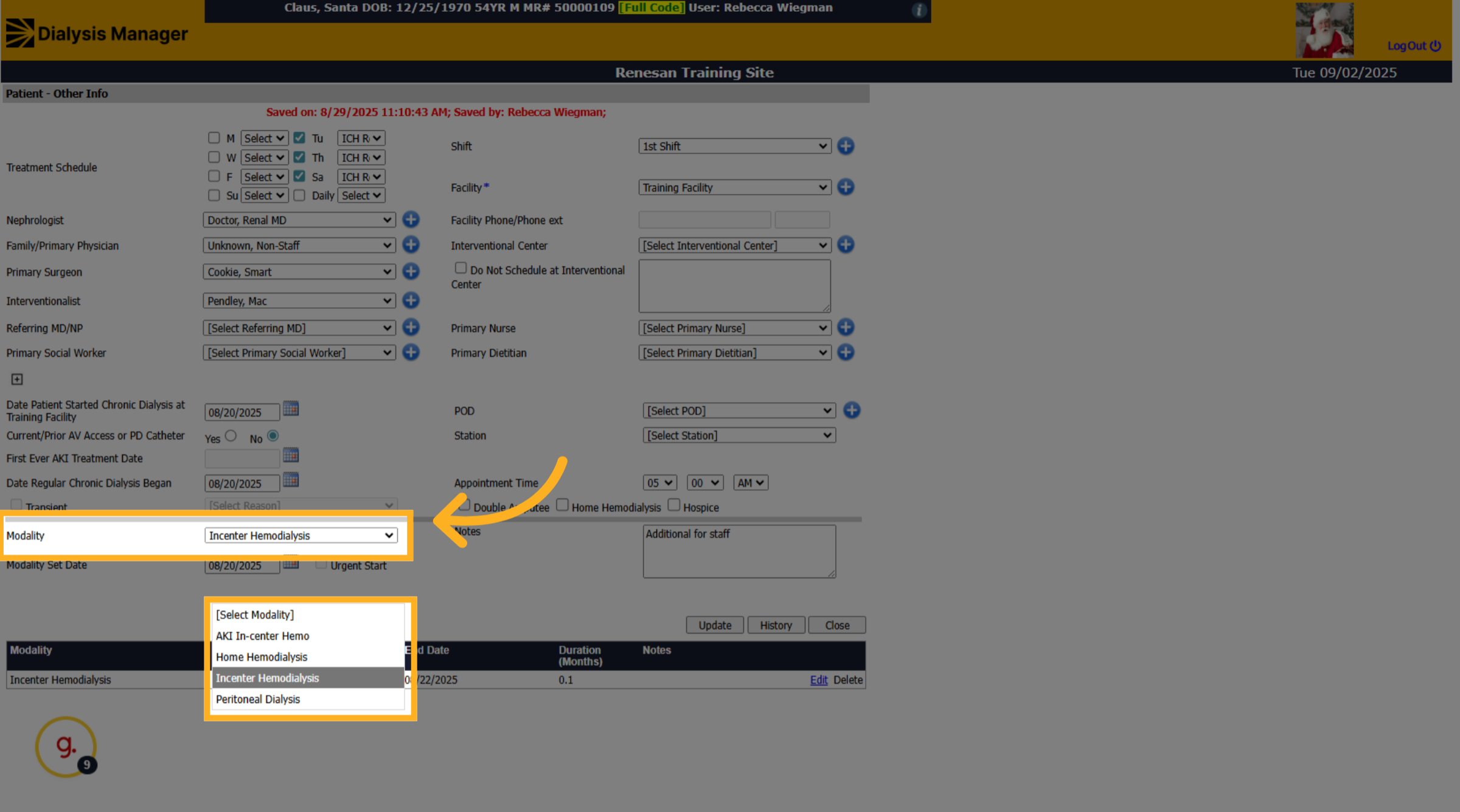
19. Click "Update"
Click the 'Update' button to save all changes made to the patient's schedule and modality.
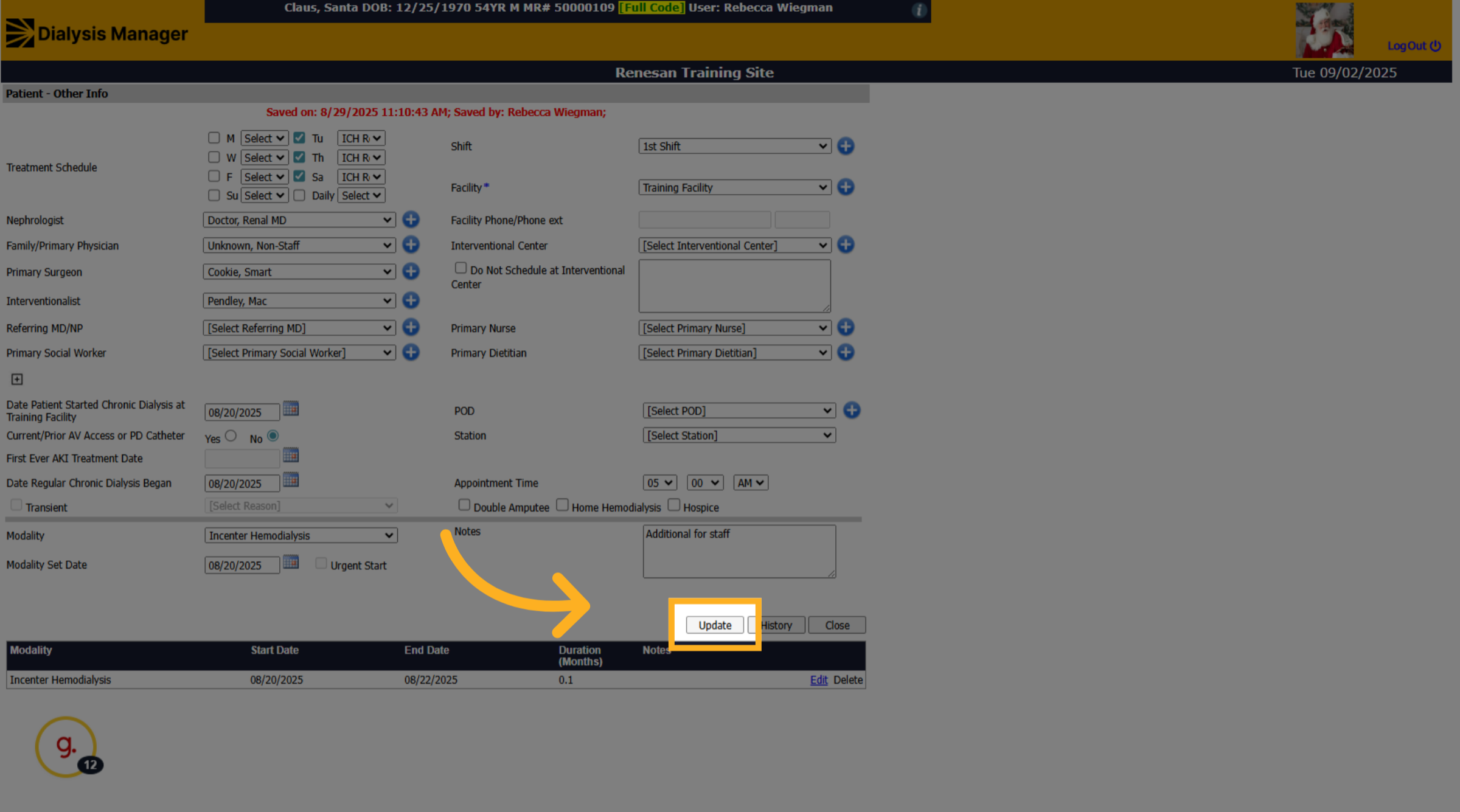
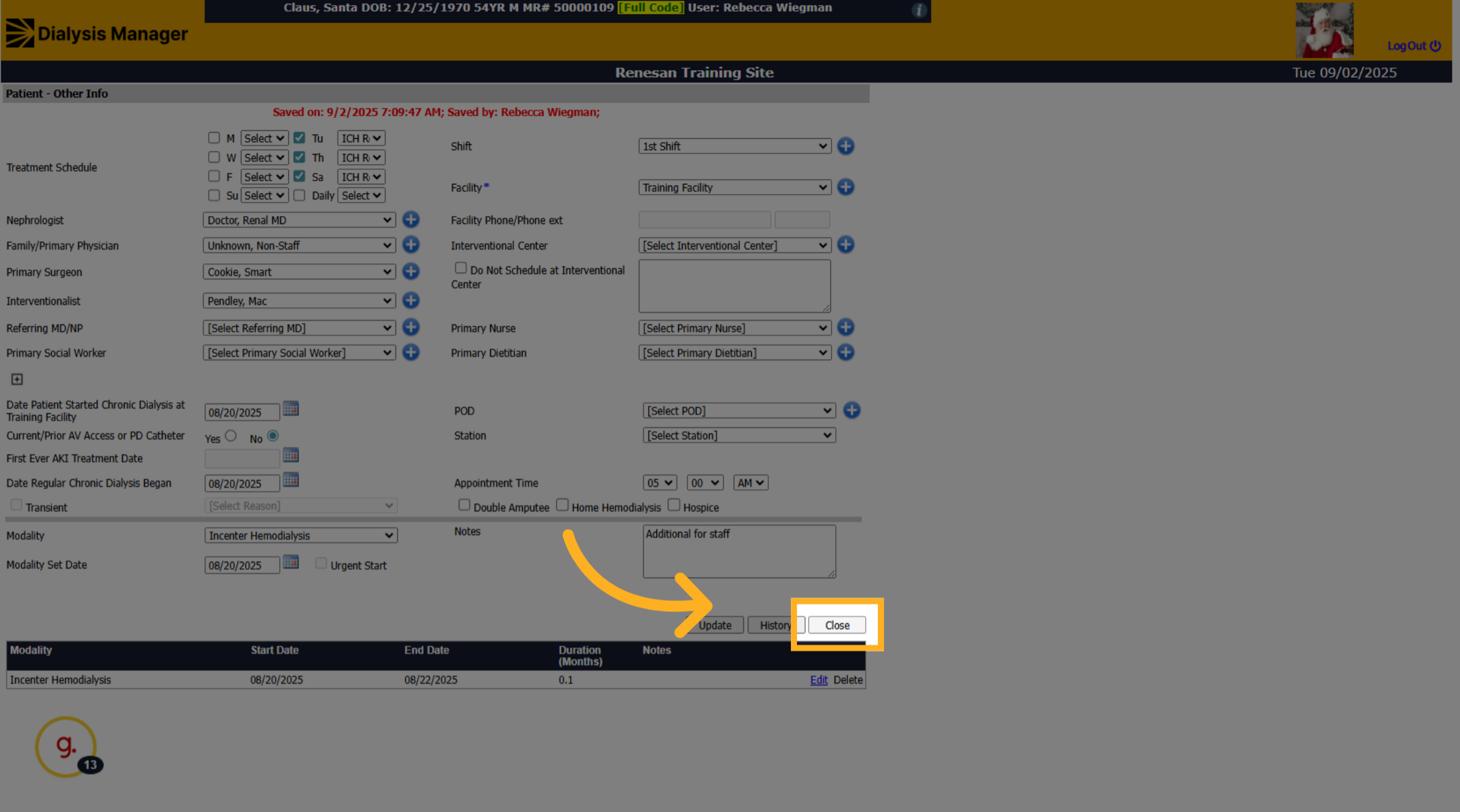
20. Click "Close"
Click the 'Close' button to exit.
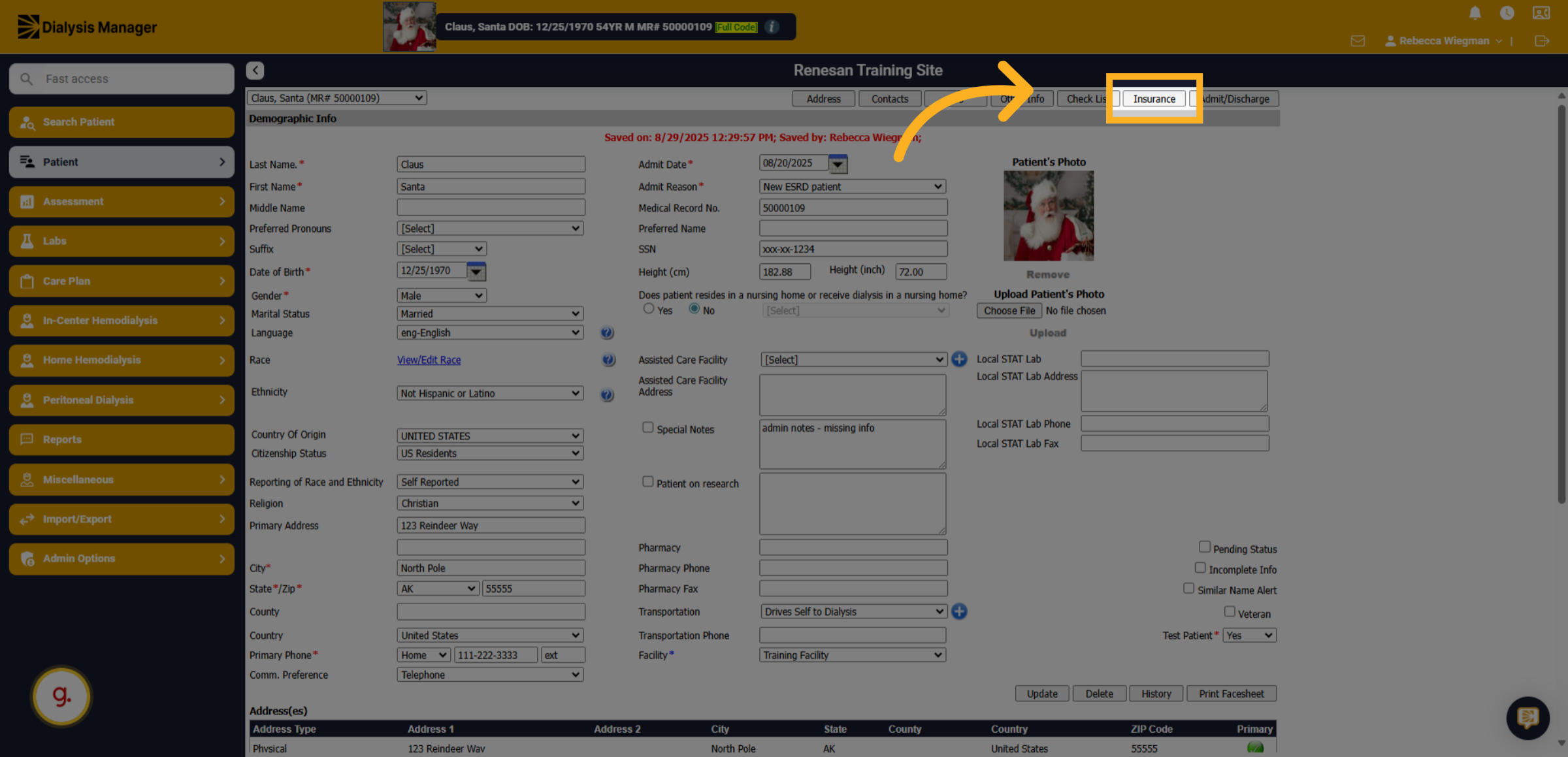
21. Click "Insurance"
Click on the Insurance section in the application.
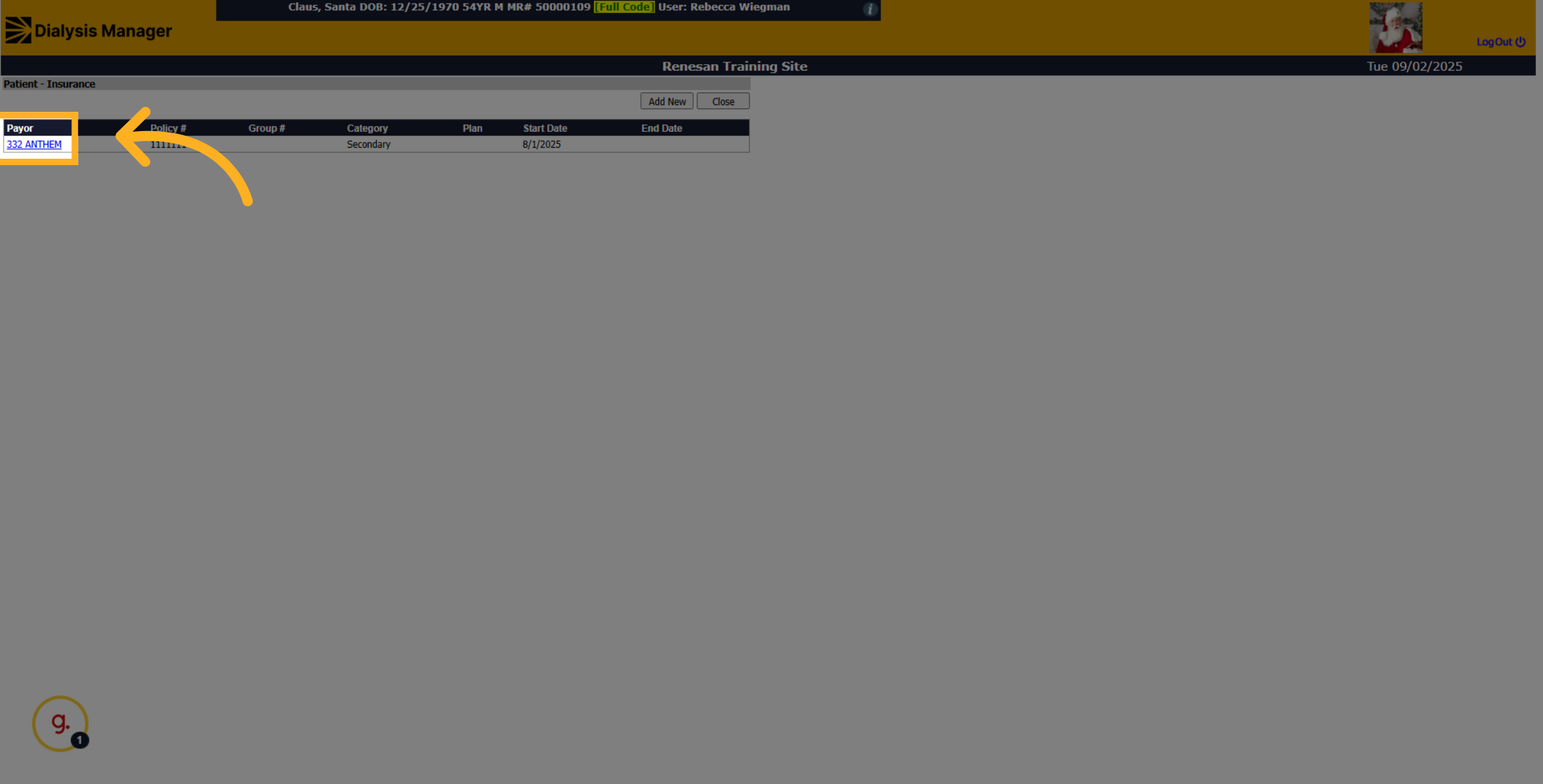
22. Click "332 ANTHEM"
Select the specific insurance provider you need to update from the list.
23. Click here
Click on the designated area to edit the insurance details.
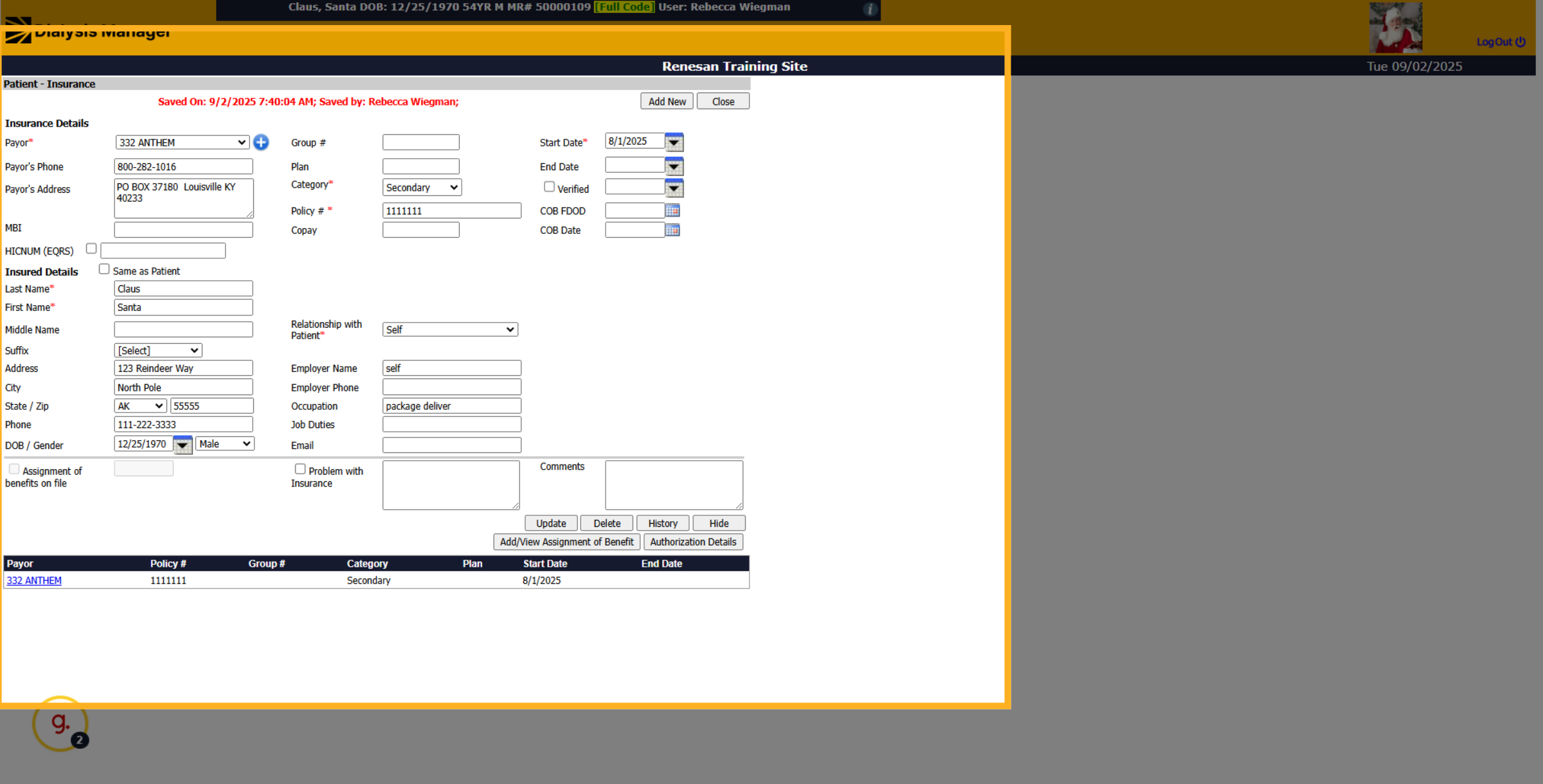
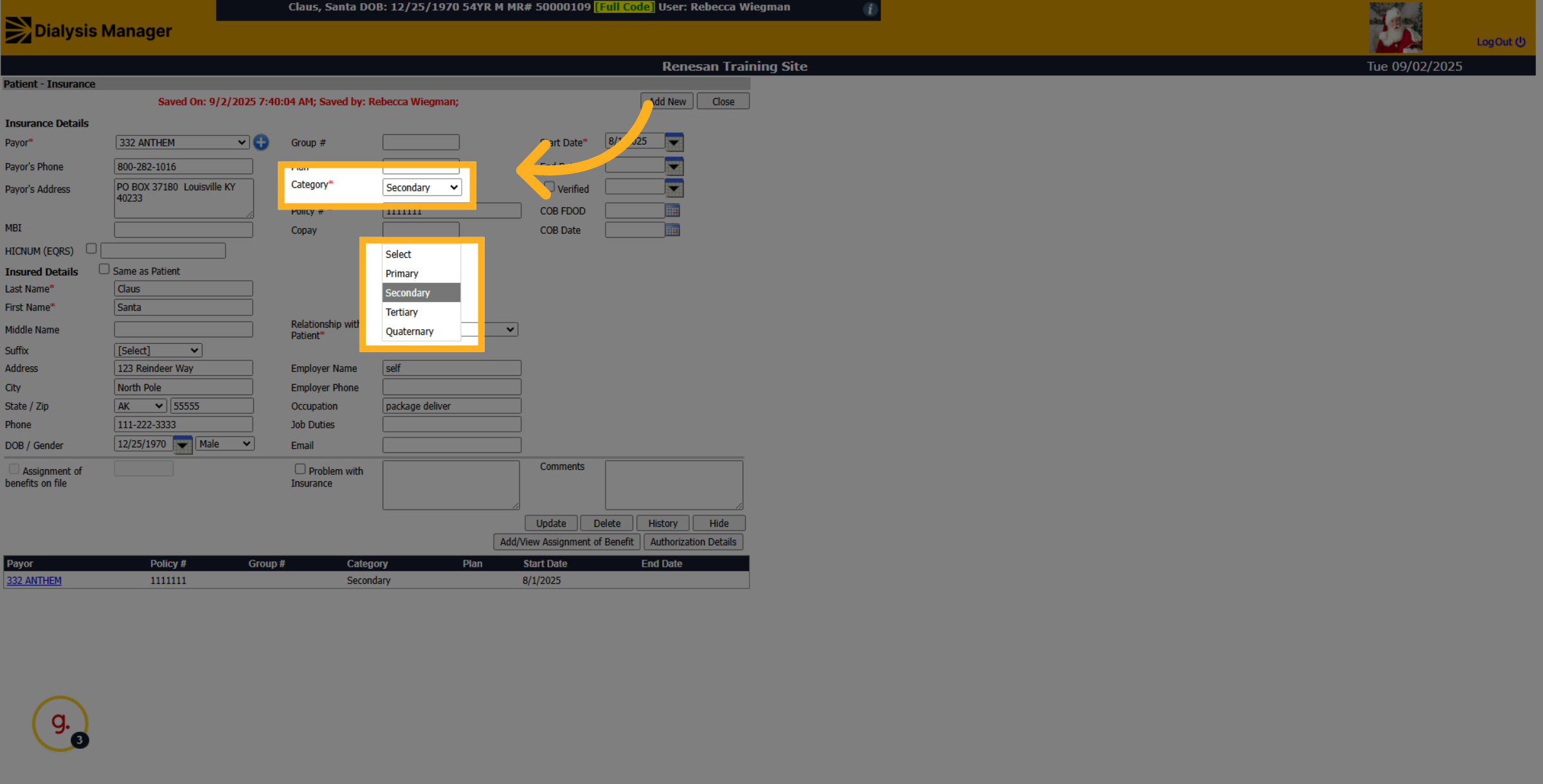
24. Click "Category"
Fill in the updated insurance information in the selected field.
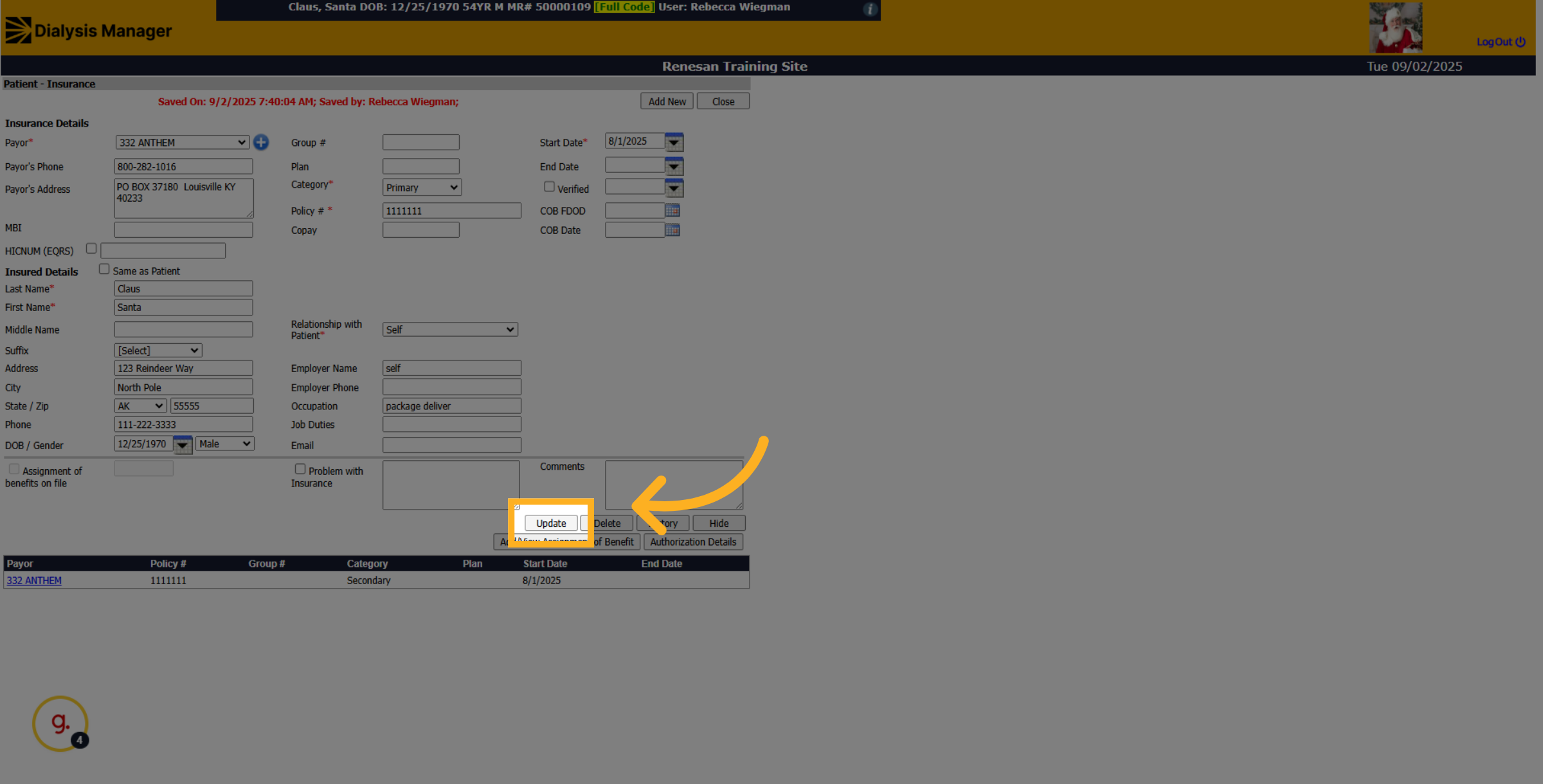
25. Click "Update"
Click the Update button to save the changes you made to the insurance information.
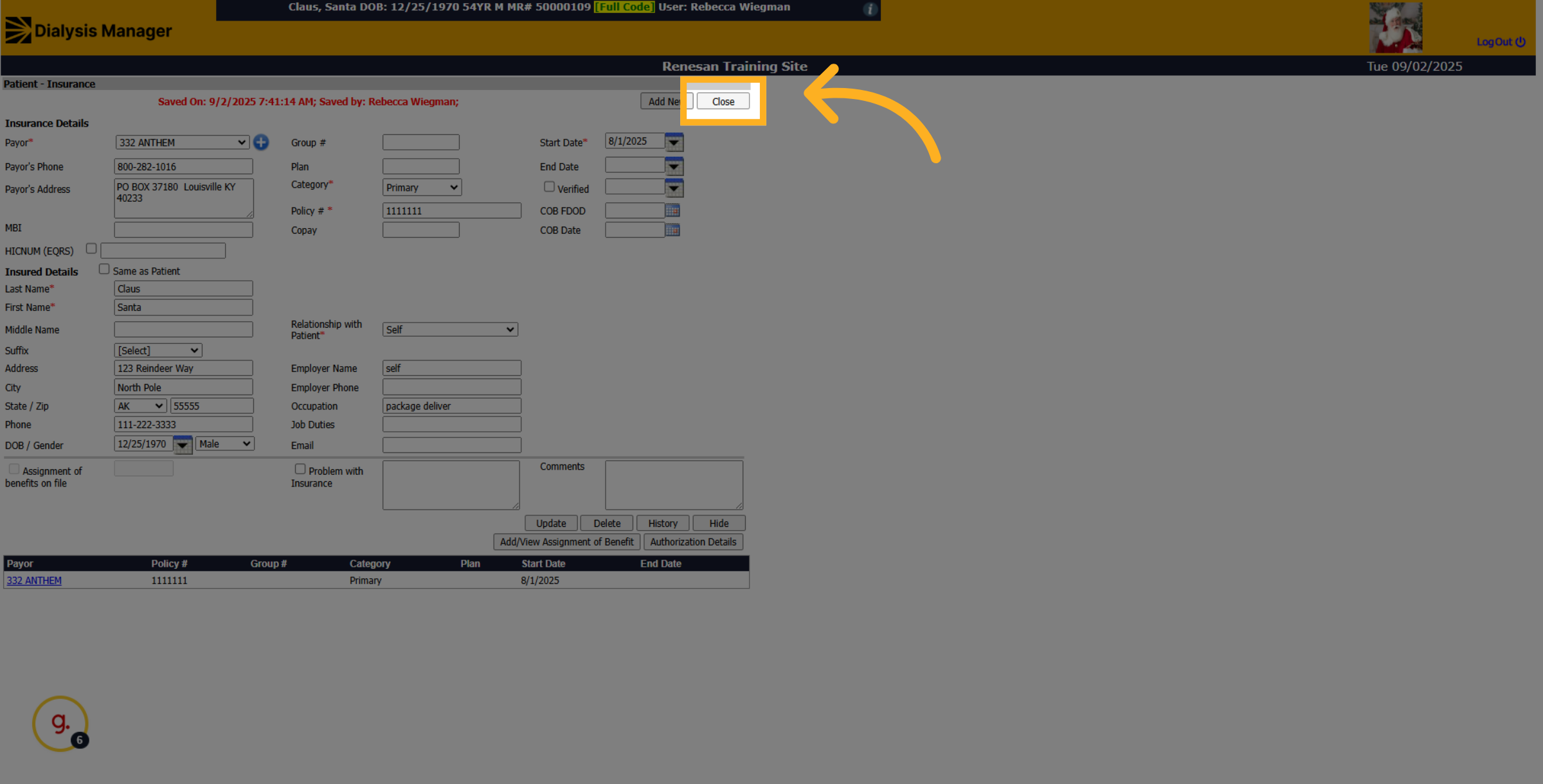
26. Click "Close"
Click Close to exit the insurance update screen after saving your changes.
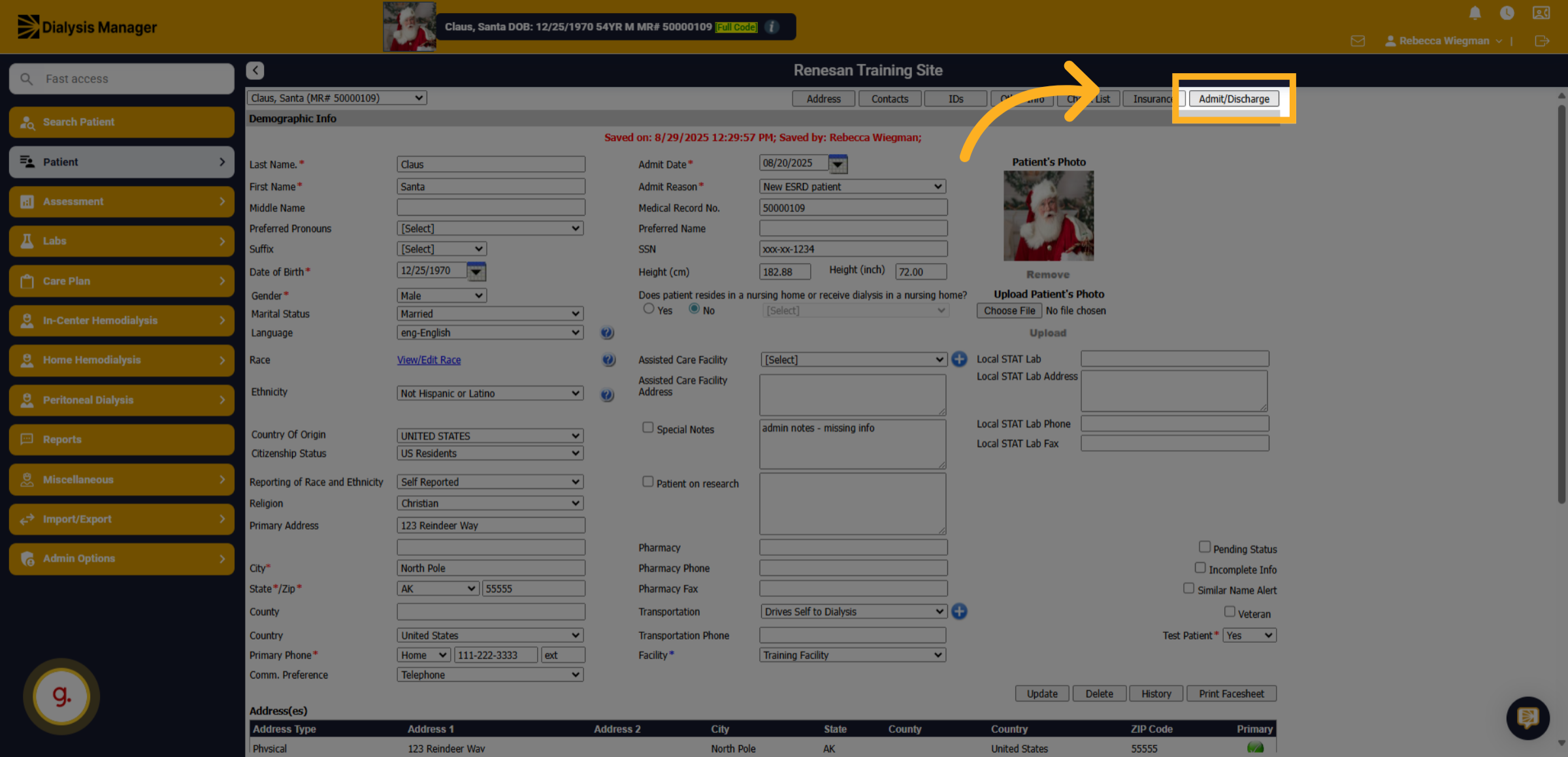
27. Click "Admit/Discharge"
Click the Admit/Discharge option to begin updating patient status.
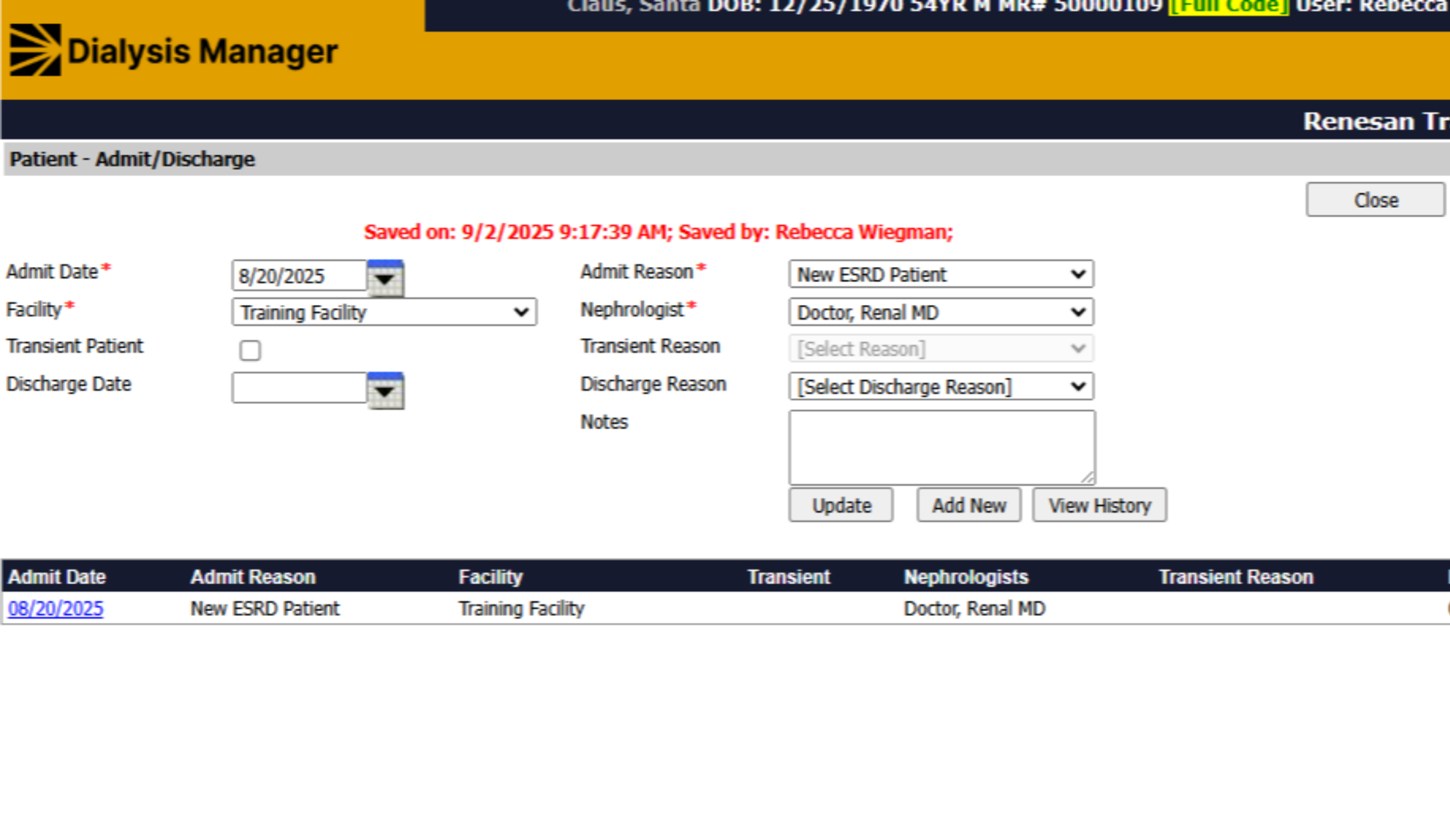
28. Page
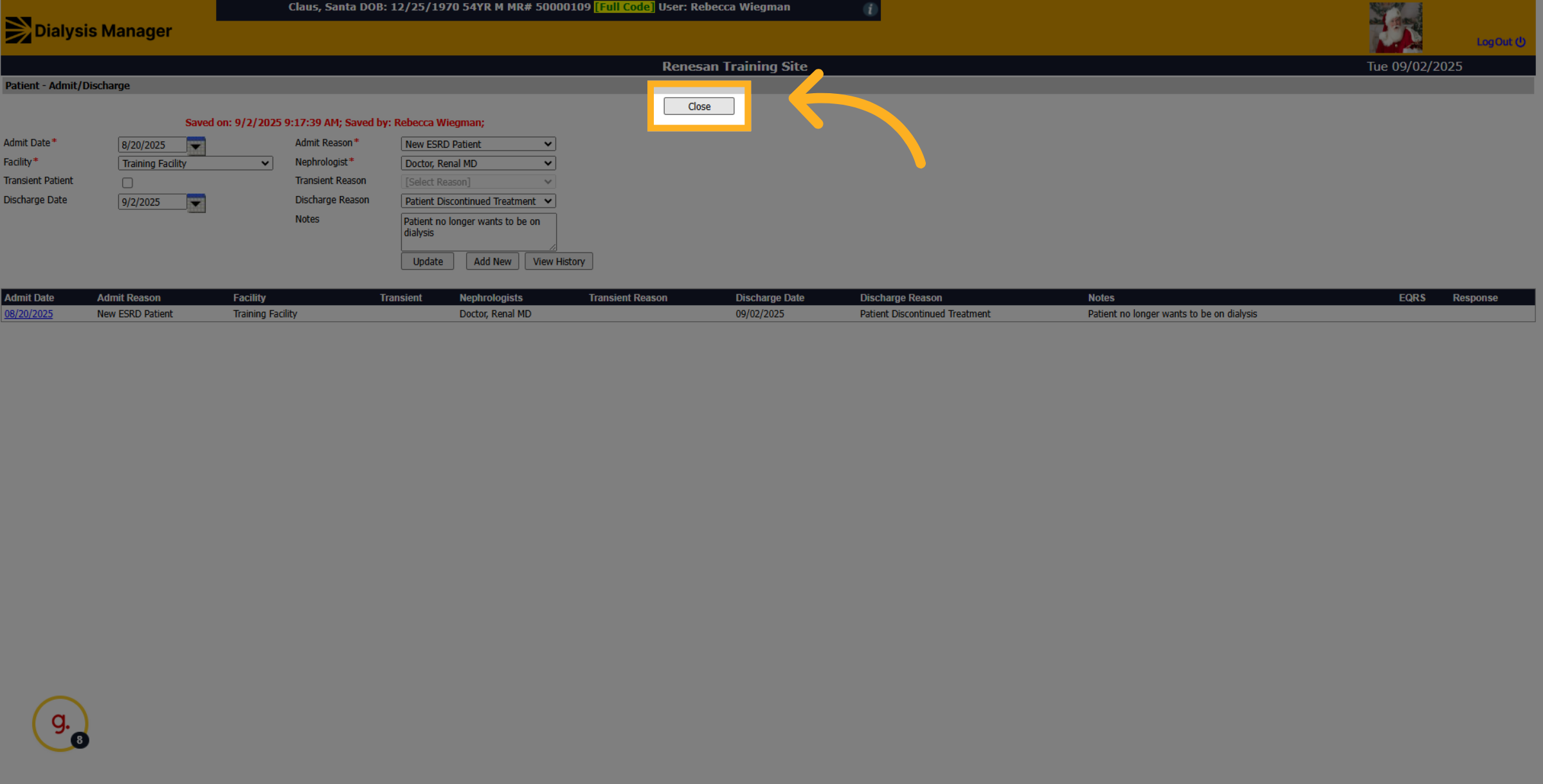
When opening the Admit/Discharge page you'll see the patients admitting date, admit reason, facility, along with other information.
29. Click "
From here your able to select the information that needs to be updated. Such as the Discharge Reason.
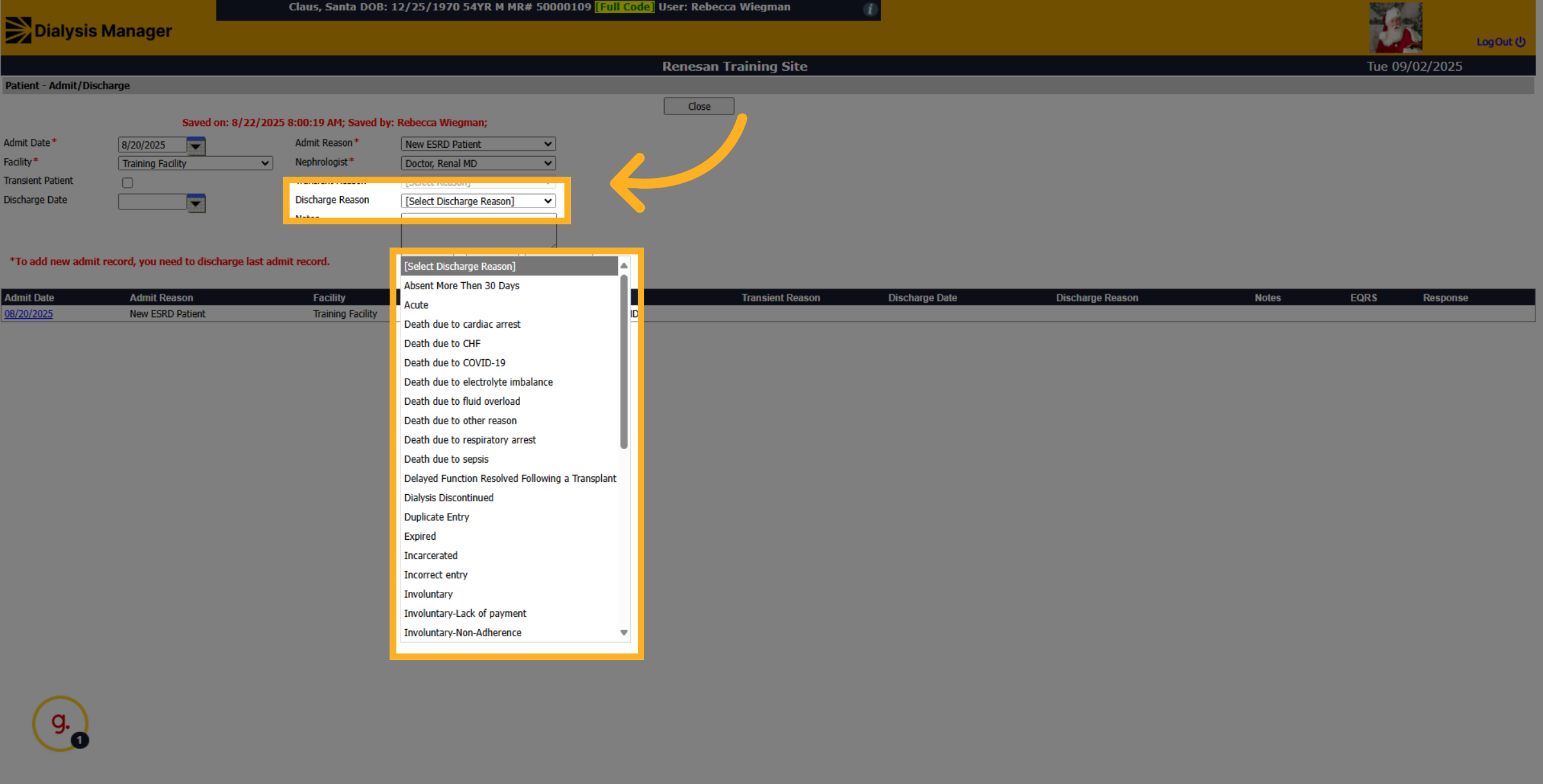
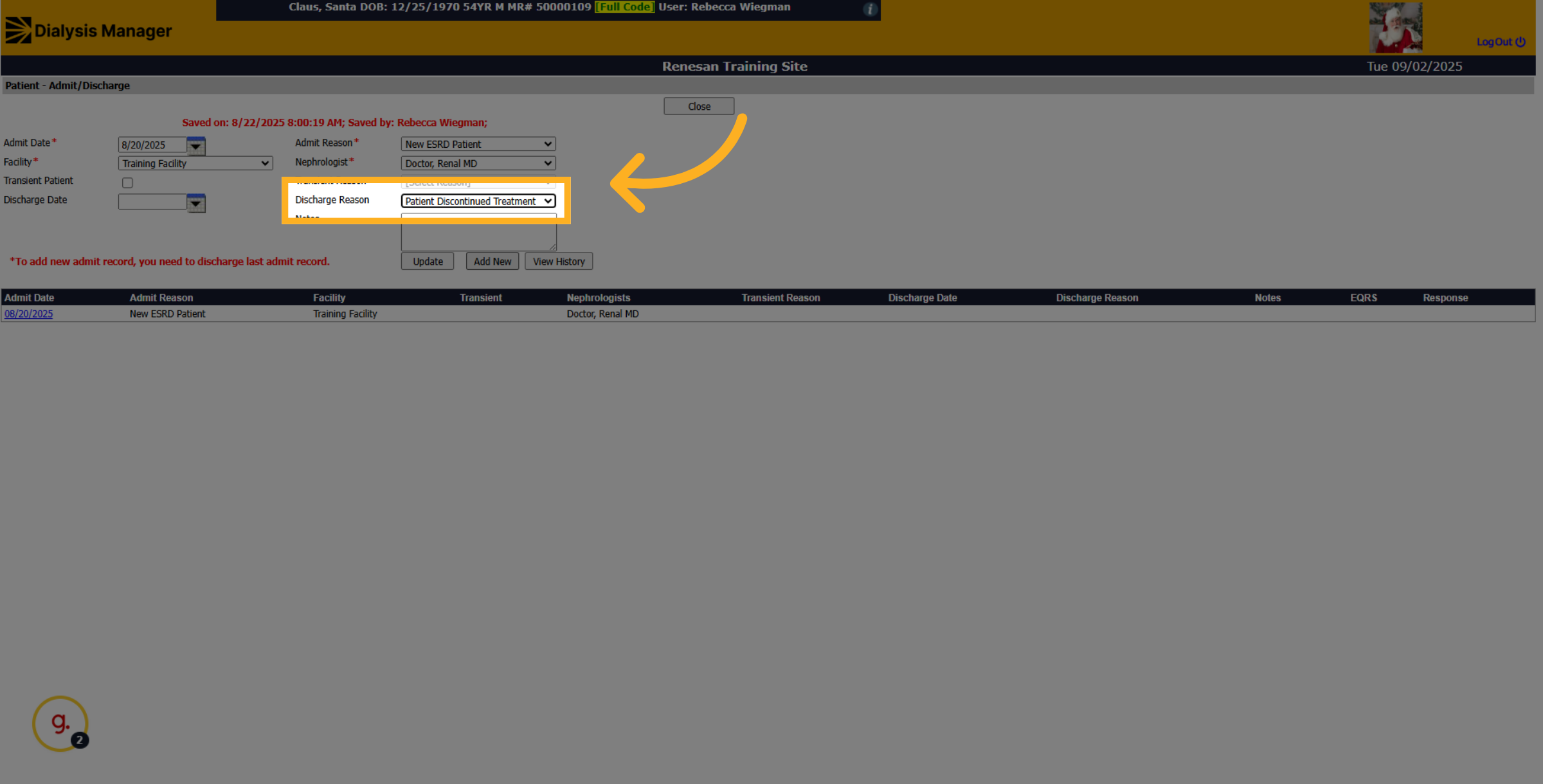
30. Fill "
Choose the appropriate discharge reason from the list provided.
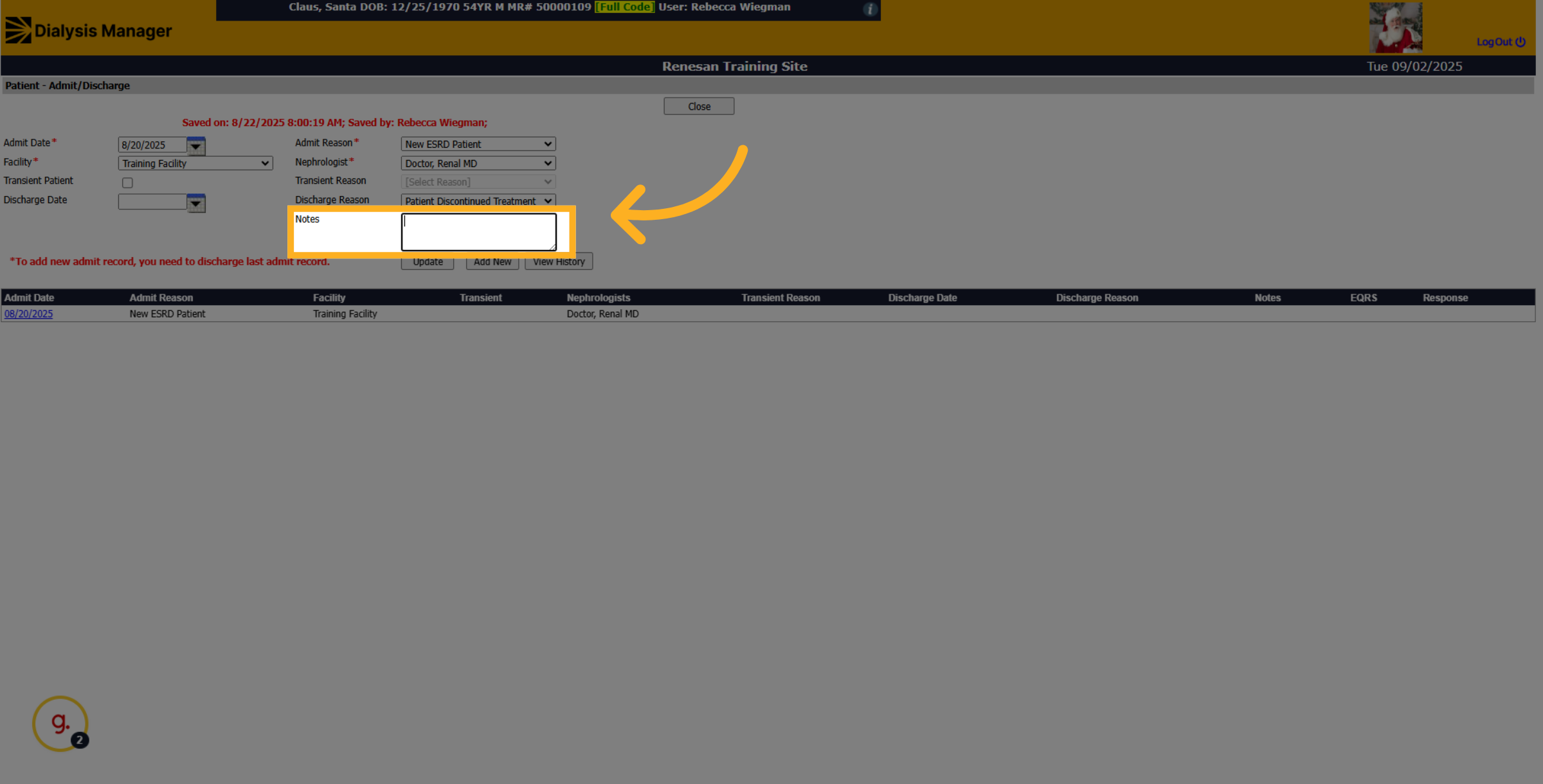
31. Click "Notes"
Click the Notes section to add additional information about the discharge.
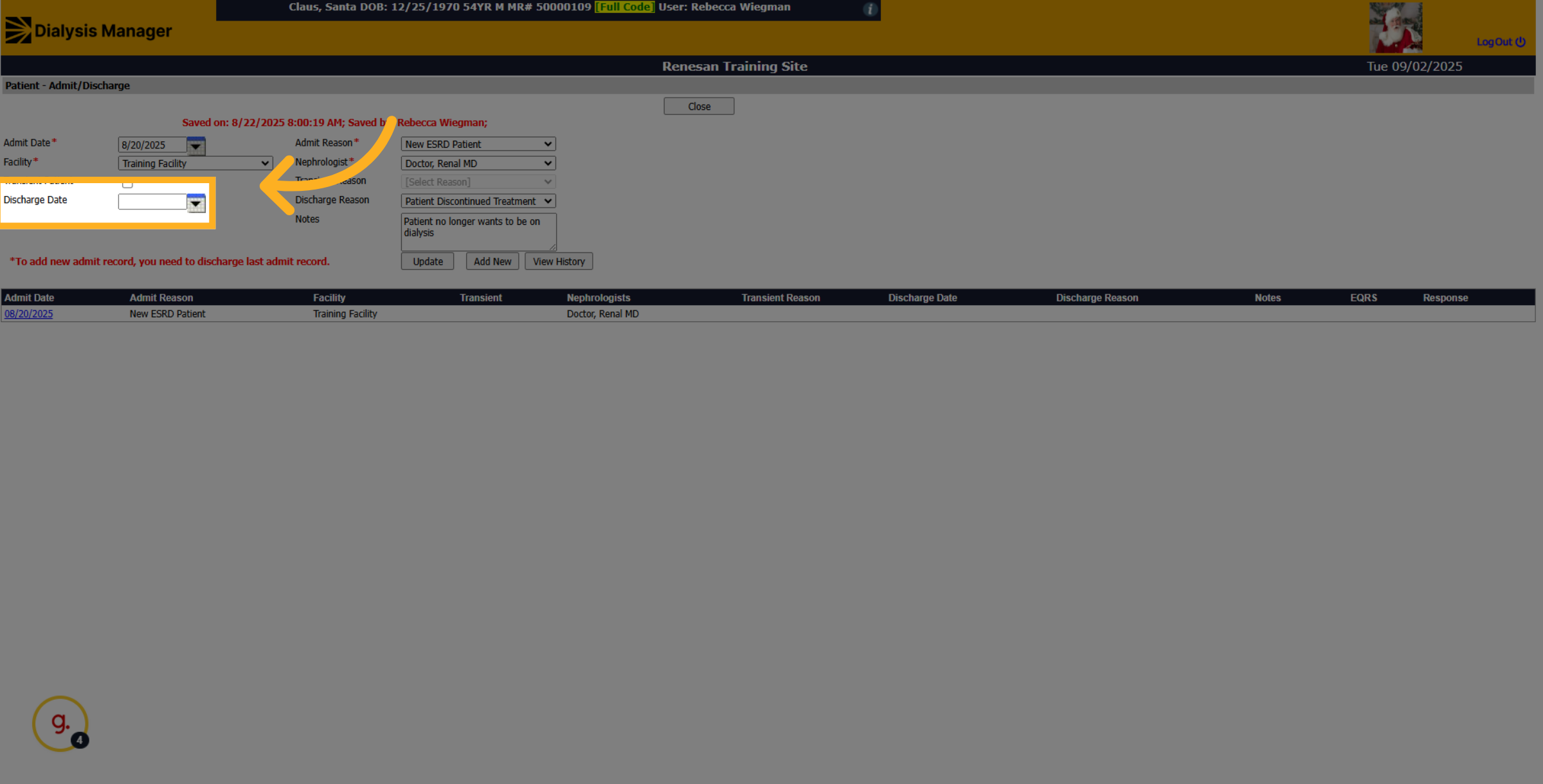
32. Click here
Enter the date of discharge
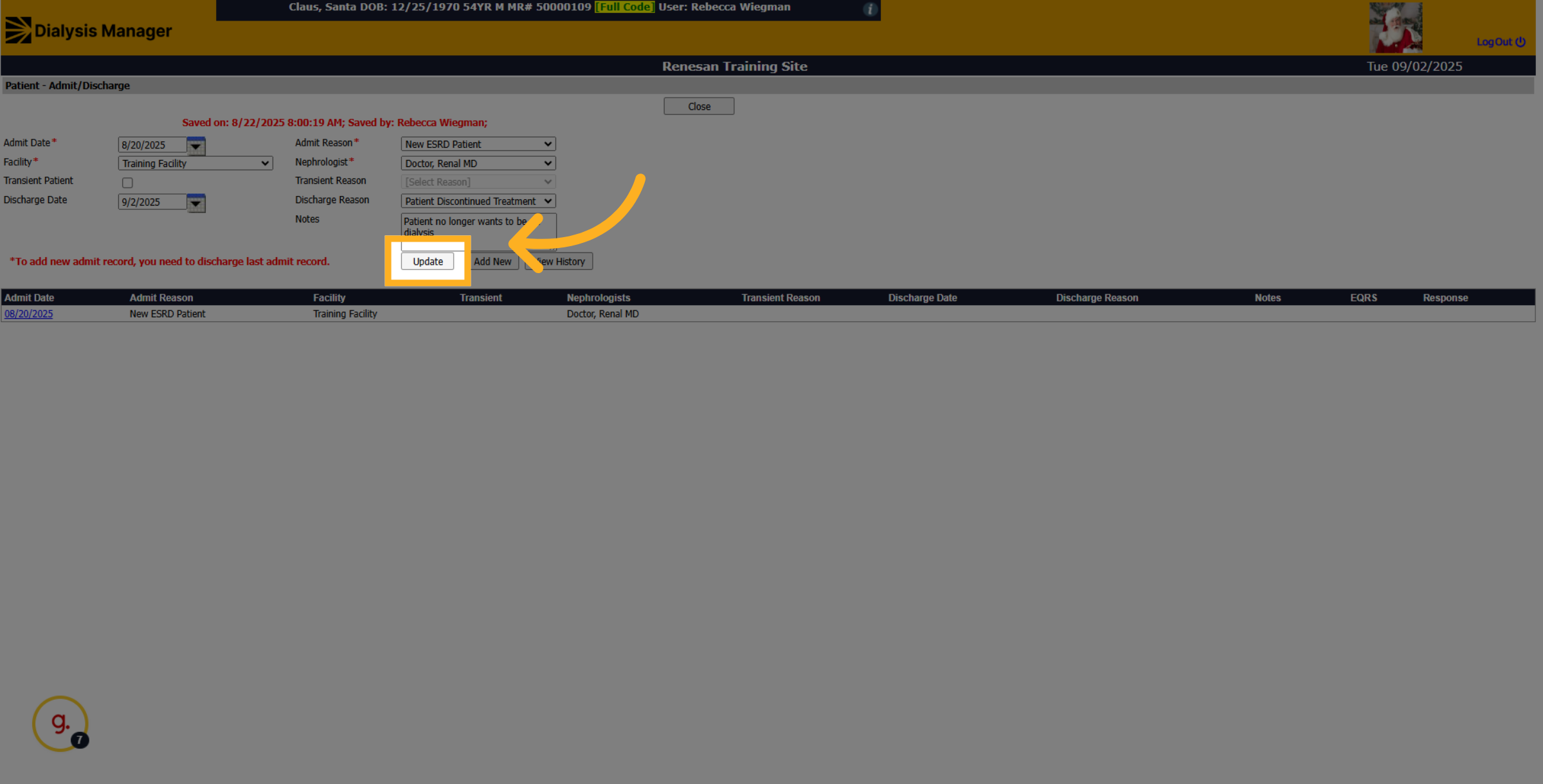
33. Click "Update"
Click the Update button to save the changes made to the patient's discharge information.
34. Click "Close"
Click Close to exit the discharge update screen and complete the process.