Edit or correct a PD Order
1. Introduction
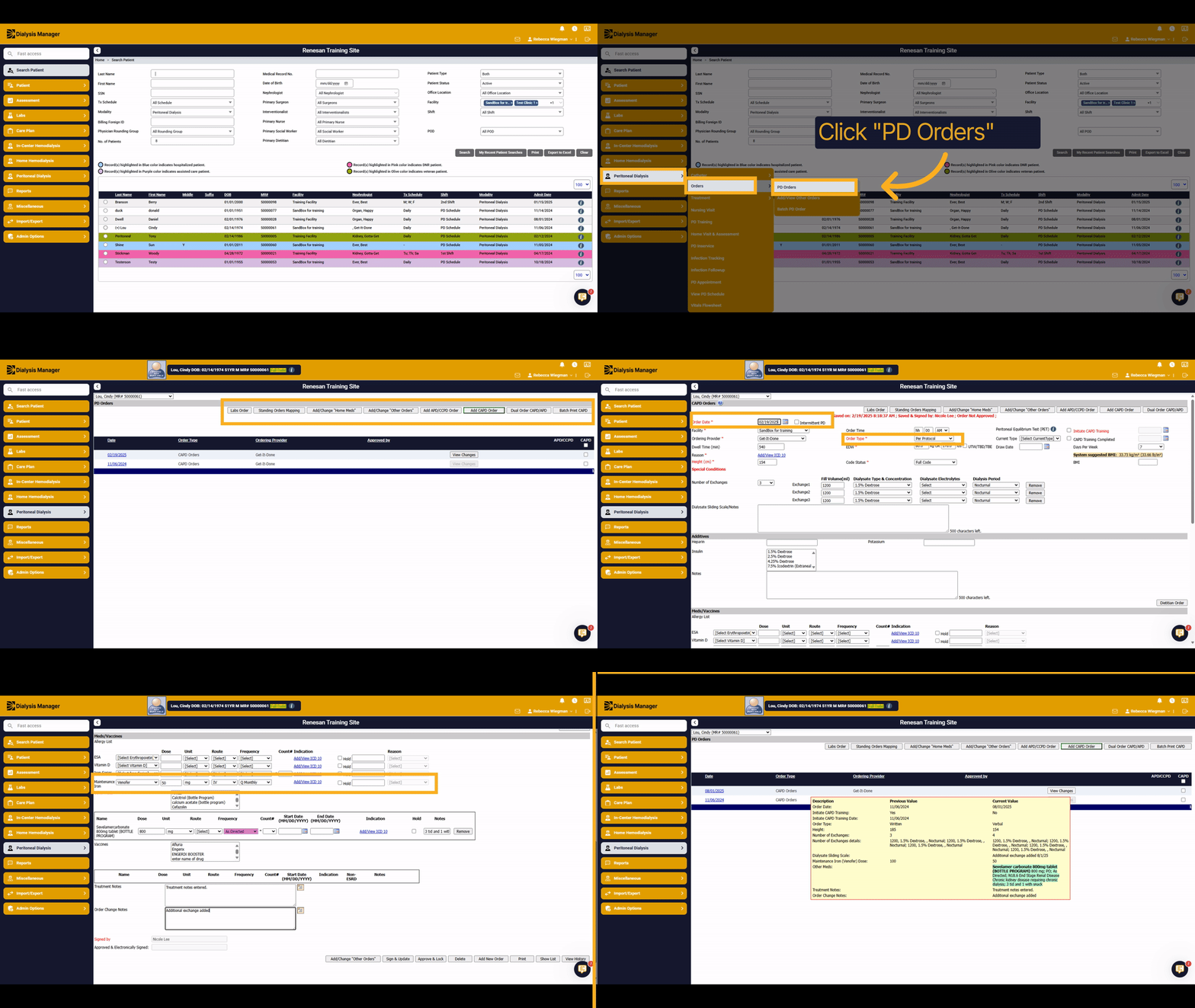
This tutorial will walk you through changing or editing a PD Order that needs correcting due to order entry error.
2. Select your Patient
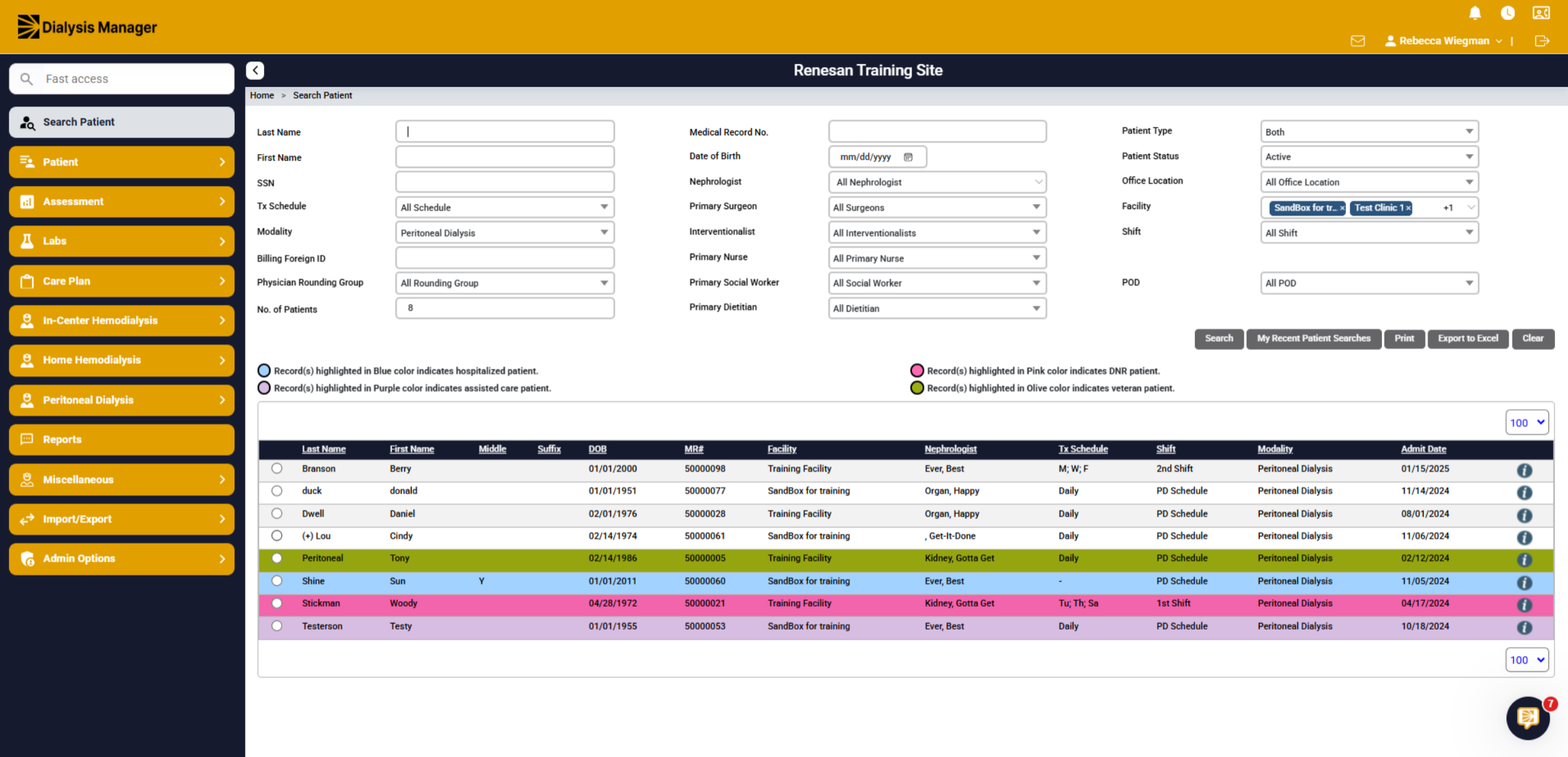
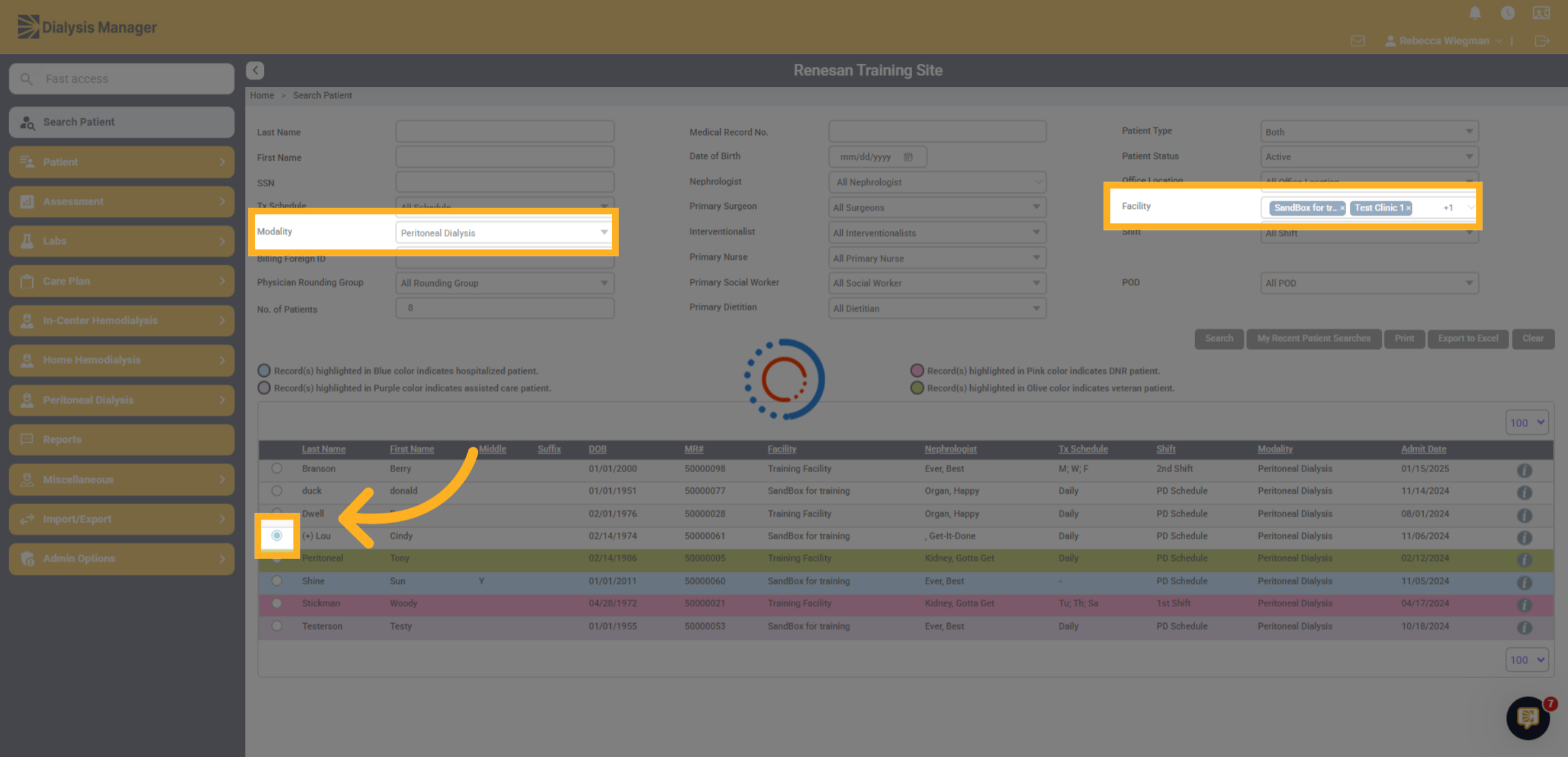
Search for your patient and select the radio button to the left of the patient's name. Please note that you may need to change your modality to reflect Peritoneal Dialysis and update your facilities.
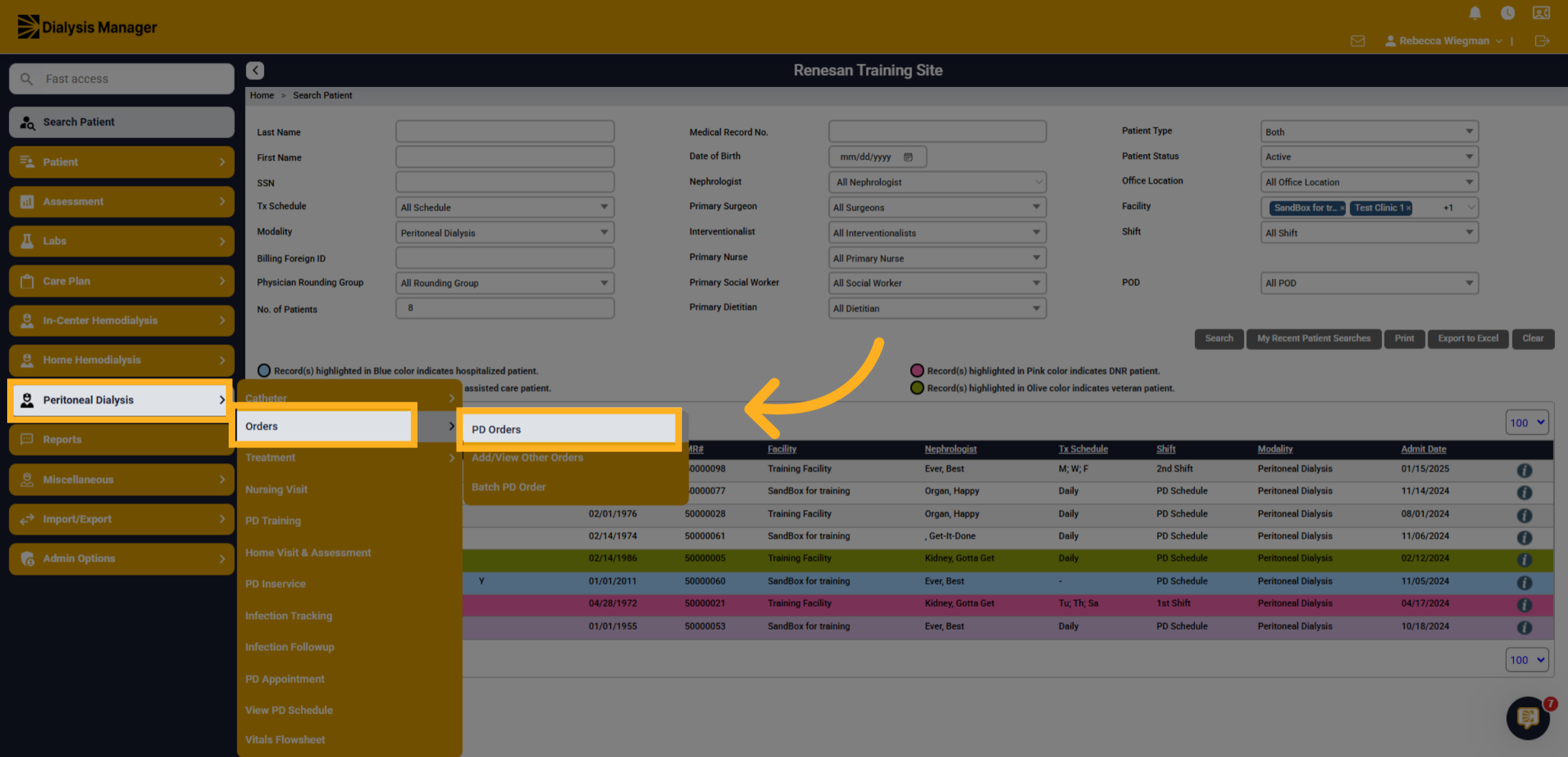
3. Click "PD Orders"
Navigate to the Peritoneal Dialysis Menu, Orders then PD Orders.
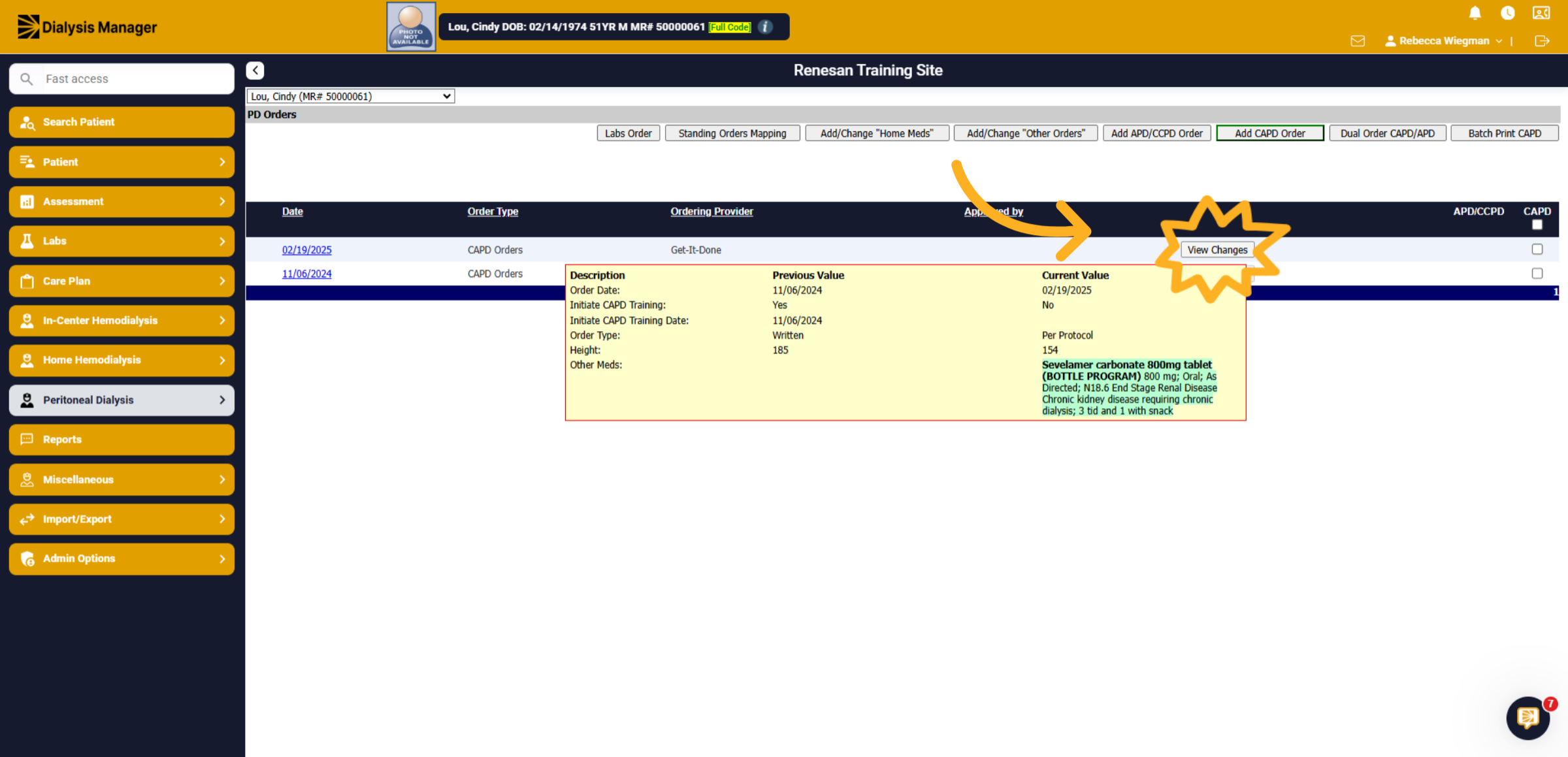
4. PD Orders Screen
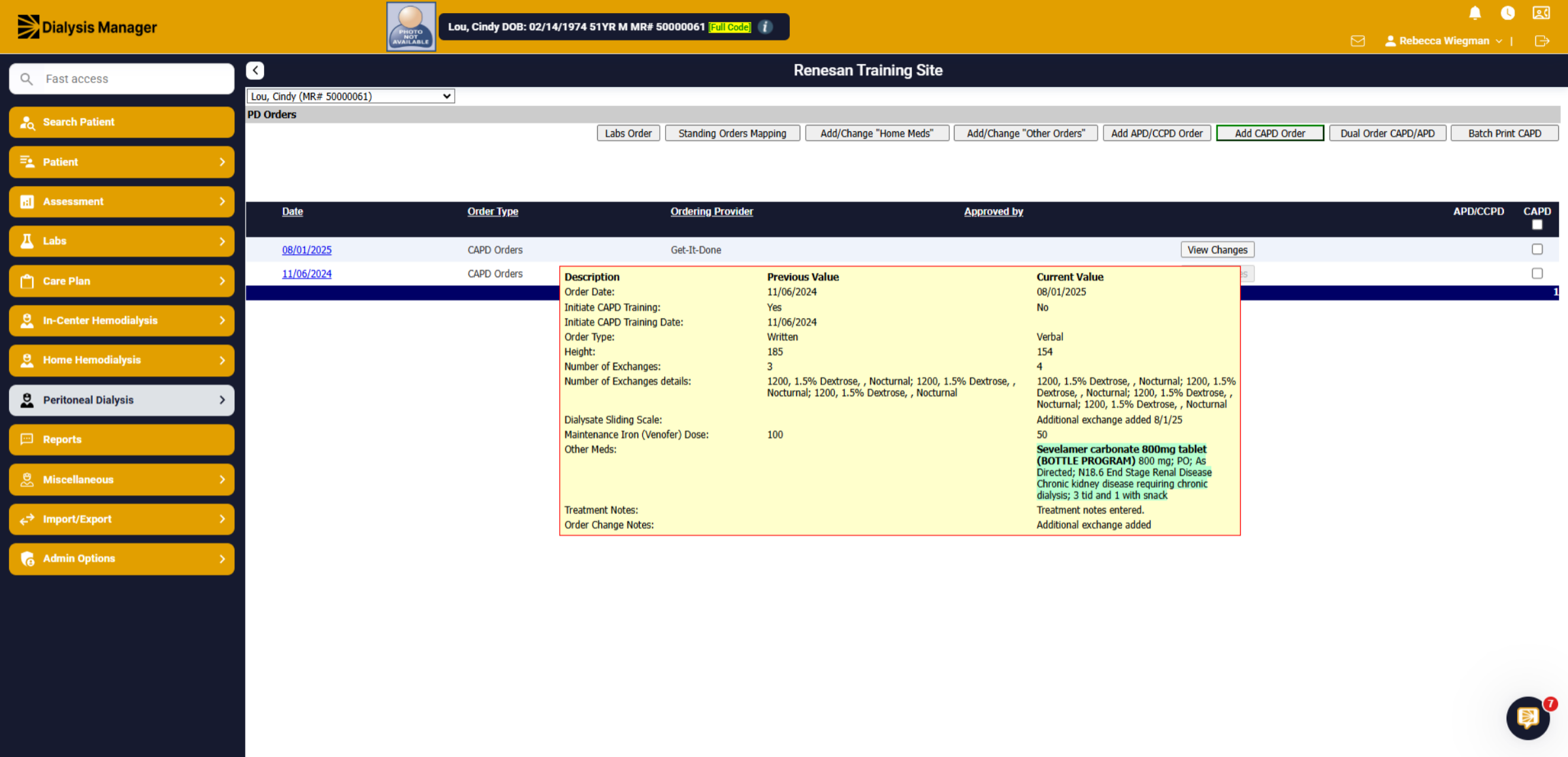
When entering the PD Order screen, you'll see all prior Orders for the patient. When hovering over the "View Changes" you'll see the Previous Value and Current Value". The "View Changes" button may be grayed out if it's the patients only order, indicating that the patient has not had any changes.
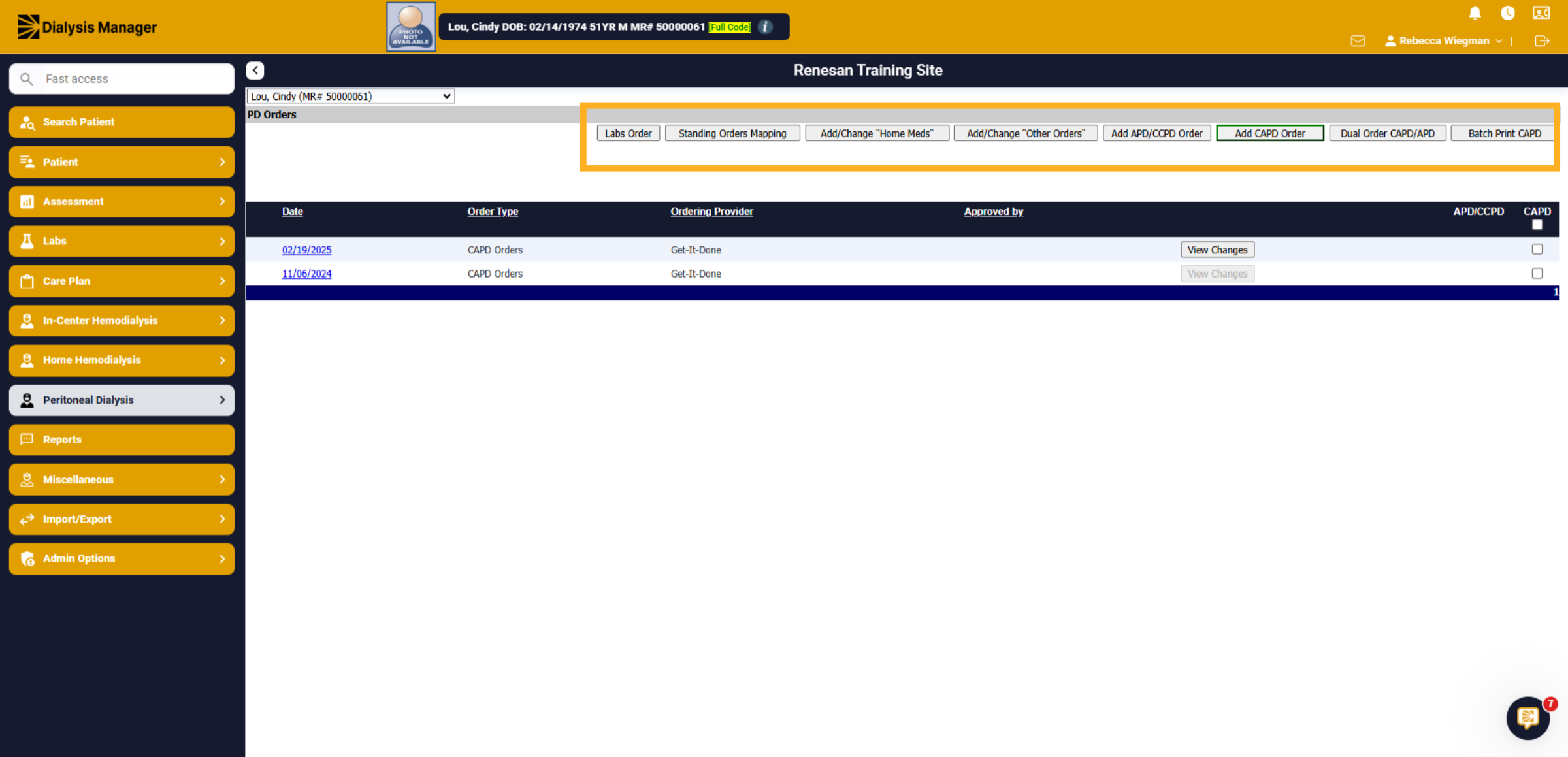
5. Additional Tabs
Across the top you'll see additional tabs such as Lab Order, Standing Orders Mapping, Add/Change "Home Meds", Add/Change "Other Orders", or Add New Orders. Hint: use the Add New Orders along the top to Add a new order.
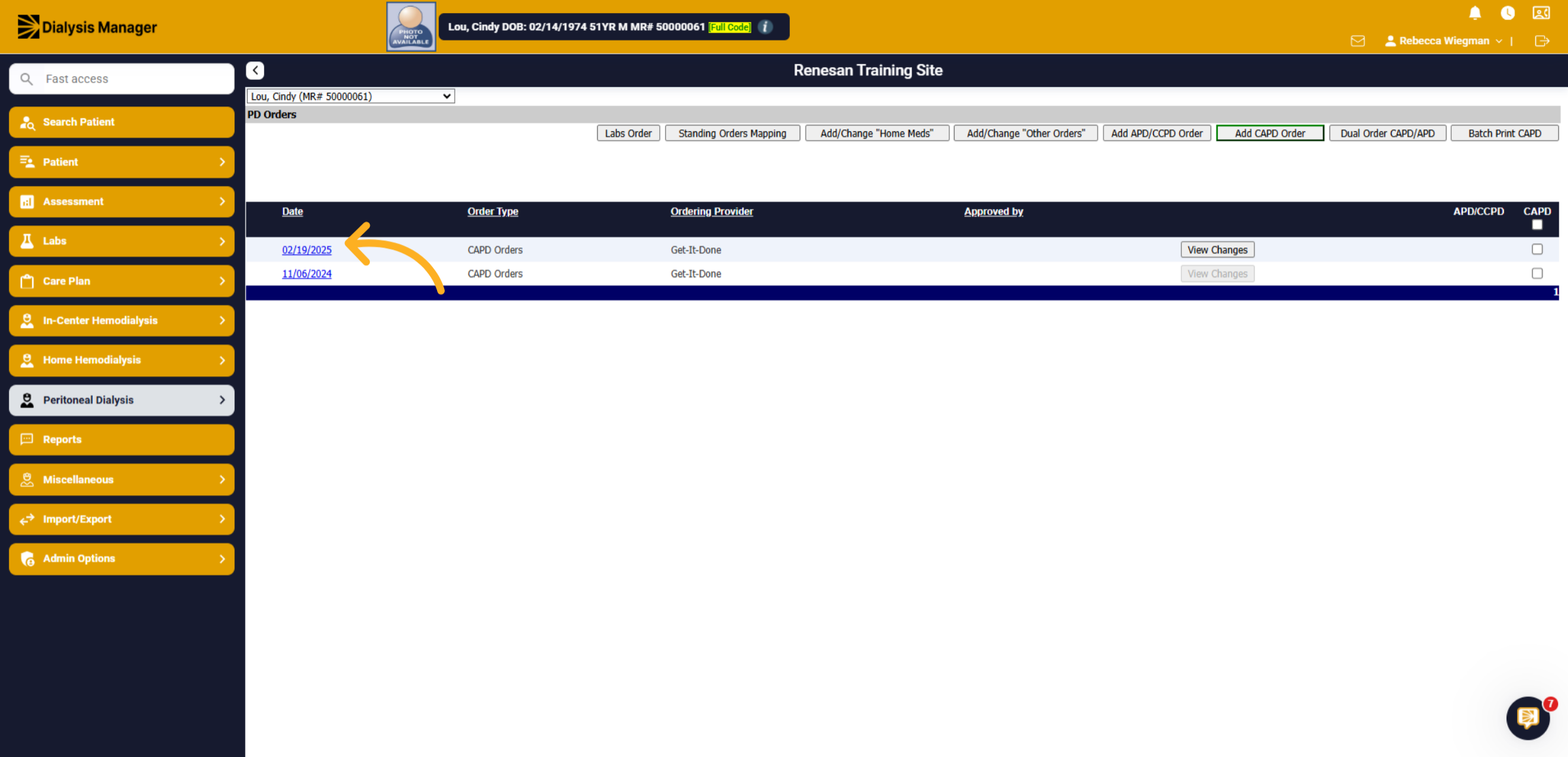
6. Order Change Date
To start correcting or editing your Order, please select the most recent order.
7. Edit/Change the Order
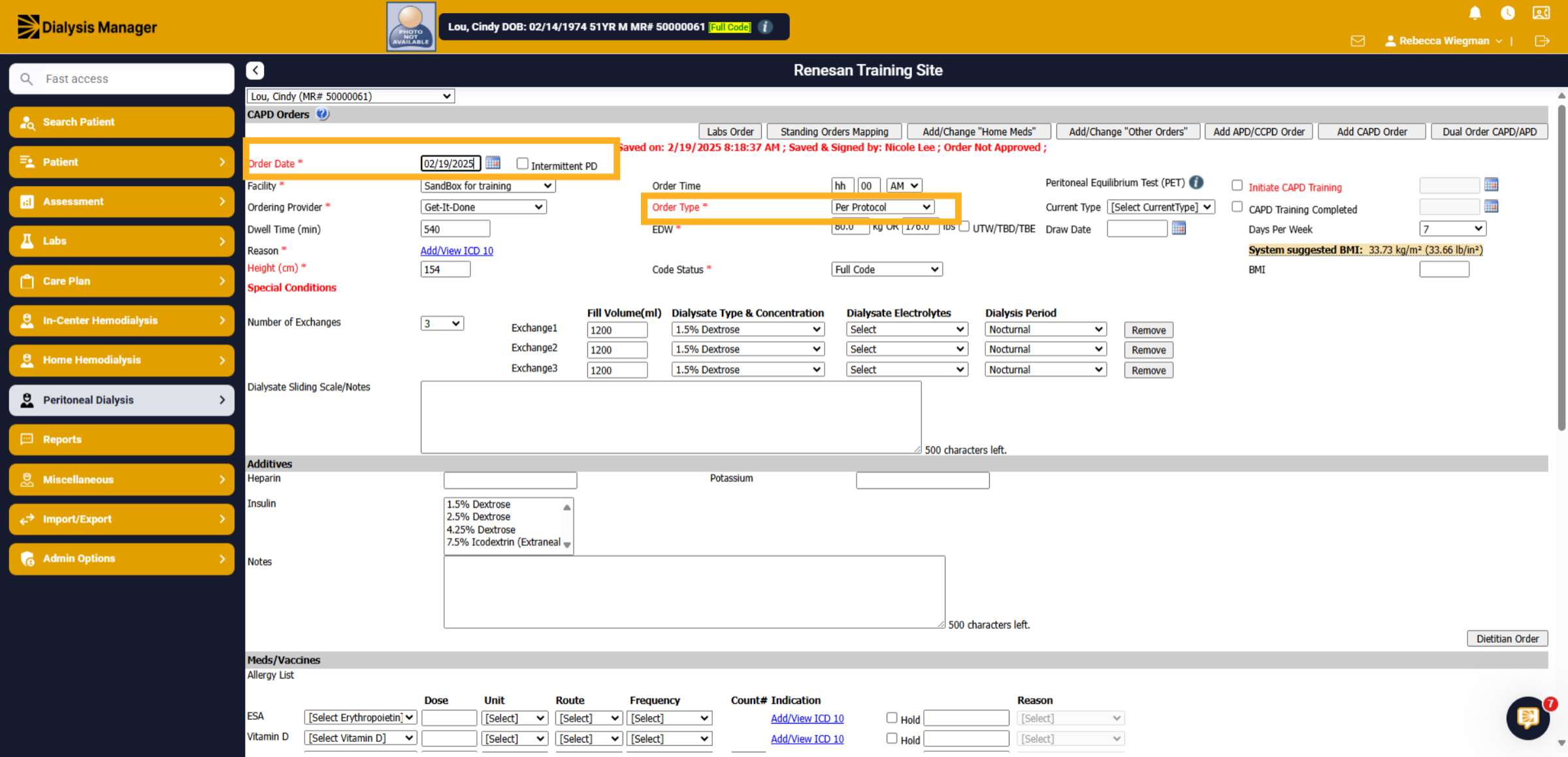
The information from the prior order will be replicated for you to edit. Select an Order Type.
8. Update Information - Exchanges
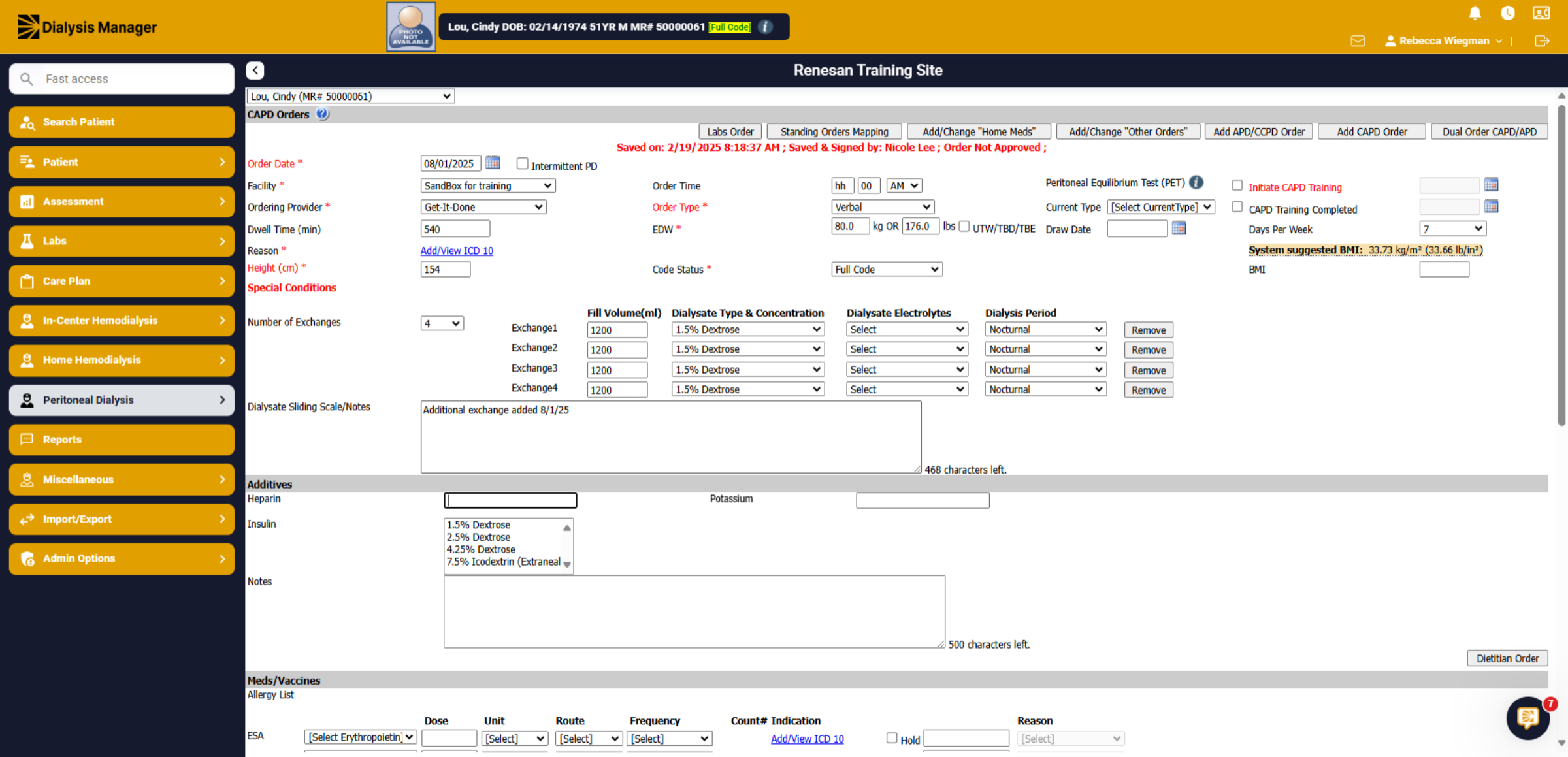
The patient currently has 3 exchanges, but we need to add an additional exchange. Select "4" from the Number of Exchanges dropdown. Enter the Fill Volume, Dialysate Type & Concentration, Dialysate Electrolytes & Dialysis Period. Enter any Dialysate Sliding Scale or Notes.
9. Additional Updates
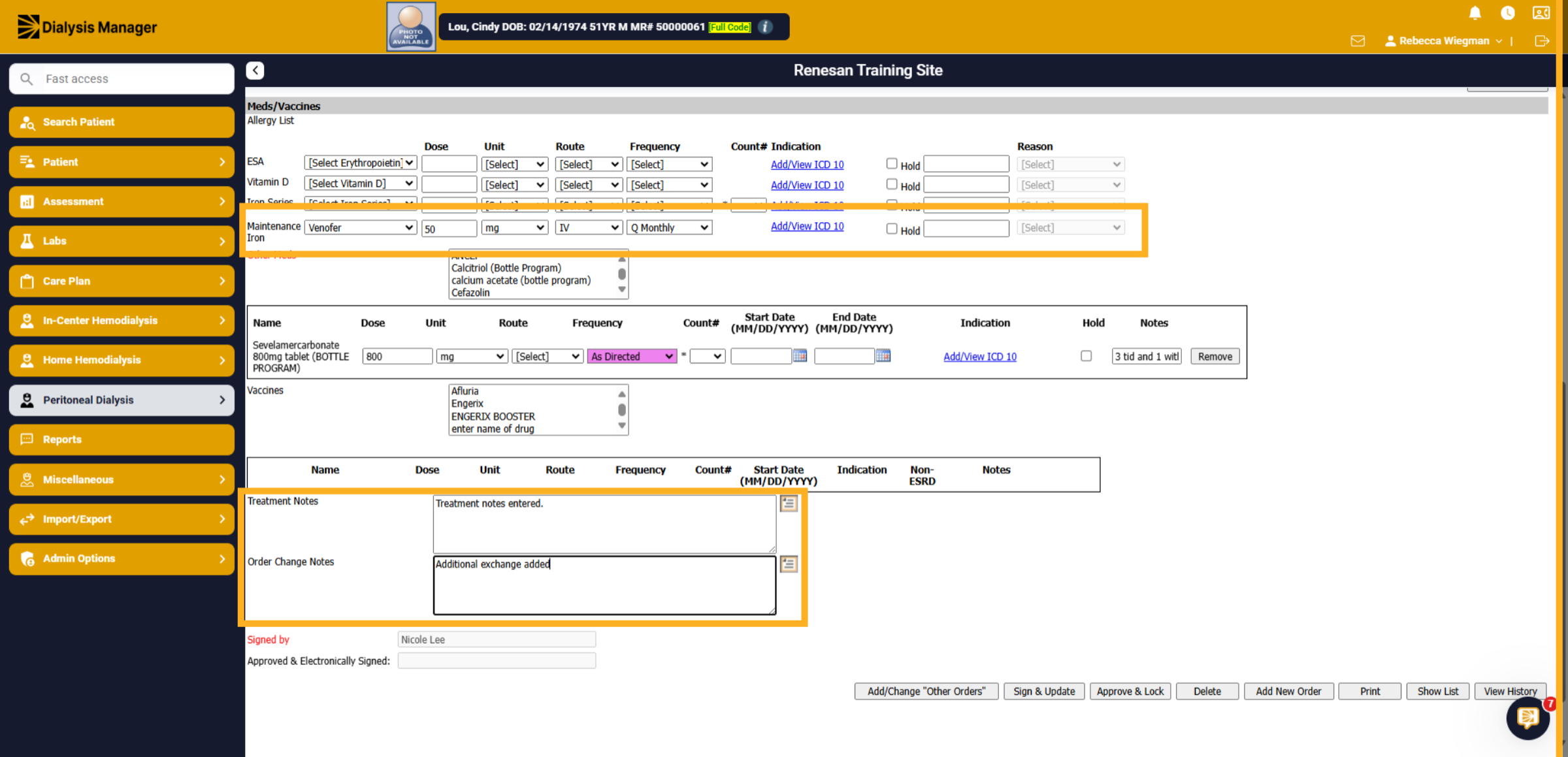
The nephologist also wants to update the patient's Venofer from 100 mg to 50 mg. edit the dose, frequency and verify the ICD 10 code, if need be. We may also want to add Treatment Notes and Order Change Notes.
10. Click "Sign & Update"
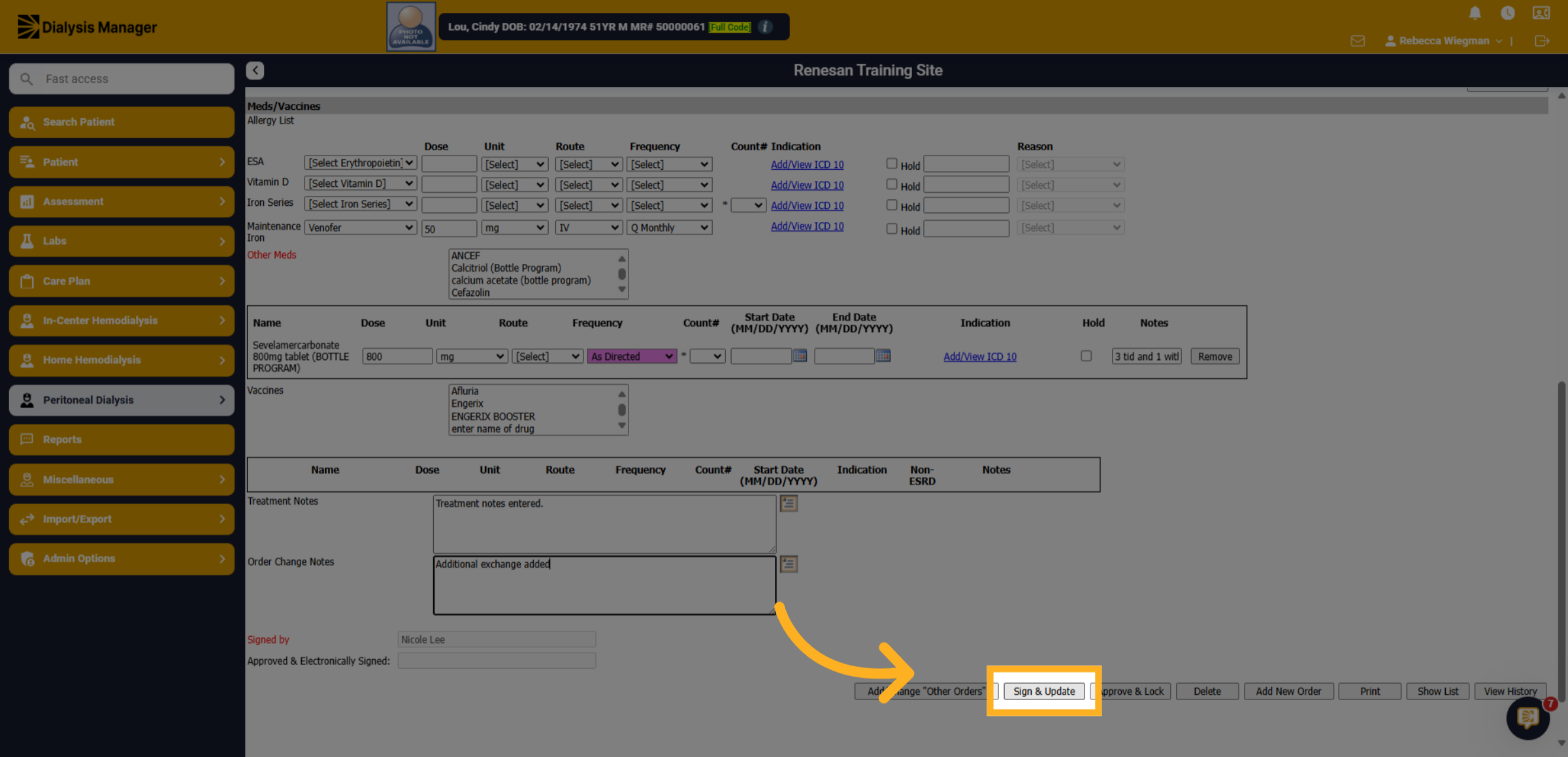
Once all information has been updated and verified Click Sign and Update.
11. Click "View Changes"
Once back at the PD Order menu screen you'll be able to hover over the View Changes button to view changes recently made to that order!