Documenting Dialysis Medications in the Treatment Flowsheet..
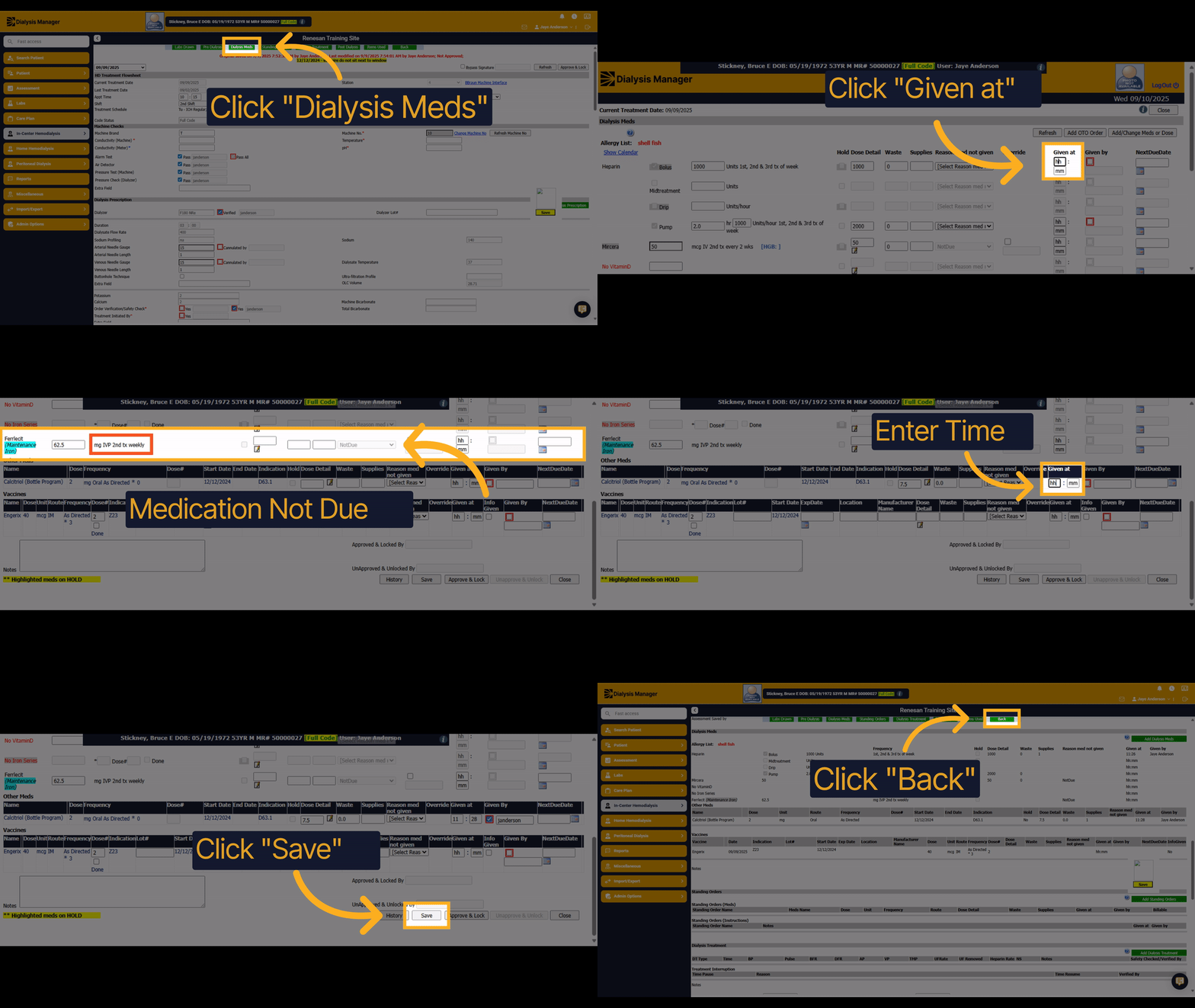
1. Click "Dialysis Meds"
Click "Dialysis Meds" within the treatment by date screen to access the dialysis medications section.
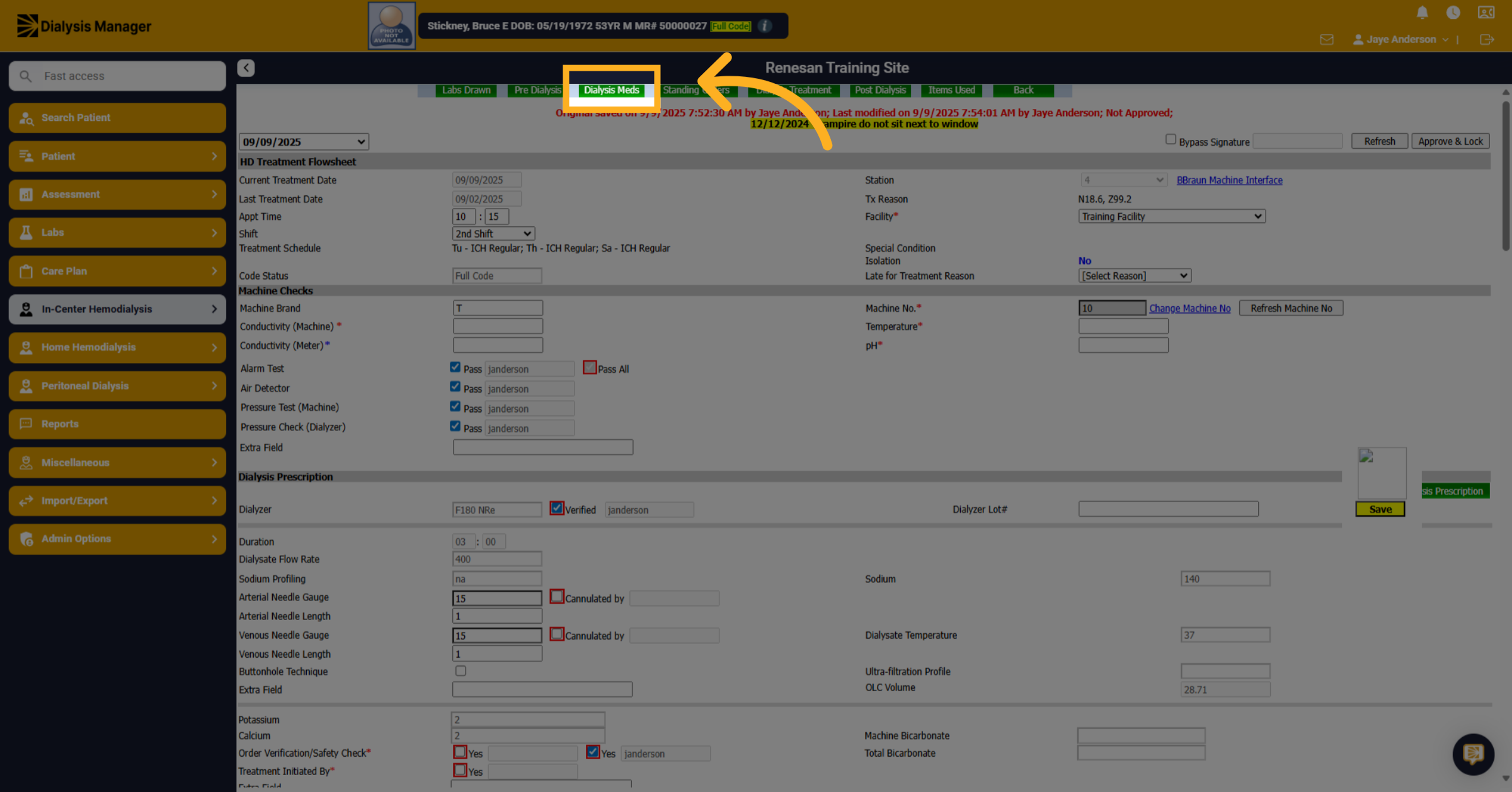
2. "Medication Section"
Using the buttons along the top, you can add a one-time order. Or you can also add or change any meds or doses. Since the treatment is already in progress, you will want to update the order from here. Updating orders from the orders menu will update the prescription for the next treatment. For our Heparin, we just simply need to document either it was not given...
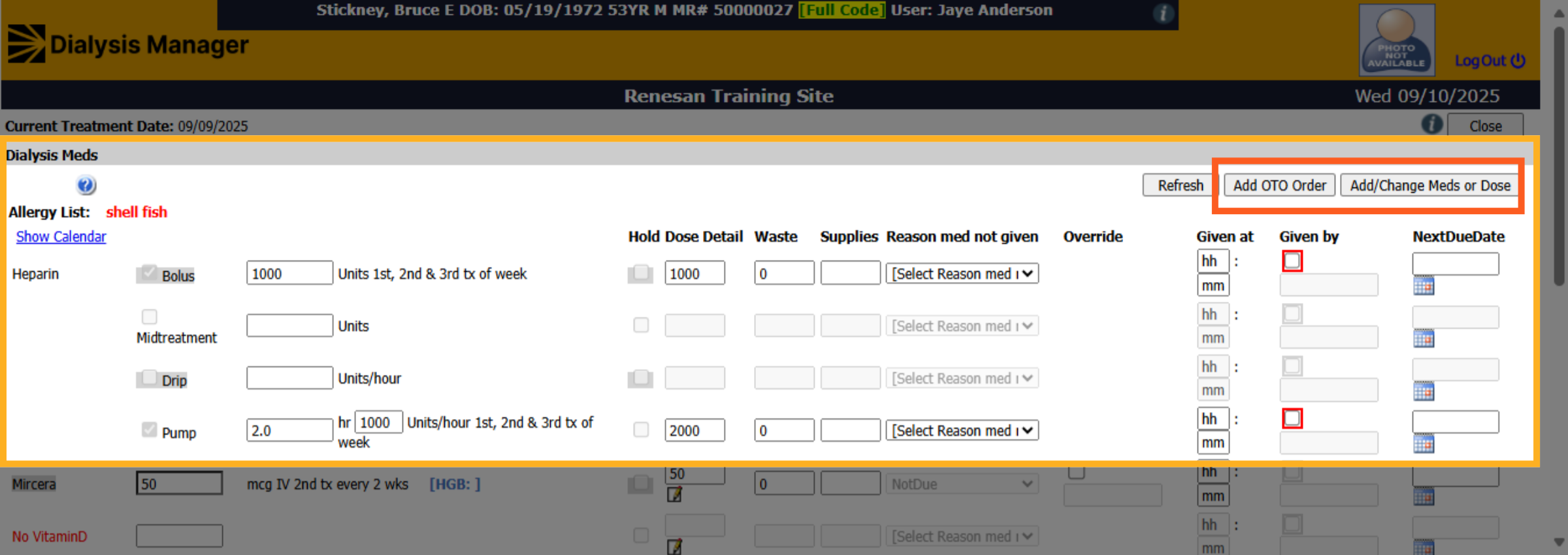
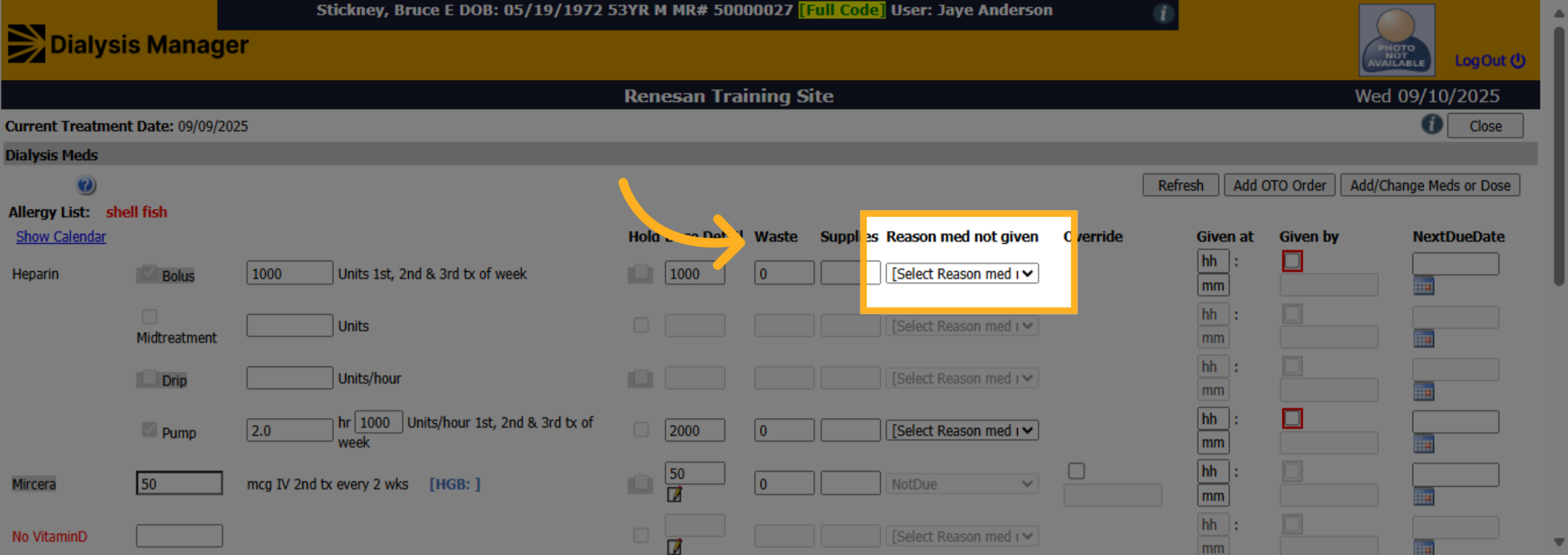
3. "Medication Section - not given"
You can do this by clicking the "reason for medication not given" dropdown box to select an appropriate reason such as Discontinued by MD, Duplicate Order, Given at other facility, Held due to Lab Values, or any other relevant options.
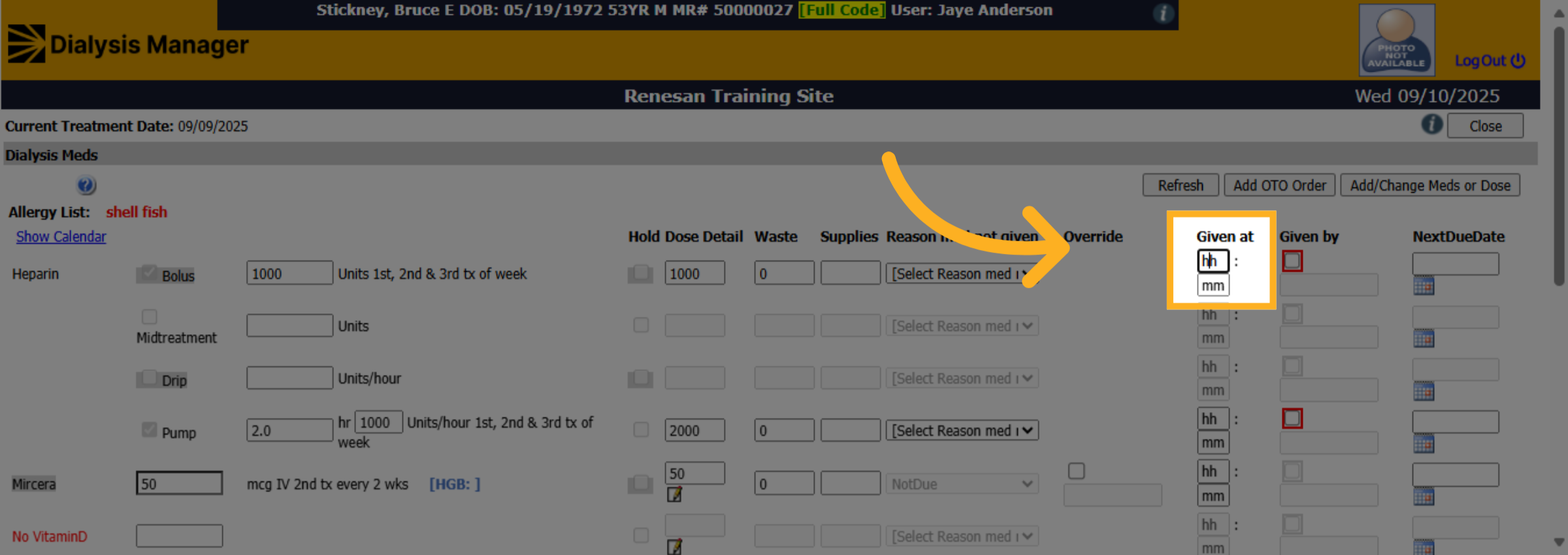
4. Enter Time
Or to document that it was given, Click the "hh" field to specify the time when the medication was given.
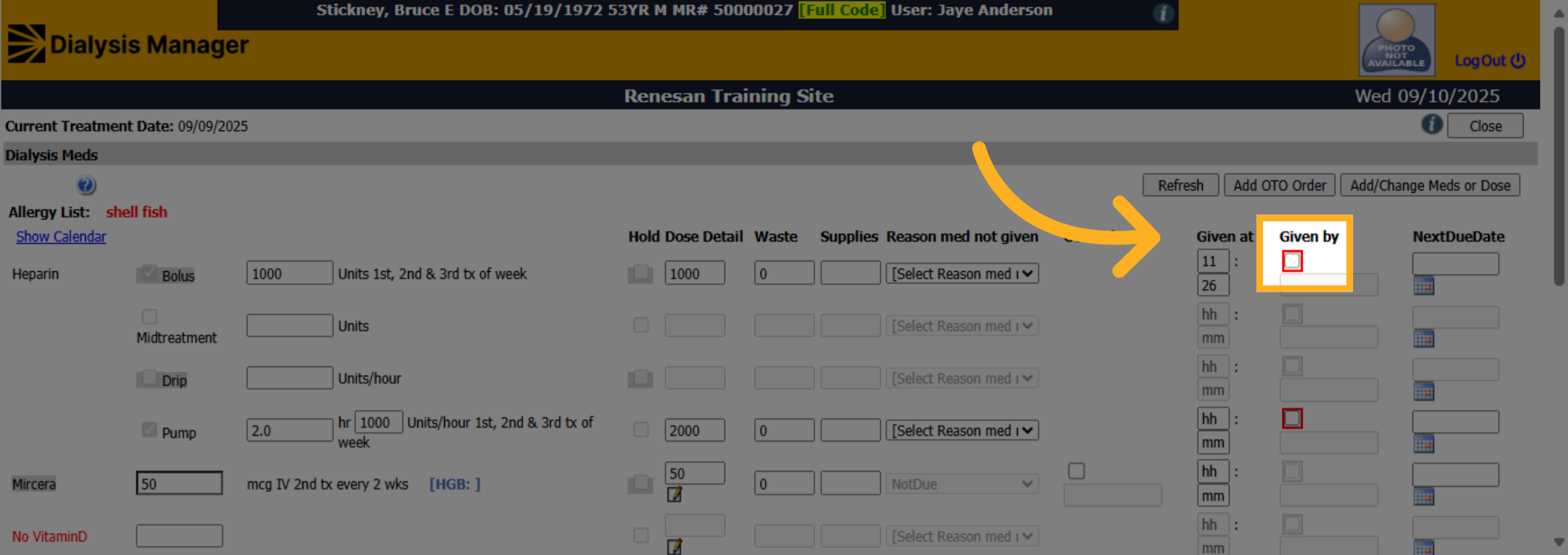
5. Click "Given by"
Click the "Given by" checkbox to specify the person who administered the medication.
6. Click "[PIN or Password]"
Fill in your Pin or password to sign off the medication documentation. Click Ok
![Click '[PIN or Password]'](https://knowledgetest.renvio.com/hubfs/Intercom%20knowledge%20base/qg-2FIroXeNJHrNYcFwtsPJSFDGN82g23-2F9KLr7am8F8XbdiHtbvW5nm-2F84o6xxFyi1HmskxY4qt2RK_doc.png)
7. Med not due
As you can see this medication is set as Not Due because it is scheduled with the Smart Frequency of "Second Treatment Weekly" No need to do anything here
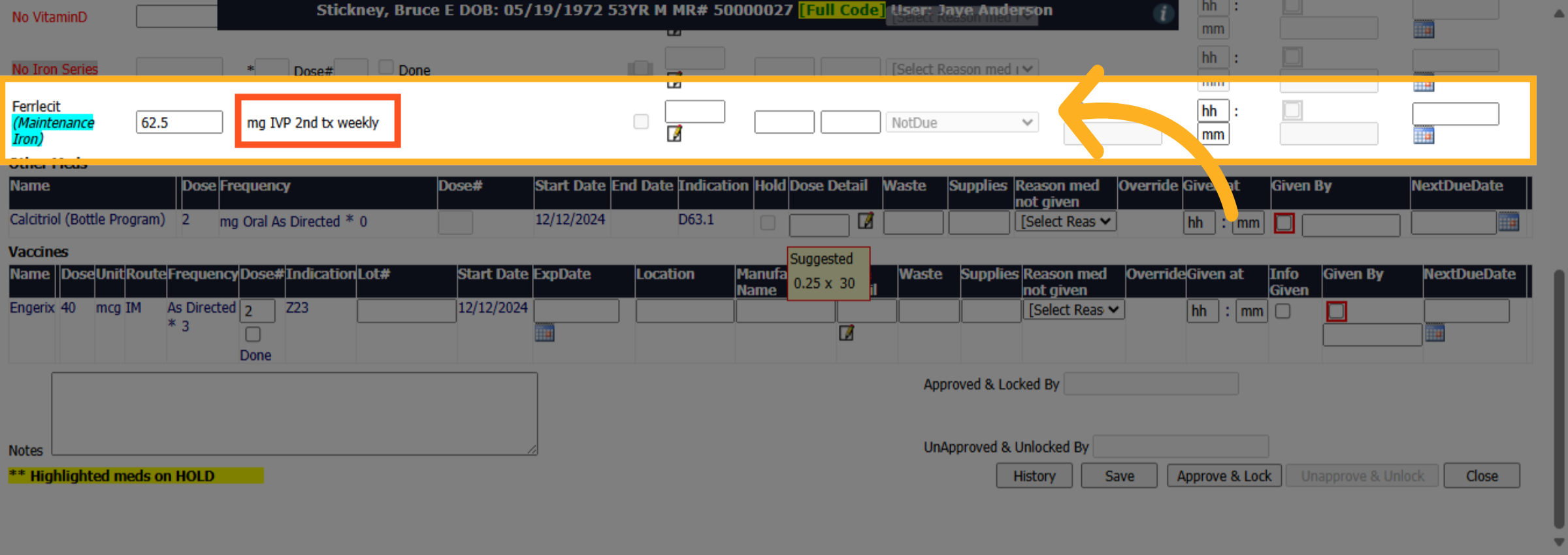
8. Other Meds Section
Above the other meds section, you have your Heparin (that we just reviewed), your ESA's, Vitamin D's, and Iron. The 'Other Meds' Section holds just those, Other Medications and below this is Vaccines.
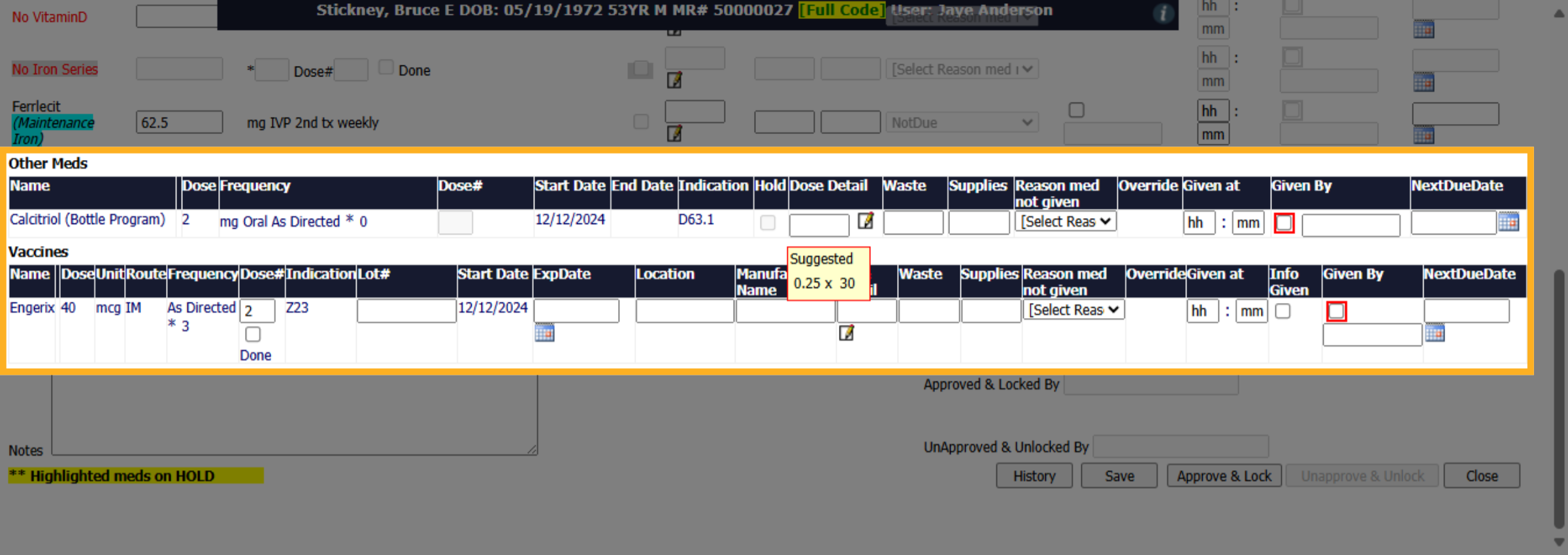
9. Dose Detail
Click the Dose Detail area to proceed with documenting the medication details.
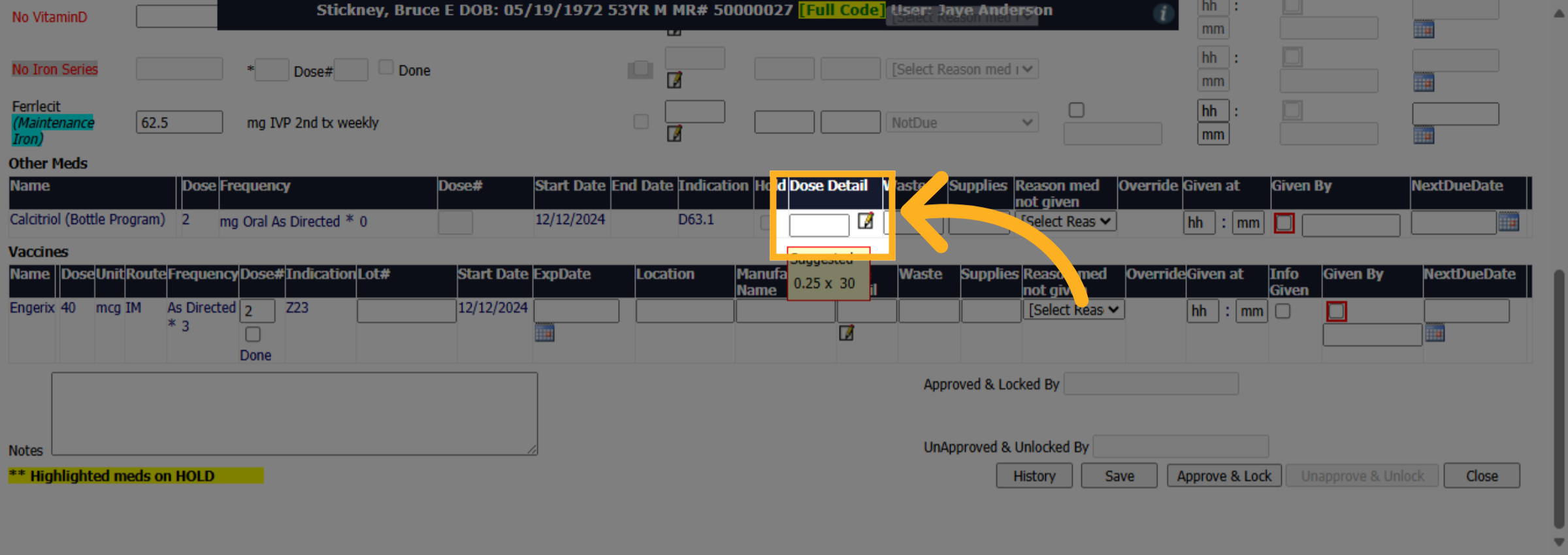
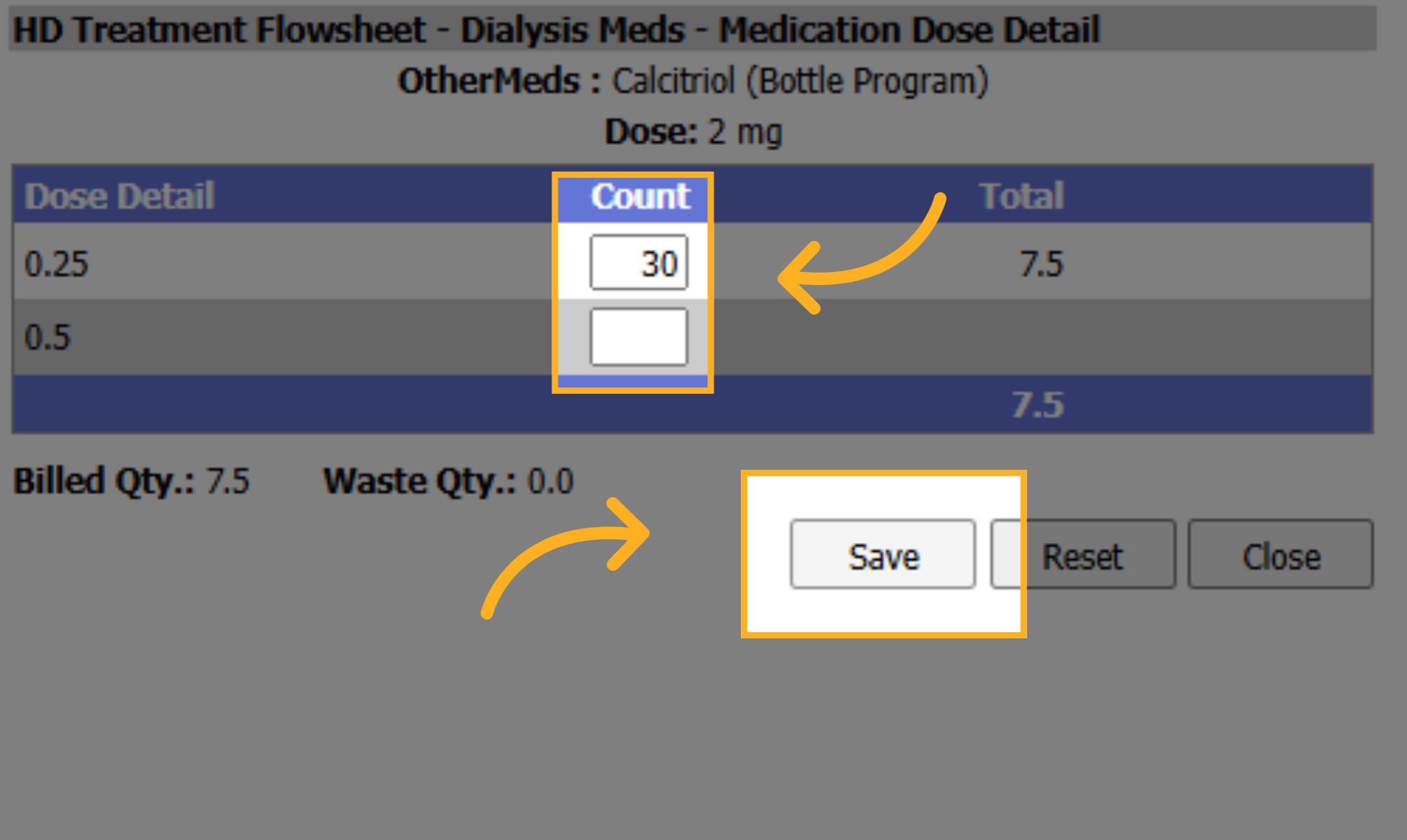
10. Enter count and click save
This pop up will appear. Enter amount or Quantity of the total dose amount used noting the correct vial detail. Click "Save".
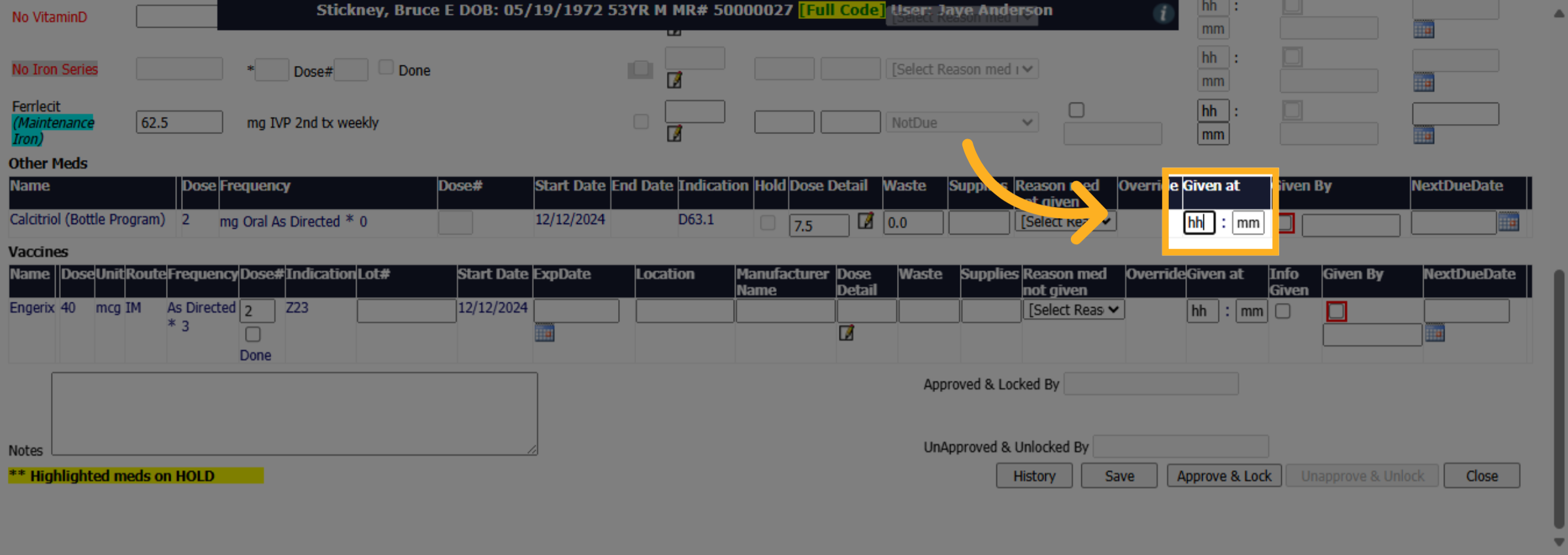
11. Enter Time
Click the "hh" field to specify the time when the medication was given.
12. Click "Given By"
Click the "Given by" checkbox to specify the person who administered the medication.
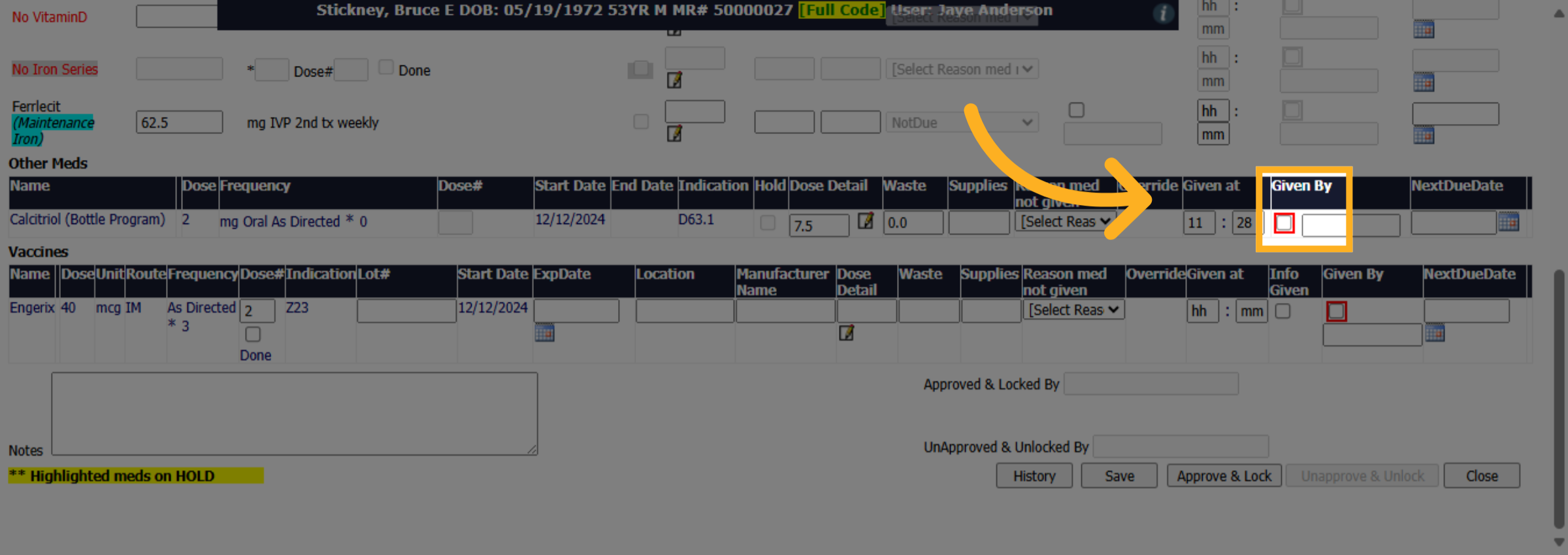
13. Click "[password]"
Fill in your Pin or password to sign off the medication documentation. Click Ok
![Click '[password]'](https://knowledgetest.renvio.com/hubfs/Intercom%20knowledge%20base/qg-2FIroXeNJHrNYcFwtsPJSFDGN82g23-2F9KLr7am8F8XbdiHtbvW5nm-2F9KPYjufNU4jJ5Kc1Ejkc5H_doc.png)
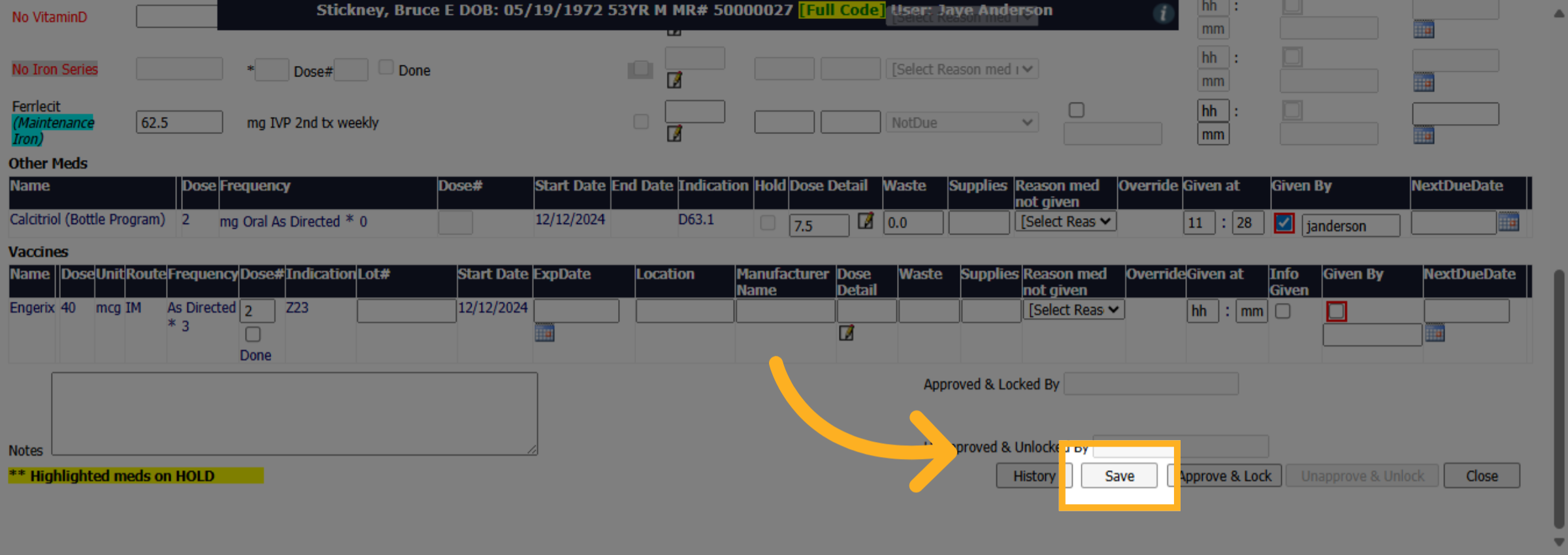
14. Click "Save"
Click "Save" to save all entered information. Reminder: entering your PIN or password previously is not saving your entries.
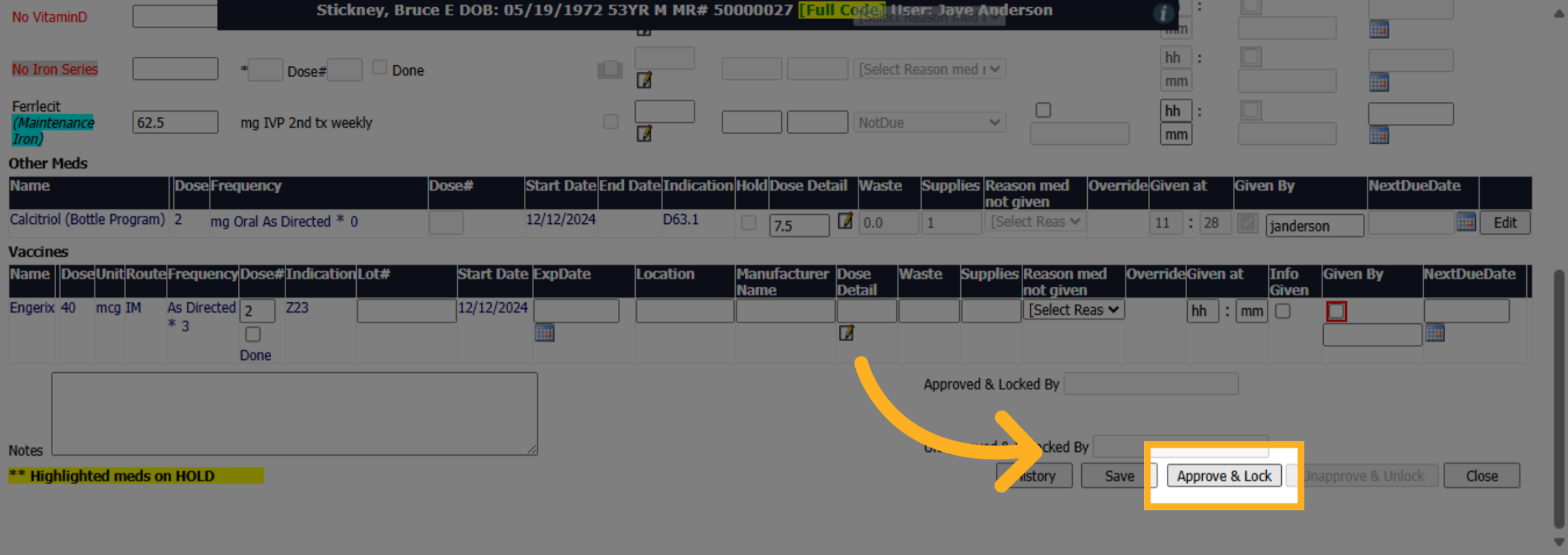
15. Click "Approve & Lock"
Click "Approve & Lock" to finalize and lock the medication documentation, preventing further edits. All medications must be marked prior to completing this step.
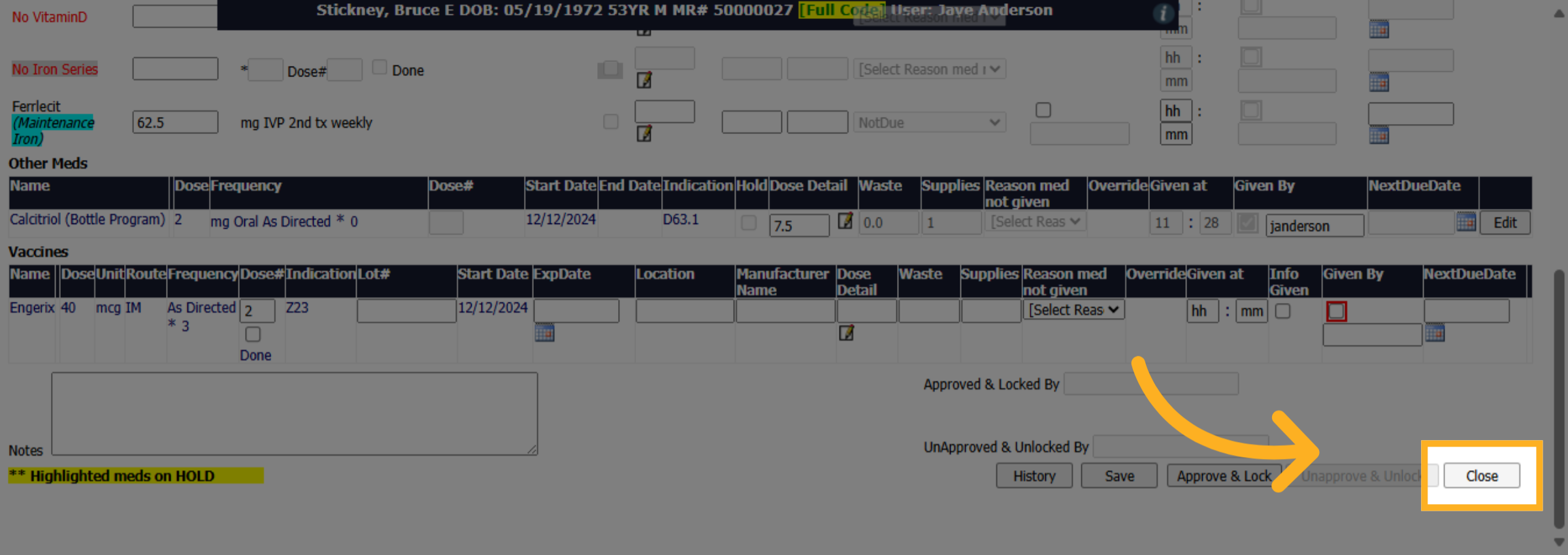
16. Click "Close"
Click "Close" to exit the medication documentation screen.
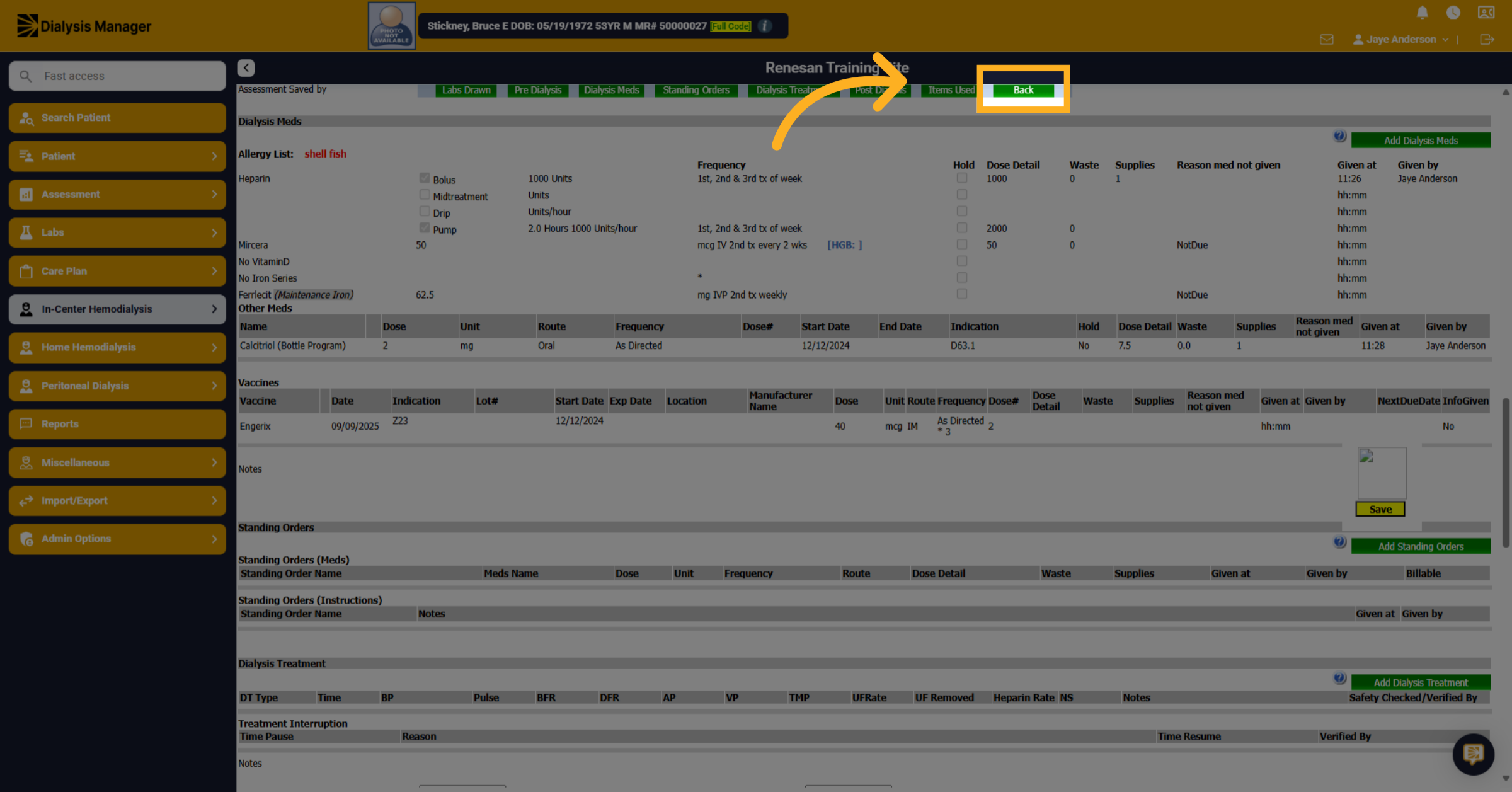
17. Click "Back"
Click "Back" to return to the treatment by date screen.