Document PD Billing in Dialysis Manager
1. Introduction
This tutorial demonstrates how to document your PD billing accurately. You will learn to navigate through the necessary sections and enter all relevant patient and treatment information for proper billing.
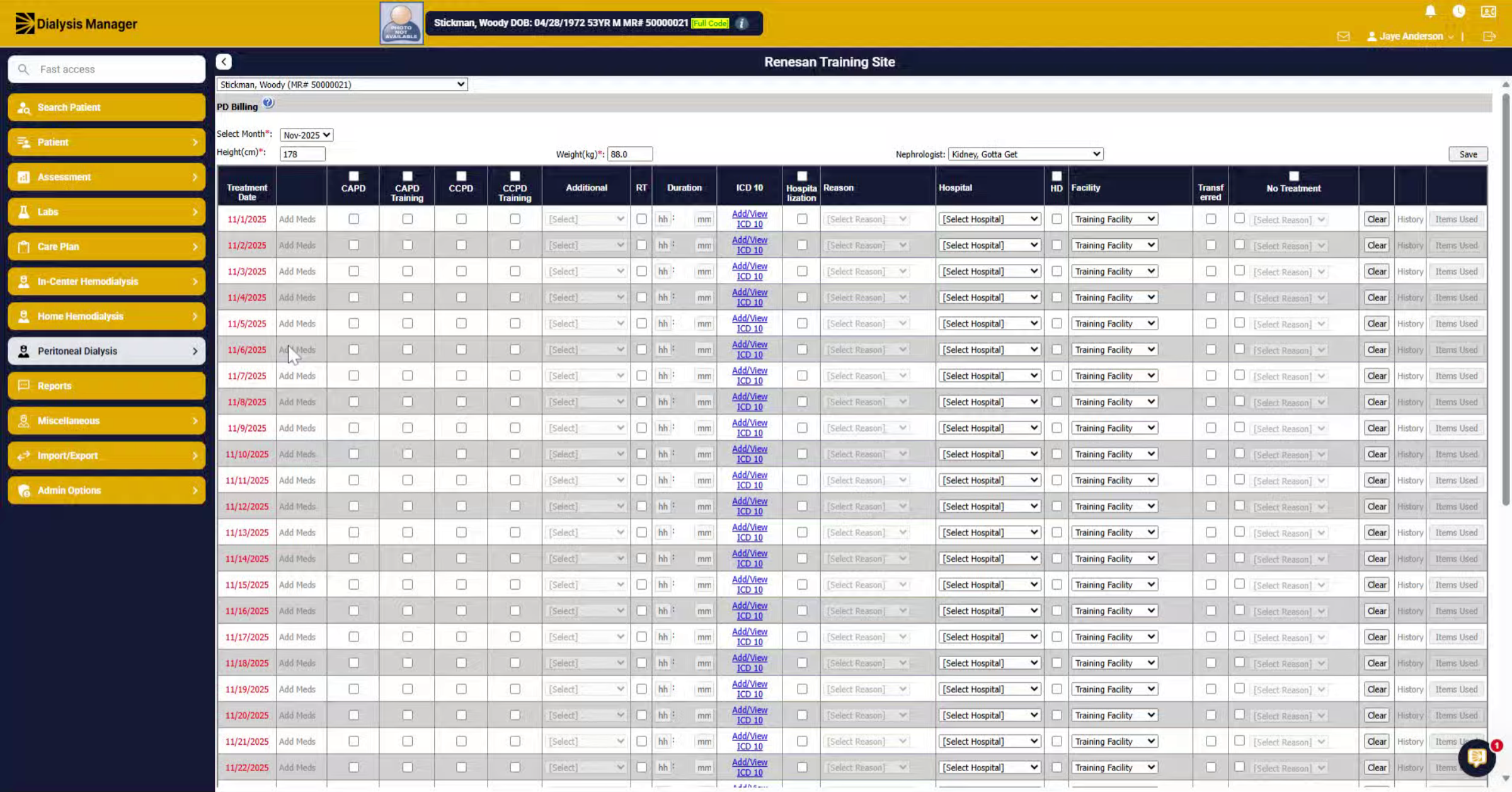
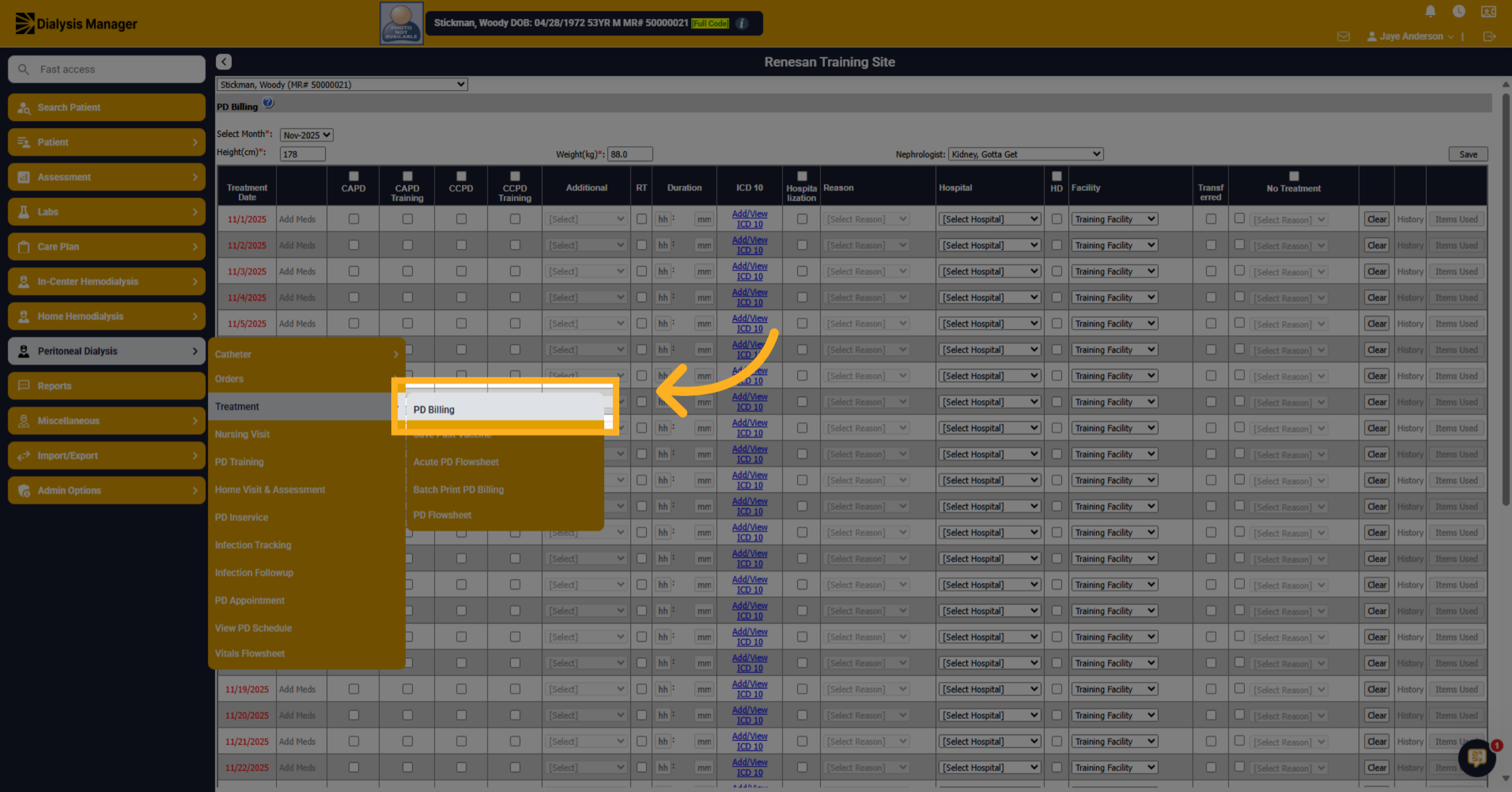
2. Select Peritoneal Dialysis
Select your patient. Click on Peritoneal Dialysis.
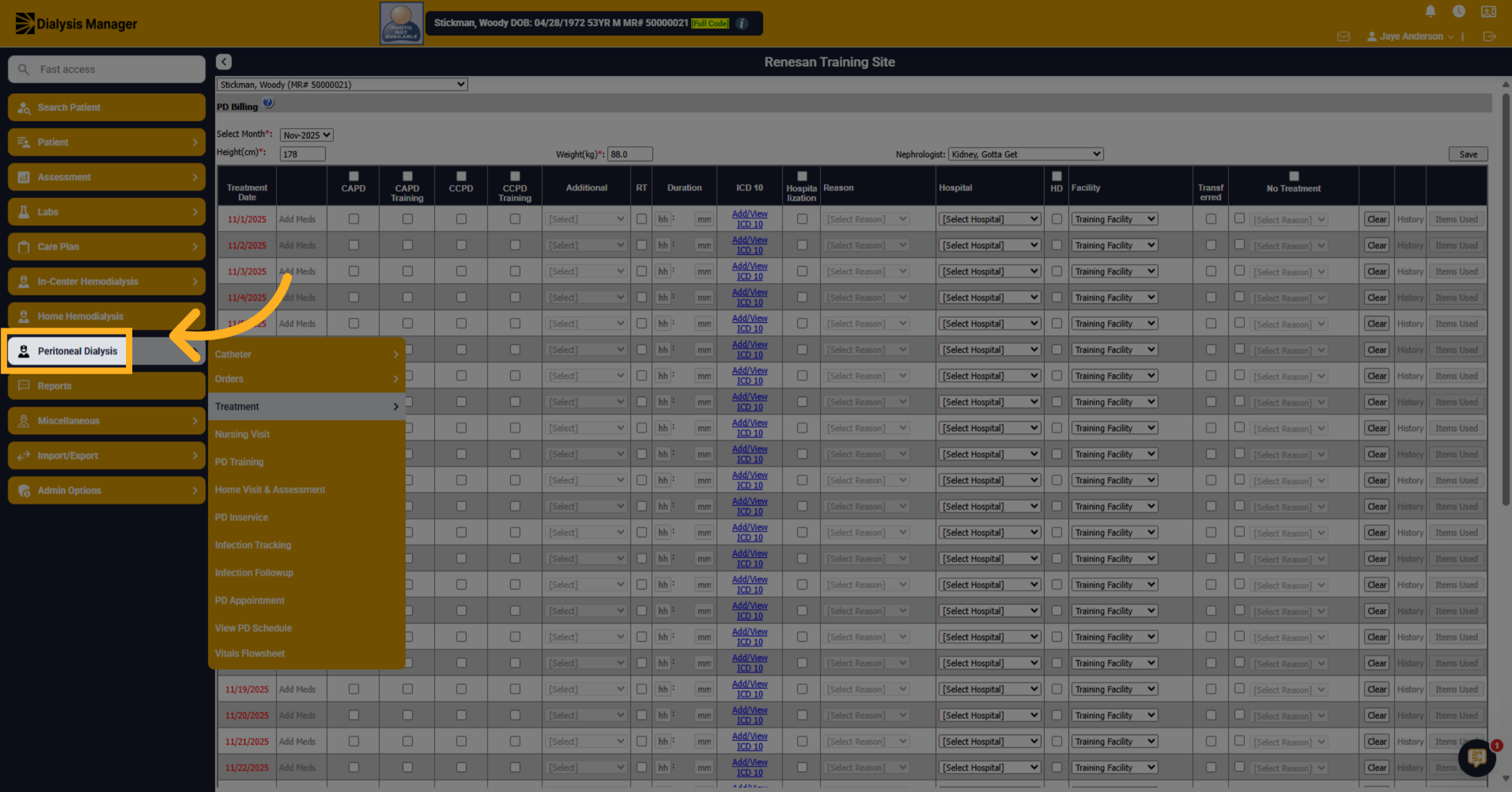
3. Click Treatment Section
Click on Treatment.
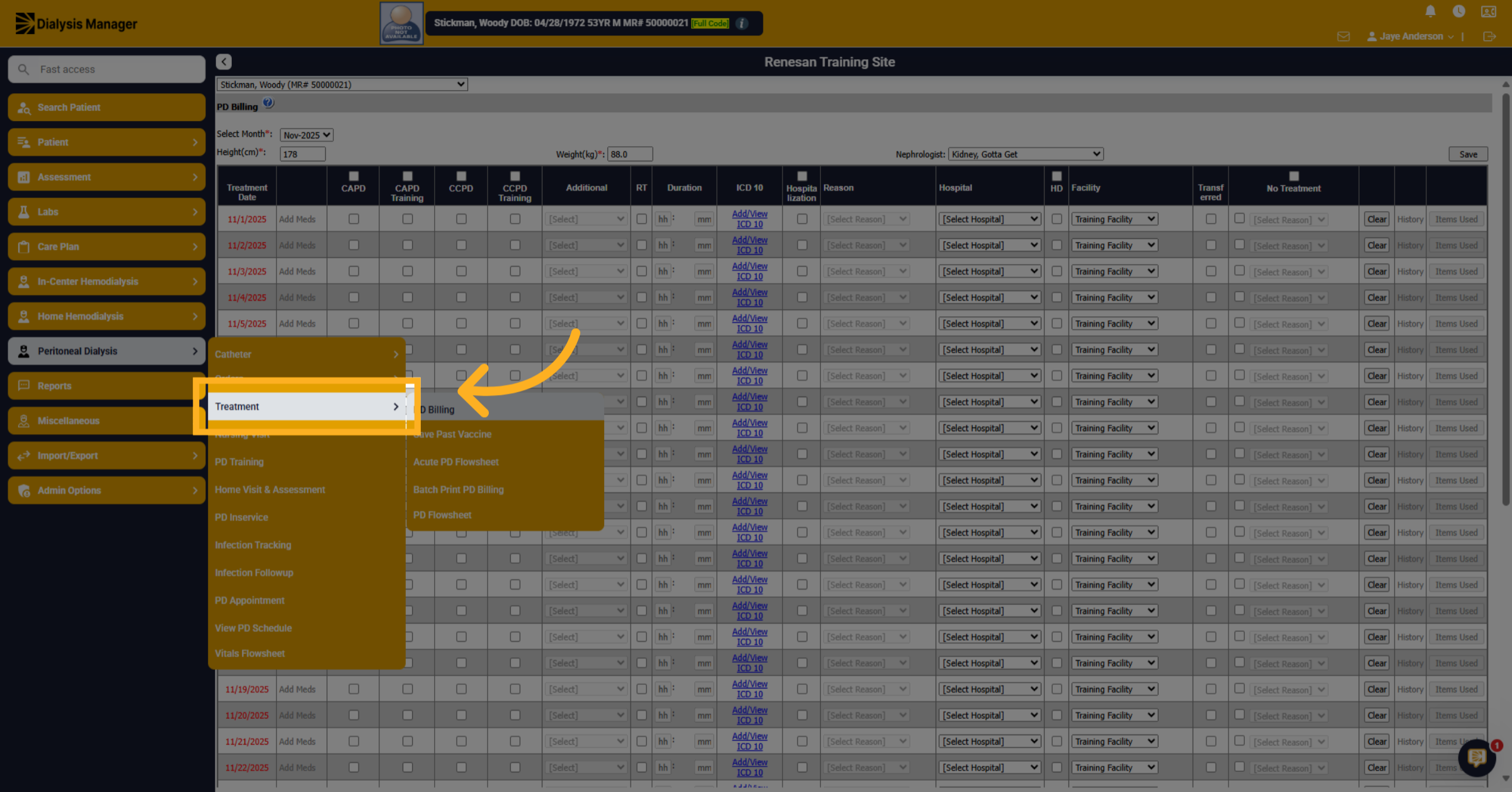
4. Access PD Billing
Click on PD Billing.
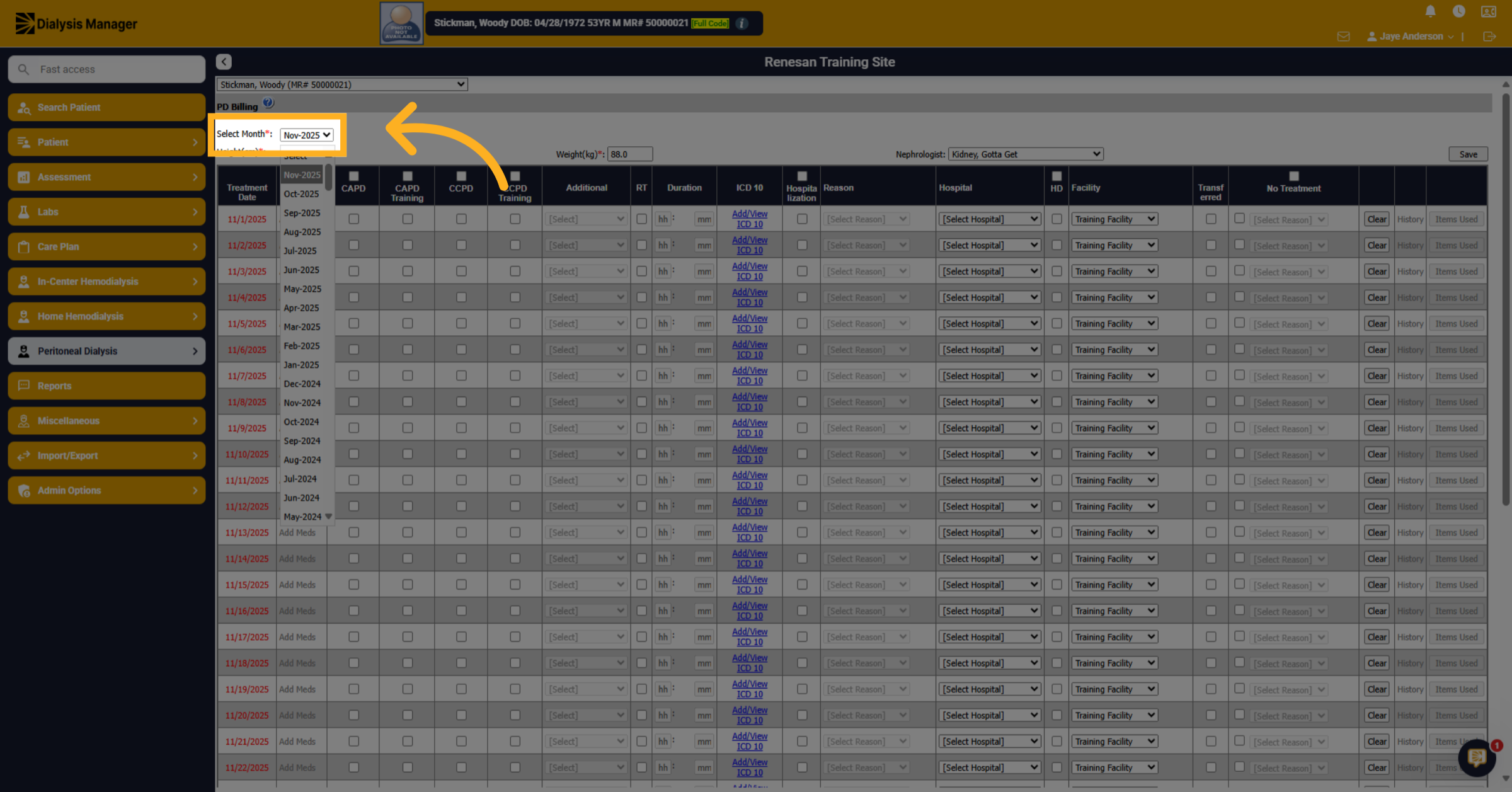
5. Select Month
Select the billing month in the dropdown.
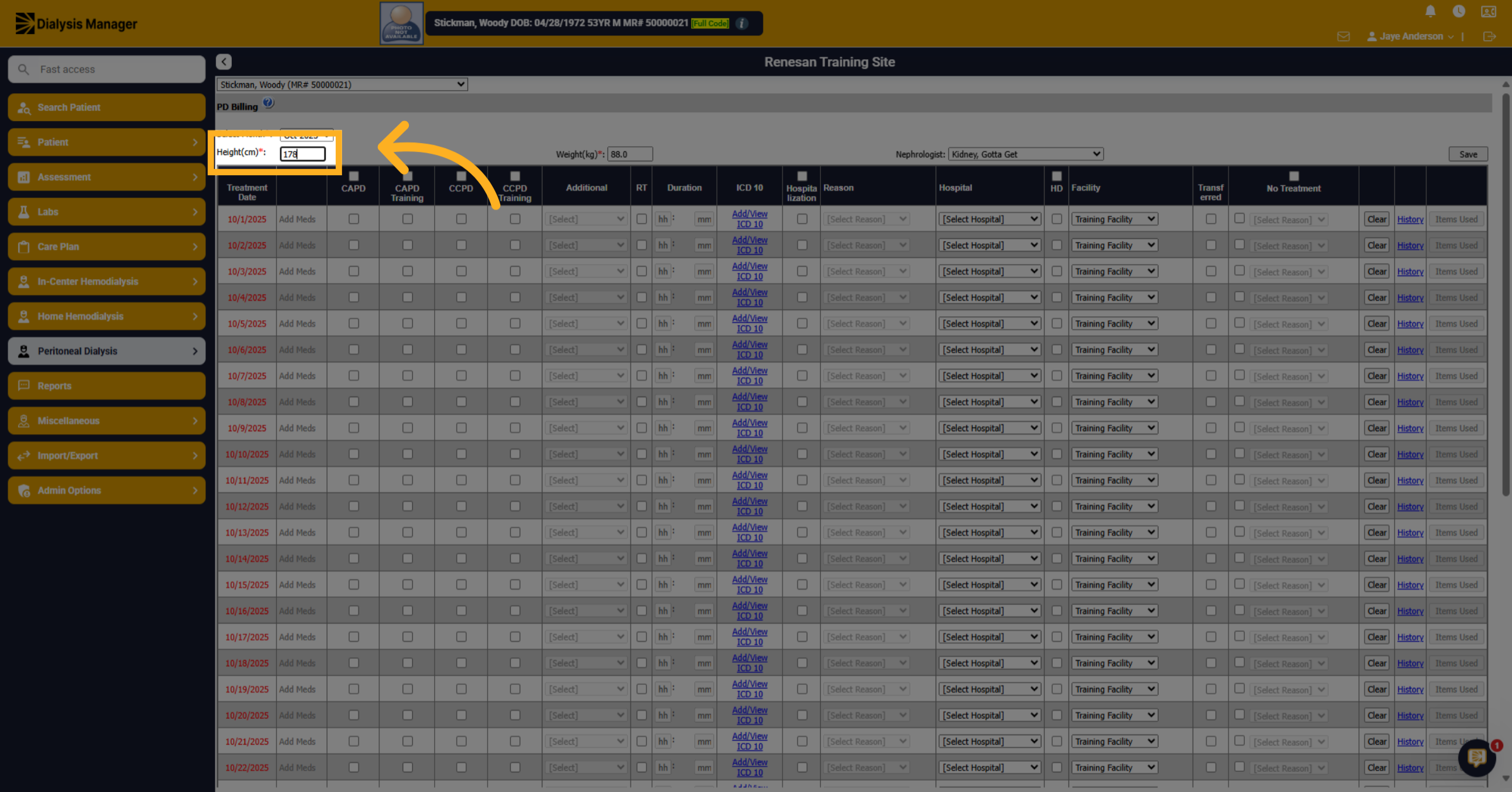
6. Height
If needed, update the height. This automatically flows across from the order.
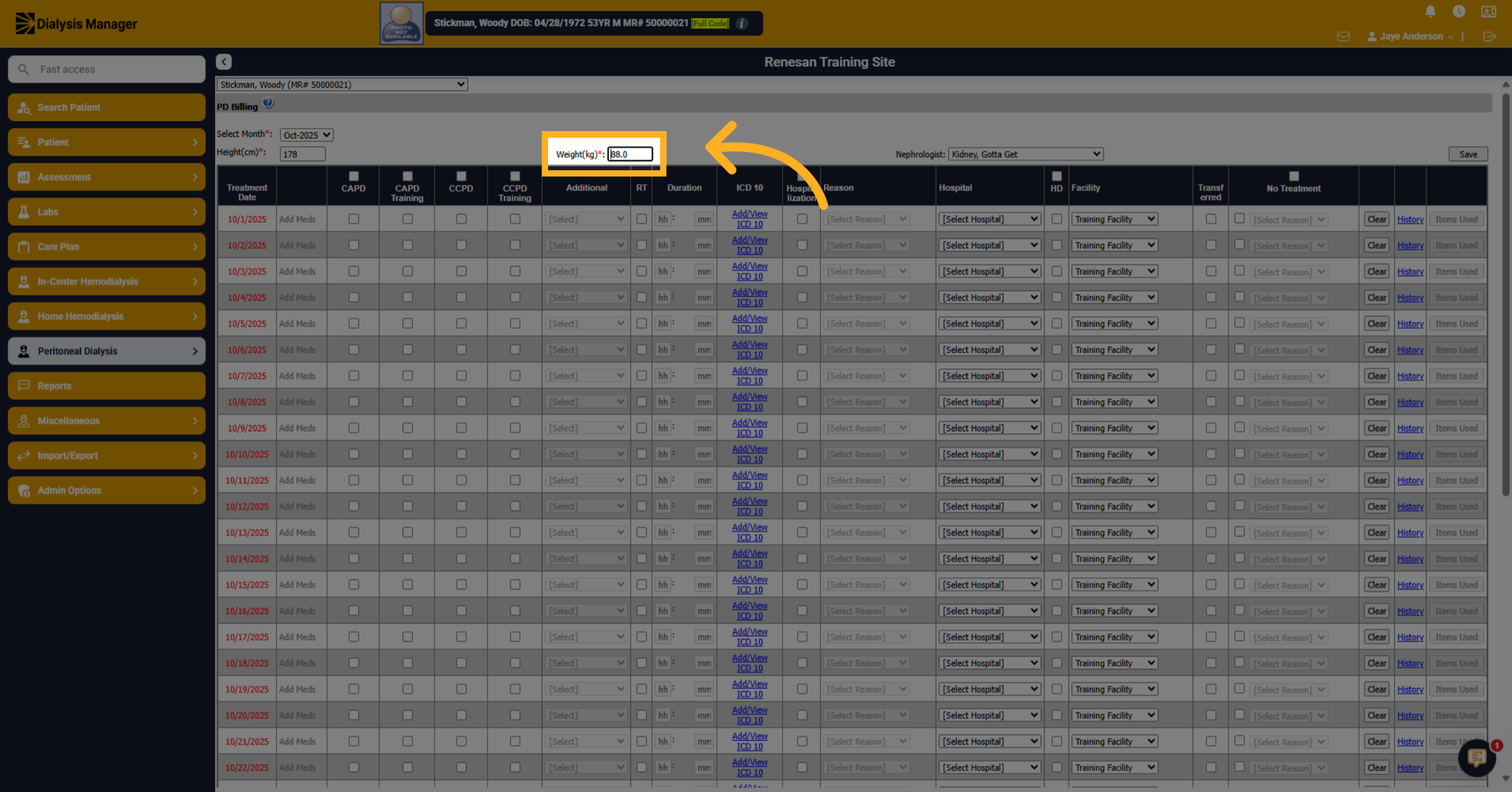
7. Update Patient weight
You can update the patient's weight if necessary.
8. Select Treatment type
Select the treatment type along the top to select all. Or individually select for each date.
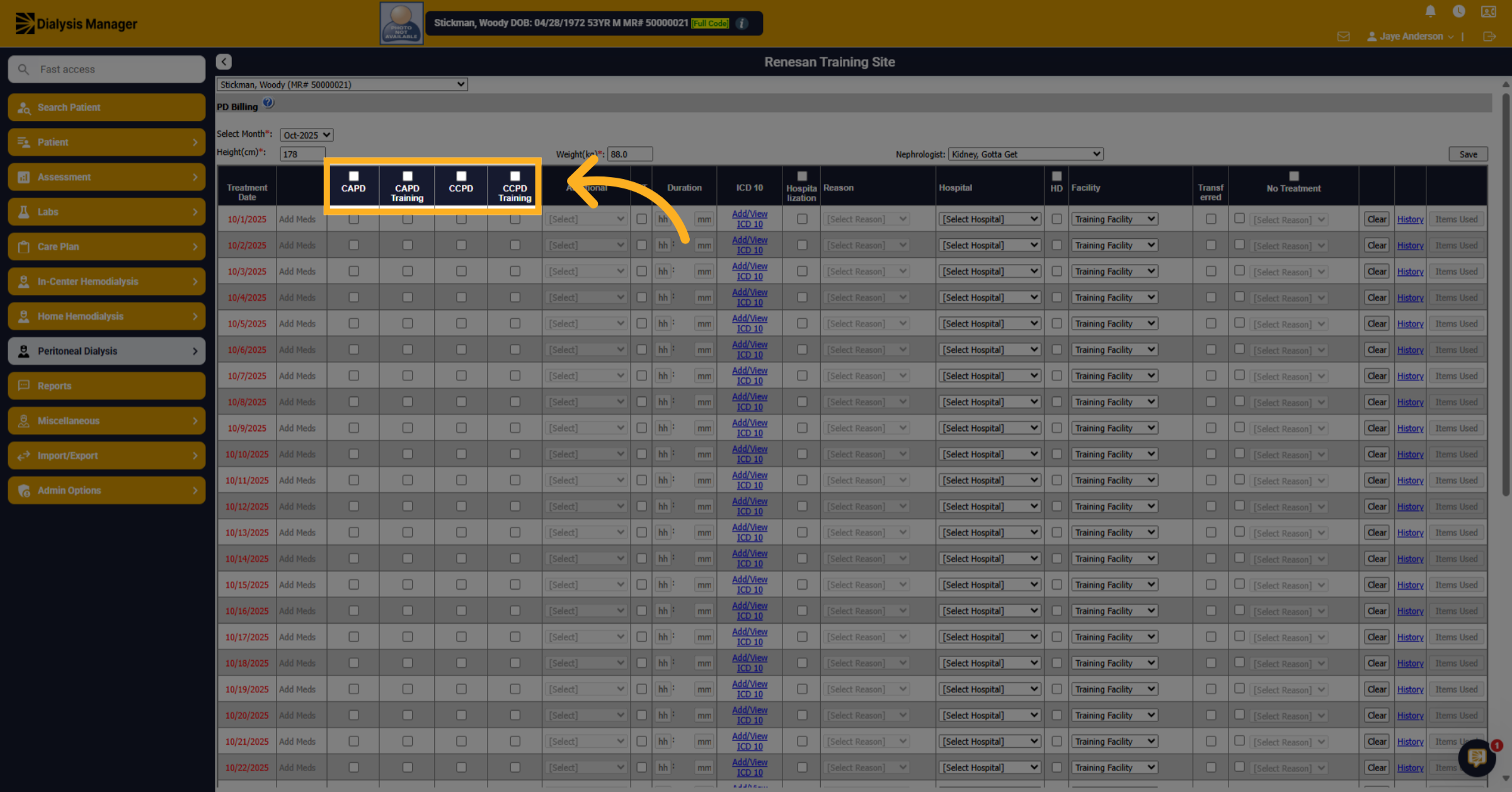
9. Choose Training Type
If there was any additional training, select the appropriate training type for the appropriate date.
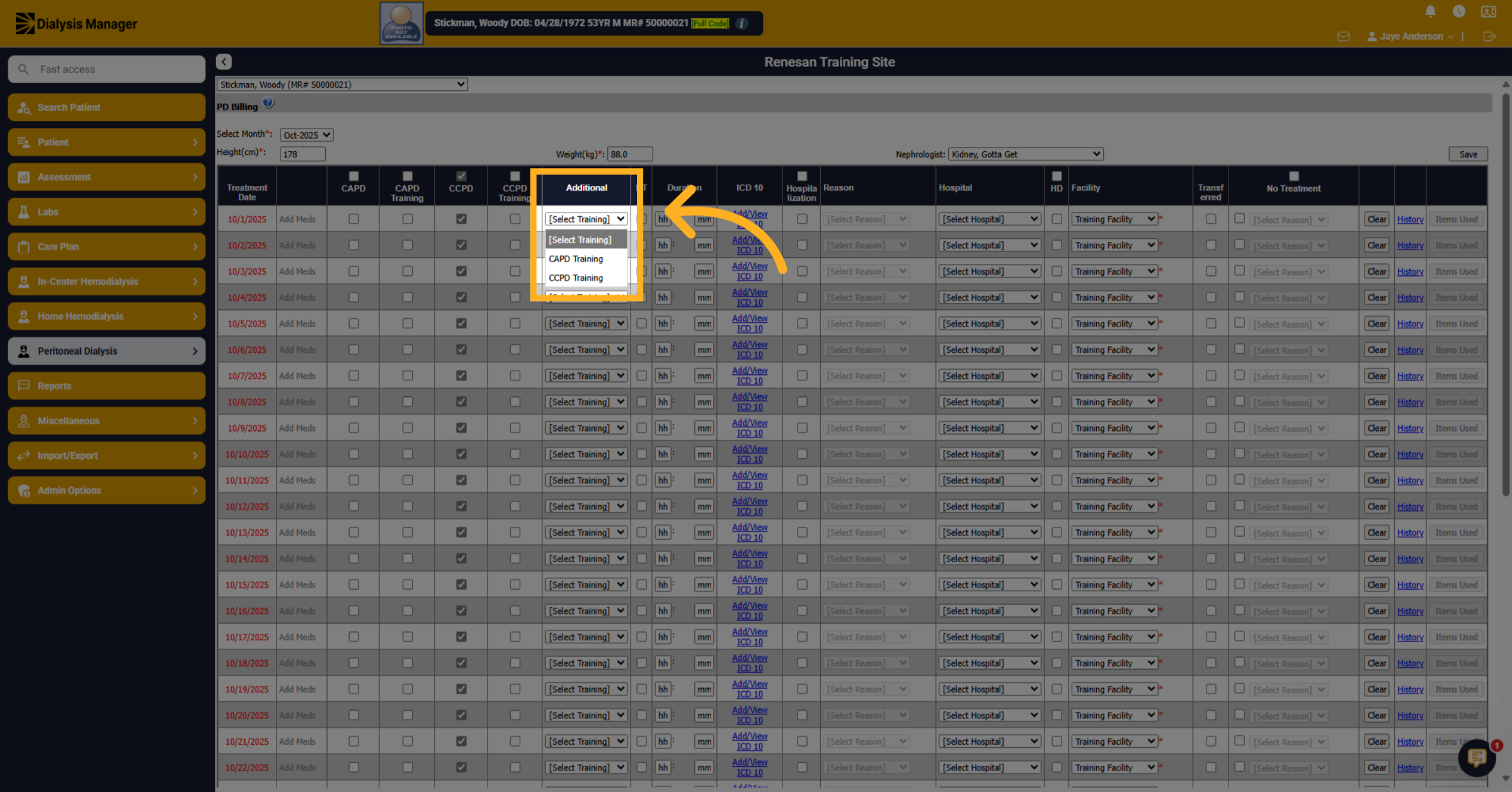
10. Add or View ICD 10 Codes
To proceed, please select the appropriate ICD-10 code related to the treatment. After choosing the code from the first line, click ‘Save’ to store it for all subsequent treatments. If you overlook this step, you will be required to select an ICD-10 code for each treatment individually.
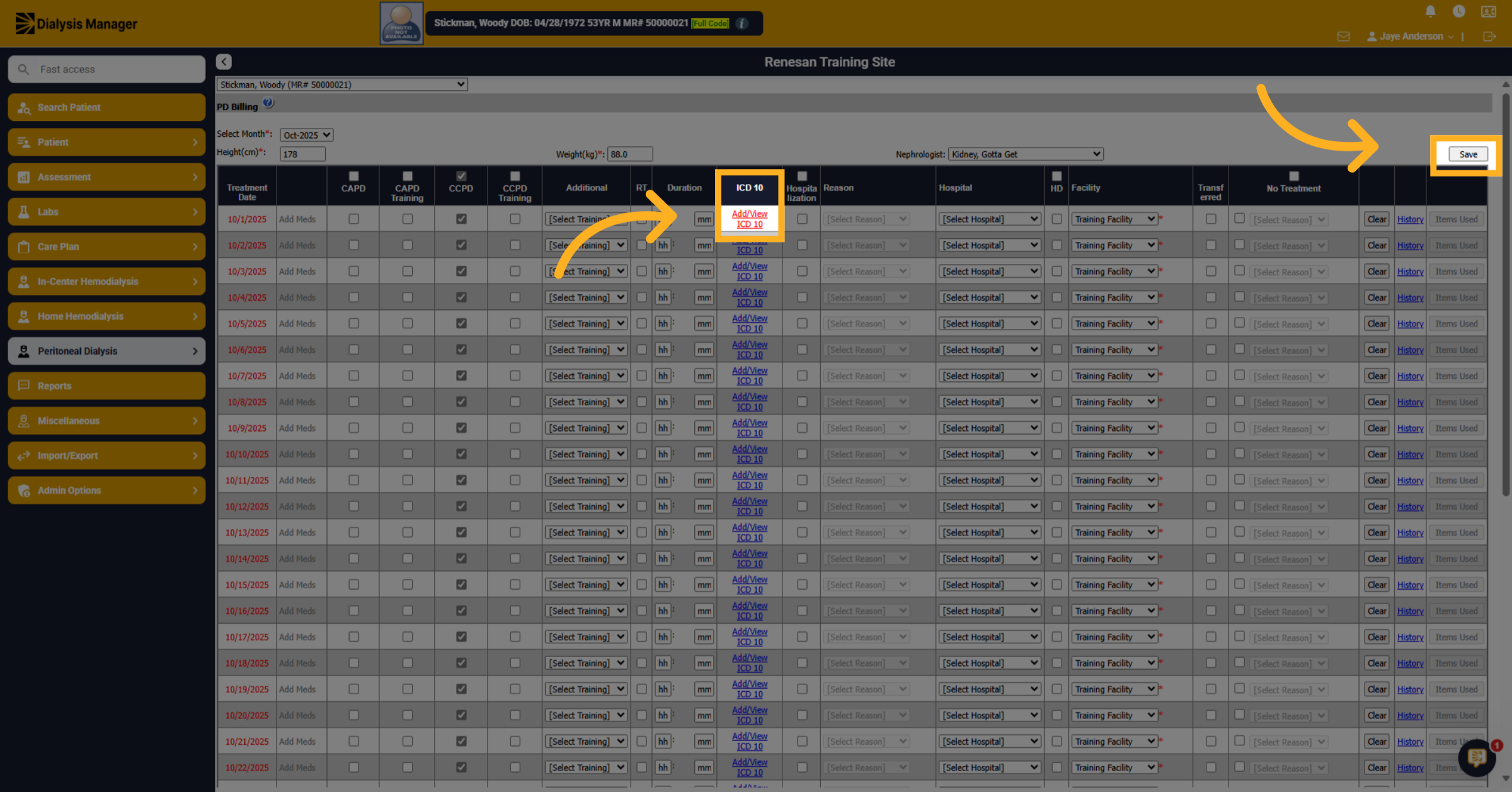
11. Select Additional Option
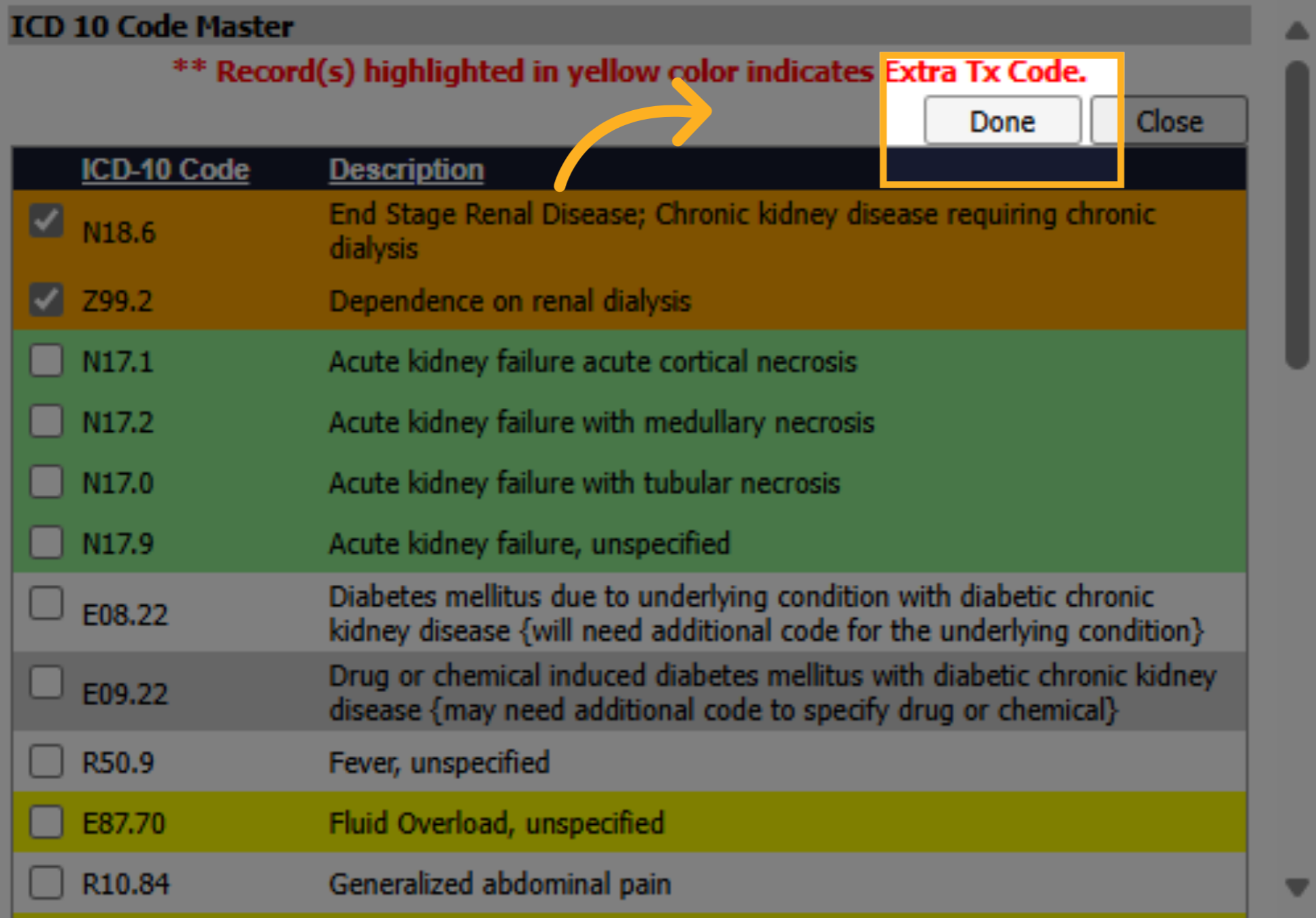
When clicking the hyperlink; a new pop-up box will appear. Select the additional ICD 10 code as required, if needed.
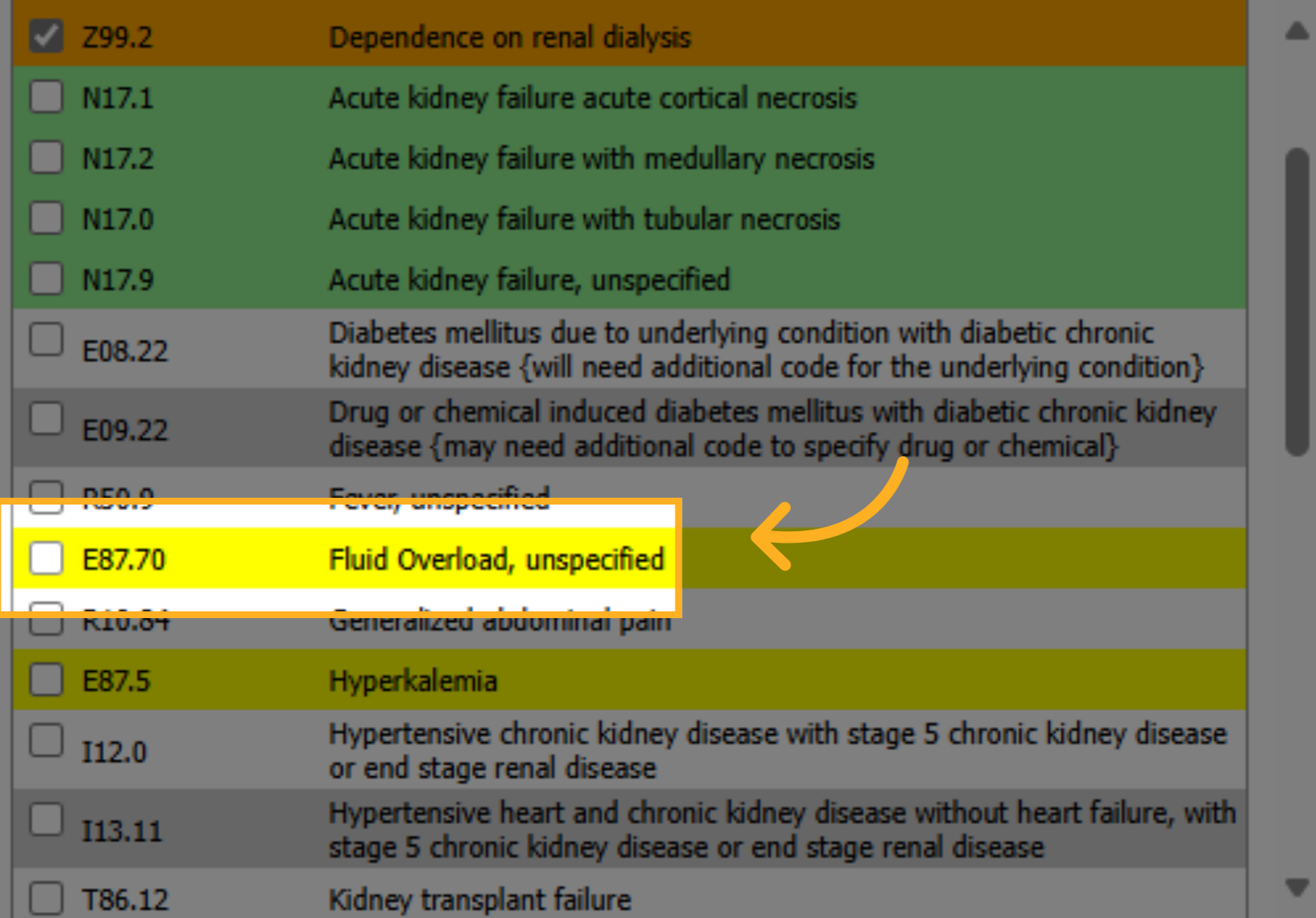
12. Confirm Completion
Click Done to confirm your entries.
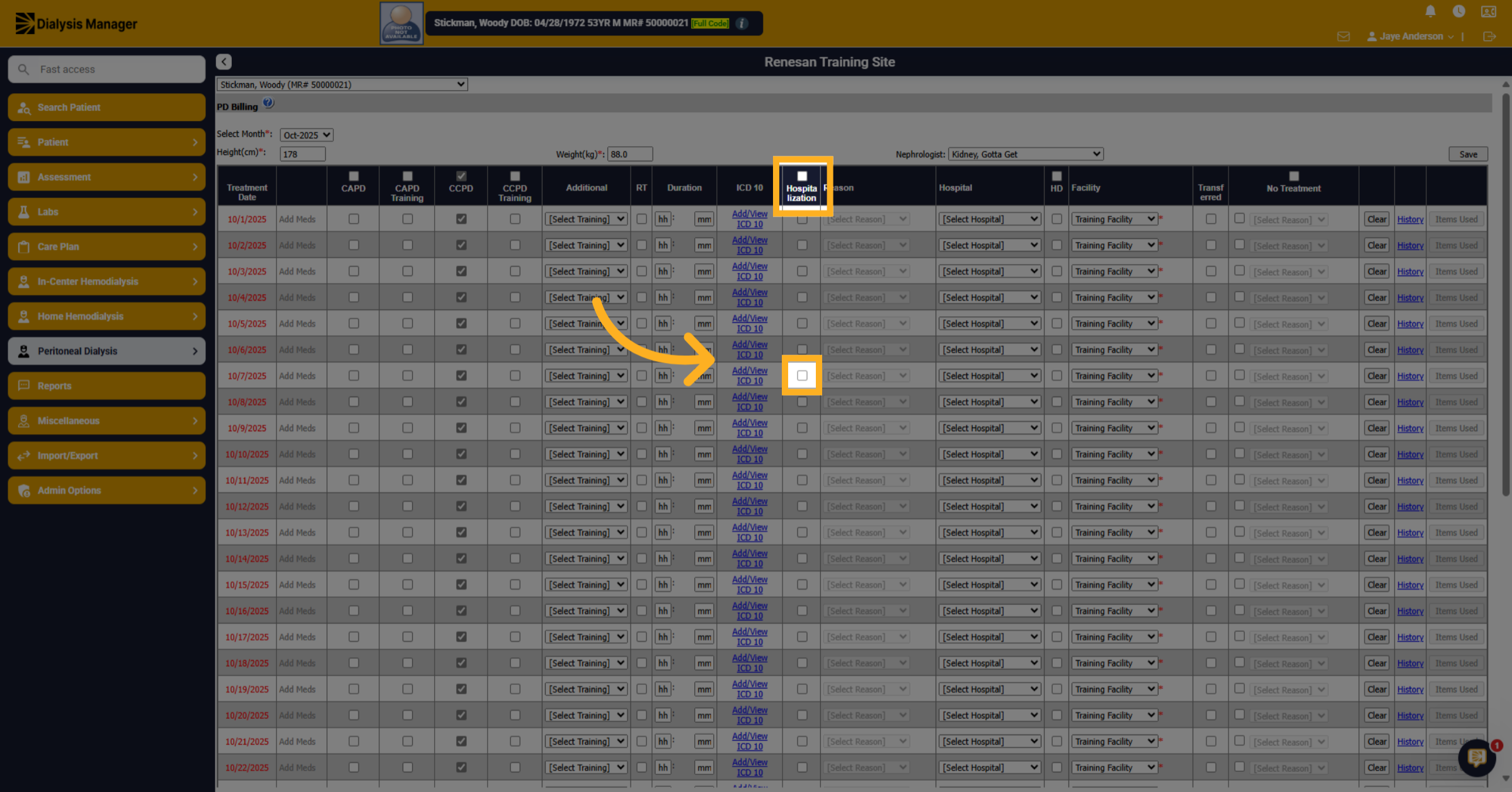
13. Select Hospitalization Status
If the patient was hospitalized during any day within the month, select the hospitalization check box status.
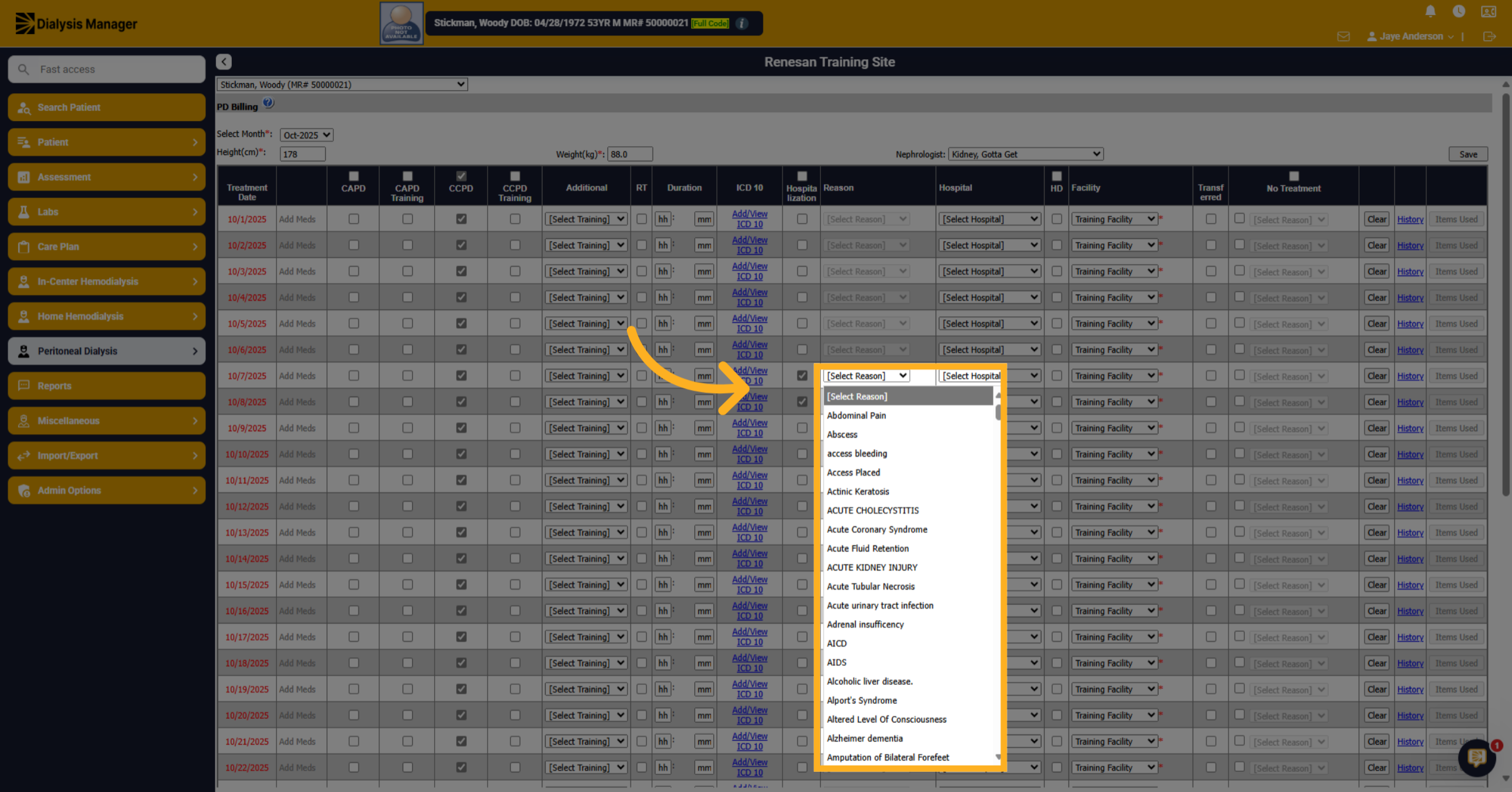
14. Choose Hospitalization Reason
Fill in the hospitalization details by choosing the appropriate reason from the list.
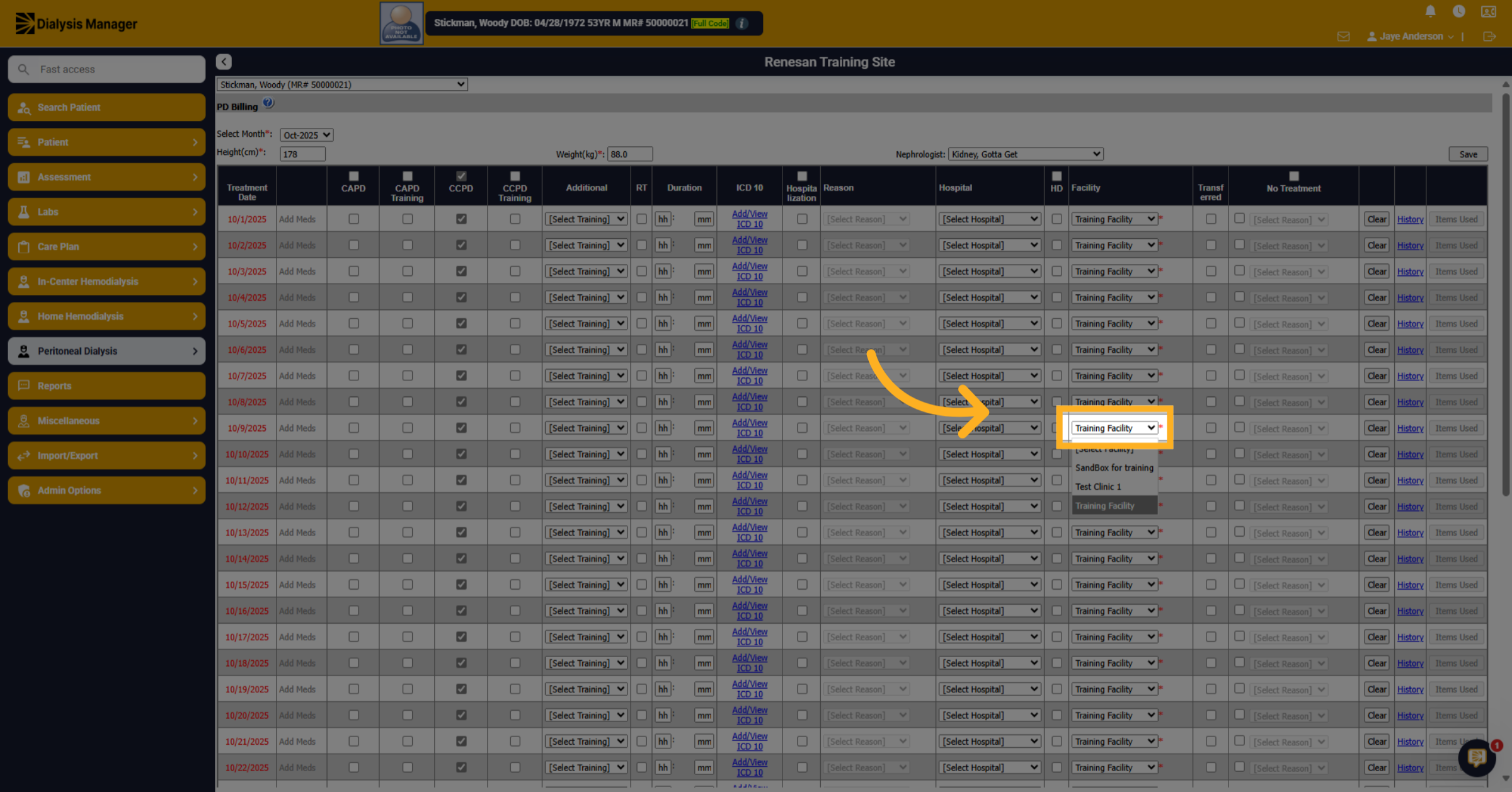
15. Confirm Facility Selection
Confirm the selected billing facility.
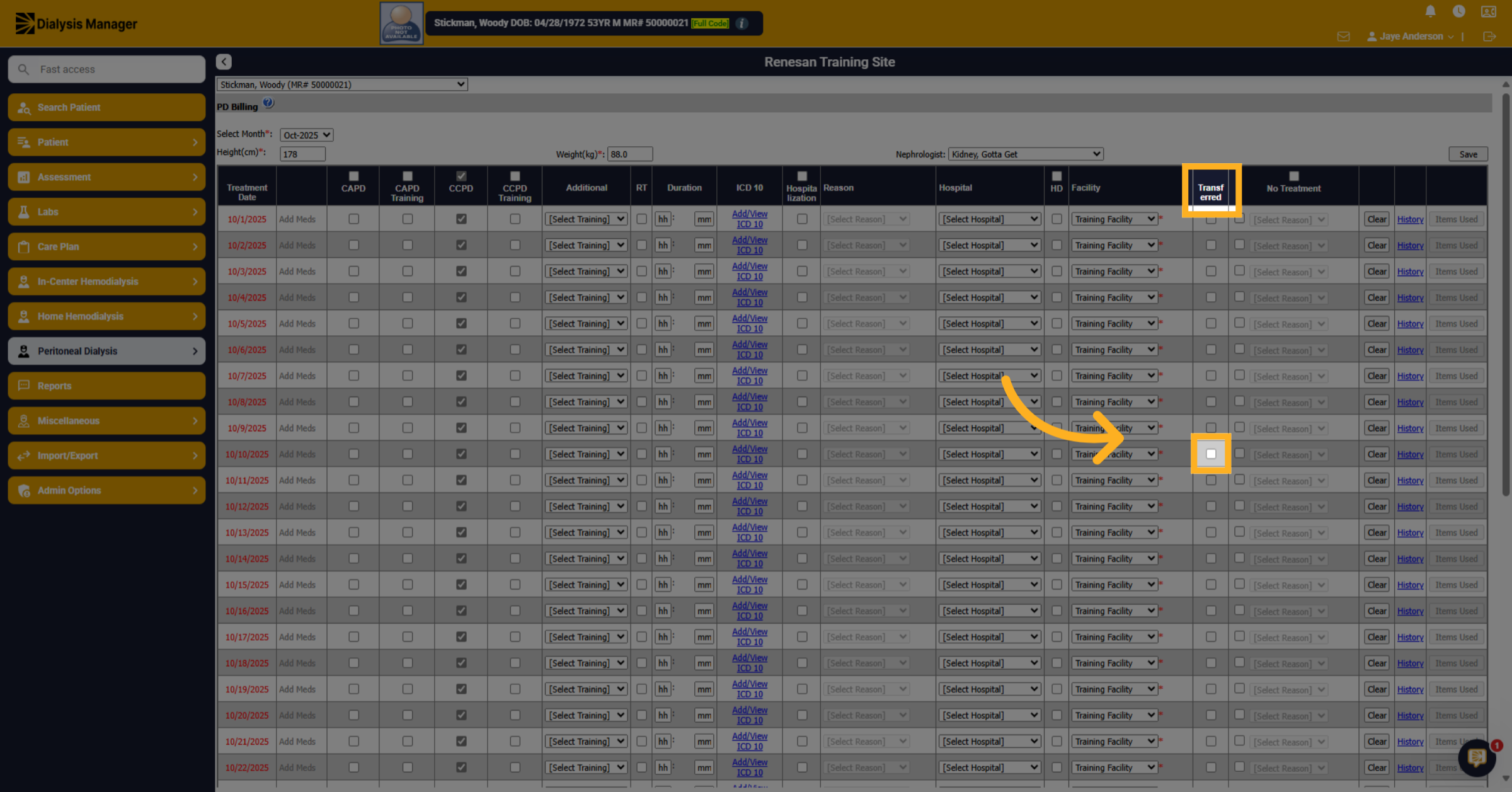
16. Fill Transfer Details
If the patient has been transferred, select the transfer status check box.
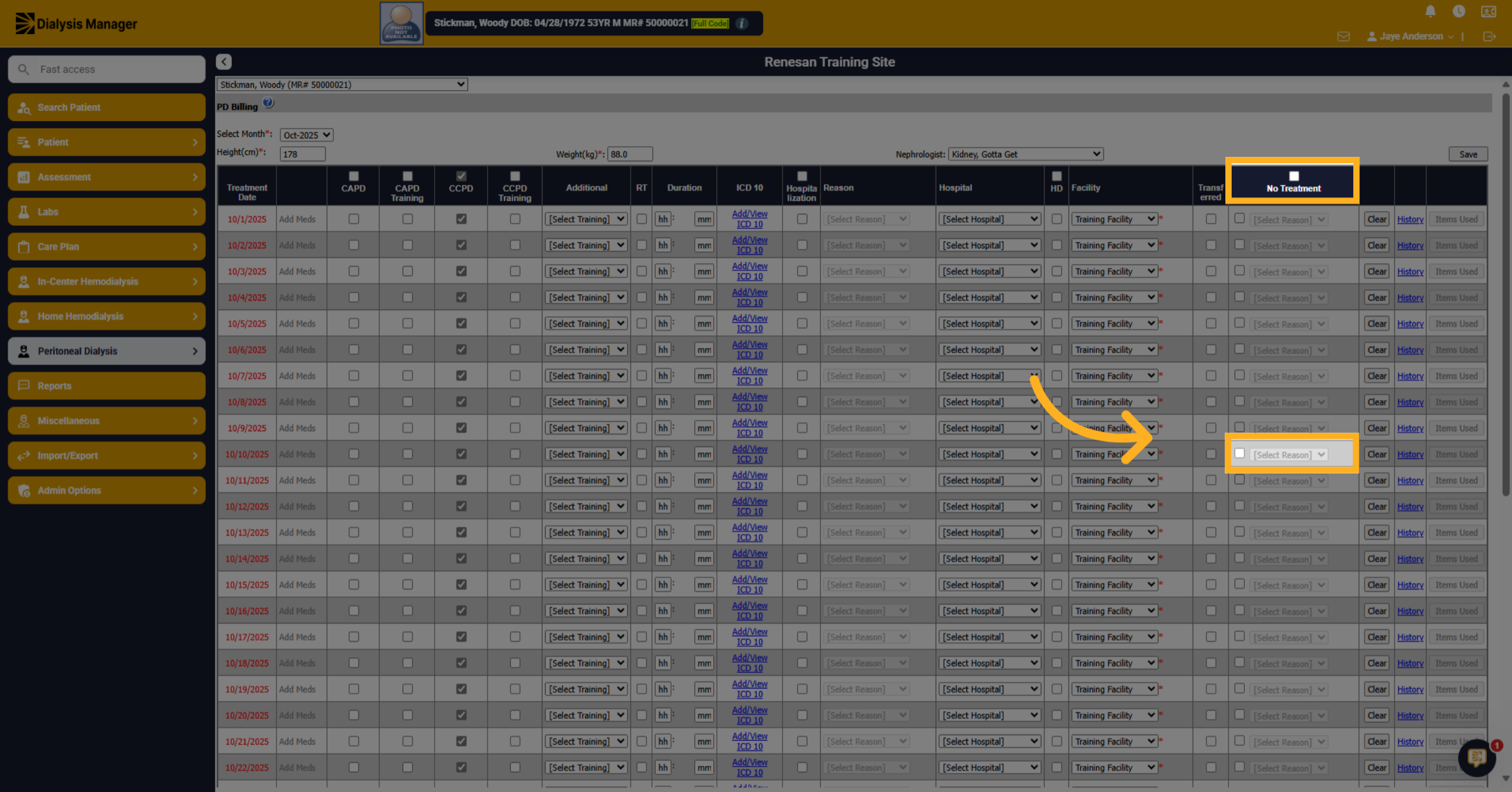
17. Select No Treatment Reason
If there is no treatment you can mark the check box and select the reason for no treatment from the drop-down list.
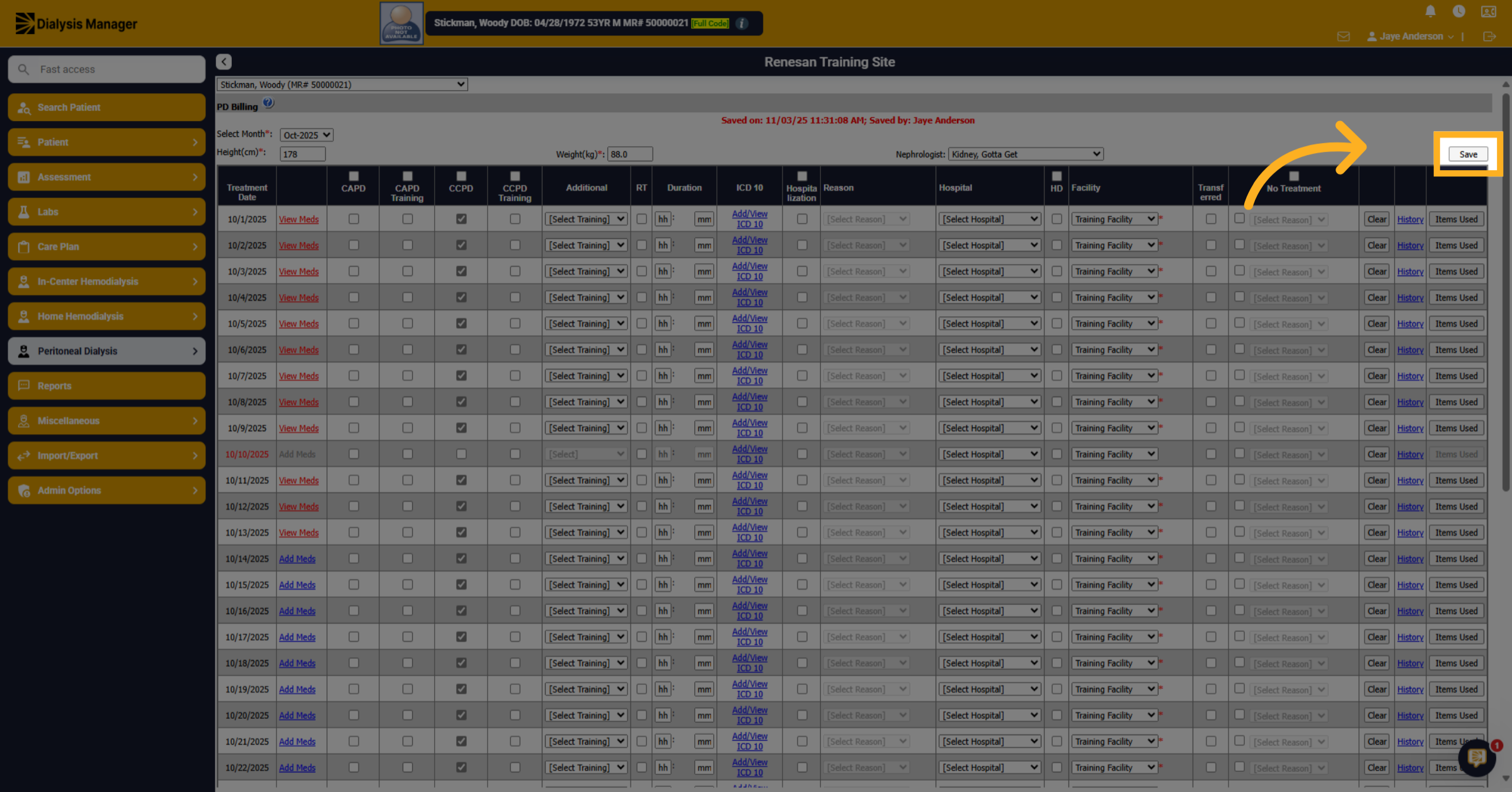
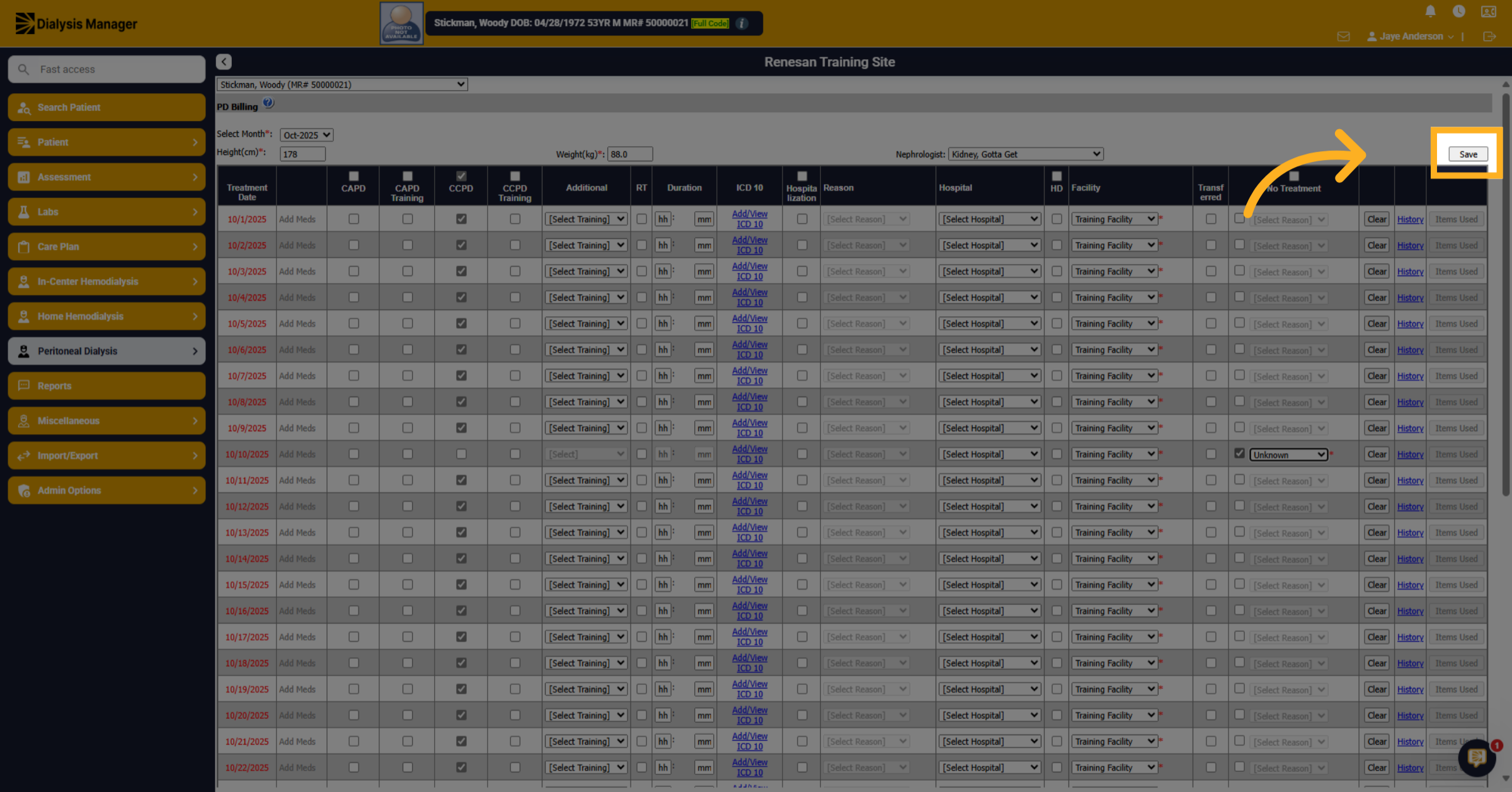
18. Click Save
Click Save. Wait for the system to confirm the save process.
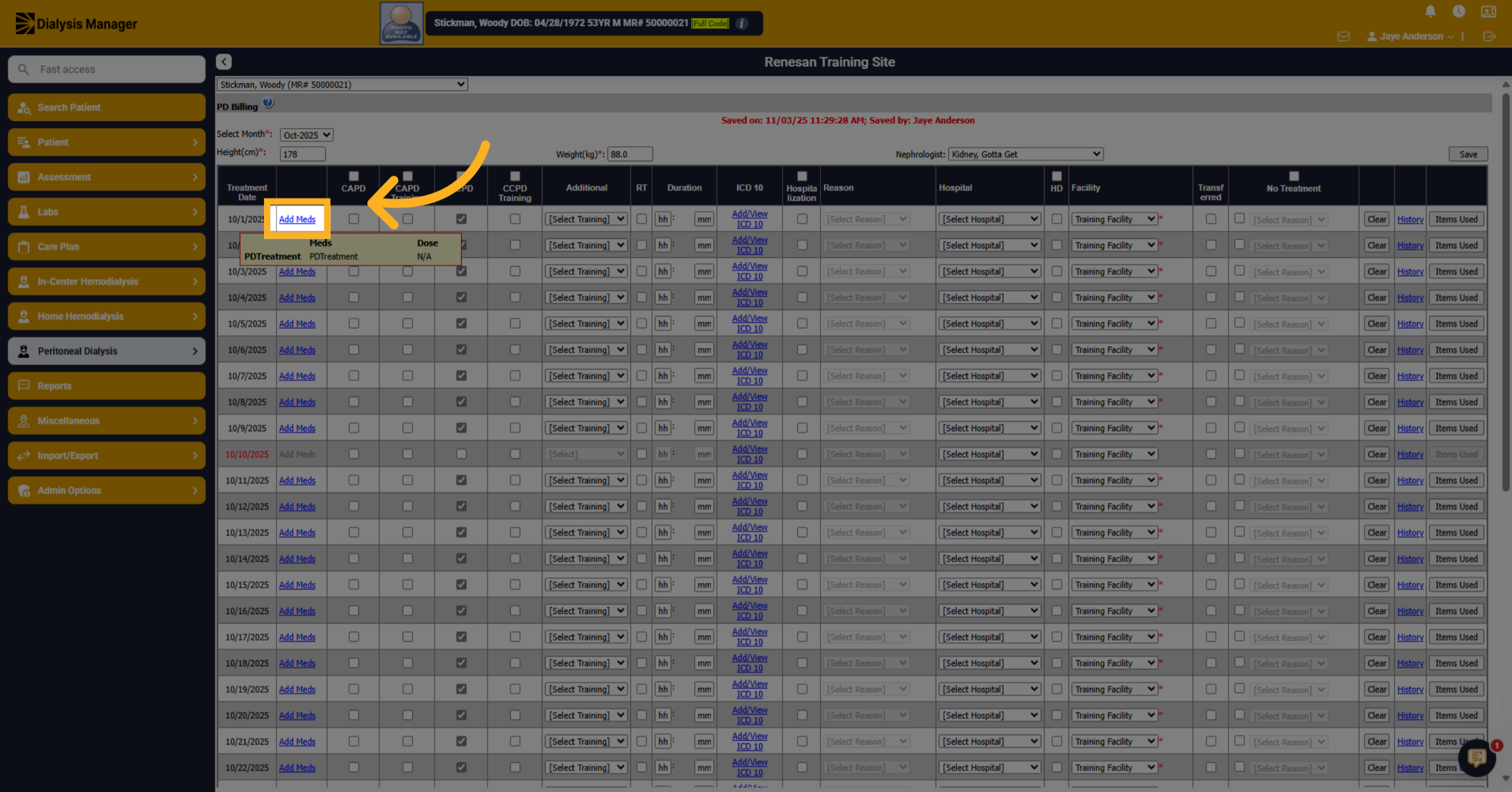
19. Enter Medication Quantity
If you need to add any medications that the patient used during treatment. Choose the "Add Meds" hyperlink next to a particular date. Please note, any medications administered during a clinic visit will cross over once it has been approved and locked.
20. Open Medication Dose Detail
When opening the "Add Meds" you'll see the patients Dialysis Meds, Other Meds, and Vaccines. Select the notepad within the Dose Detail column.
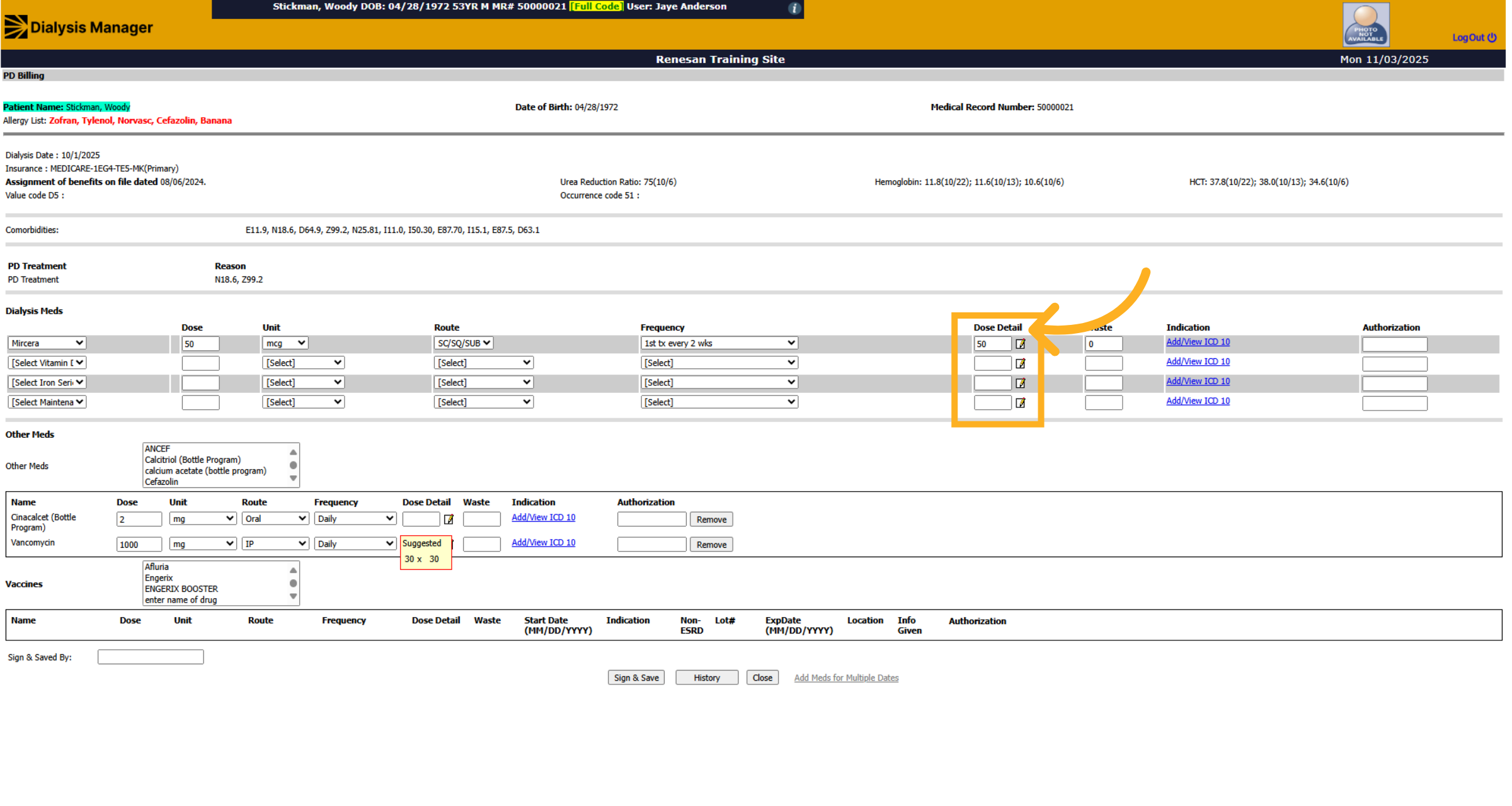
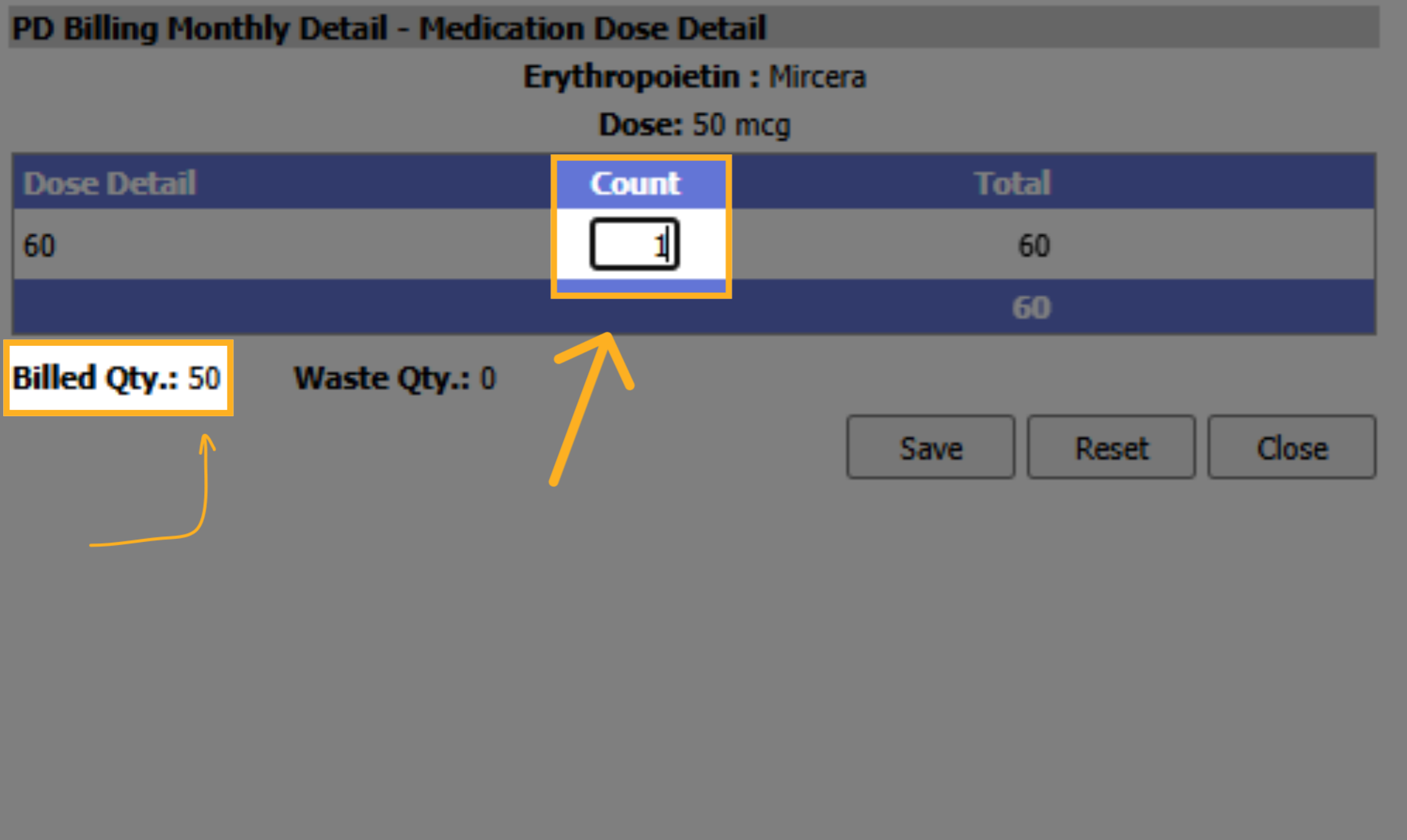
21. Select Medication Quantity
A new pop-up box will appear. Enter the quantity or vial size amount of medication administered. The total billed quantity should equal the amount administered.
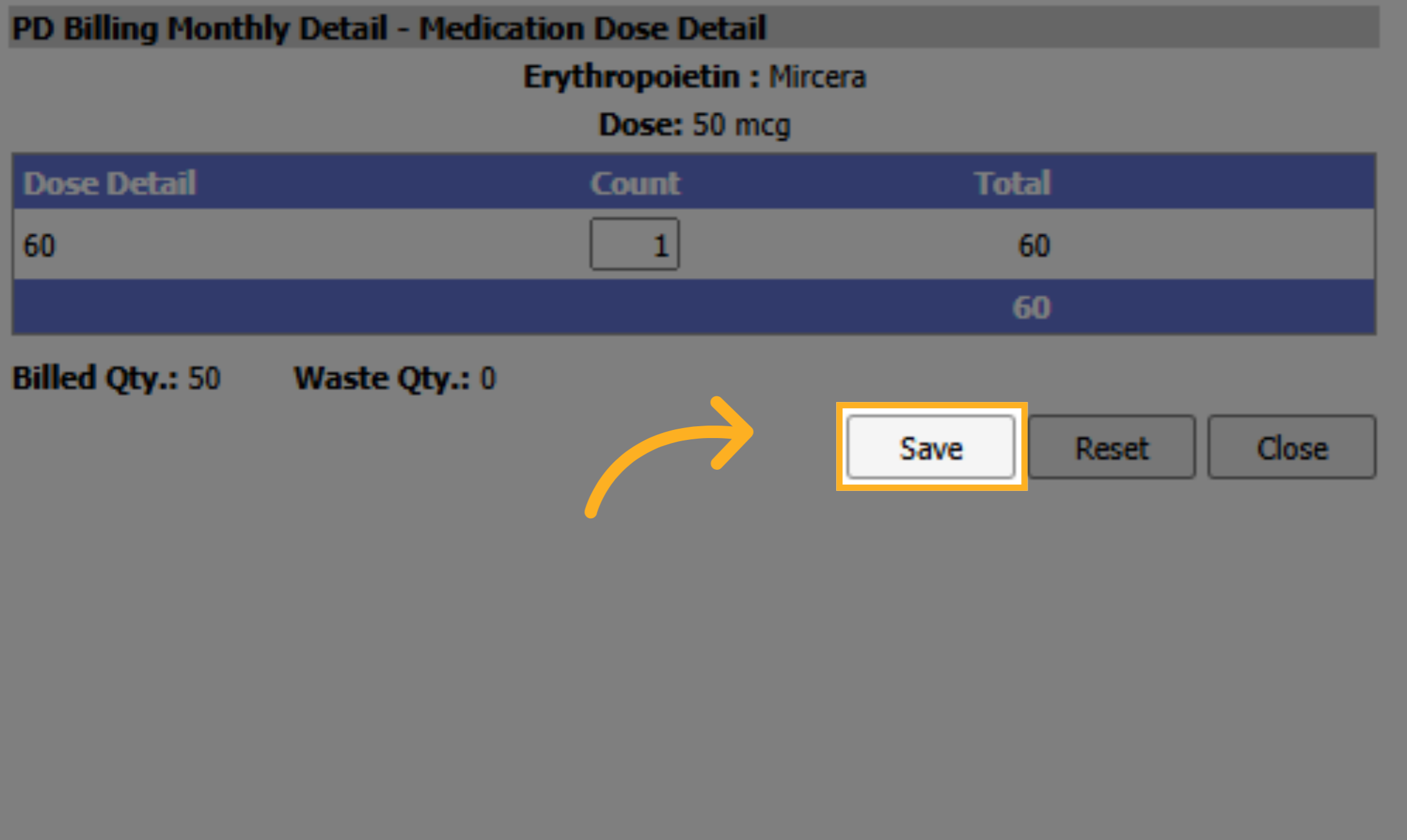
22. Save Medication Details
Click Save to confirm medication details.
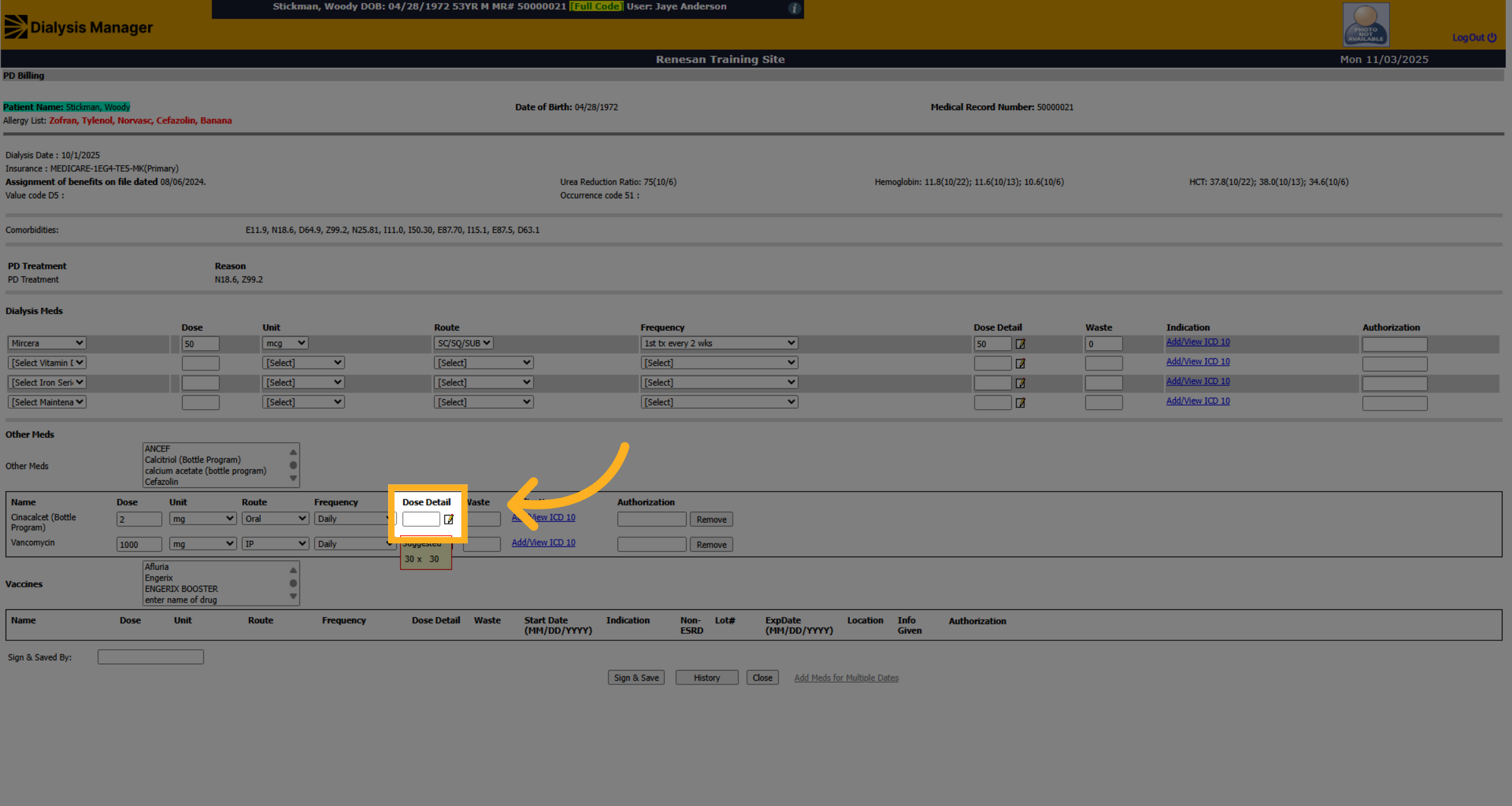
23. Open Medication Summary
Click to open the medication dose detail for the next medication, enter the amount and click save.
24. Add Medications for Multiple Days
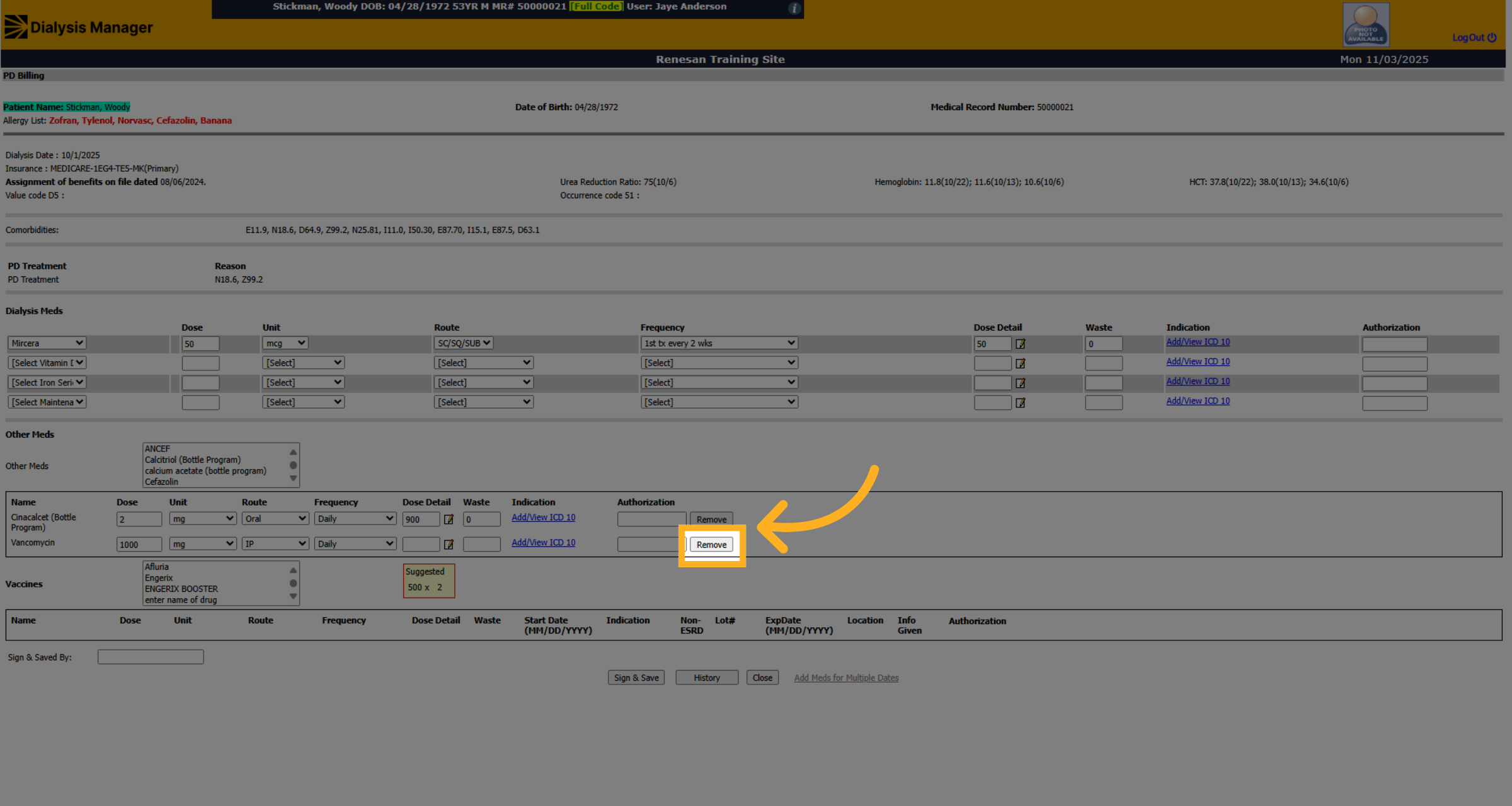
If you need to remove a medication you can click "Remove".
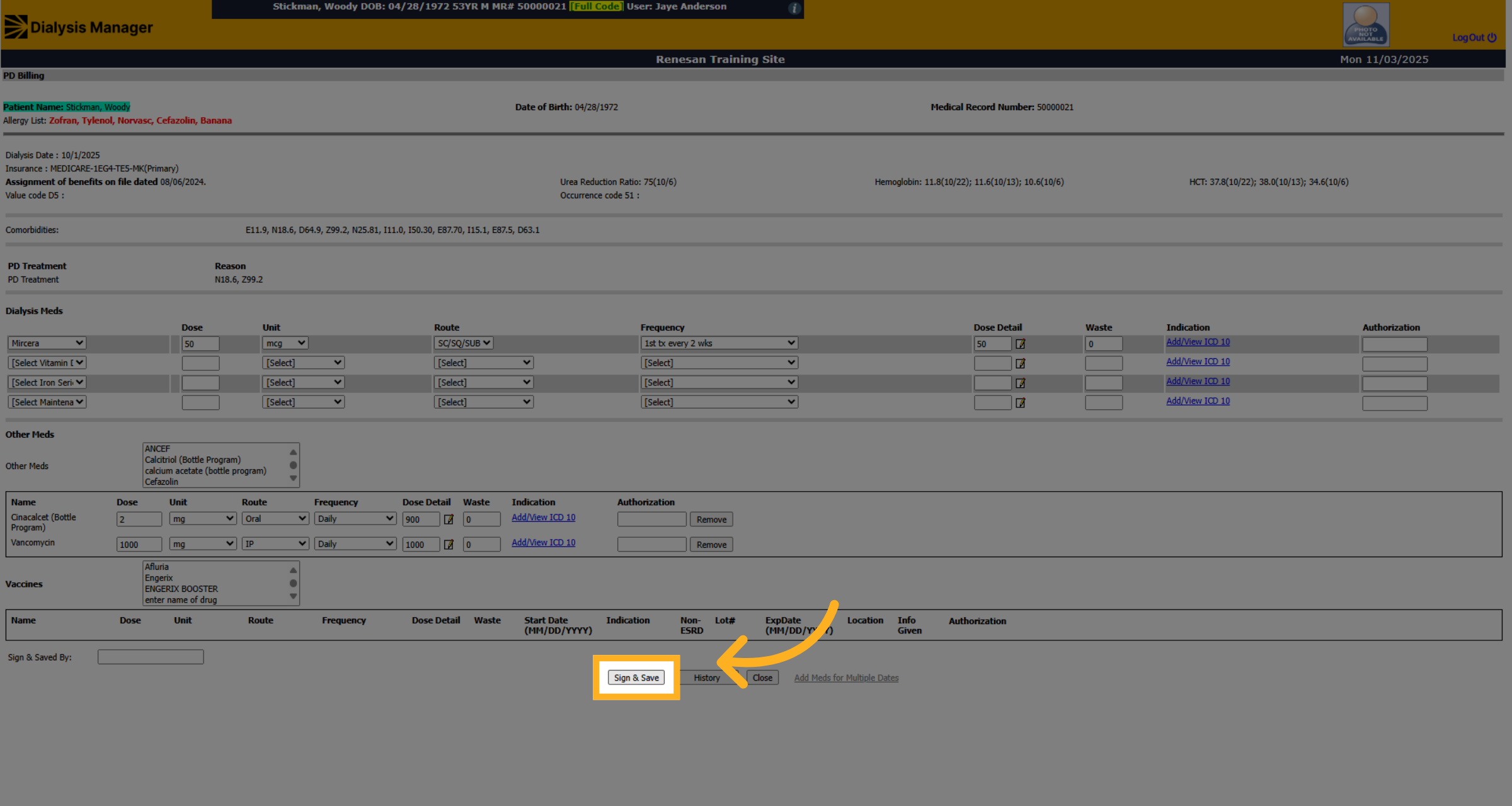
25. Fill Medication Details
Click Sign and Save
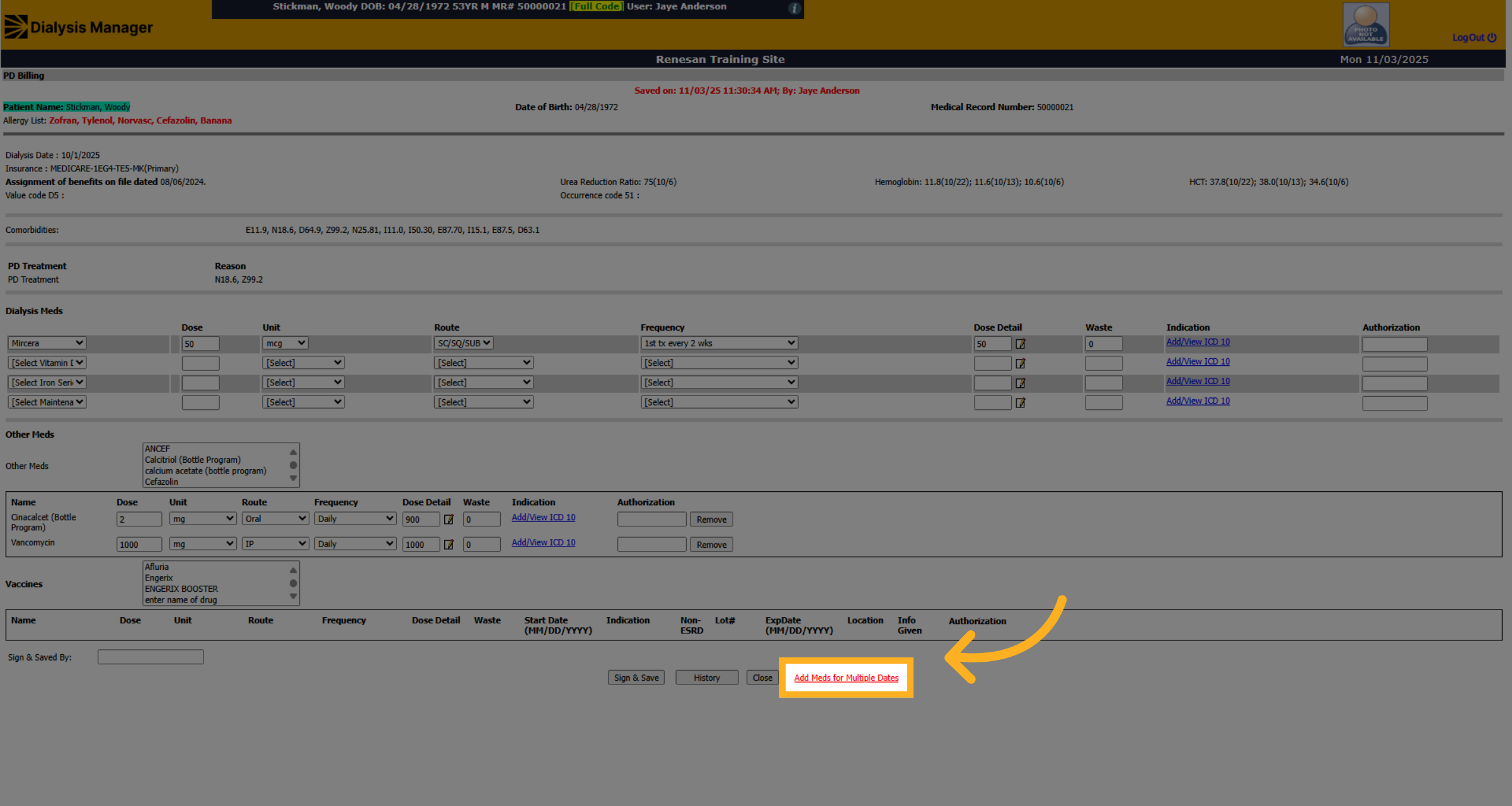
26. Add Meds for multiple dates
If you need to add medication information for multiple days, click "Add Meds for Multiple Dates".
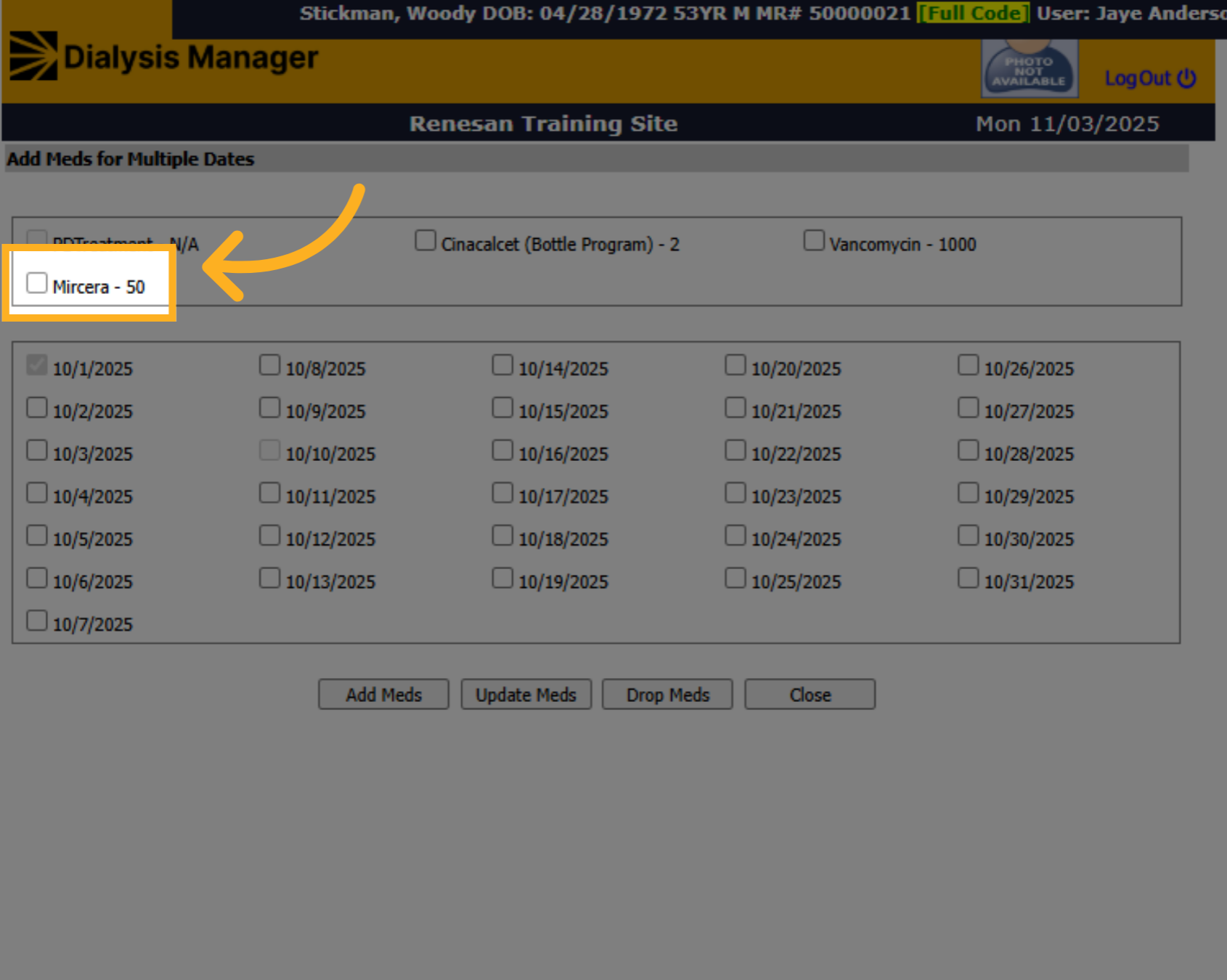
27. Select Medication
Select the administered medication.
28. Select Dates
Select the additional dates of medication administration.
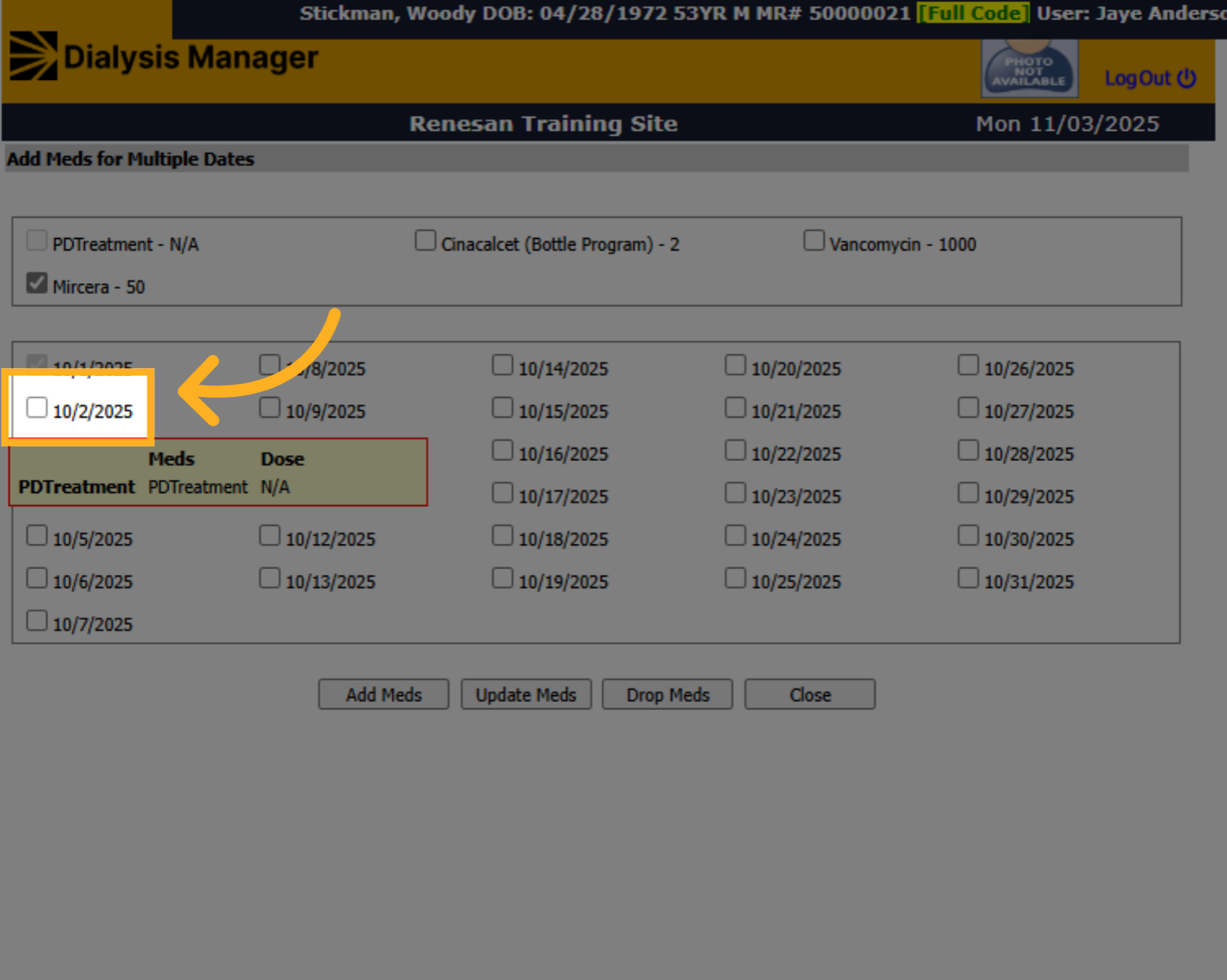
29. Click Add Meds
When complete, click "Add Meds" to add the medications for the selected dates.
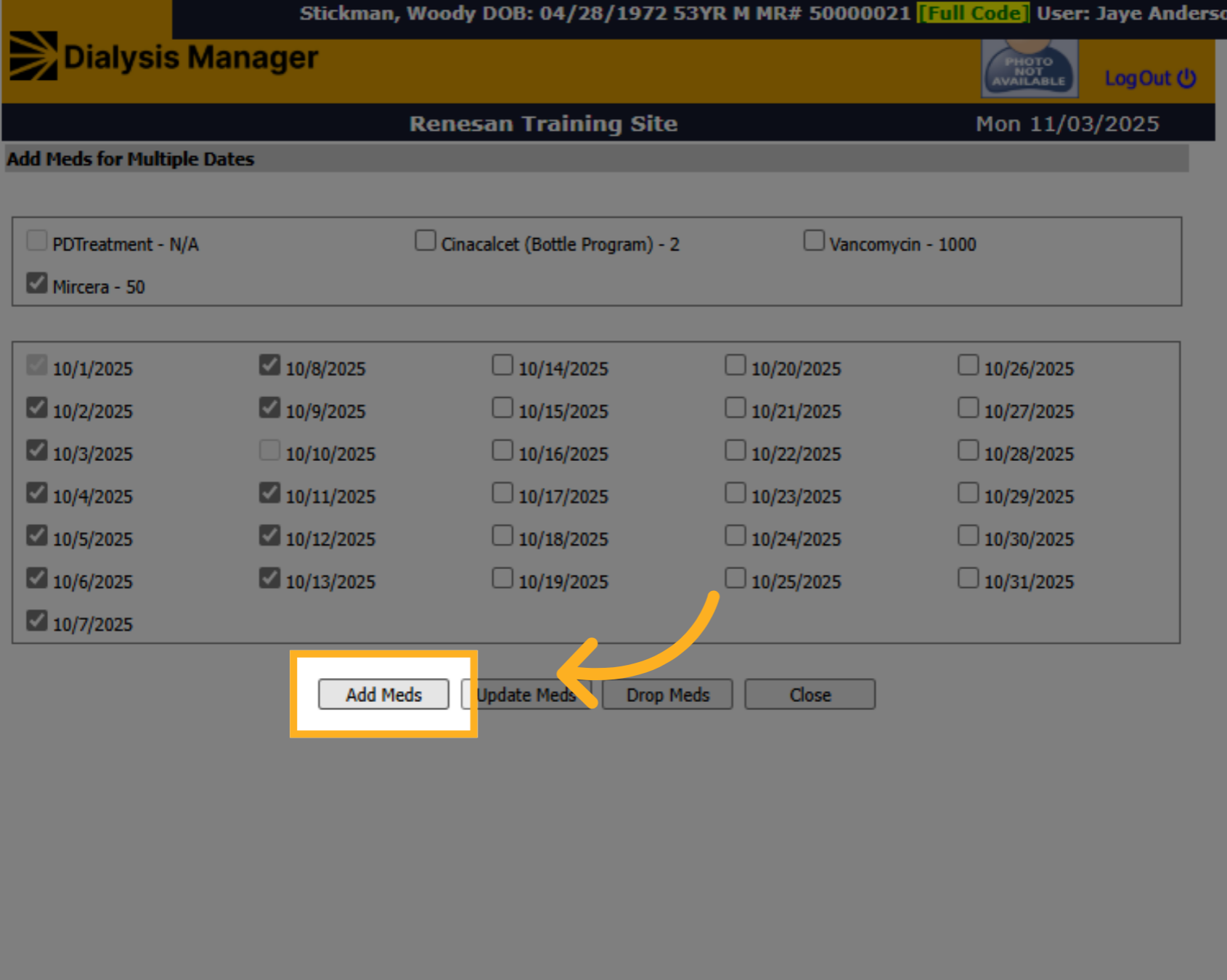
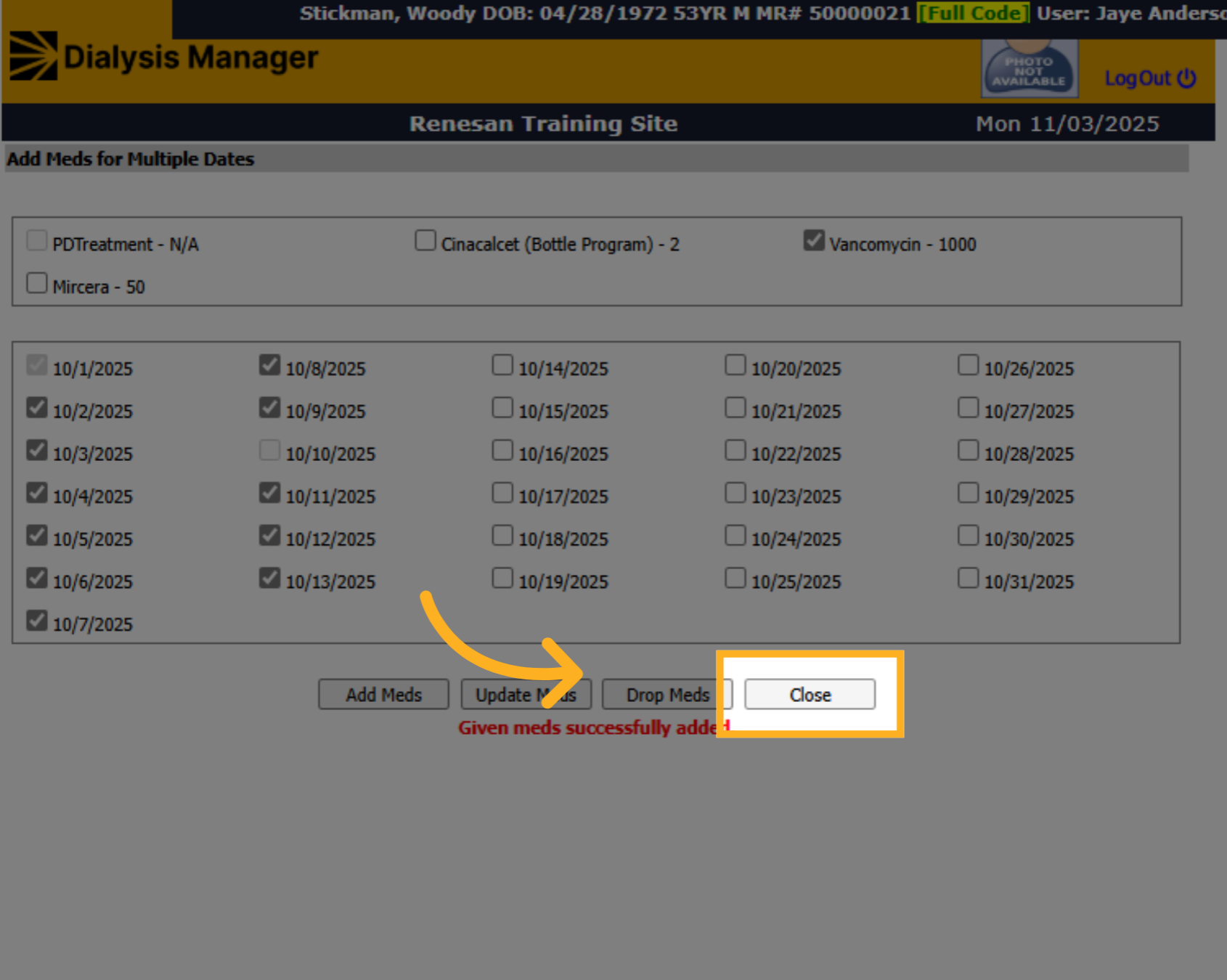
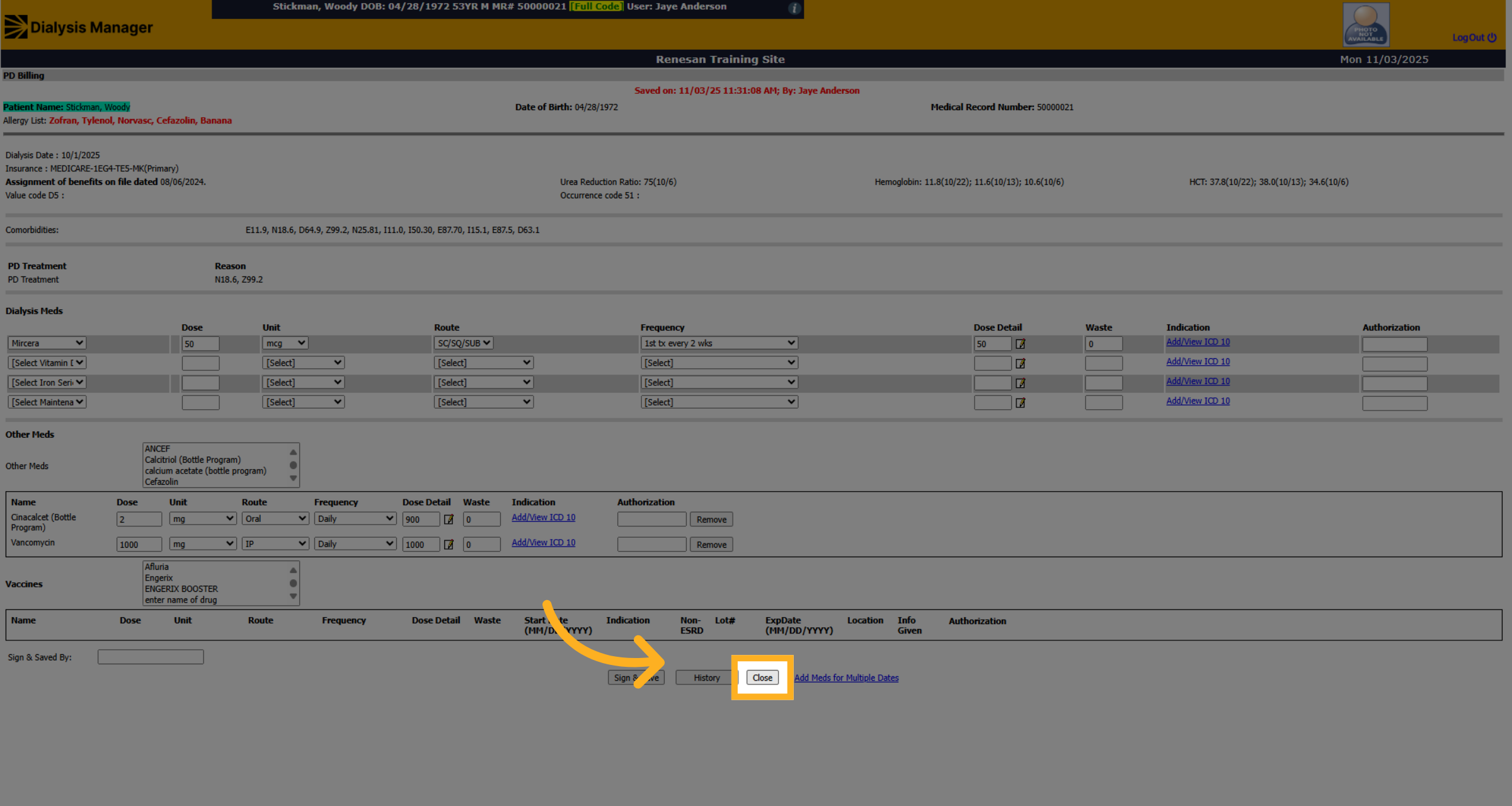
30. Close
Click Close to exit the billing window.
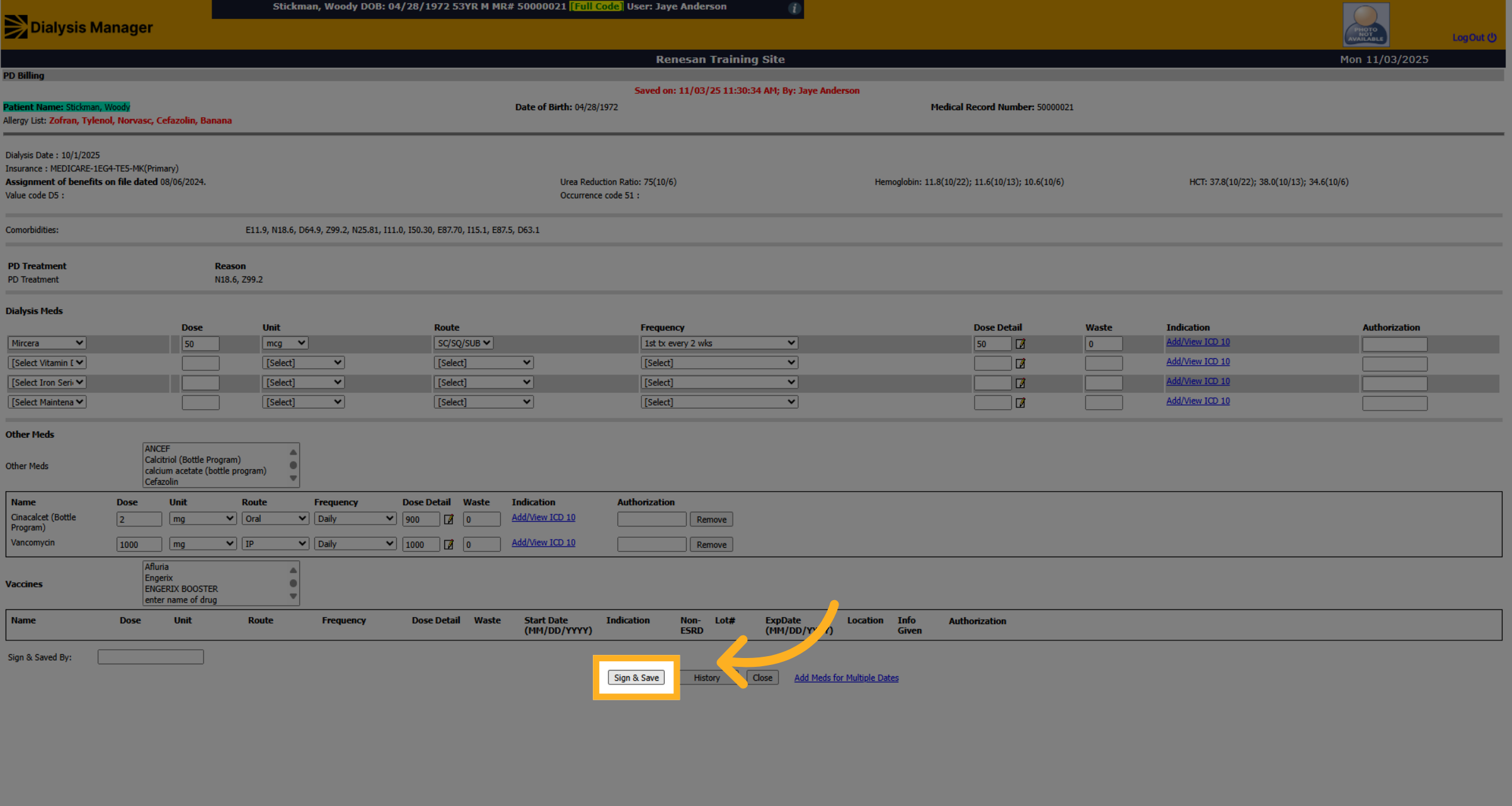
31. Click "Sign & Save"
Click Sign & Save to finalize and save the billing information.
32. Click "Close"
Click Close
33. Click "Save"
Click on "Save"