Discharging a Hospitalizations..
1. Introduction
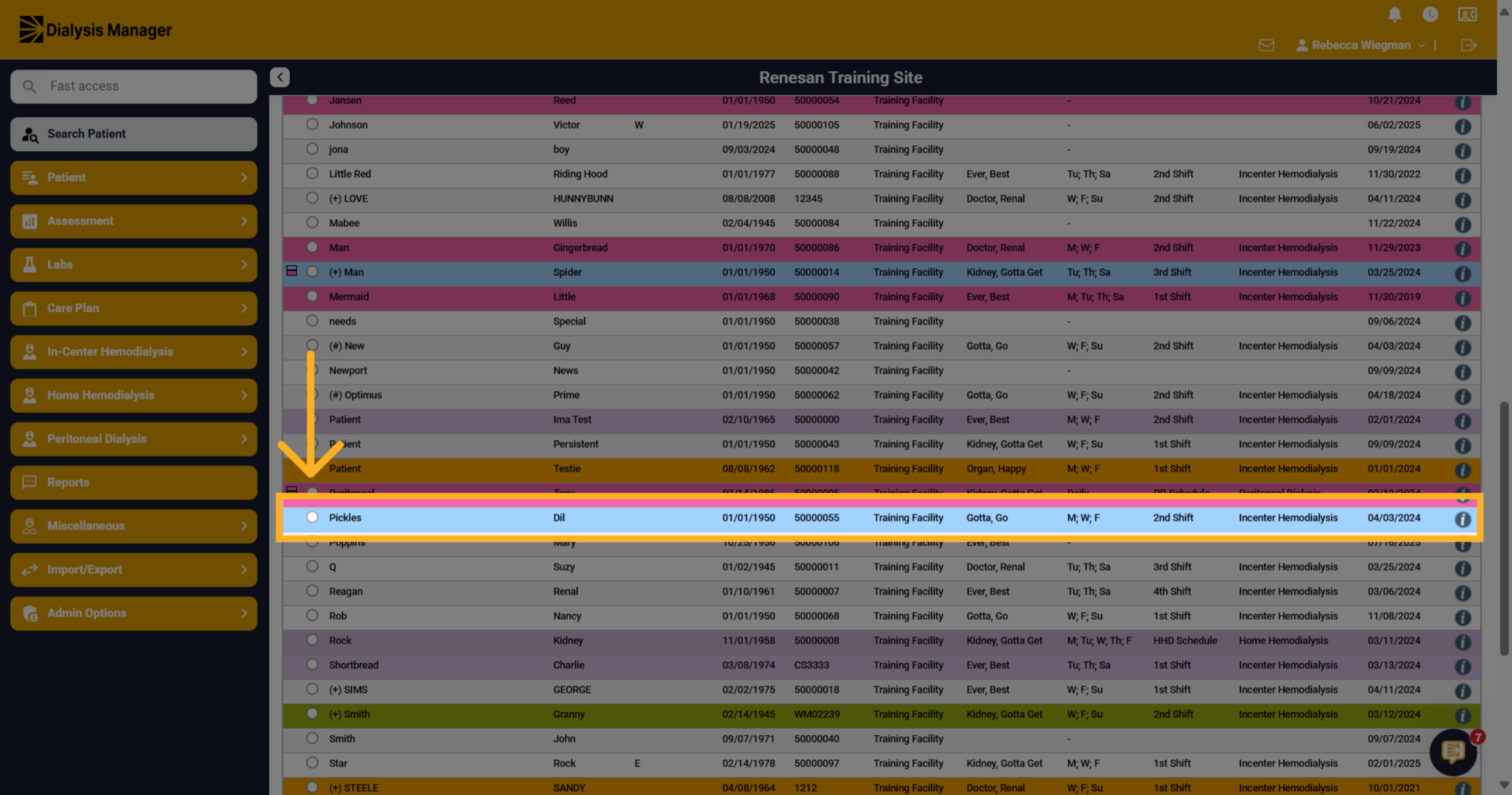
In this tutorial, we will guide you through the process of completing or discharging a hospitalization. Begin by selecting the patient you wish to discharge. Please note that in the patient search menu, hospitalized patients will be highlighted in blue!
2. Hospitalization Menu
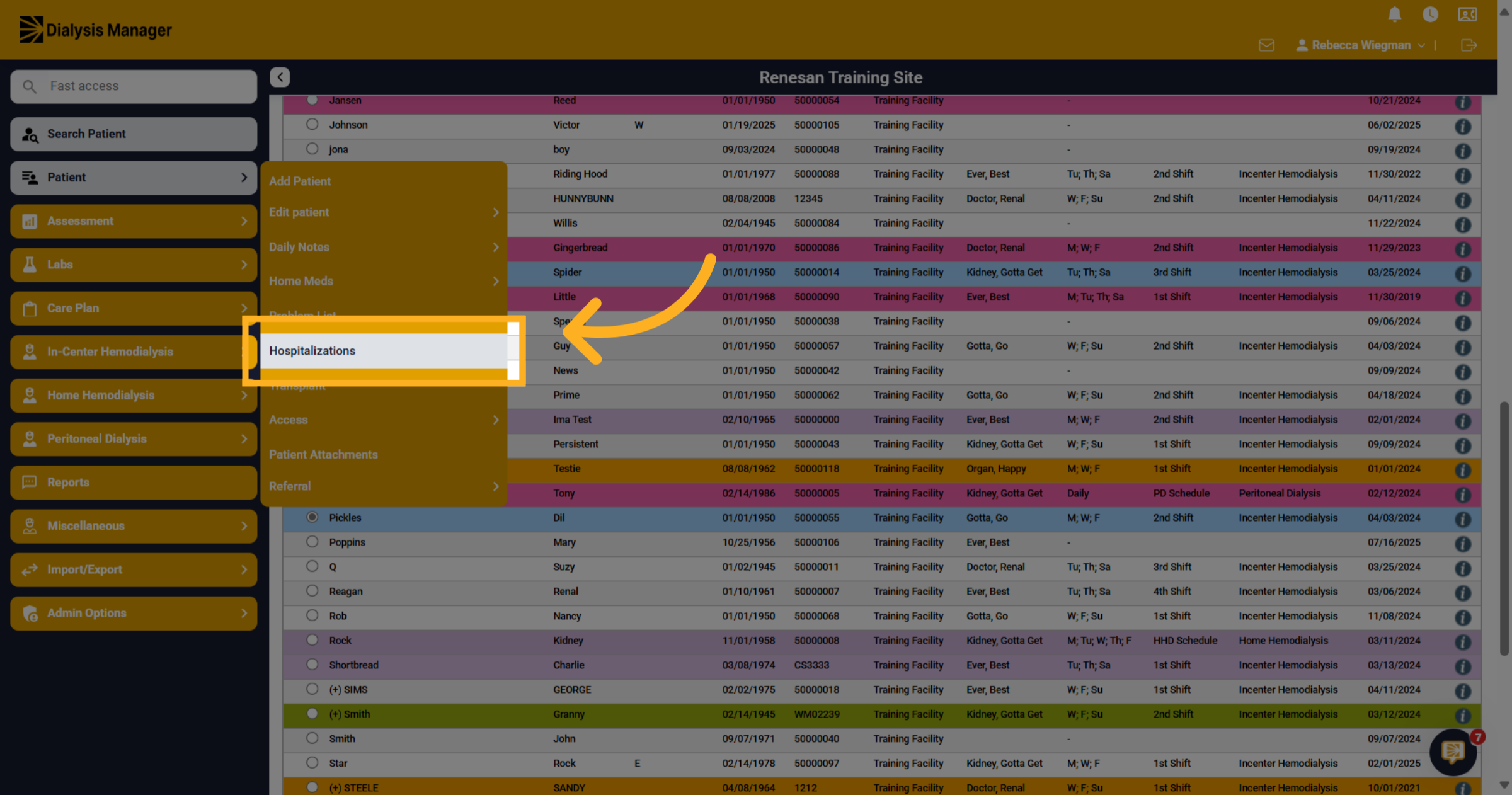
Click the Hospitalizations section to view existing hospitalization records.
3. Select Hospitalization Date
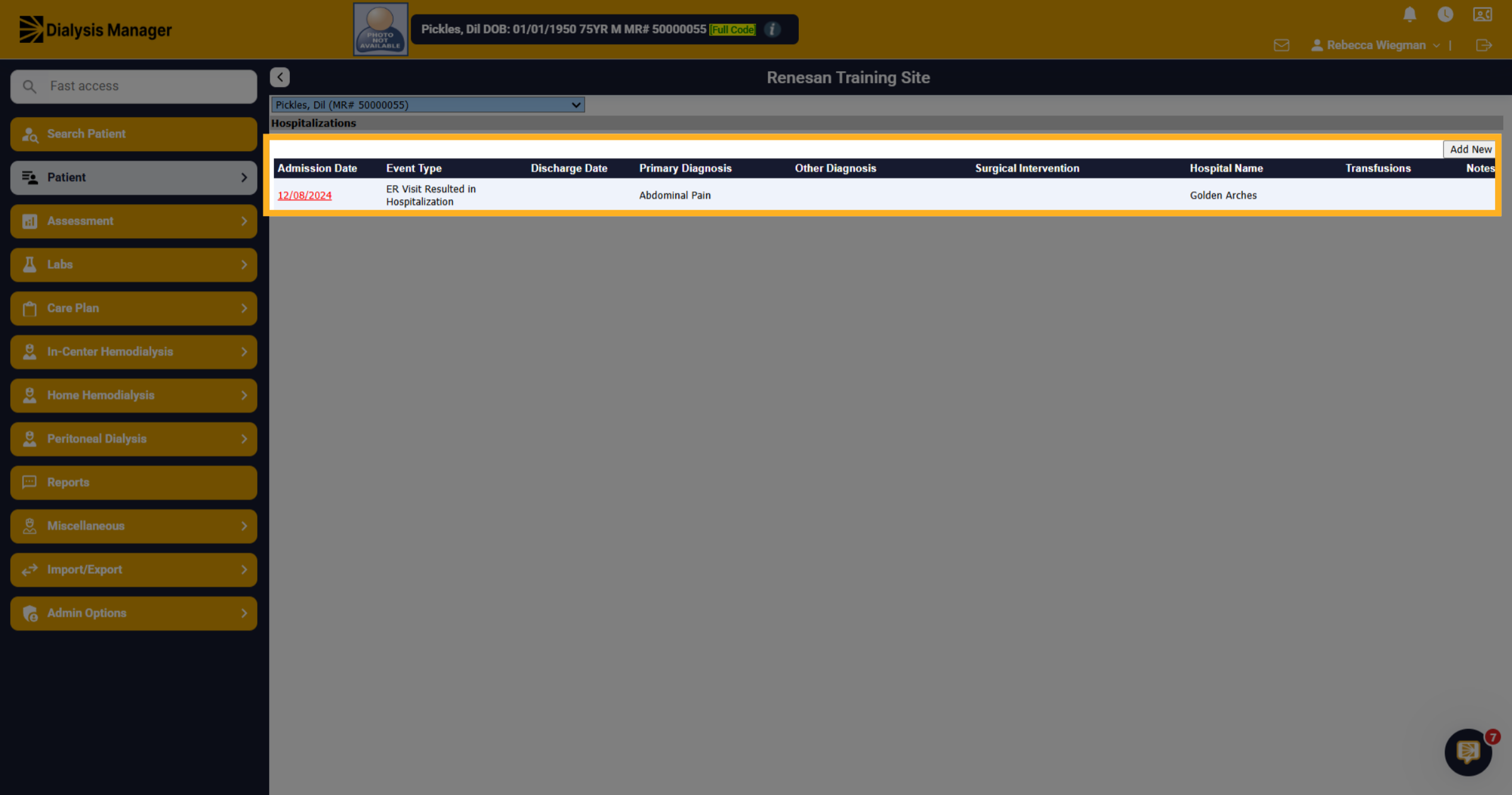
Here, you can view Admission Dates from current and previous hospitalizations, as well as event types and more. Click the specific hospitalization date to open the patient's hospitalization details.
4. Hospitalization record
Inside the hospitalization form there are only a few areas required prior to saving. They will be marked with a red asterisk. Be sure you are entering the Date of Hospital Discharge. Work through the form entering as much information as possible. Completing Hospitalization records supports quality data in the QAPI Tool. NOTE: Blue + signs allow for system records to be updated. Managers in your location have the ability to see these blue + as well as update the "dictionary or masters" for choice expansion. If the patient was discharged today from the hospital, the flowsheet will not be able to be created today. You will need to put in yesterdays date. You will then be able to open a flowsheet. Then you can come back and update the hospital discharge date. They system does not allow discharge and flowsheet on the same date.
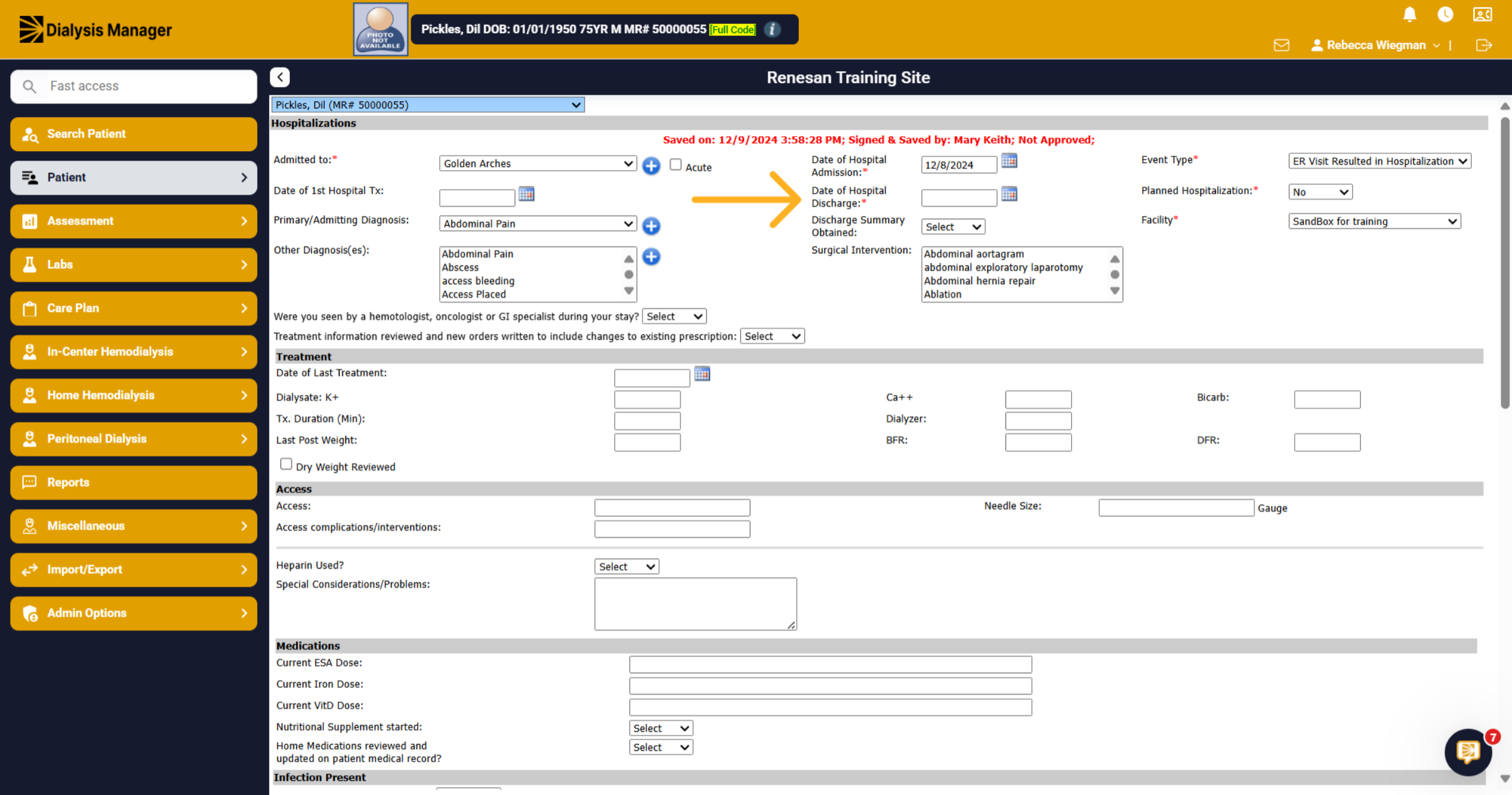
5. Section
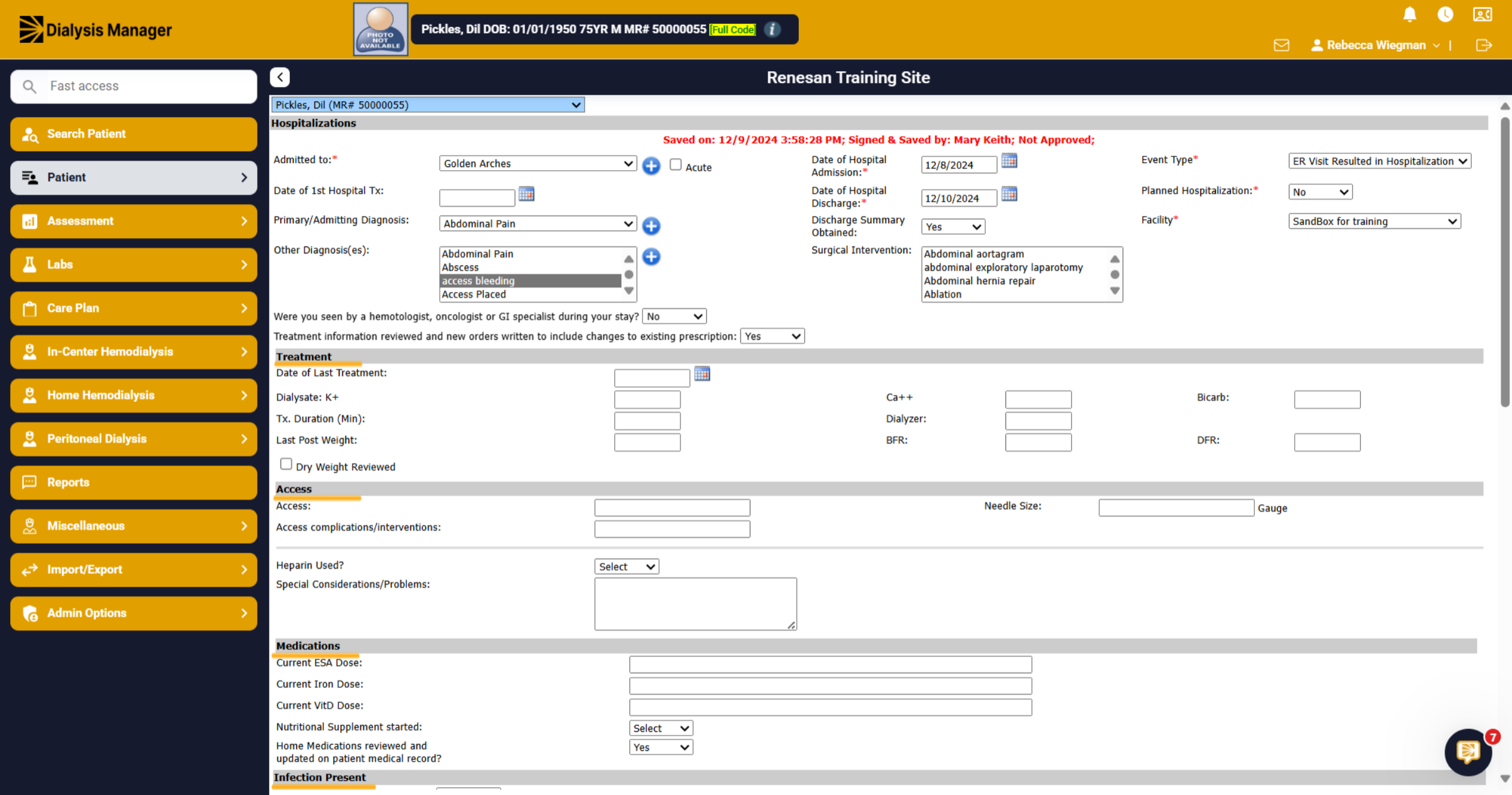
You'll have sections to document Treatments that may have taken place while the patient was in the hospital. Access complications, Home Medication updates, etc.
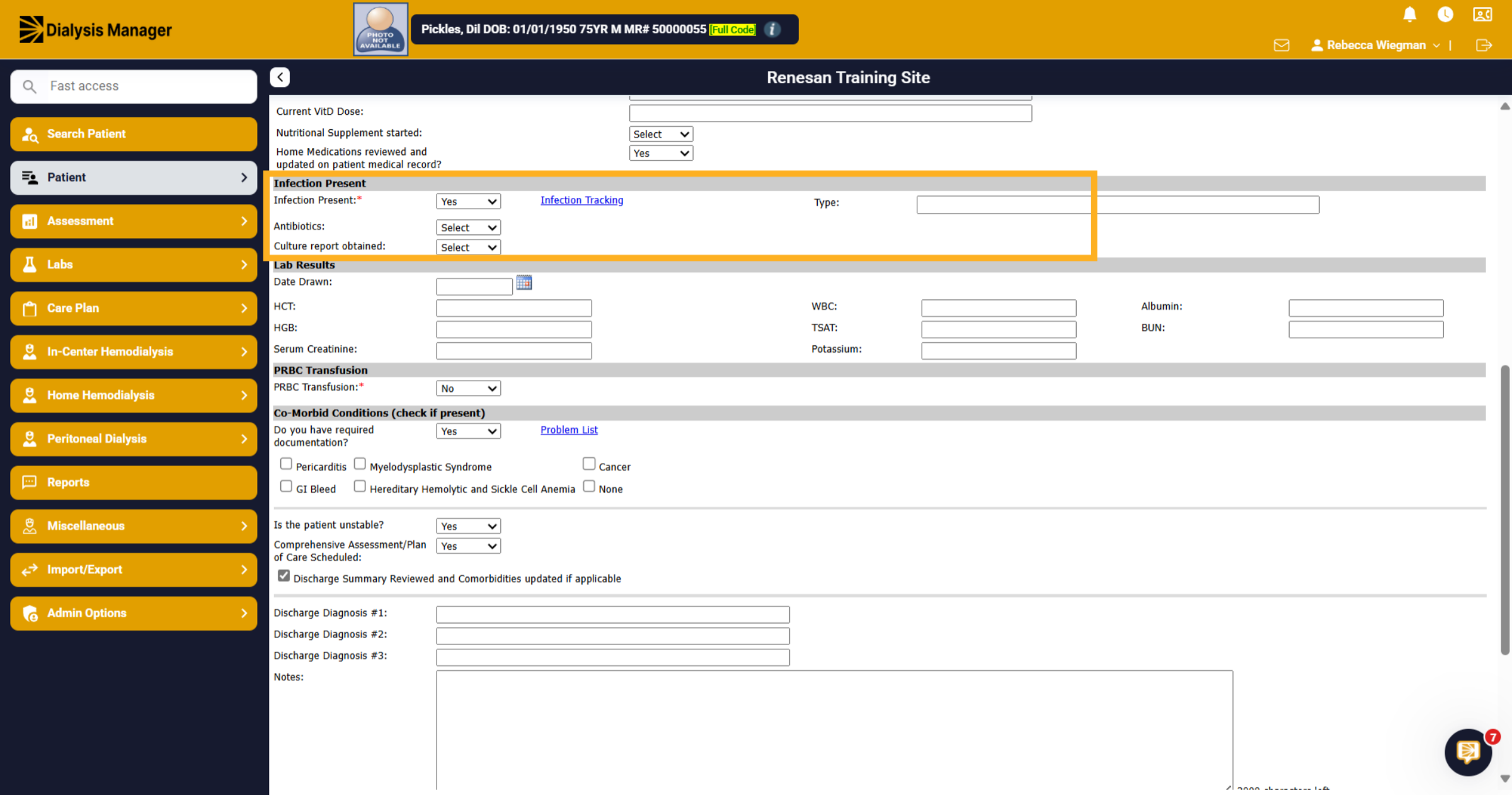
6. Infection Present
In the Infection Present section, selecting "Yes" for Infection will display a blue hyperlink. Clicking "Infection Tracking" will then open that tab, allowing you to document the infection.
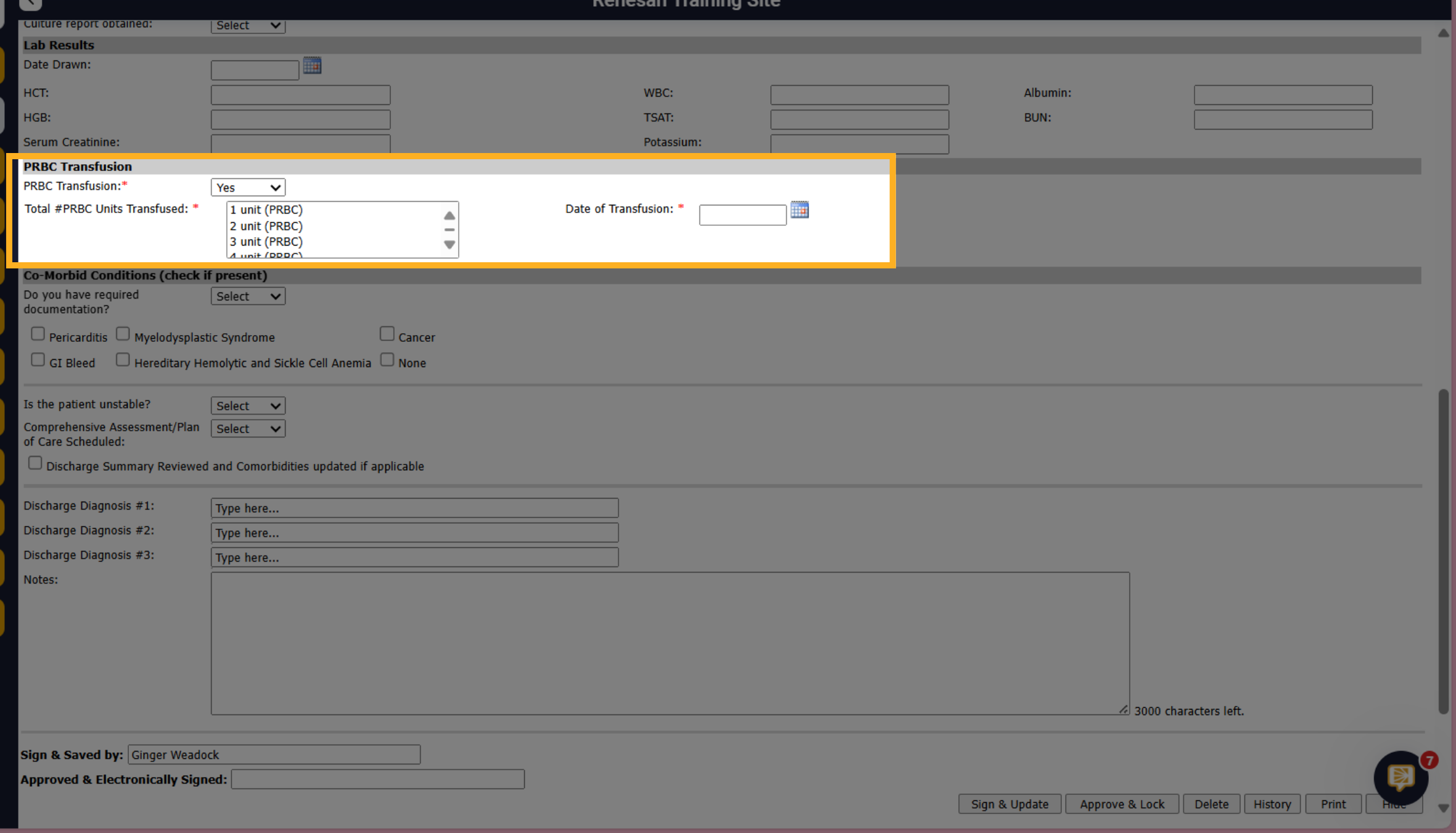
7. PRBC Transufsion
By selecting "Yes" for PRBC Transfusion, you will receive the total number of Packed Red Blood Cell Units transfused, along with the corresponding transfusion dates.
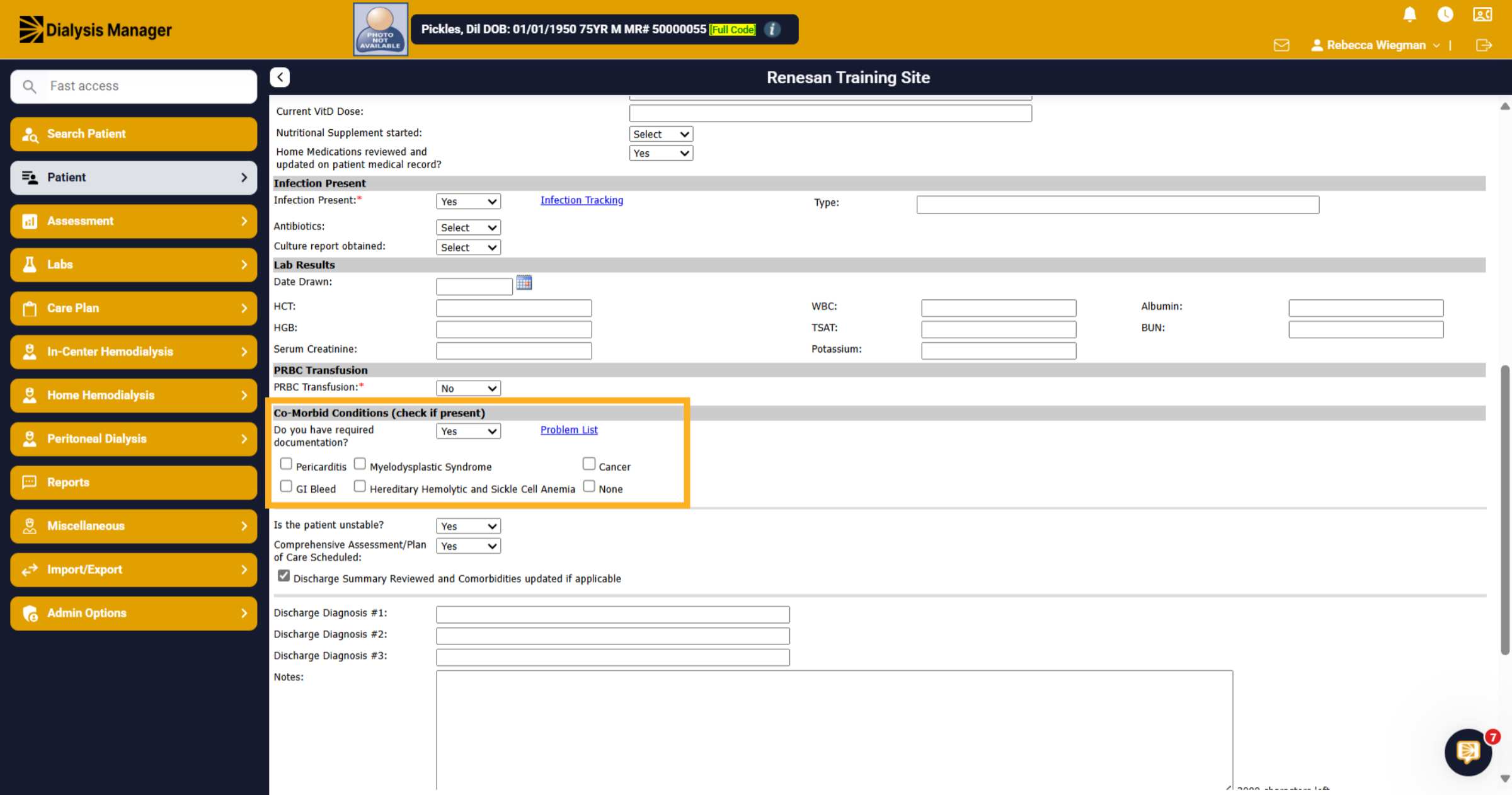
8. CO-Morbid Conditions (check if present)
When you choose "Yes" in response to the question "Do you have the required documentation?", a blue hyperlink for the Problem List will appear. By clicking on this hyperlink, you will open a new tab displaying the Problem List, where you can add any additional co-morbidities. You will be required to specify whether the co-morbidities include Pericarditis, Myelodysplastic Syndrome, Cancer, GI Bleed, Hereditary Hemolytic Anemia, Sickle Cell Anemia, or if there are none.
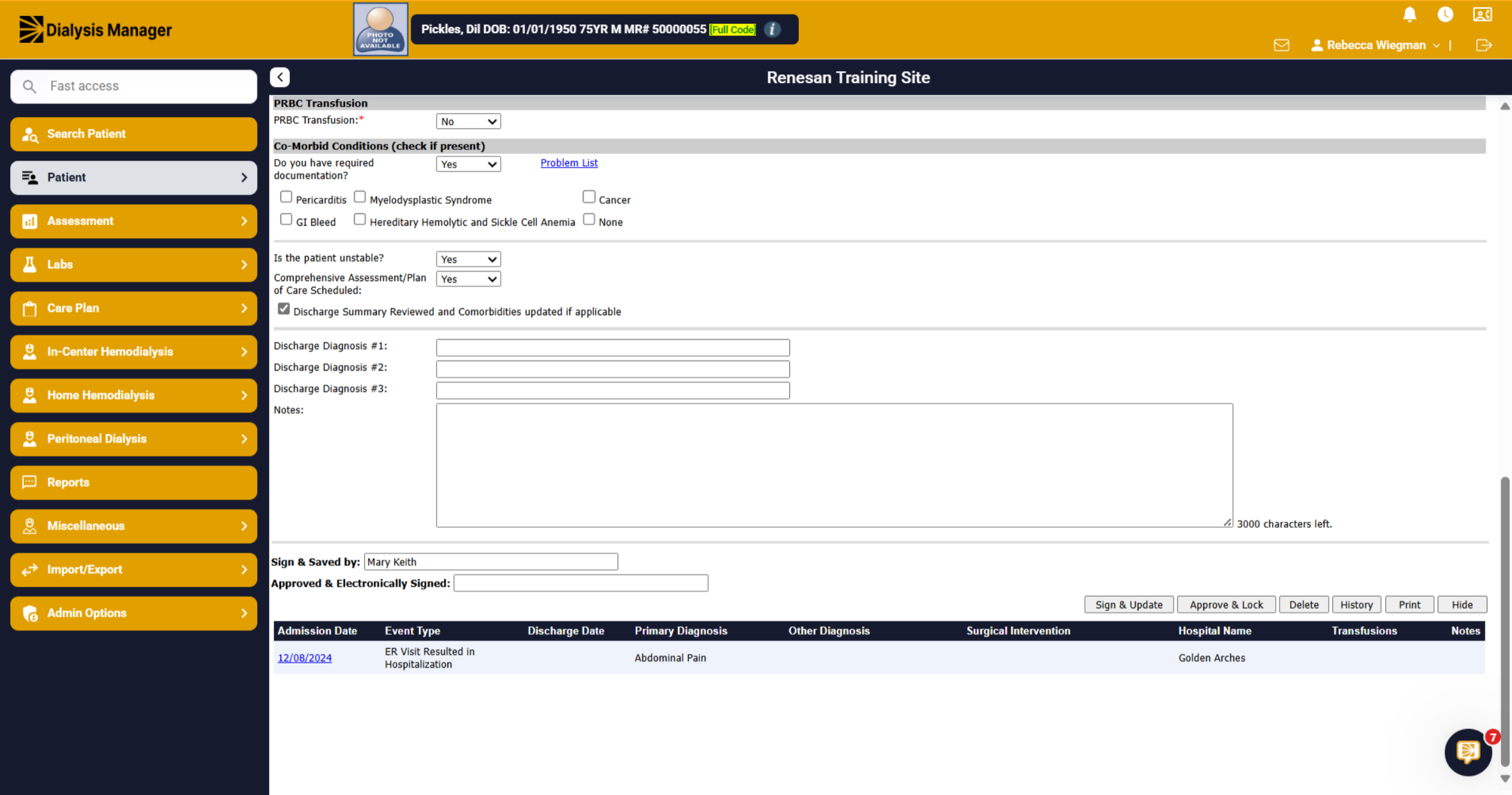
9. Review Information
Complete the remaining information and review completed Hospitalization form.
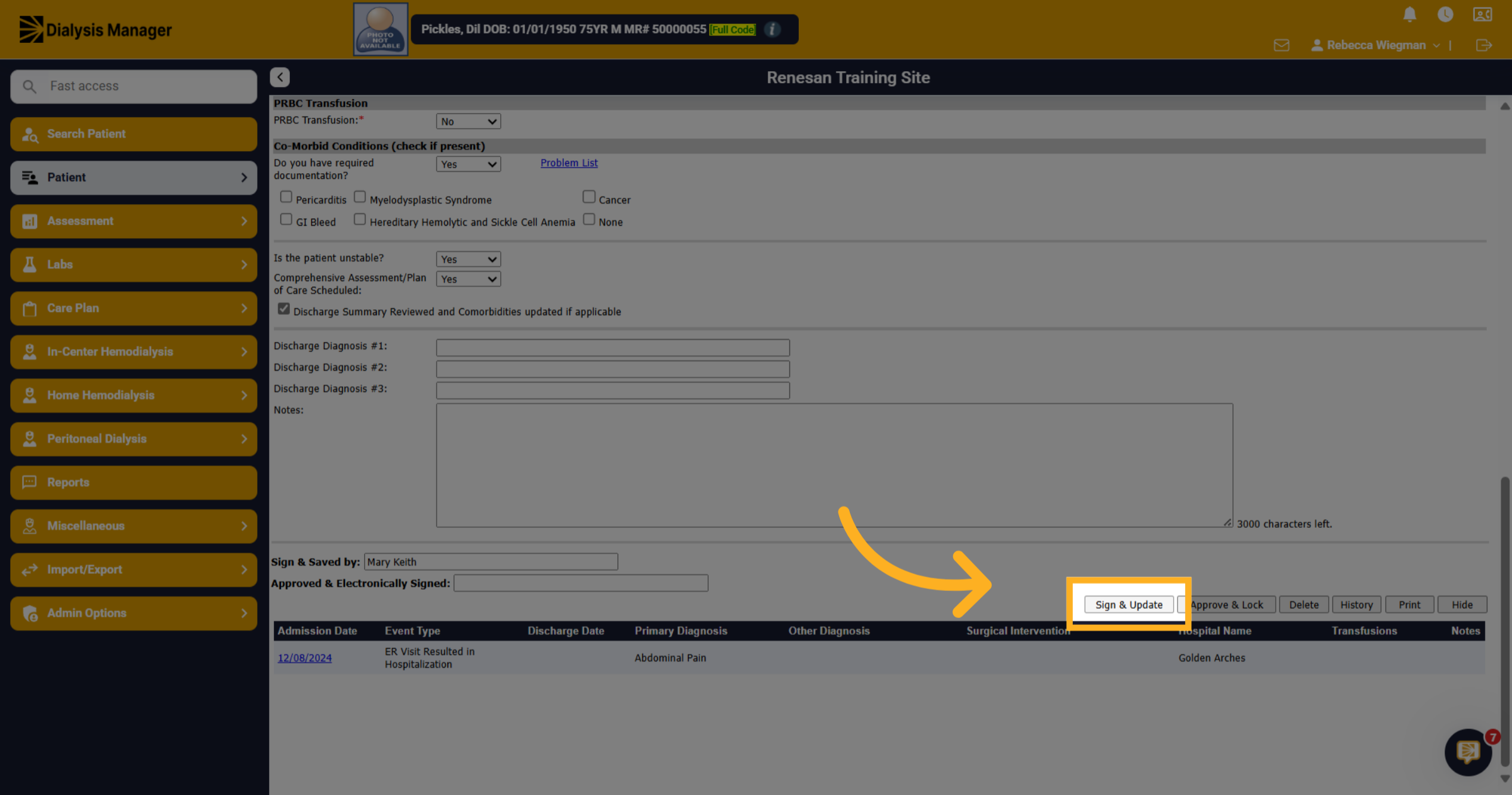
10. Sign and Update Records
Review information entered inside the Hospitalization form then clicking the Sign & Update button to save the entered hospitalization information.
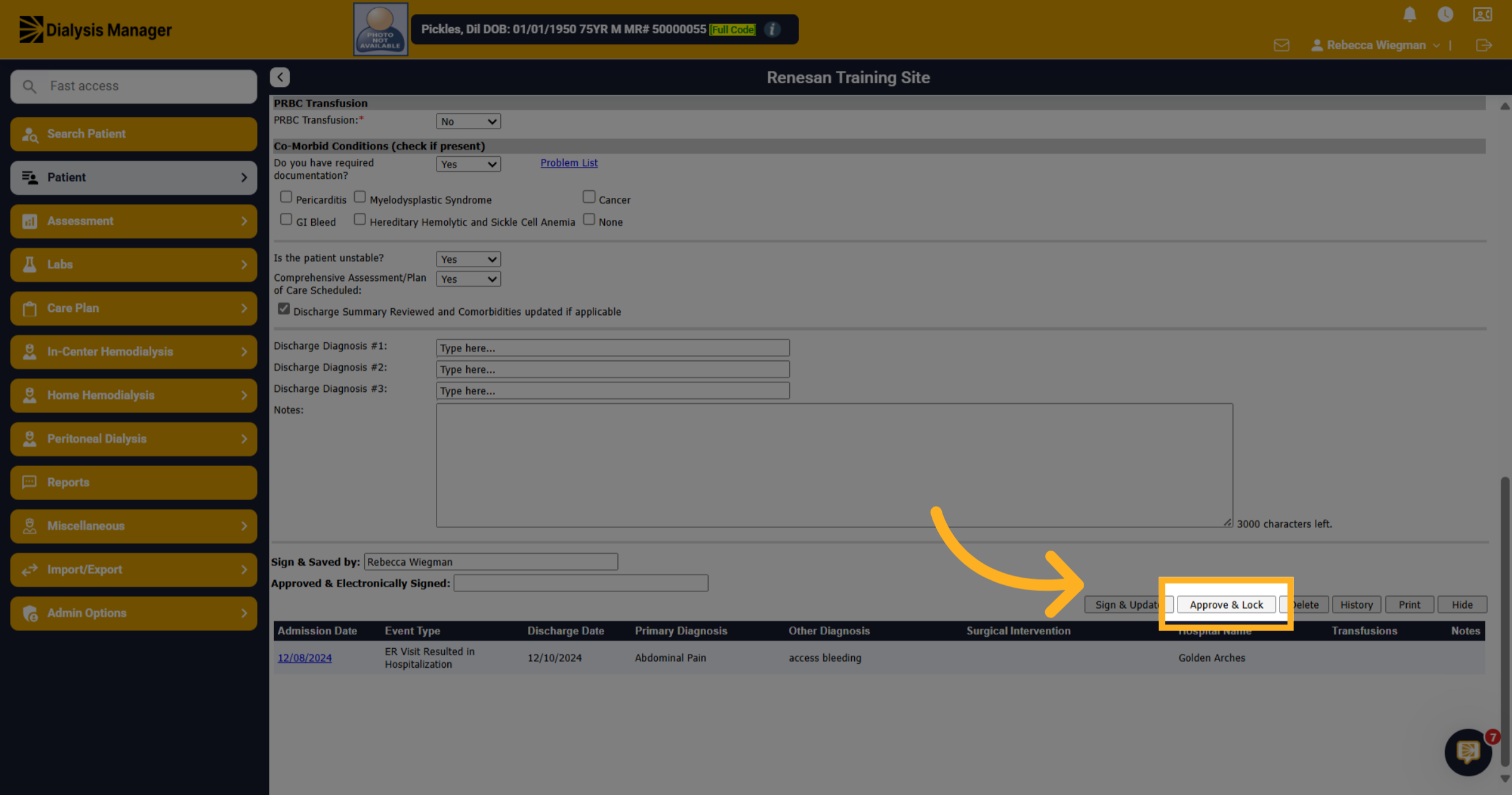
11. Approve and Lock Record
Click the Approve & Lock button to finalize and lock the hospitalization record. Please note that the summaries are available in helpful locations such as Nephrology Dialysis Visit Note, Nurses Monthly Assessment and CIPA- Nephrology Assessment.
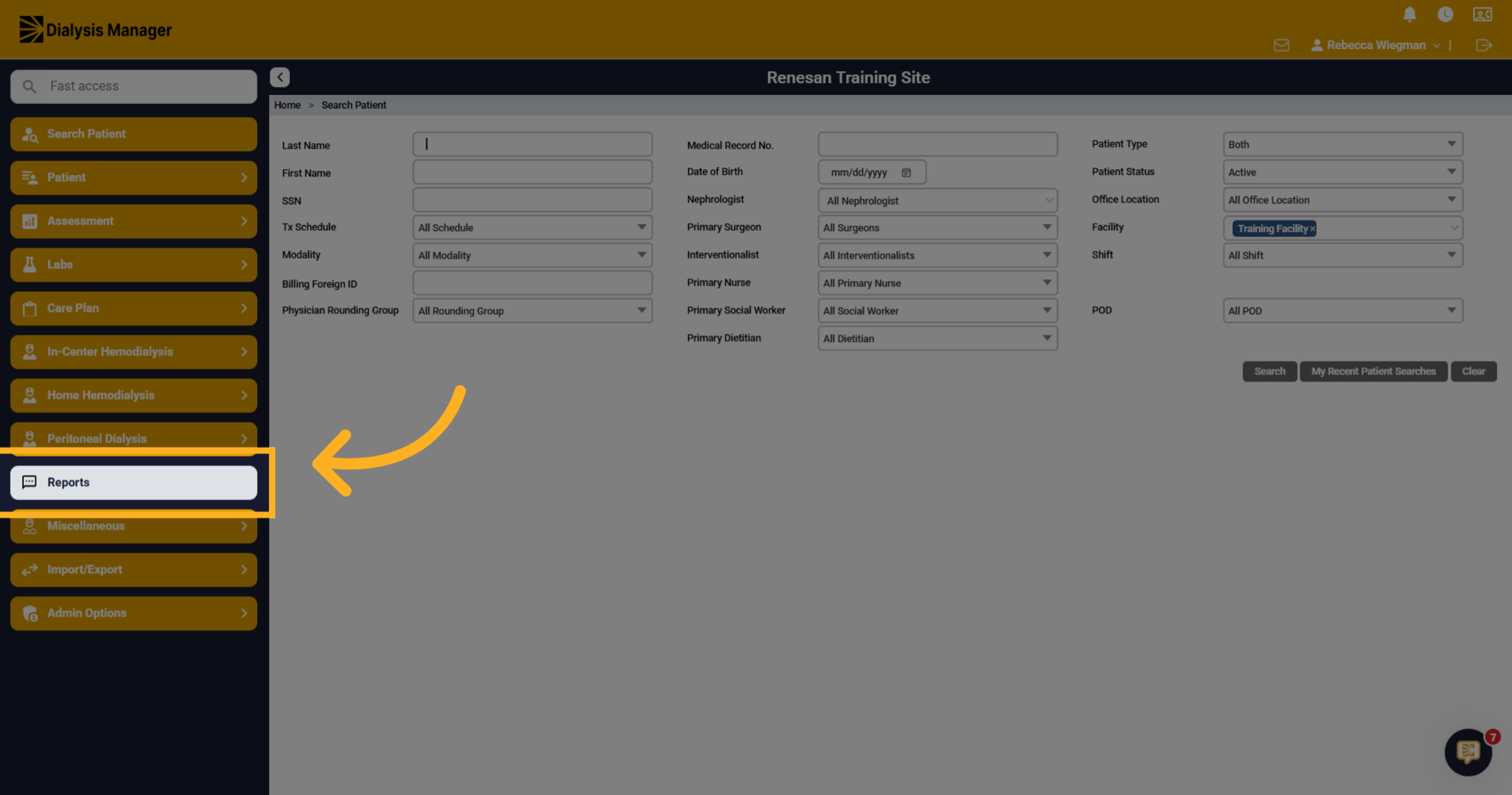
12. Navigate to Reports Section
Now lets walk through the Hospitalization Report!
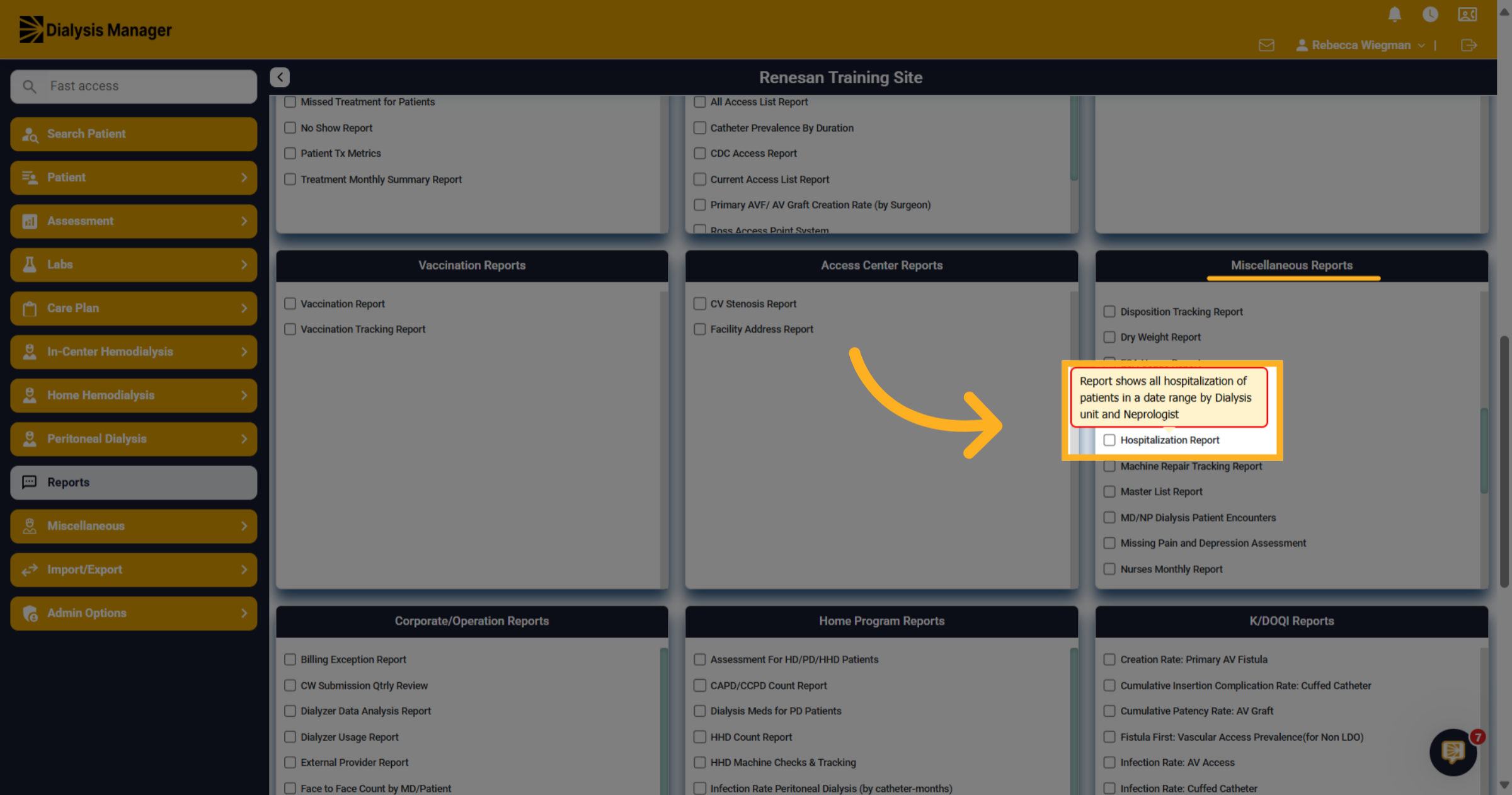
13. Hospitalization Report
Under Miscellaneous Reports click on Hospitalization Report. Remember hovering over the report will display a description of the report.
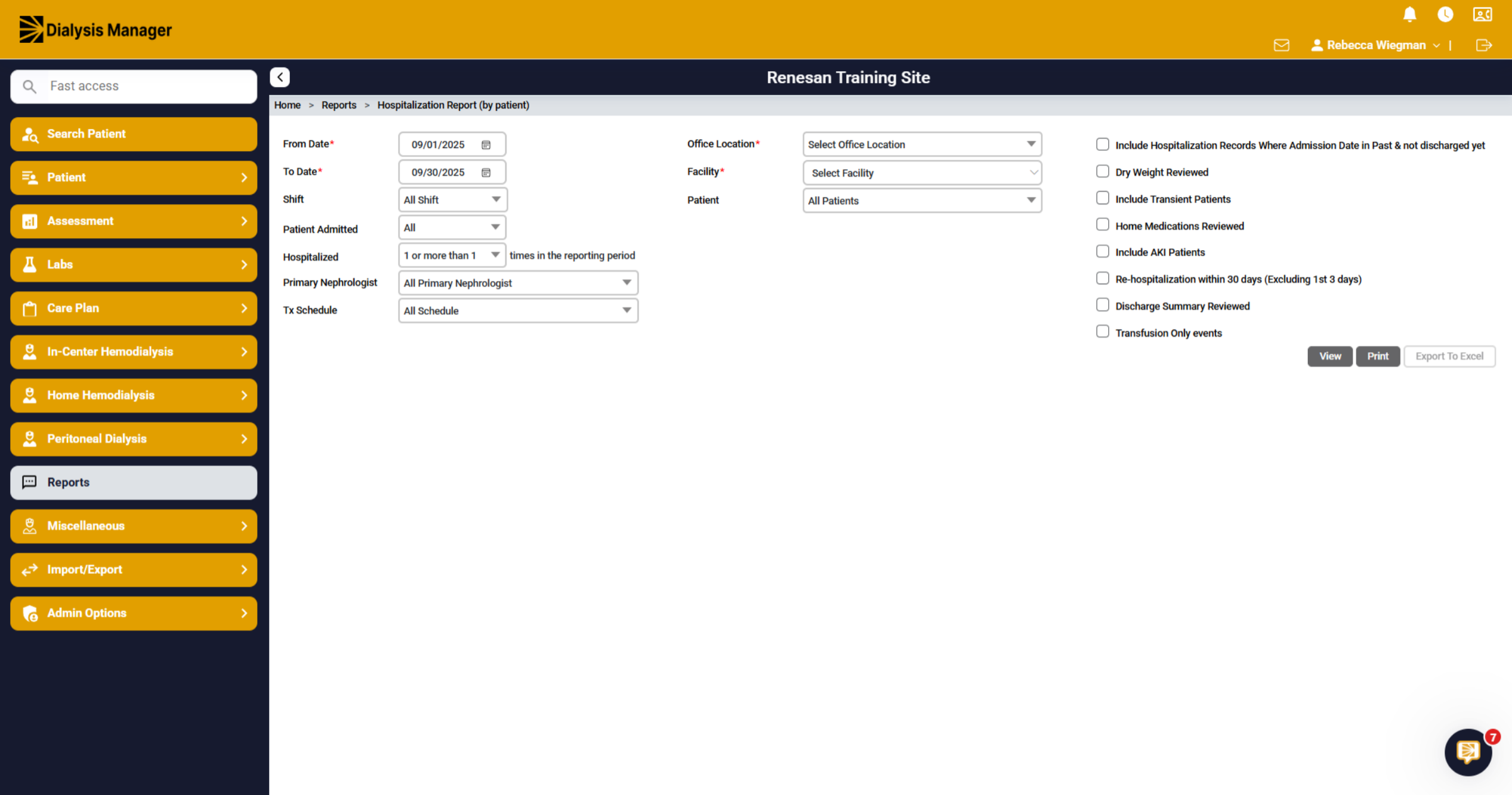
14. Filtering
You'll have different filter options that you're able to choose from. Please note that a date range and facility is required prior to running the report.
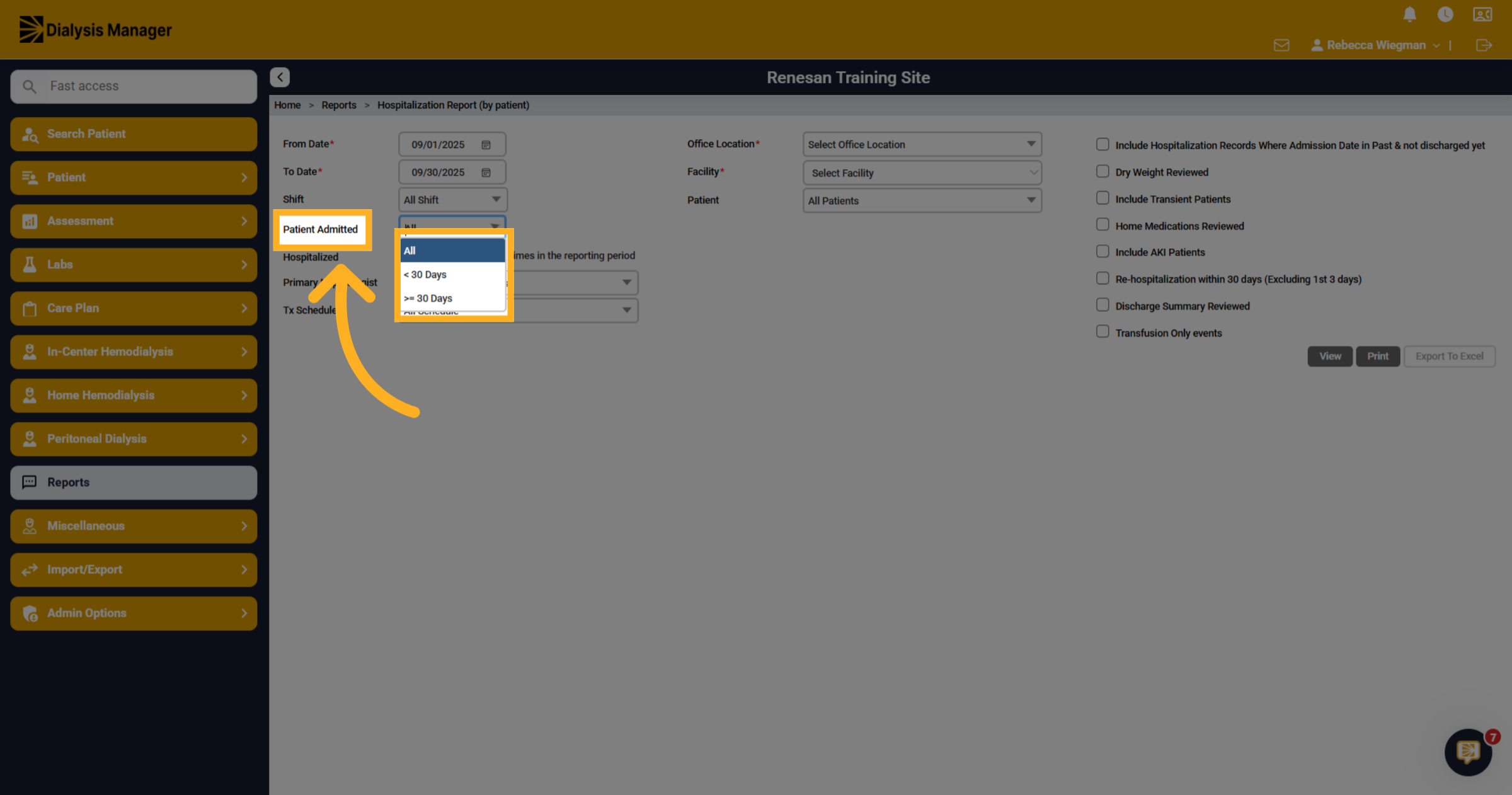
15. Patient Admitted
You can search all patients or patients admitted greater or less than 30 days.
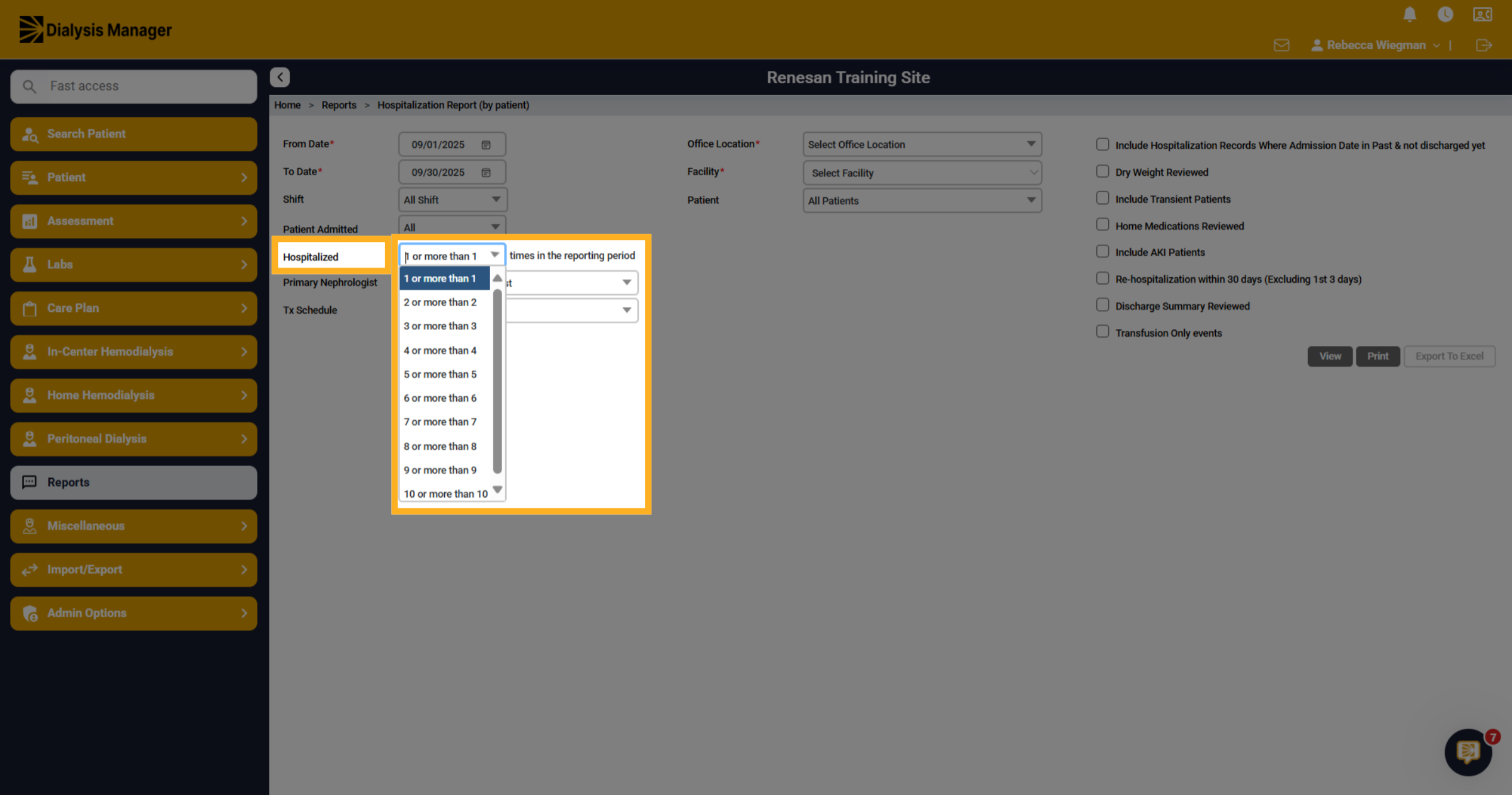
16. Hospitalization within the reporting period
You can filter how many hospitalizations a patient had within the reporting period.
17. Additional filters
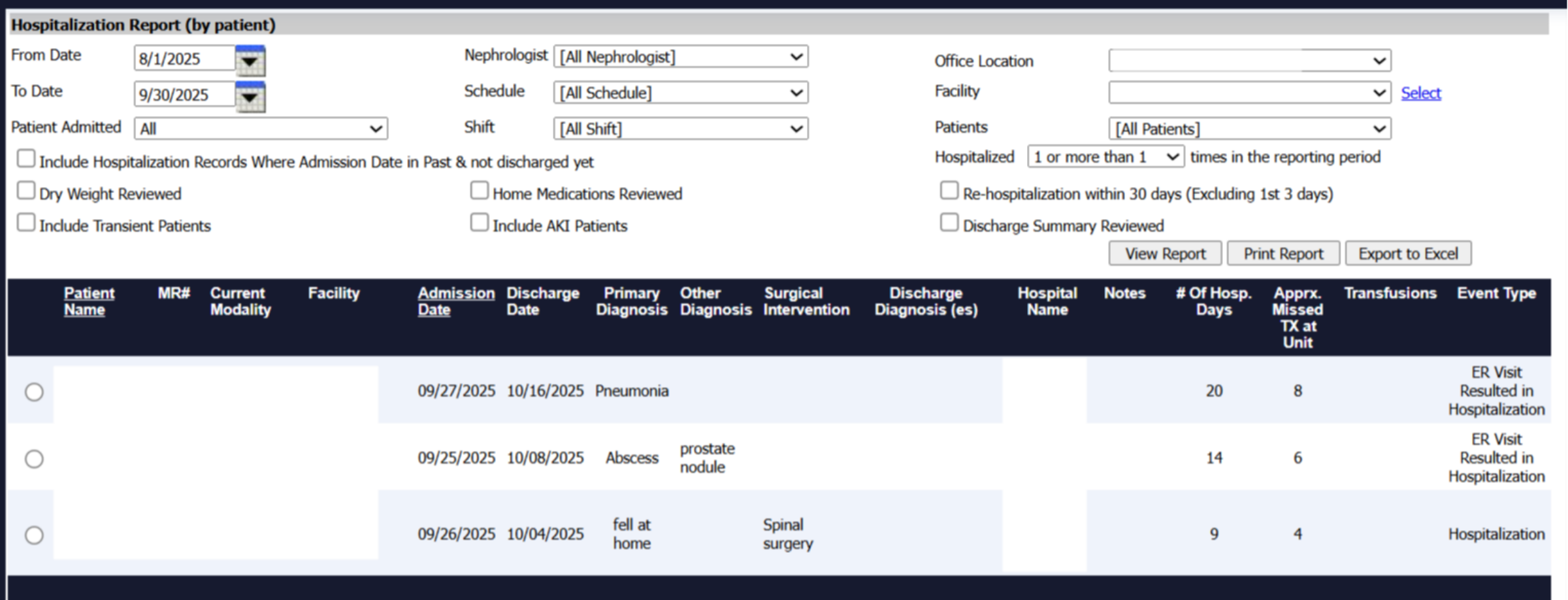
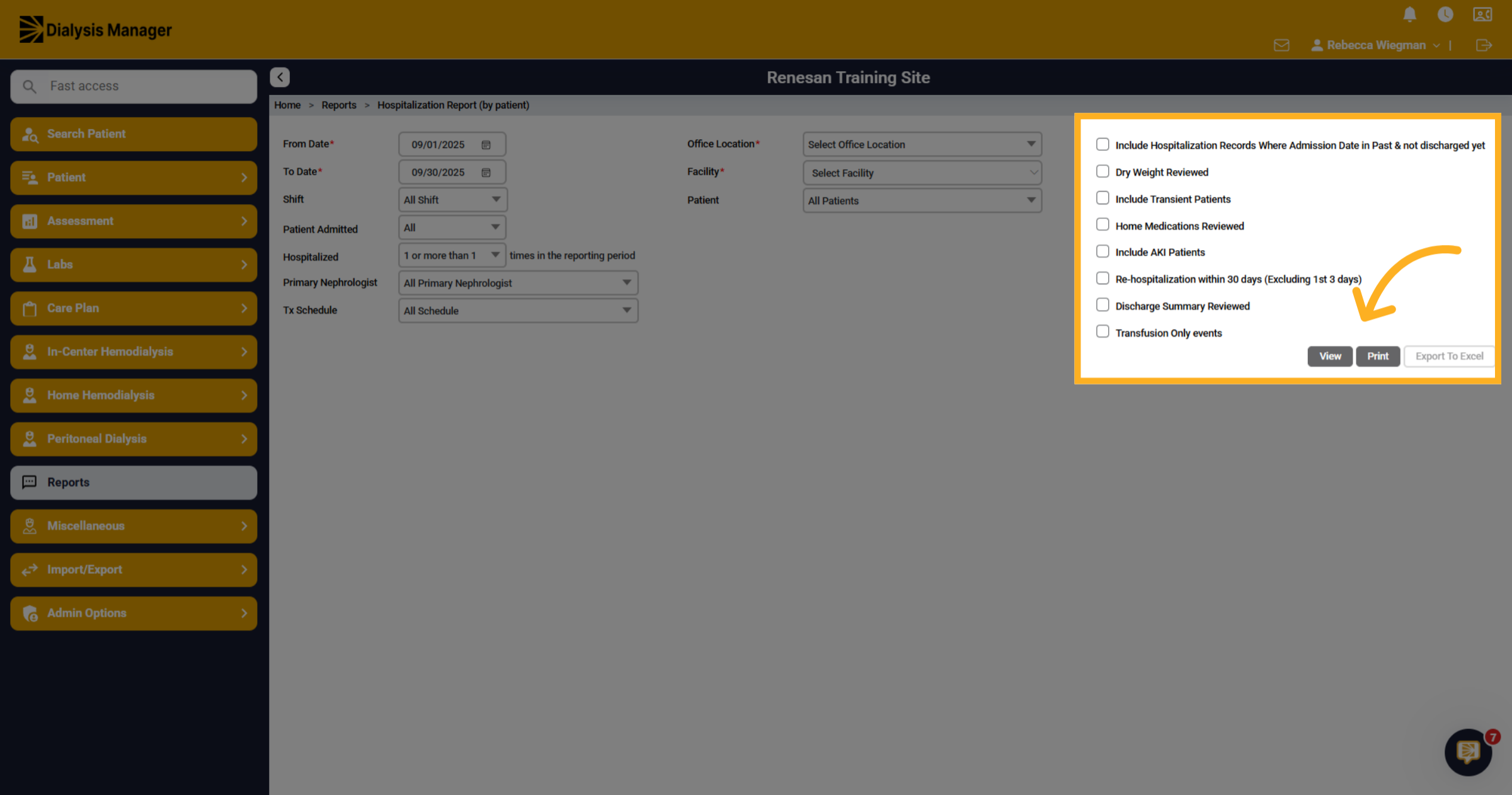
You'll also have the option to filter the report to include hospitalization where admission dates are in past & not discharged yet, Re-hospitalization within 30 days, discharge summaries reviewed, etc. Click View
18. Patients
Upon clicking "View" your Patients will appear displaying the admission date and discharge date along with other information generated by the filters selected. It is good practice to review the Hospitalization Report monthly to assure all are completed and approved and locked.