Dietitian Hand Out
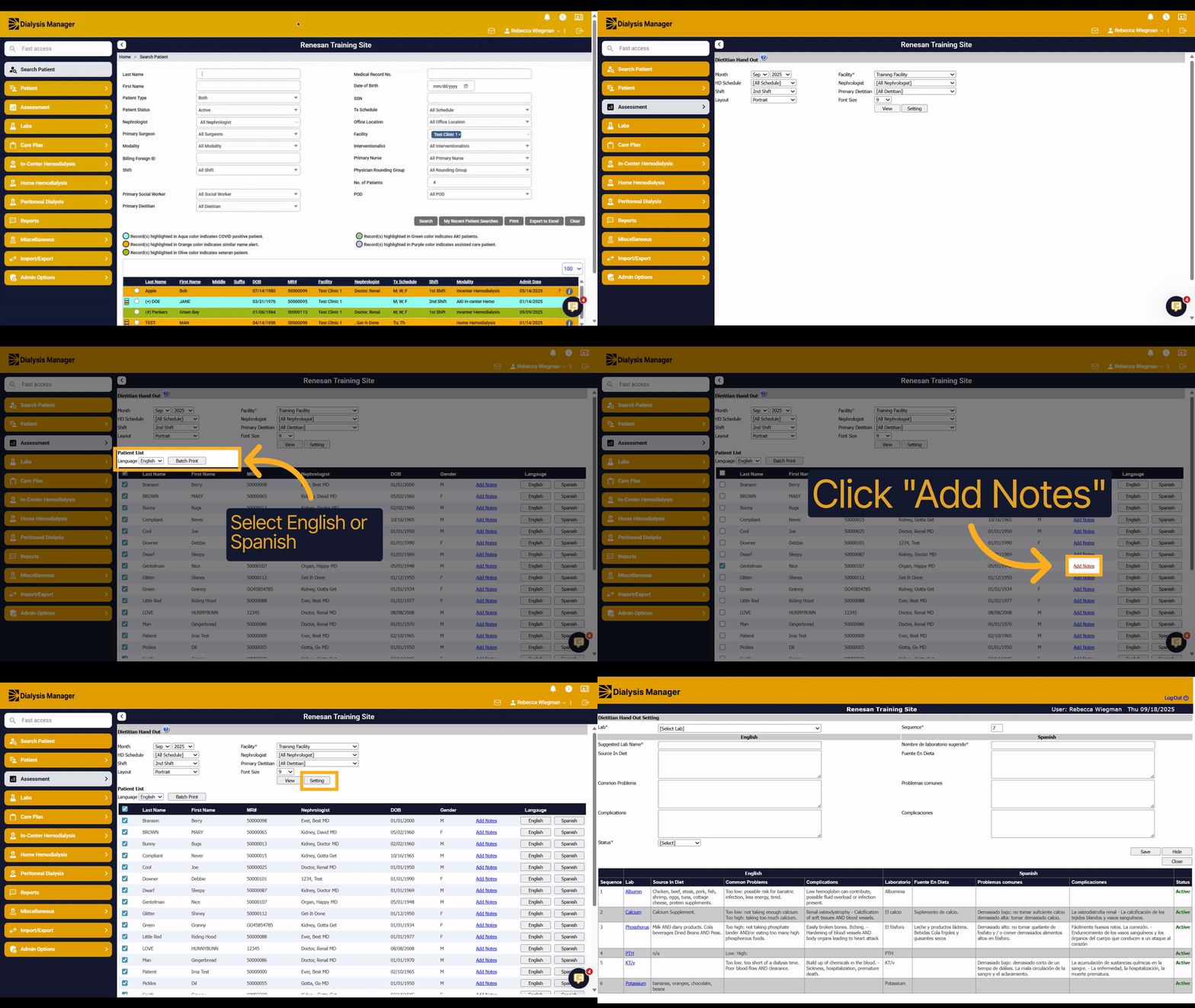
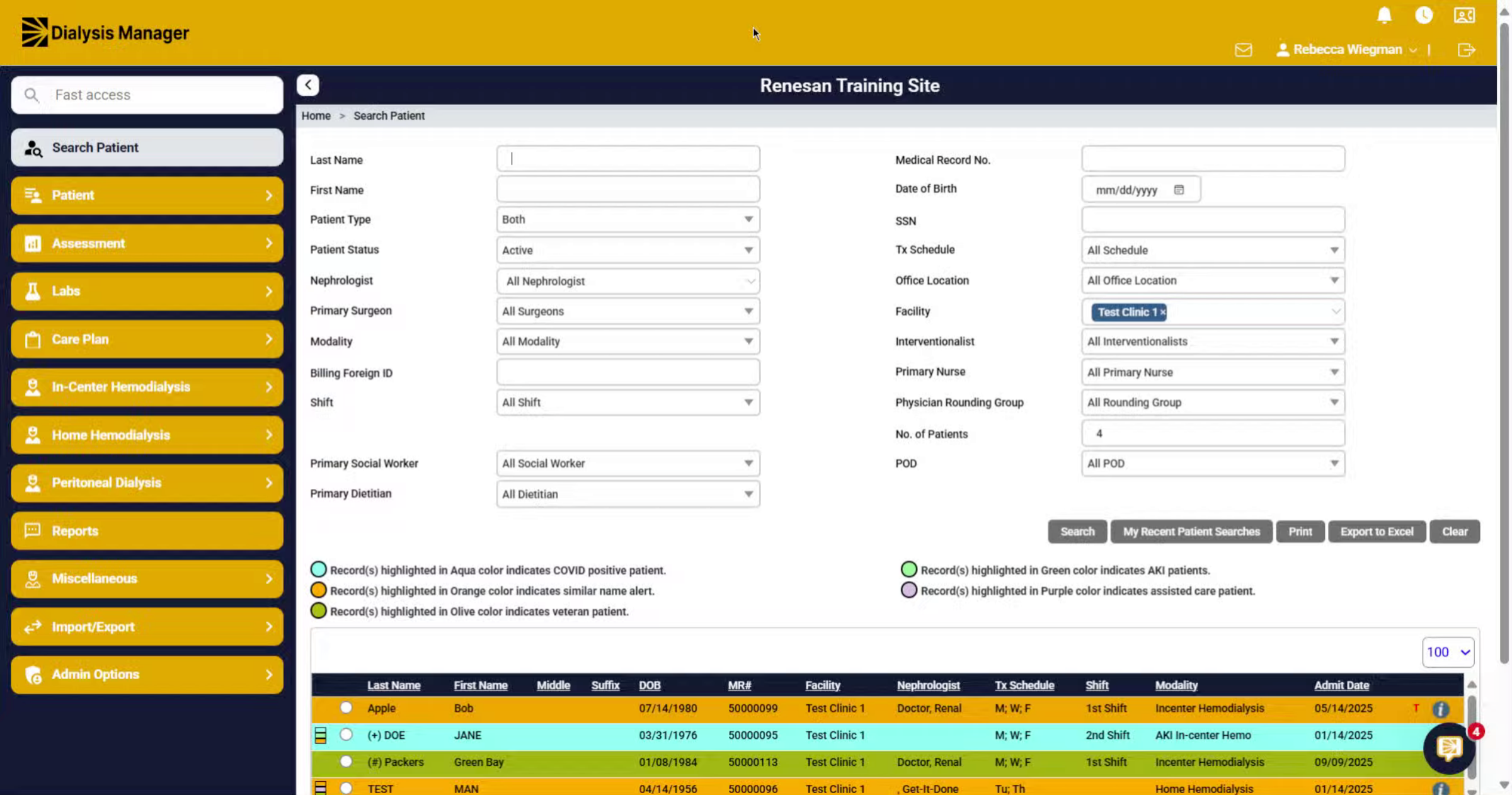
1. Introduction
Now we will walk through the process of accessing and customizing the Dietitian Hand Out. The Dietitian Hand Out is something you can provide your patients with their lab results.
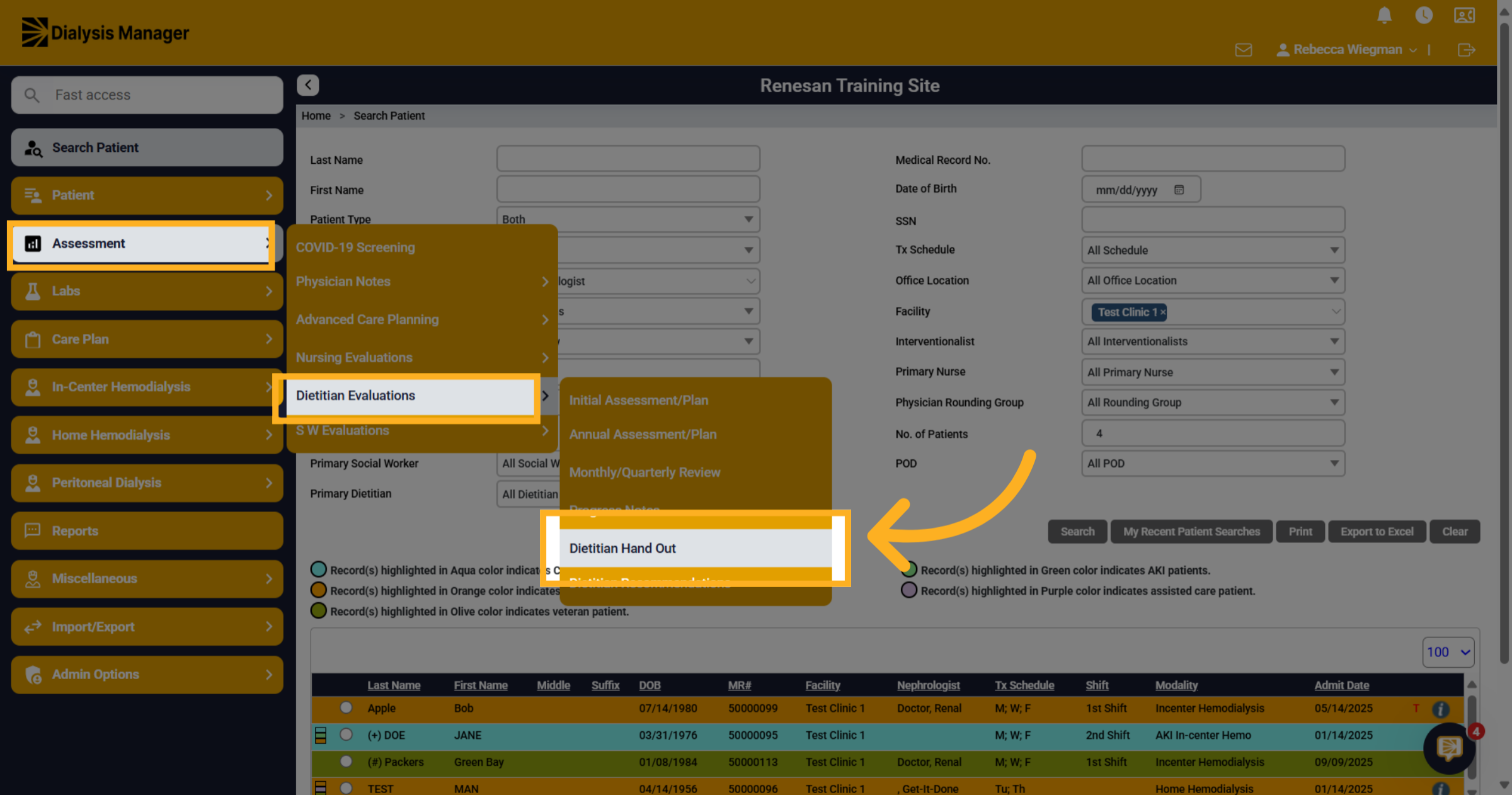
2. Click "Dietitian Hand Out"
Click into Assessment, Dietitian Evaluations, and Dietitian Hand Out.
3. Click "View"
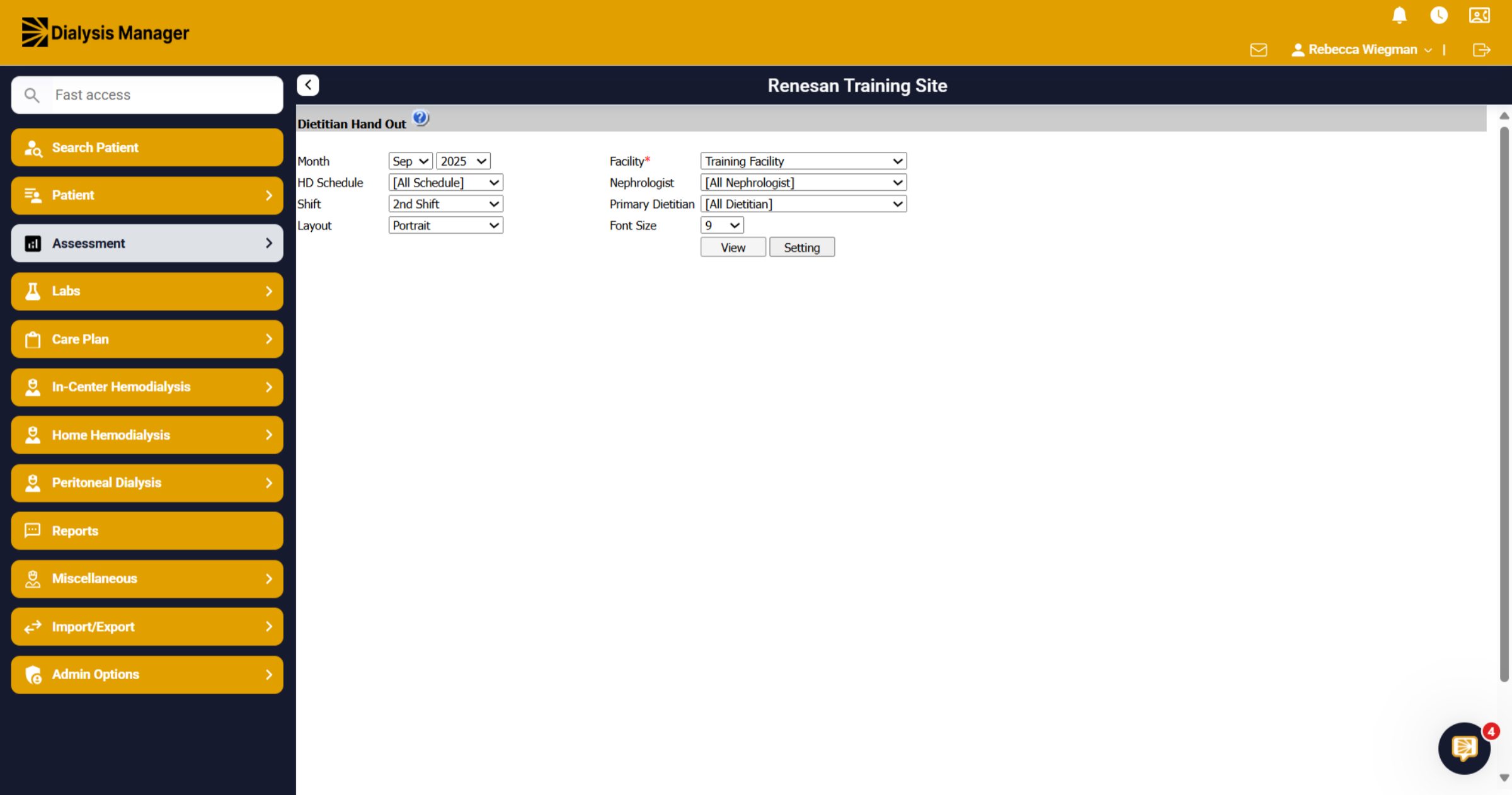
To run the report, choose your parameters. What month of labs did you want to look at? The facility your running the reports for and even able to change the layout of the paper from portrait or landscape. Then click View.
4. List of Patients
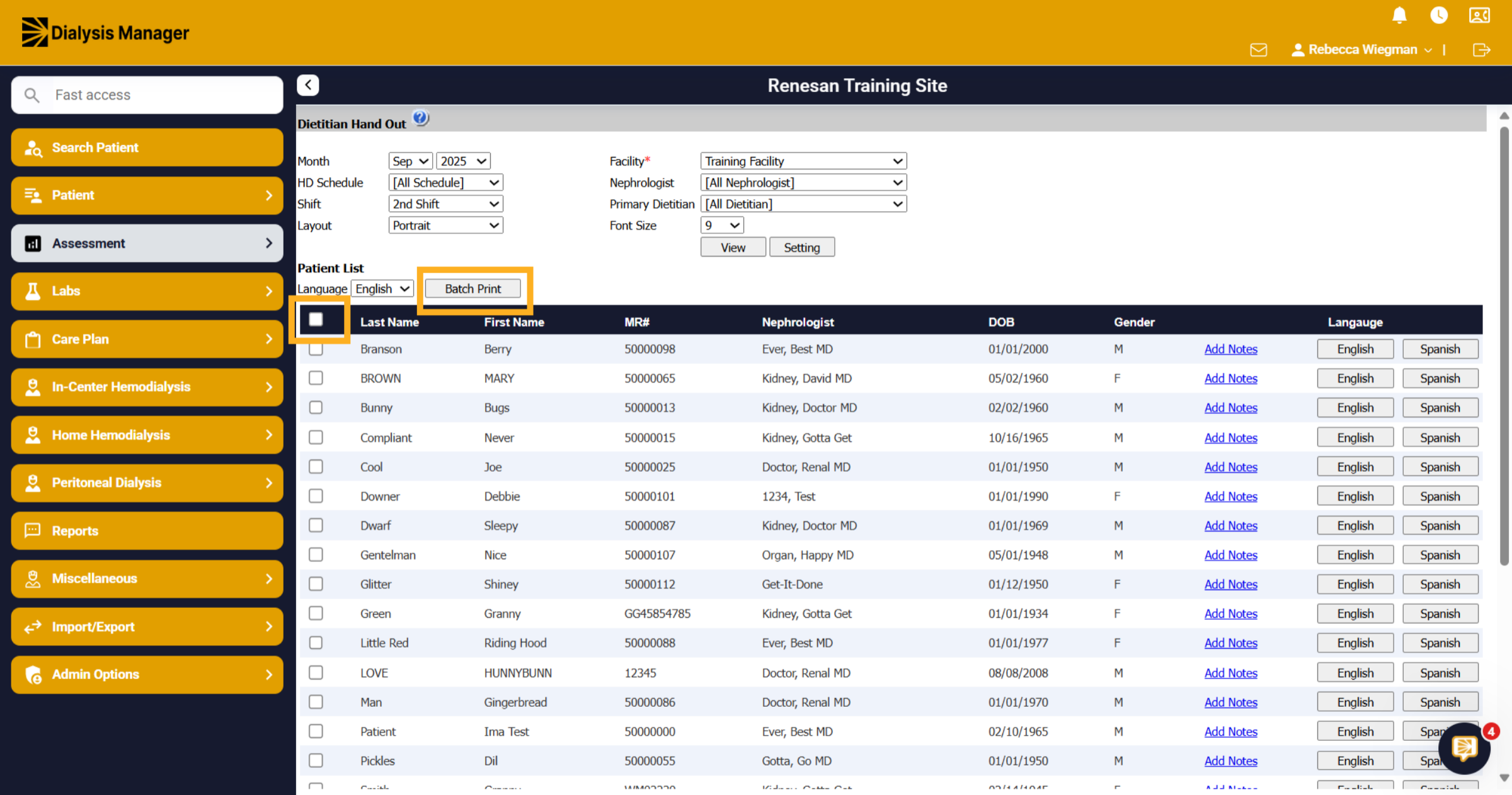
When selecting view your list of patients will show. Your able to select the check box in the black bar to show all patients on the report or you can select individual patients.
5. Click "Language
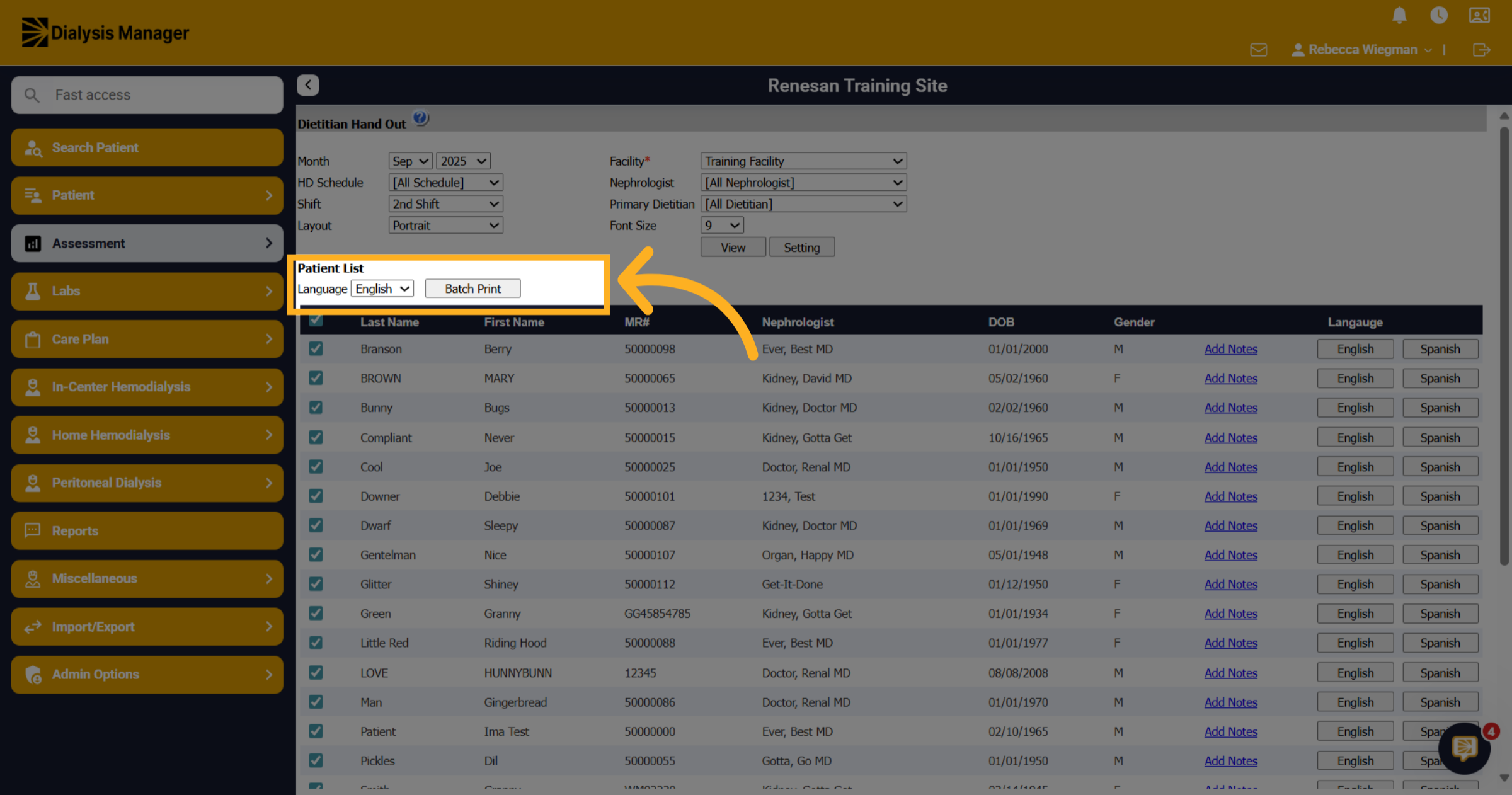
Click the language dropdown menu to select the preferred language for the handout.
6. Click "English"
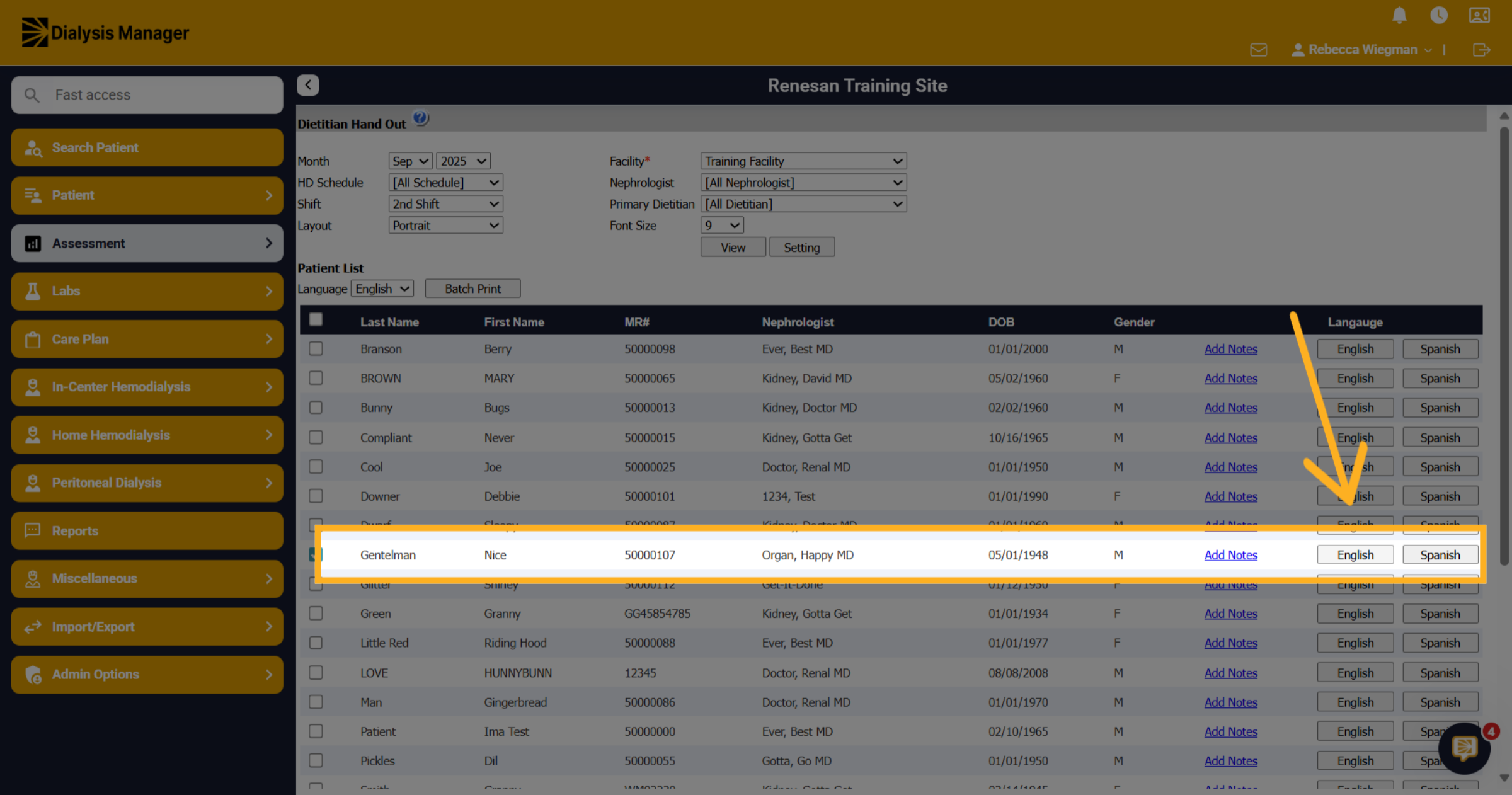
You can also select English or Spanish on the right side of the form to look at that specific patients hand out
7. Print out
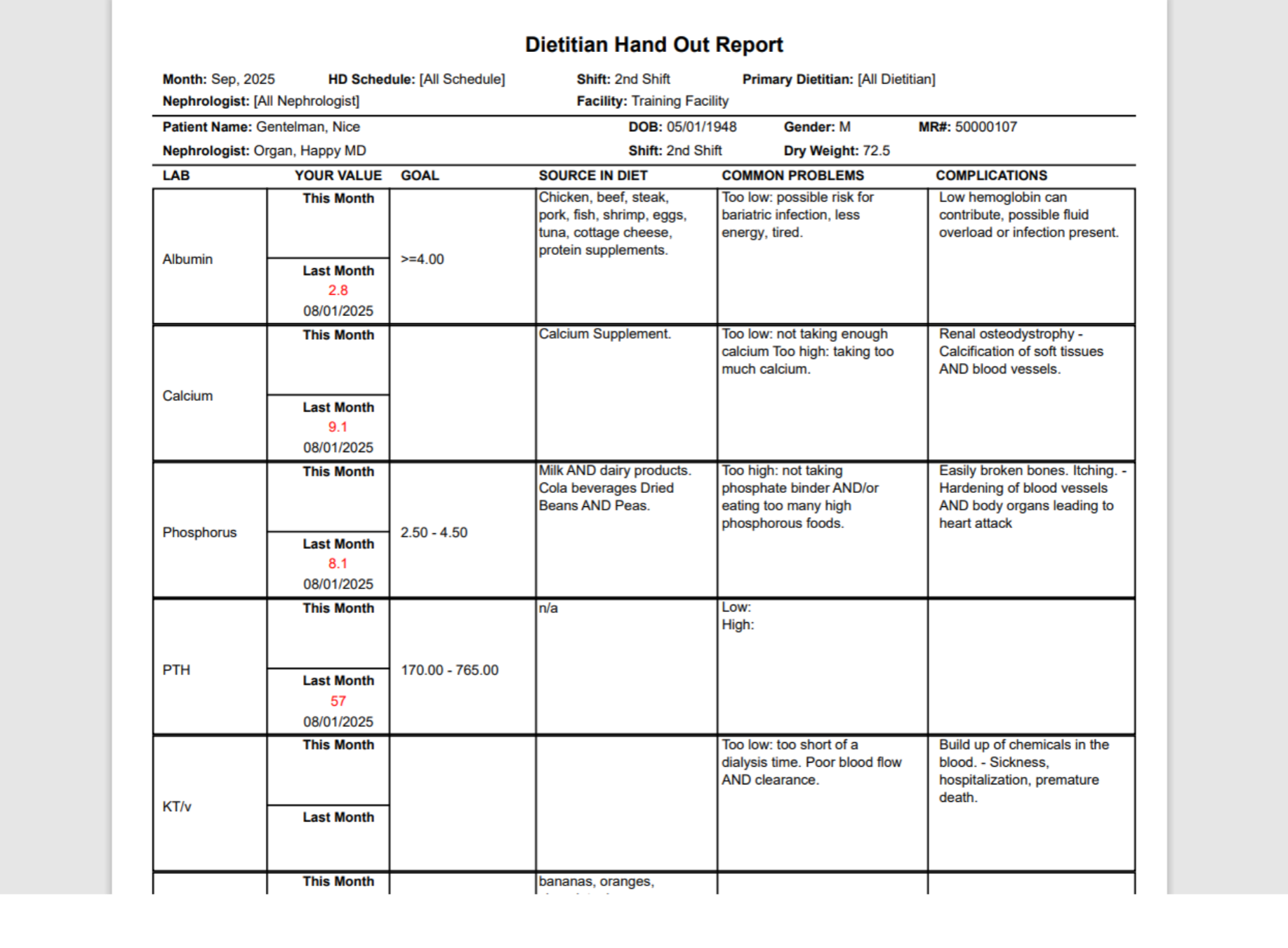
Selecting a Batch report or select a patient individually this is what you'll see. When you have results, it will show their results this month, the last month and what the goal is.
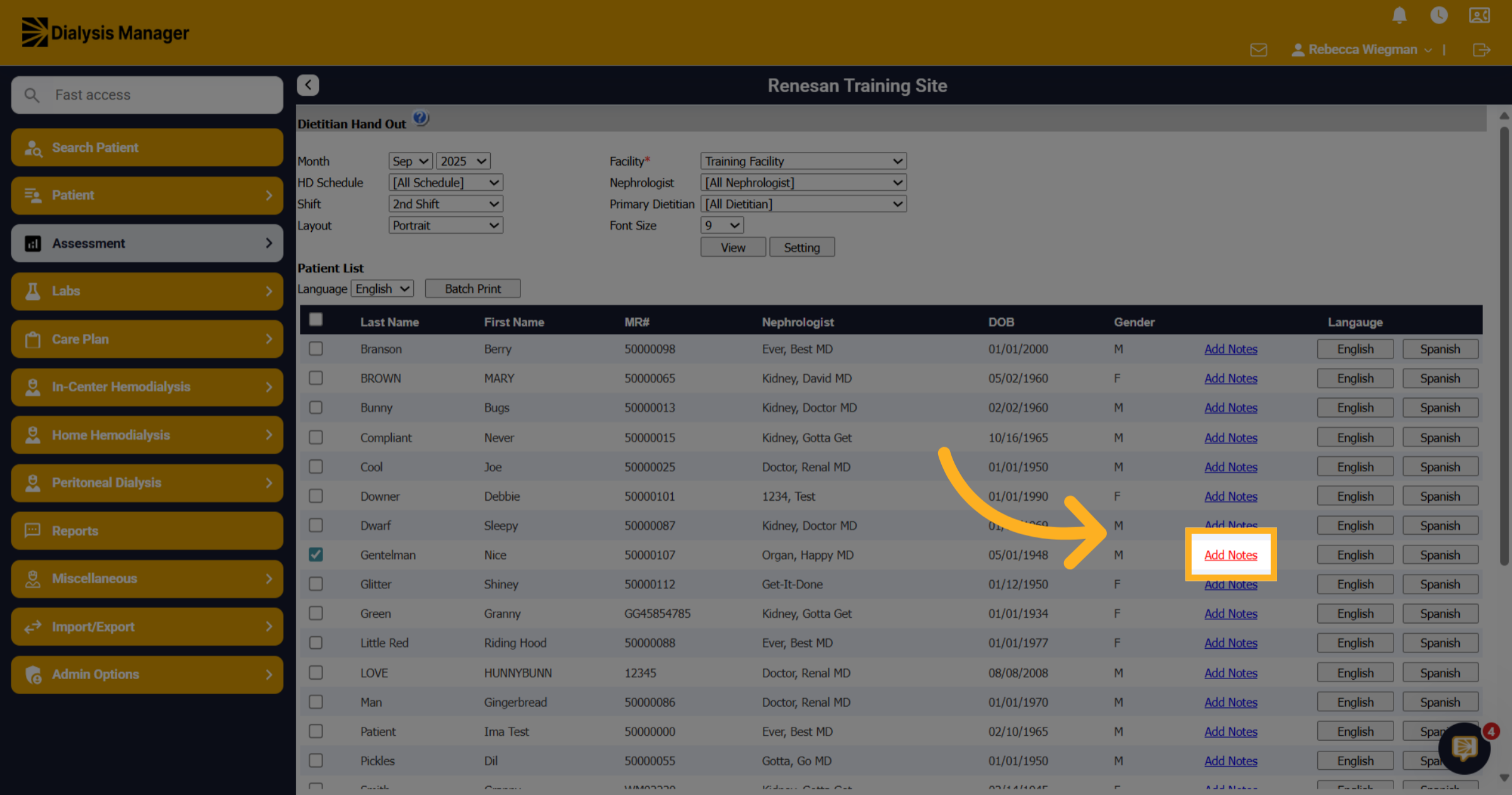
8. Click "Add Notes"
Click "Add Notes" to include additional information or comments in the handout.
9. Click here
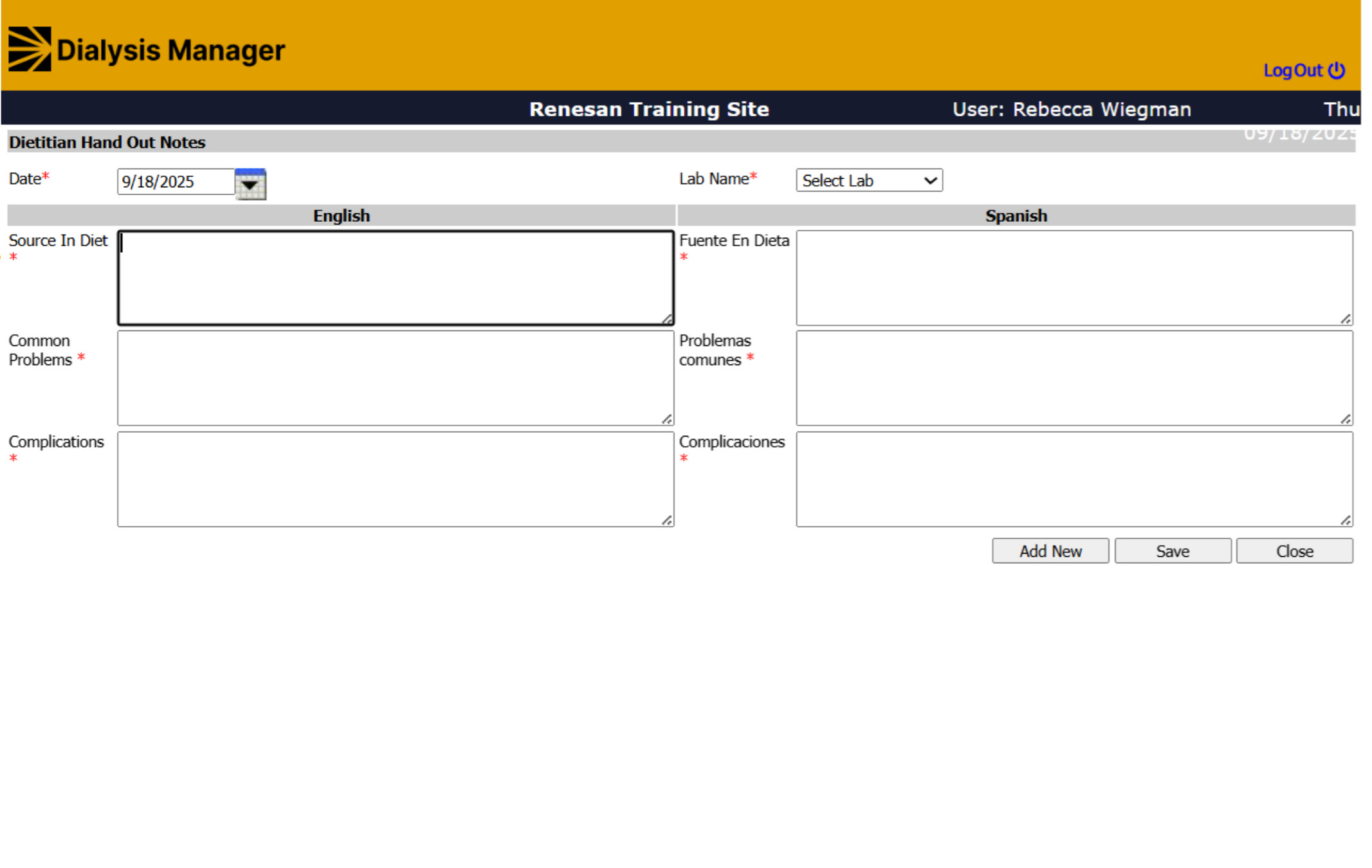
the date will auto populate, select the Lab Name and enter the source in diet, common problems and complications. Click Save and Close and it will bring you back to the Dietitian Hand Out screen.
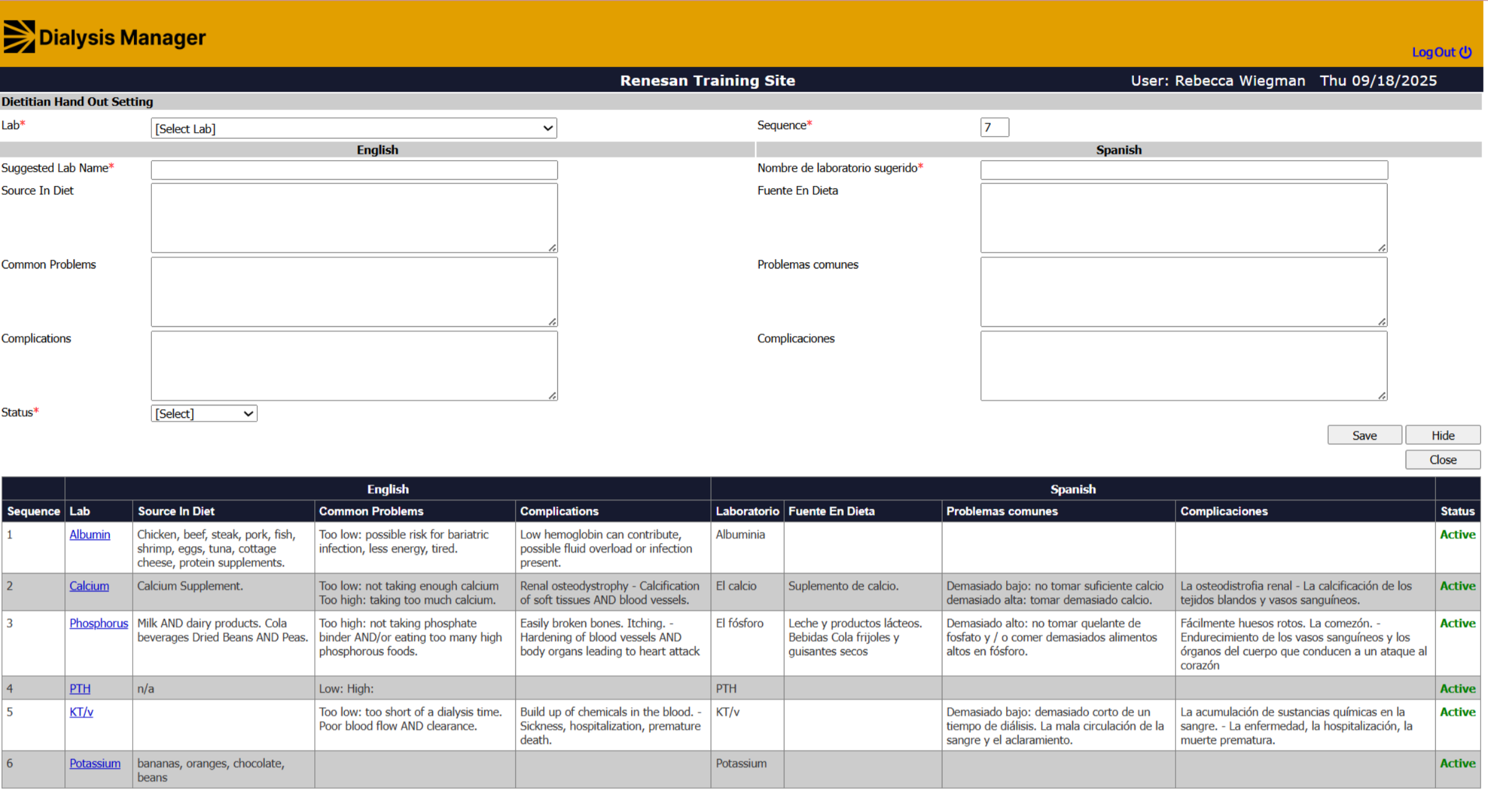
10. Settings
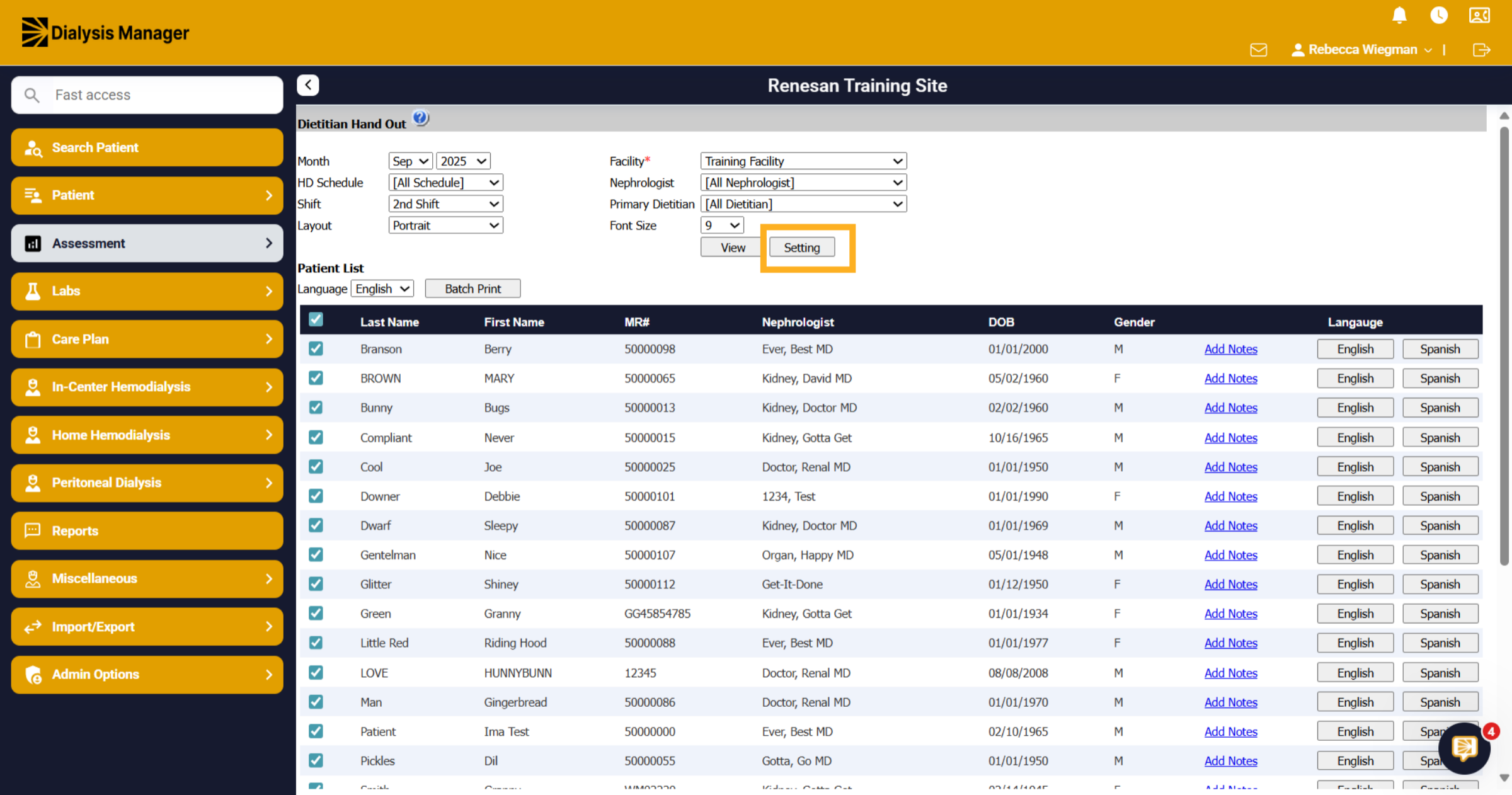
The Settings button is where you can customize what lab results appear on the report.
11. Labs
You can update the wording for the Source in Diet, Common Problems and Complications by selecting the lab name in blue. Or Select Add New if your lab is not on the list.
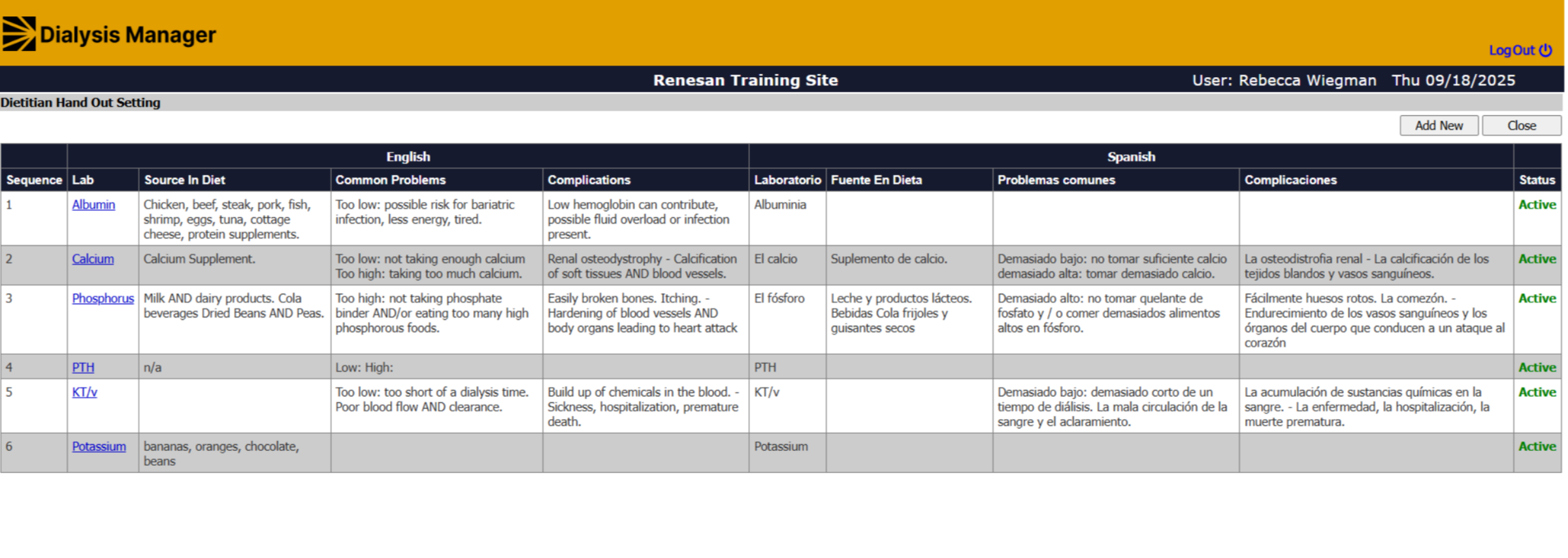
12. Add New
Select a Lab Name from the drop down, type that name into the Suggested Lab Name and enter the source in diet, common problems, and complications. Select the status Active to show in the list or Inactive to remove the lab from the list. The sequence number will auto populate, this is just showing you what order the labs will display on the report. Click Save and Close.