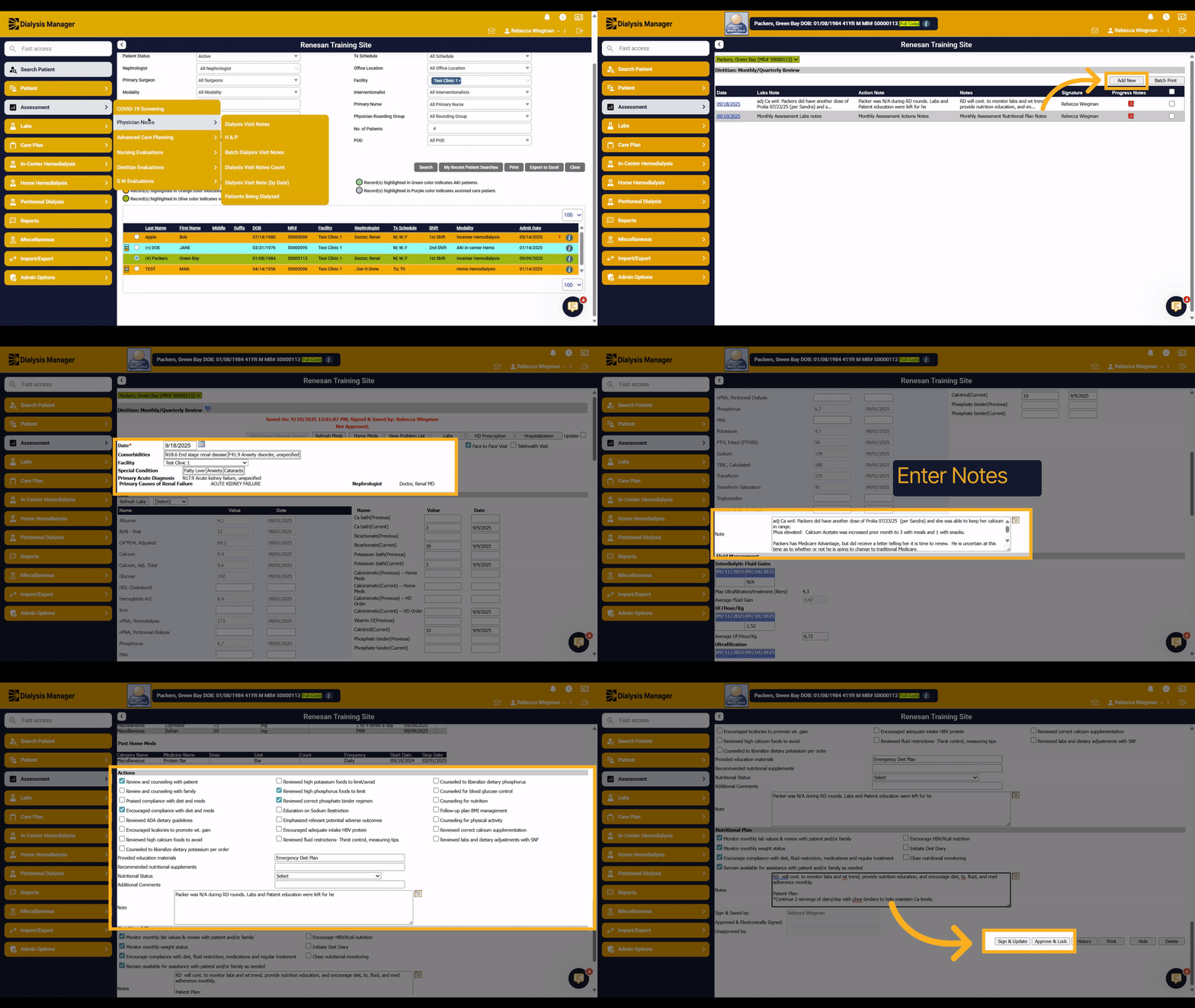
Dietitian Documentation.
1. Introduction
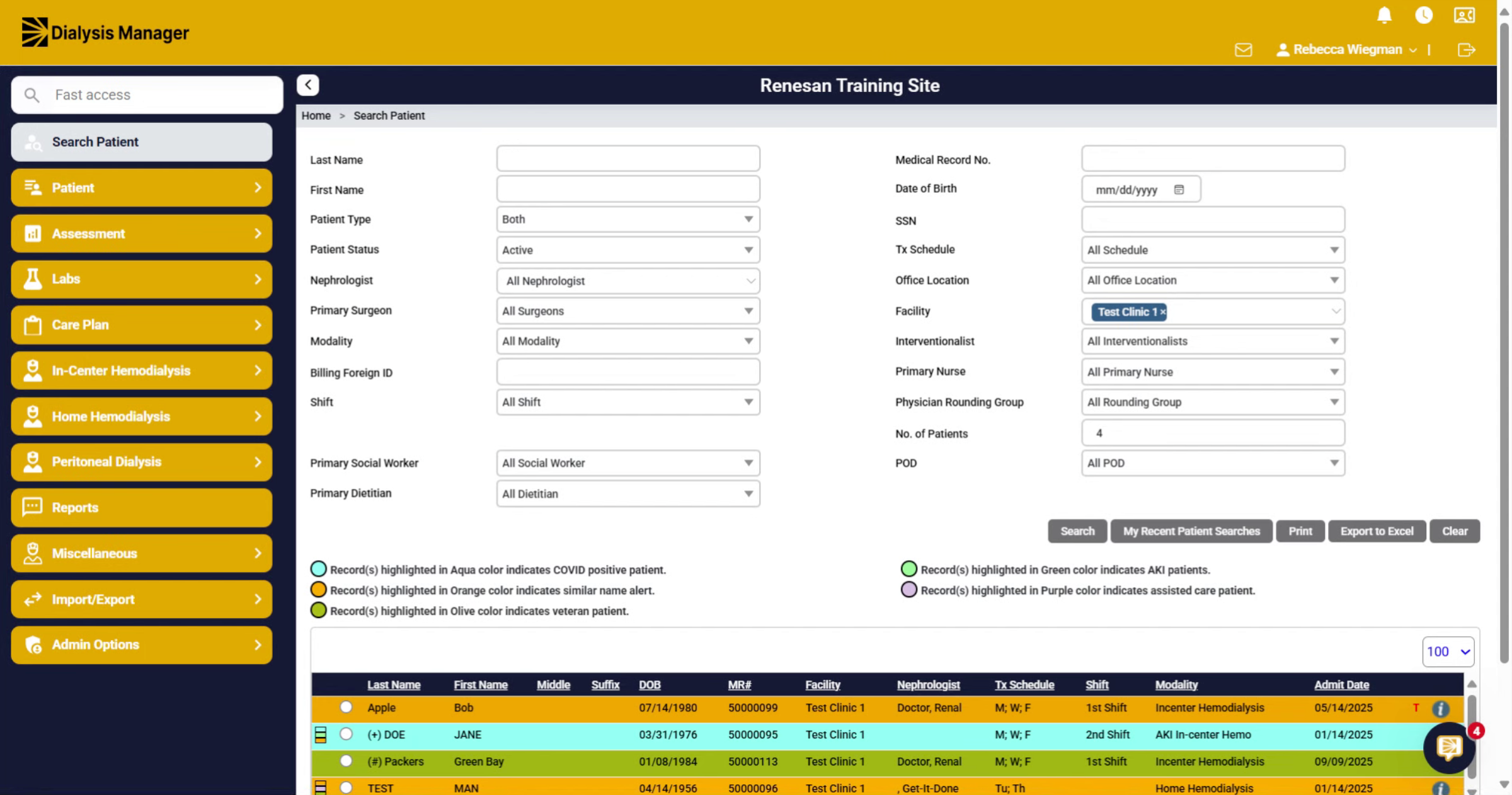
This training is addressing the use of dialysis manager for Dietitians. The Dietitians land on the search patient screen. Where we are currently at. Based on your filter, you can minimize the patient list by either the facility, their modalities, or even searching by their first or last name.
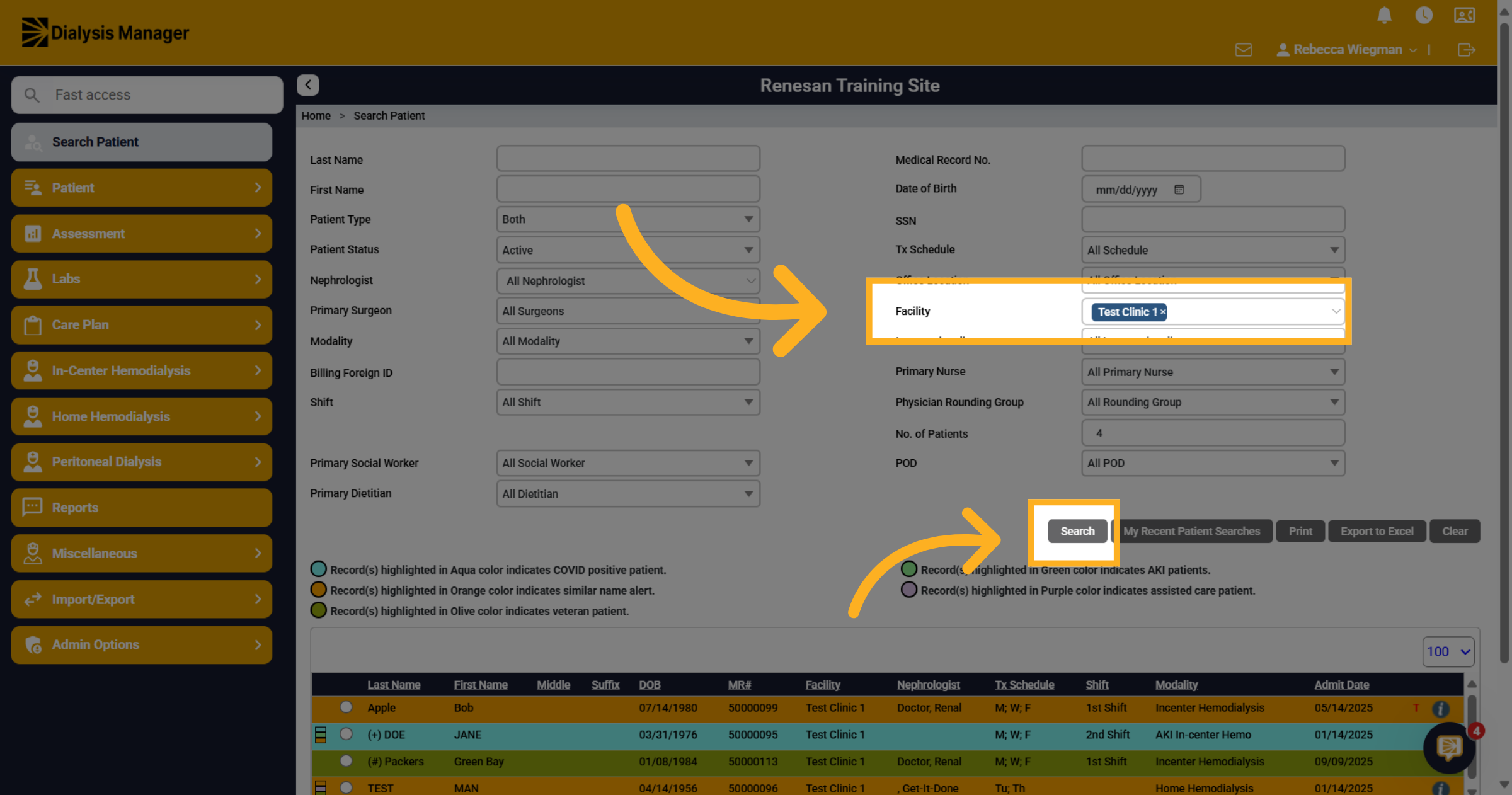
2. Click "Facility"
For this video we are going to search patients per facility. Then click search!
3. Select your patient
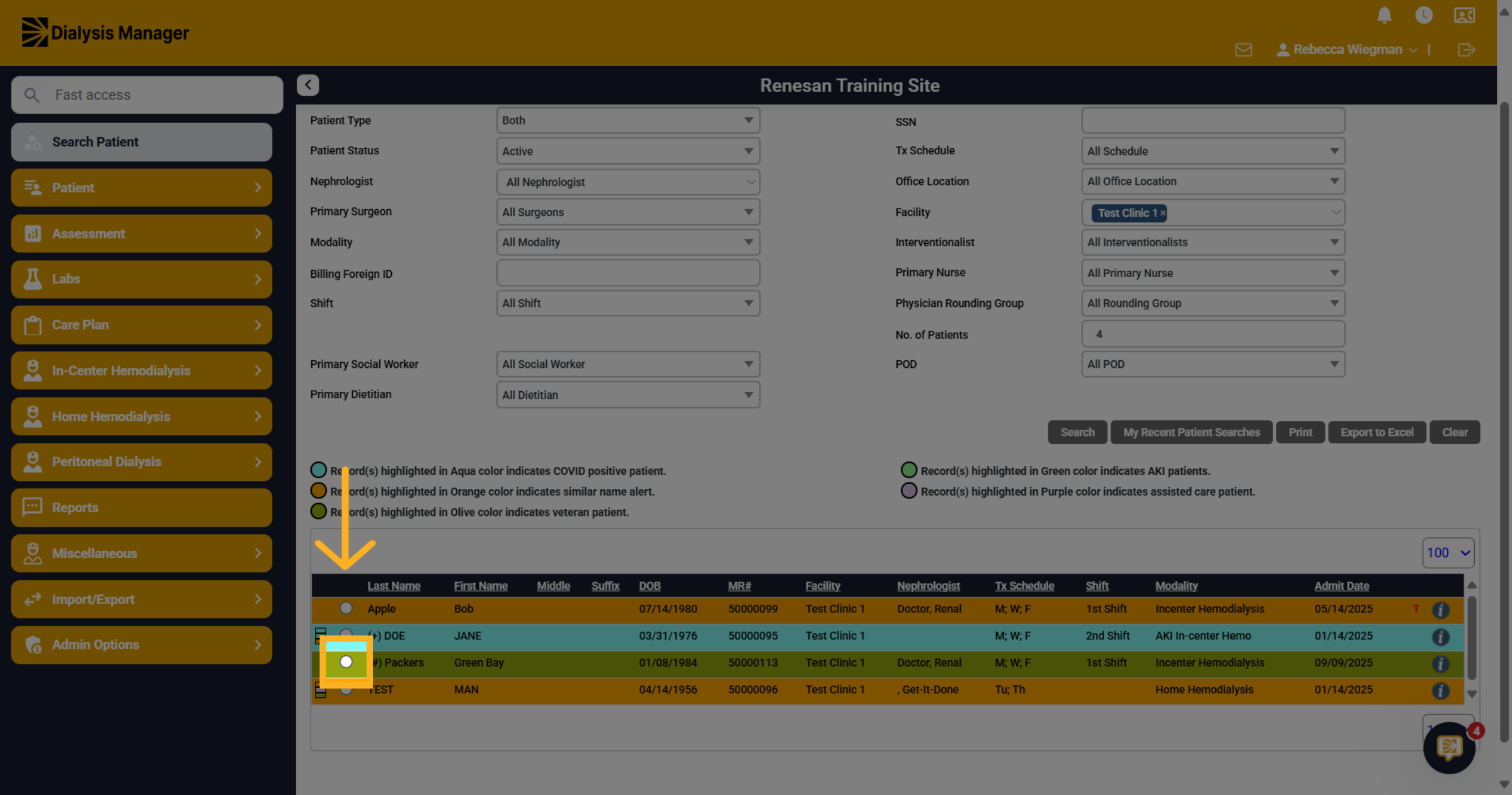
The patients associated with that facility will now appear towards the bottom. Your able to select the radio button to the left of the patients name to select that specific patient.
4. Click "Progress Notes"
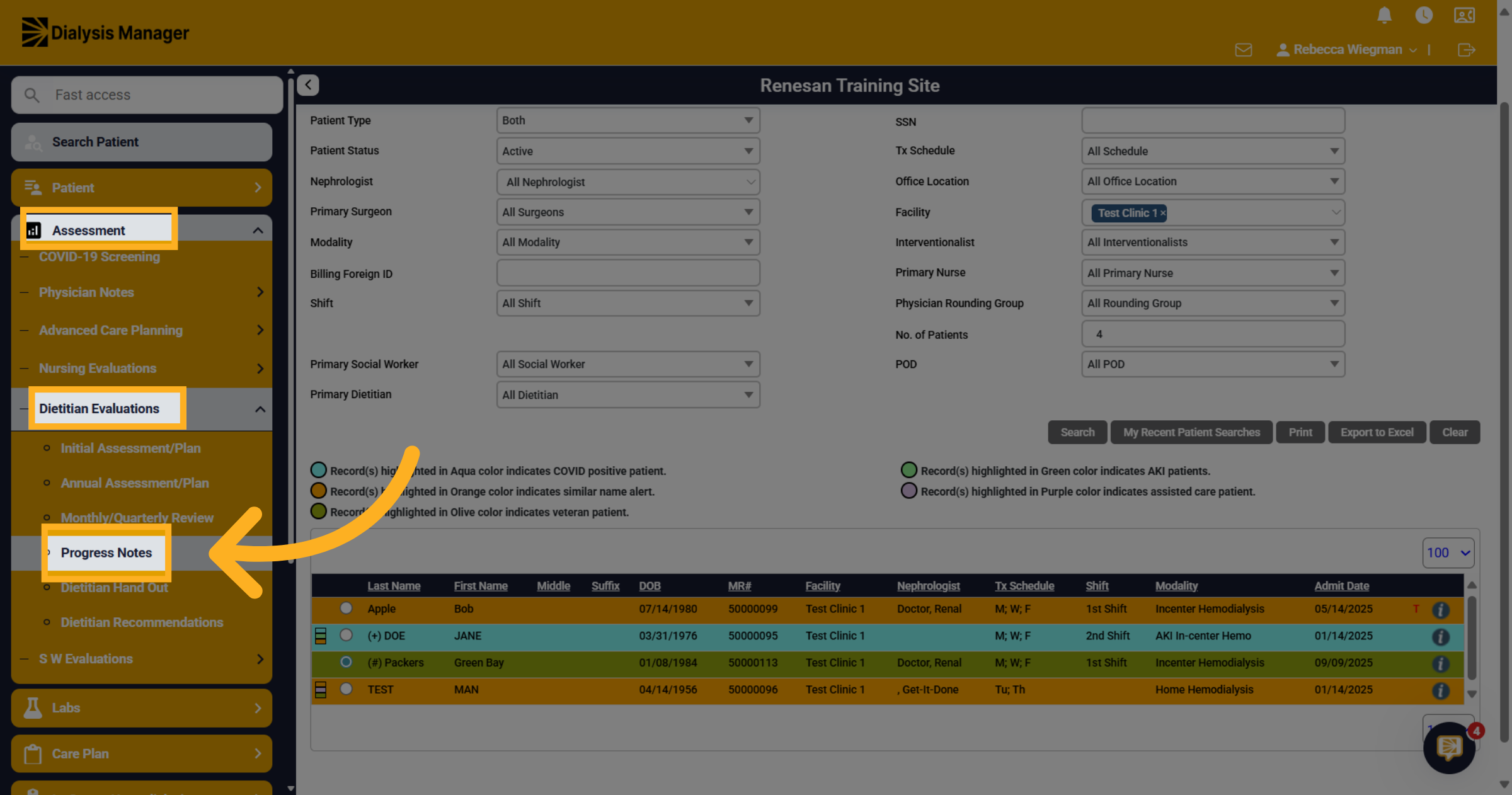
Click into Assessment > Dietitian Evaluations Then Progress Note. Please note that I'm using the dropdown menu option rather than the flyout menu. Your able to change the menu bar view by going to My Profile and Preference.
5. Progress Note
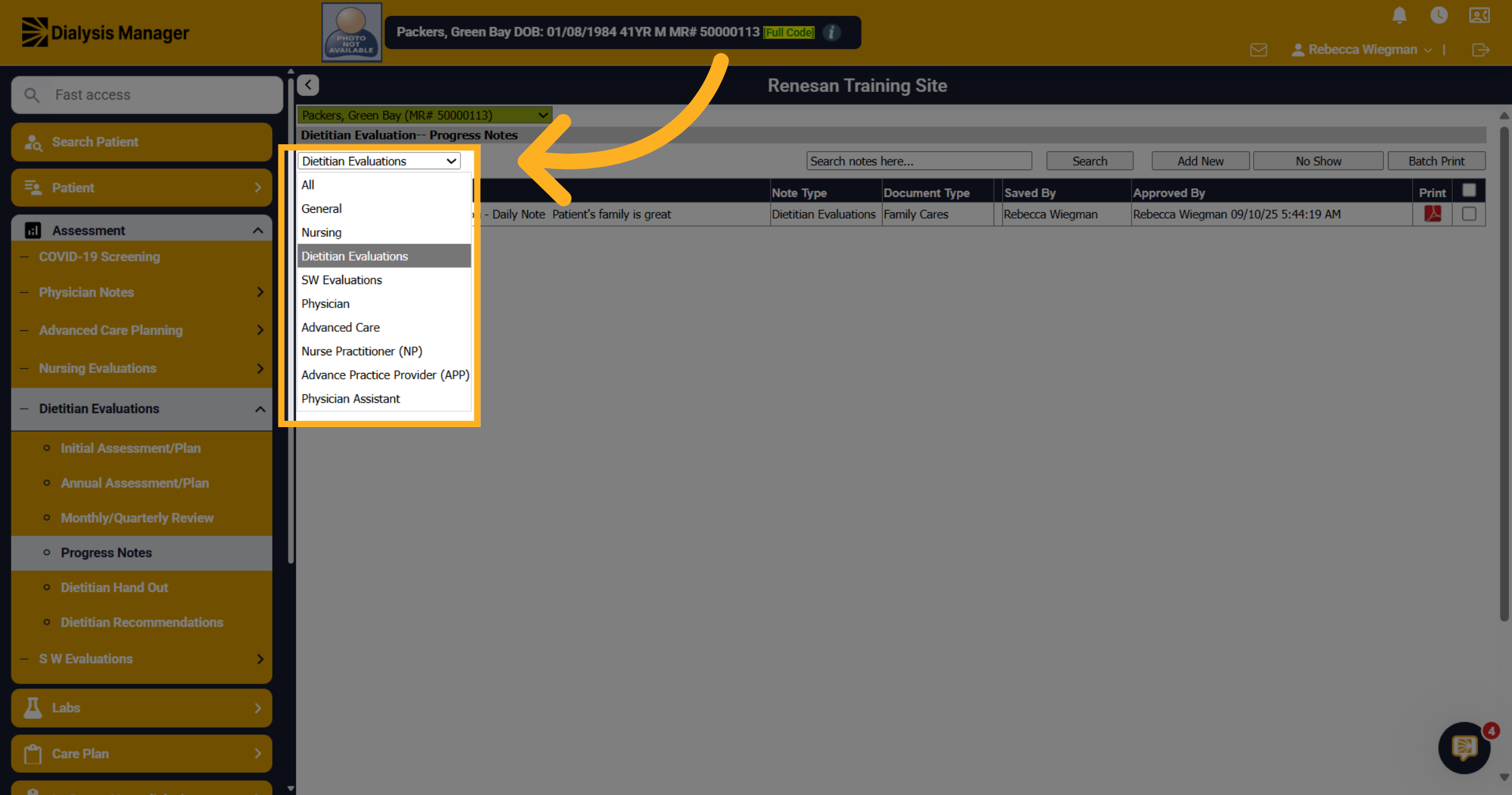
The Progress note will default to Dietitian Evaluations but your able to populate all other notes by selecting the dropdown arrow to view General, Nursing, Social Worker Evaluations, Physician, Advanced Care, Nurse Practitioner, Advance Practice Provider, or Physician Assistant to filter Progress notes.
6. Hover over notes
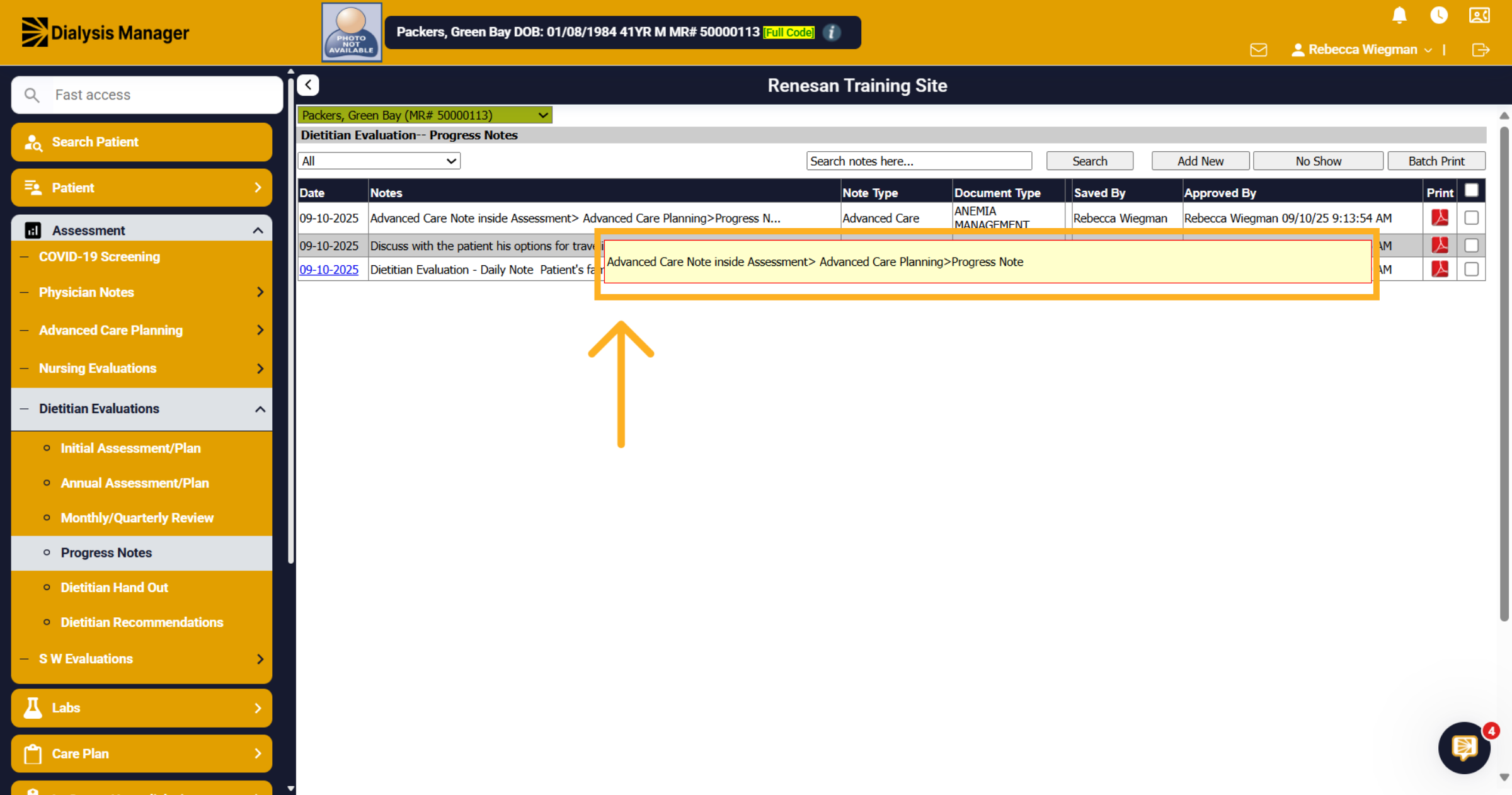
When selecting all note types they will appear below. You'll also be able to hover over the notes to view the entire note rather than clicking into each note.
7. Additional Patients
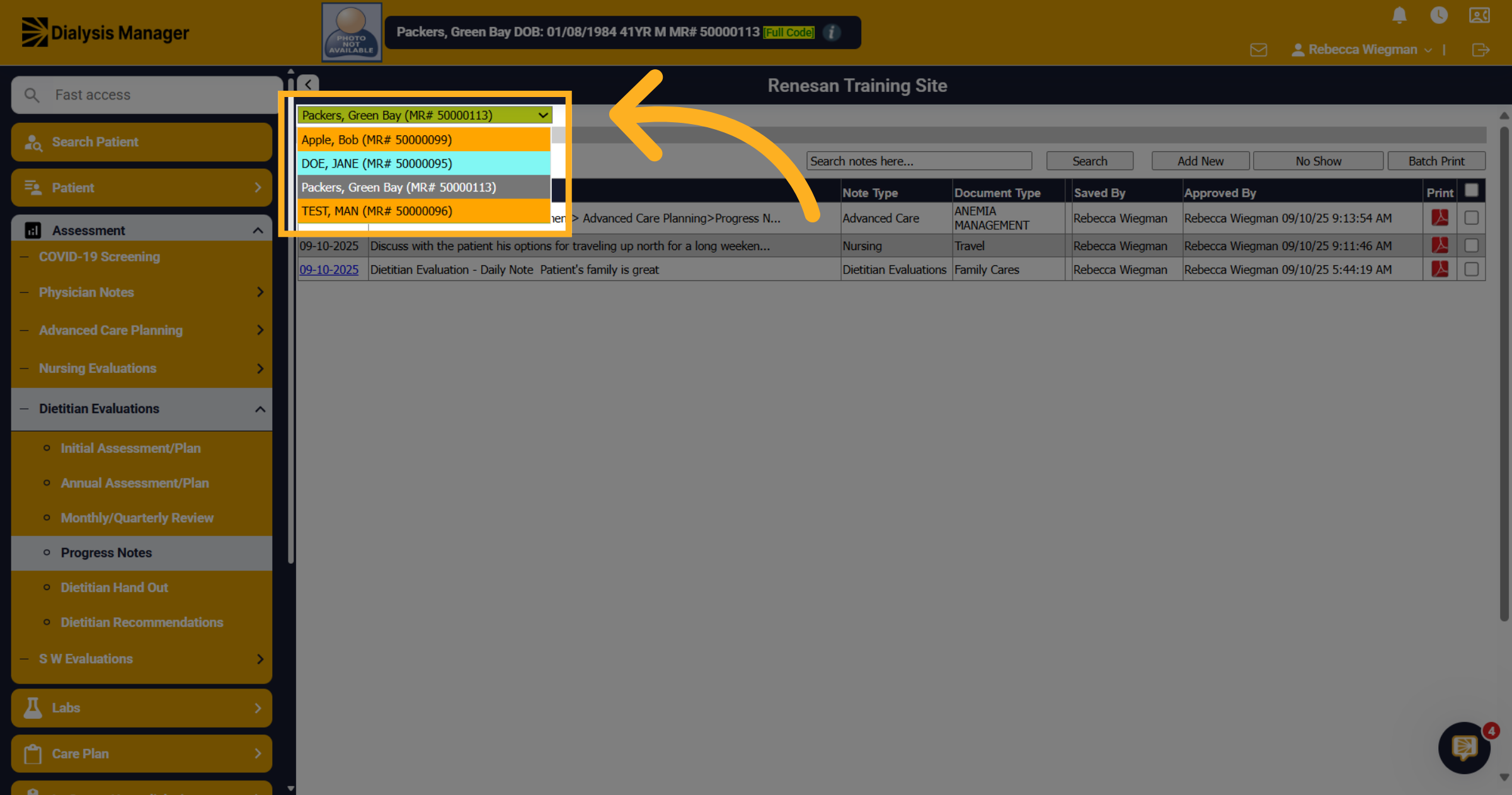
Please Note: because we filtered our search patient screen to a specific facility when selecting the patient dropdown we are able to see all patients associated with that facility. Your able to select or change patients from here.
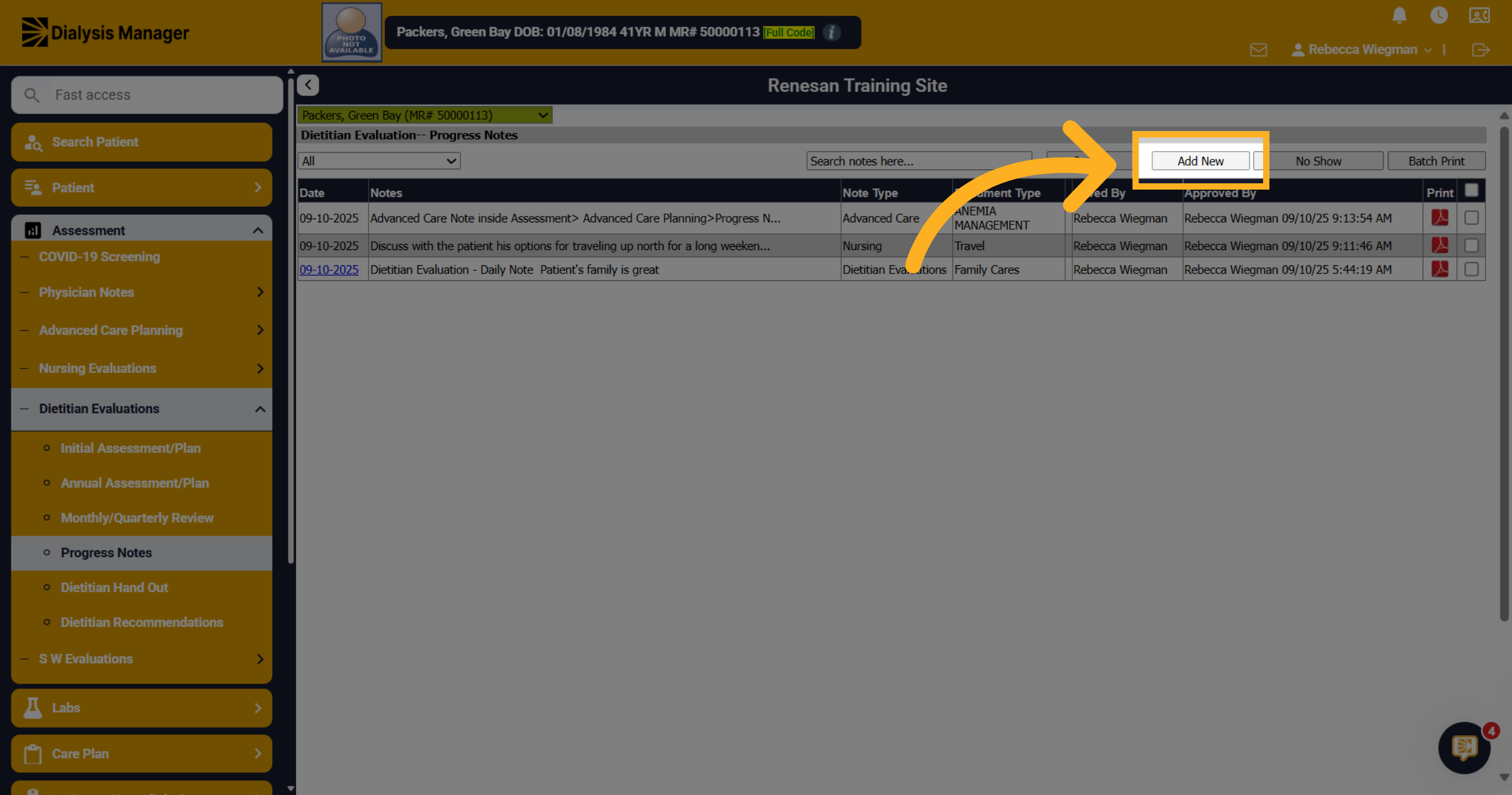
8. Click "Add New"
Click "Add New" to create a new Progress note.
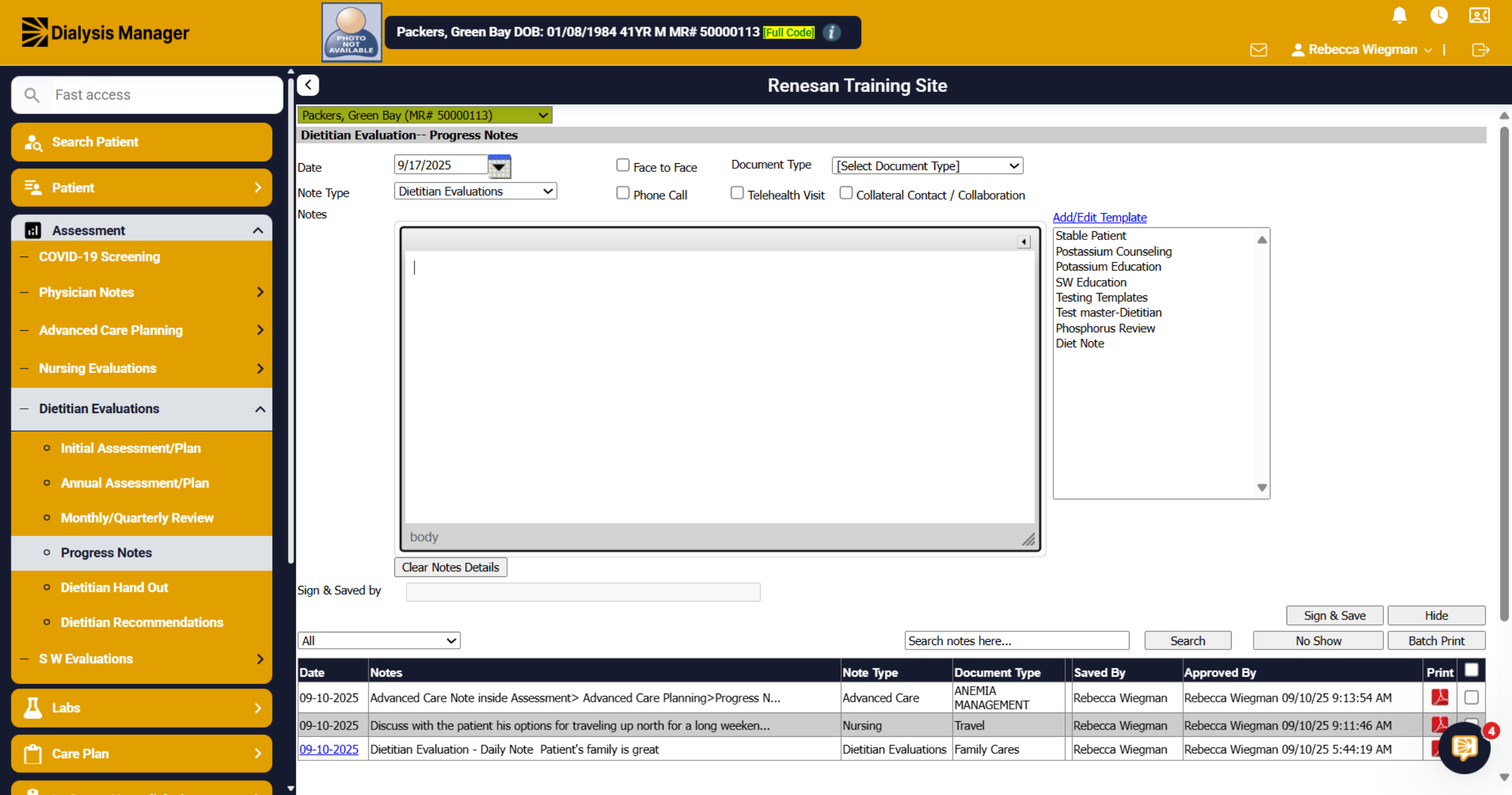
9. Date
When inside the Progress Note you'll be able to confirm the date, Note Type, Document type and enter the Note!
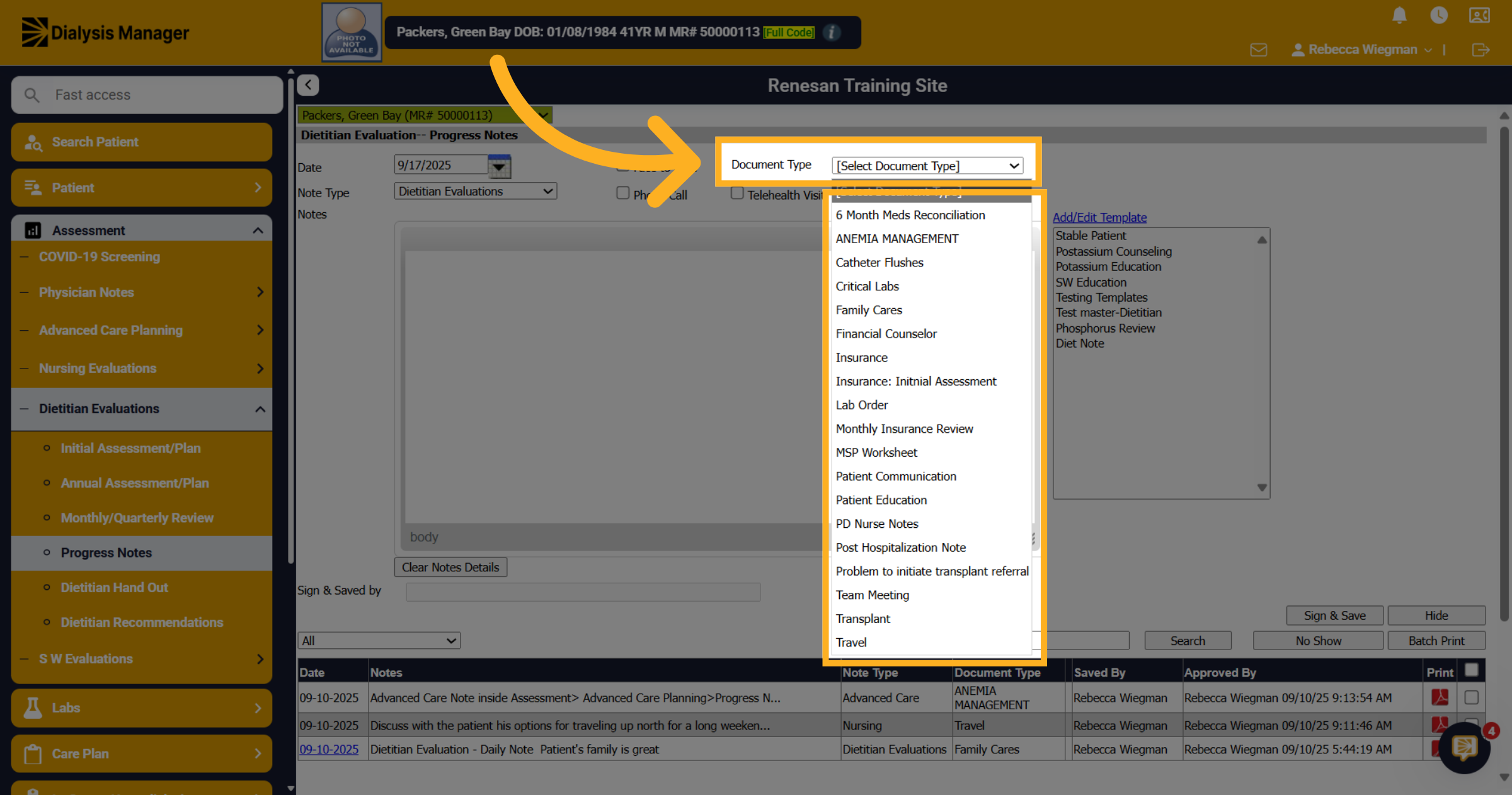
10. Document Type
You'll be able to select a document type from the dropdown. Please note: that this list can be customized by your super user who has permissions to the masters! Also this is not a mandatory field.
11. Click "Add/Edit Template"
When entering in your note there is the option to select a template rather than typing generic notes into each patient.
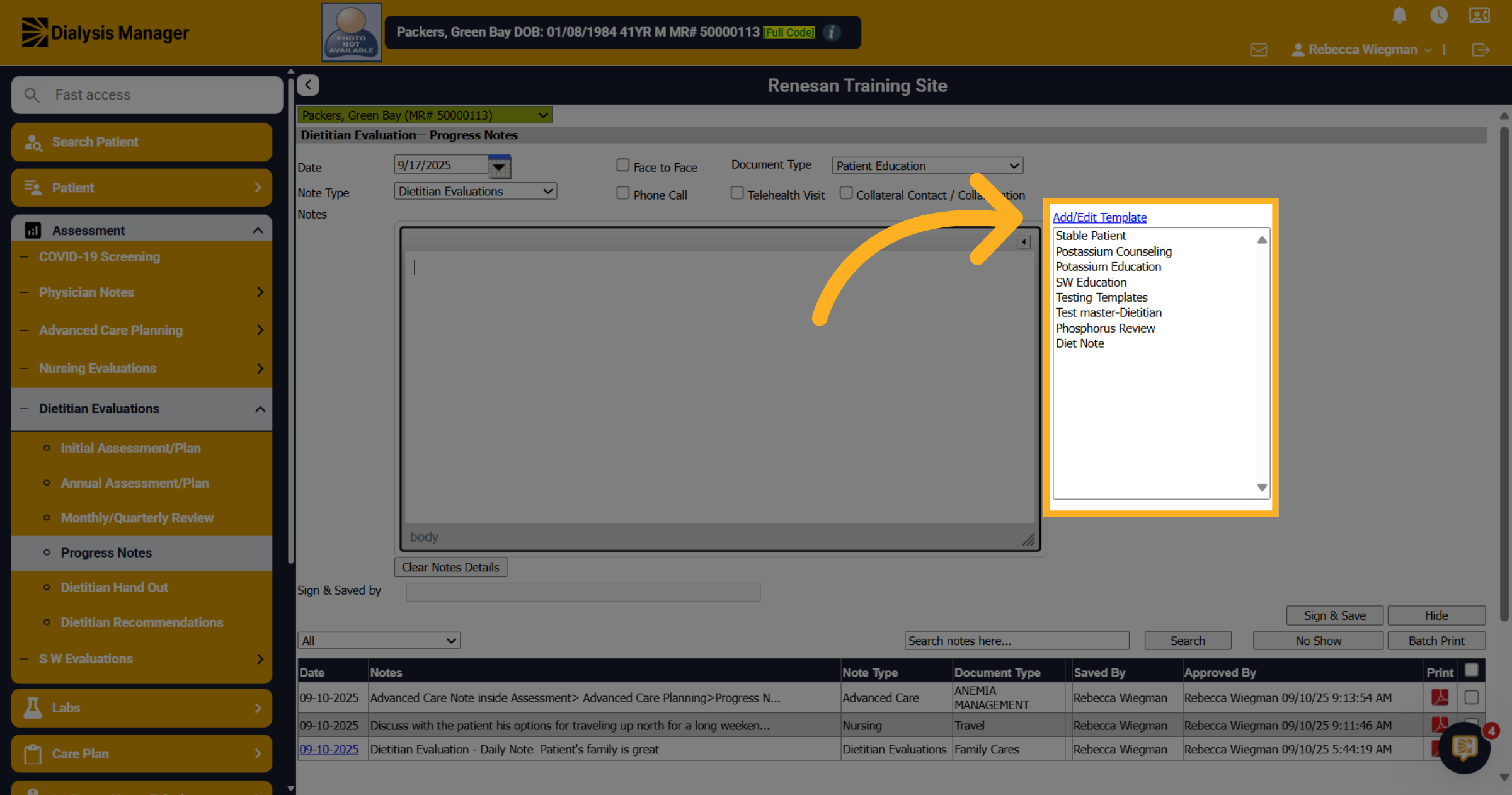
12. Select a template
Your able to select multiple note templates into the body of the notes section and type additional comments if needed
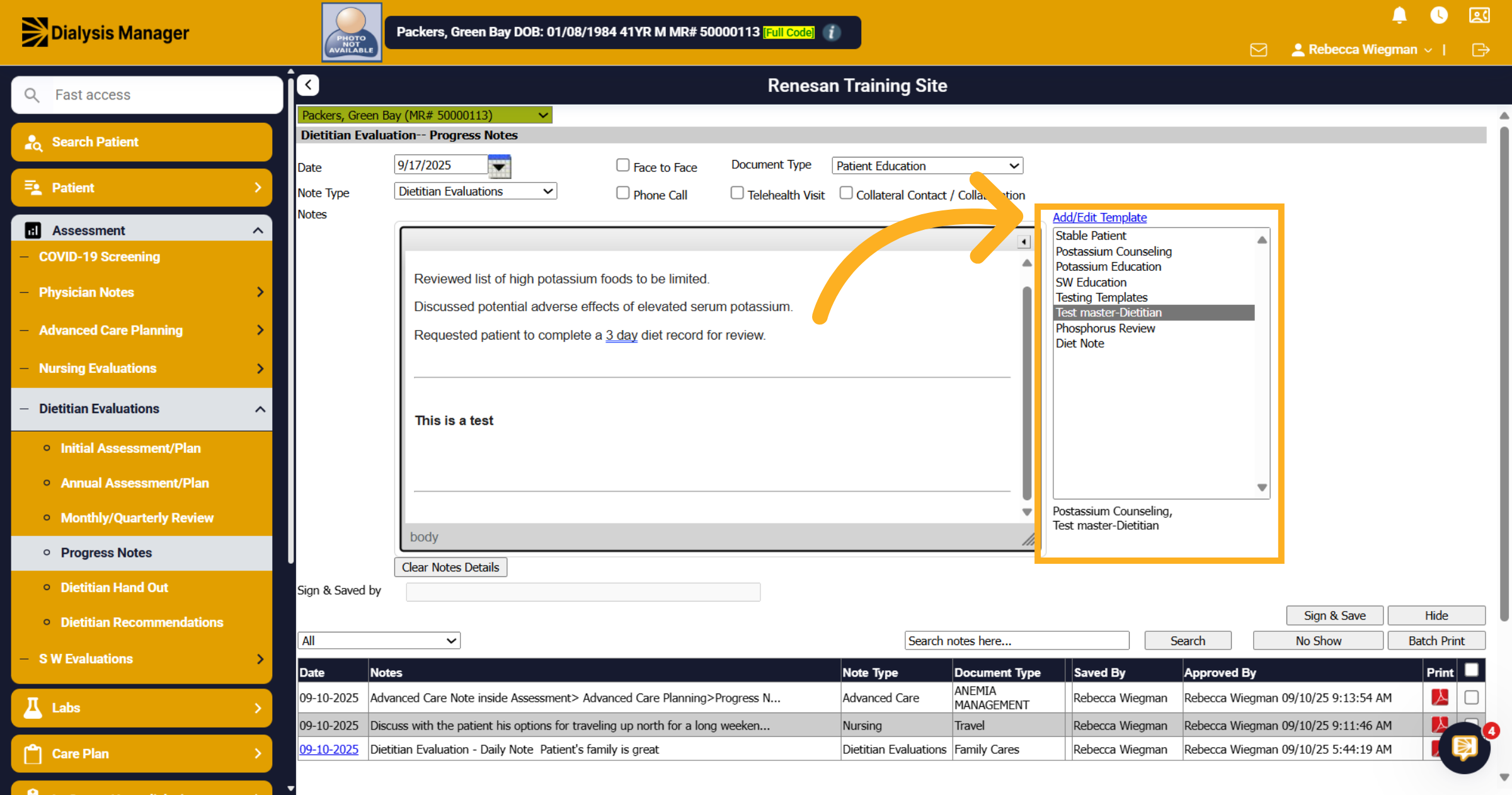
13. Click "Add/Edit Template"
Click "Add/Edit Template" again to modify or add templates as needed.
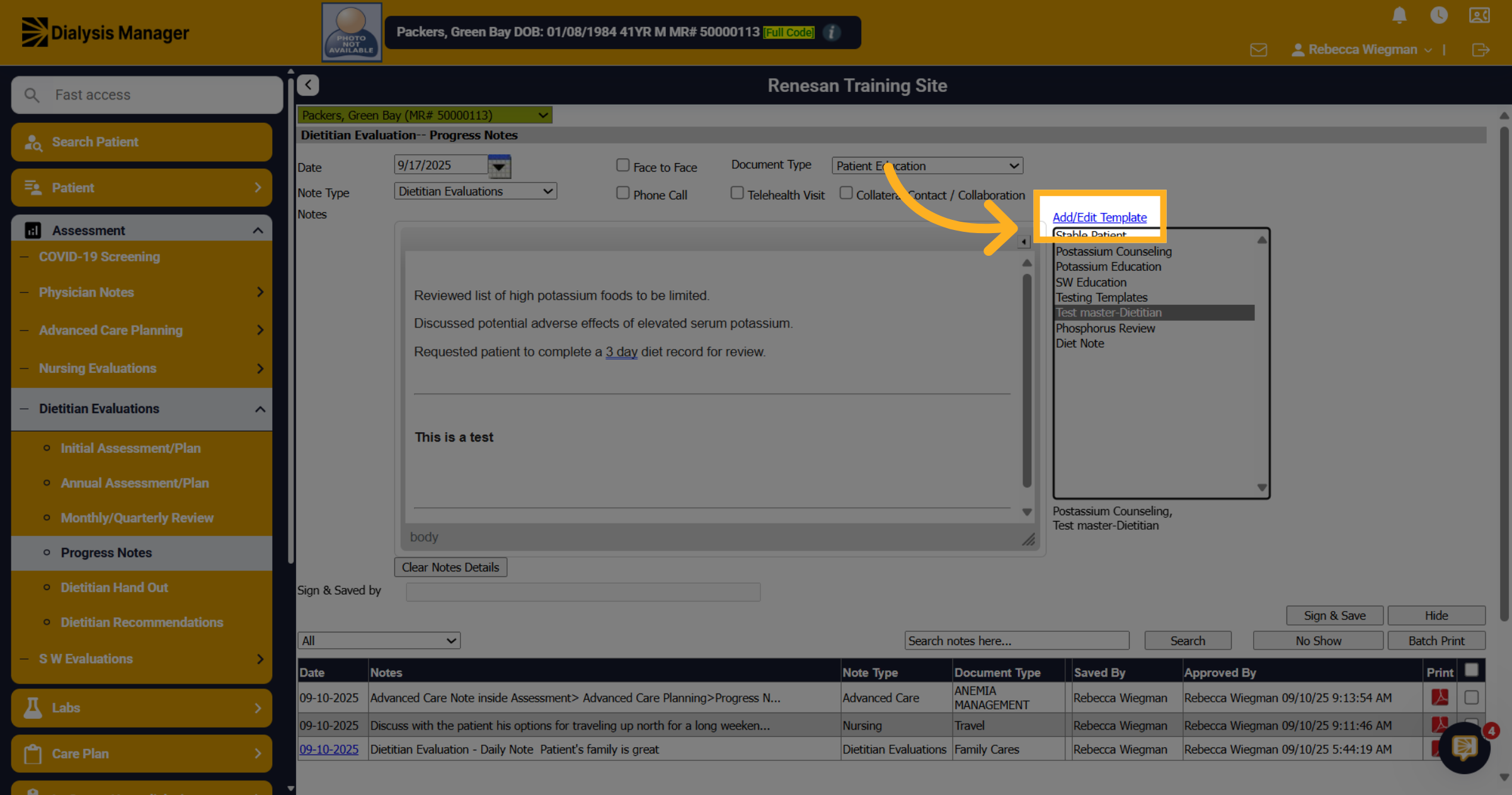
14. Creating a Template
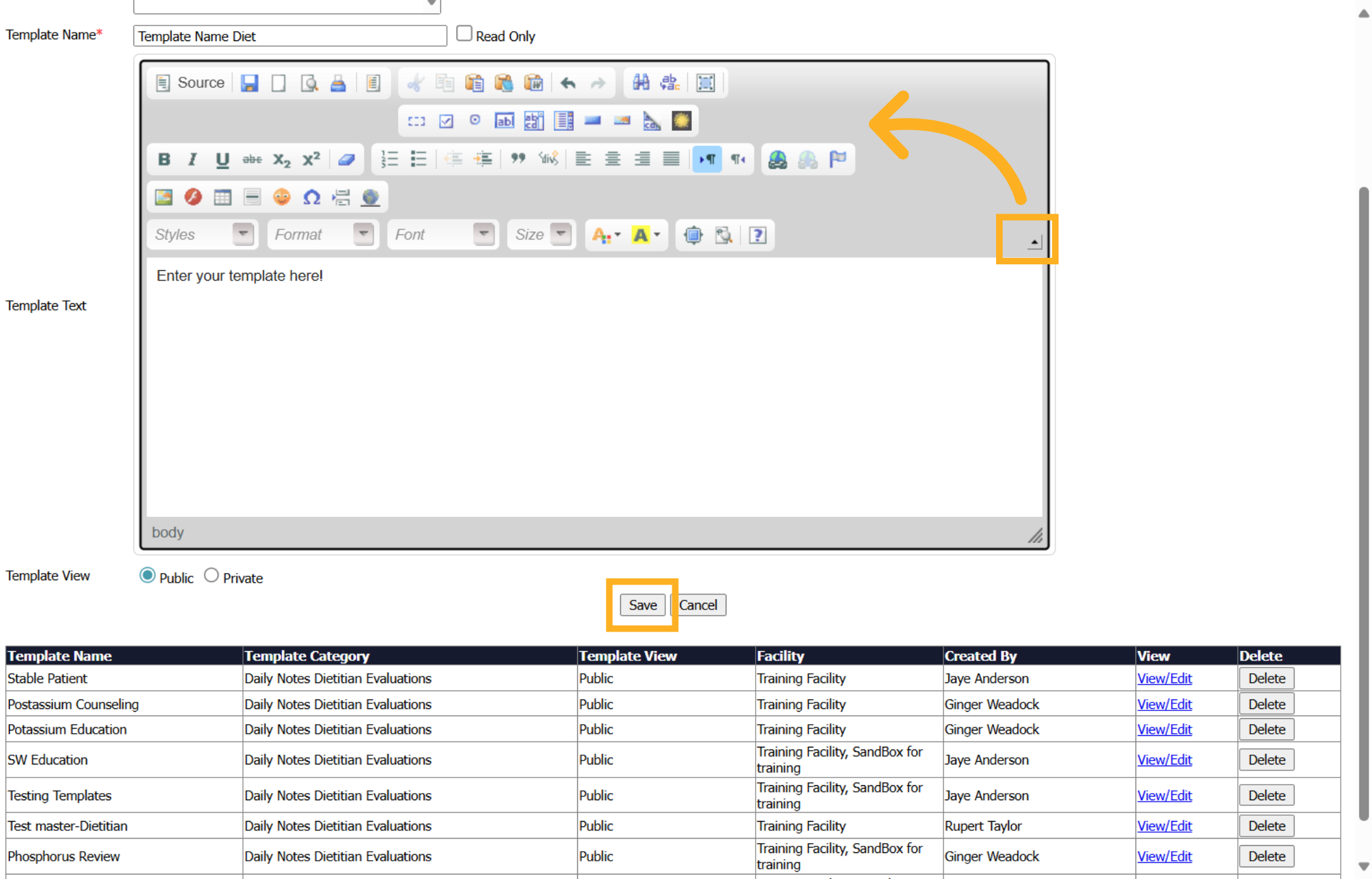
Your able to give the template a name, enter the note into the template text and mark this template as Public View where others are able to view and use or Private View where the person who created will be the only one who can use the template. Click save! Please Note: that you'll probably need to log out and log back in to use the newly created Template Note.
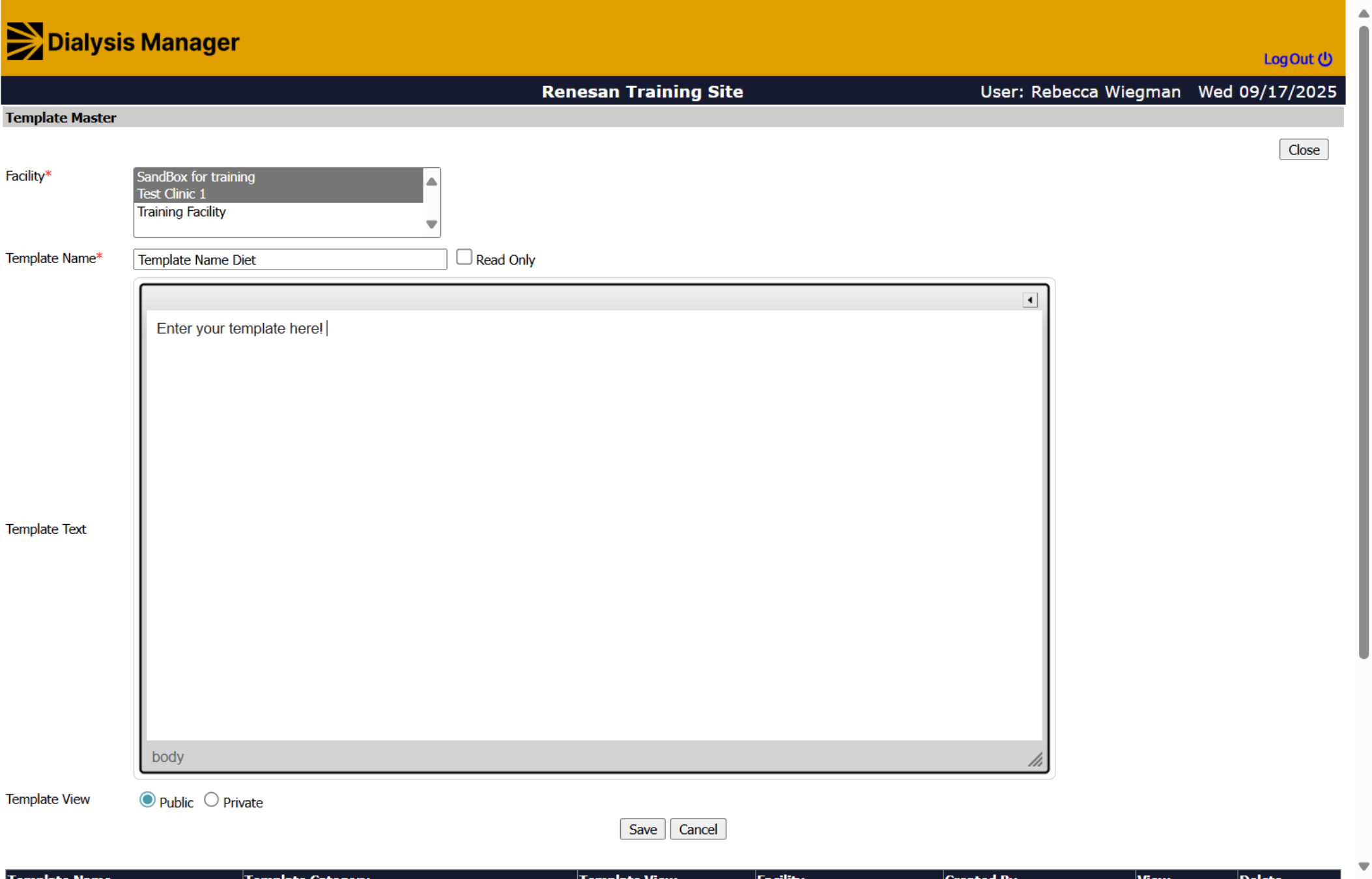
15. Word Button
Tips: if you dropdown the arrow you'll see a ribbon similar to word documents where your able to update fonts, size, add bullets, etc. Again, be sure to save your template and click Close.
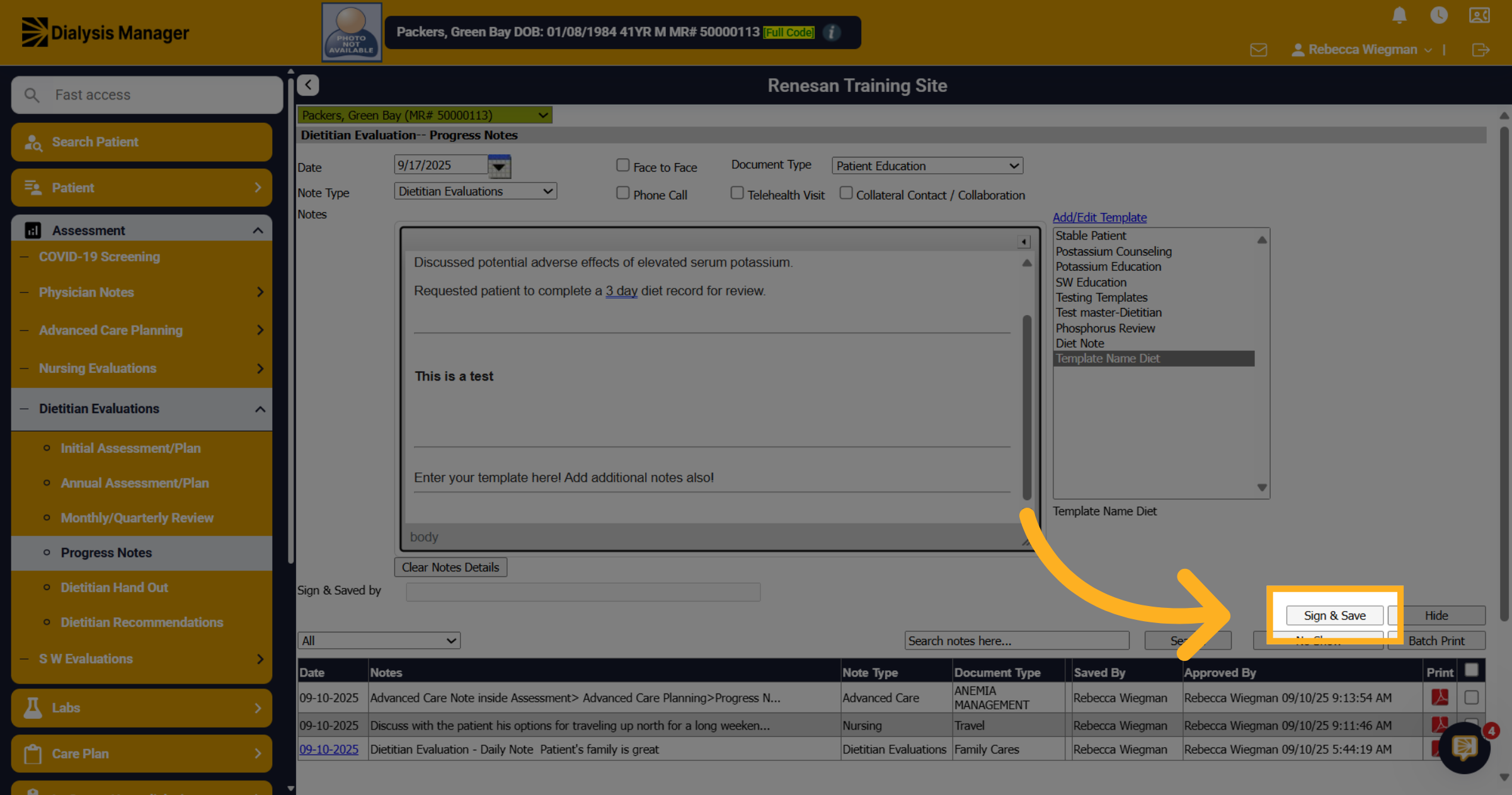
16. Click "Sign & Save"
Once your note has been entered click Sign & Save to save the Progress note.
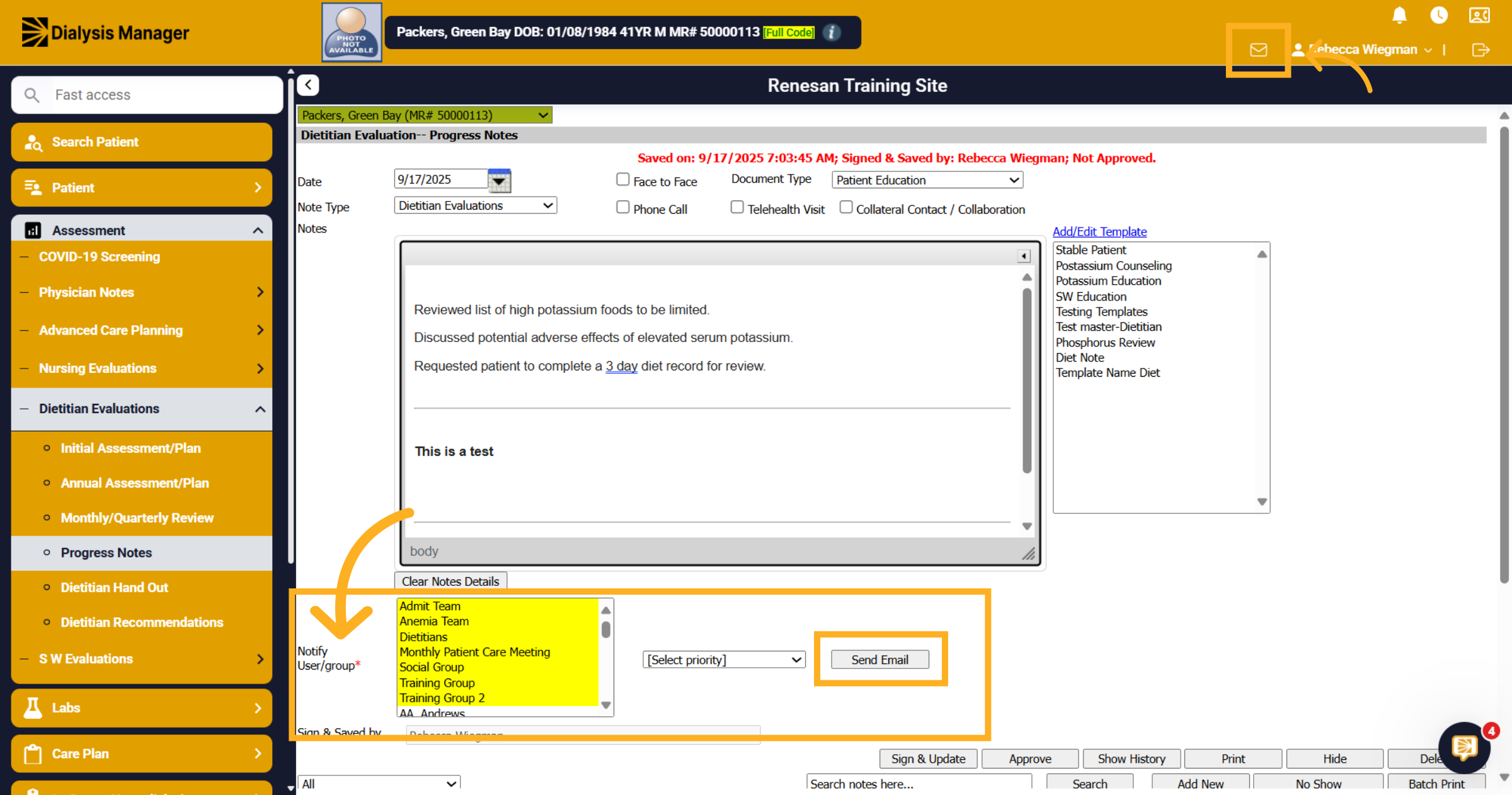
17. Email
After saving the note you'll have the option to Notify others. You can select multiple users by holding the "Control" key and be able to select a Priority. Click Send Email! This note will now appear in the users "MailBox"
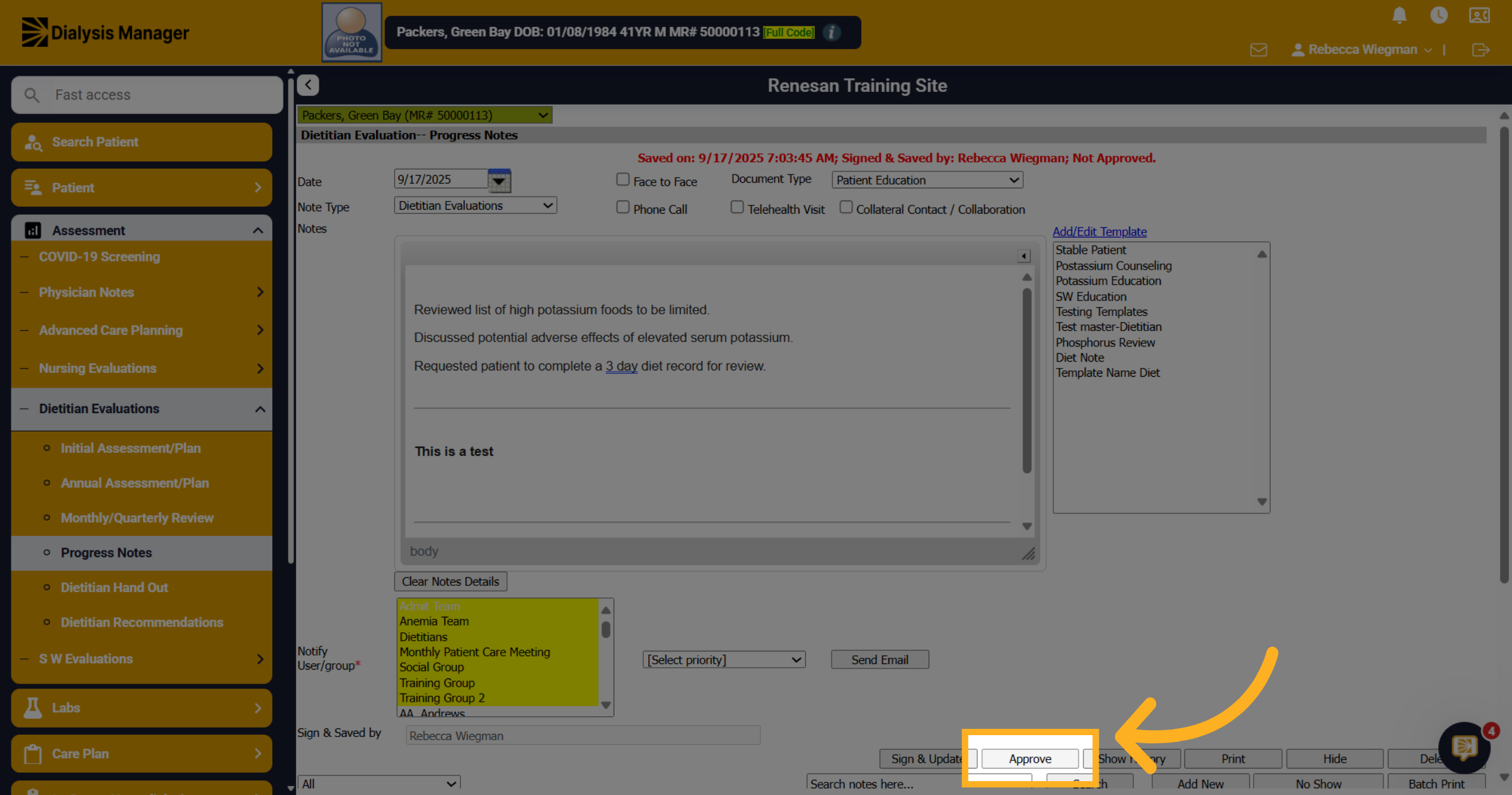
18. Click "Approve"
Click "Approve" to approve the completed note.
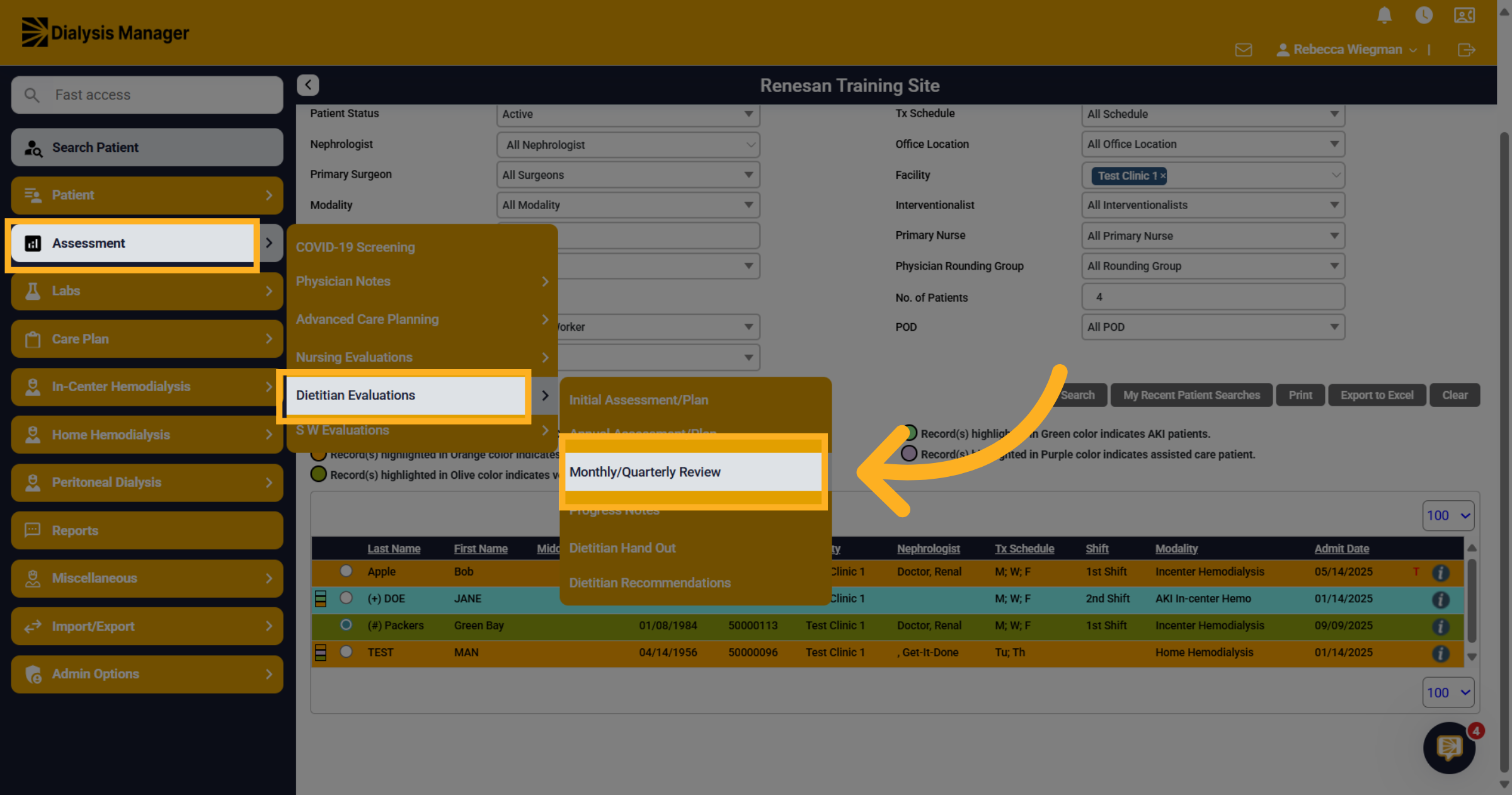
19. Click "Monthly/Quarterly Review"
Now lets take a look at Monthly or Quarterly Reviews. Click into the Assessment menu, Dietitian Evaluations and Monthly or Quarterly Review.
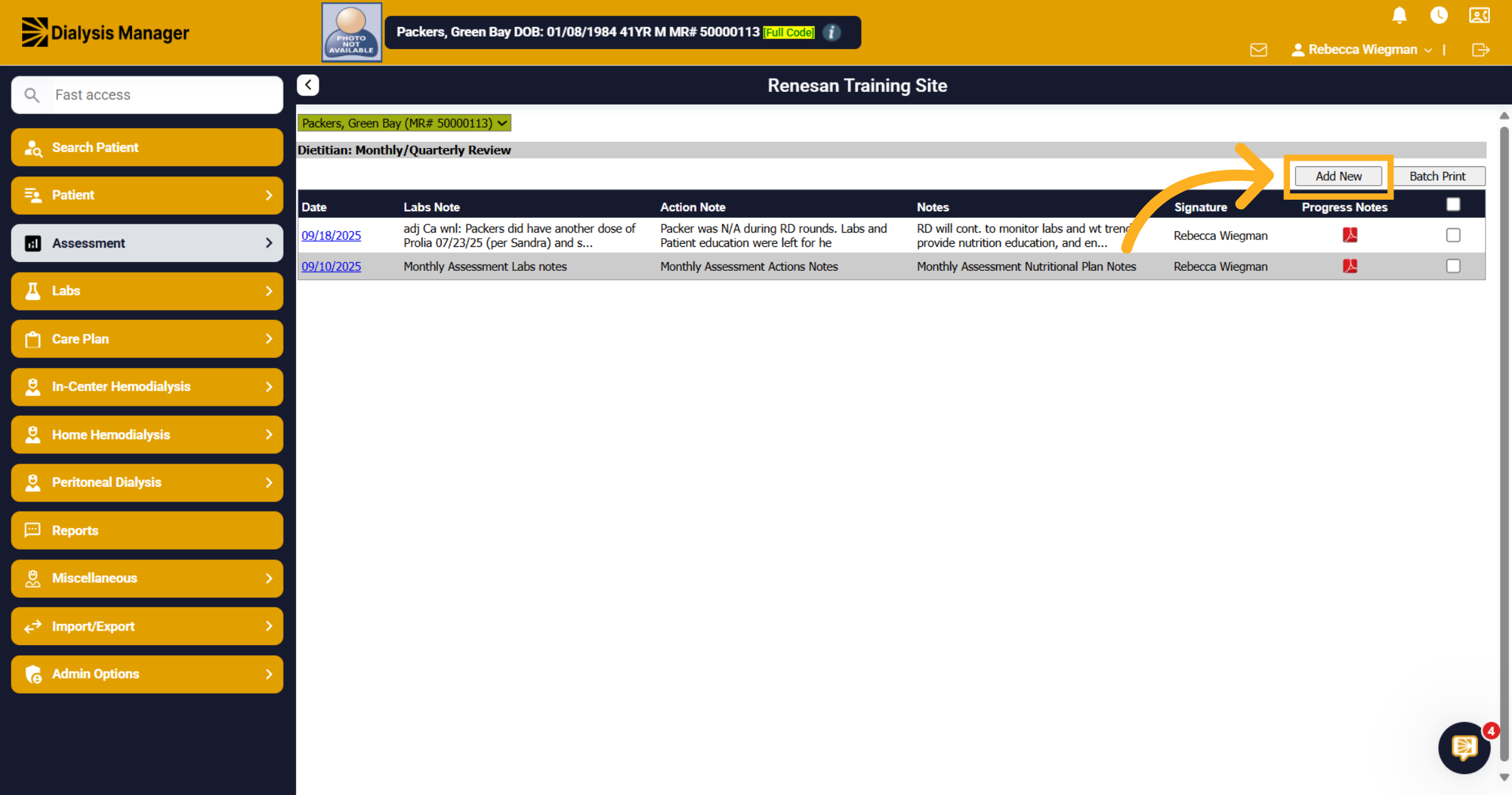
20. Click here
You'll be able to see all prior assessments here and run batch reports! But for this video we are going to select Add New.
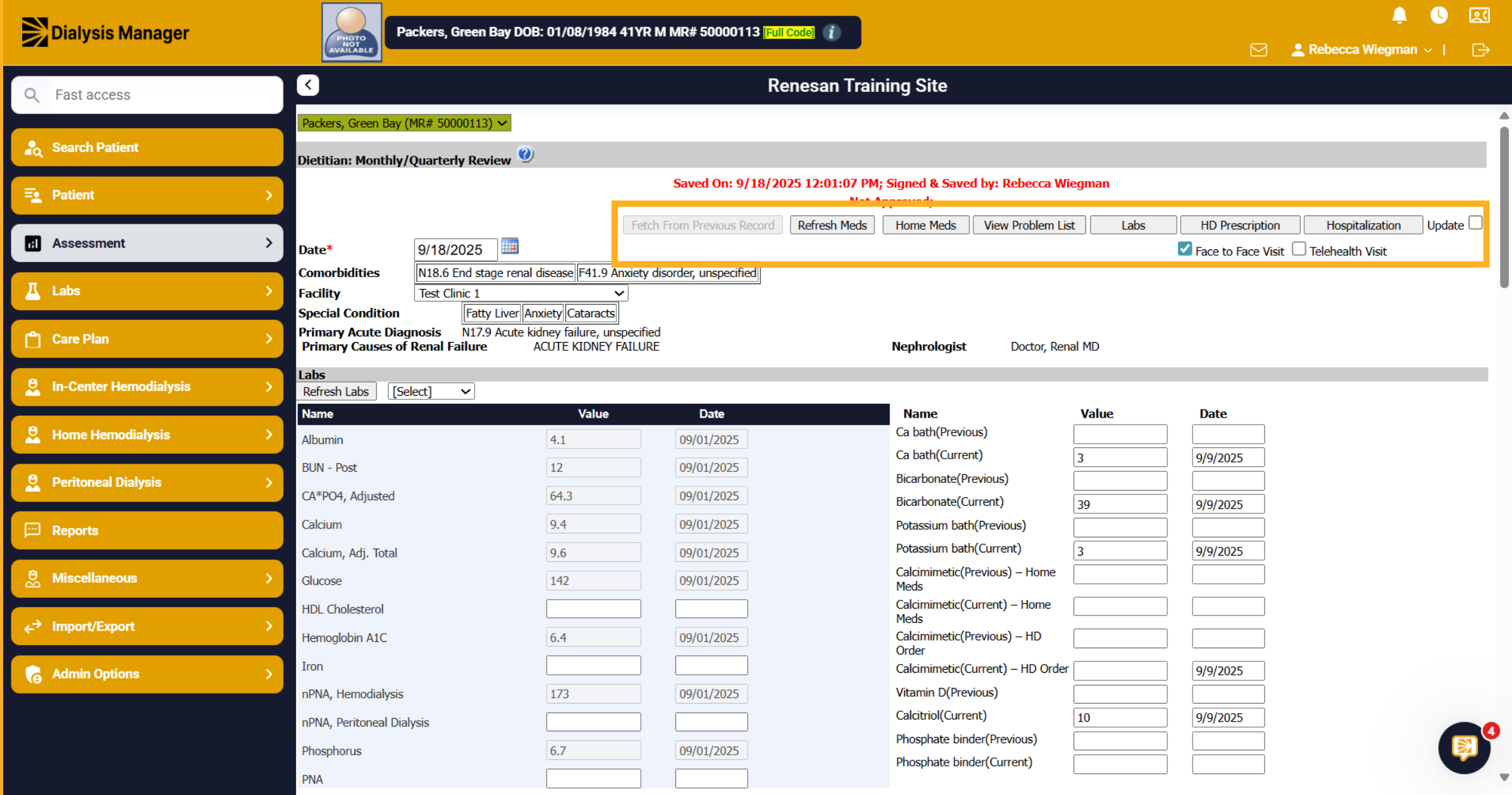
21. Across the top
Across the top of the form, you'll see Fetch from Previous Record which will pull the information from the prior record. Refresh meds if the assessment was opened prior to today and medications have been updated as well as labs! You are also able to hover over Home Medications, Problem List, Labs, Prescription and Hospitalization to see recent entries.
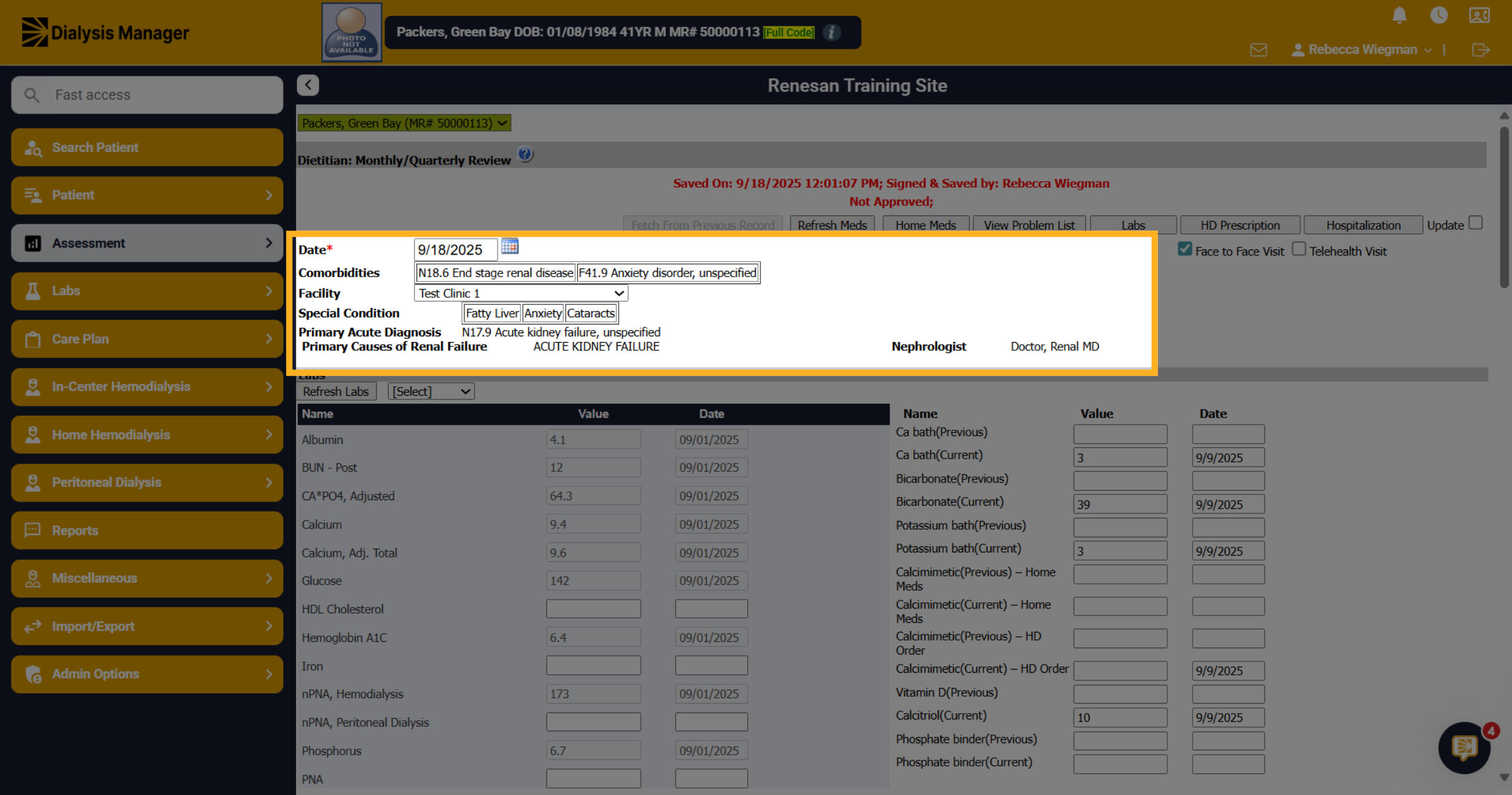
22. Pulled from
The date will auto populate to todays date but your able to change that if needed. The comorbidities, facility, special conditions Primary acute diagnosis, primary cause and nephrologist all pull from different areas of Dialysis Manager.
23. Each section dividide
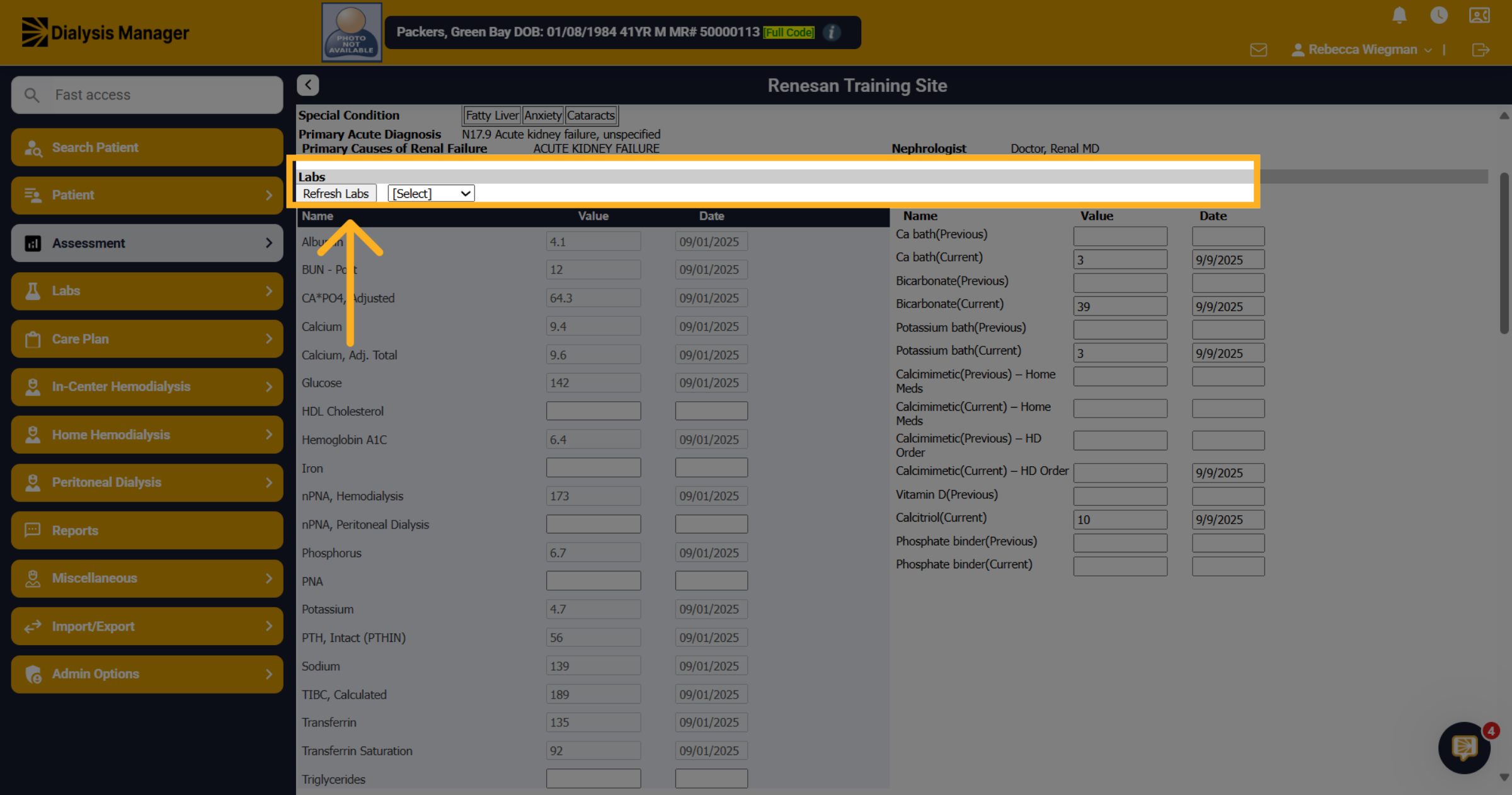
Each section is divided by a gray bar. Labs, Fluid Management, Bone Disease Management, Actions and Nutritional Plan. If you do not see the patients labs try clicking the "Refresh Labs" If the labs still aren't showing review your lab system to be sure that the patients labs were drawn.
24. Click "Note"
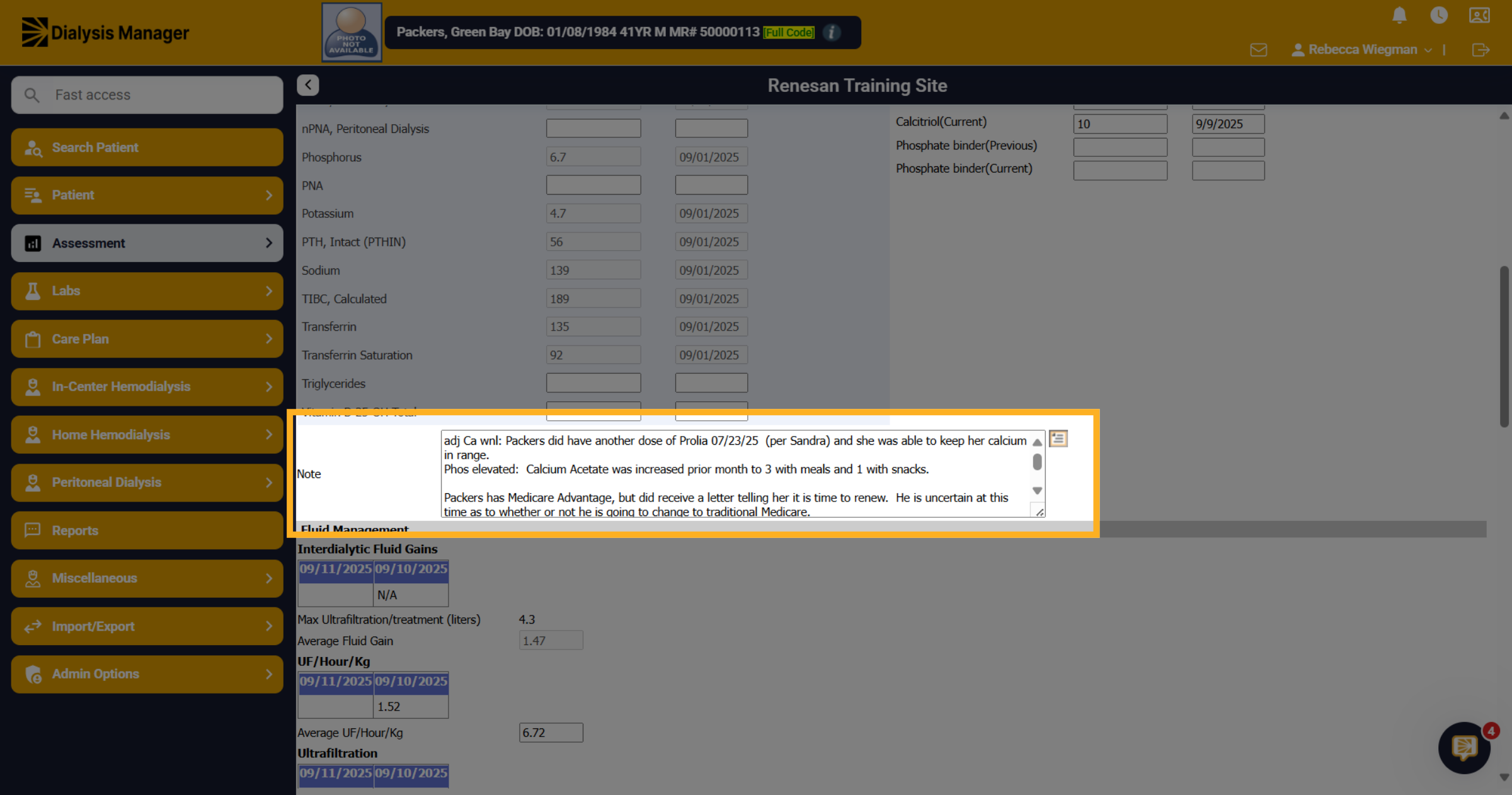
At the end of each section, you'll have a notes area.
25. Medications
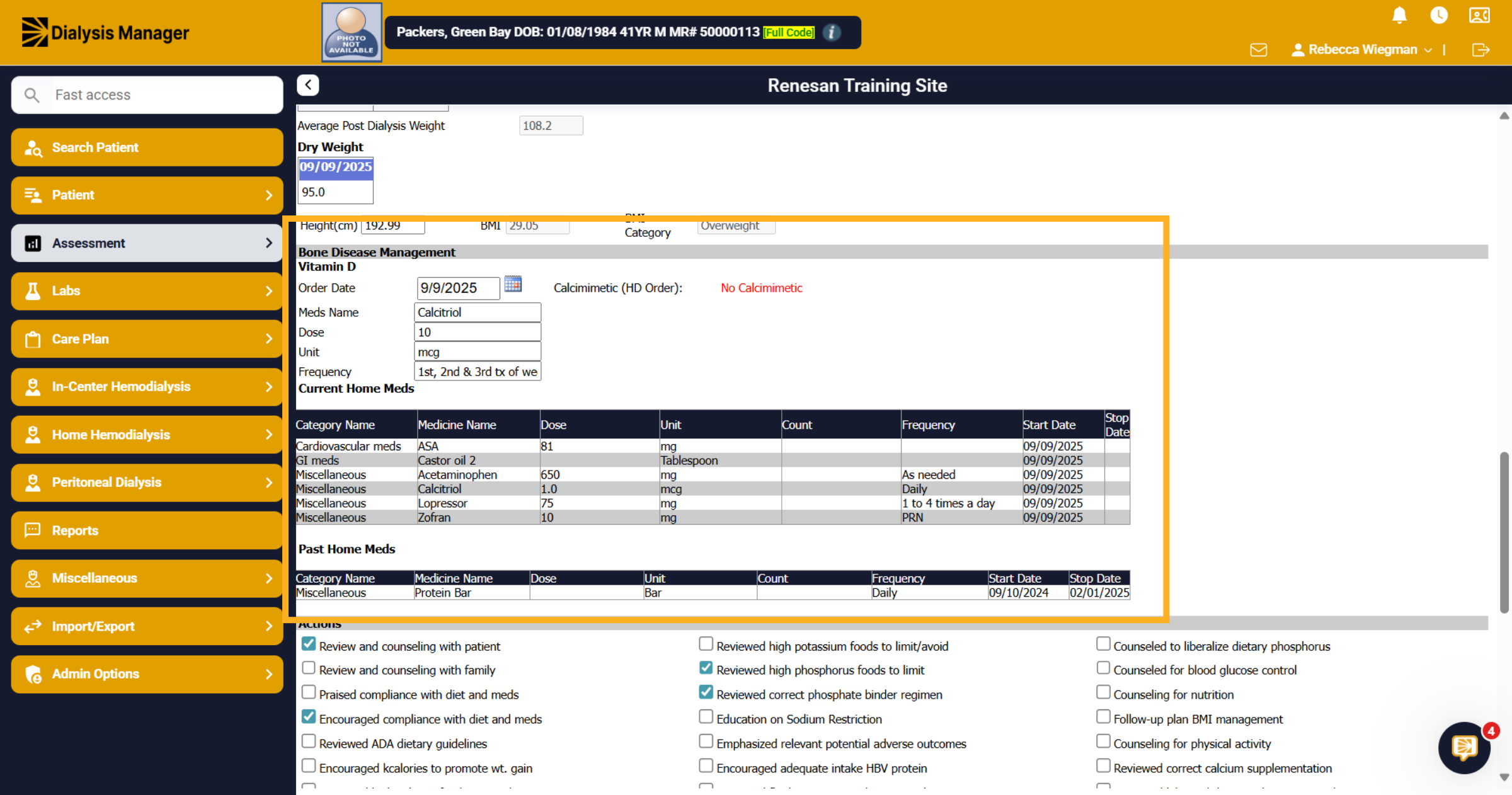
The patients Vitamin D medications along with Home Meds will also show
26. Click "Actions"
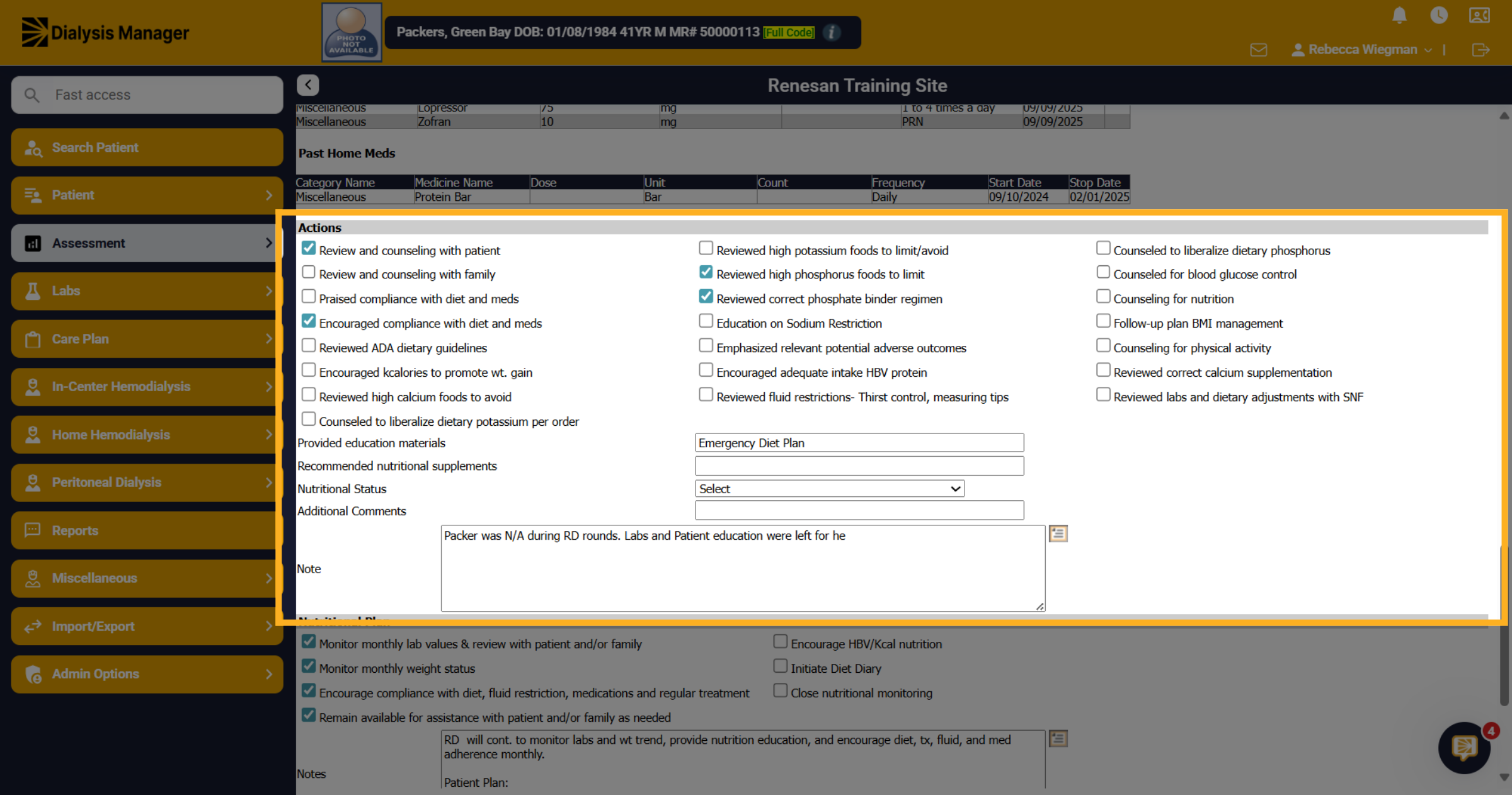
Select as many actions required and type if any educational materials were provided. Recommended Supplements. Or any additional notes.
27. Nutritional Plan
Same for the Nutritional Plan.
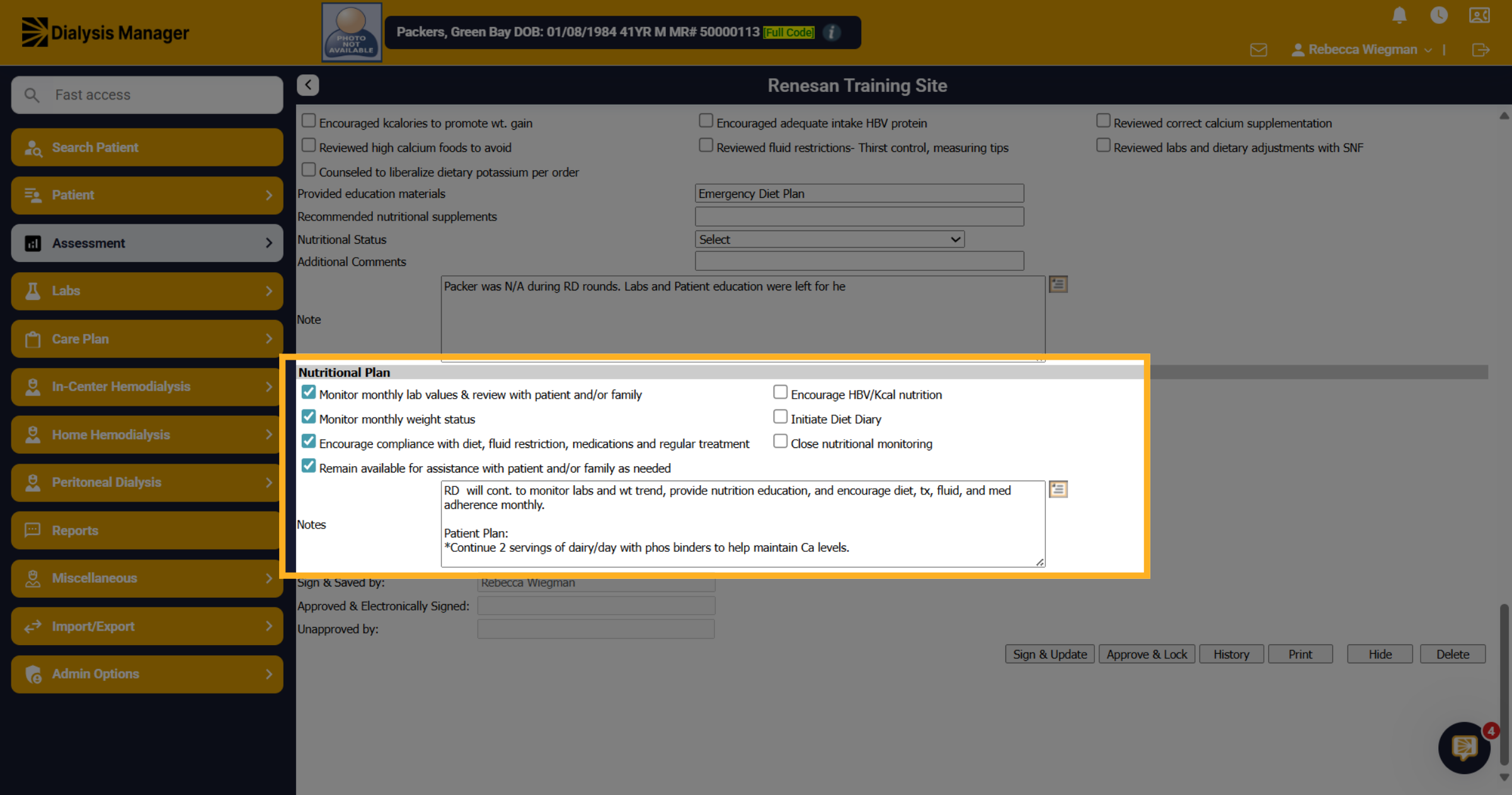
28. Click here
Sign & Update your review and Approve and Lock if you will not need to come back into this assessment to update.
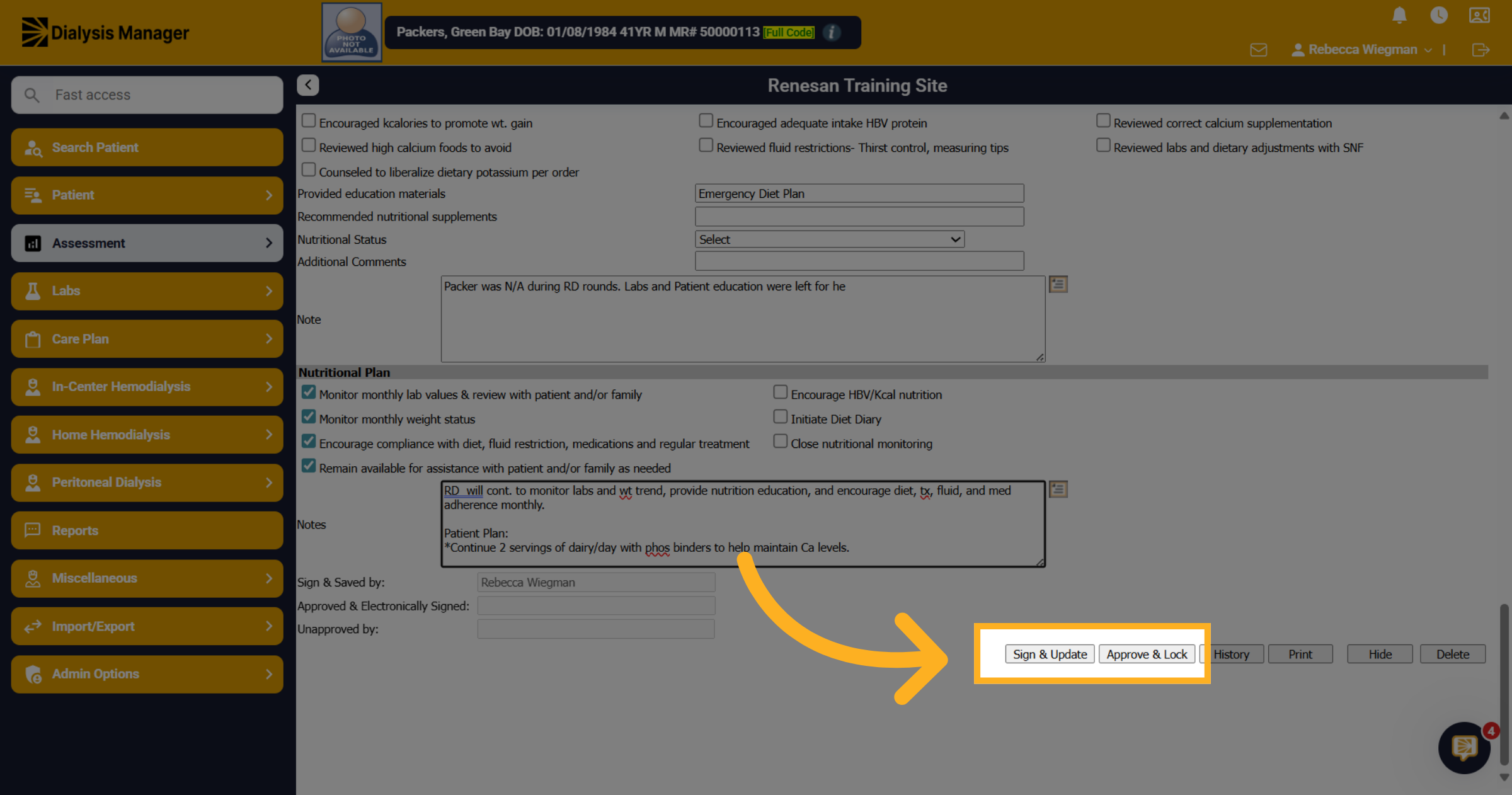
29. Dietitian Hand Out
Now we will walk through the process of accessing and customizing the Dietitian Hand Out. The Dietitian Hand Out is something you can provide your patients with their lab results.
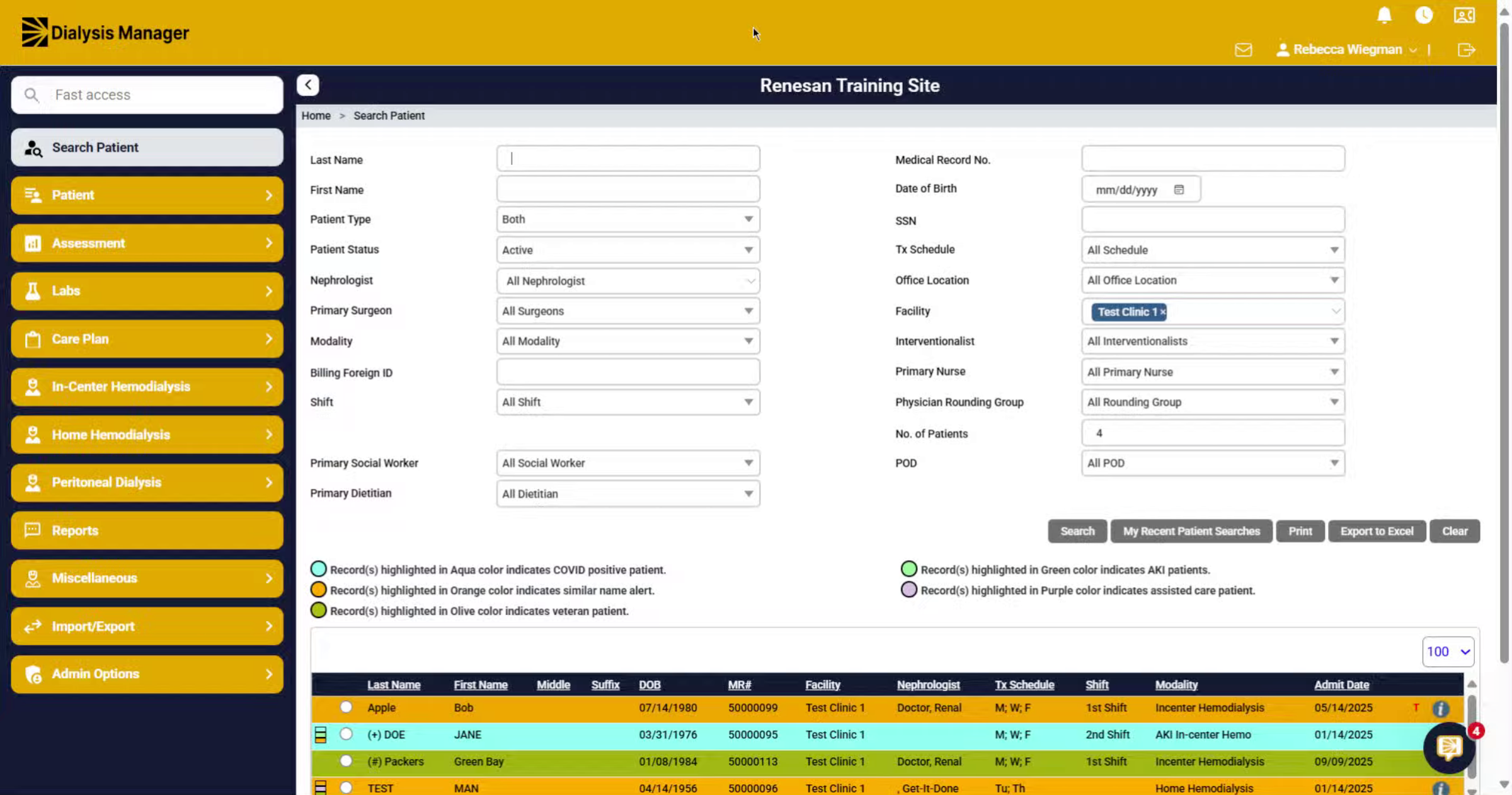
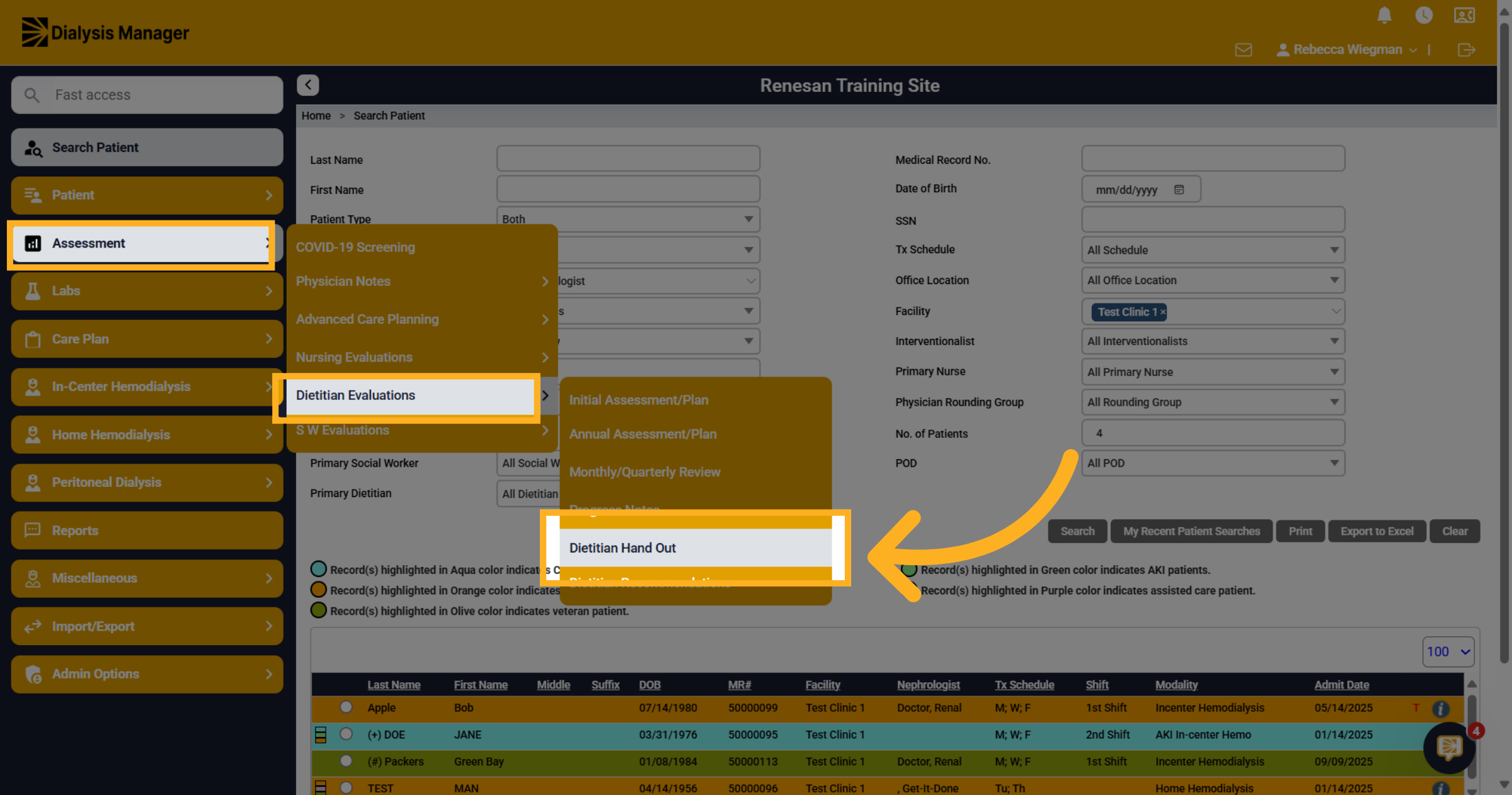
30. Click "Dietitian Hand Out"
Click into Assessment, Dietitian Evaluations, and Dietitian Hand Out.
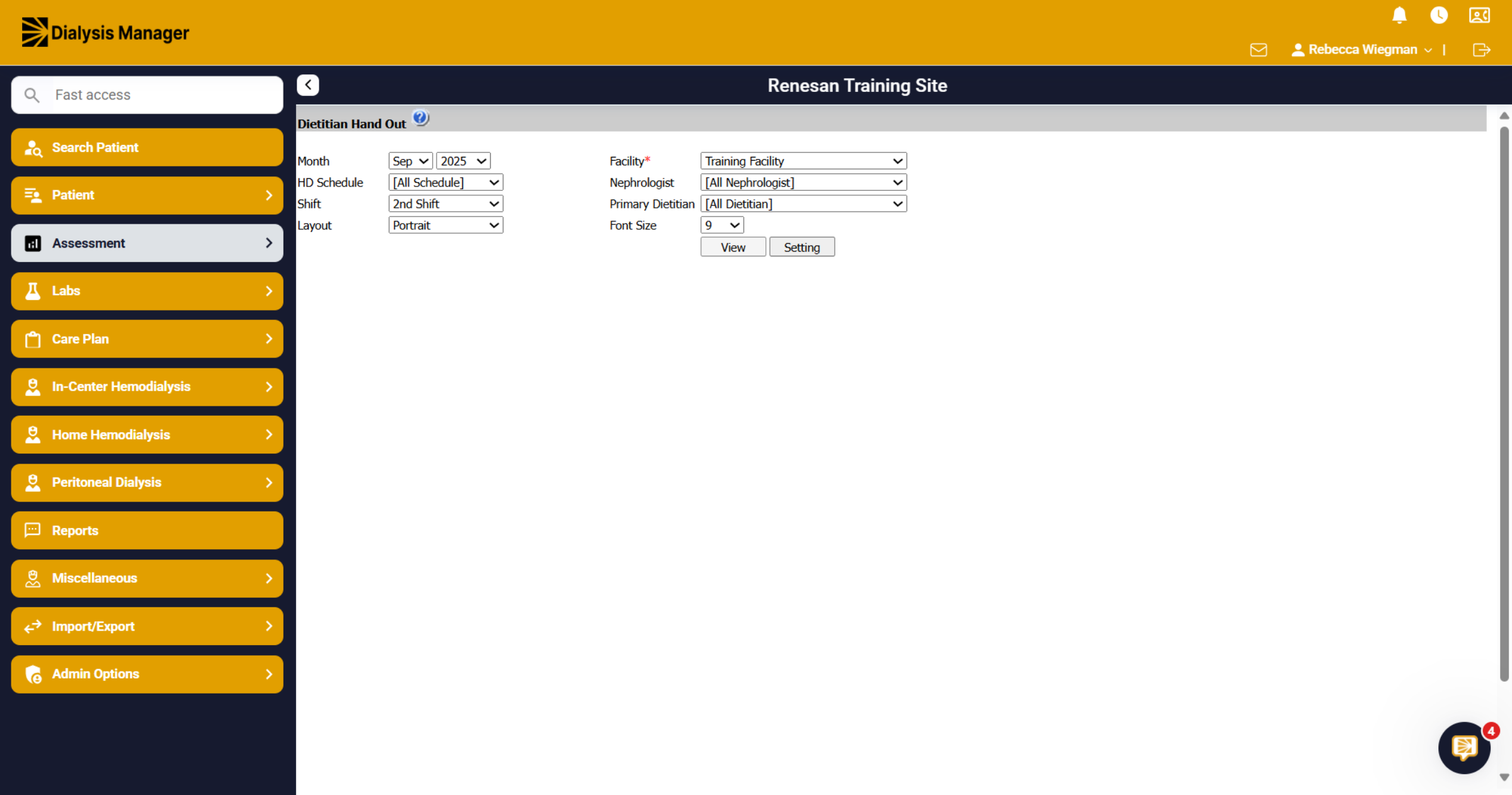
31. Click "View"
To run the report, choose your parameters. What month of labs did you want to look at? The facility you're running the reports for and even able to change the layout of the paper from portrait or landscape. Then click View.
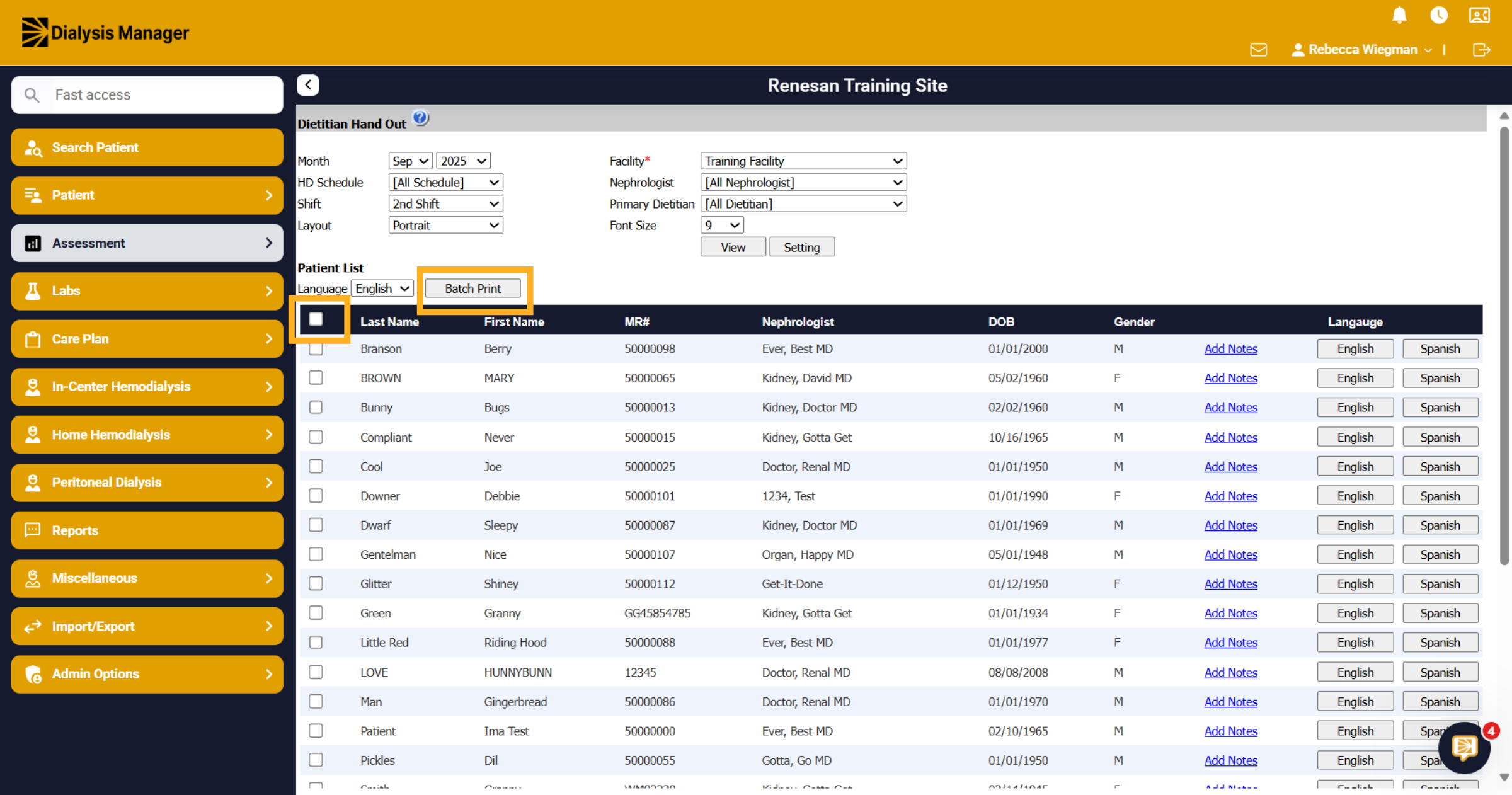
32. List of Patients
When selecting view your list of patients will show. Your able to select the check box in the black bar to show all patients on the report or you can select individual patients.
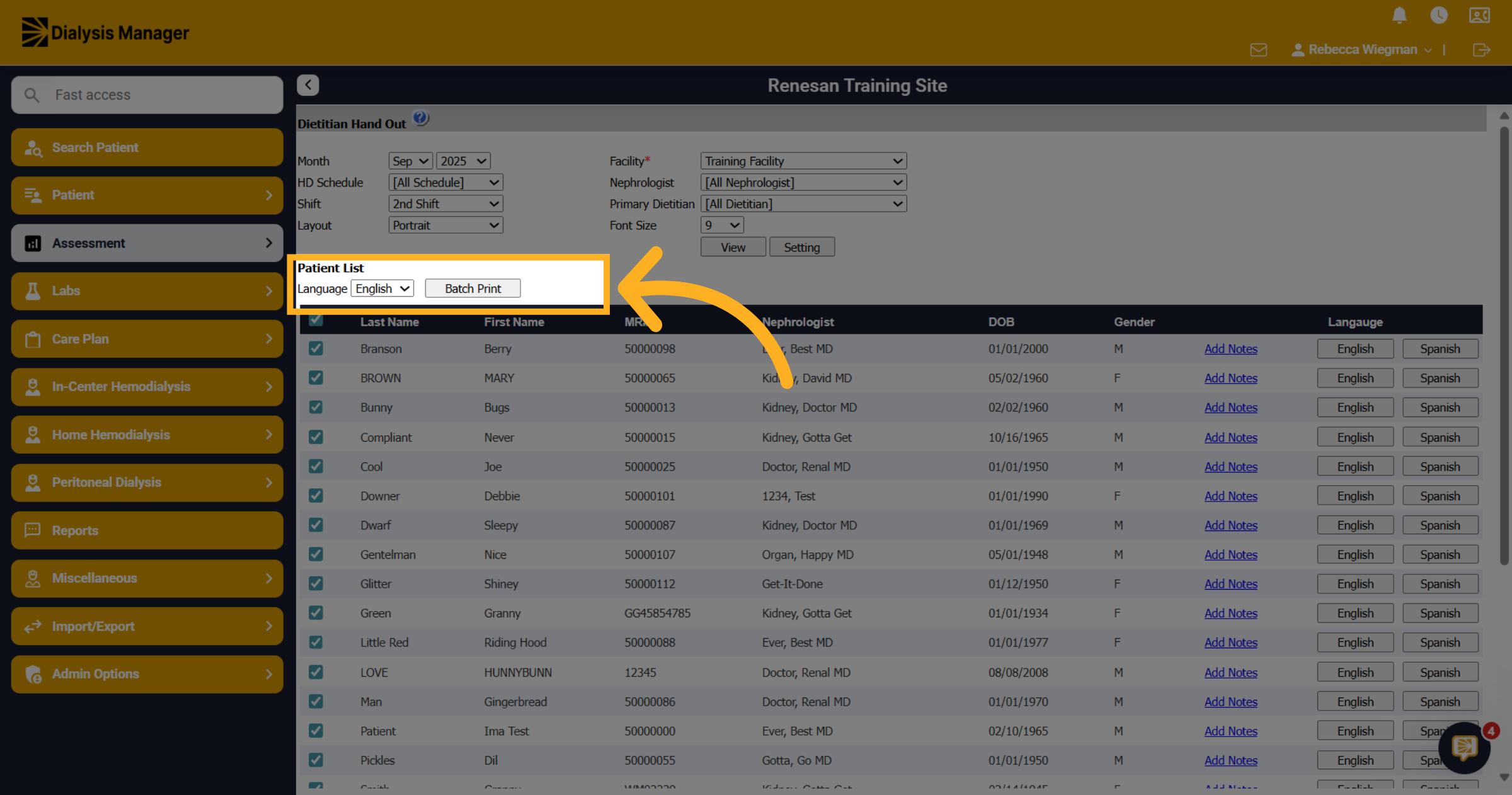
33. Click "Language
Click the language dropdown menu to select the preferred language for the handout.
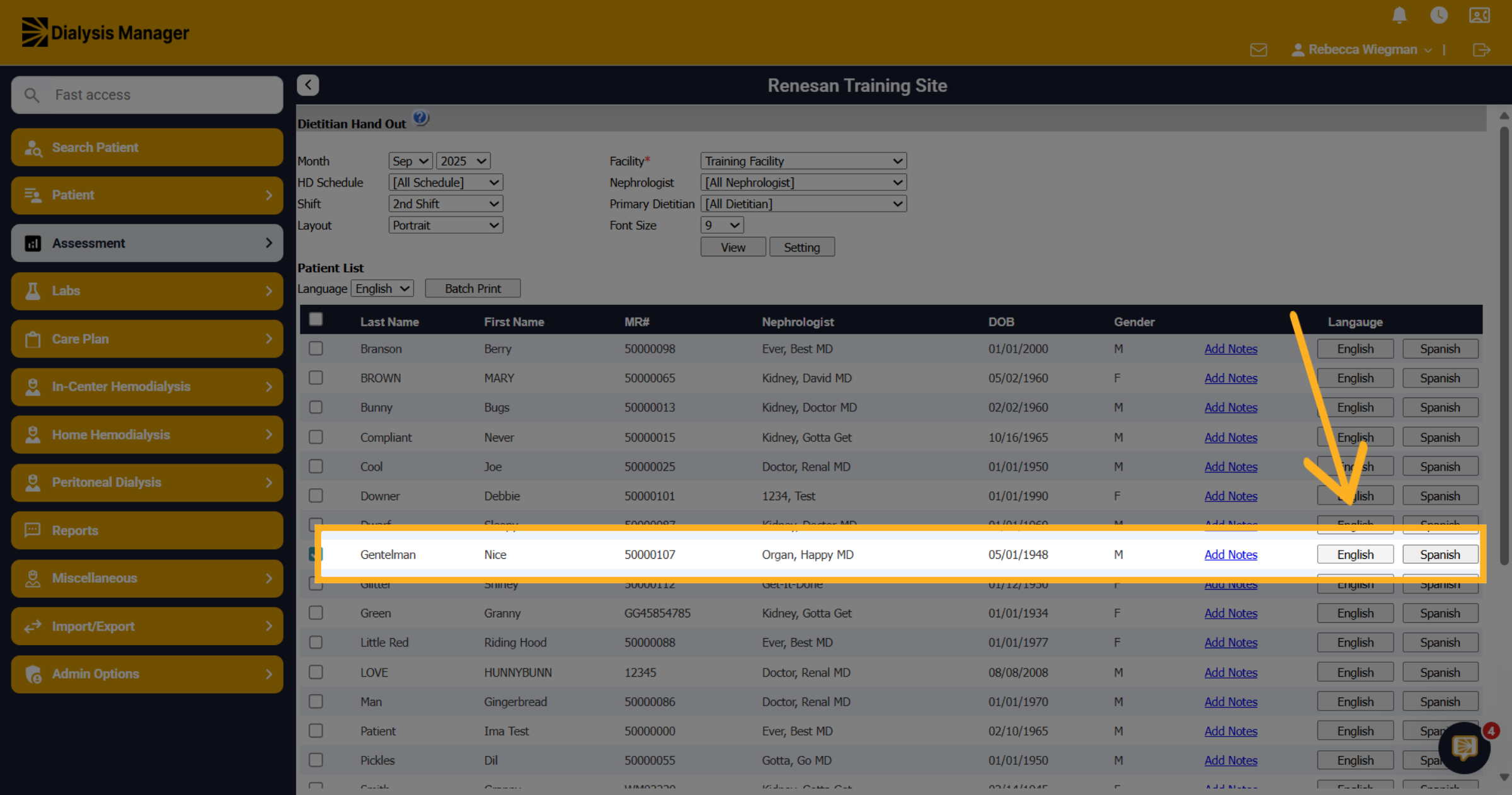
34. Click "English"
You can also select English or Spanish on the right side of the form to look at that specific patients hand out
35. Print out
Selecting a Batch report or select a patient individually this is what you'll see. When you have results, it will show their results this month, the last month and what the goal is.
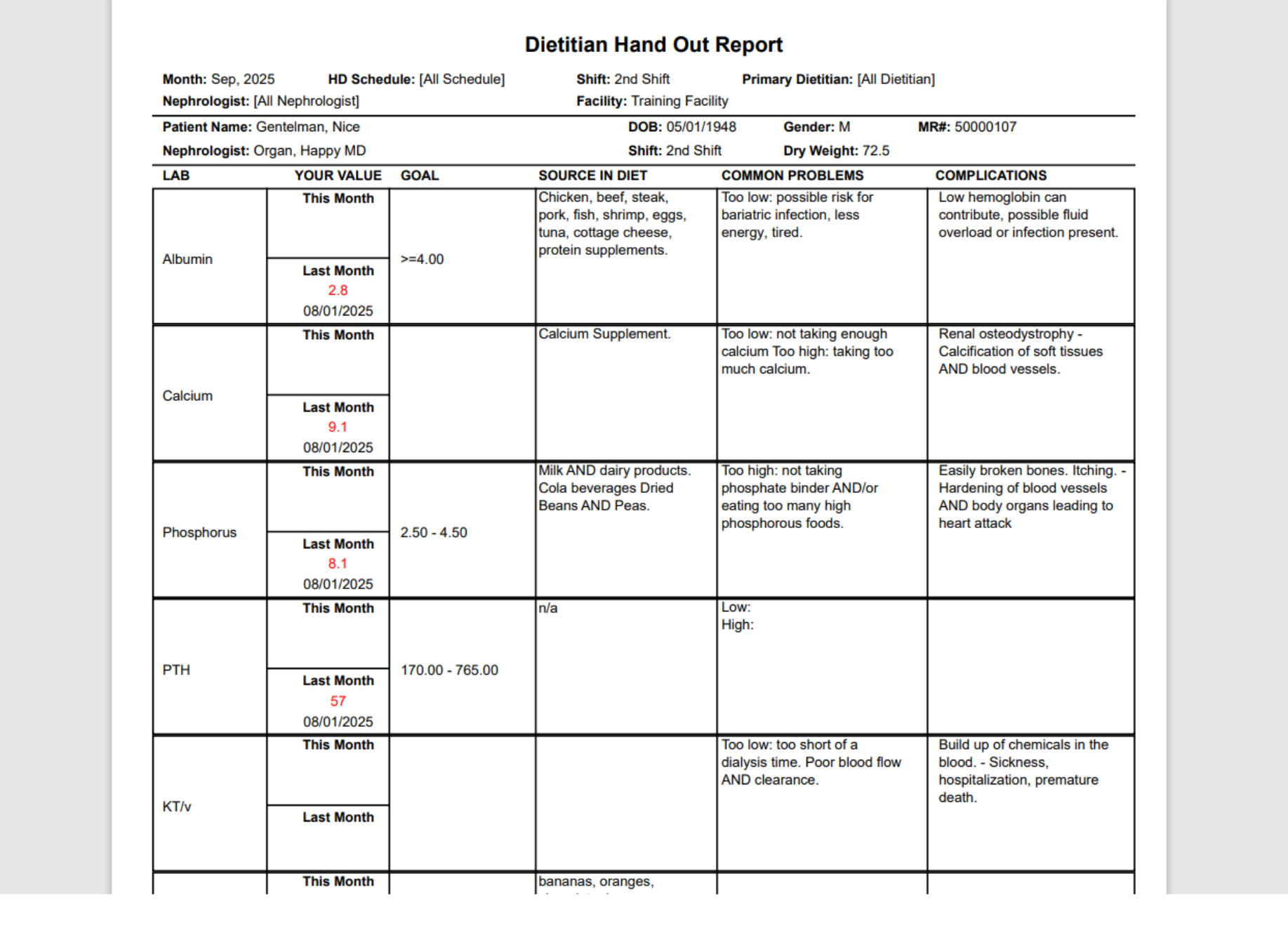
36. Click "Add Notes"
Click "Add Notes" to include additional information or comments in the handout.
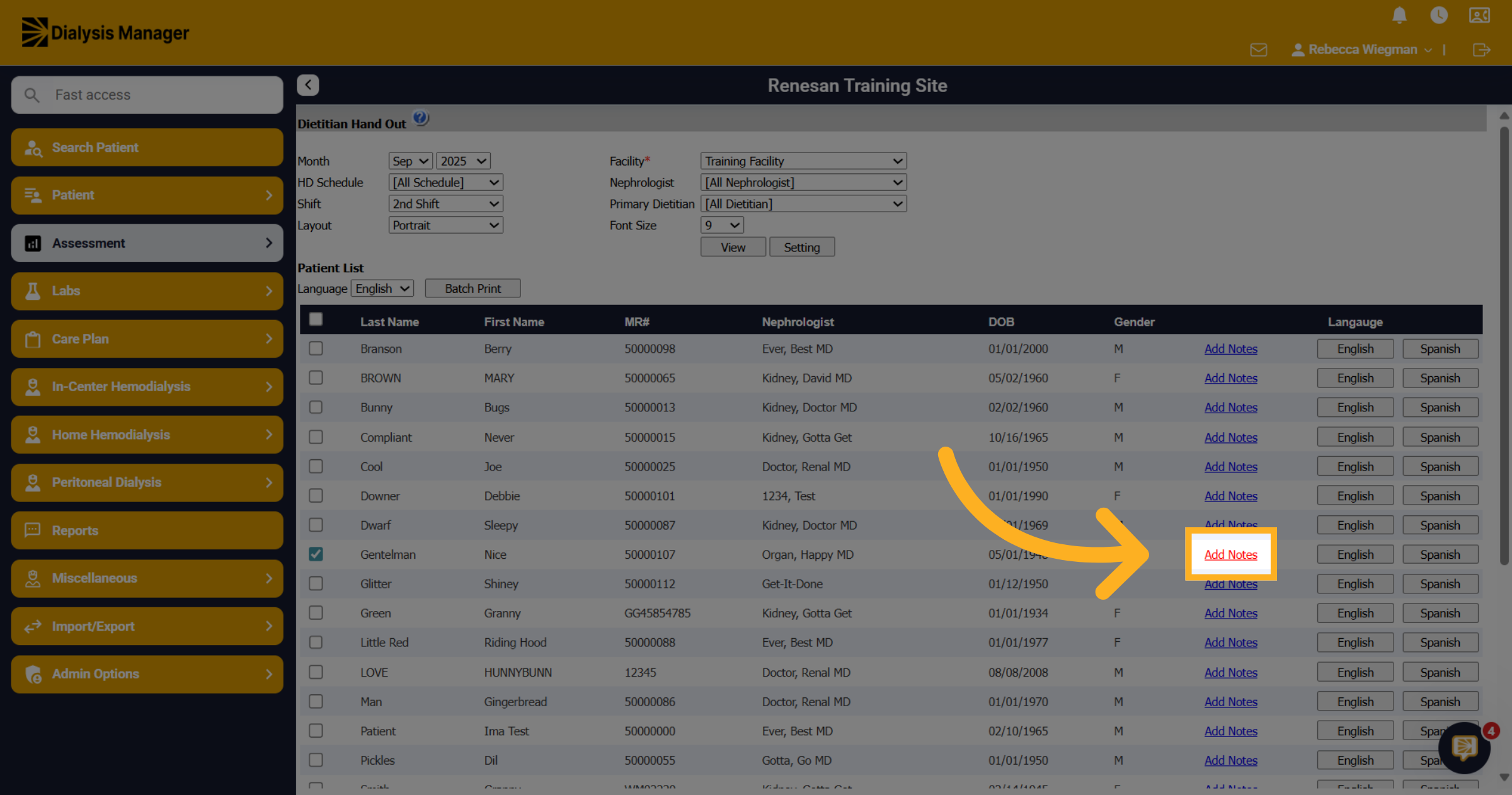
37. Click here
The date will auto populate, select the Lab Name and enter the source in diet, common problems and complications. Click Save and Close and it will bring you back to the Dietitian Hand Out screen. Please note, before you can save, it will require both English and Spanish be populated in the boxes. We do not translate for them in Spanish but recommend "googling" it and do a cut and paste.
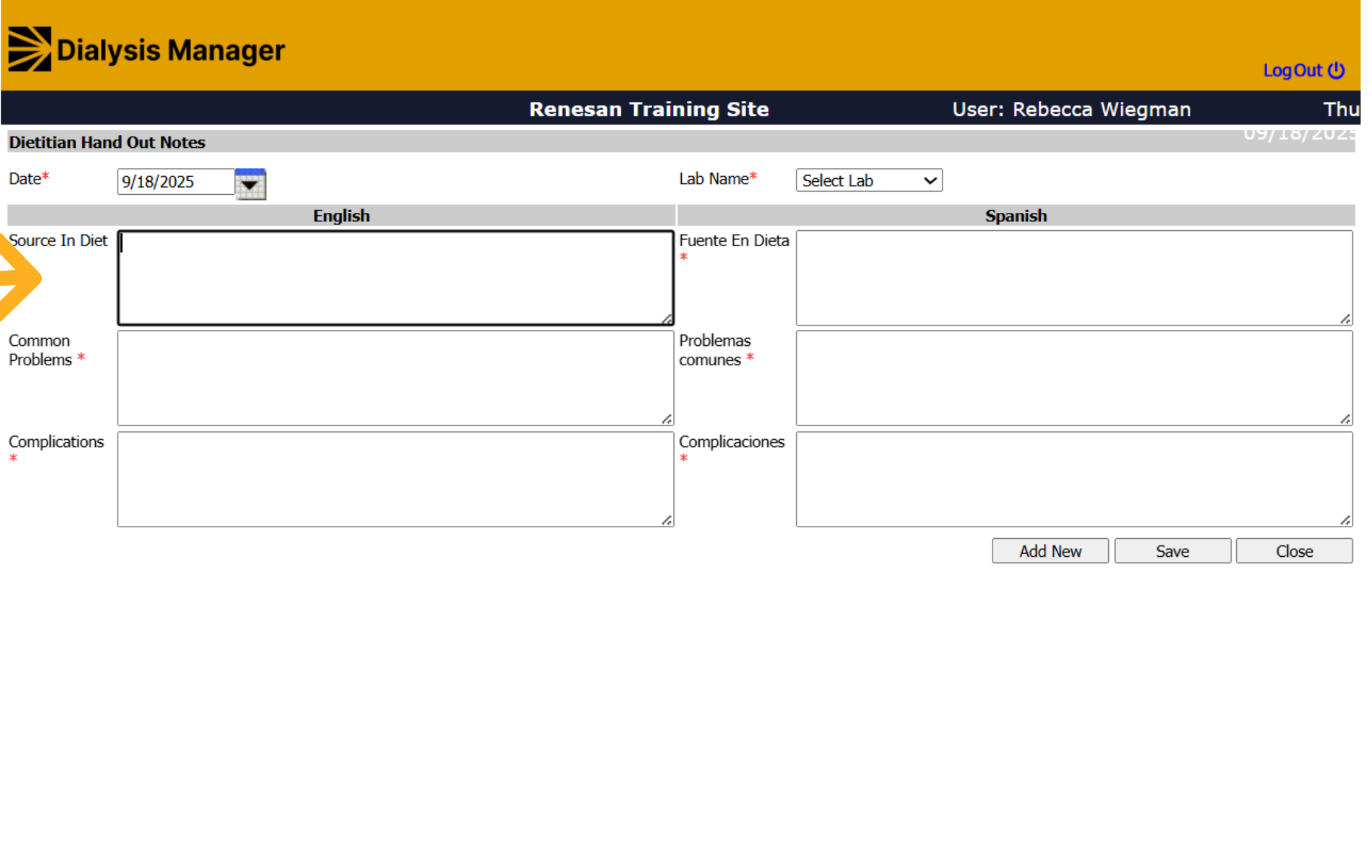
38. Settings
The Settings button is where you can customize what lab results appear on the report.
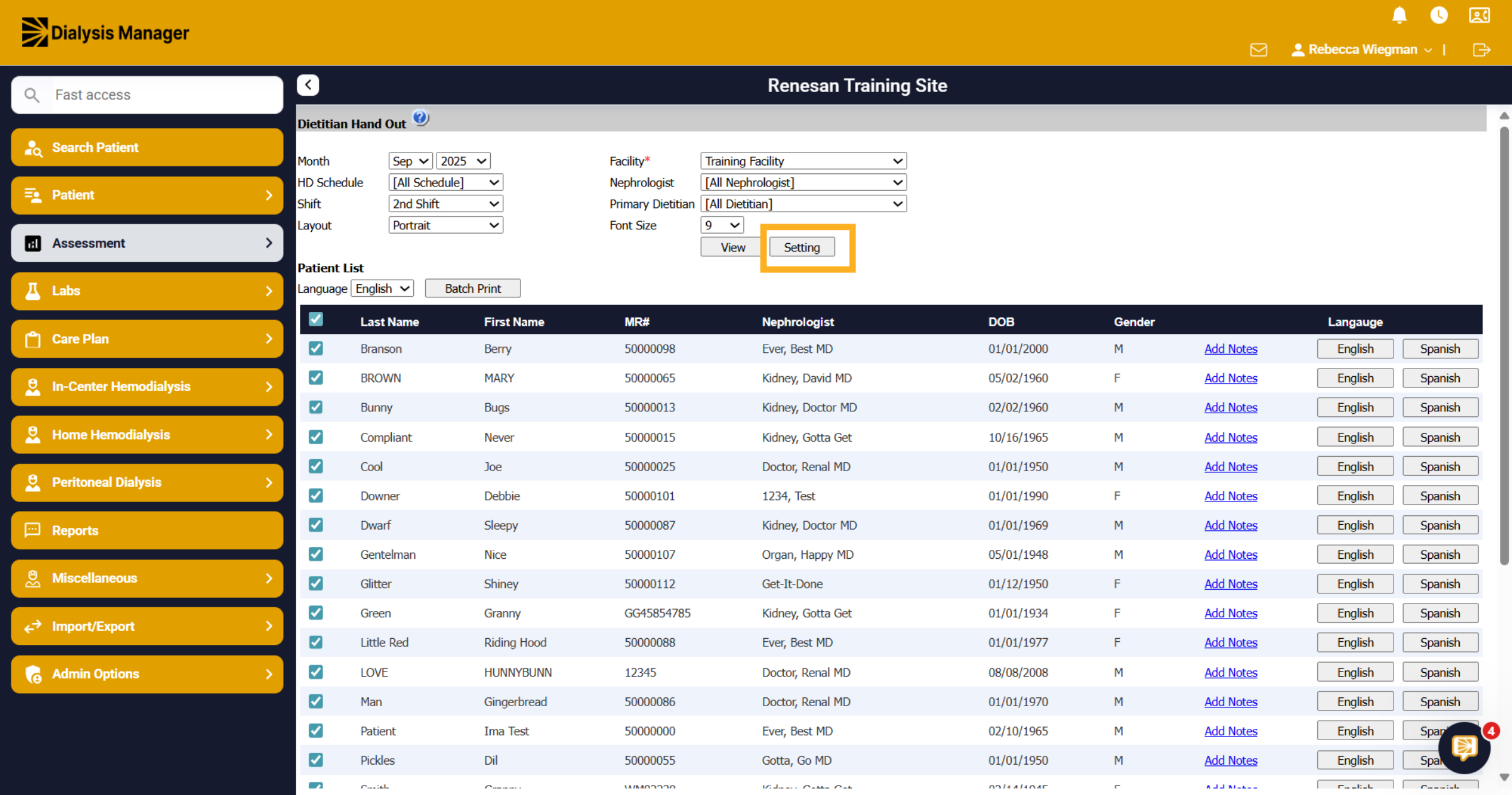
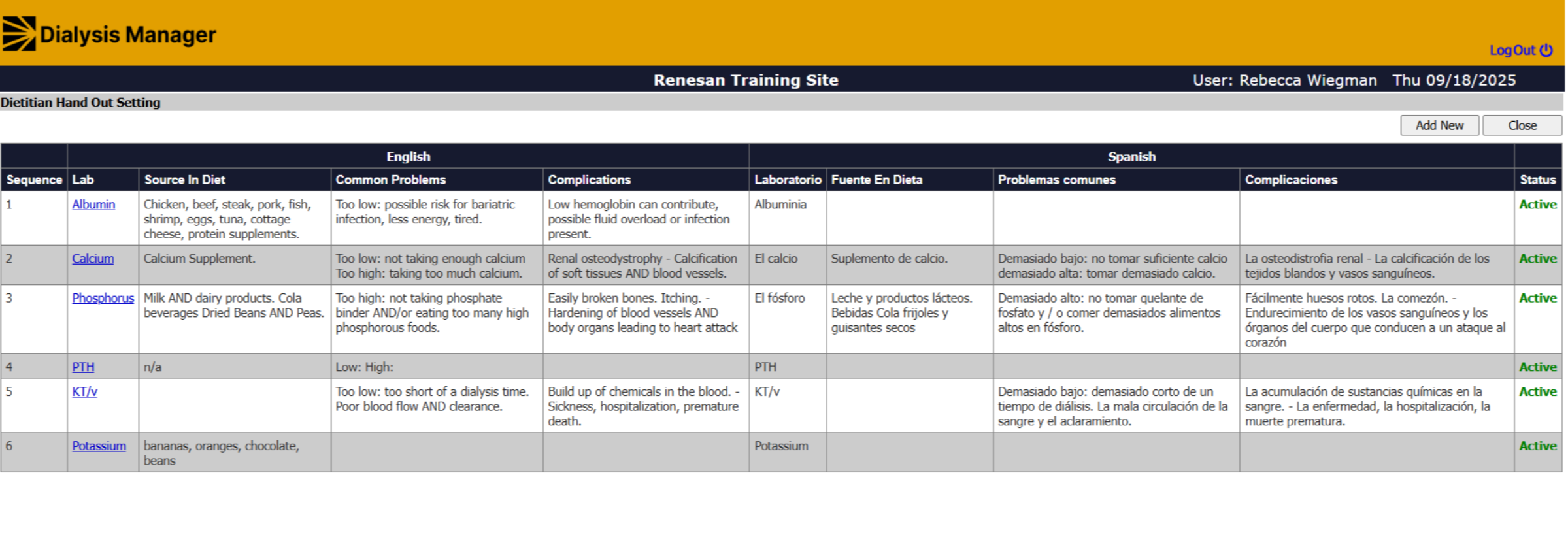
39. Labs
You can update the wording for the Source in Diet, Common Problems and Complications by selecting the lab name in blue. Or Select Add New if your lab is not on the list.
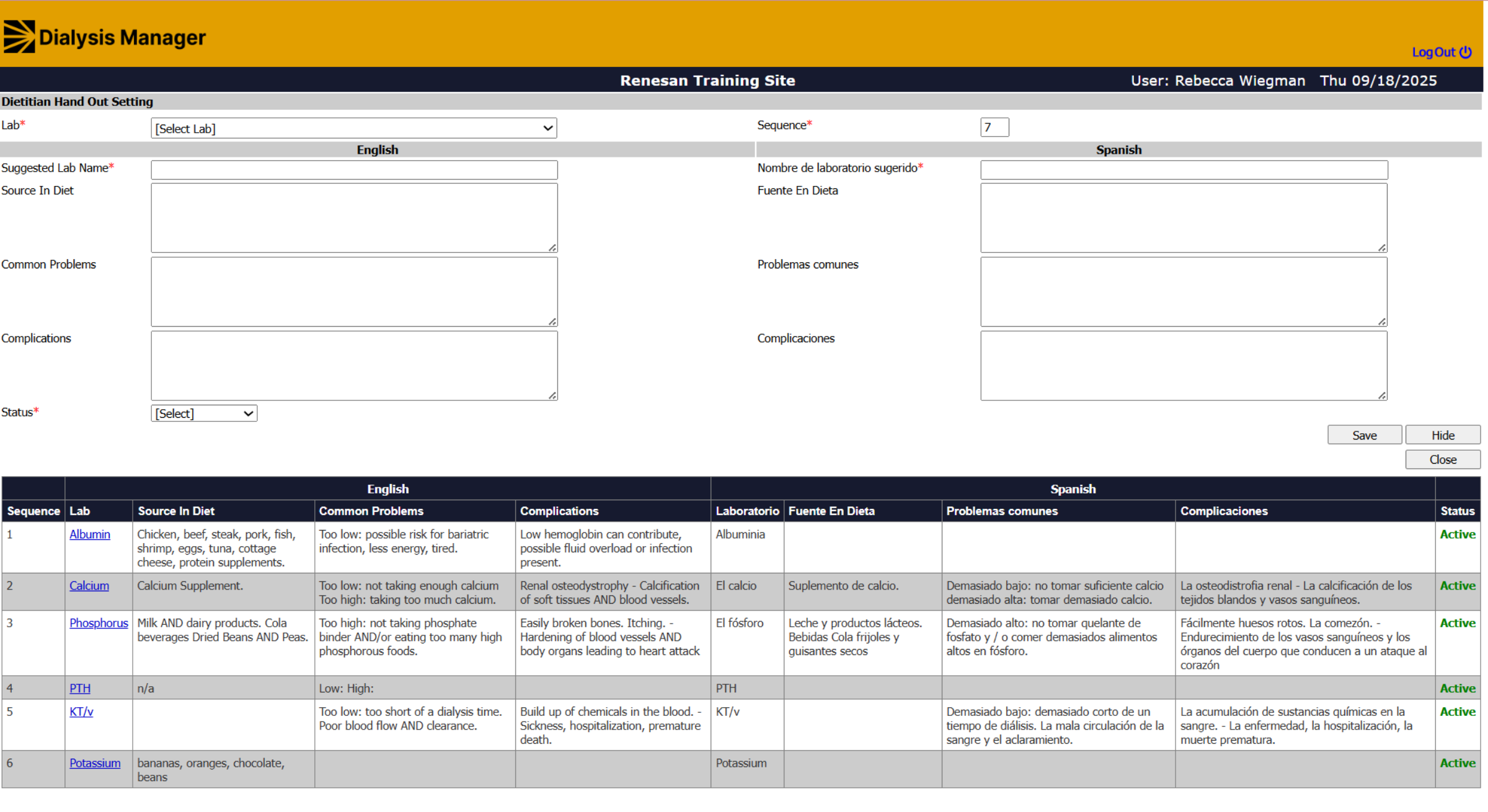
40. Add New
Select a Lab Name from the drop down, type that name into the Suggested Lab Name and enter the source in diet, common problems, and complications. Select the status Active to show in the list or Inactive to remove the lab from the list. The sequence number will auto populate, this is just showing you what order the labs will display on the report. Click Save and Close. Again, you'll need to also enter both English and Spanish before saving.
41. Dietitian Recommendation
Now lets walk through creating a dietitian recommendation. Diet Recommendations are used when dietitians are restricted from writing orders. The nursing staff will review these recommendations and send this to the MD generating a Diet Order.
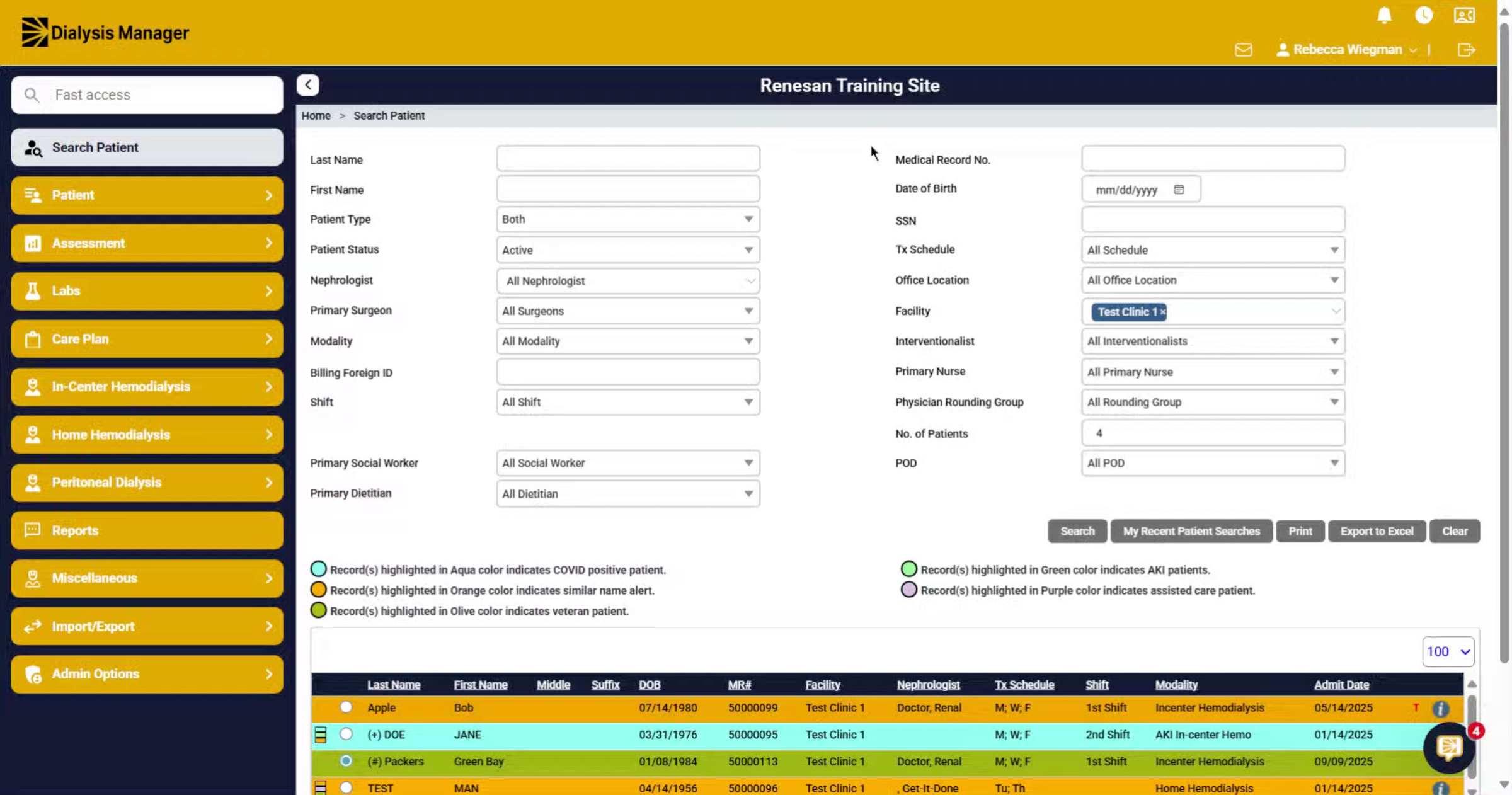
42. Navigate to Dietitian Recommendations
Once your patient is selected, navigate to Assessment Dietitian Evaluations then Dietitian Recommendations section to access existing entries and add new ones.
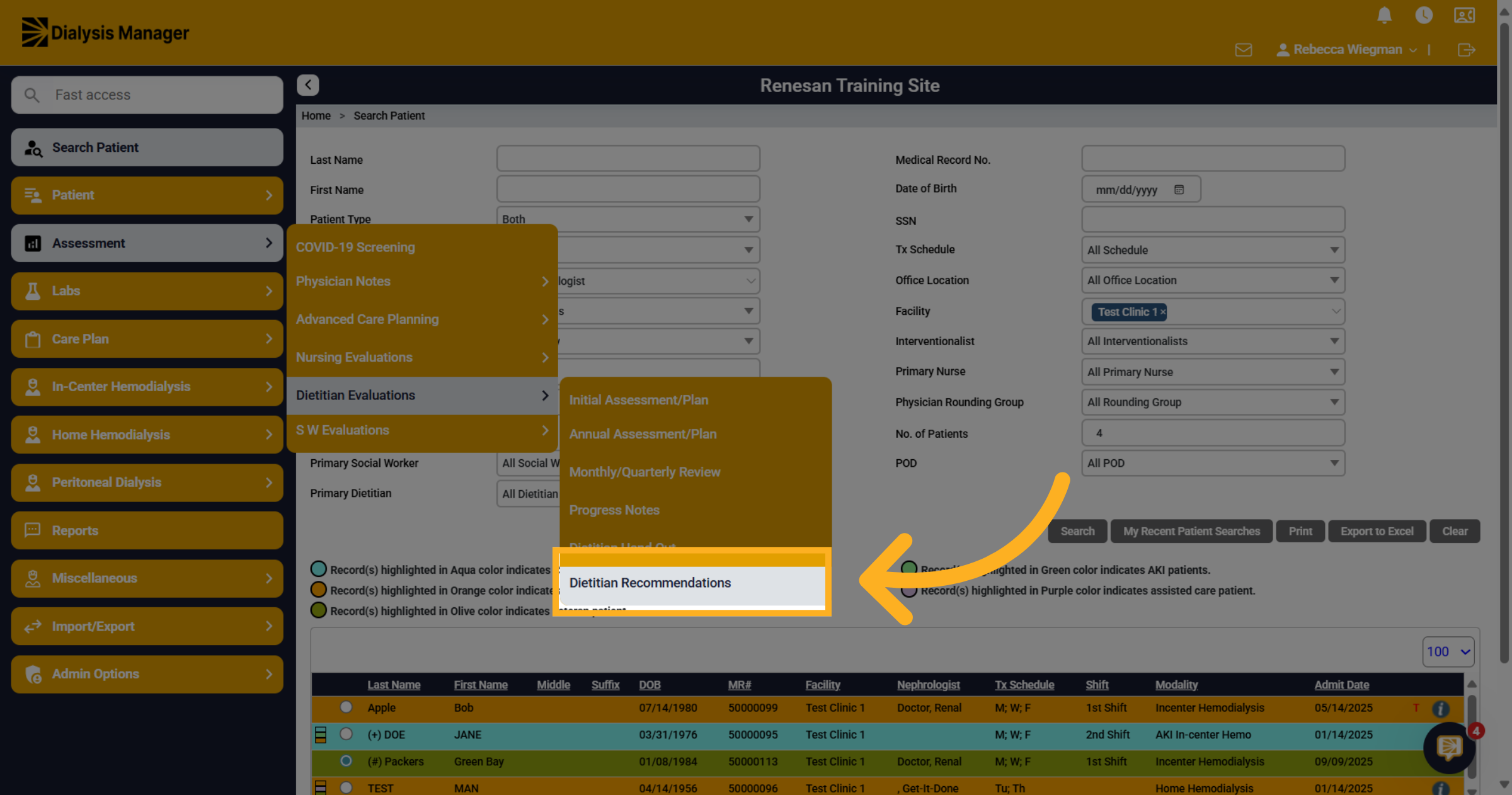
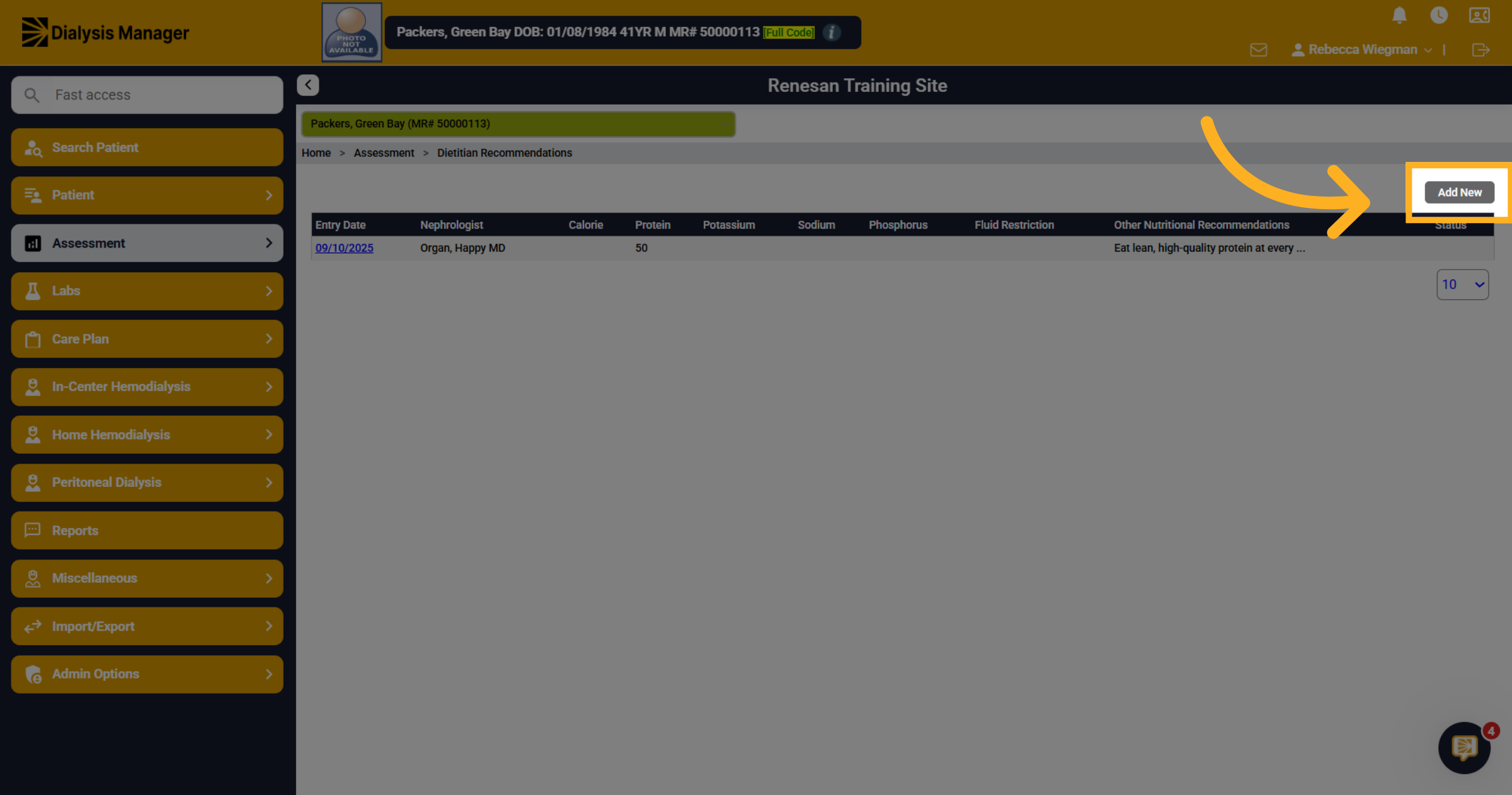
43. Click "Add New"
Here you'll see all prior or current diet recommendations. Click the Add New button to start creating a new dietitian recommendation.
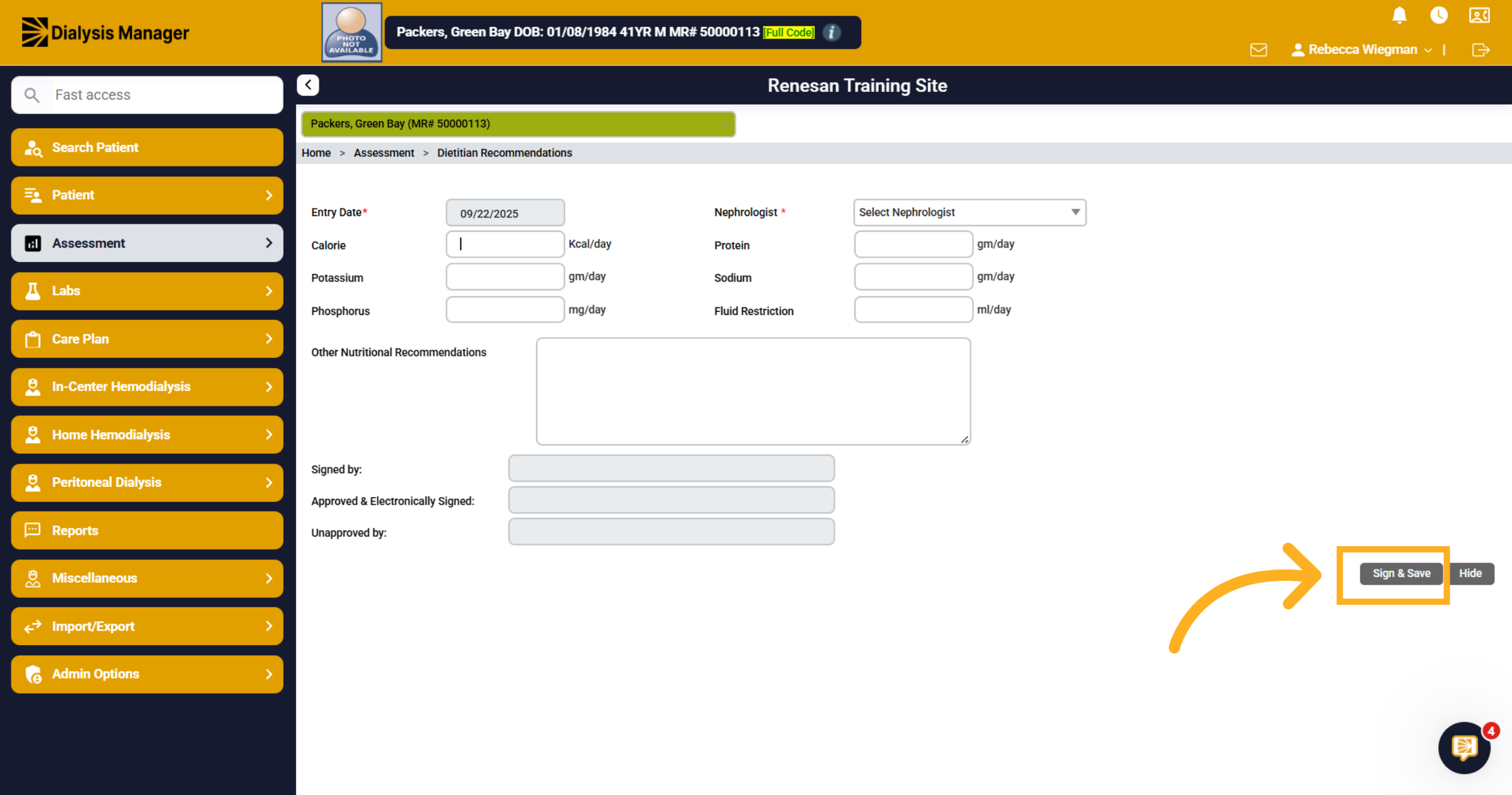
44. Enter recommendation, Sign and Save
In the form, enter the patients individualized diet recommendations. Click the Sign and Save button. This will send a notification to the nurse
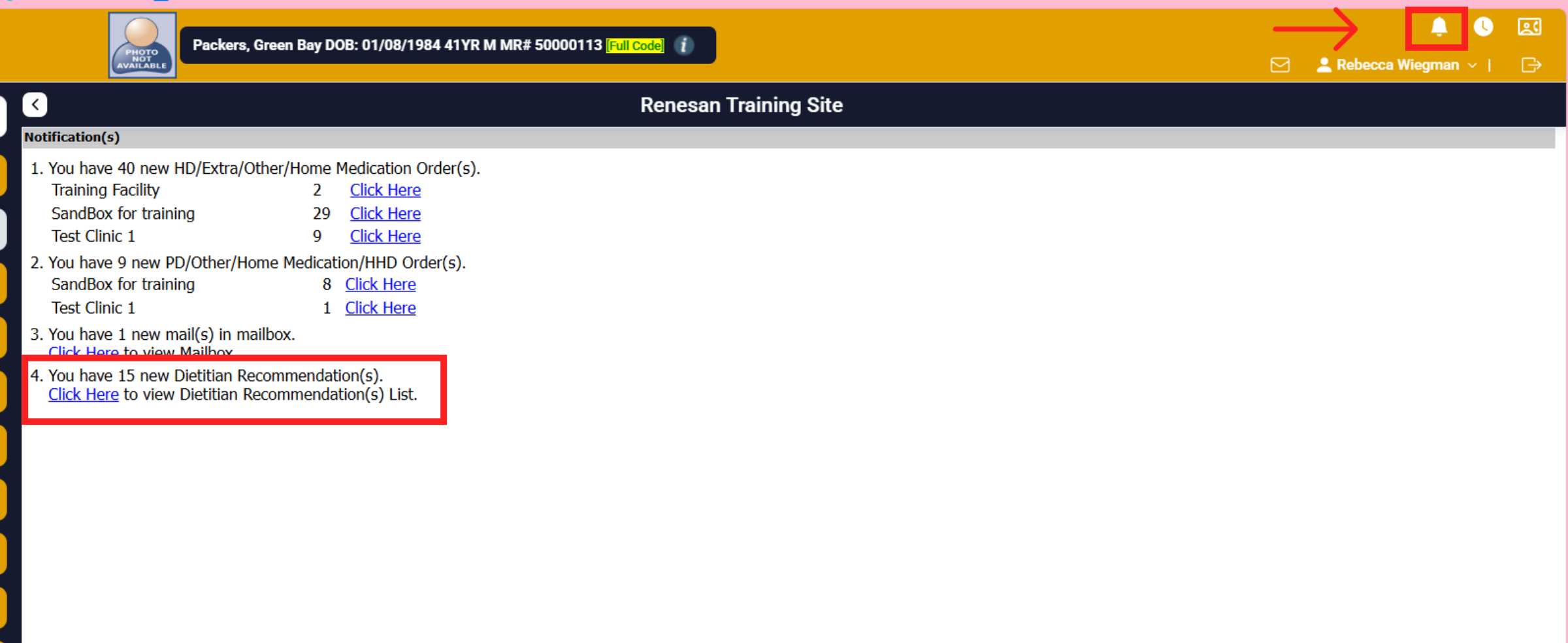
45. Notifications
Selecting the notification Bell, appropriate staff will see Dietitian Recommendations. They will select 'Click Here' which will open the recommendations review section.
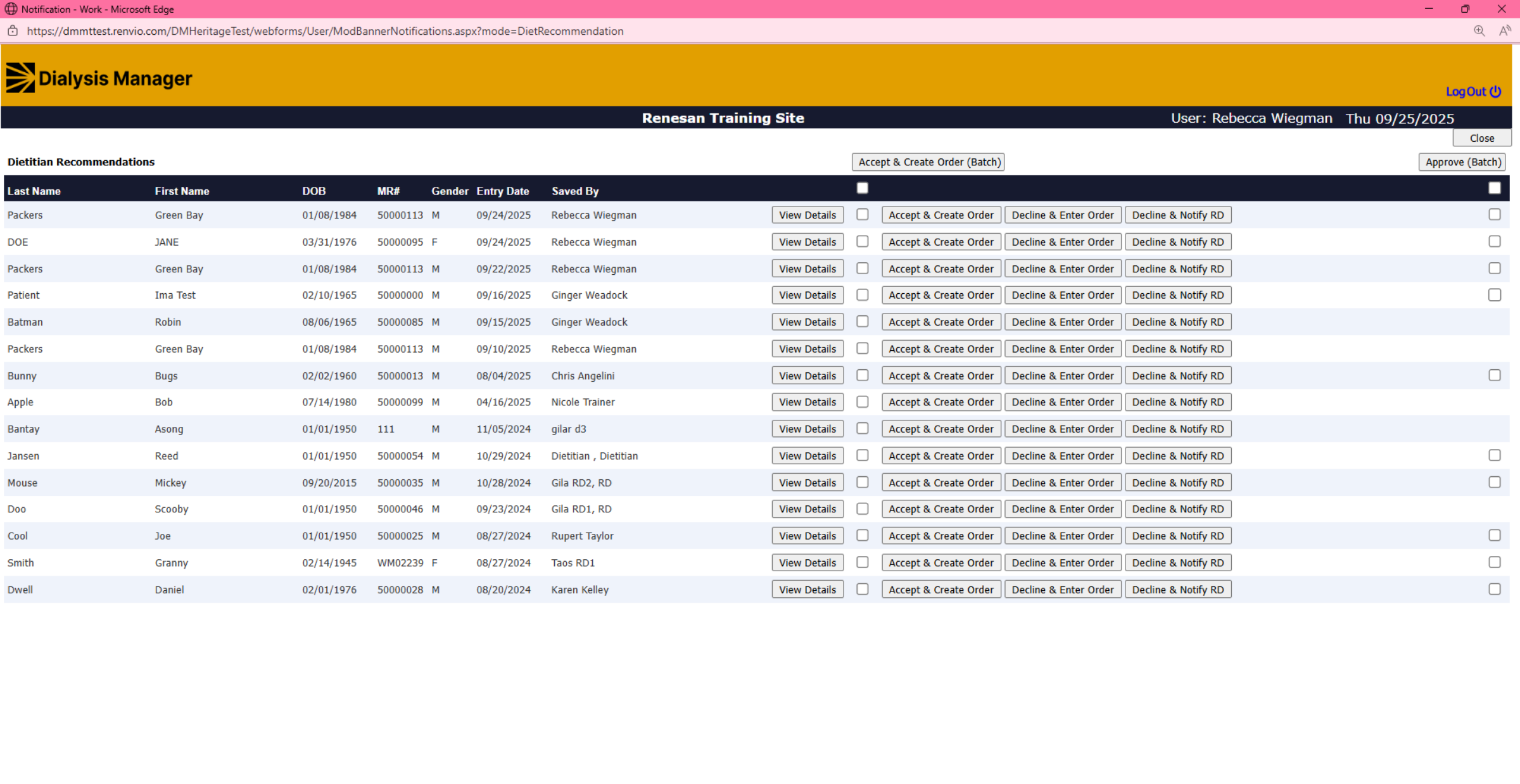
46. Approving Orders
Depending on your roles provided by administrators Staff can view the details, accept and create order, decline and enter order or decline and notify RD. When declining a pop up will appear and the staff is able to notify any user via the mailbox messaging feature.
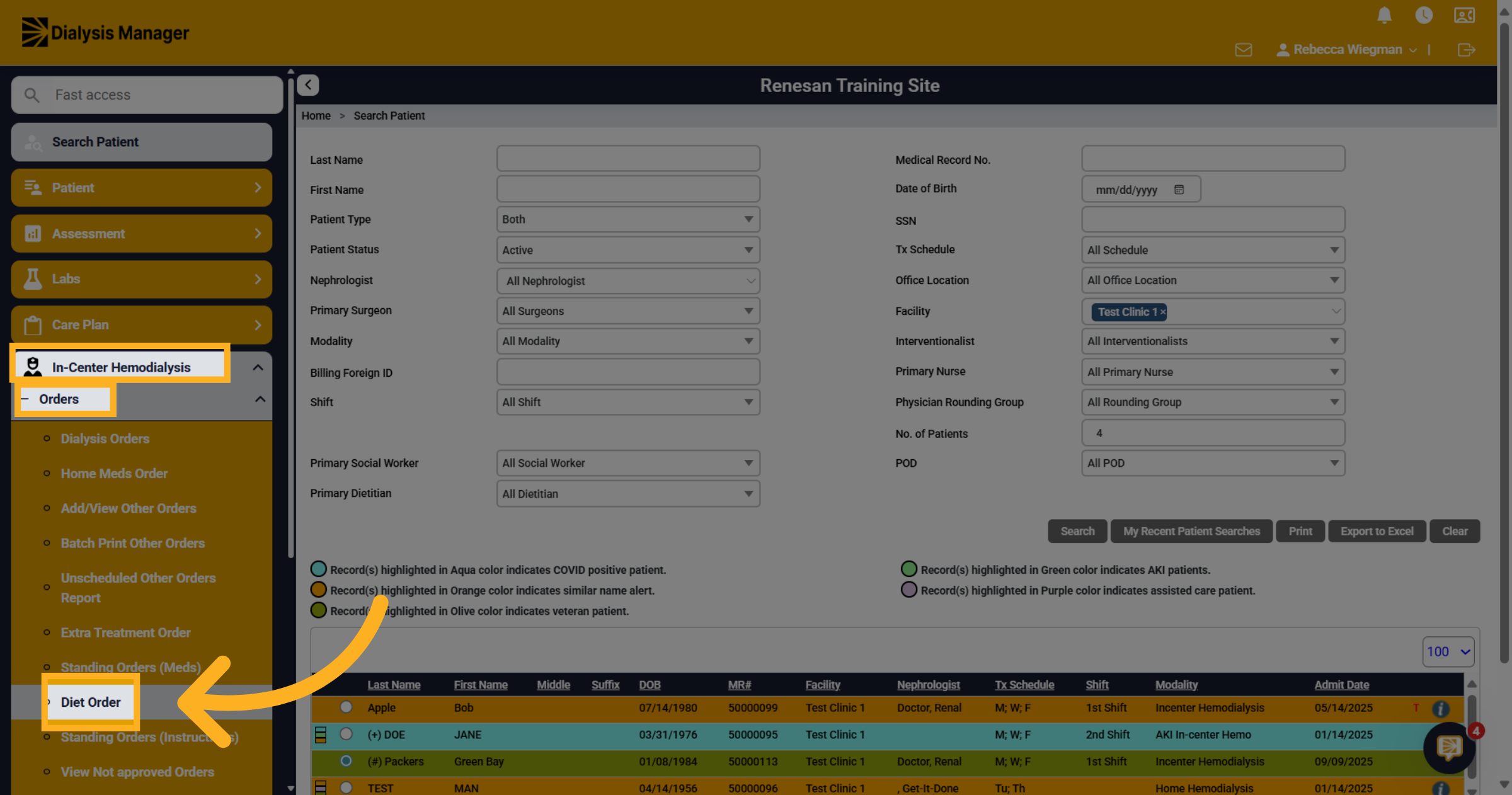
47. Click "Diet Order"
With your patient already selected Go to In-Center Hemodialysis, Orders and Diet Order.
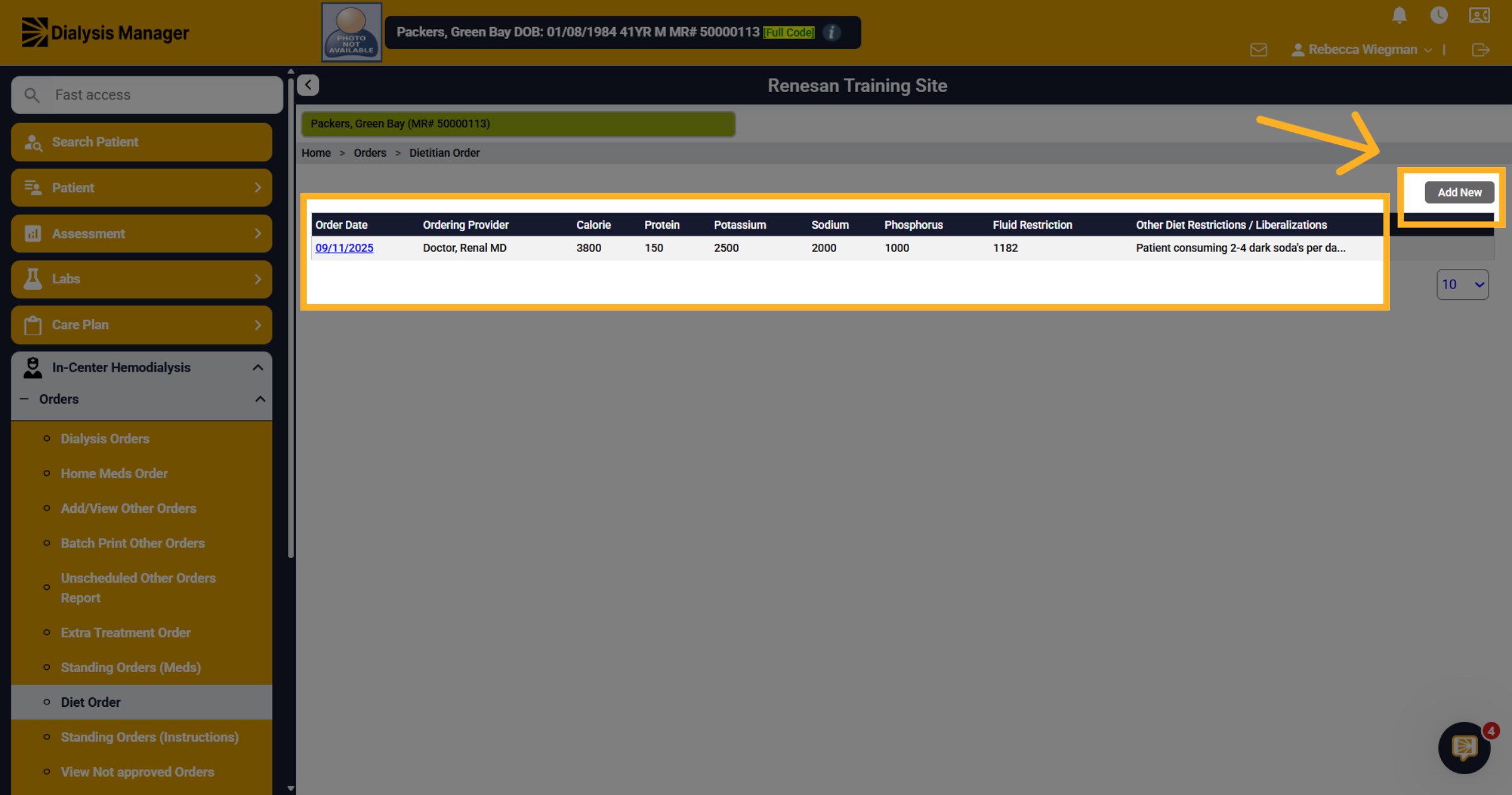
48. Other Orders will appear here
When opening you'll be able to see previous diet orders entered on the patient. Select Add New
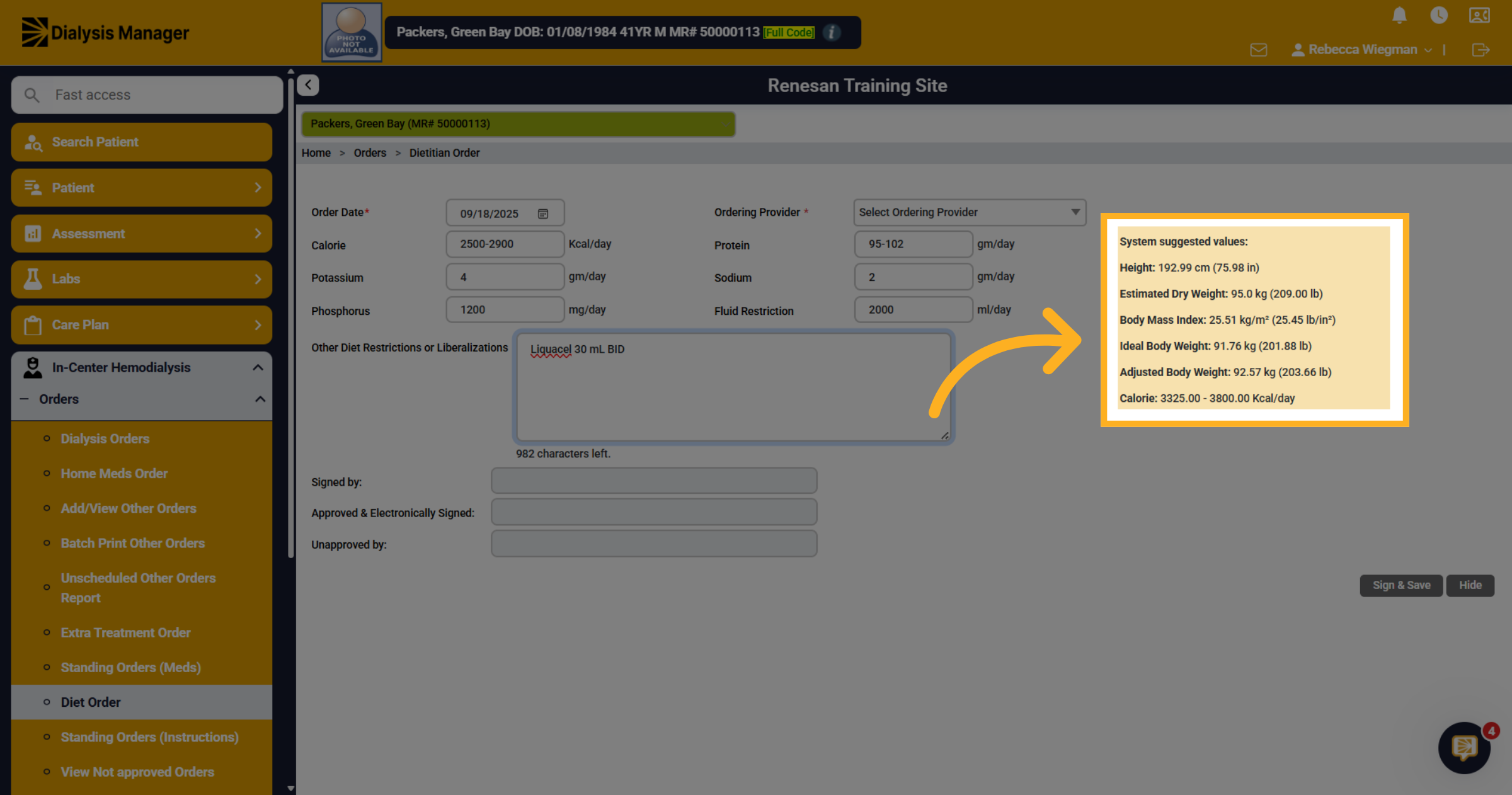
49. System Suggested Values
The box on the right will have suggested information. It pulls the height and the estimate dry weight from the last dialysis order. Then it calculates the BMI for you, ideal body weight and adjusted if needed. Also a suggested calorie range which is based on the patients BMI and age. Again these are suggestions!
50. Fields
Your able to fill in these fields to your liking.
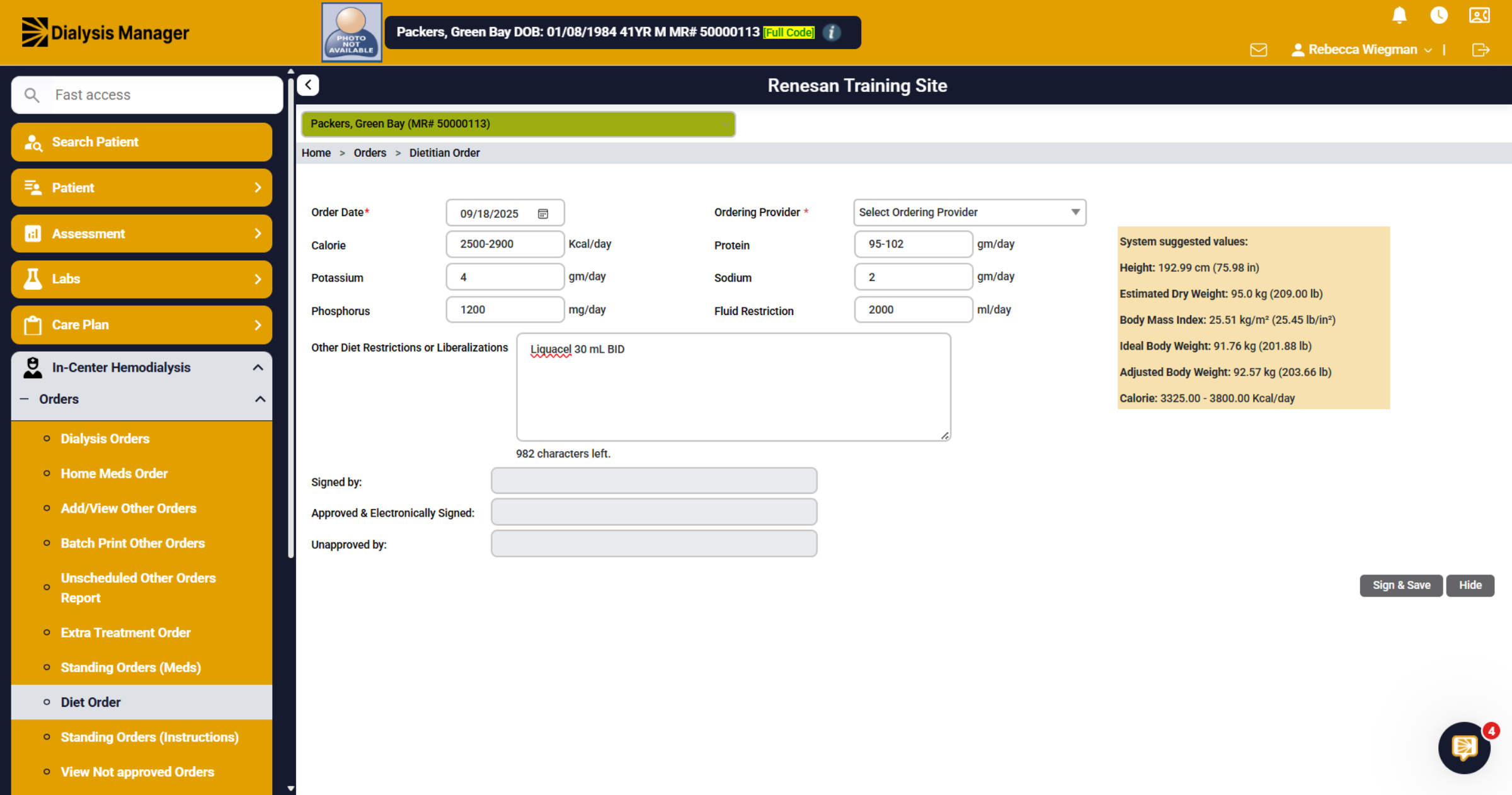
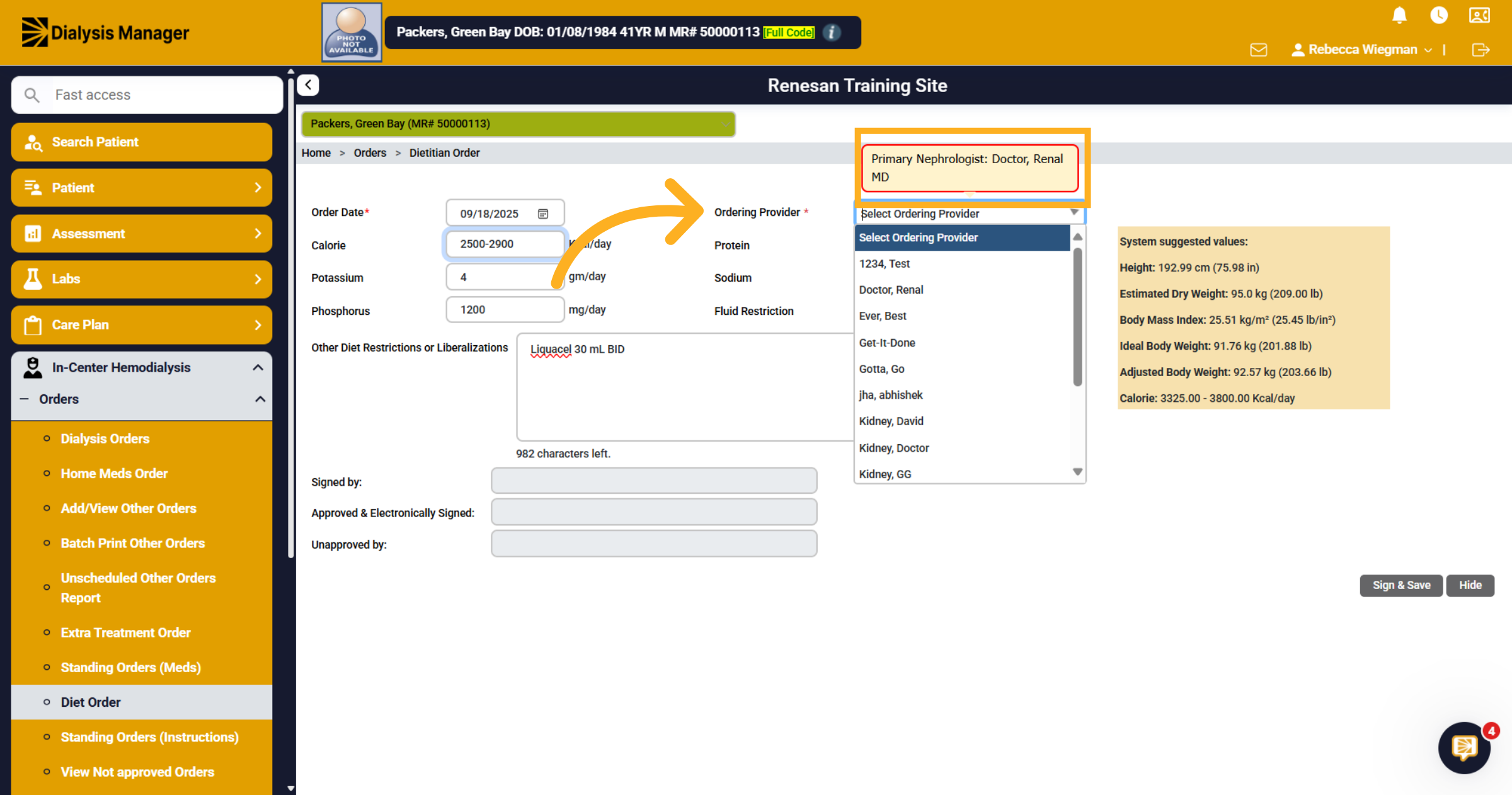
51. Ordering provider
When hovering over the Ordering Provider it will display the patients primary doctor.
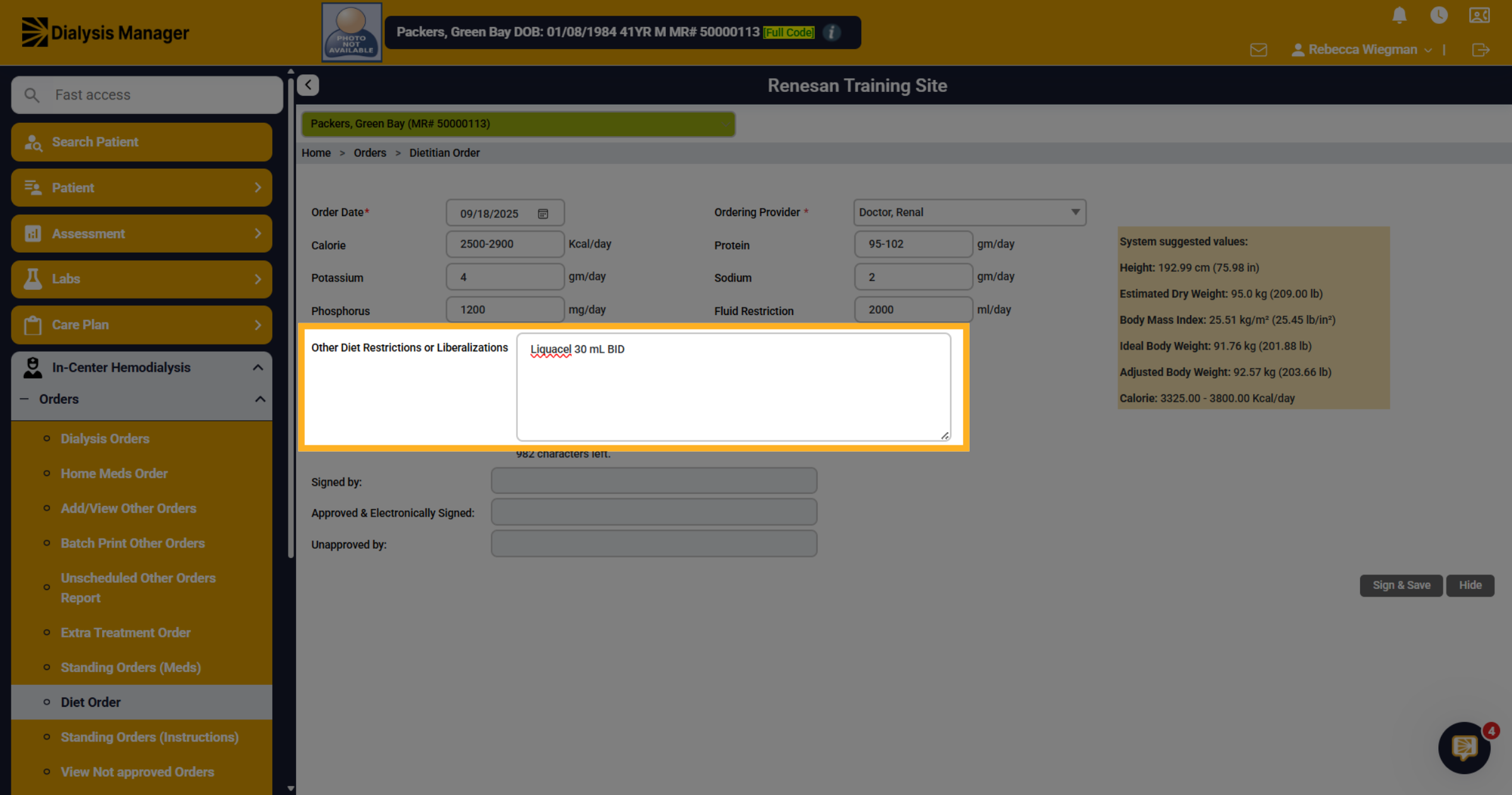
52. Other Diet Restricitions or Liberalizations
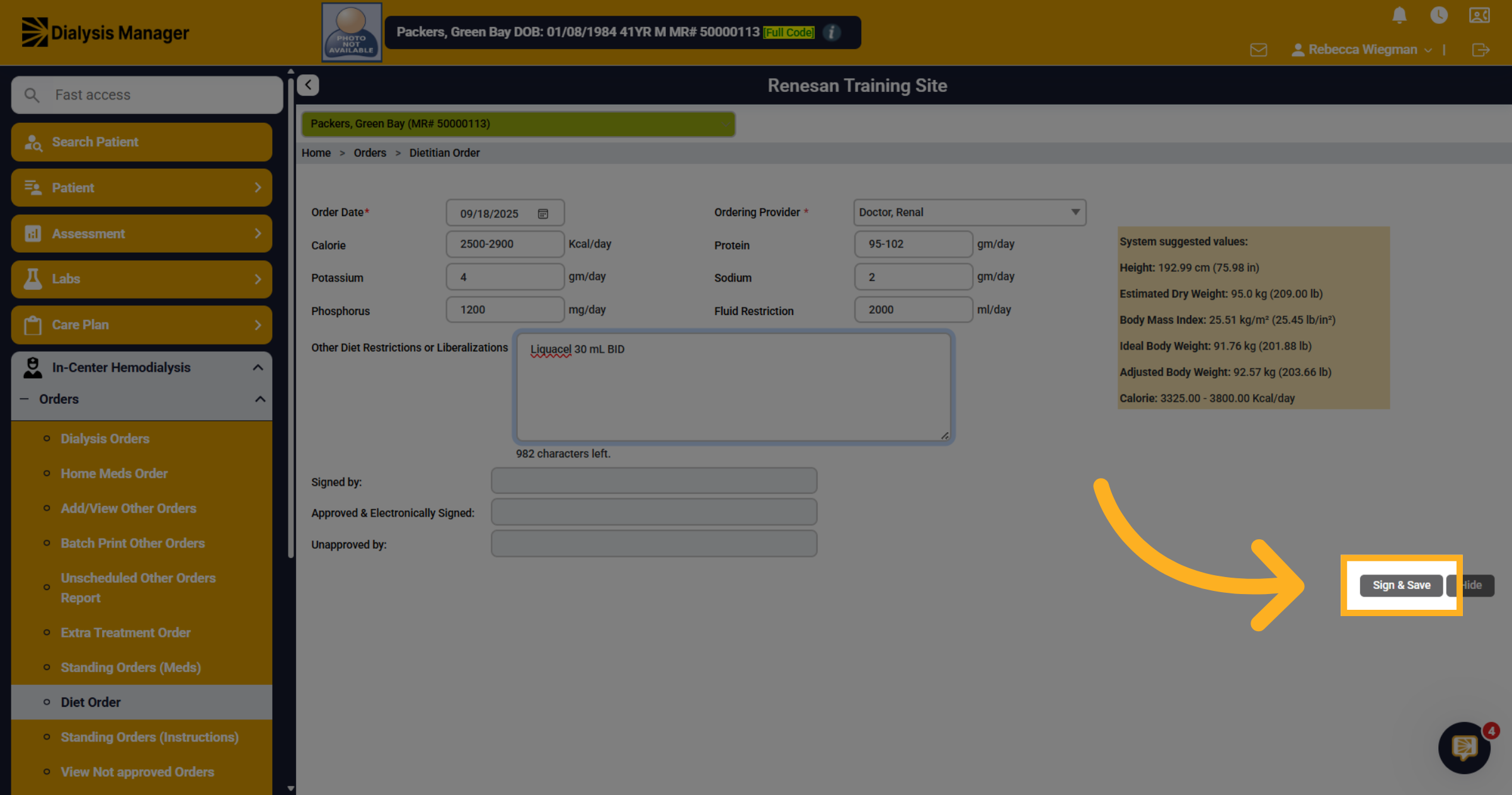
Enter any other diet restrictions or liberalizations and additional notes or even supplements.
53. Click "Sign & Save"
Click "Sign & Save" to save the current changes to the diet order. When your physician logs in, they will see this order in their list of notifications of orders that need to be approved!