Creating Standing Order Meds and Instructions for In-Center Hemo Patients in Dialysis Manager.
1. Introduction
Here we will walk through how to enter your standing order instructions and standing order meds for in-center hemodialysis patients. This tutorial guides you through each step within Dialysis Manager.
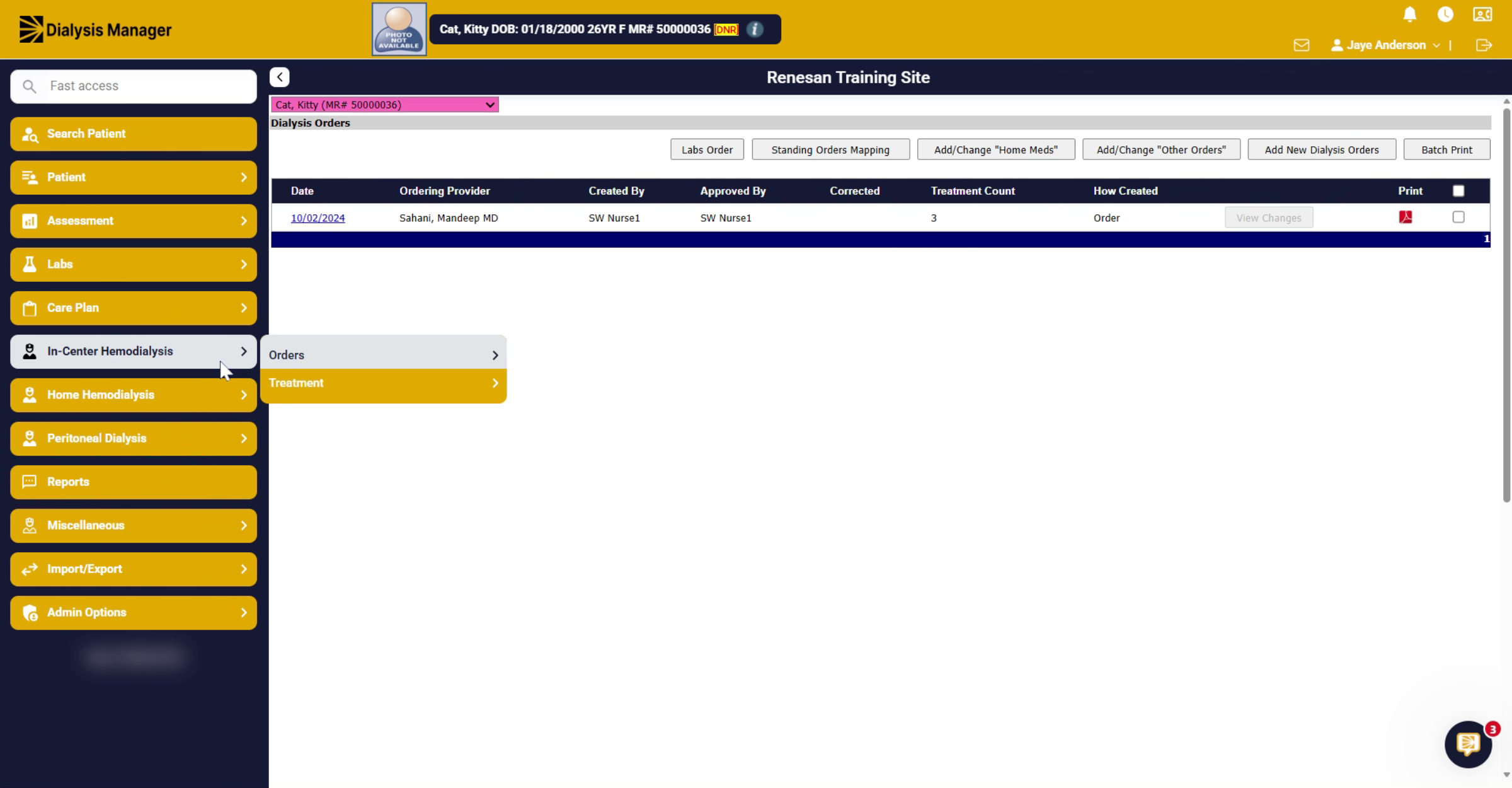
2. Open Dialysis Orders
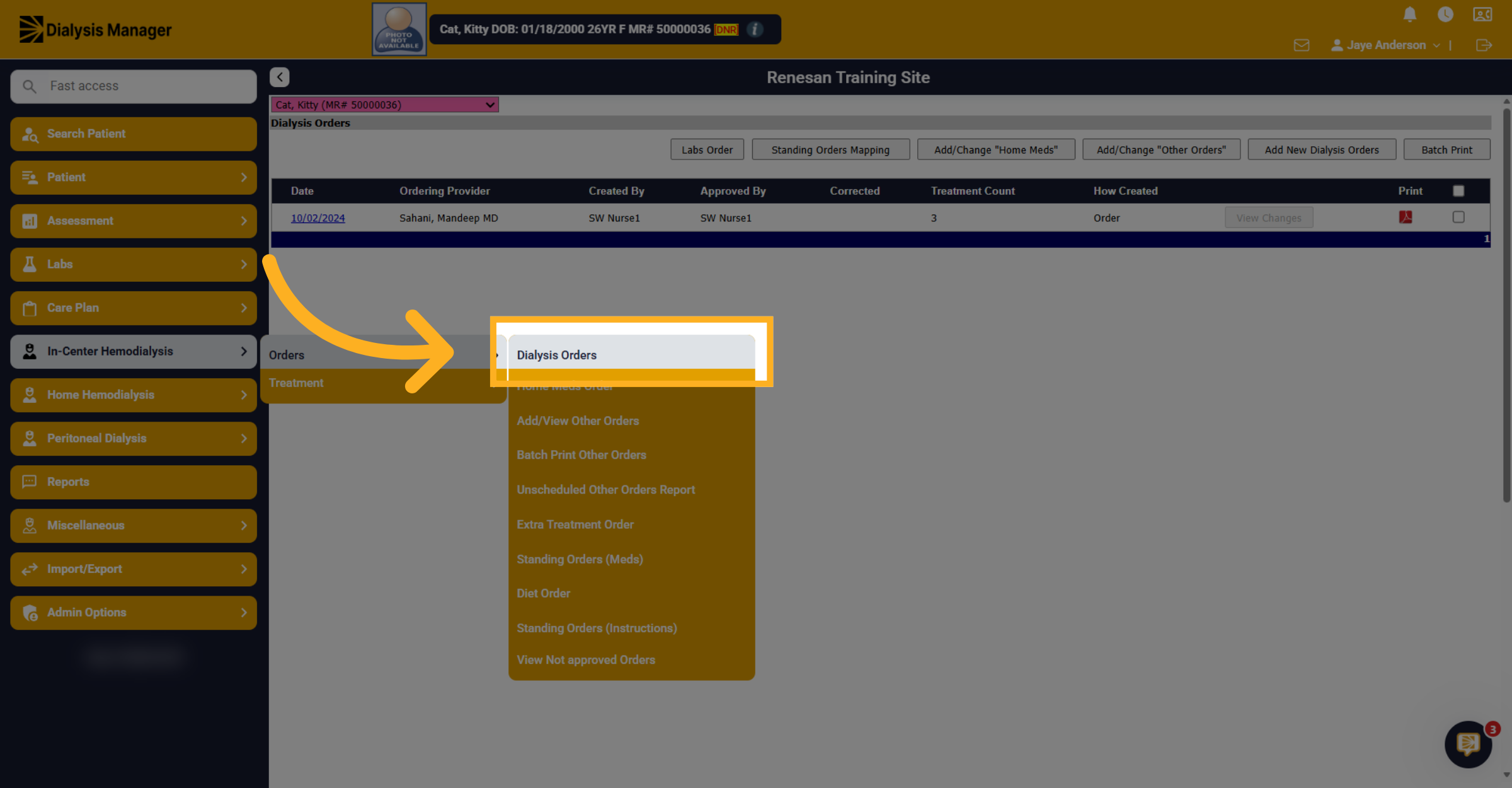
Click "In Center Hemodialysis" then "Orders" and finally "Dialysis Orders" to view and manage patient orders.
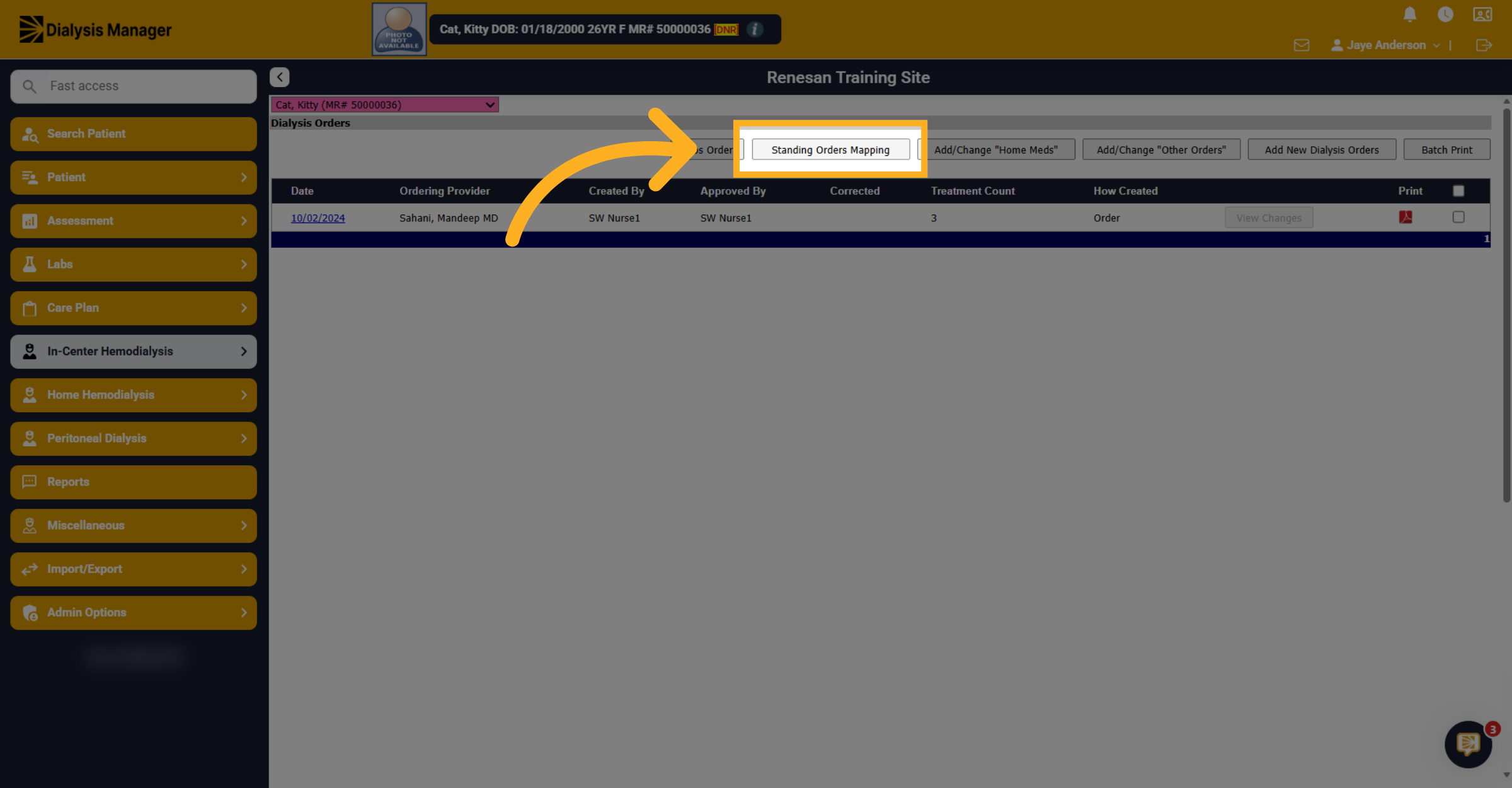
3. Navigate to Standing Orders Mapping
Click on the "Standing Orders Mapping" to access standing orders for medications and instructions.
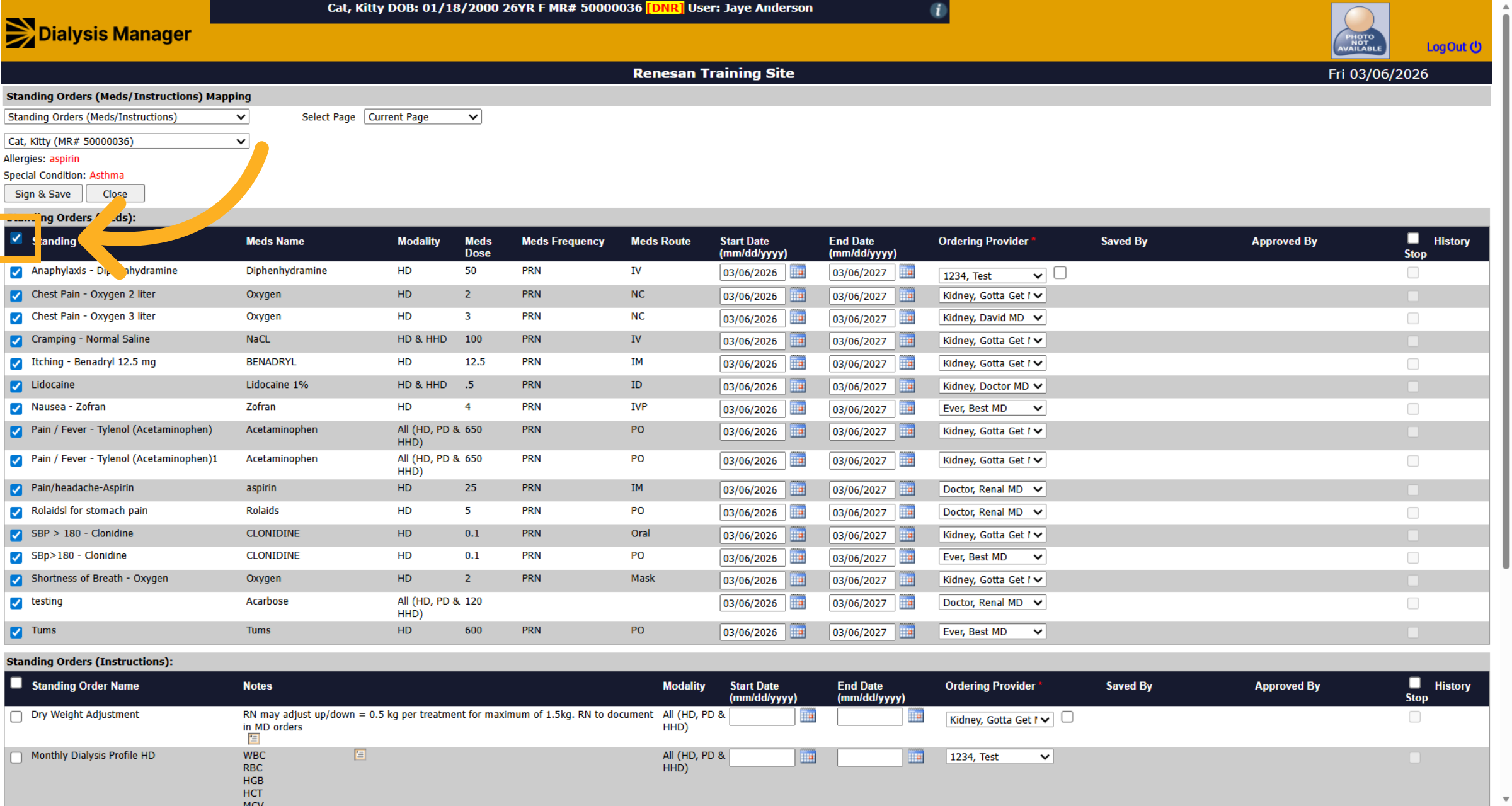
4. Select All Standing Orders
Within here, you can select the top check box to select all standing orders. If you are not seeing anything listed, you will want to watch the "Create Standing Orders" video.
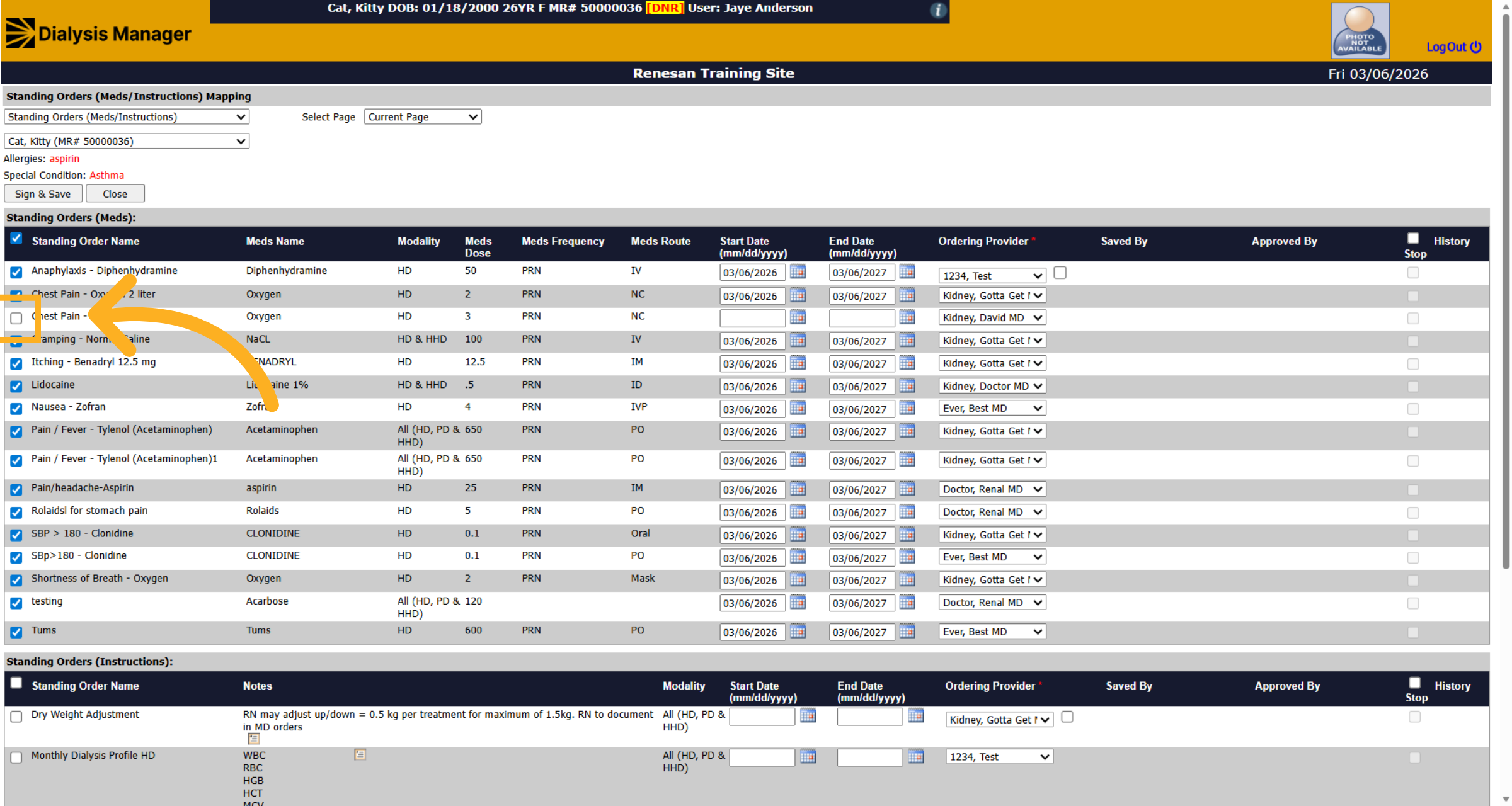
5. Deselect Non-Applicable Orders
You can also individually select or deselect any that do or do not apply.
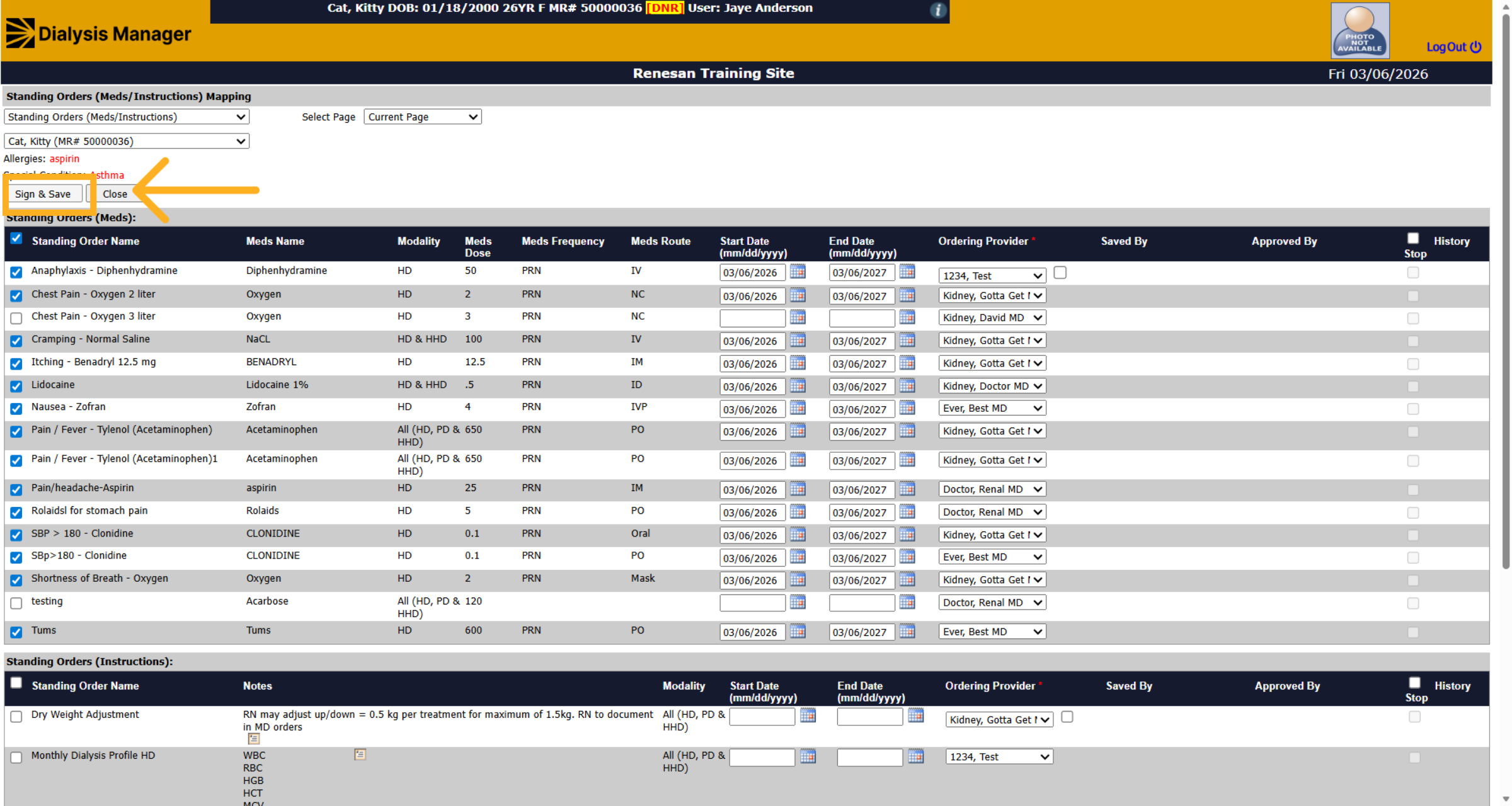
6. Save Standing Orders
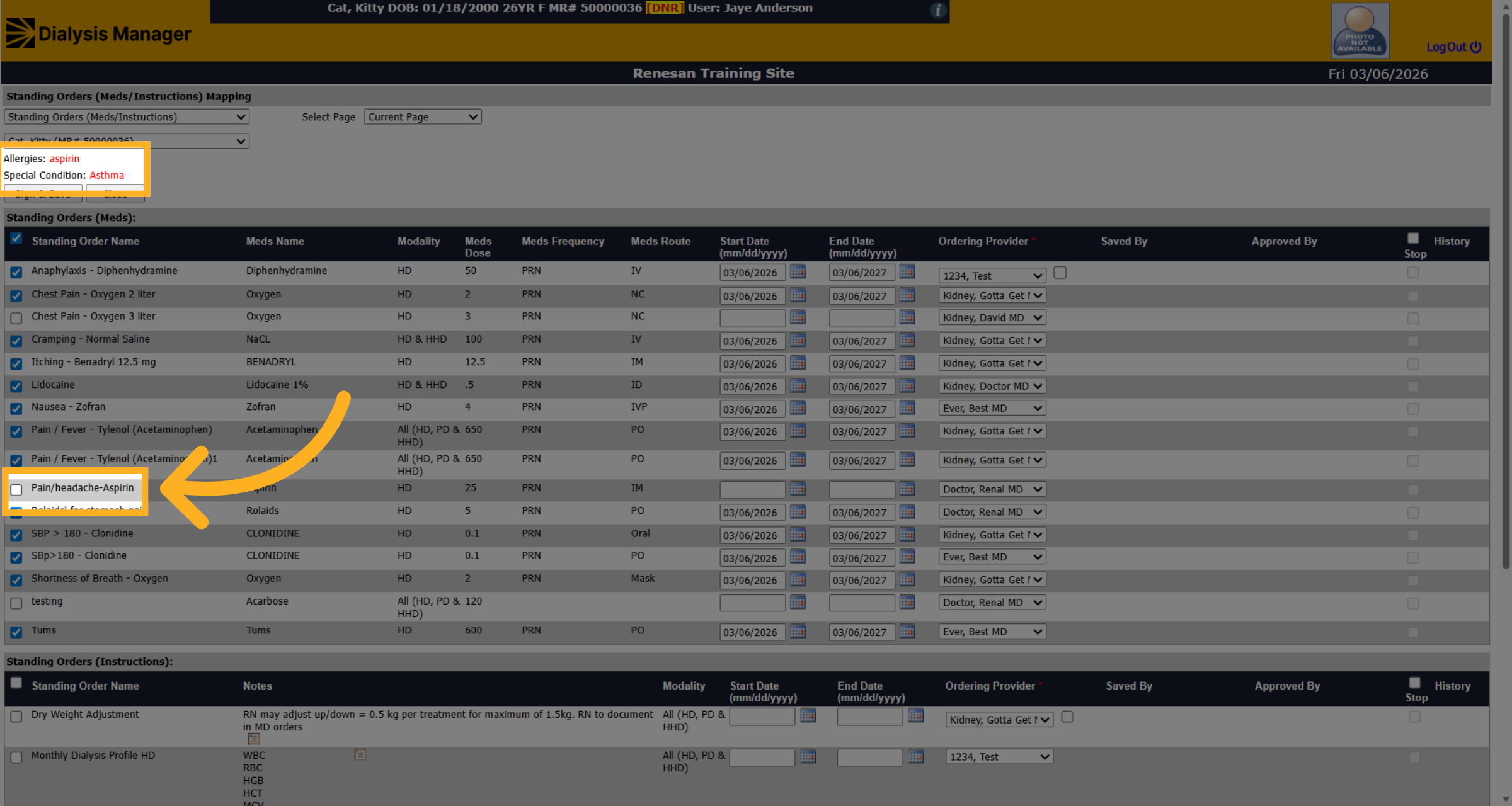
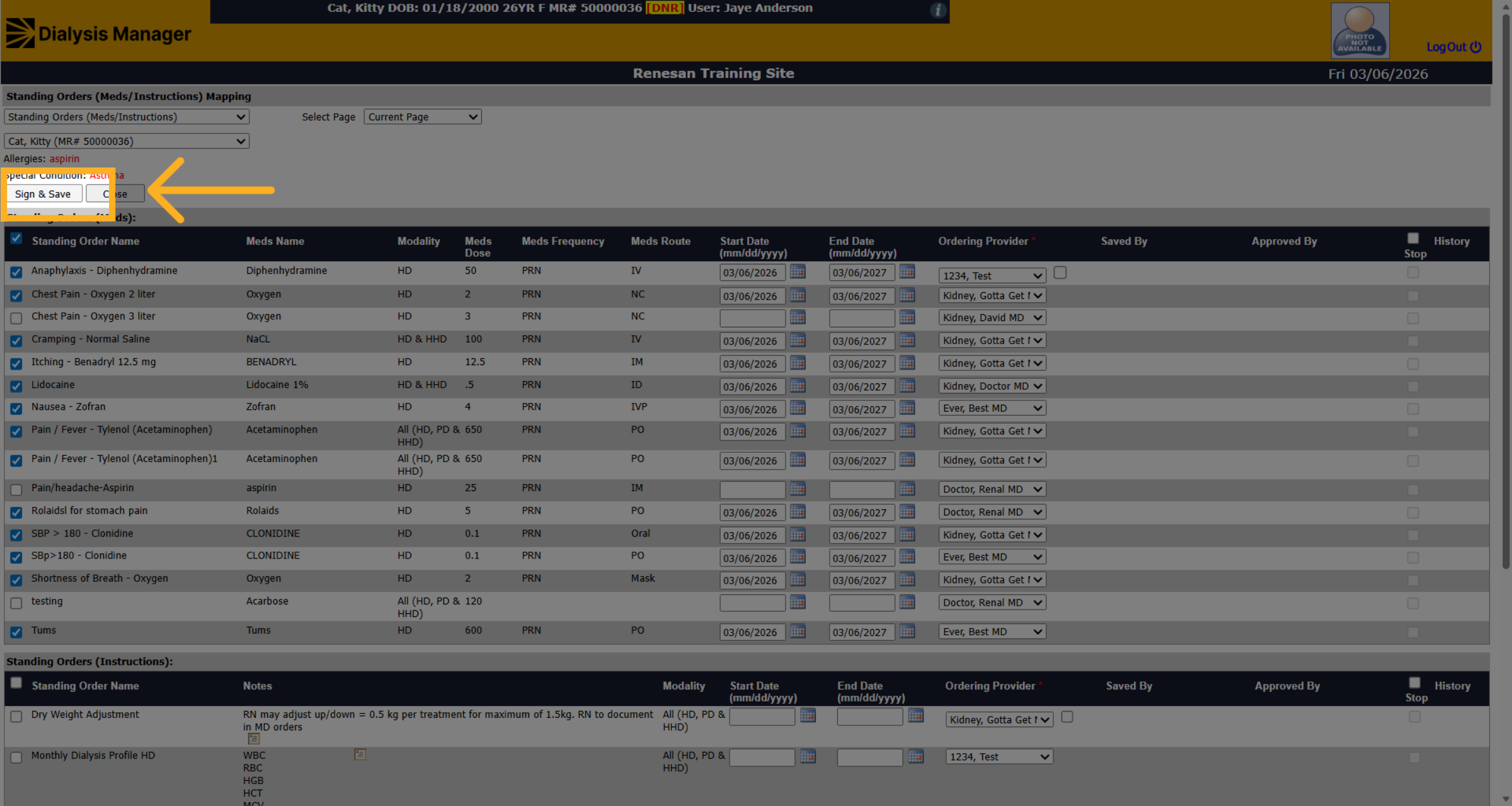
Click sign and save. After clicking Sign and Save If the patient has any allergies, you'll see that it noted within a pop-up box. You will need to click on OK.
7. Deselect Allergic Medication
Here we'll need to deselect the aspirin because there's an allergy.
8. Save Allergy Adjustments
Then click sign and save to complete the save process.
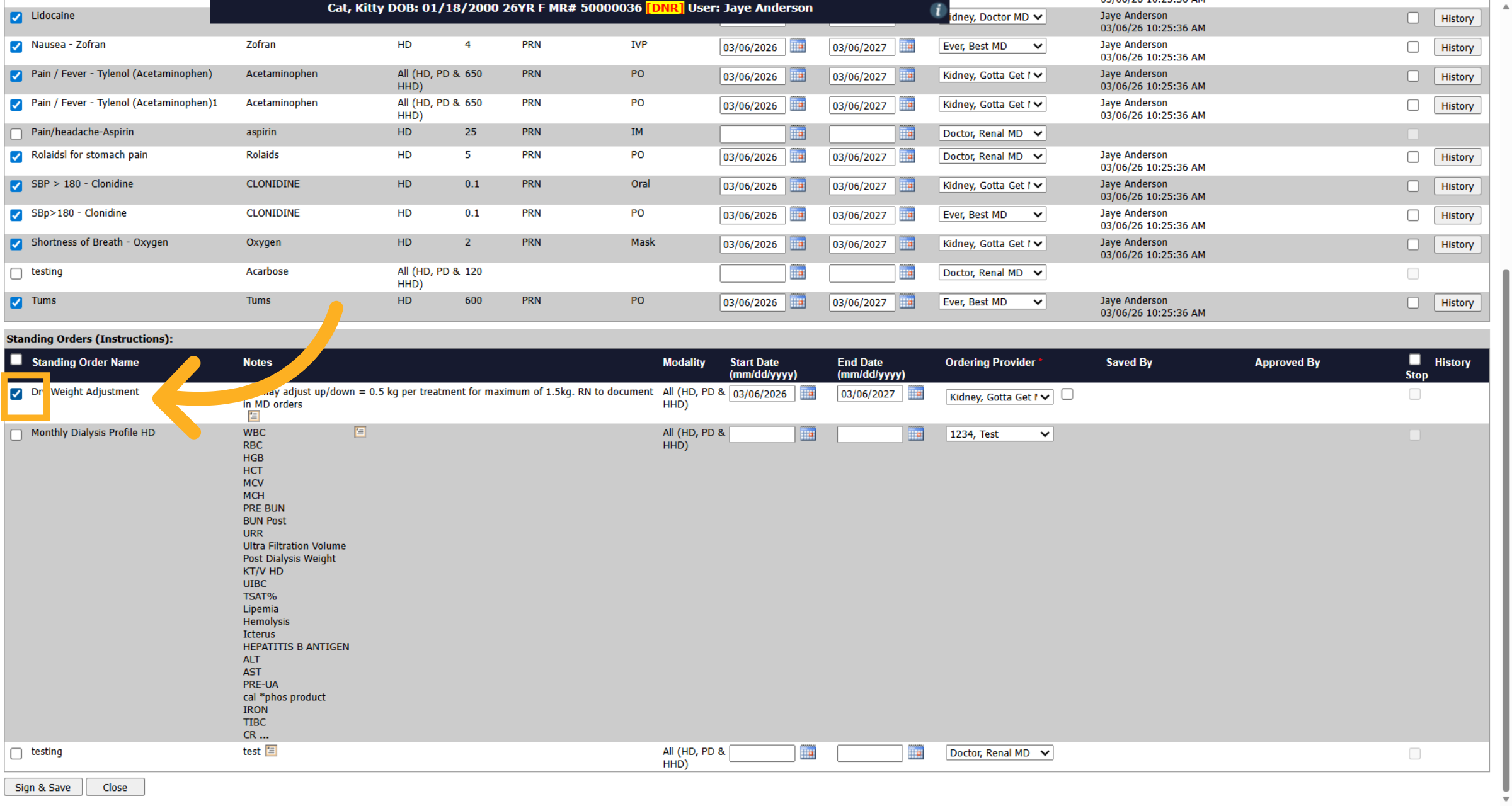
9. Select Specific Instruction
You can do the same thing for your standing order instructions. If you only need to select one, you can go ahead and select one.
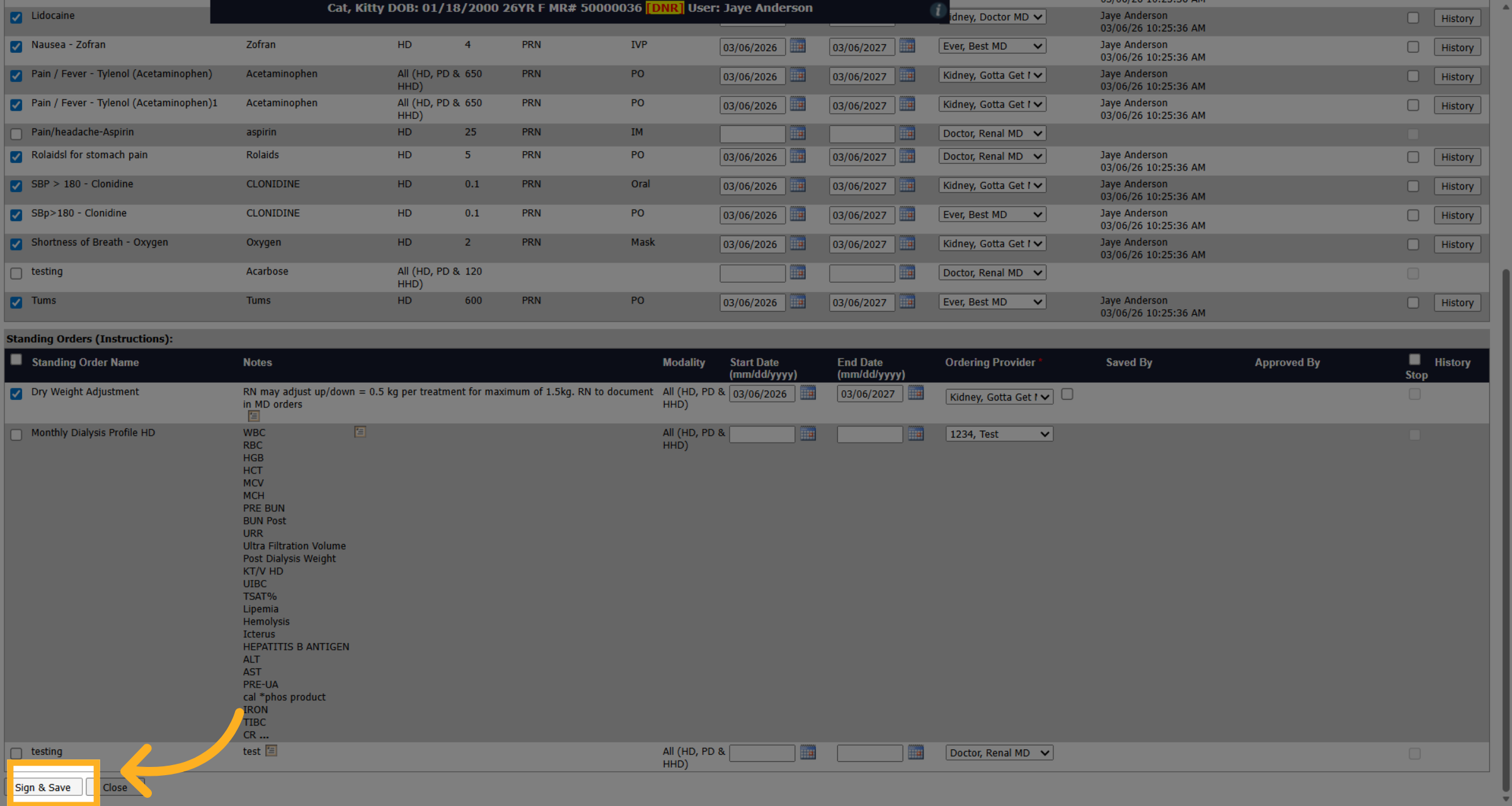
10. Save Instruction Selection
Click the sign and save.
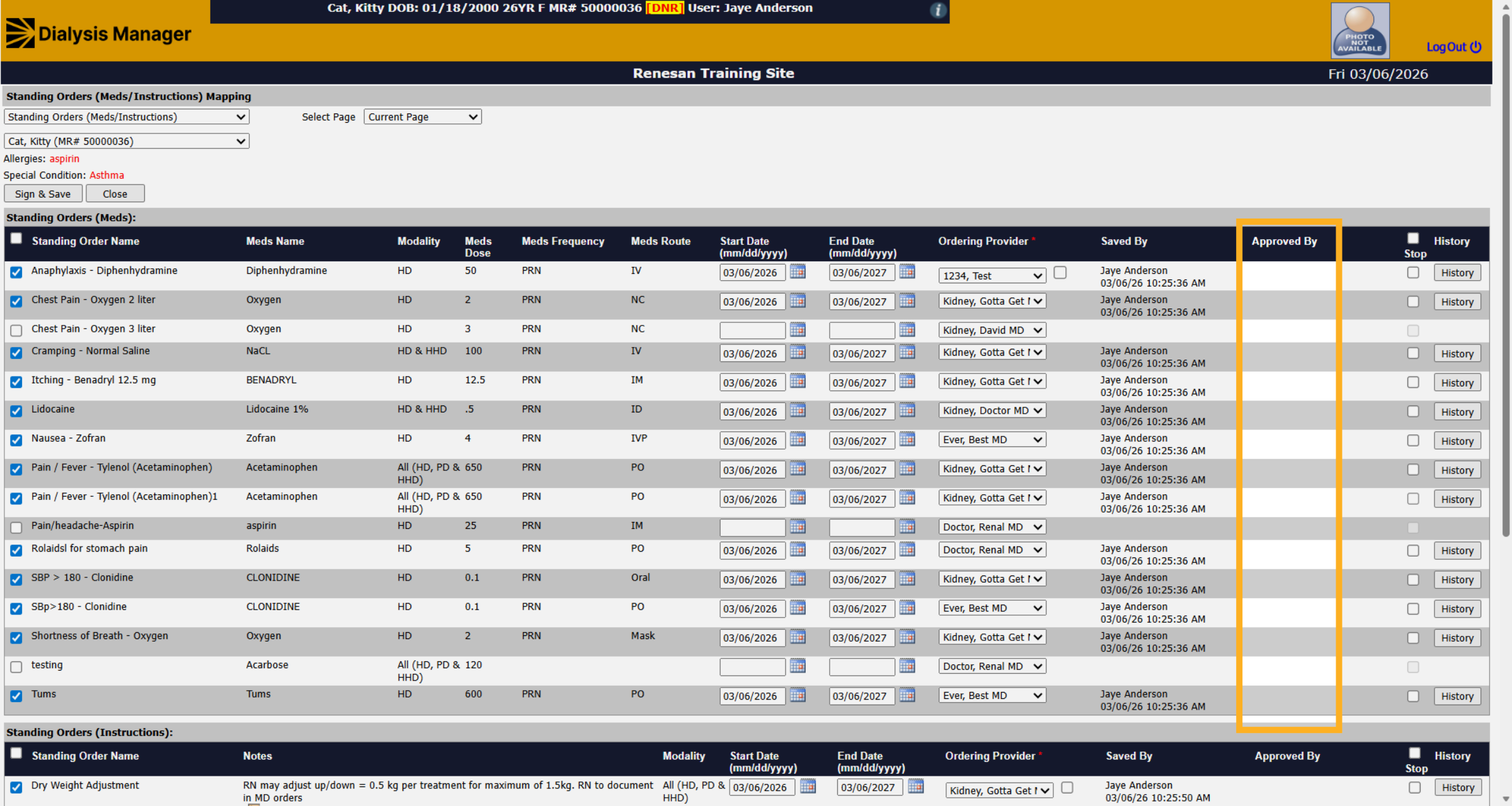
11. Review Approved Orders
After it's been approved and locked by the physician, you'll notice it will have a physician name listed here. The Order will also be grayed out so changes cannot be made.
12. Stop or Discontinue Orders
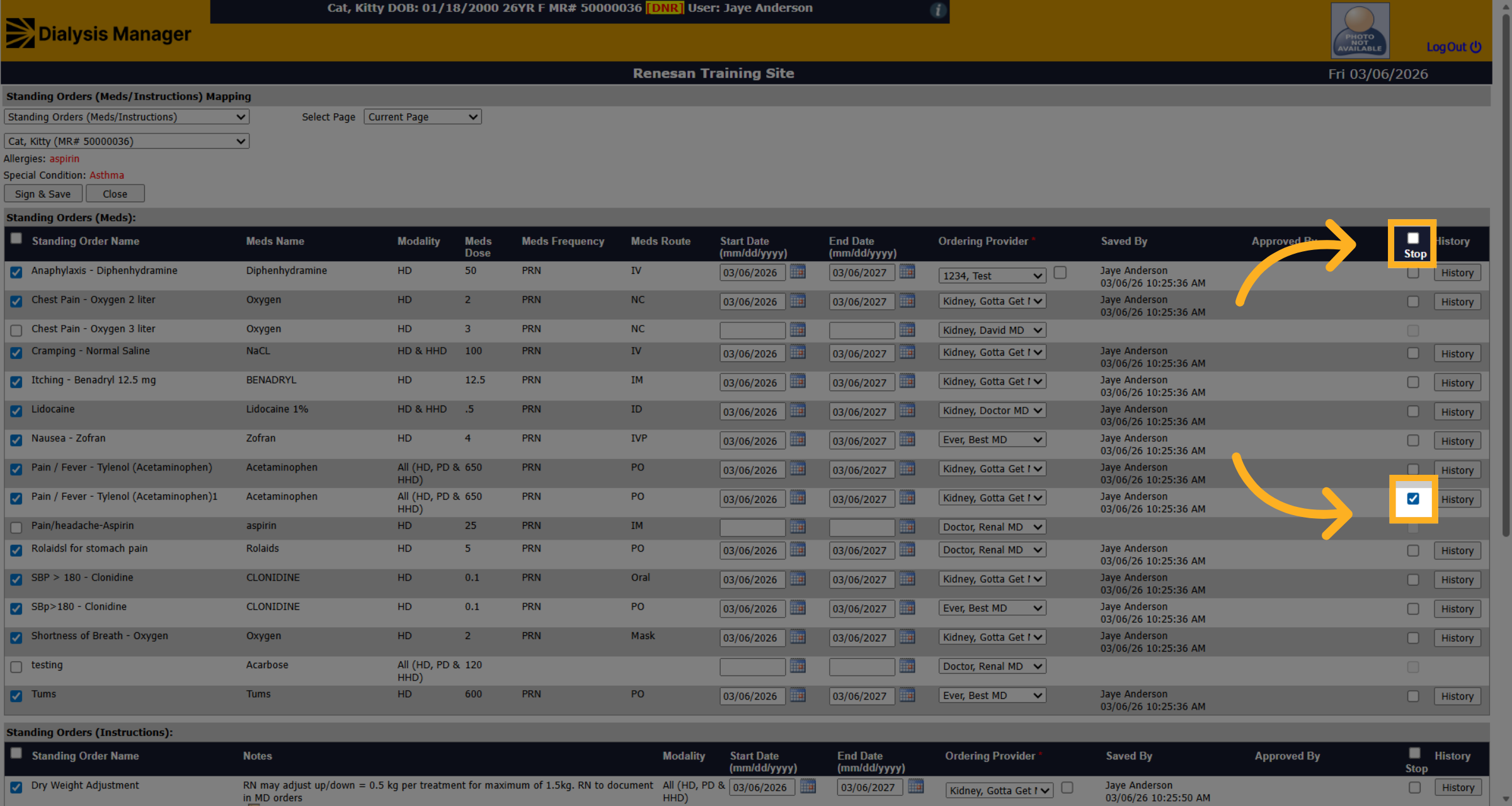
If you need to stop the order, you can choose the stop check box to discontinue one of the orders or use the toggle along the top to select all.
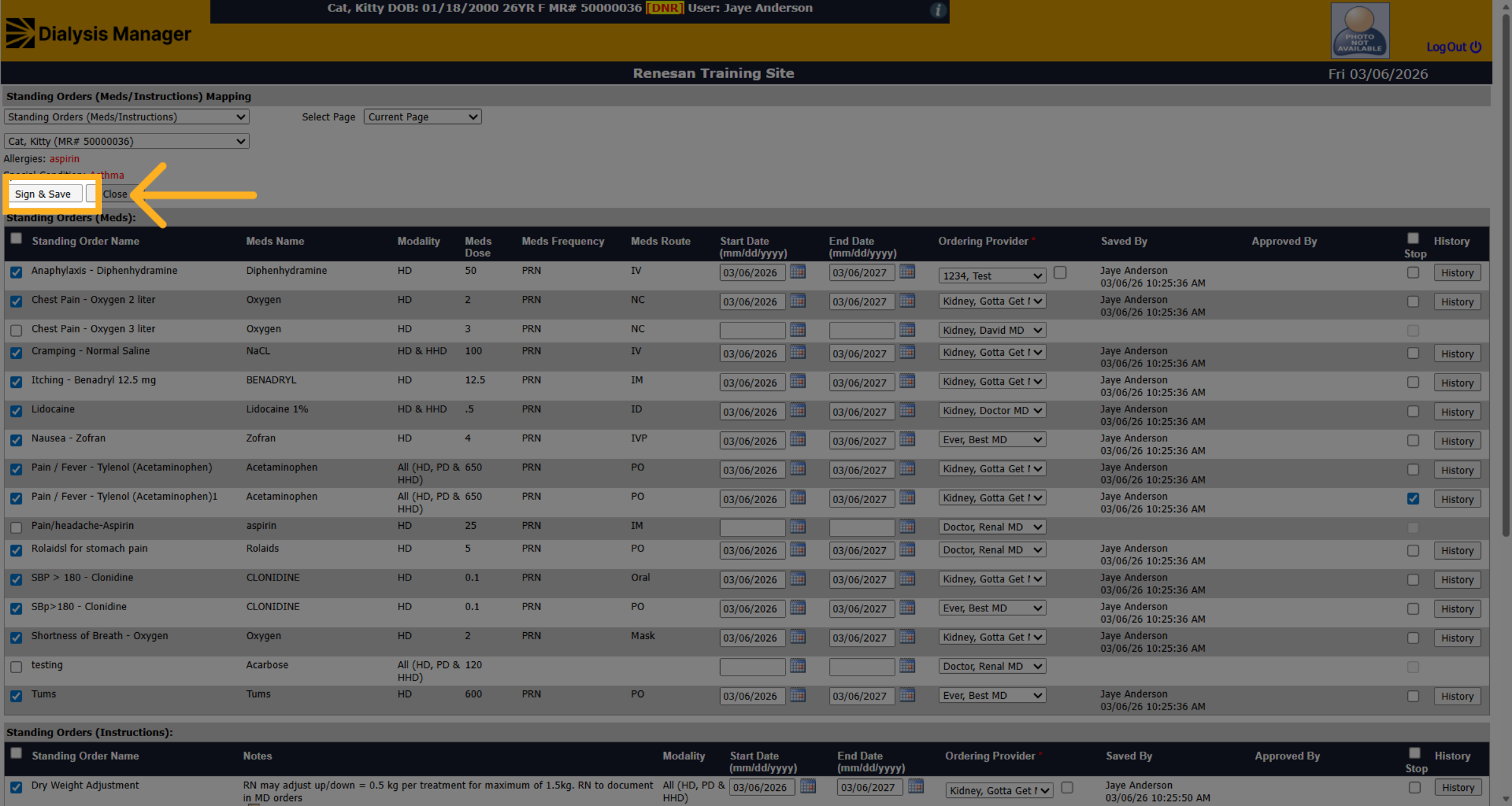
13. Save Order Discontinuation
Then of course click sign and save.
14. Close Standing Orders Mapping
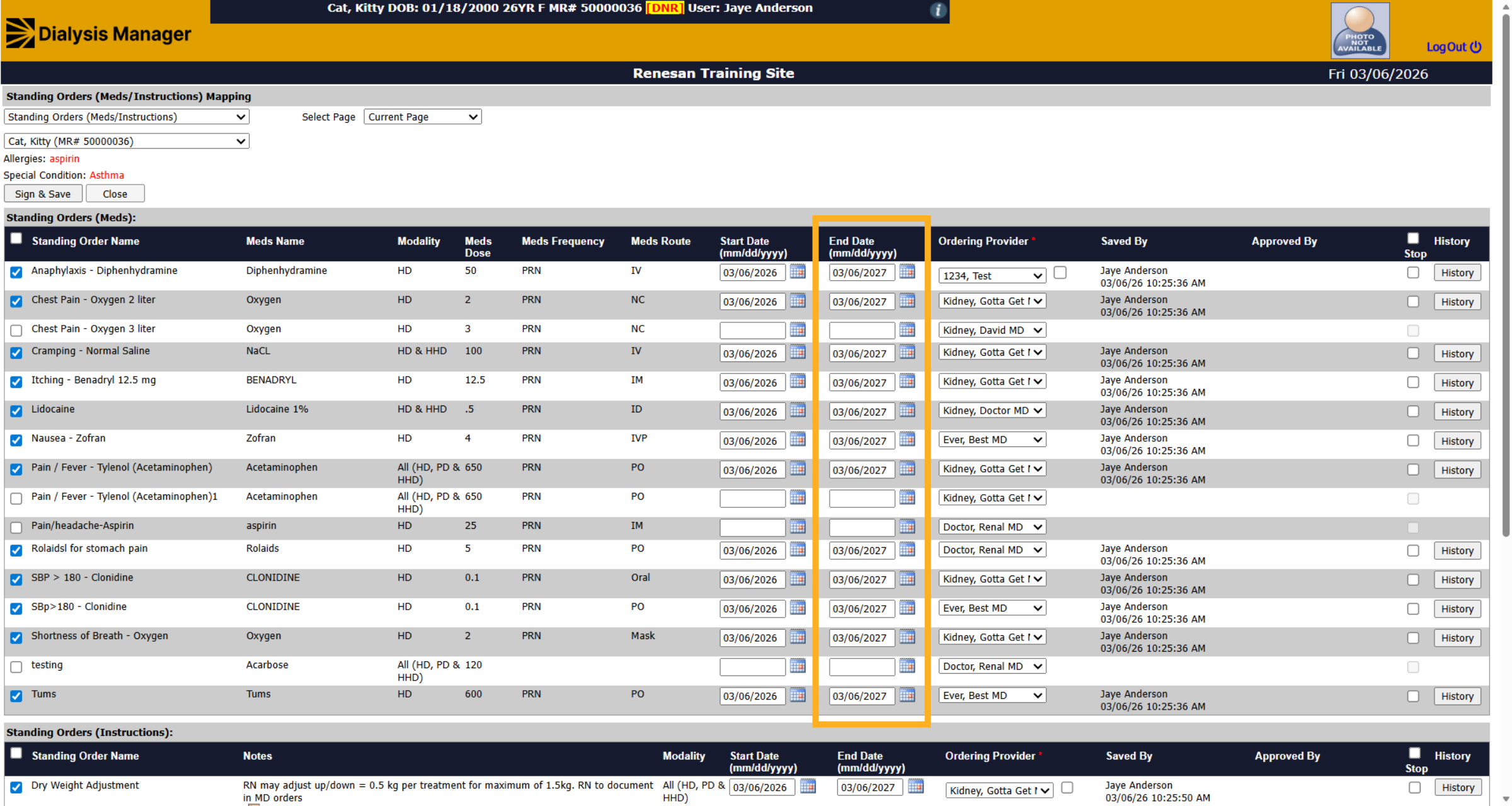
You may also notice when entering the order, it will automatically put an end date for one year out. After 1 year you will need to come back in and reset or reorder the standing order mappings.
15. Close Standing Orders Mapping
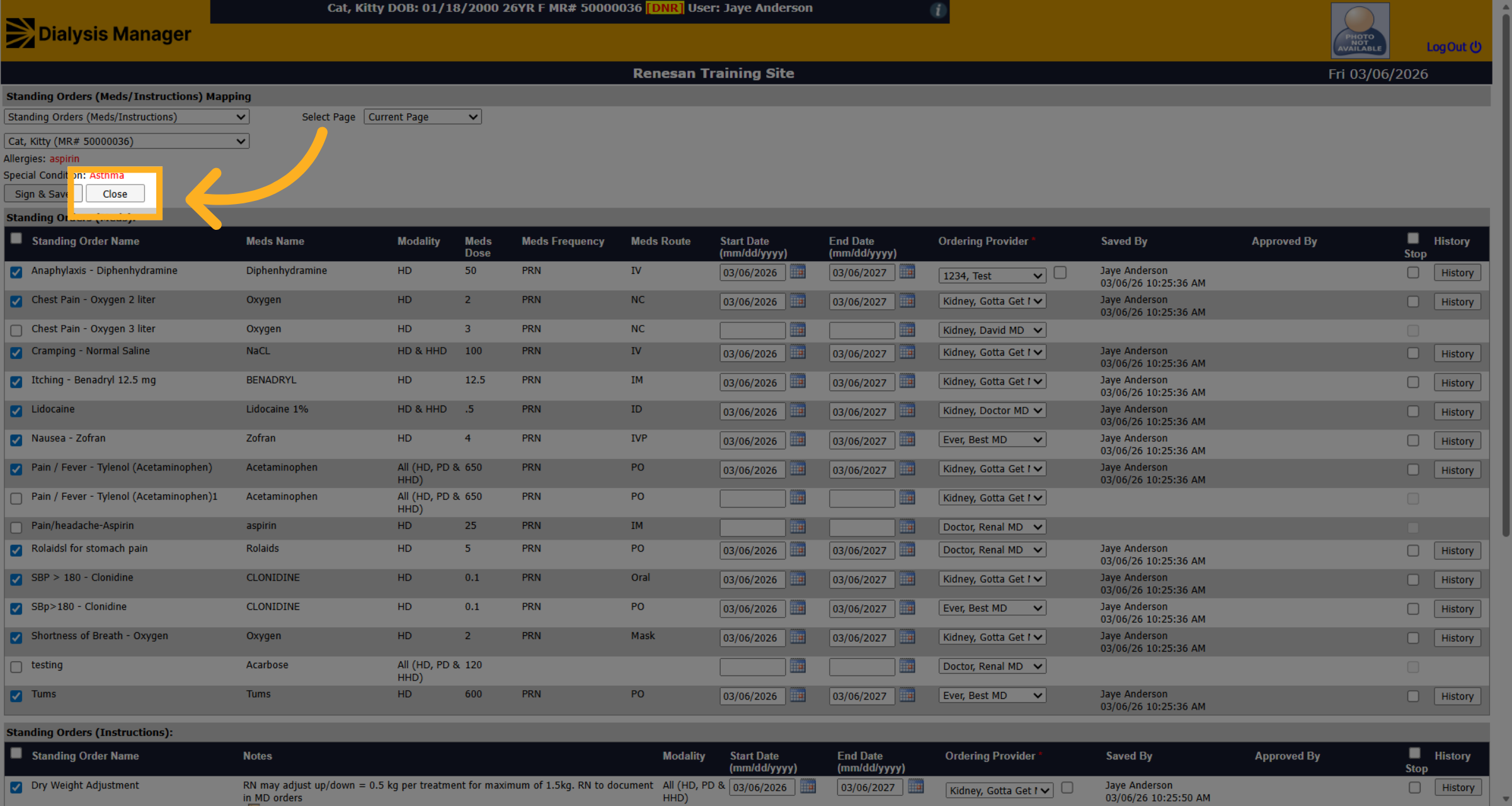
After signing and saving, click close to close the Standing Orders Mapping screen.
16. Introduction
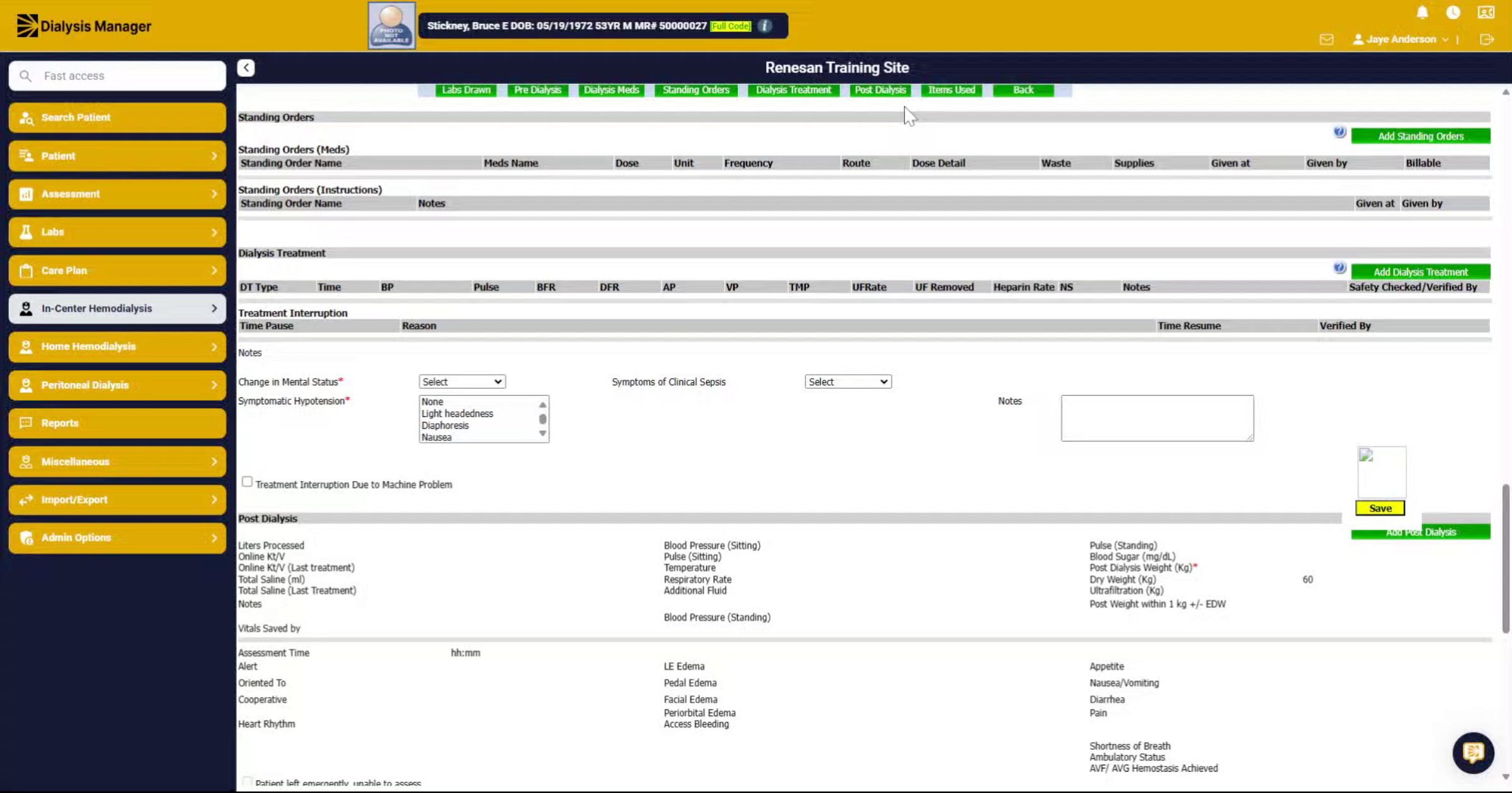
We'll review how to document standing orders within the treatment flowsheet.
17. Click "Standing Orders"
Click "Standing Orders" option along the top. You'll see there are standing order meds and standing order instructions.
18. Select Standing Order Name
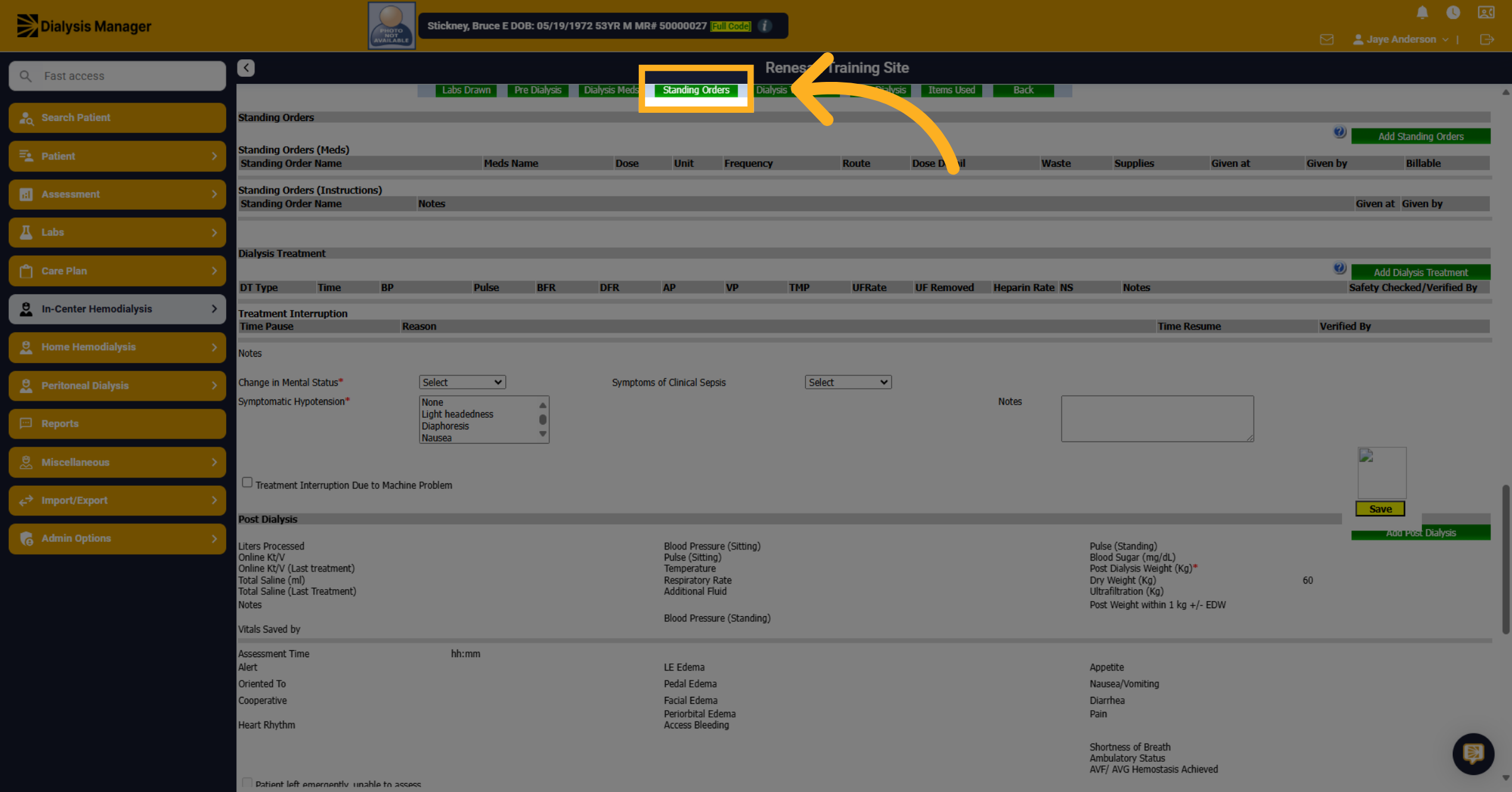
Click the desired standing order name, such as "Chest Pain - Oxygen 2 liter" or "Pain / Fever - Tylenol."
19. Enter the Time
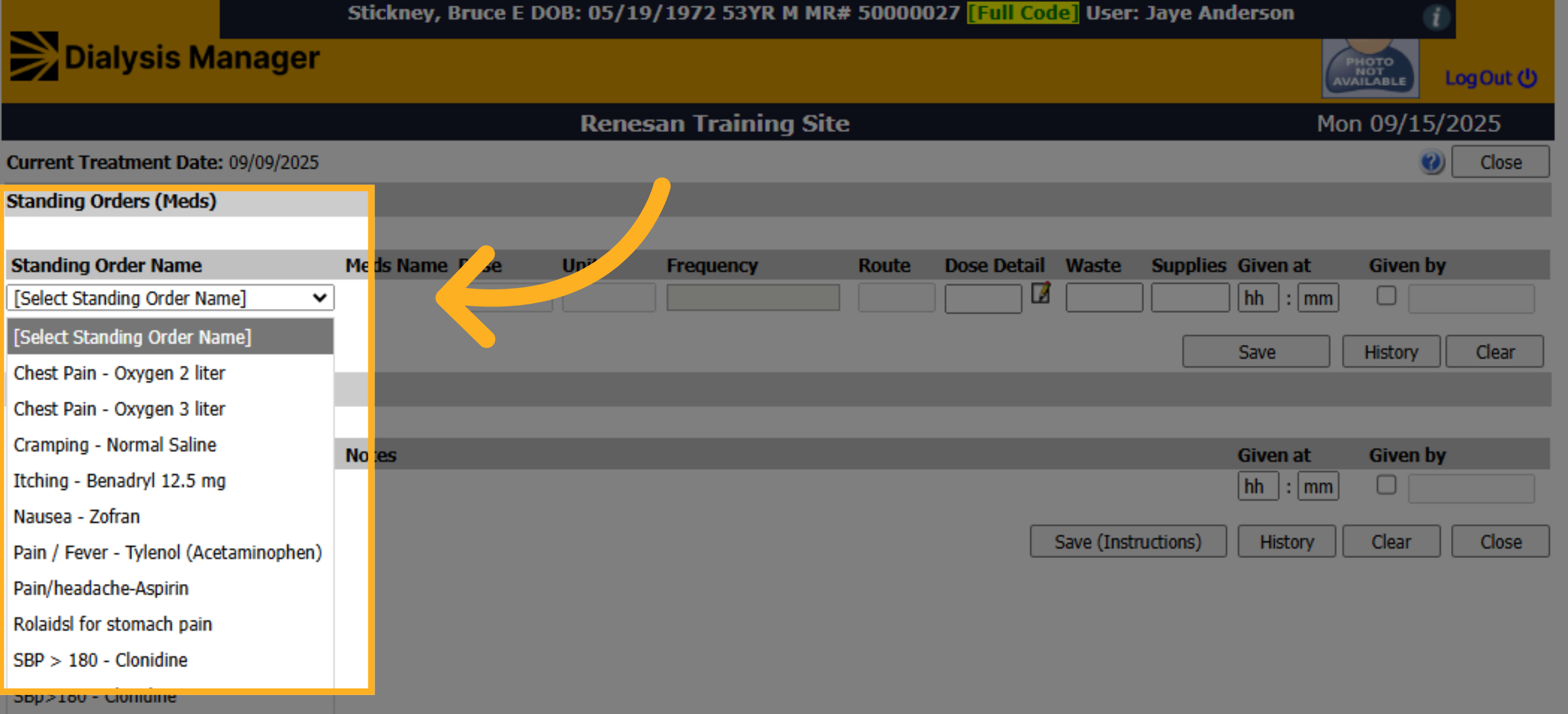
Click "h.h." To Document the time given. Reminder you can use the F2 button on your keyboard to input the current time.
20. Click Given By
Click "Given By" to enter your username and password or PIN.
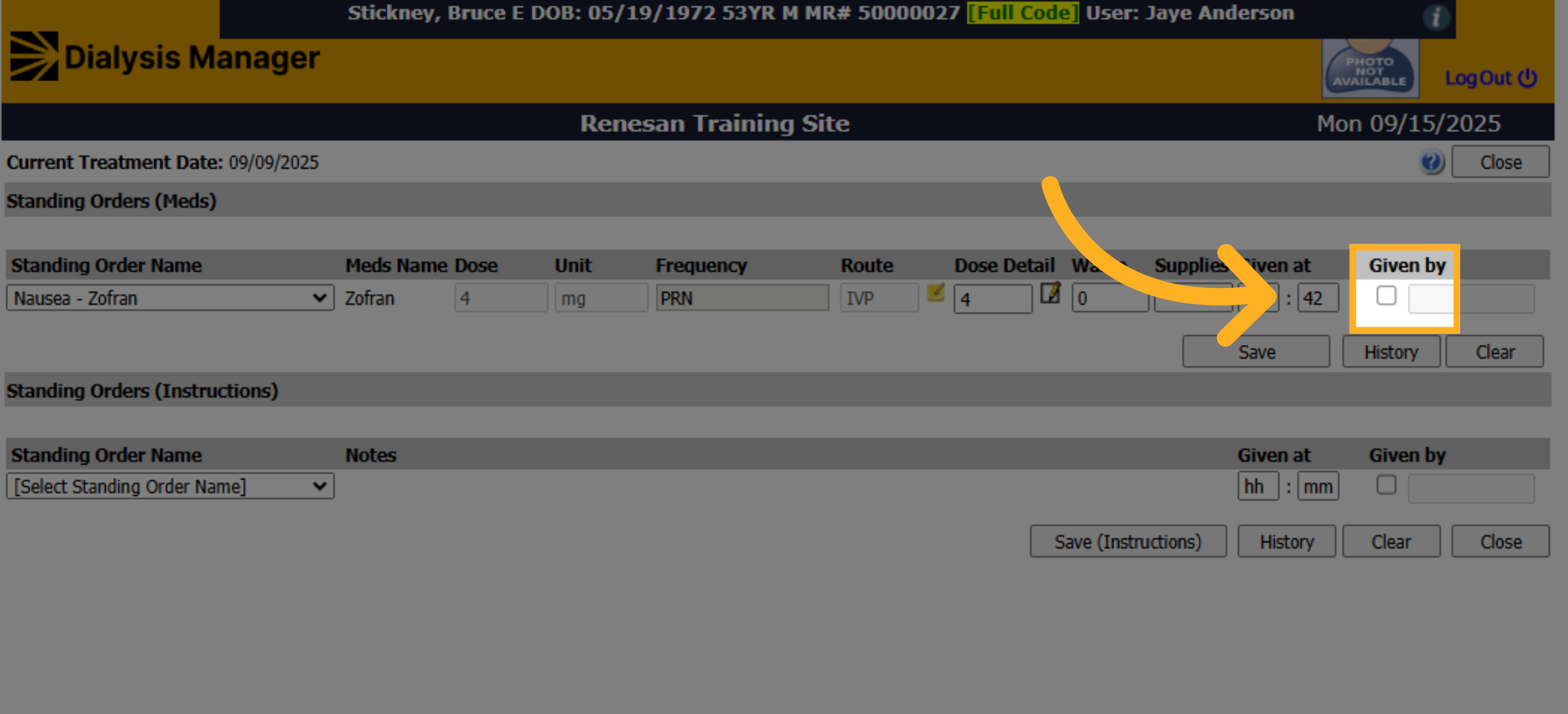
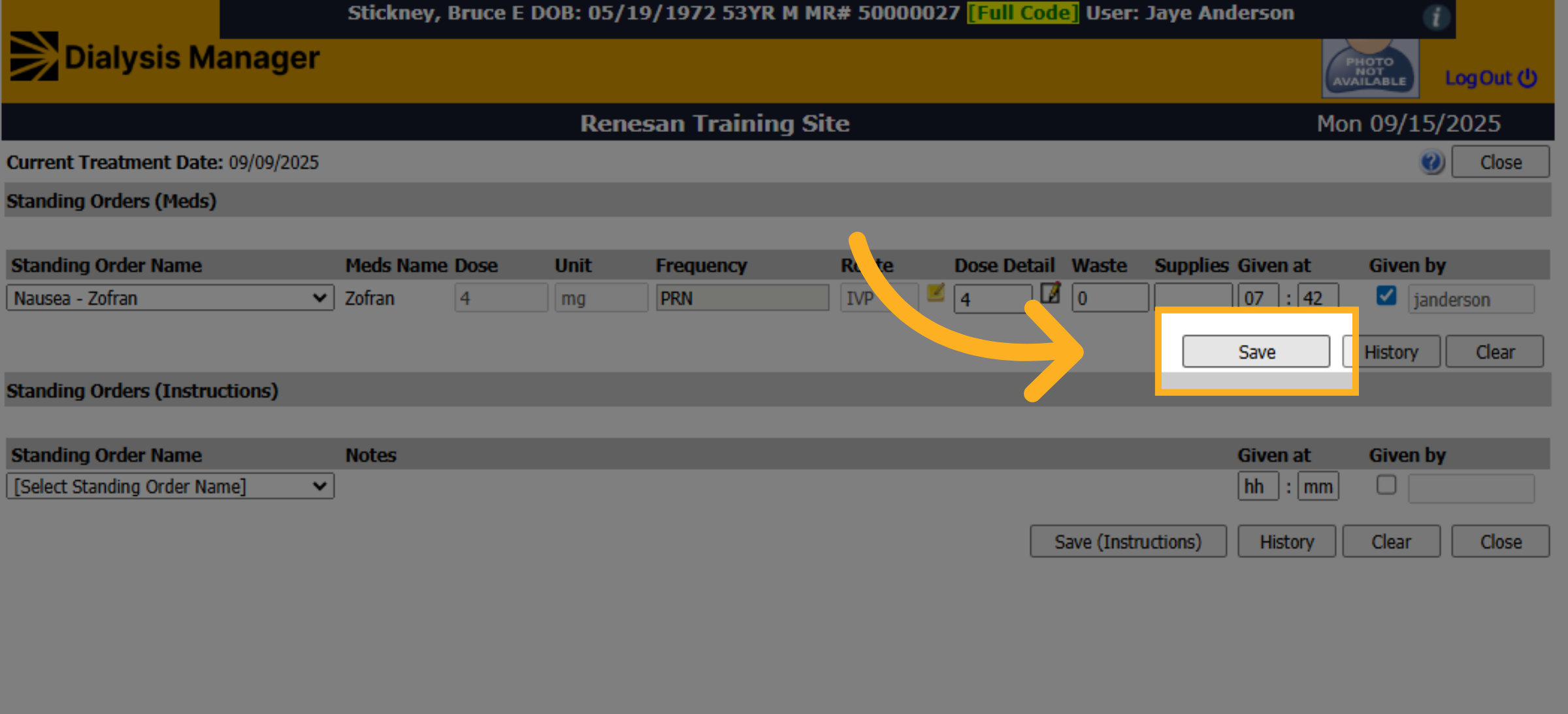
21. Click "Save"
Click "Save." to save the information.
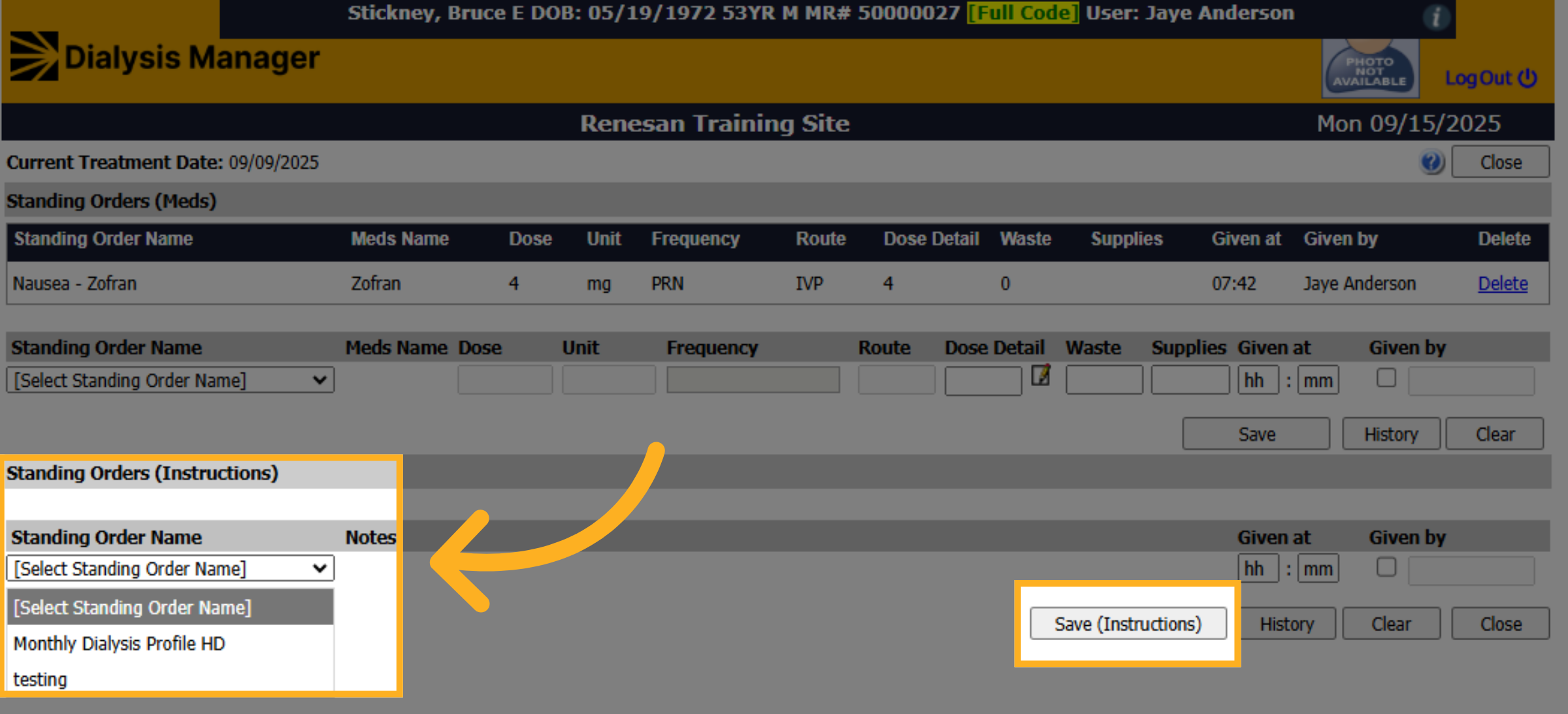
22. Standing Order Instructions
You can do the same thing for the Standing Order instructions. Select the Standing Order Instruction Name, then complete the "Given At" and "Given By" information. Don't forget to click Save (Instructions)!
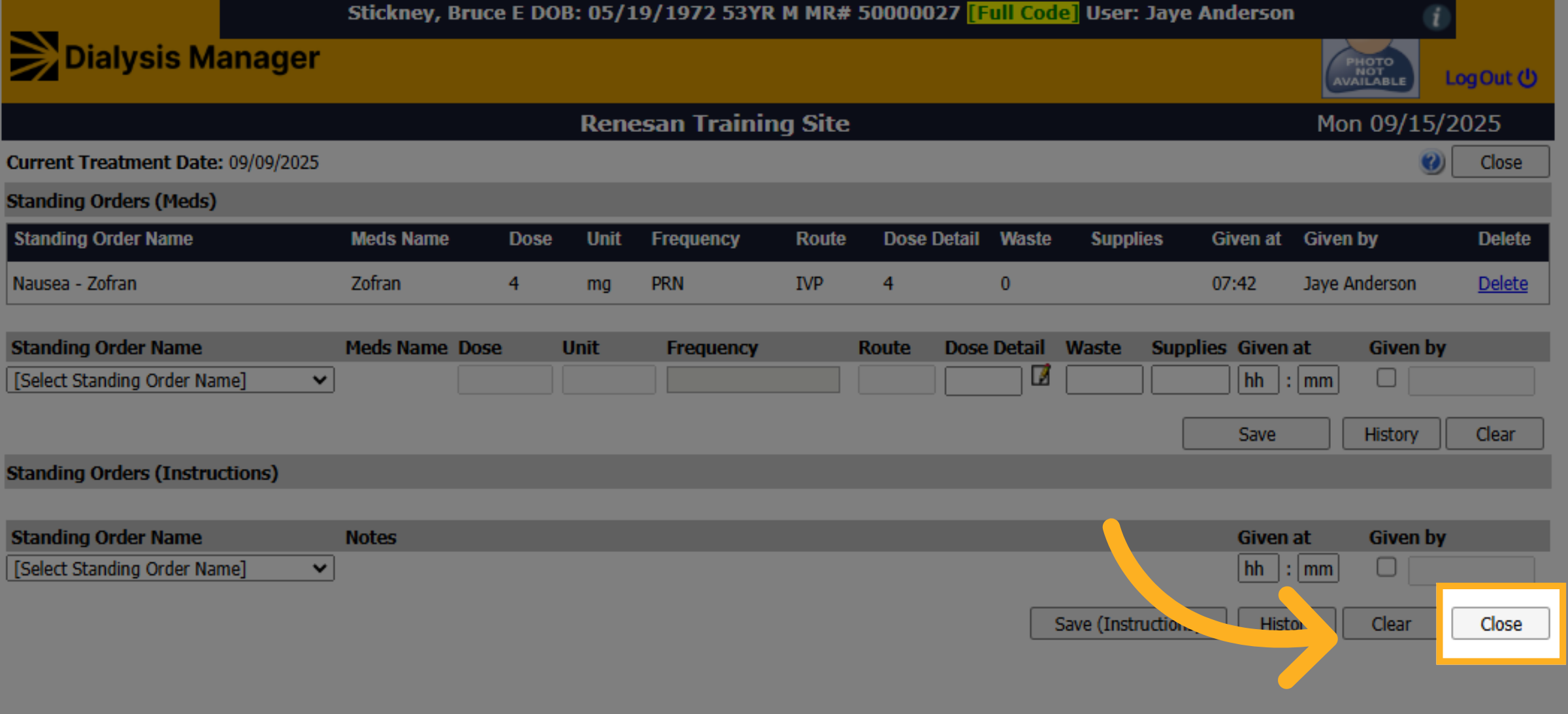
23. Click "Close"
Click "Close" when you're done.