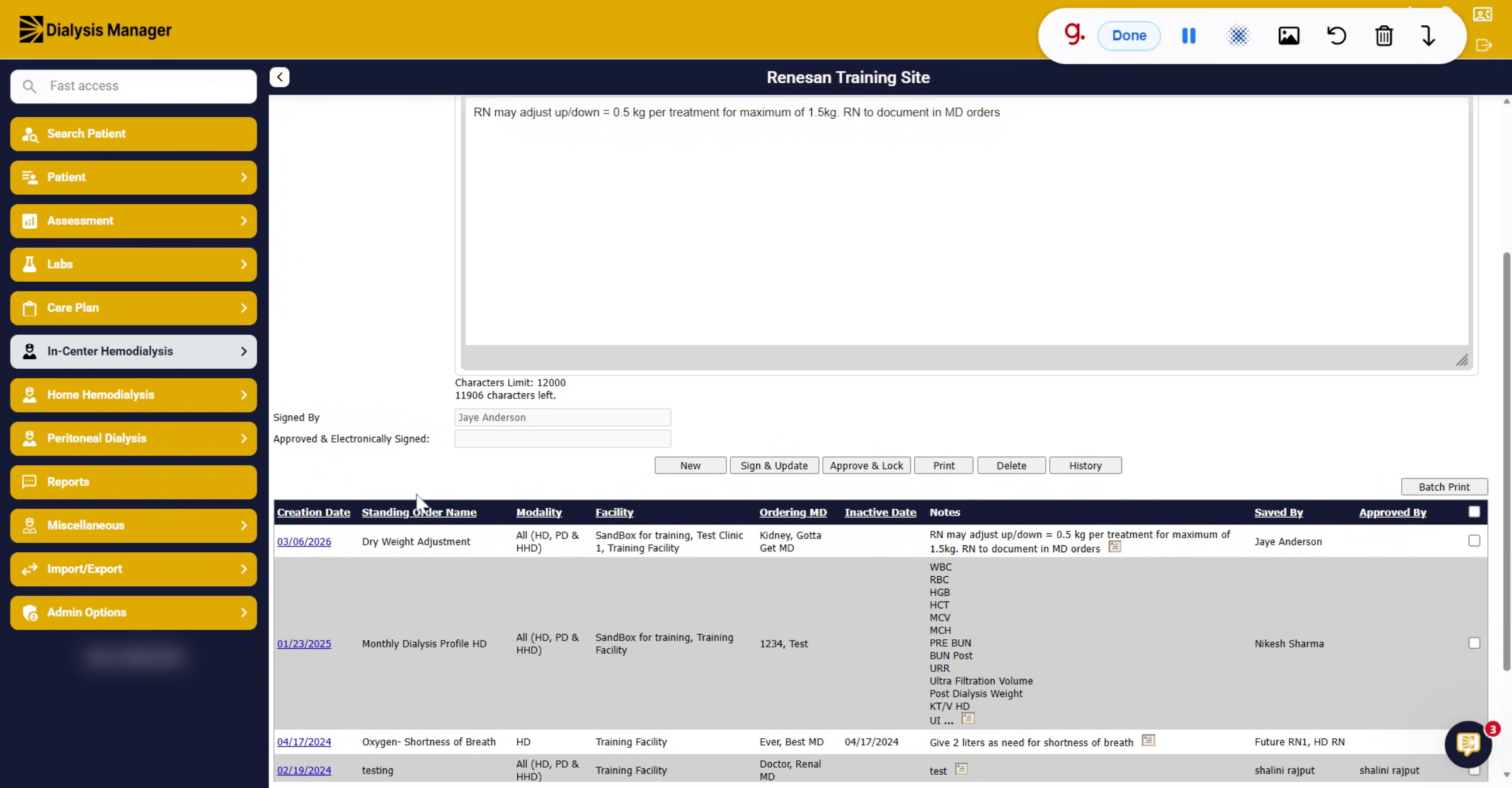
Creating Standing Order (Instructions) in Dialysis Manager.
1. Introduction To Standing Orders
We will walk through how to enter standing order instructions in Dialysis Manager.
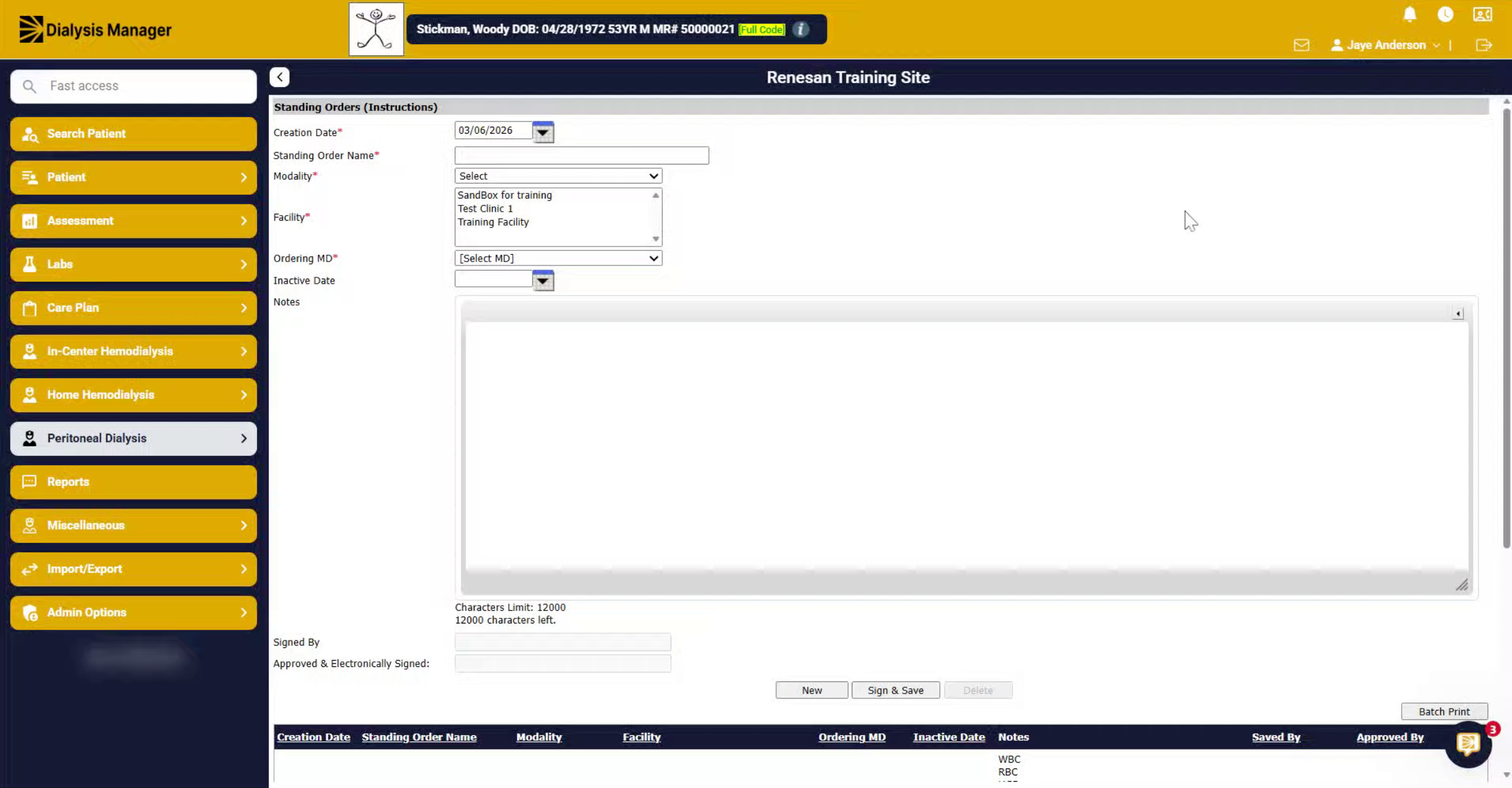
2. Access Order Menus
You can access this through any of the orders menus. The PD order menu, the home hemodialysis order menu, or the in-center order menu. They all have the same mapping, so they go to the same area.
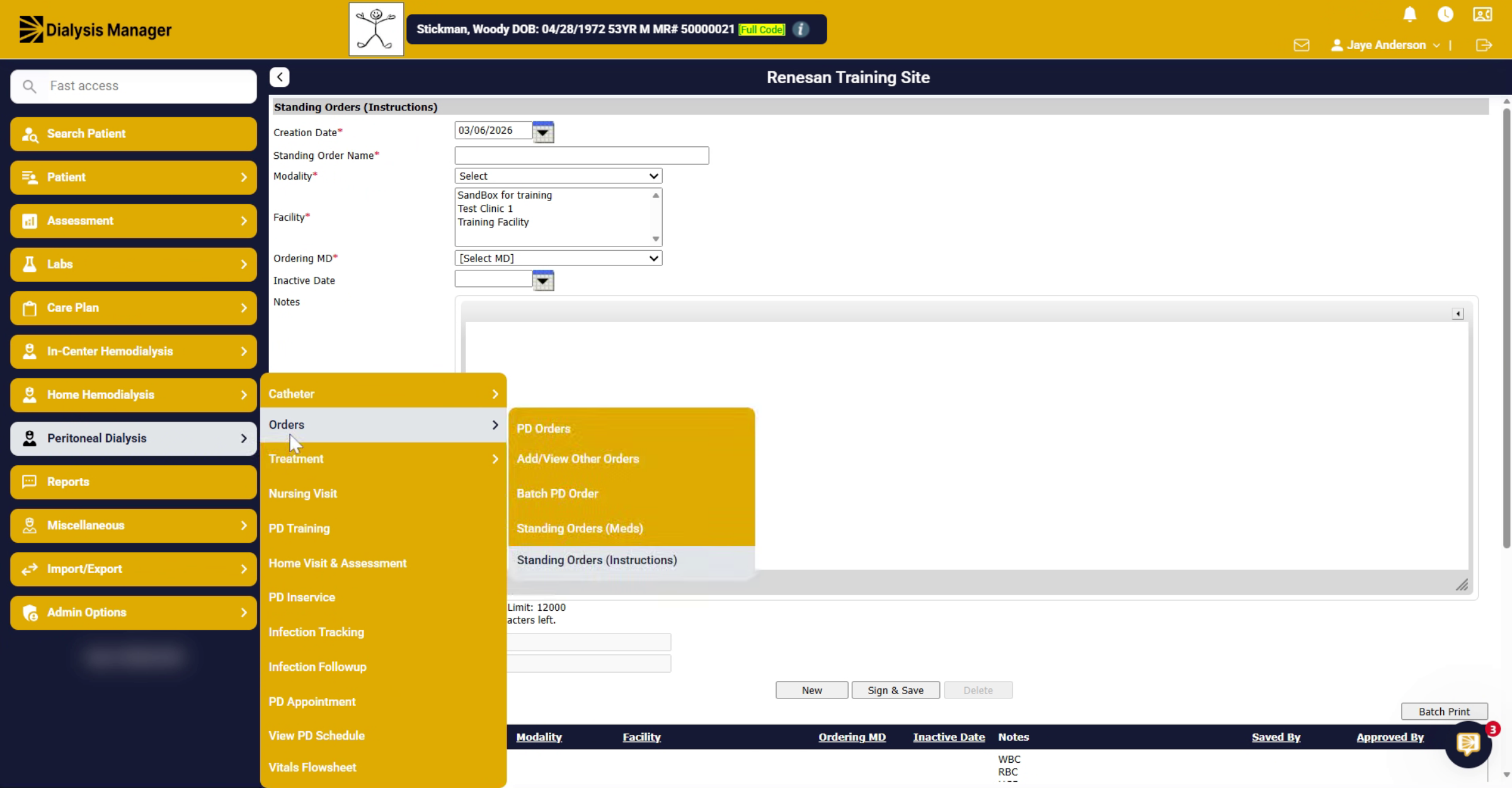
3. Enter Creation Date And Name
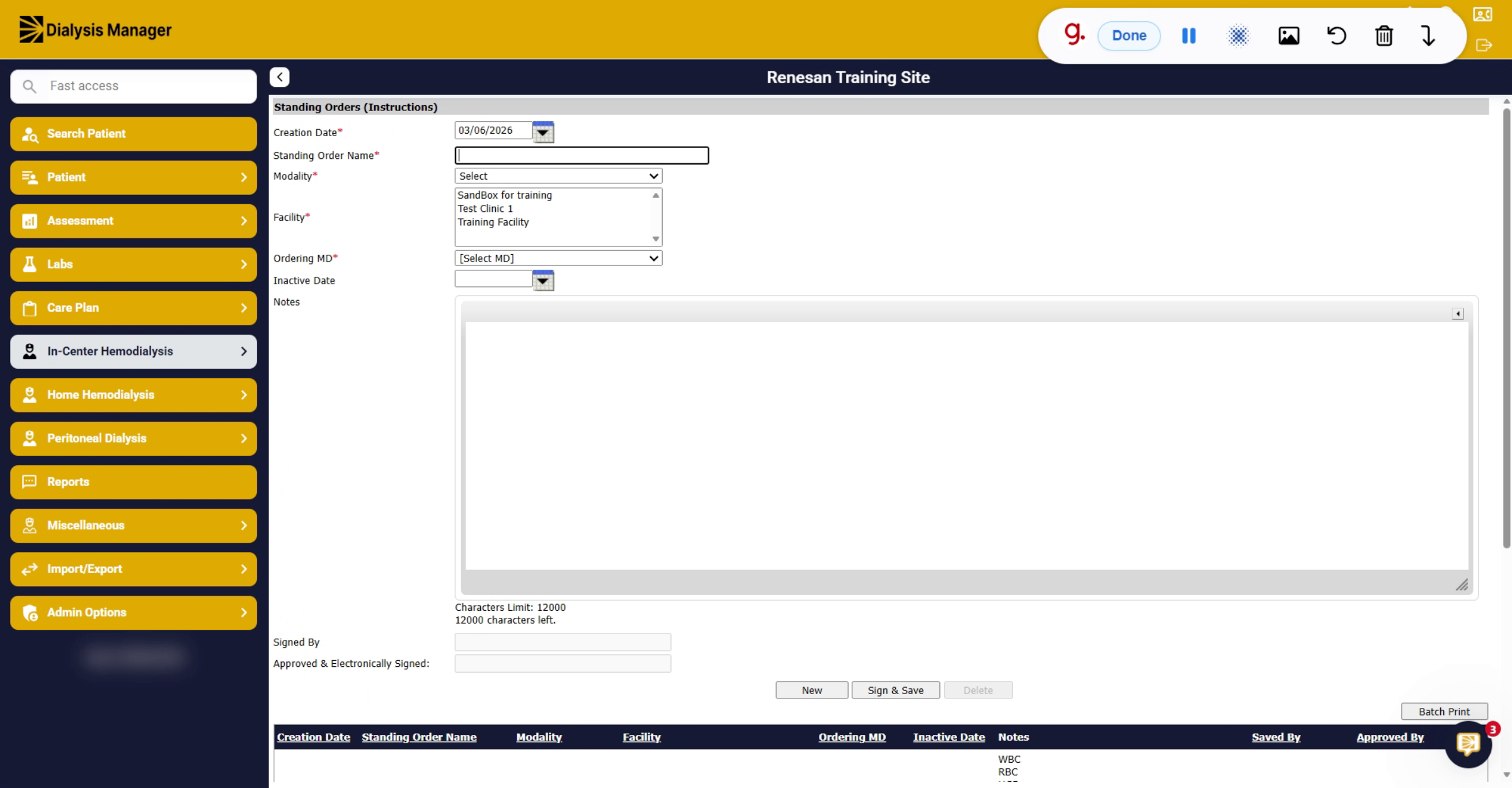
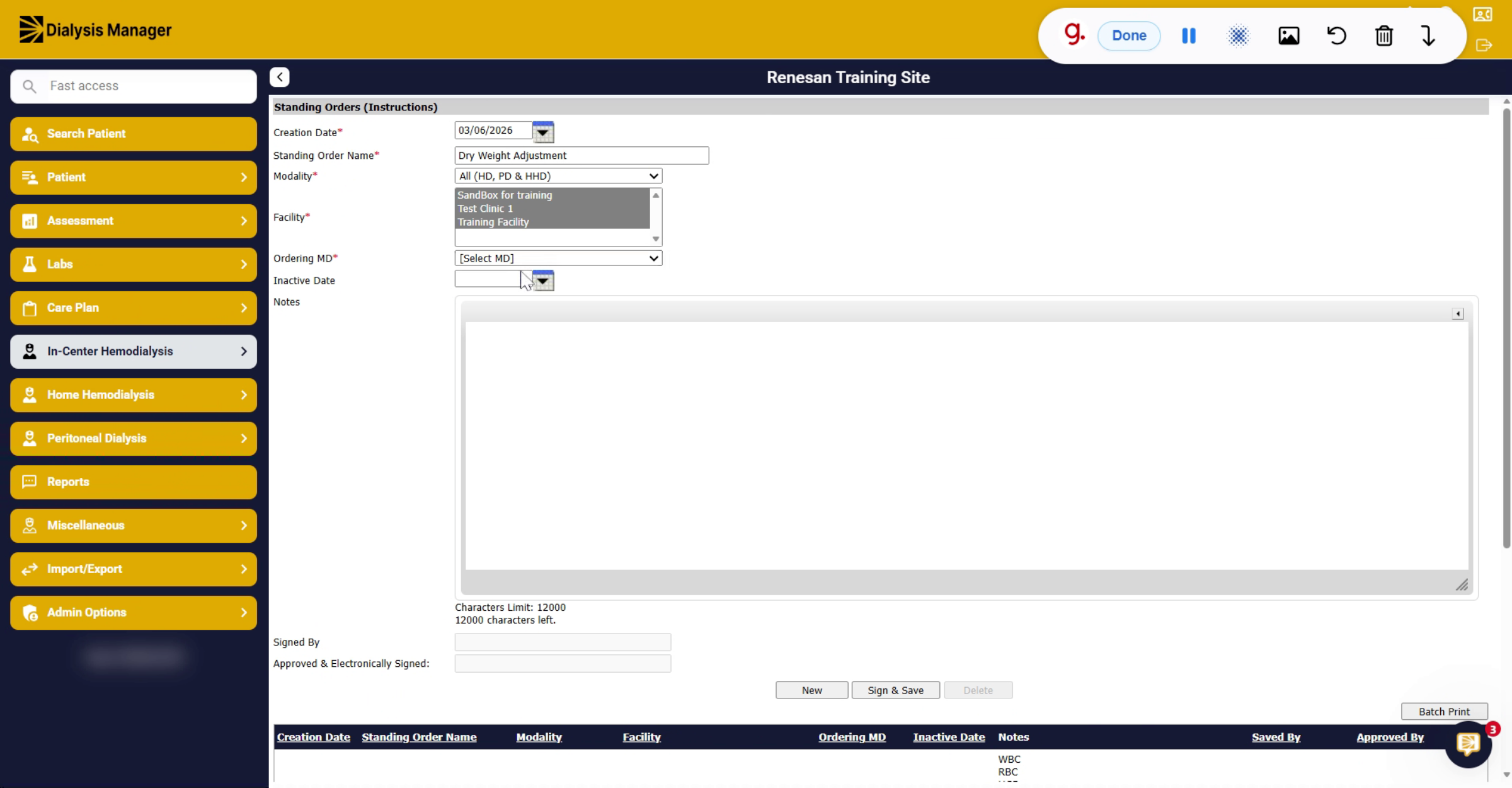
First, we'll enter our creation date. This defaults to today's date.
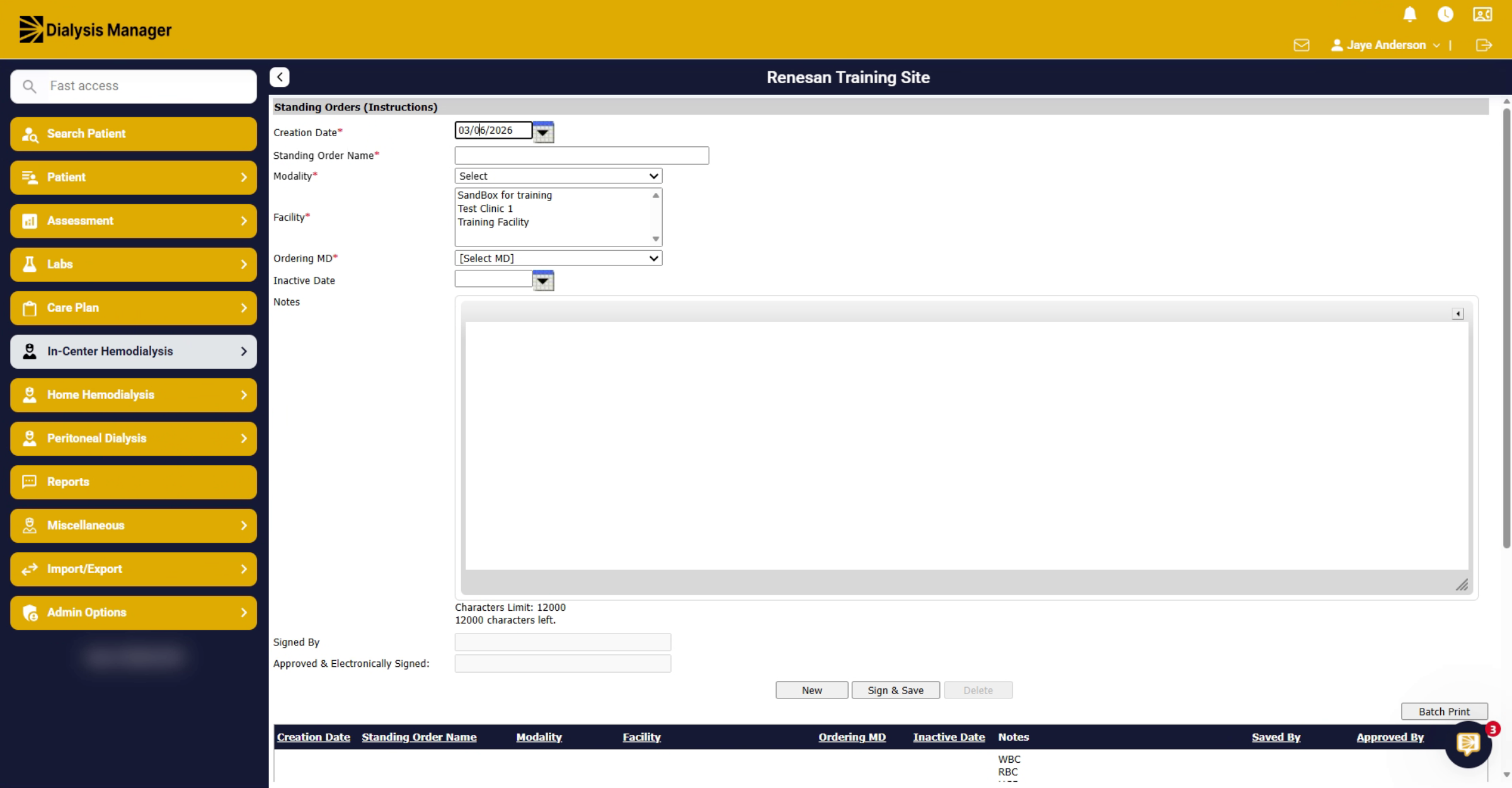
4. Enter Dry Weight Adjustment
Then we'll give our standing order instructions a name. Enter the name here.
5. Select Order Modalities
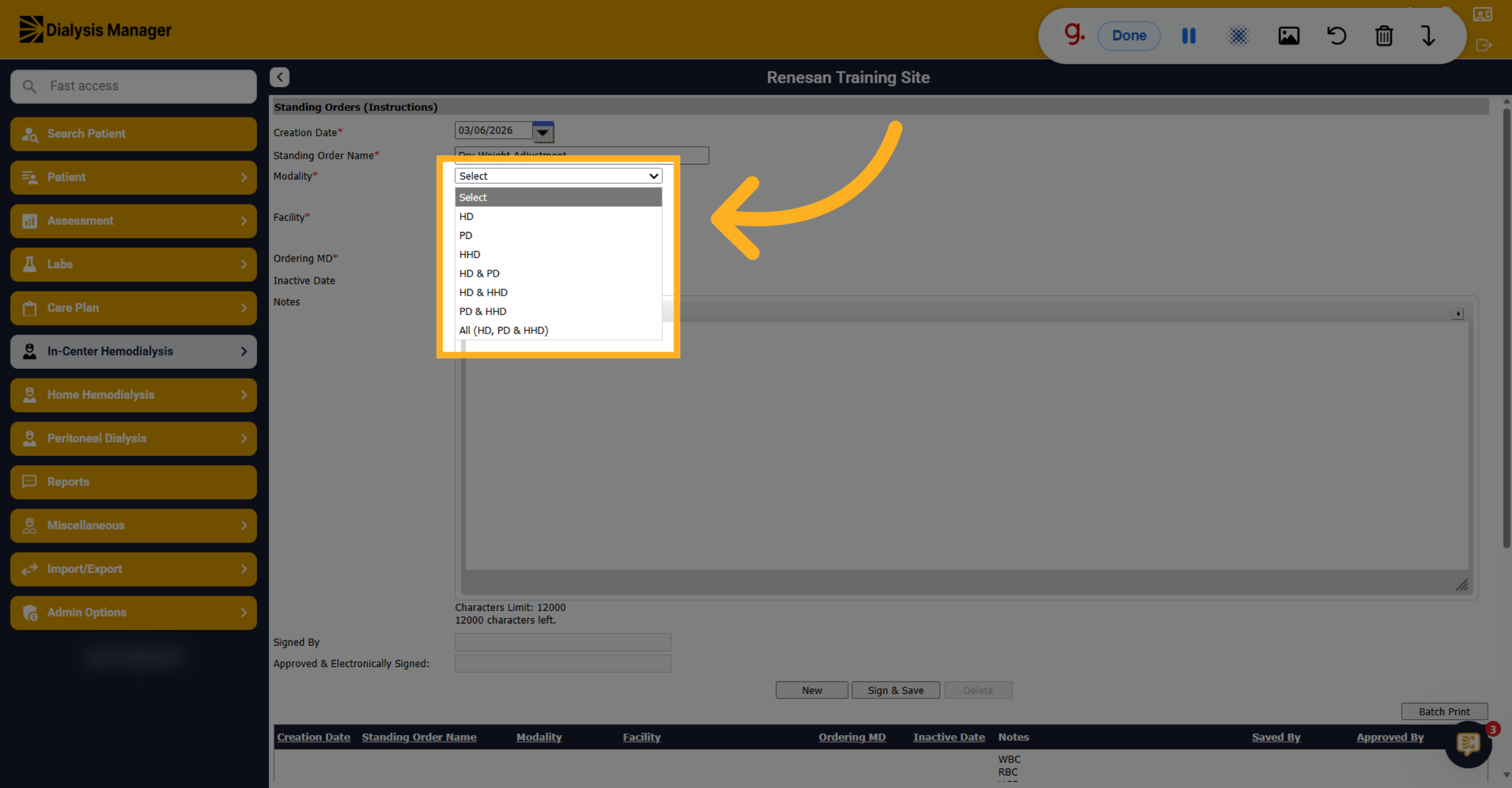
Choose the dialysis modalities that apply to this standing order, such as HD, PD, HHD, or combinations thereof.
6. Select Facilities
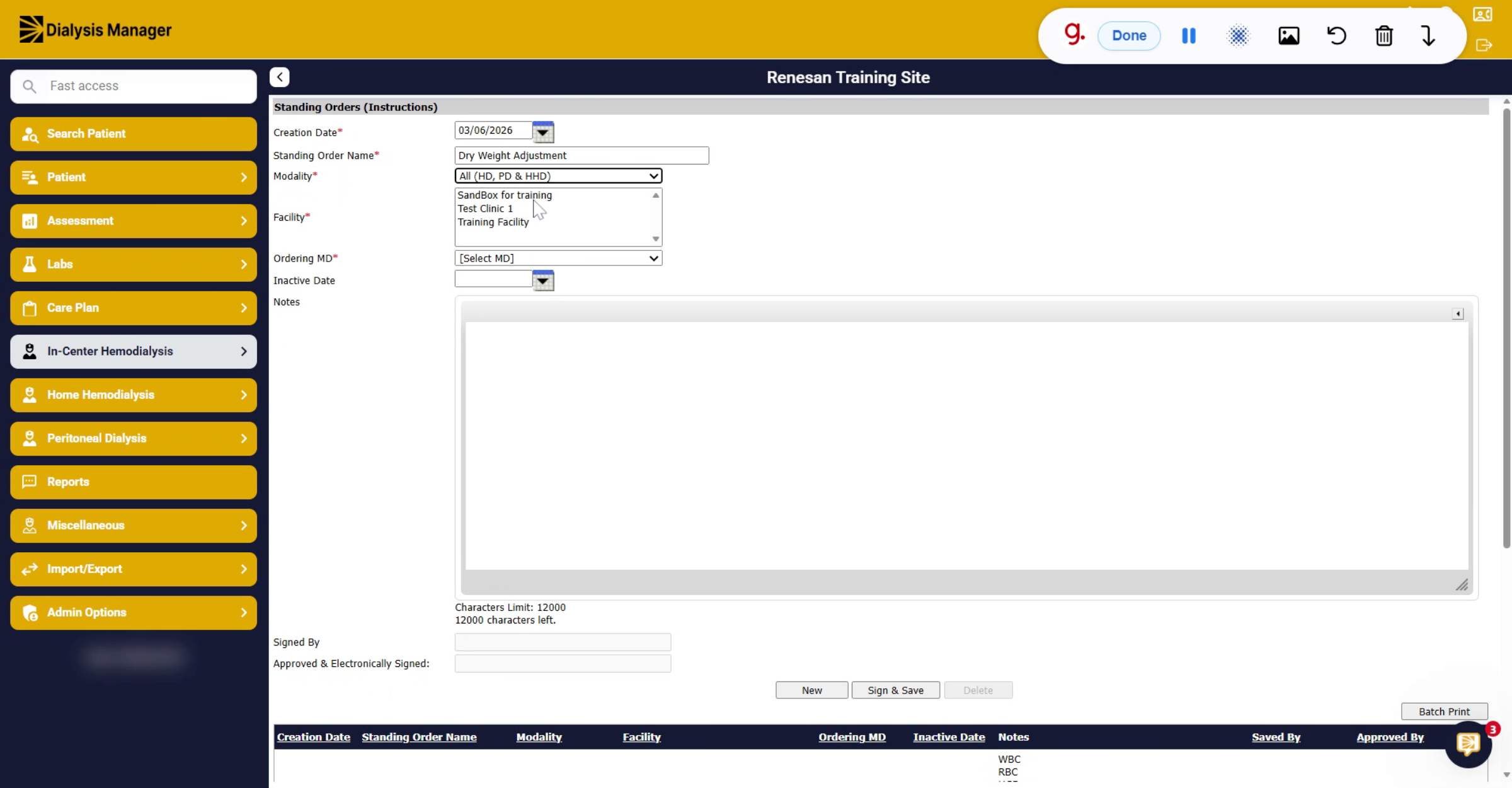
For your facility, you can use your Control key to select multiple facilities or you can drag to select all.
7. Select Ordering Physician
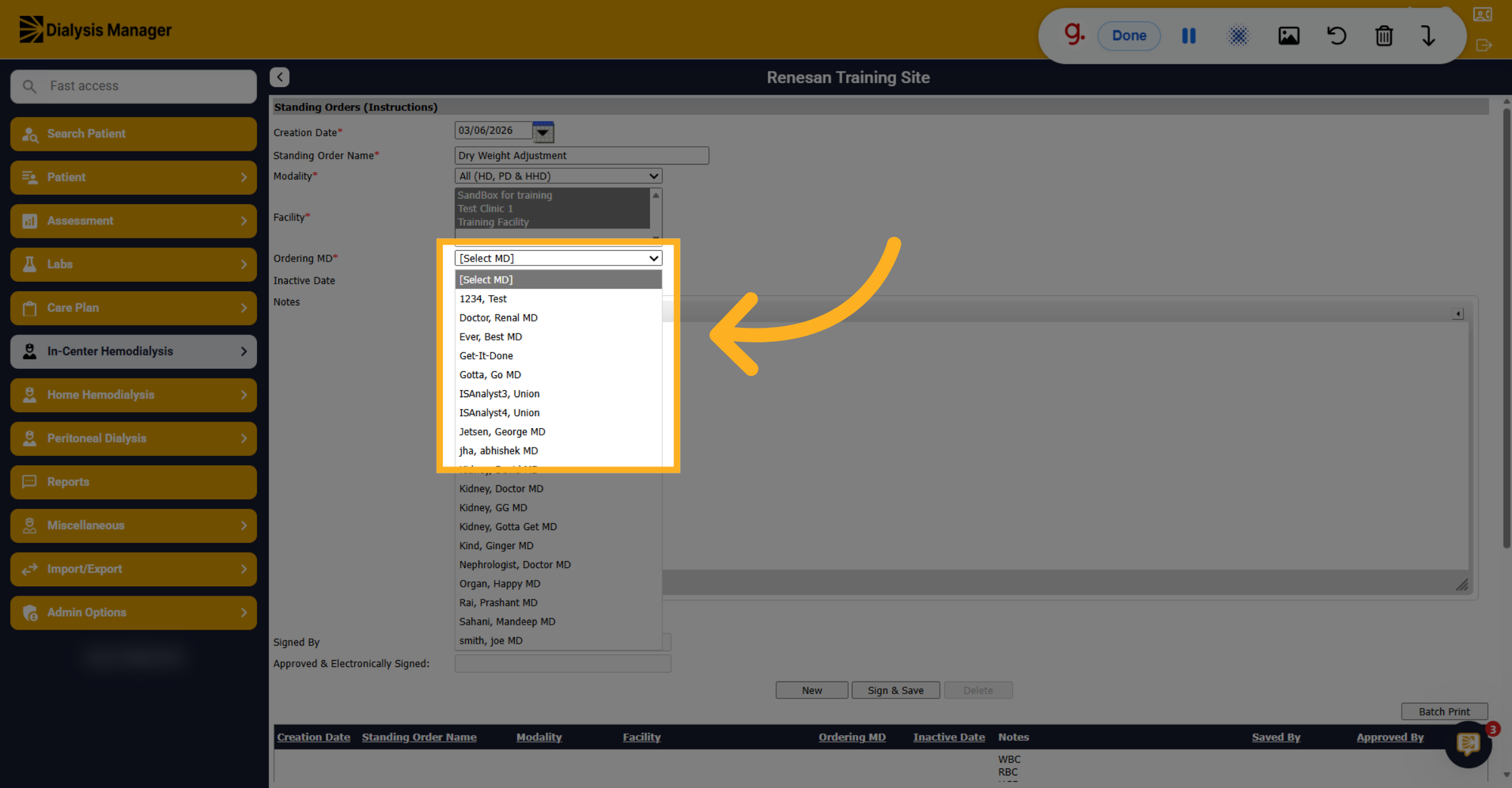
Choose the physician, from the provided list, who will sign off on the standing order.
8. Choose Ordering Physician And Add Notes
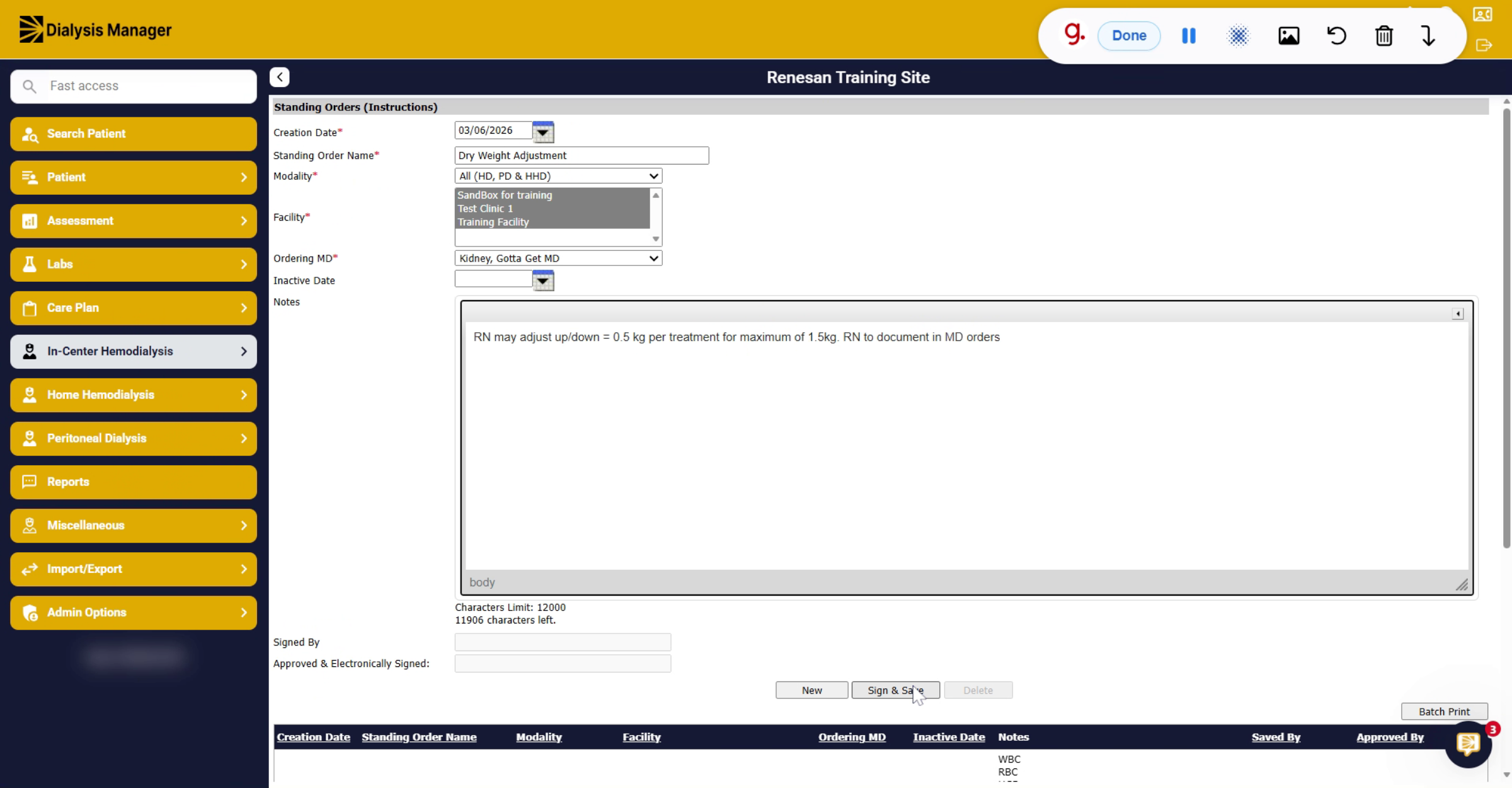
This physician will sign off on the order now we'll enter any notes that you have for the standing order instructions.
9. Sign And Save Orders
When complete click sign and save.
10. Edit Existing Standing Orders
If you need to edit any existing standing orders, you can select the hyperlink, make any adjustments, and click sign and update.