Creating and Documenting Standing Order Meds and Instructions for HHD Patients in Dialysis Manager.
1. Introduction
This tutorial explains how to configure standing orders within the Renvio Dialysis Manager application. You will learn to manage standing orders, map orders and instructions, and document within the treatment flowsheet or your nursing visit effectively.
2. Access HHD Order Section
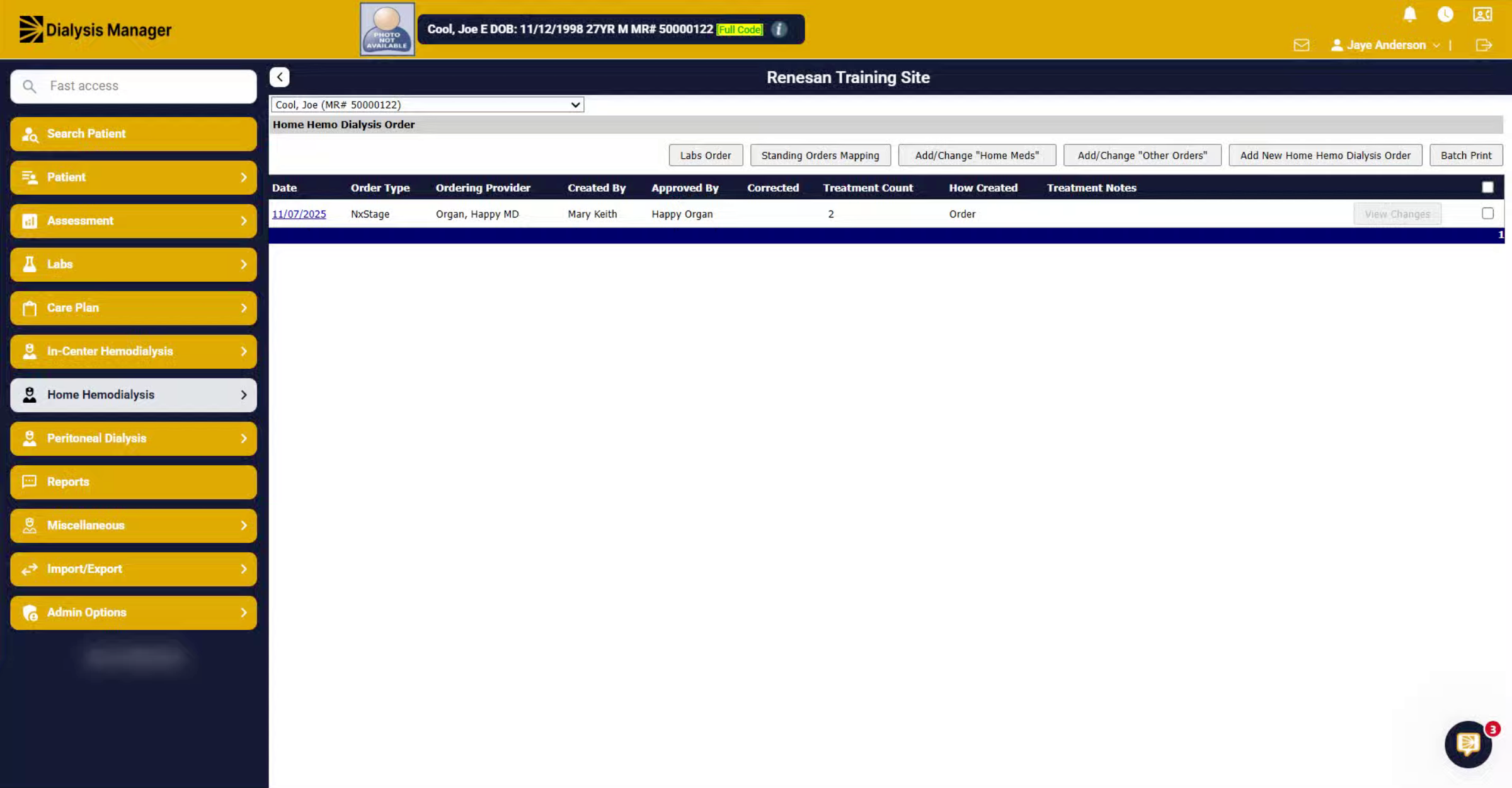
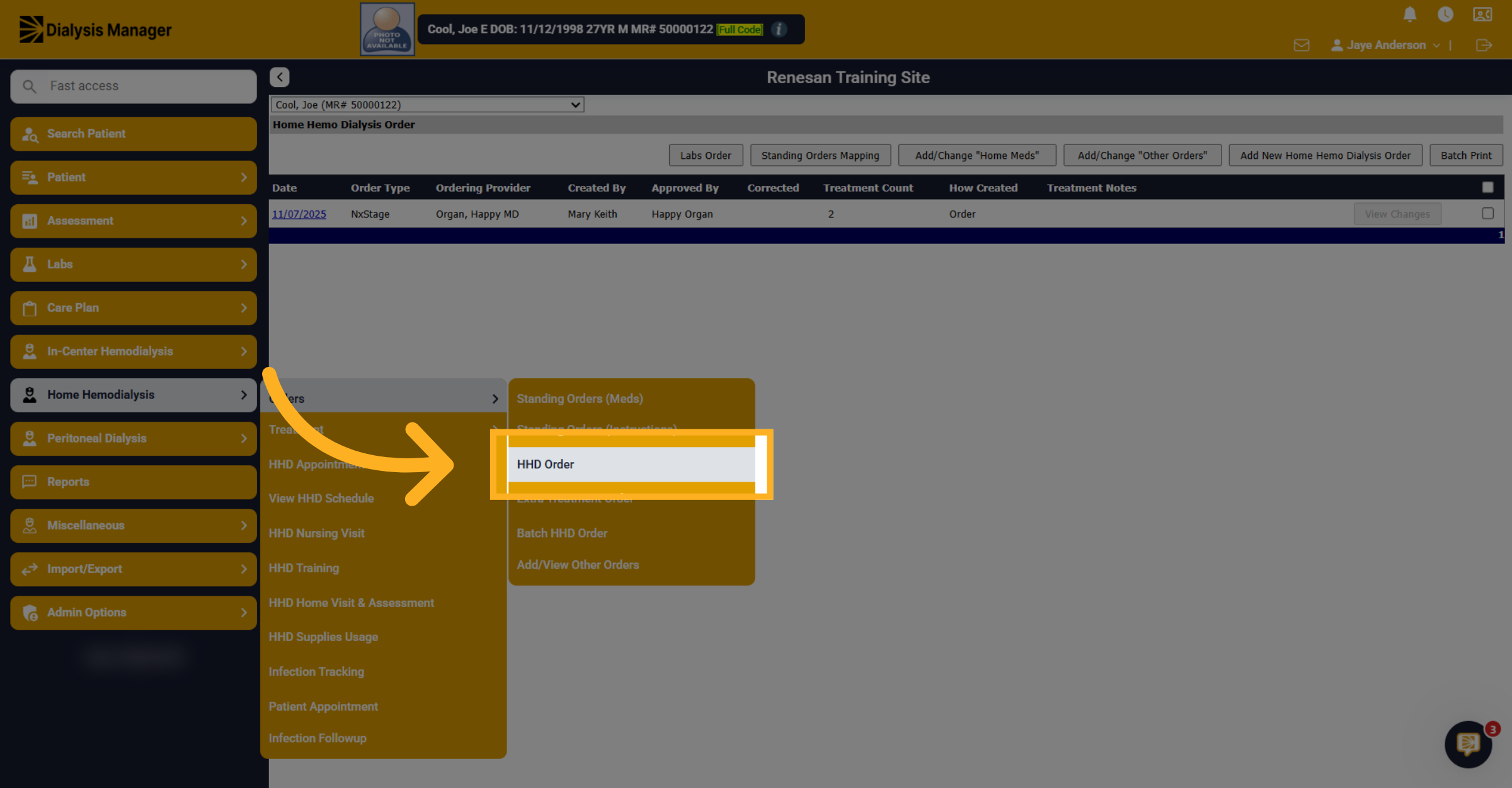
Go to the home hemodialysis, orders, and then the HHD order.
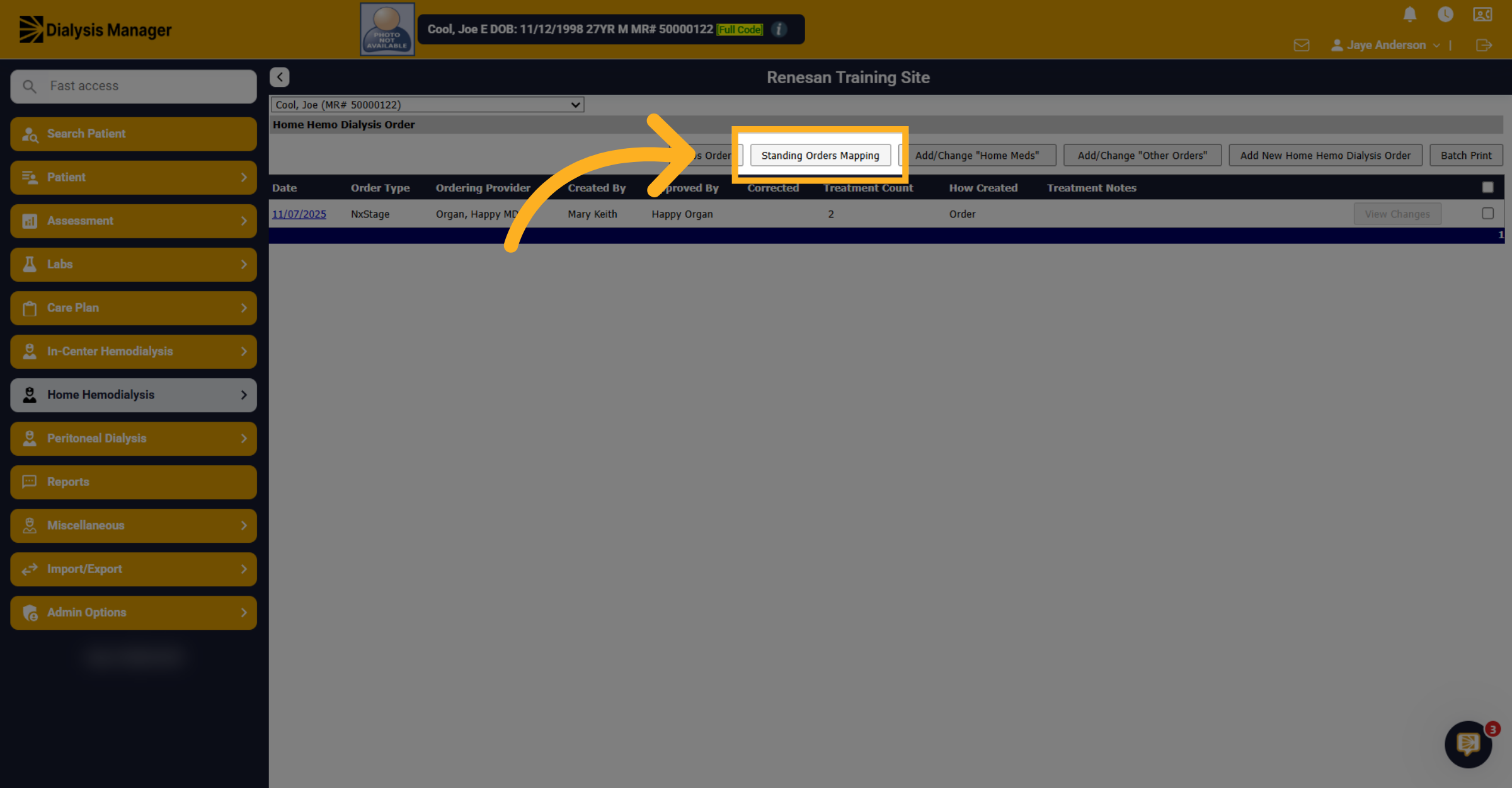
3. Open Standing Orders Mapping
We're going to click on the standing orders mapping. This will open a new window.
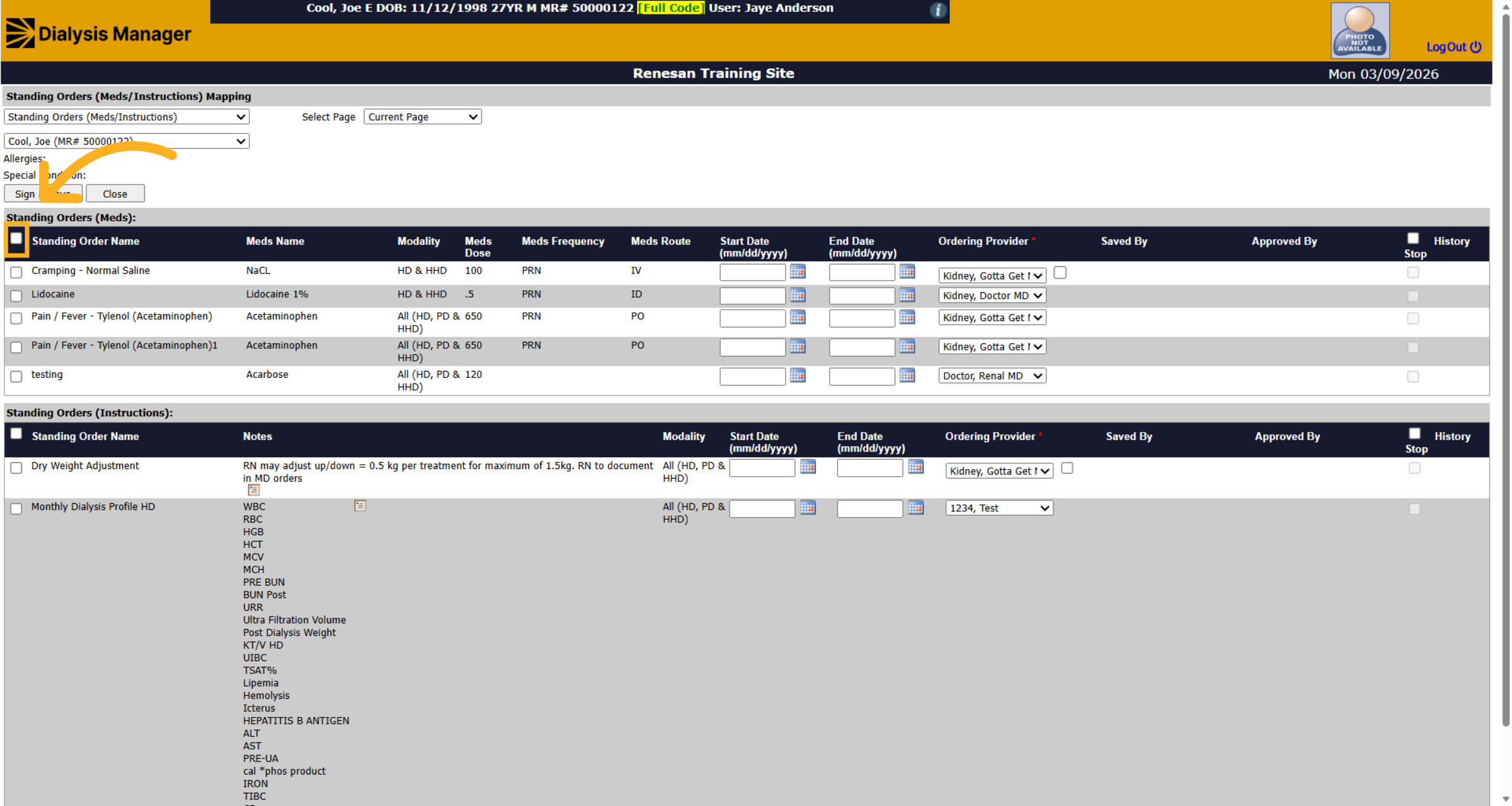
4. Select All Standing Orders
Here you can select the top checkbox to select all in the list.
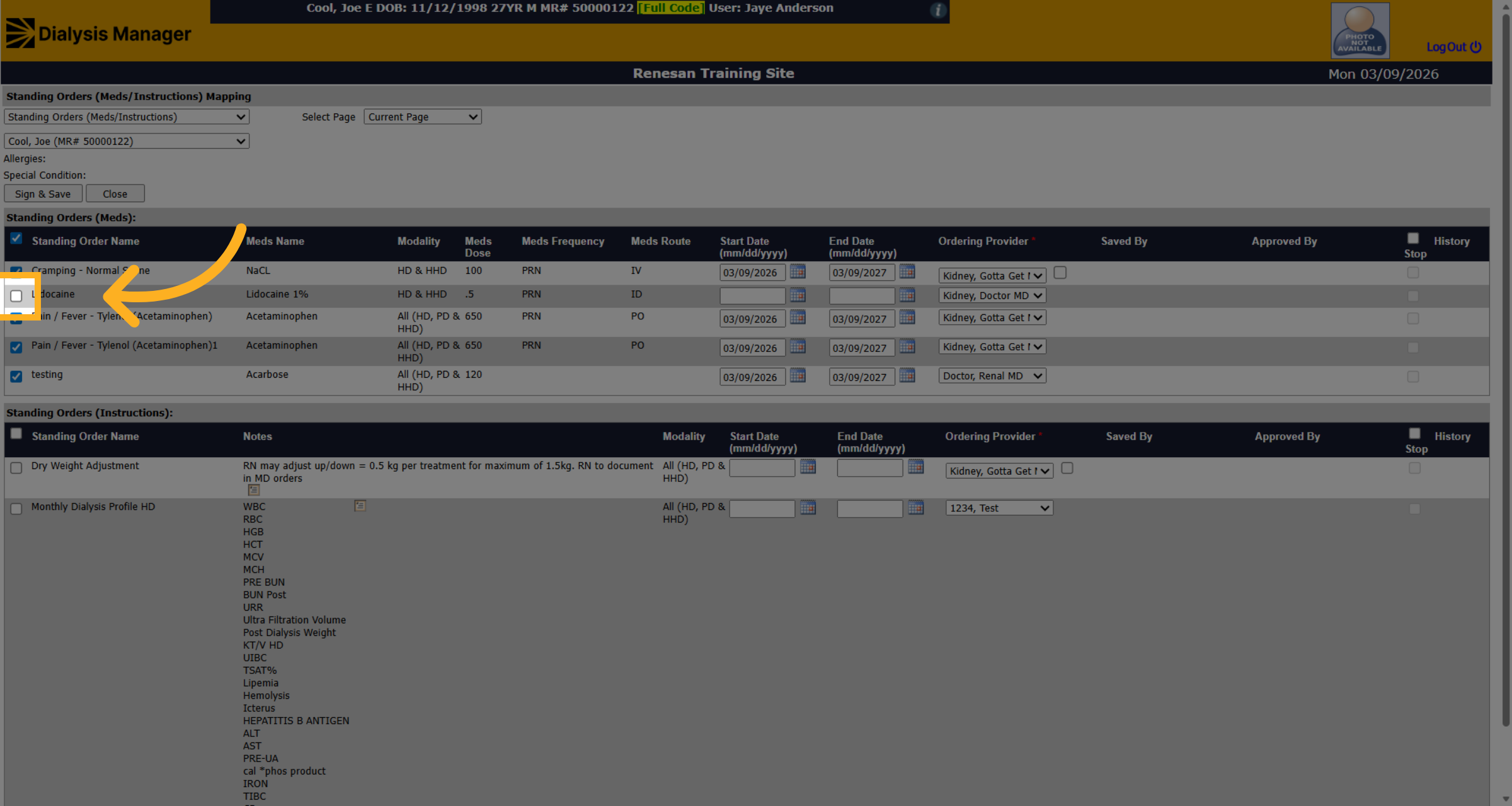
5. Fill Individual Standing Order
Or you can deselect or select one at a time.
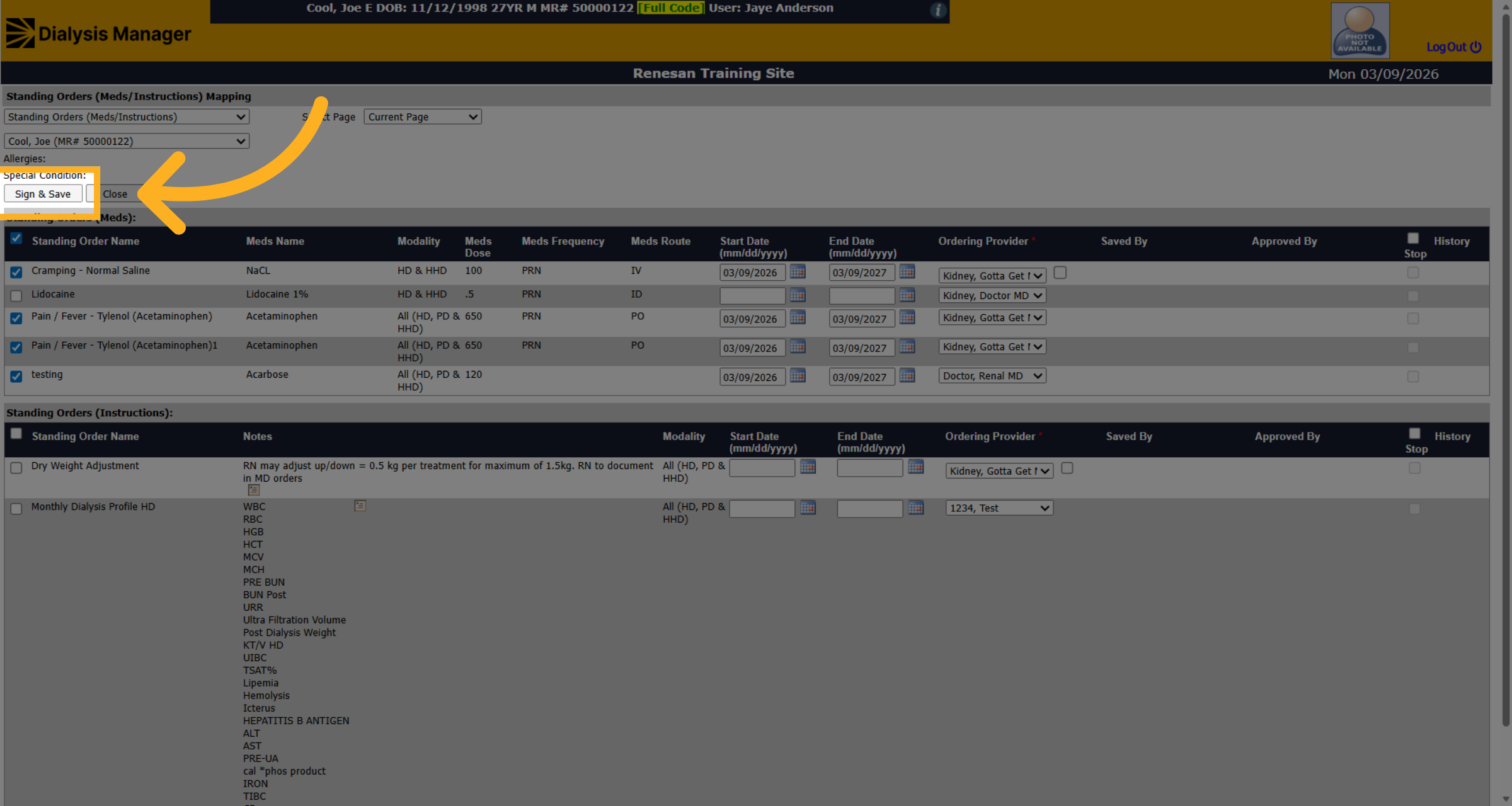
6. Save Standing Orders
Now click on sign and save to save the information.
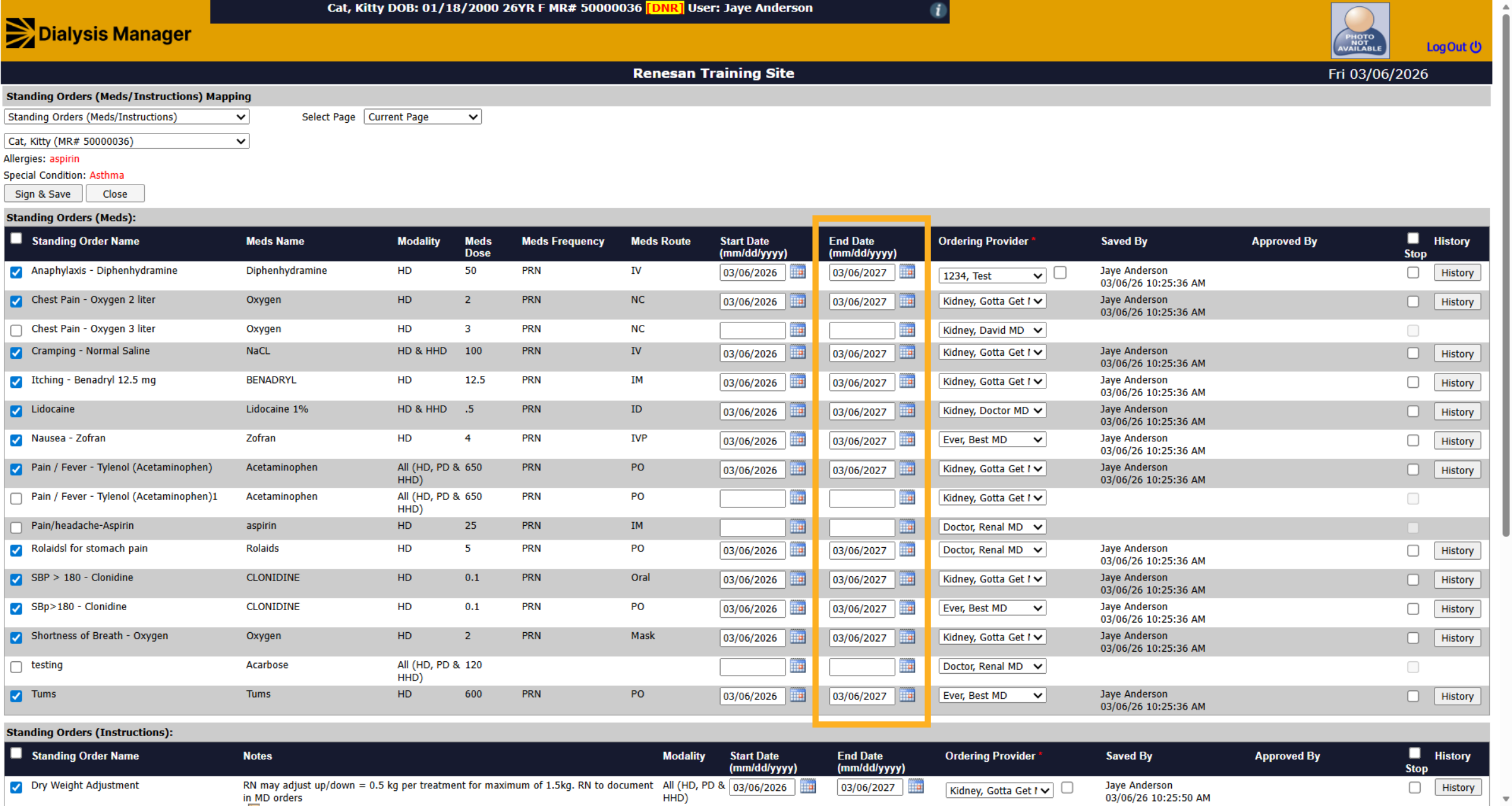
7. Close Standing Orders Mapping
You may also notice when entering the order, it will automatically put an end date for one year out. After 1 year you will need to come back in and reset or reorder the standing order mappings.
8. View Approved Orders
Once the orders have been approved, the orders will be grayed out, and you will see the ordering provider who signed off and approved the order.
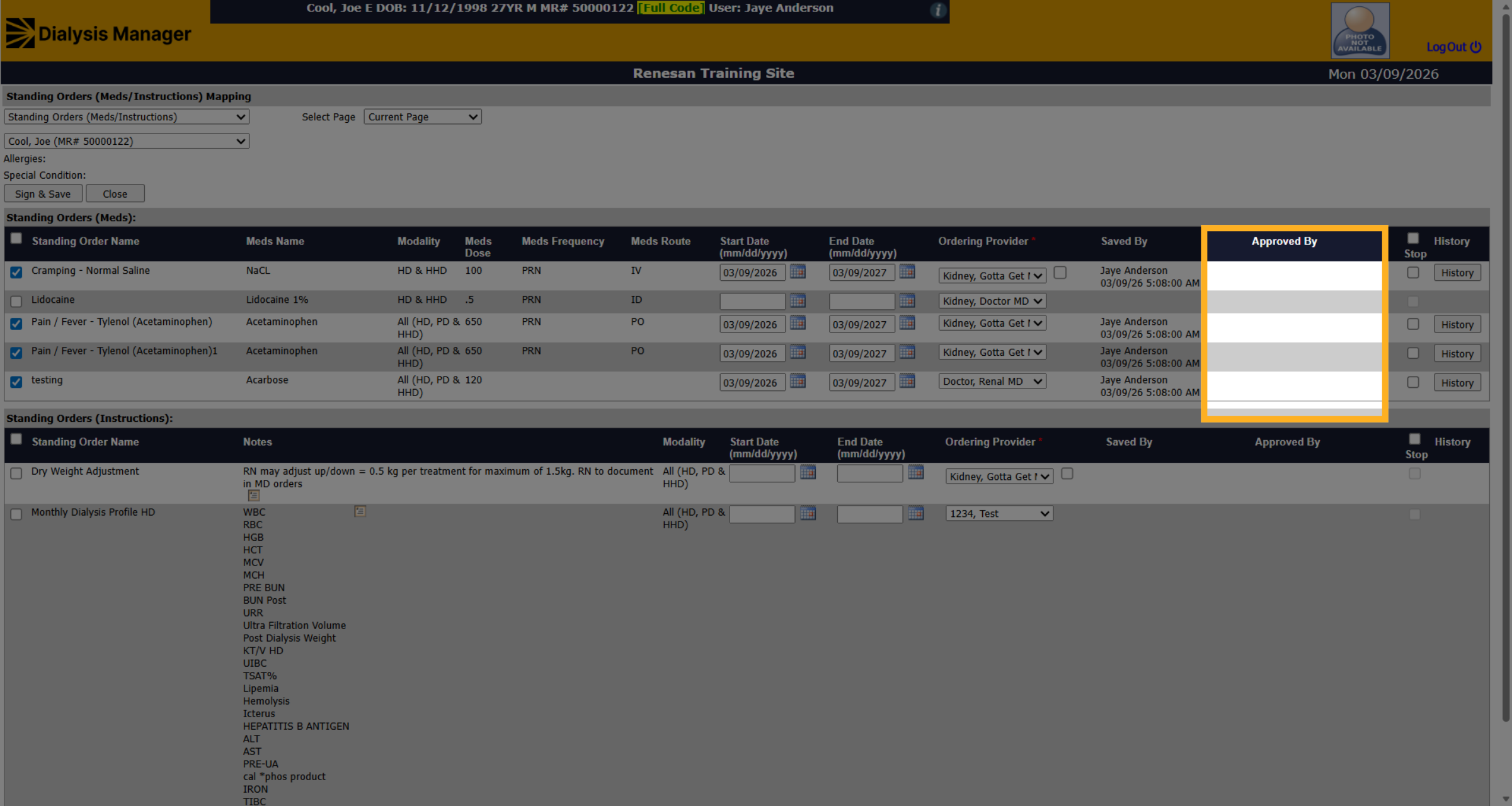
9. Fill Stop Option
If you need to stop a standing order, you can simply choose the stop option.
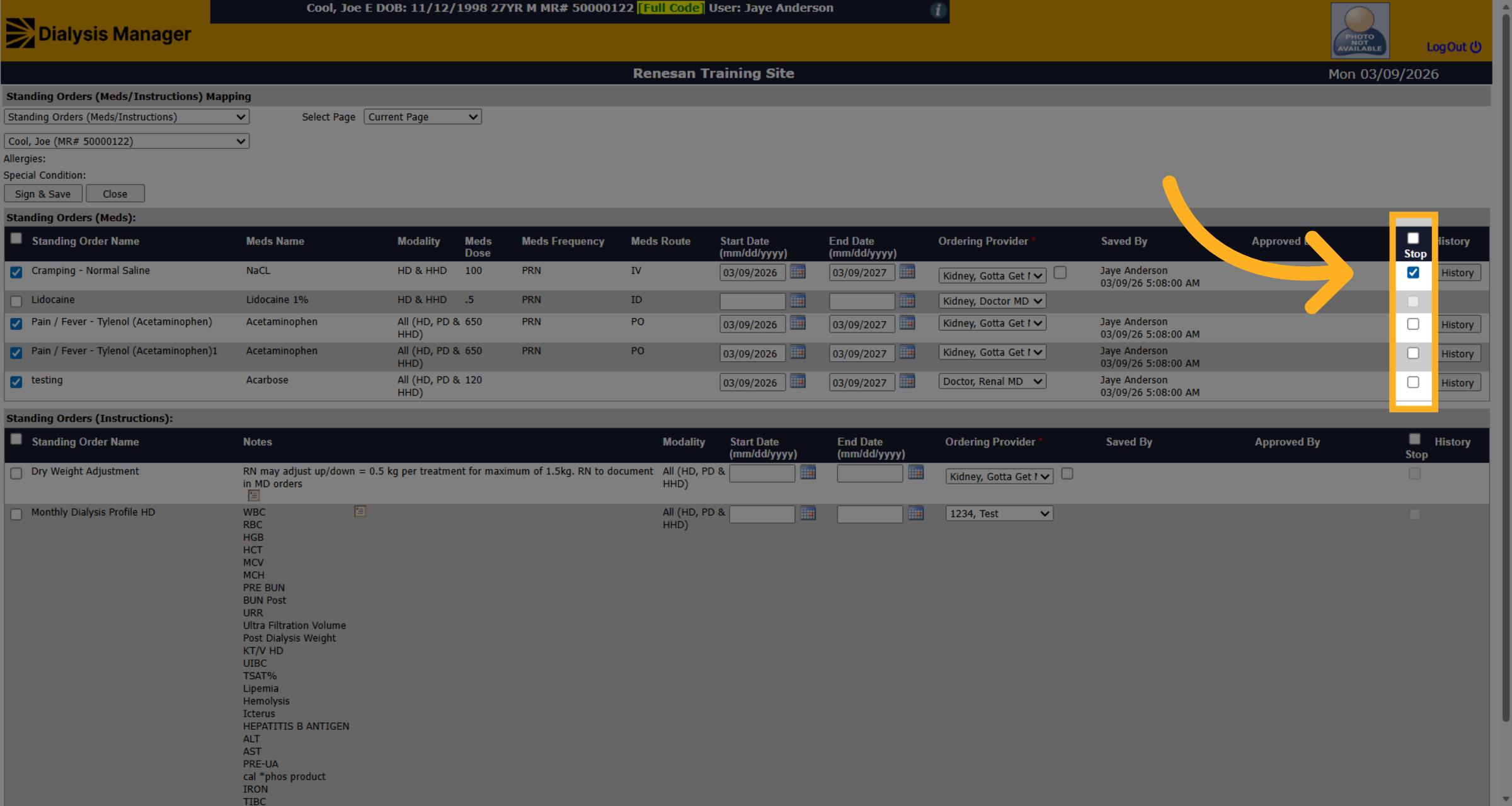
10. Fill Deselect All
You could also select or deselect all by selecting the top check box.
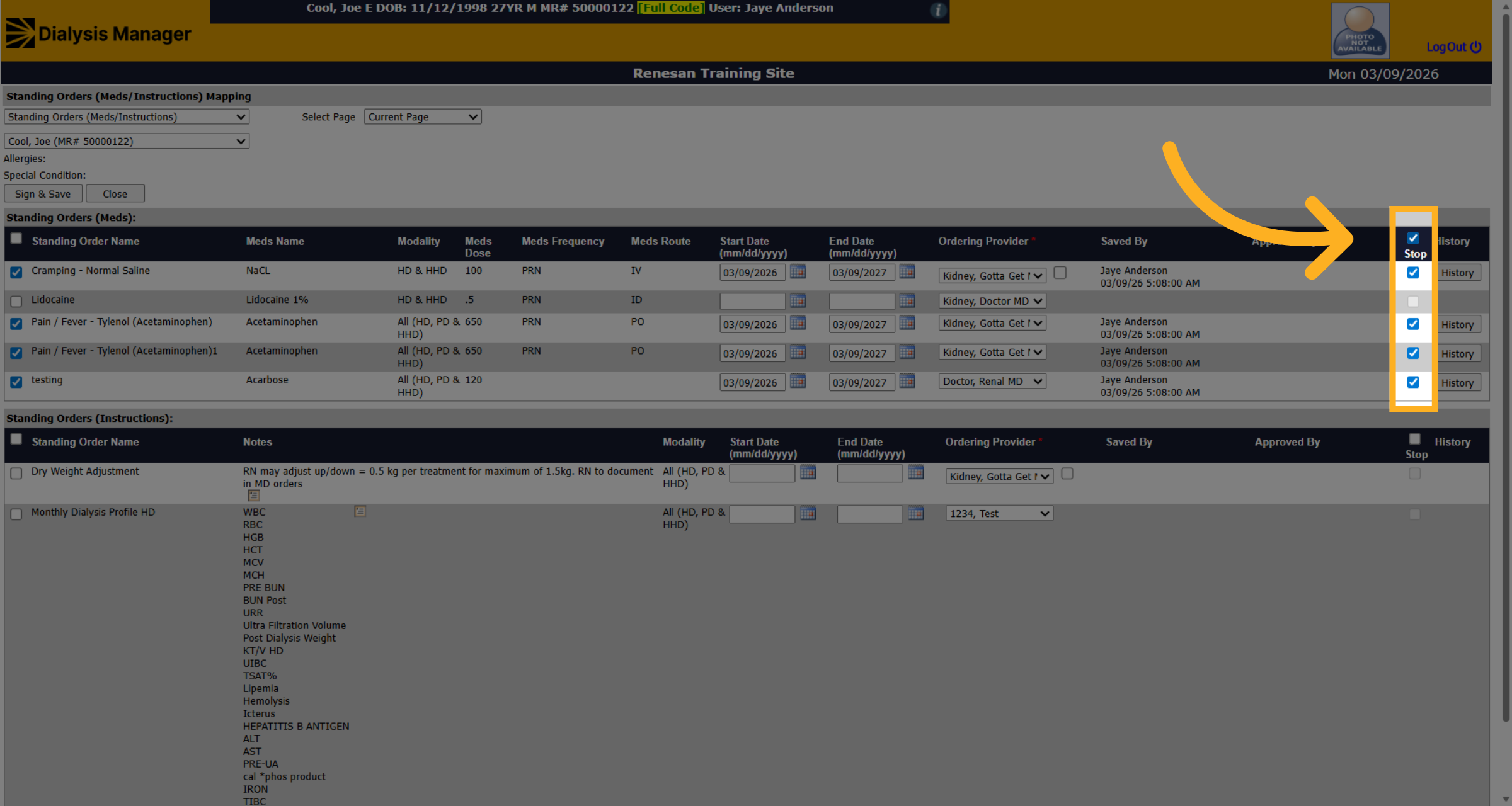
11. Sign and Save Changes
Click sign and save to save the information.
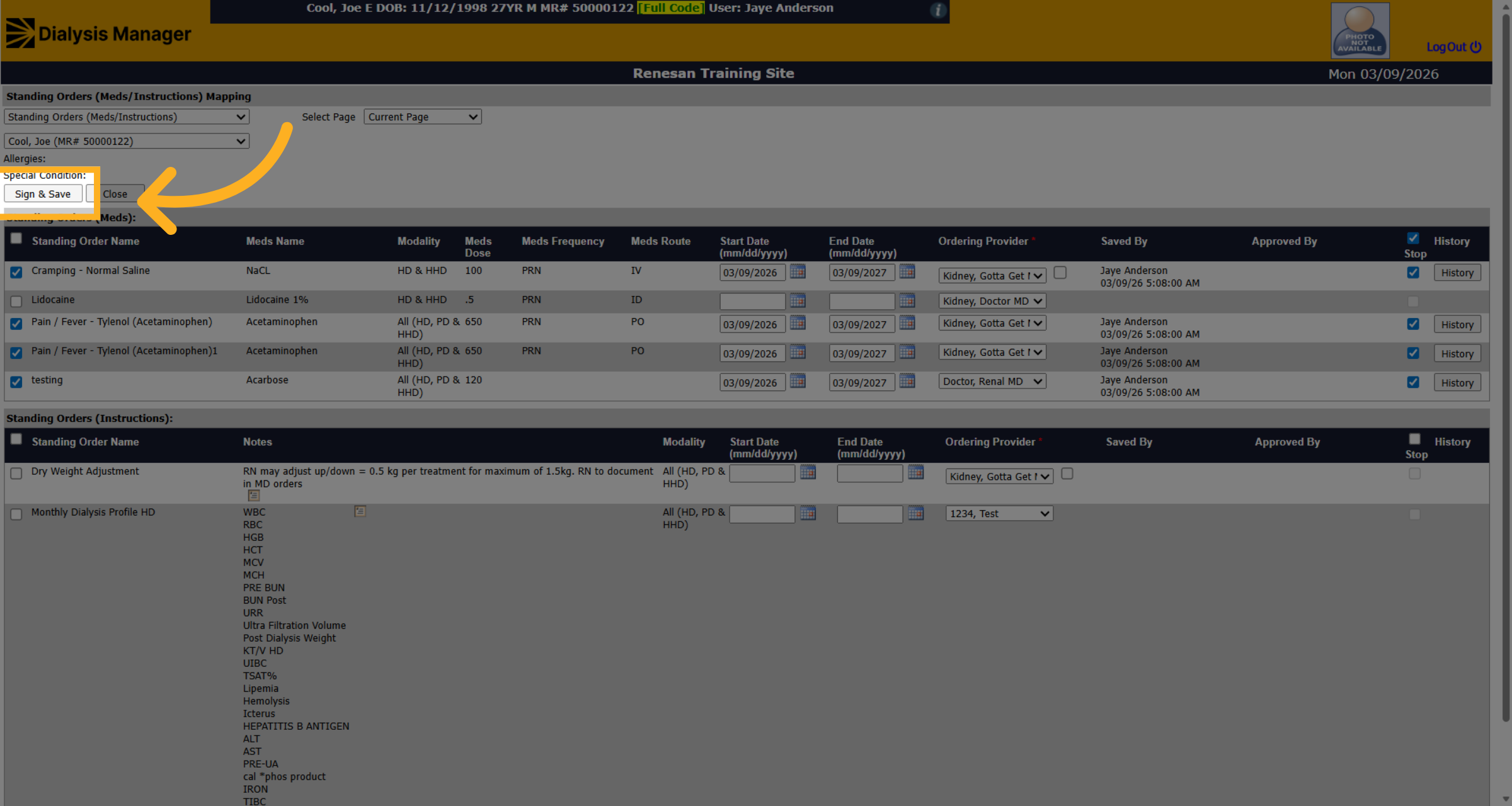
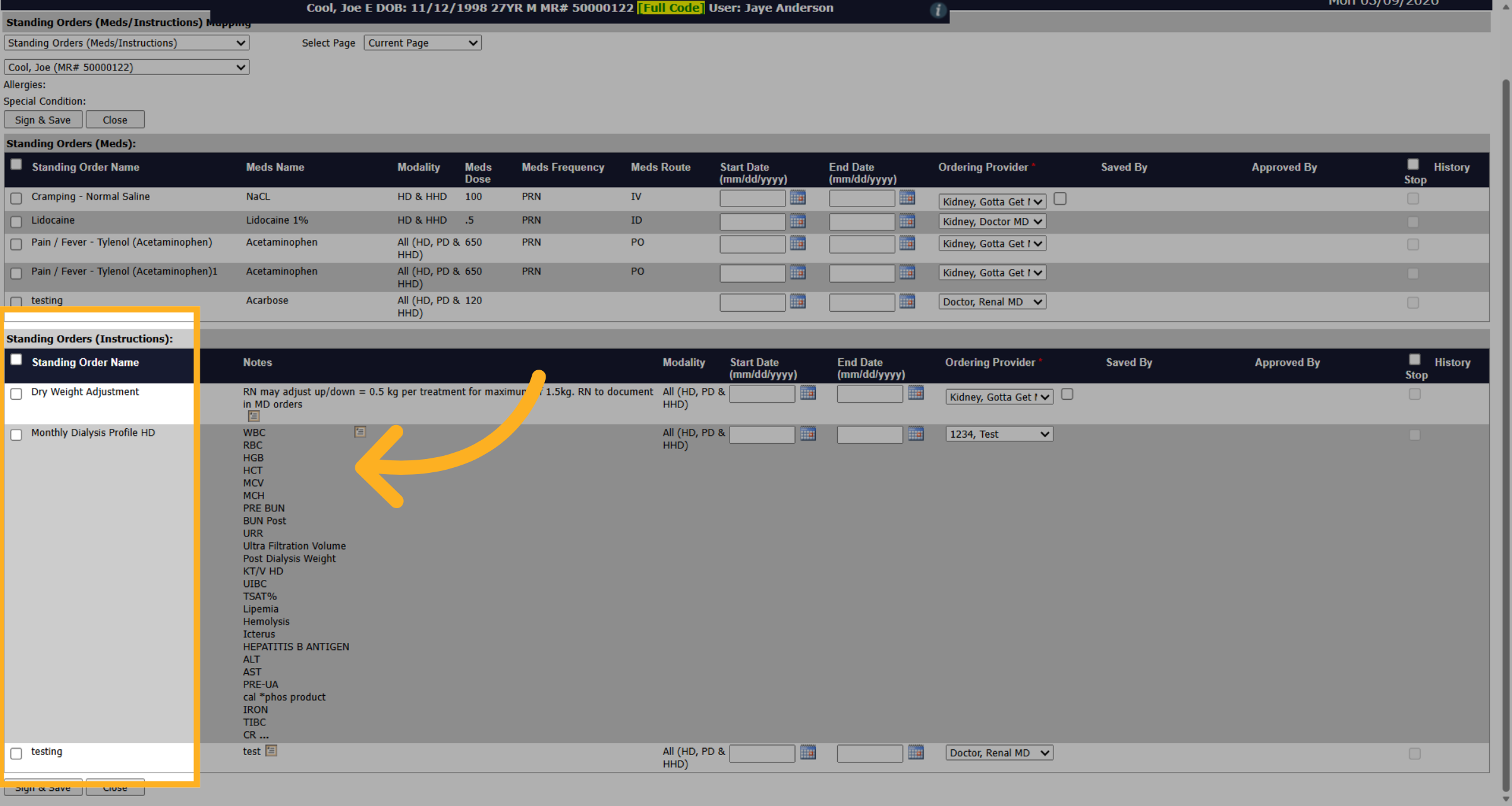
12. Access Standing Order Instructions
You will do the same thing for your standing order instructions section.
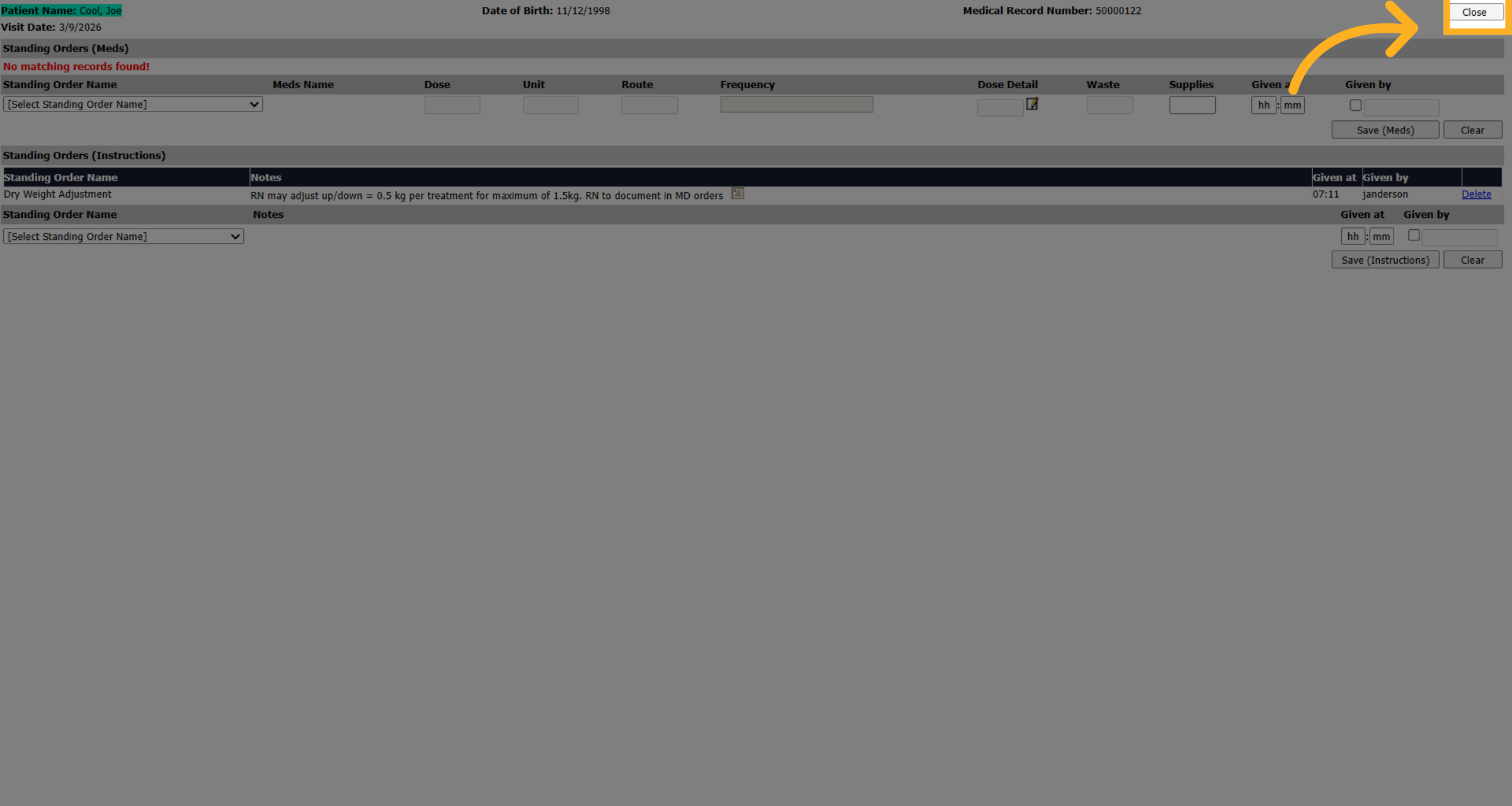
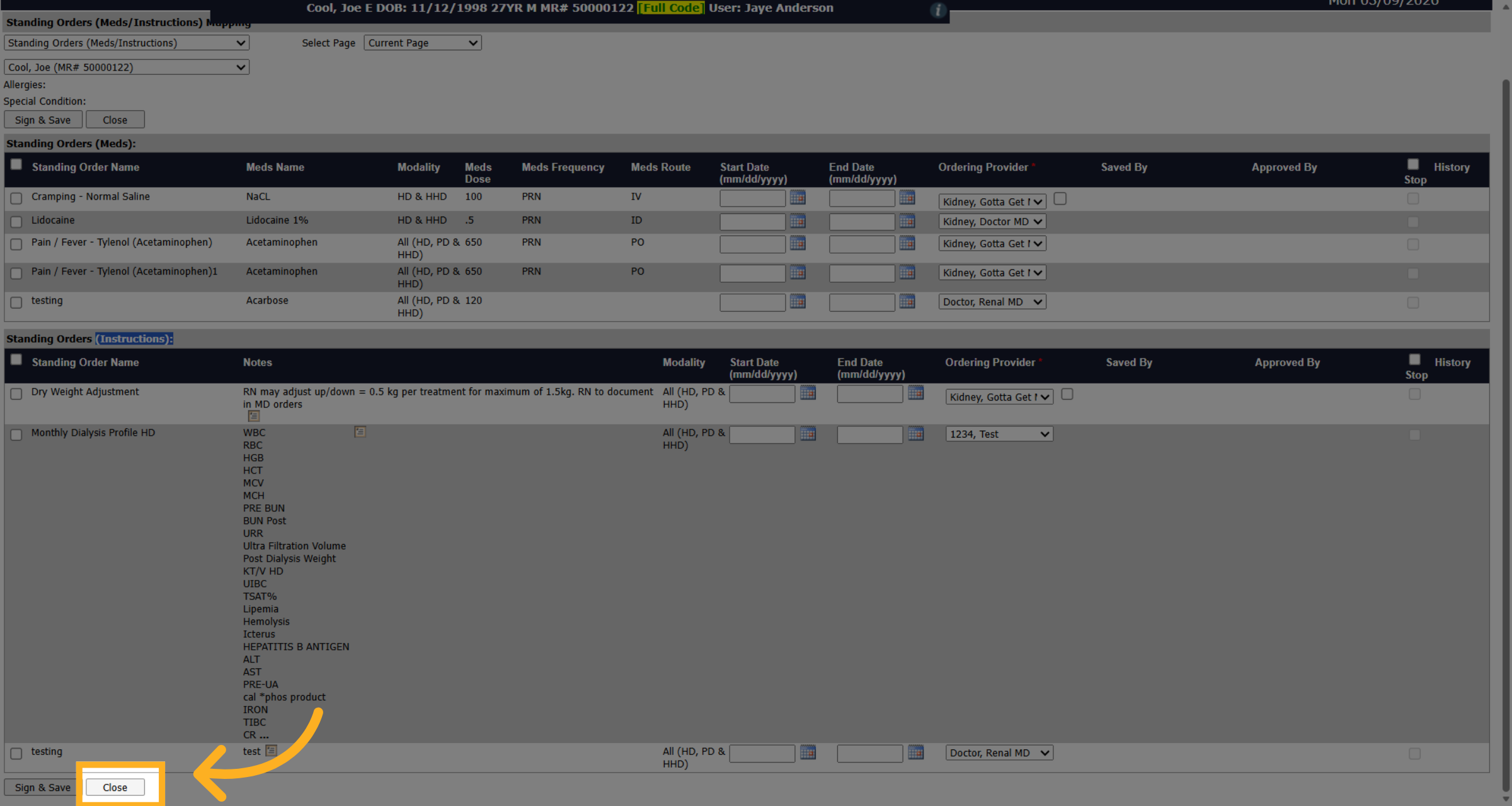
13. Close Standing Orders Window
Once you're done click close to go back.
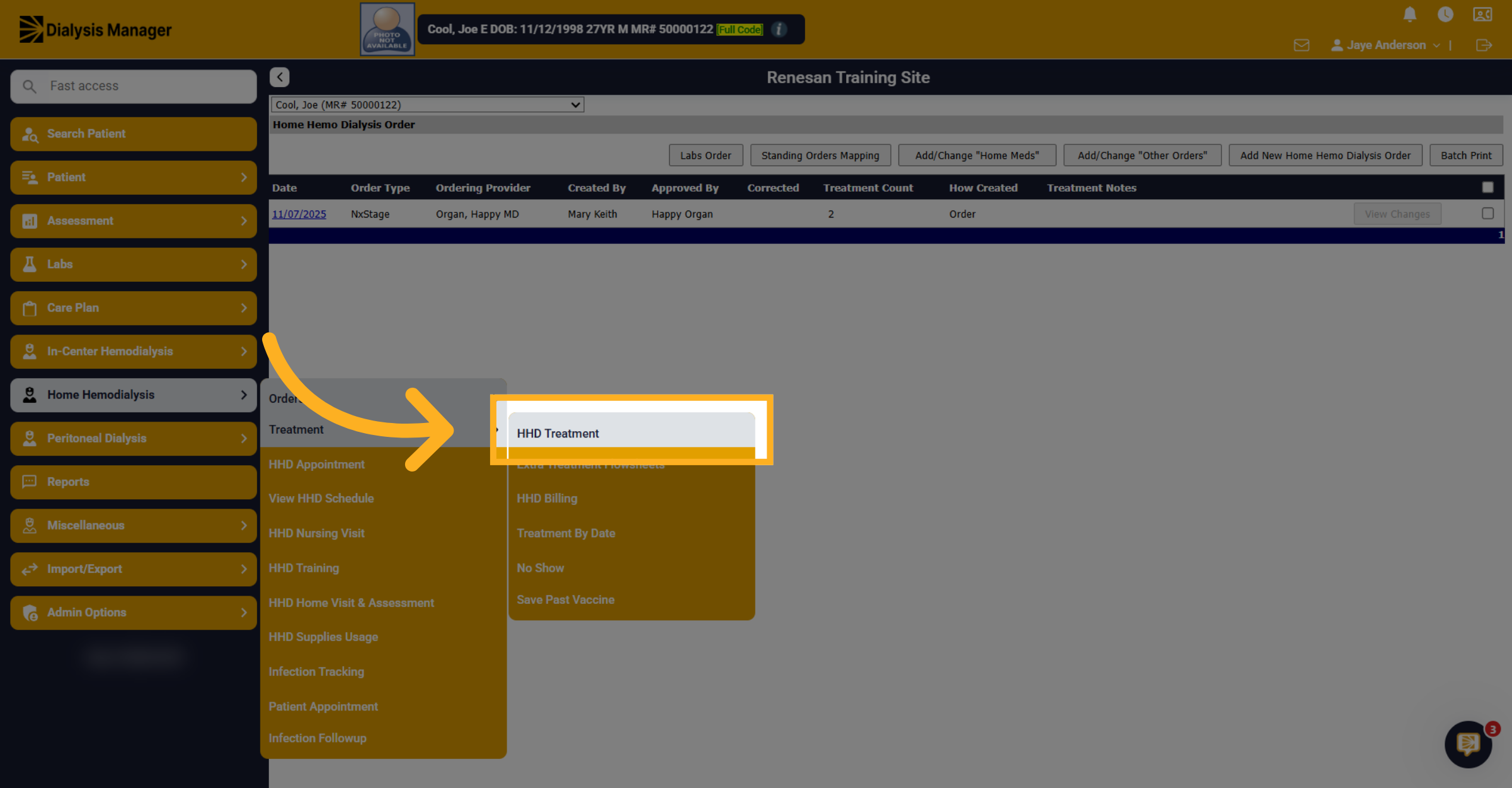
14. Open HHD Treatment Section
Now we'll show you how to document the information under HHD treatment.
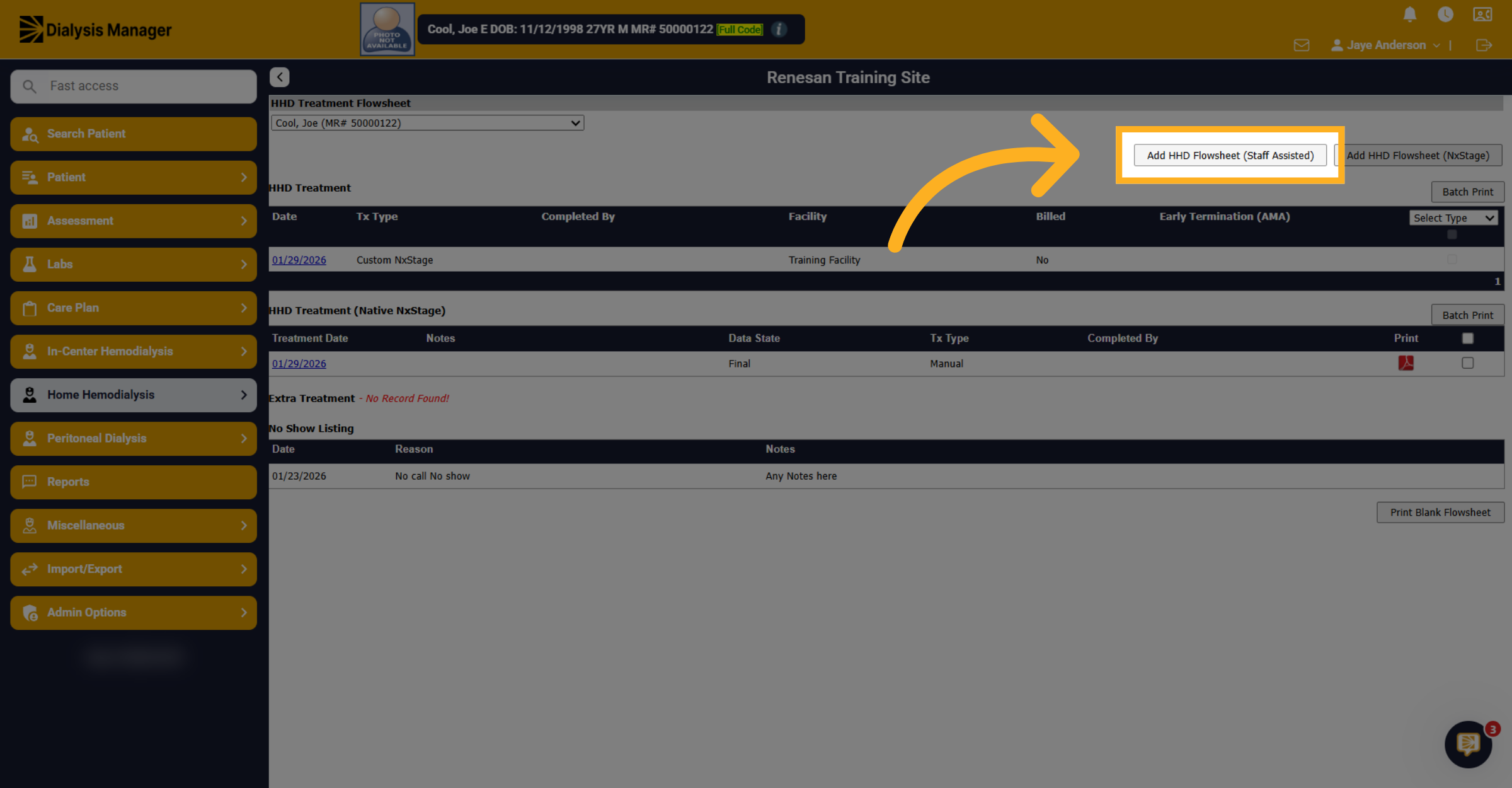
15. Add Staff Assisted Flowsheet
Click on the HHD Staff Assisted flowsheet.
16. Open Standing Orders in Flowsheet
Click on Standing Orders.
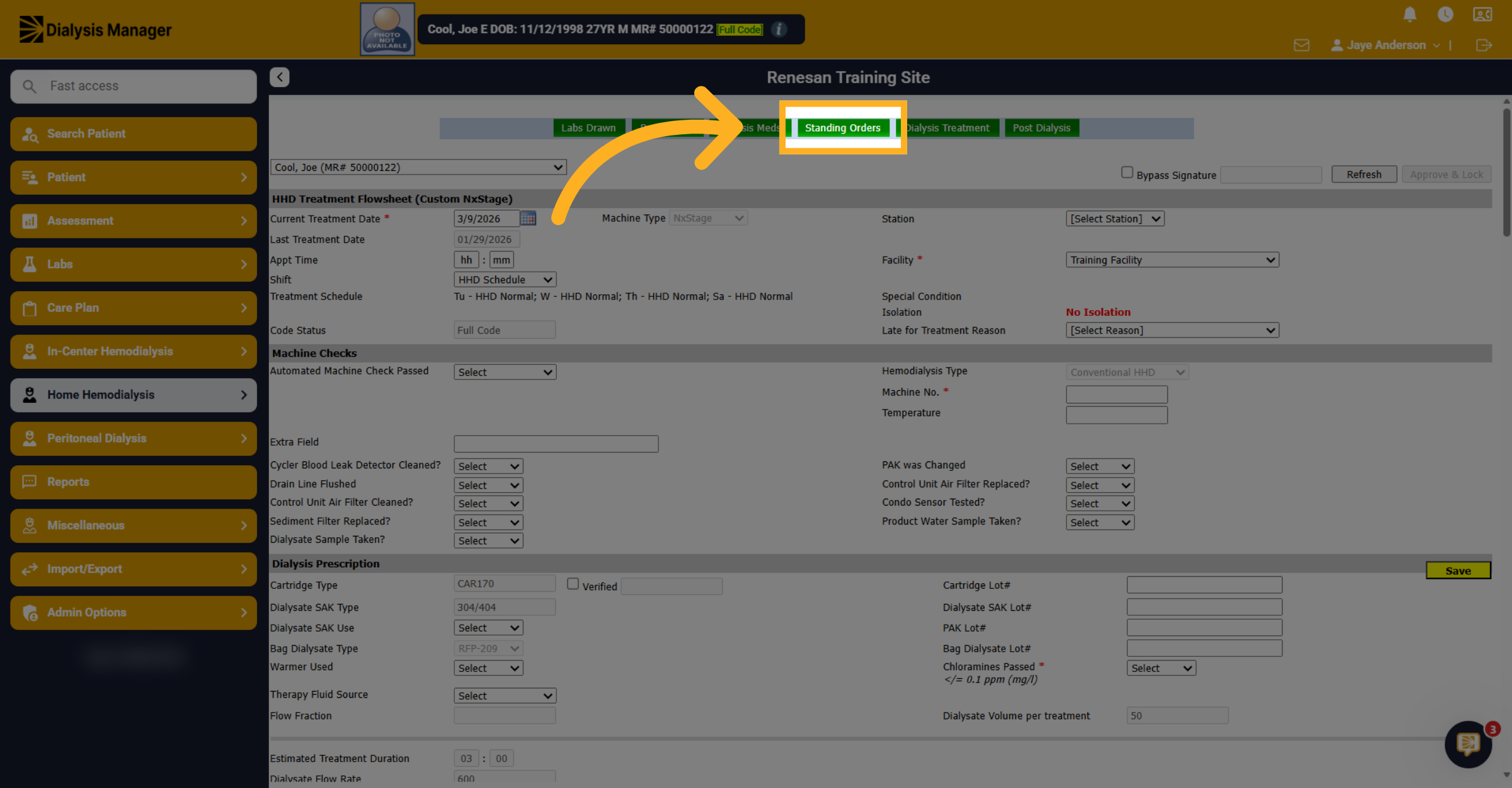
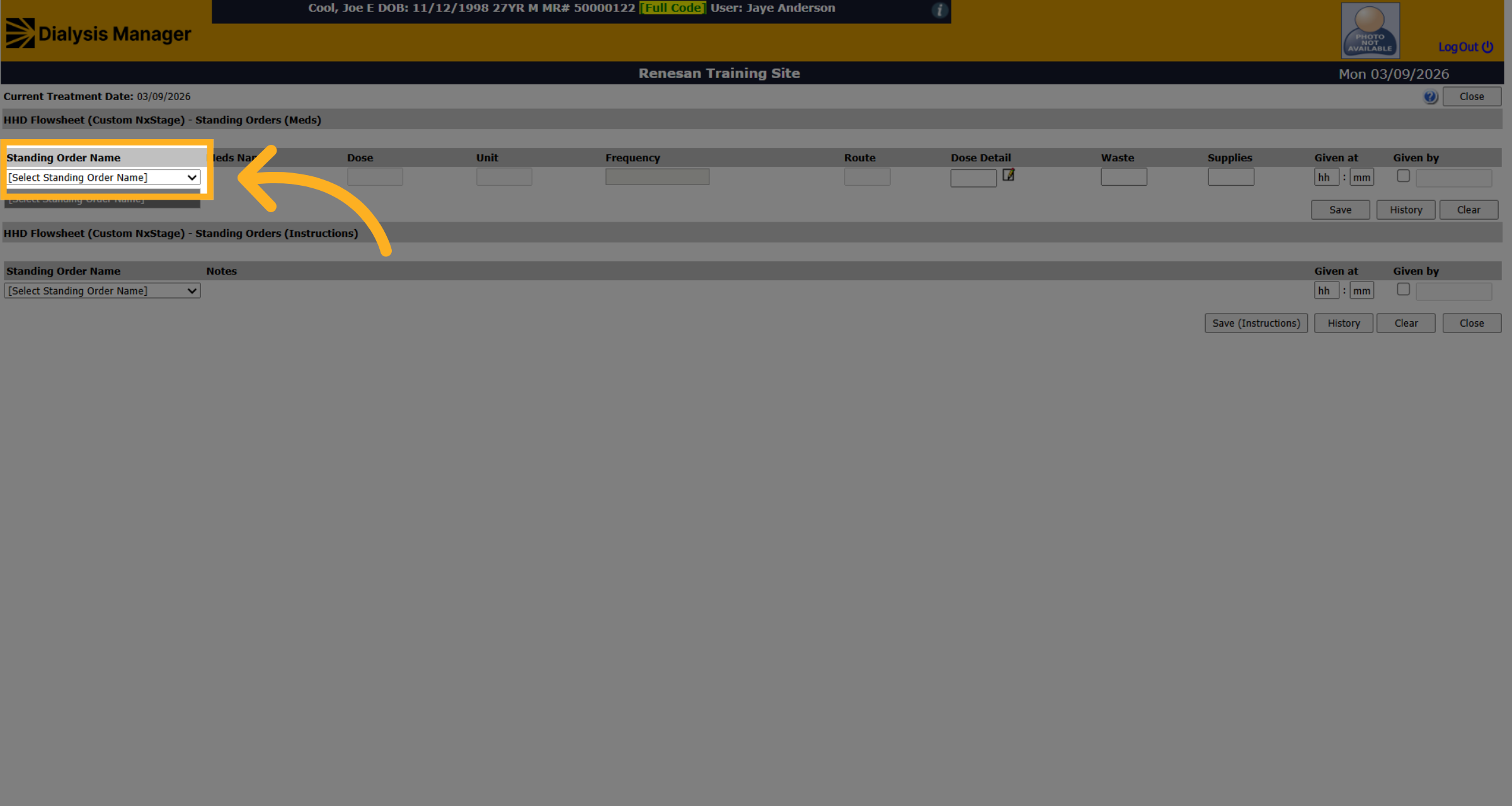
17. Select Standing Order Name
From here, you will see the standing order information in the dropdown, the ones that are associated or ordered for that particular patient as previously seen.
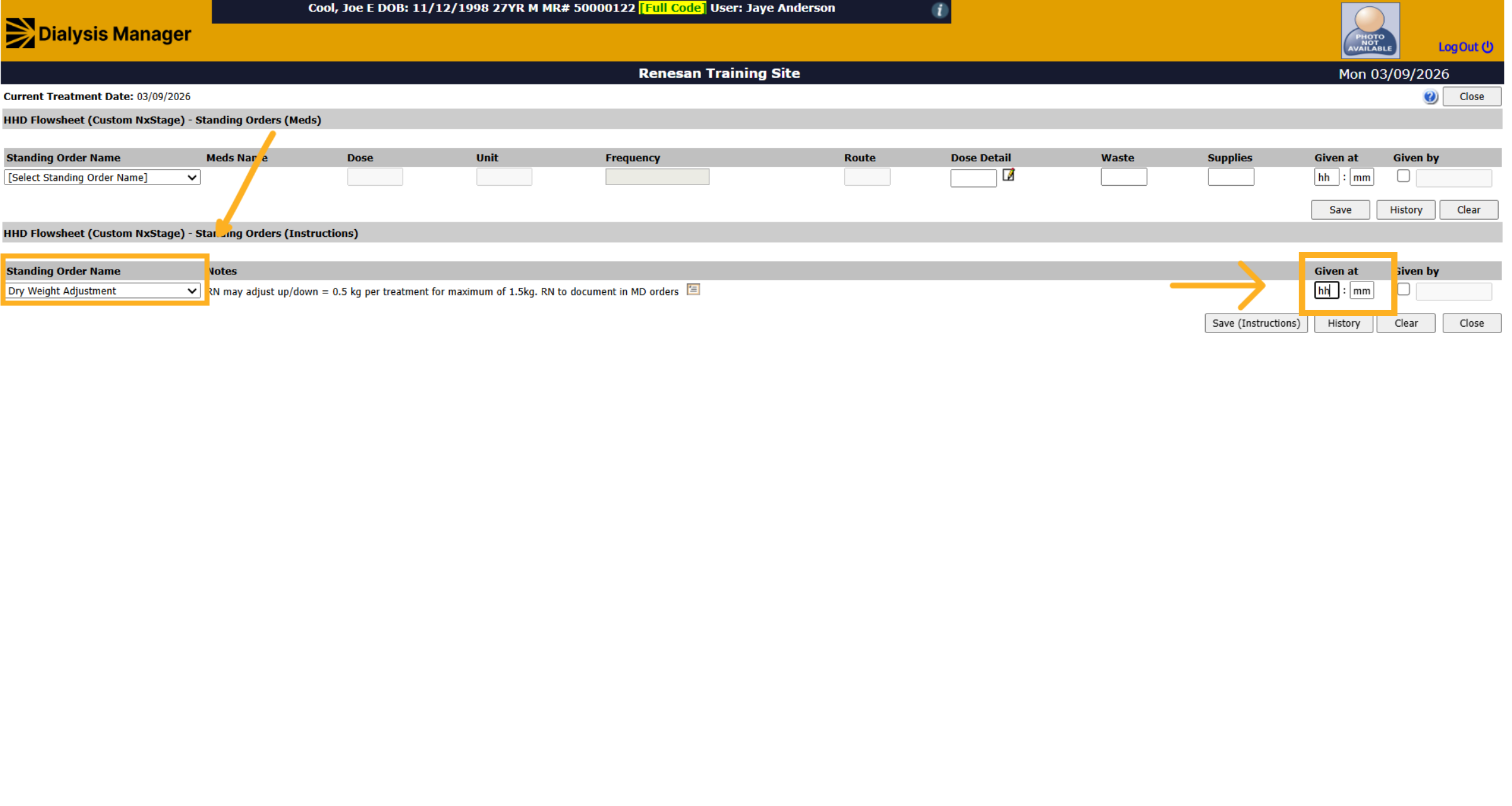
18. Select Patient Standing Order
You will simply click on the instructions or the medication name, document what time the event took place or was given.
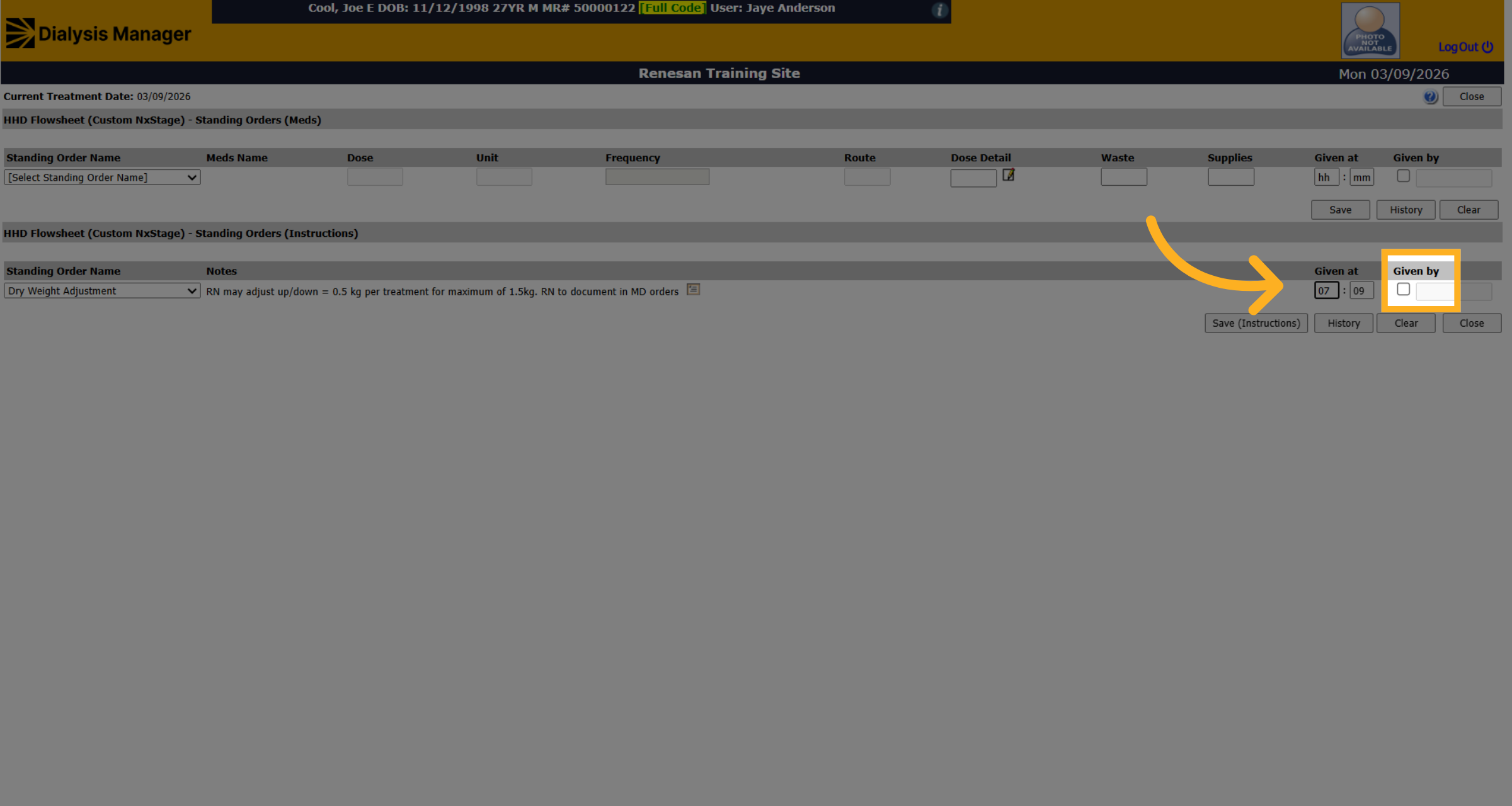
19. Check Given By Box
Check the given by box and enter your username and PIN or password in the pop-up box.
20. Save Standing Order Instructions
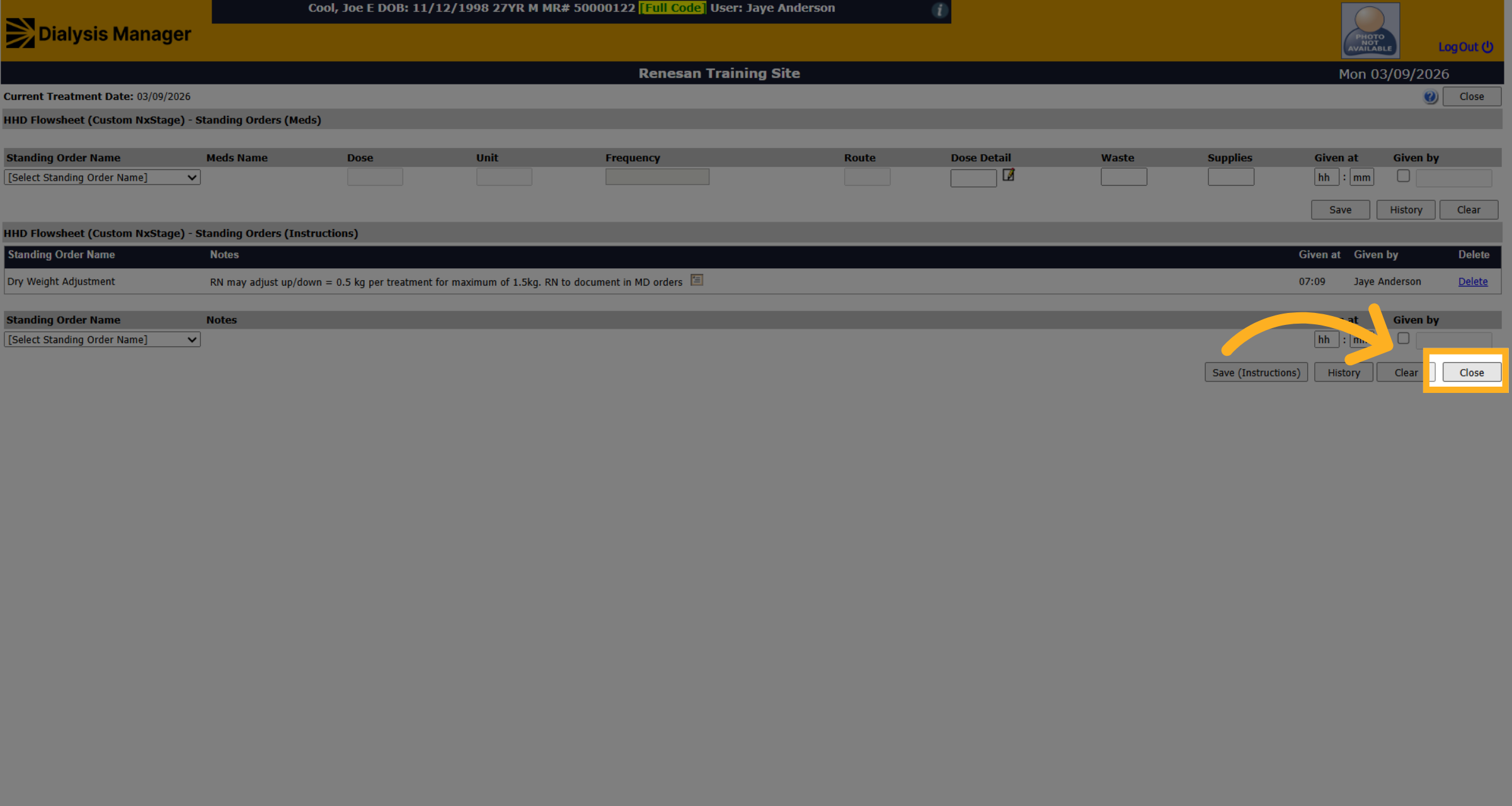
And then click on the save or the save instructions depending on the area of information you're saving.
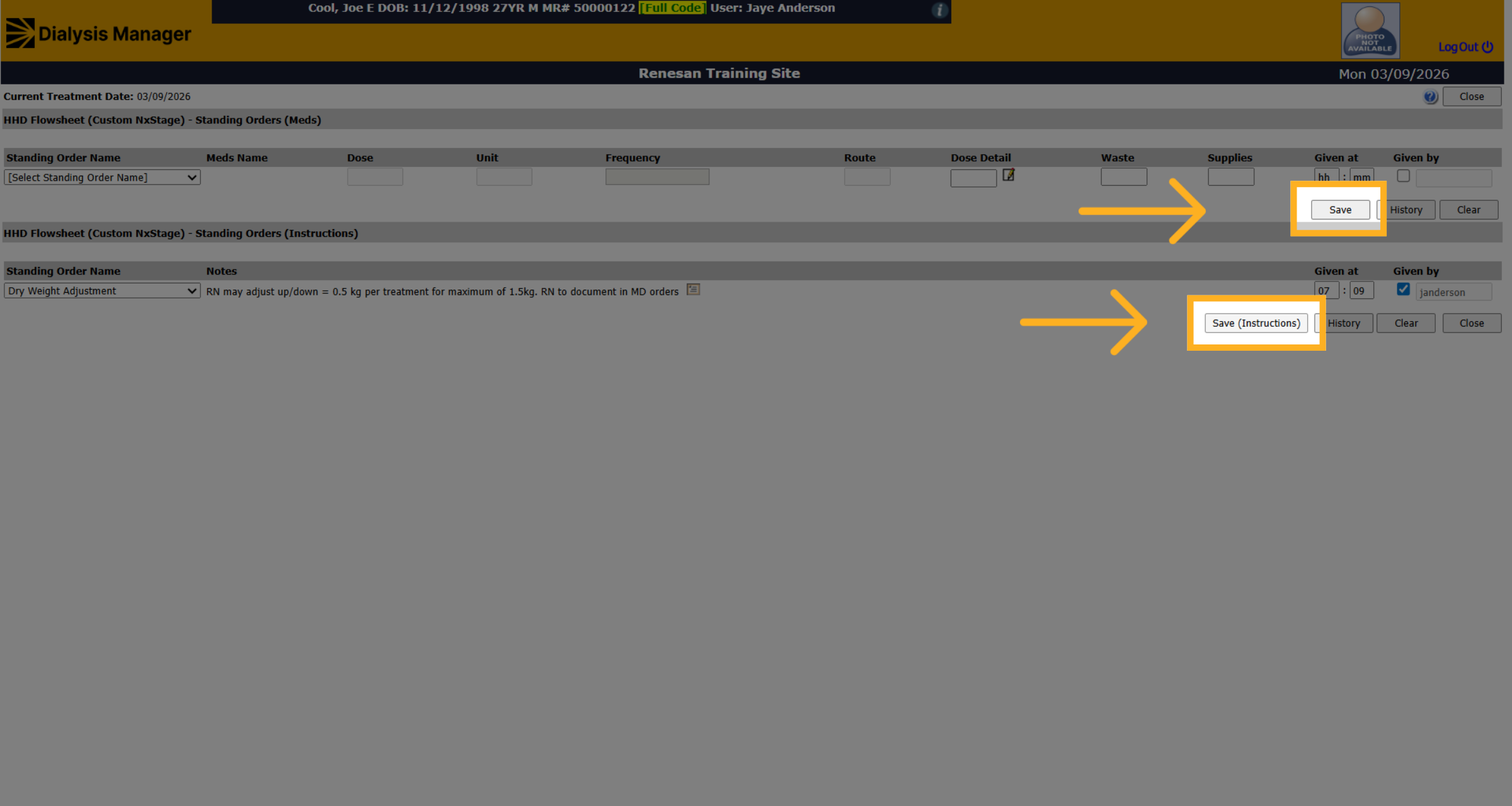
21. Close Flowsheet Window
Repeat for any other meds or instructions and then click close when you're completed.
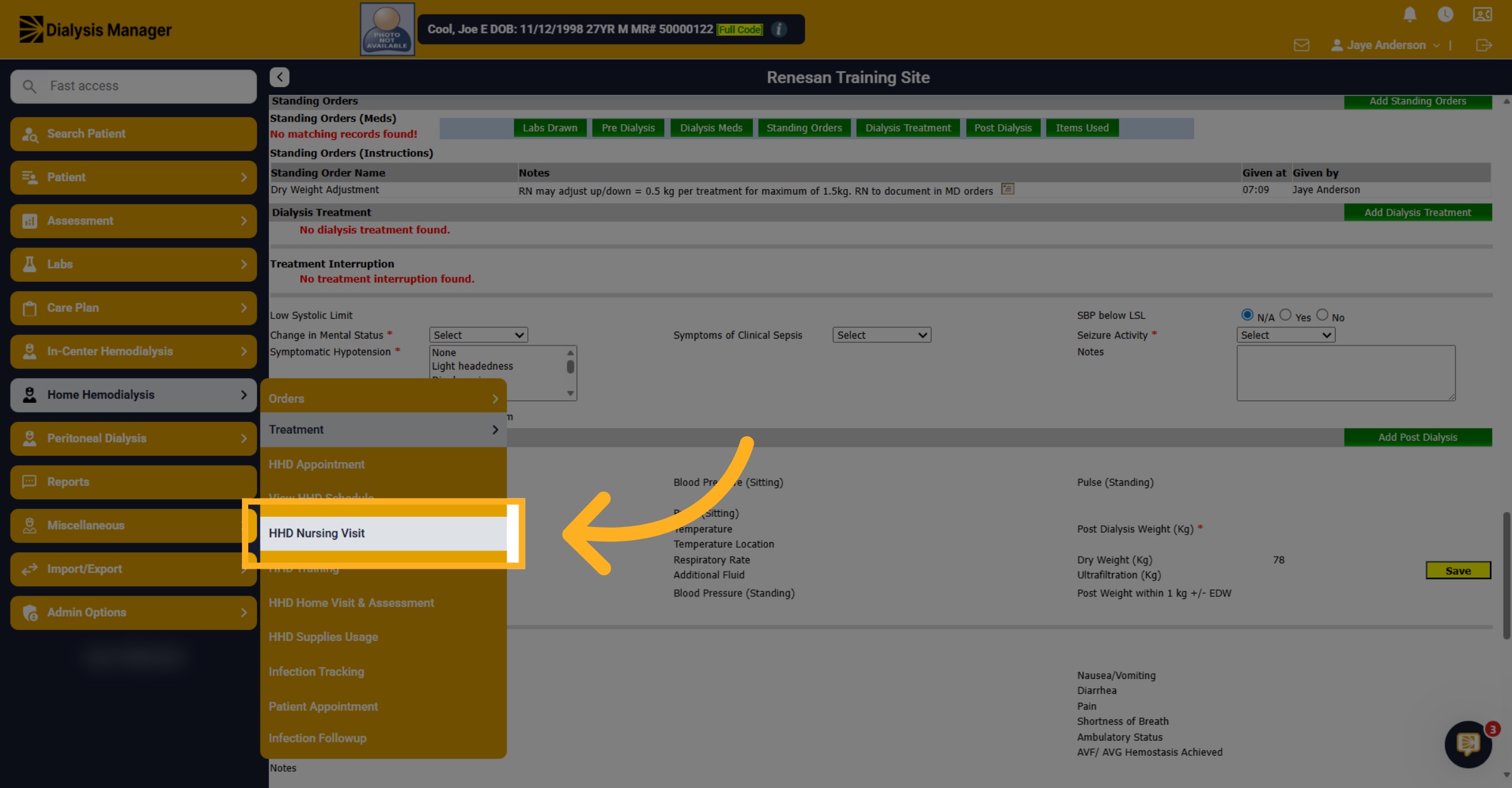
22. Open HHD Nursing Visit
For home hemo, if you're documenting a nurse visit, you'll go to the home hemodialysis and then click HHD nursing visit.
23. Add New Nursing Visit
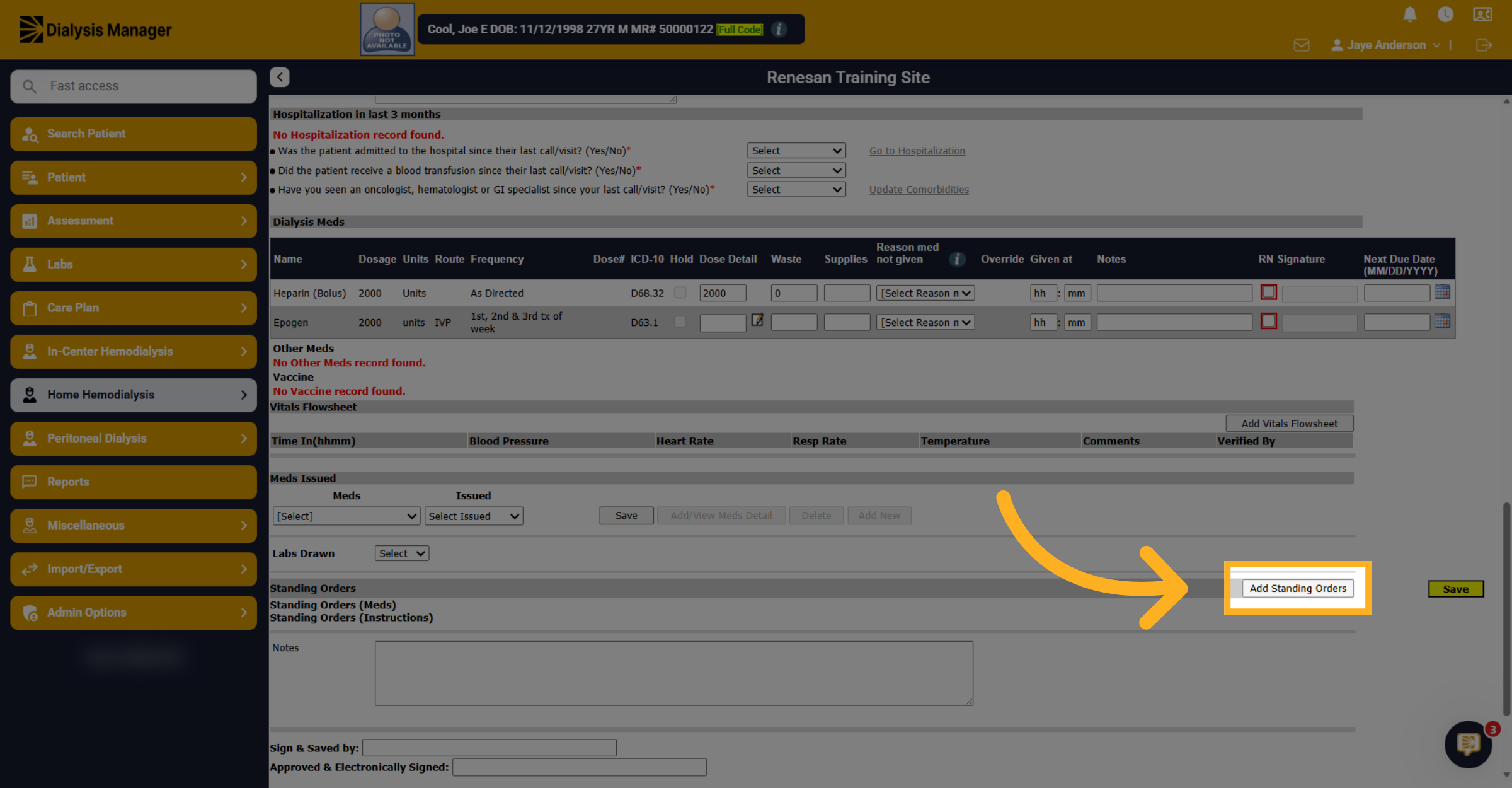
Click on Add New, scroll down, and you'll see add standing orders.
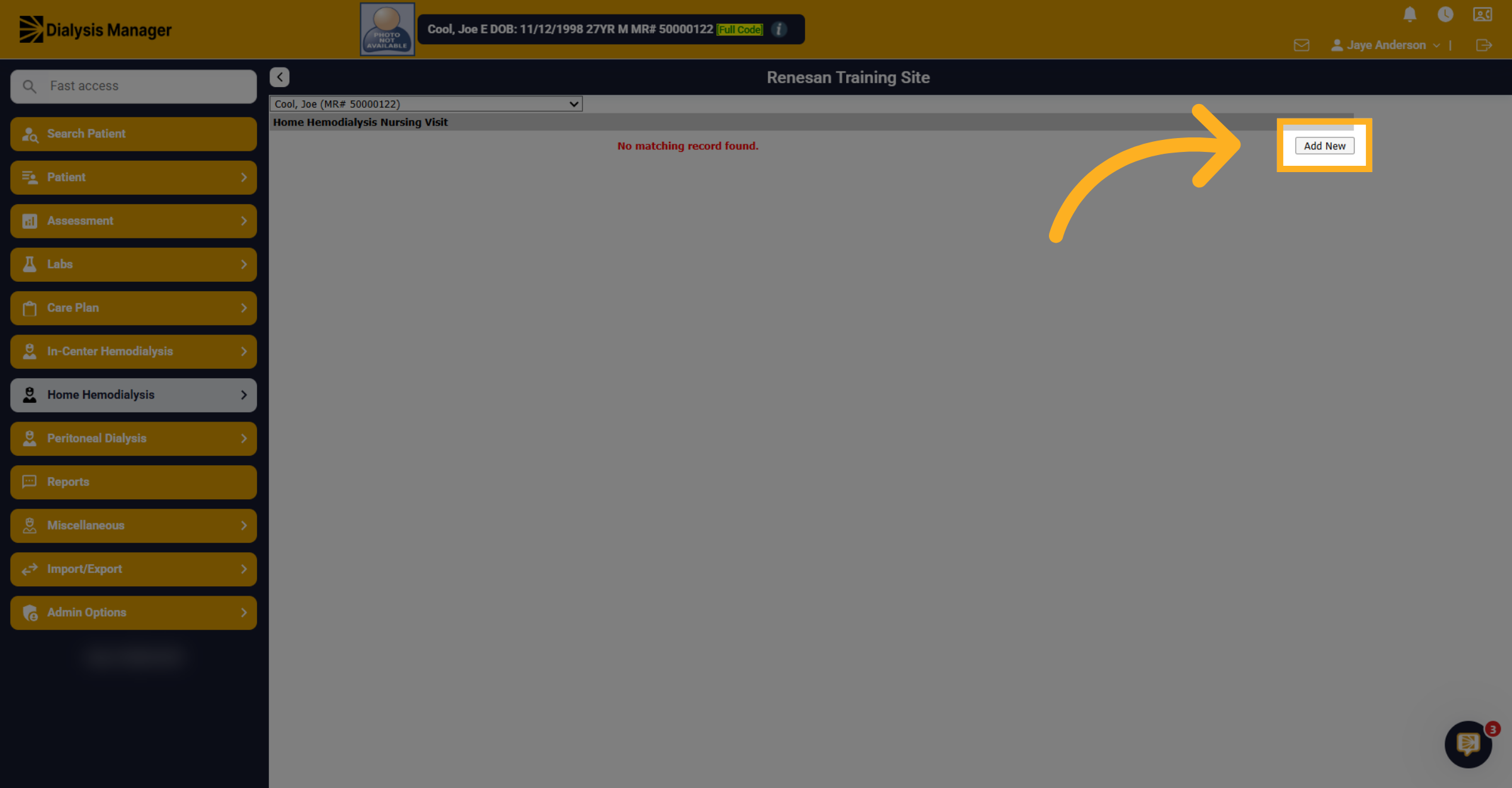
24. Add Standing Orders
Click on Add Standing Orders.
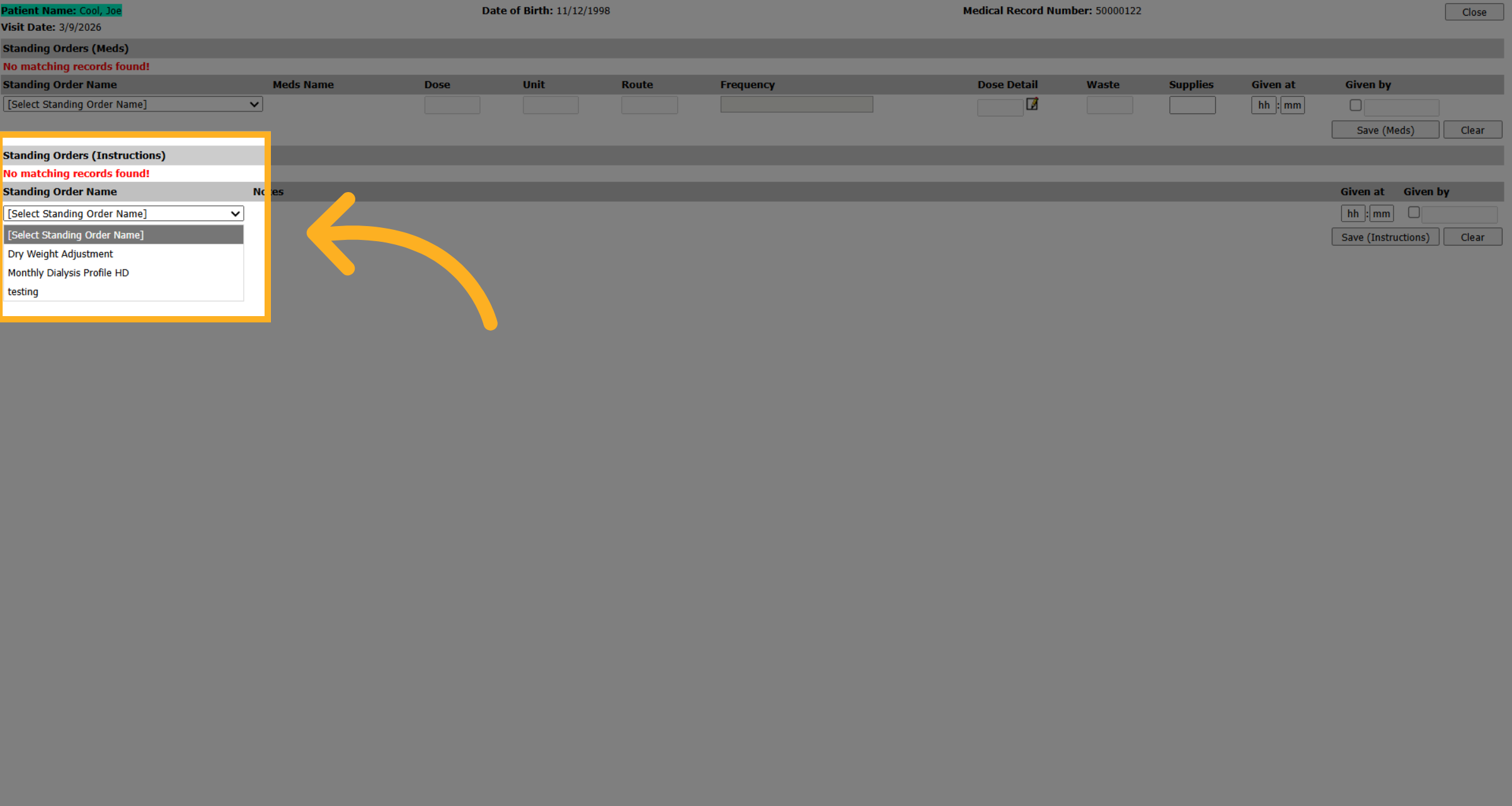
25. Select Standing Order Option
Choose the appropriate option from the dropdown.
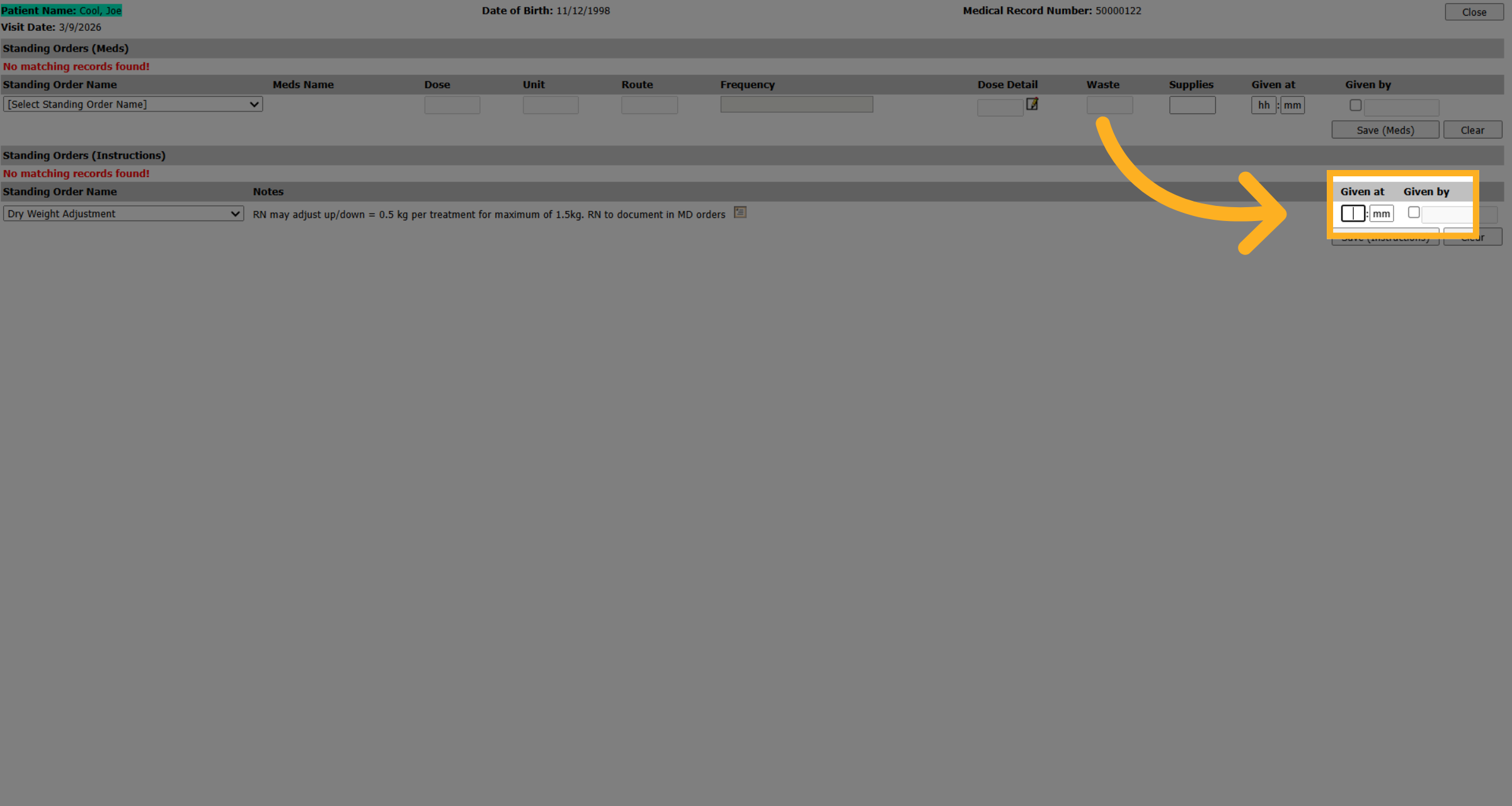
26. Access Standing Order Protocols
Sign off as you have seen before by entering the given at time and Given By checkbox, enter your username and PIN or password.
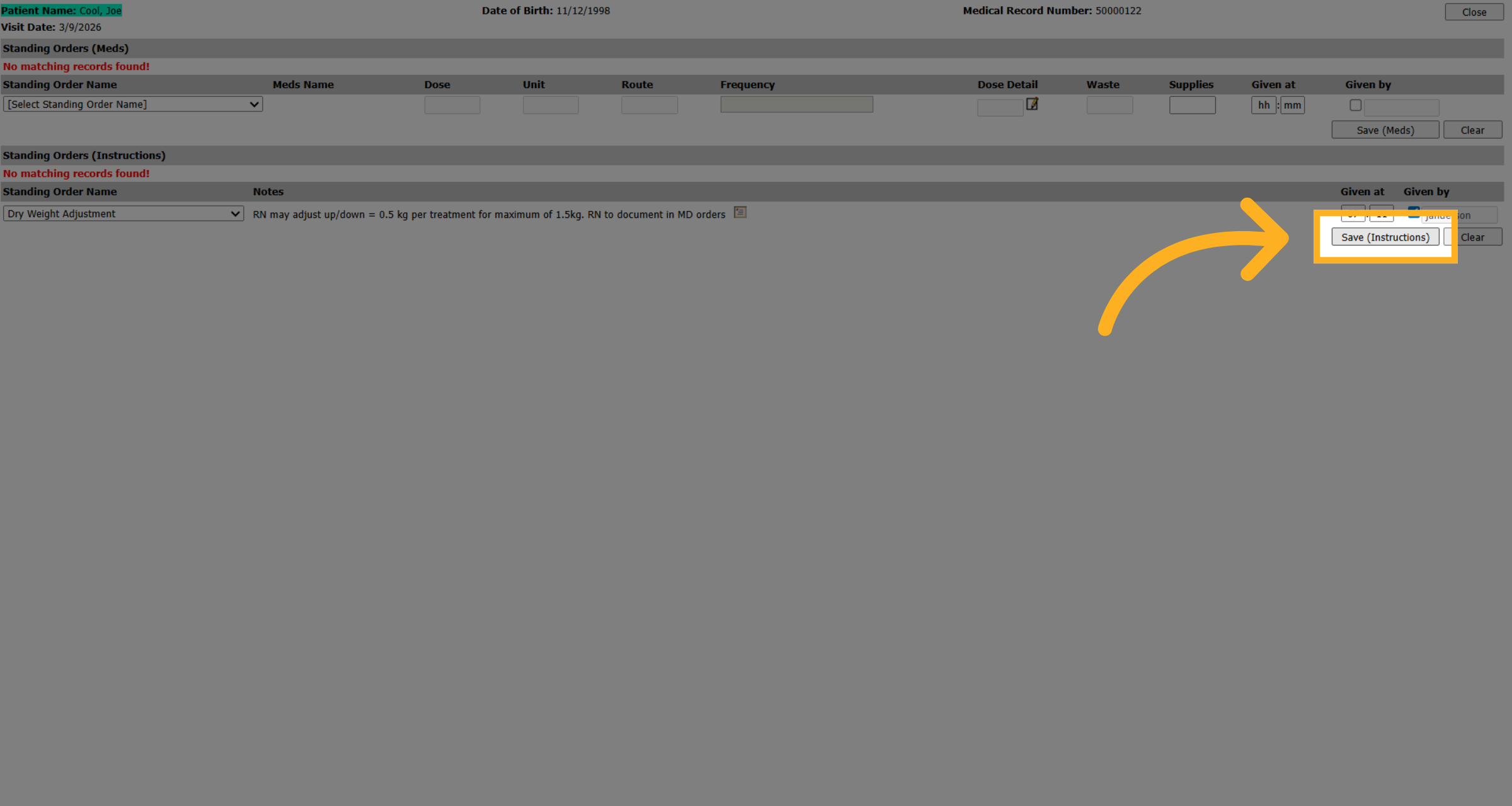
27. Save Nursing Visit Instructions
And then click on the save or the save instructions, again, depending on the area of information you're saving.
28. Close Nursing Visit Window
And click close when you're completed. You have successfully documented a Standing Order Medication and or instruction.