Creating and Documenting Standing Order Medications and Instructions for PD Patients.
1. Introduction
This tutorial explains how to document standing order medications and instructions for peritoneal dialysis (PD) patients using Renvio Dialysis Manager.
2. Access PD Orders Section
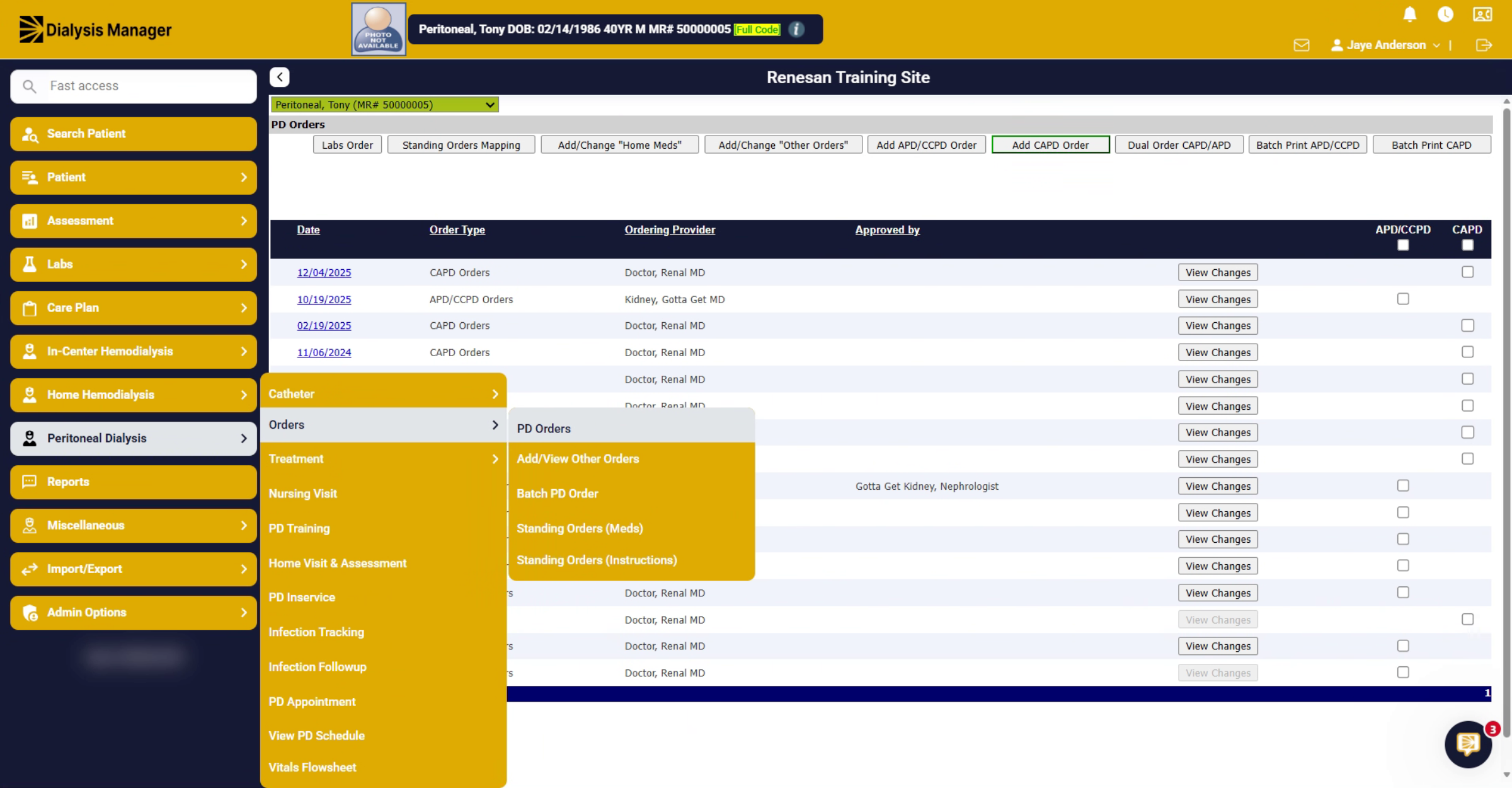
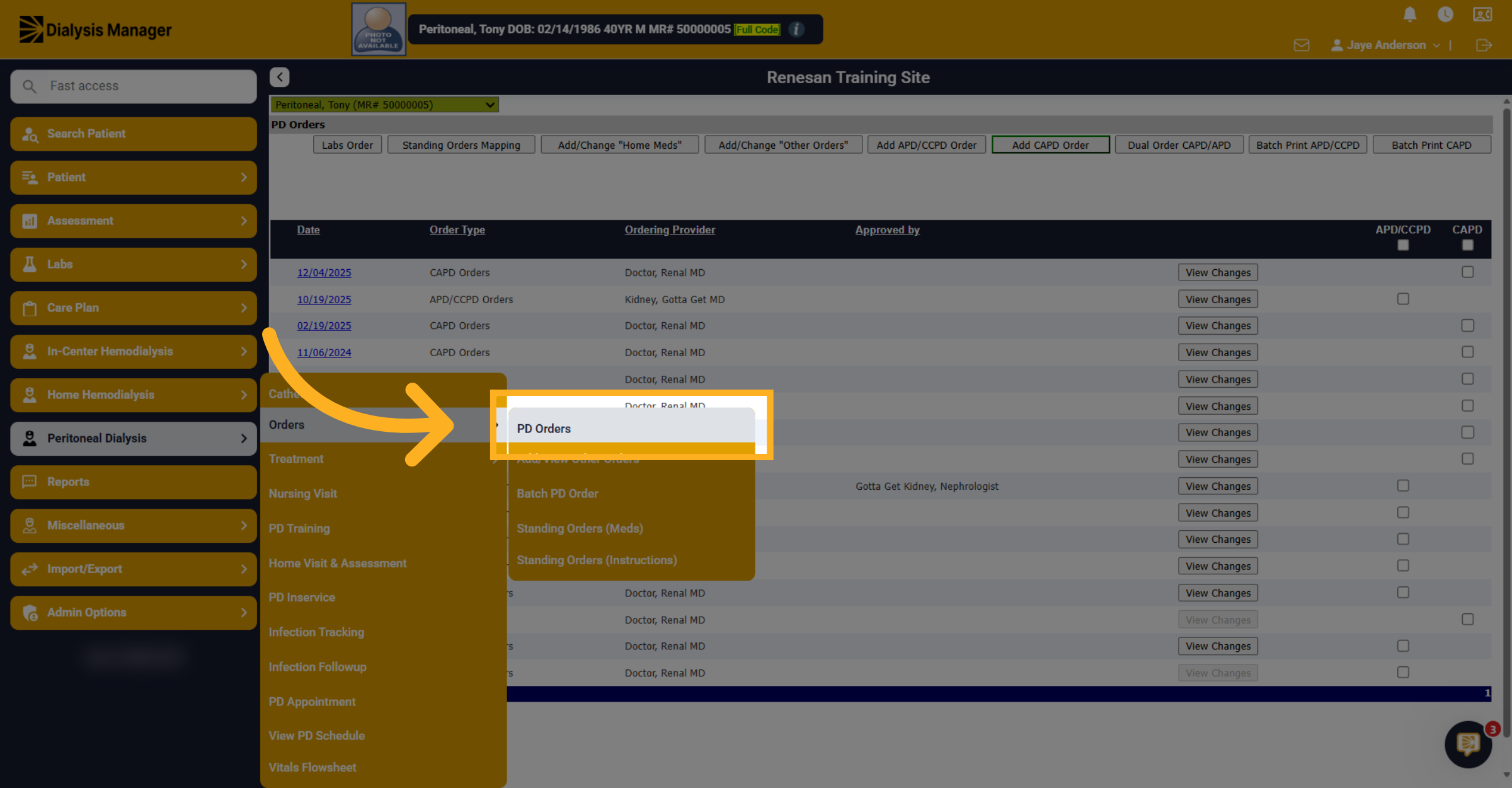
We're going to start documenting our standing orders for PD patients by going to peritoneal dialysis and then to orders and PD orders.
3. Open Standing Orders Mapping
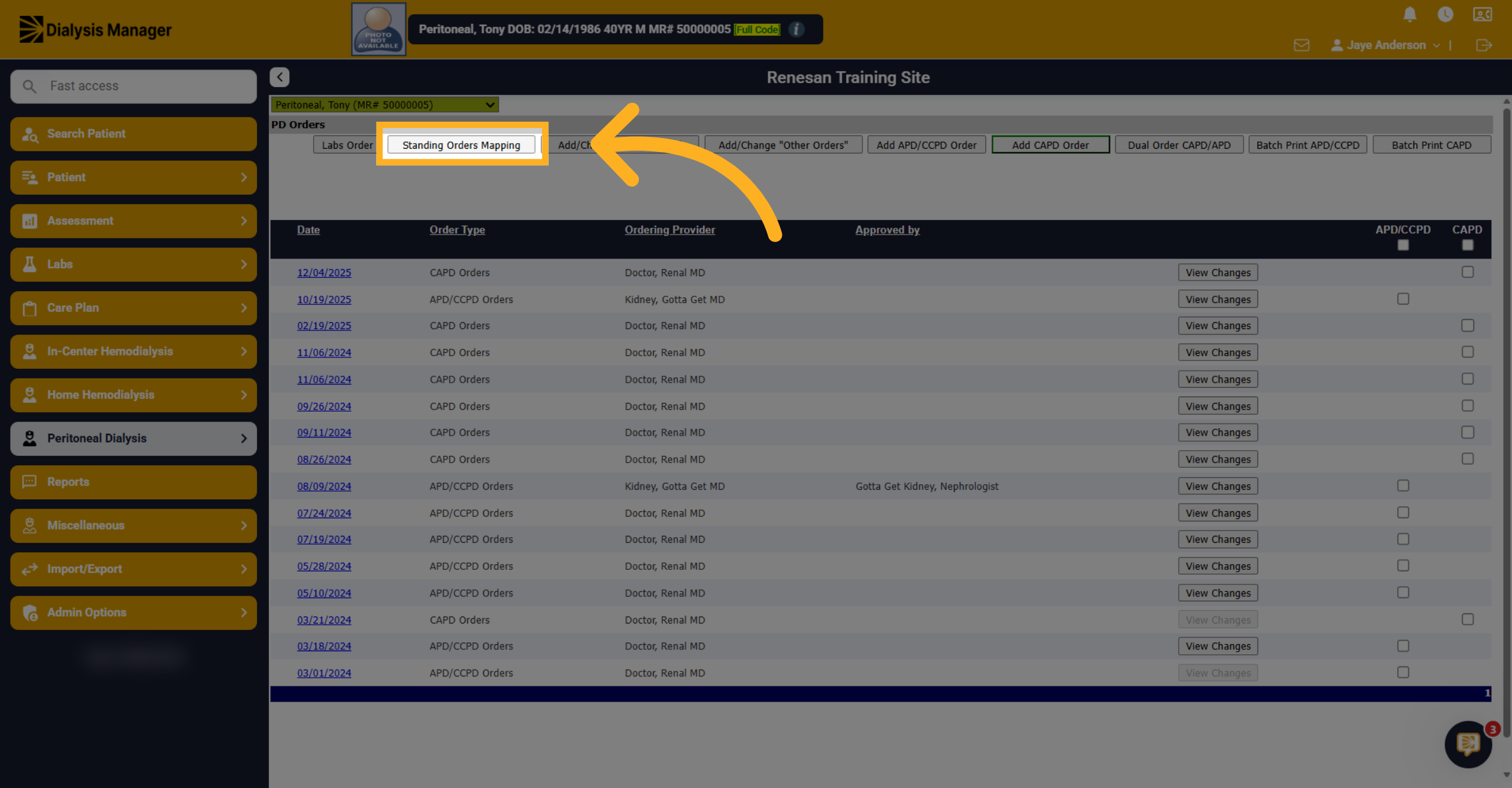
Now we're going to click on the standing orders mapping, and this does open in a new window.
4. Use Toggle for Selection
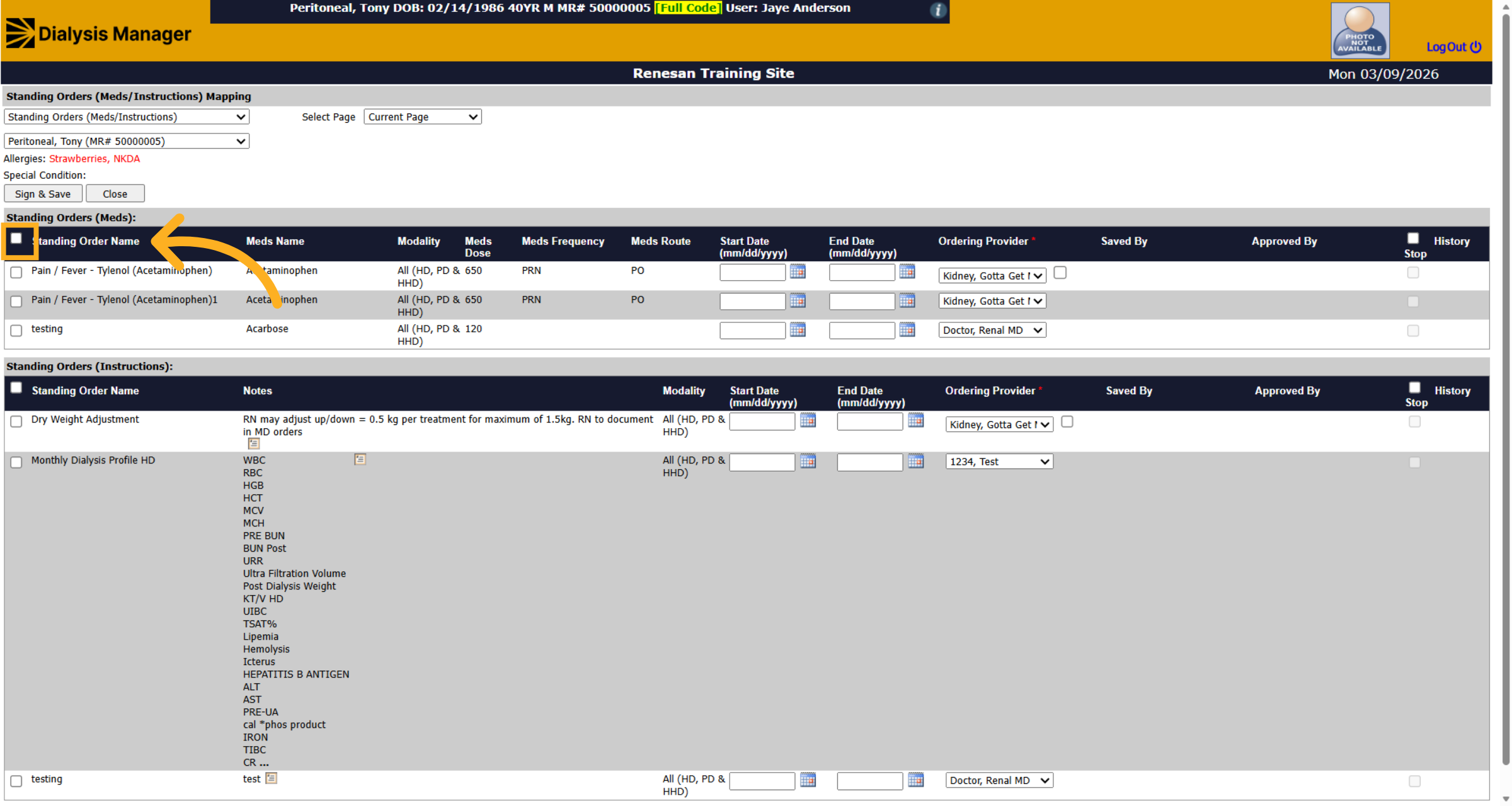
We'll use the toggle along the top or we can manually select or deselect any item in the list.
5. Sign and Save Orders
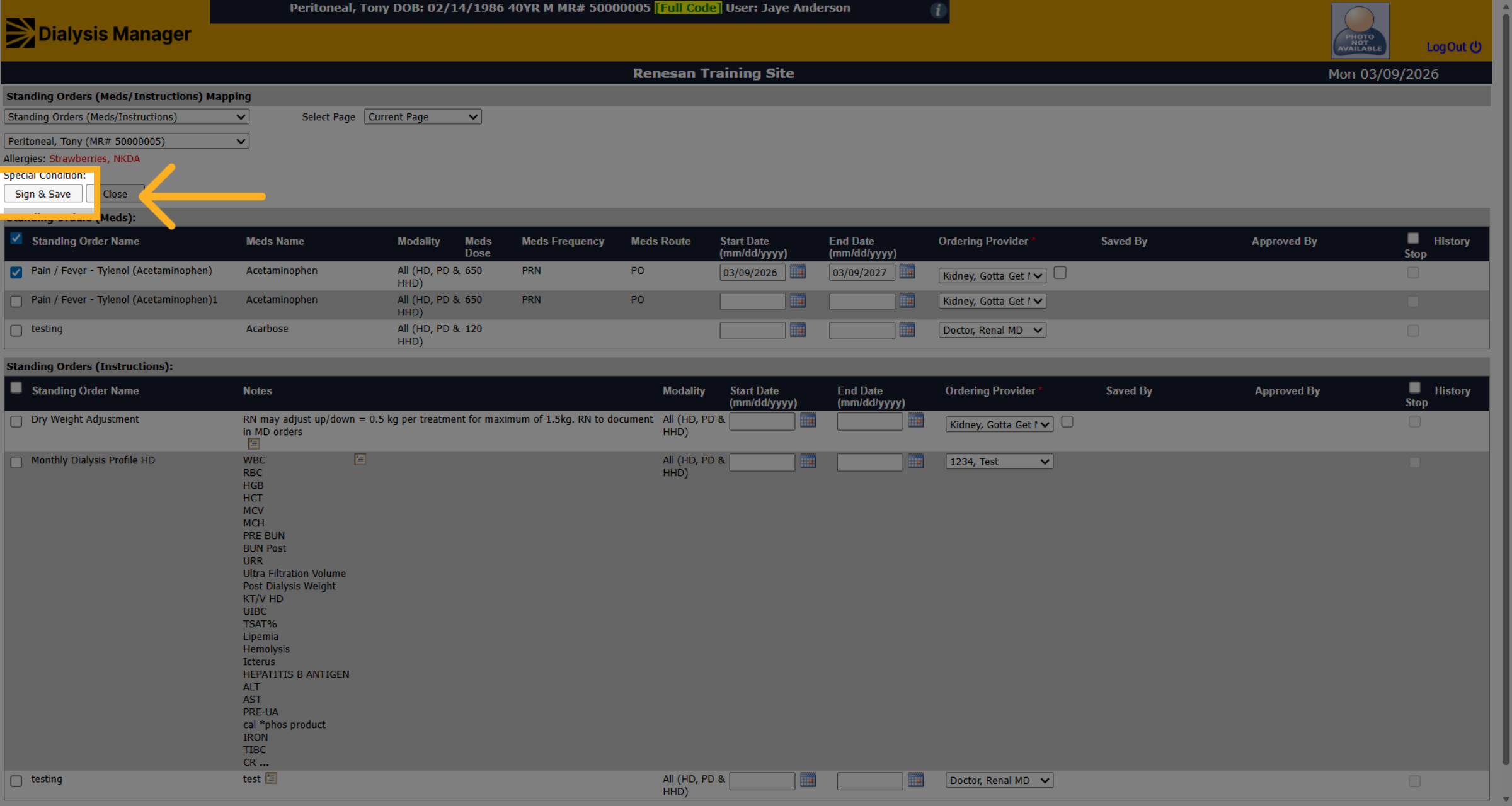
Once completed with your selections you'll click on Sign and Save.
6. View Auto-Set End Date
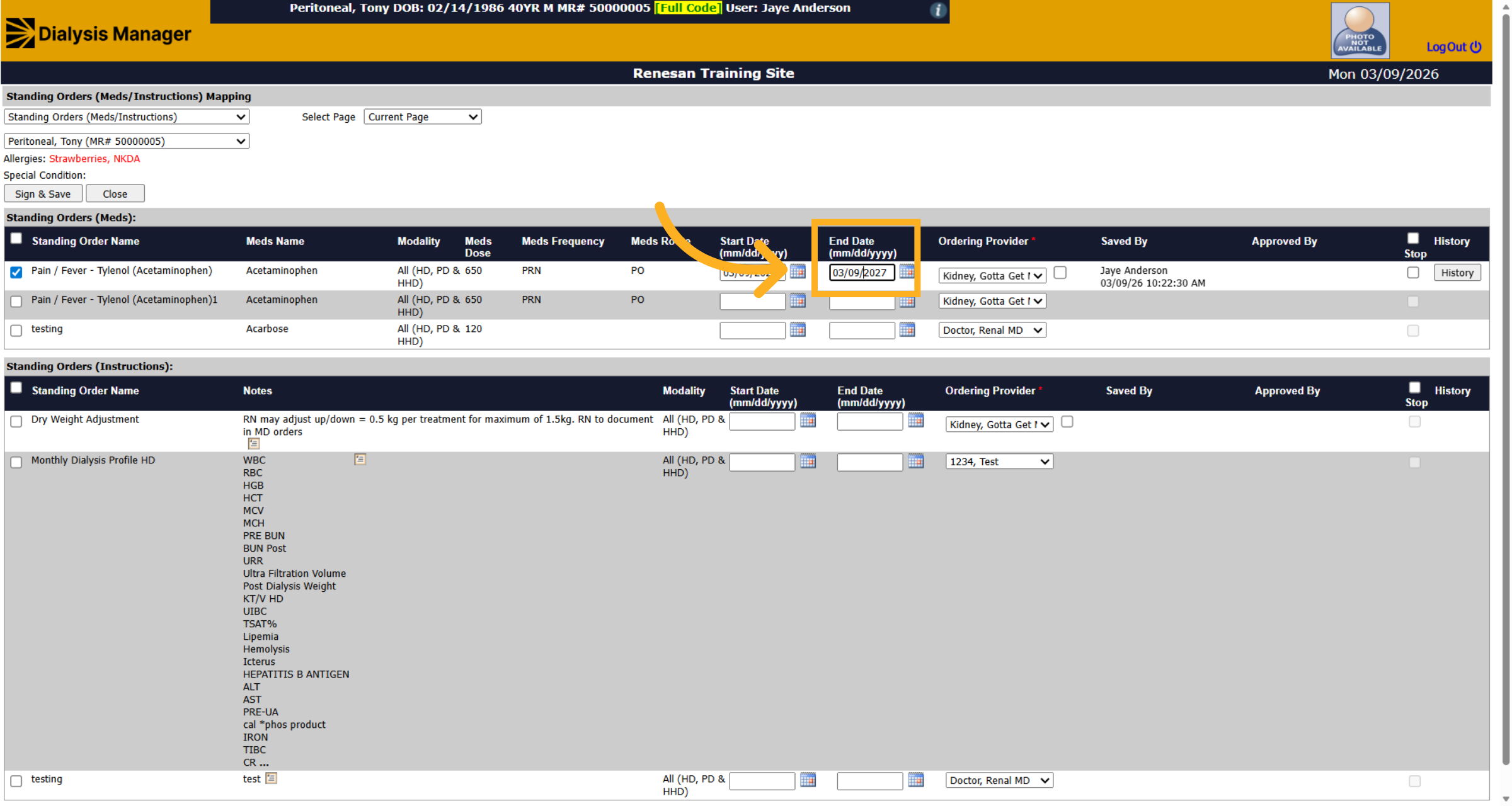
You'll notice it automatically puts an end date for a year out; you will need to come in here and renew the order after a year.
7. Access Additional Options
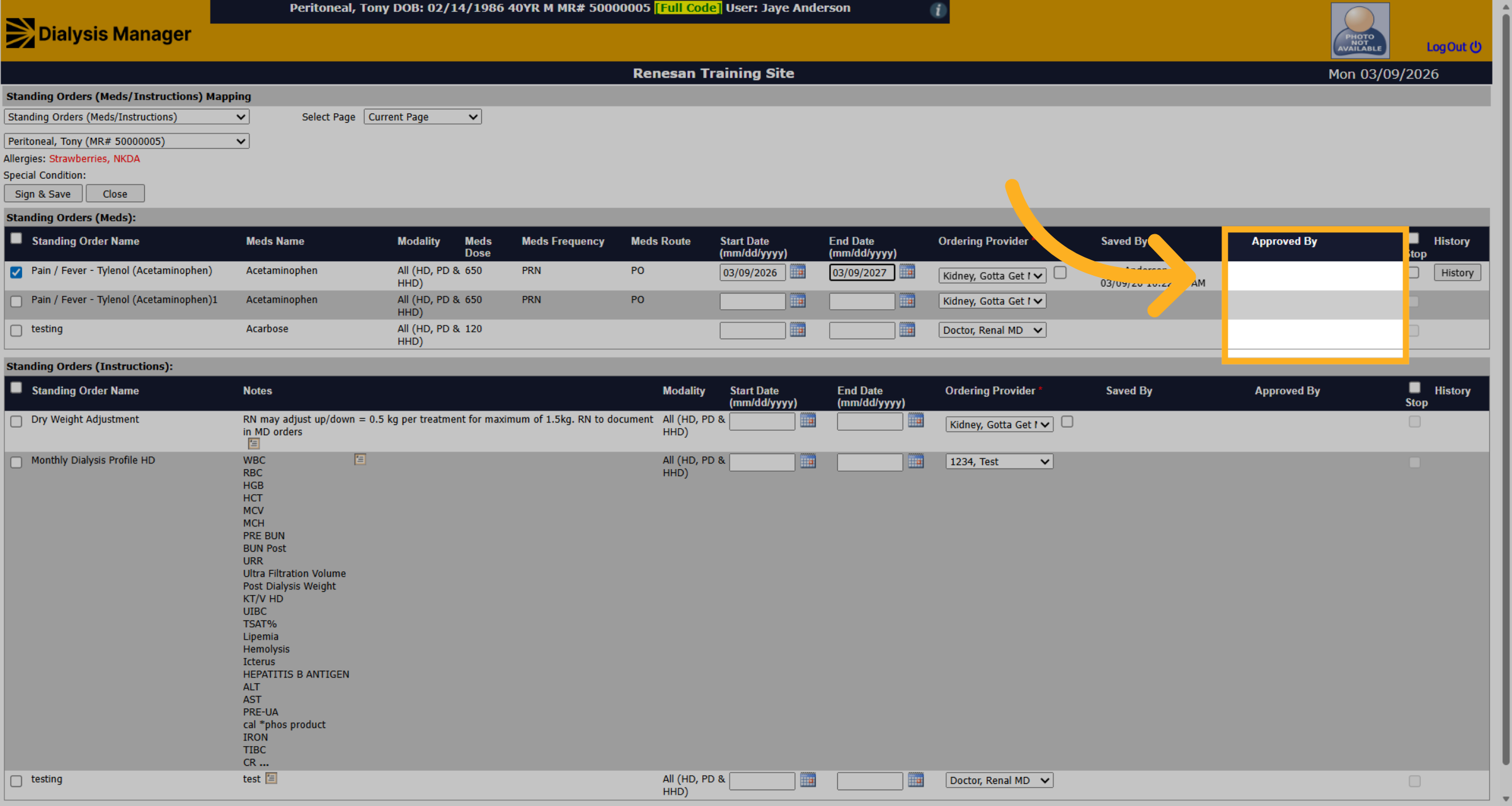
After the physician approves the order, you will see that in the Approved By section over here. The order will also be grayed out.
8. Select Stop Option
If you need to discontinue or stop any of the orders, you can choose the stop checkbox option or use the toggle along the top to select all. Click sign and save to save the information.
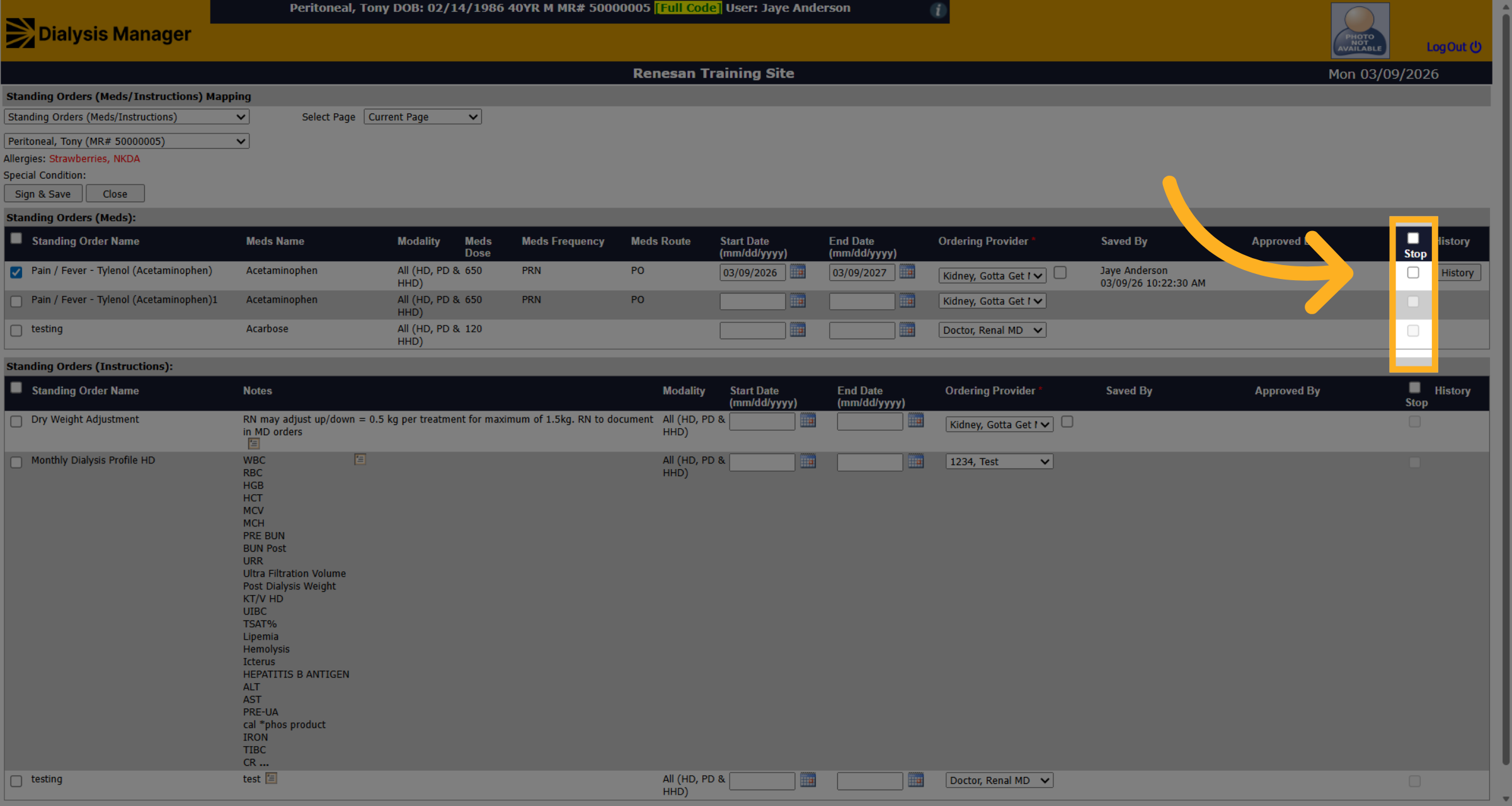
9. Toggle Stop Selection
Do the same thing for your standing order instructions. Check the appropriate boxes to select or unmark to deselect.
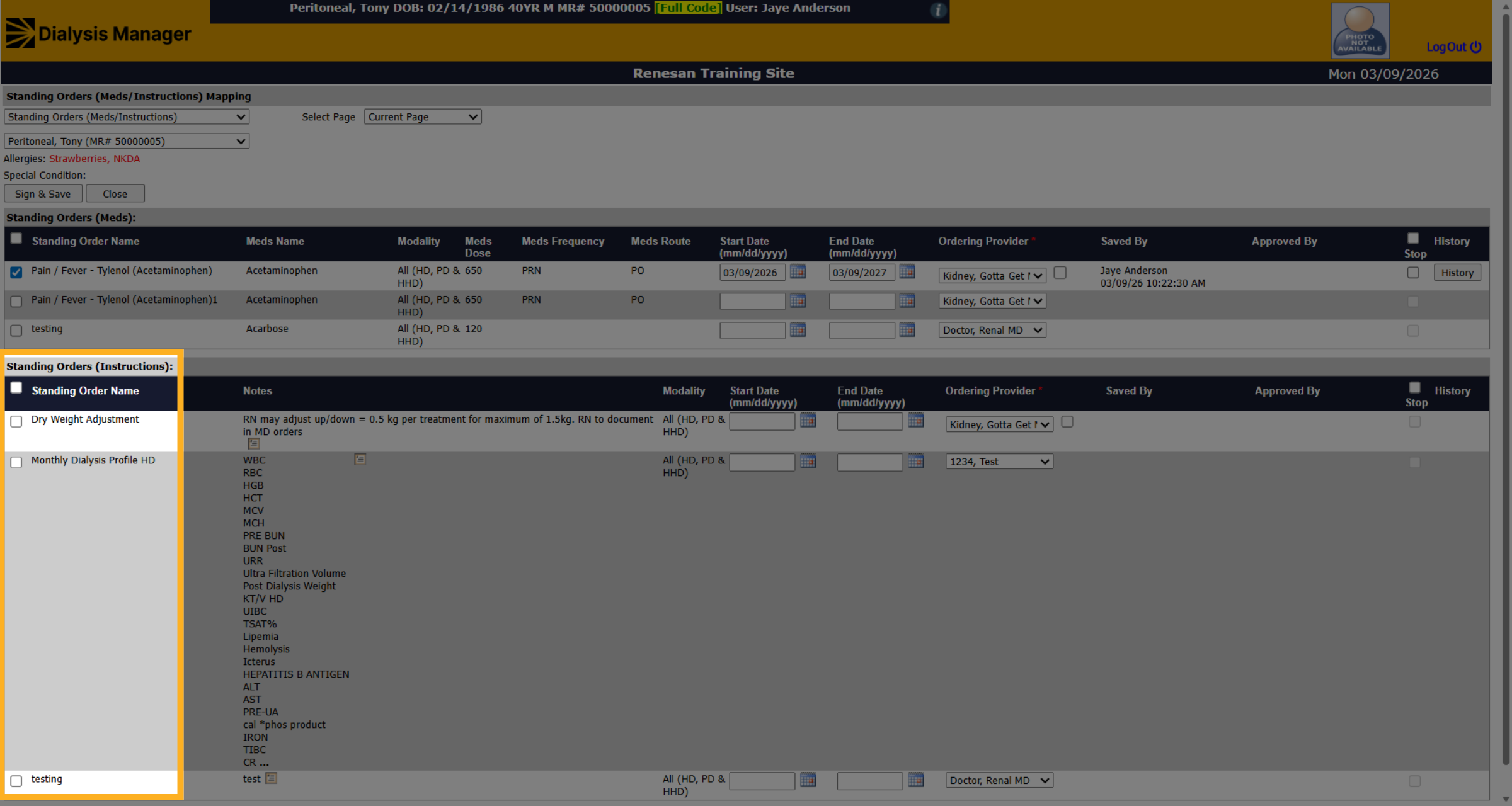
10. Sign and Save Instructions
Click sign and save again to save the information.
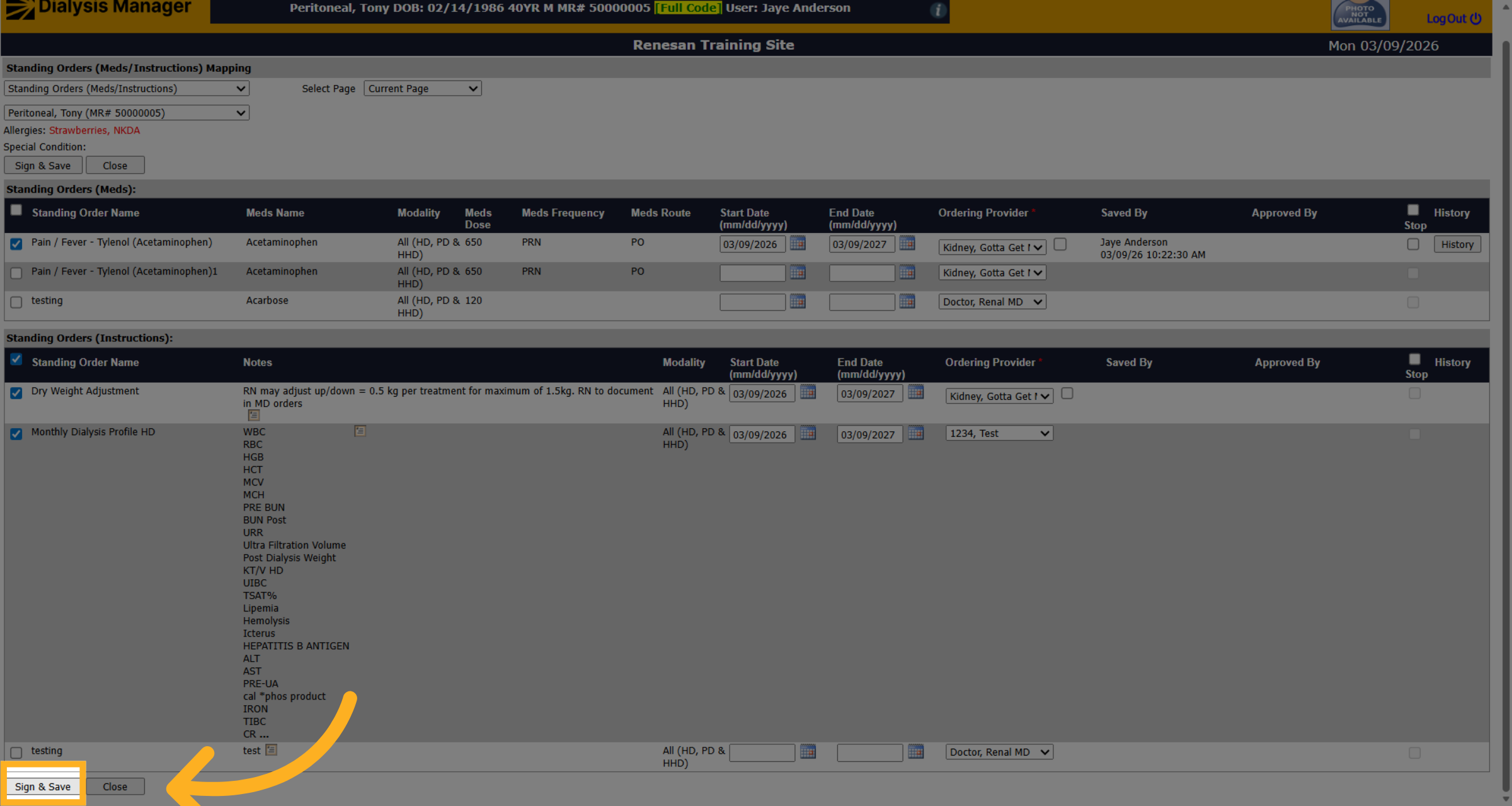
11. Close Mapping Window
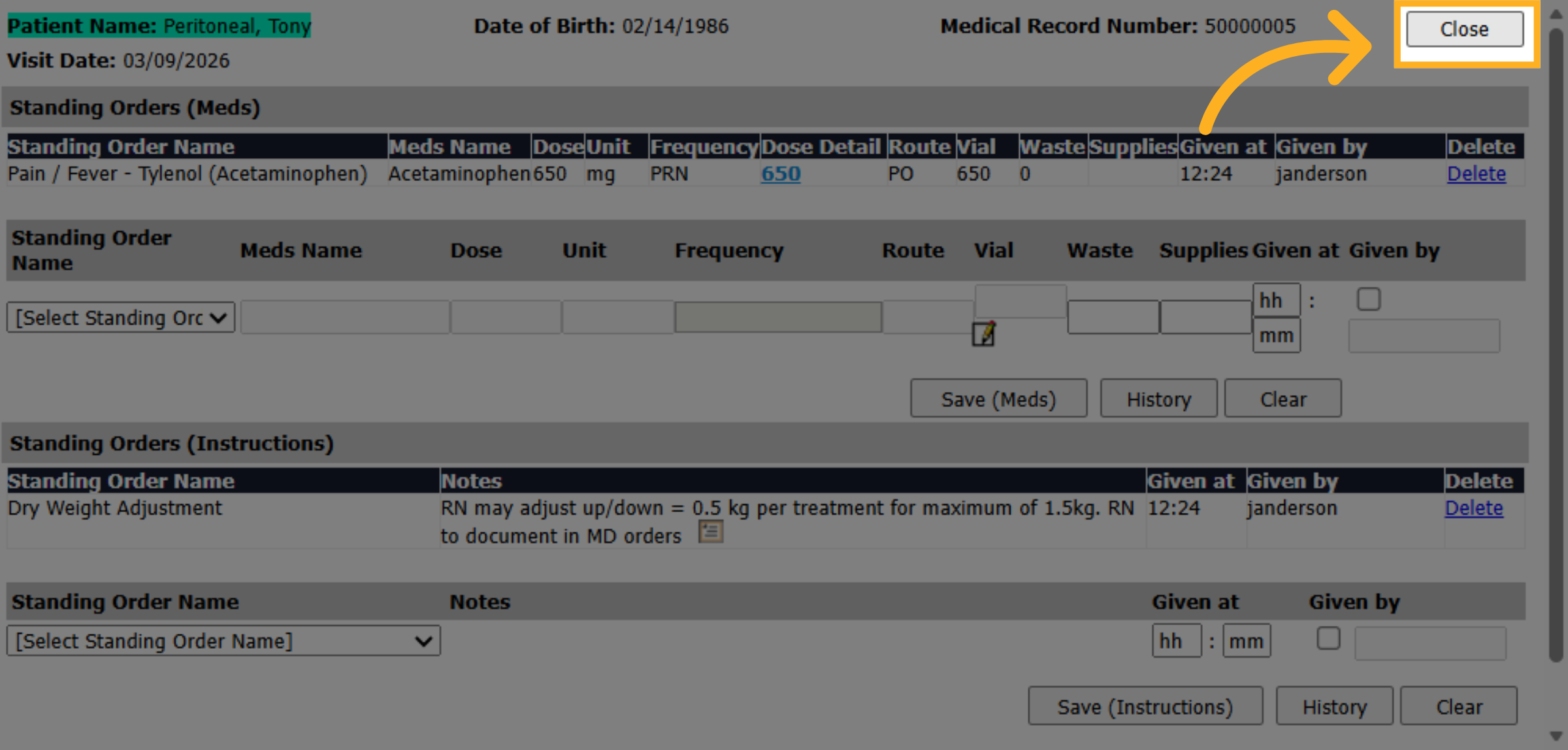
And then close to close the screen.
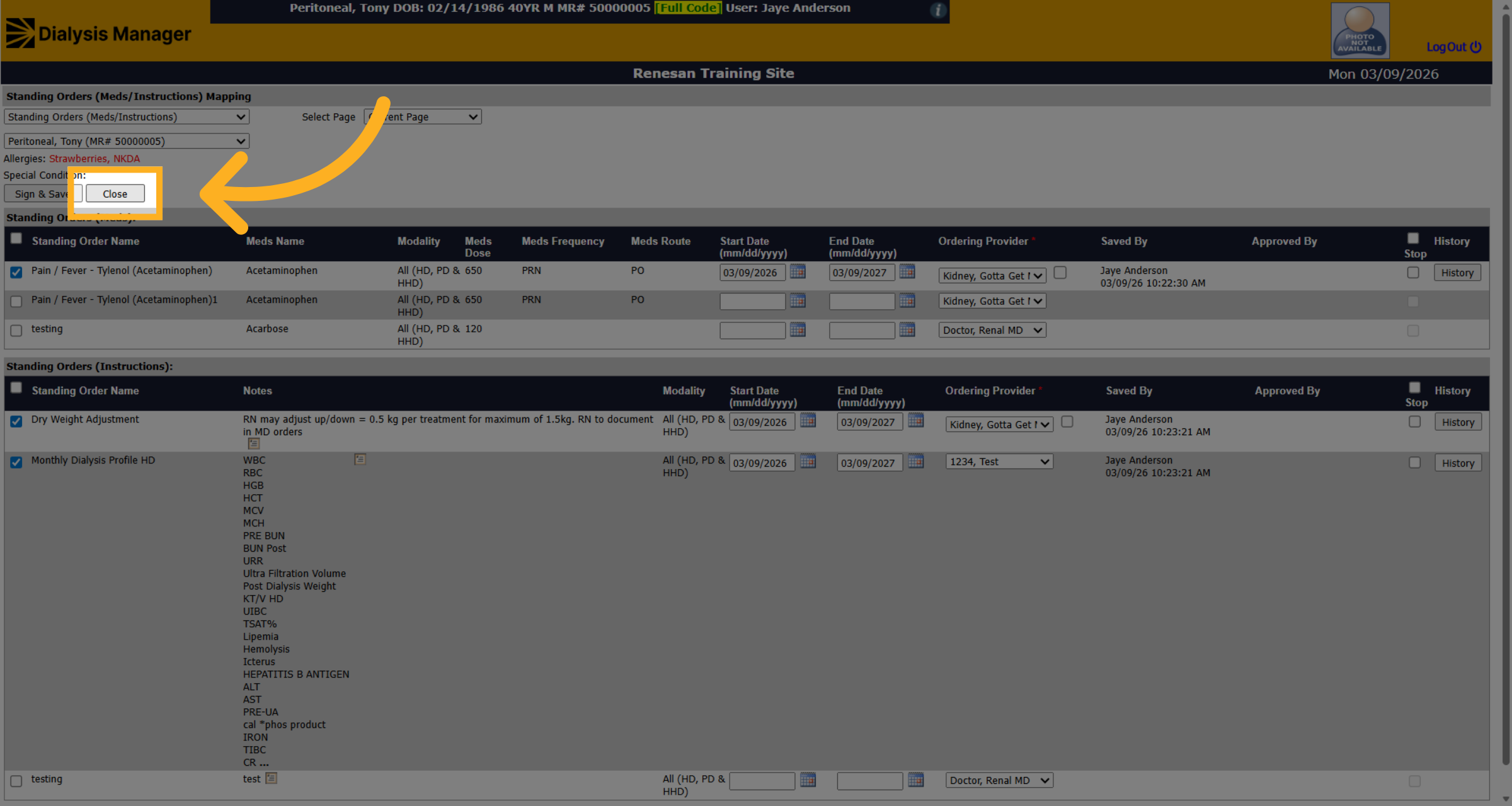
12. Open Nursing Visit Section
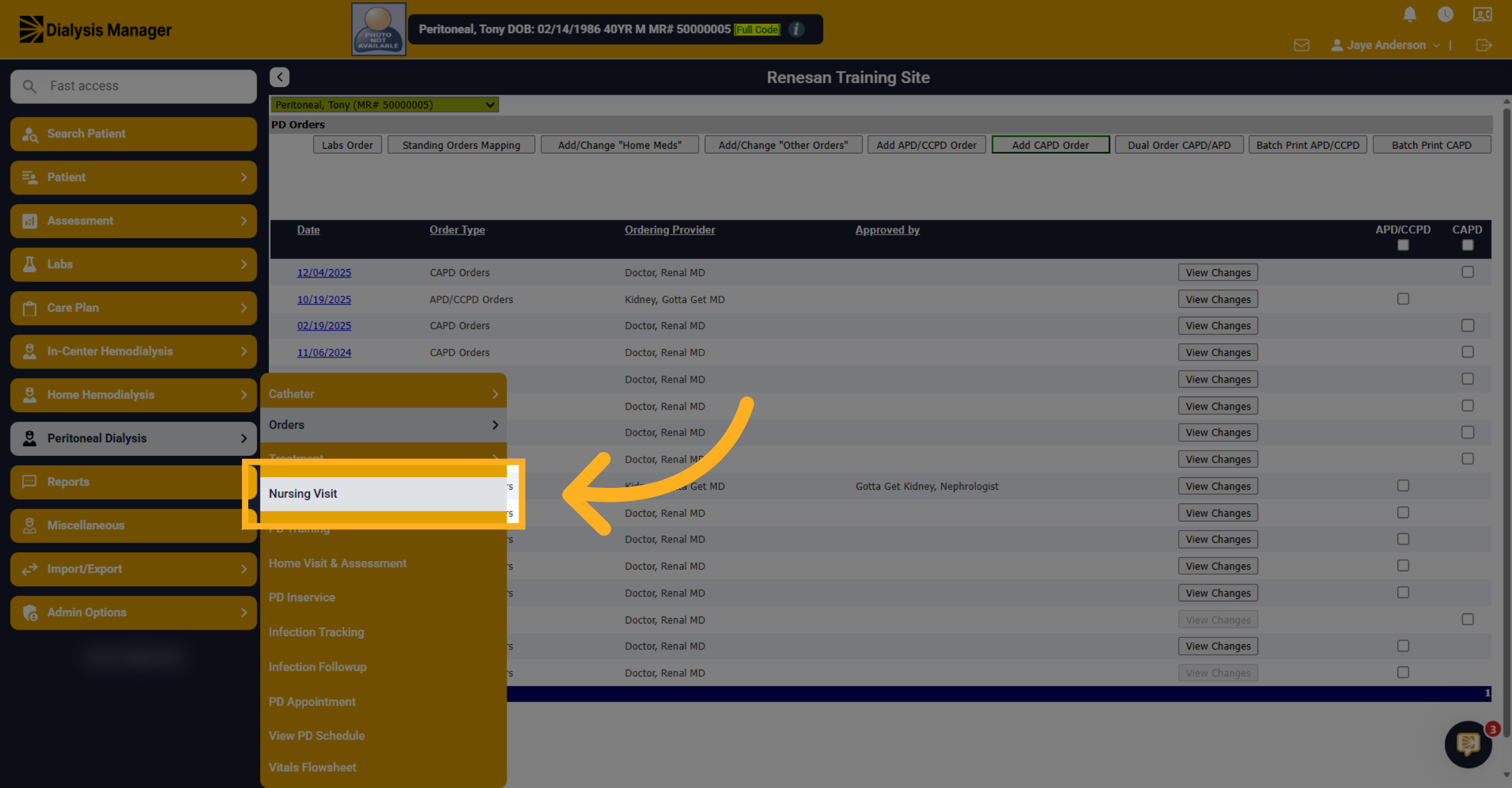
For PD, to document the standing order you will do this within your nursing visit. Under peritoneal dialysis menu and then to nursing visit.
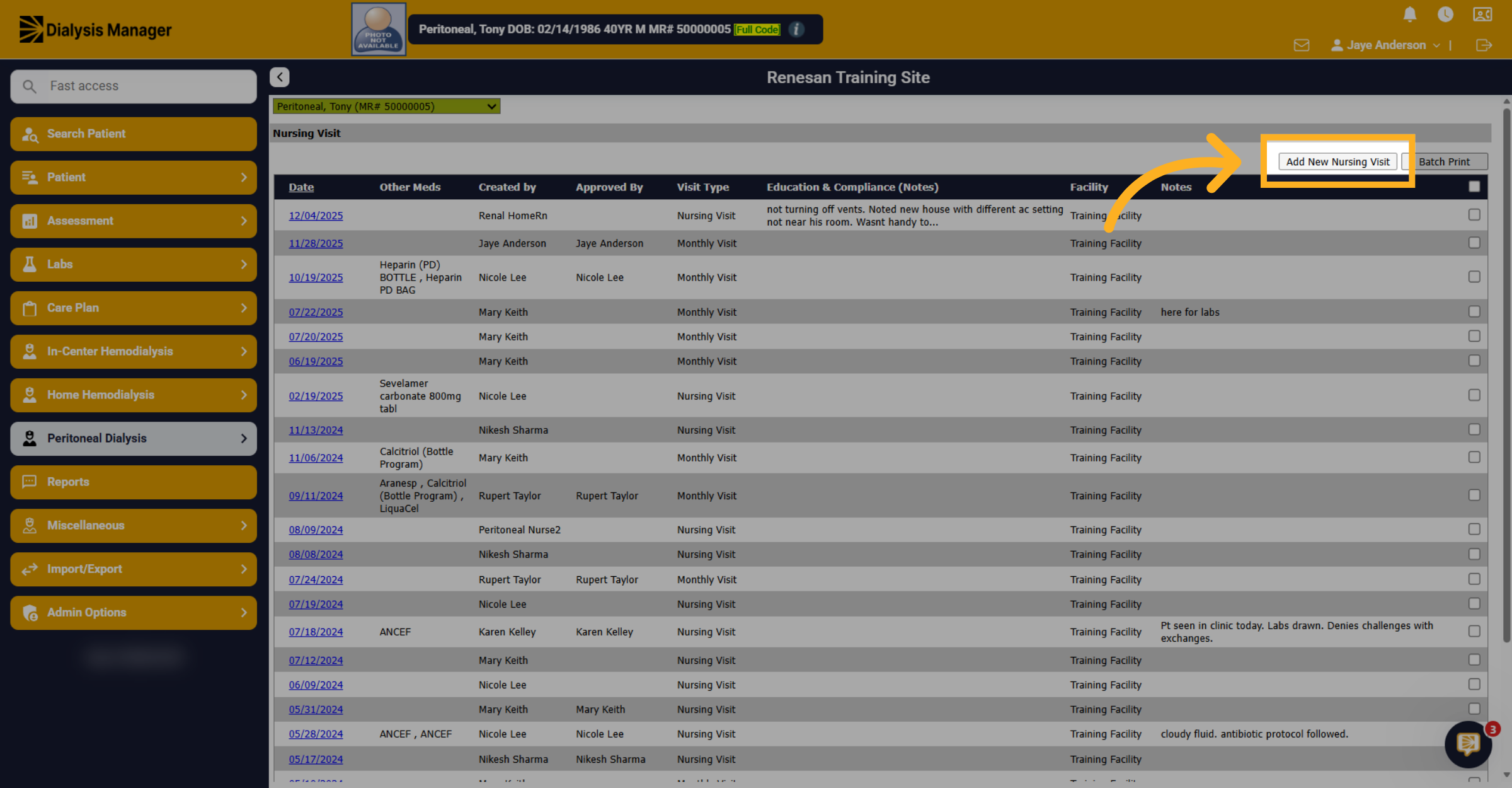
13. Add New Nursing Visit
Click on the add new nursing visit.
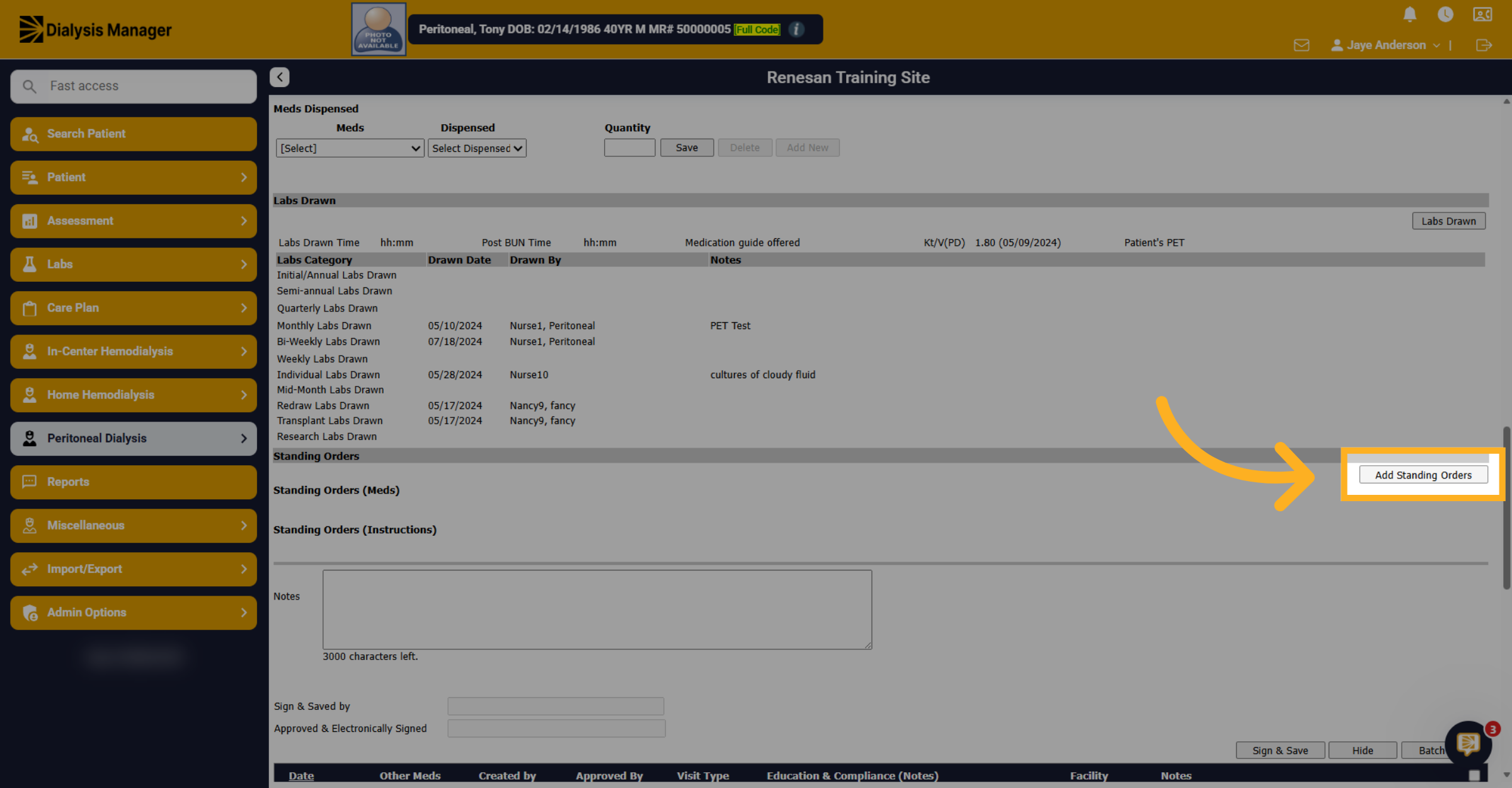
14. Add Standing Orders
Click on add standing orders.
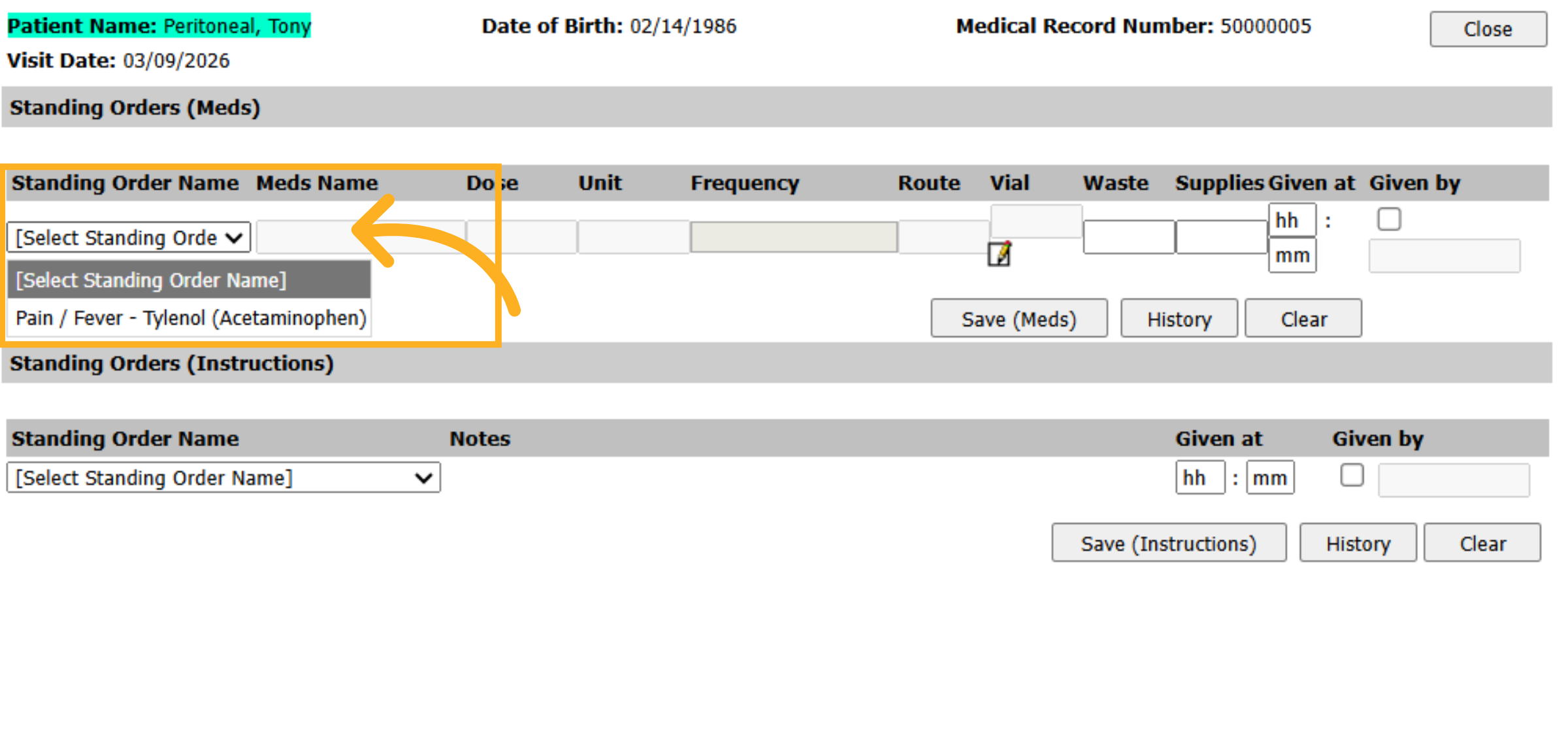
15. Select Standing Order Name
This opens in a new window. Now you can select the standing order from the drop down.
16. Access Additional Options
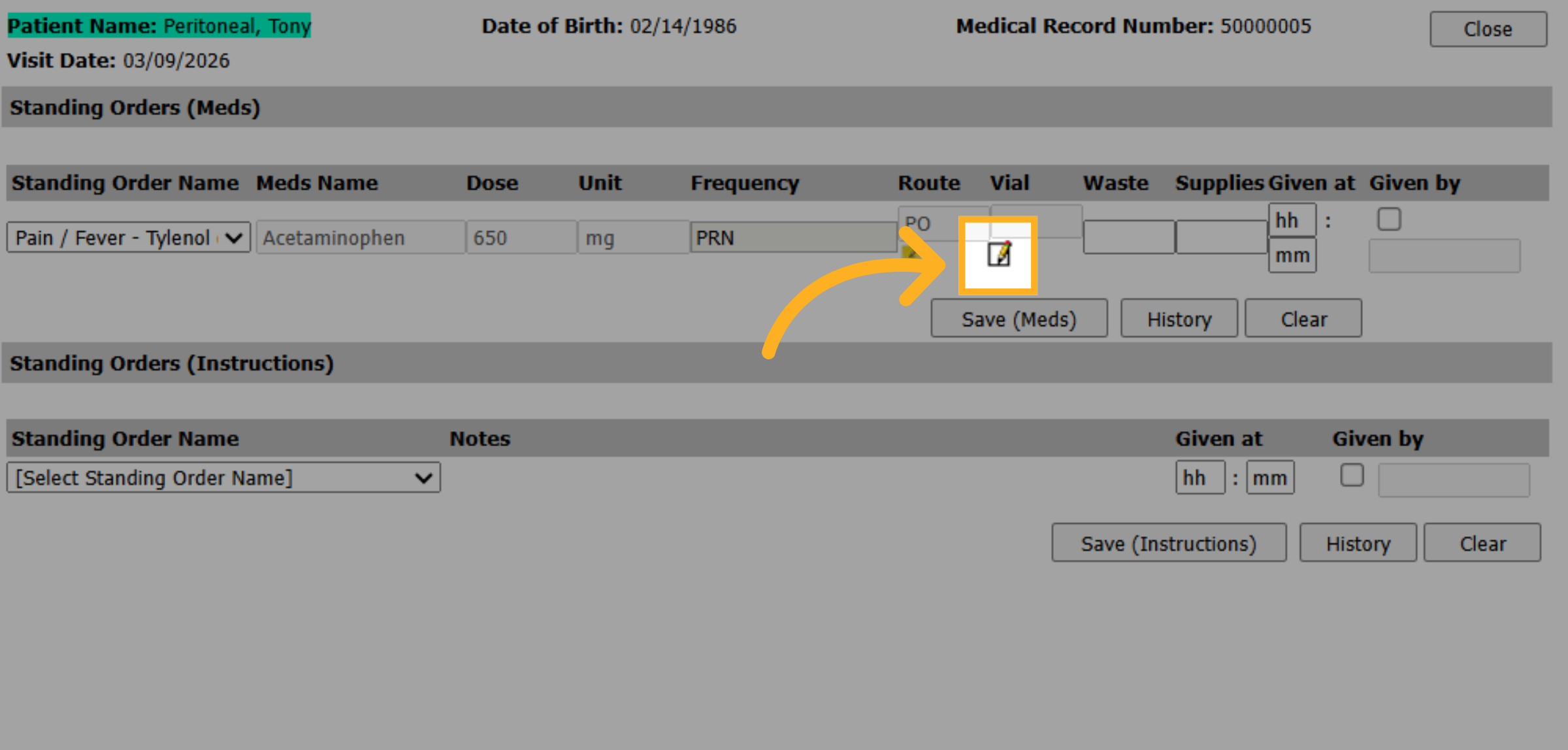
Click on the Dose Detail to enter additional information
17. Enter Medication Dose
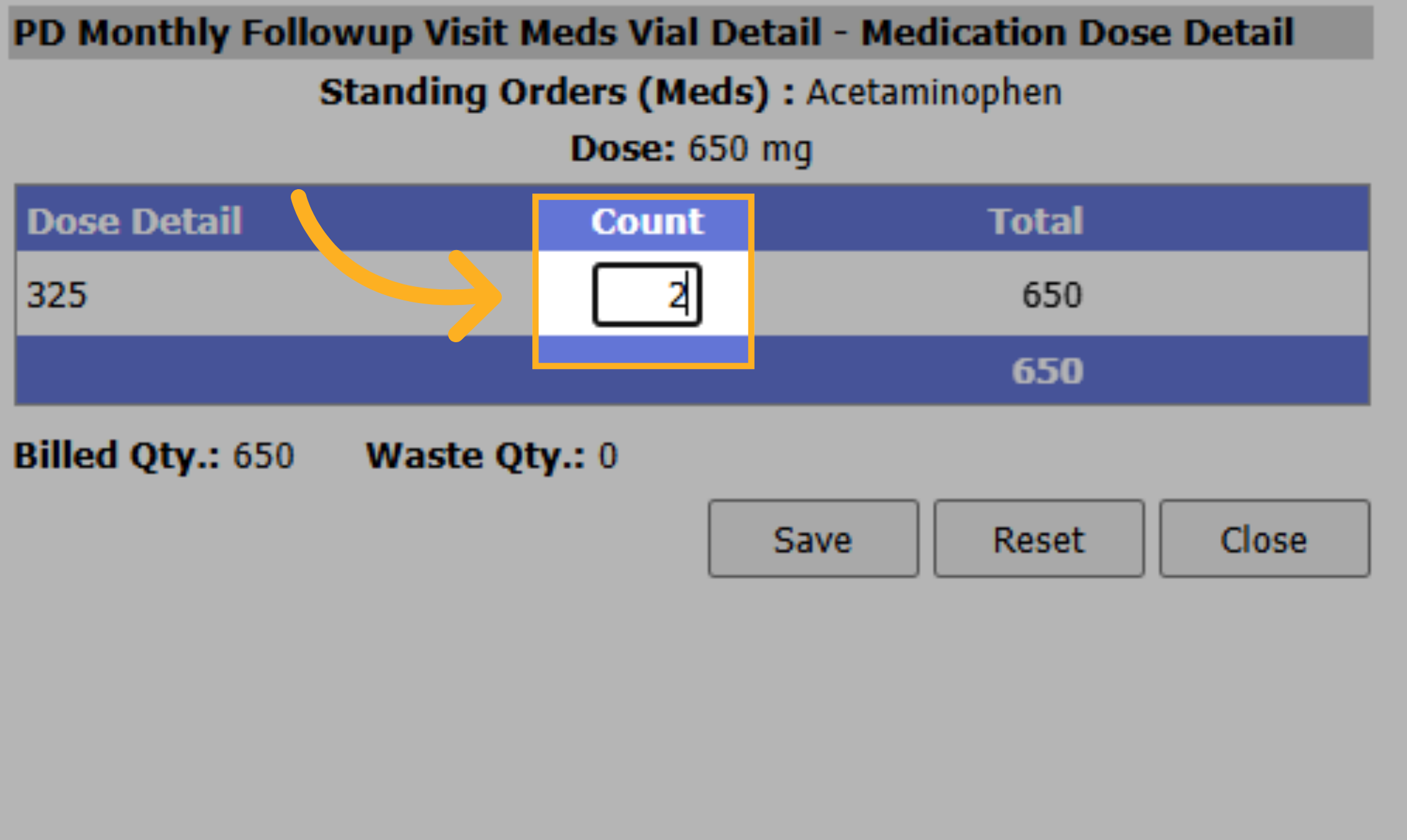
Enter the Dose detail information here. For example, how many pills did you provide the patient? In this instance, we gave them two pills of 325 milligrams to total 650.
18. Save Medication Dose
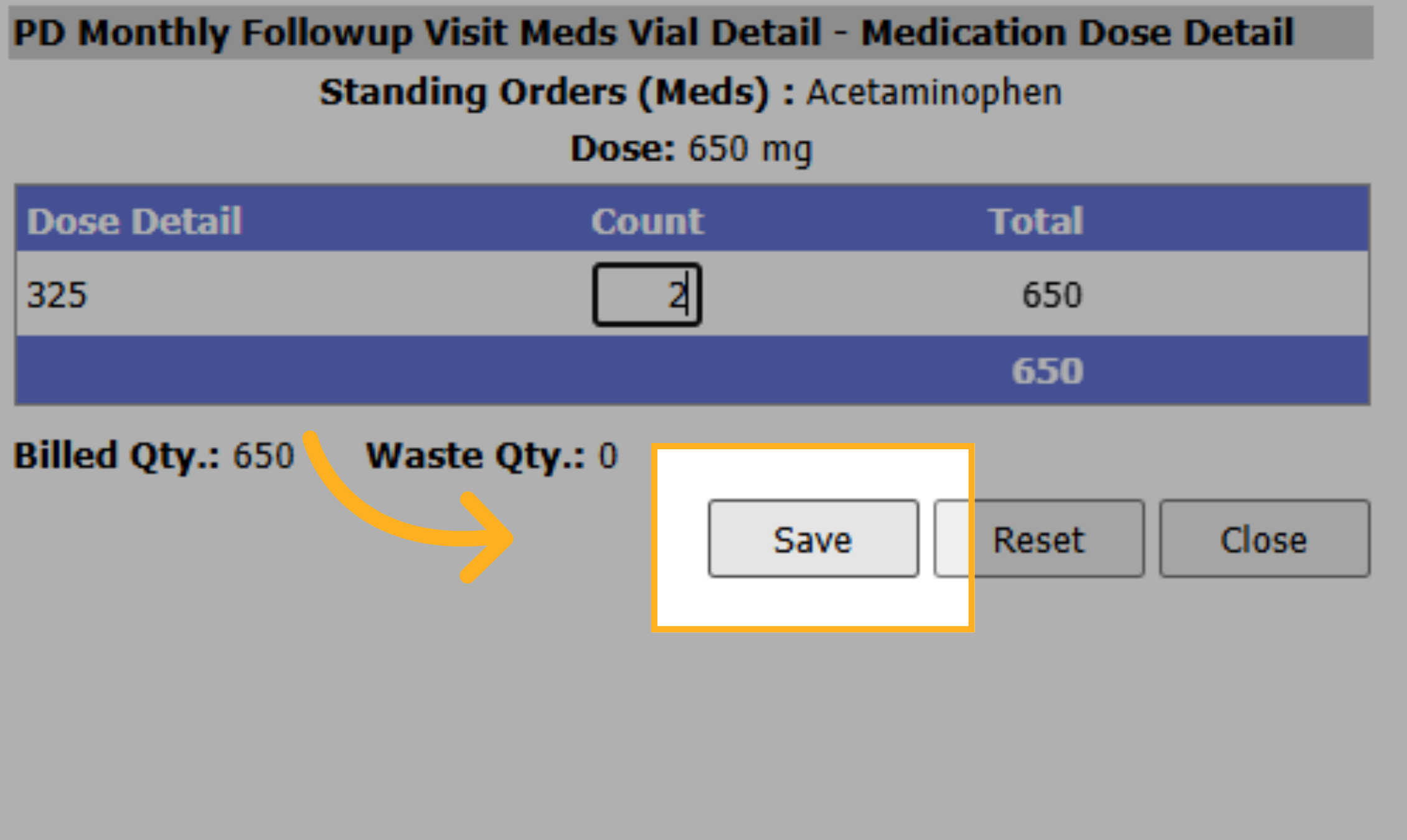
Click Save
19. Access Additional Options
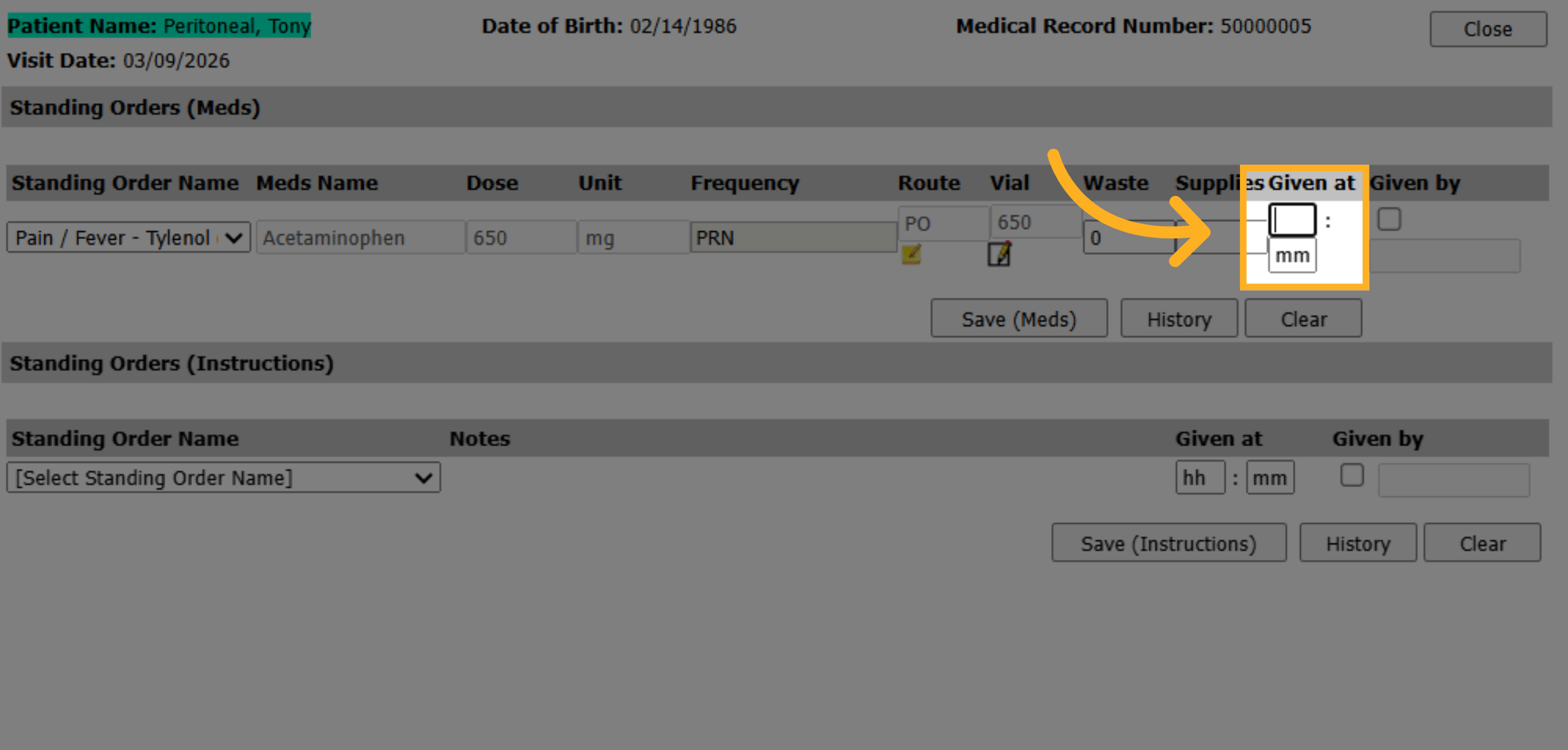
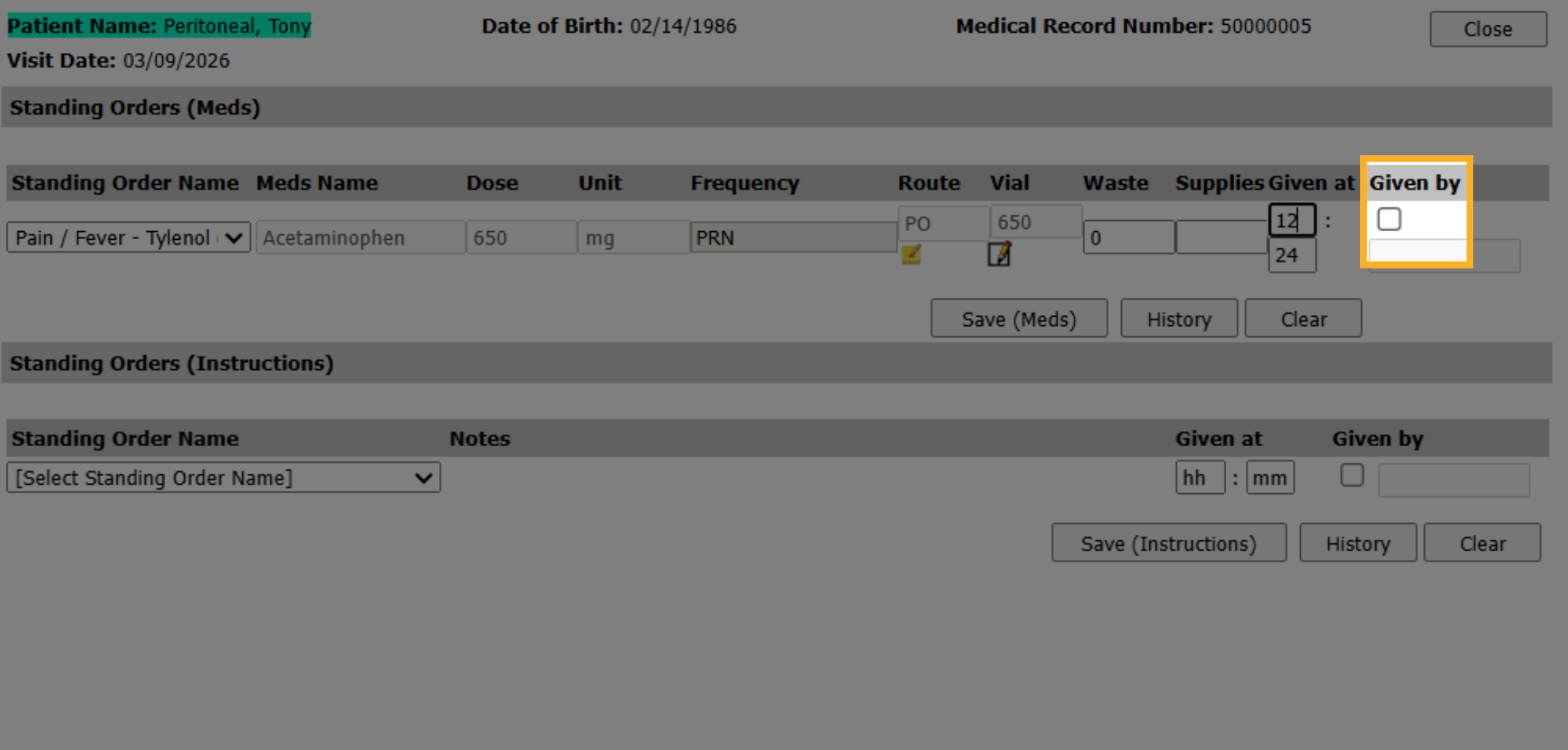
Enter time given.
20. Select Medication Item
And then check Given By and enter your PIN or your password and click Ok
21. Save Medication Information
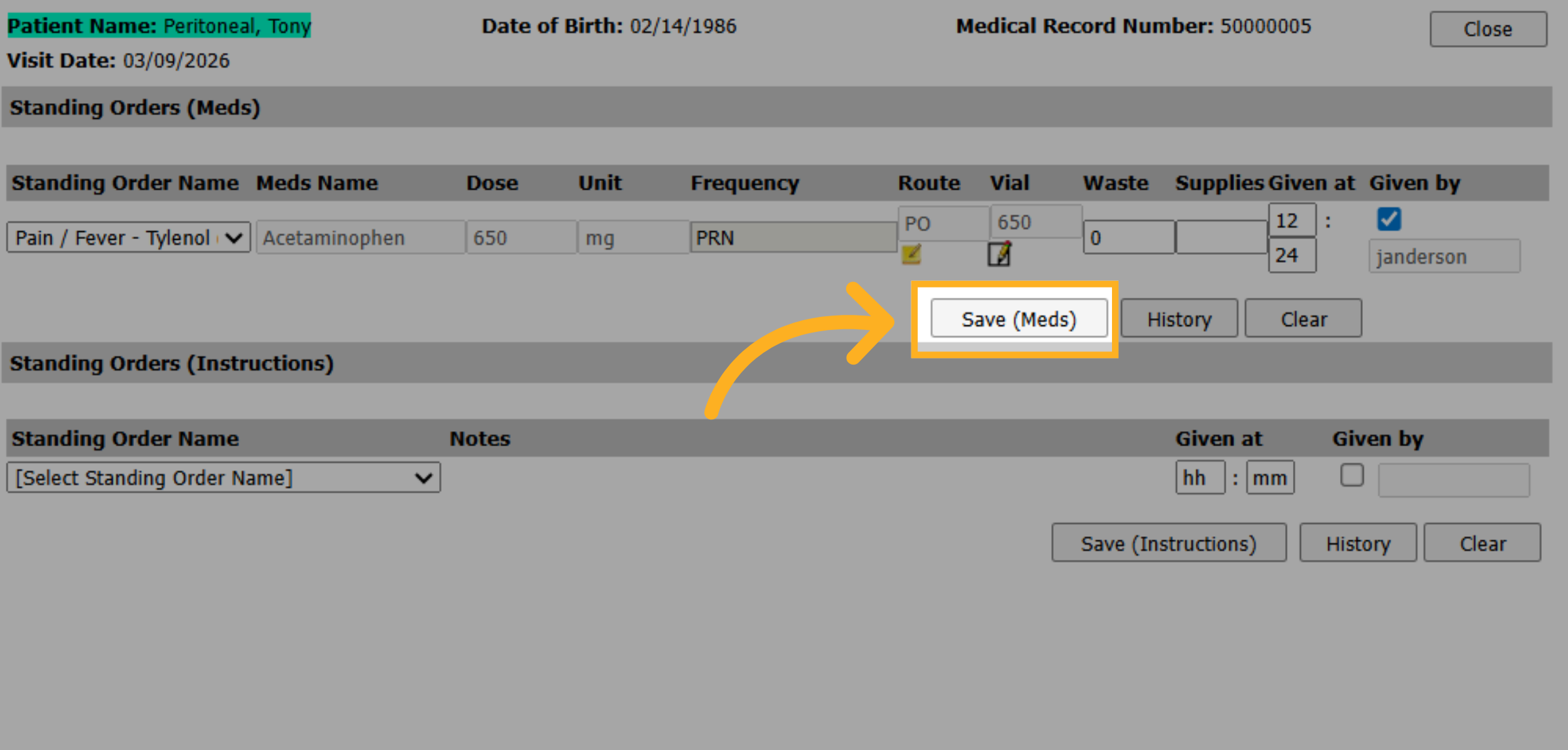
Now again, don't forget to click on the save Med or Instructions, depending on the section you are working in.
22. Select Standing Order Name
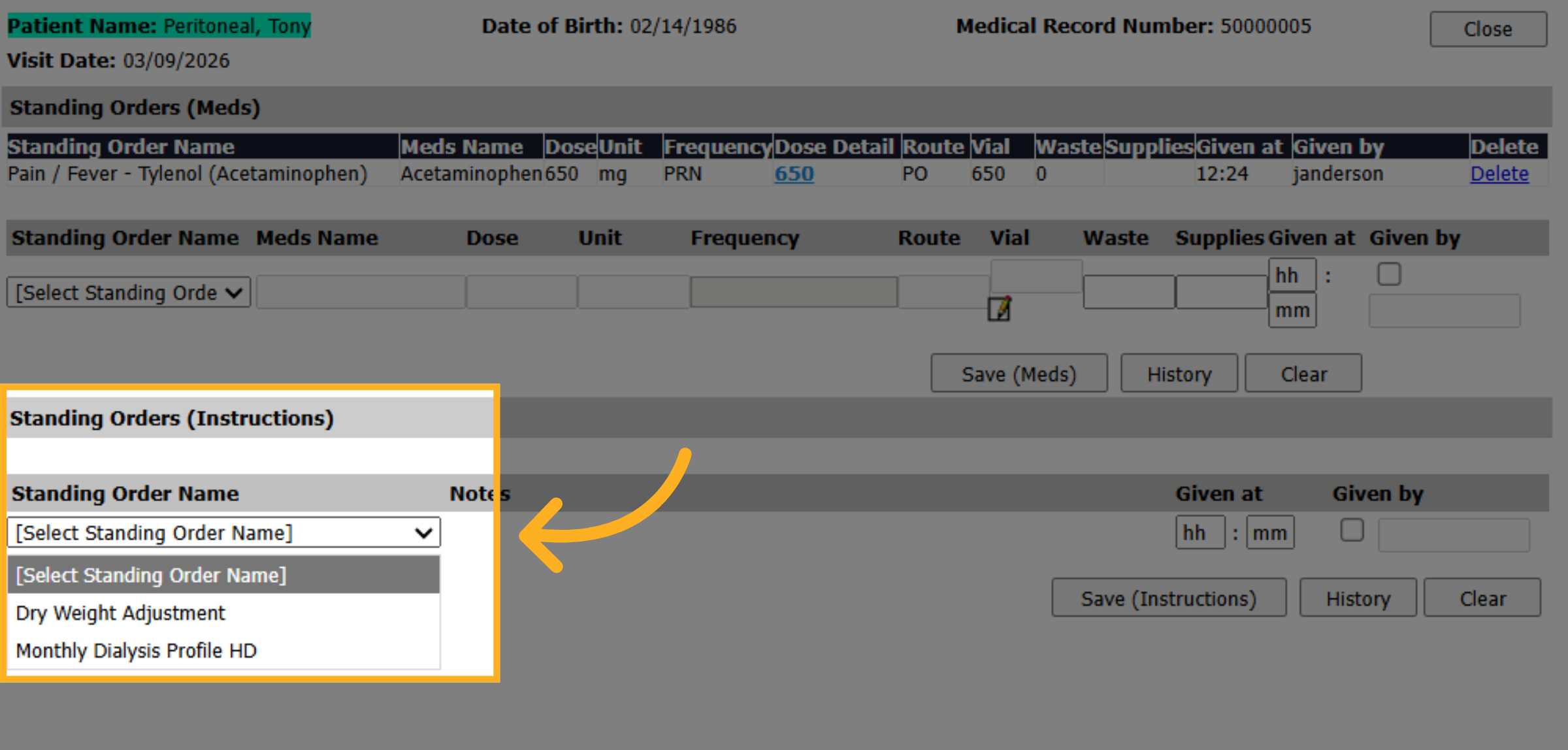
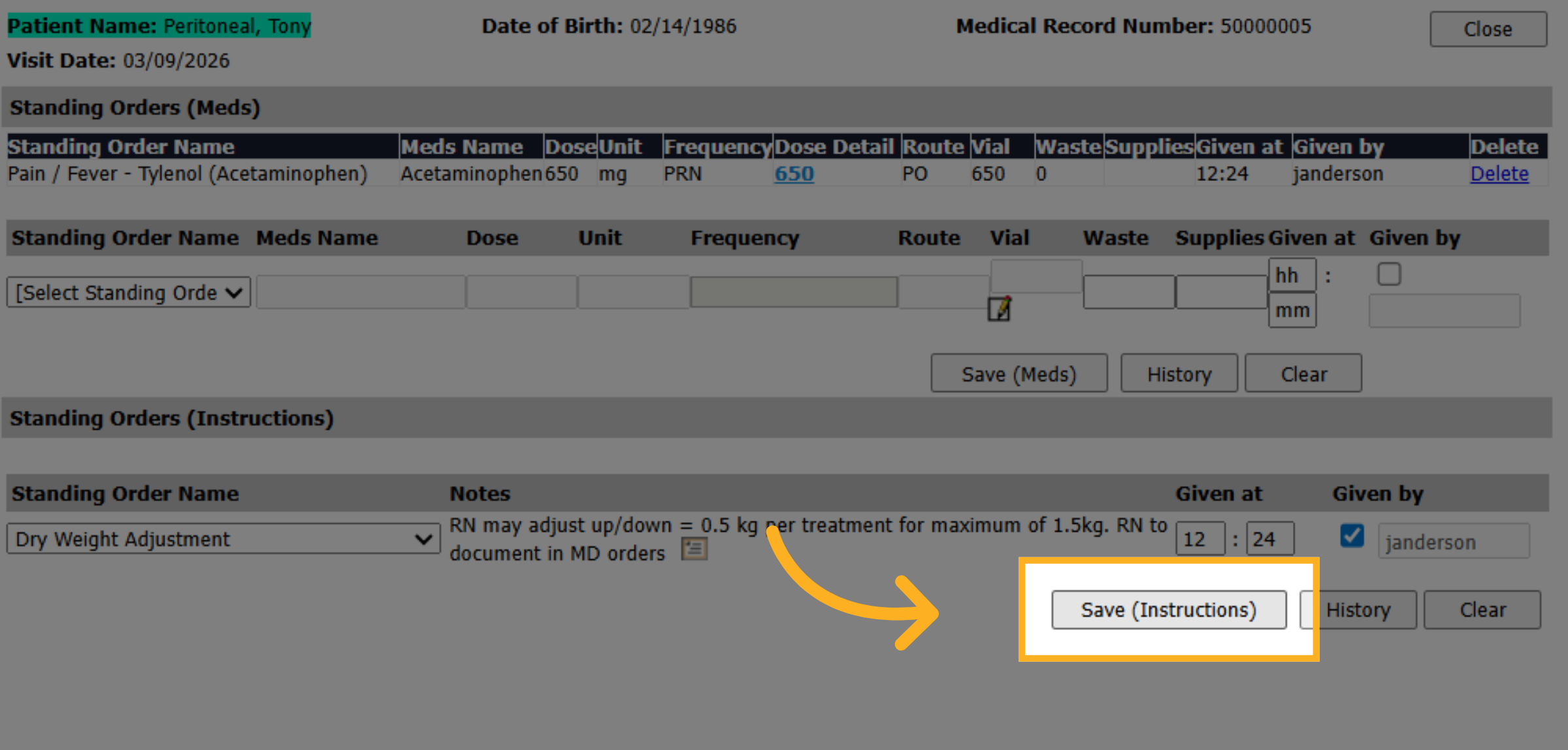
For the Standing order instructions, it works similar to the Meds section. Select the name from the drop down.
23. Access Additional Options
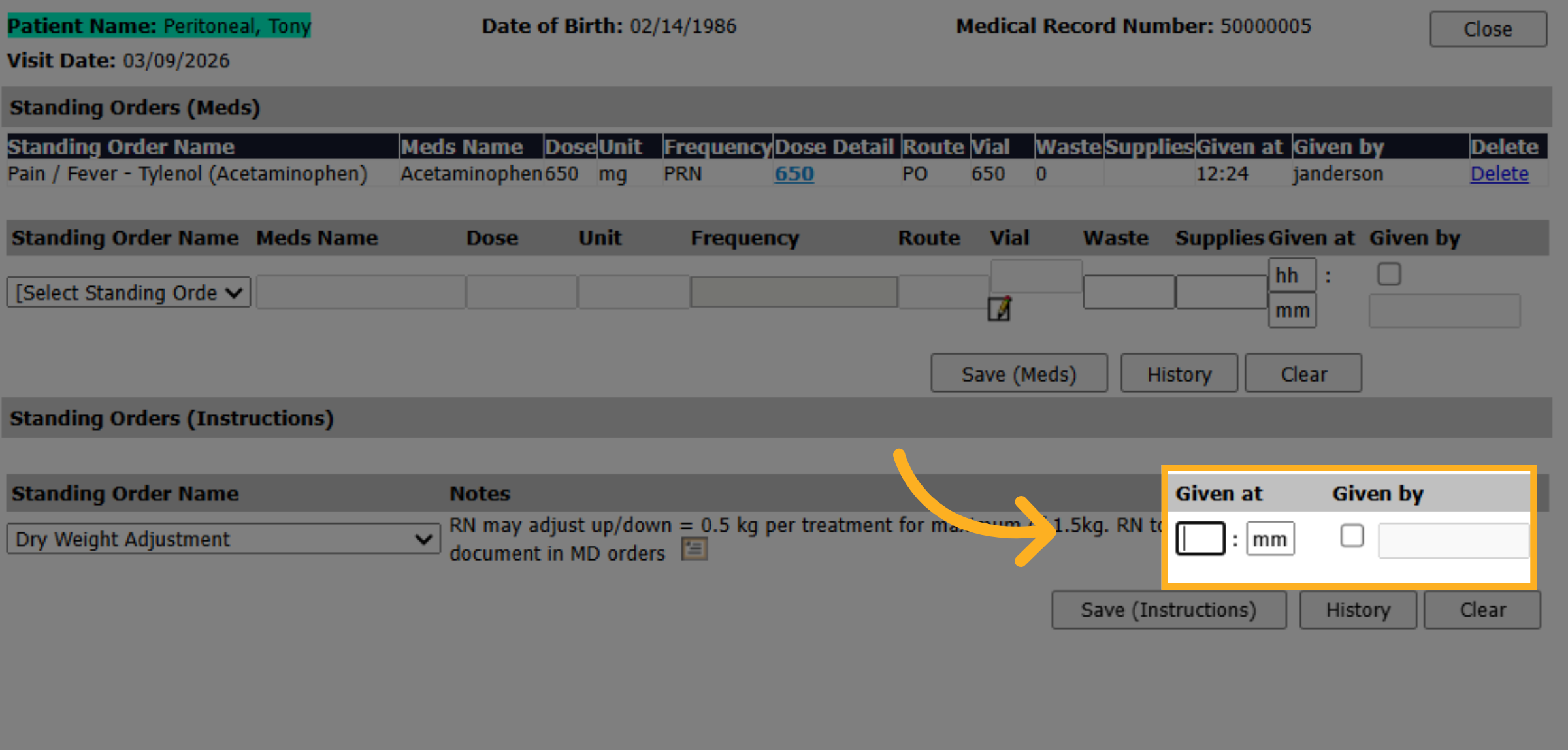
Enter the time given and select the Given By check box. enter your username, Pin or password. Click save
24. Save Instruction Information
and click on save instructions.
25. Close Standing Orders Window
Once you're done you can click close to close the window. You've successfully added a standing order for the PD patient.