Creating a Hemodialysis Treatment Flowsheet
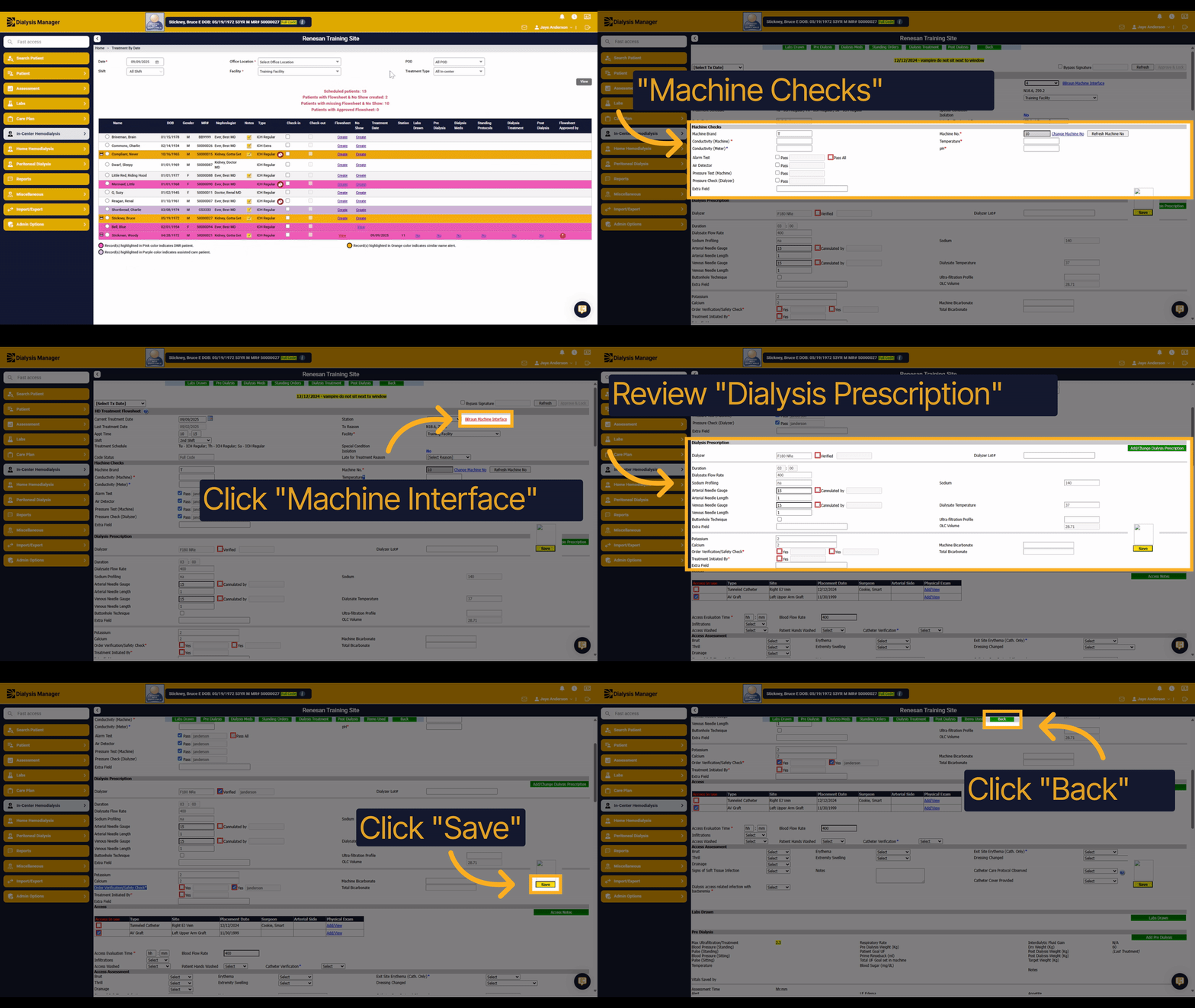
1. Introduction
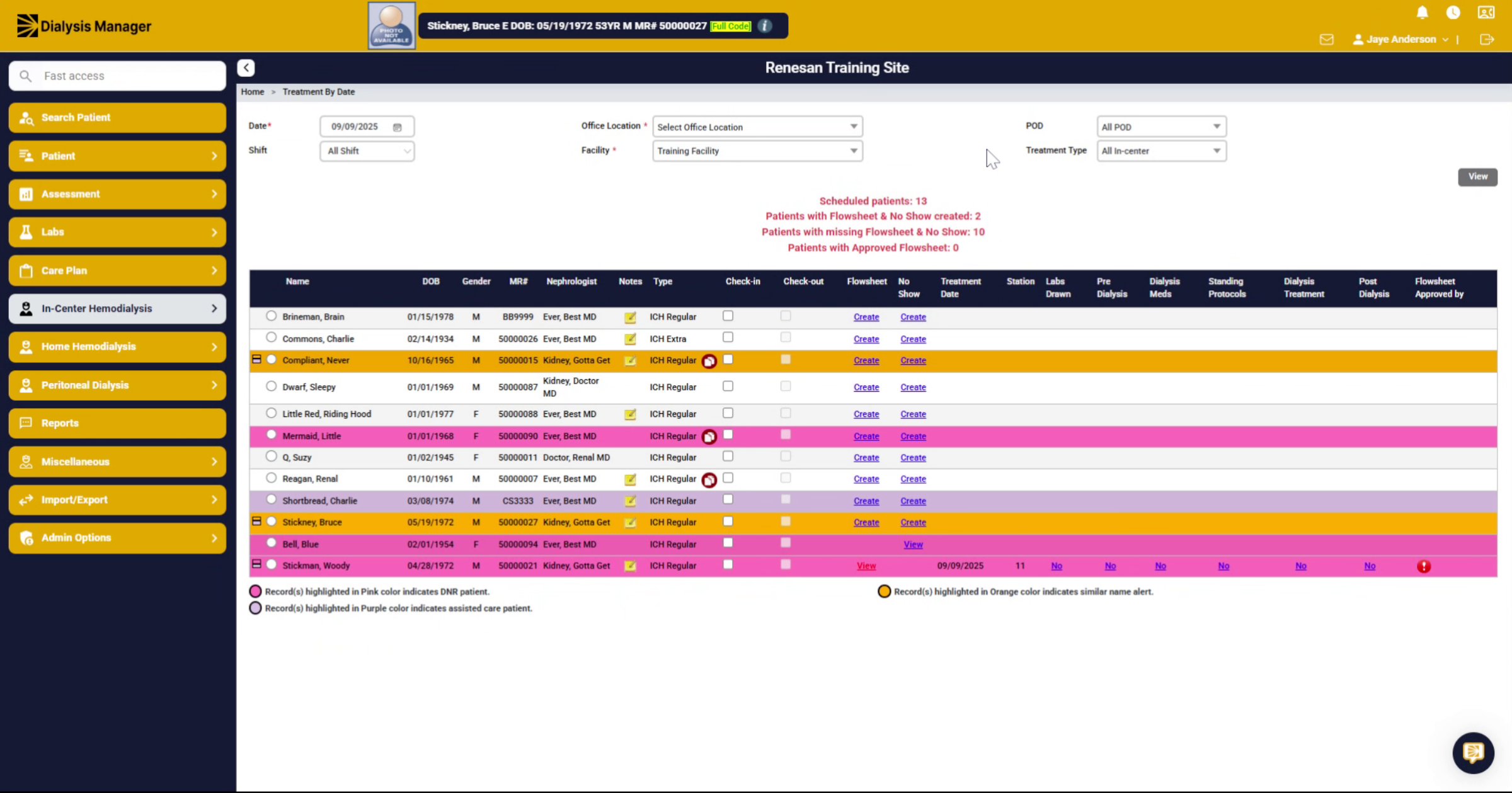
From the Treatment by Date screen we will create a Flowsheet
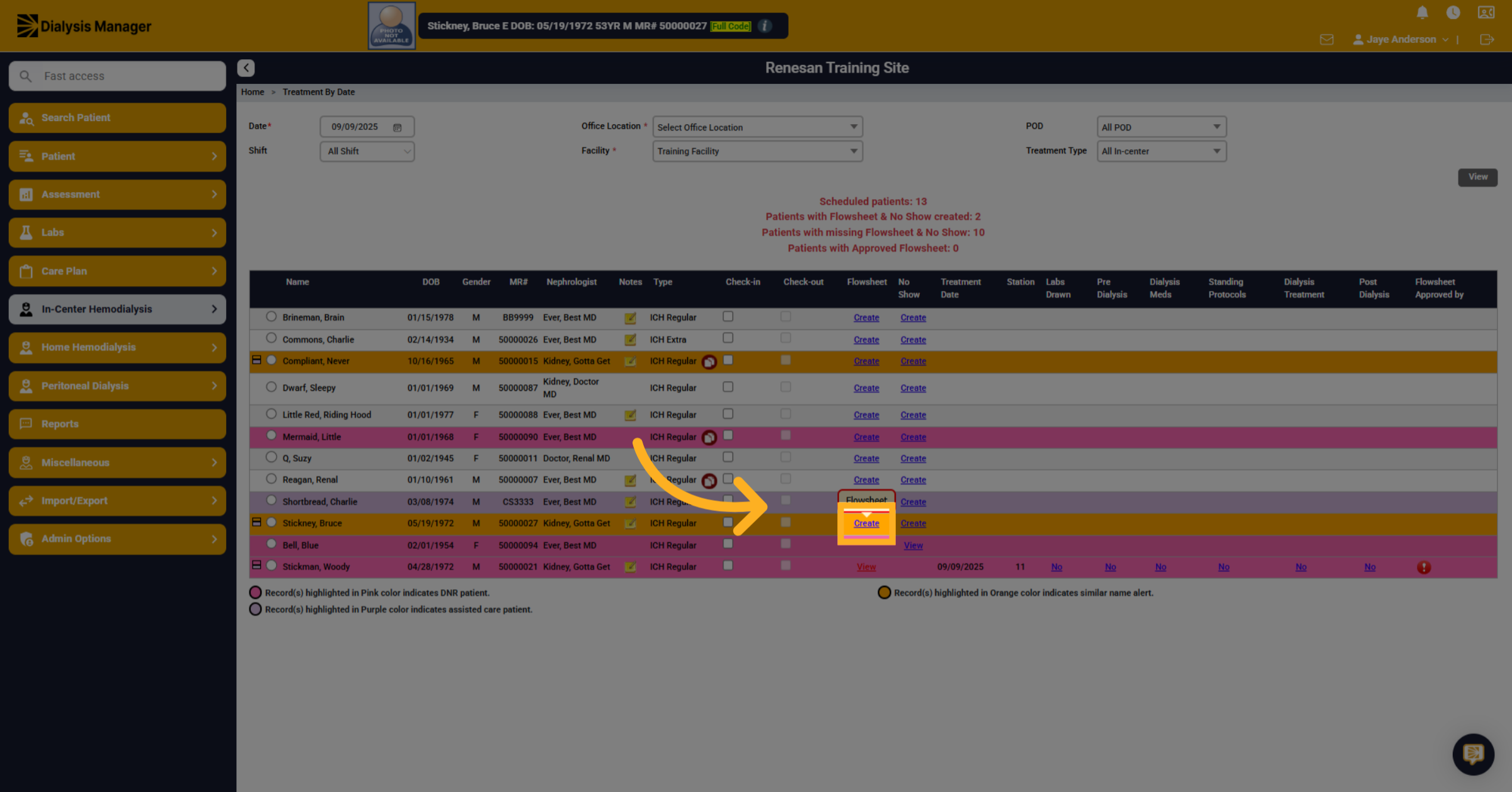
2. Click "Create"
Click "Create" under the flow sheet section for the patient of the flowsheet you want to create.
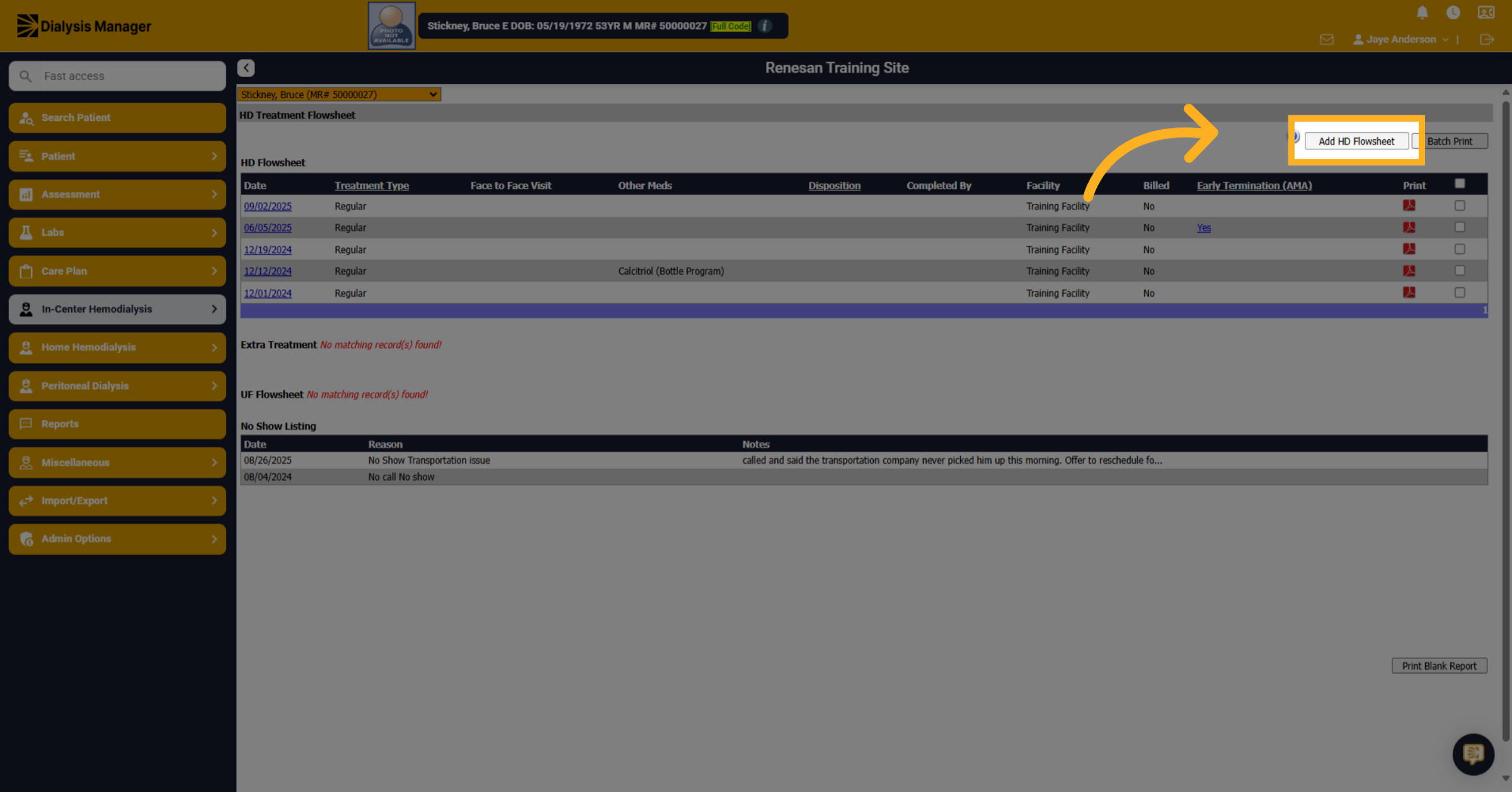
3. Click "Add HD Flowsheet"
Click "Add HD Flowsheet".
4. Click "HD Treatment Flowsheet"
Here we'll look at the HD treatment flow sheet section. In this section, you will want to focus on the station number. We'll look at the Machine Interface link momentarily.
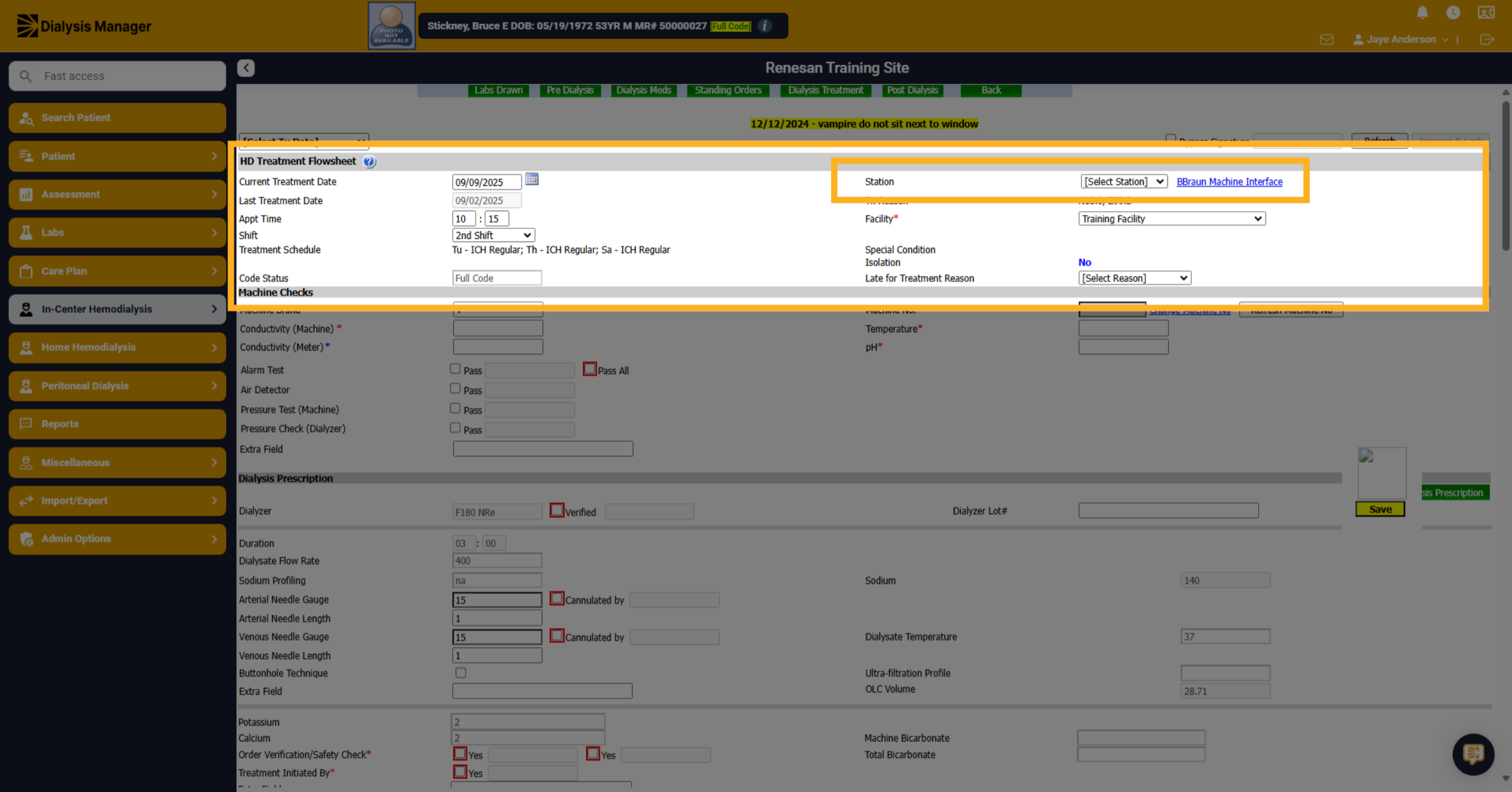
5. Click "[Select Station]"
Click "[Select Station]" to specify the station number.
![Click '[Select Station]'](https://knowledgetest.renvio.com/hubfs/Intercom%20knowledge%20base/qg-2FIroXeNJHrNYcFwtsPJSFDGN82g23-2FayK6dhgfXHbknp4HDkD3YR-2F1K2Vn4YZQP8KeBTJJipEzi_doc.png)
6. Click "Machine Checks"
Here we'll look at our machine checks and fill out as much information as known. Keeping in mind that anything with a red asterisk is a required field. Now we're going to document that all of our machine's alarms have passed.
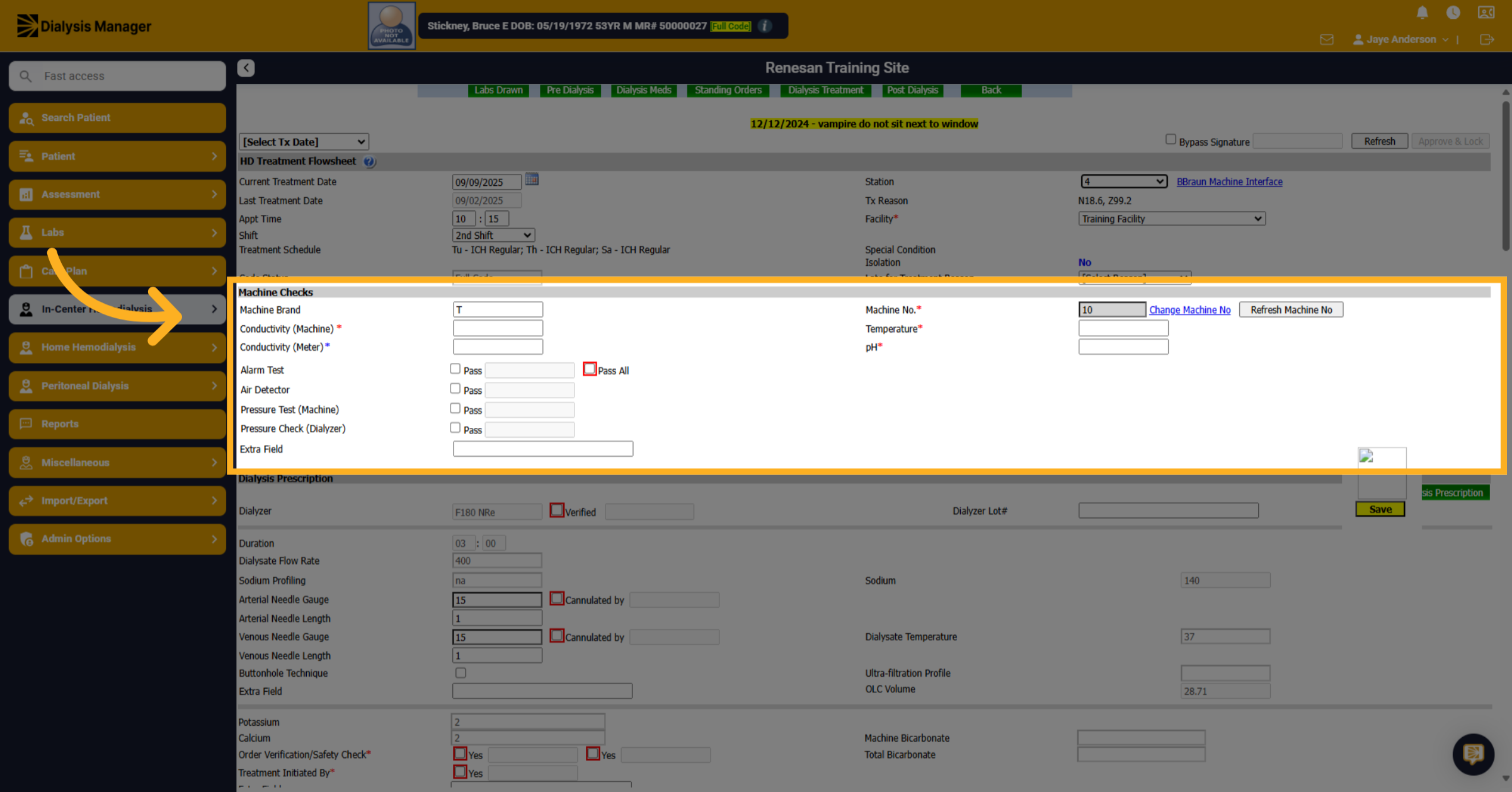
7. Click "Pass All"
Click "Pass All" to indicate all machine checks have passed.
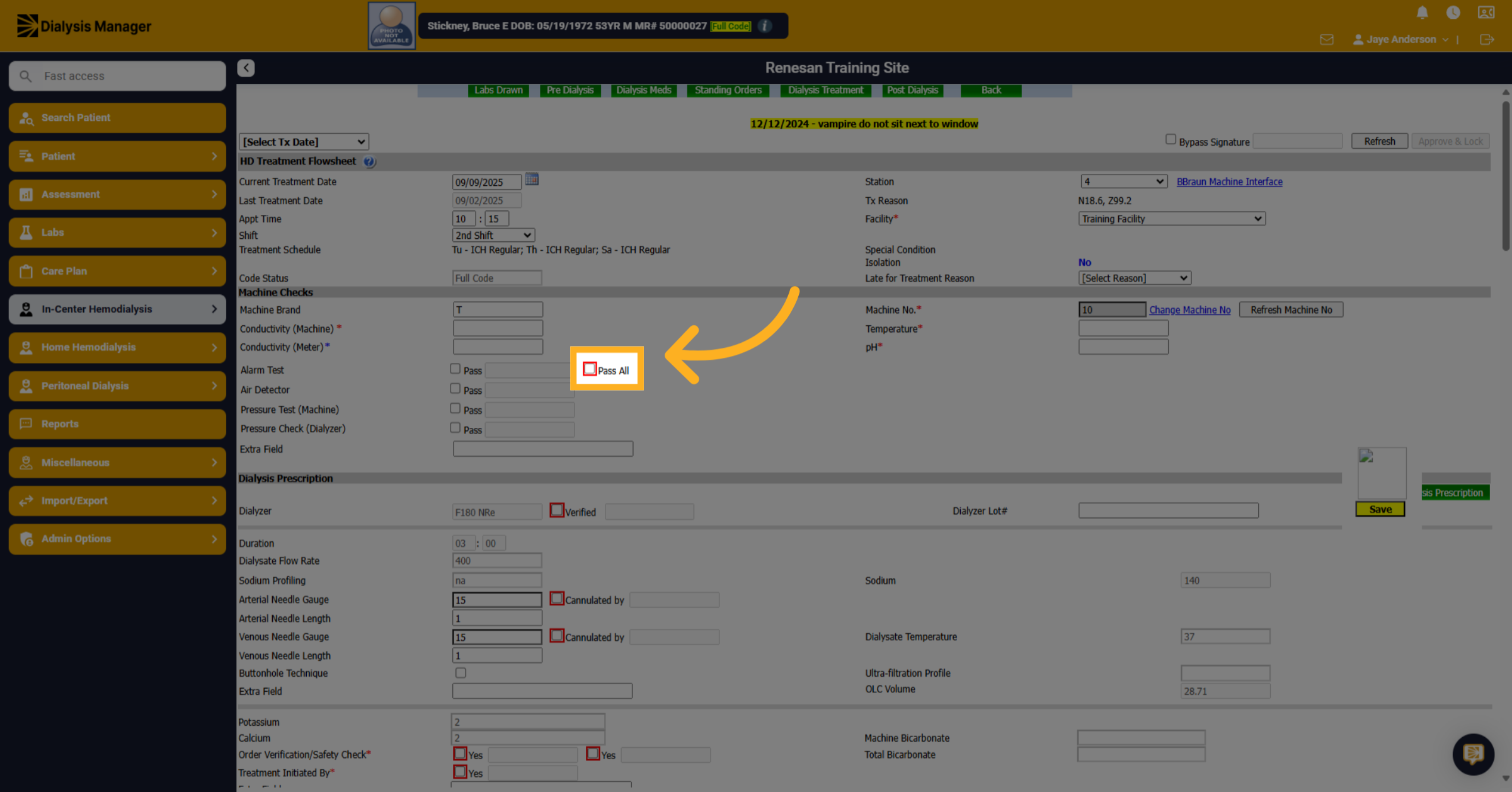
8. Click "[password]"
Click the Pin or password field to enter your credentials. Enter your PIN or Password and click Ok
![Click '[password]'](https://knowledgetest.renvio.com/hubfs/Intercom%20knowledge%20base/qg-2FIroXeNJHrNYcFwtsPJSFDGN82g23-2FayK6dhgfXHbknp4HDkD3YR-2F14czq4vMr78KFRDQr87Xz4_doc.png)
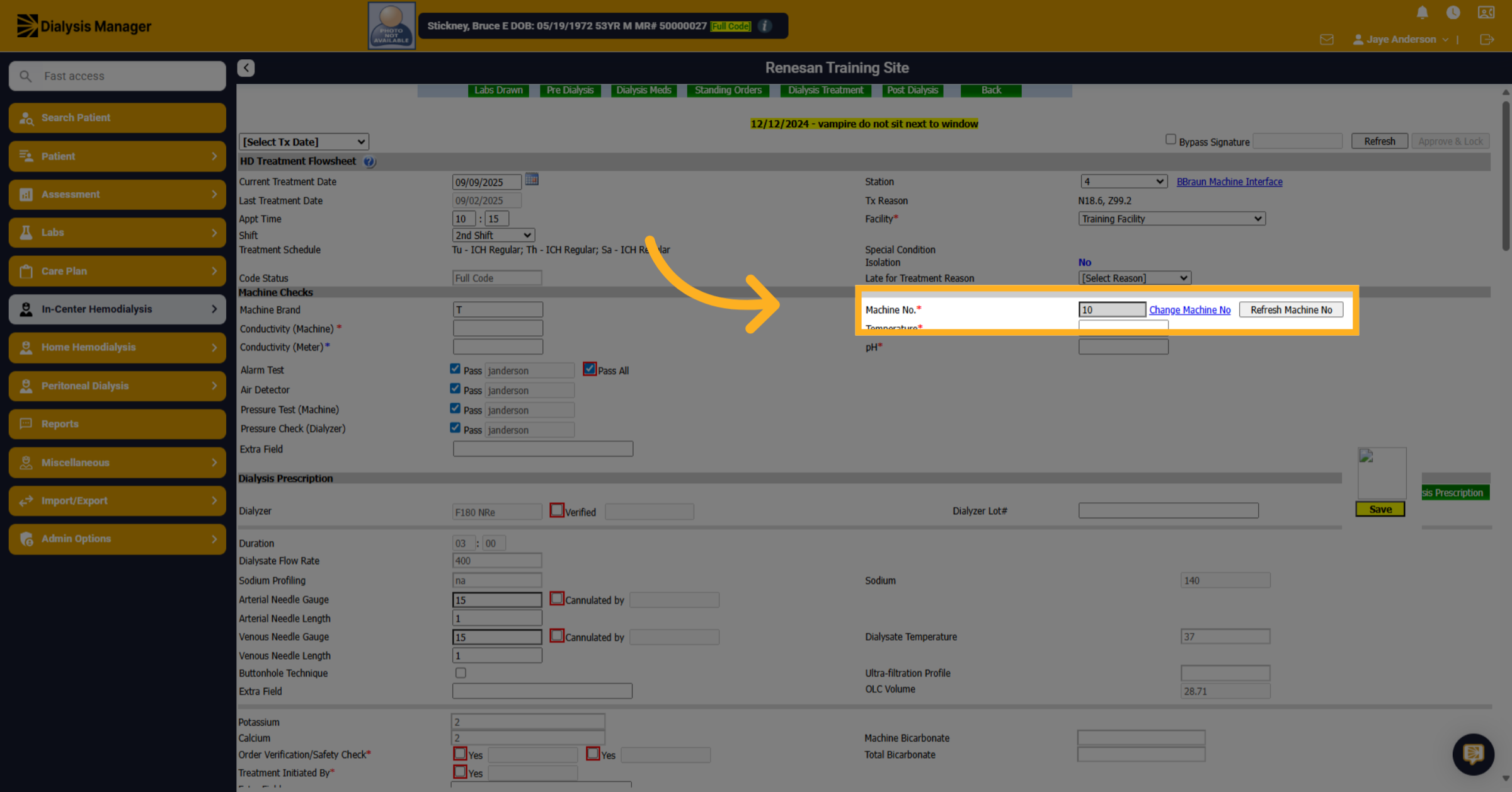
9. Verify Machine No.
Verify that the machine number is accurate and remember that anything with a red asterisk would be required field.
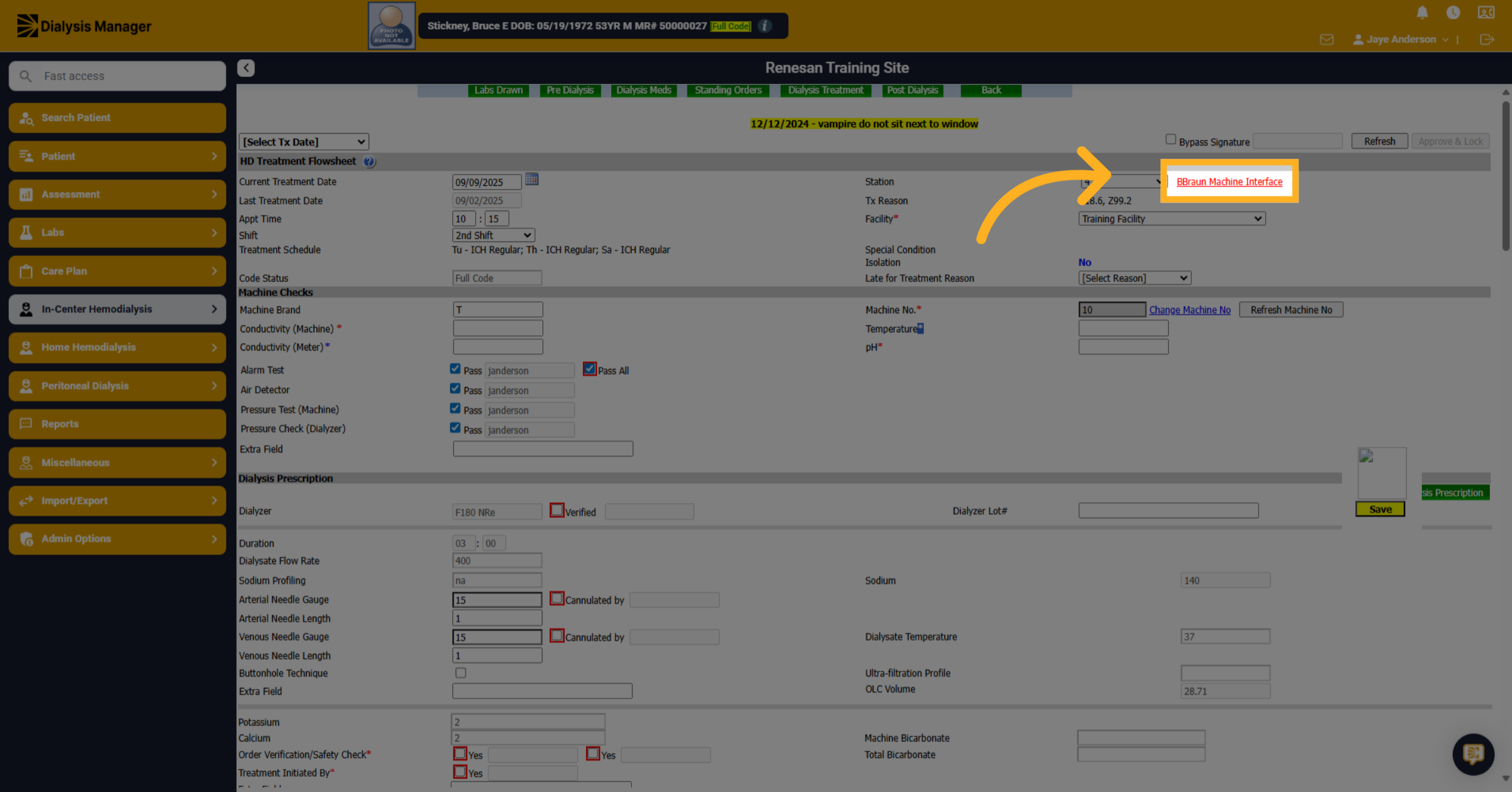
10. Click "Machine Interface"
Click "Machine Interface" hyperlink to access the machine interface.
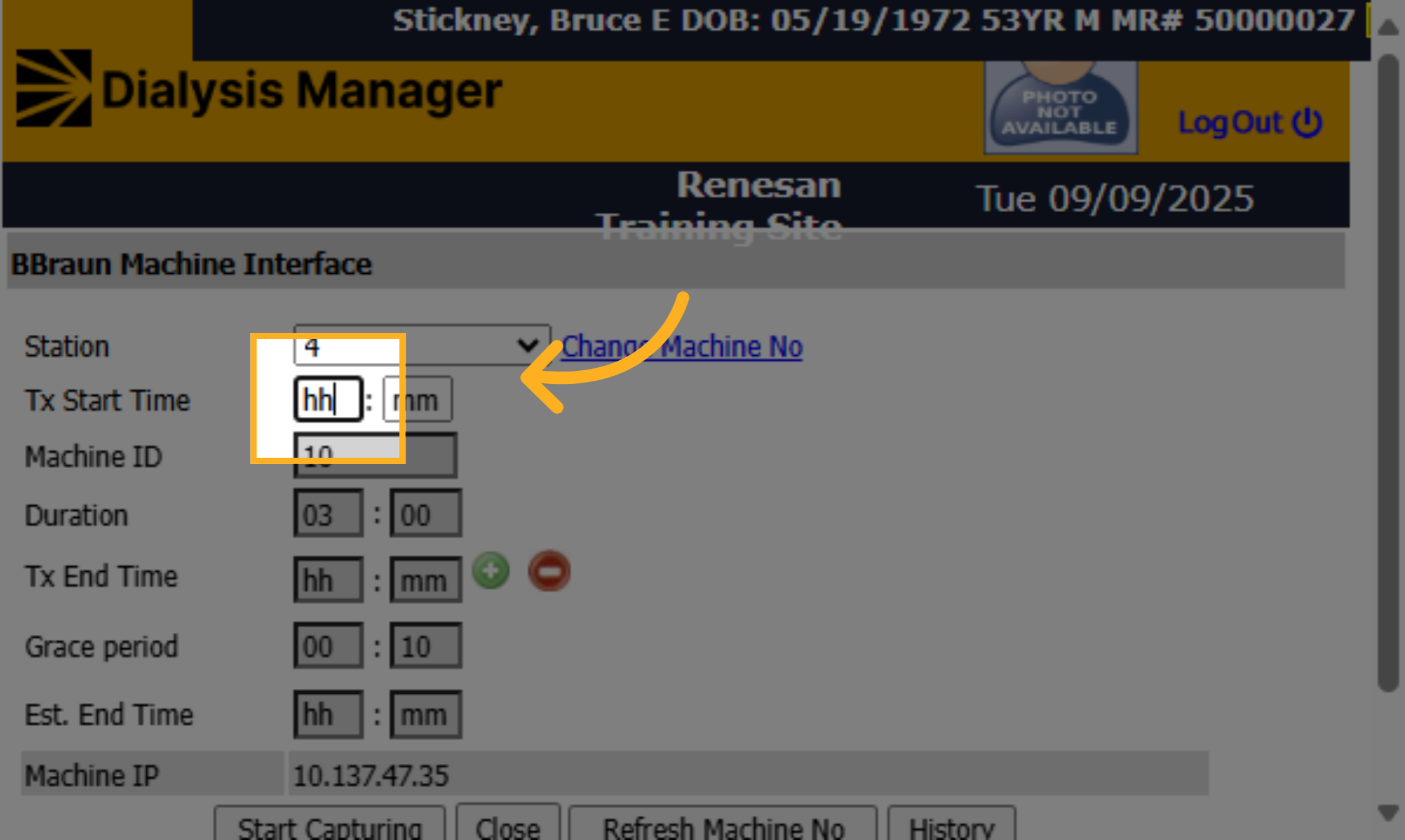
11. Click "hh"
A new box will pop up. Click "hh" to select the hour for time entry. Enter time manually or by choosing the F 2 option on your keyboard will automatically enter the current time.
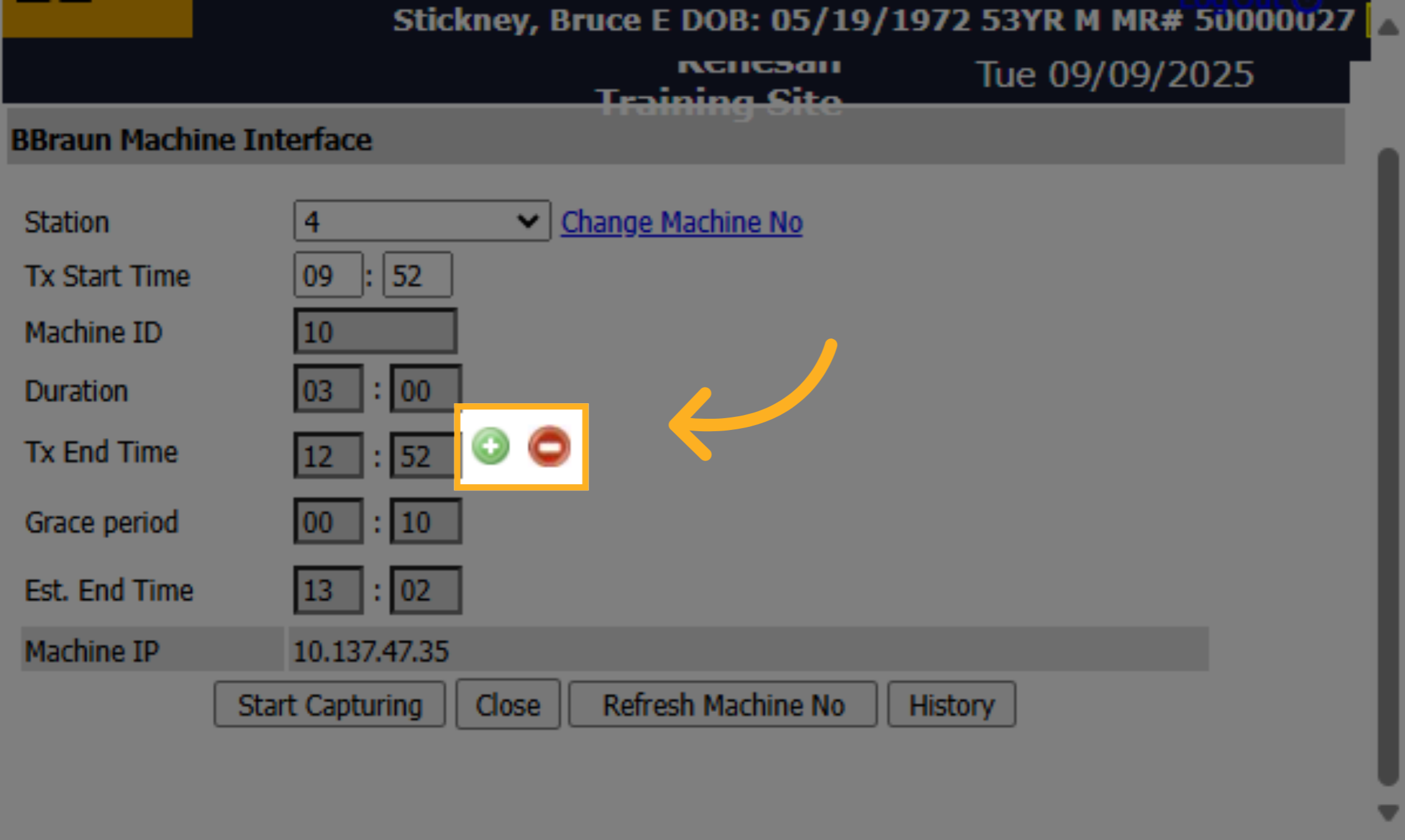
12. Click here
You can increase or decrease the time by 5-minute intervals, if needed. This will adjust the estimated end time of capture from the machine and allow the vitals to the populate the patient's dialysis treatment section.
13. Click "Start Capturing"
Click "Start Capturing" to begin capturing machine data.
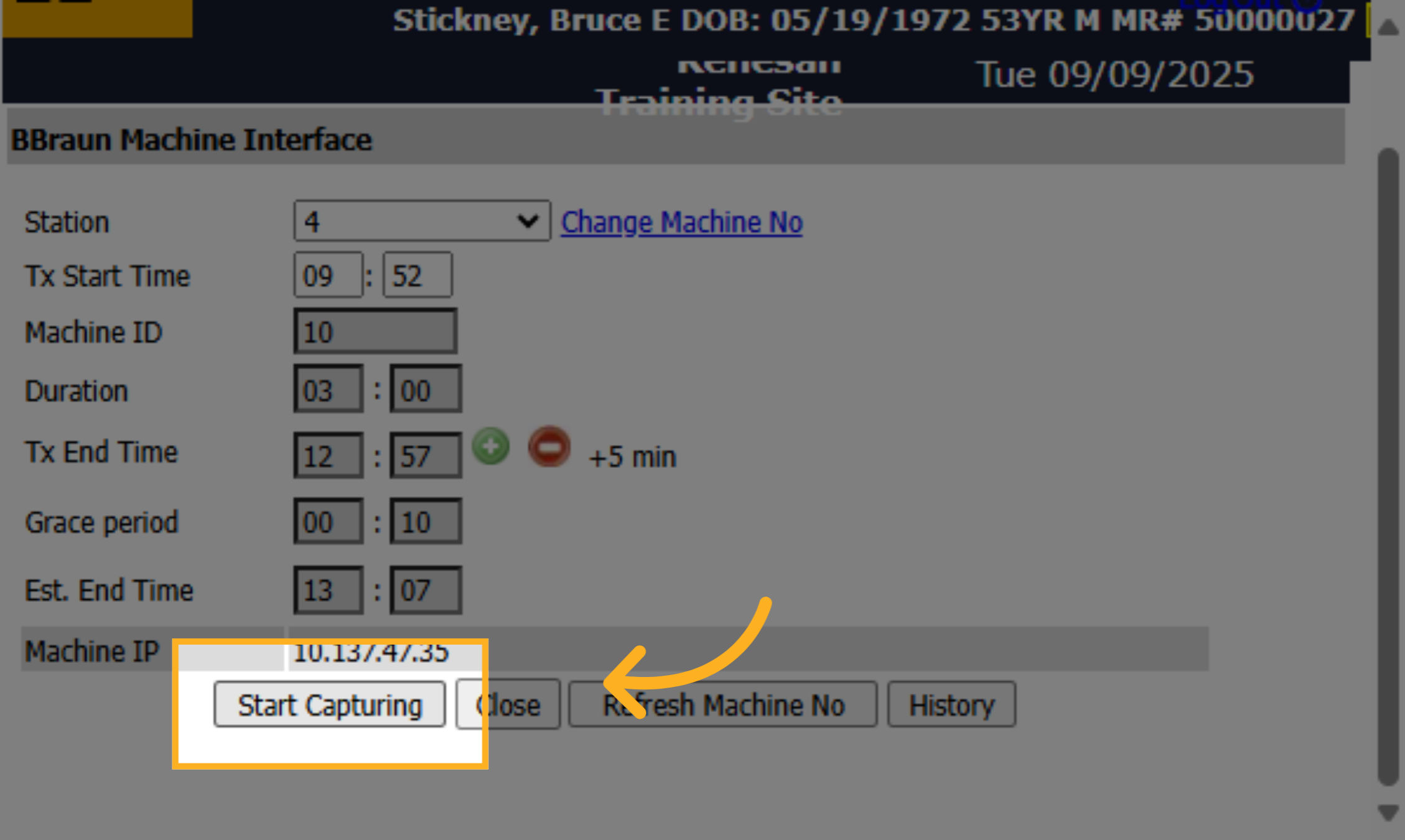
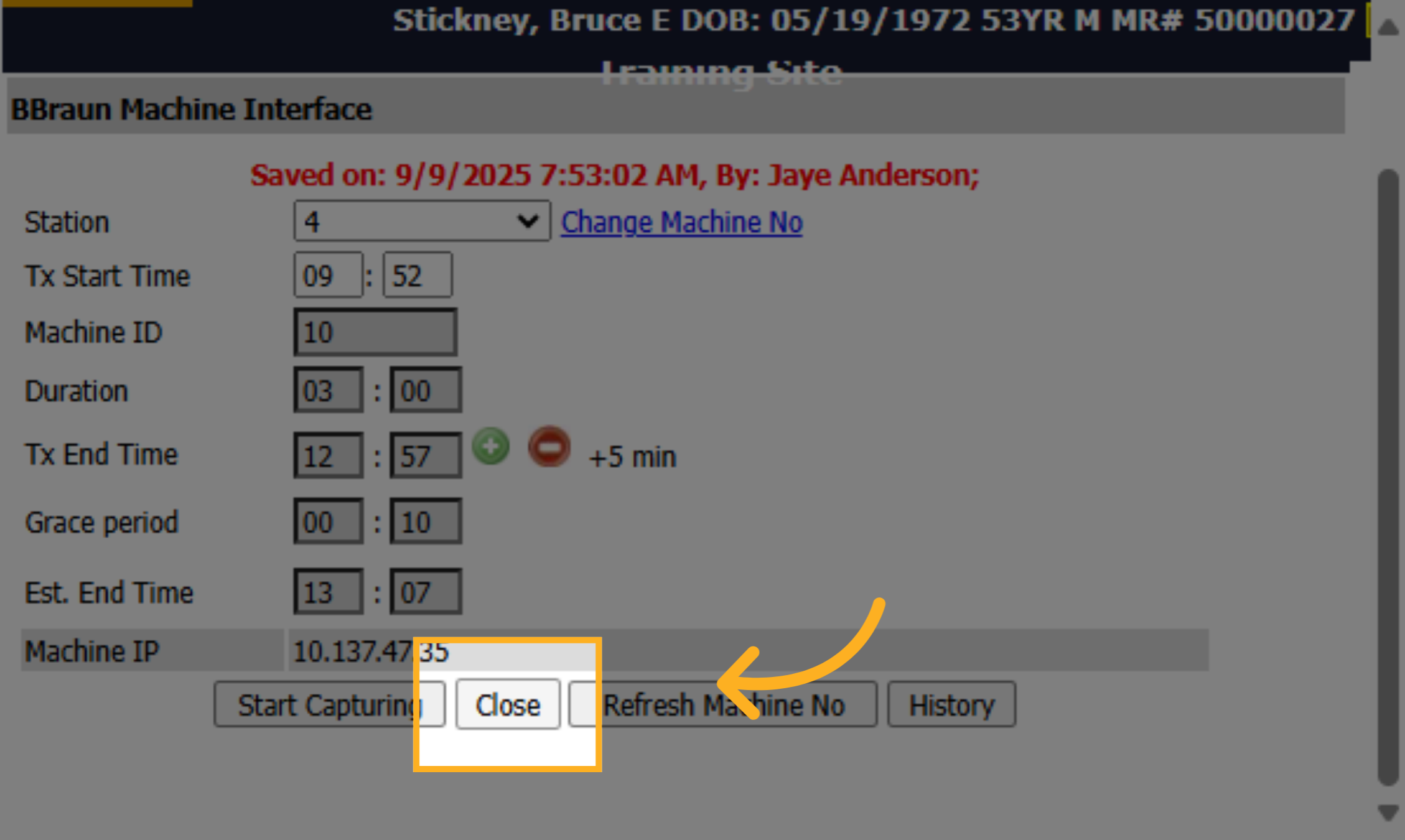
14. Click "Close"
Click "Close" to exit the capturing interface.
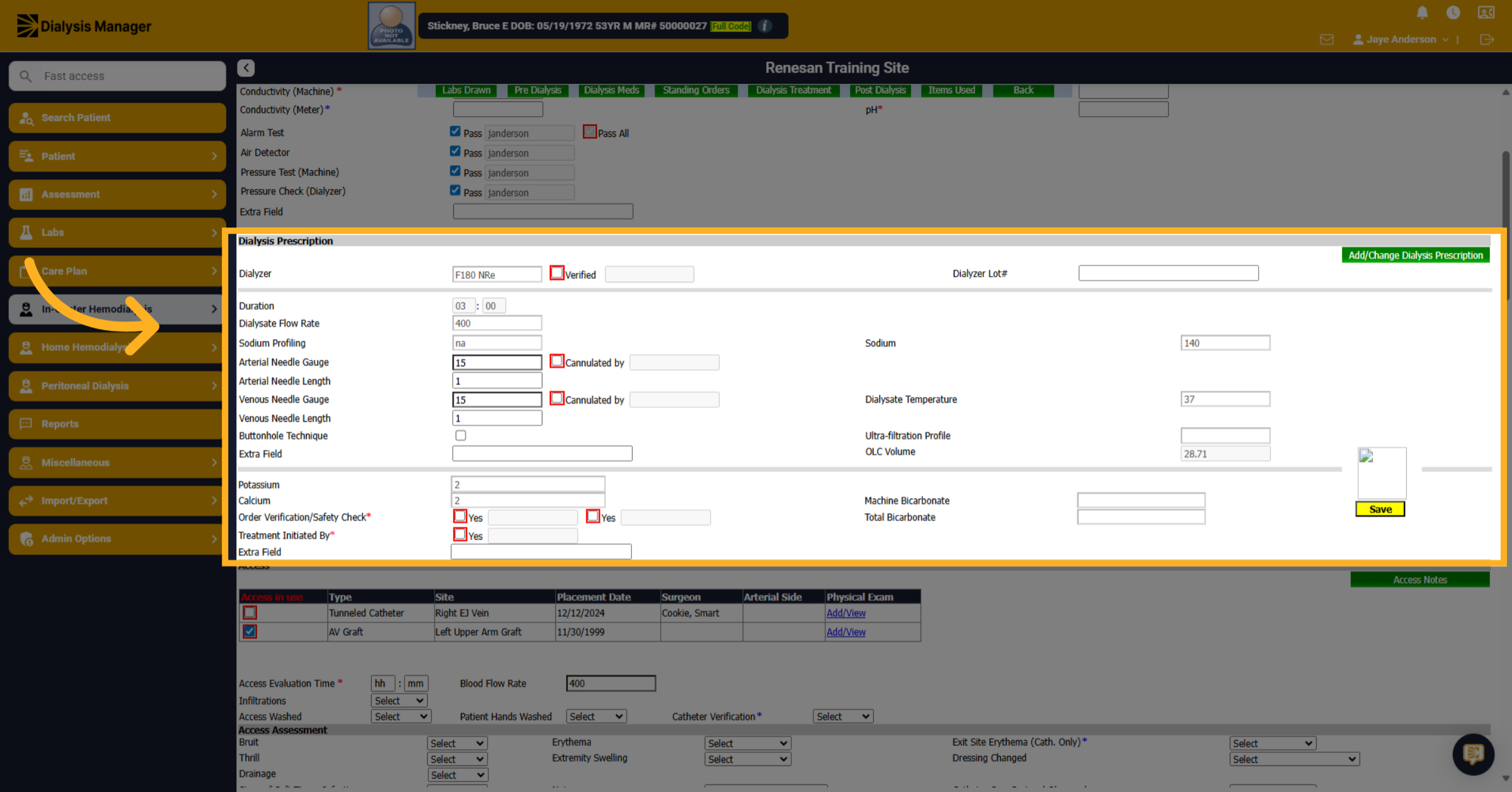
15. Click "Dialysis Prescription"
Next, we're going to look at our dialysis prescription section.
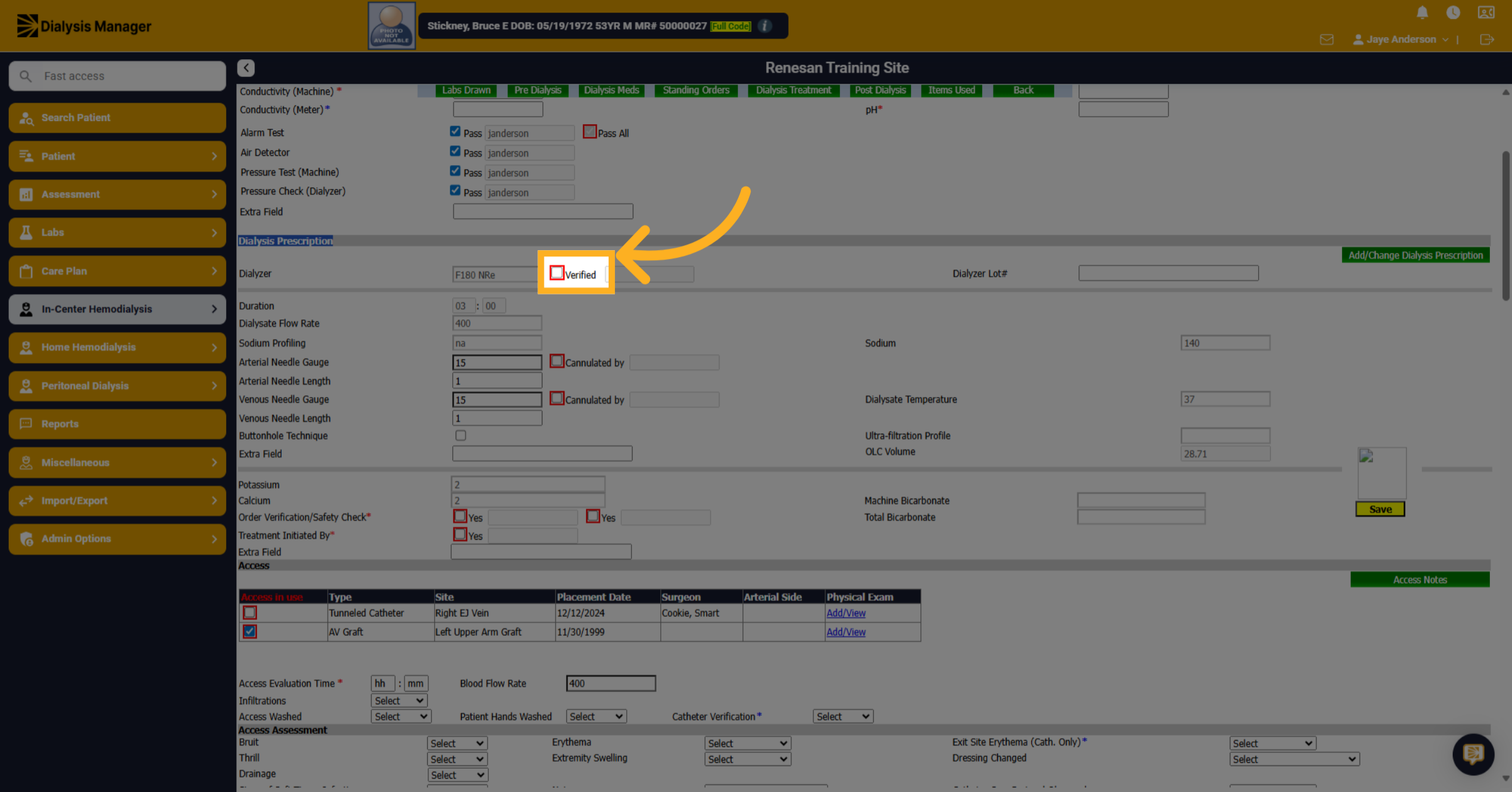
16. Click "Verified"
Again, anything with a red box will be required and you'll have to enter your PIN or your password. Keep in mind: Even though it displays your verified user initials you will still need to click the SAVE button to save the information.
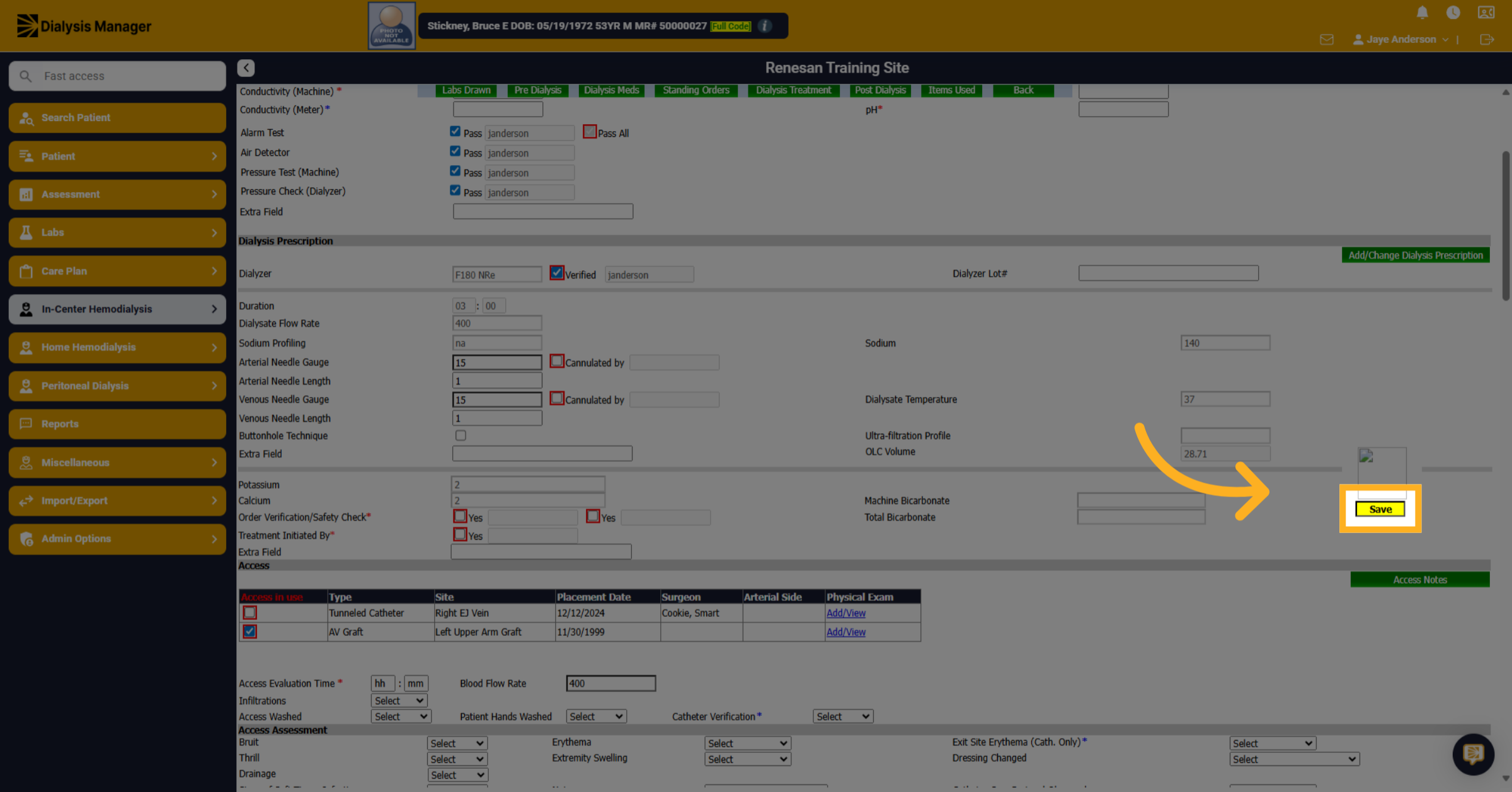
17. Click "Save"
Click "Save" to save the entered information.
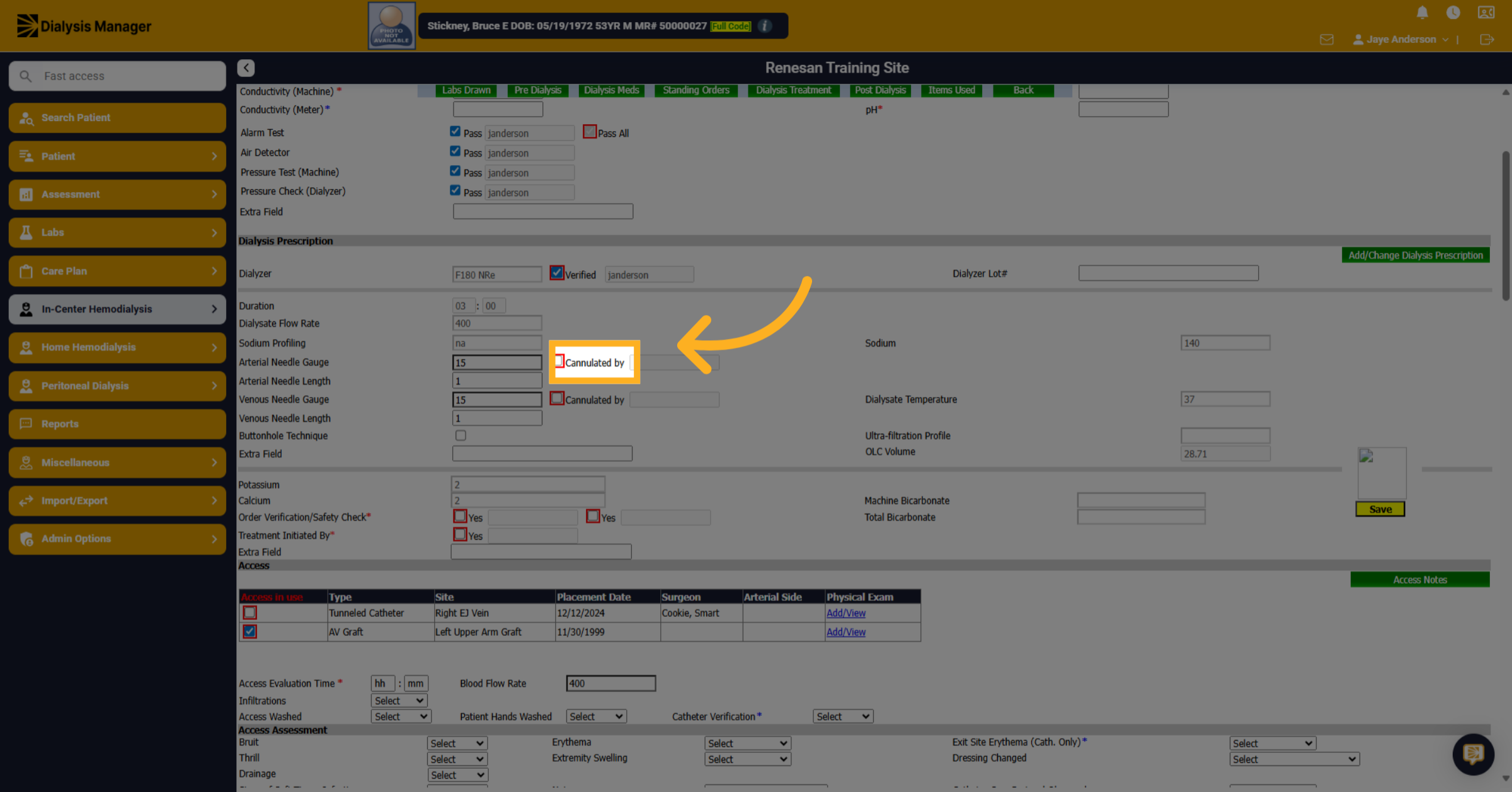
18. Click "Cannulated by"
Click "Cannulated by" to specify who performed cannulation. If you have a catheter patient, the "cannulated by" sectionwould not be required.
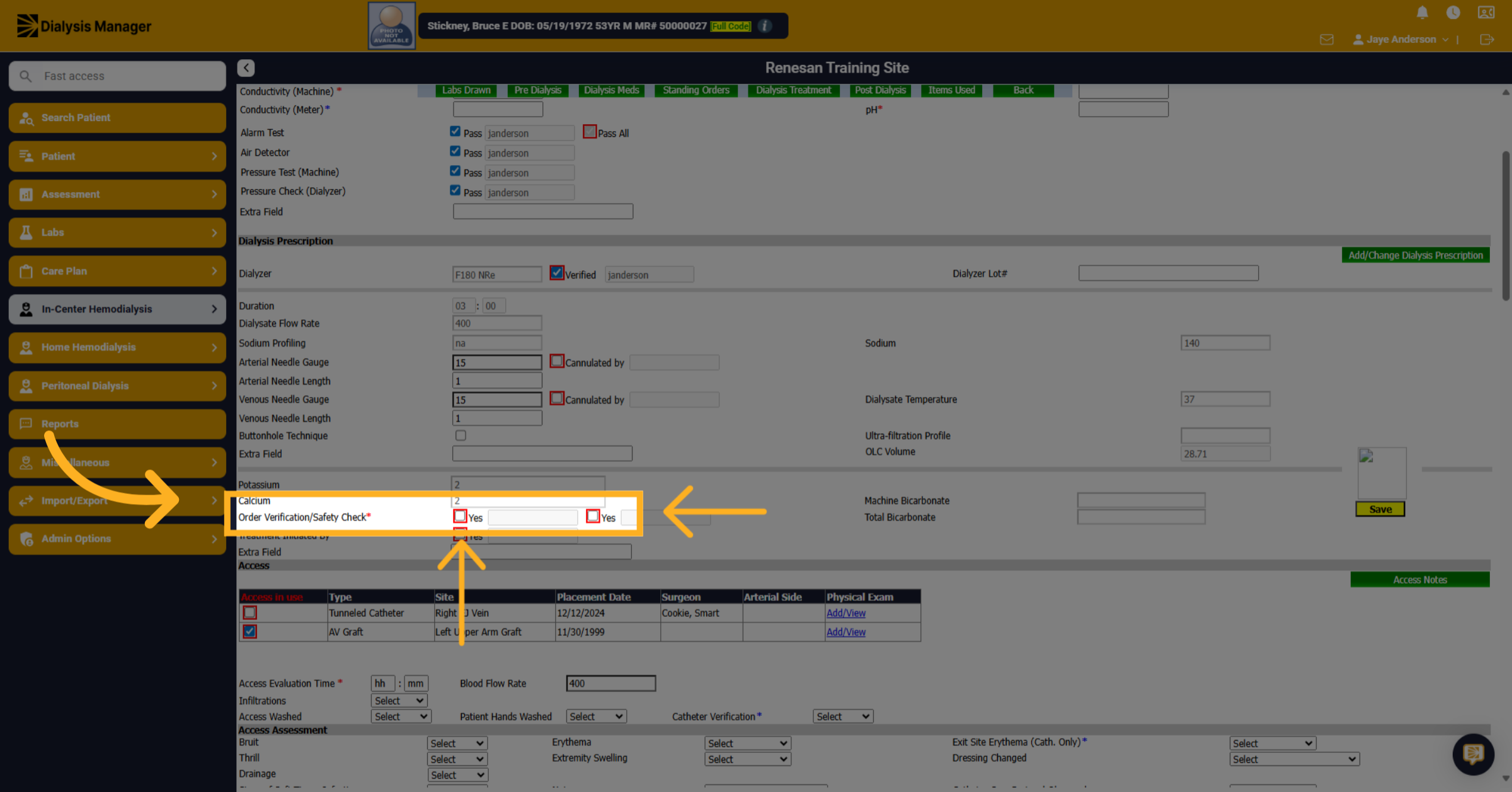
19. Click "Order Verification/Safety Check*"
Click "Order Verification/Safety Check". For the order, verification and safety options you will want to choose the second check box first. This will allow you to save the flowsheet while waiting for a second verification person. The system will NOT allow you to save if the first option only is chosen. Reminder: you will need a second person to sign and save the First check box for order verification. Hint, this can be completed at another workstation.
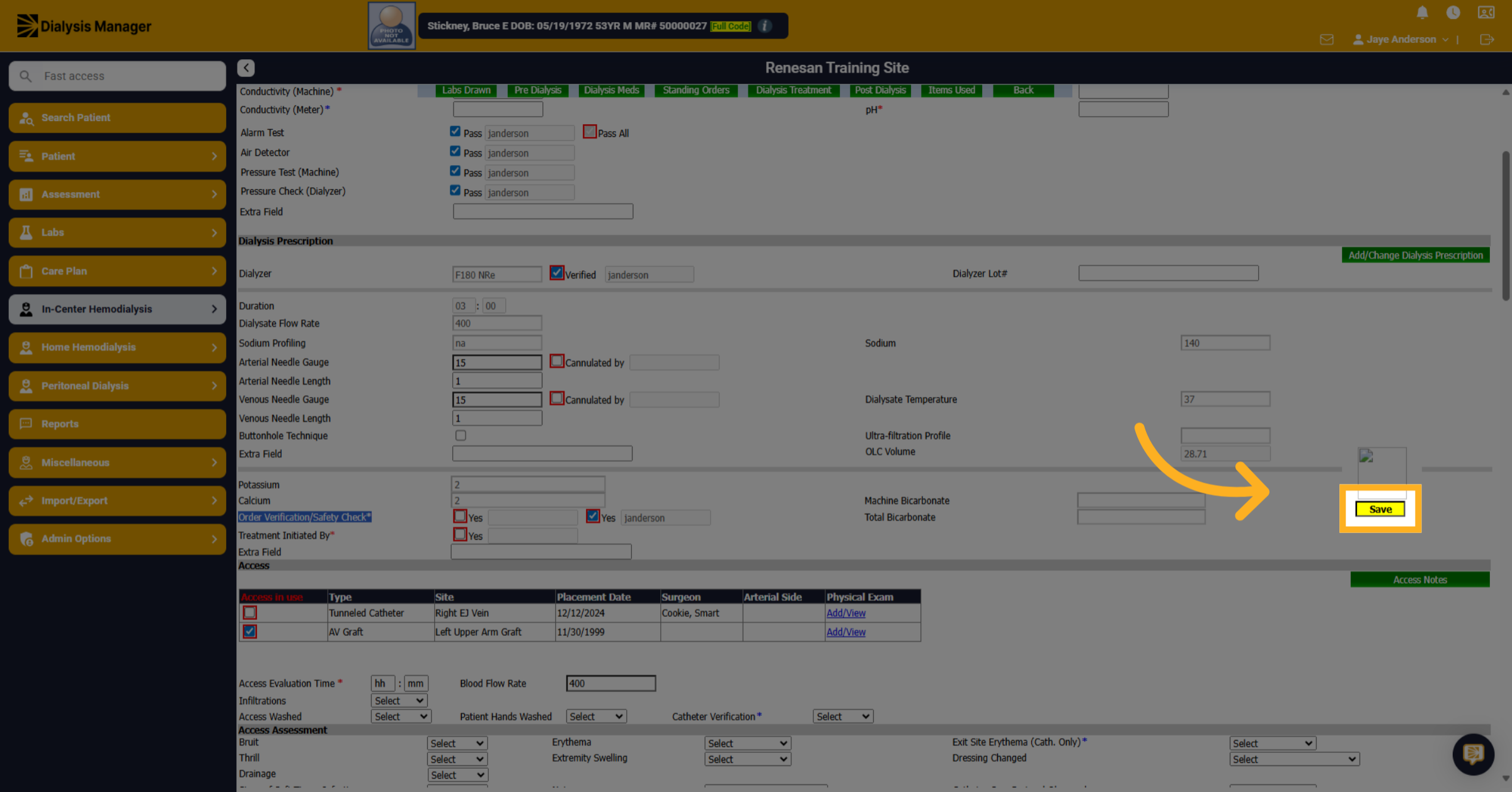
20. Click "Save"
Click "Save" to save the order verification information. Good habit to save often so you do not lose any work
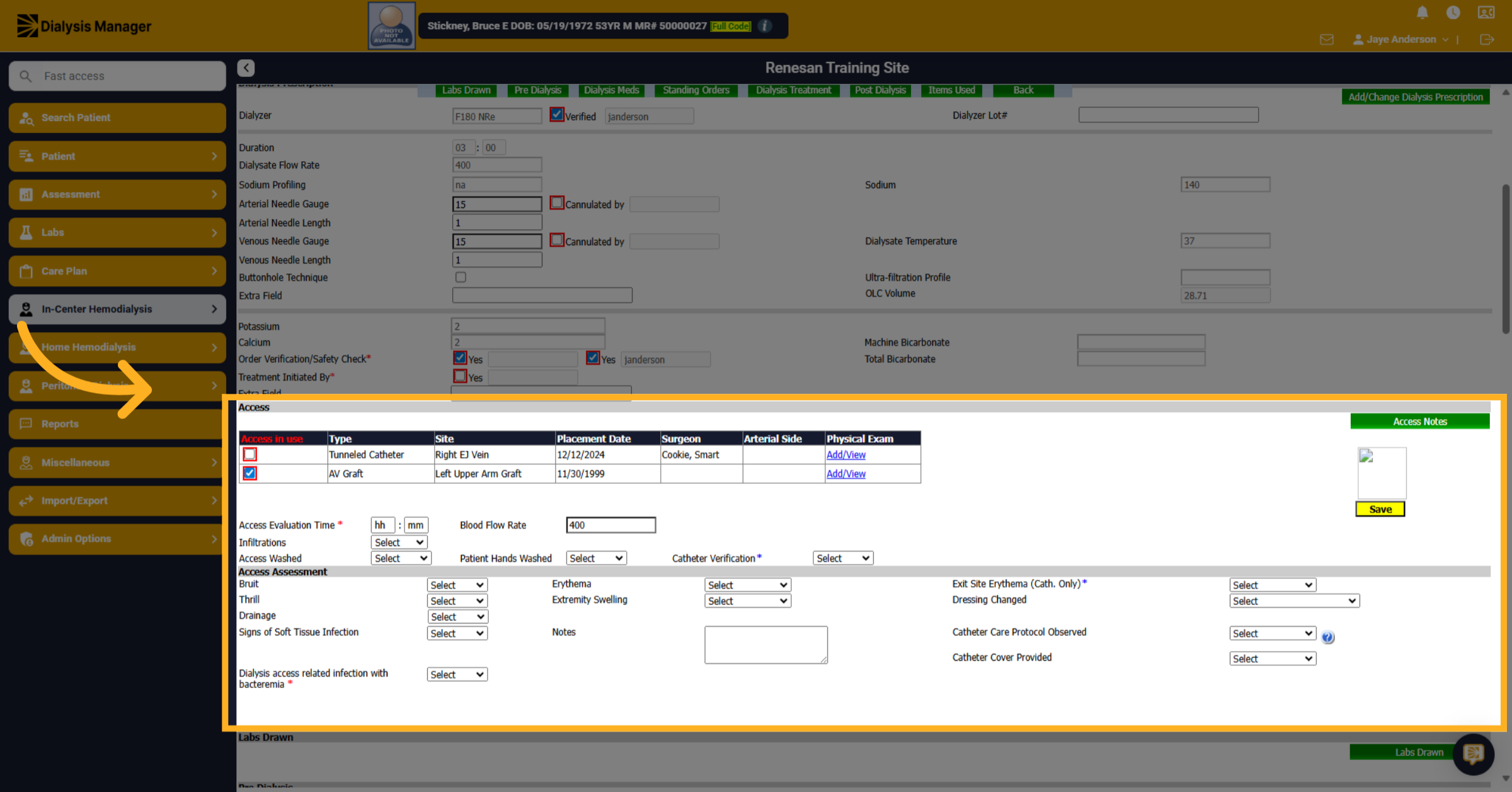
21. Click "Access"
Next section is our access section. Here you will document your access evaluation time and any other required information. If you have a catheter, the catheter section would be required.
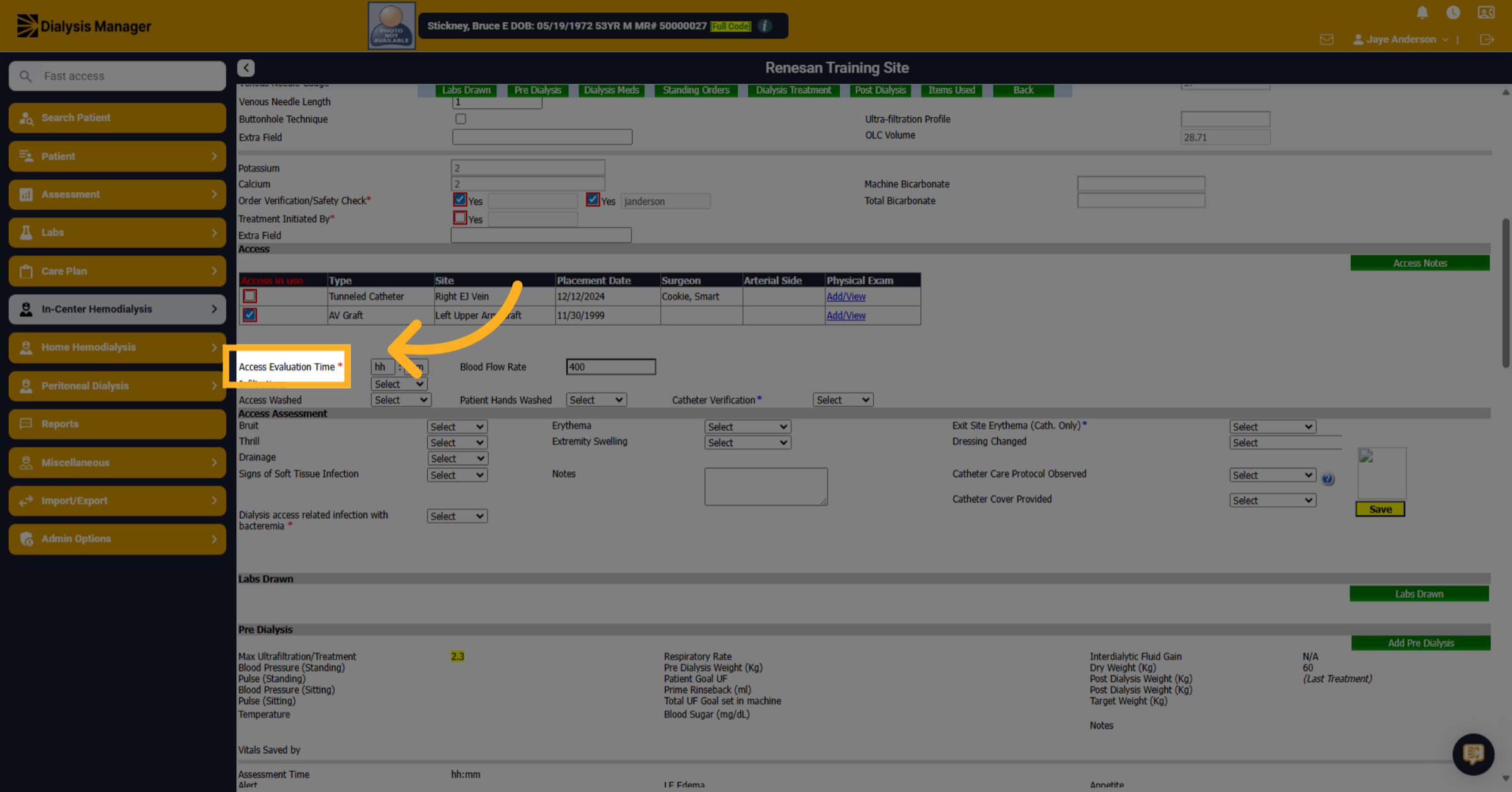
22. Click "Access Evaluation Time"
Click "Access Evaluation Time" to document evaluation time.
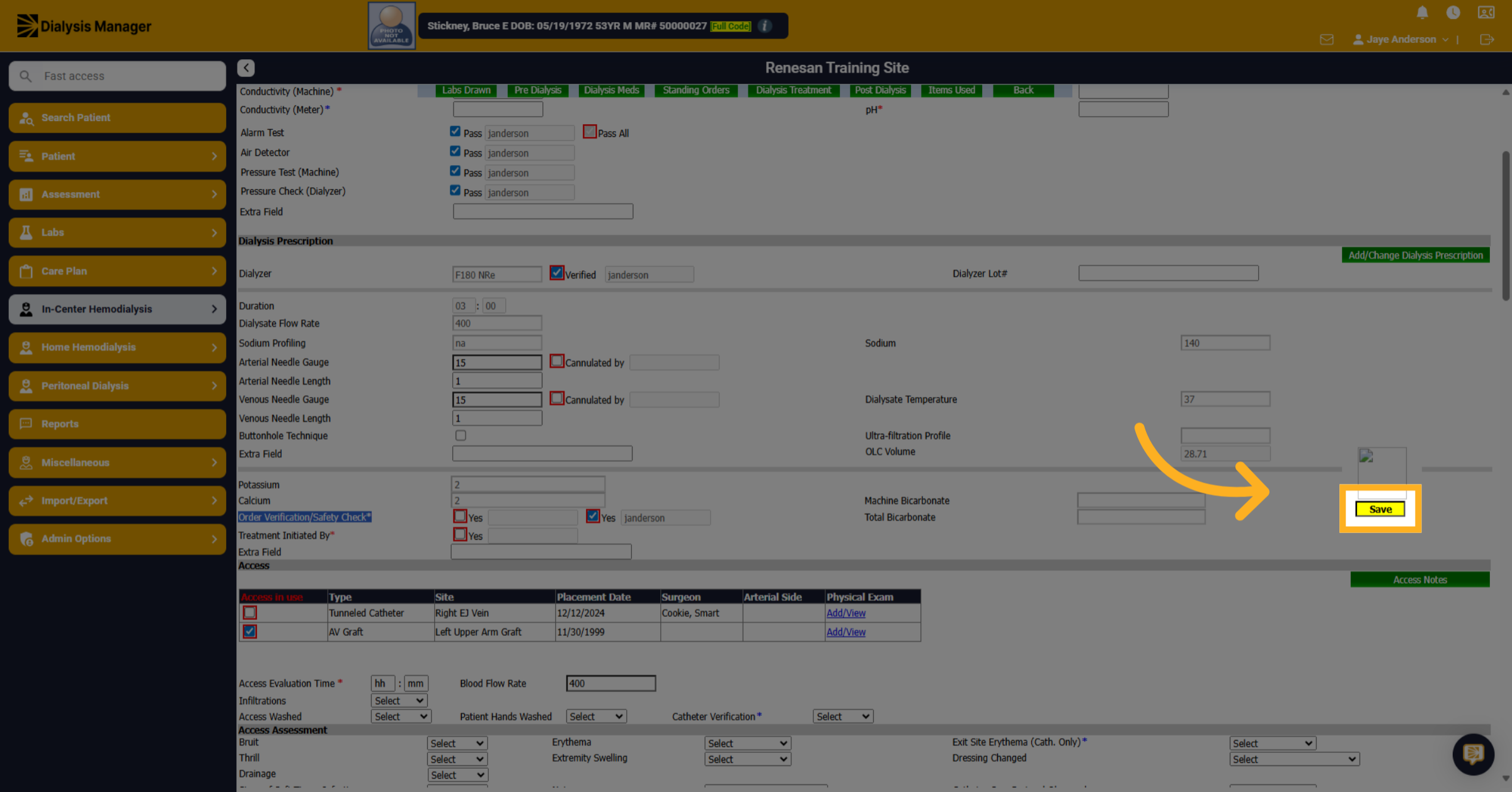
23. Click "Save"
Click "Save" to save the access evaluation information.
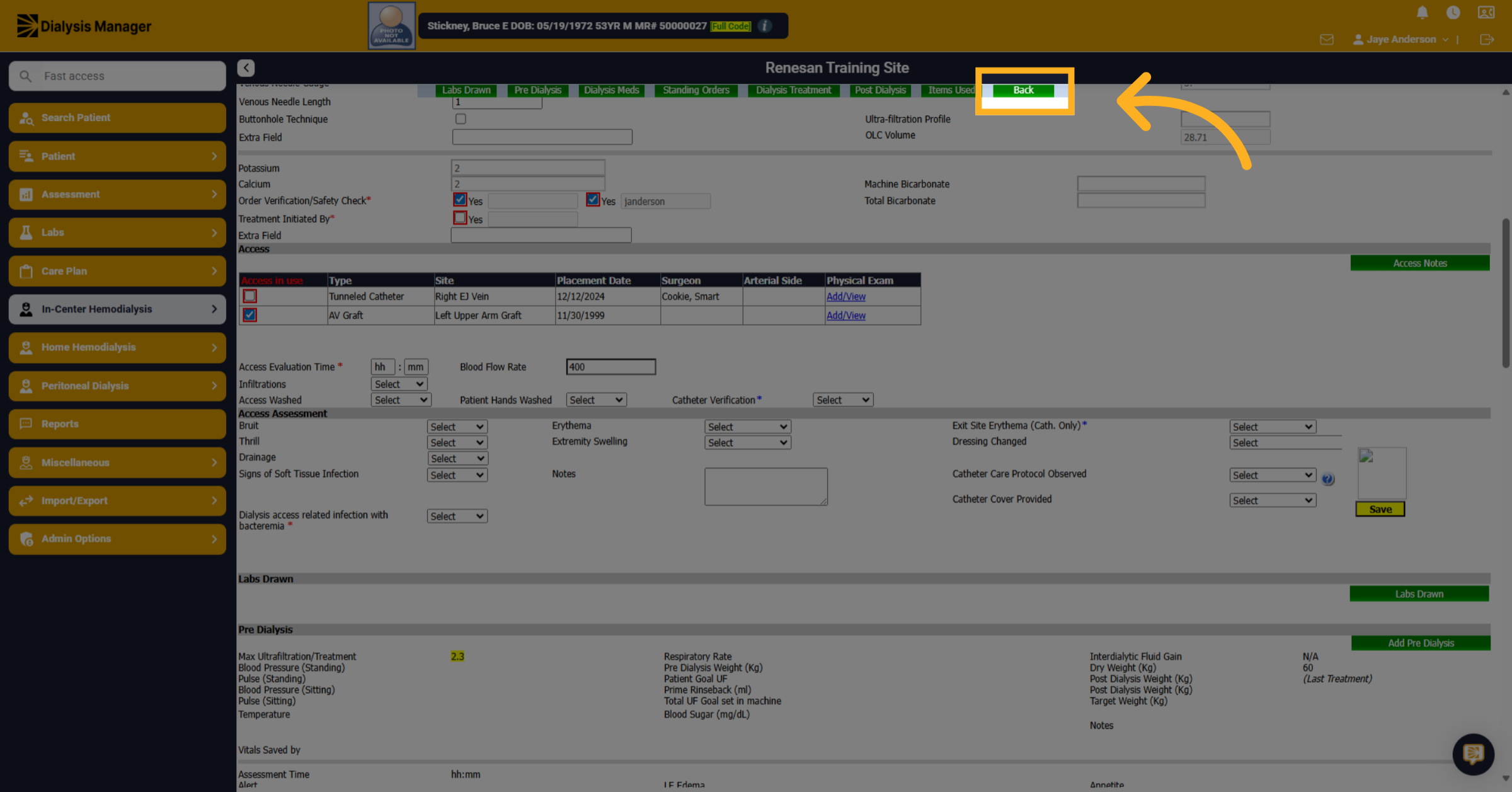
24. Click "Back"
Click "Back" to return to the "Treatments by Date" screen.