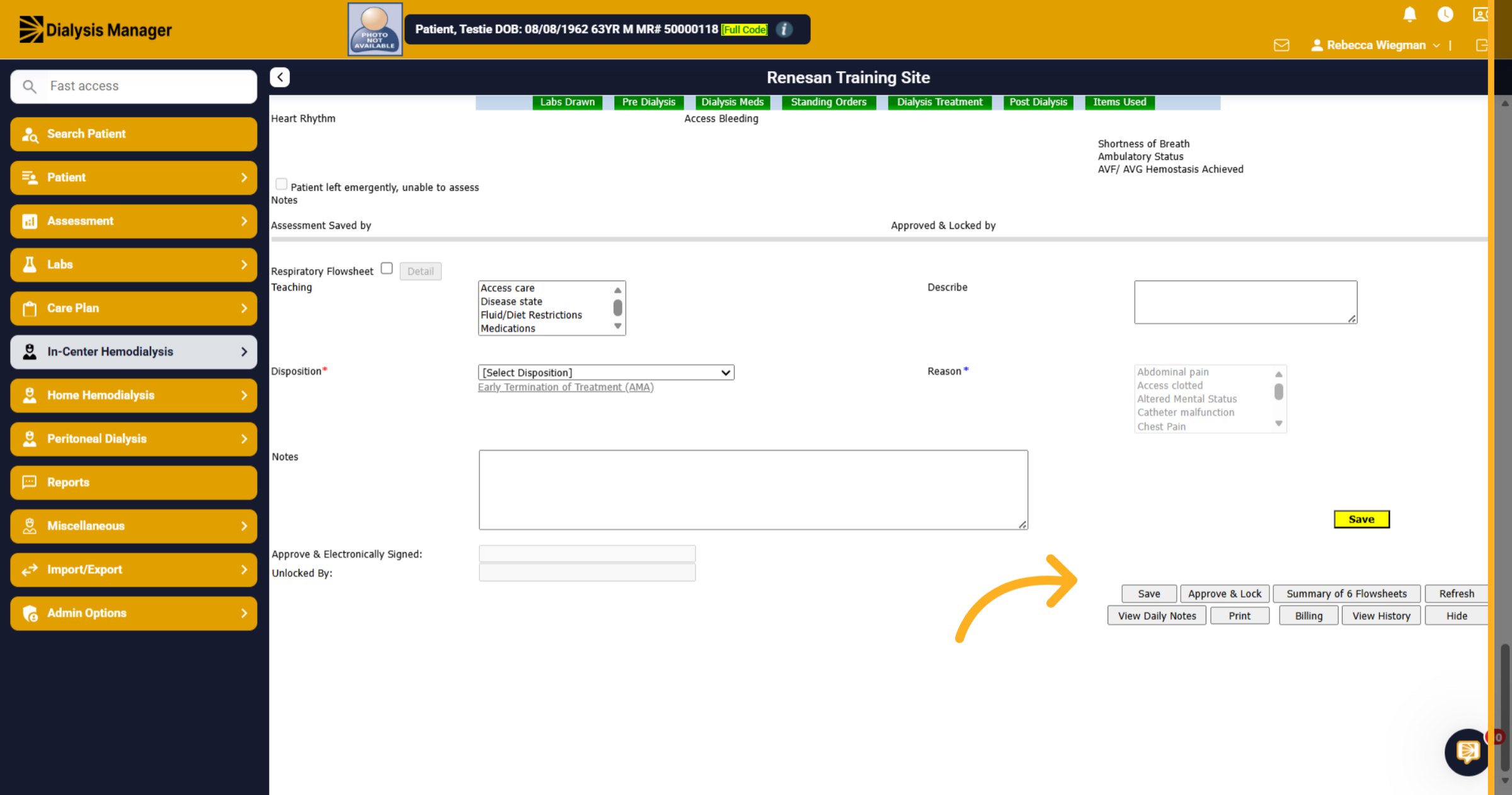
Create Backdated Flowsheets.
1. Backdating a Flowsheet
In this guide we will walk through the process of opening a backdated flowsheet. Please note that you will need a specific user role to complete this process. First, you'll need to select a patient.
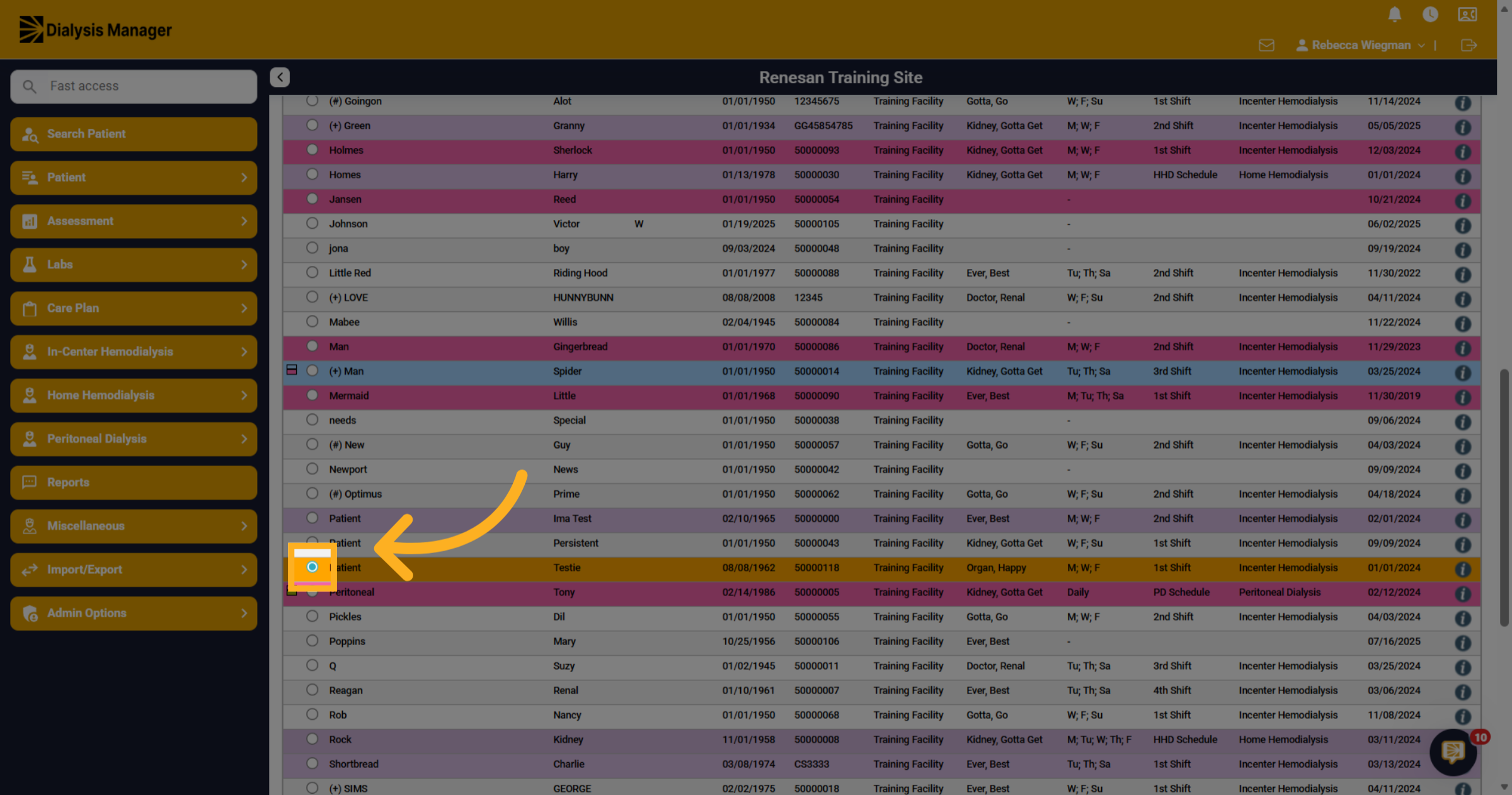
2. Open Admin Options
Click Admin Options to access administrative settings.
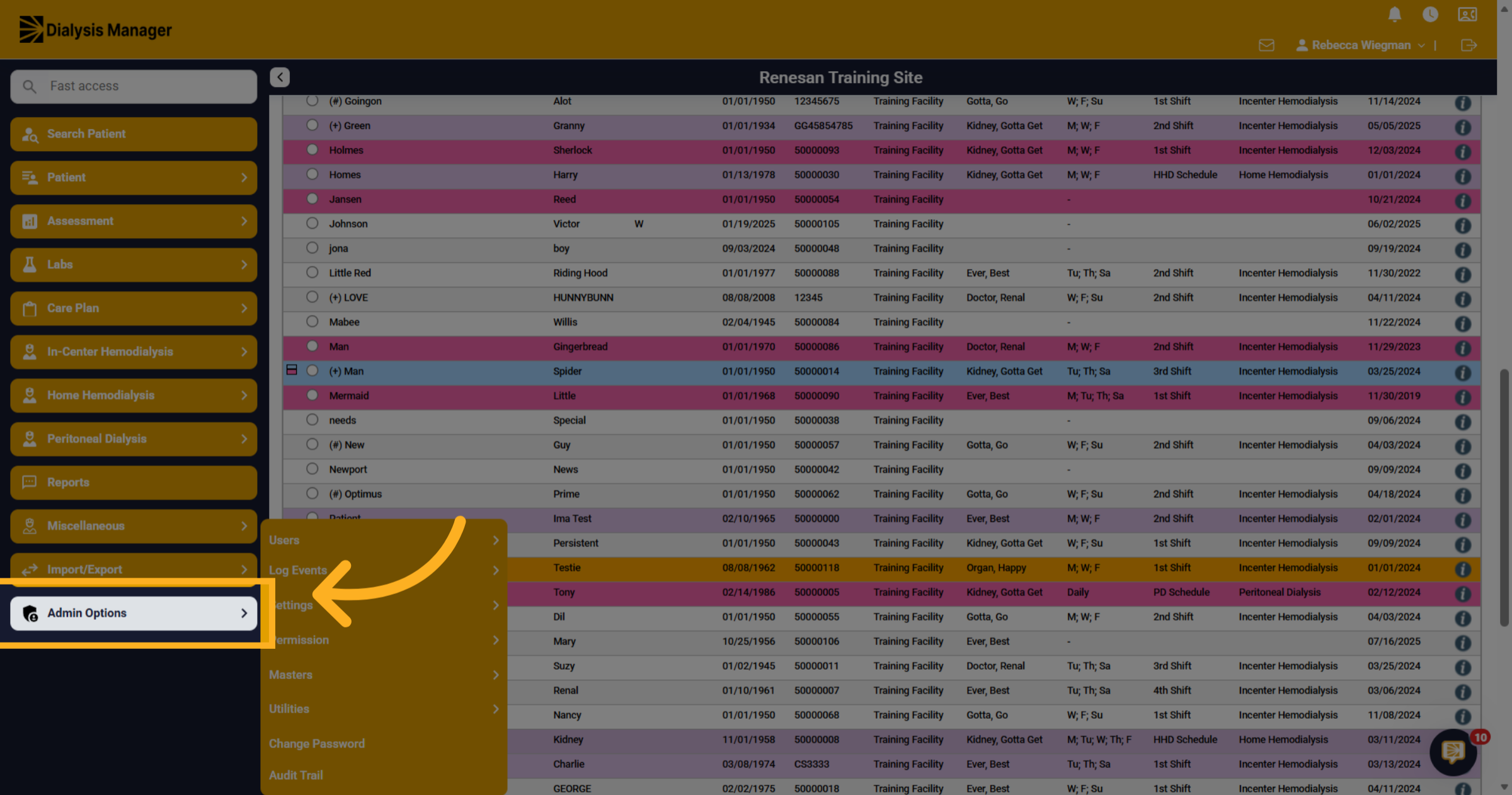
3. Access Utilities Menu
Next Utilities
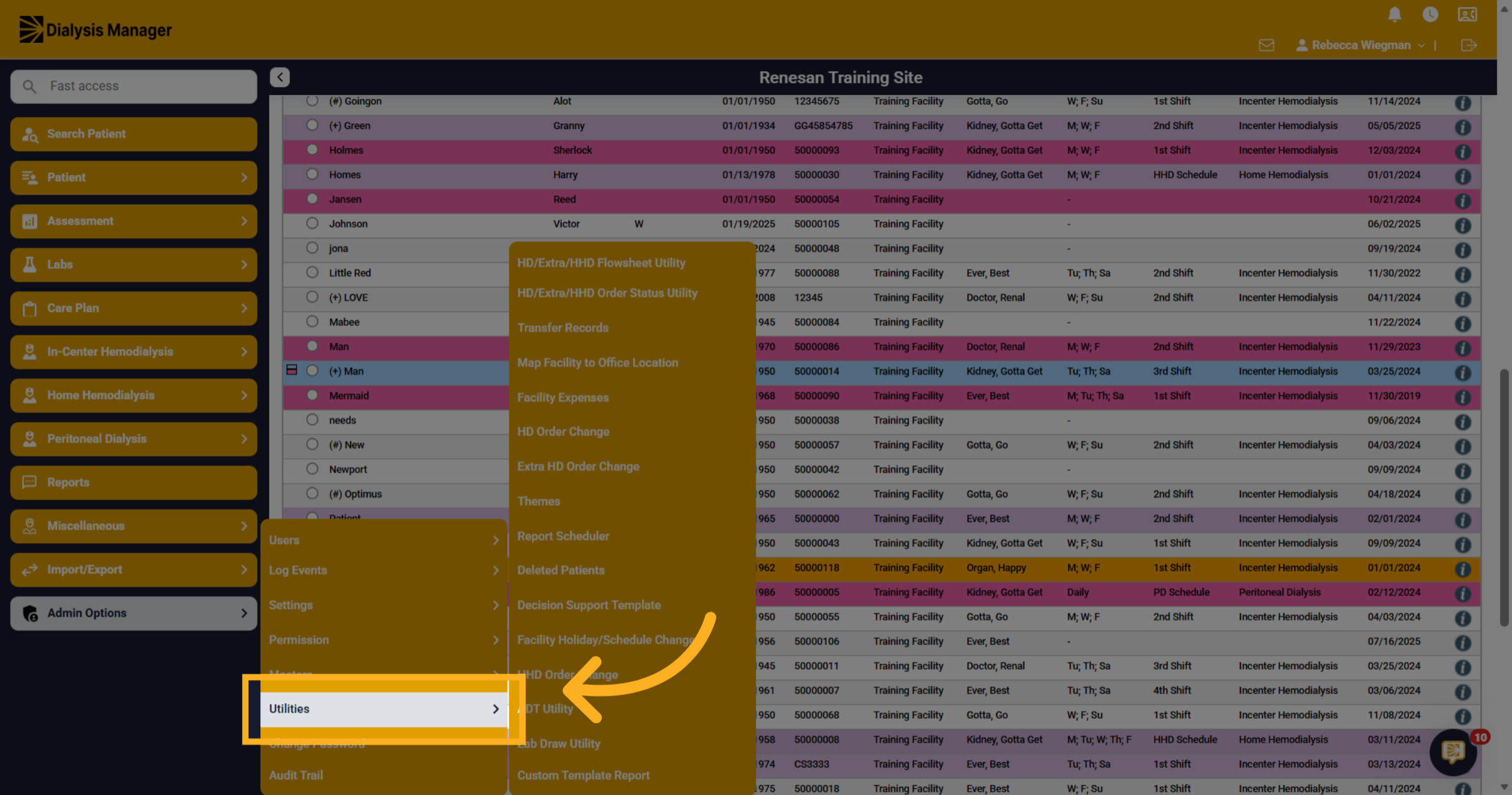
4. Select Flowsheet Utility
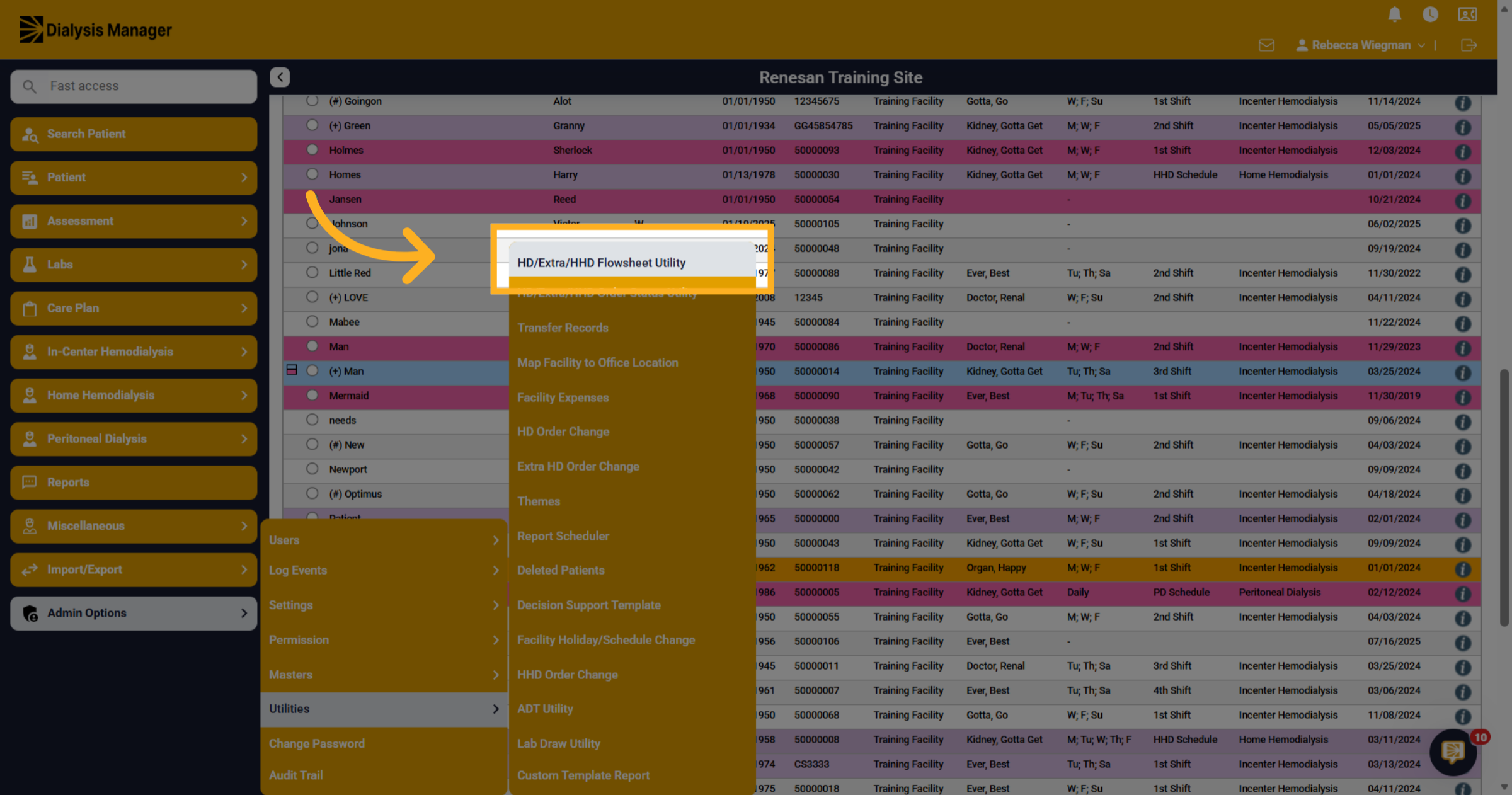
Then HD/Extra/HHD Flowsheet Utility.
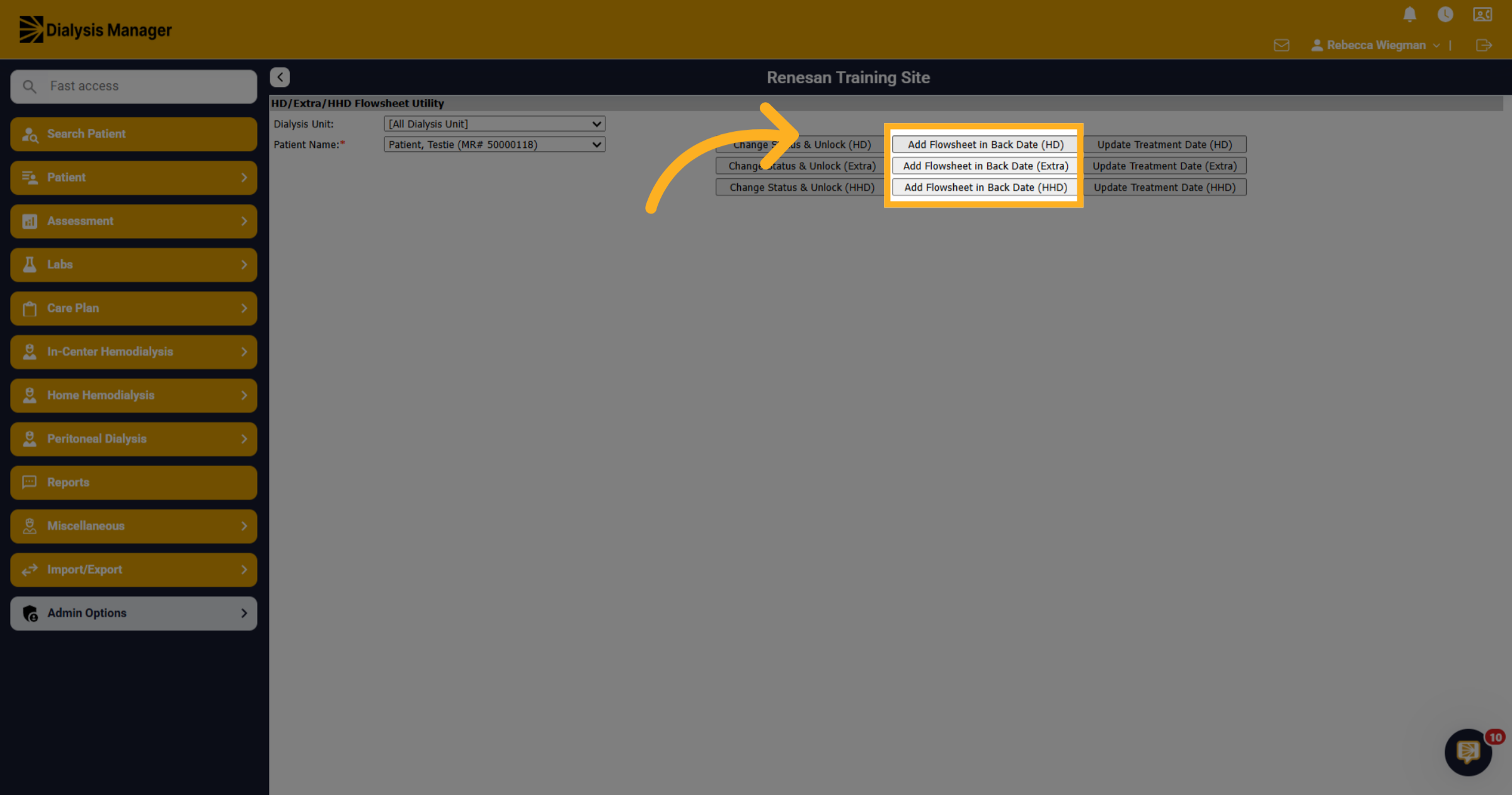
5. Choose Add Backdated Flowsheet
First, you'll want to select or verify the Patient Name. Click Add Flowsheet in Back Date for either HD, Extra or HHD Treatment to start creating a backdated flowsheet.
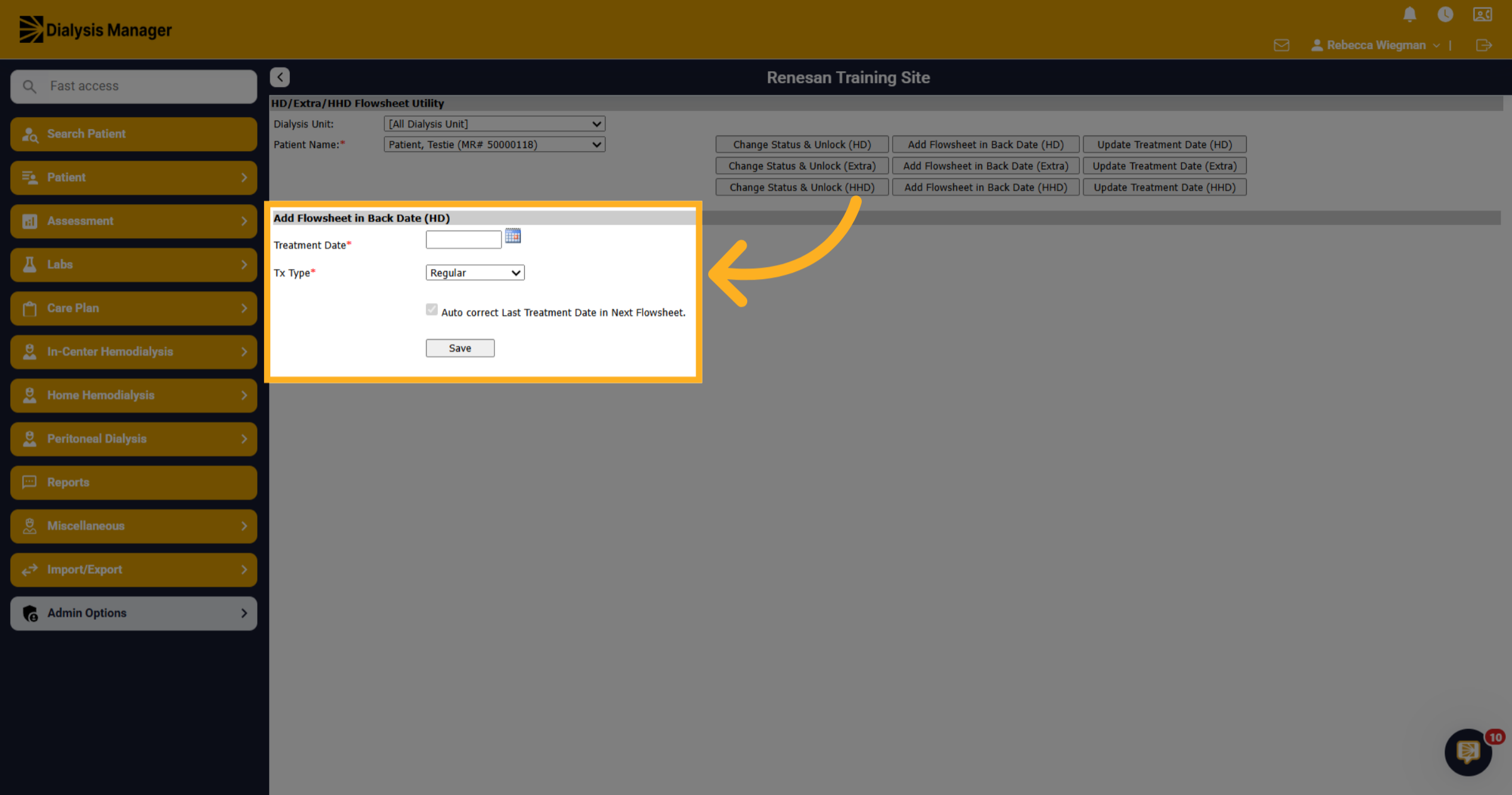
6. Add Flowsheet in Back Date
Enter the treatment date you wish to add and select the Treatment type of Regular or Downtime and click Save.
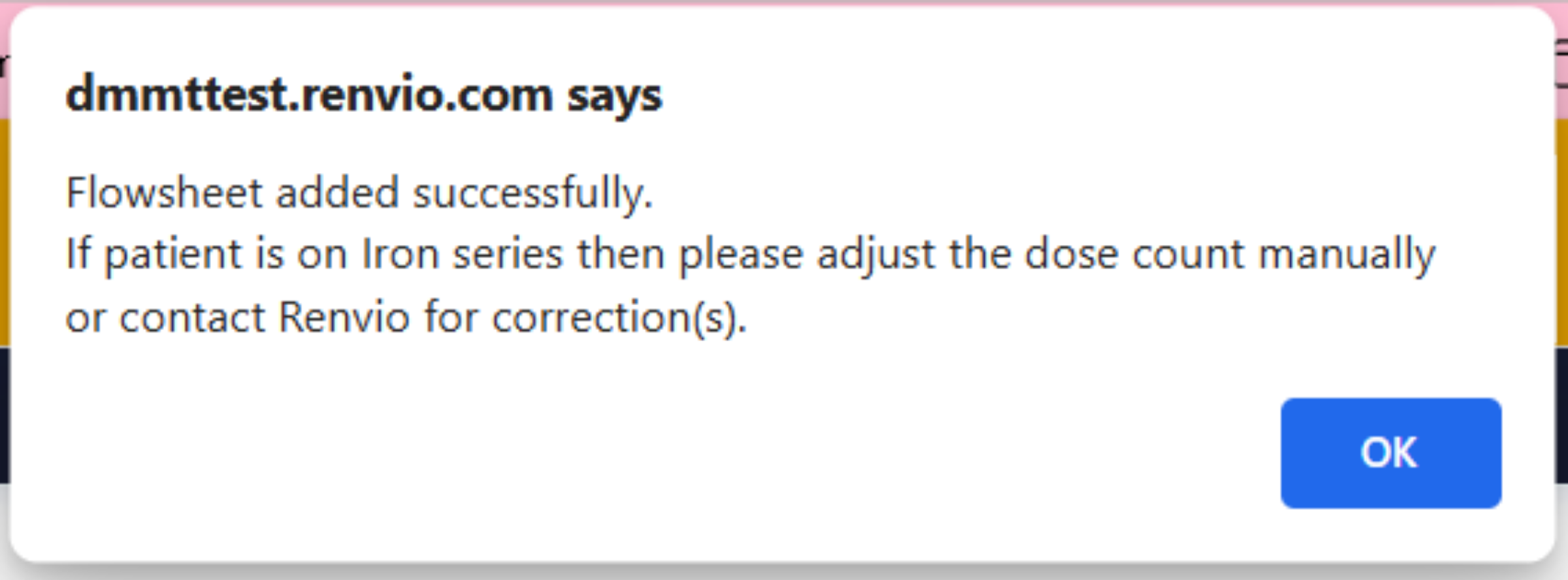
7. Pop Up
After saving you will see a pop up stating that the flowsheet has been added successfully and to adjust the dose count manually for Iron Series. Click OK
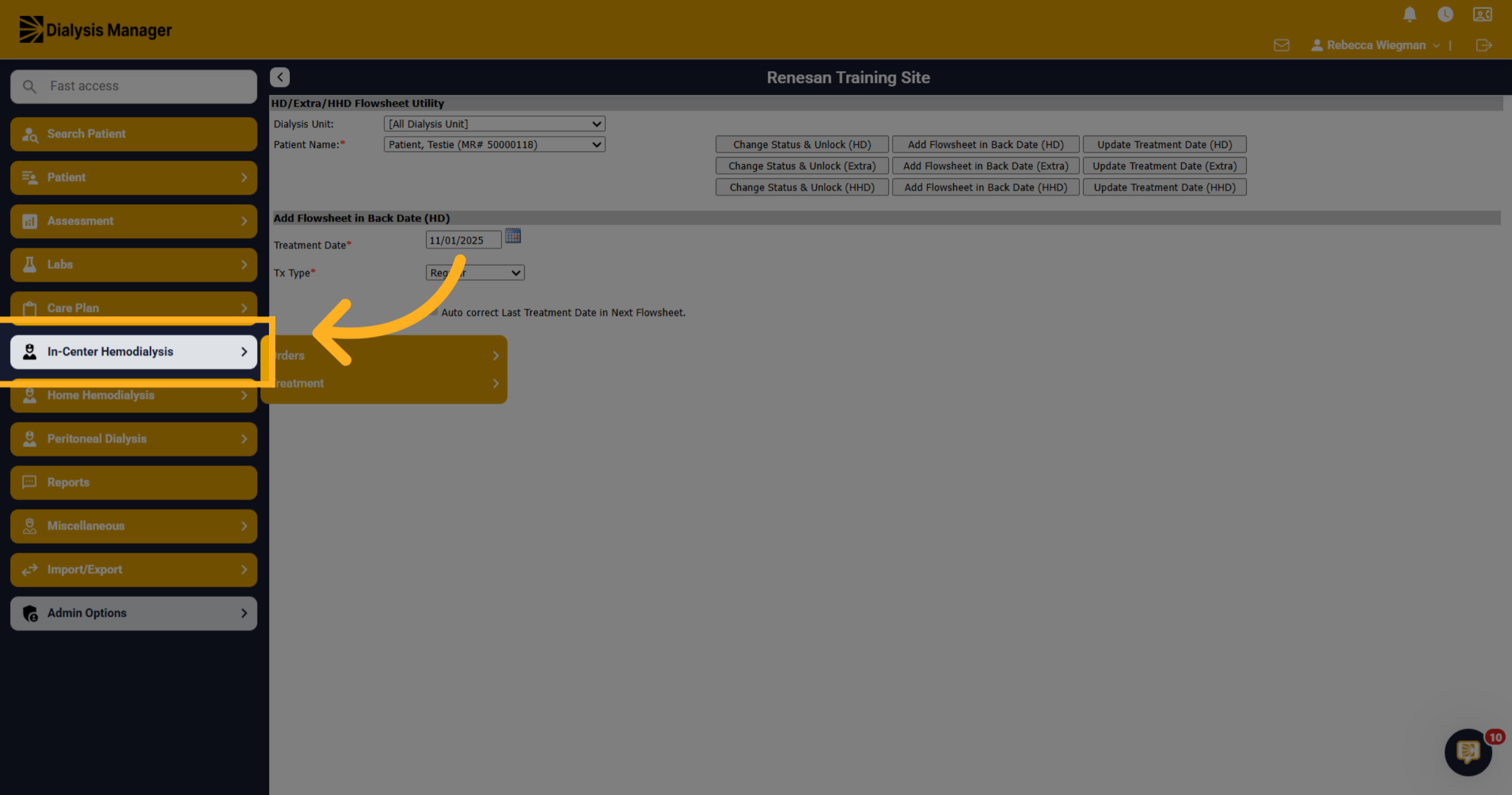
8. In-Center Hemodialysis
Now let's go into In-Center Hemodialysis to view the open flowsheet just created.
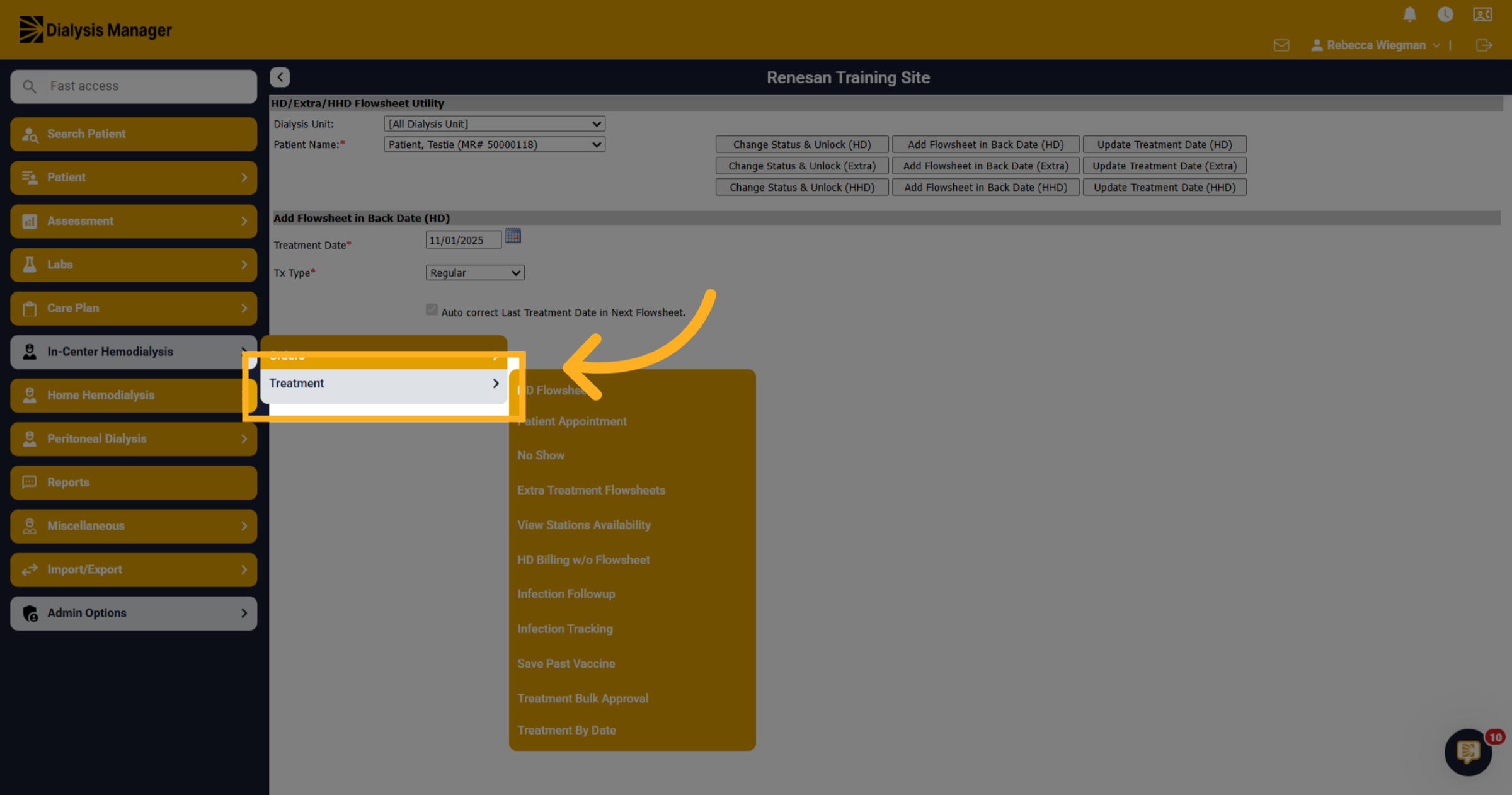
9. Open Treatment Section
Open Treatment
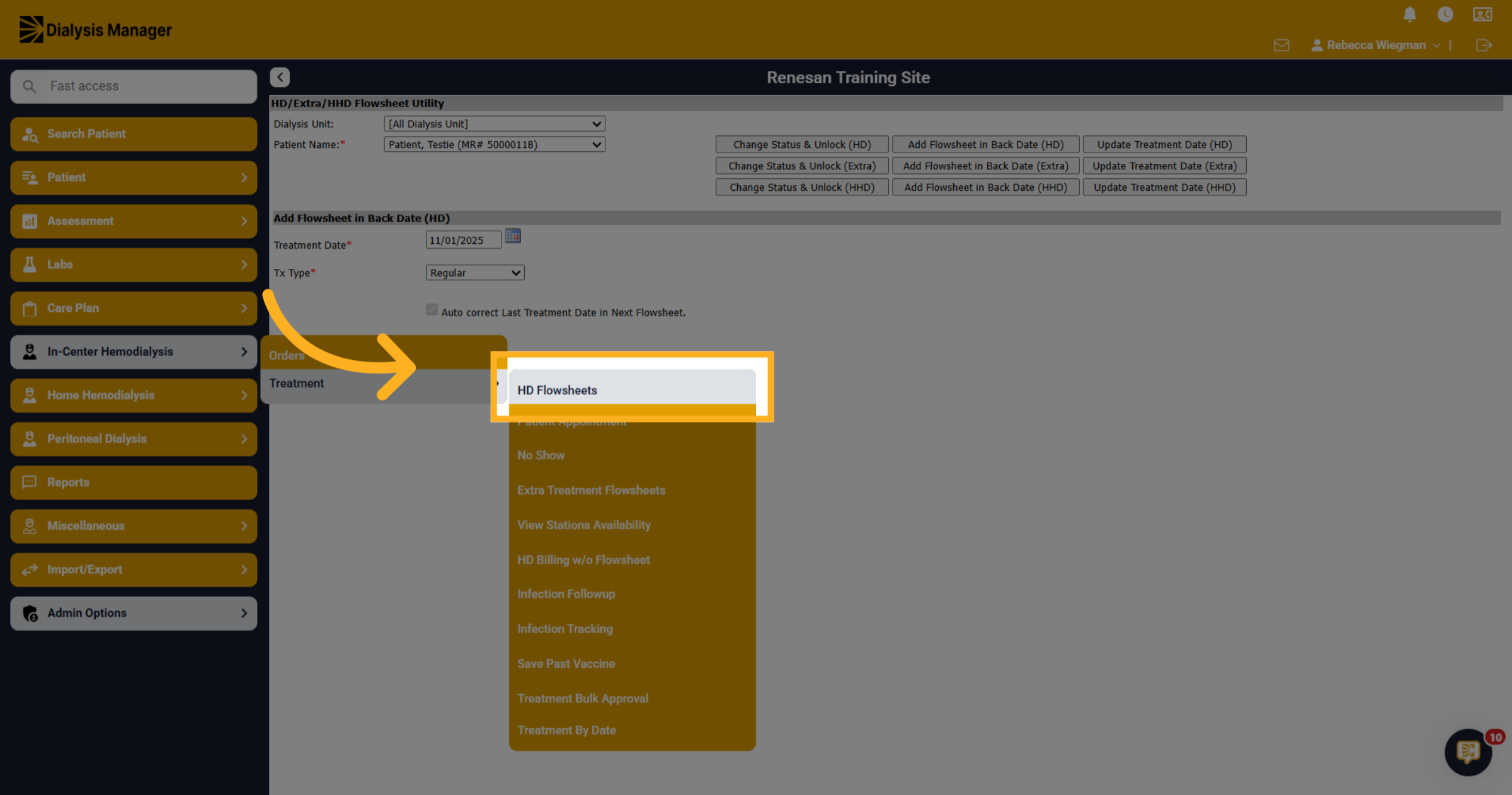
10. Access HD Flowsheets
Then HD Flowsheets
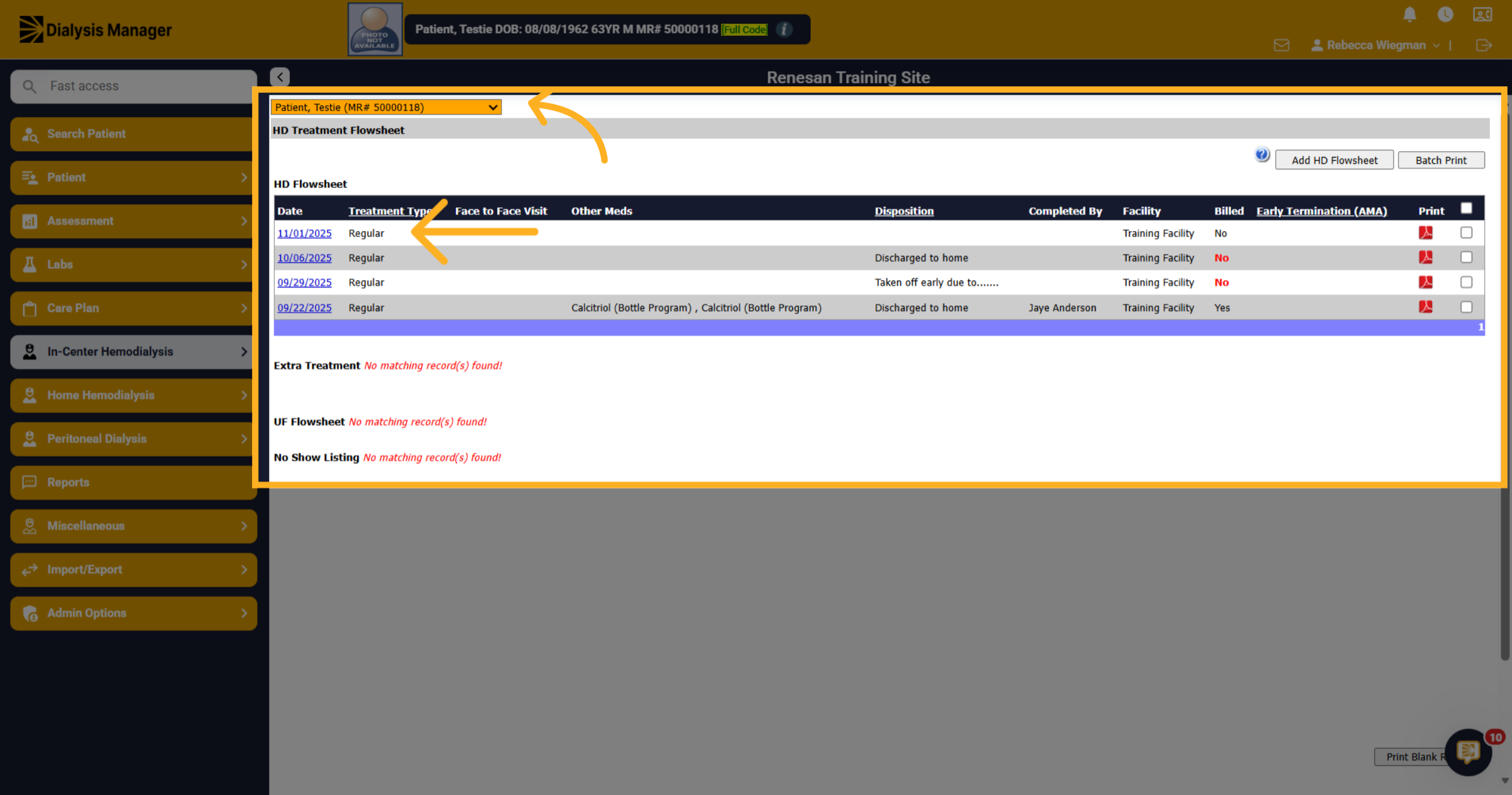
11. Verify Patient Name
Verify the patient's name and select the backdated flowsheet just entered inside HD/Extra/HHD Flowsheet Utility.
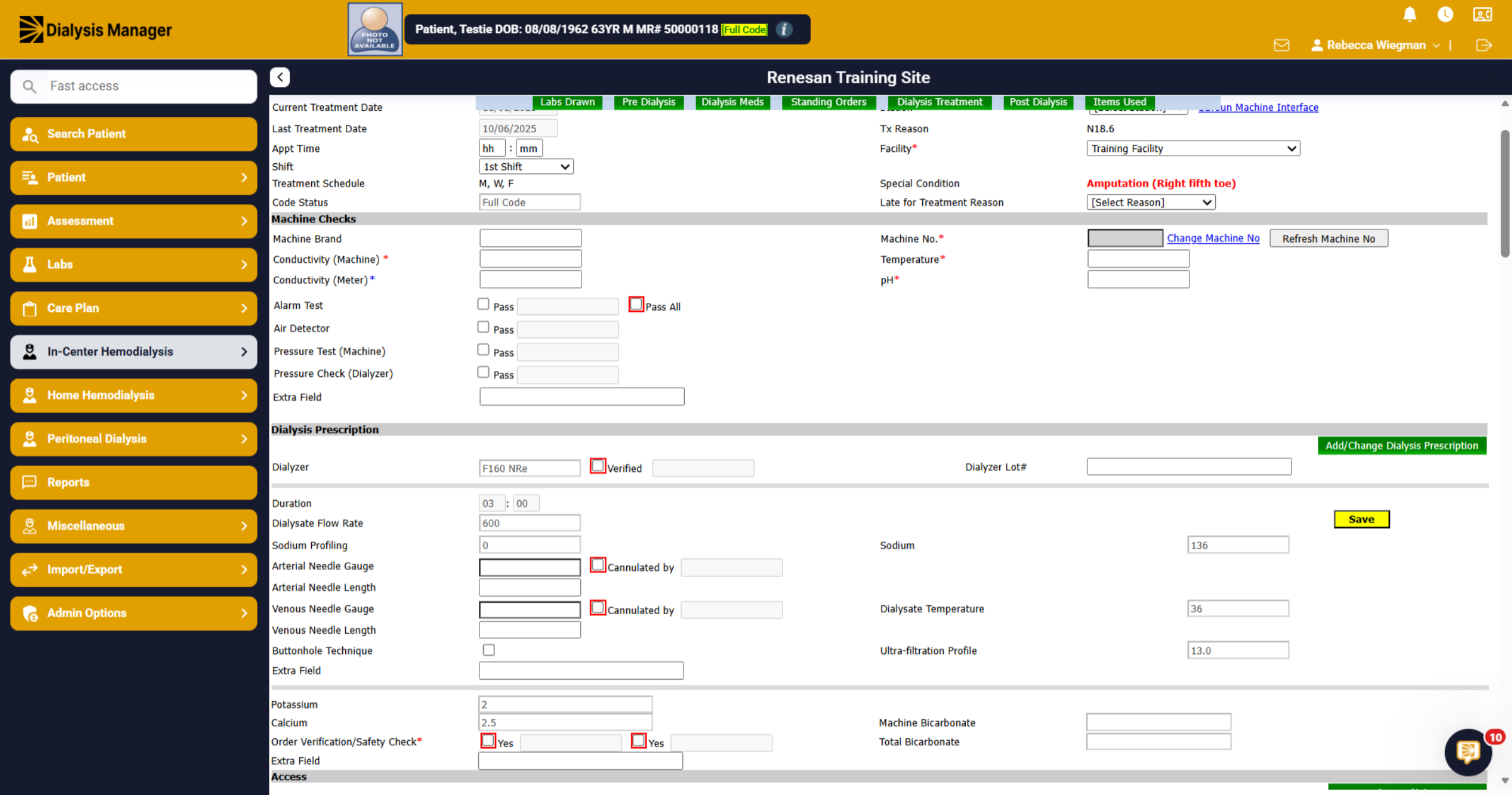
12. Complete the flowsheet
Please follow the usual procedure to complete the flowsheet. Or Click Learn More on the top right corner to see our video "Charting a Hemodialysis Treatment Flowsheet - all tabs" for further information. Learn more
13. Dialysis Treatment tab
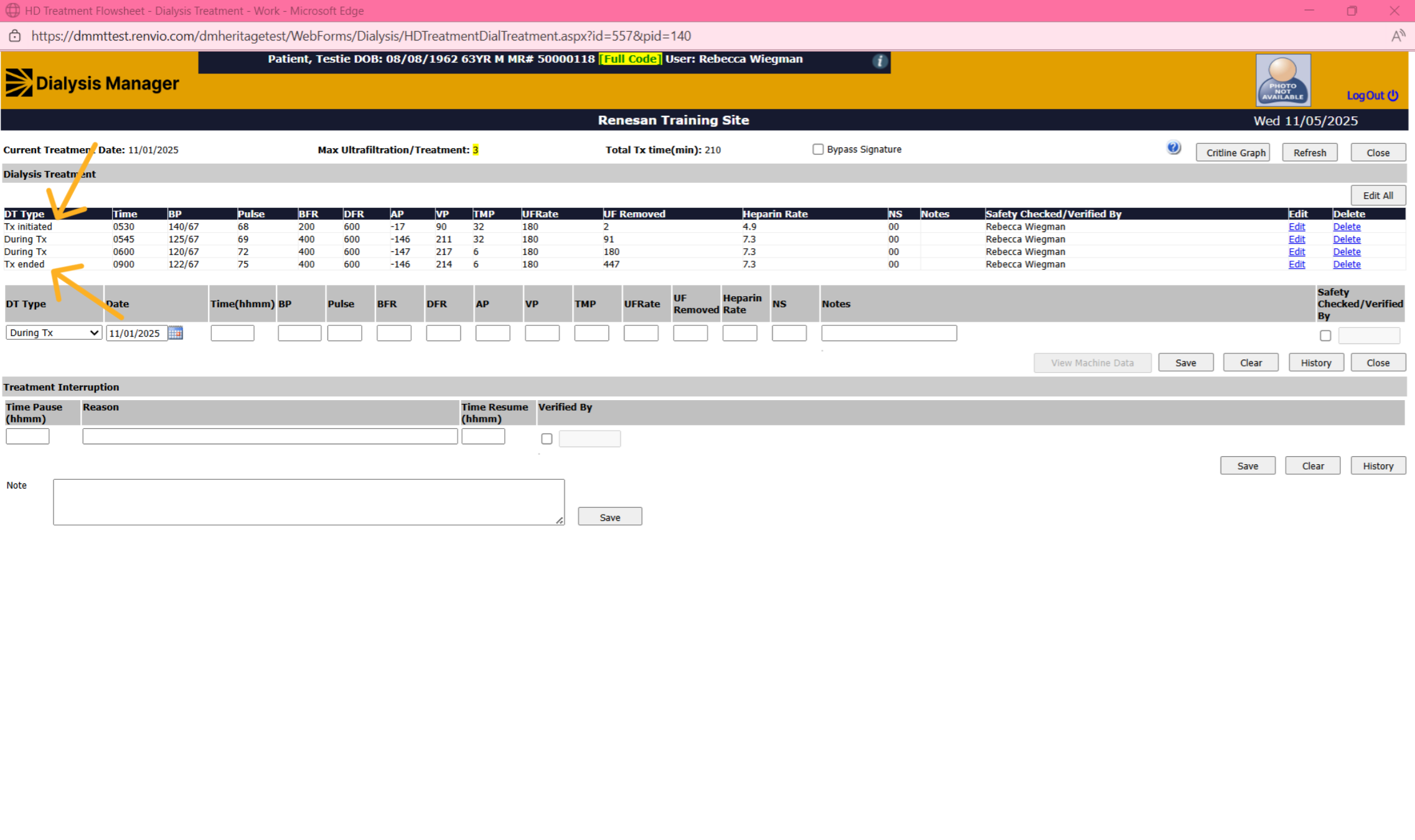
Reminder, when recording the patient's vitals, ensure the first entry is labeled "Treatment Initiated" and the final entry is labeled "Treatment Ended."
14. Finalize Flowsheet
Ensure you finalize your flowsheet before saving! You also need to approve and lock it. Learn more