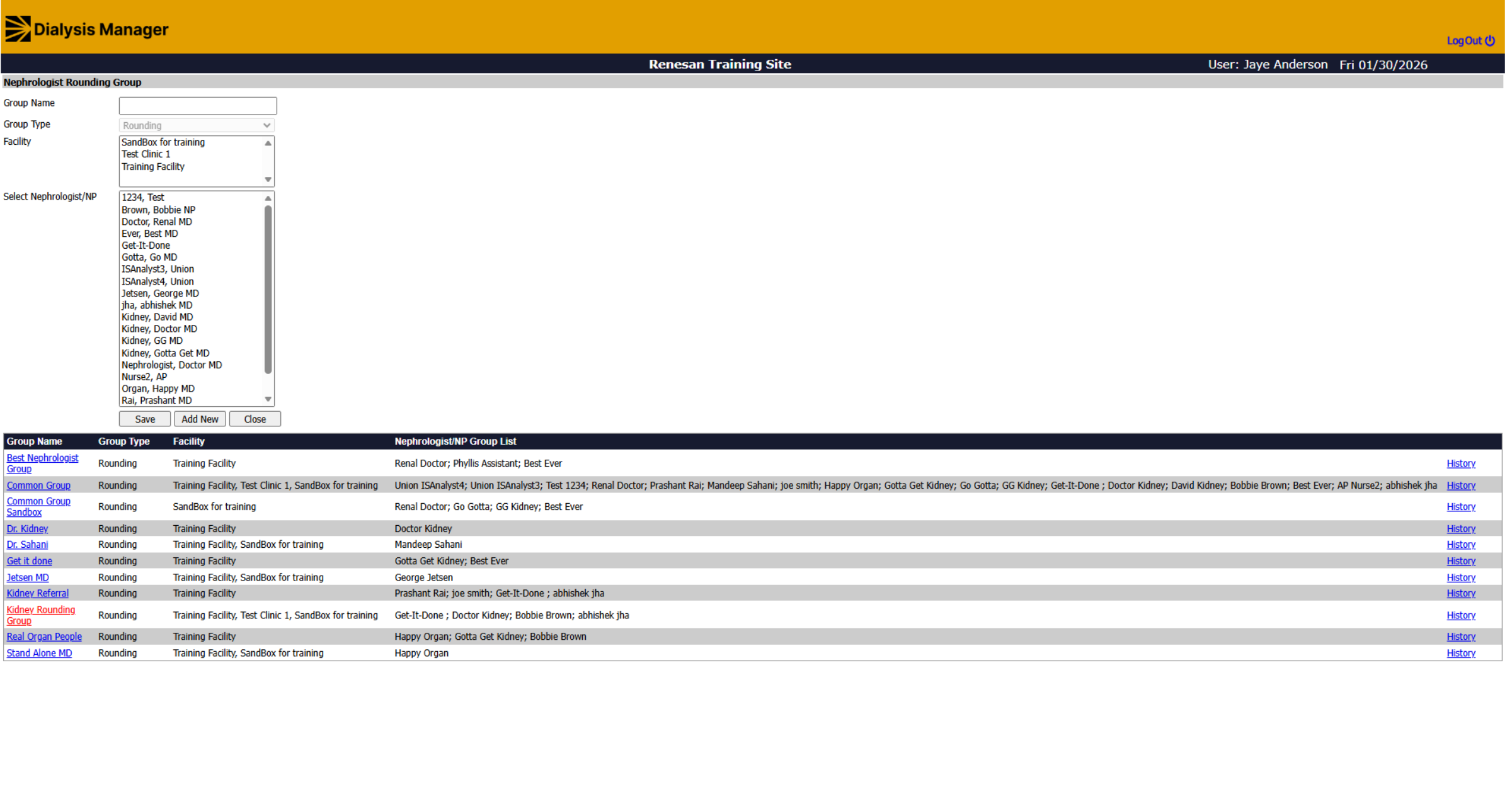
Create And Edit Physician Rounding Groups In Dialysis Manager.
1. Select Nephrologist Rounding Group
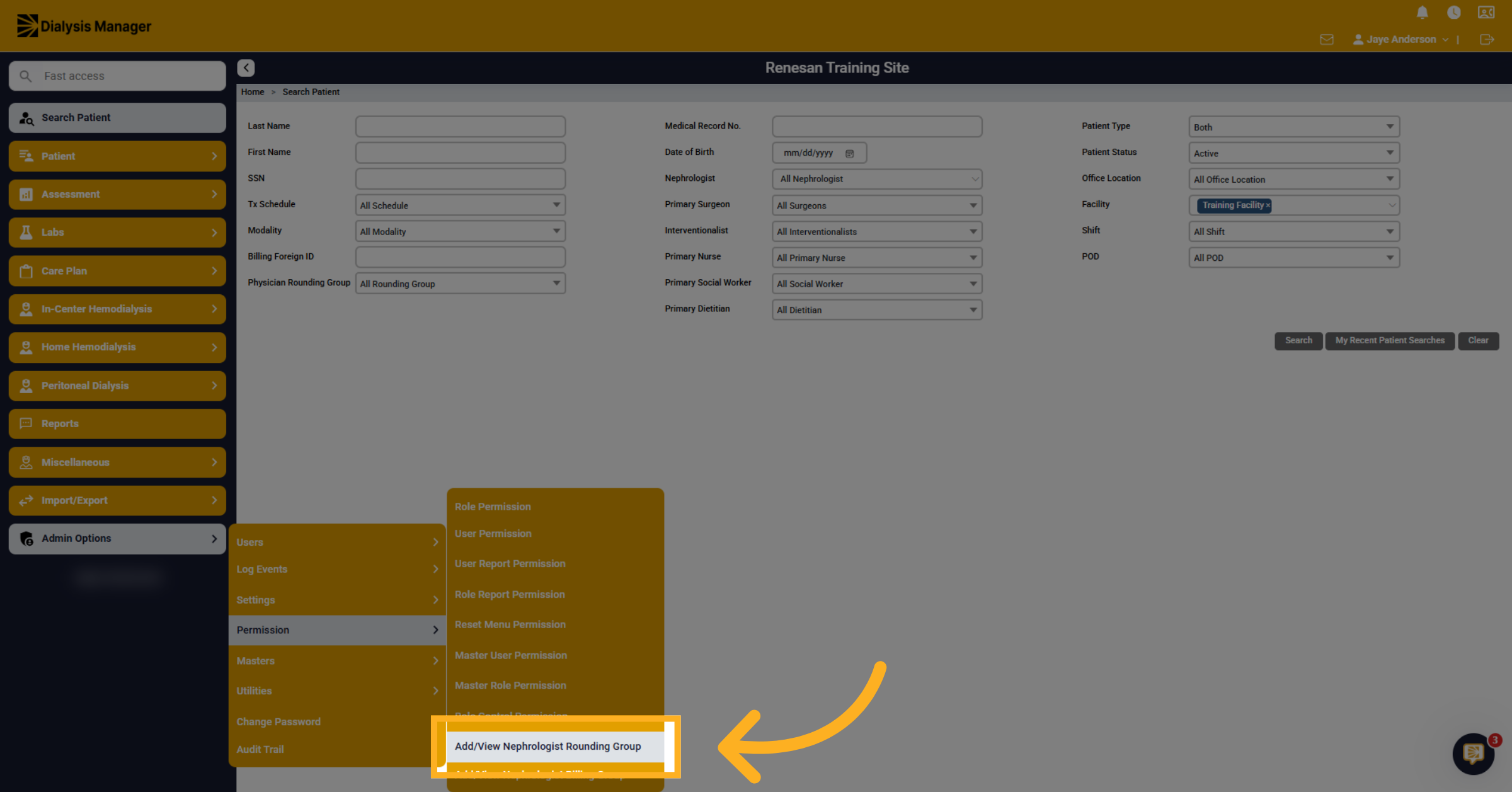
This guide will walk you through adding a Rounding Group. Begin by clicking the Admin Options, click on the Permission, and Choose Add/View Nephrologist Rounding Group to manage existing groups or create new ones within the system.
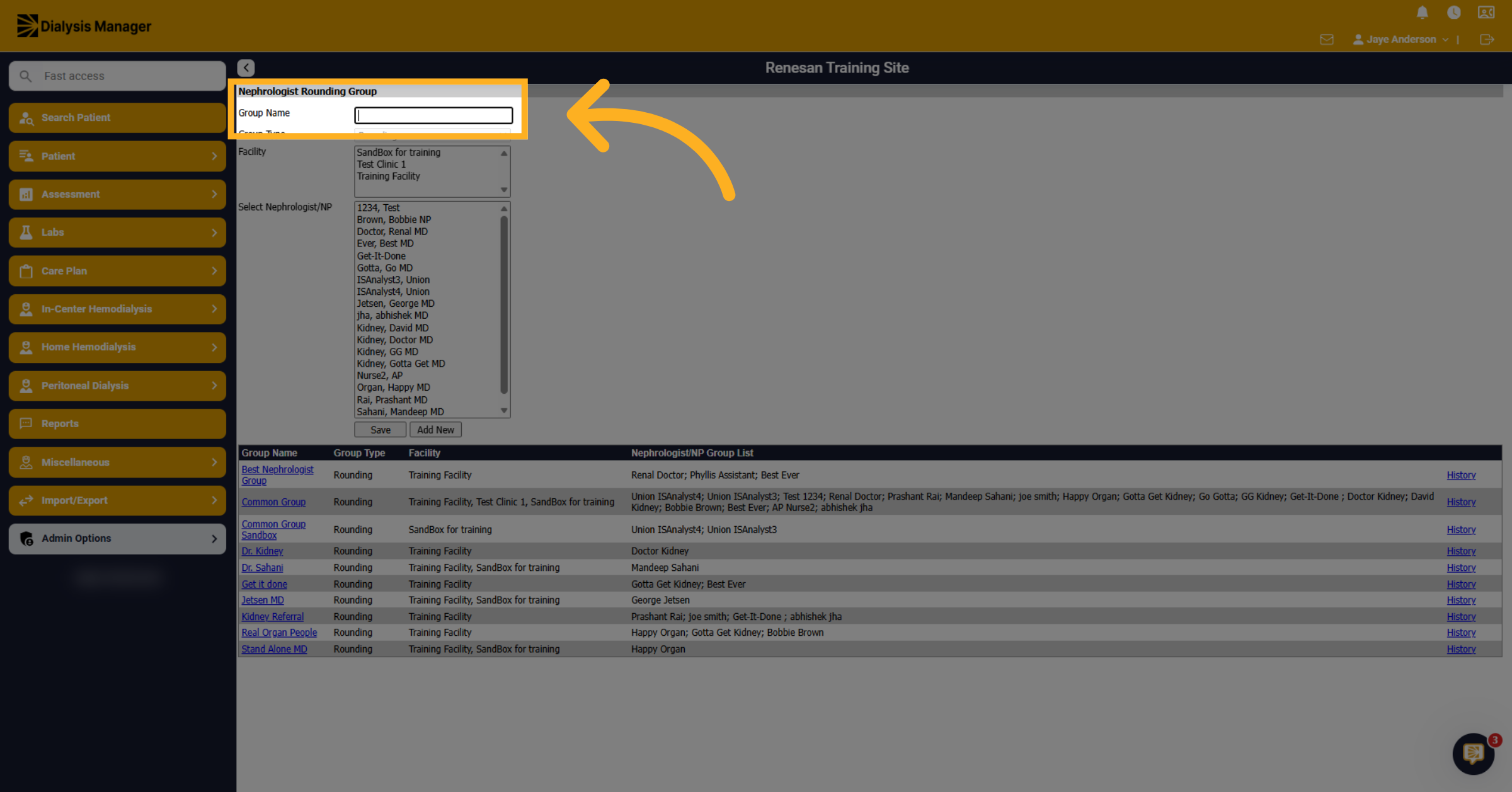
2. Initiate New Group Creation
Click the group name area to start creating a new physician rounding group in the Dialysis Manager application.
3. Enter Group Details
Enter the group name and select the facility. Use the control key to select multiple facilities if needed.
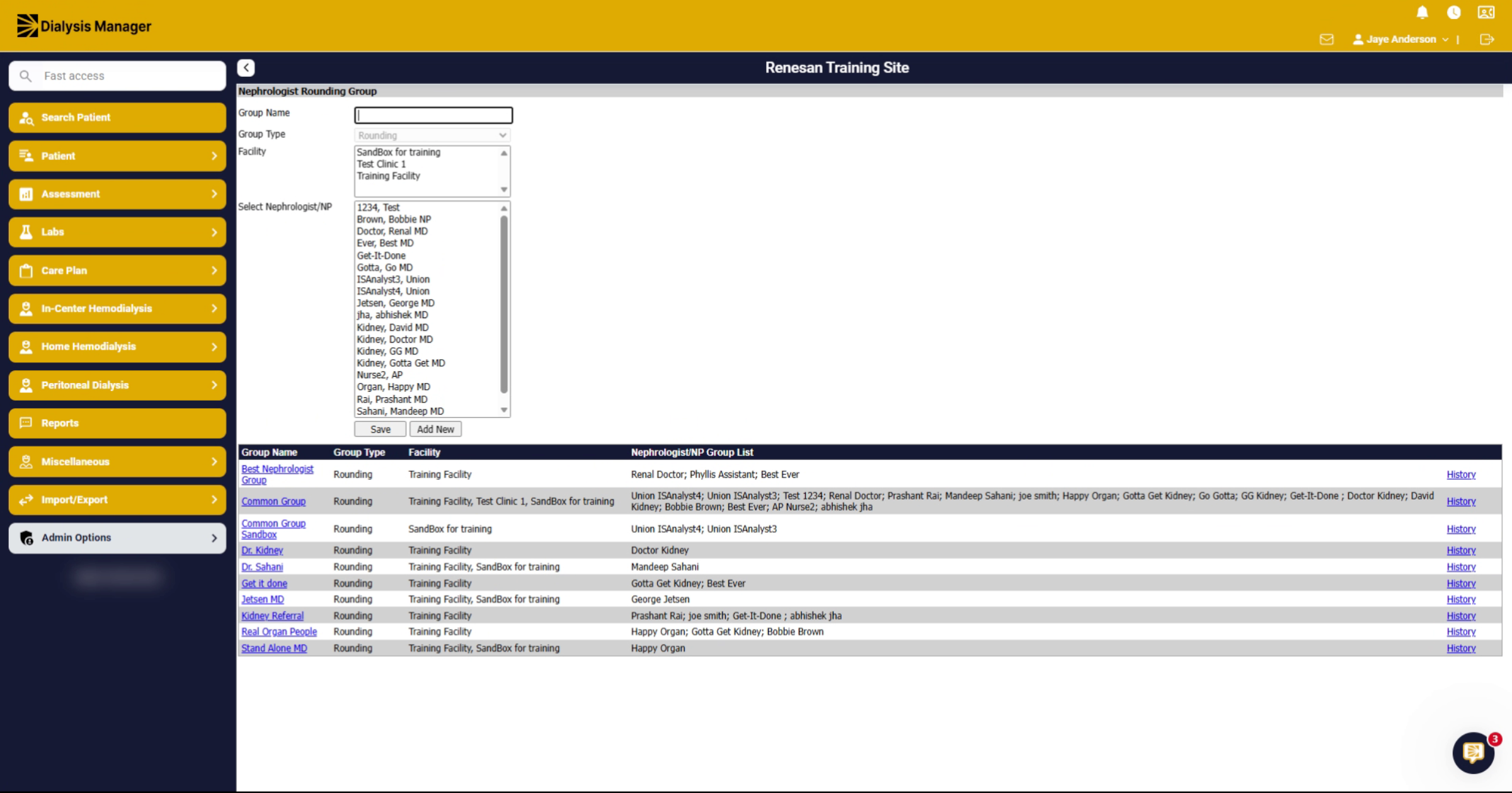
4. Select Nephrologist Member
Select a nephrologist to include in the rounding group from the available list of providers.
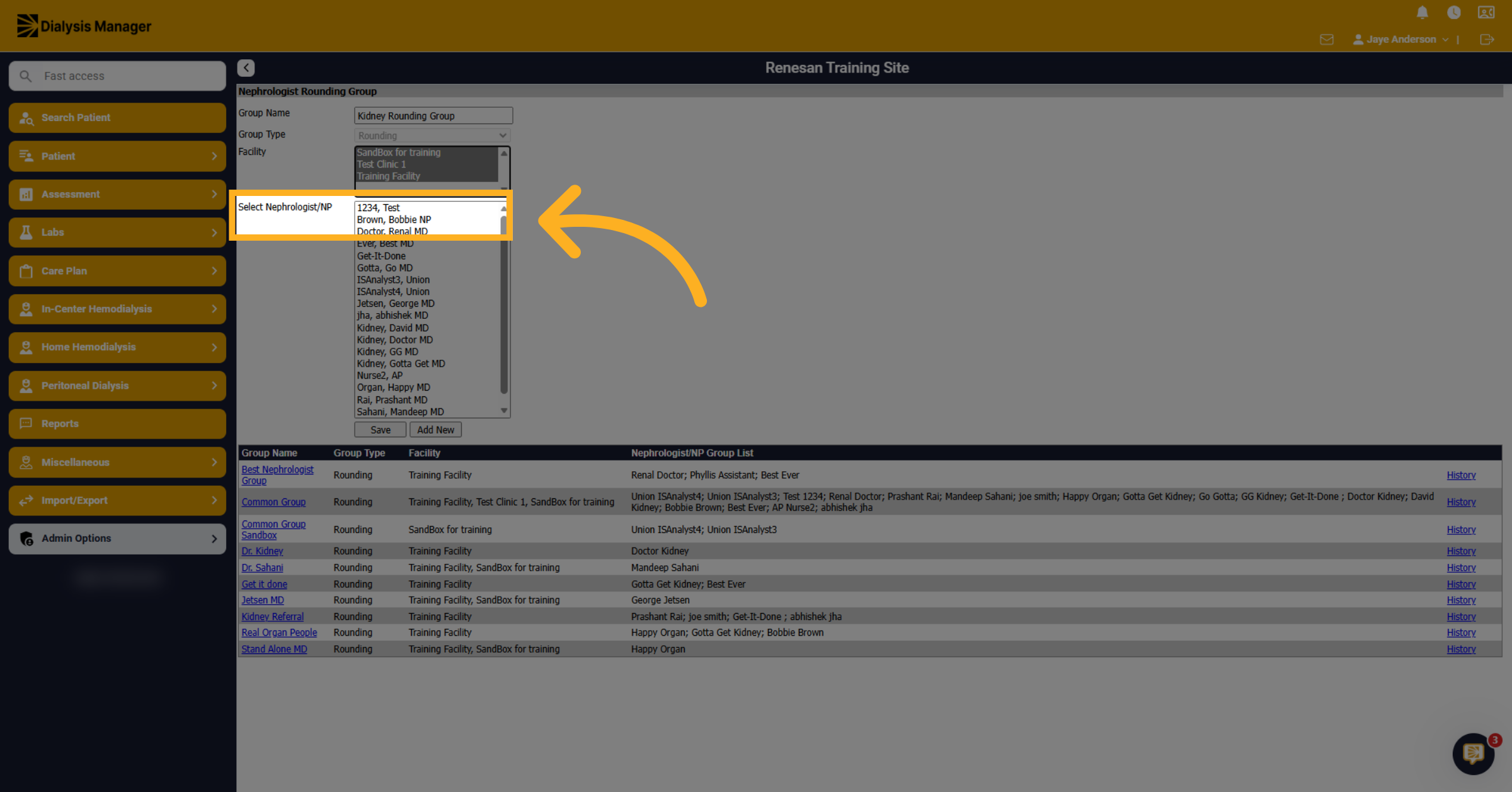
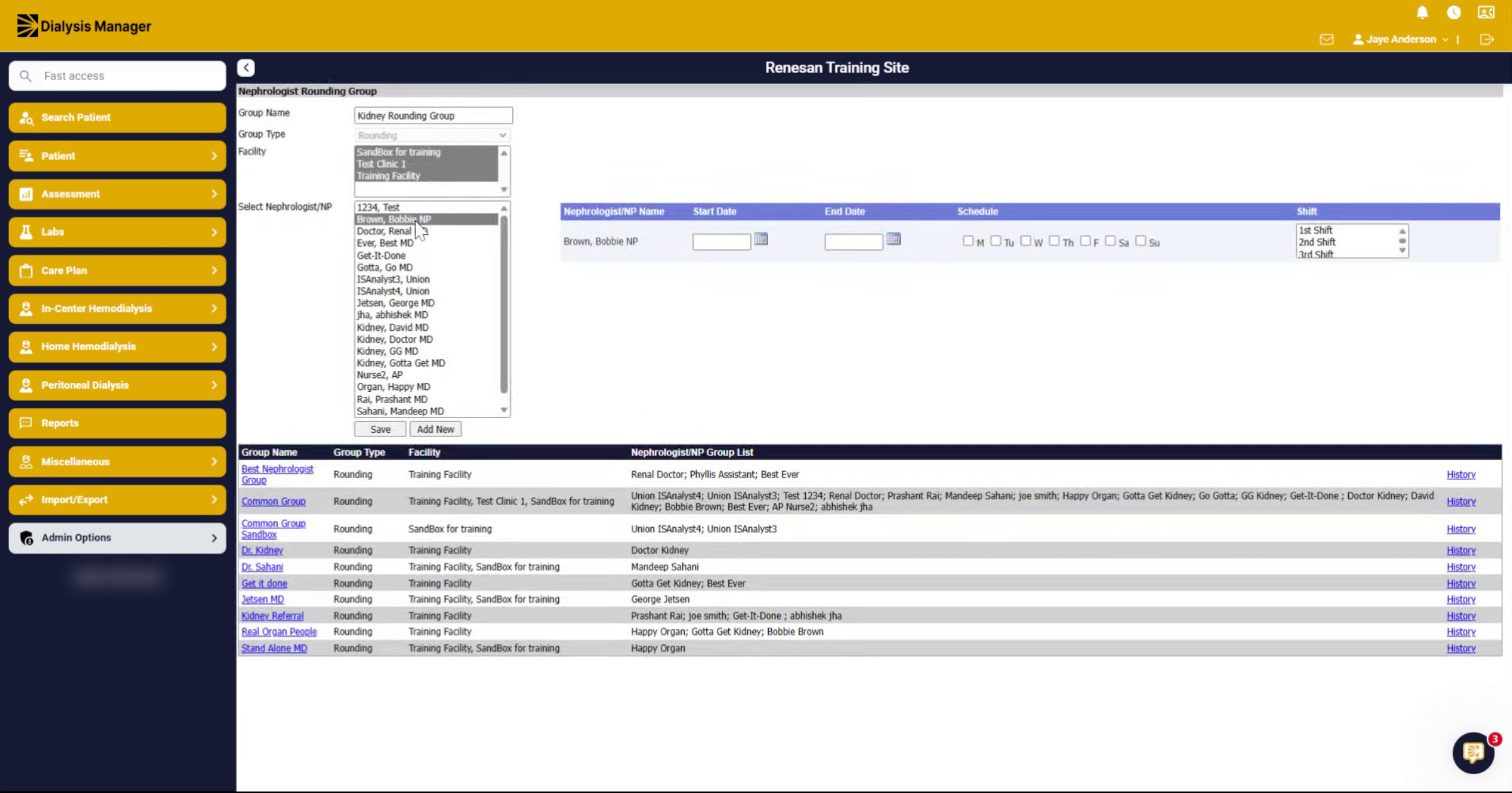
5. Choose Physician Members
Choose the physicians that are part of the group to ensure all relevant providers are included. Again, using the control key to select multiple physicians, if needed.
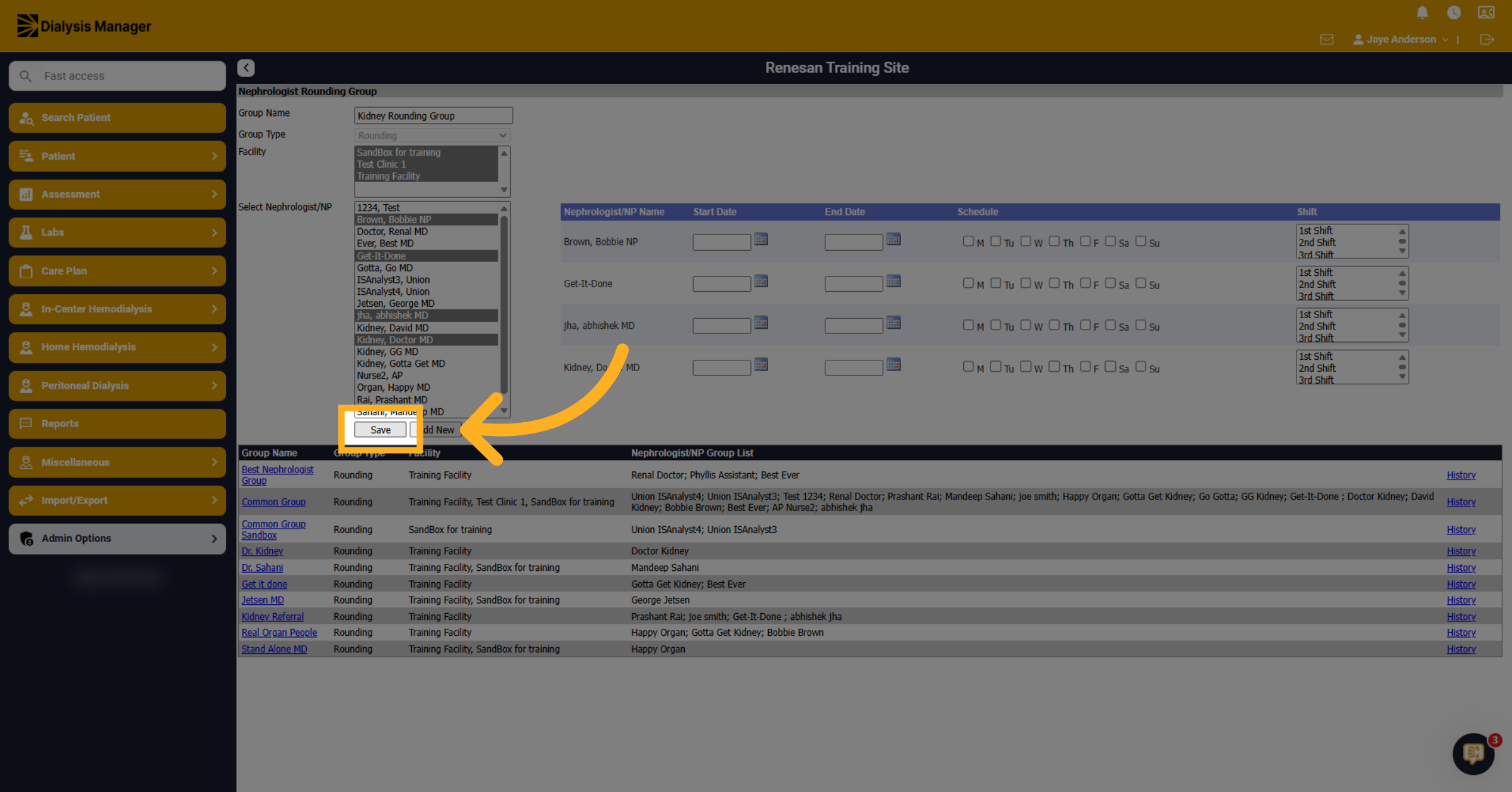
6. Save Group Configuration
Click the Save button to store the new or updated physician rounding group list.
7. Review and Edit Groups
You can leave the schedule area blank; nothing is needed in this section. To modify another group, click its blue hyperlink group name.
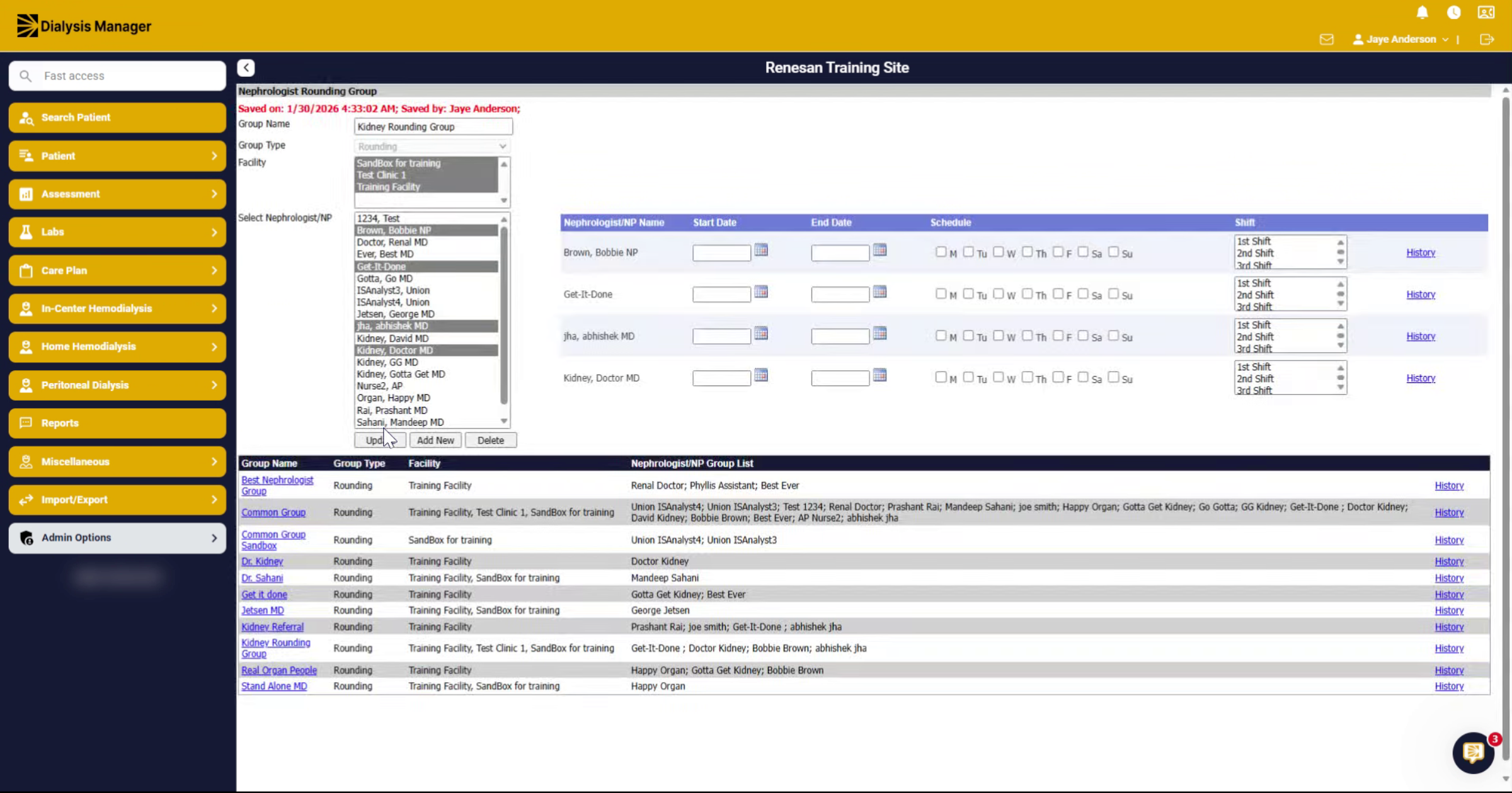
8. Update Group Members
Adjust any members within the group as necessary, then click Update to apply your changes.
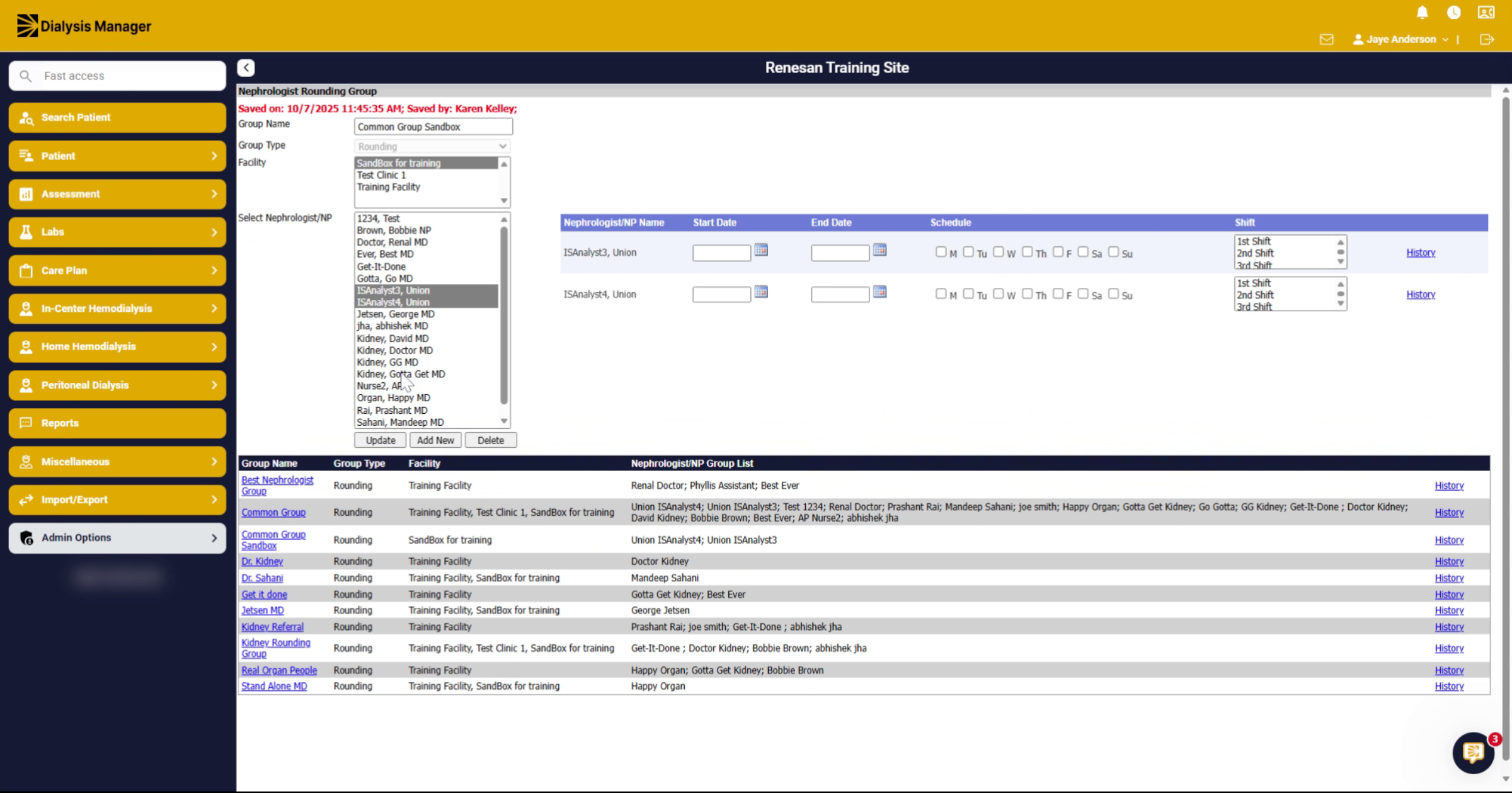
9. Introduction
If you're not seeing your physician in the list, you'll need to go into the masters in the master list. Now we'll guide you through adding and mapping physicians to the nephrologist rounding group.
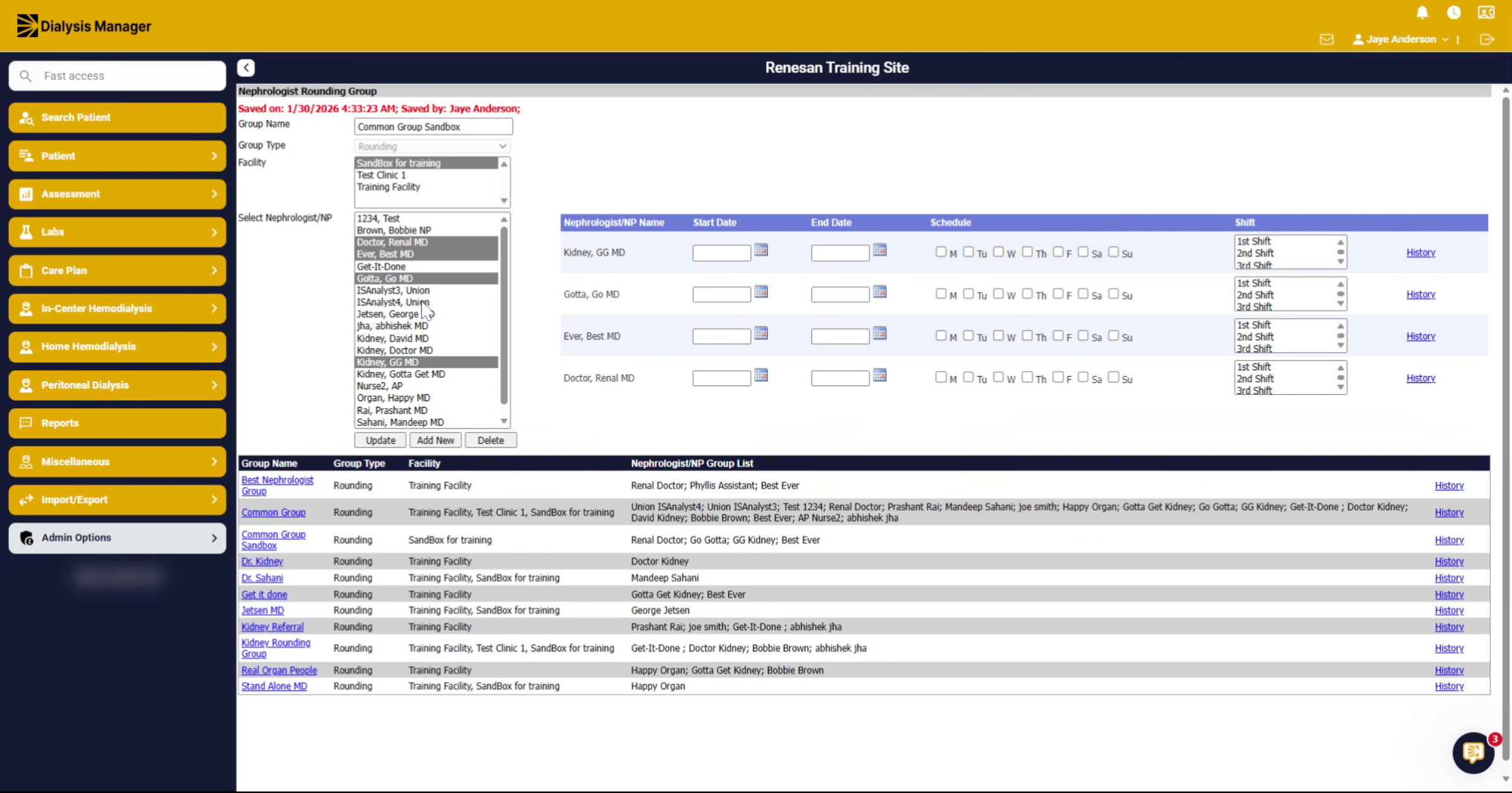
10. Navigate to Masters List
Go into Admin Options, master's and in the master list.
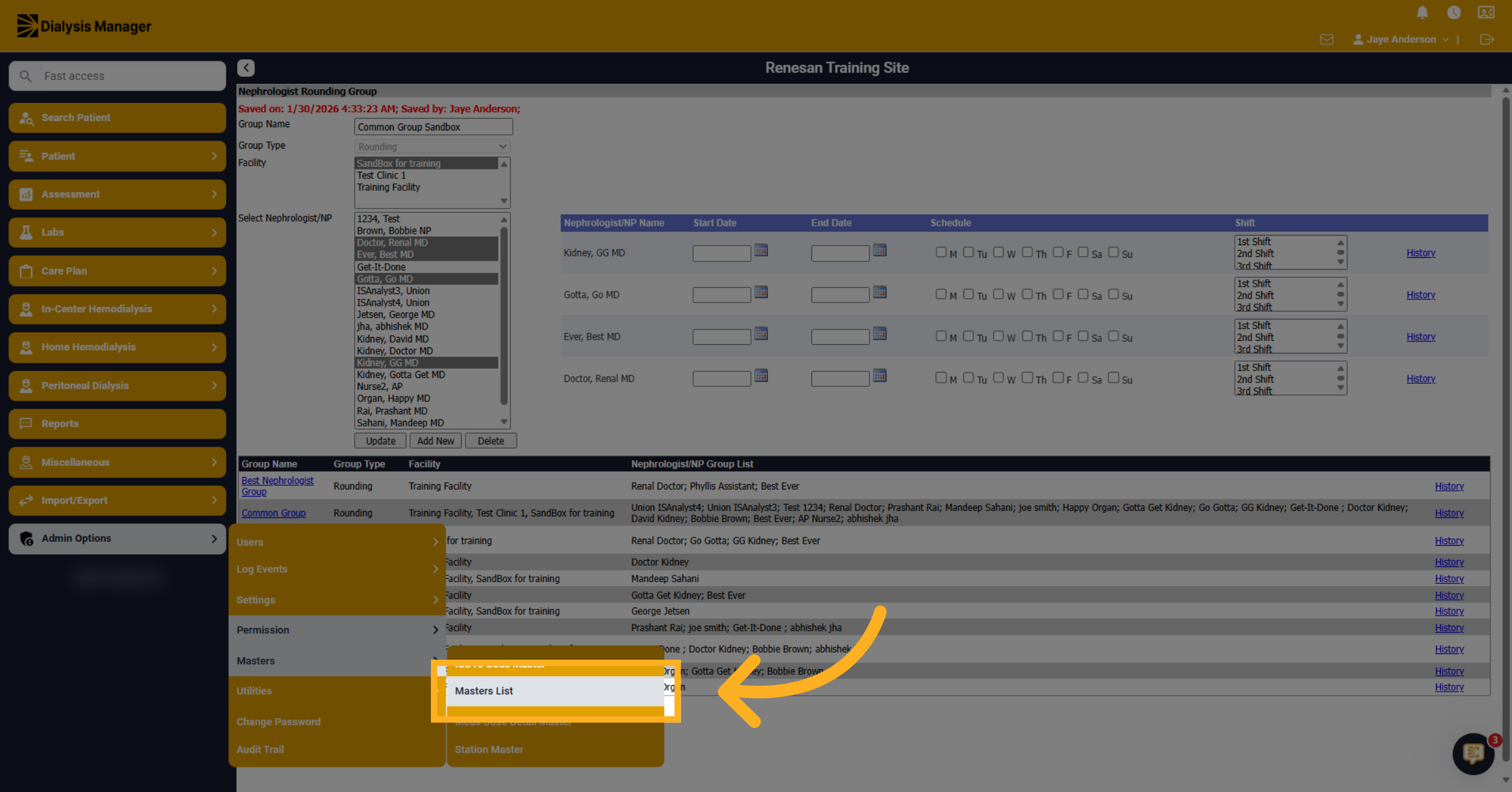
11. Select Doctor or Personnel
Go to doctor and other personnel and add the physician here.
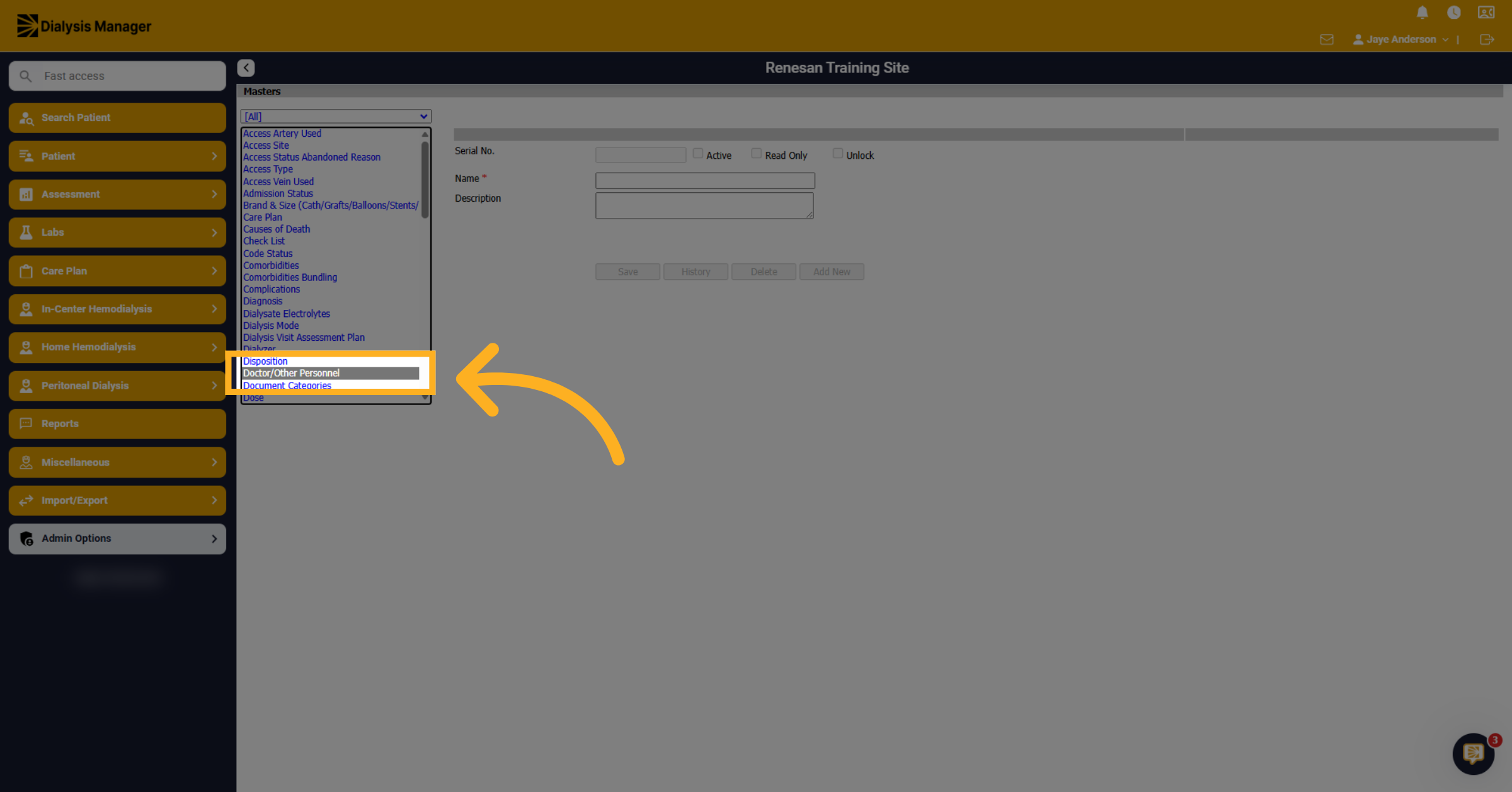
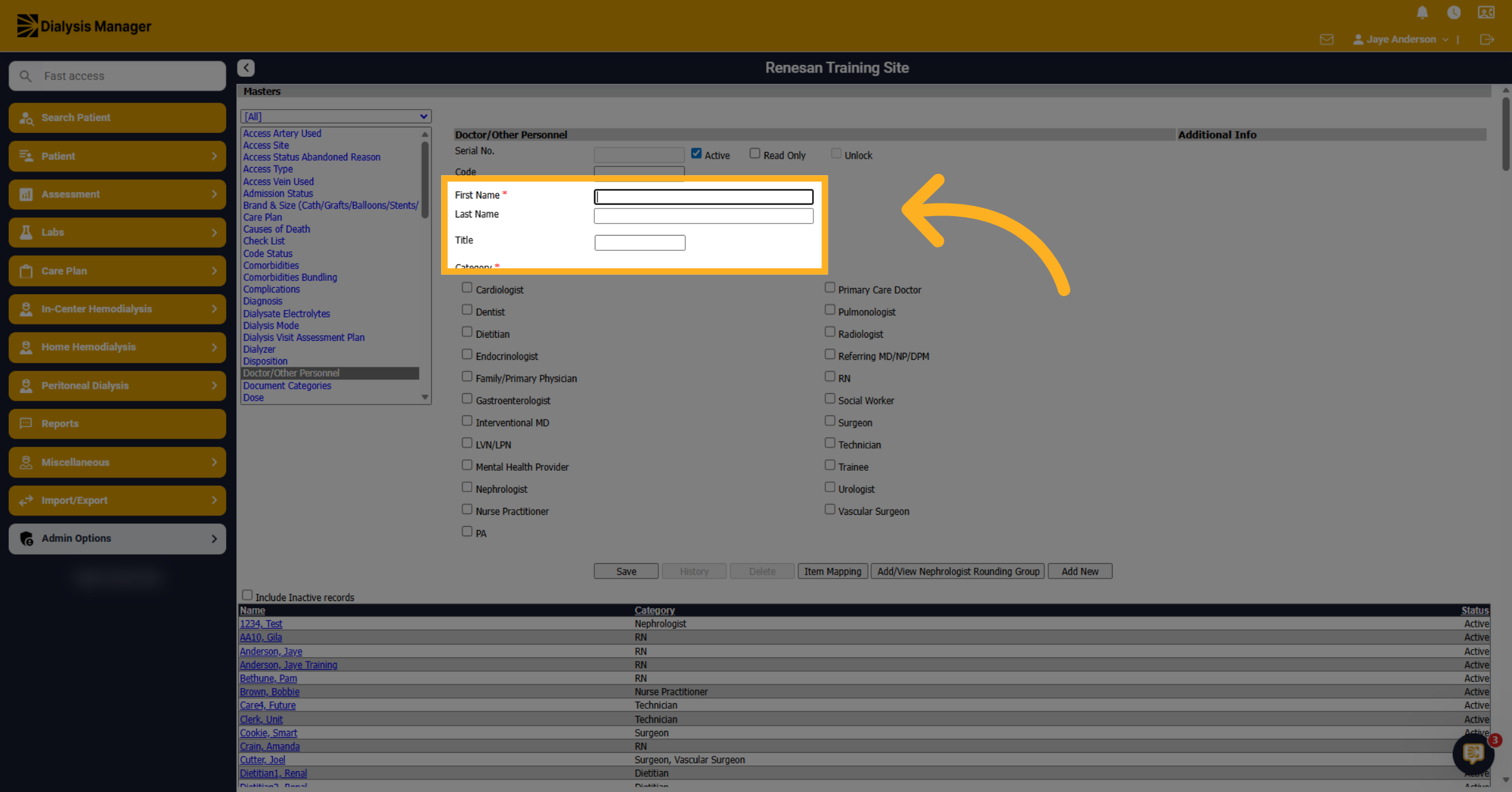
12. Enter Doctor info
Enter your doctor's information in the provided fields.
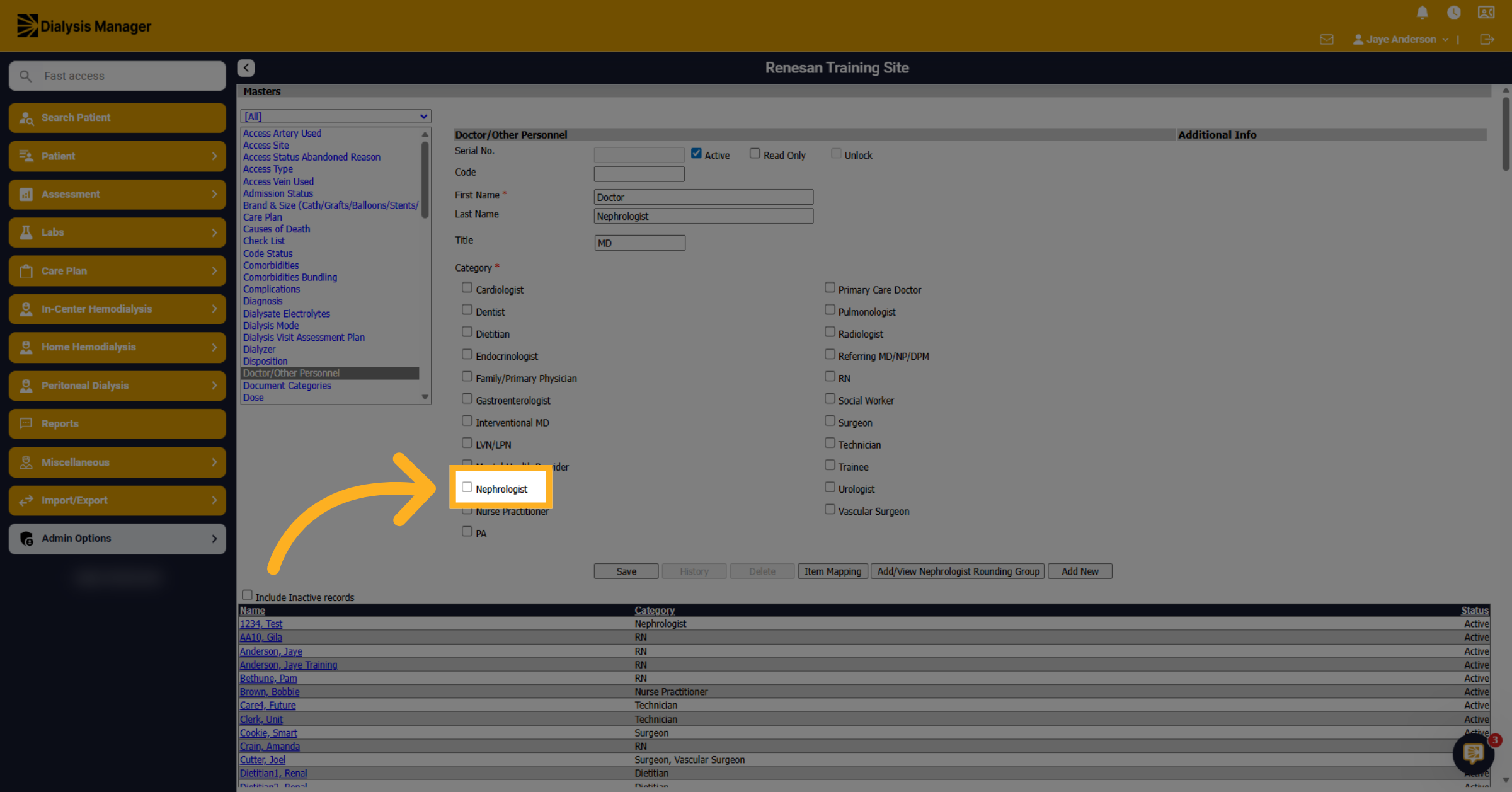
13. Select Nephrologist Option
Make sure you check the appropriate box to mark their specialty.
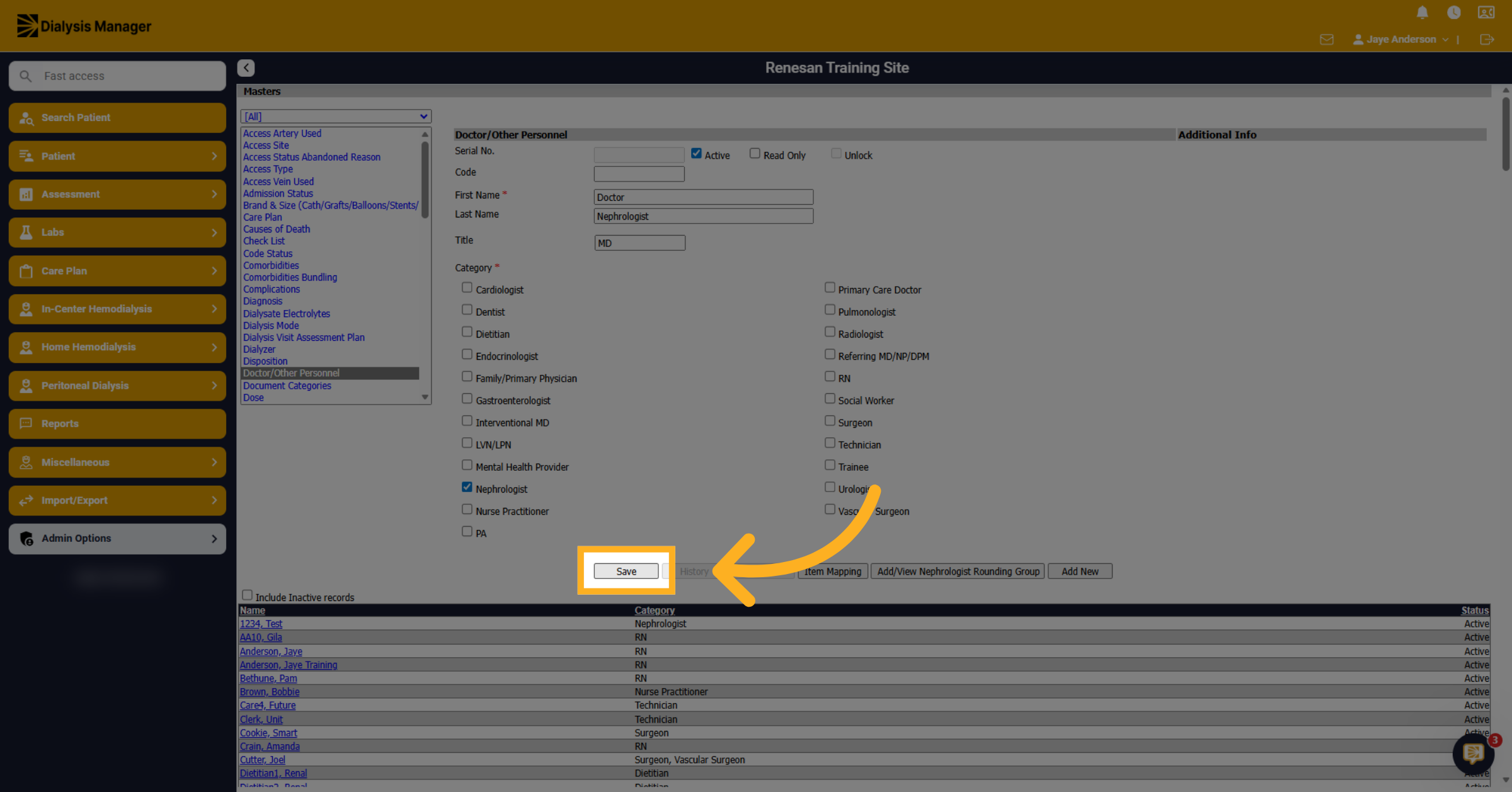
14. Click Save Button
Click on Save.
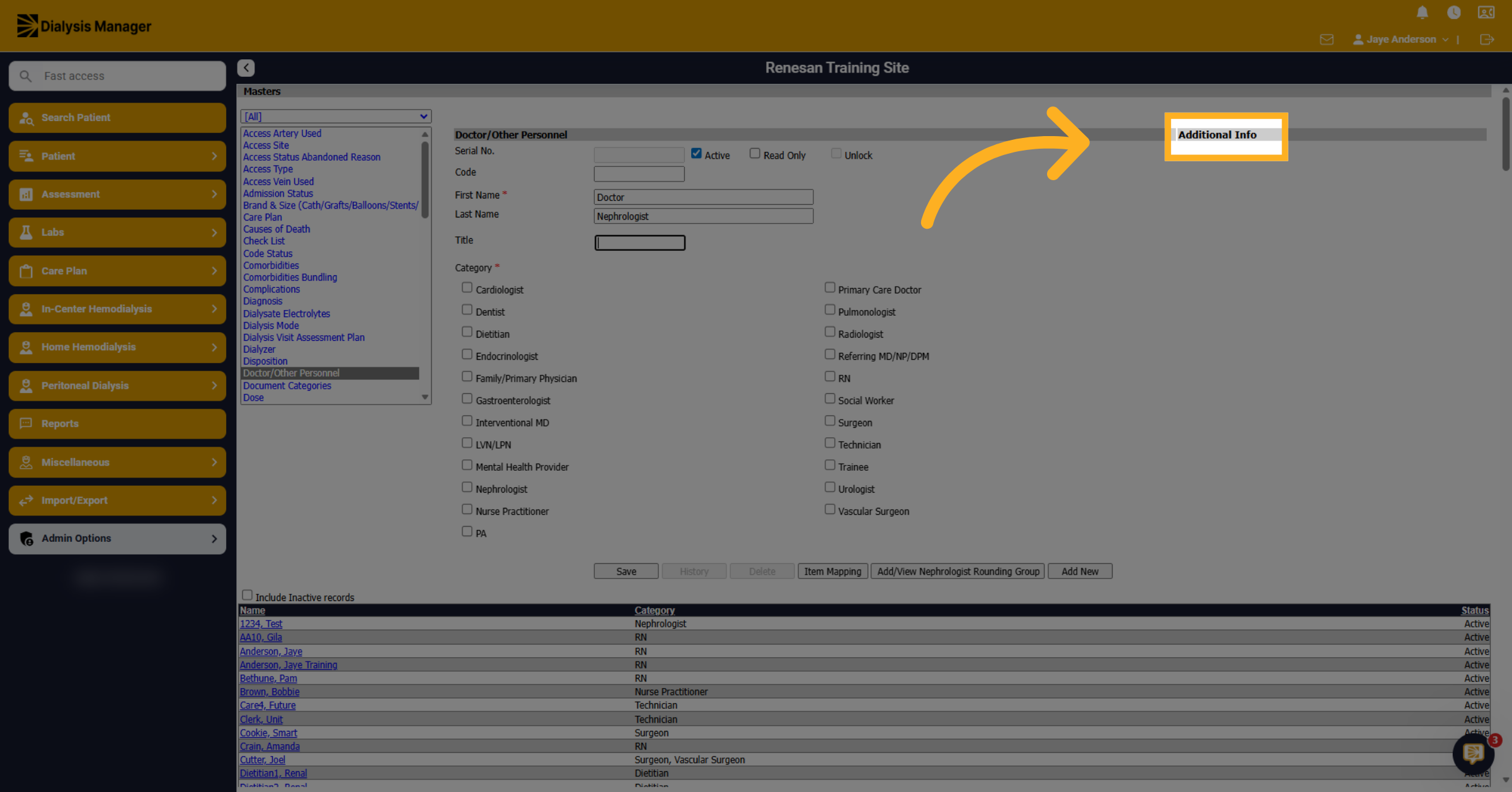
15. Click to Continue
Click here to enter address, phone numbers, and NPI information.
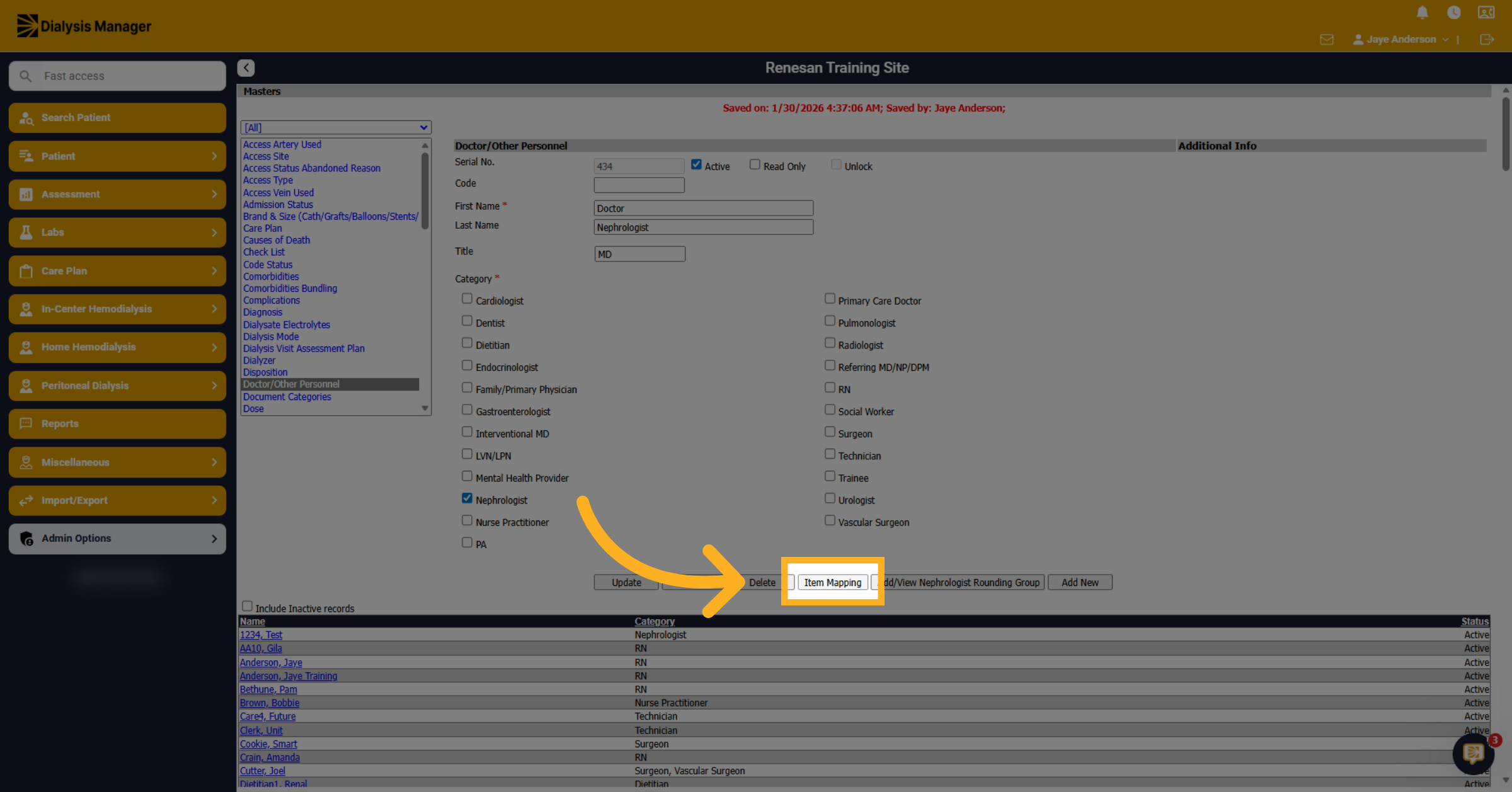
16. Access Item Mapping
You'll need to map the physician to the appropriate facility or remove options.
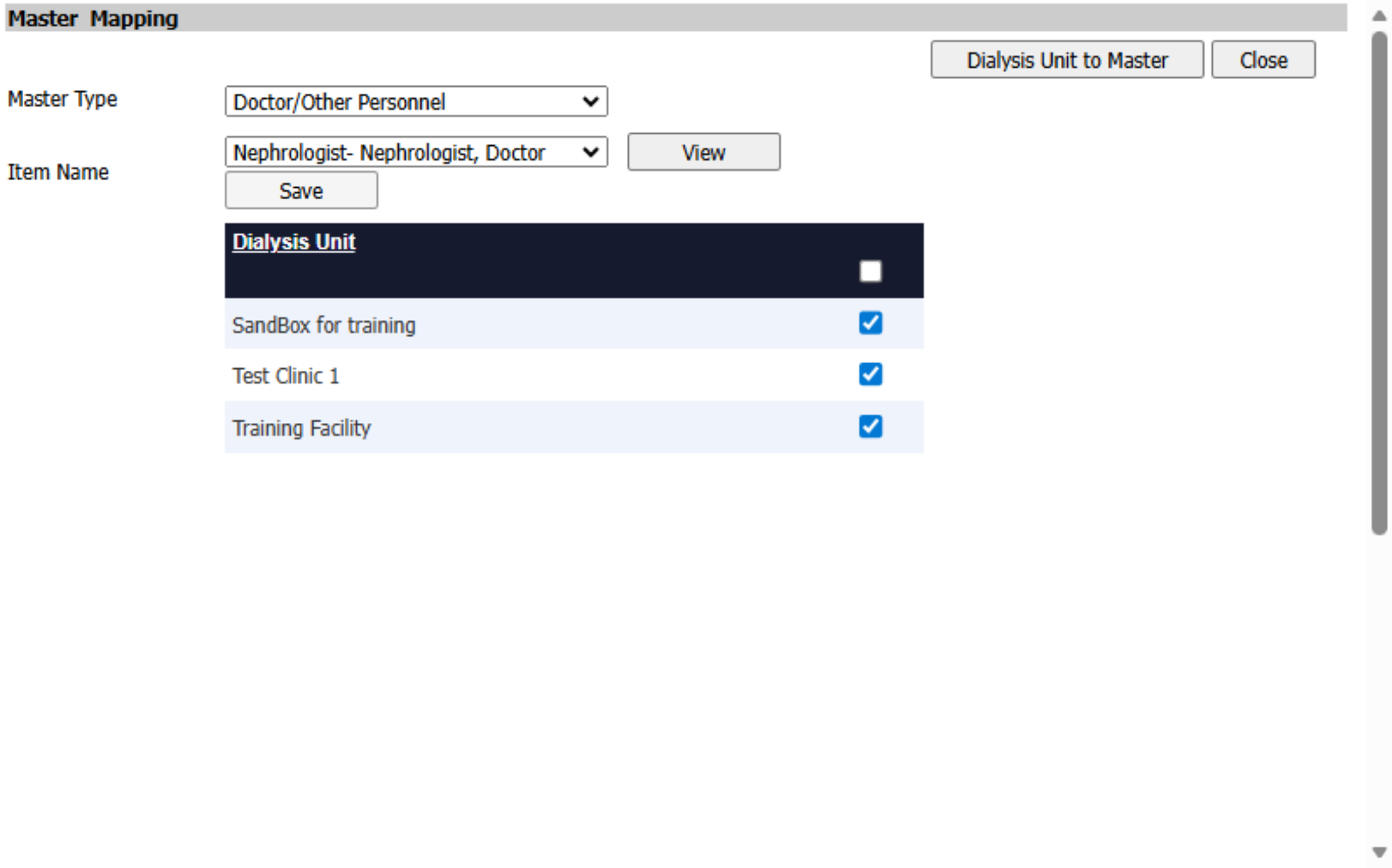
17. Save Master Mapping
Select or deselect the appropriate dialysis units and save your changes in the master dialysis unit mapping section.
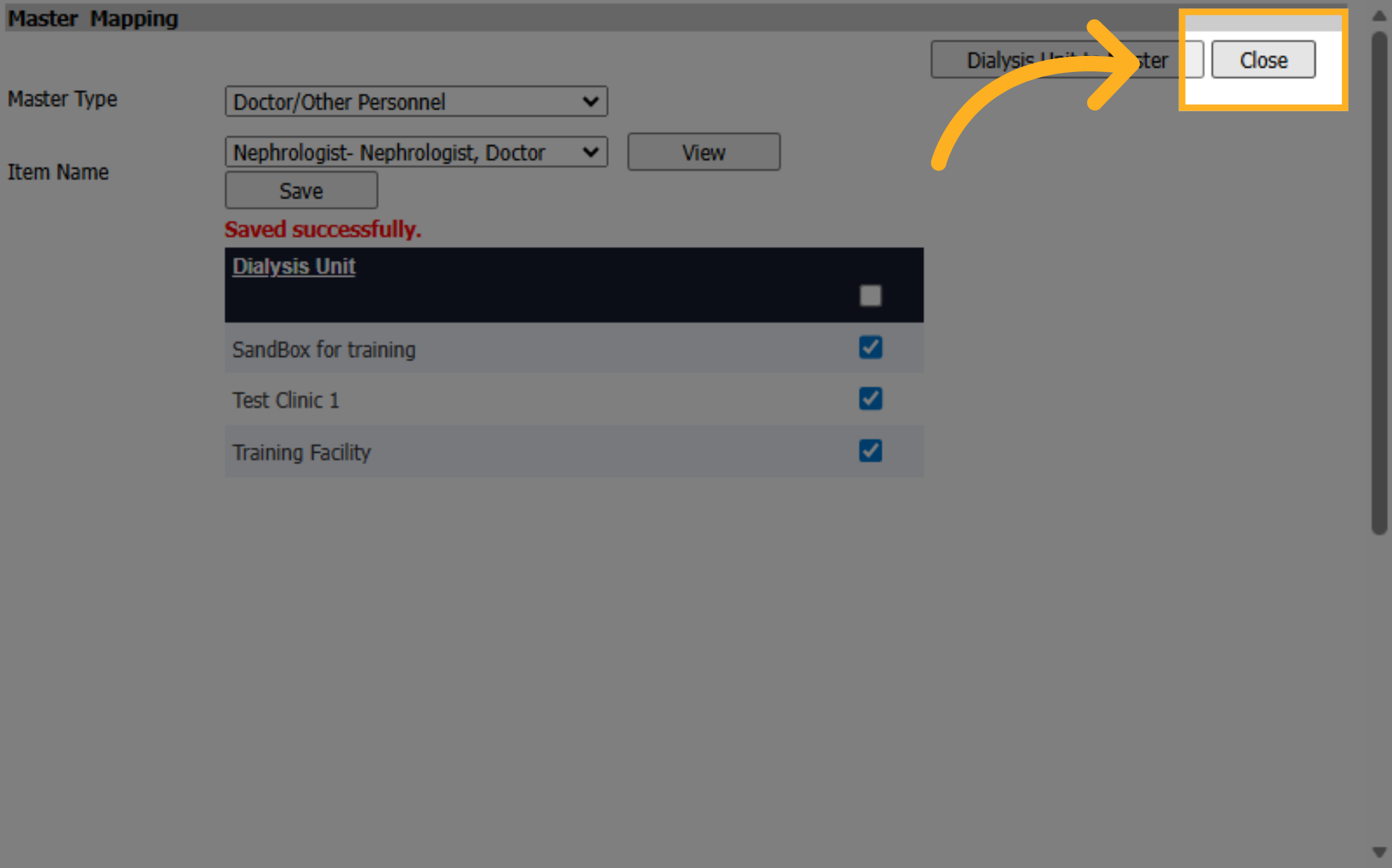
18. Close Mapping Window
Click close.
19. Open Nephrologist Group
You can also access the rounding group directly from here by clicking Add View Nephrology Group.
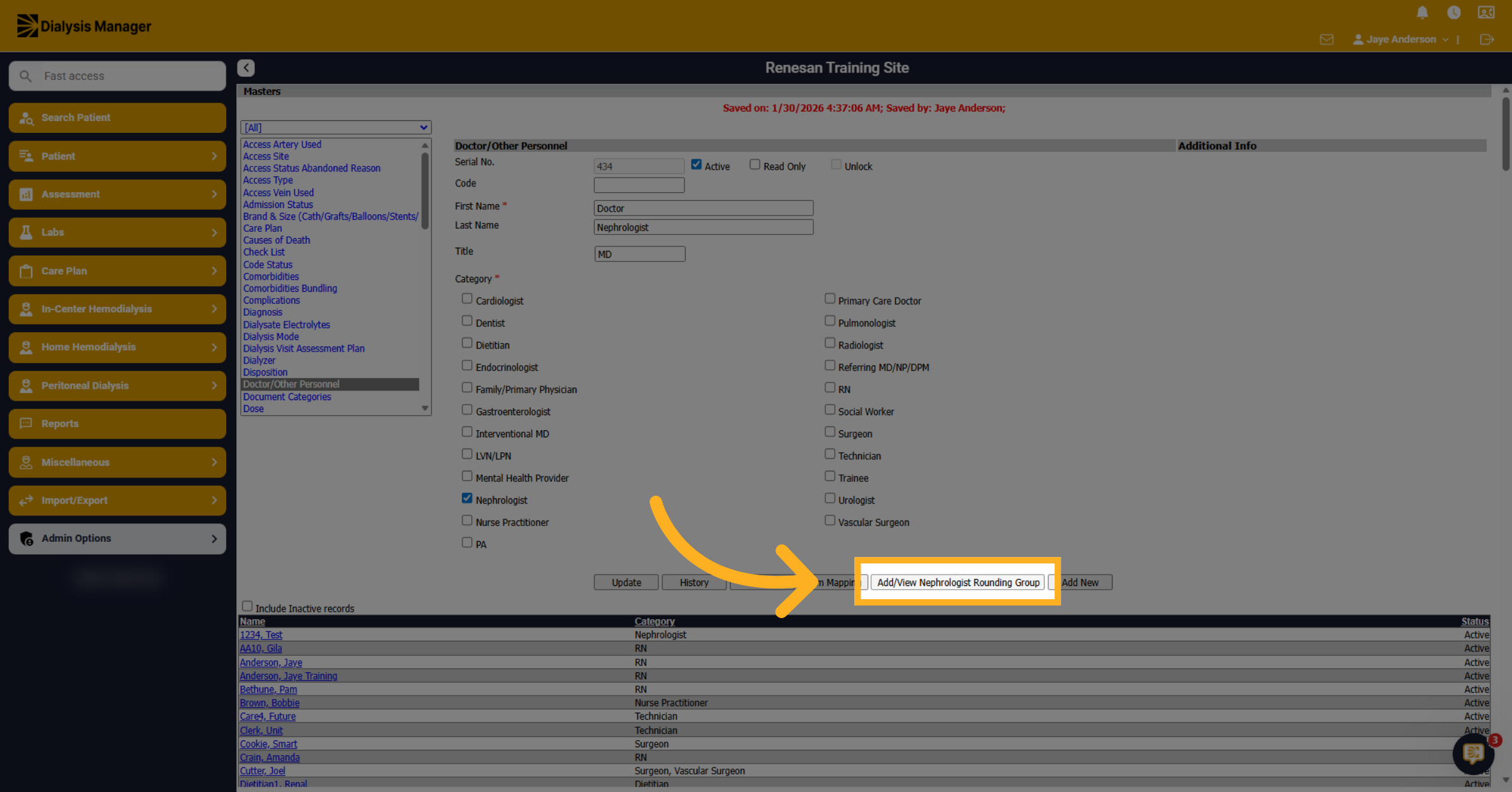
20. Select Kidney Rounding Group
This section will Open in a new window, and you can now add your new physician to the group as we observed previously.