Configure 2026-2027 Flu Vaccines in Dialysis Manager
Use this guide to create 2026-2027 flu vaccines in Dialysis Manager. This tutorial covers deactivating old vaccines, adding new vaccines, and updating billing configurations.
Go to dmmttest.renvio.com
1. Log into Dialysis Manager
Log into Dialysis Manager
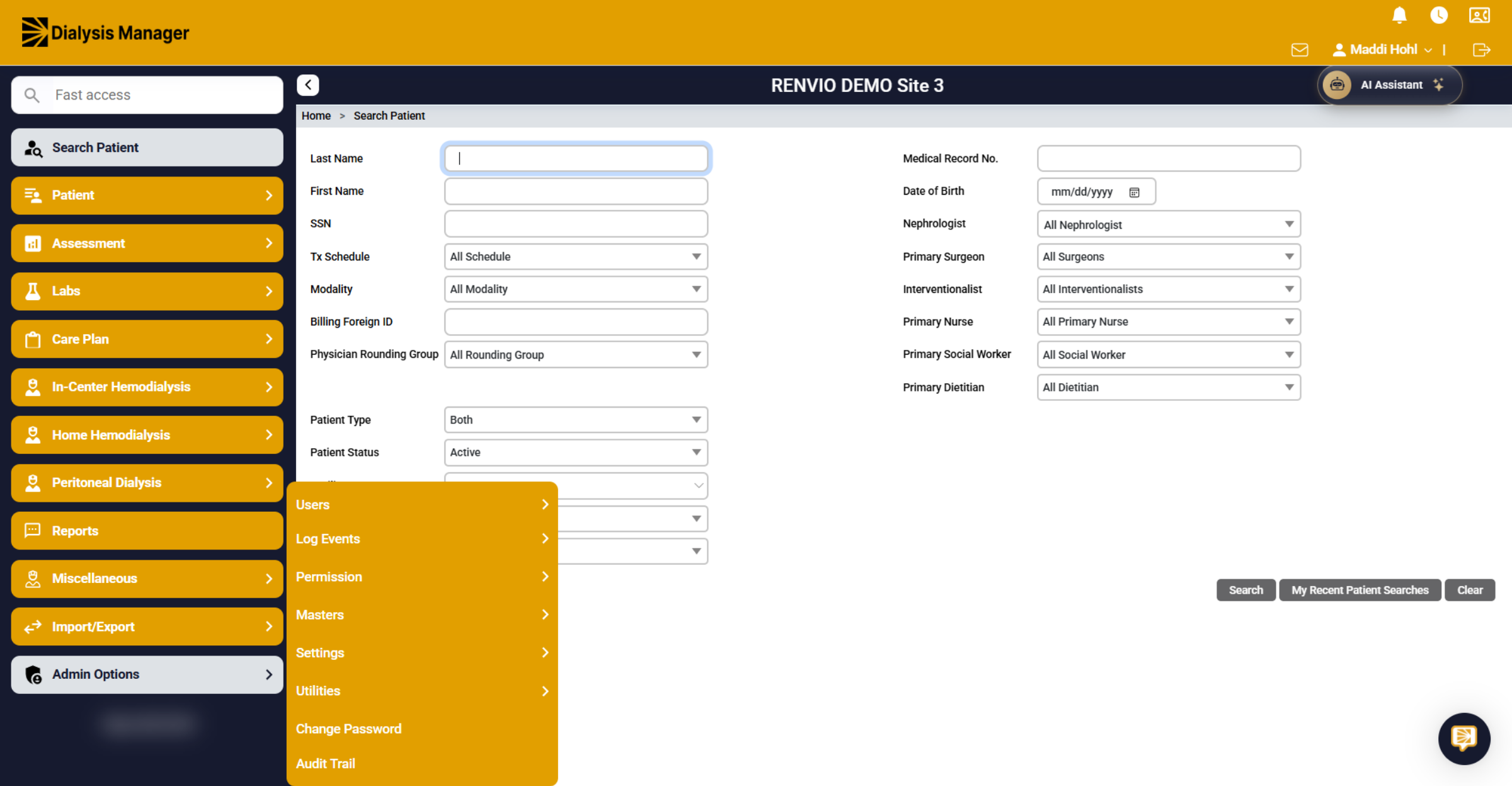
2. Access Admin Options
Hover over Admin Options.
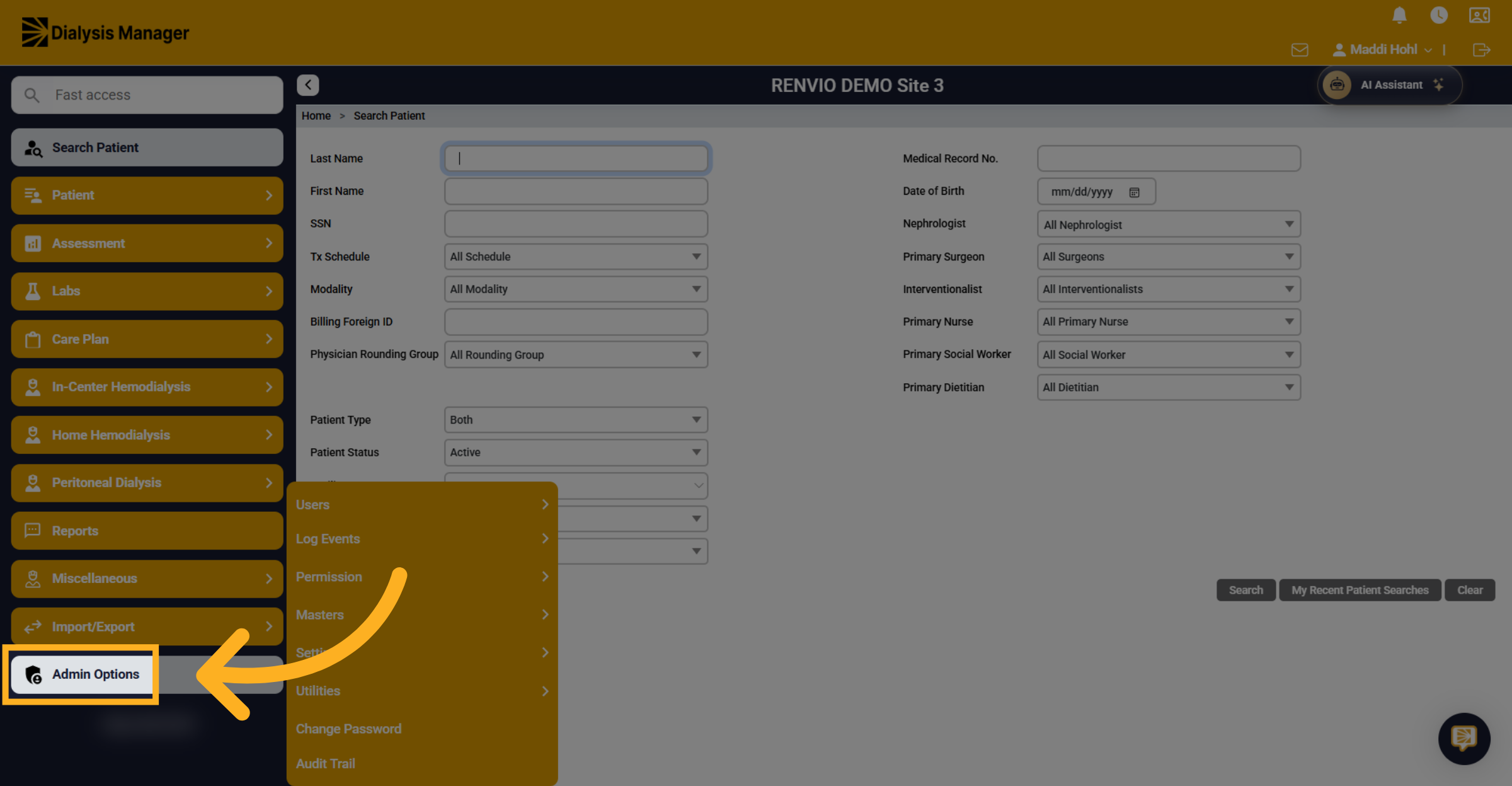
3. Navigate to Masters Section
Go to Masters.
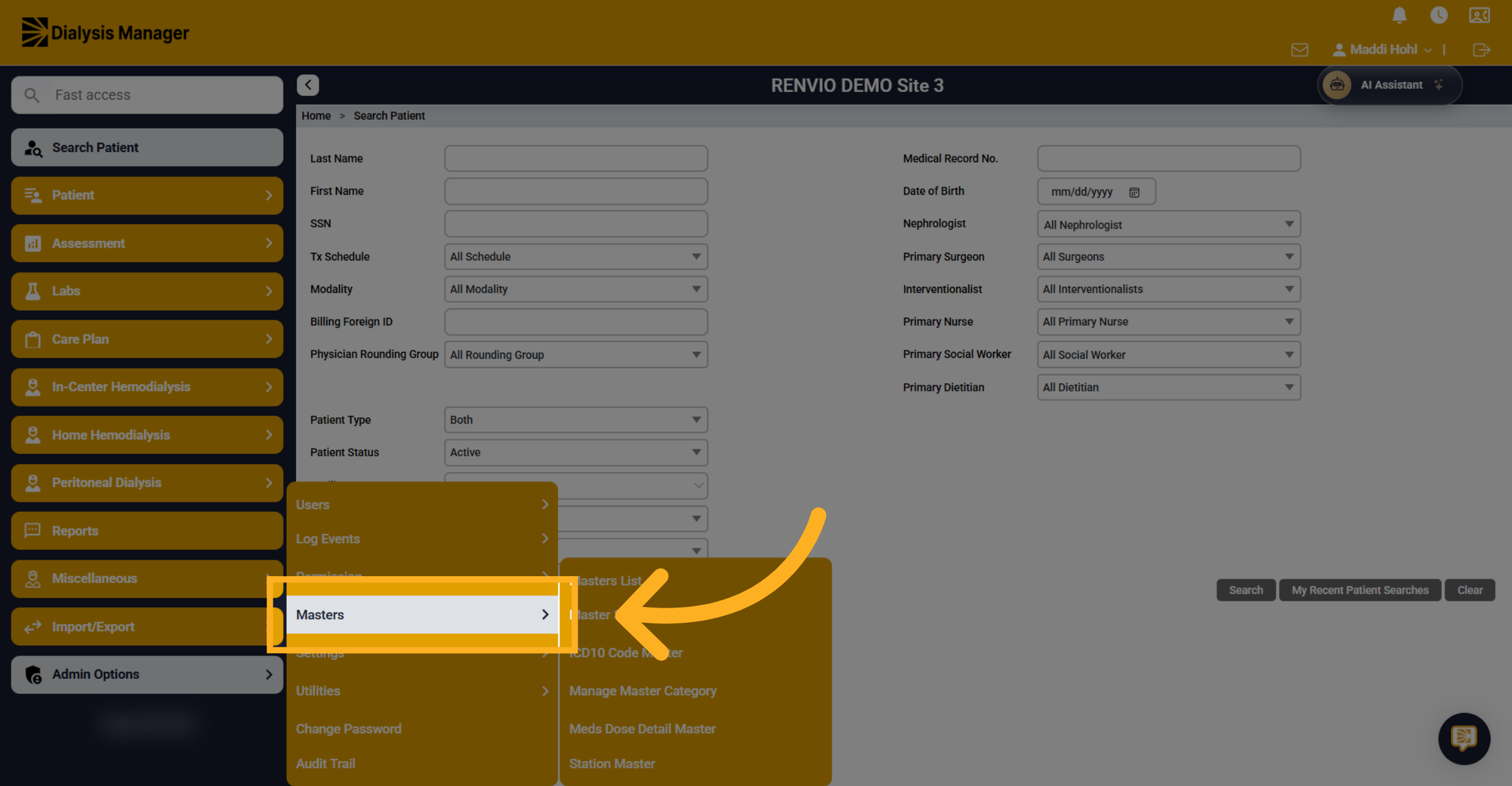
4. Open Masters List
Click Masters List t.
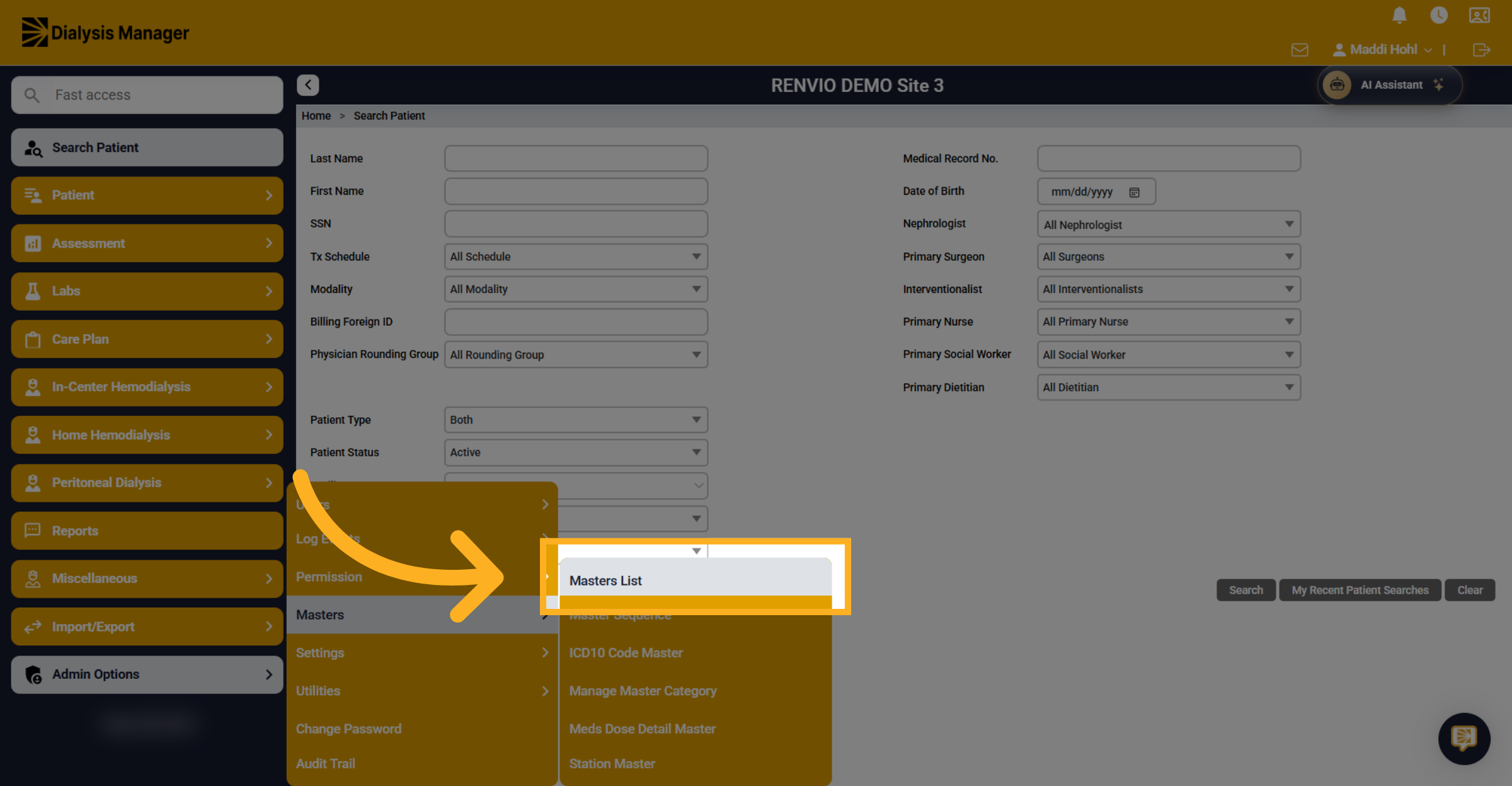
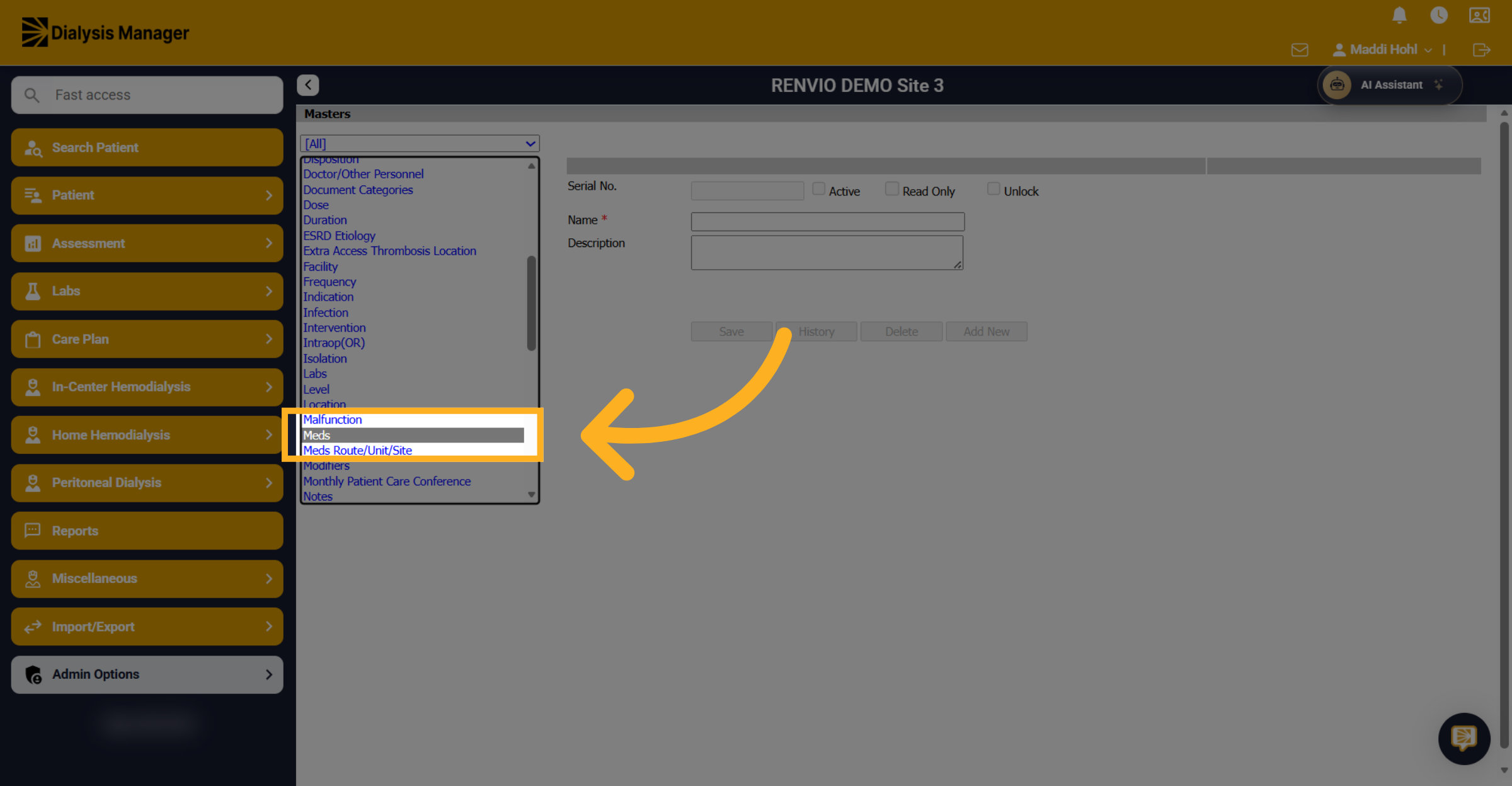
5. Select Medications Category
Choose the Meds category.
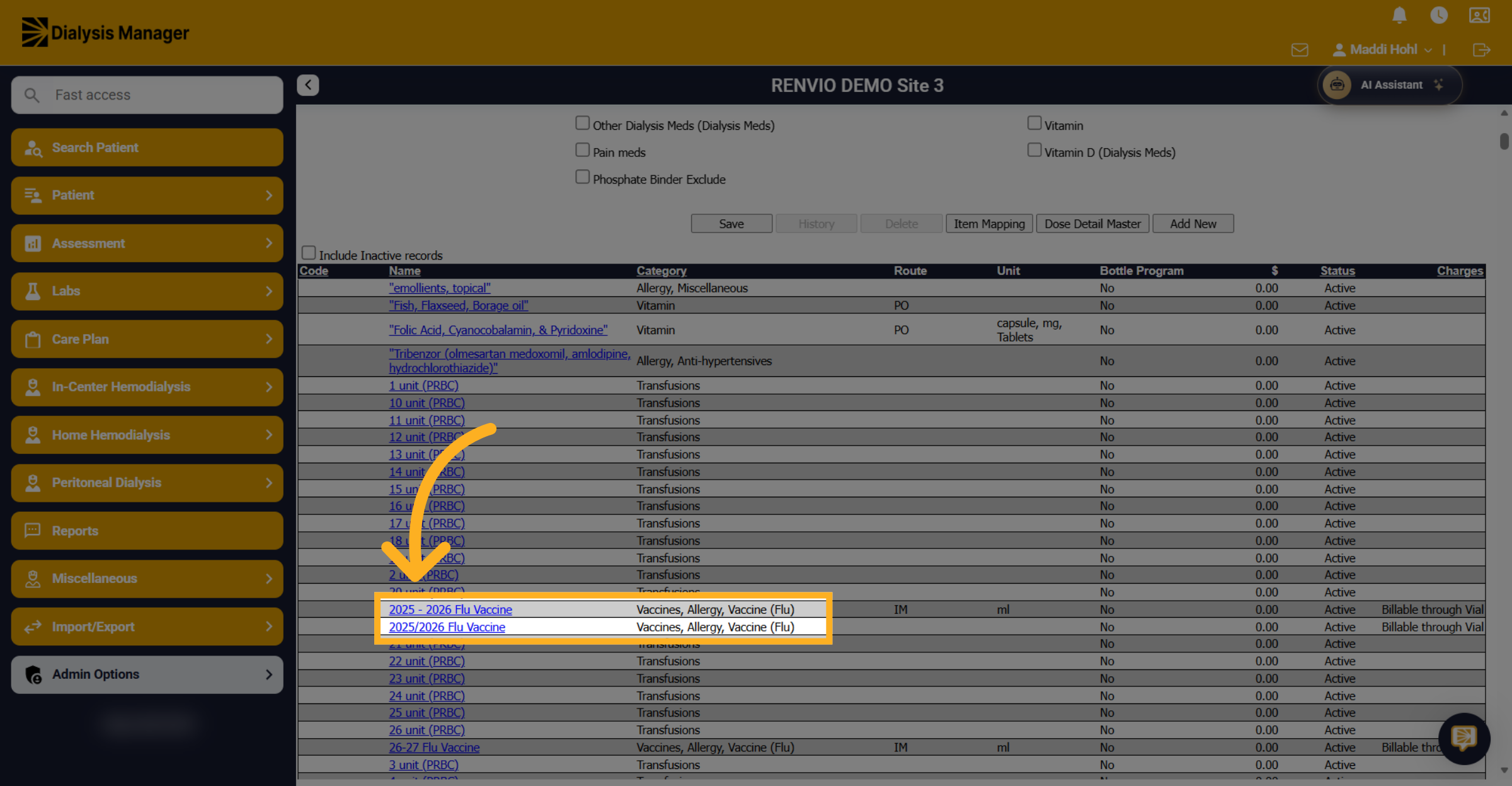
6. Select Last Year's Flu Vaccine
Select last year's flu vaccines to deactivate them in the system.
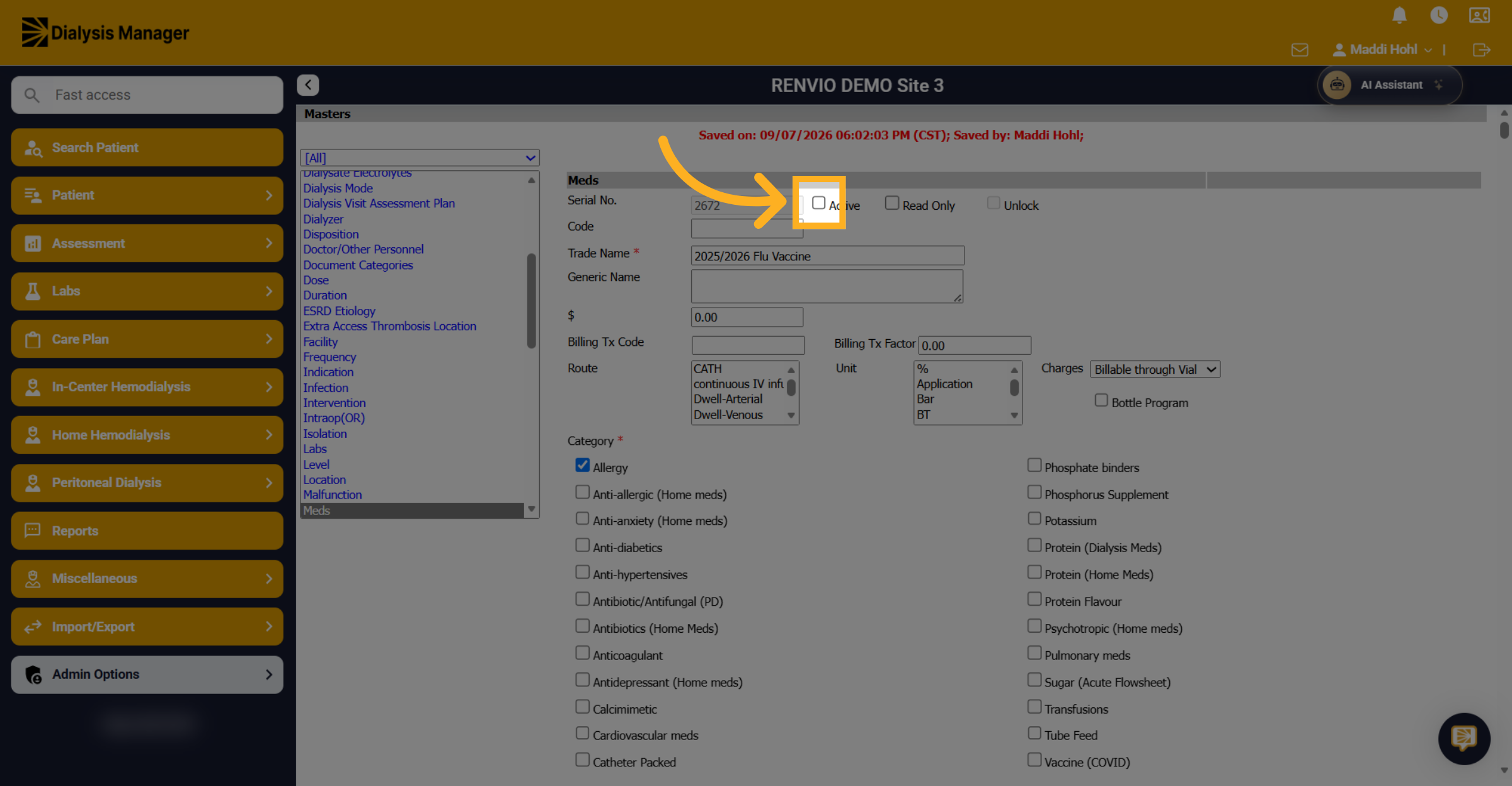
7. Deactivate Old Vaccine
Uncheck the active box to mark the old flu vaccine as inactive, preventing staff from being able to select this vaccine.
8. Update Vaccine Status
Click Update to save changes.
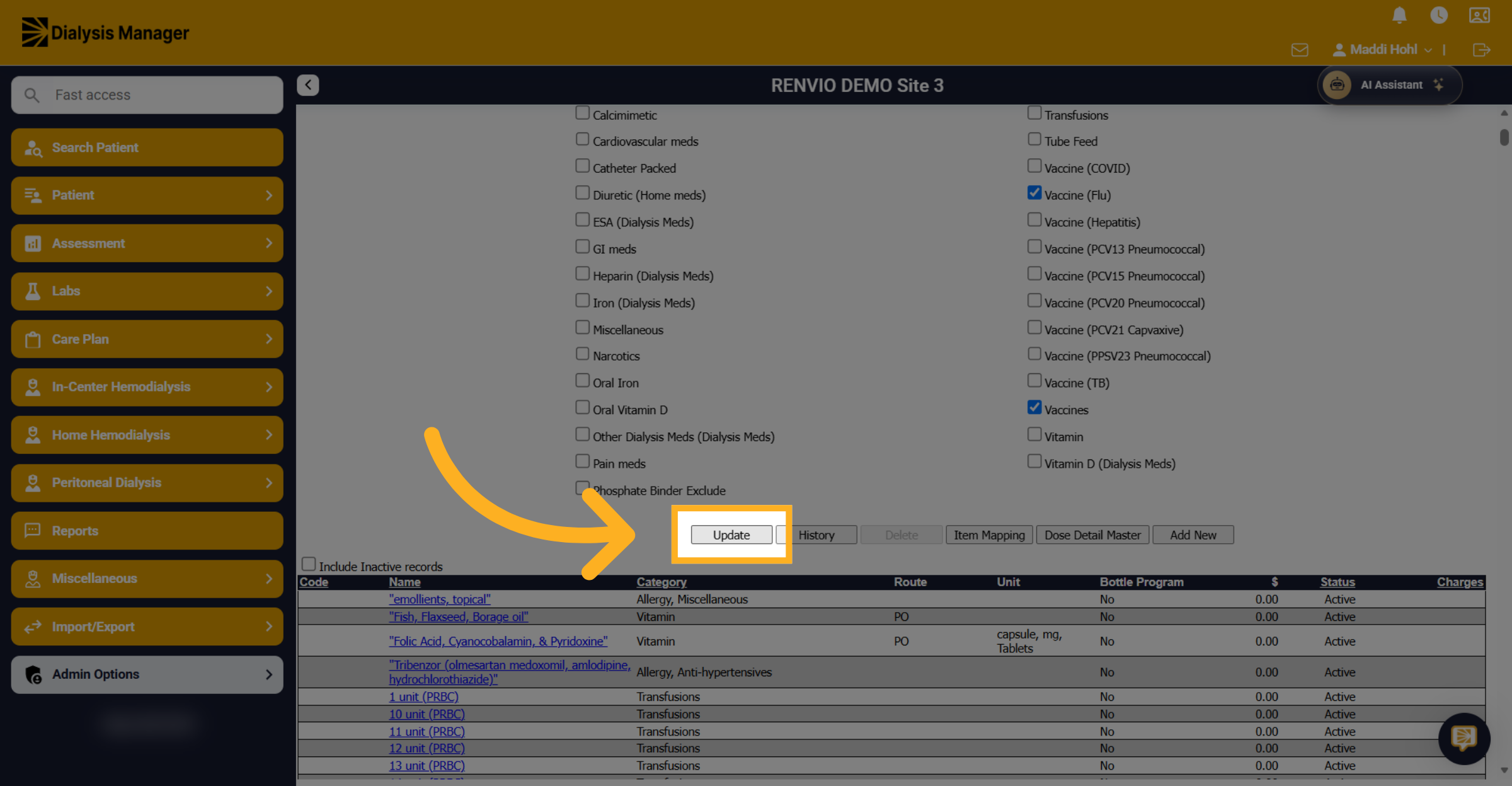
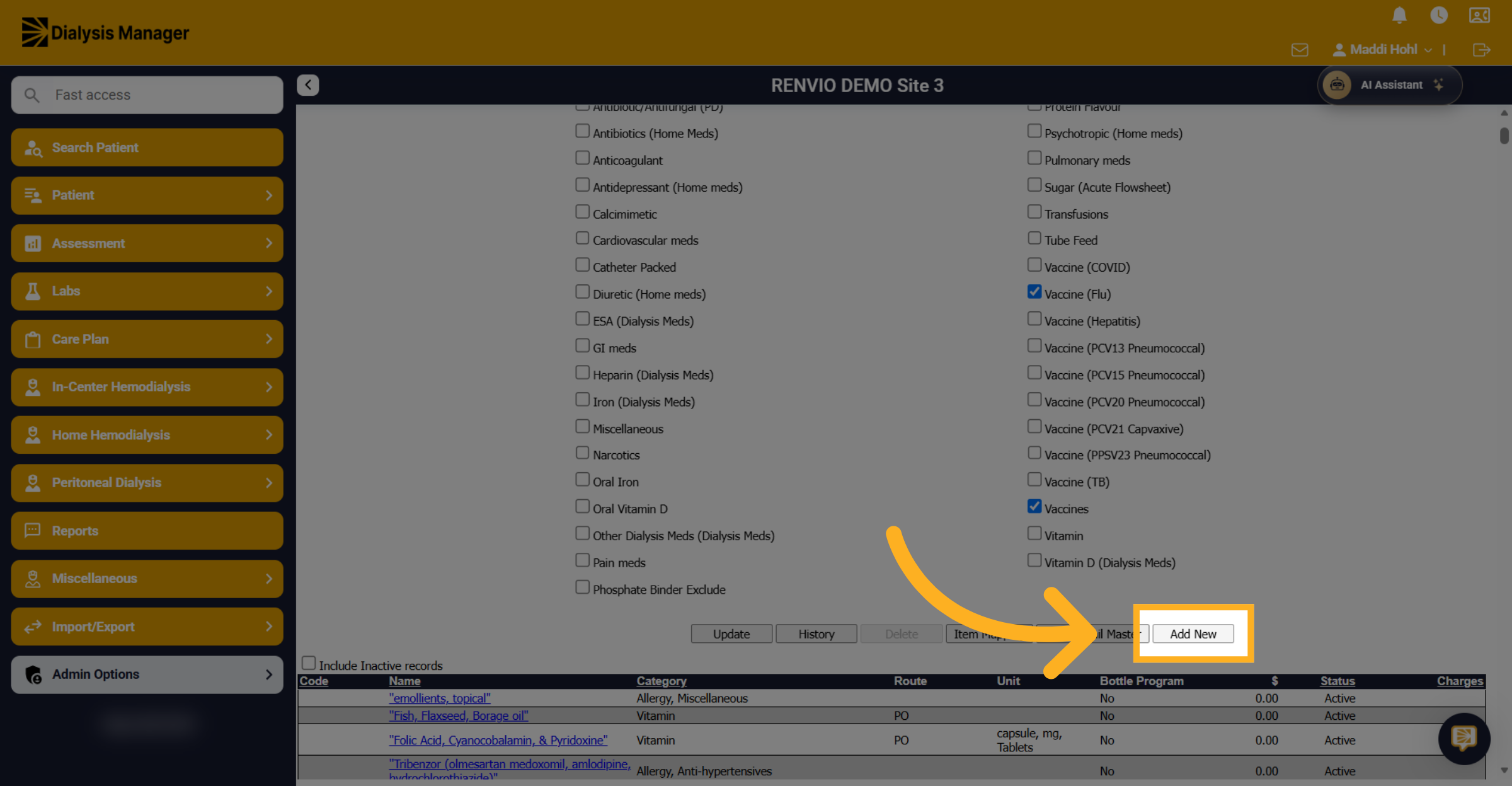
9. Add New Vaccine Entry
Click Add New to enter this year's vaccines.
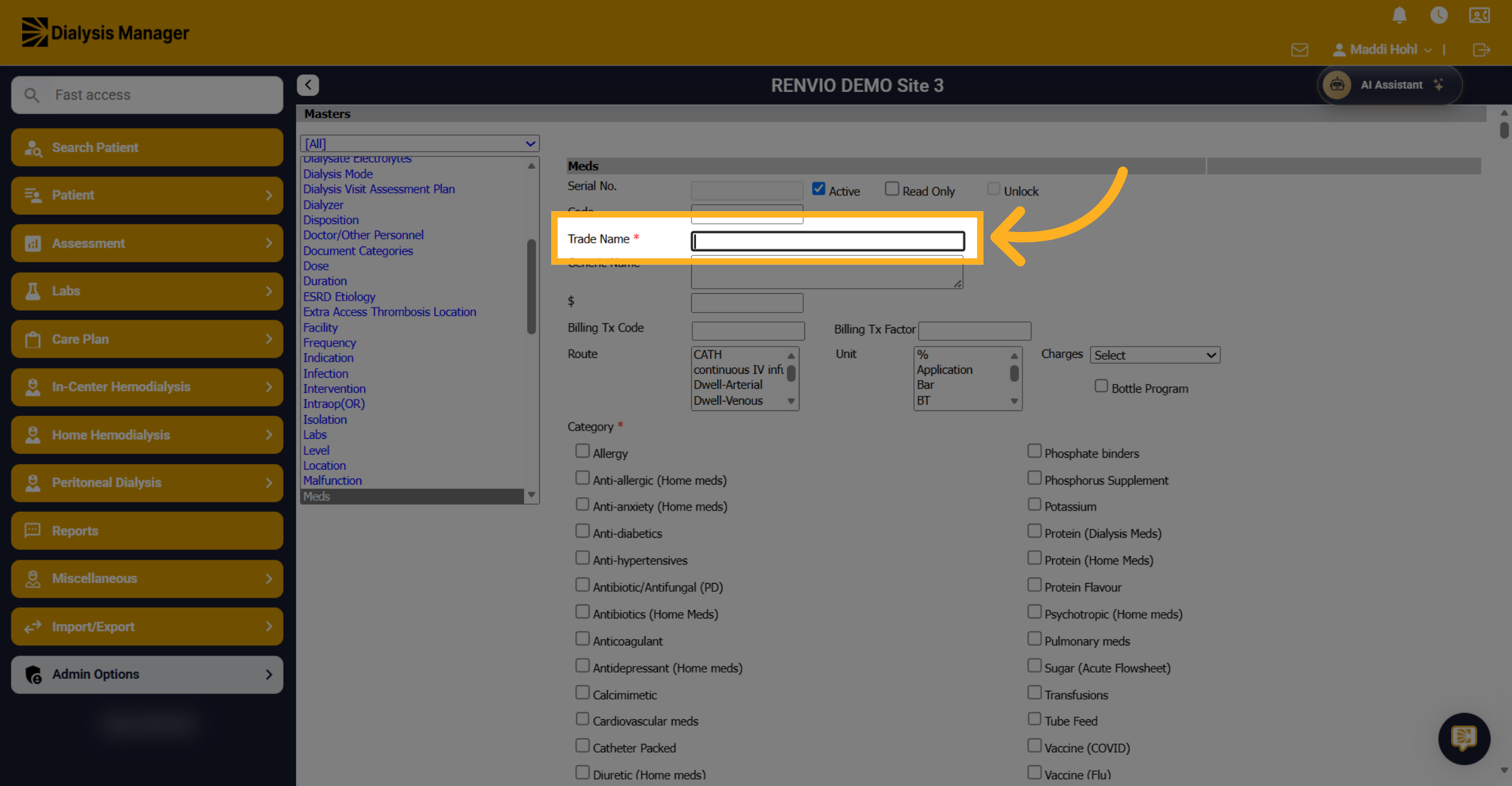
10. Enter Trade Name
Fill the Trade Name with the vaccine name. For best practices, we recommend adding the current flu season year.
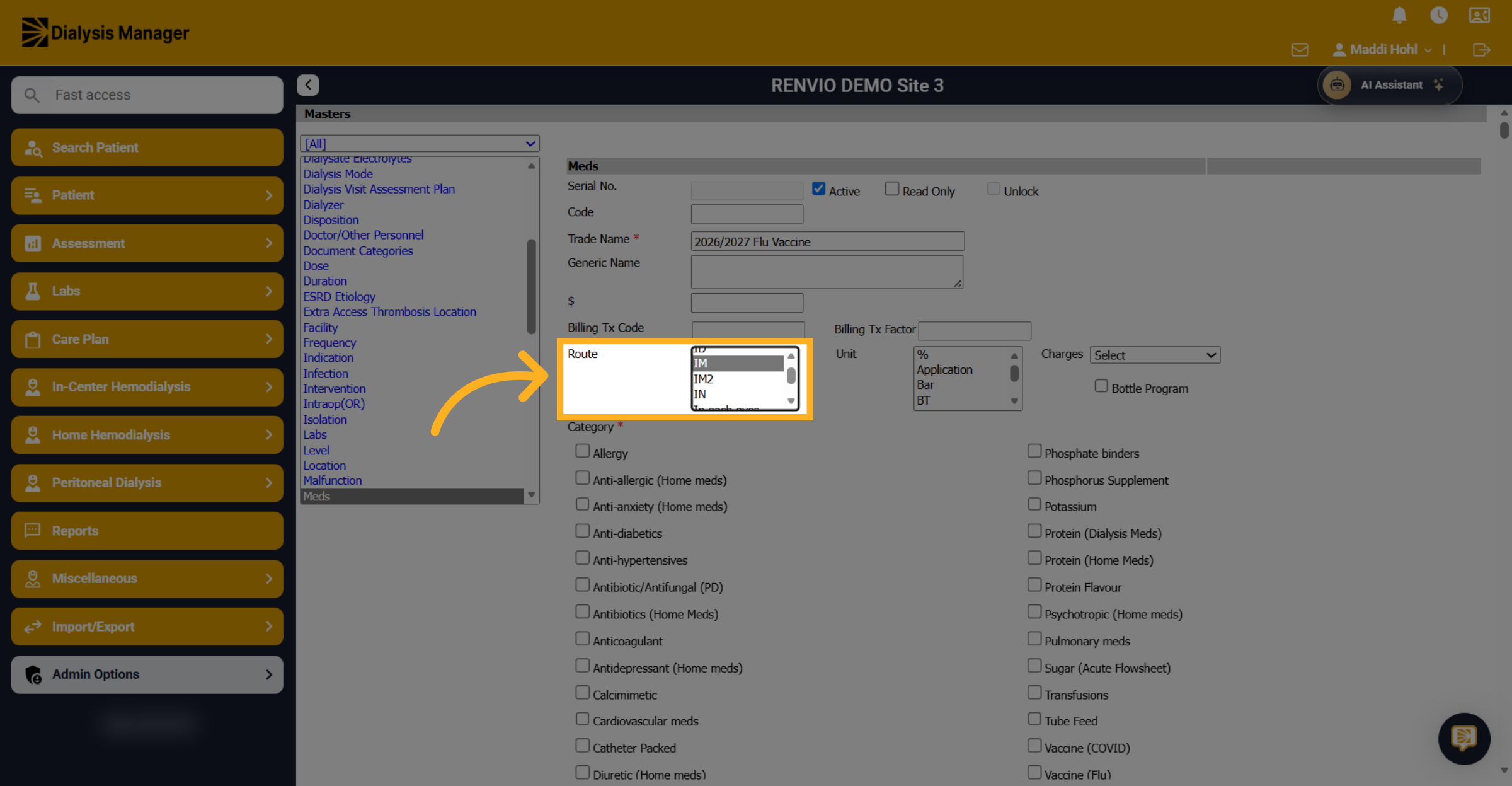
11. Choose Administration Route
Select the appropriate administration route for the new flu vaccine. We recommend selecting IM, intramuscular.
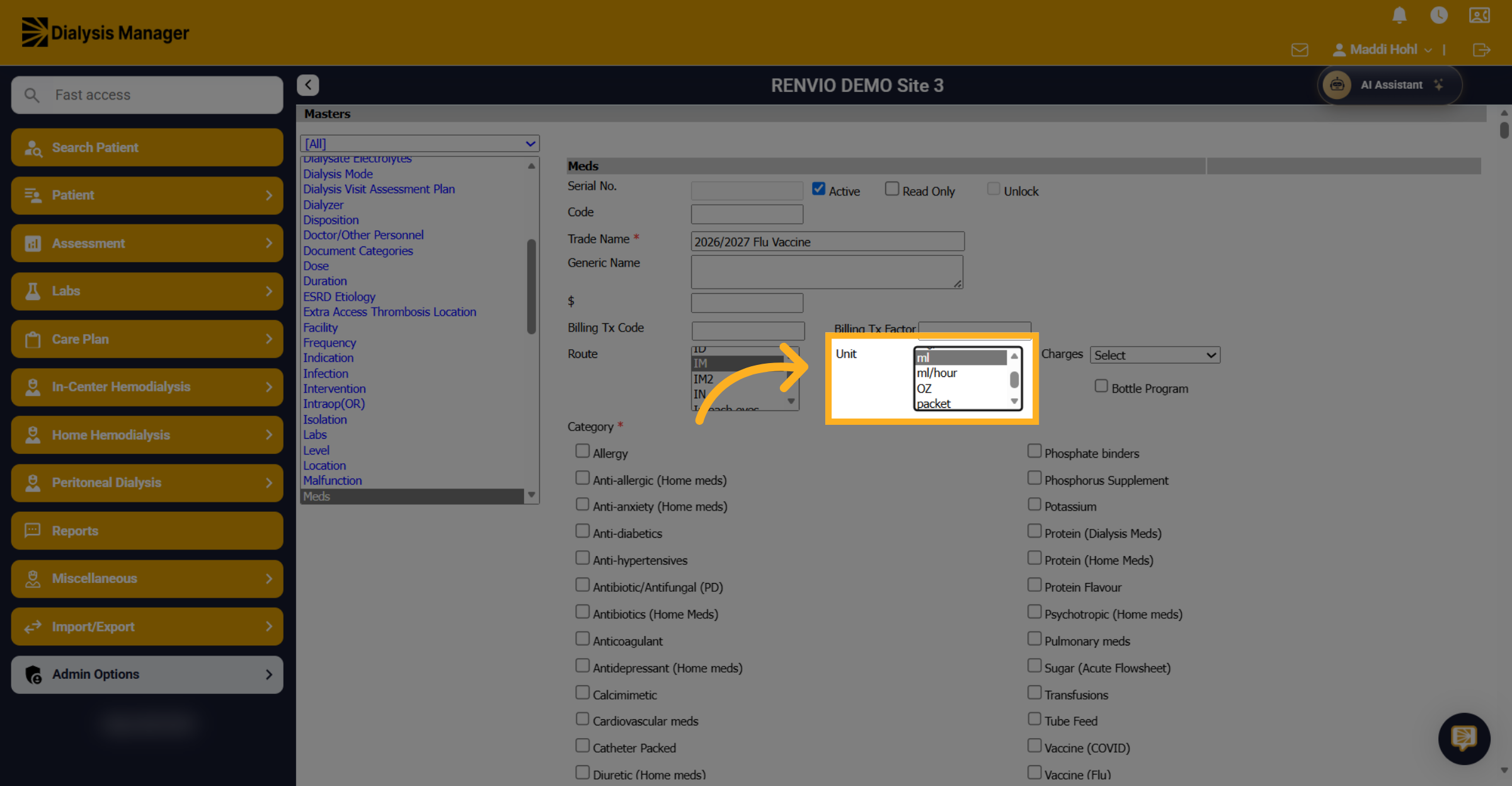
12. Select Measurement Unit
Choose the unit of measurement. We recommend ml, milliliters.
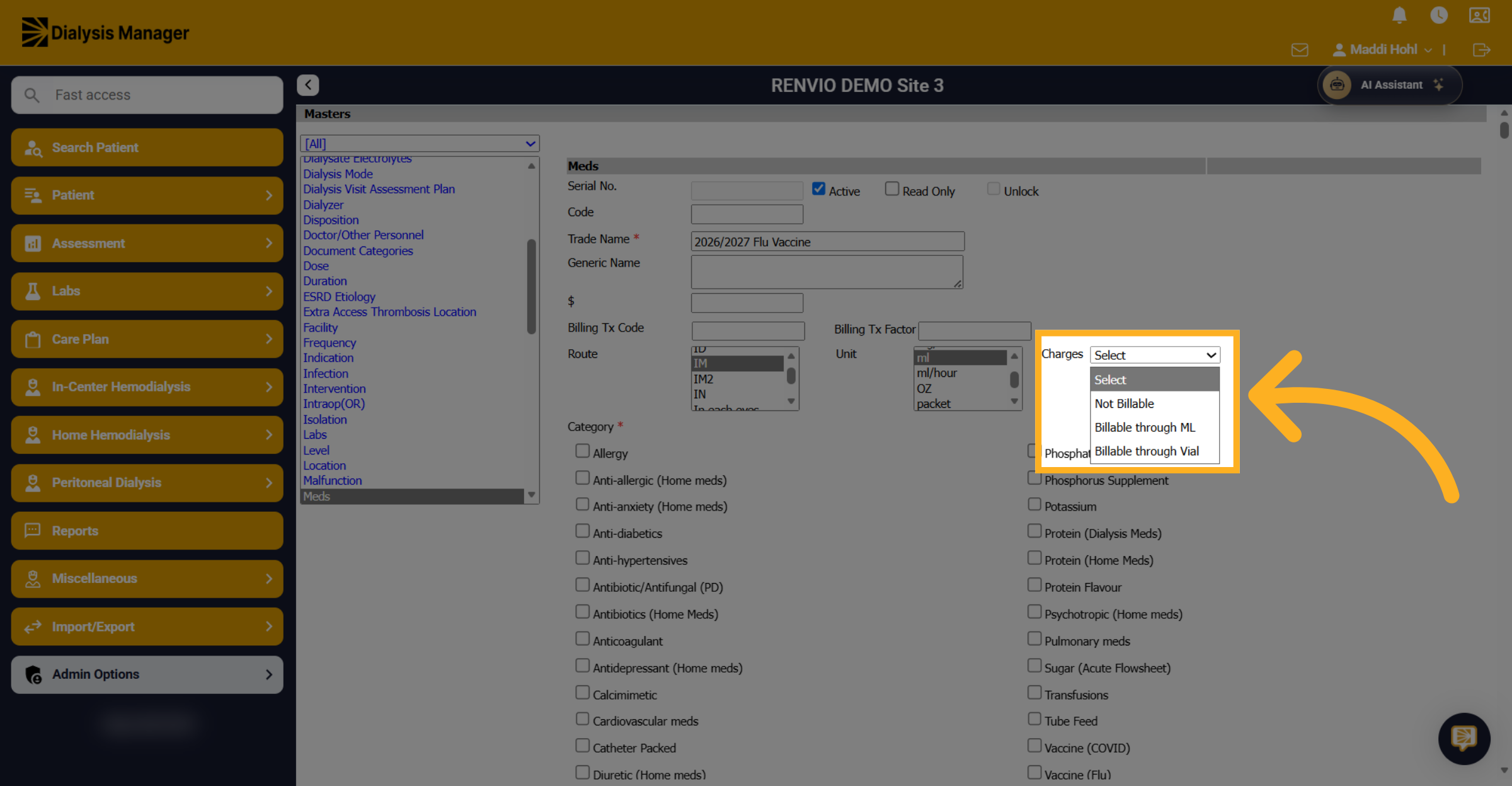
13. Update Billing Category
Select the appropriate billing category. We recommend Billable through Vial.
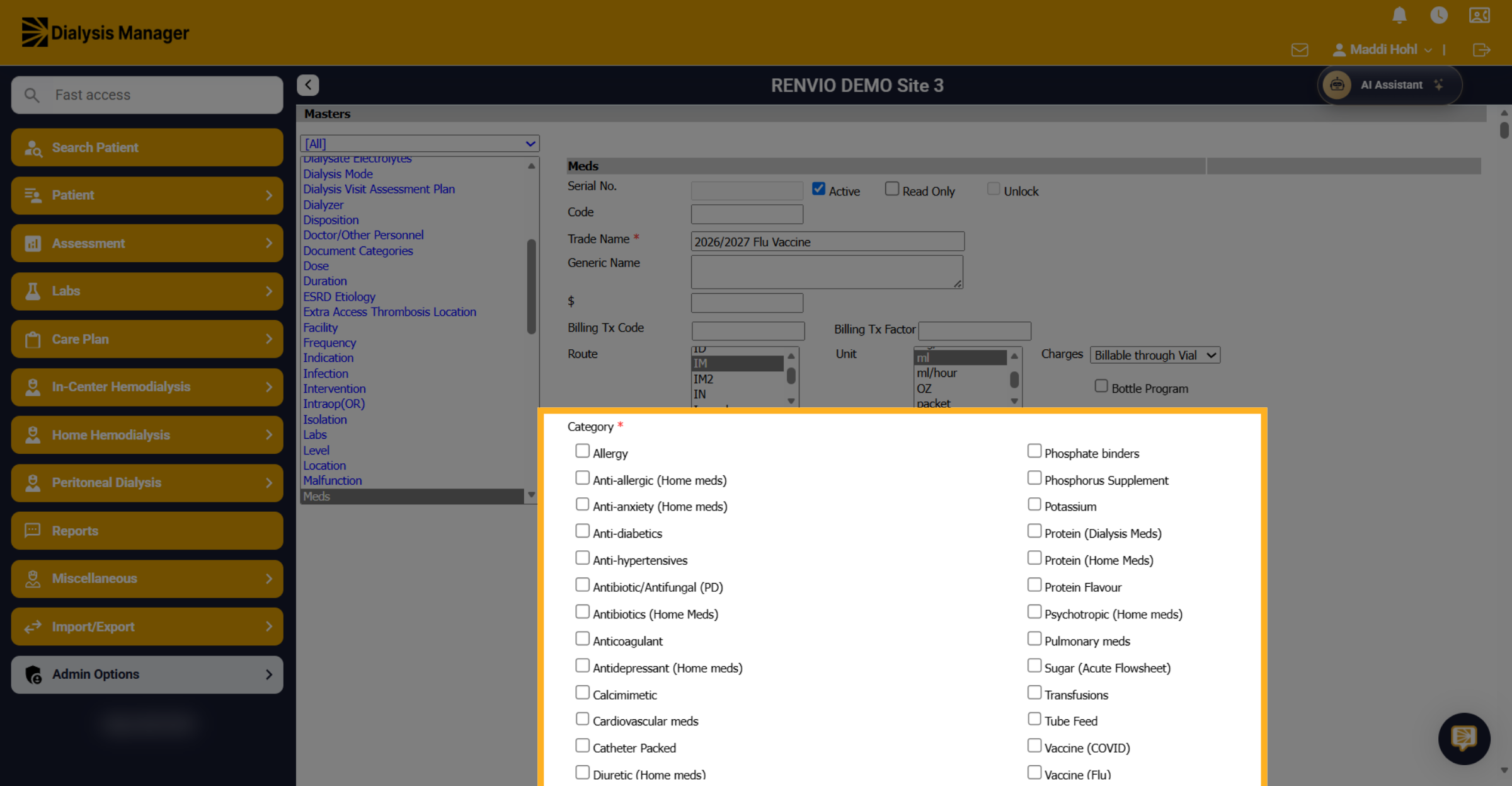
14. Select Report Categories
Next, choose the categories the vaccine falls under. This is used for reports.
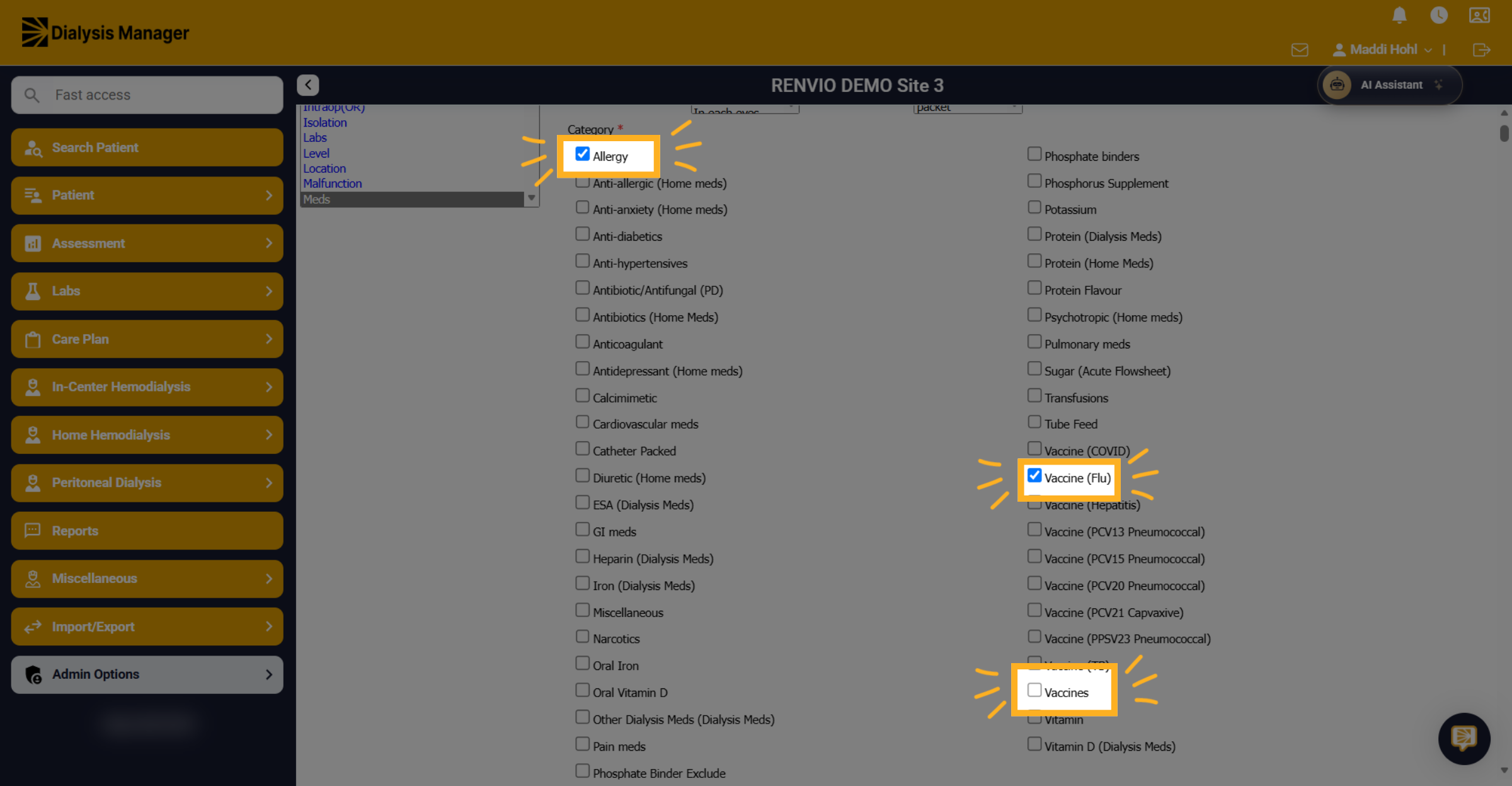
15. Select the following categories
Choose these three categories: allergy, vaccine (flu), and vaccines.
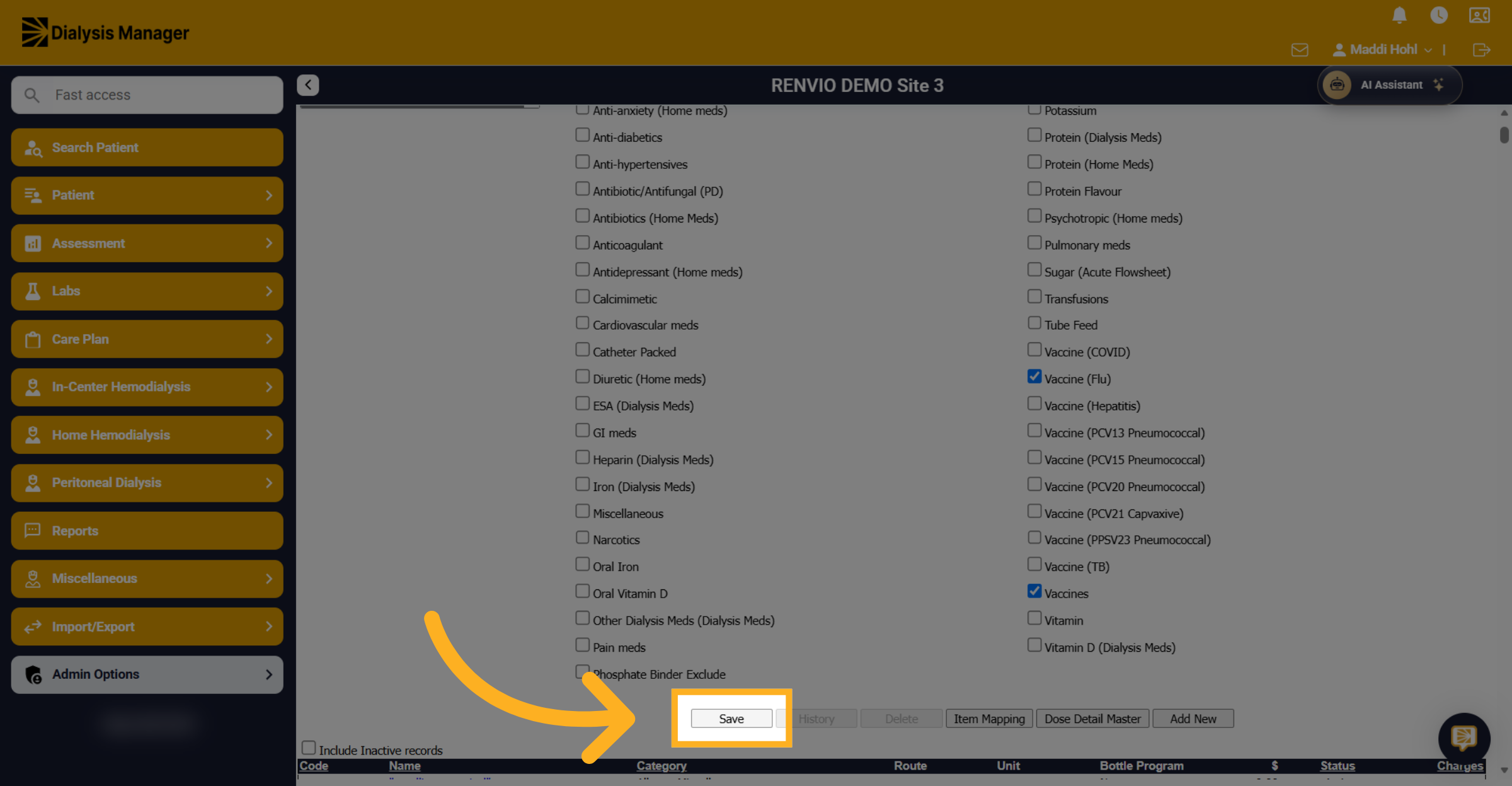
16. Save Vaccine Changes
Click Save.
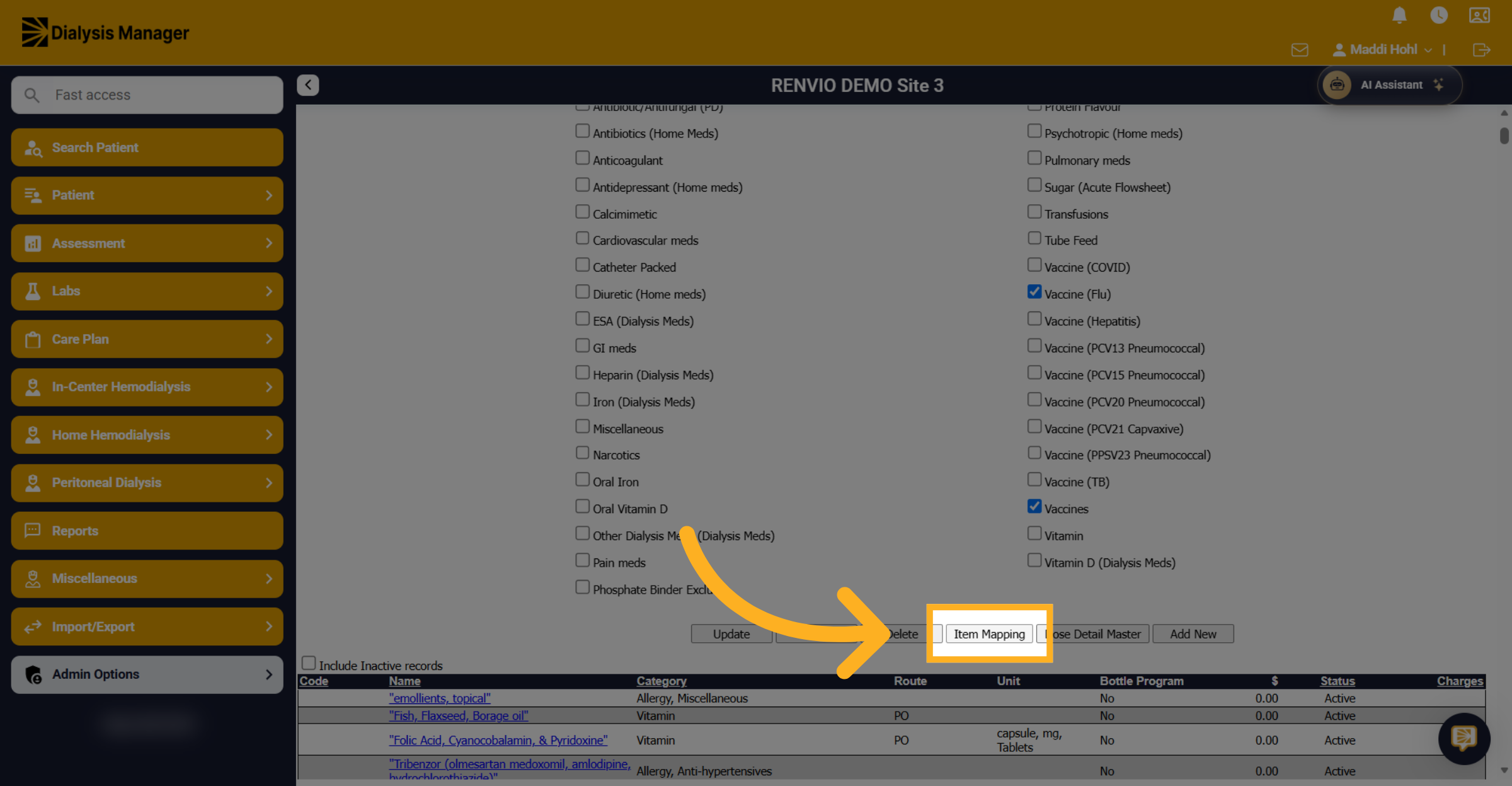
17. Open Item Mapping
Now, link the vaccine to specific dialysis units. Click Item Mapping.
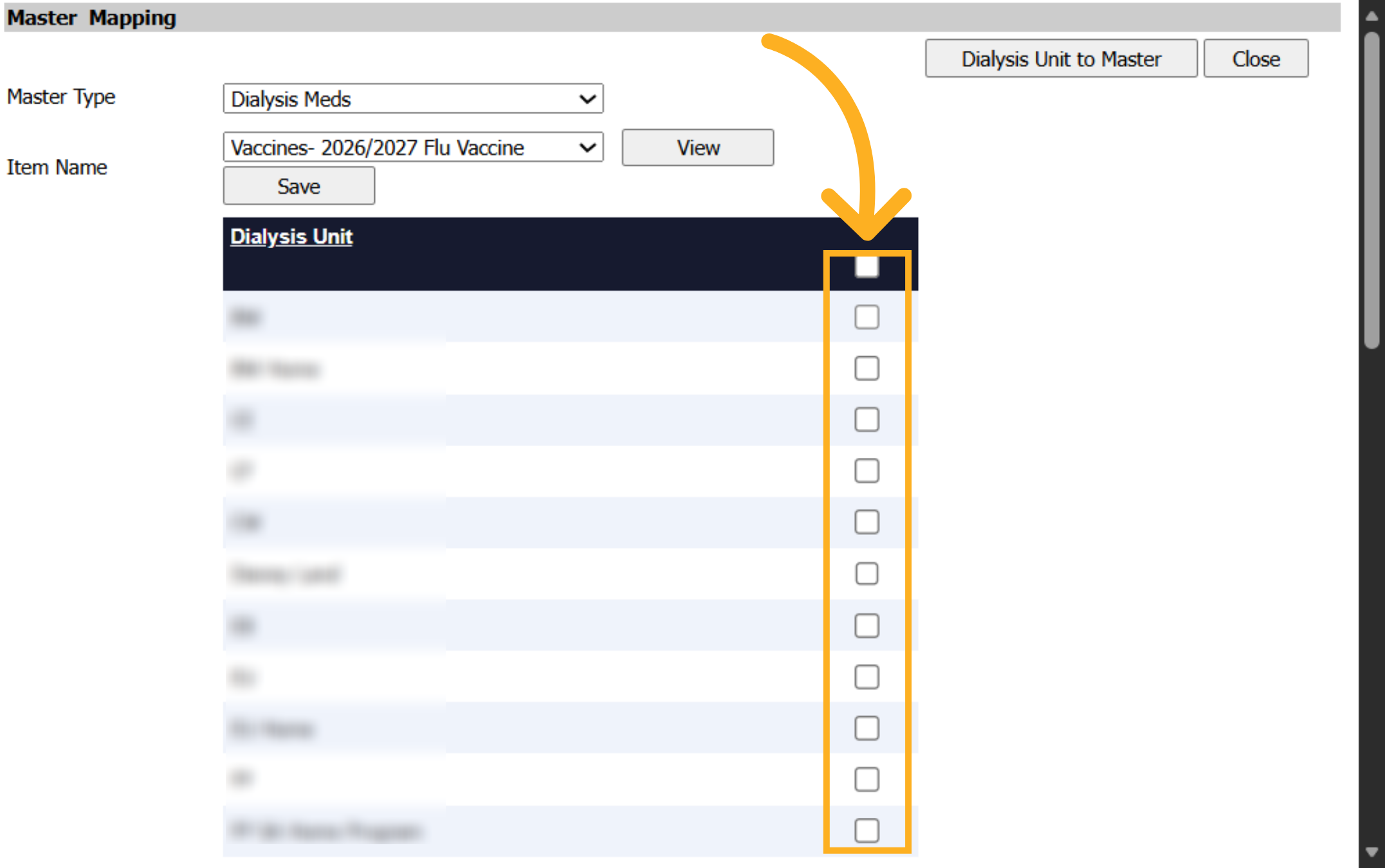
18. Select Dialysis Unit
Choose one or more dialysis units that this vaccine is available at.
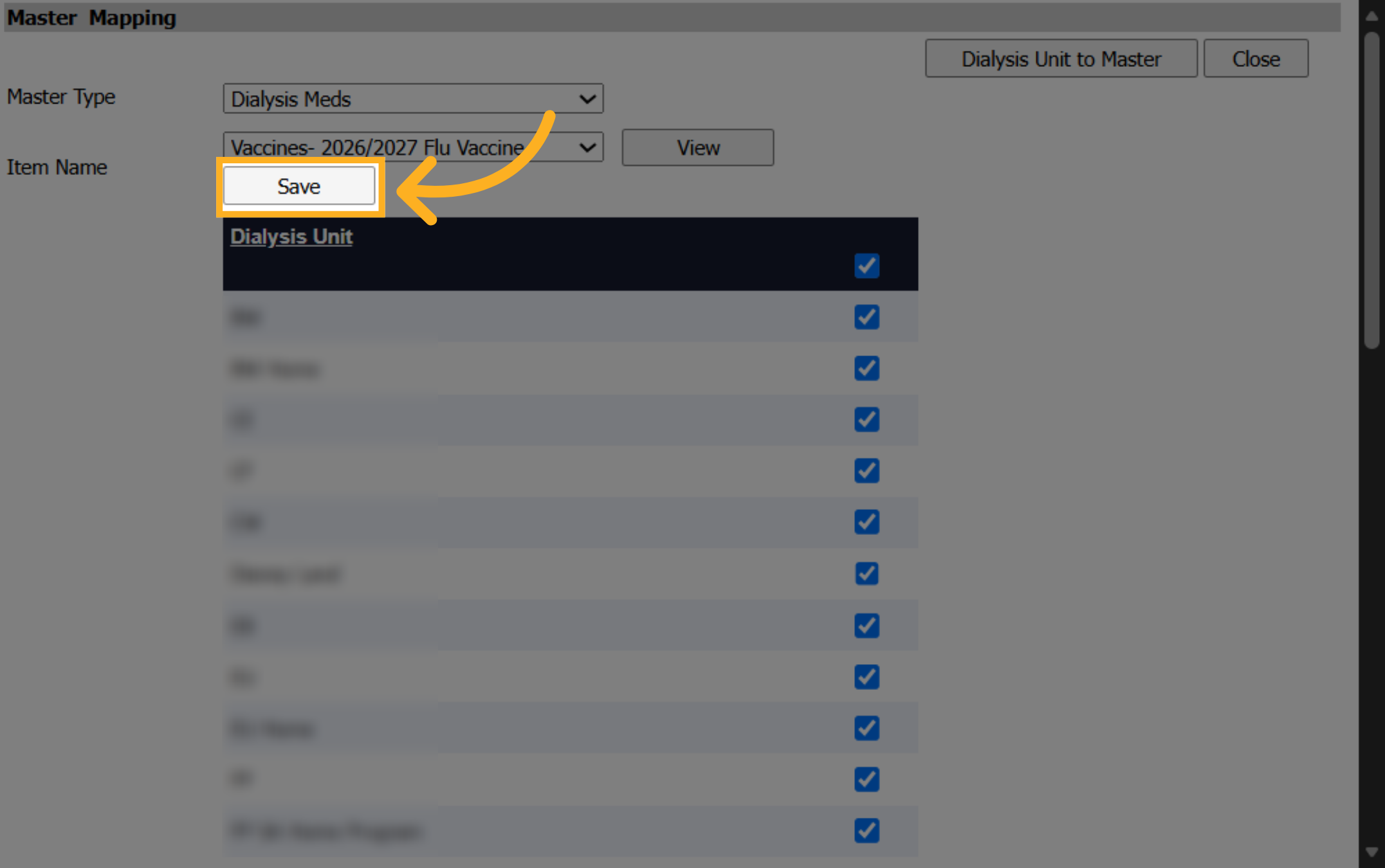
19. Save Unit Mappings
Click Save to confirm the vaccine mapping to the selected dialysis units.
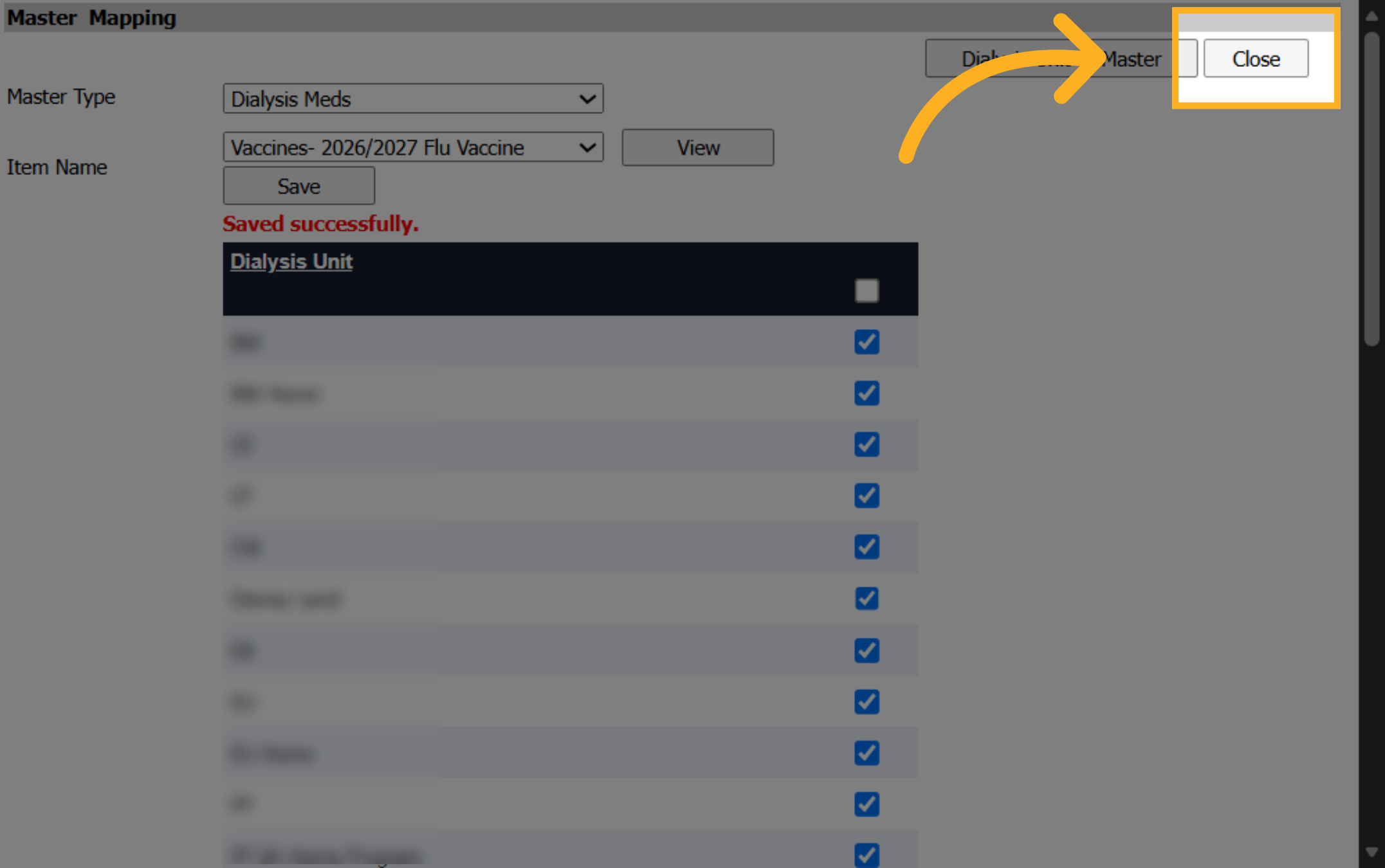
20. Close Mapping Window
Close the mapping pop-up to return to the main page.
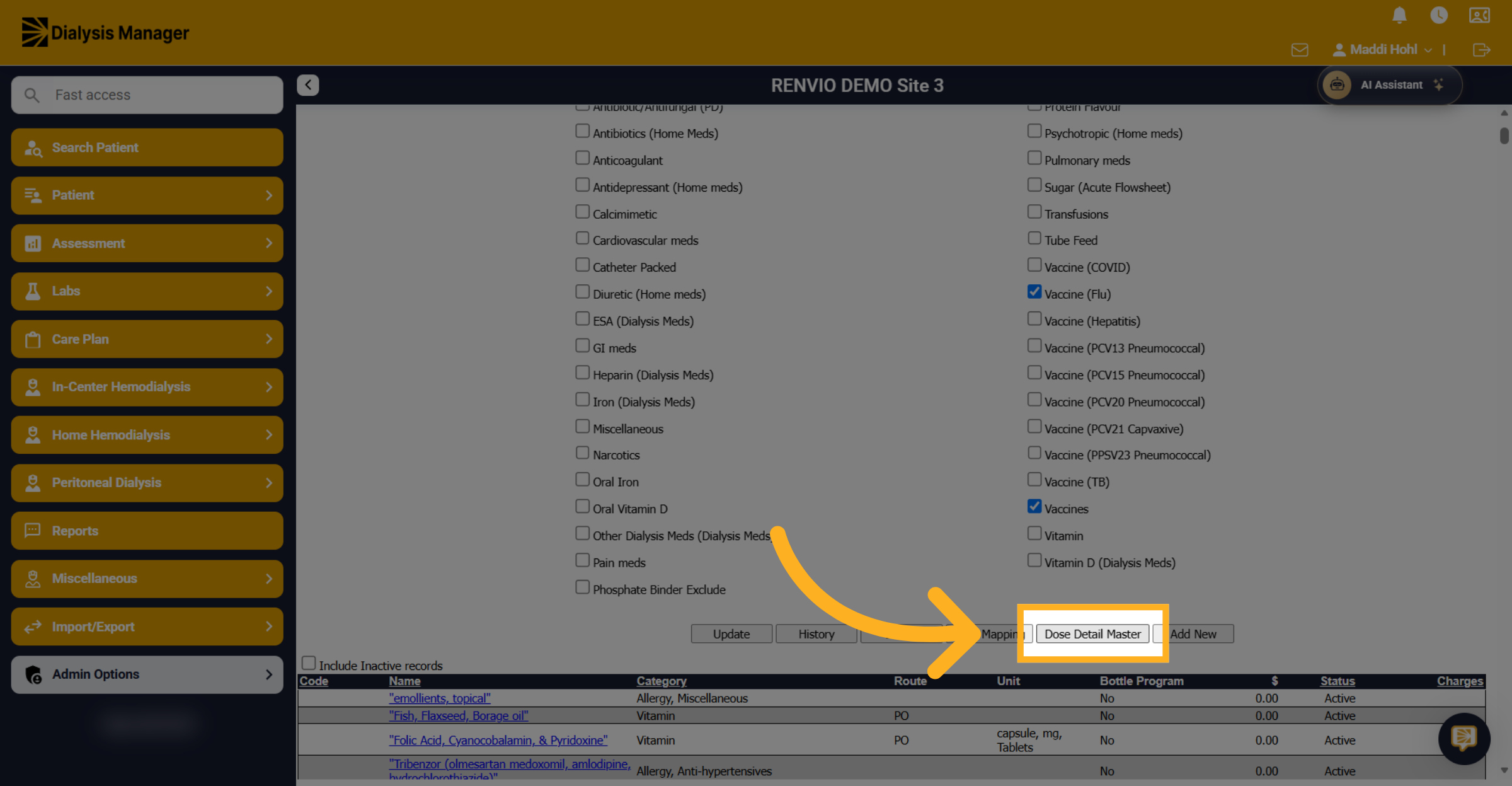
21. Access Dose Detail Master
Open the Dose Detail Master to enter more information about the vaccine.
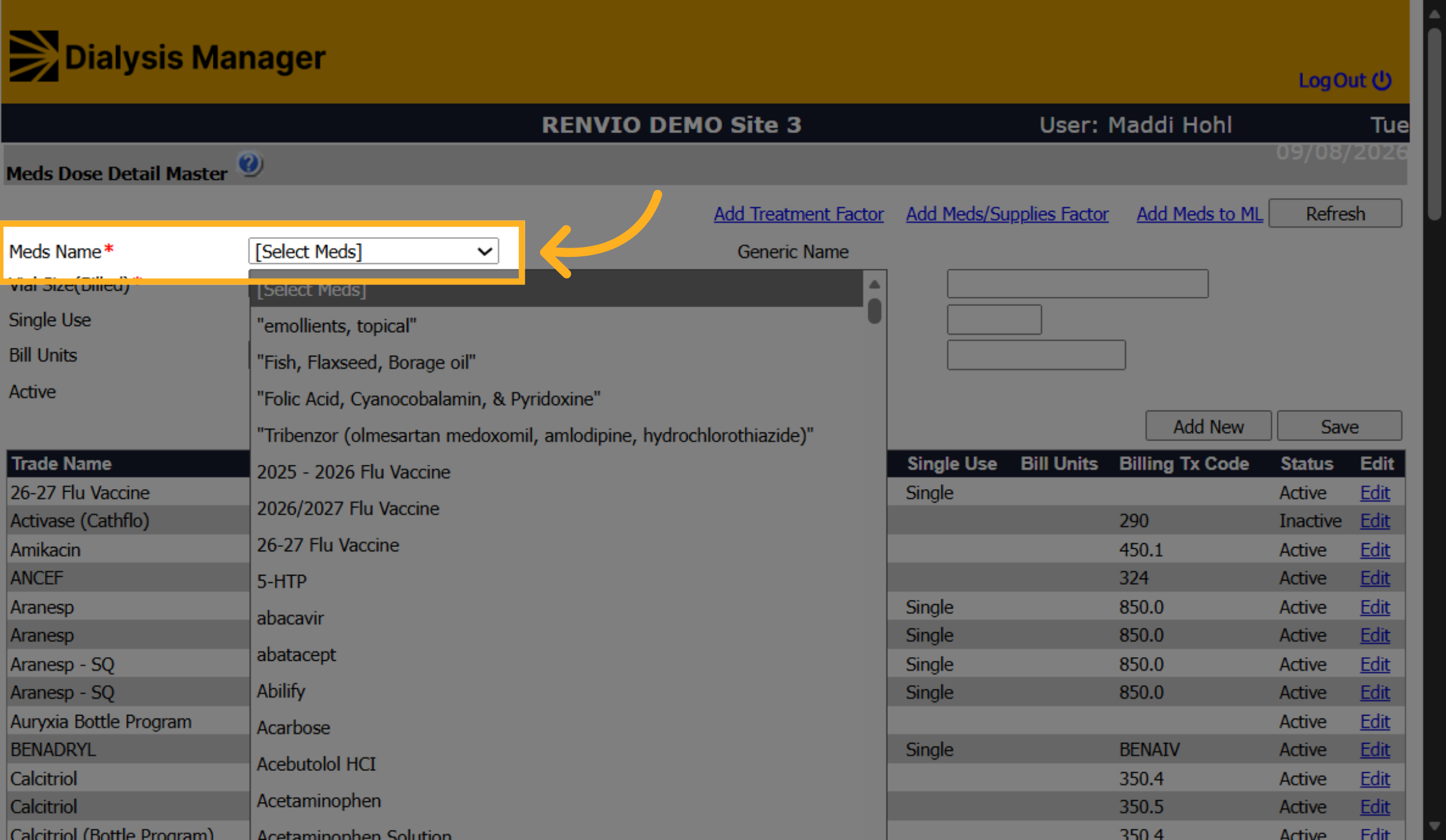
22. Select Vaccine from List
Find and select the flu vaccine from the dropdown list.
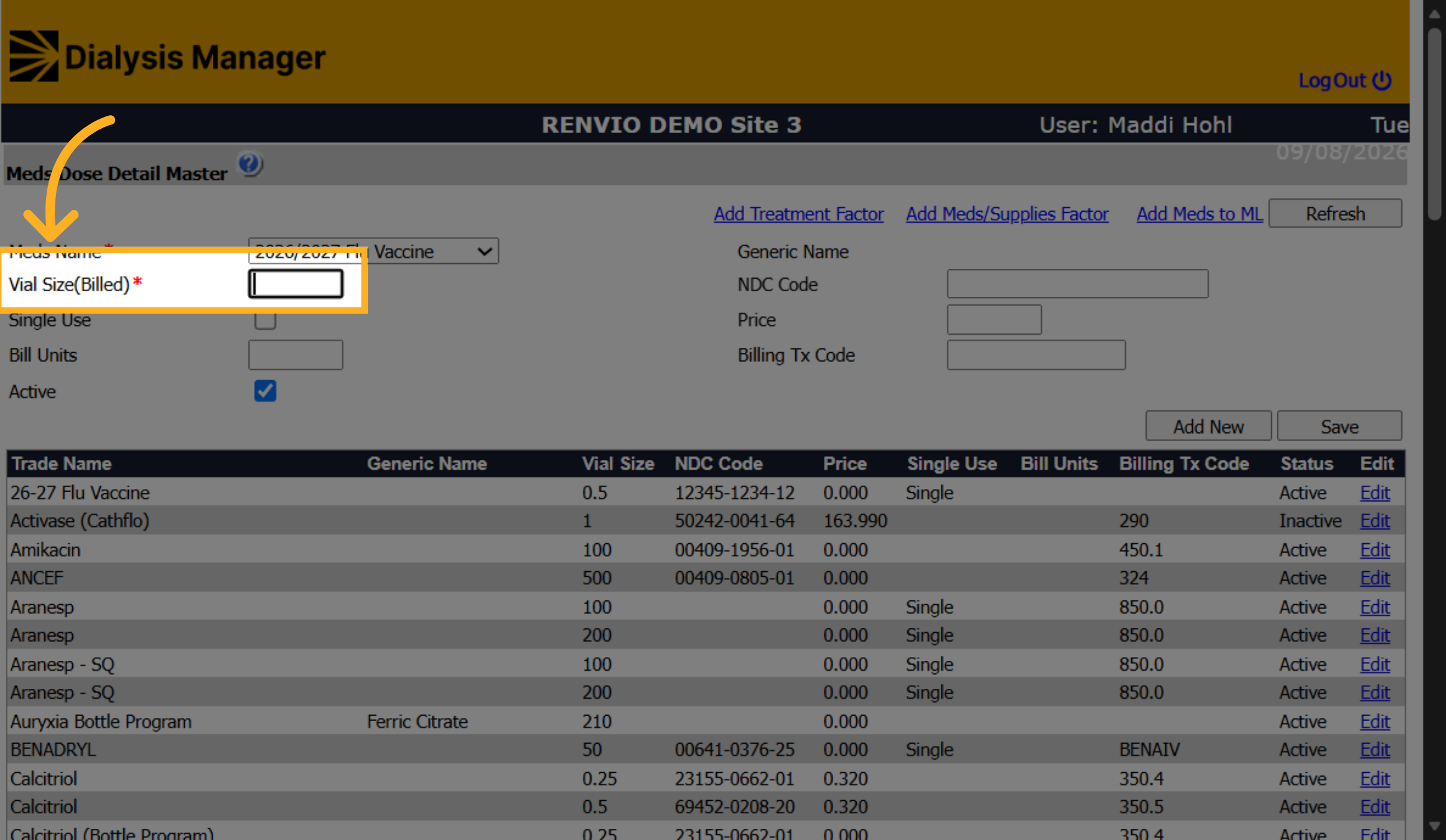
23. Enter the Vial Size
Enter the specific dose of the vaccine.
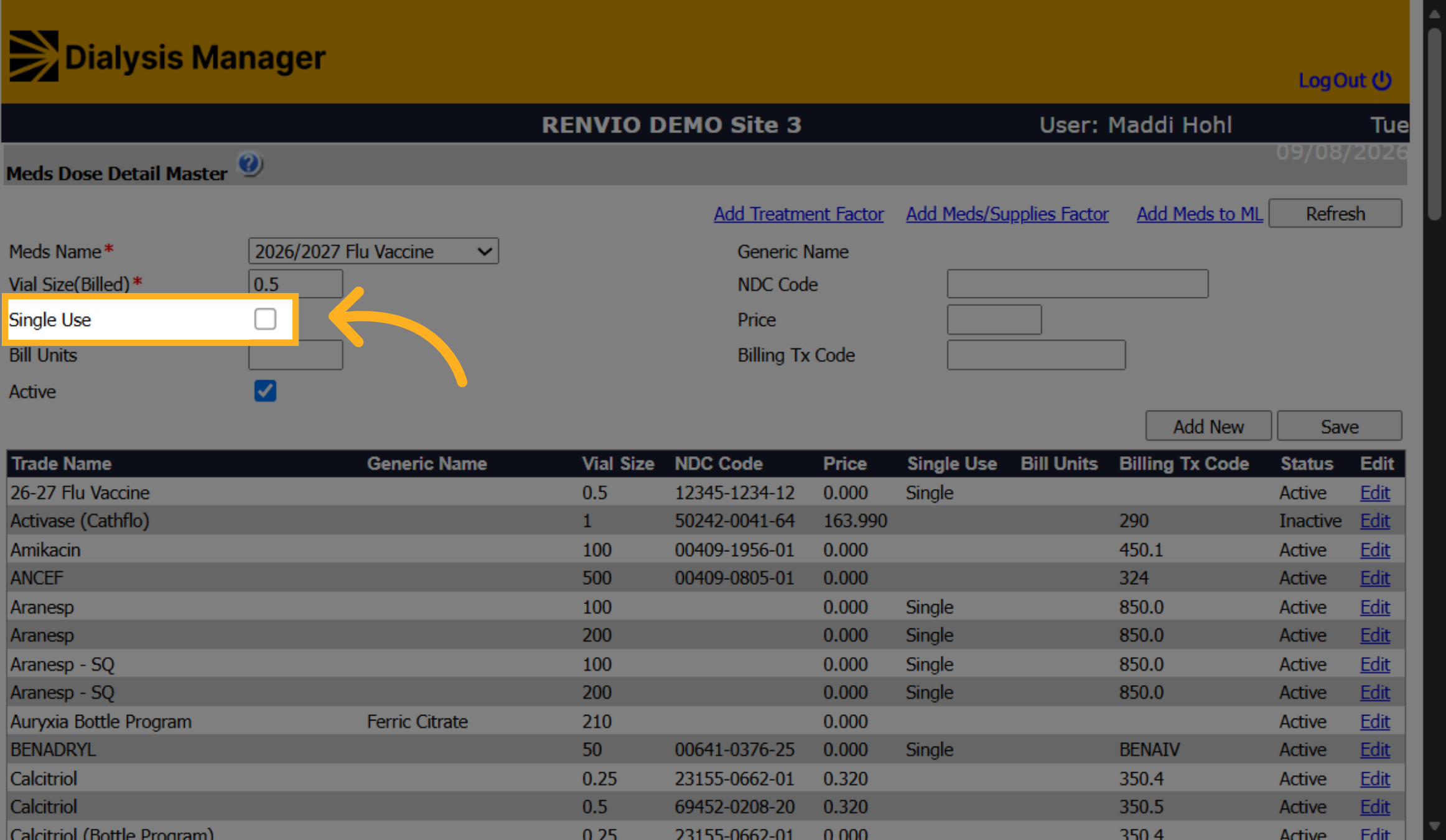
24. Select Single Use Option
Check if the vaccine is single use.
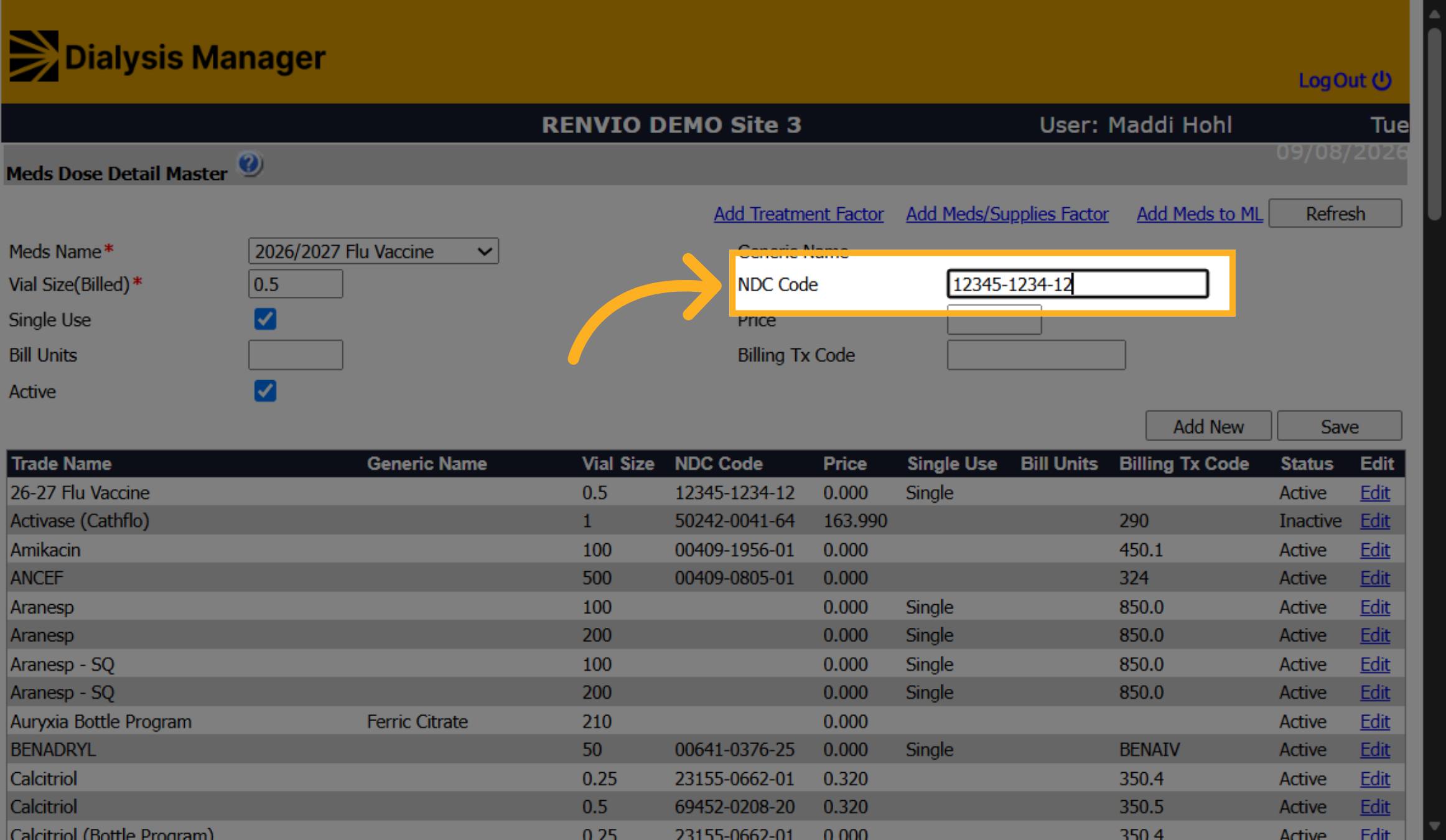
25. Enter NDC Code
Fill in the NDC code in the required format of 5-4-2, ensuring it matches the vial label, not the box.
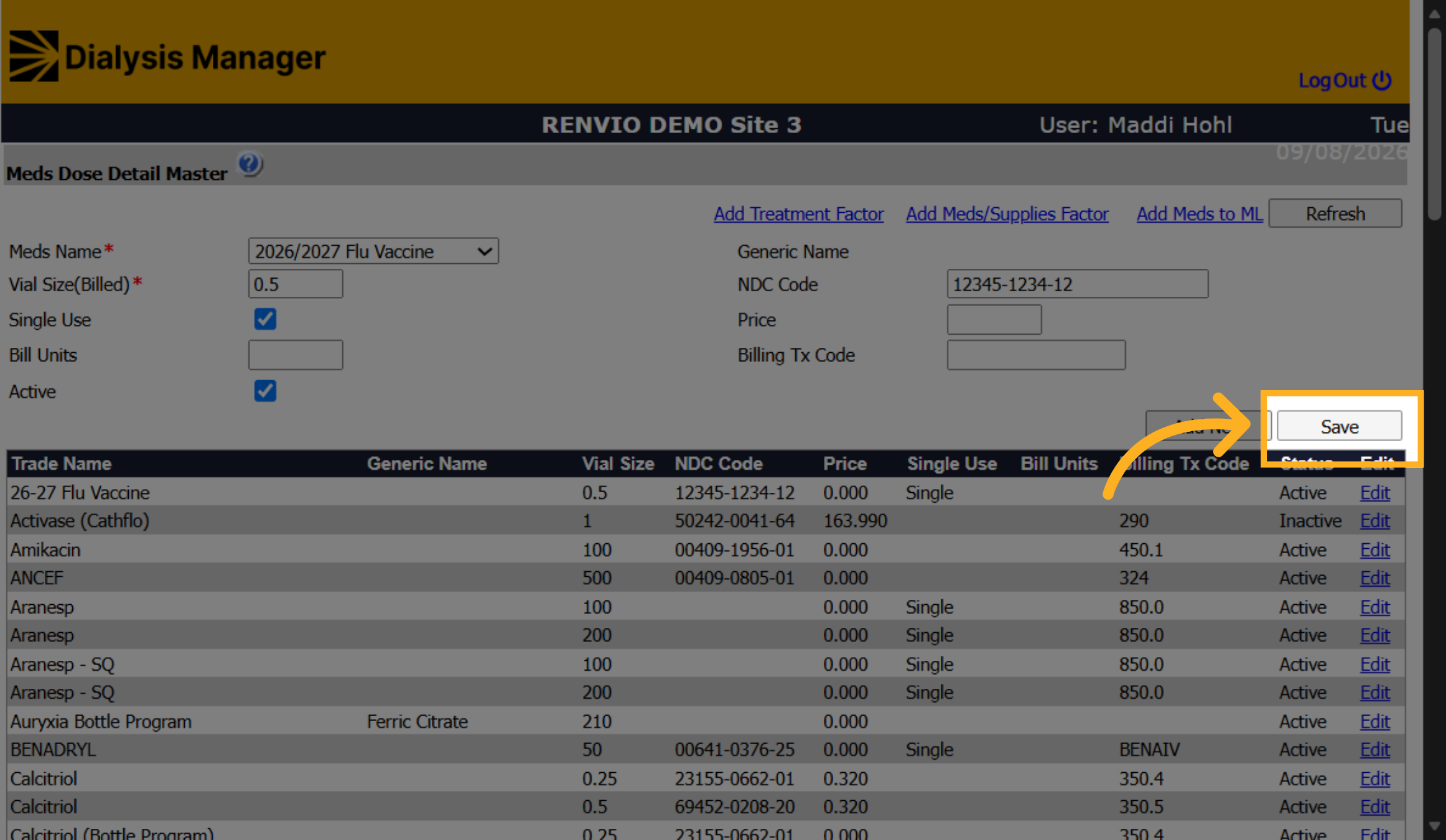
26. Save Dose Details
Click Save and close out of the popup.
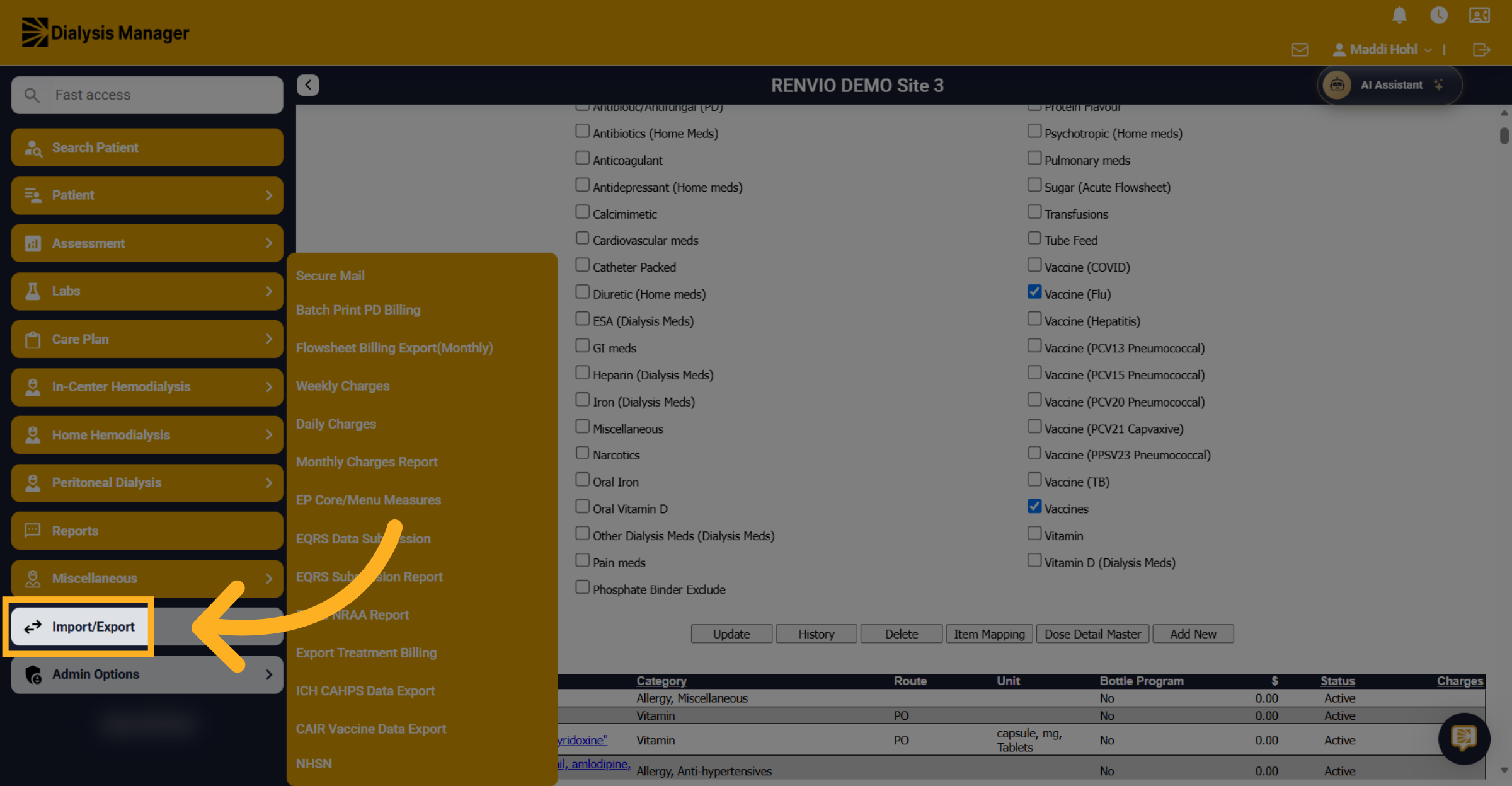
27. Open Import/Export Menu
Go to Import/Export to manage the billing charge set up.
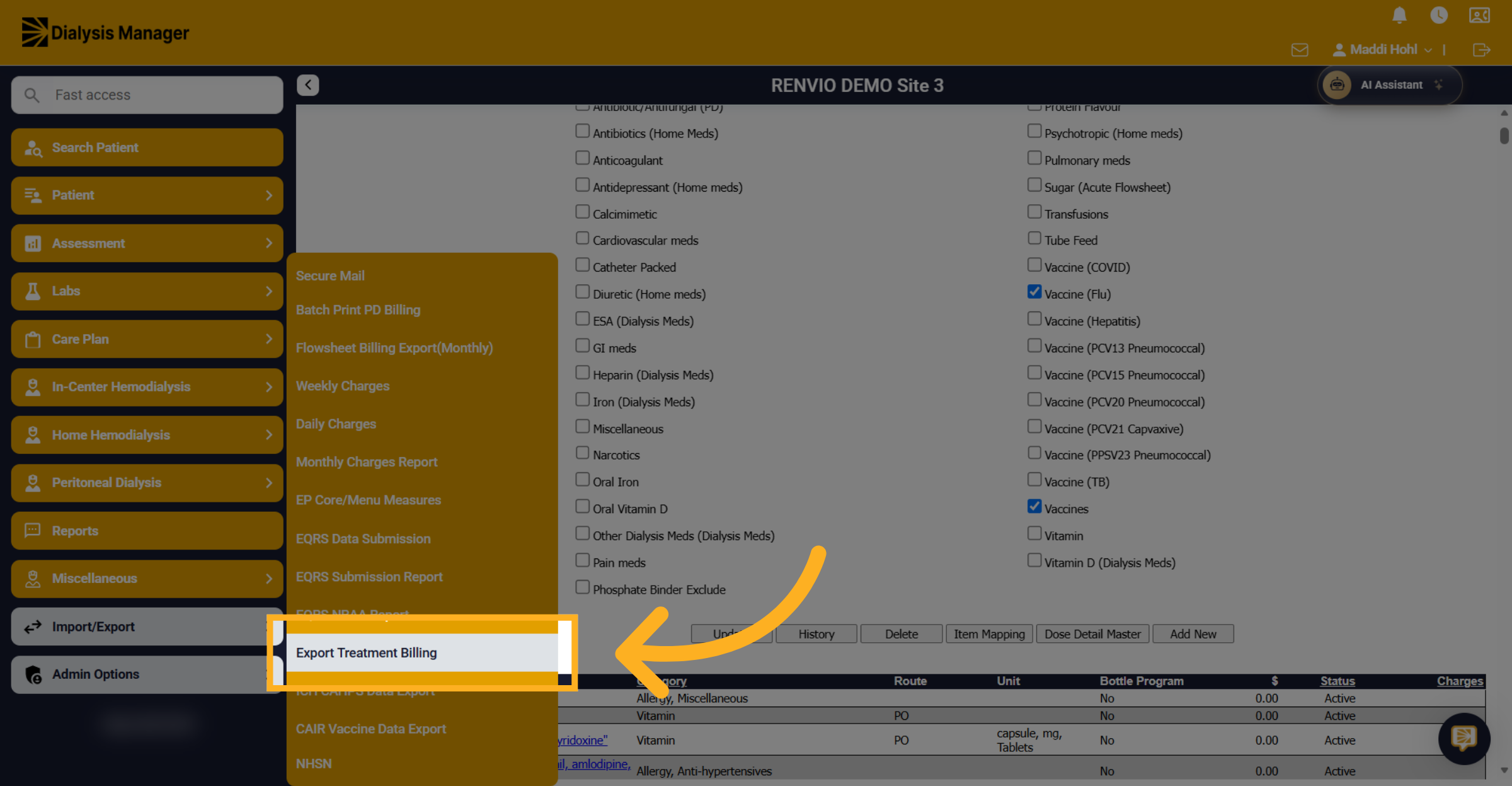
28. Export Billing Data
Select Export Treatment Billing.
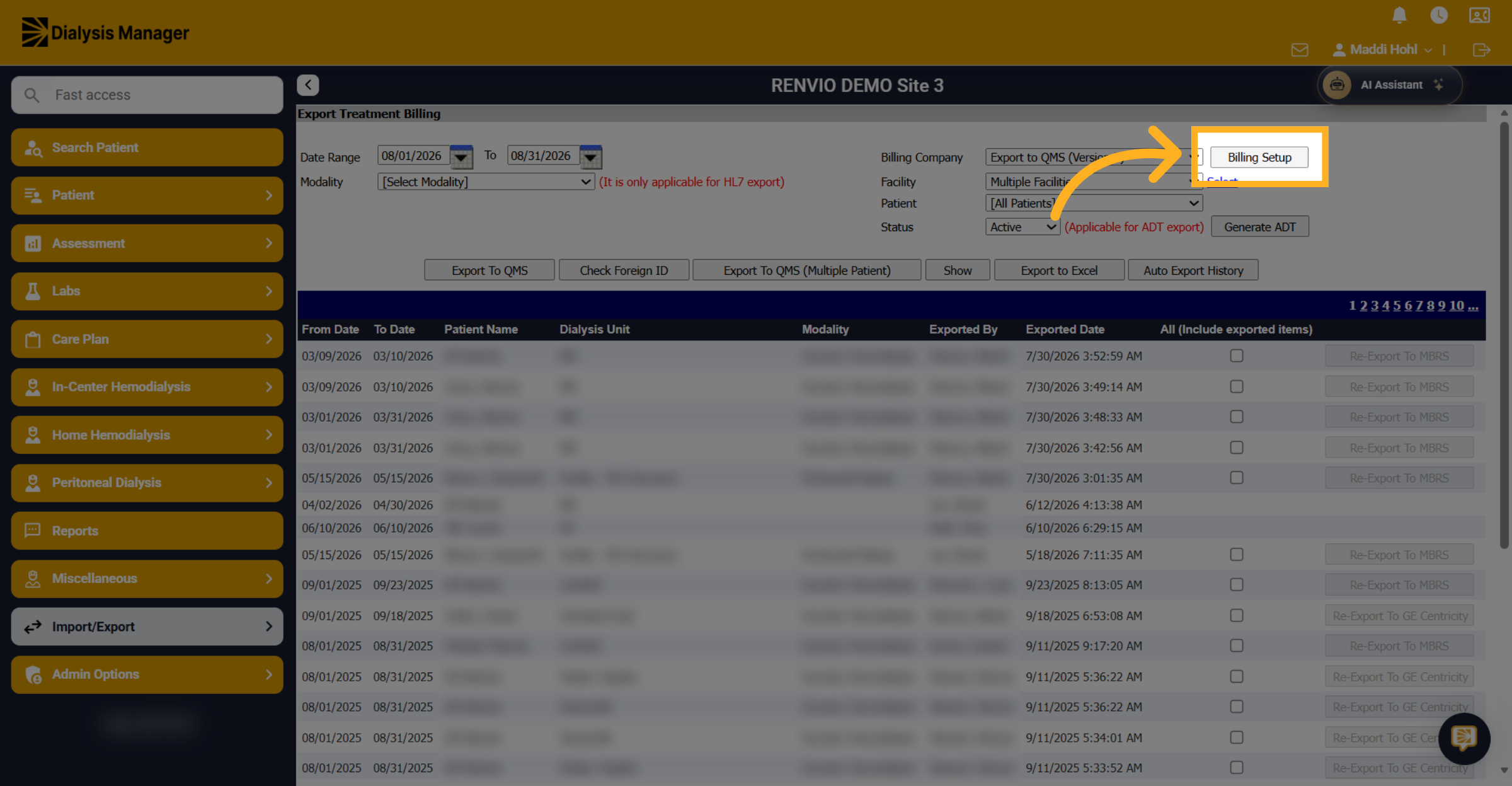
29. Access Billing Setup
Open the Billing Setup.
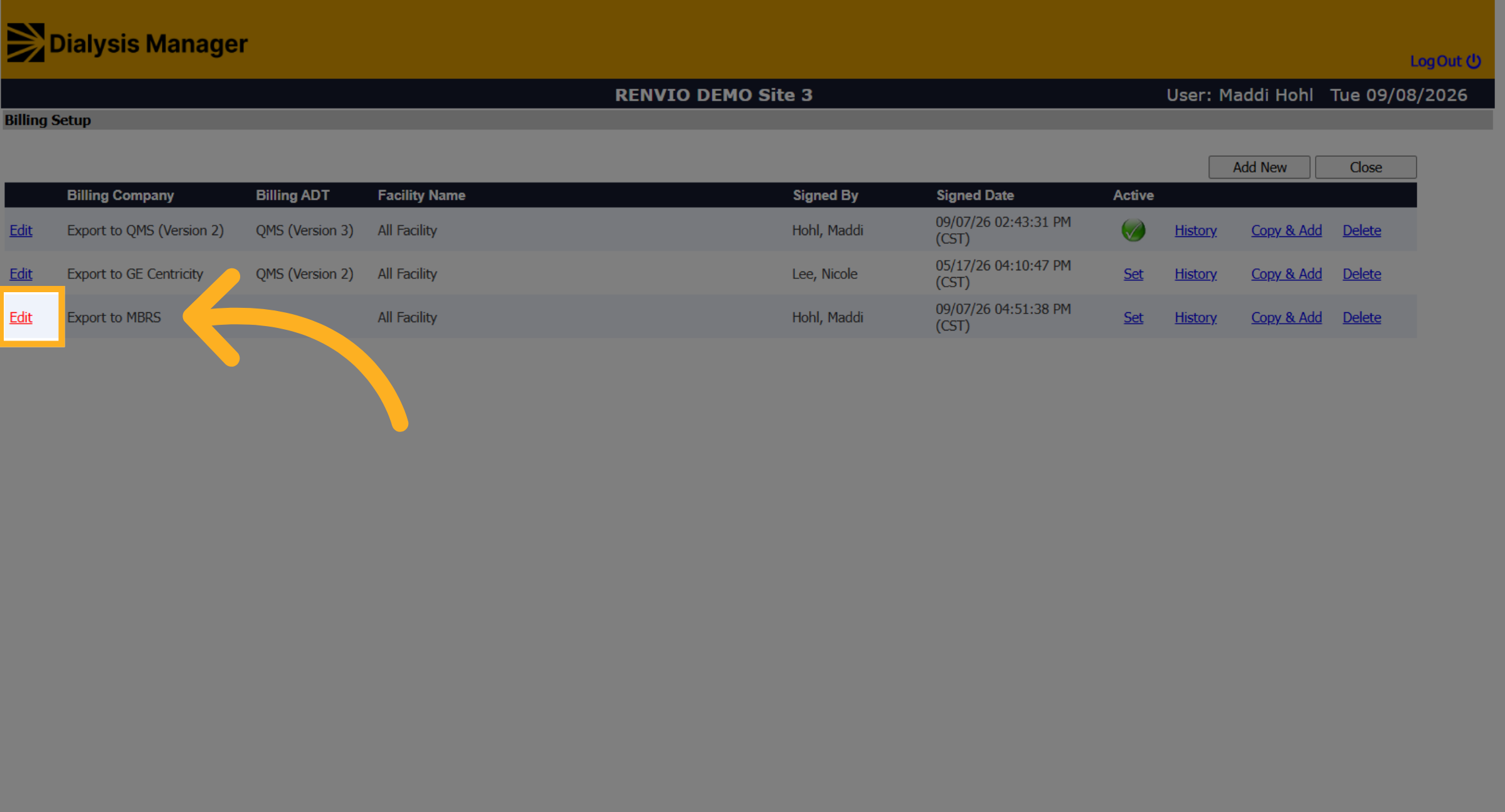
30. Edit Billing Company
Click Edit next to the billing company to update its billing configurations.
31. Open Medications FT Segment
Navigate to the Medications FT Segments section.
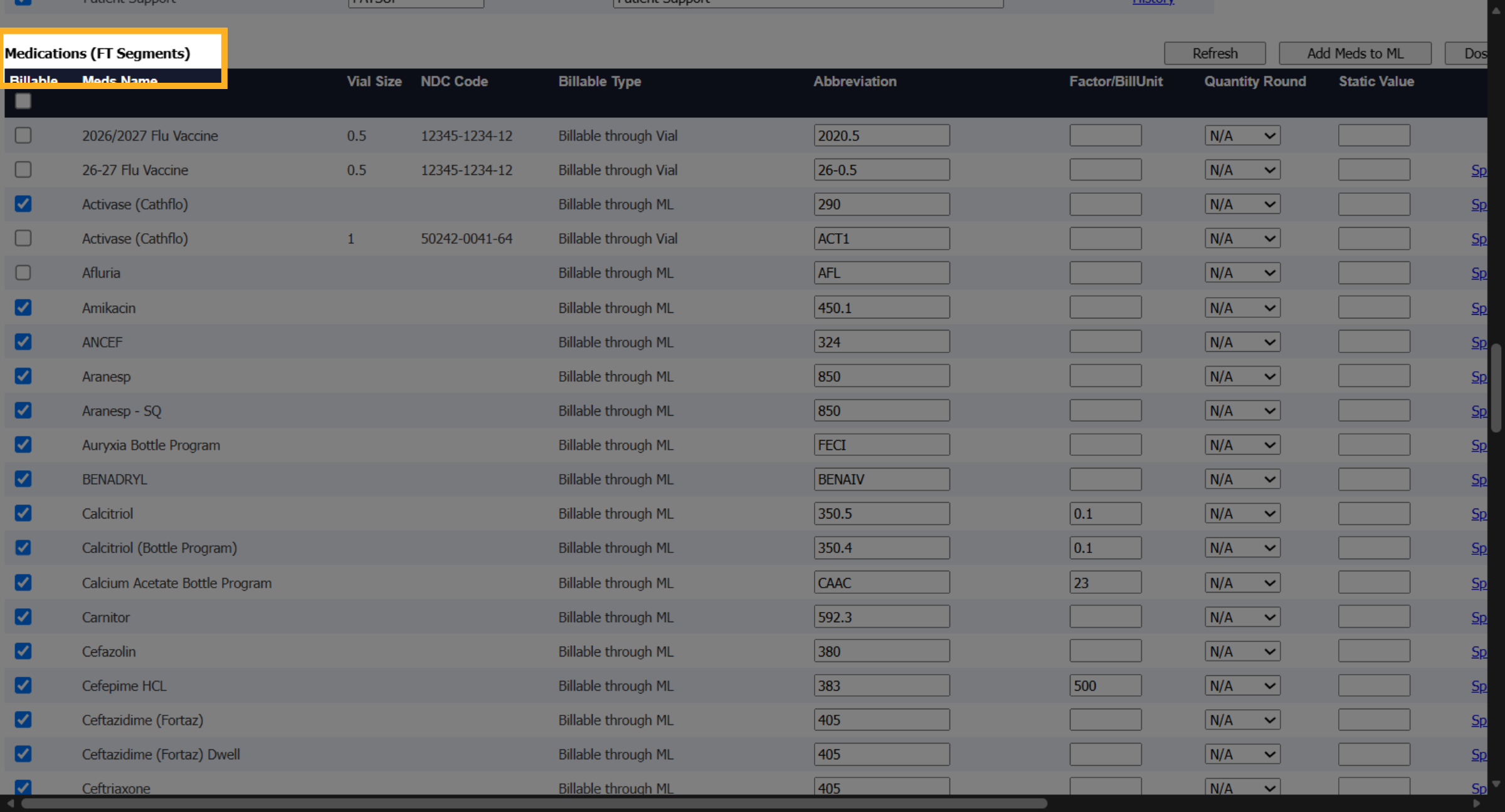
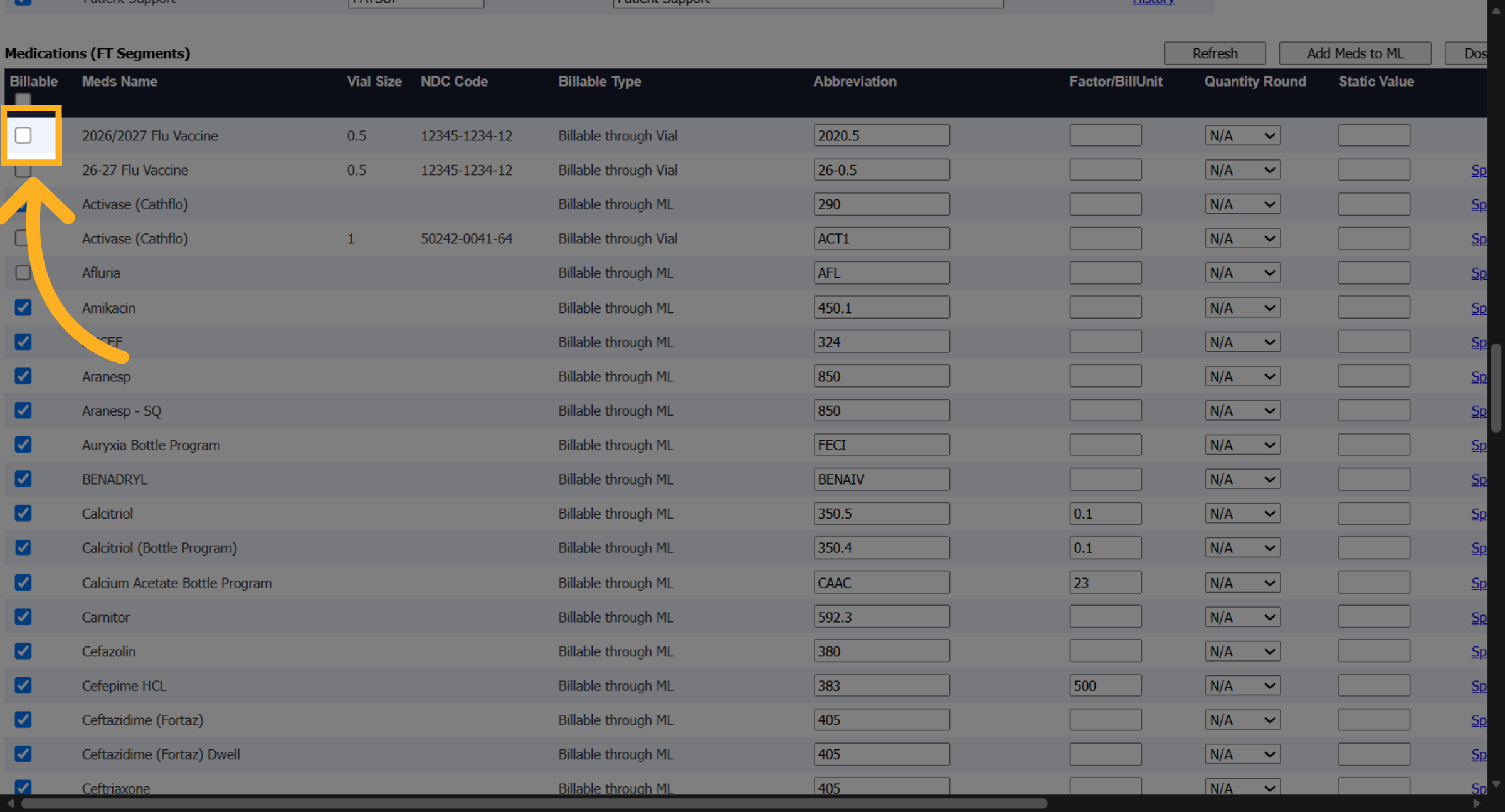
32. Select Billable
Check the Billable box next to the new vaccine.
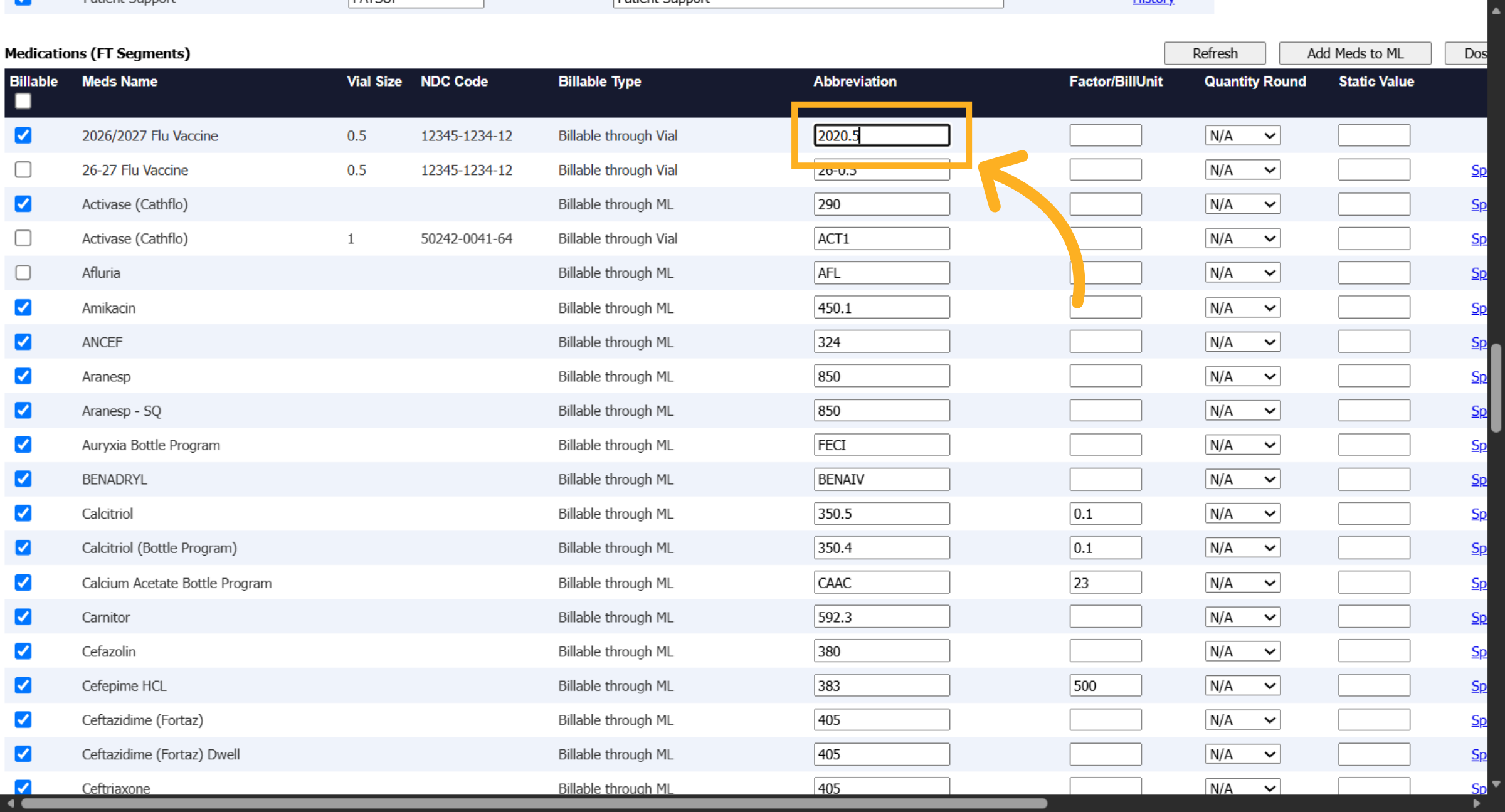
33. Choose Billing Version
Add a unique abbreviation to link the vaccine between Dialysis Manager and the billing software.
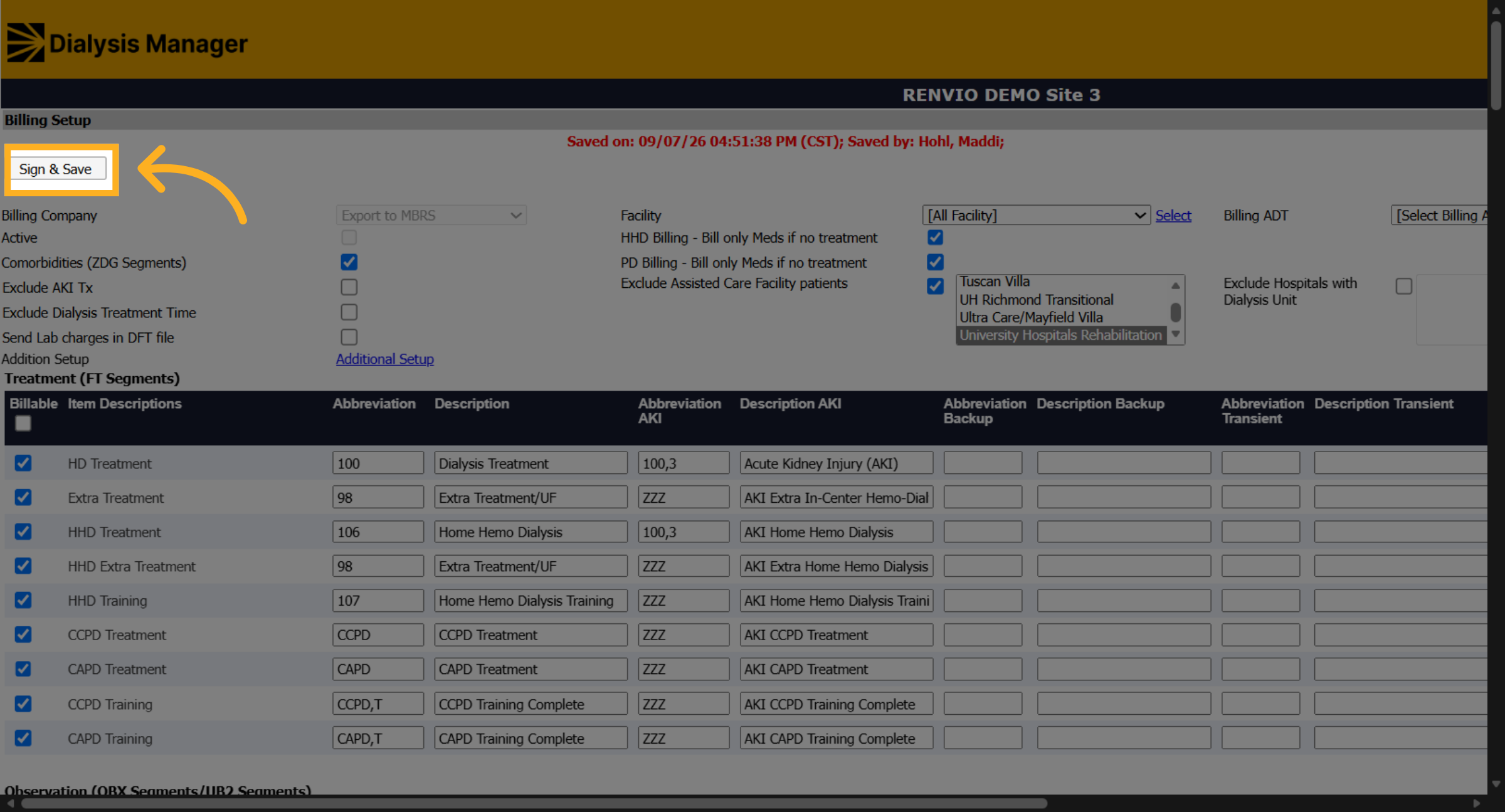
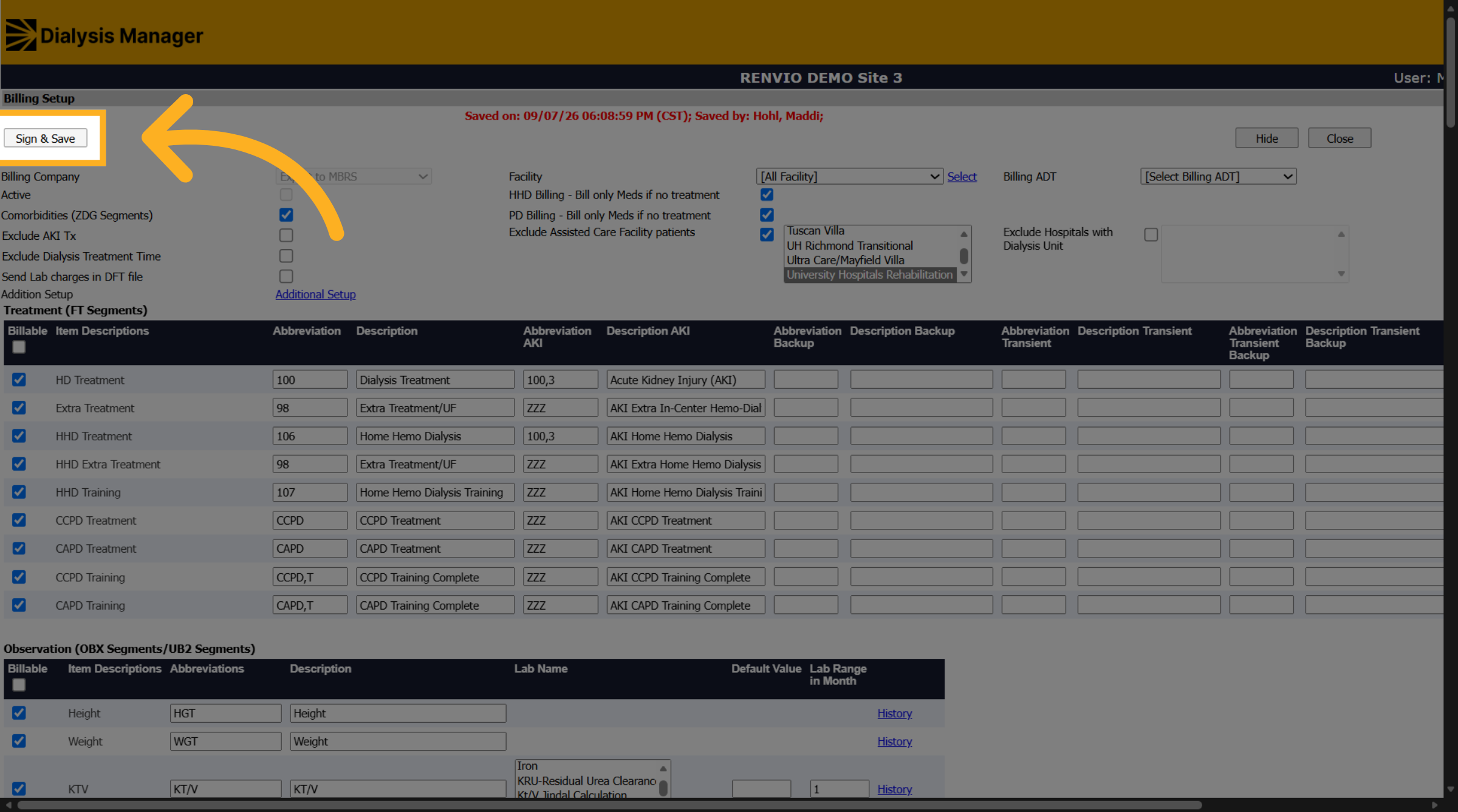
34. Sign and Save Billing
Click Sign & Save to save our changes.
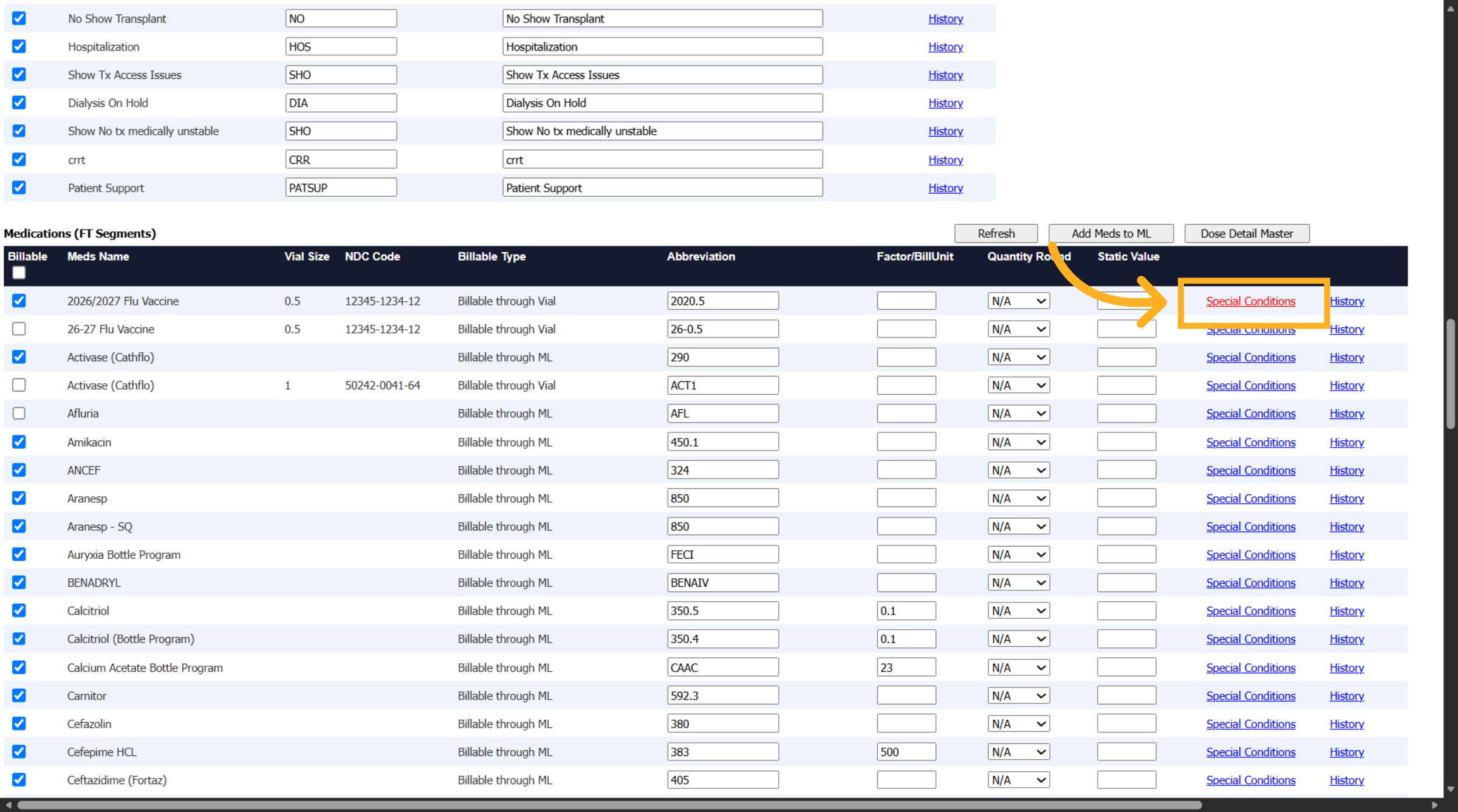
35. Open Special Conditions
To add admin charges or modifiers, go back to the Medications (FT Segment) area and click Special Conditions next to the vaccine. If you do not see Special Conditions, scroll your screen to the right.
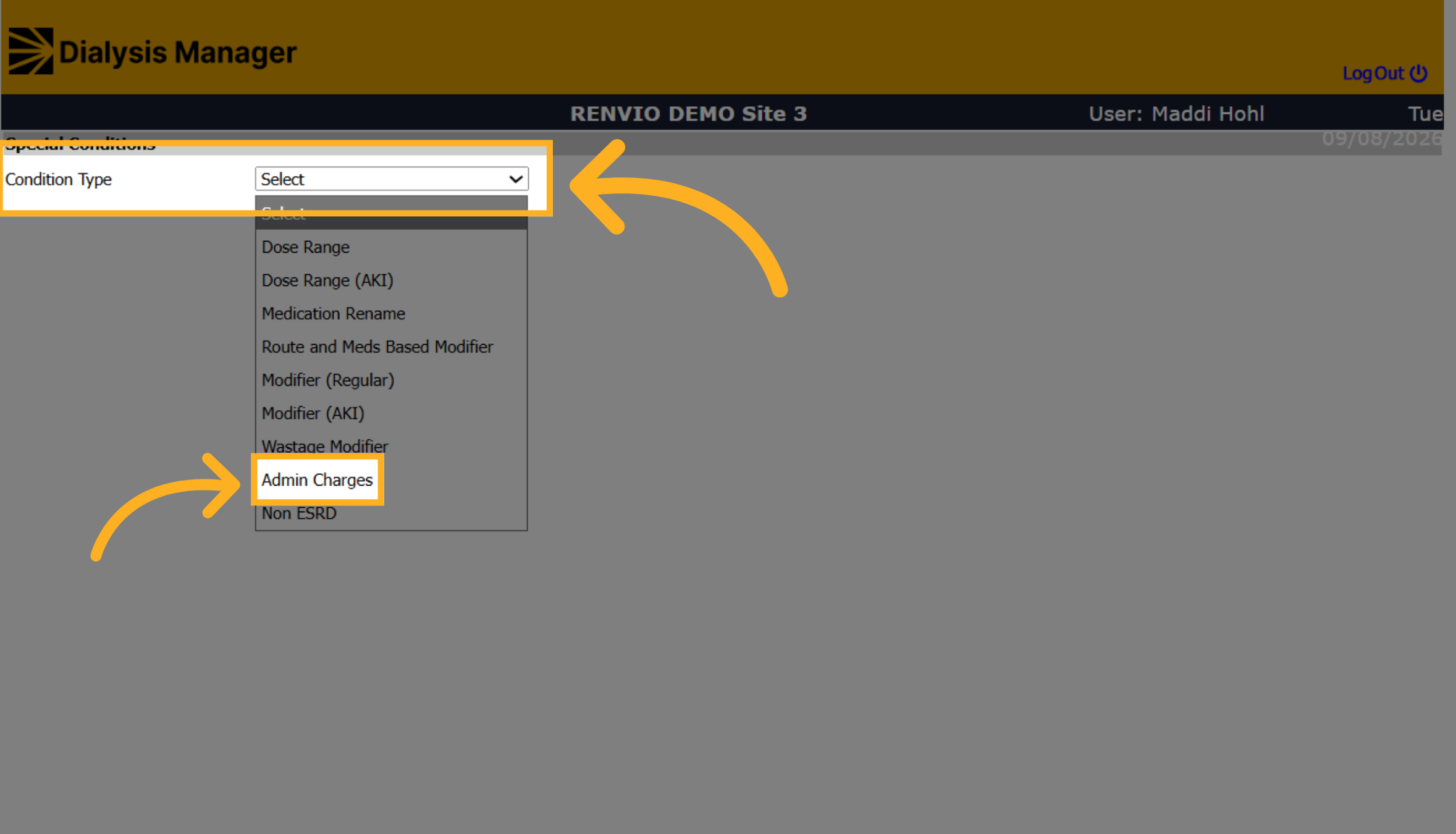
36. Select Condition Type
Update the Condition Type dropdown and choose Admin Charges
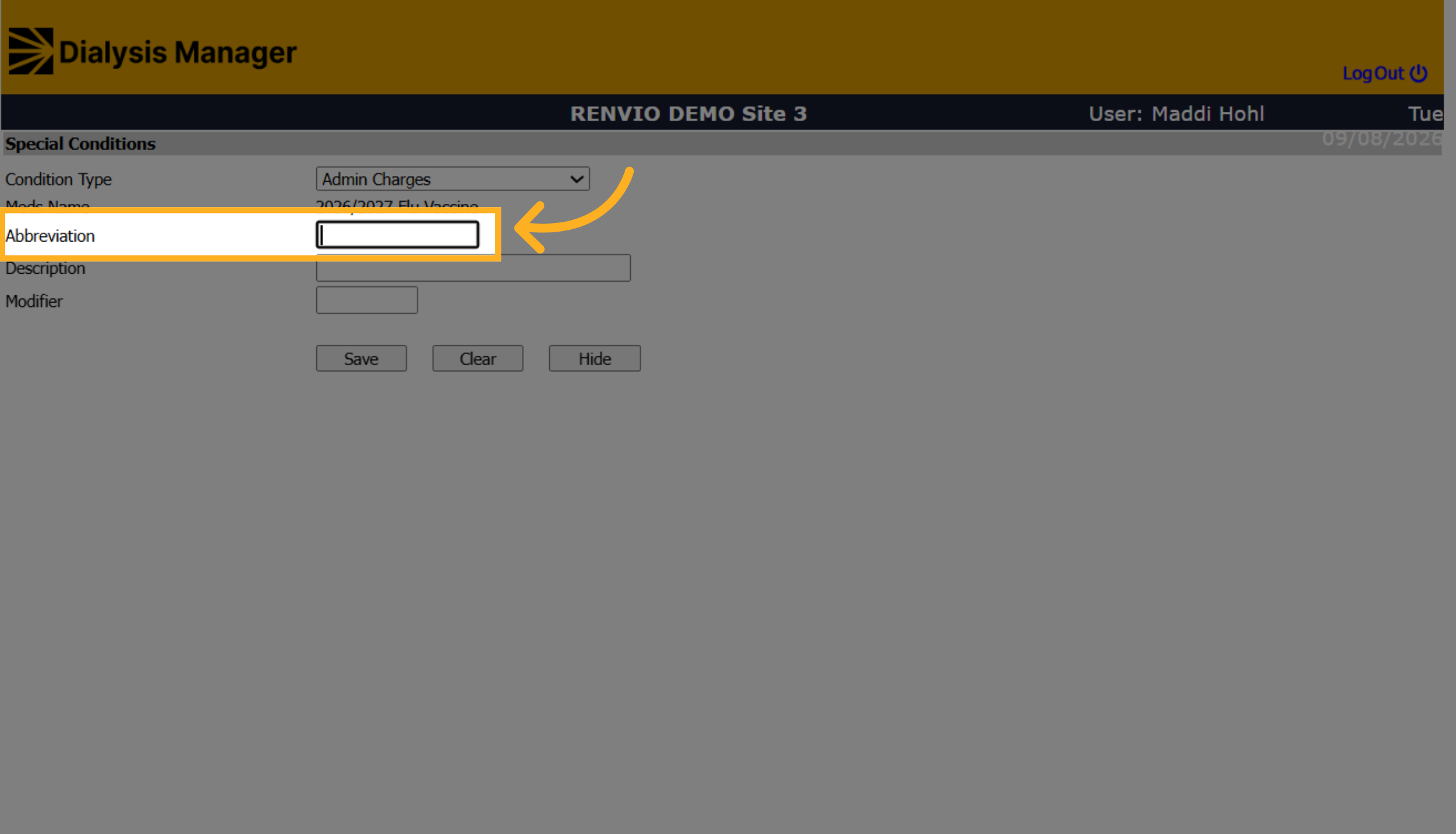
37. Open Condition Form
Enter an abbreviation for the admin charges. We recommend using the admin charges CPT code, G0008.
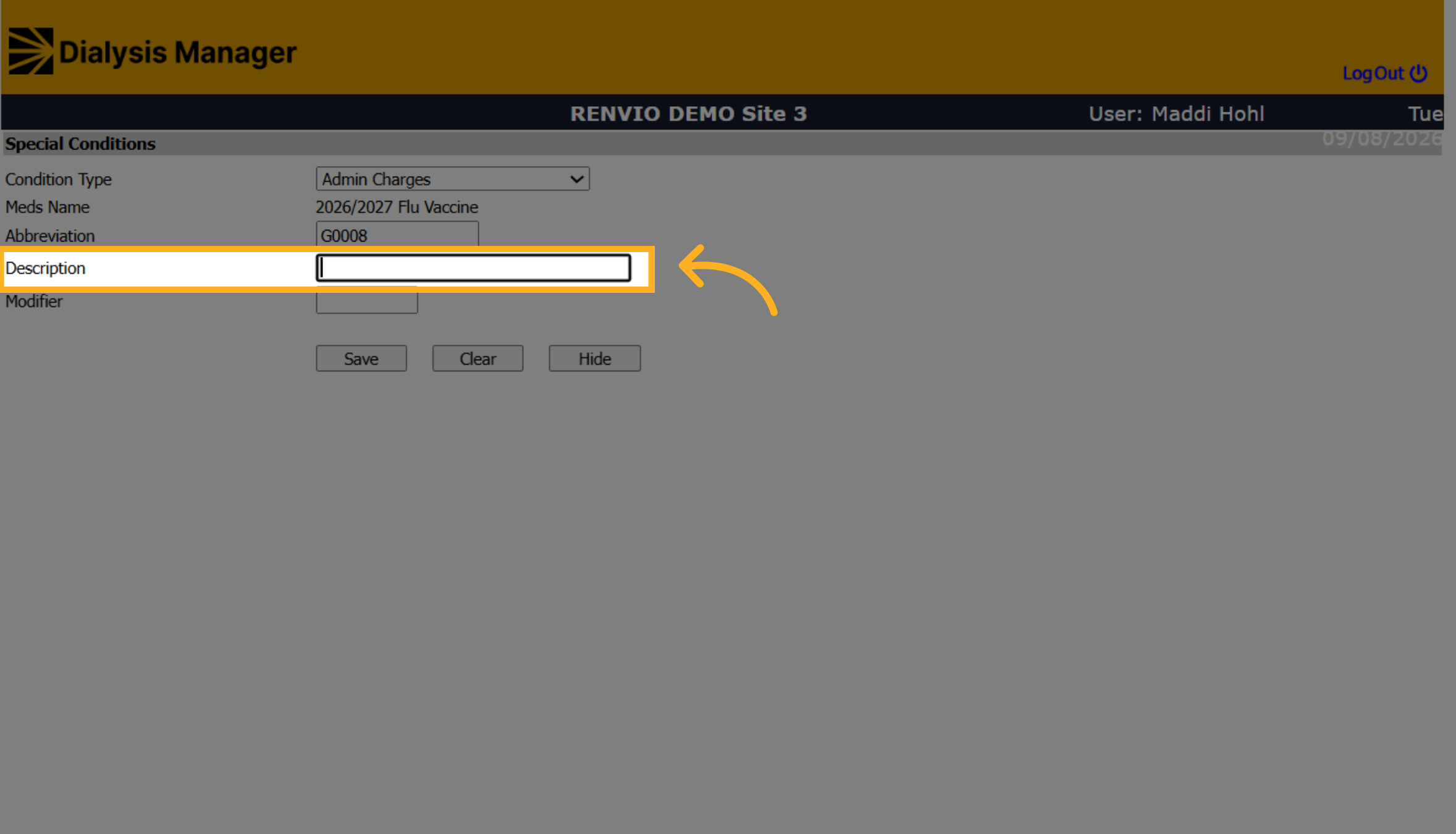
38. Open Description Field
Enter a description.
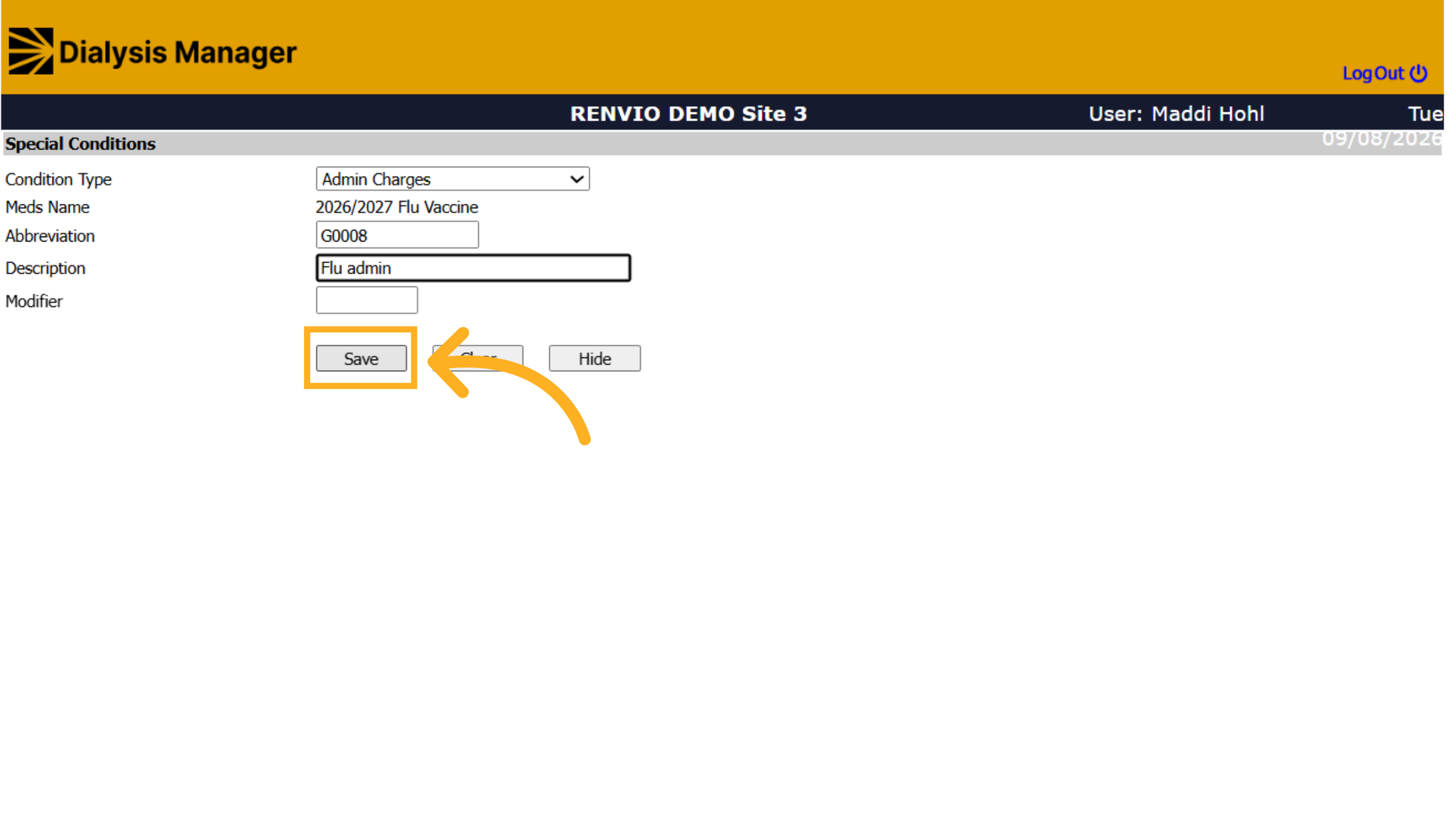
39. Save Special Conditions
Click Save to apply the changes.
40. Close Conditions Window
Close the special conditions pop-up to return to the main billing setup screen.
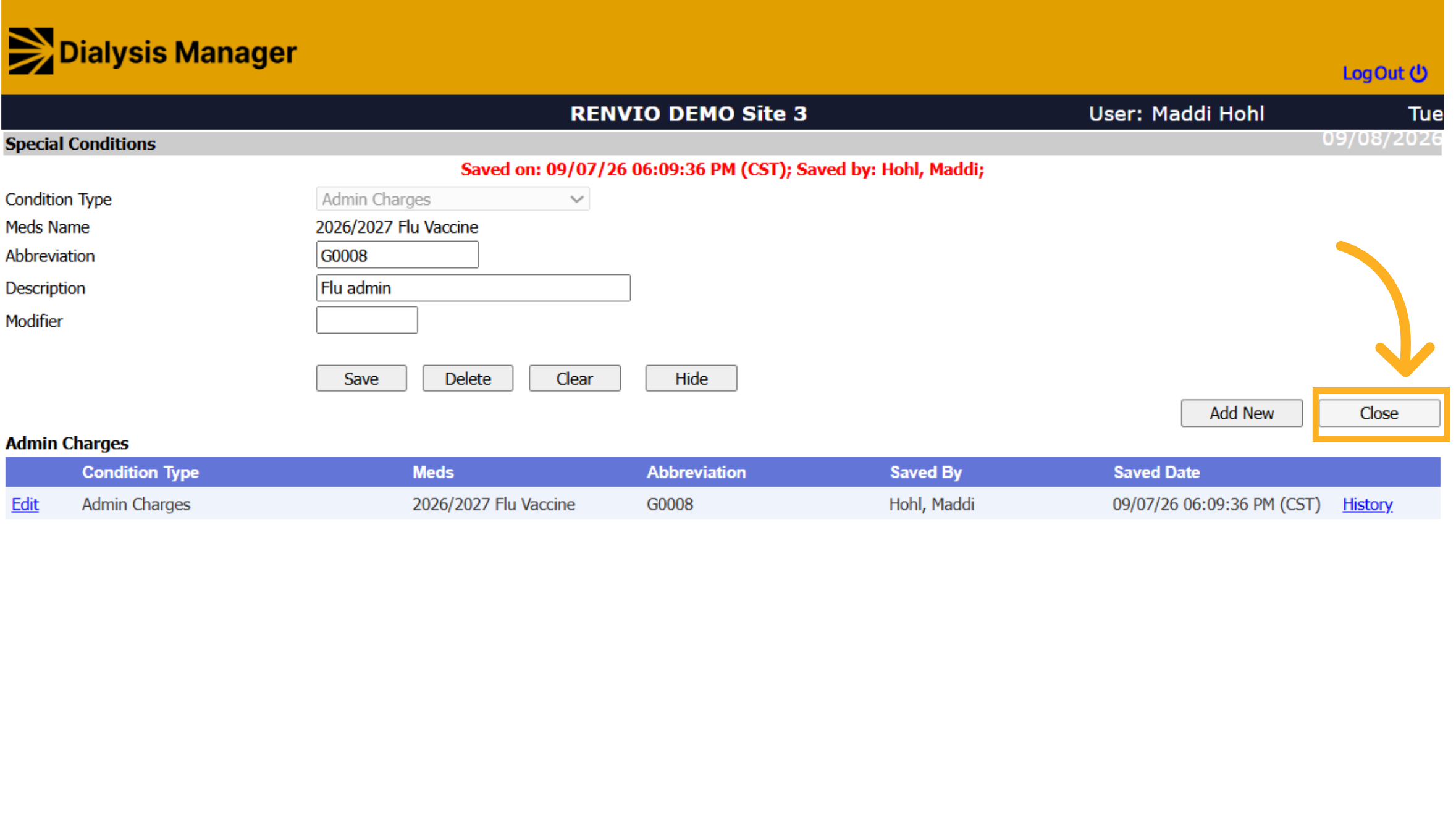
41. Finalize Billing Setup
Click Sign & Save again to save the special conditions.
That concludes the Dialysis Manager 2026-2027 flu vaccine setup! If you have questions, please reach out to us for help.