Common Social Worker Reports in Dialysis Manager.
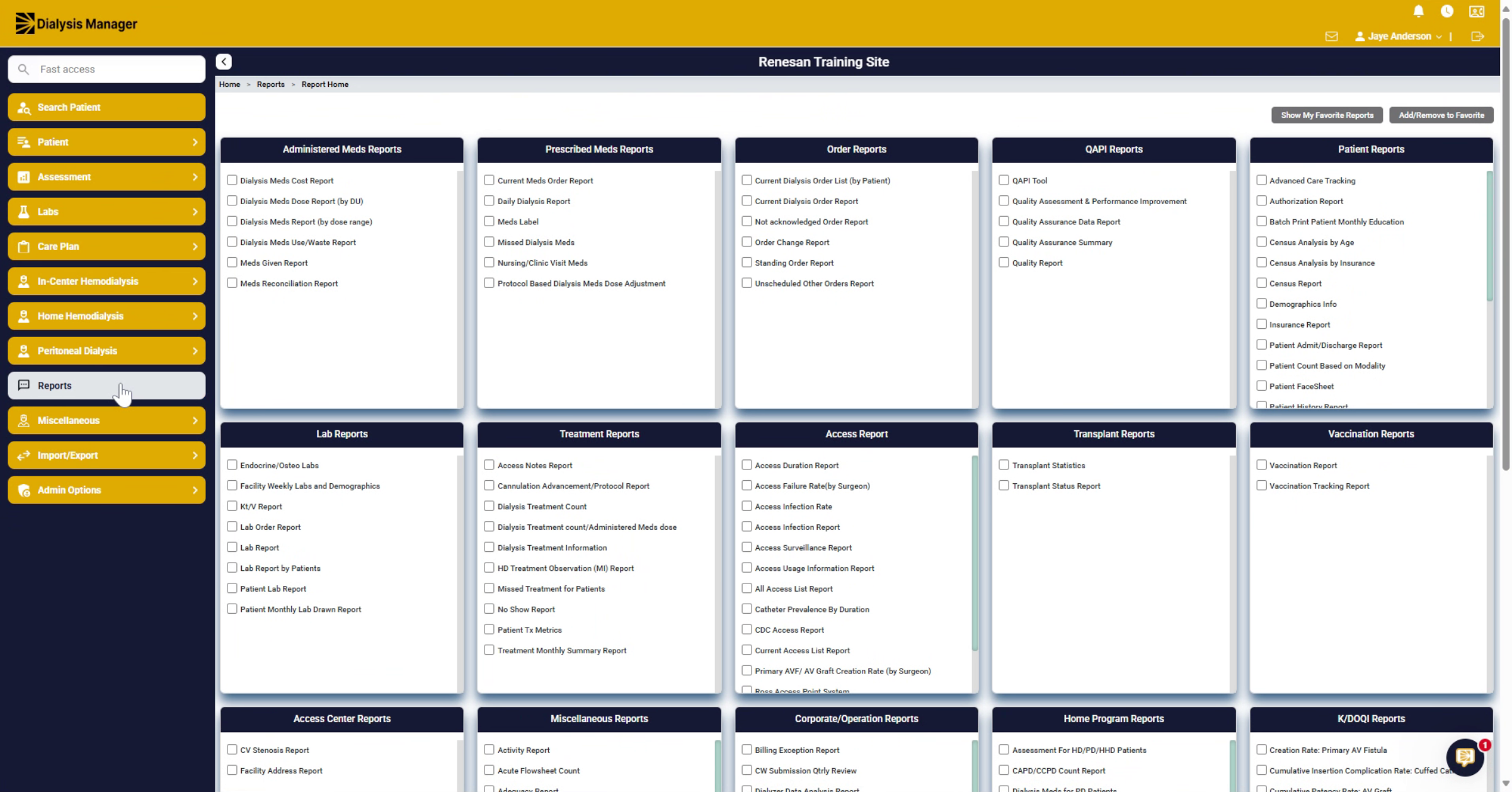
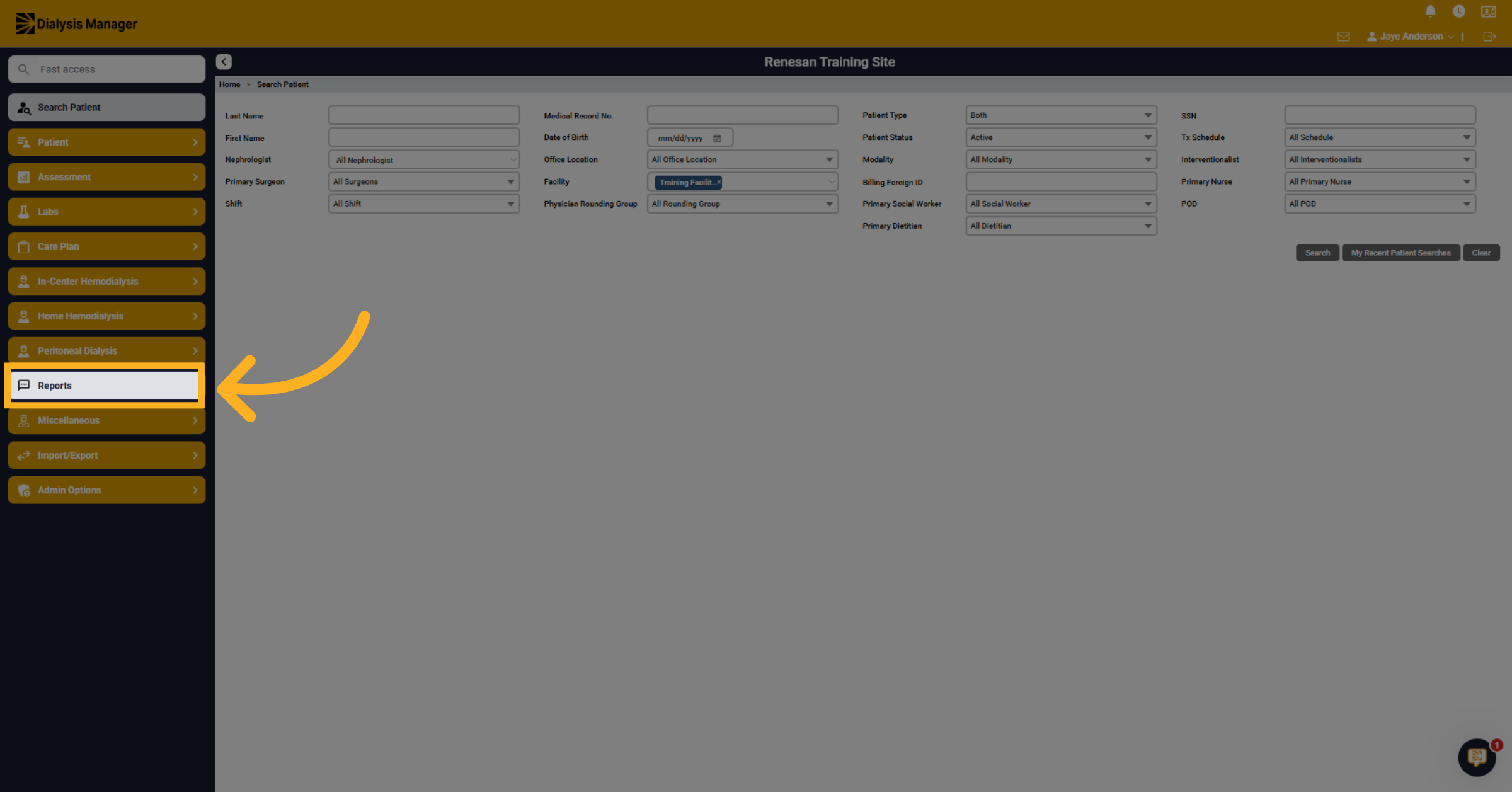
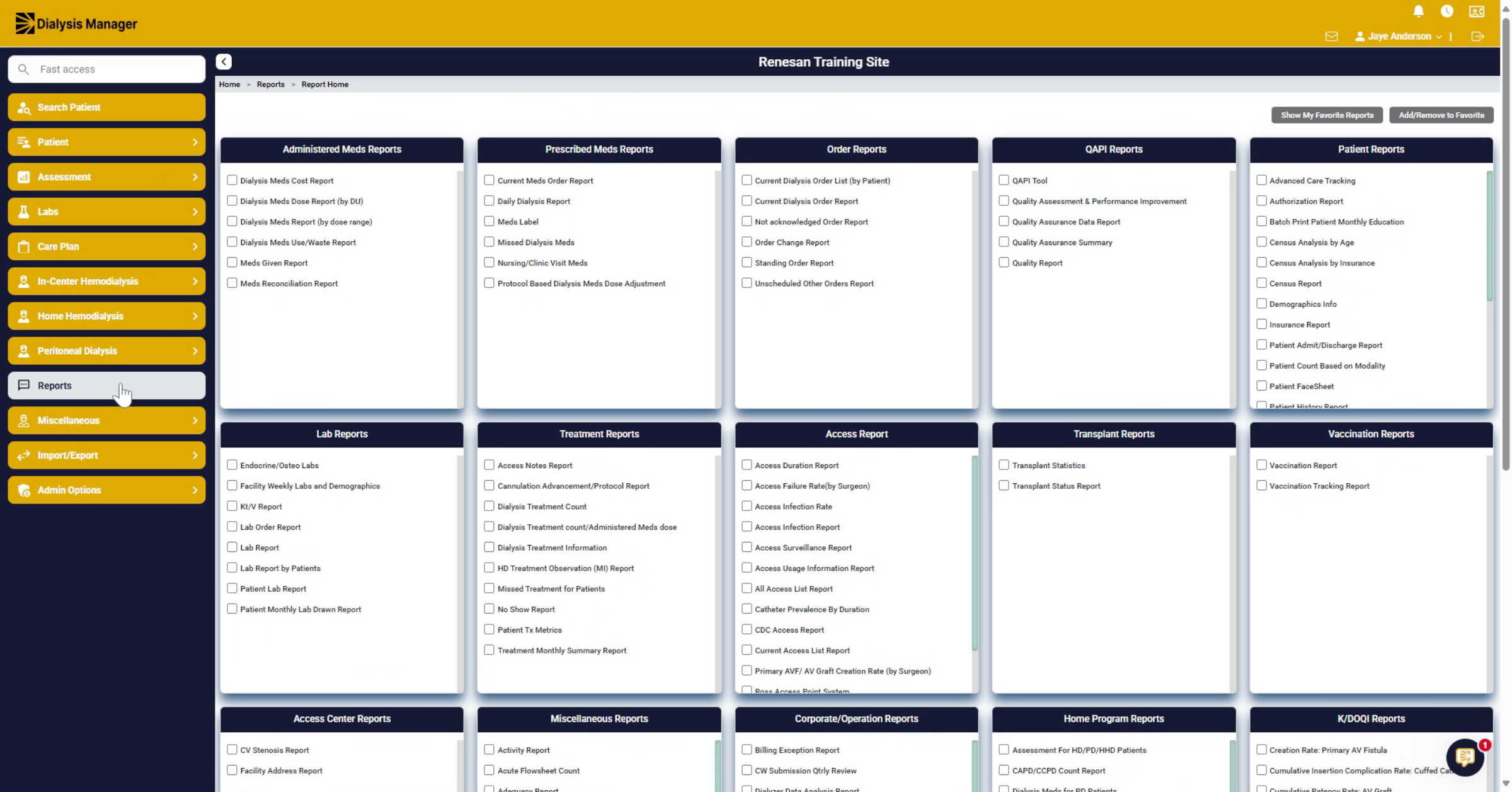
1. Open Reports Section
Click "Reports" to enter the main reporting section, where you can manage and view a variety of reports.
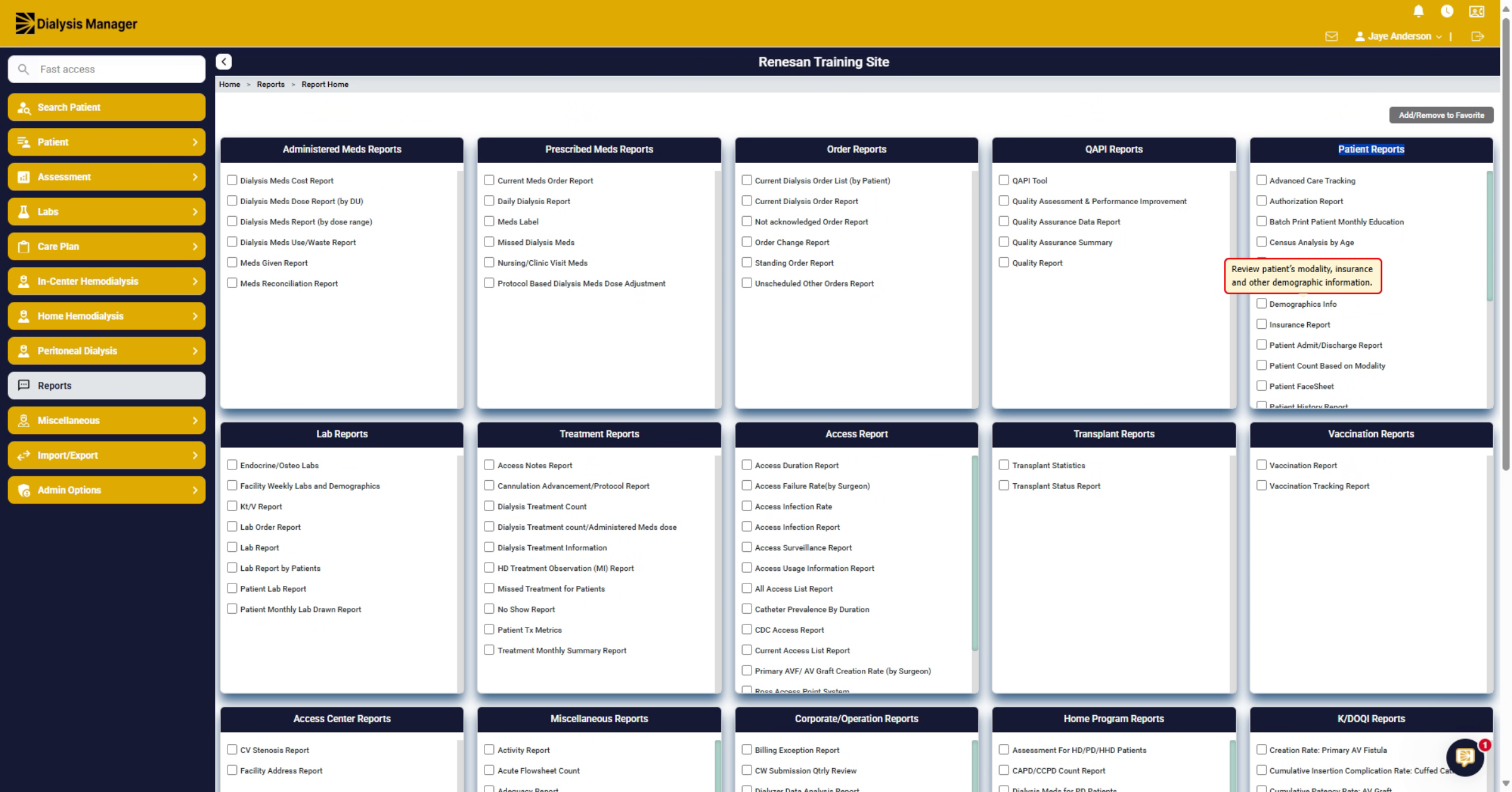
2. Understand Report Categories
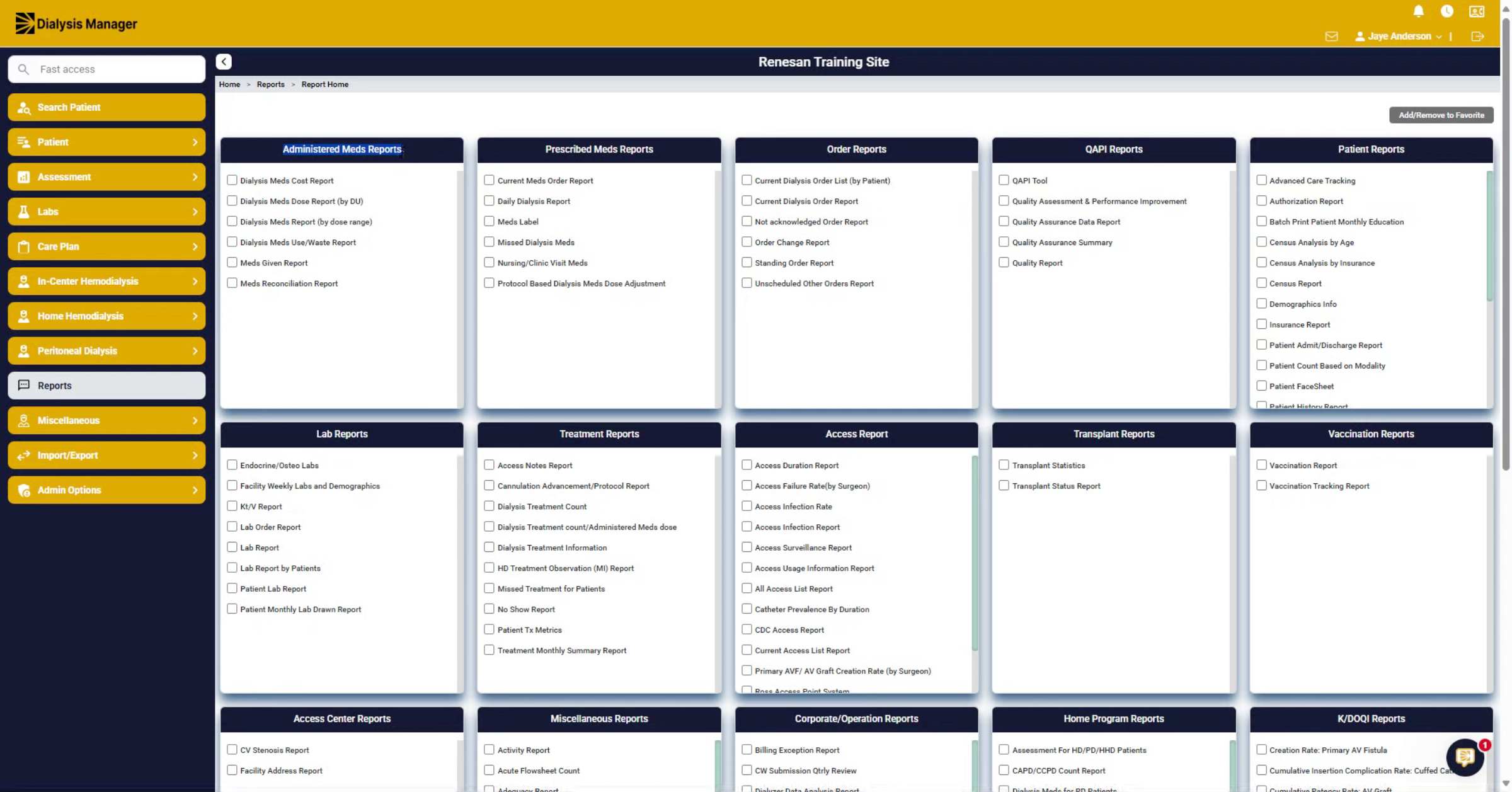
Within our report section, you'll see that they're categorized by different sections.
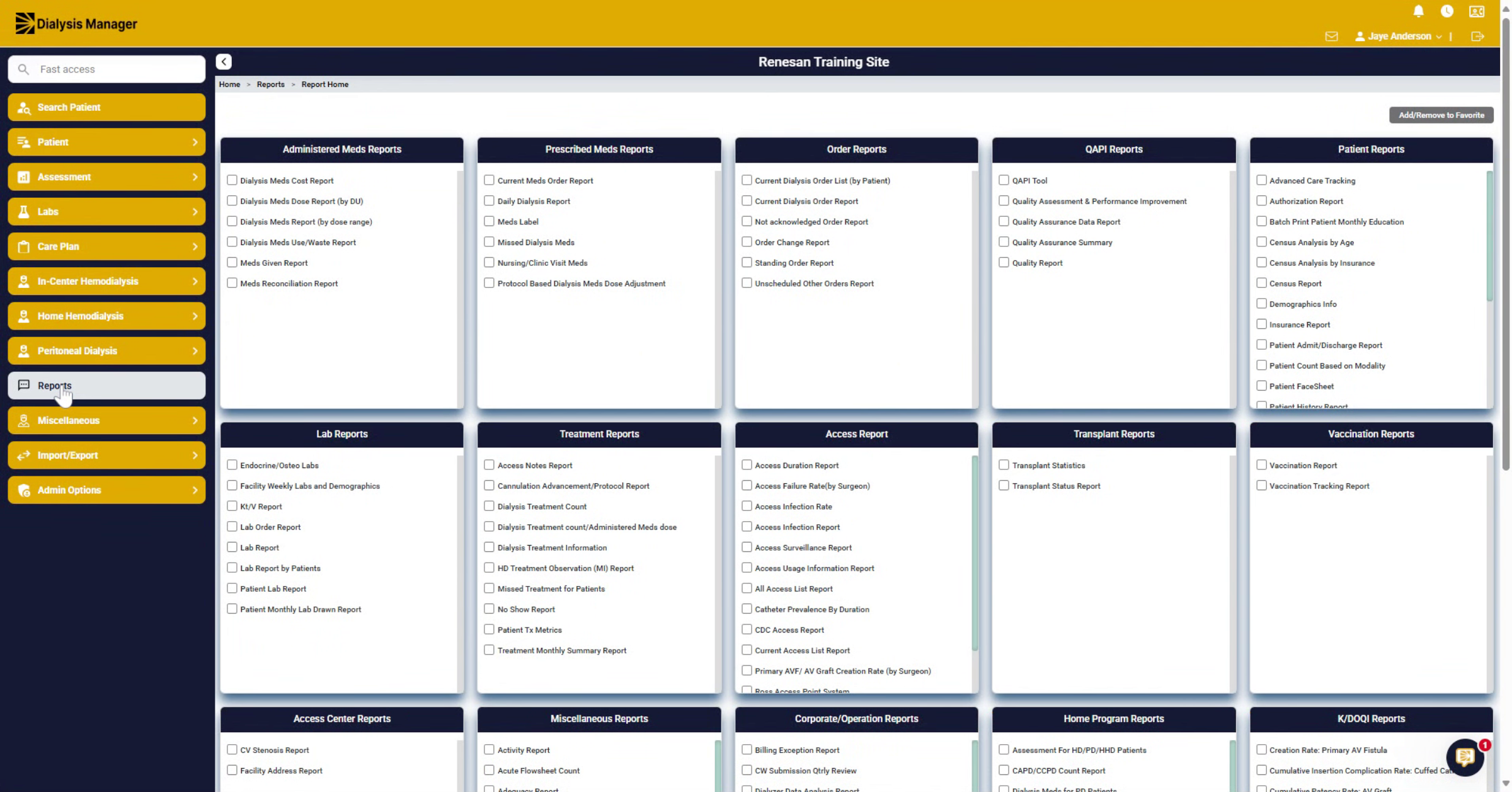
3. Explore Report Listings
Within each section, it has a list of the different reports. If you hover over a report, it'll give you a tool tip.
4. Access Specific Report
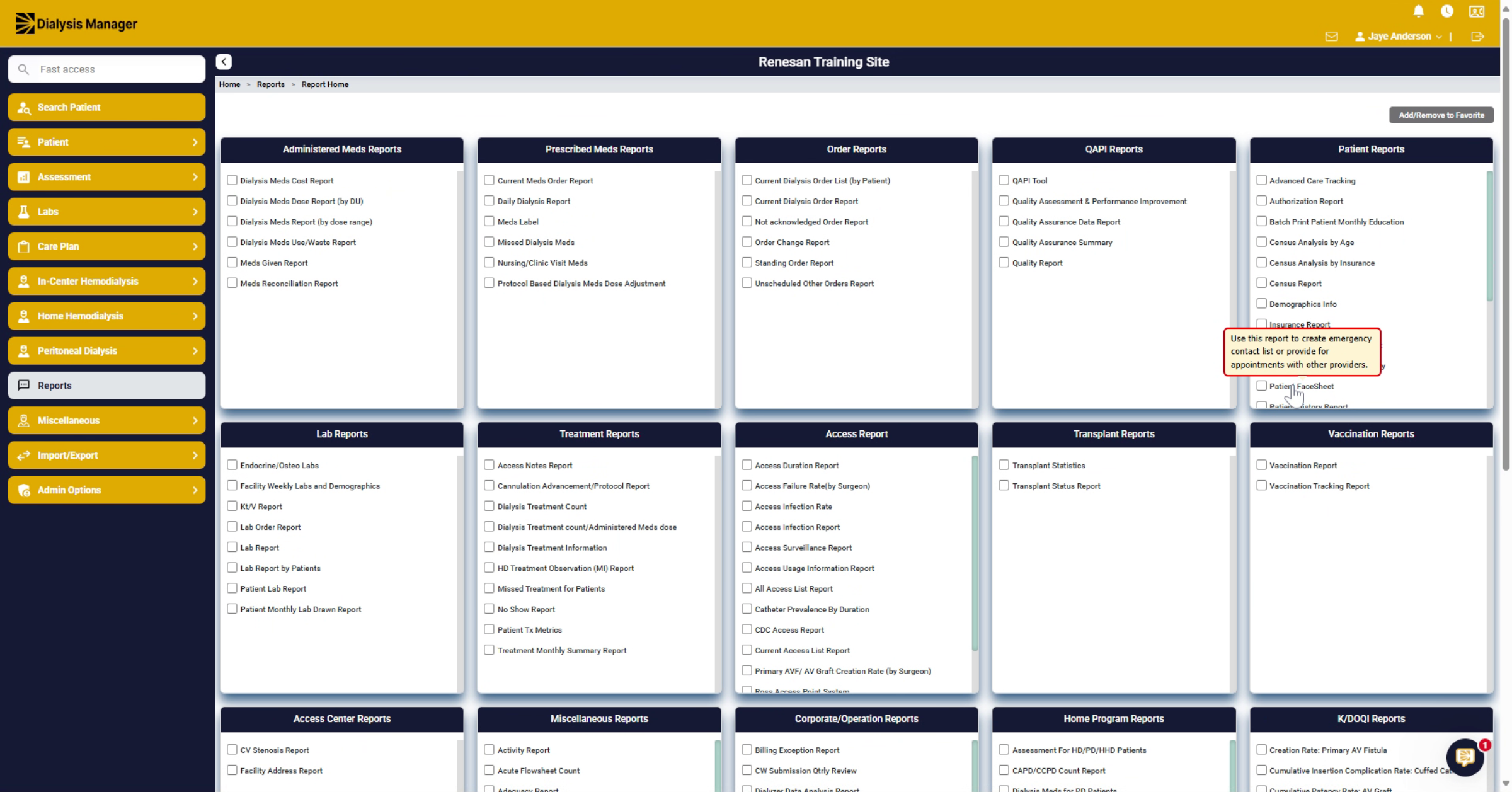
For example, hovering over Demographics Info report shows 'review Patients modality, insurance and other demographic information' tool tip. If you click on the name of the report, it'll bring you to that report.
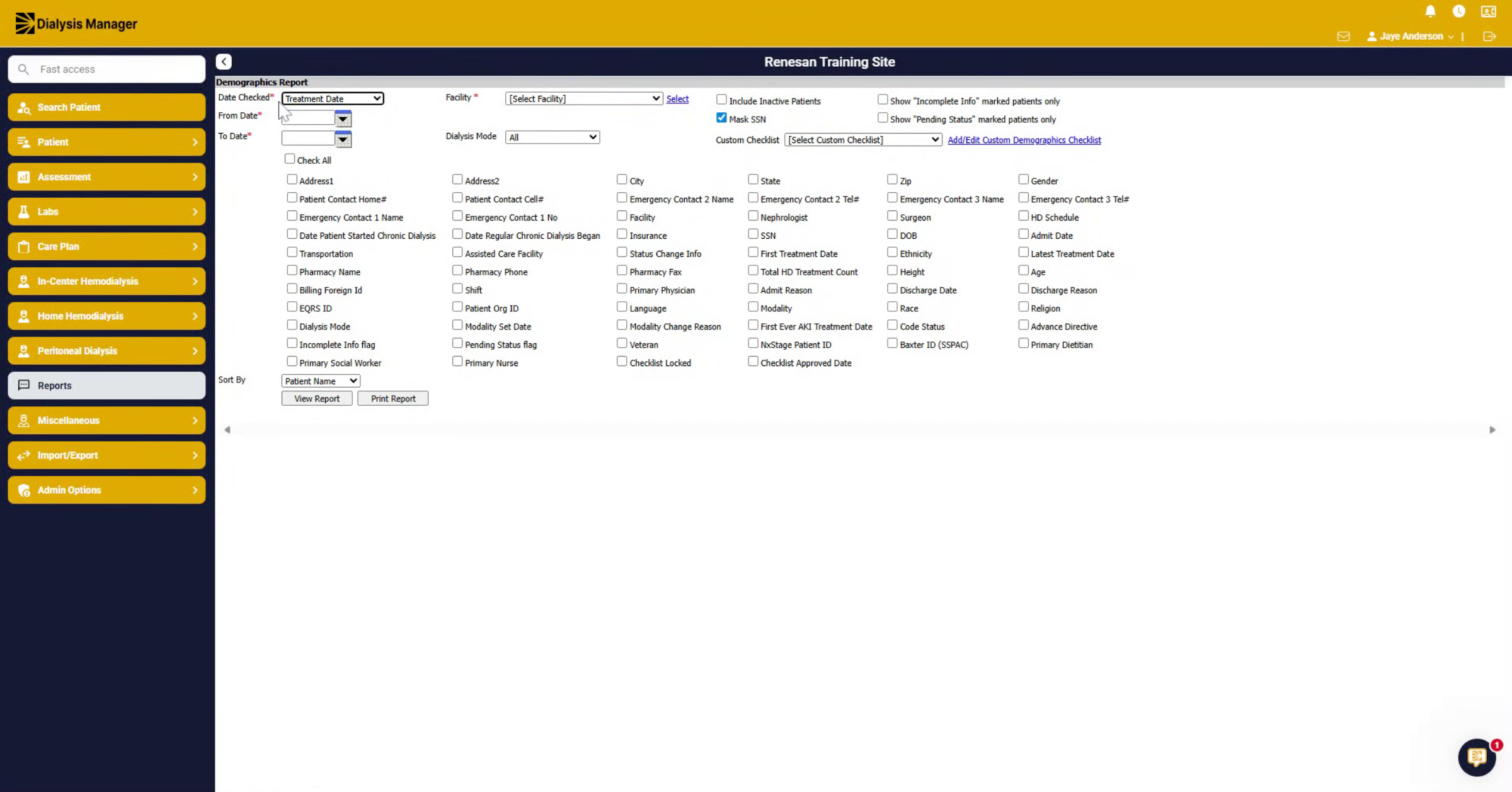
5. Configure Time Period
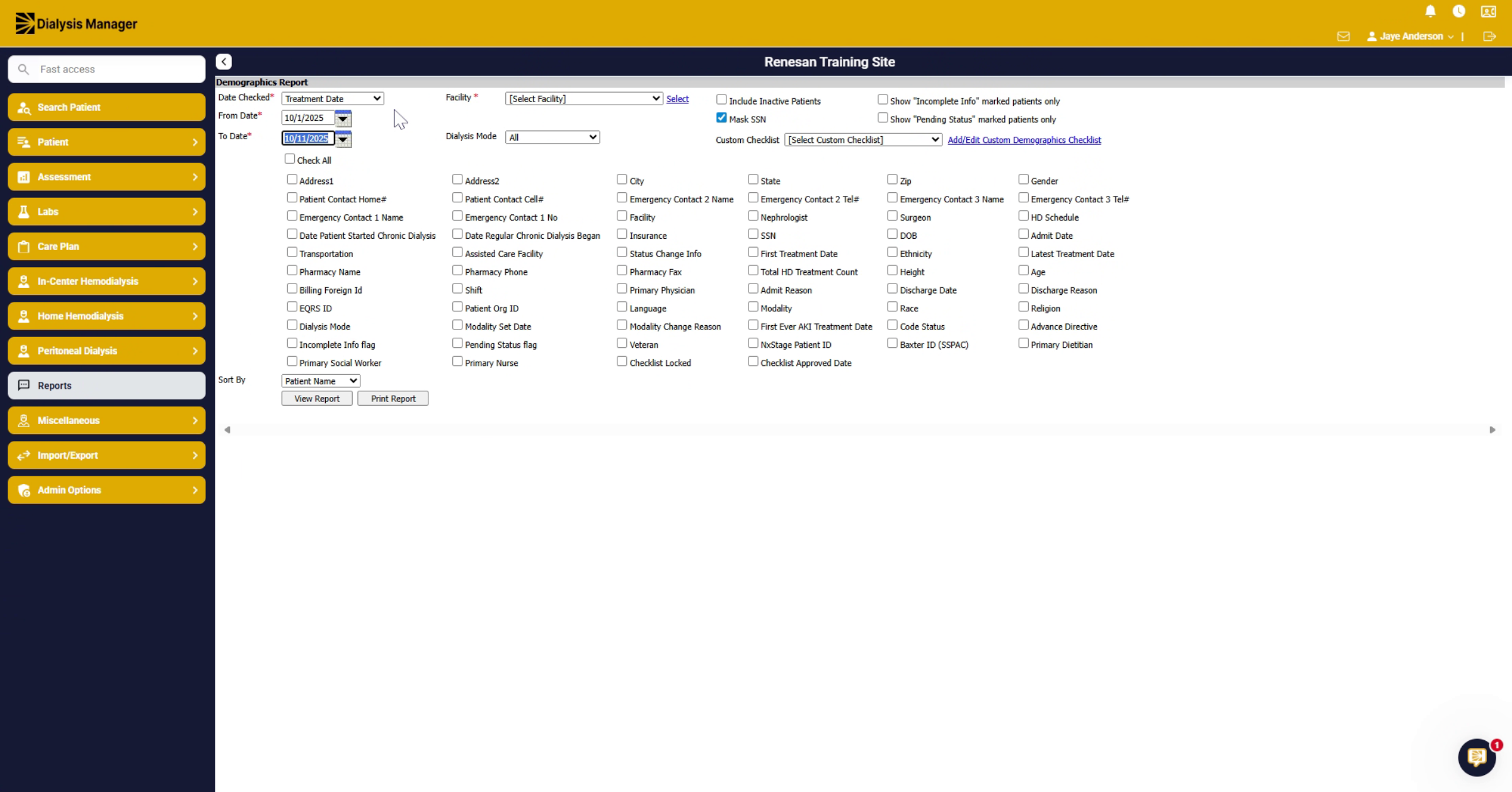
And you can configure what you want to see for what time period and what criteria you want to see listed by checking the available options.
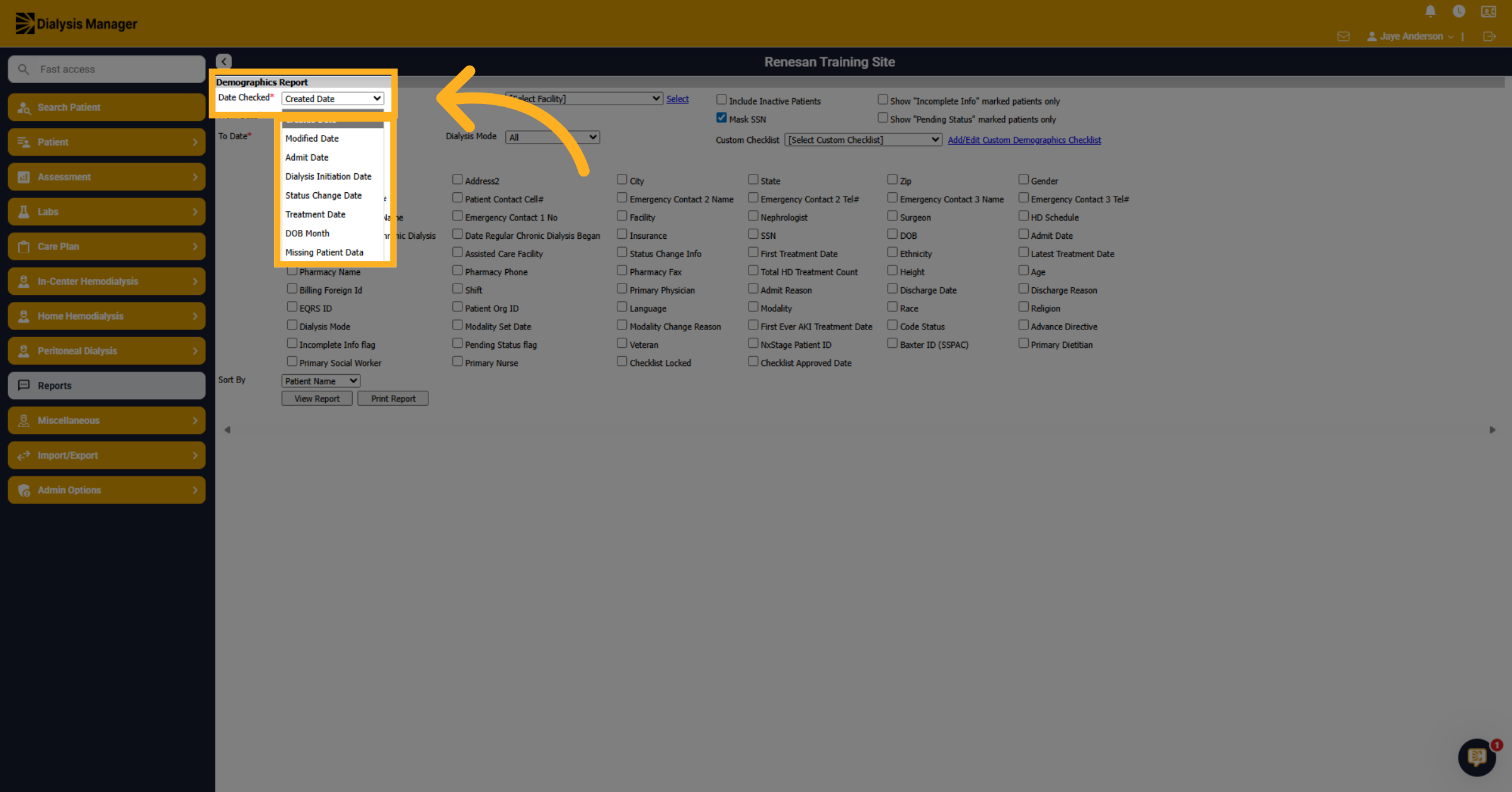
6. Select Date Filters
When inside the Demographic Report; click Date Checked to view your report options of "Created date, Modified Date, Admit Date, Dialysis Initiation, Date Status Change, Treatment Date, Date Of Birth Month, or Missing Patient Data" to filter reports by these criteria.
7. Choose Facility Option
Click "[Select Facility] to specify the facility for the report.
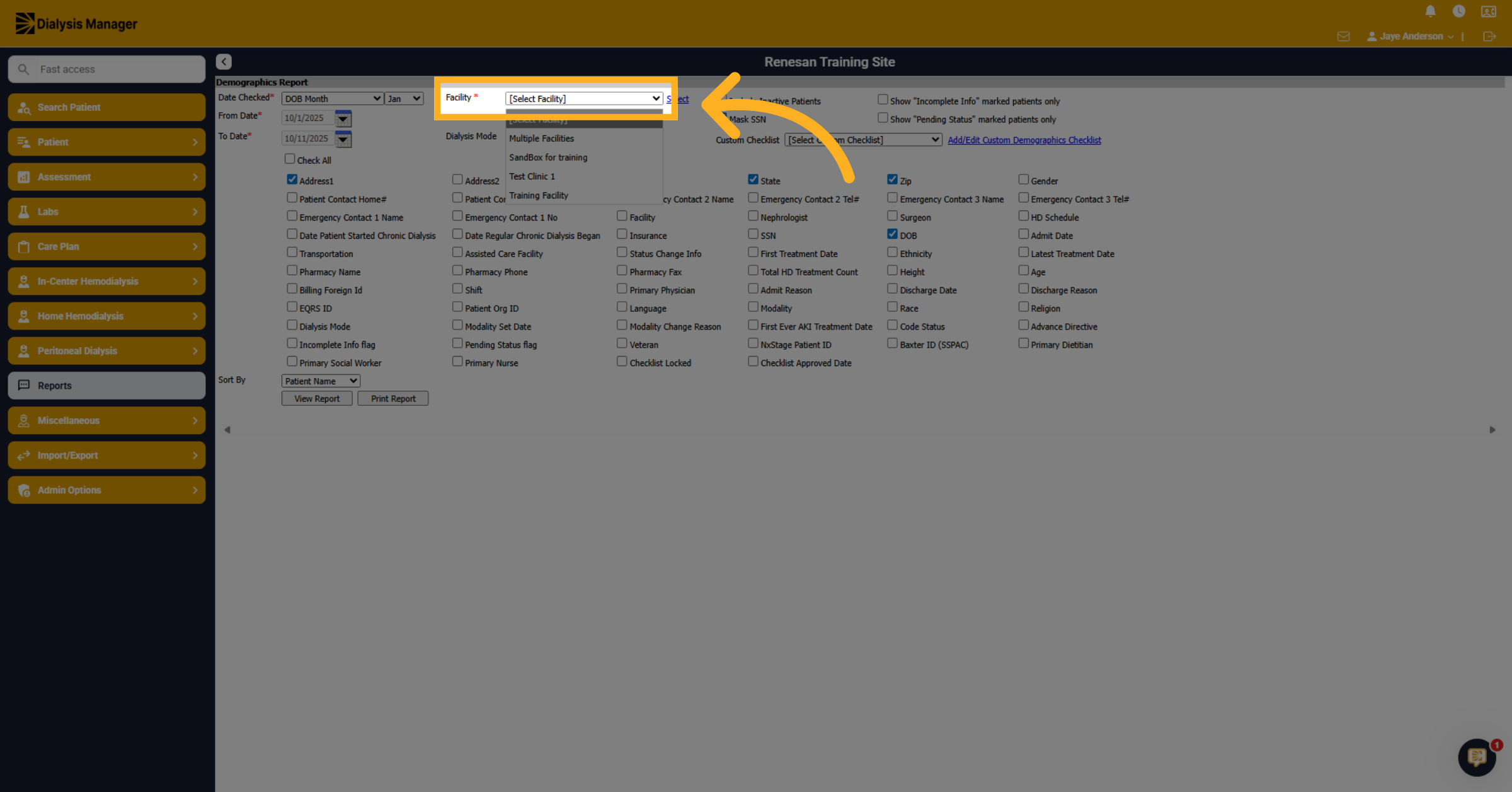
8. Set Birthday Filter Example
For example, if you want to see whose birthdays are in the month of January, you may want to see their address, city, state, and of course, their date of birth.
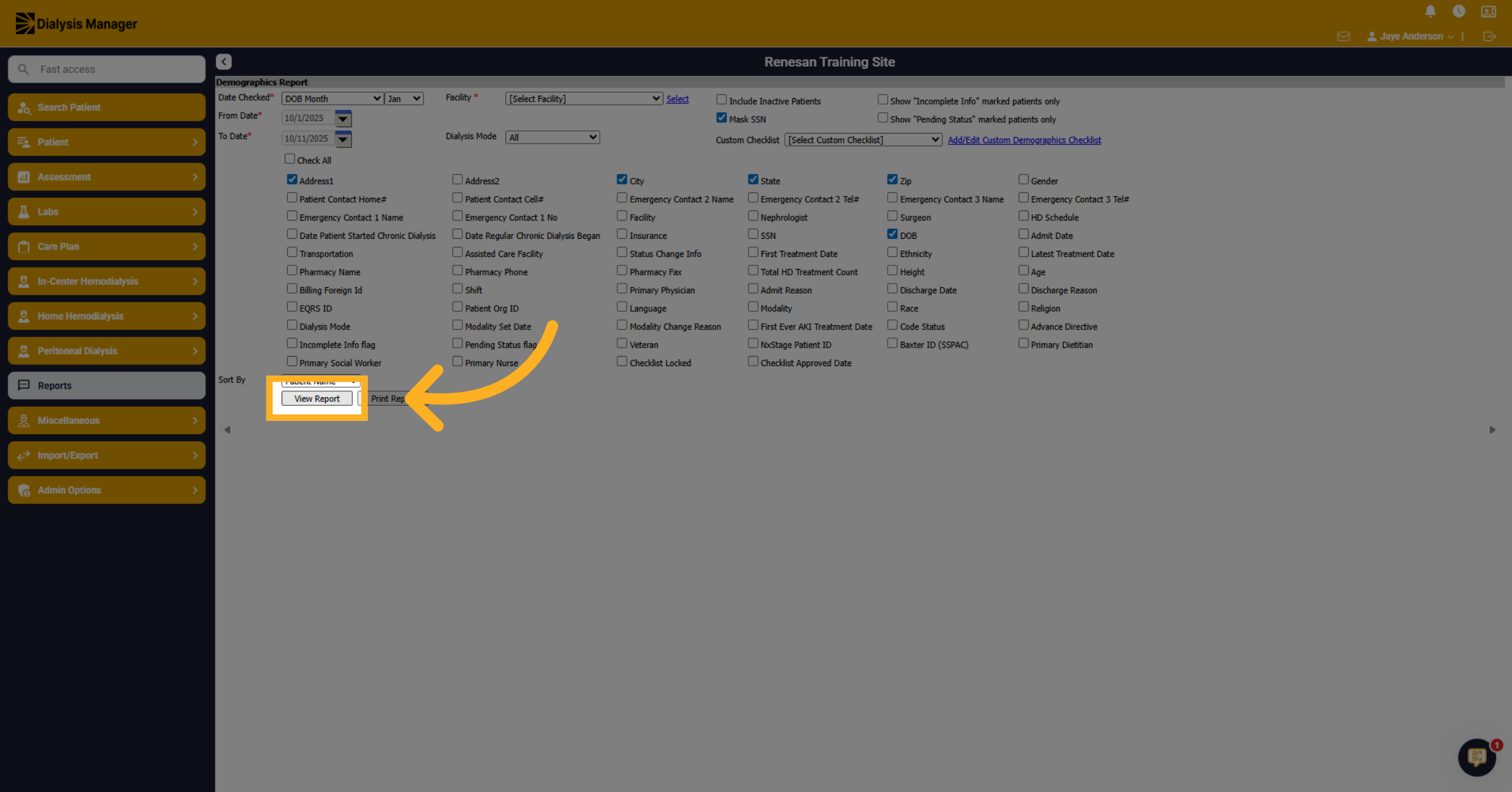
9. Generate Report View
Click "View Report" to generate the report based on your selected filters and criteria.
10. Print or Export
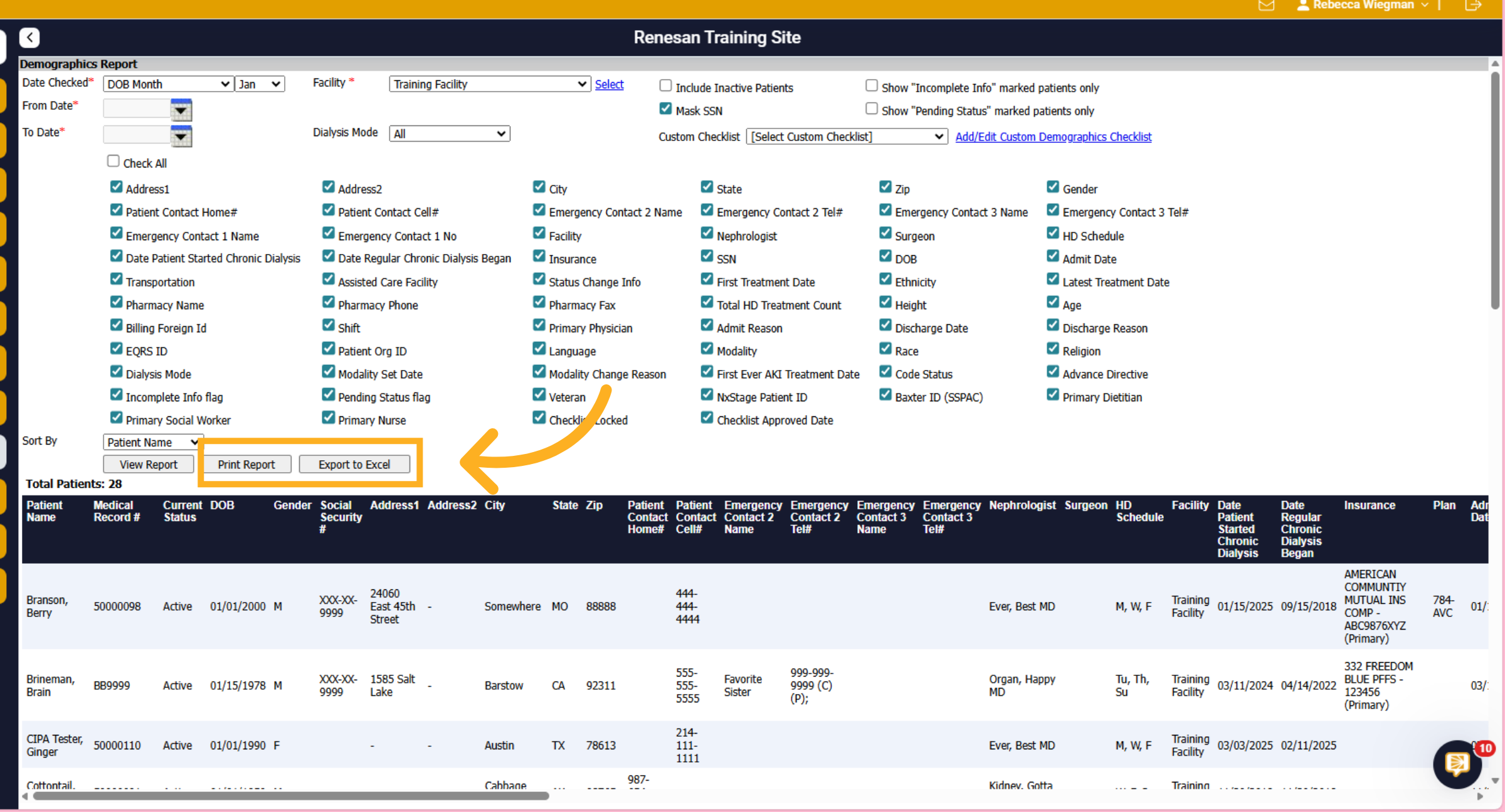
The information will be displayed below listed with the options you selected. You can print the report as a PDF or export it to Excel using the Print or Export options.
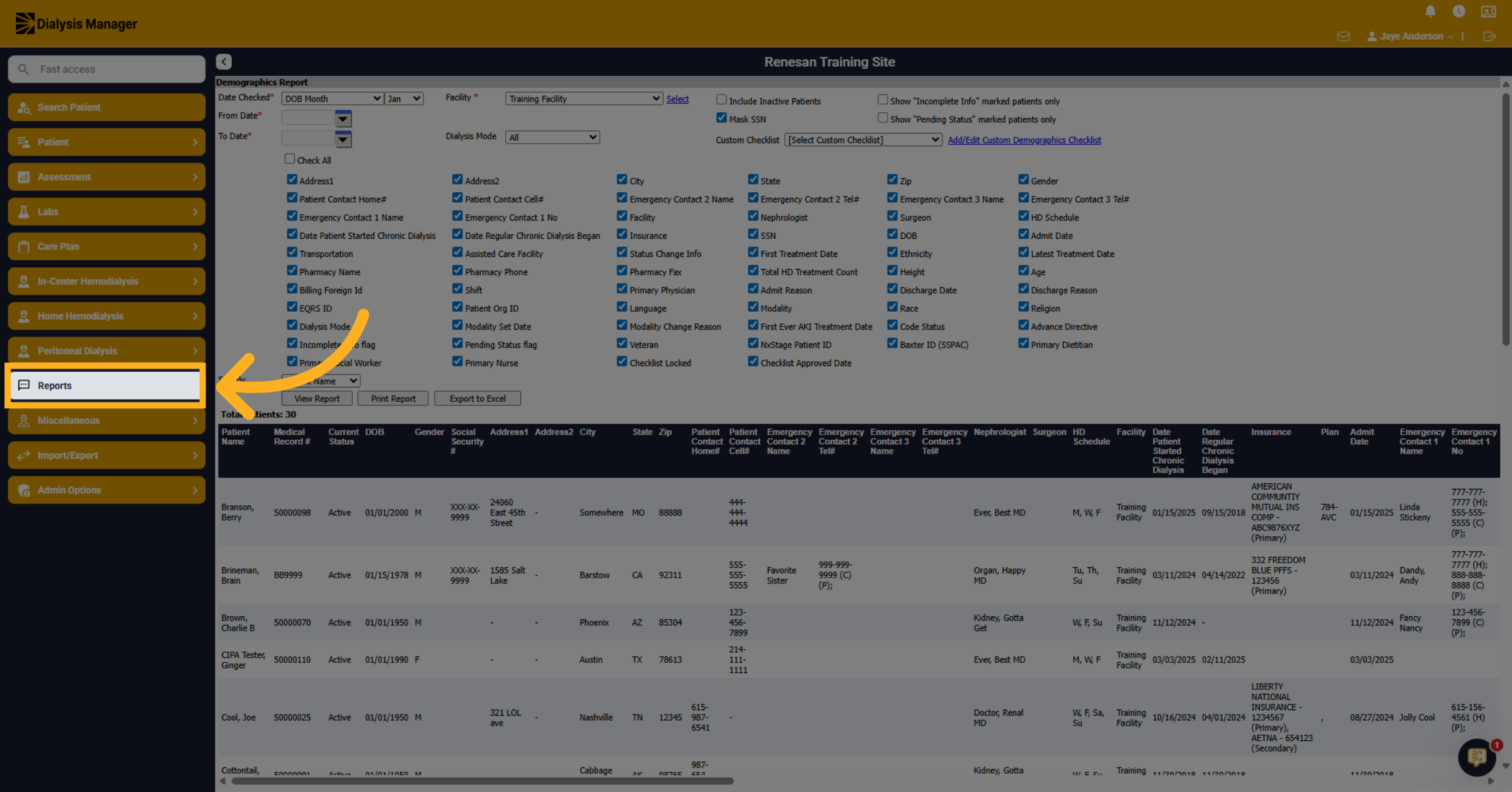
11. Return to Reports Section
Click "Reports" to go back to the main reports area to run additional reports.
12. Locate Face Sheets
Locate and select Patient face sheets. Then, choose the desired facility from the dropdown menu.
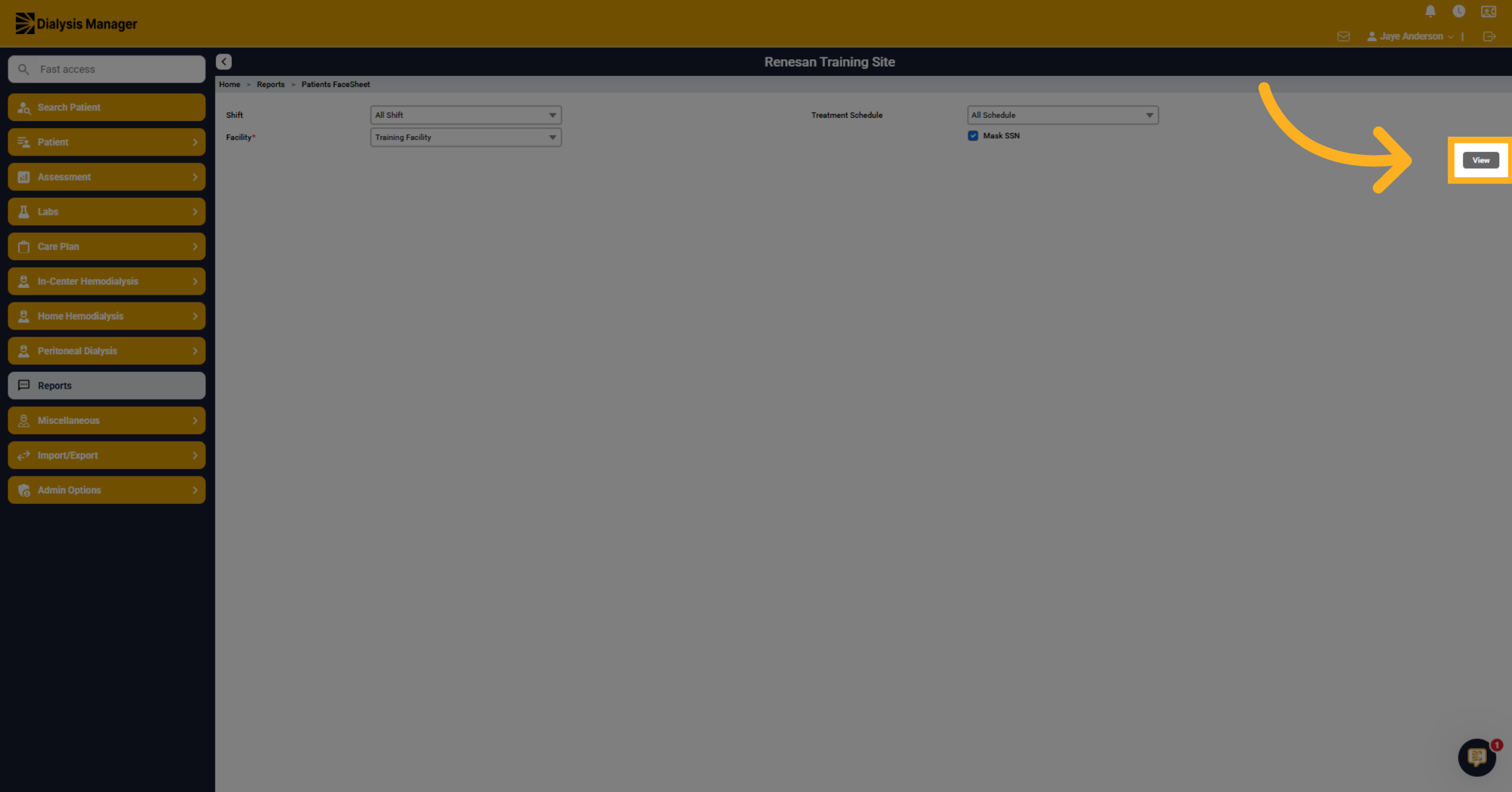
13. Open Face Sheet View
Click "View" to open the selected face sheet report for detailed information.
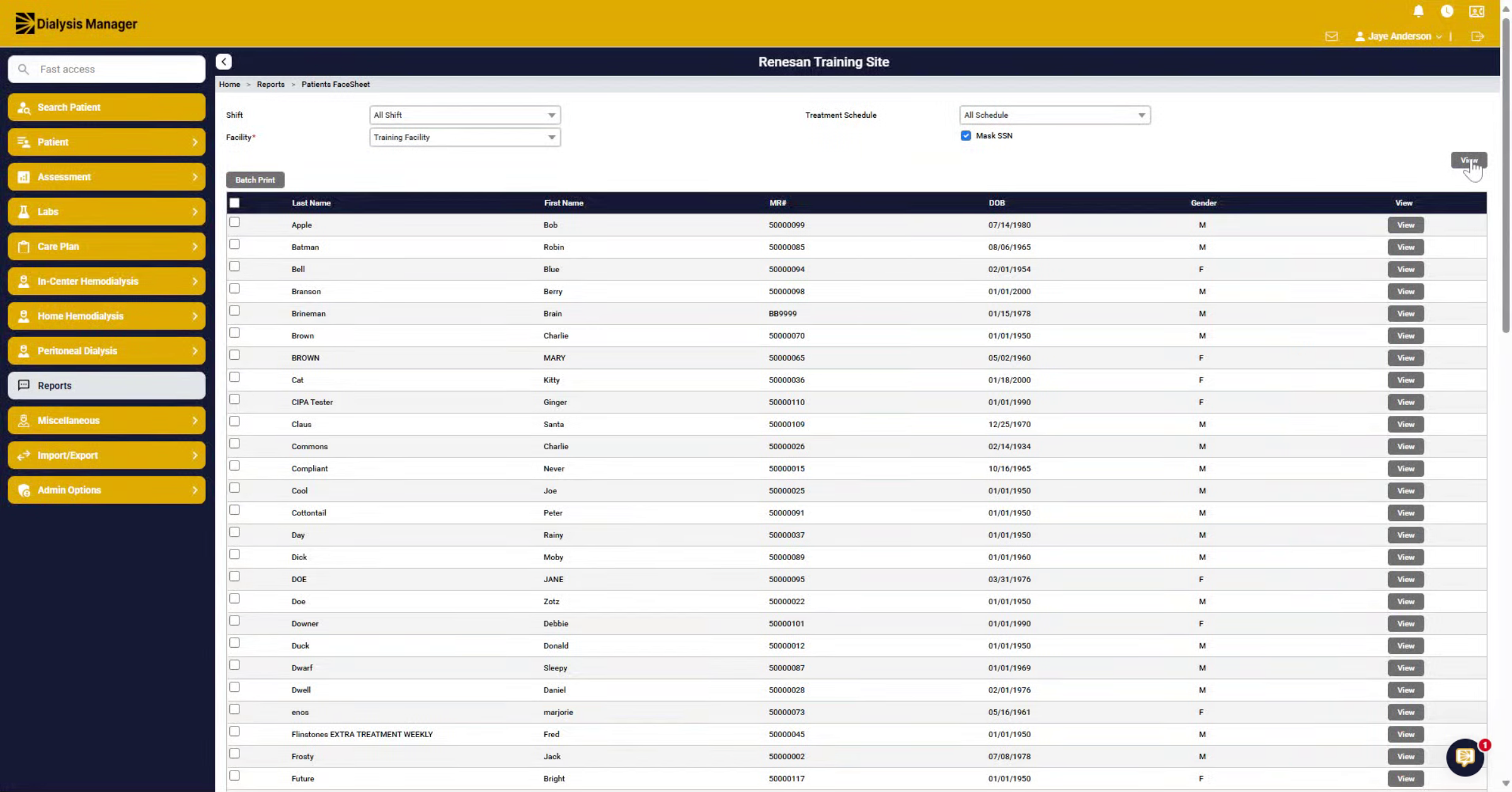
14. Batch Print Face Sheets
Inside the black header bar, you can select the checkbox to select all patients, unselecting individuals to exclude from the batch print or your able to select individual patients by selecting the checkbox next to their name.
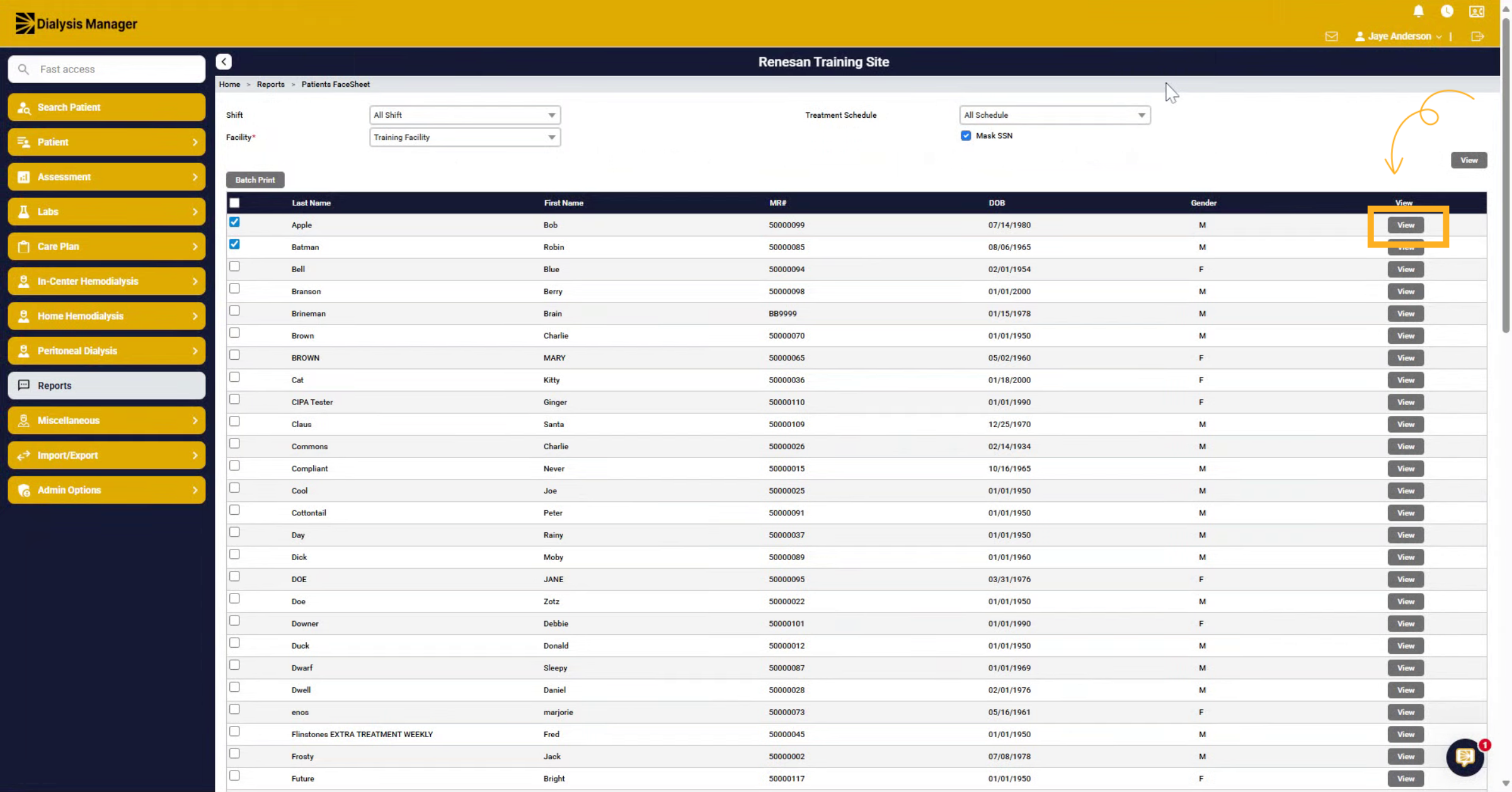
15. View Individual Face Sheet
Or you can select "view" for an individual patient Face Sheets.
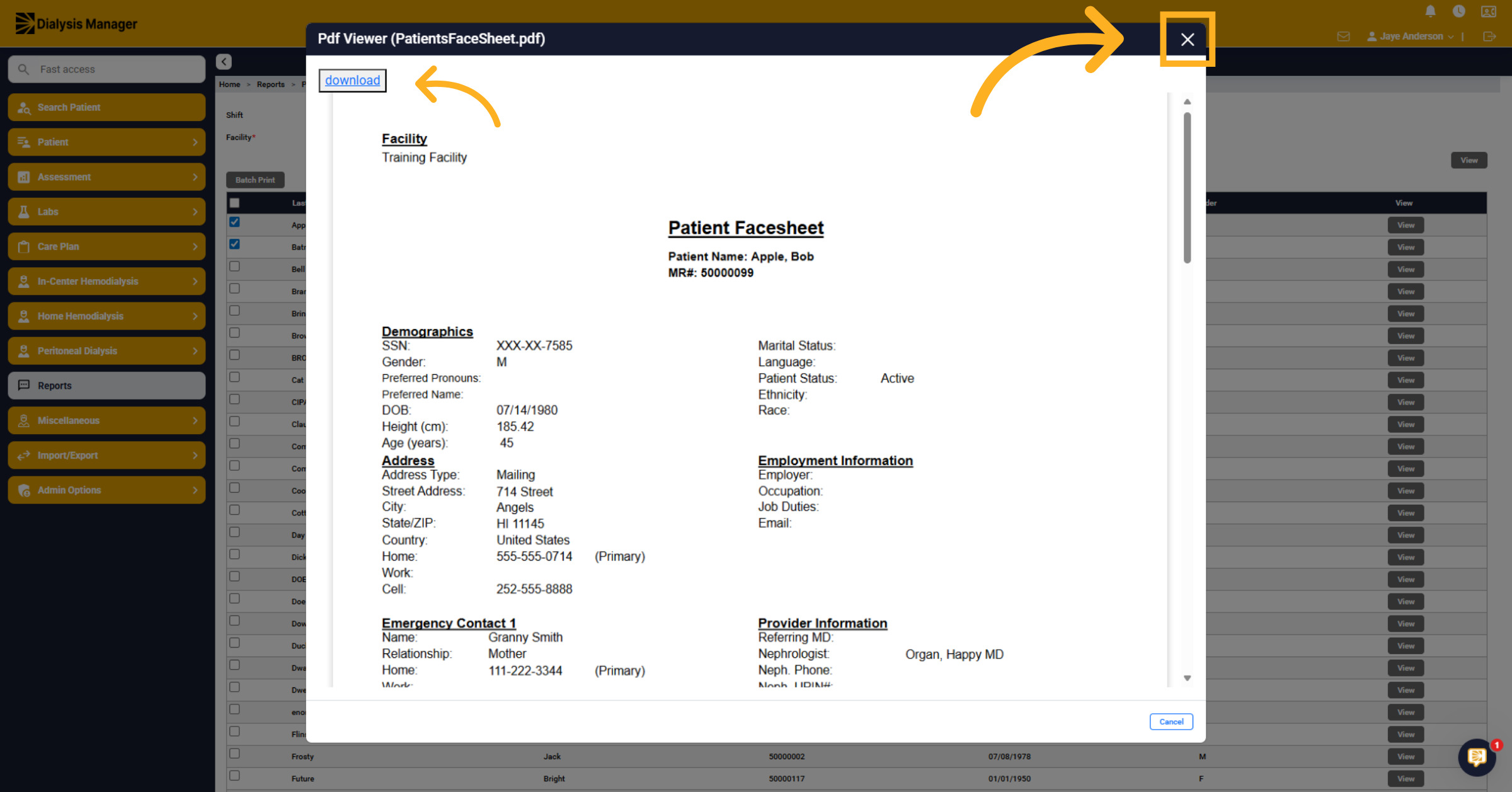
16. Close Individual View
Download and print, if necessary. Then, click "Close" to exit the individual face sheet view.
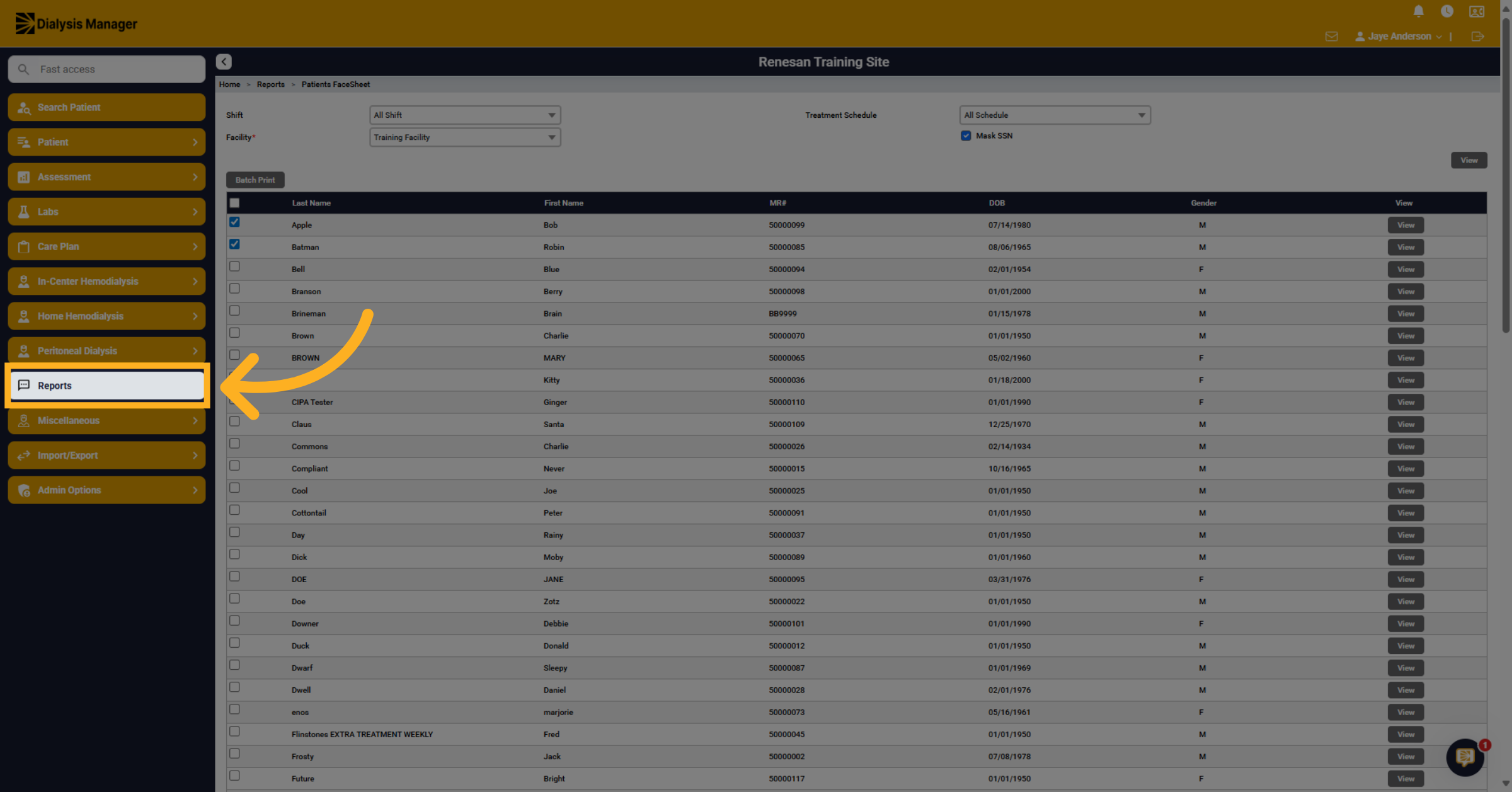
17. Navigate Back to Reports
Click "Reports" to return to the main reports section.
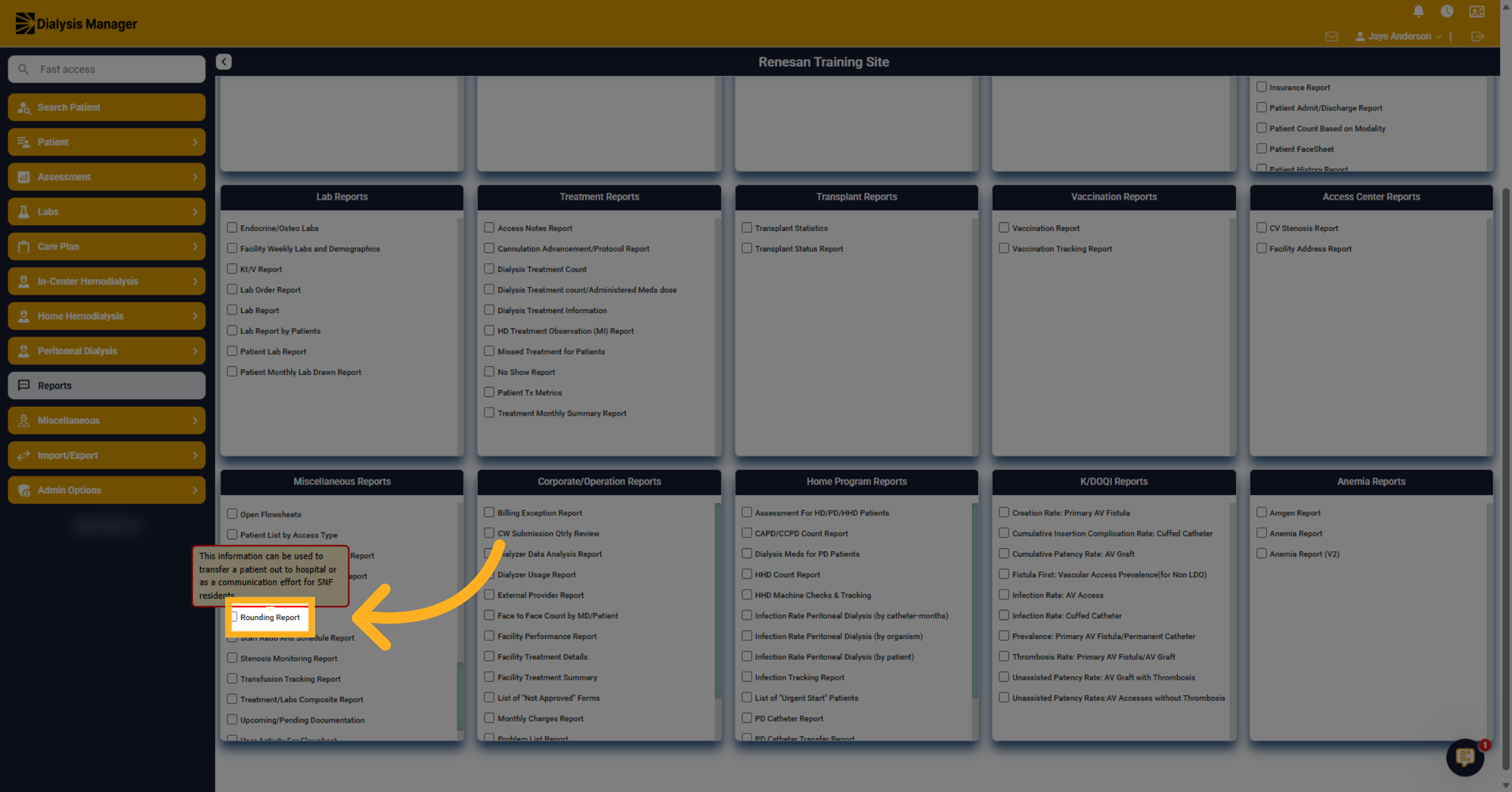
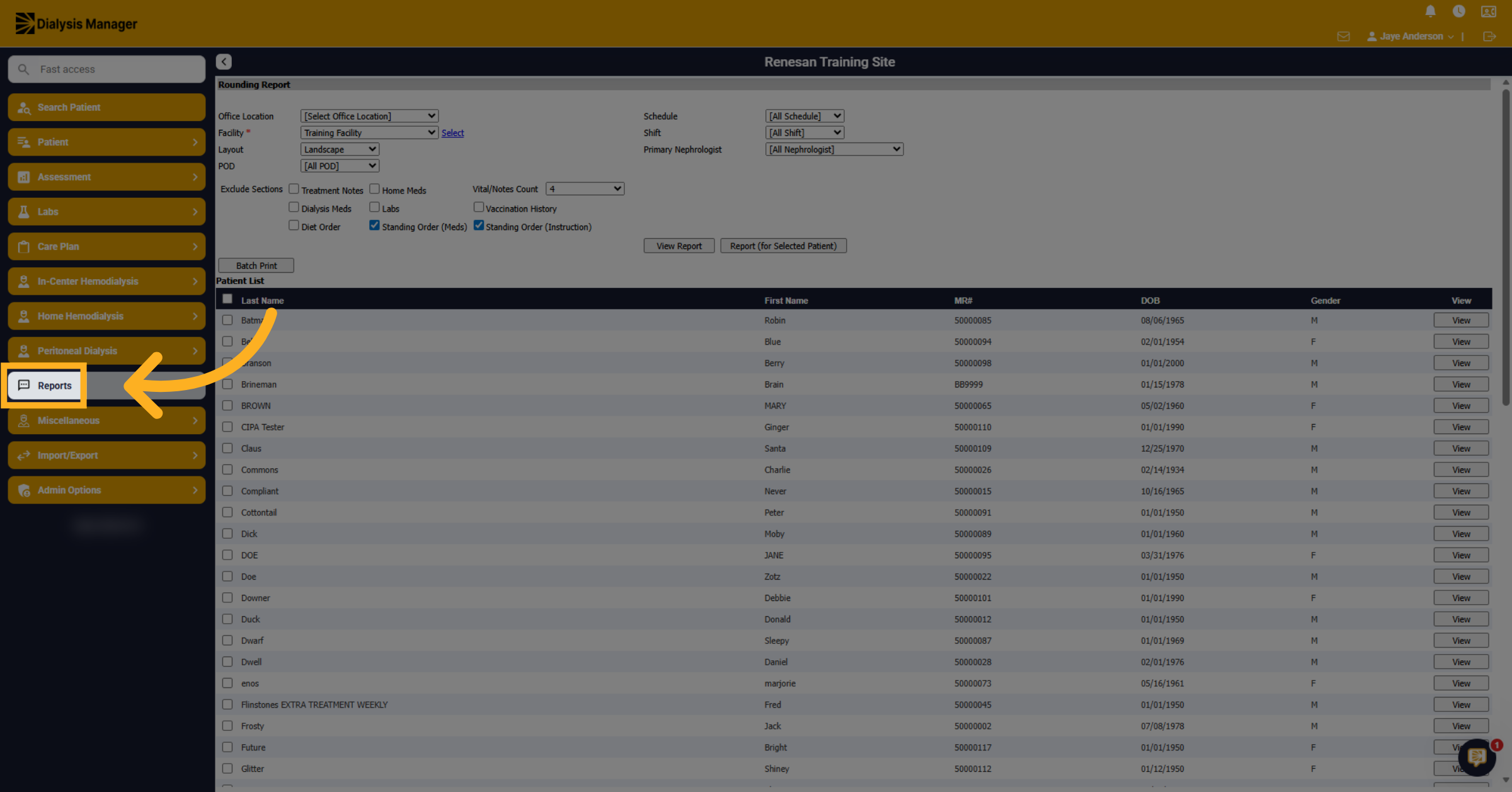
18. Select Rounding Report
Click The Rounding Report located under the Miscellaneous Reports category to open the report criteria.
19. Select Facility
Select Facility from the drop-down box.
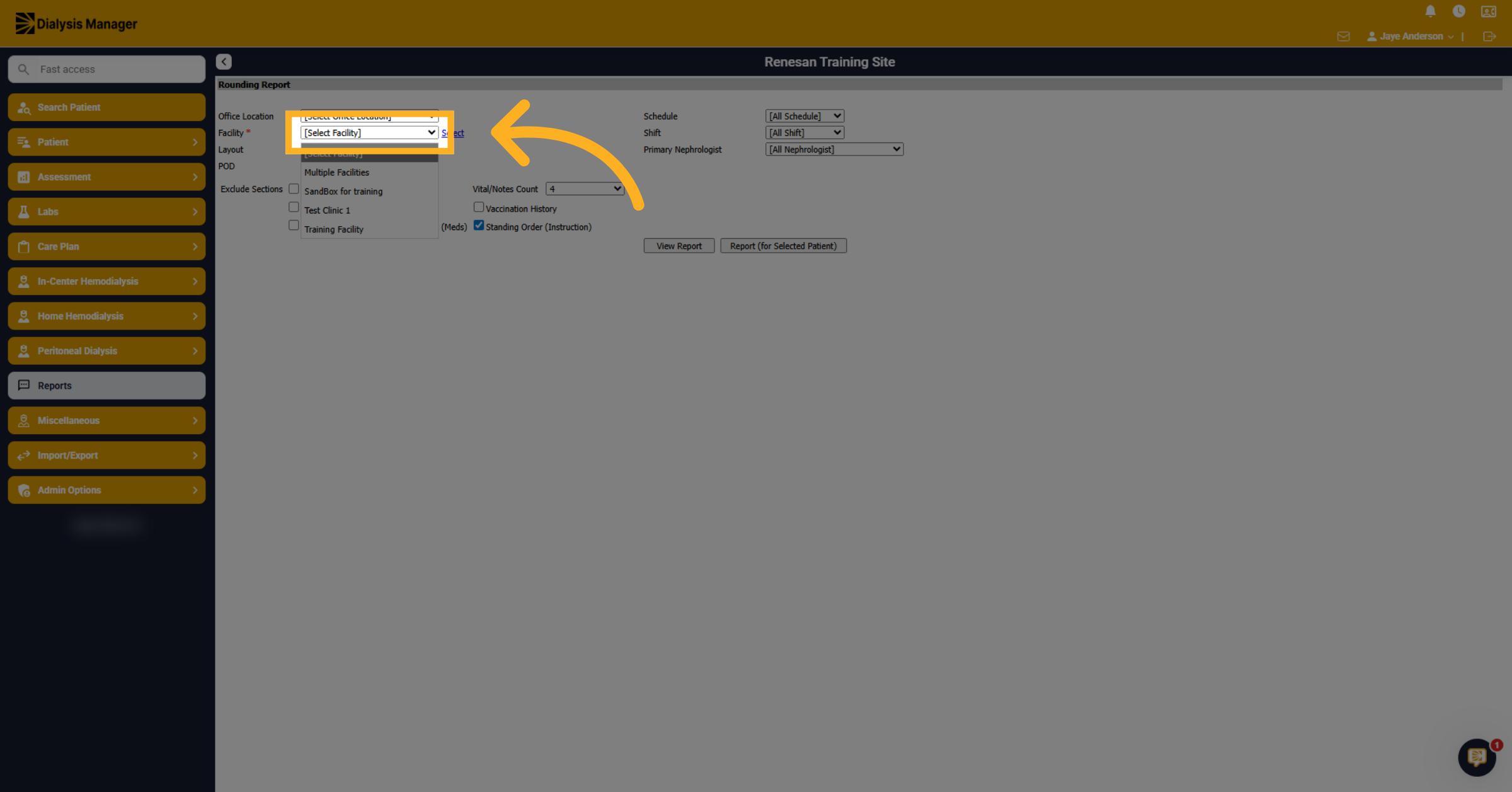
20. Choose other report options
Click and select layout, POD, Schedule, Shift, or Primary Nephrologist if needed.
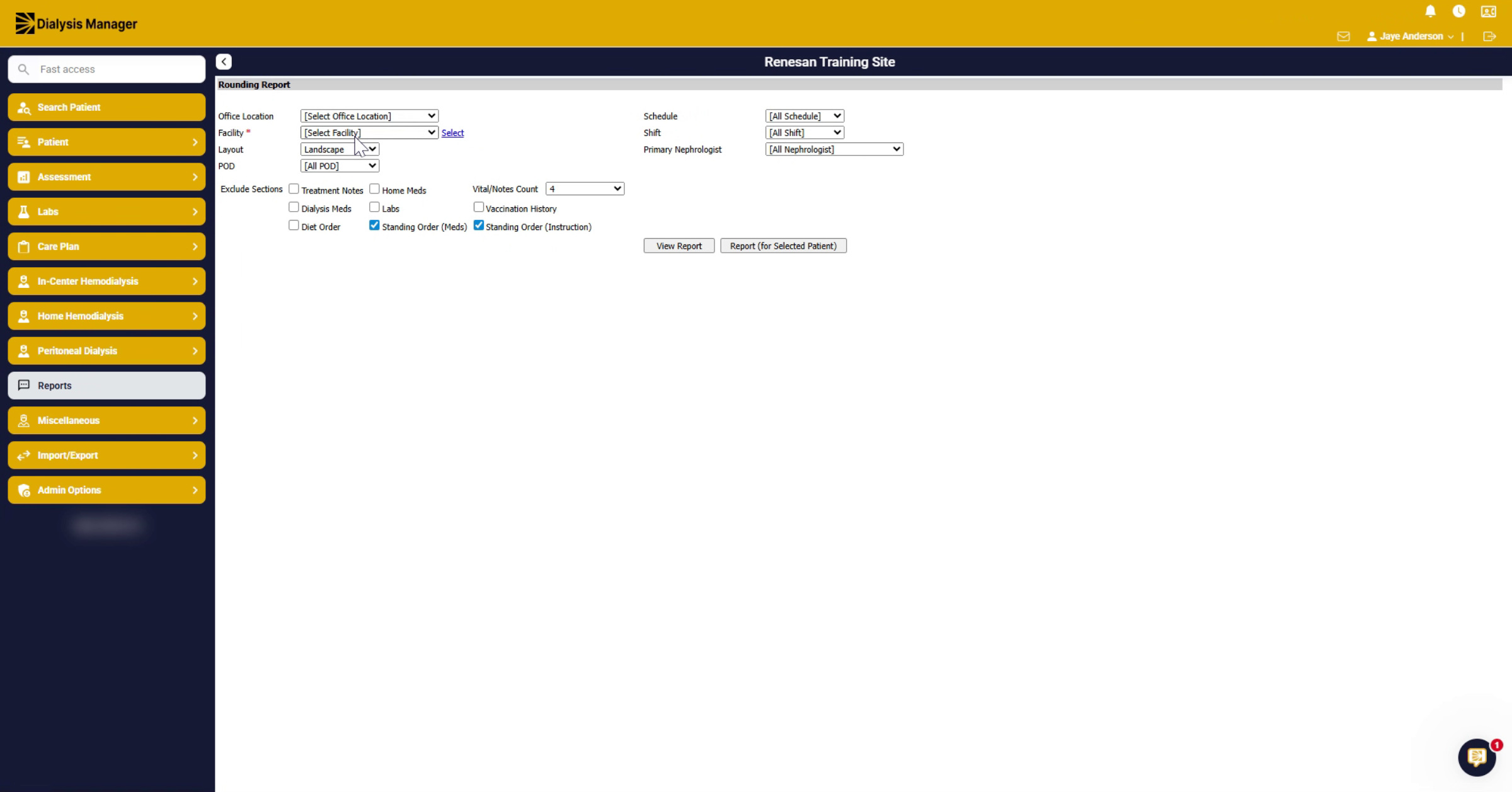
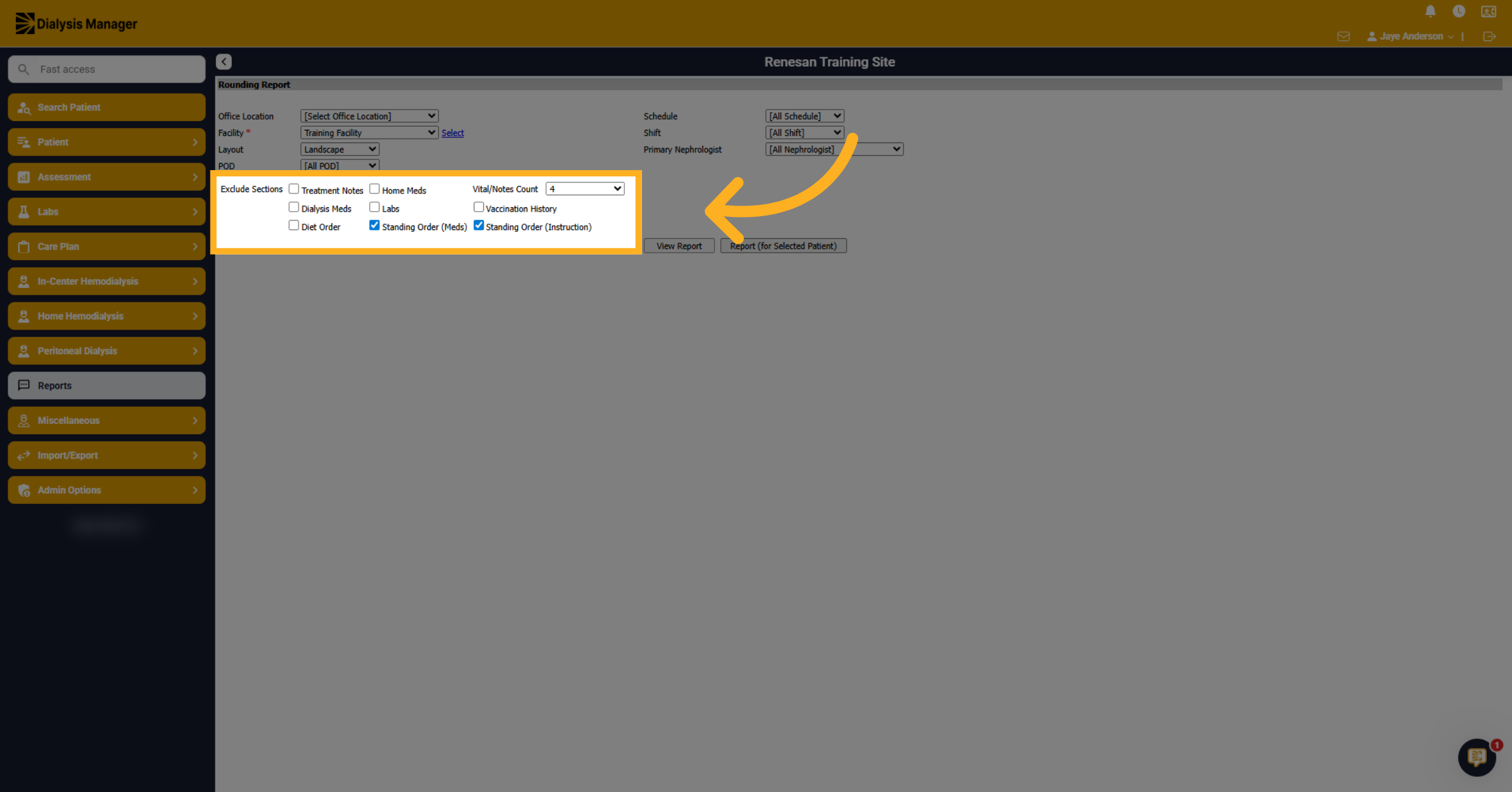
21. Exclude Sections
You can exclude sections by marking the options and choose the number of vitals to include.
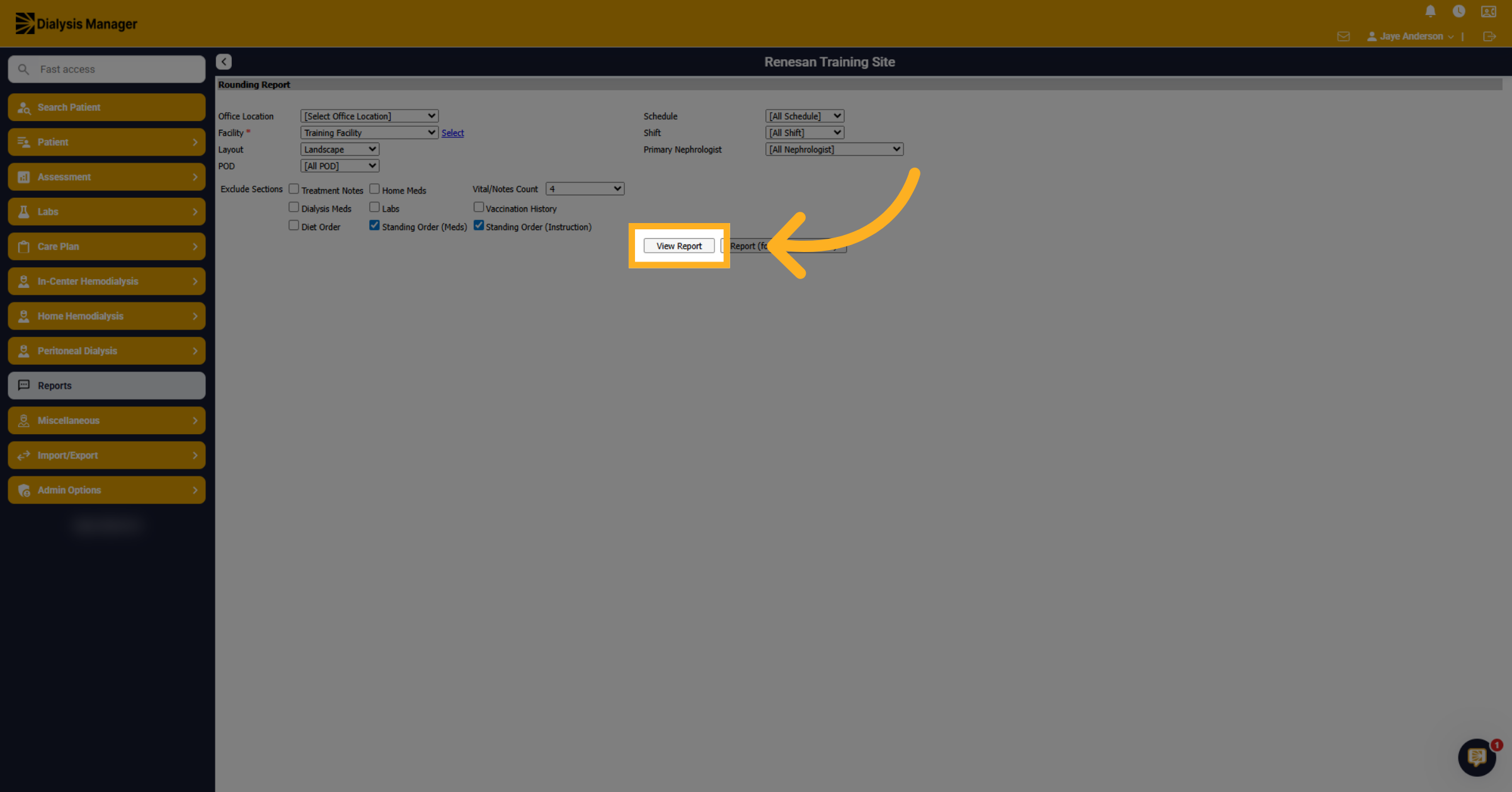
22. Click View Report
After you have selected the appropriate report criteria, click on View Report.
23. After clicking view
After clicking View the list of patients from the previous criteria selection will display. You can select the toggle along the top to select all listed patients.
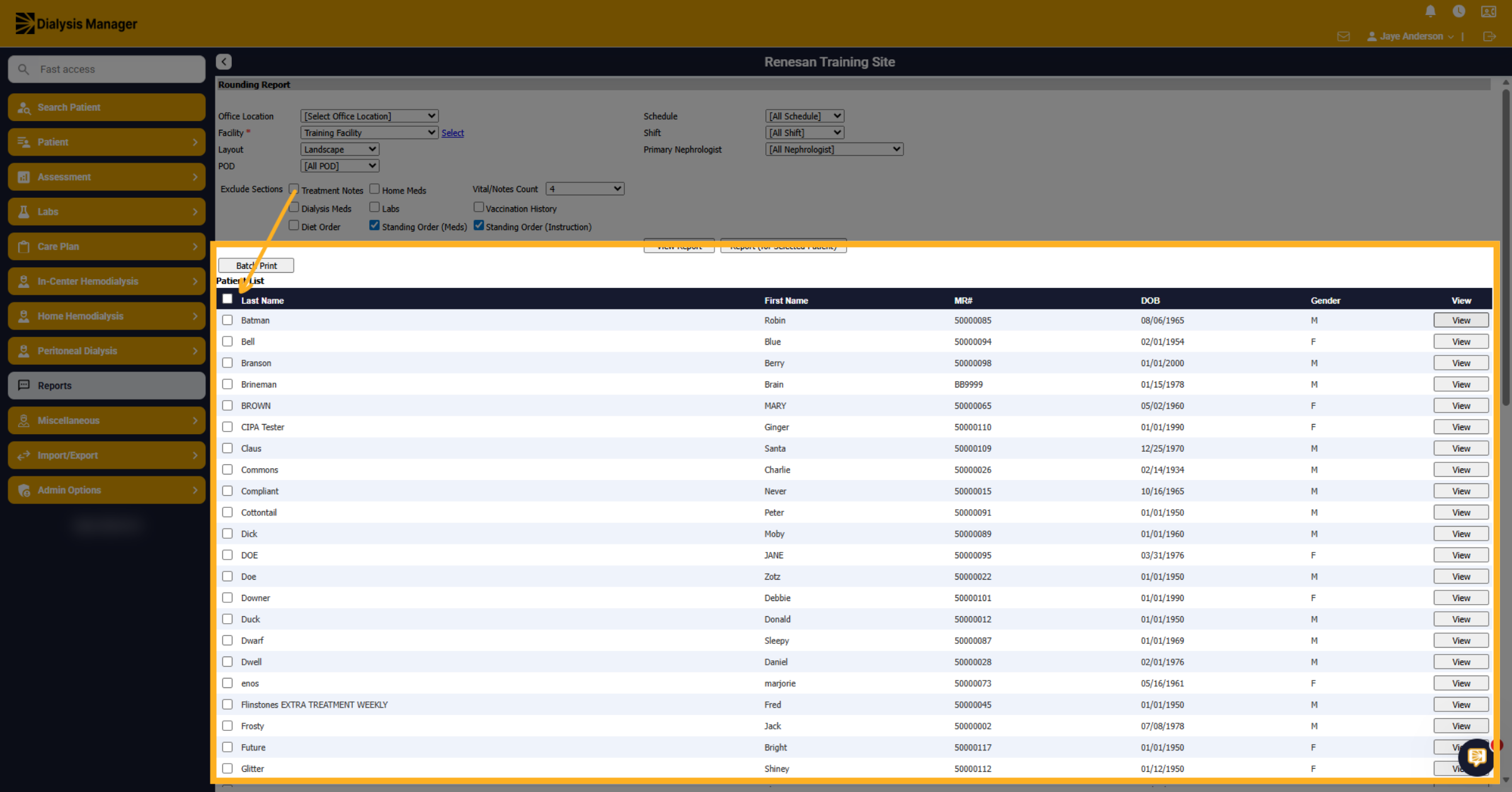
24. After clicking view
Or select multiple patients for which you want to run the report.
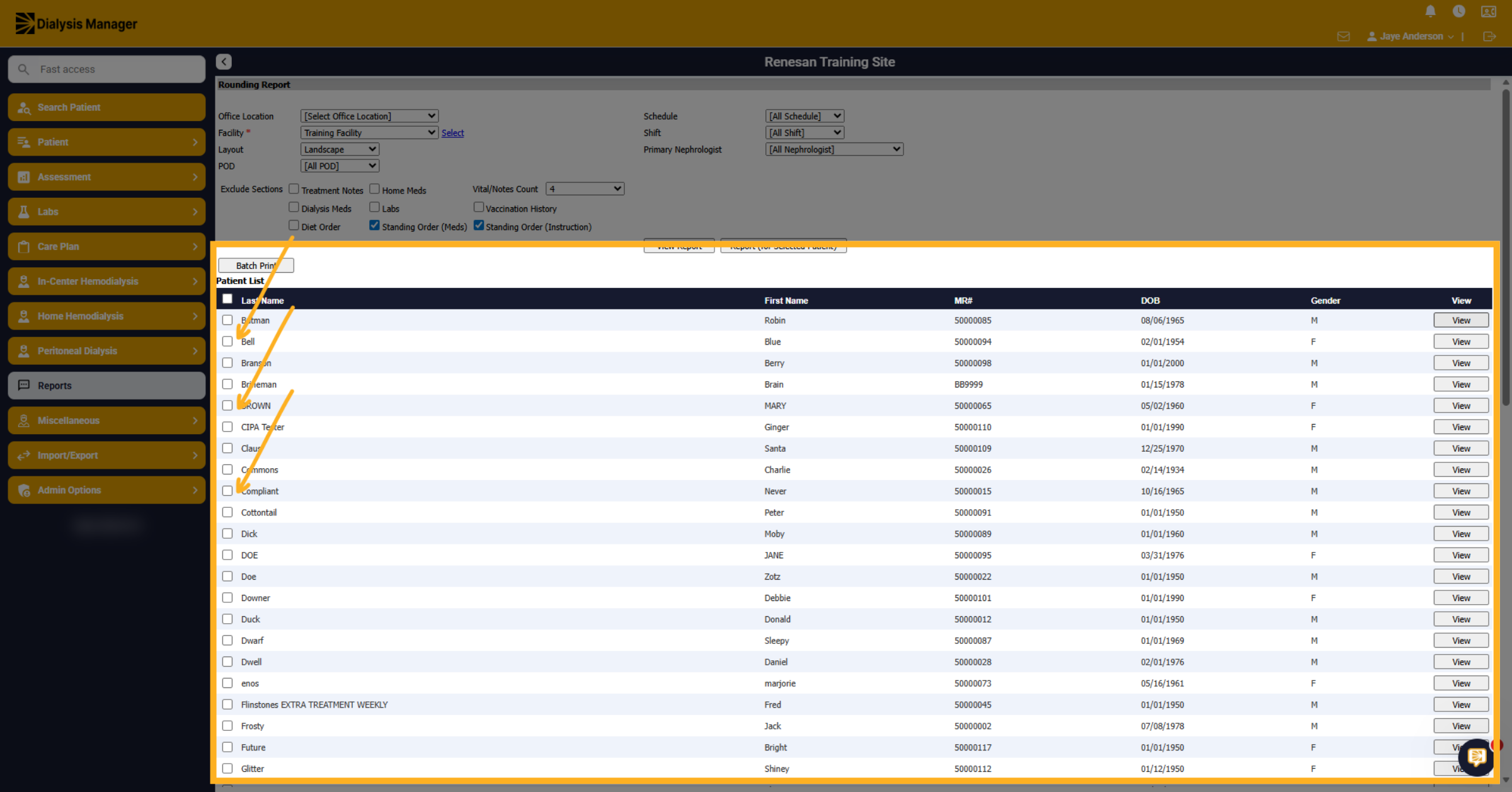
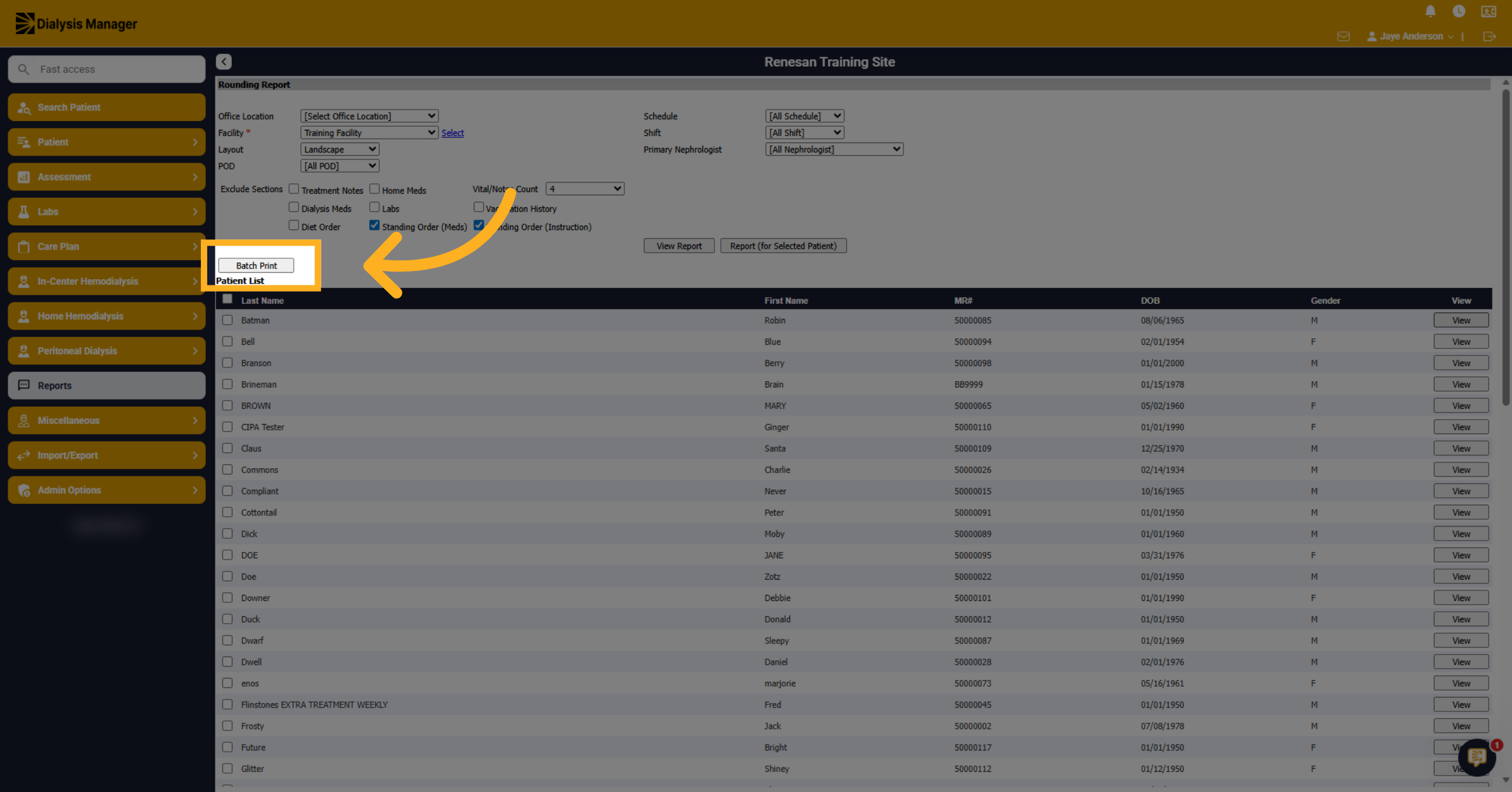
25. Click Batch Print
Click Batch Print.
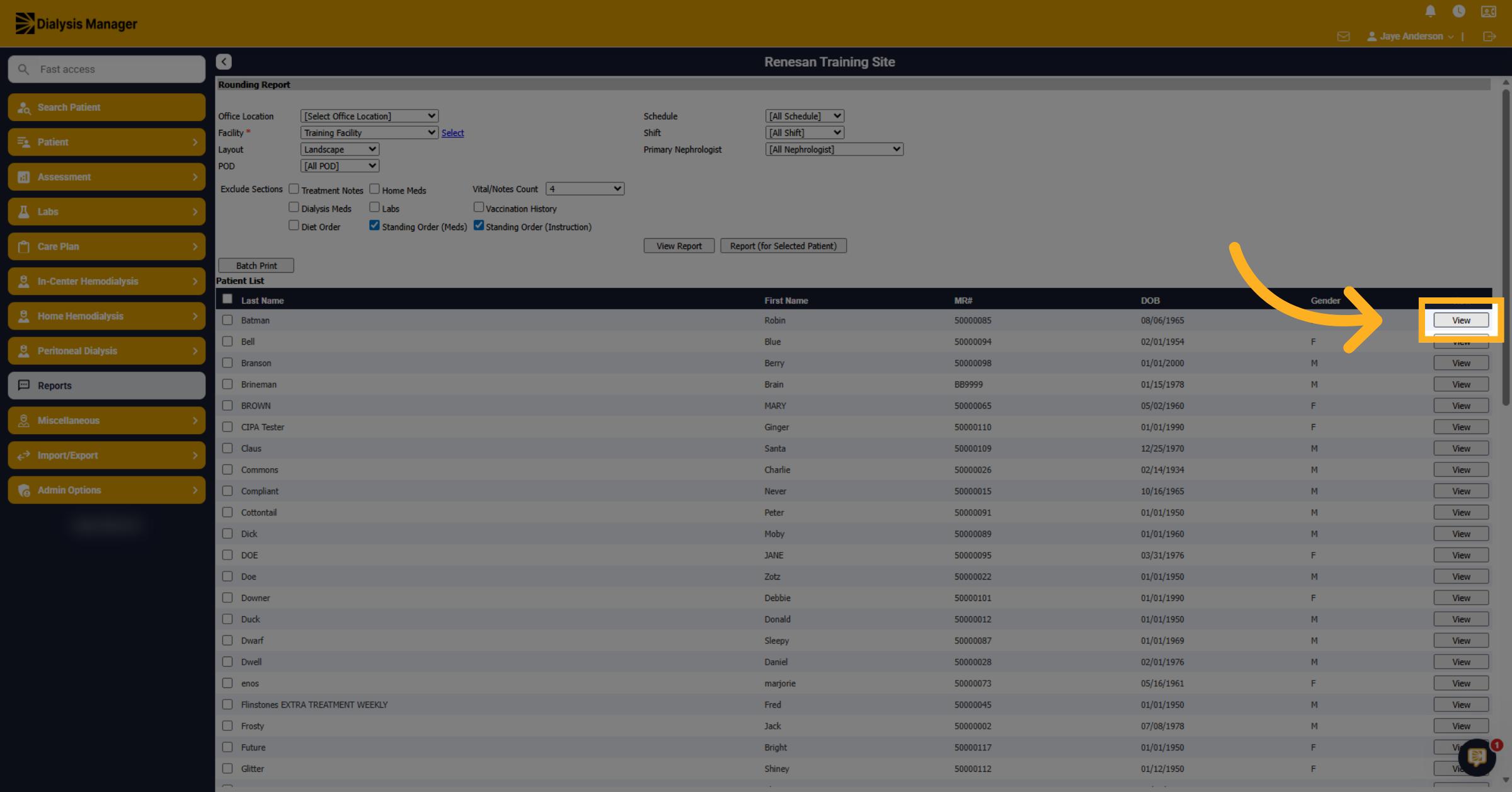
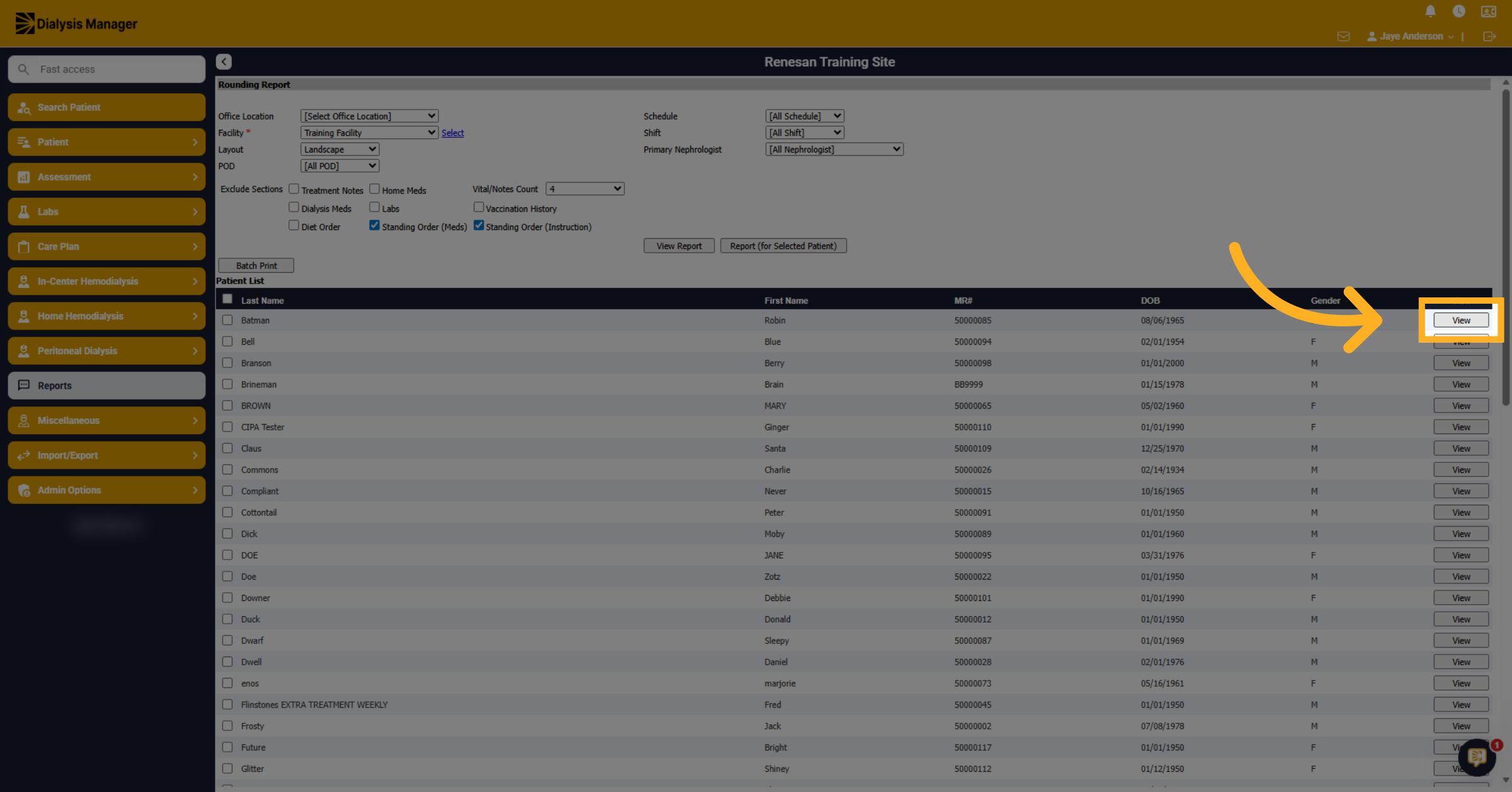
26. Click View for One pt report
Or you can click View next to the patient's name to run the report for an individual patient.
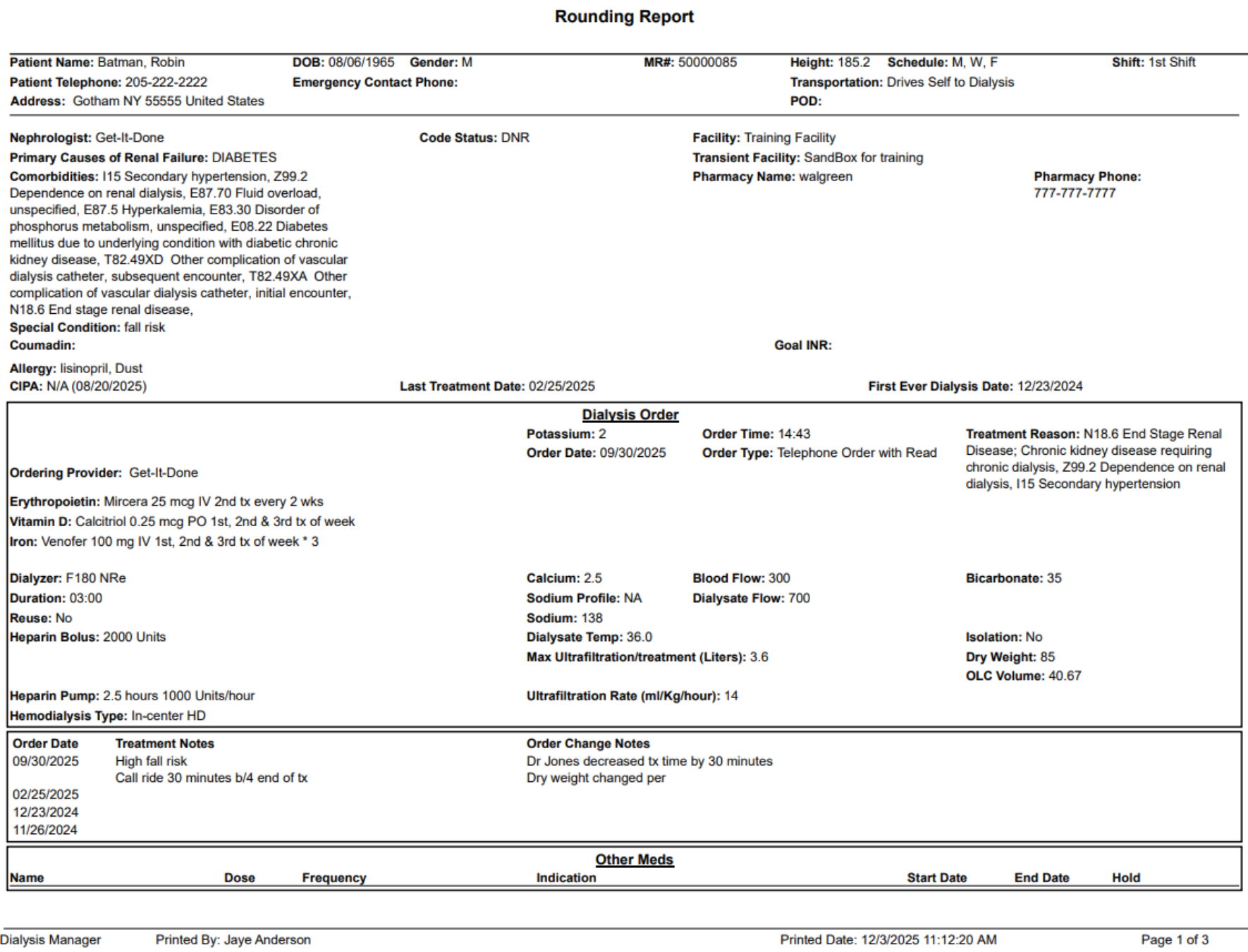
27. Use Report for Transient Patients
Maybe you're trying to help someone with a transient status; you can use this information.
28. Report example
Different patients' data is shown, including orders, comorbidities, emergency information, medications, orders, and transportation companies among many other important information. Maybe you're trying to help with a transient status; this report has great information you can share.
29. Choose Report Date
Our transplant status report is also another good one. Click Reports.
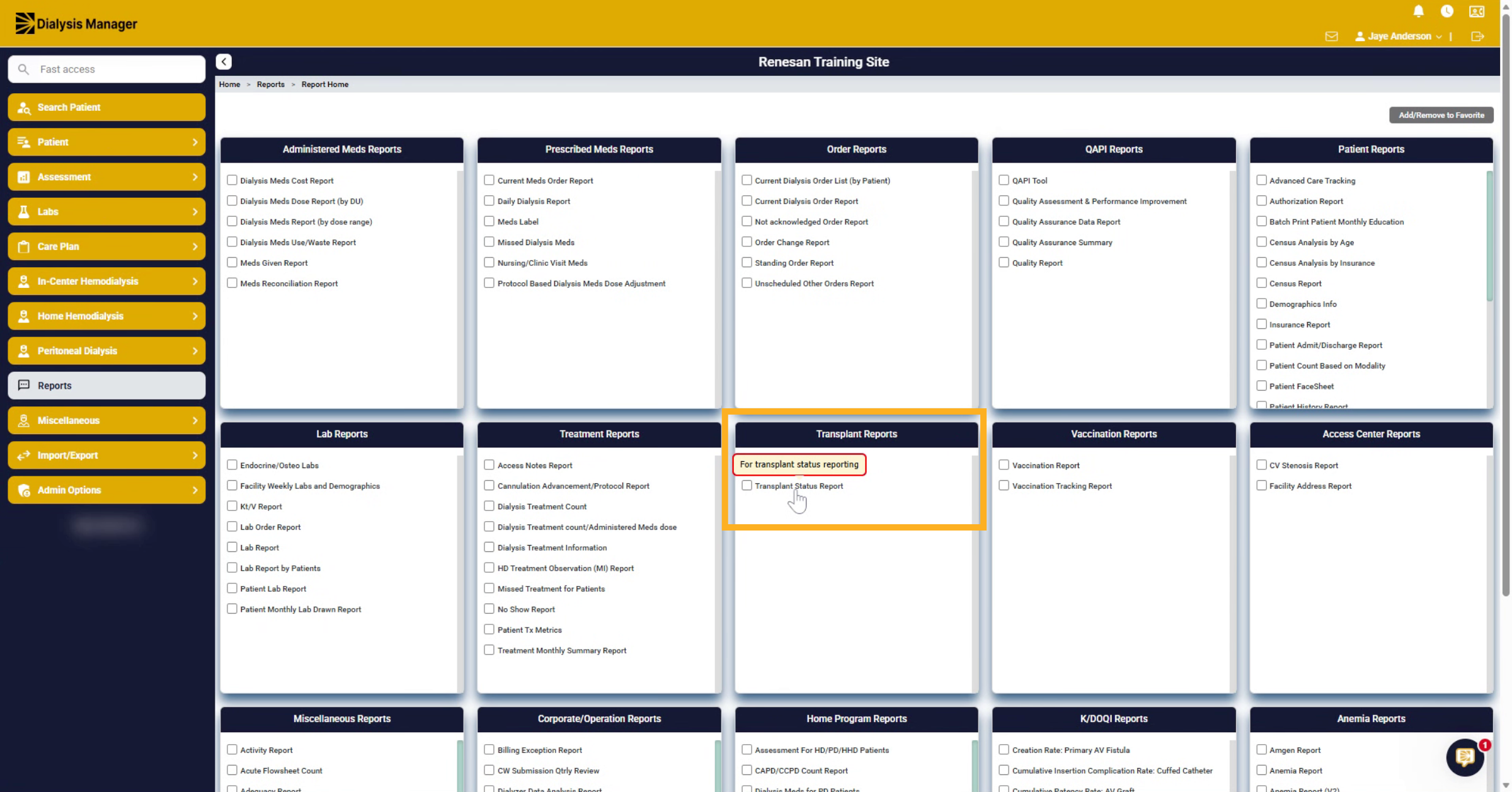
30. Select Report Mode
Find and select the Transplant Status Report.
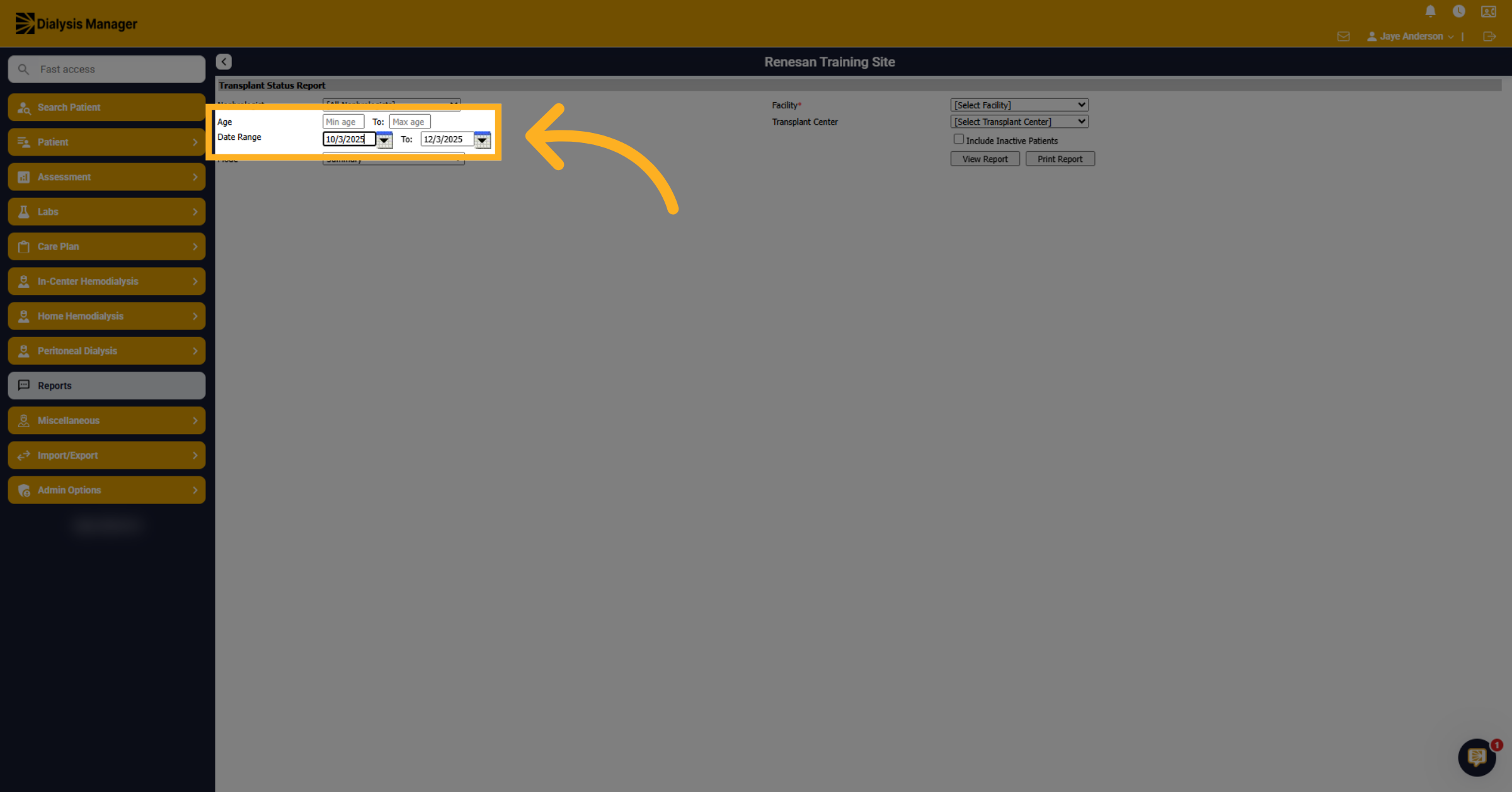
31. Select Date Range
Select the date range to filter the transplant status report. Notice, you can also sort this by minimum and maximum age as well.
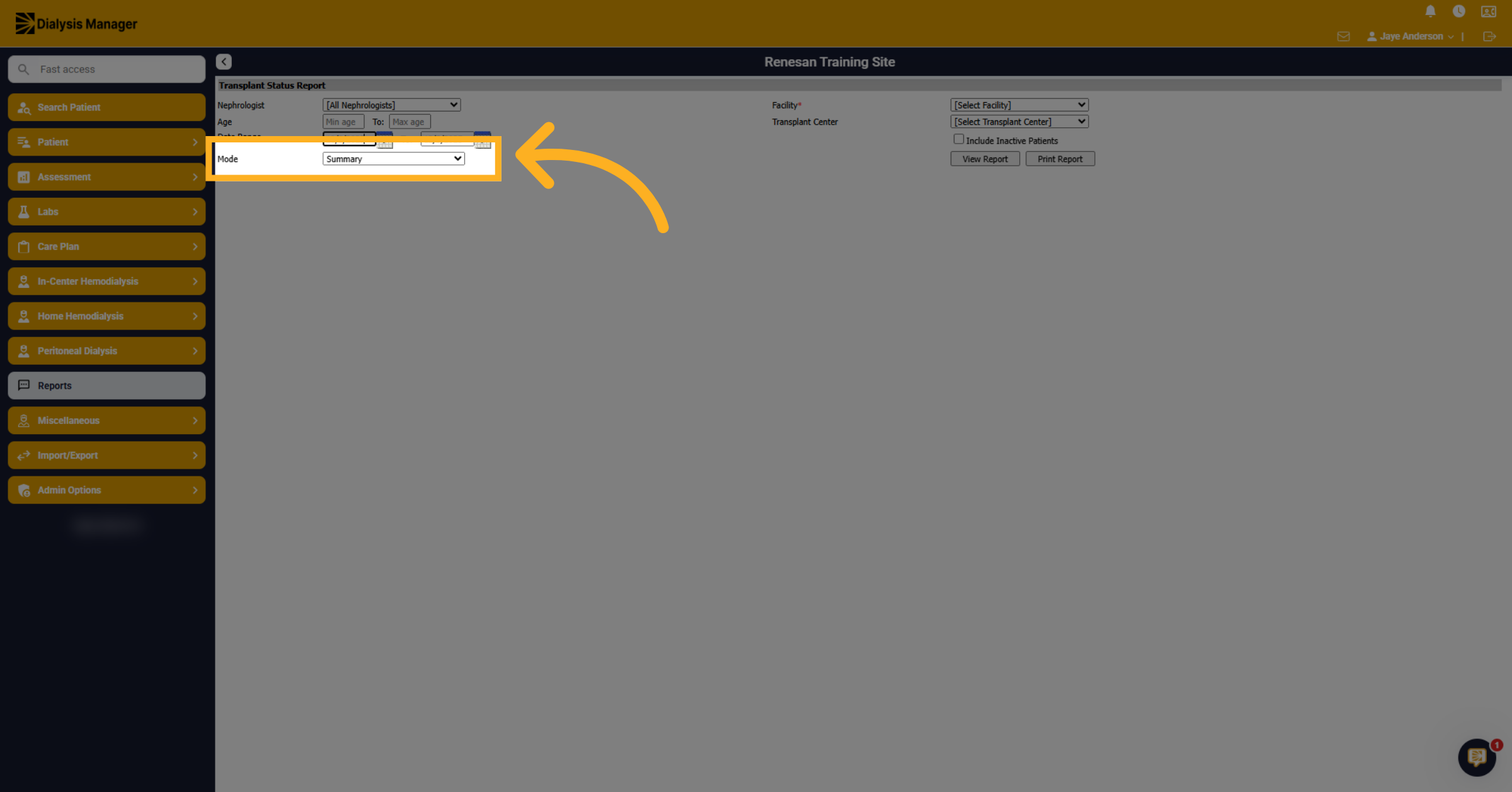
32. Select Mode
Select the Mode. You can do a summary or detailed mode. The detailed mode will show the notes associated.
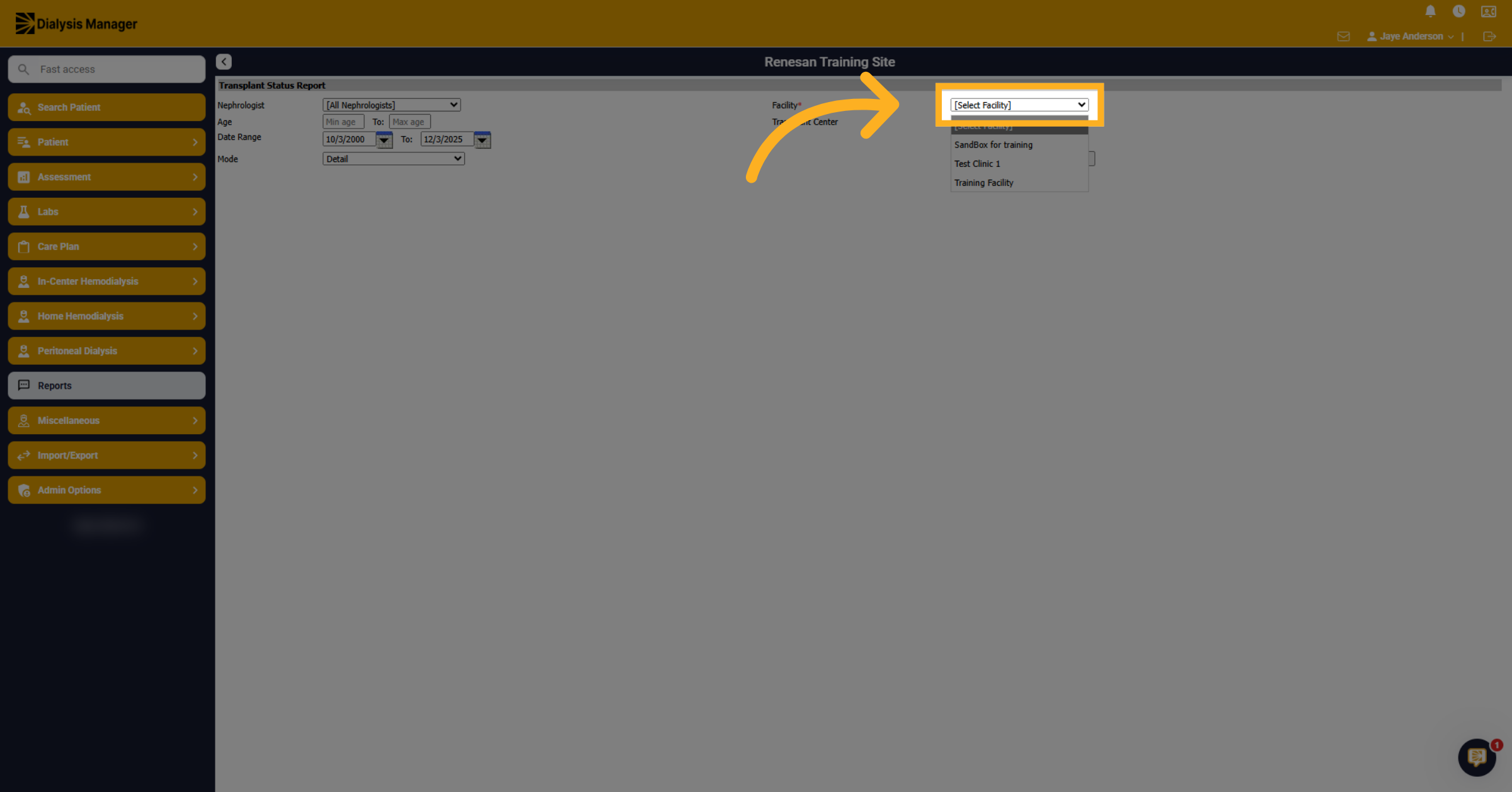
33. Review Detailed Report Notes
Select the facility to filter the transplant status report by location.
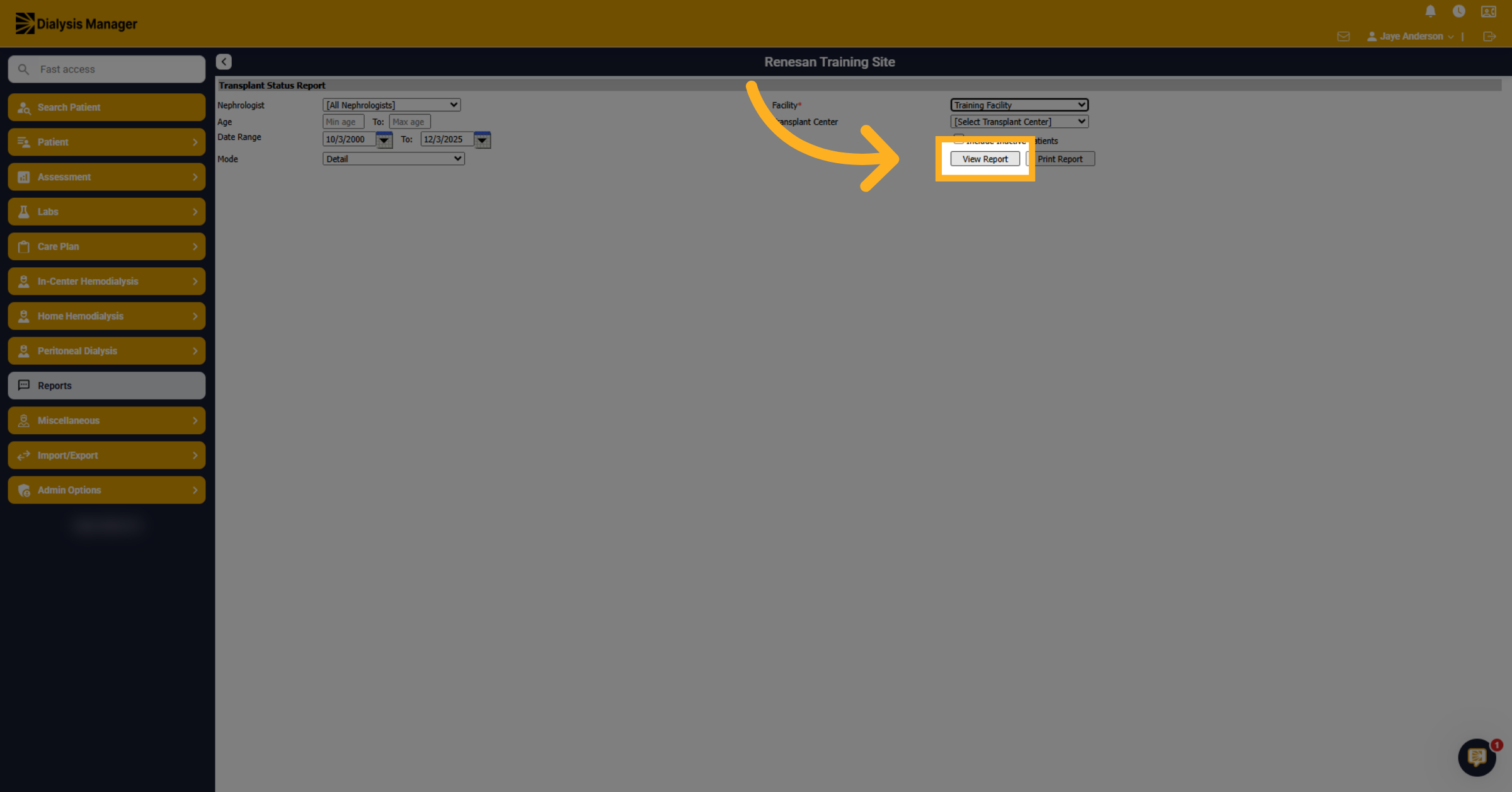
34. View Report
Click View Report to display the transplant status data.
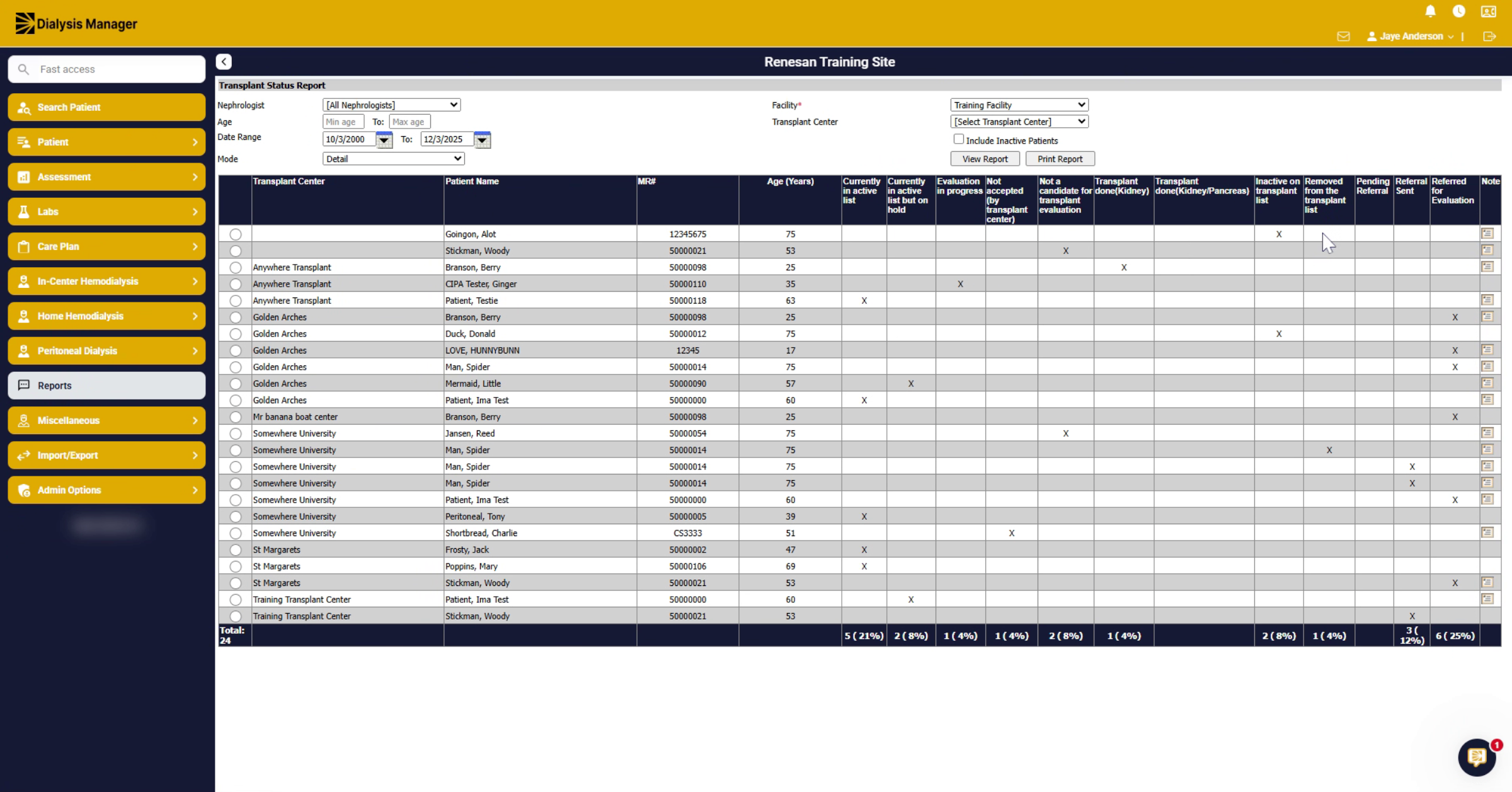
35. Open Reports Section
Along the bottom, the total and percentages are shown. And since we used Detail mode you can see the notes on the right-hand side. If you hover over, you can view the details.
36. Navigate Back to Reports
Click "Reports" to return to the main reports section to learn how to add and remove favorites.
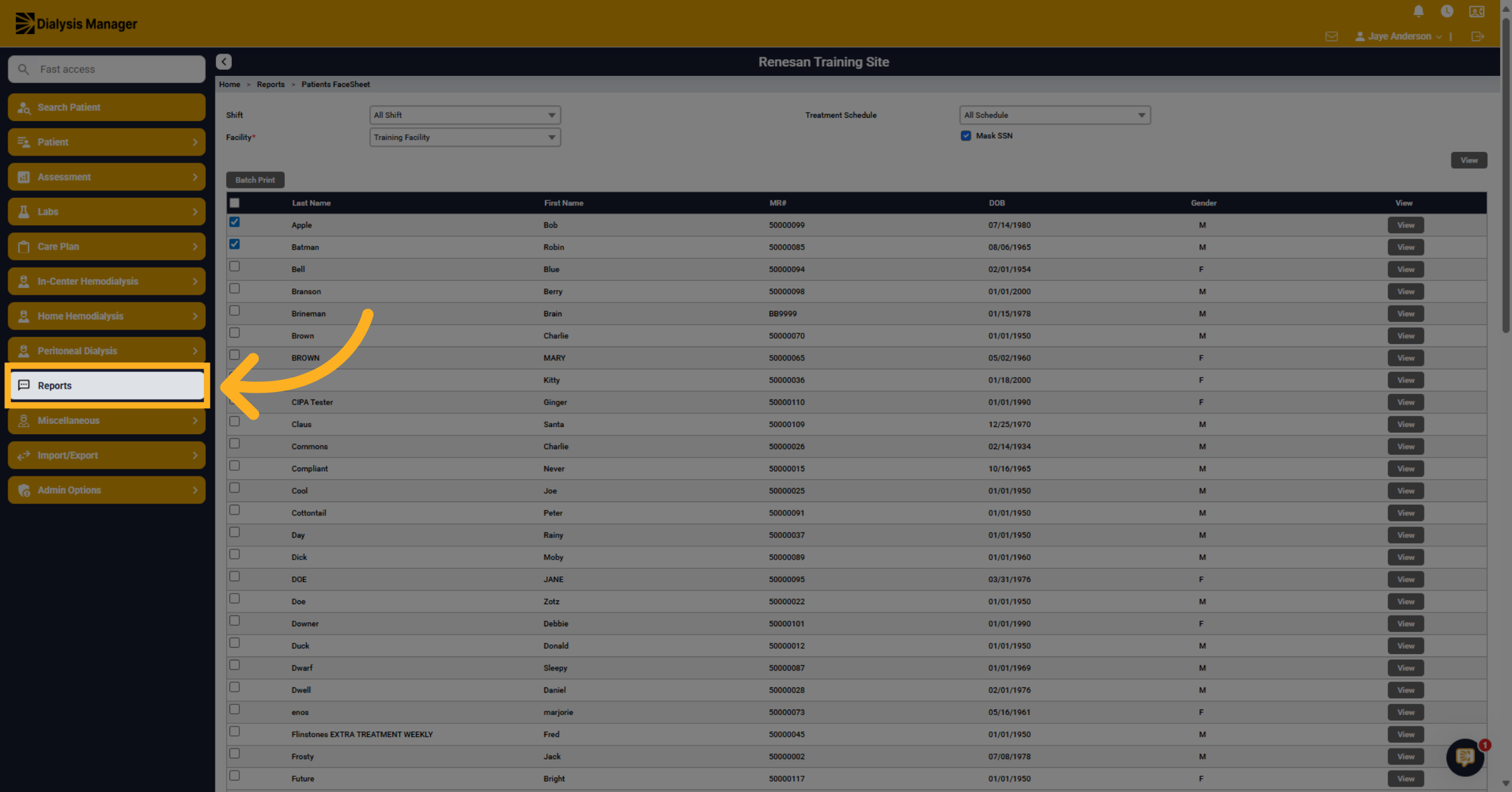
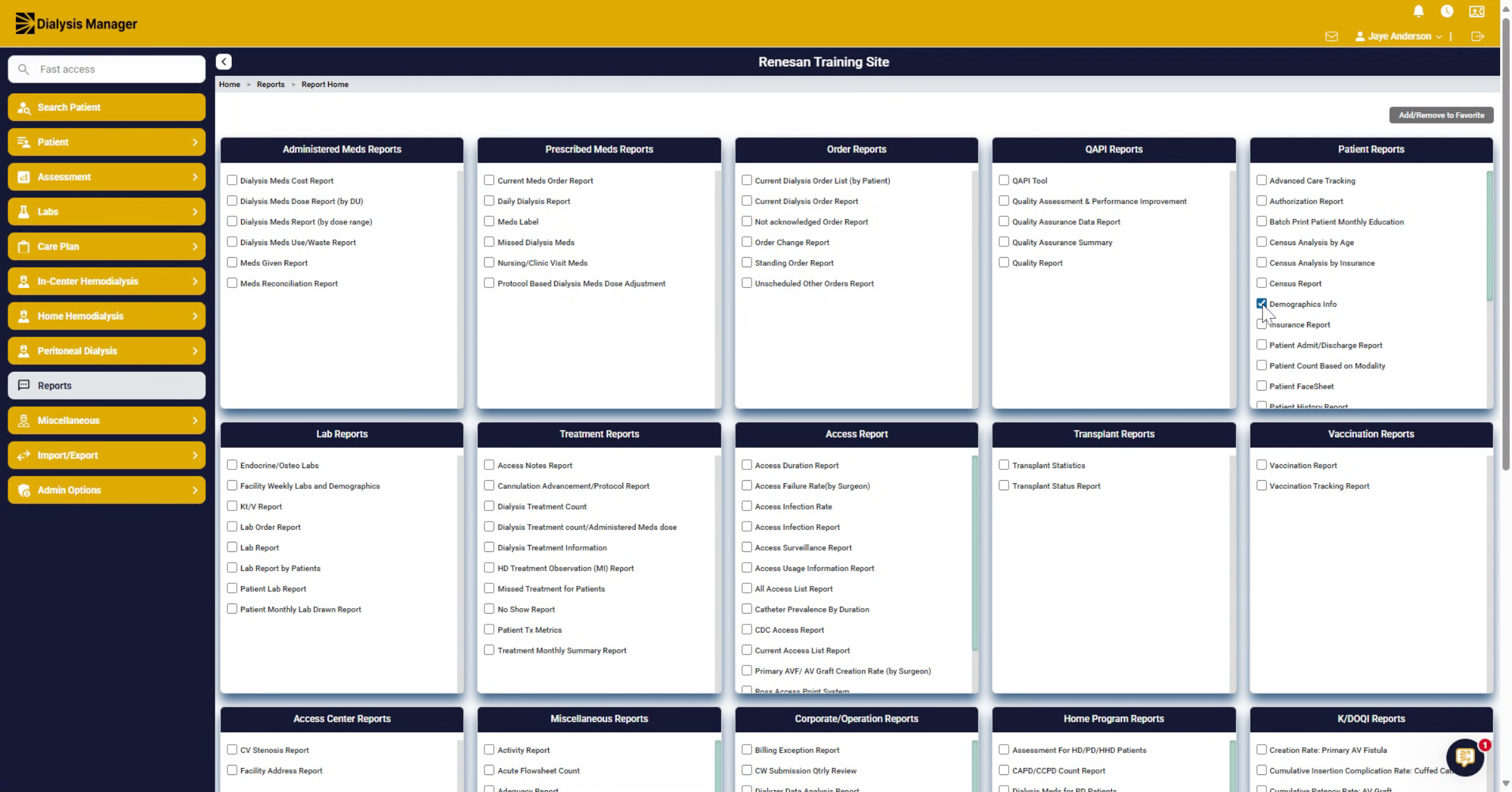
37. Add Reports to Favorites
By checking the selected box and then clicking add remove favorites. They'll now be on your favorite list.
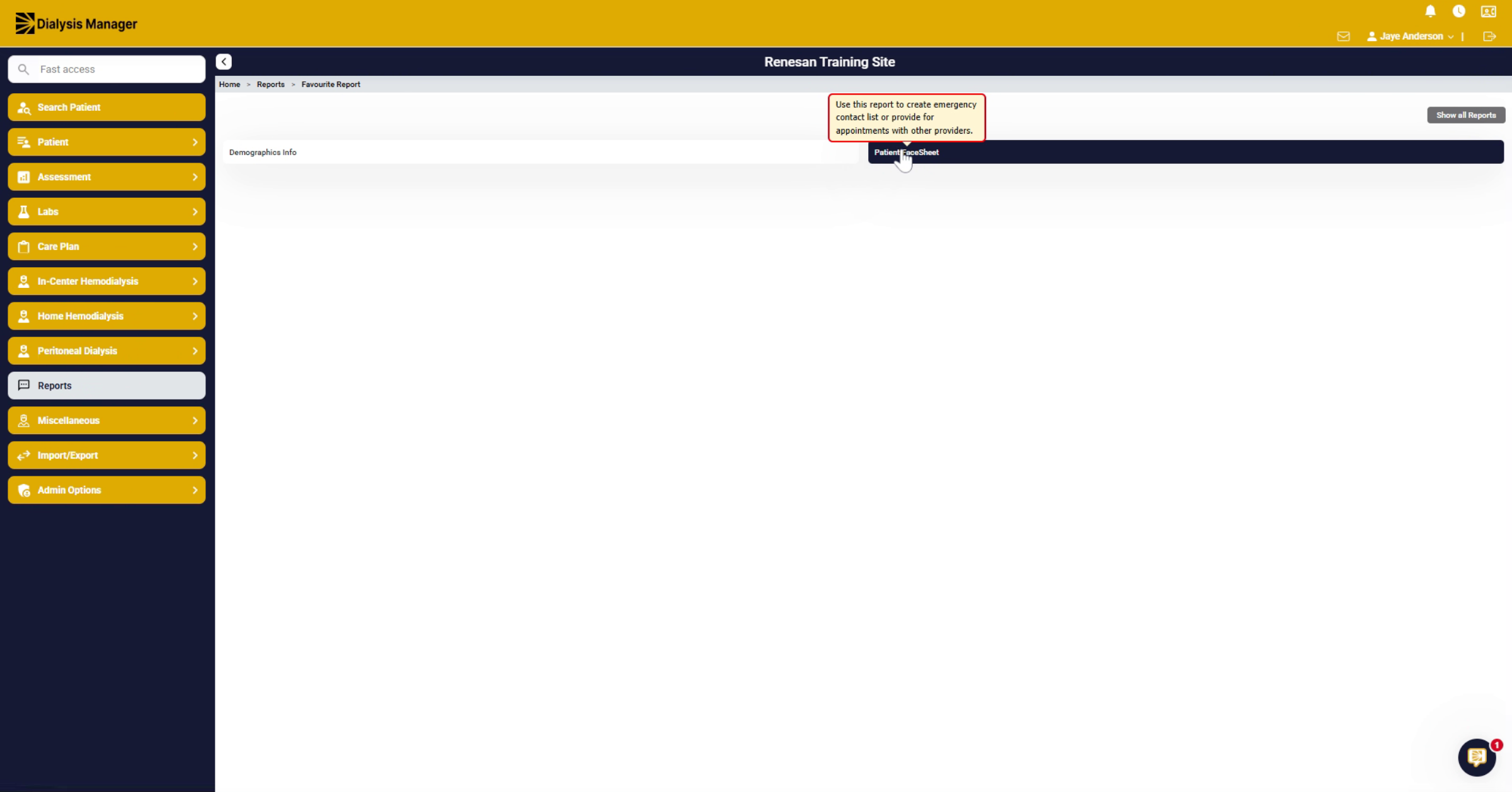
38. Show All Reports
Now when clicking on the reports menu you will only see your favorites. To view all reports you'll click on show, all reports if you want to remove them from your list.
39. Manage Favorite Reports
Unmark the box and choose add remove from favorites.
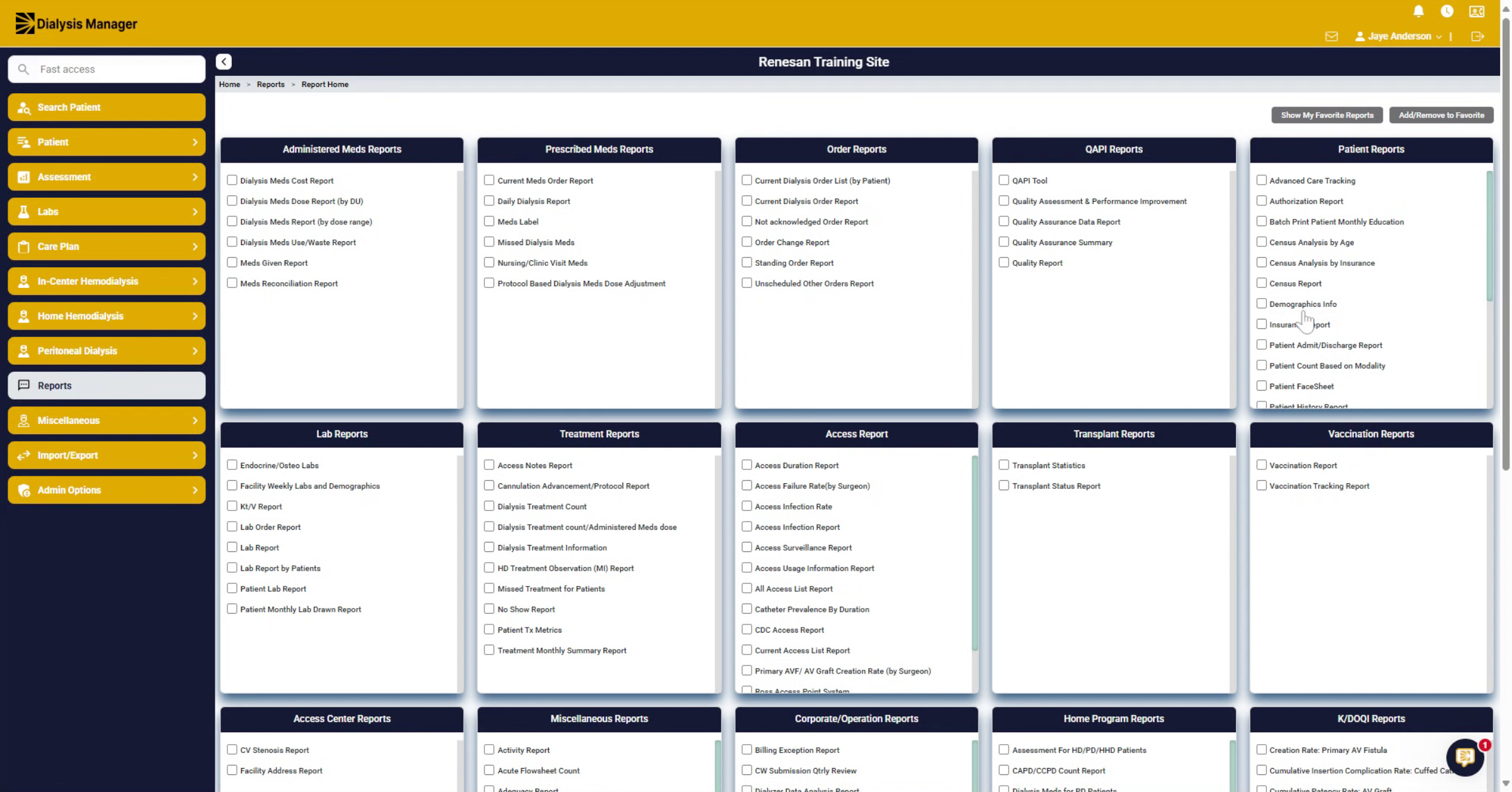
40. Confirm Report Mode
Now, if we go back to our reports, we'll see all reports by default.
41. Common Reports
There are many reports within Dialysis Manager. These are just a couple of the most commonly used by Social Workers. Demographic Information has a lot of filters which custom checklists can be created for Modality, Insurance, and Pharmacy. It can also show Pending or incomplete information that is marked on the edit patient's screen. The Rounding report can be utilized for emergency transfers, transient requests, Skilled Nursing Facility Communication and in the emergency evacuation box. The transplant status report can be filtered by Minimum/Maximum age, transplant centers, date ranges and viewed by summary or detailed modes.