Clinical Data Entry, Problem List.
1. Introduction
This video will walk you through the patient's Problem List. Entering Co-morbidities, Allergies, Special Conditions, etc. in Dialysis Manager.
2. Problem List
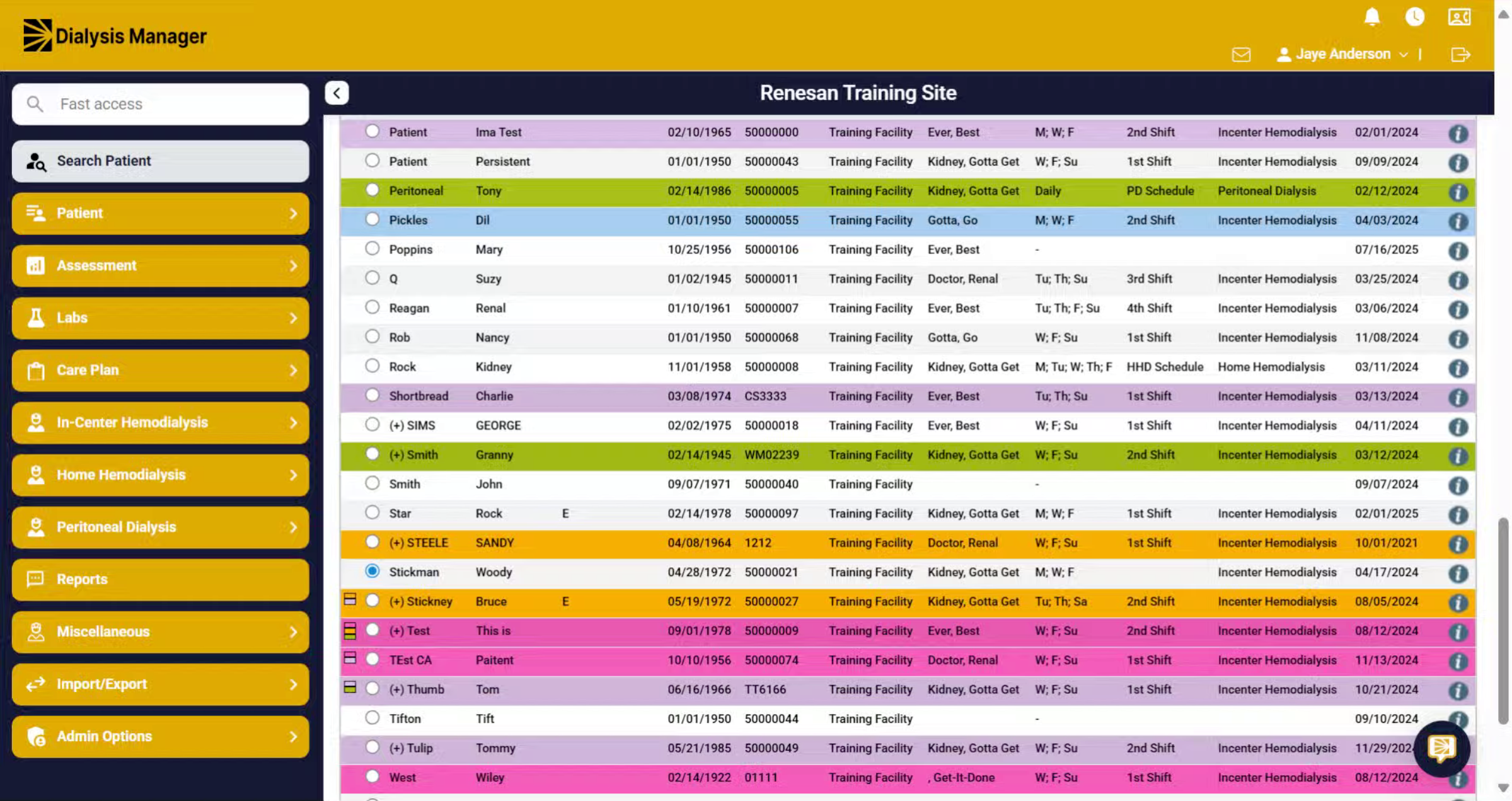
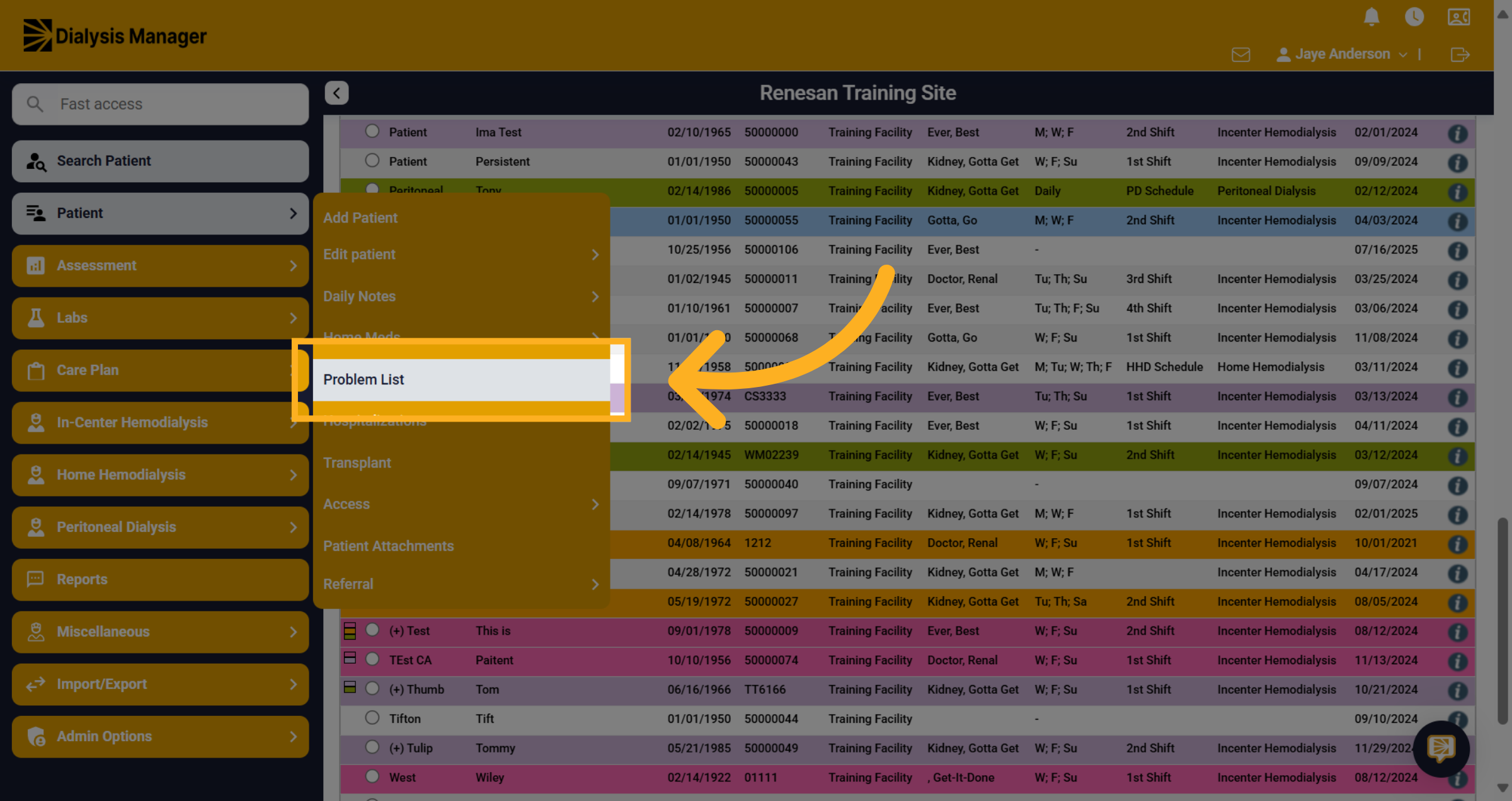
Once your patient is selected lick the "Problem List" tab to begin managing patient conditions.
3. Select a Type
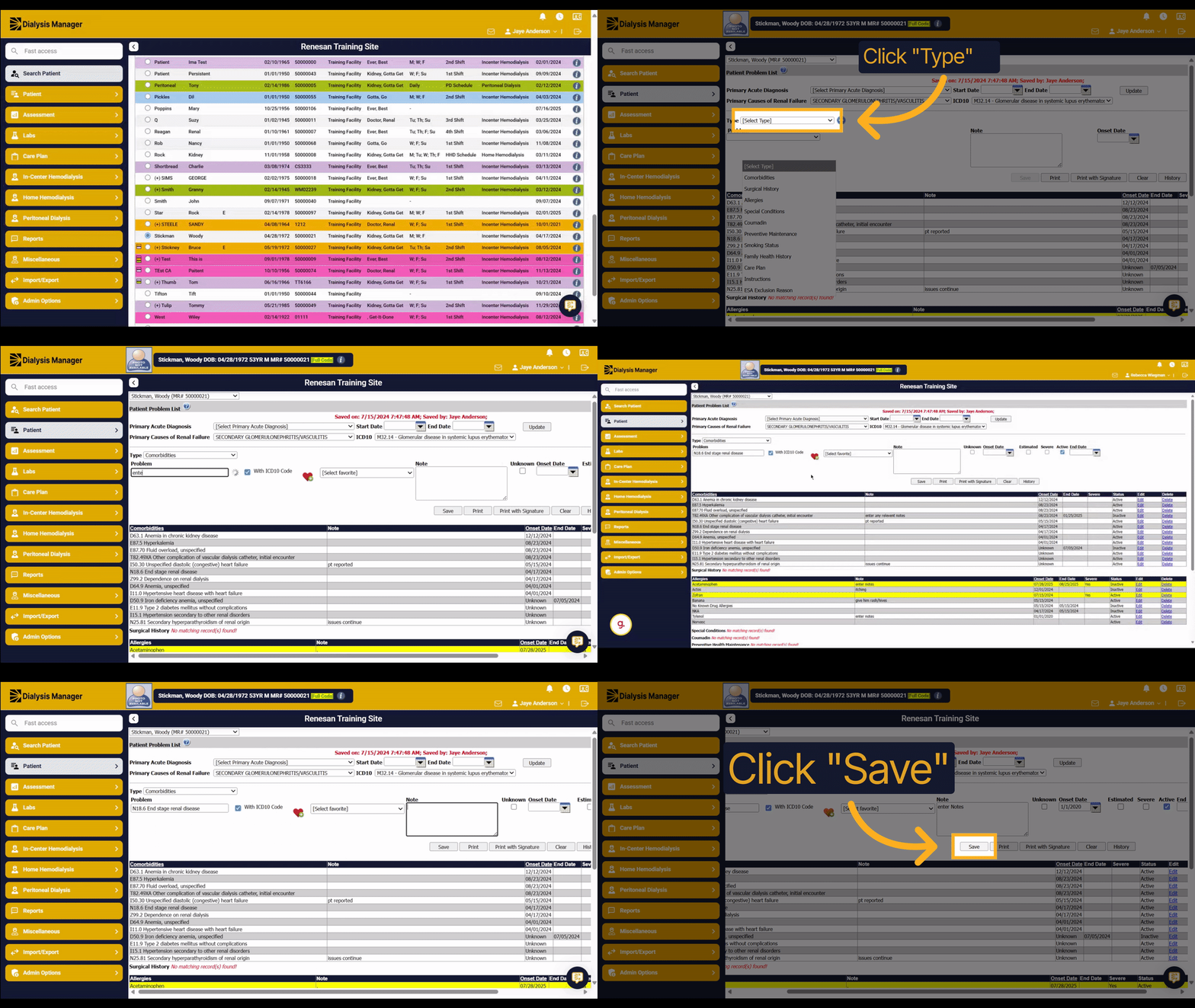
Click the dropdown menu labeled "Type" to view available categories such as Comorbidities, Surgical History, Allergies, and others.
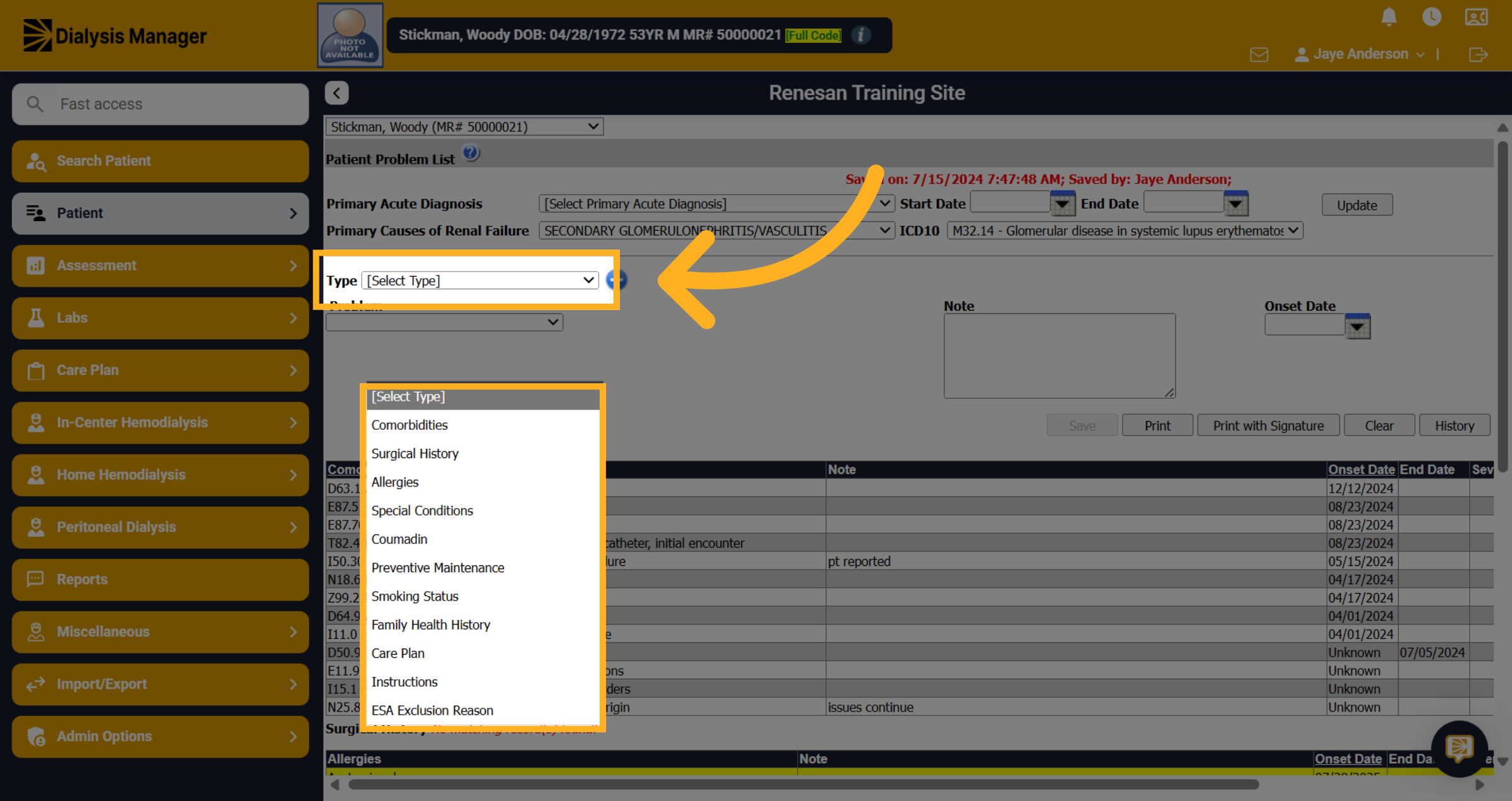
4. Co-Morbidites
Select Comorbidities from the dropdown.
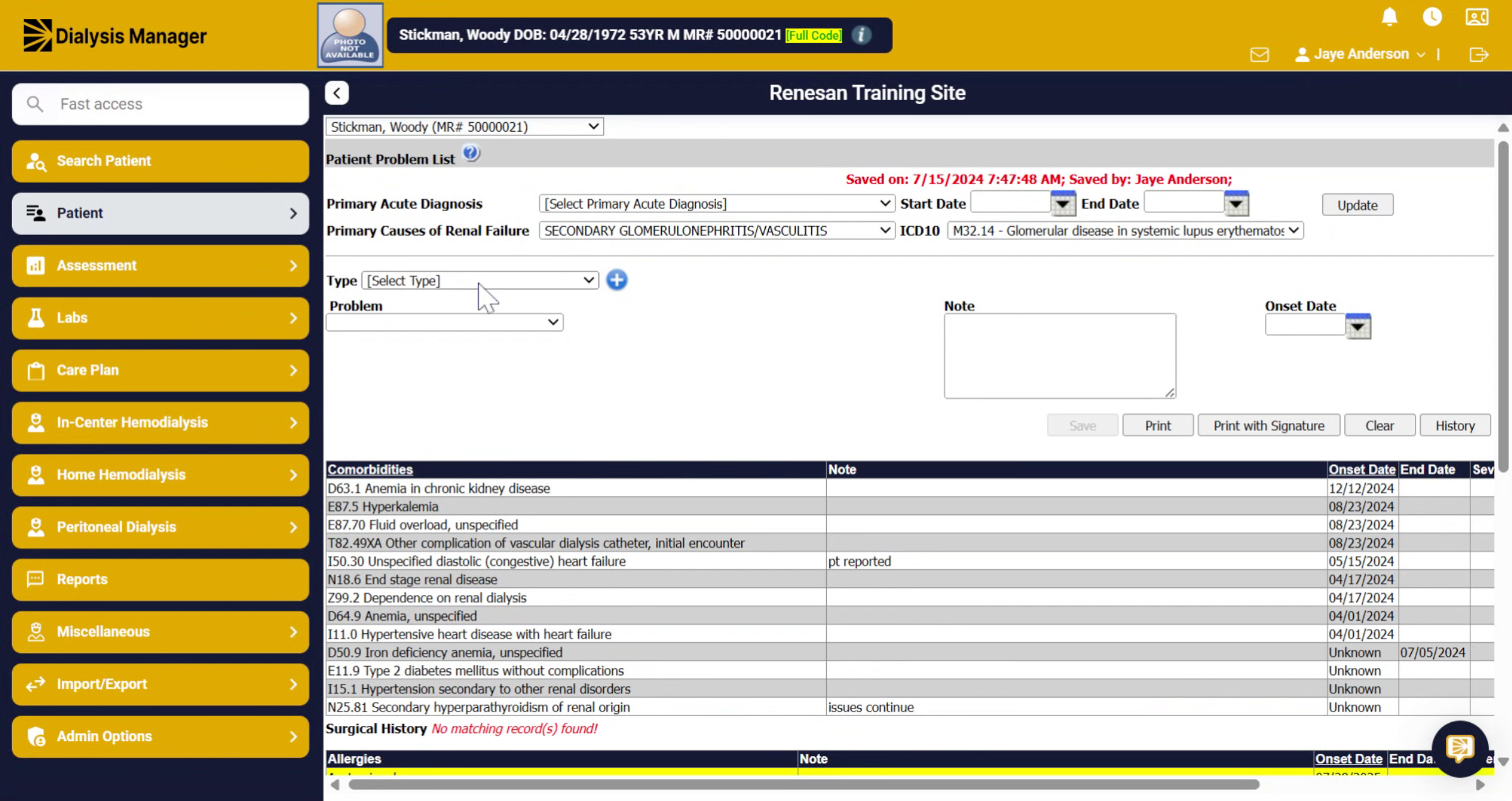
5. Enter your problem or the ICD 10 code
Click the input field to start entering the condition details.
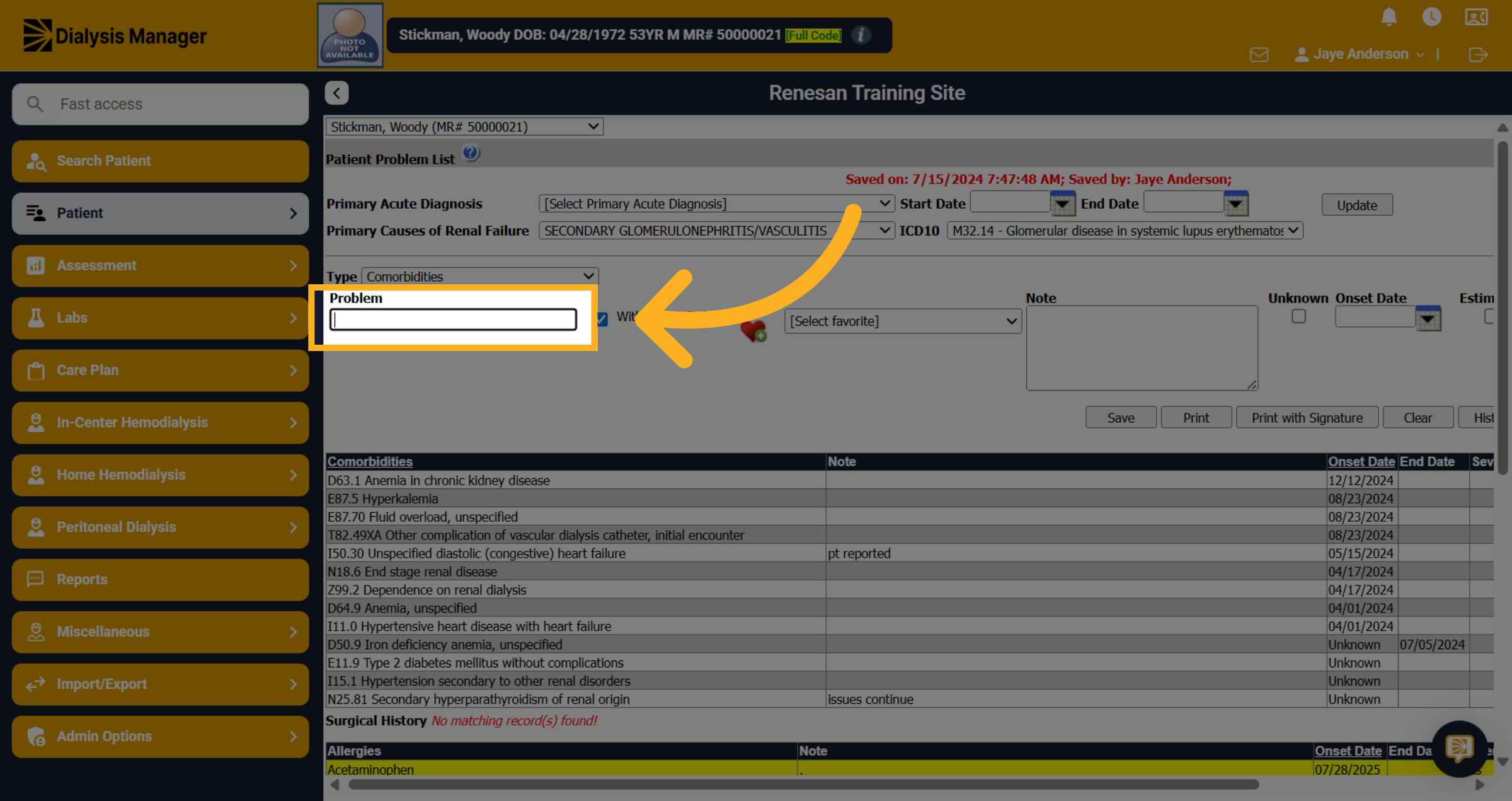
6. Renal Conditions
Type the ICD 10 or name of the condition you want to add, for example, a specific renal condition.
7. Select the Problem
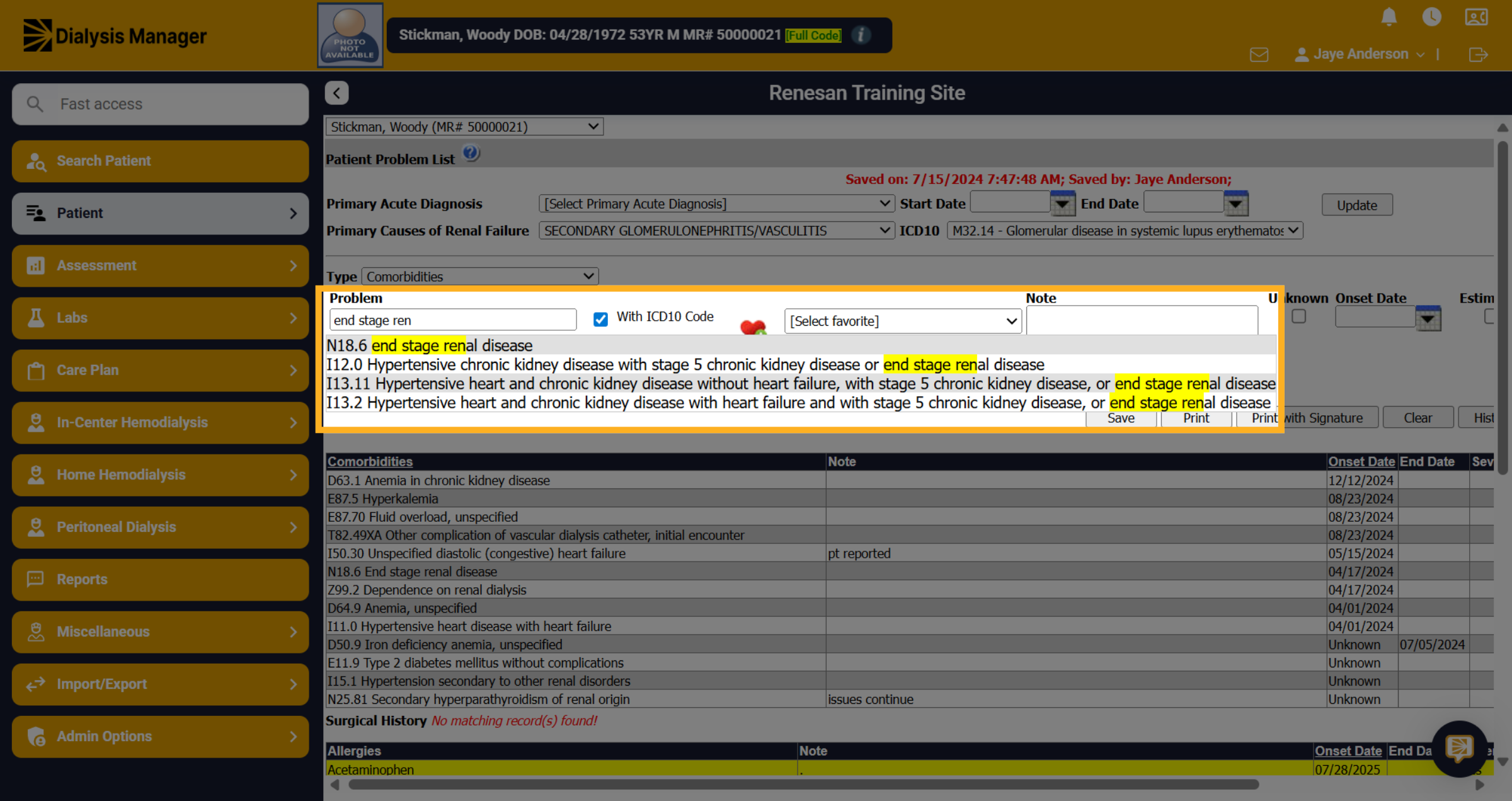
Click the specific diagnosis code, such as "N18.6 end stage renal disease," to assign it to the condition to the patient.
8. Add to Favorites
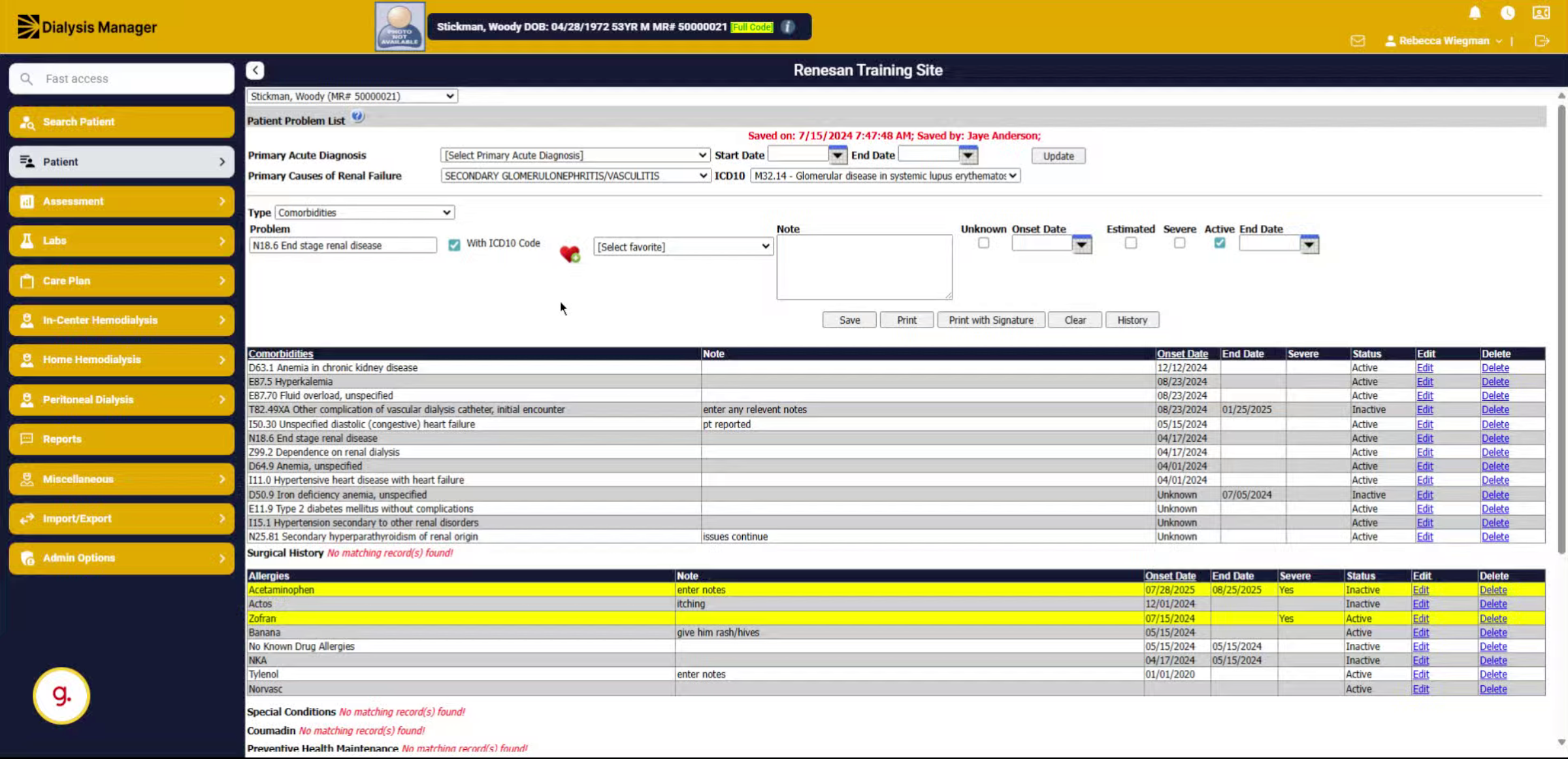
When selecting the heart icon, it will add your problem list into the favorite drop-down. This allows you to quickly access common comorbidities without searching through the entire list every time.
9. Favorites dropdown
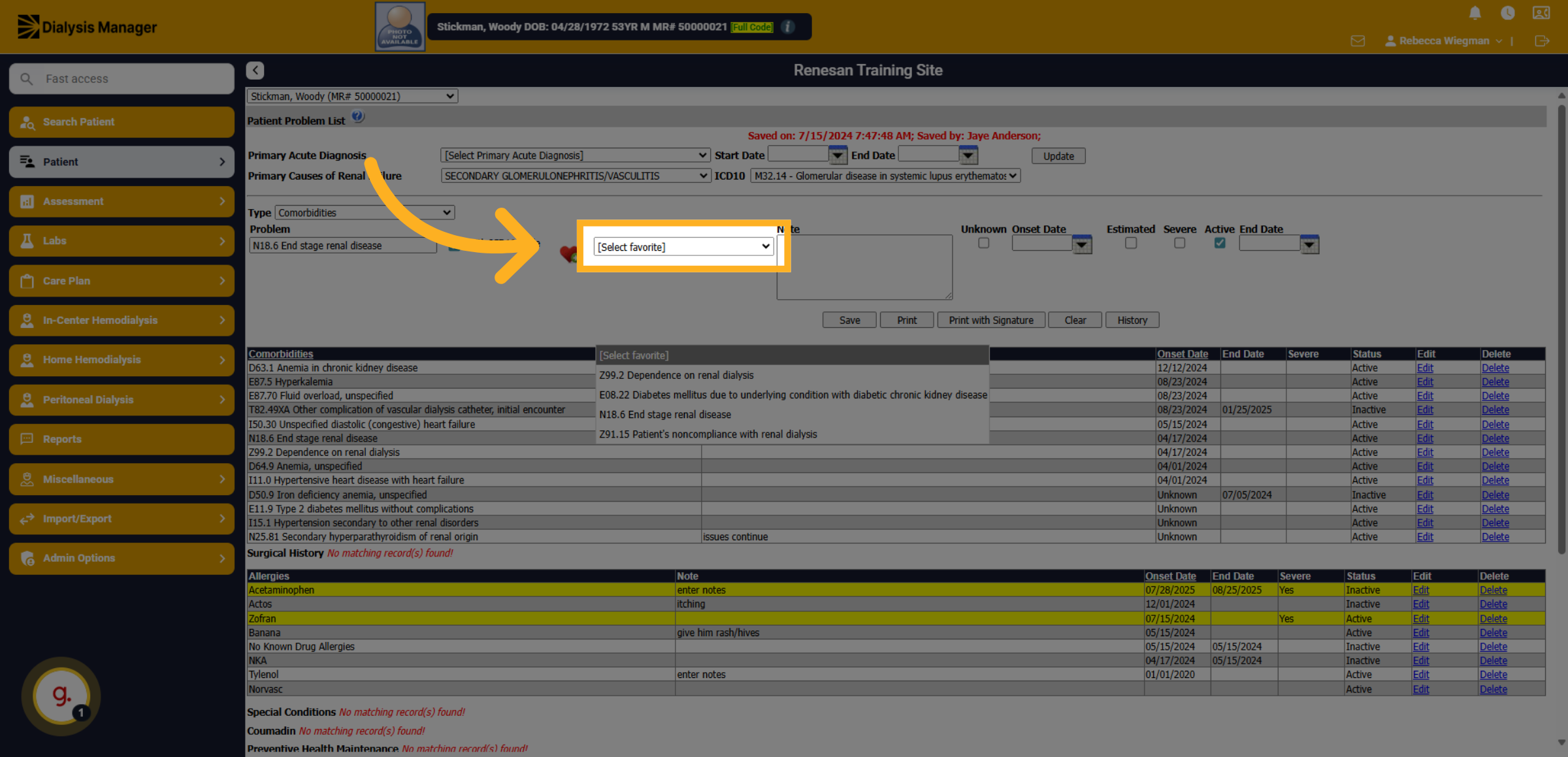
You'll now be able to view those favorites for future patients to be selected.
10. Enter Notes
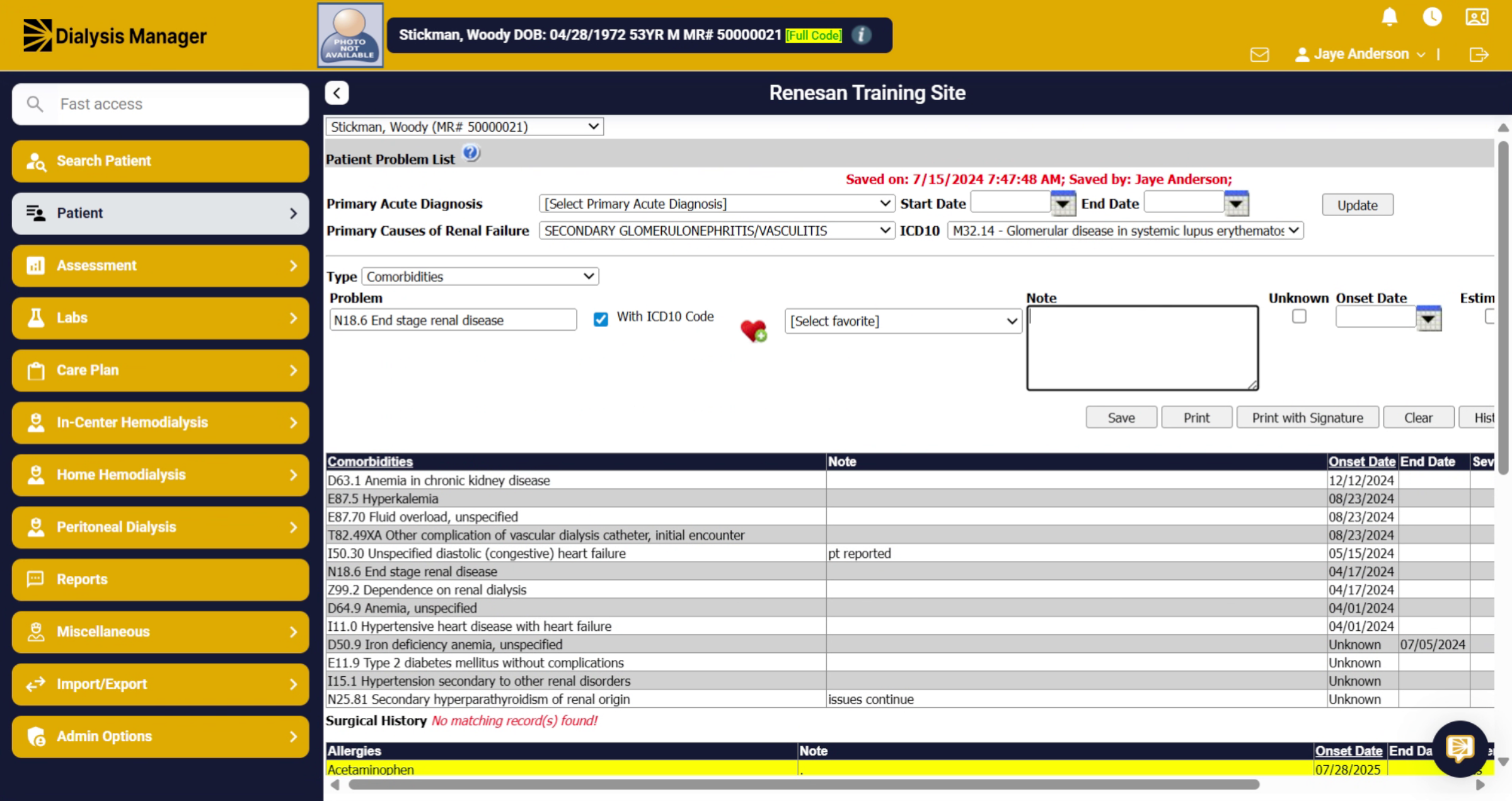
Type any relevant notes or additional information about the condition.
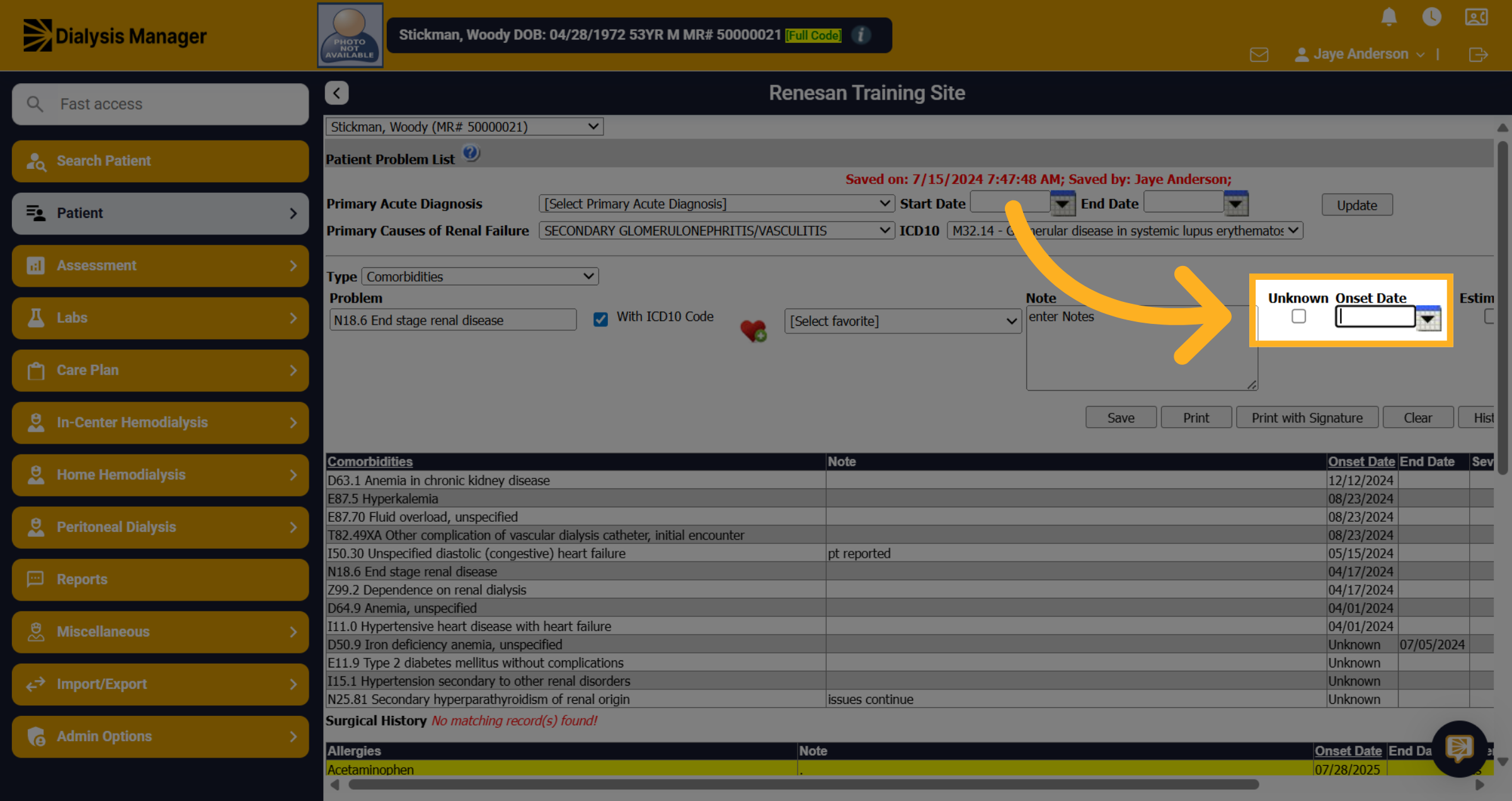
11. Onset Date
Click and enter the date field to specify when the condition was diagnosed or noted. If the date is unknown, you can select the checkbox.
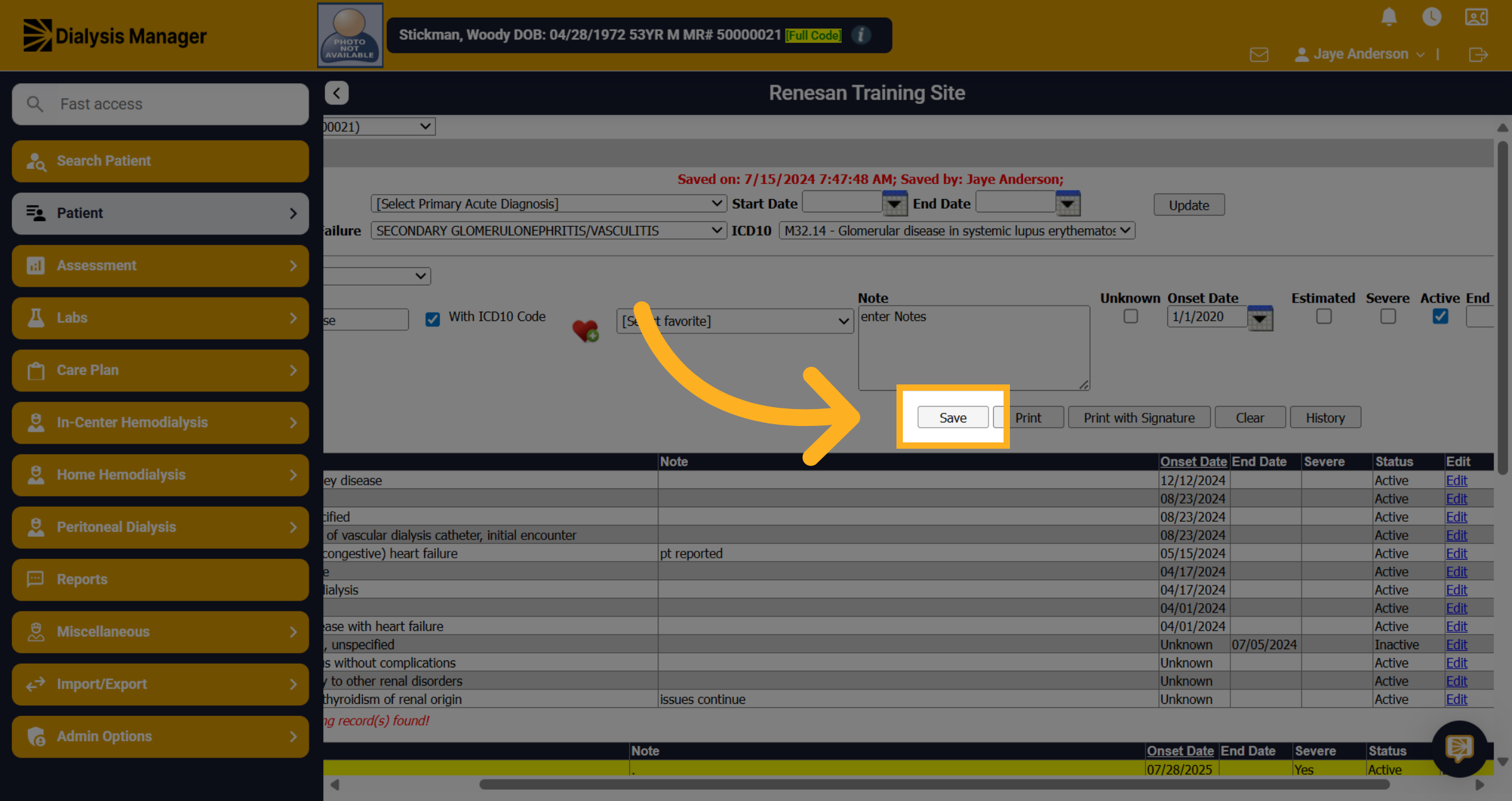
12. Save
Click the "Save" button to finalize and save the entered condition and its details.
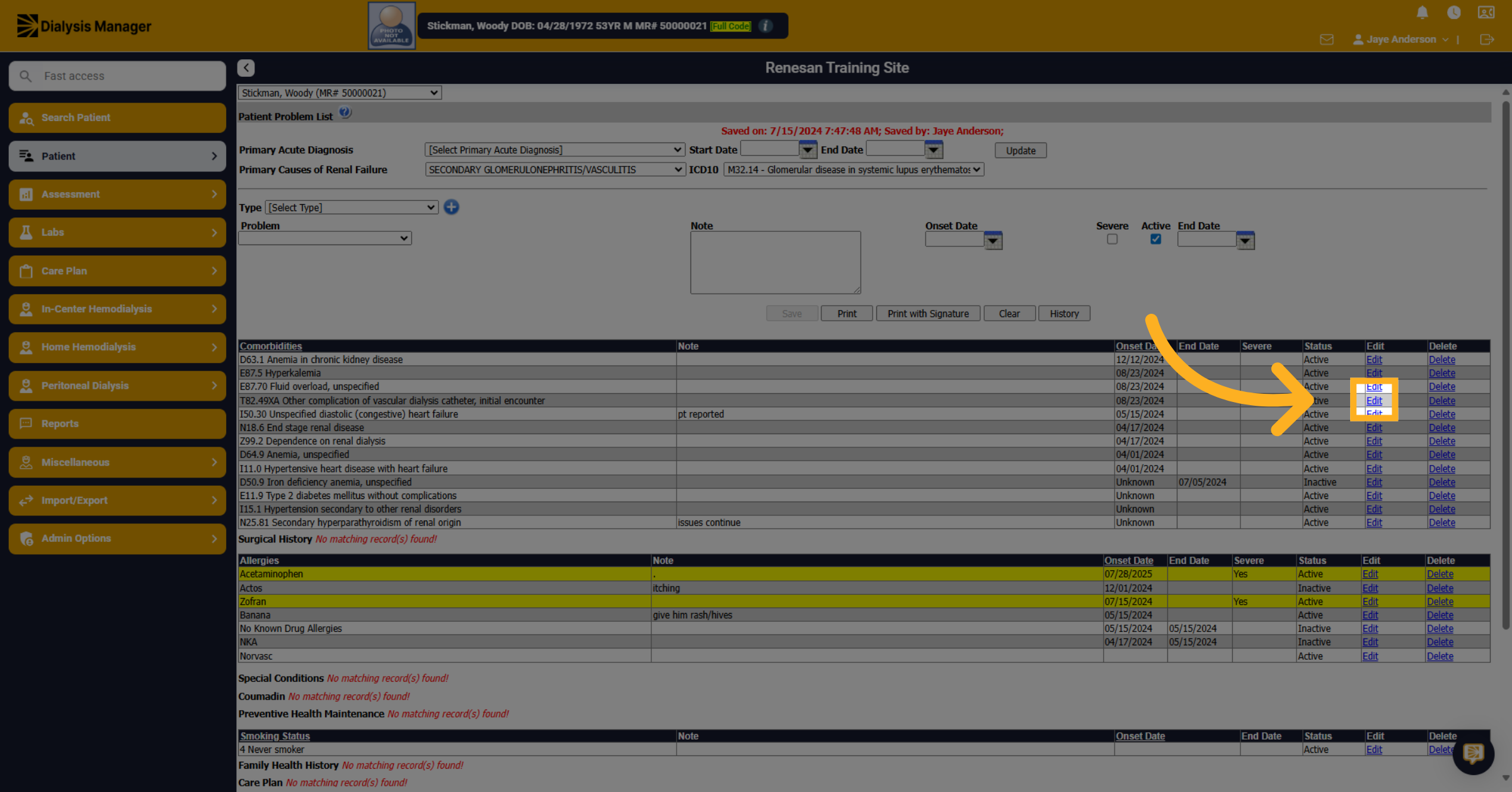
13. Editing a co-morbidity
If you need to edit the co-morbidity select the Edit option to modify the details of a specific co-morbidity.
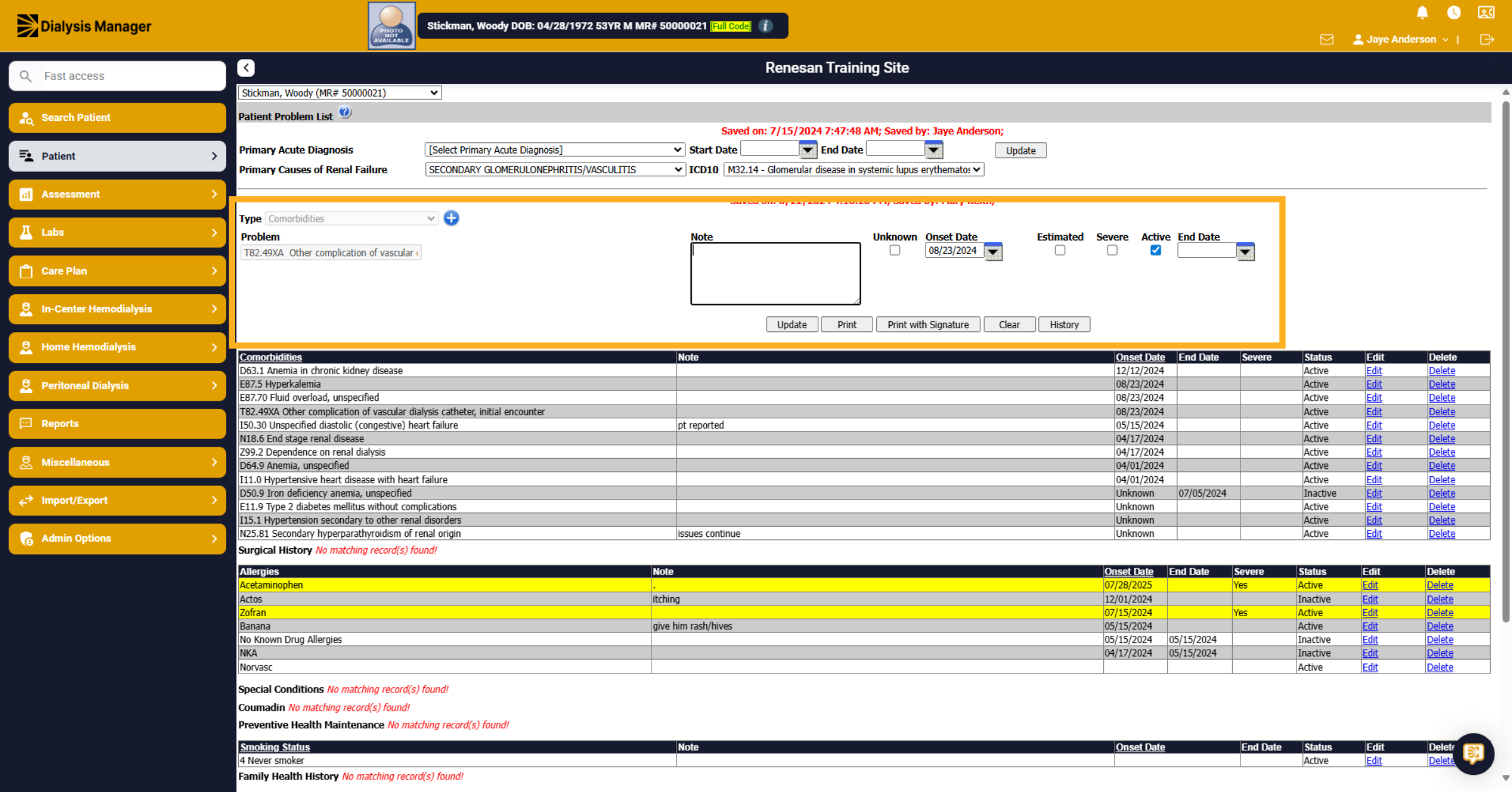
14. Editing
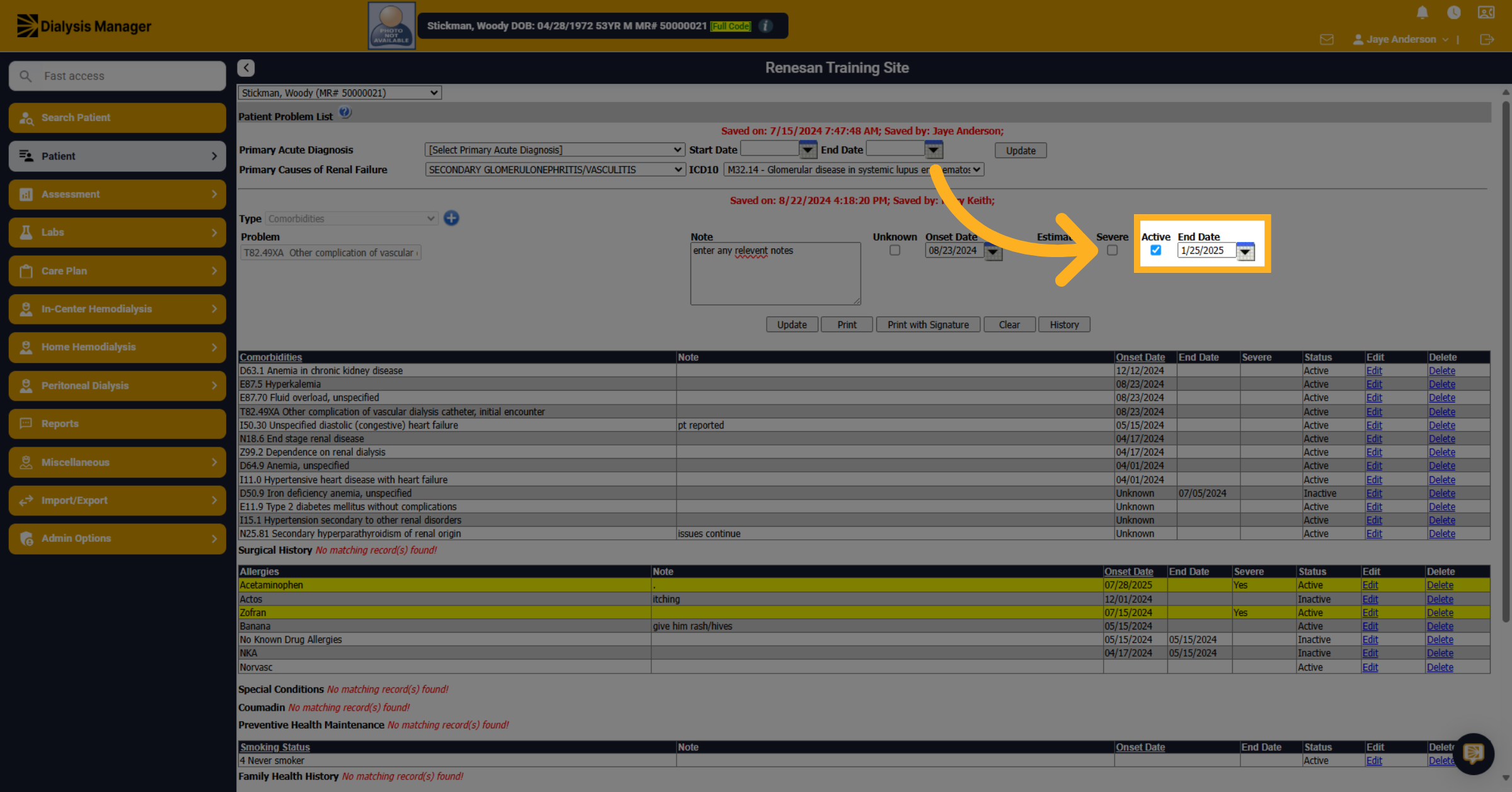
The co-morbidity will populate towards the top. Enter any notes or update relevant information about the co-morbidity such as marking it severe or entering an end date to discontinue the co-morbidity.
15. Inactive
Toggle the status option to indicate the co-morbidity is no longer active and enter an end date.
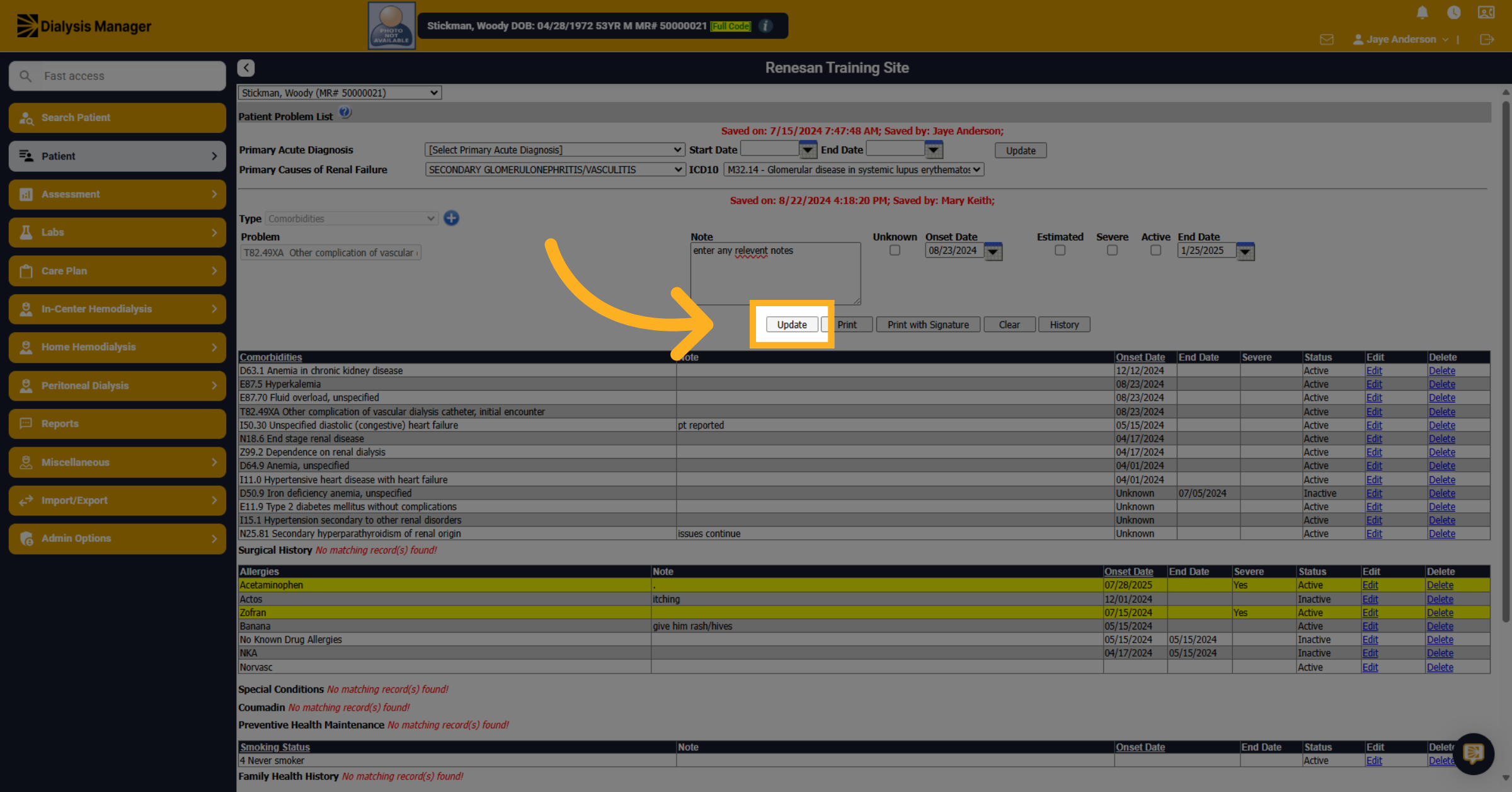
16. Click "Update"
Save your changes by clicking the Update button to finalize the edits made.
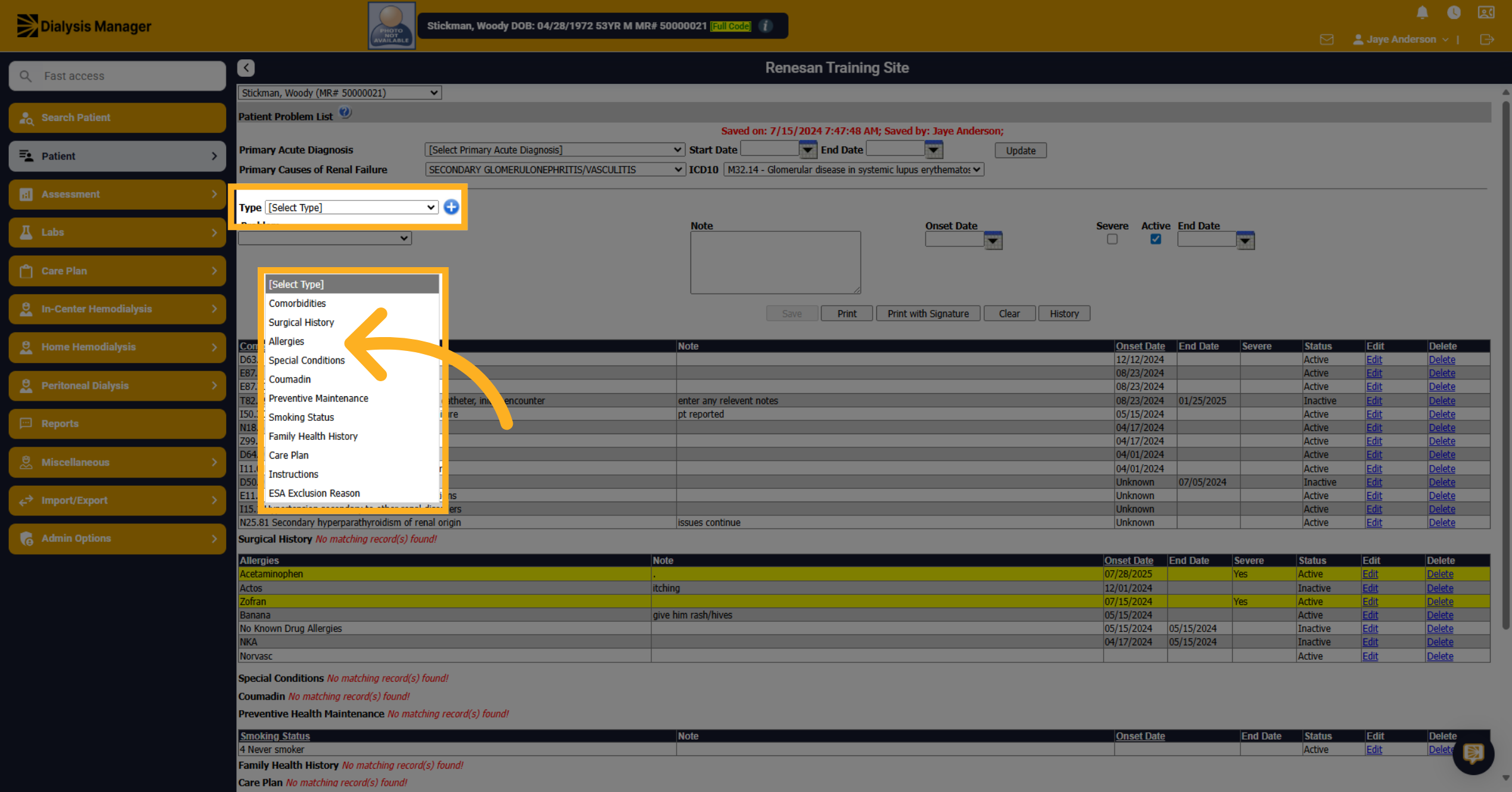
17. Allergies
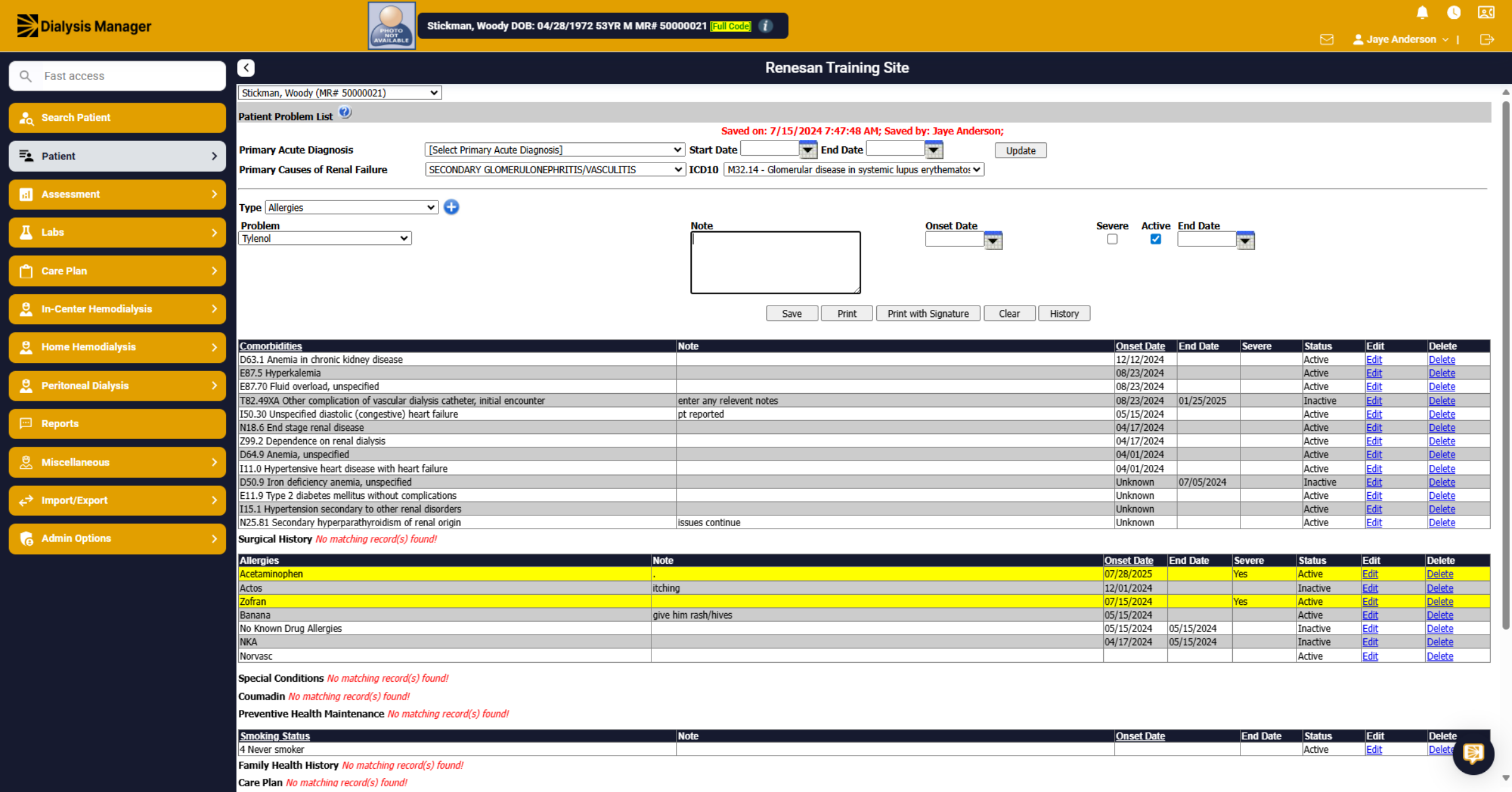
Now let's enter in the patients' allergies! In the Type dropdown, select allergies.
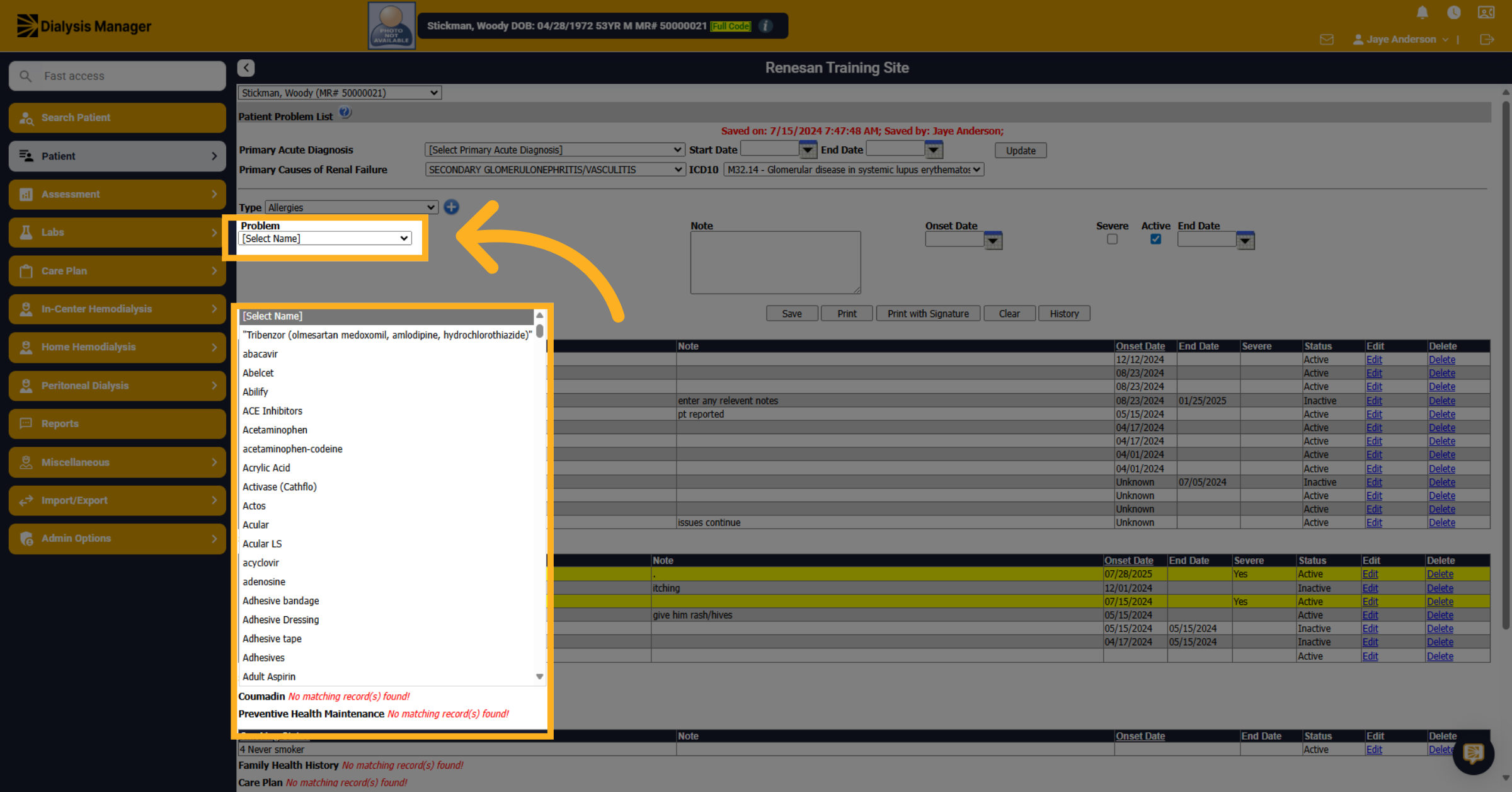
18. Select a Problem
Choose the specific medication or item name from the provided list to specify the allergy or condition.
19. Details
Input additional details or select the exact name to ensure precise identification of the allergy or medication.
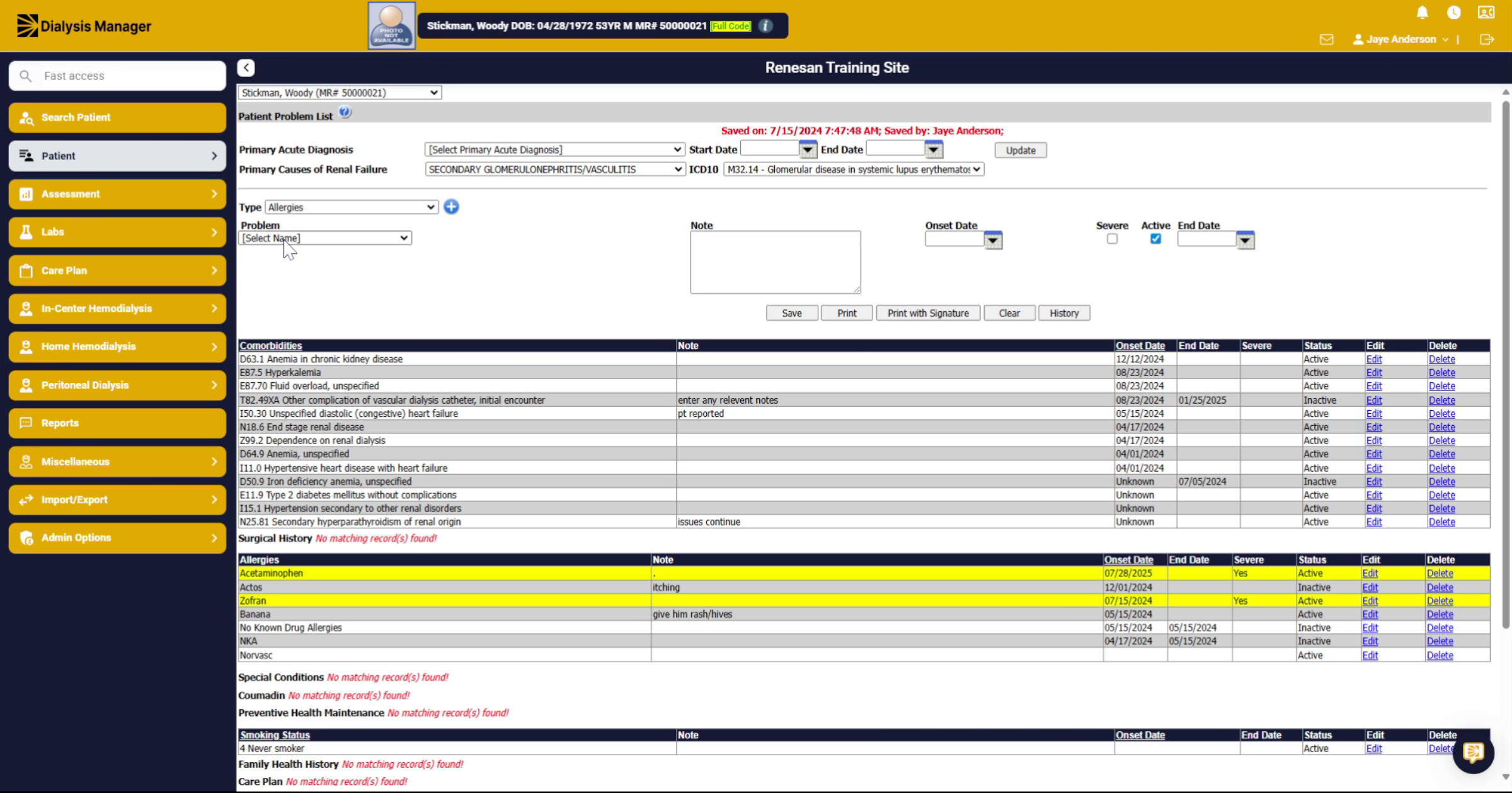
20. Enter Notes
Select the notes area to provide any supplementary information or observations related to the entry.
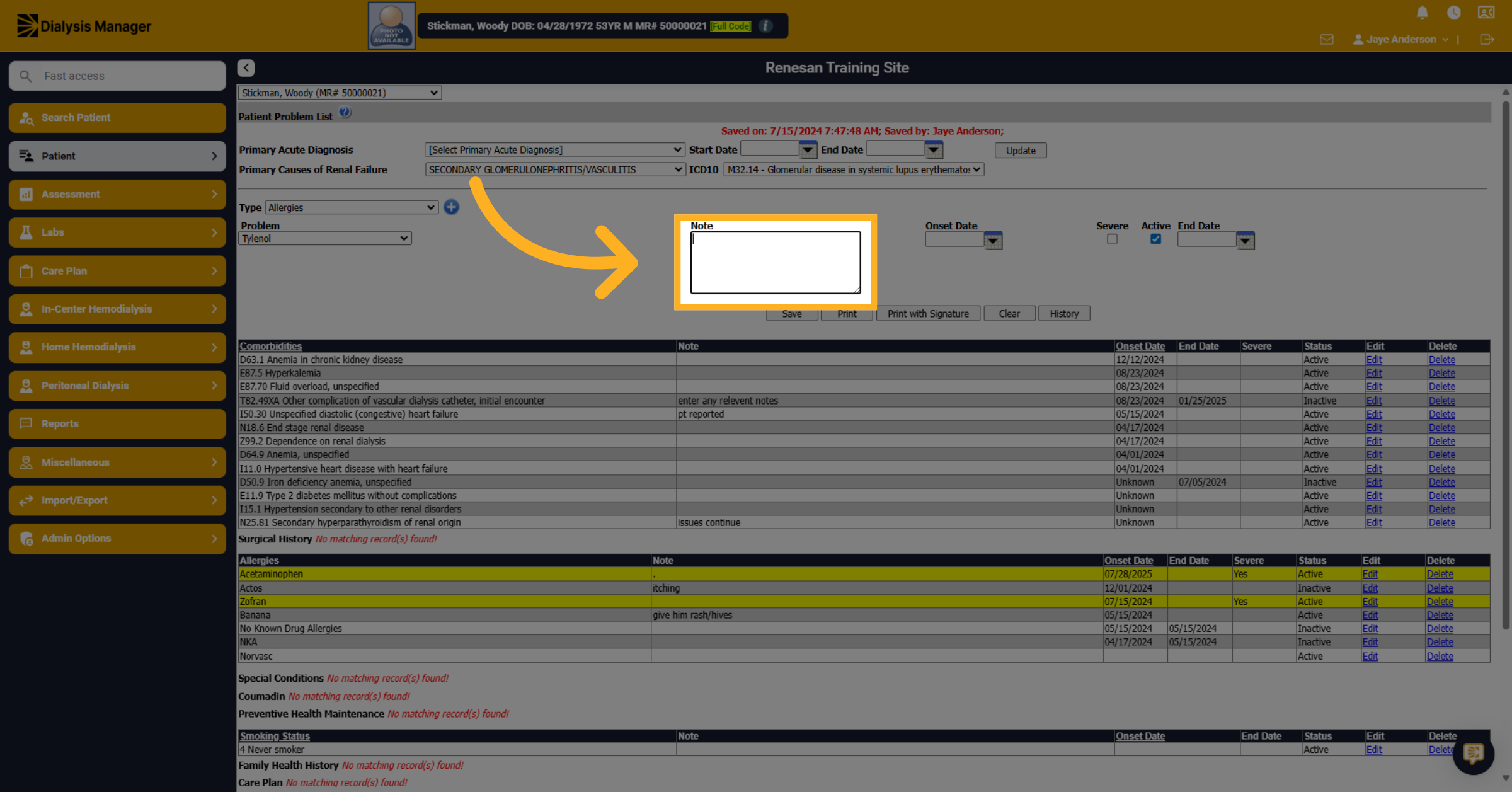
21. Notes
Type detailed notes that clarify or expand on the allergy or condition for comprehensive records. If you have an onset date you can enter but it is not required.
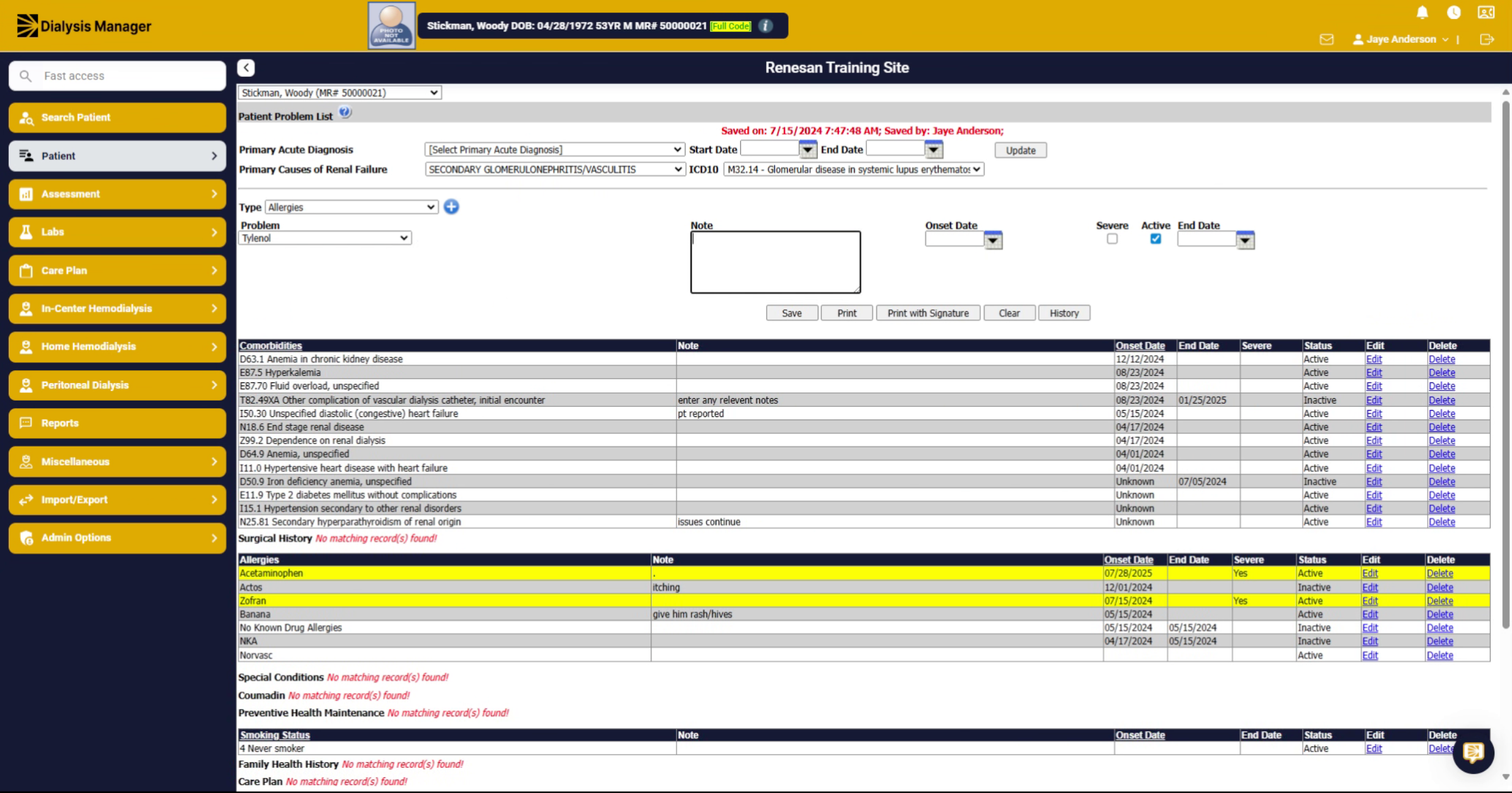
22. Severity
Enable the toggle to activate Severe condition statuses for the entry, if applicable. Please note that selecting severe will highlight the allergy below!
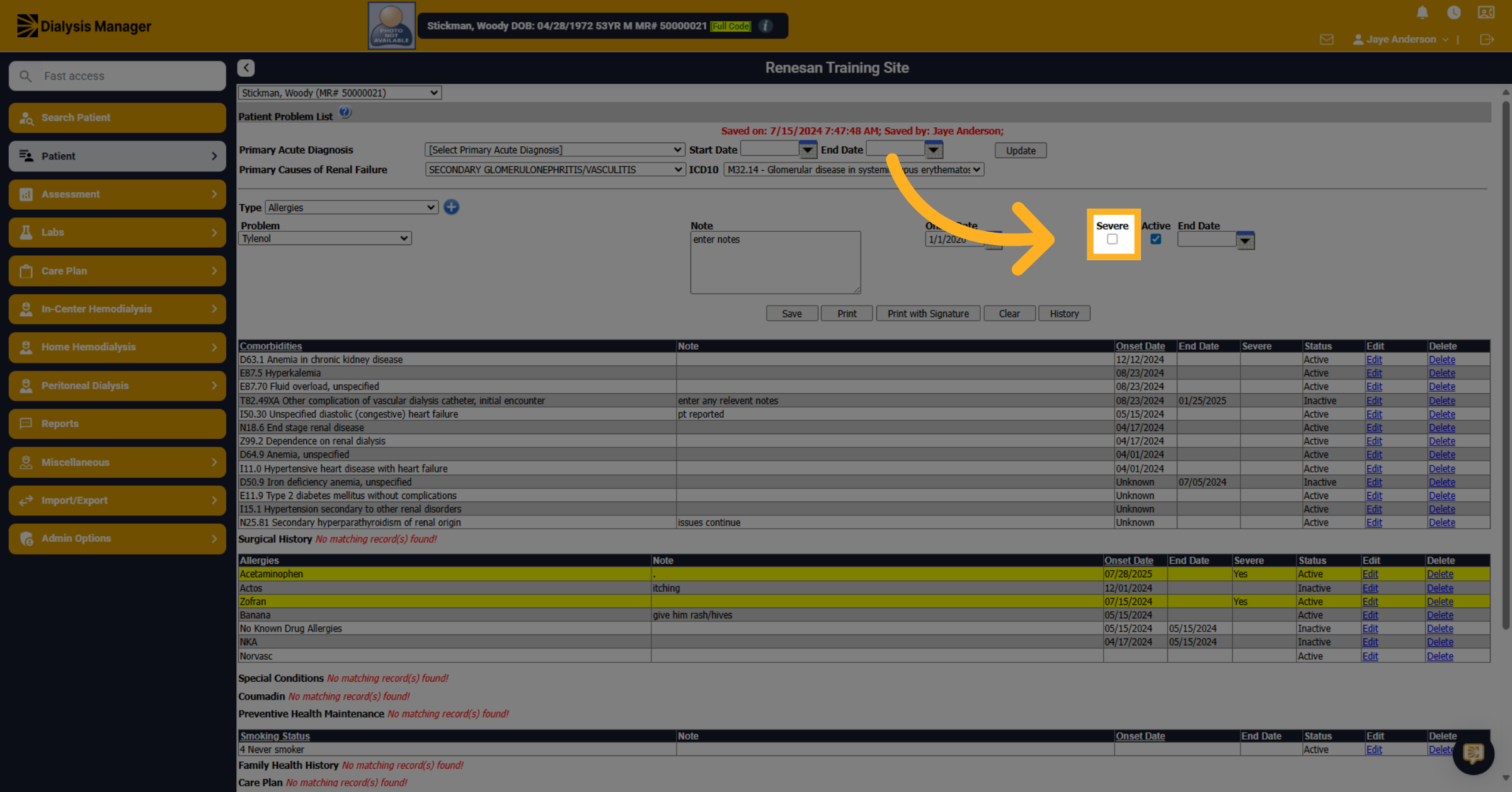
23. Review
Review all entered information to ensure accuracy and completeness before saving.
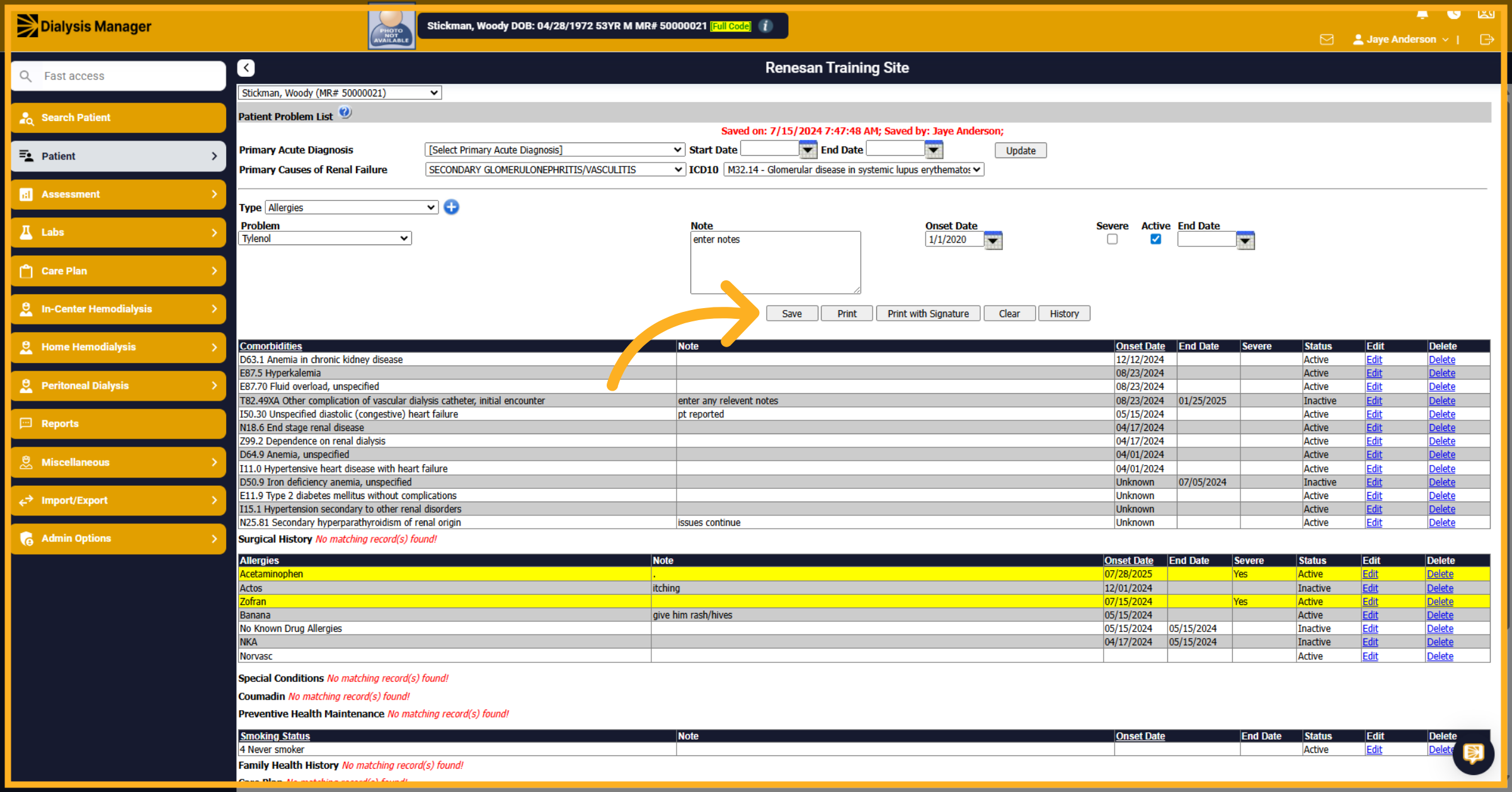
24. Edit Allergies
Just like the co-morbidities, if you would like to edit or discontinue the allergy you will need to select "Edit".
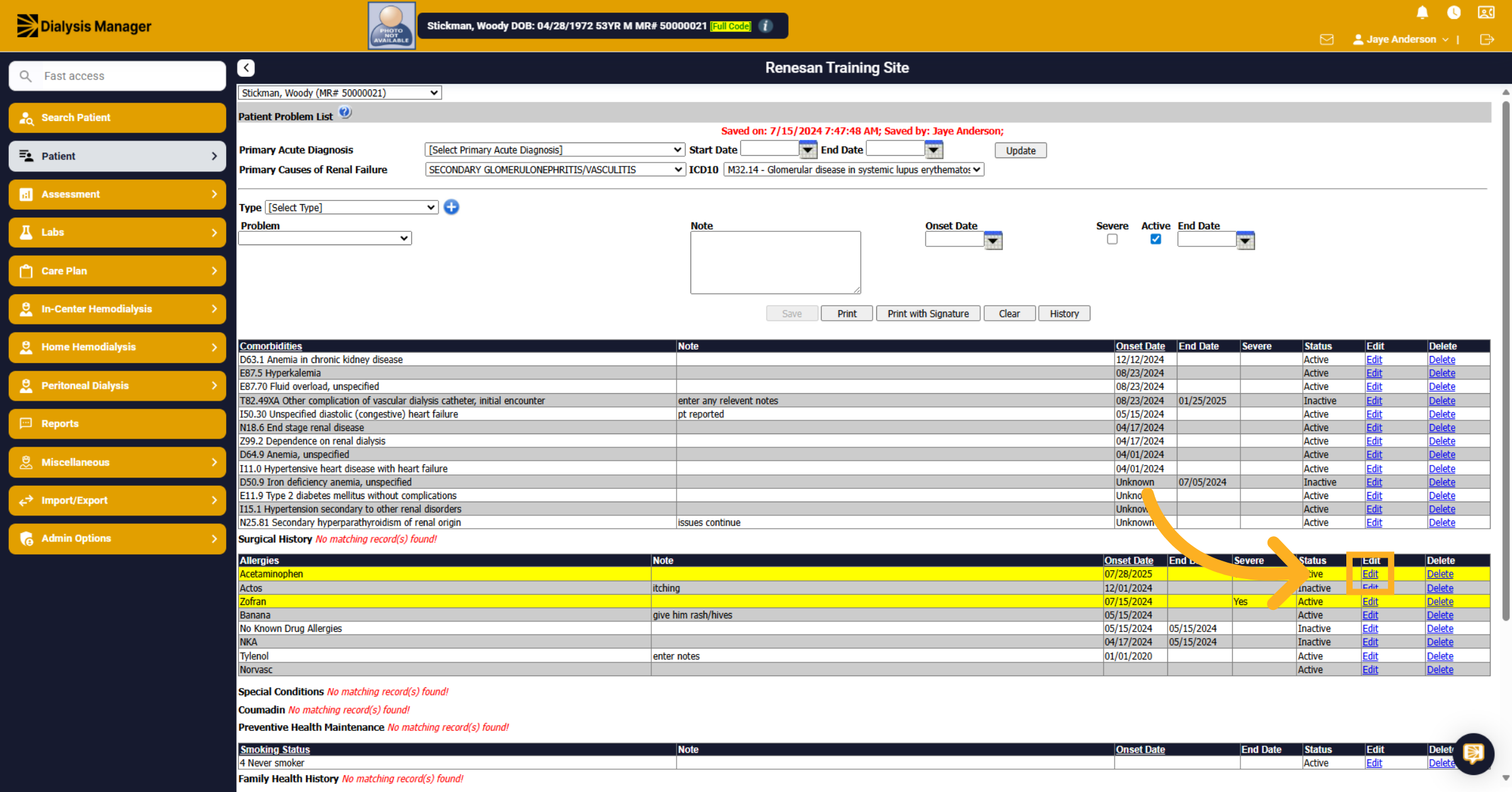
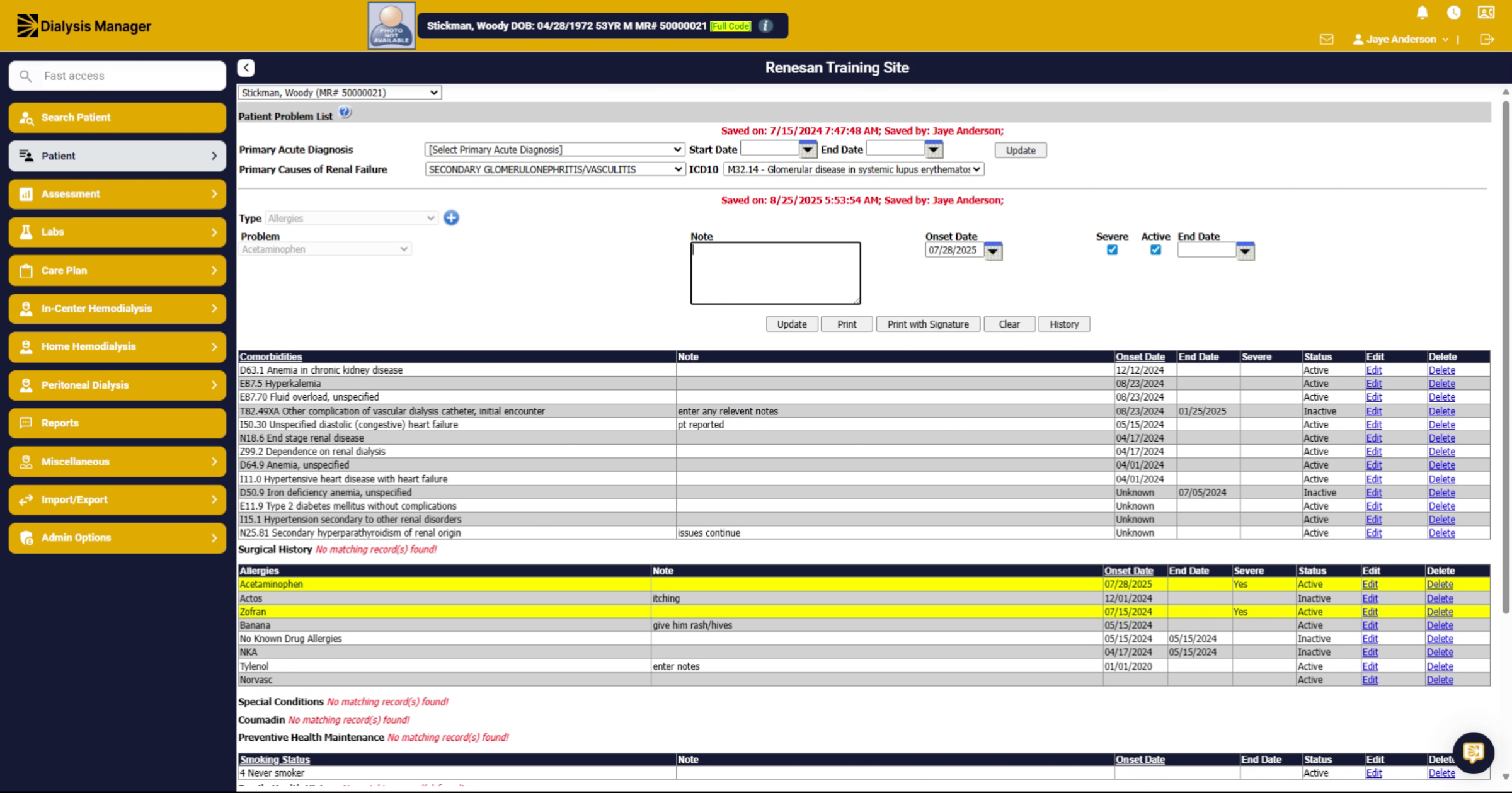
25. Enter Notes
The allergy will move above, select if the allergy is now severe or entering an end date if the patient no longer suffers from the allergy. Enter any additional notes you may have before clicking update! Be sure you are unselecting the "Active" box if you are ending the allergy.
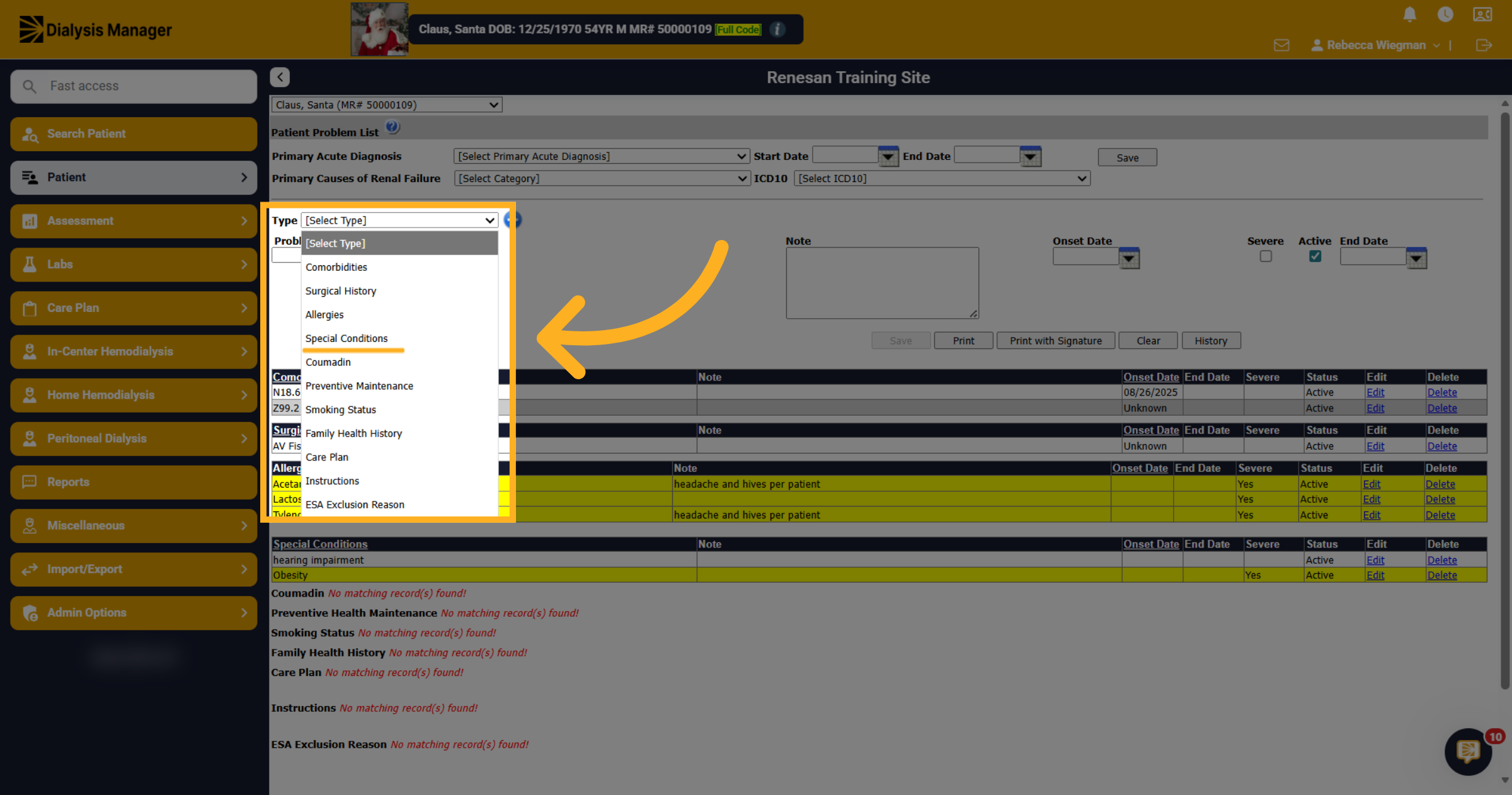
26. Type Dropdown
In the Type dropdown search for Special Conditions.
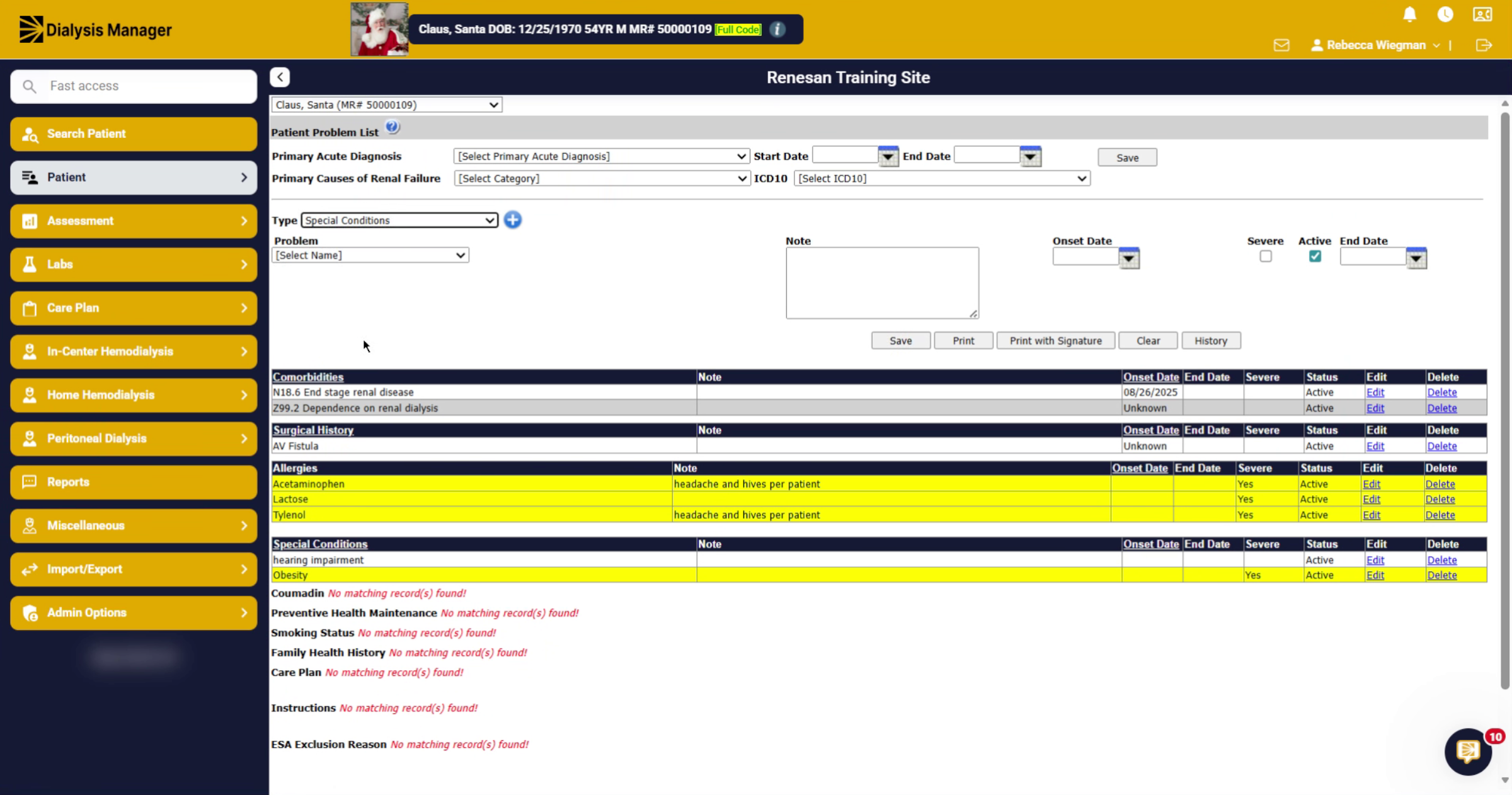
27. Problem
When you open the Problem dropdown list, you can scroll through the options or start typing to quickly locate your condition.
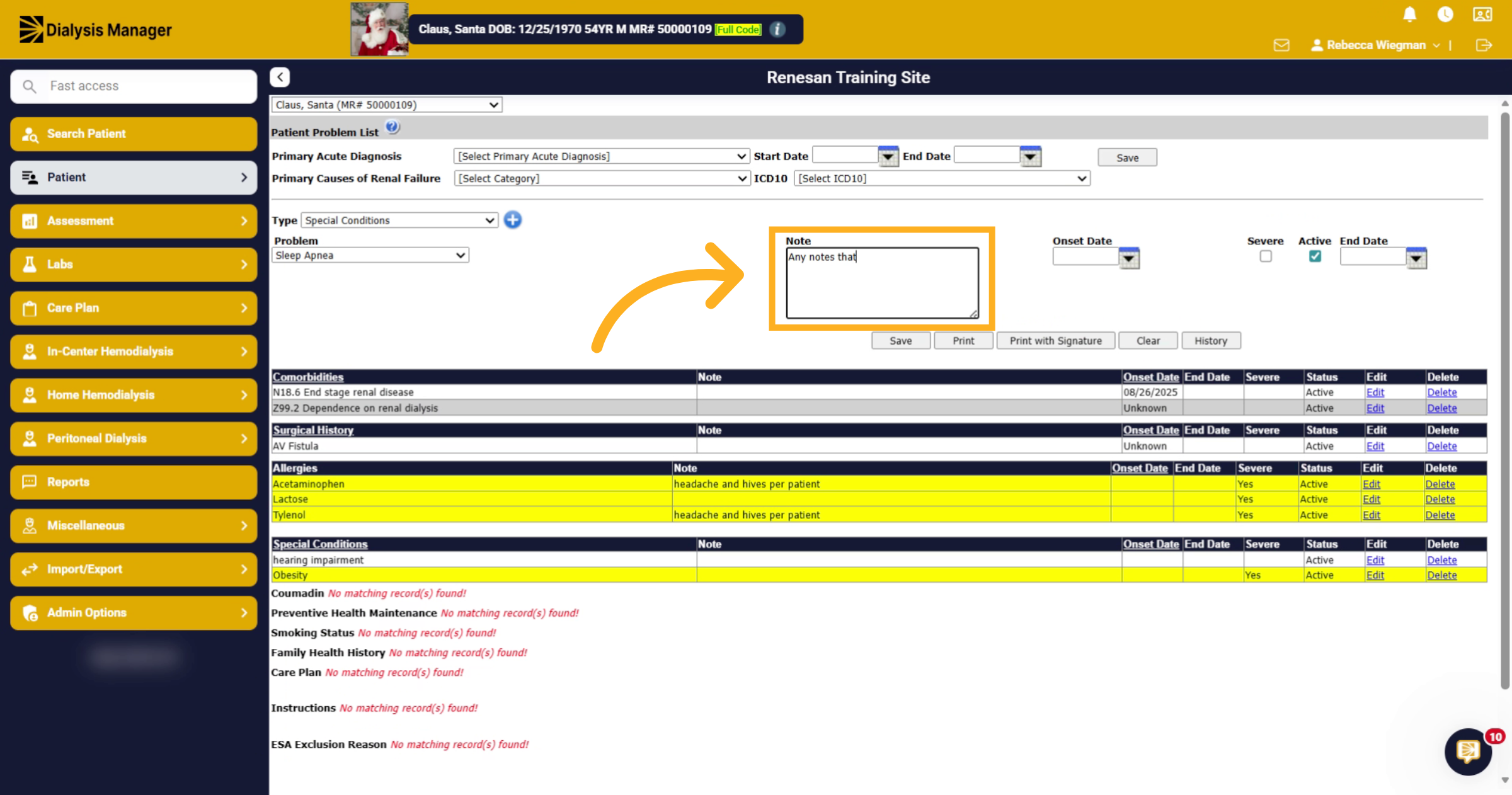
28. Notes
Enter any notes that help define the Special Condition.
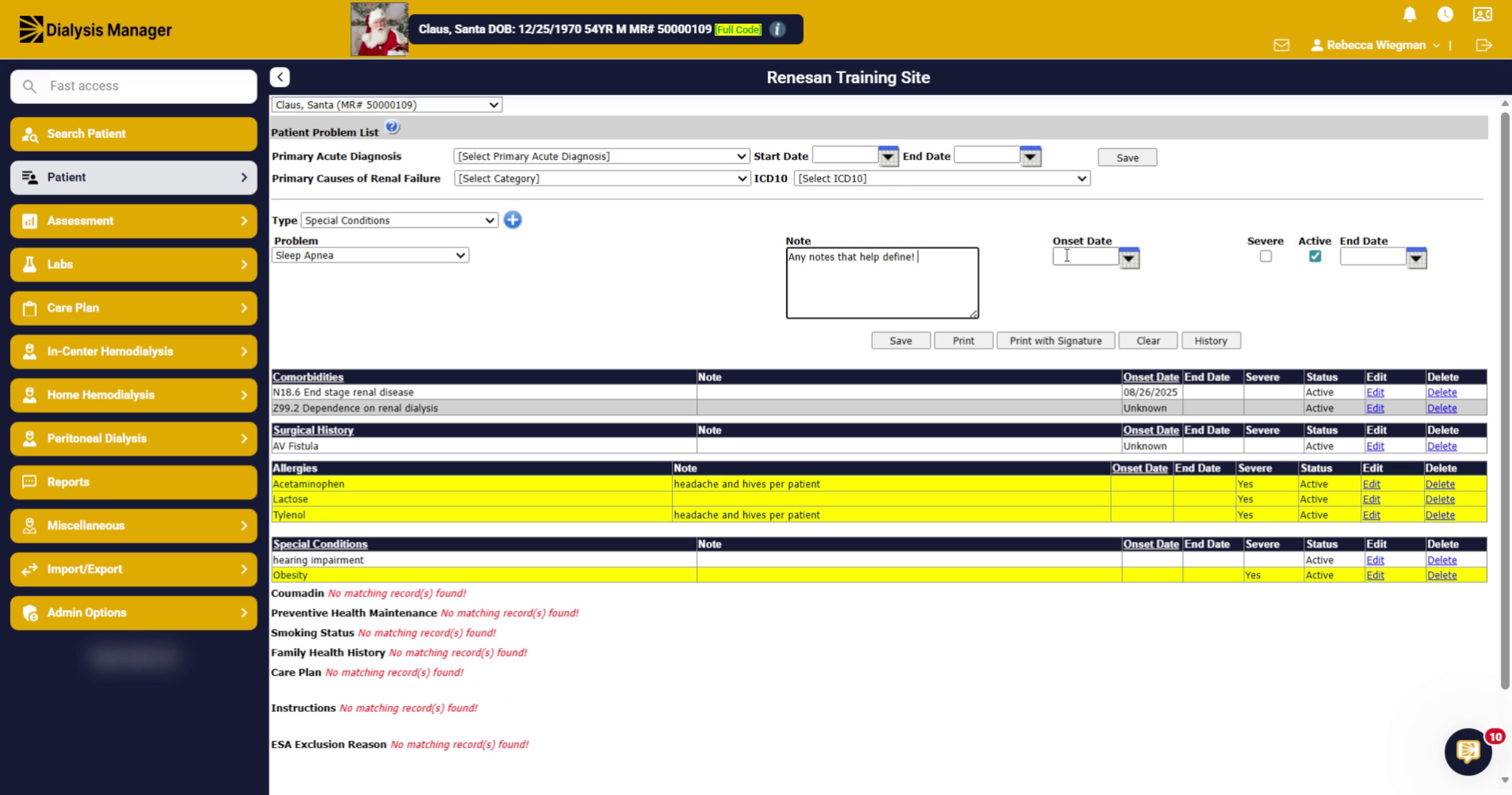
29. Include Onset and Severity
If you have an onset date or if the condition is severe, include that information. Once information is reviewed click Save.
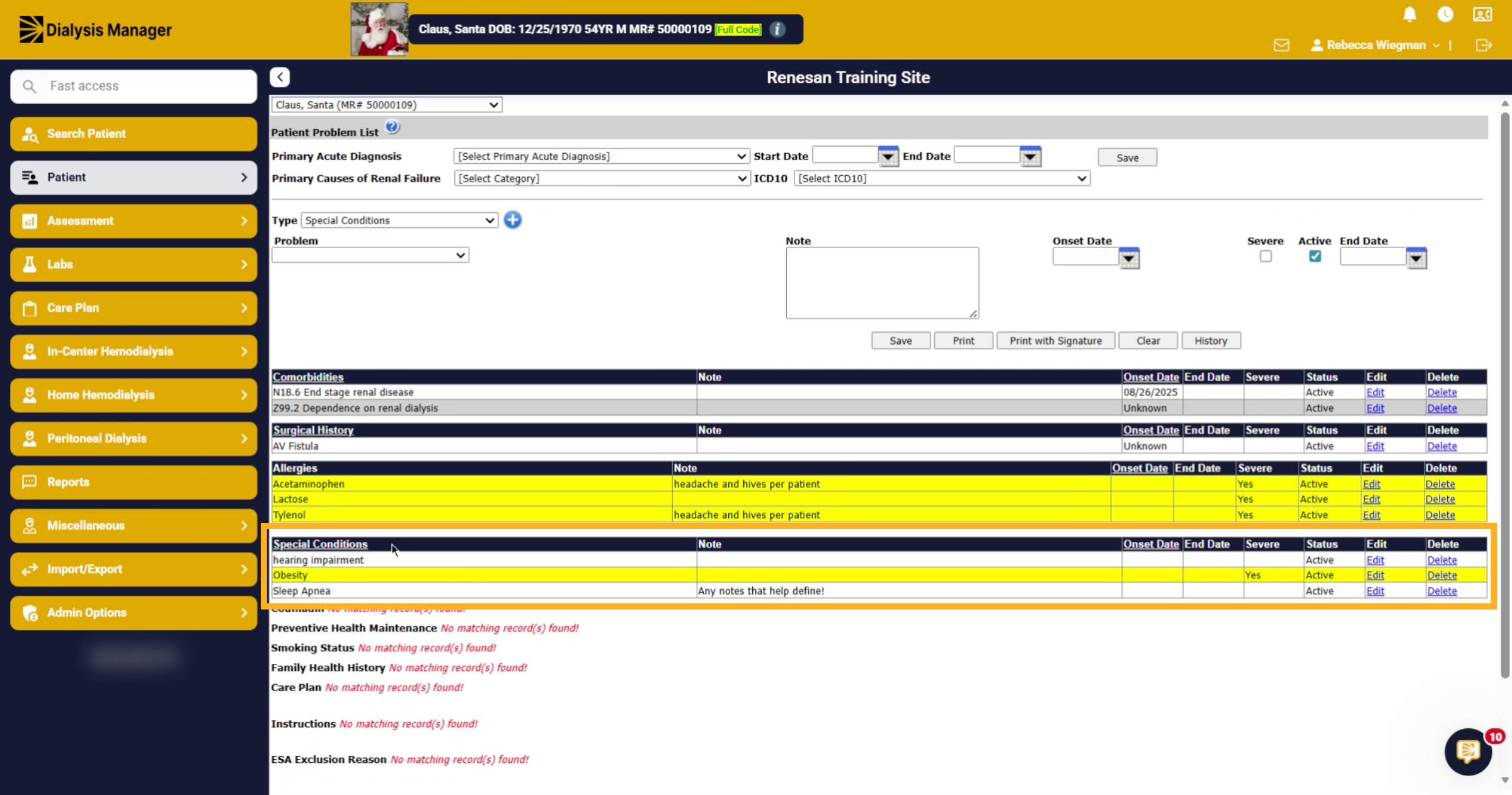
30. Review Existing Conditions
Down below, you will see other special conditions that have been entered. If you need to make changes you can select Edit. You can also Delete if it was entered incorrectly. If the patient no longer suffers for a Special Condition, allergy, etc. we recommend it is Ended rather than deleted.
31. Edit Existing Entry
Click Edit.
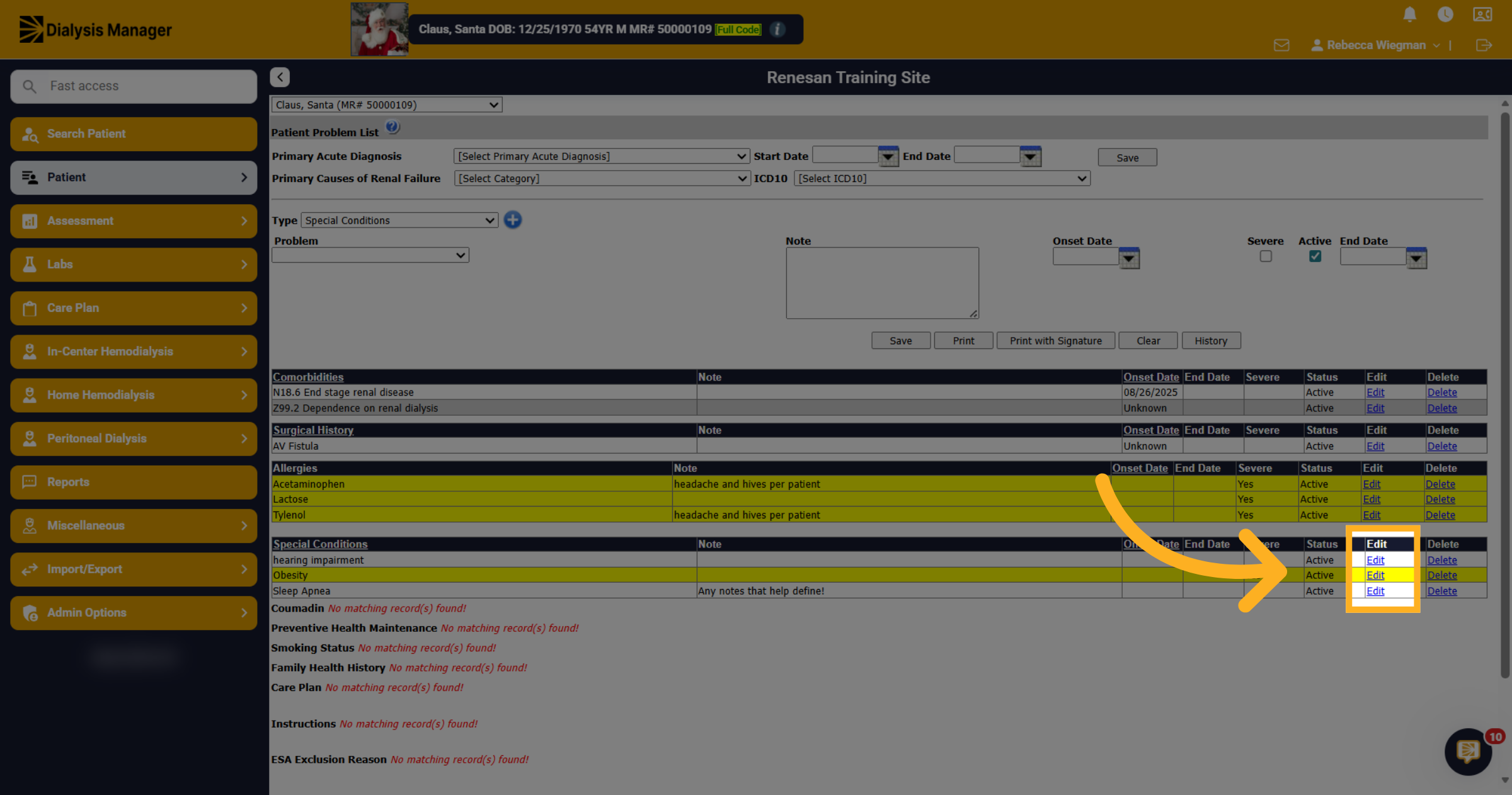
32. Edit
Once selecting "Edit" the Special Condition will populate at the top. Here we selected "Edit" for Hearing Impairment, which moved it to the top of the form.
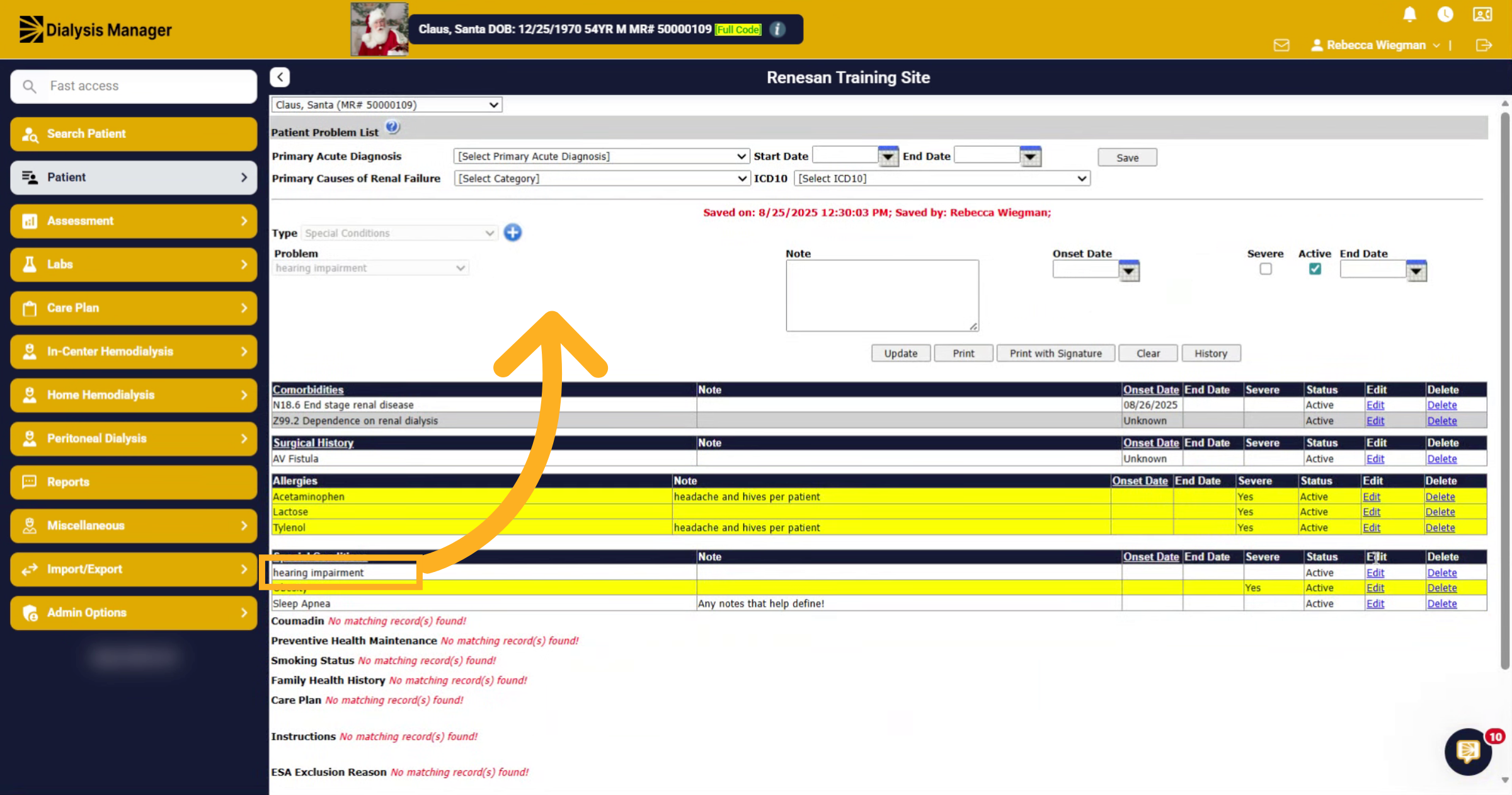
33. Editing
Now we are able to make changes such as Ending the Special Condition or for this example, the patient hearing has worsened over the years, and we are marking it as Severe. Once updates have been made and any notes added click "Update
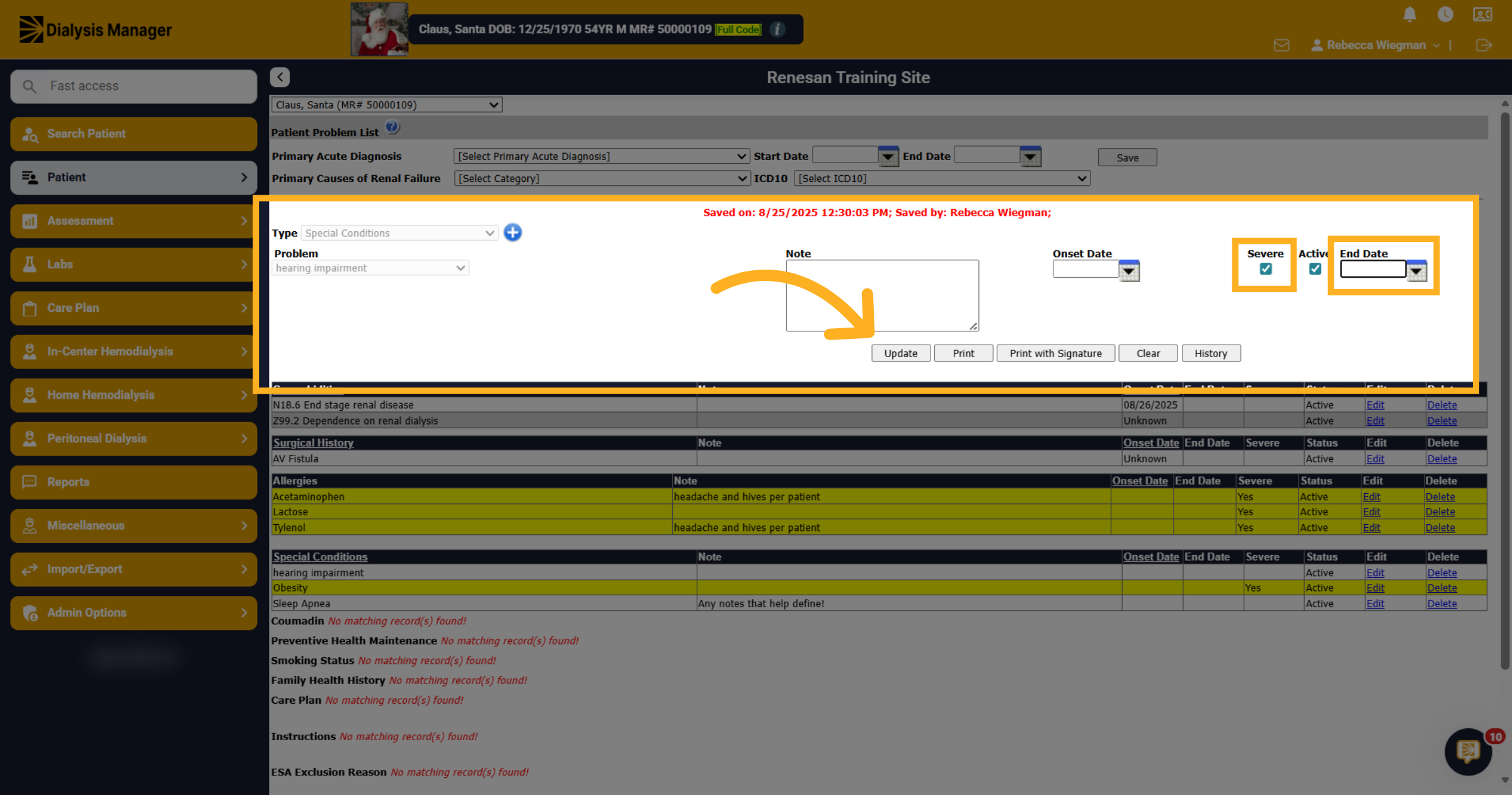
34. Severe
Please note that once a Special Condition is marked as Severe, it will be highlighted yellow!
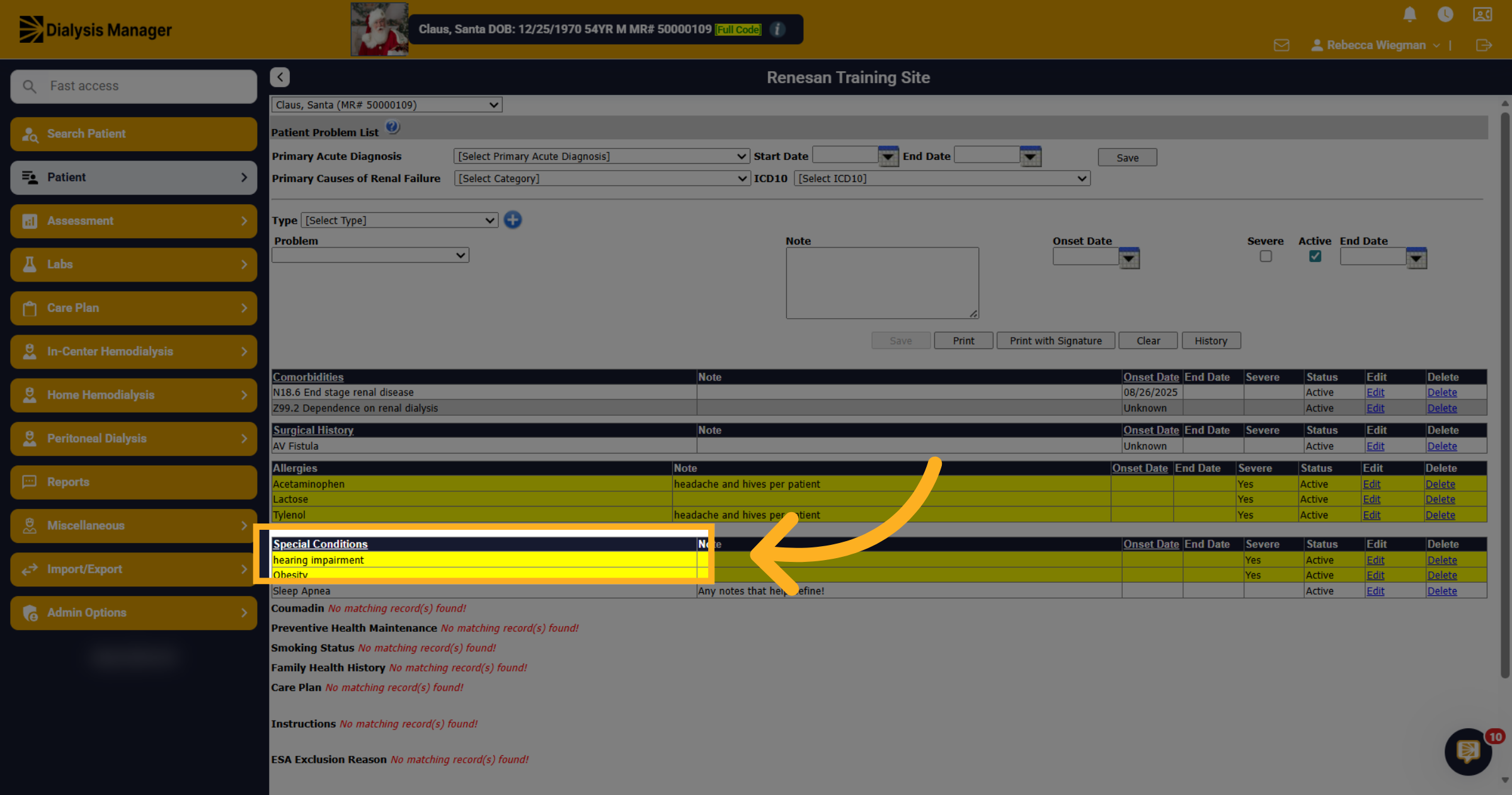
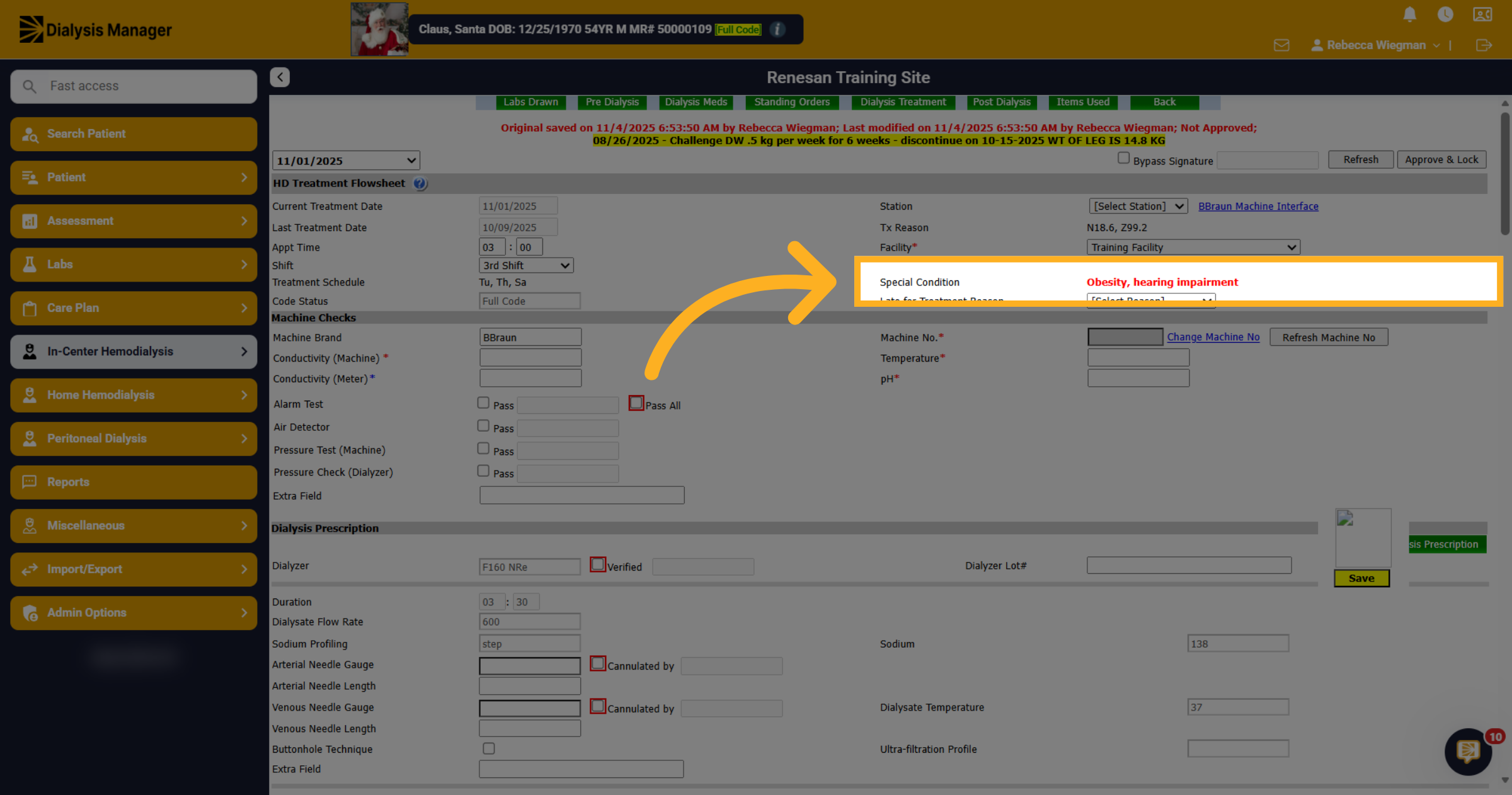
35. Shown throughout Dialysis Manager
Now that Special Conditions have been entered, you'll see them here inside the patients Flowsheet.
36. Deleting
Please note, that you should only use the "Delete" option if it was entered by mistake. You will want to edit and update the entry for proper documentation!
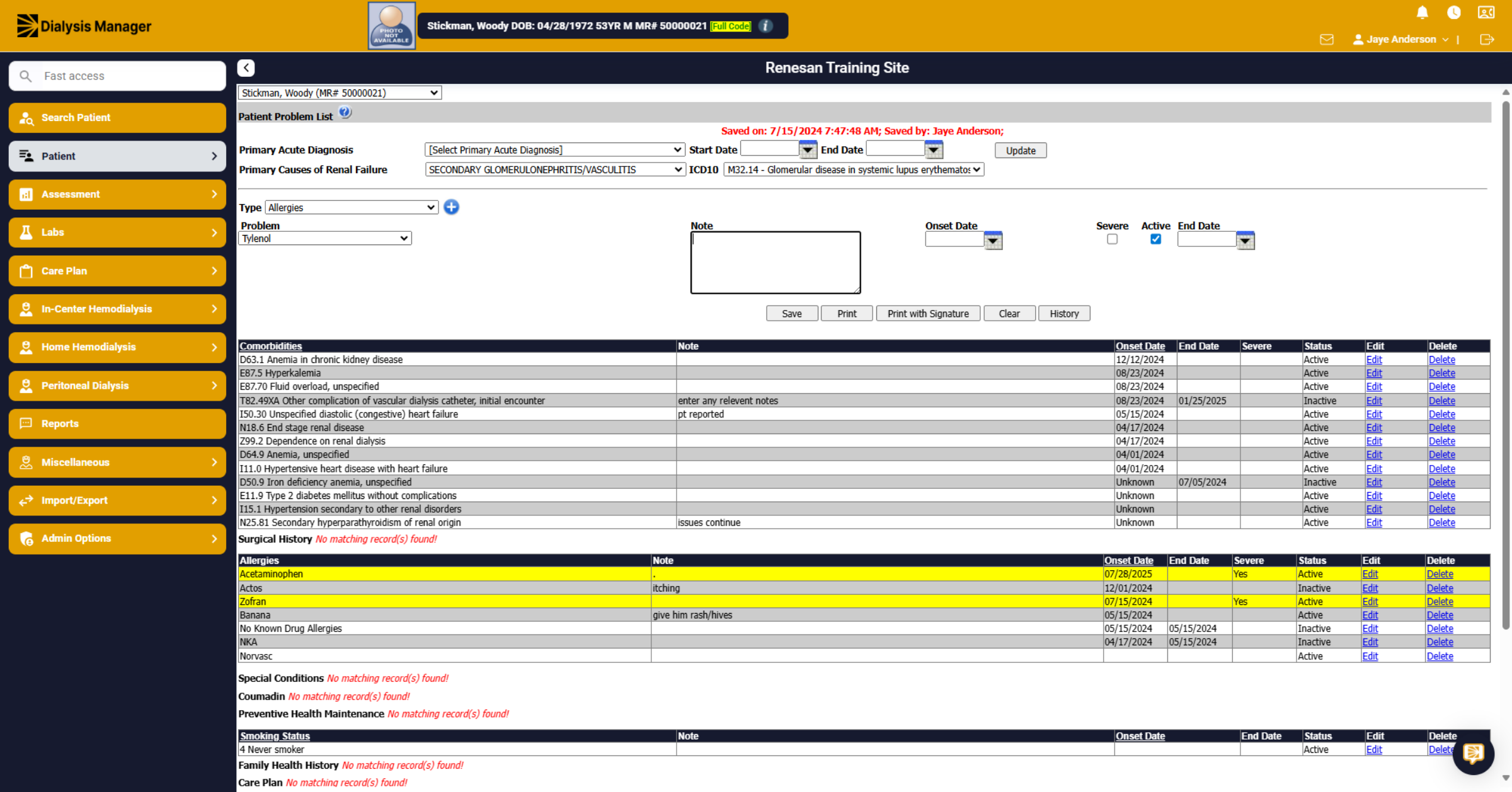
37. Problem List
Now that you have entered the patient's co-morbidities, allergies, special conditions, etc. you are ready to enter patient access information and dialysis orders! p