Clinical Data Entry, Access.
1. Introduction
In this video we will walk through entering an access, updating status of an access and entering access notes that can be shared with other users in Renvio.
2. Access
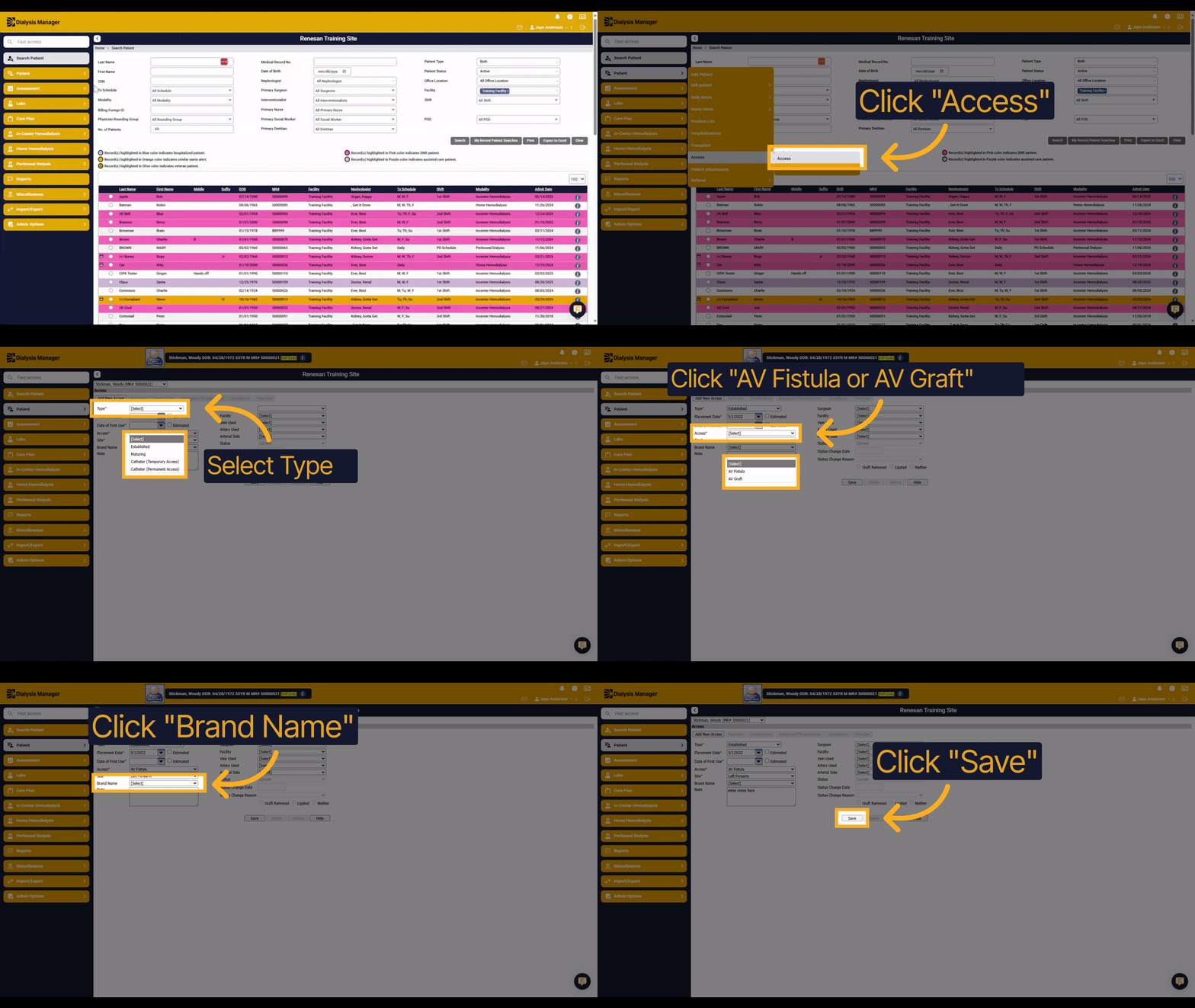
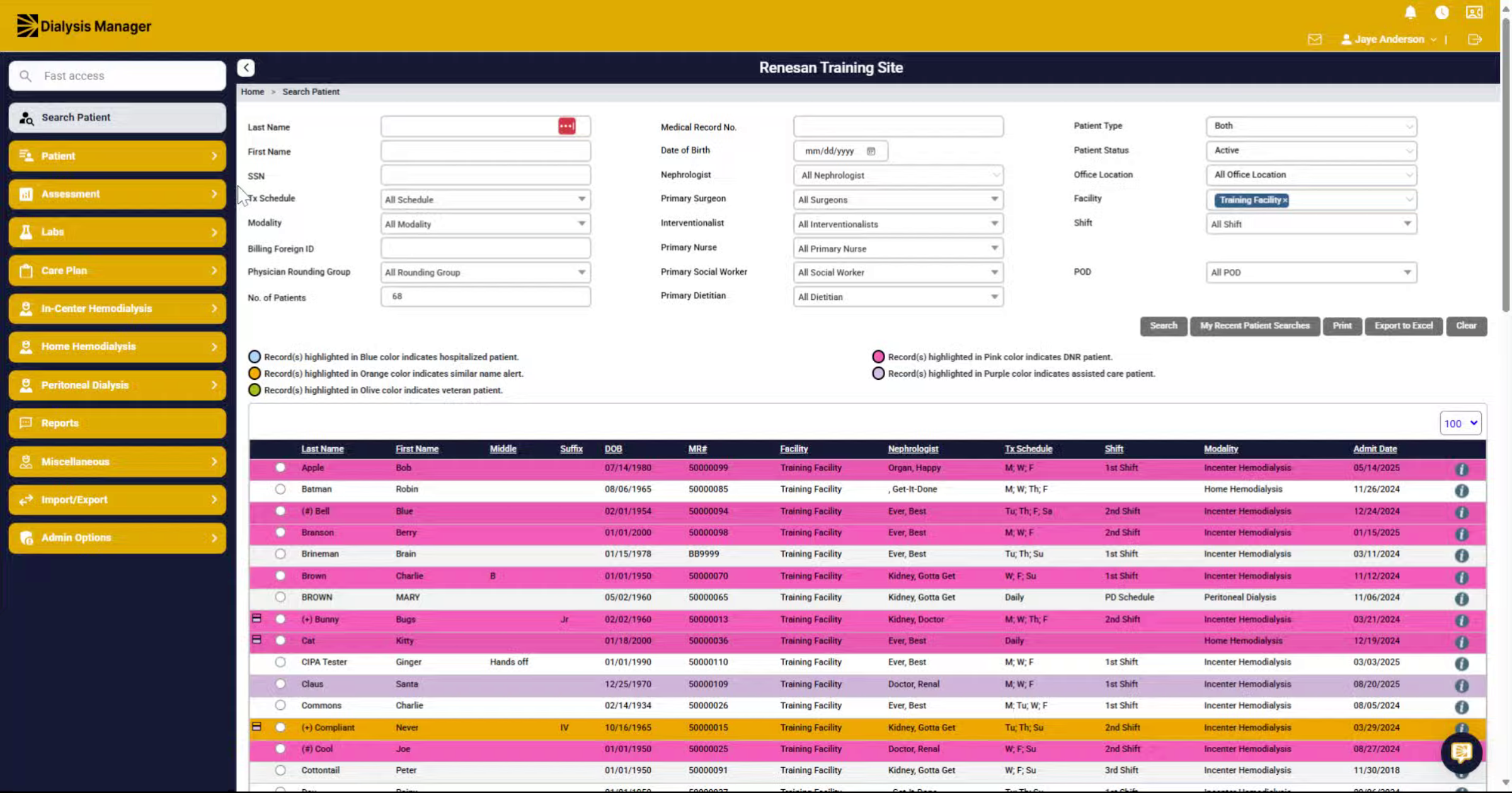
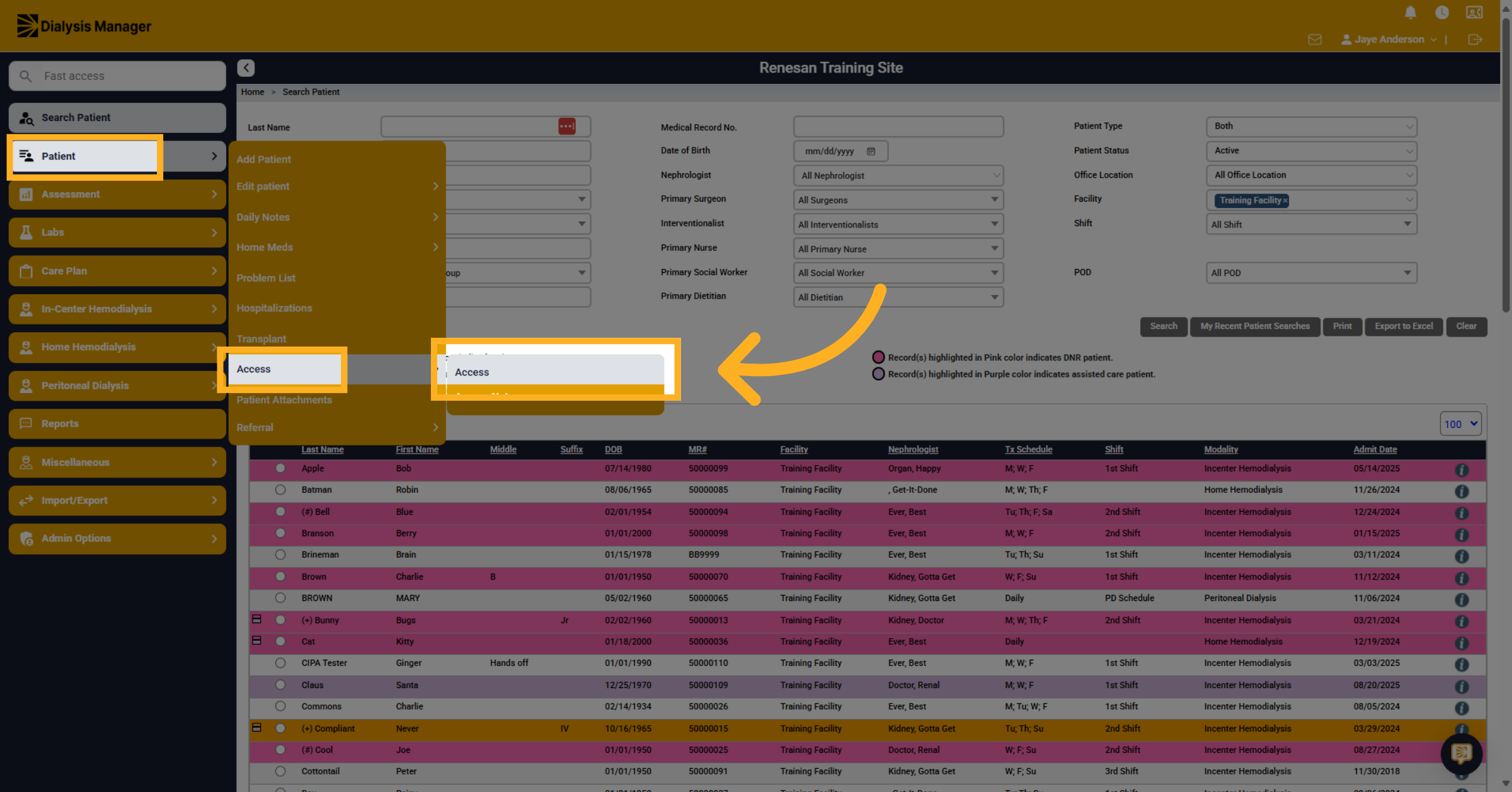
Once you have selected your patient, navigate to the Patient menu, Access and then Access.
3. Access Information
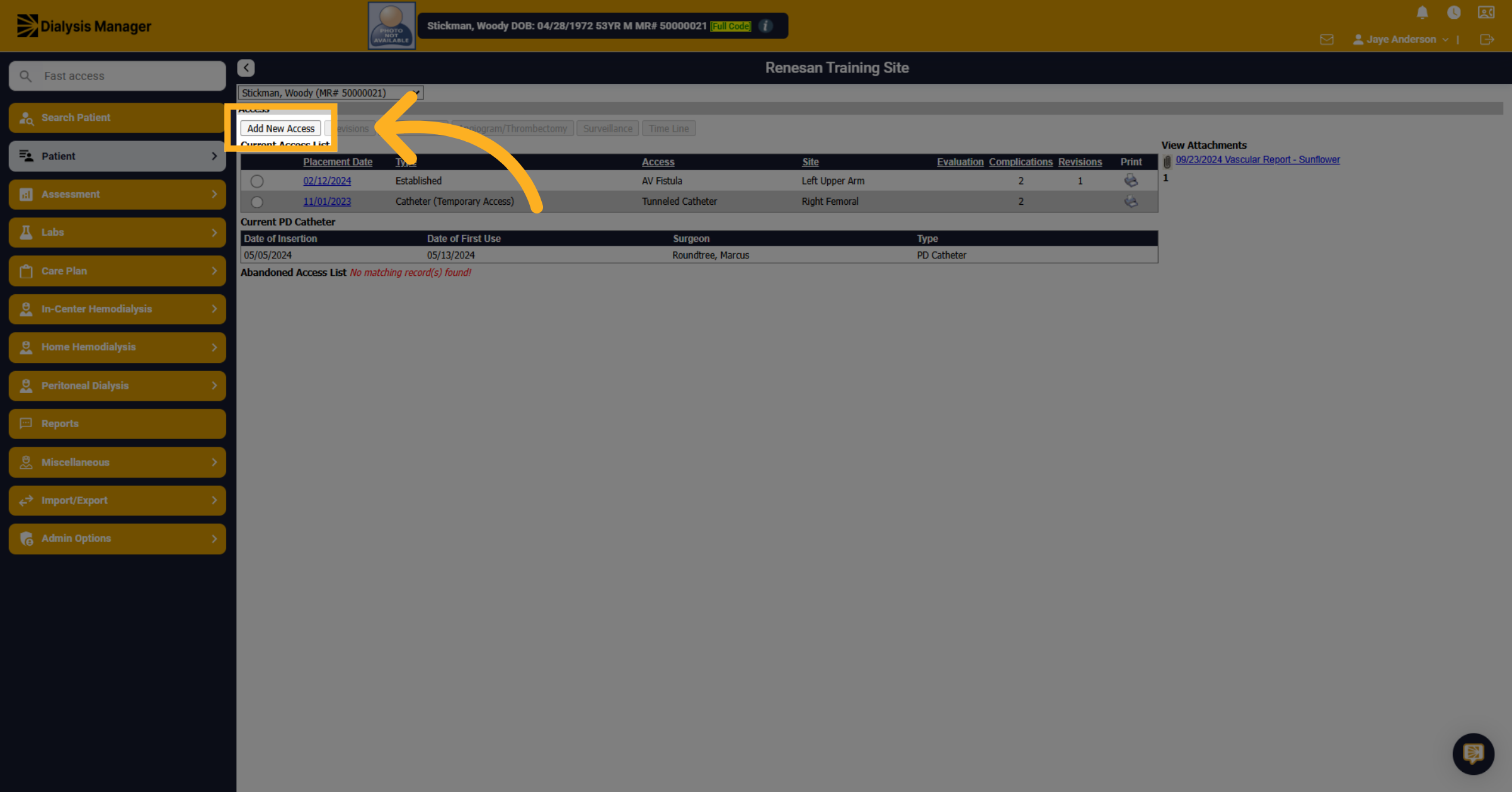
A list of current and prior access will appear here. Let's click Add New Access to walk through the process.
4. The Type
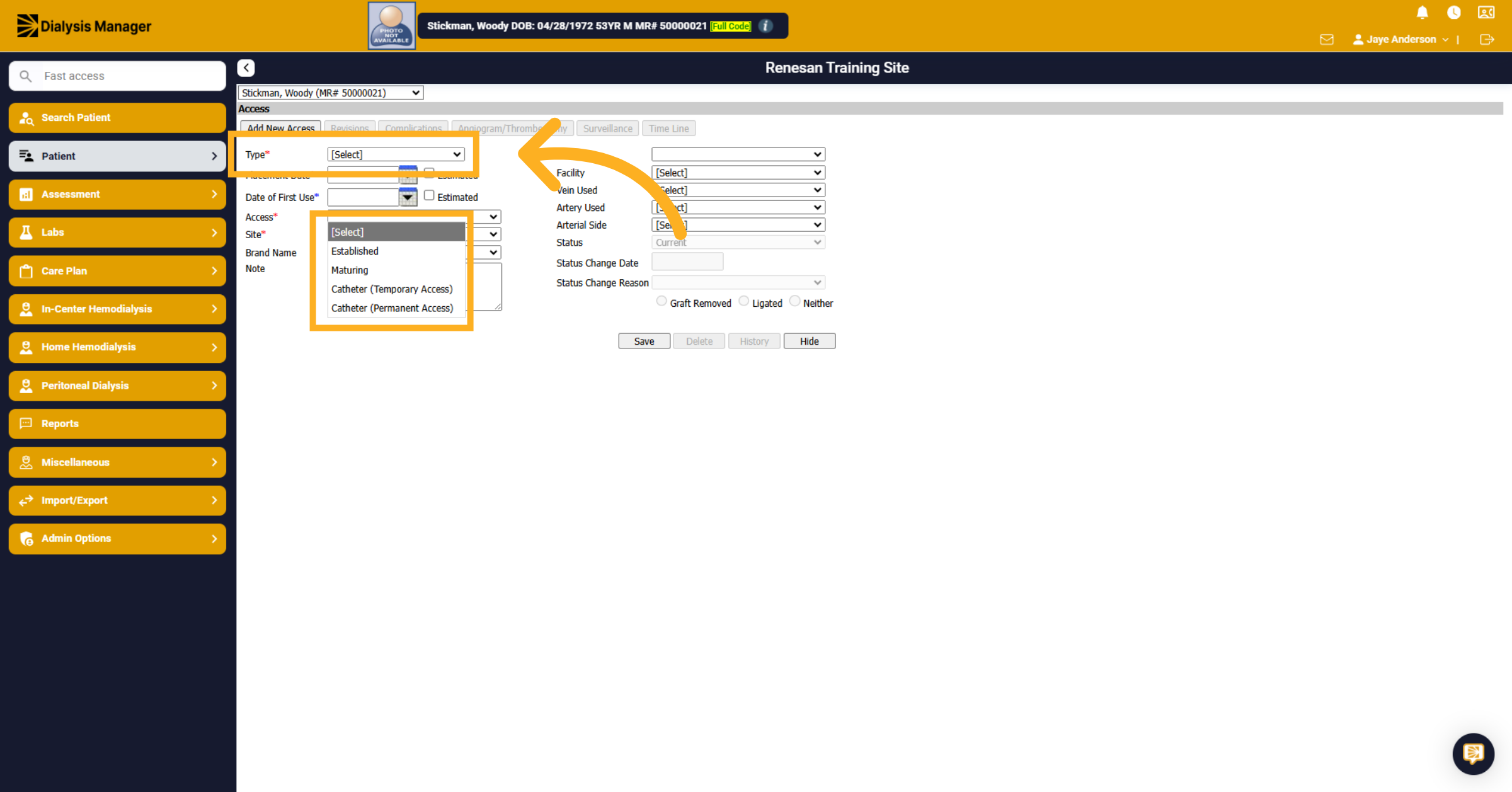
Click on the access type dropdown to choose the type of access. Such as "Established", "Maturing", "Catheter (Temporary Access)", or Catheter (Permanent Access).
5. Placement Date
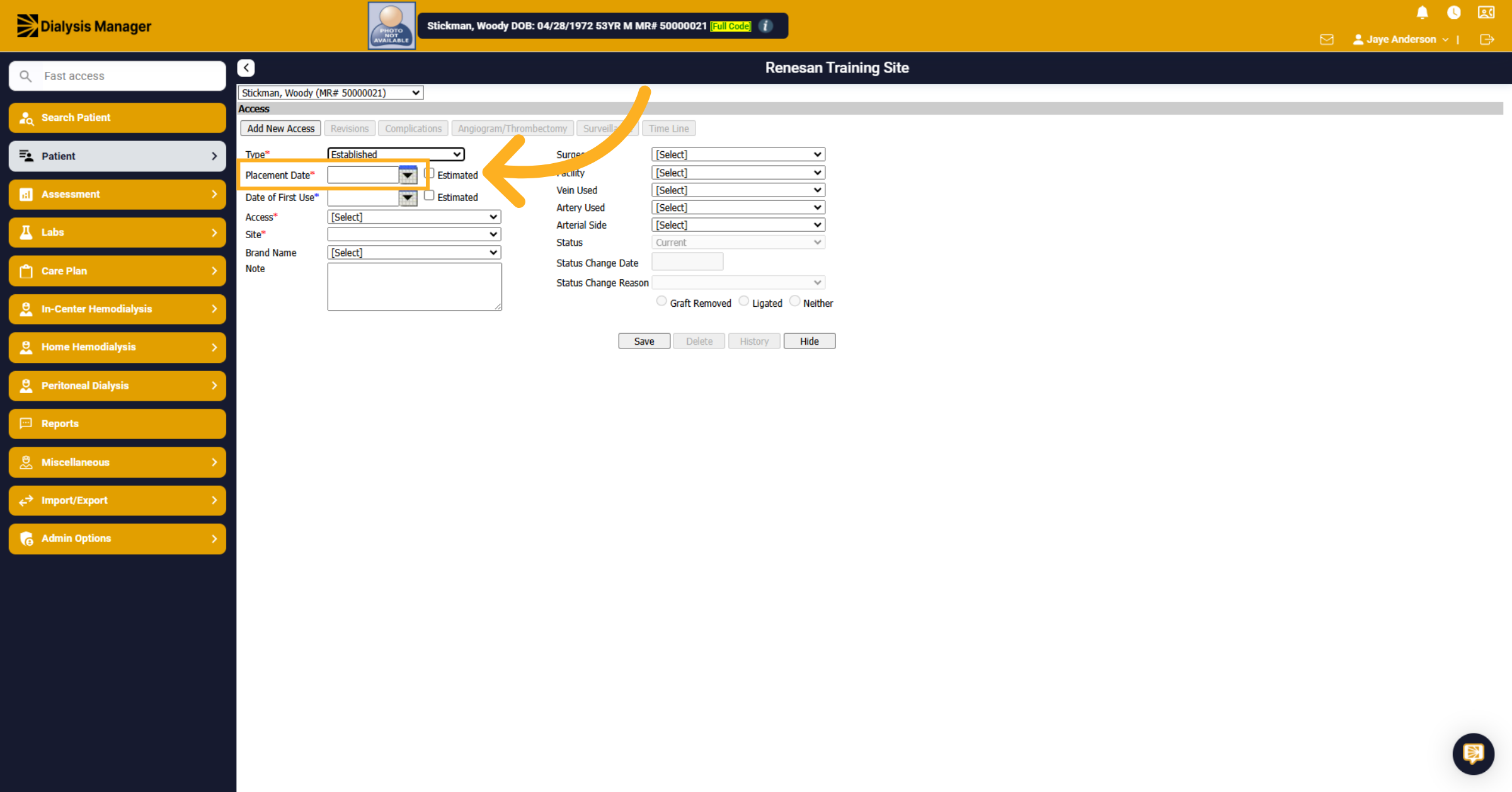
Enter the placement date of the access. You also have the ability to select Estimated if you are unsure of the date.
6. Access
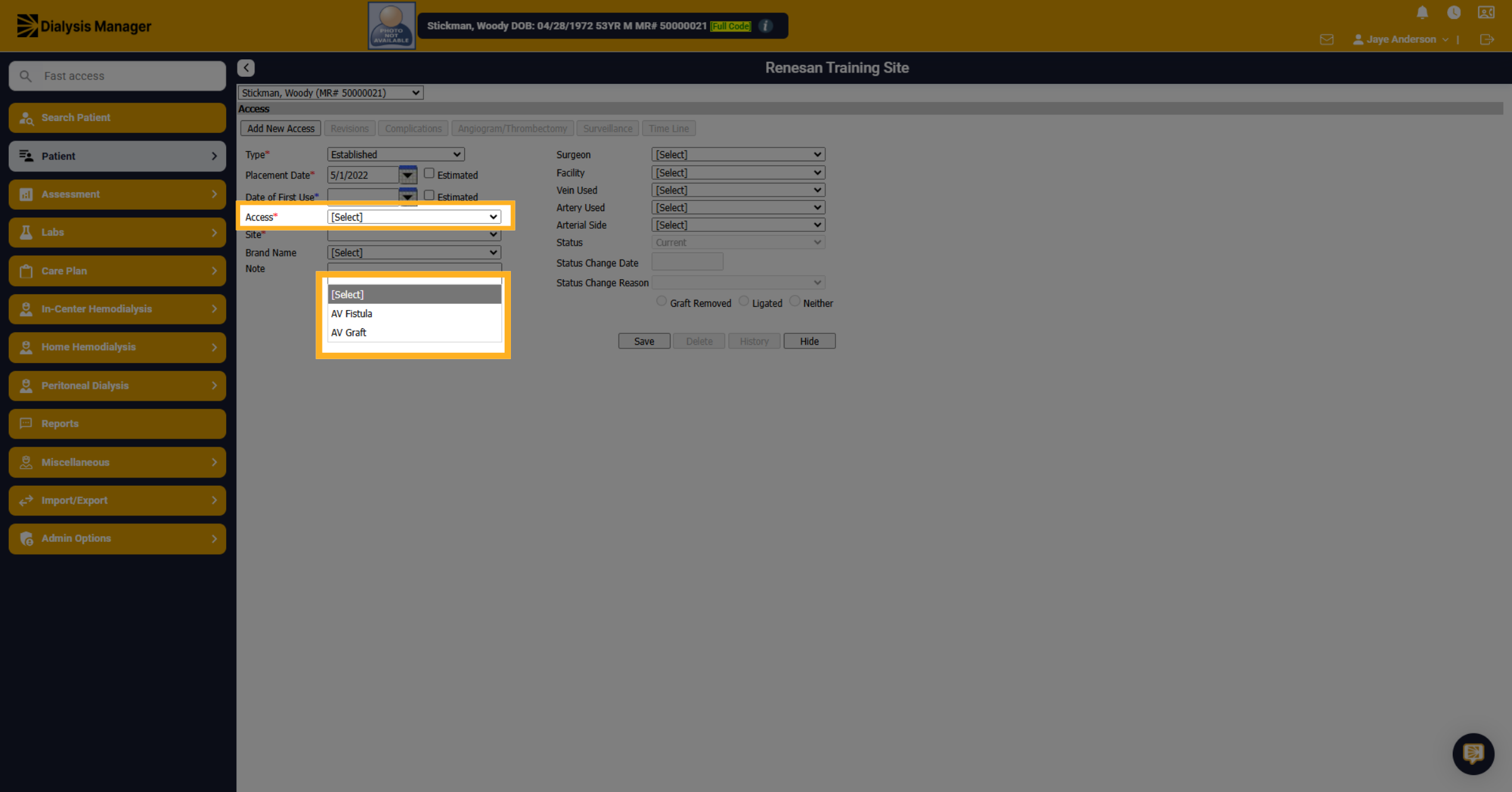
Click on the access type dropdown to specify the type of access. Select either "AV Fistula" or "AV Graft" as the access type.
7. Site
Click on the location dropdown to specify the access location. Select the location of the access, such as left forearm or right upper arm.
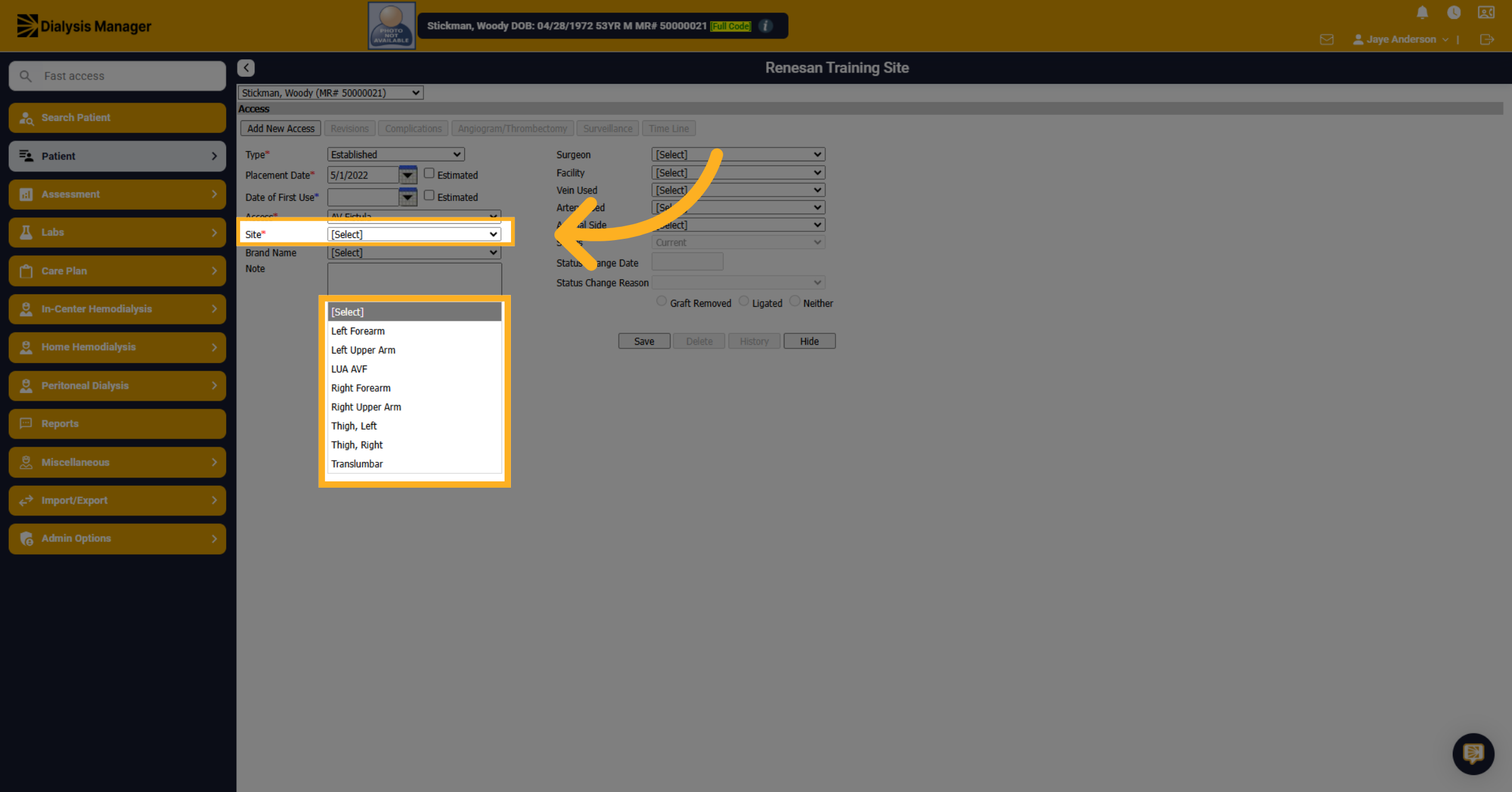
8. Additional Information
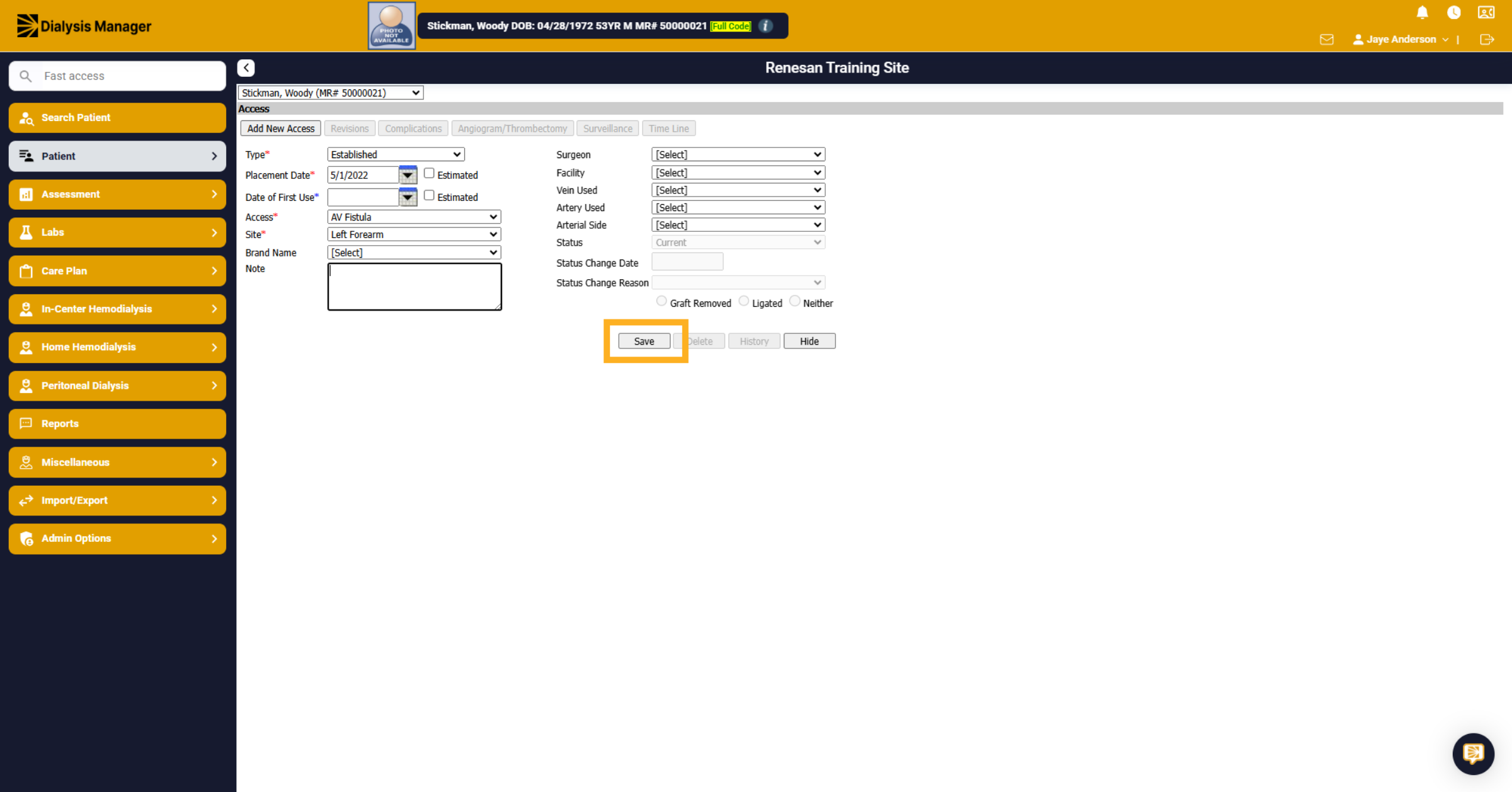
If you have information regarding the brand name, surgeon, facility, vein or artery used, etc. please enter, along with any notes! Once the information has been reviewed click save.
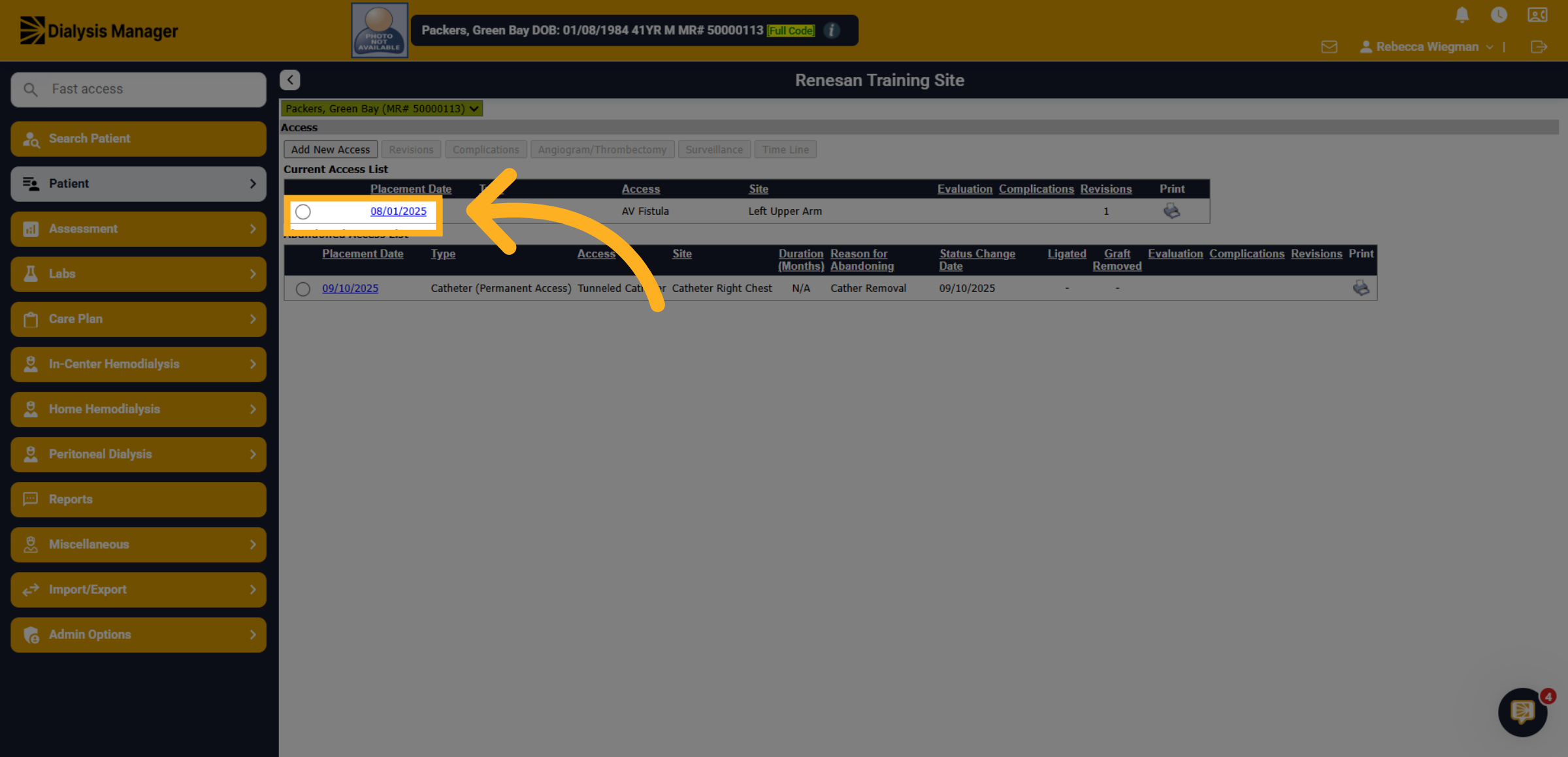
9. Editing an access.
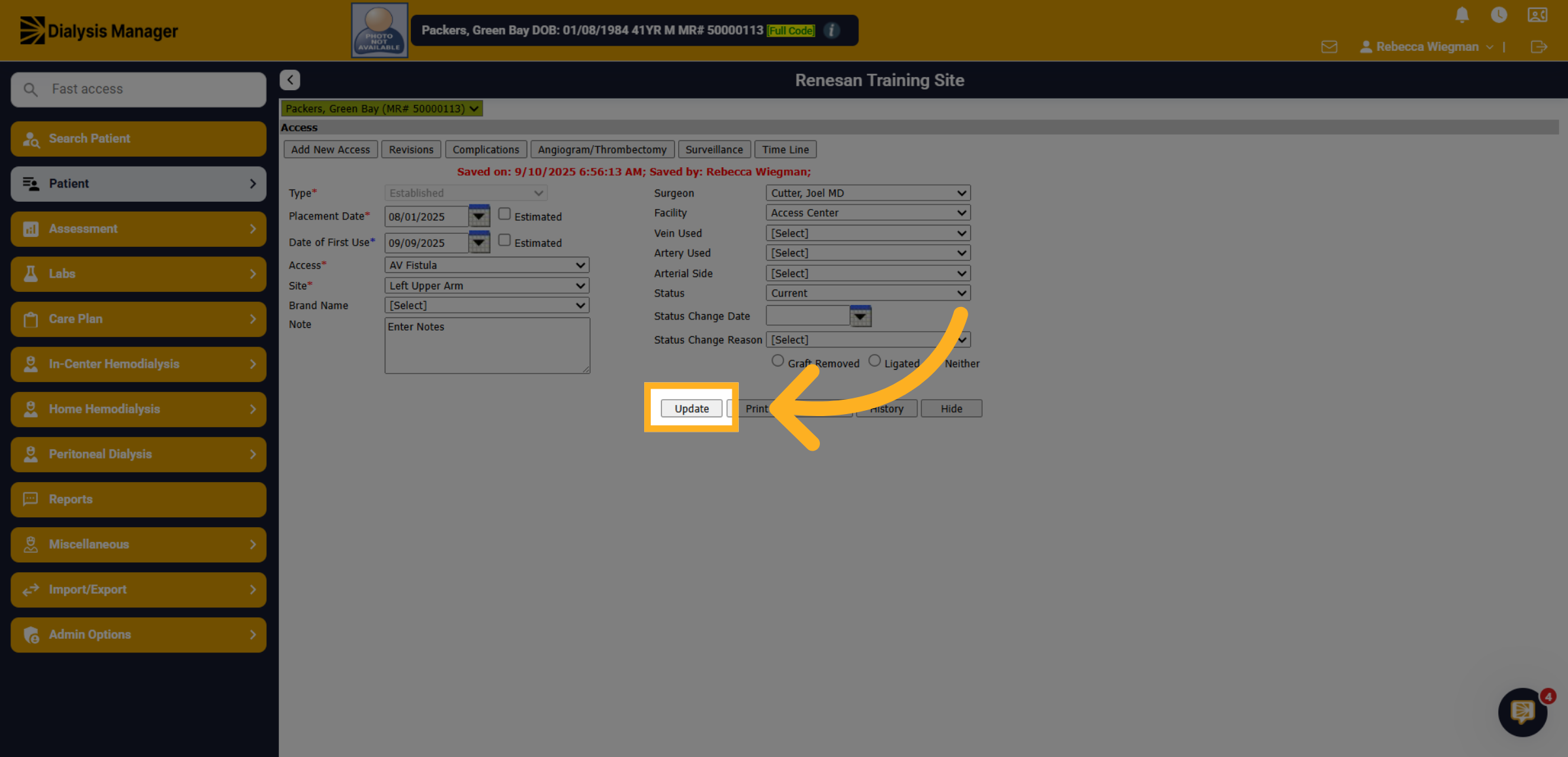
If you need to edit or update an access you would again go to the Patient menu and into Access. Select the date of the access you need to change.
10. Update Fields
From here you'll be able to select the information you're looking to update.
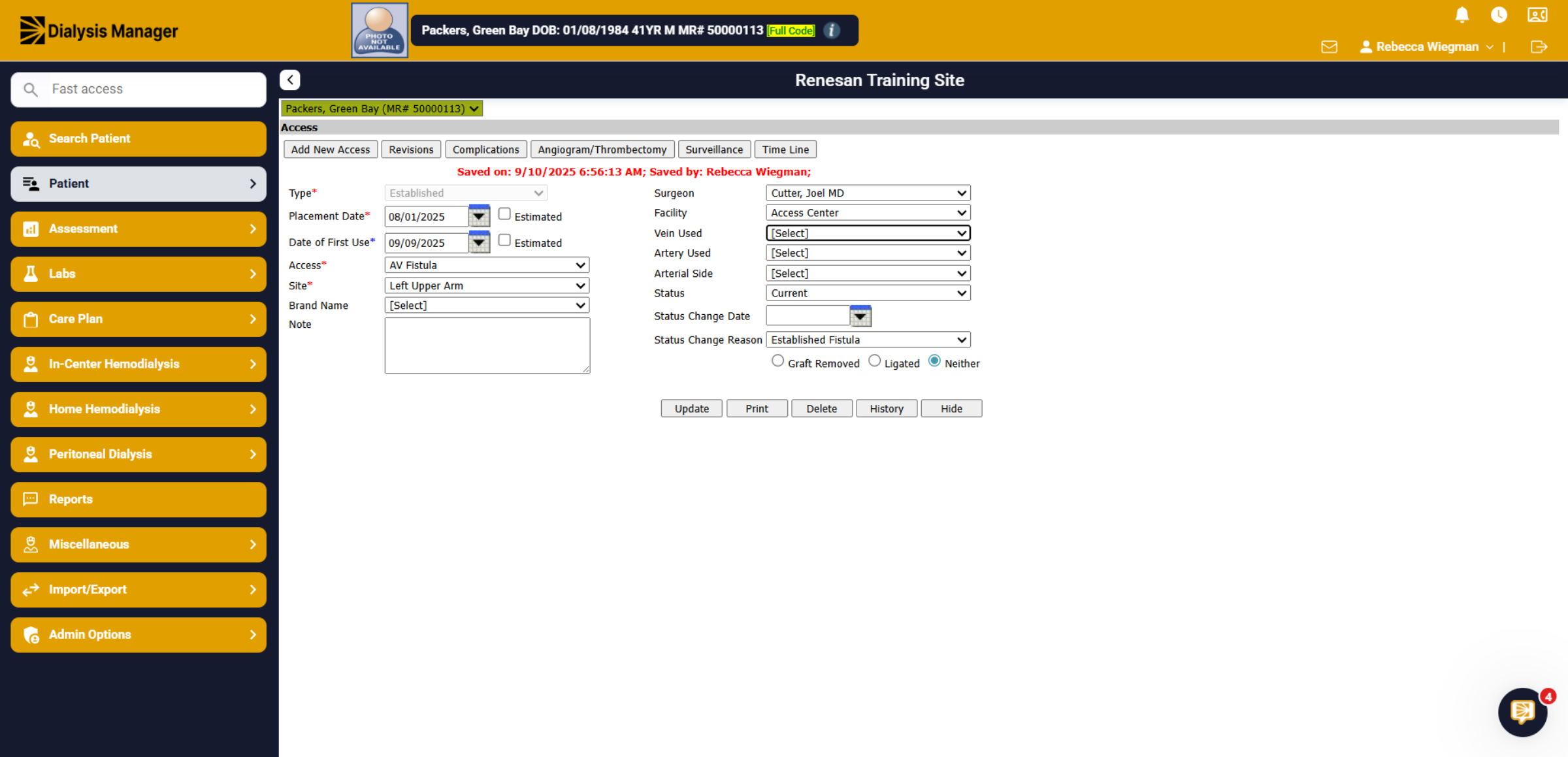
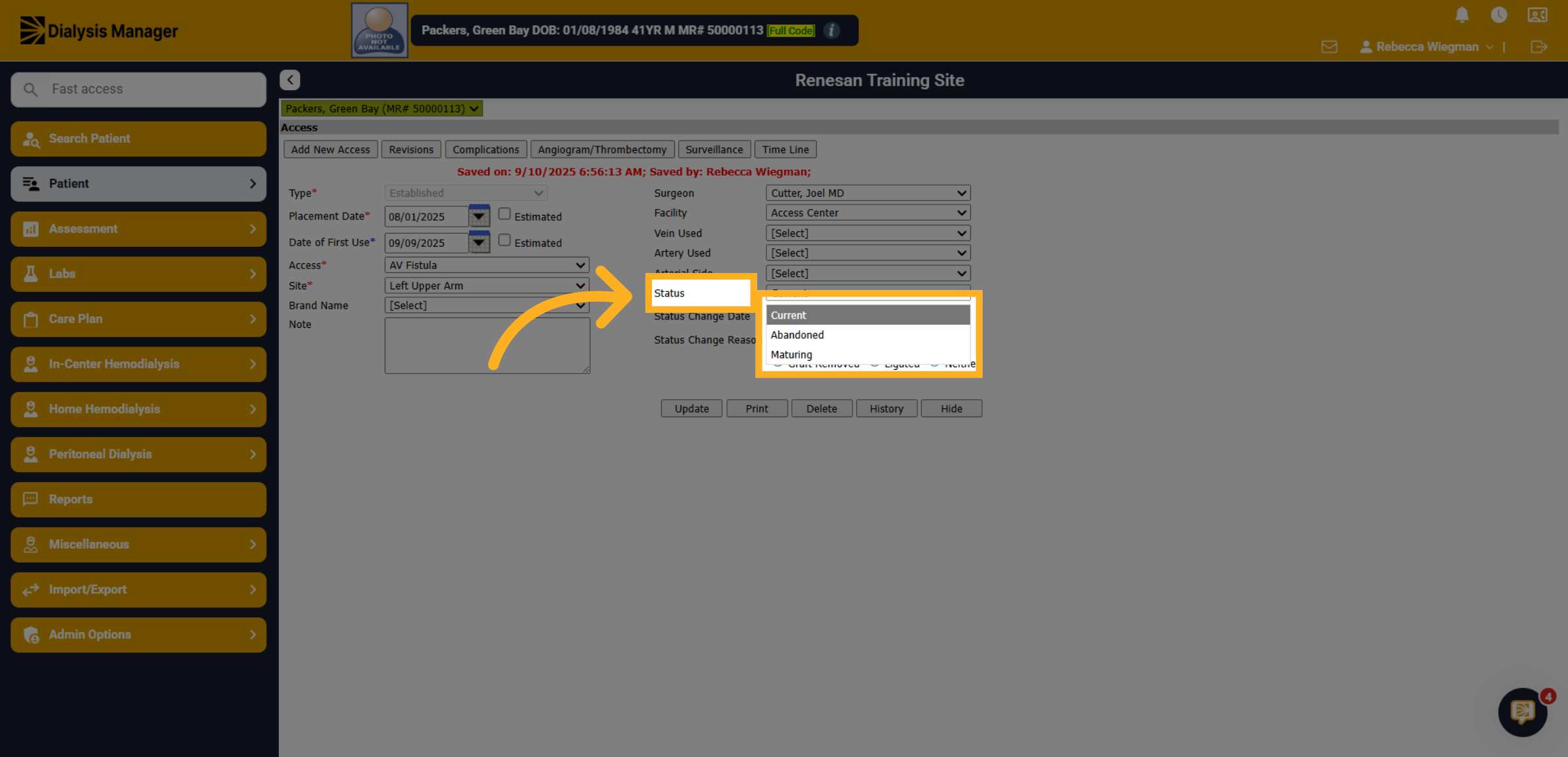
11. Updating the Status
To update the status of the access select abandoned, maturing or current from the dropdown.
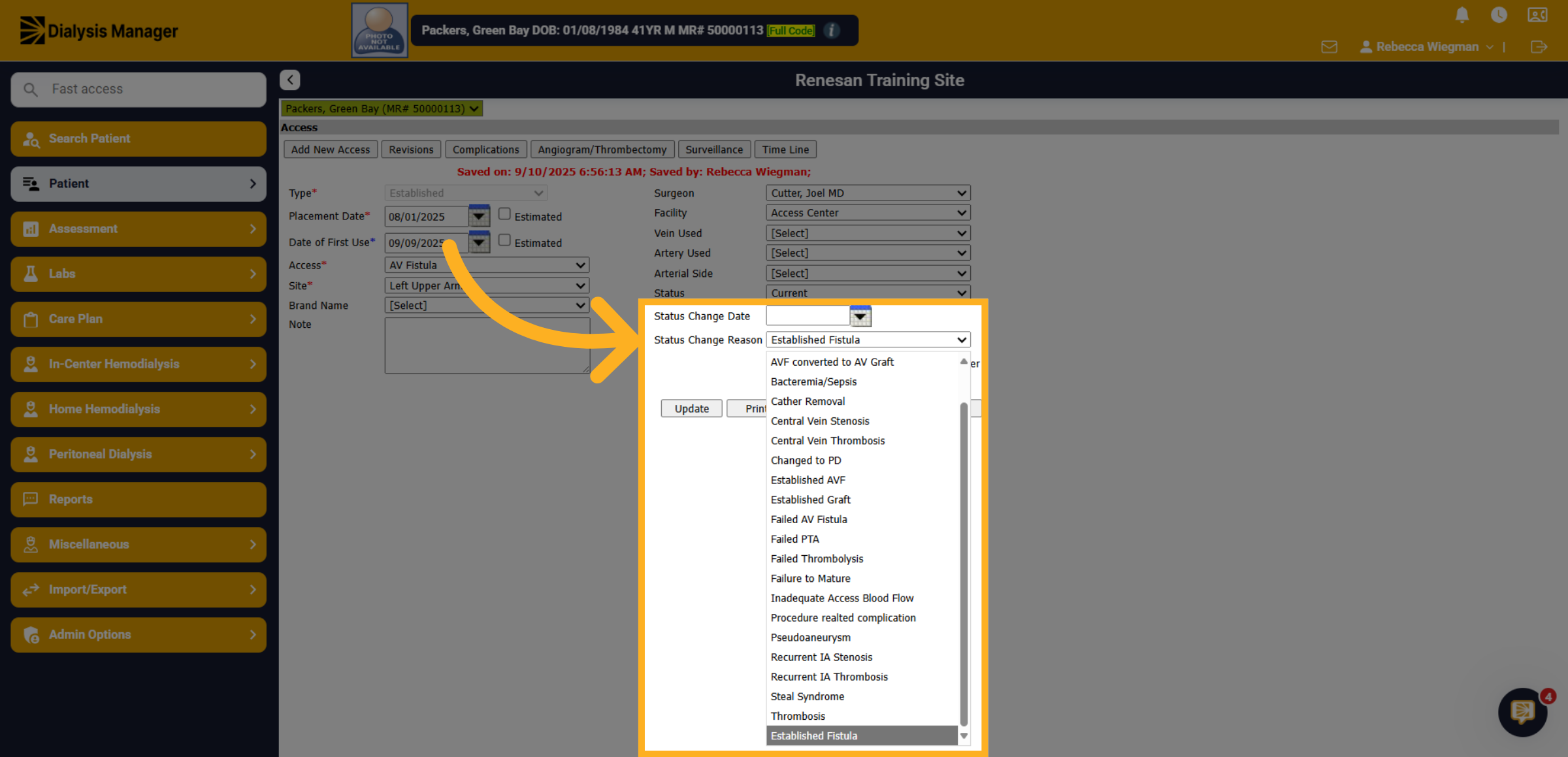
12. Status Change Reason and Data
Select the status change reason from the dropdown and enter the date of the status change.
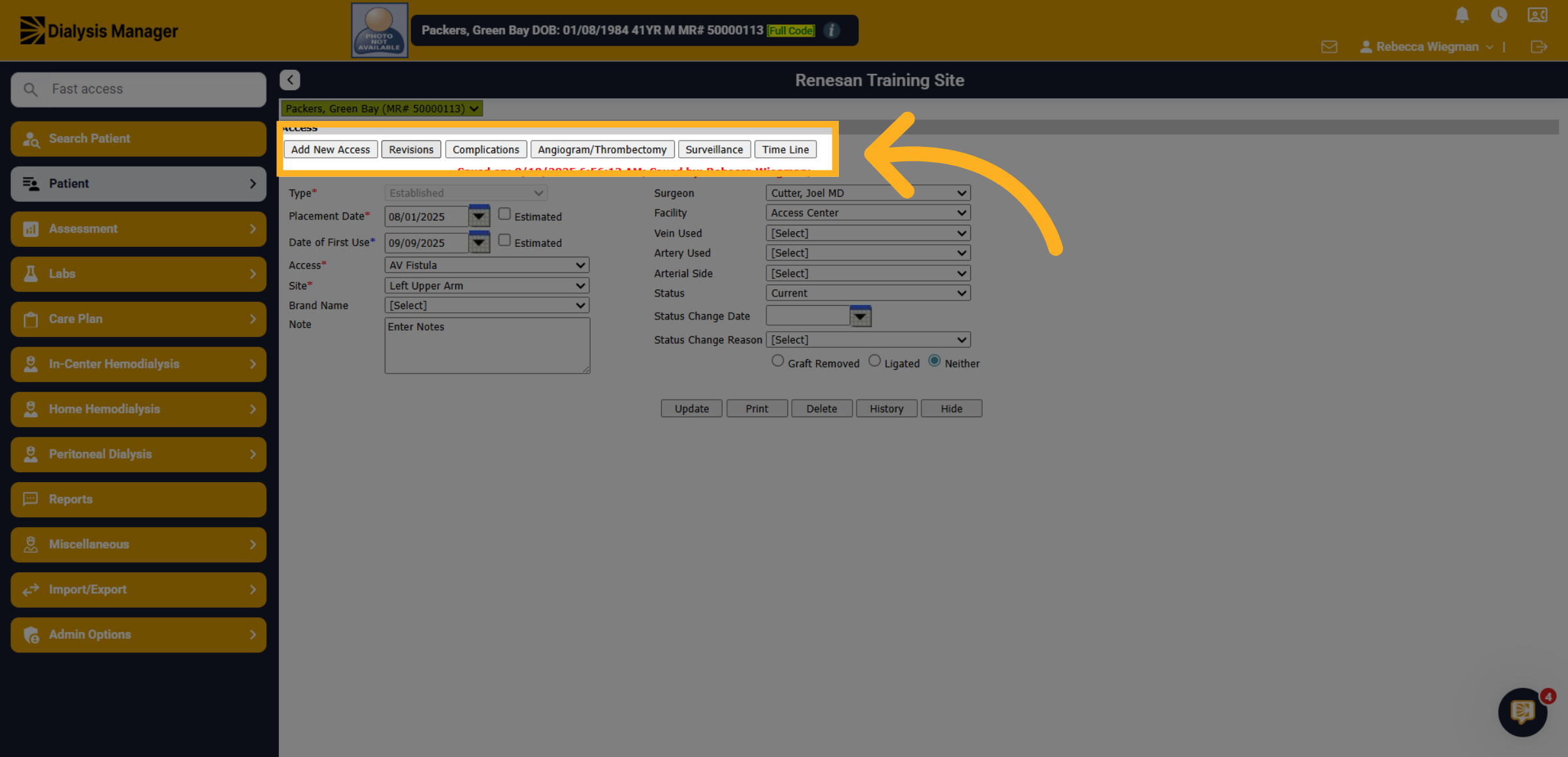
13. Shortcuts across the top
Towards the top of the access screen, you'll have the option to Add a new access, or enter in revisions, complications, angiogram and thrombectomy, surveillance and see the timeline of the access.
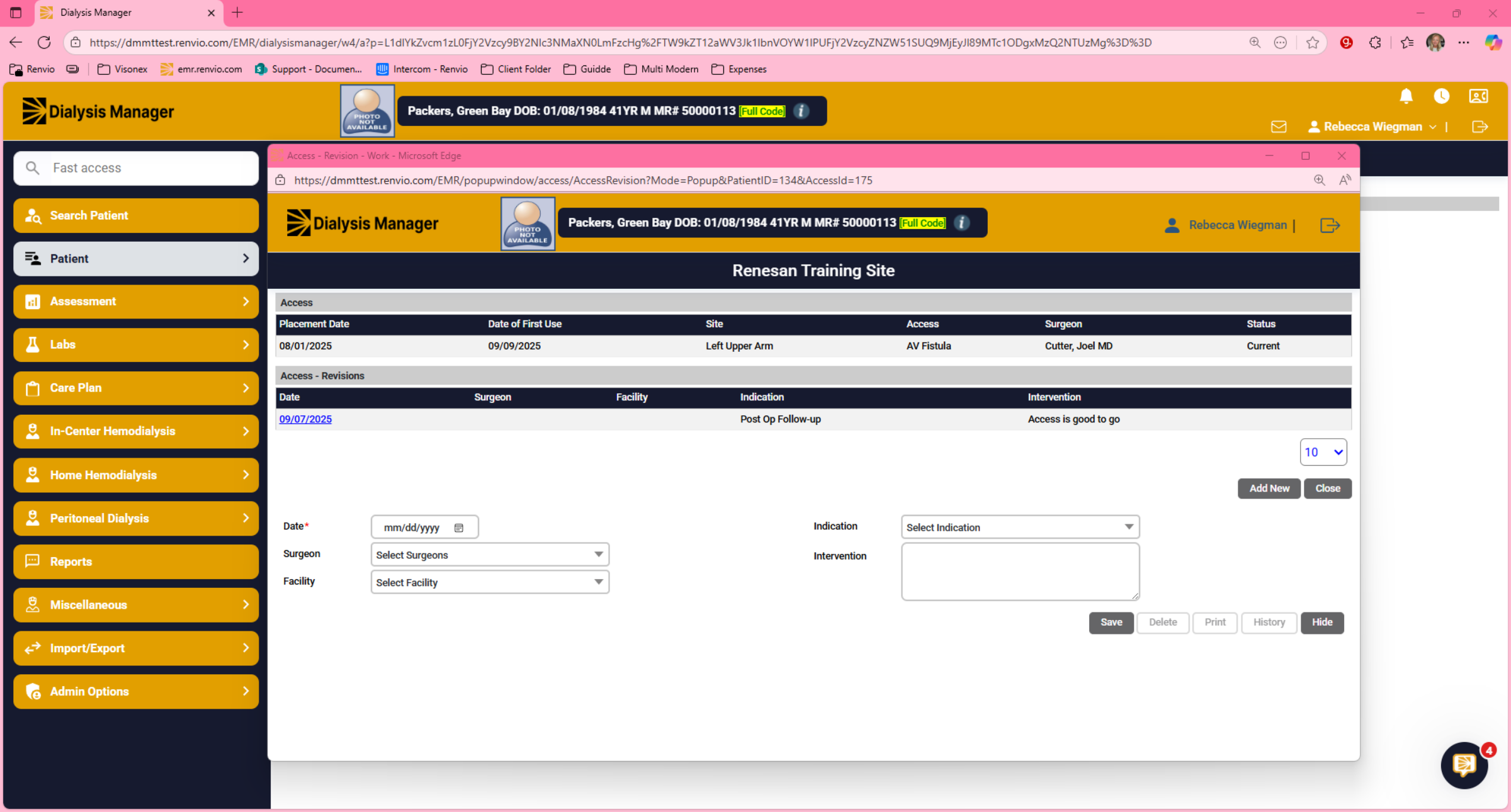
14. Revisions
When selecting Add New under Revisions, you'll have the ability to document indications of access clotting, low blood flow rates, and post op follow ups. If completed click save.
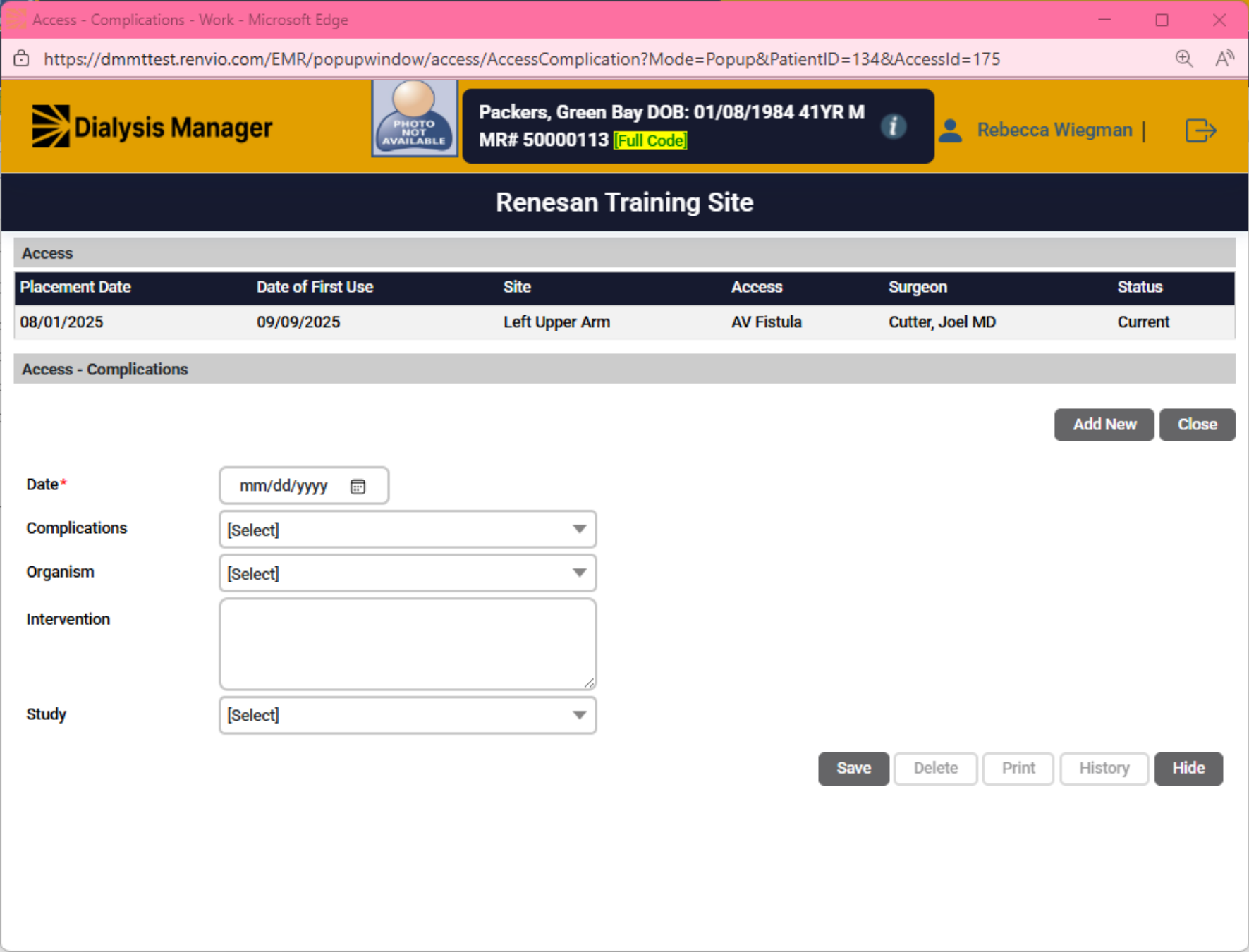
15. Complications
Same with Complications; select add new to document complications, any organism, studies and intervention plans.
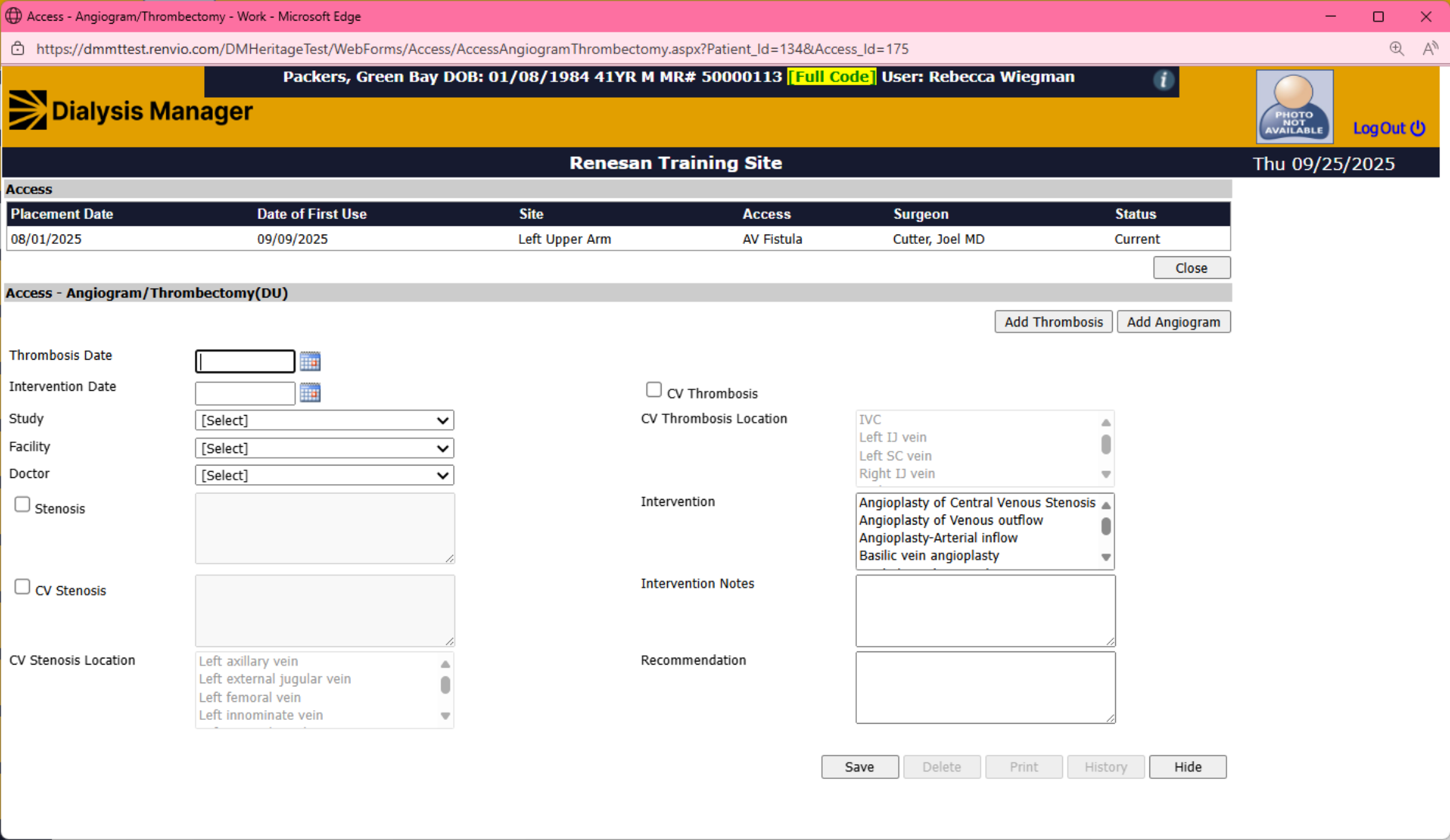
16. Angiogram/Thrombectomy
Under the Angiogram and Thrombectomy tab you'll be able to select either Angiogram or Thrombectomy and enter that information before saving.
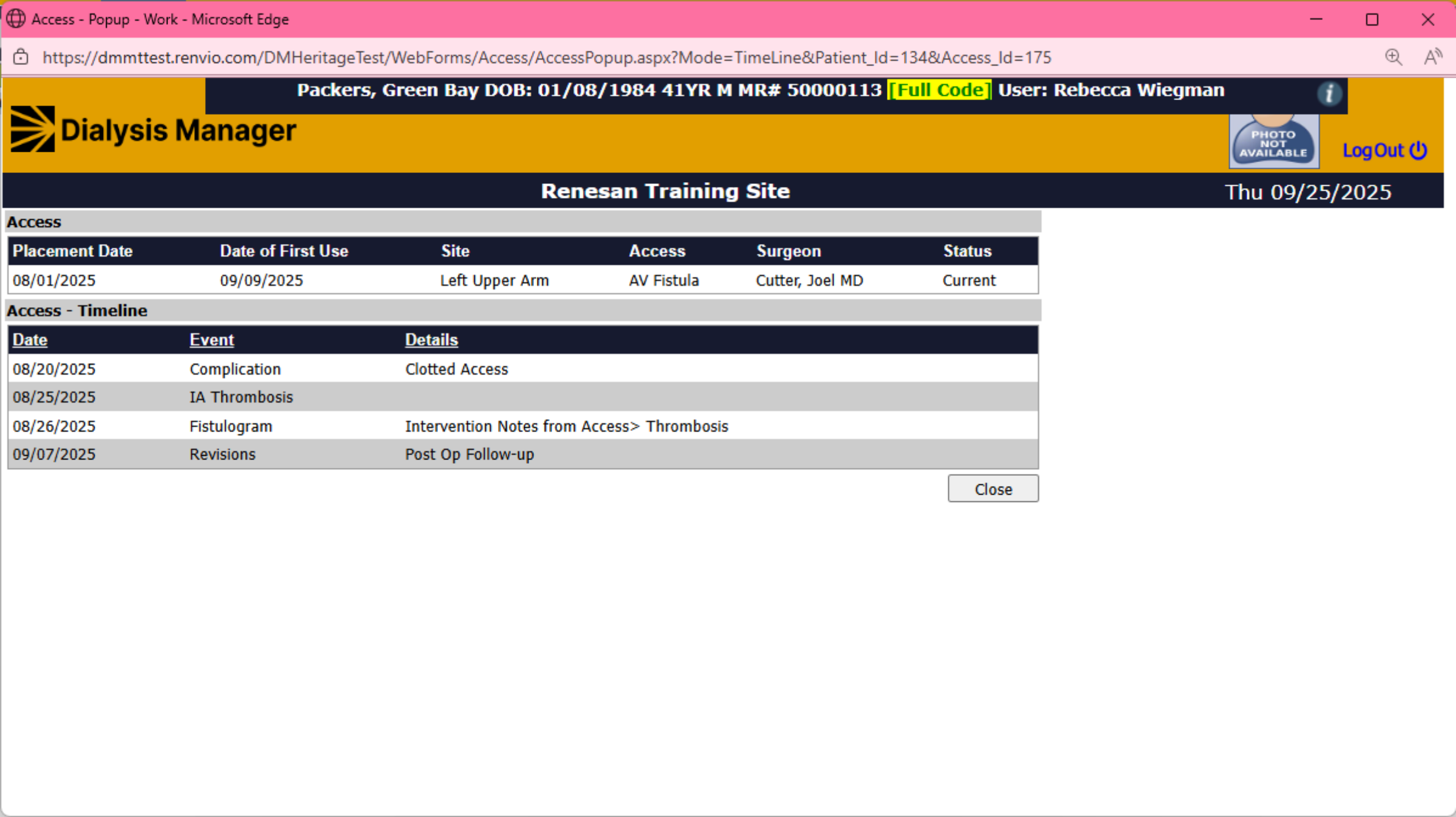
17. Time Line
The Time Line tab will show you all events entered.
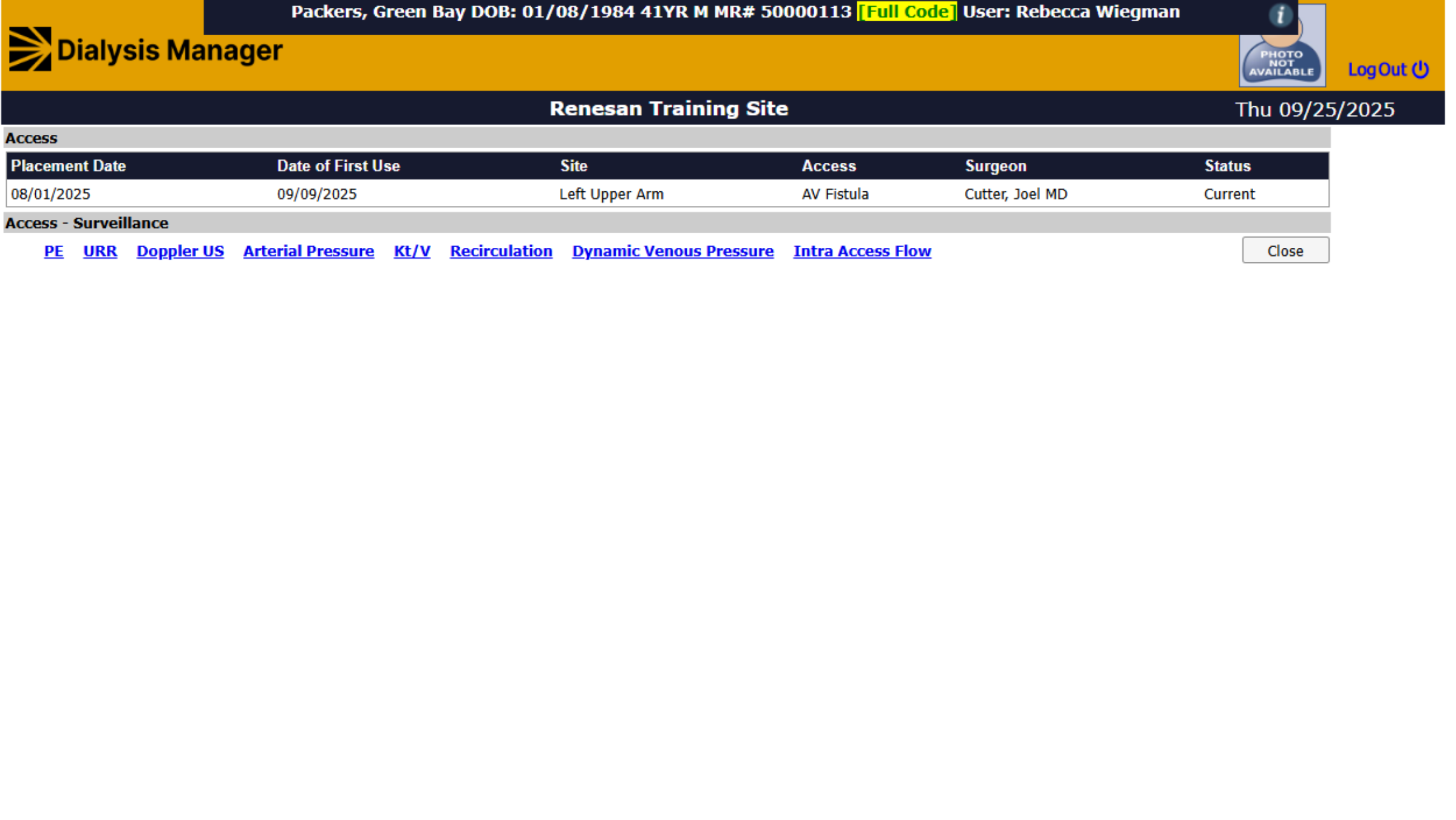
18. Click "Close"
When selecting Surveillance you'll see additional blue hyper links that your able to select. You'll need to manually enter the value. Most clinics enter this information directly from the flowsheet.
19. Update and Save
Please be sure you are always Updating or saving information.
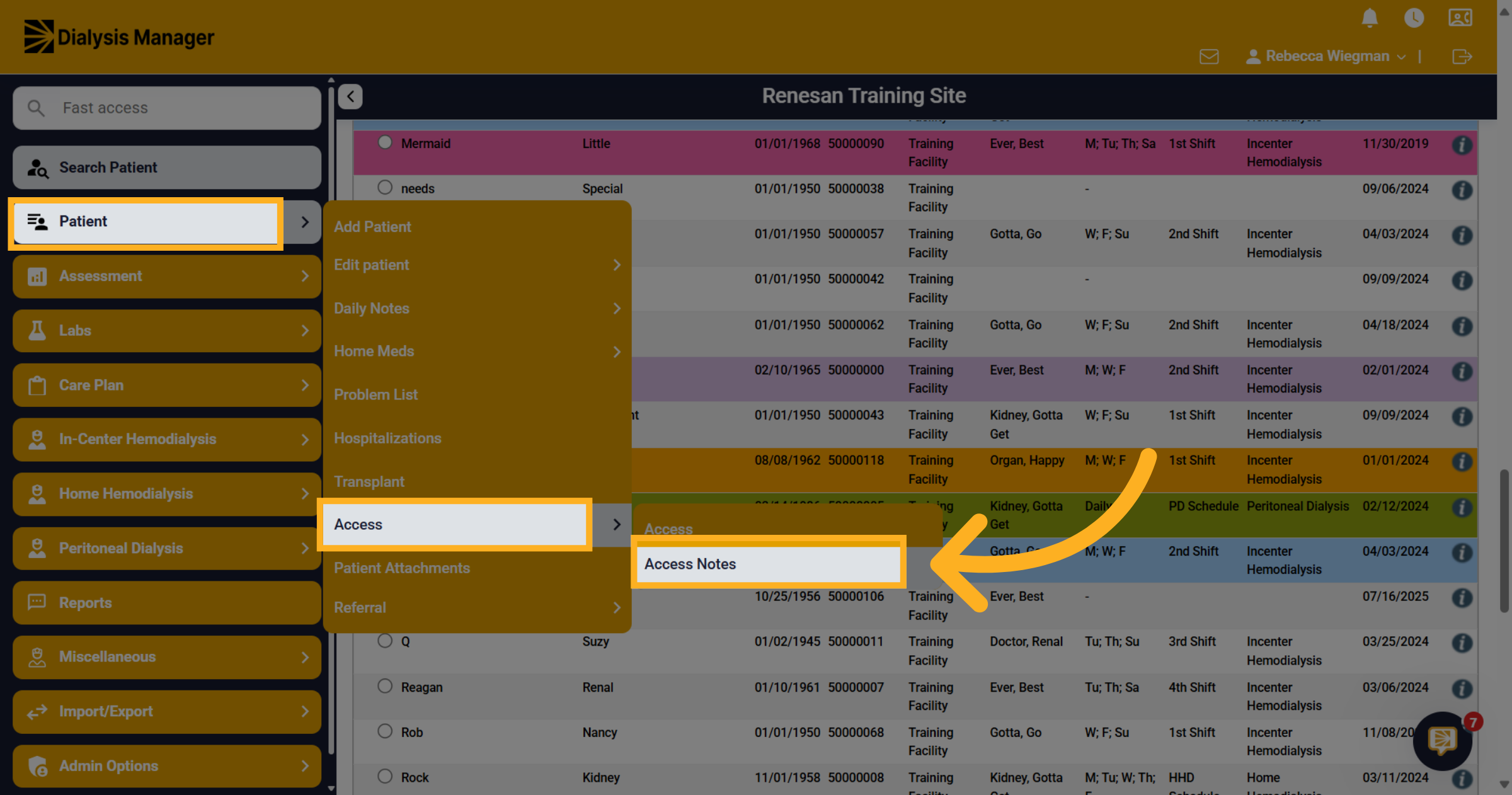
20. Access Notes
Now that your access has been entered and we walked through the steps of editing let take a look at the Access Notes inside the Patient Menu.
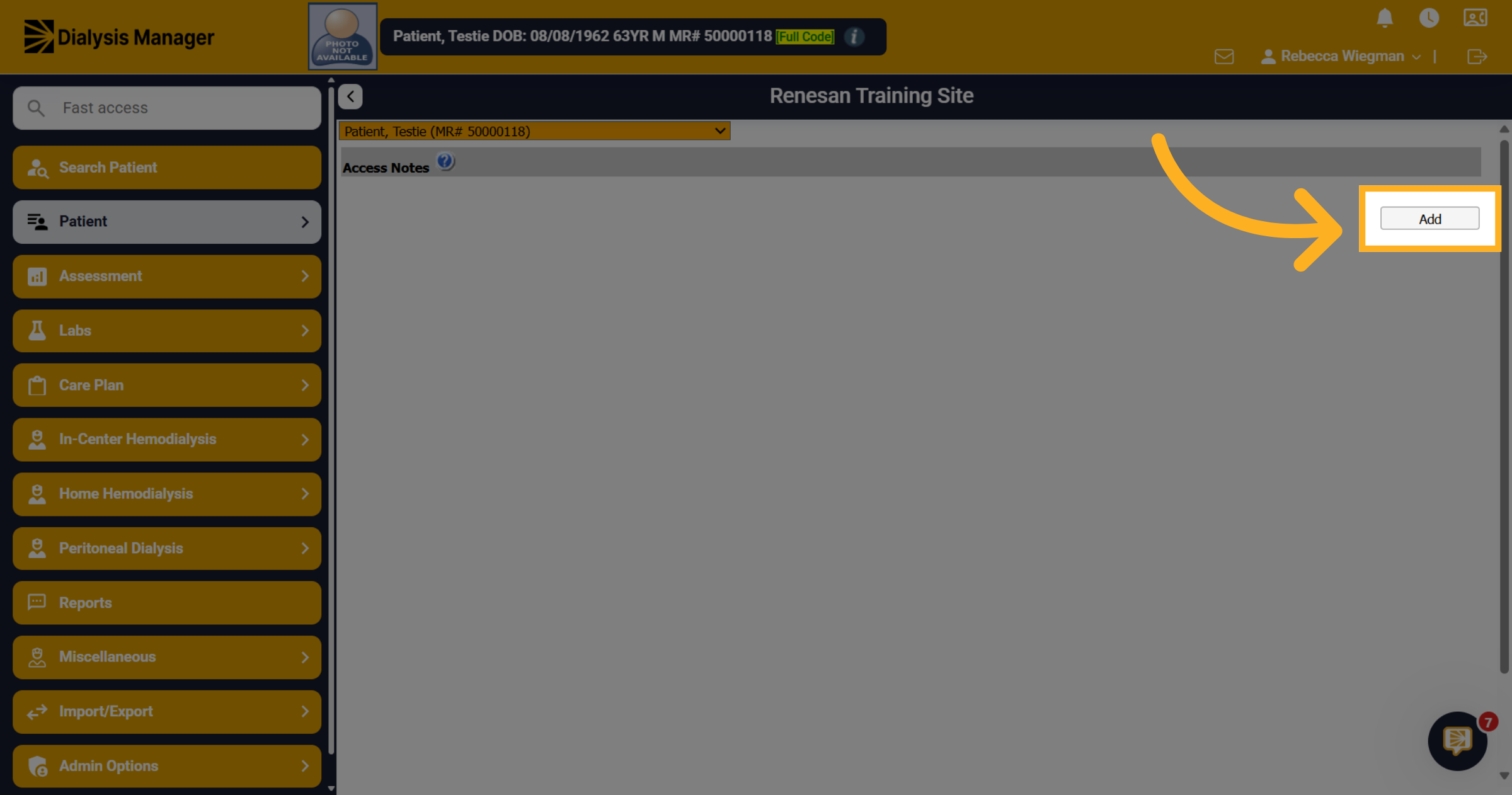
21. Click "Add"
A list of access notes will appear here if other notes have been entered. Click Add to create a new note entry for the selected access.
22. Select the Access
The date will auto populate. Click the Select Access dropdown and choose the access your would like to make a note on.
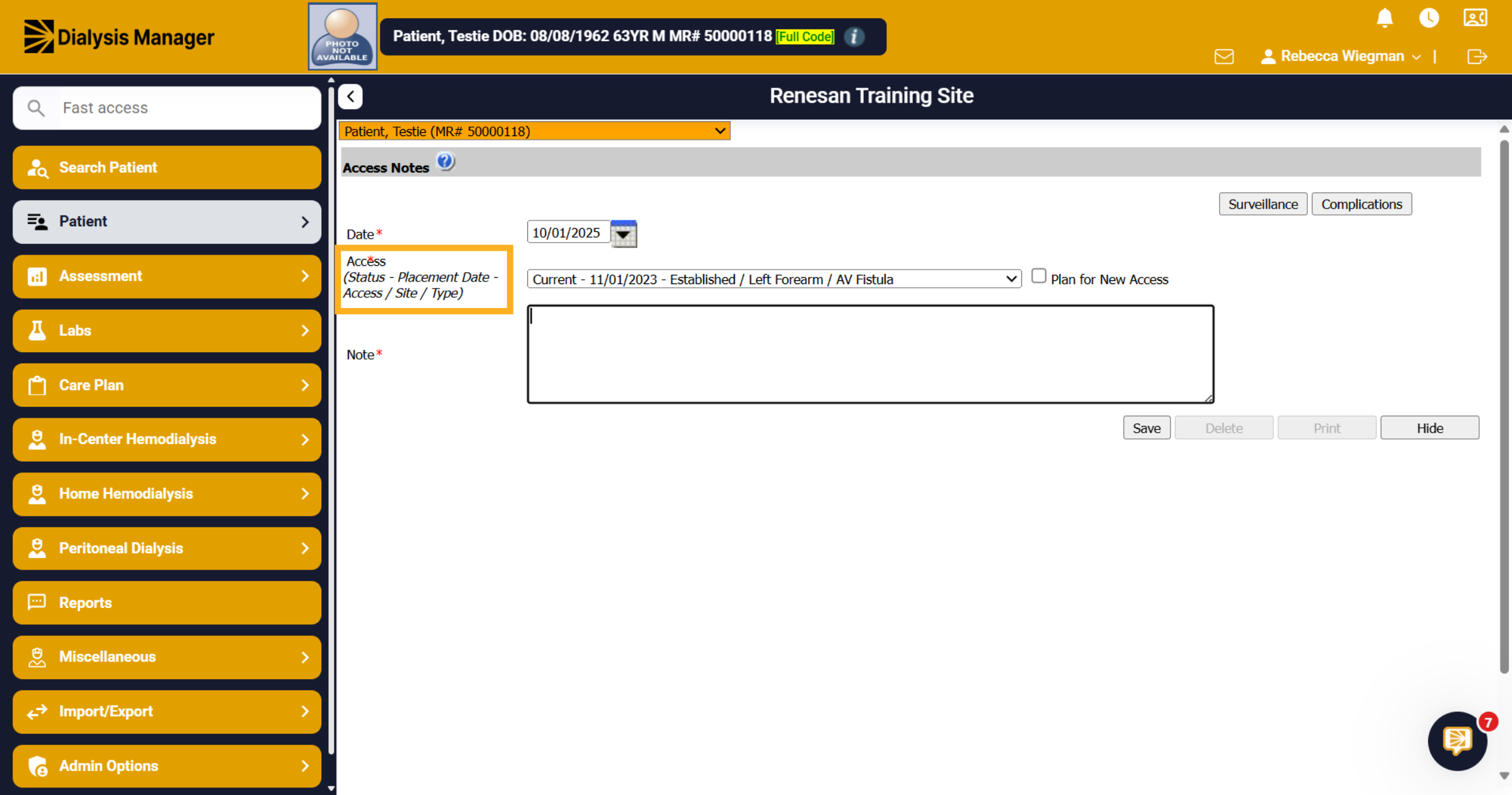
23. Enter "Notes"
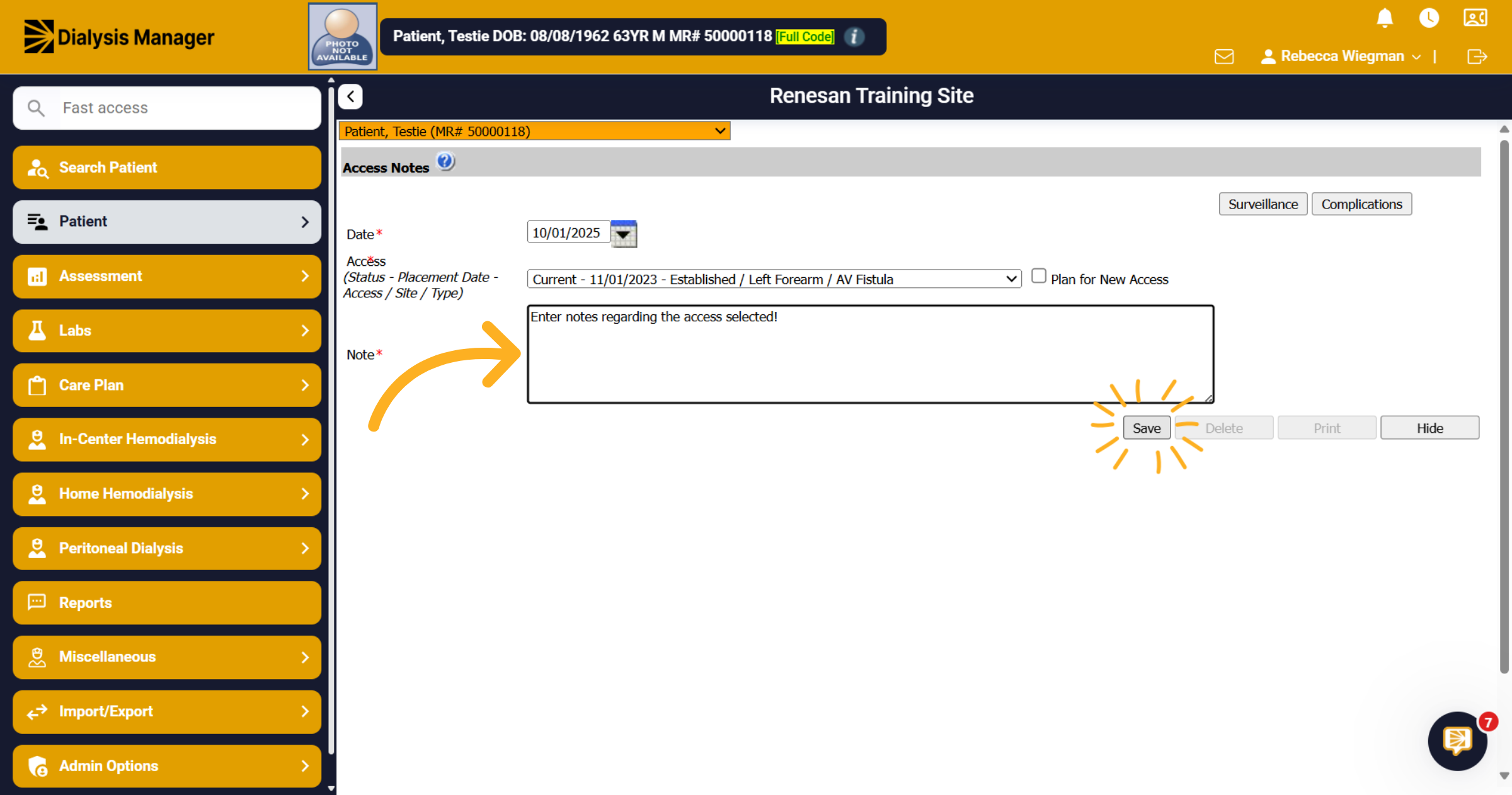
Enter Notes related to your access and click save.
24. Updating notes
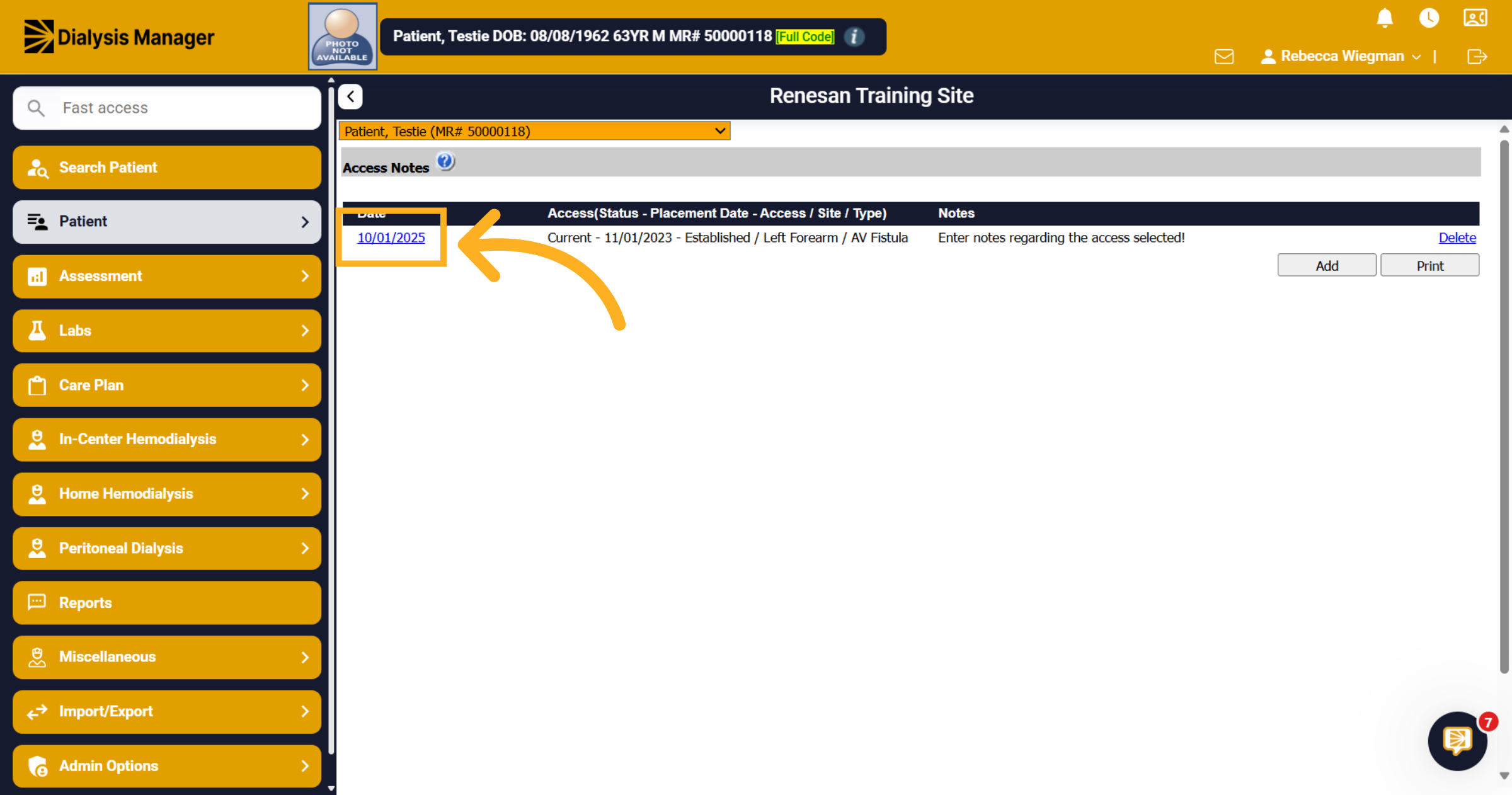
To make changes to the note select the date of the note inside the Access Notes section.
25. Click Surveillance and Complications
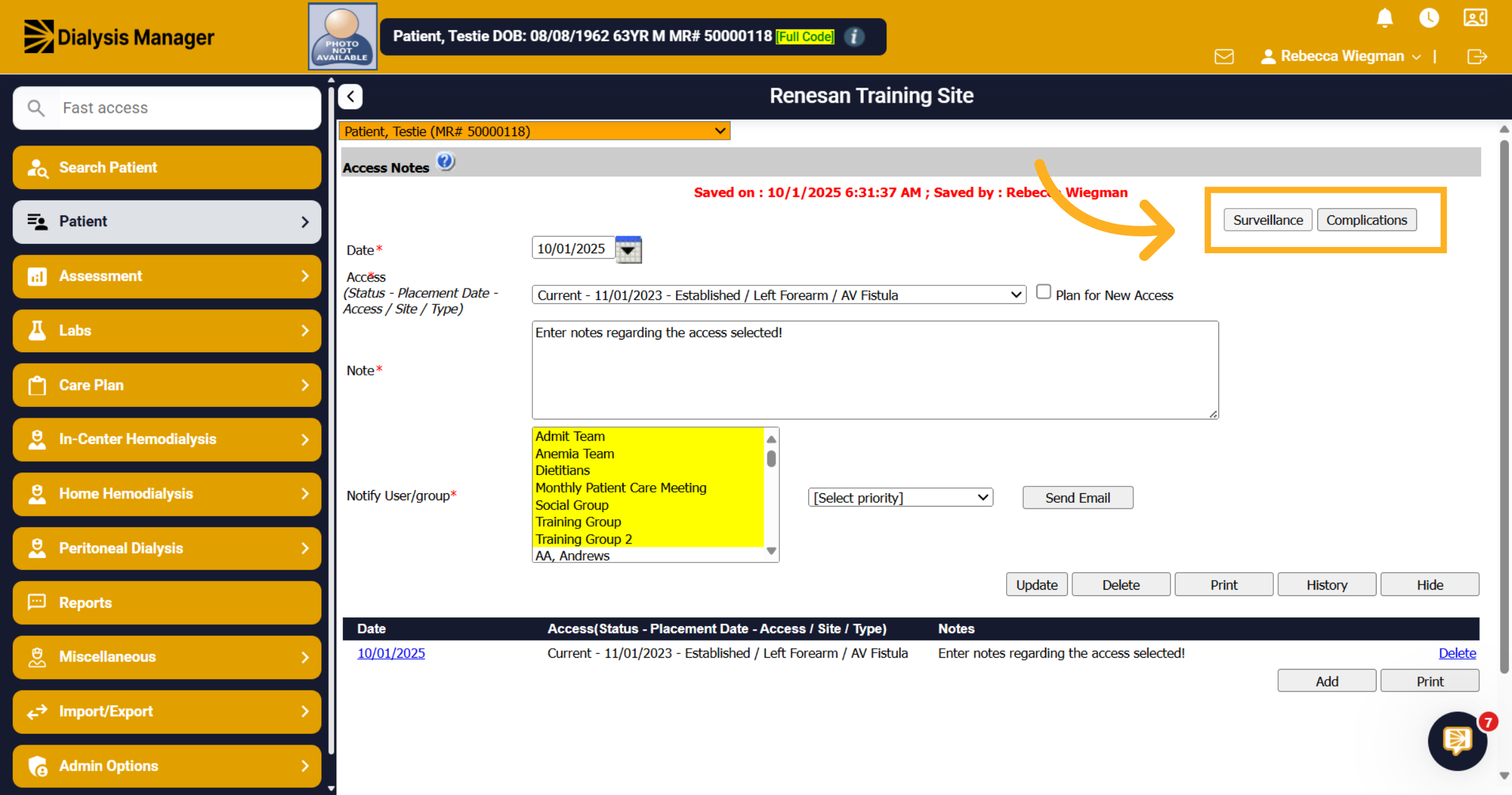
Click Surveillance to access monitoring details related to the access. Click Complications to review or add any issues associated with the access.
26. Notify other staff
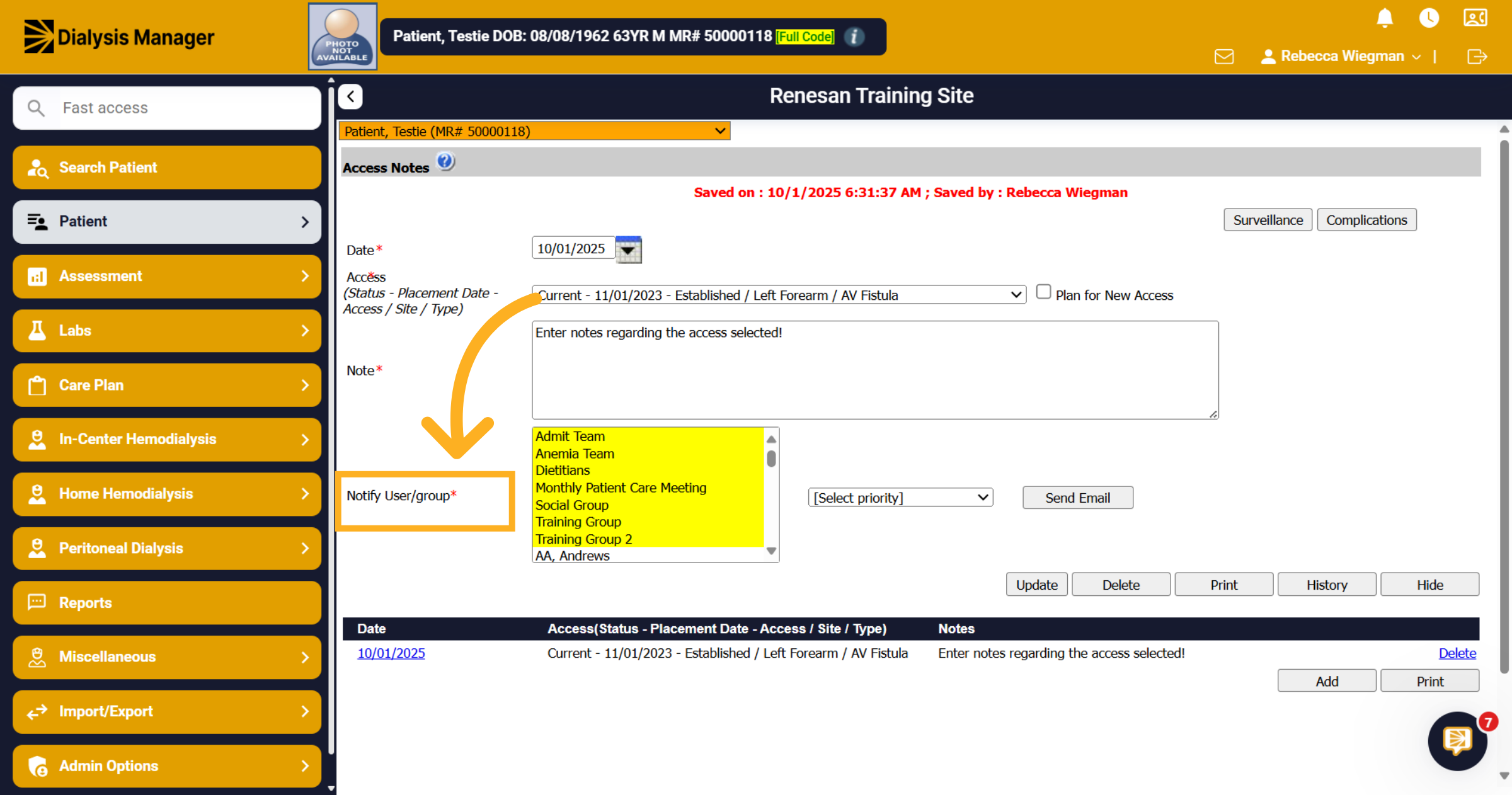
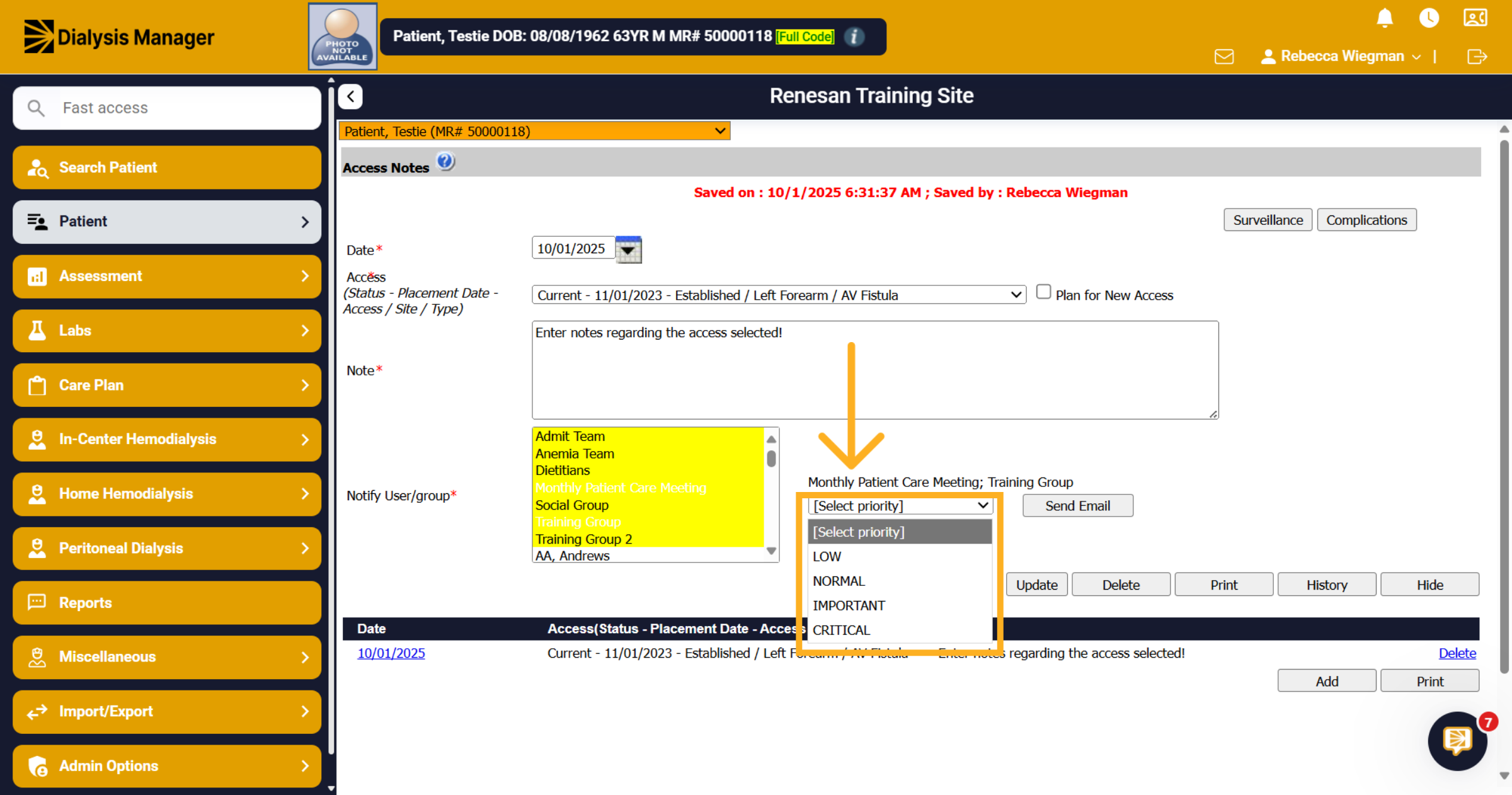
Your also able to select multiple users or groups to notify them of the access note! Hold your "Control" key down on your keyboard and select multiple users.
27. Select Priority
You will need to select a Priority from the dropdown.
28. Click "Send Email"
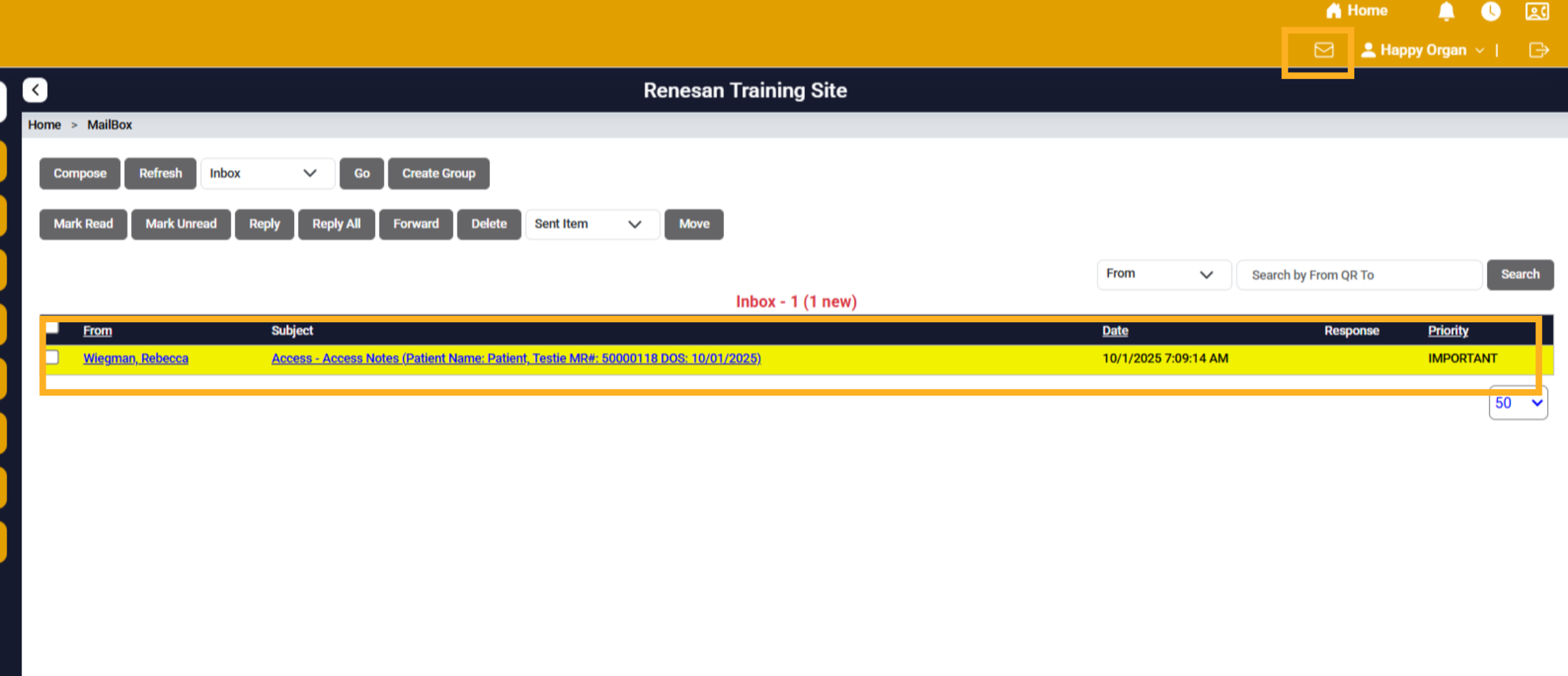
Click Send Email to distribute the note or information to the selected groups and recipients which will appear in their mailbox.
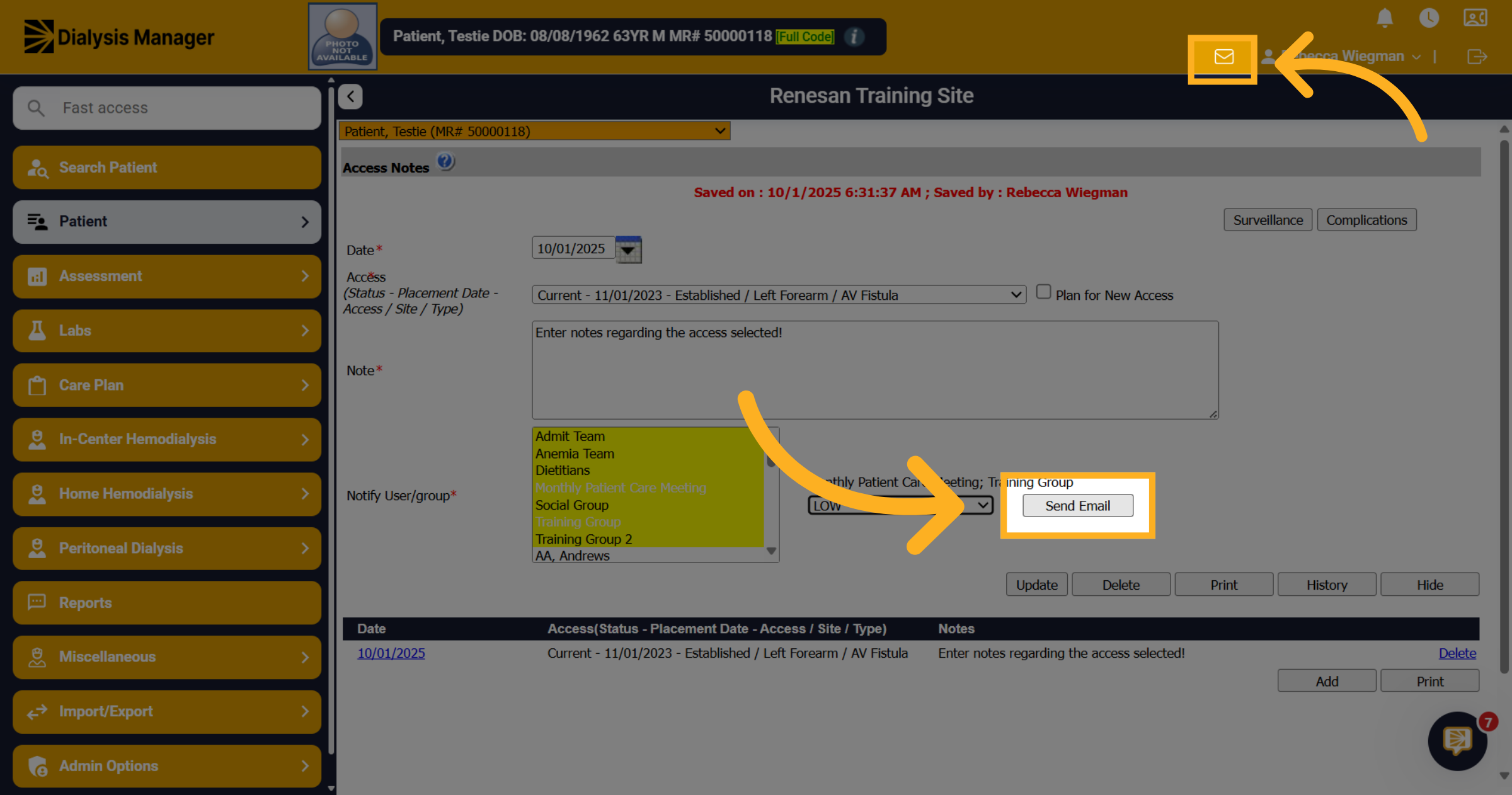
29. Mailbox
The note will be sent to the user's mailbox where they will be able to reply or forward to others!