Change In-Center Hemodialysis order within a flowsheet in Dialysis Manager.
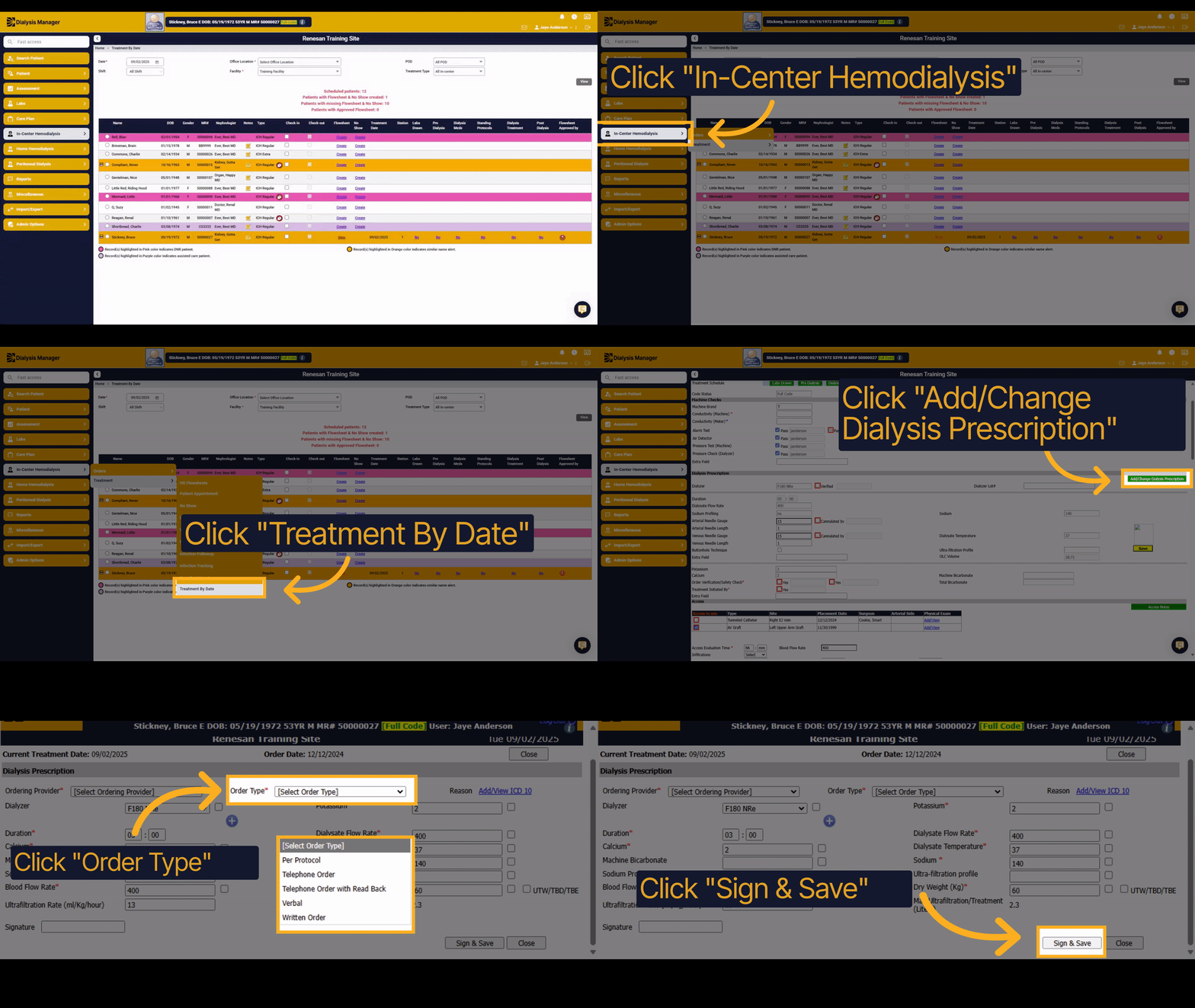
1. Introduction
Learn how to efficiently change an In-Center Hemodialysis order within the Dialysis Manager flowsheet. This guide walks you through each step to update dialysis prescriptions accurately and confidently.
2. Click "In-Center Hemodialysis"
Navigate to the In-Center Hemodialysis section to begin managing dialysis orders.
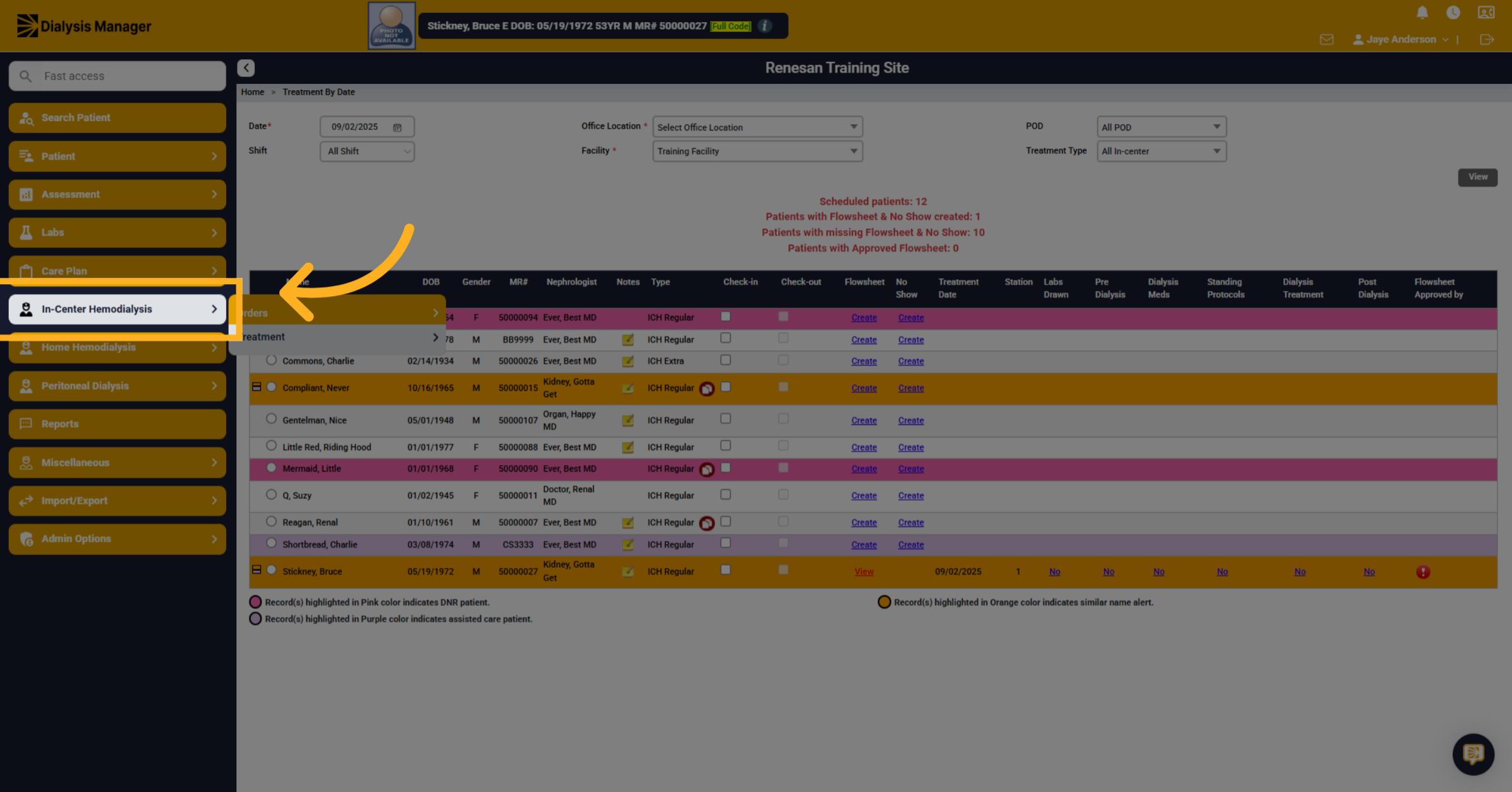
3. Click "Treatment"
Select the Treatment option to proceed to treatment-related actions.
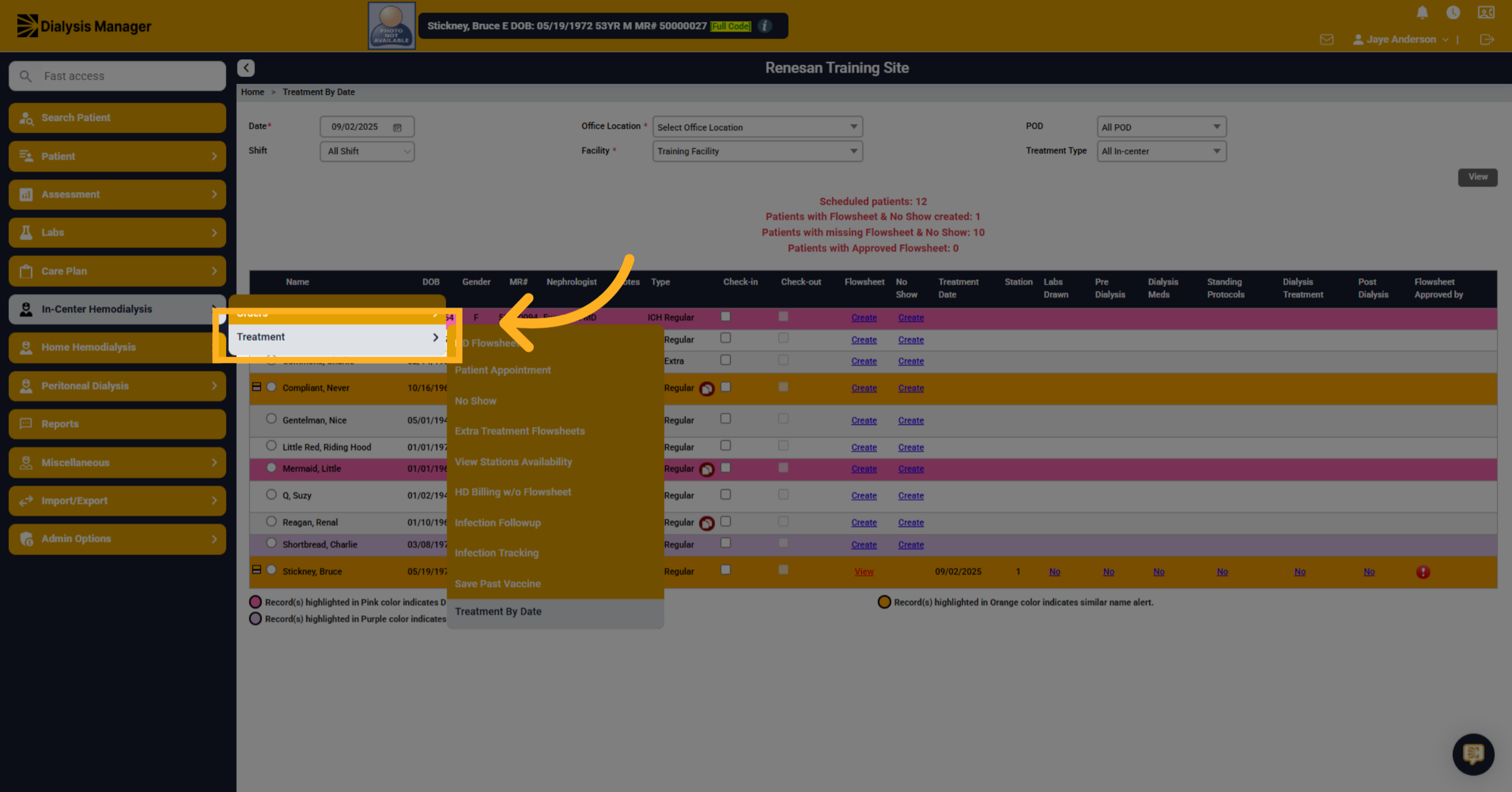
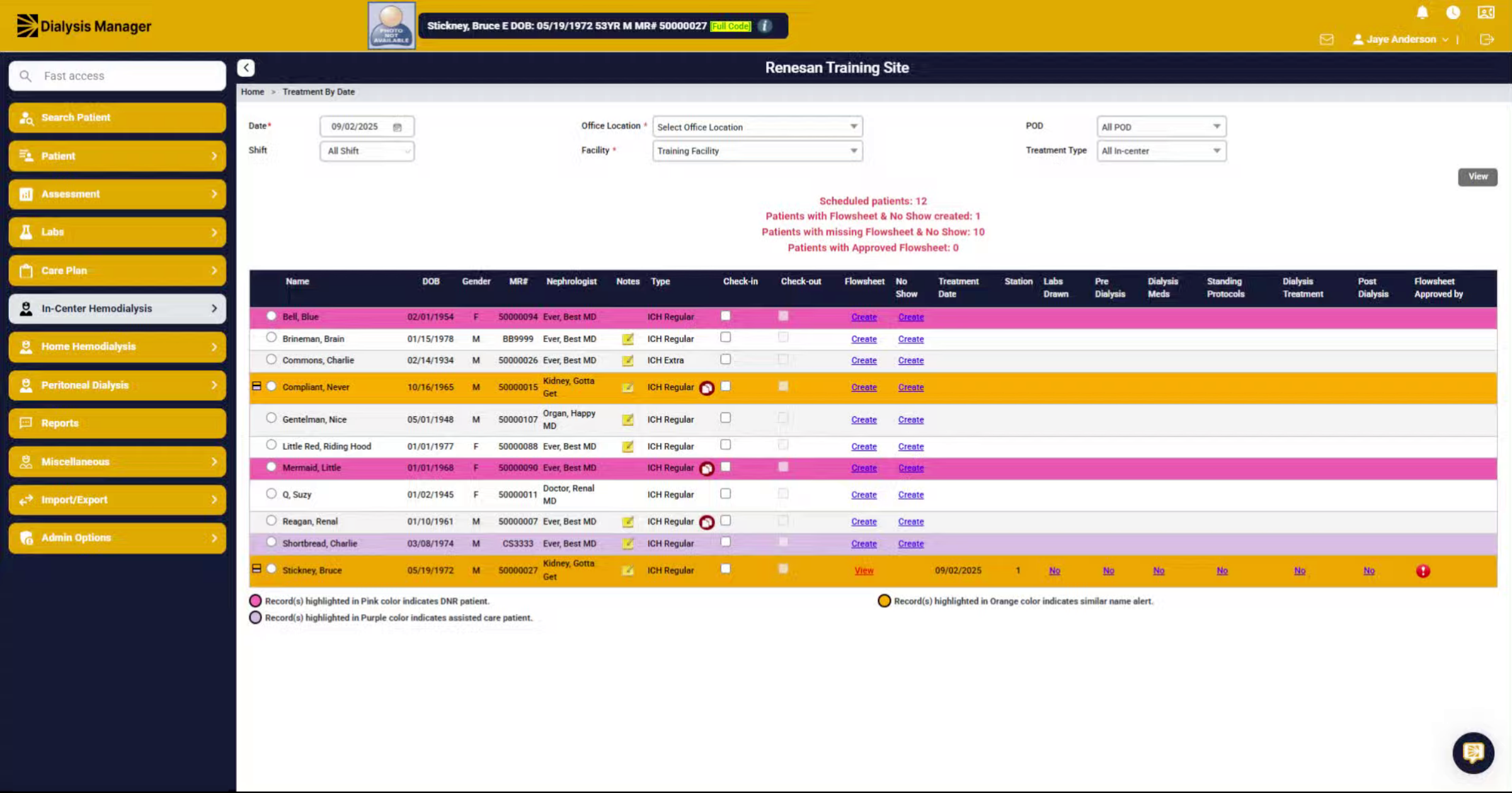
4. Click "Treatment By Date"
Choose Treatment By Date to locate today's treatment records.
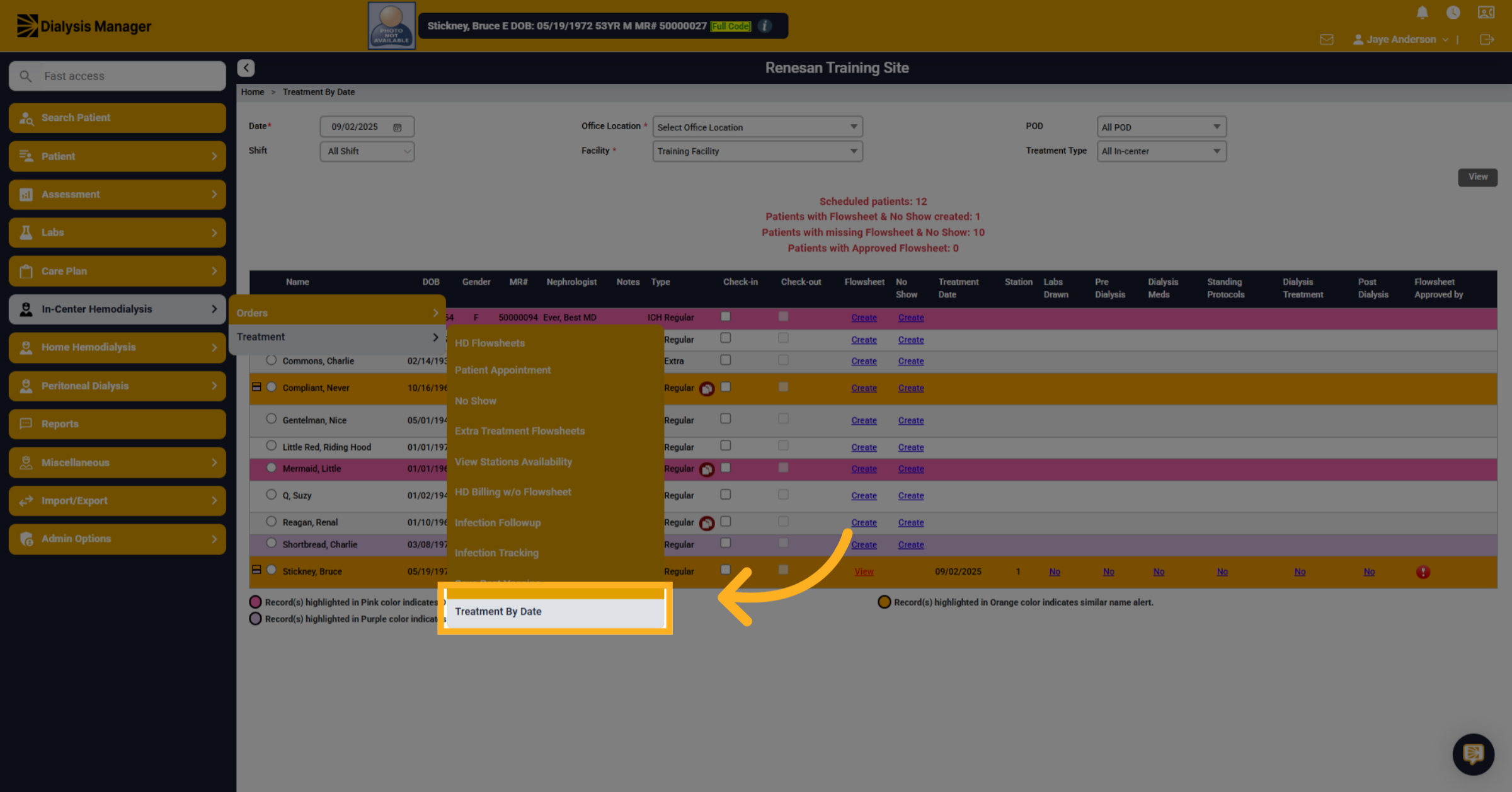
5. Click "View"
Click View to Open the detailed view of the selected treatment to review its information.
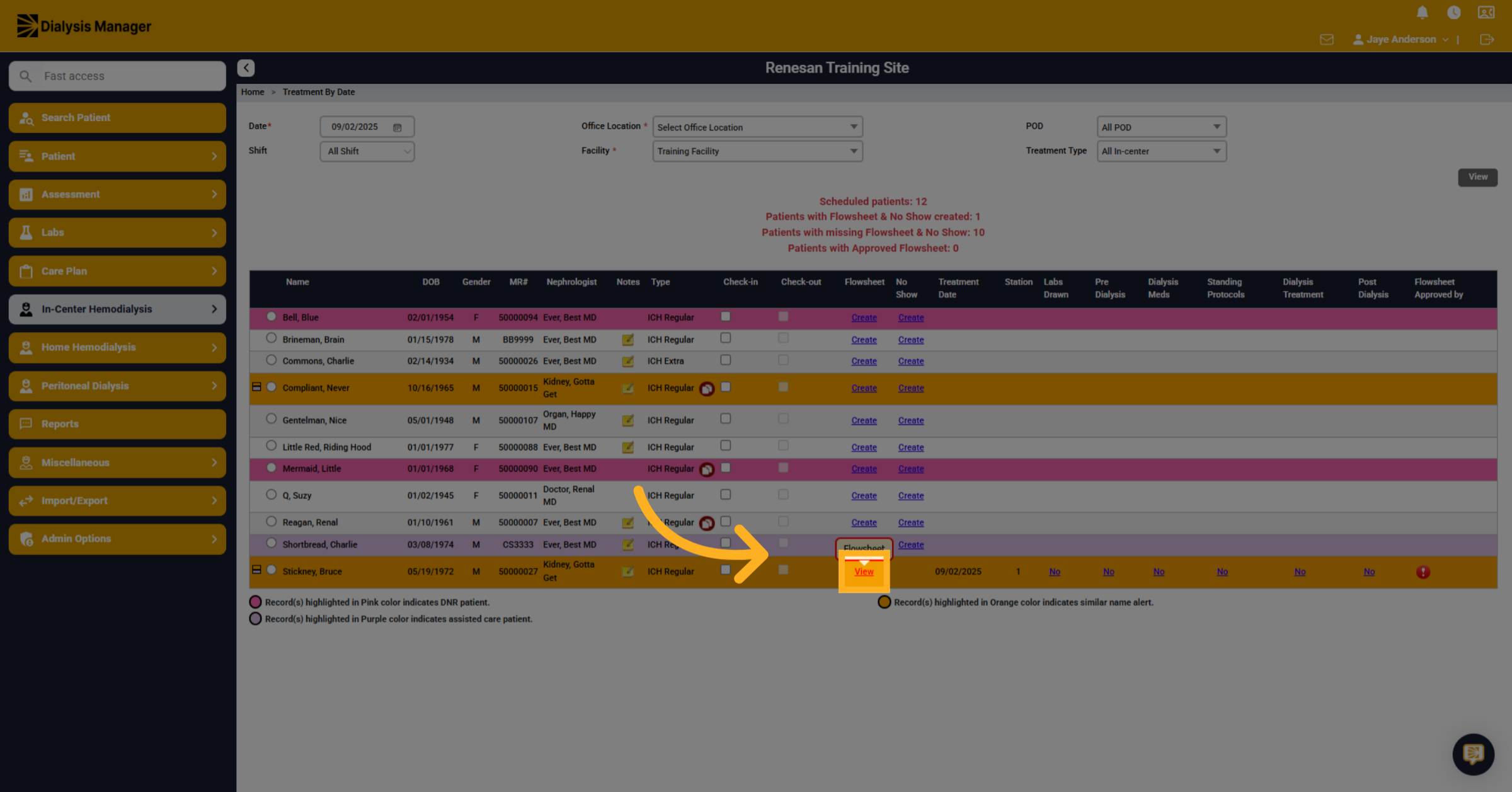
6. Click "Add/Change Dialysis Prescription"
Click "Add/Change Dialysis Prescription" to Initiate the process to add or modify the dialysis prescription for the treatment.
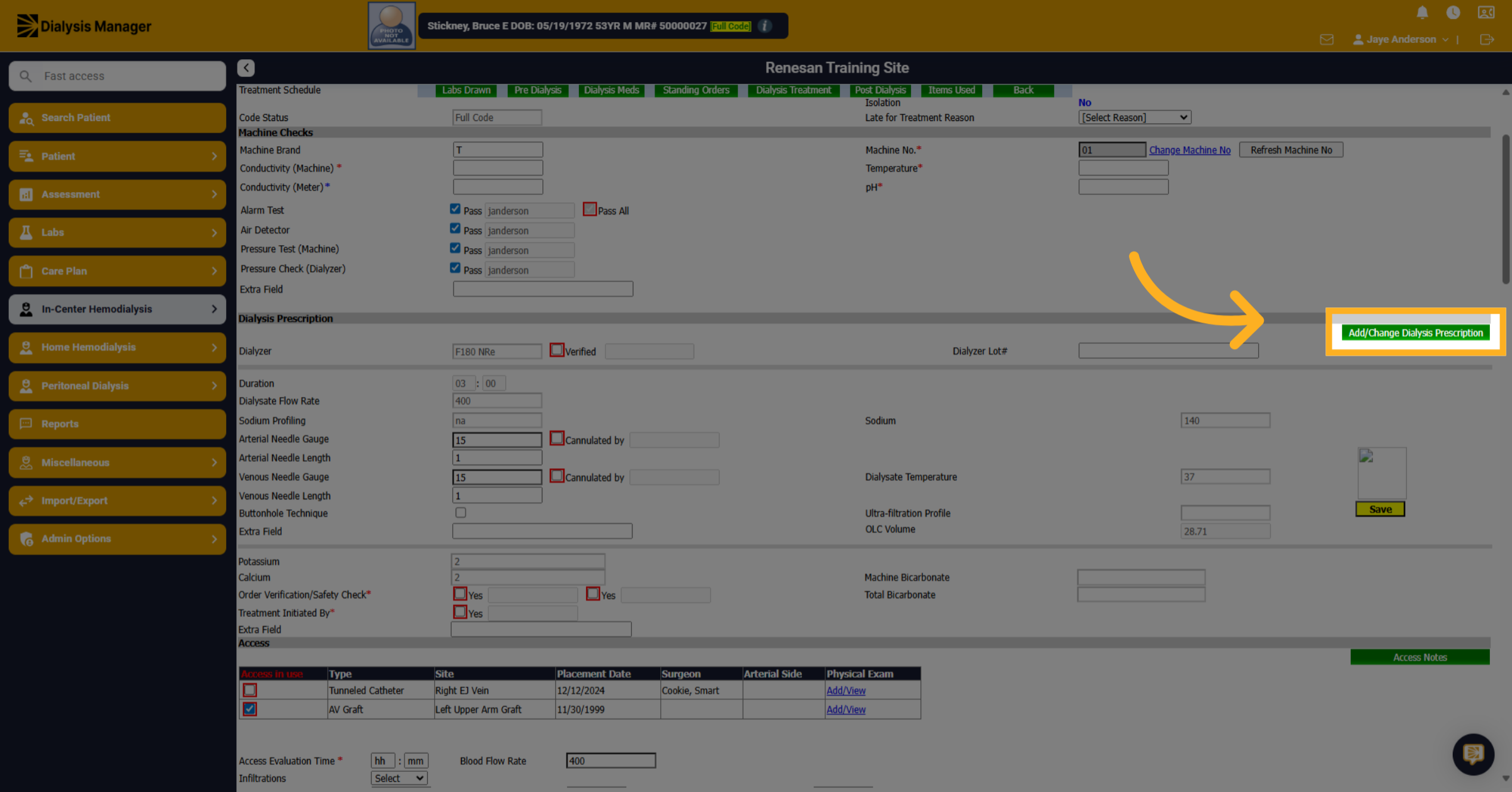
7. Click "[Select Ordering Provider]"
Select the appropriate ordering provider from the list to assign responsibility for the prescription.
![Click '[Select Ordering Provider]'](https://knowledgetest.renvio.com/hubfs/Intercom%20knowledge%20base/qg-2FIroXeNJHrNYcFwtsPJSFDGN82g23-2FiZzgBwBTvBDSsj2VWUafZ6-2FouUdZowHpUm2xUrmTNyayb_doc.png)
8. Click "[Select Order Type]"
Choose the correct order type that matches the communication method used for the prescription. Update any additional order information as needed.
![Click '[Select Order Type]'](https://knowledgetest.renvio.com/hubfs/Intercom%20knowledge%20base/qg-2FIroXeNJHrNYcFwtsPJSFDGN82g23-2FiZzgBwBTvBDSsj2VWUafZ6-2Ffrp8Decai25a7qwCUe2xAR_doc.png)
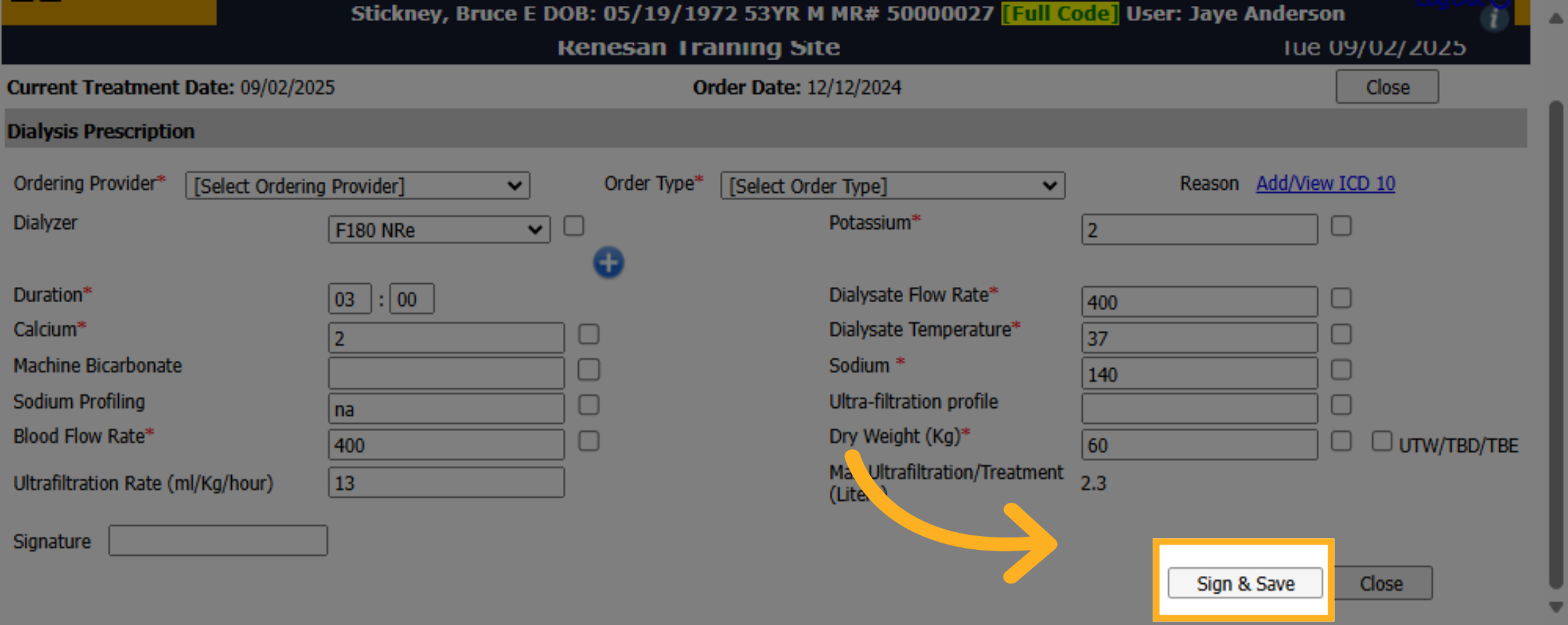
9. Click "Sign & Save"
Finalize the changes by signing and saving the updated dialysis prescription to ensure it is recorded.