Change in-center hemodialysis order from the order screen in Dialysis Manager.
1. Introduction
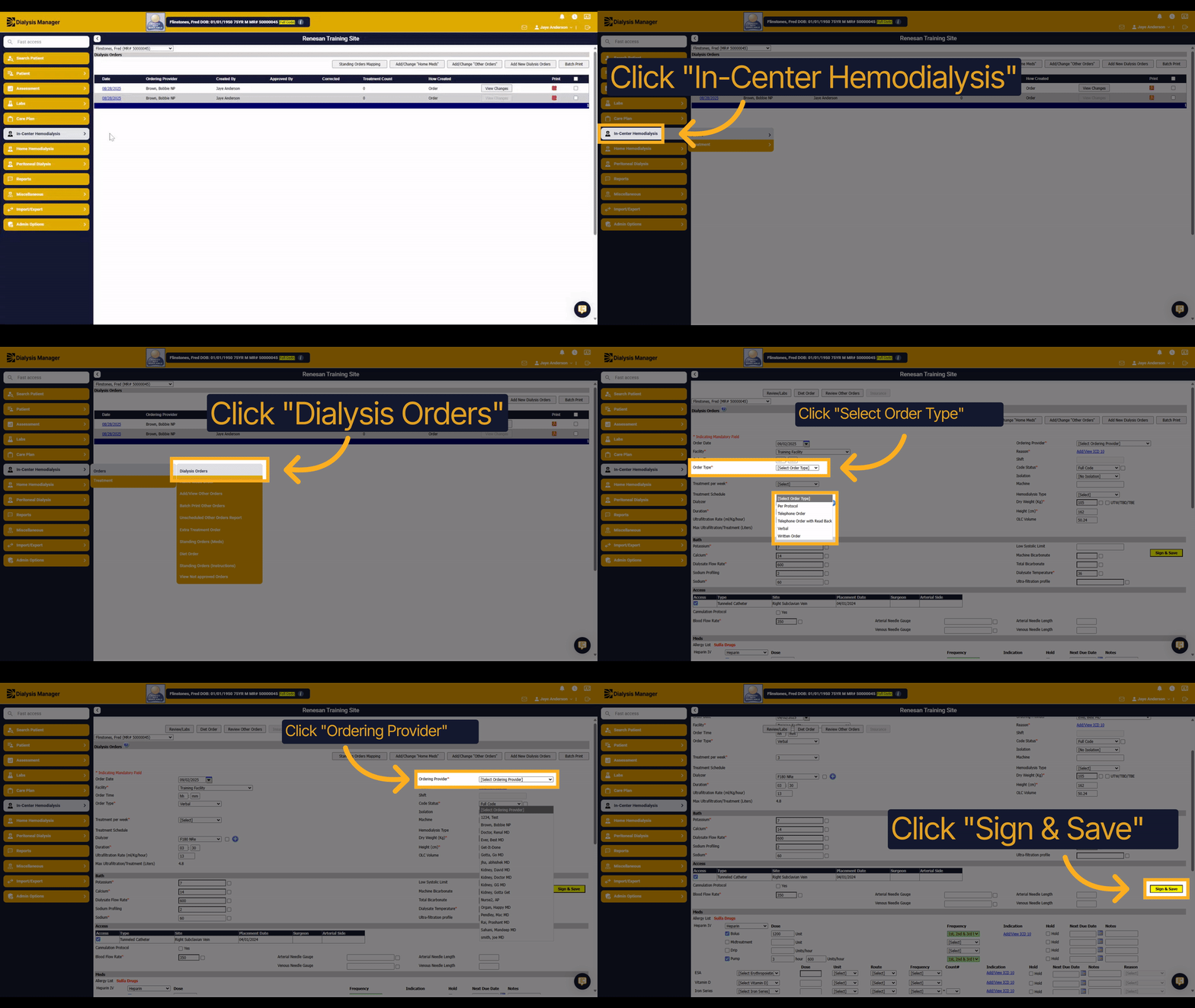
In this guide, you'll learn how to change an in-center hemodialysis order from the order screen in Dialysis Manager. The process involves selecting the order type and provider, making necessary adjustments, and saving the updated order to ensure accurate dialysis management.
2. Click "In-Center Hemodialysis"
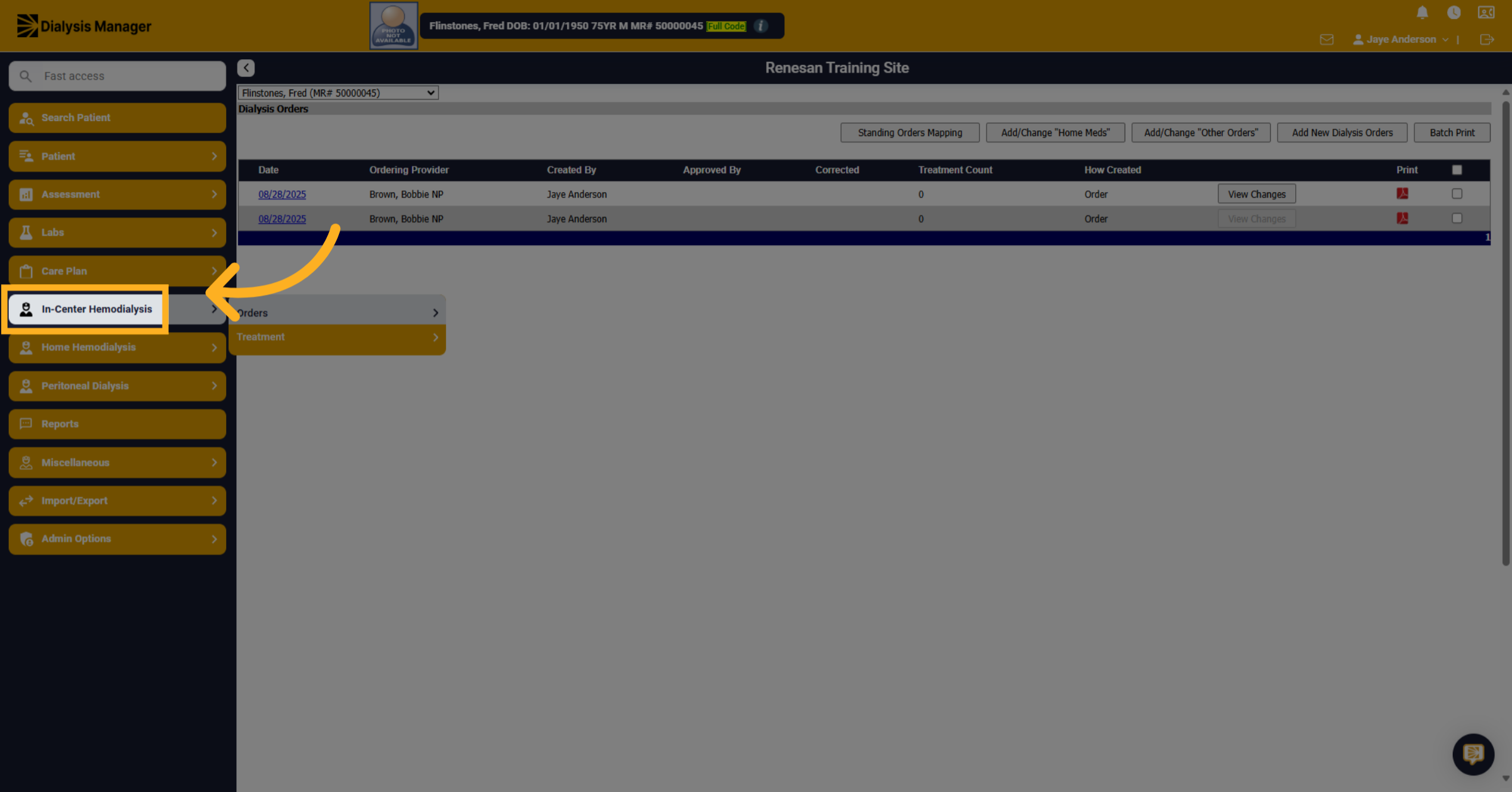
Click on the In-Center Hemodialysis section to begin managing dialysis orders.
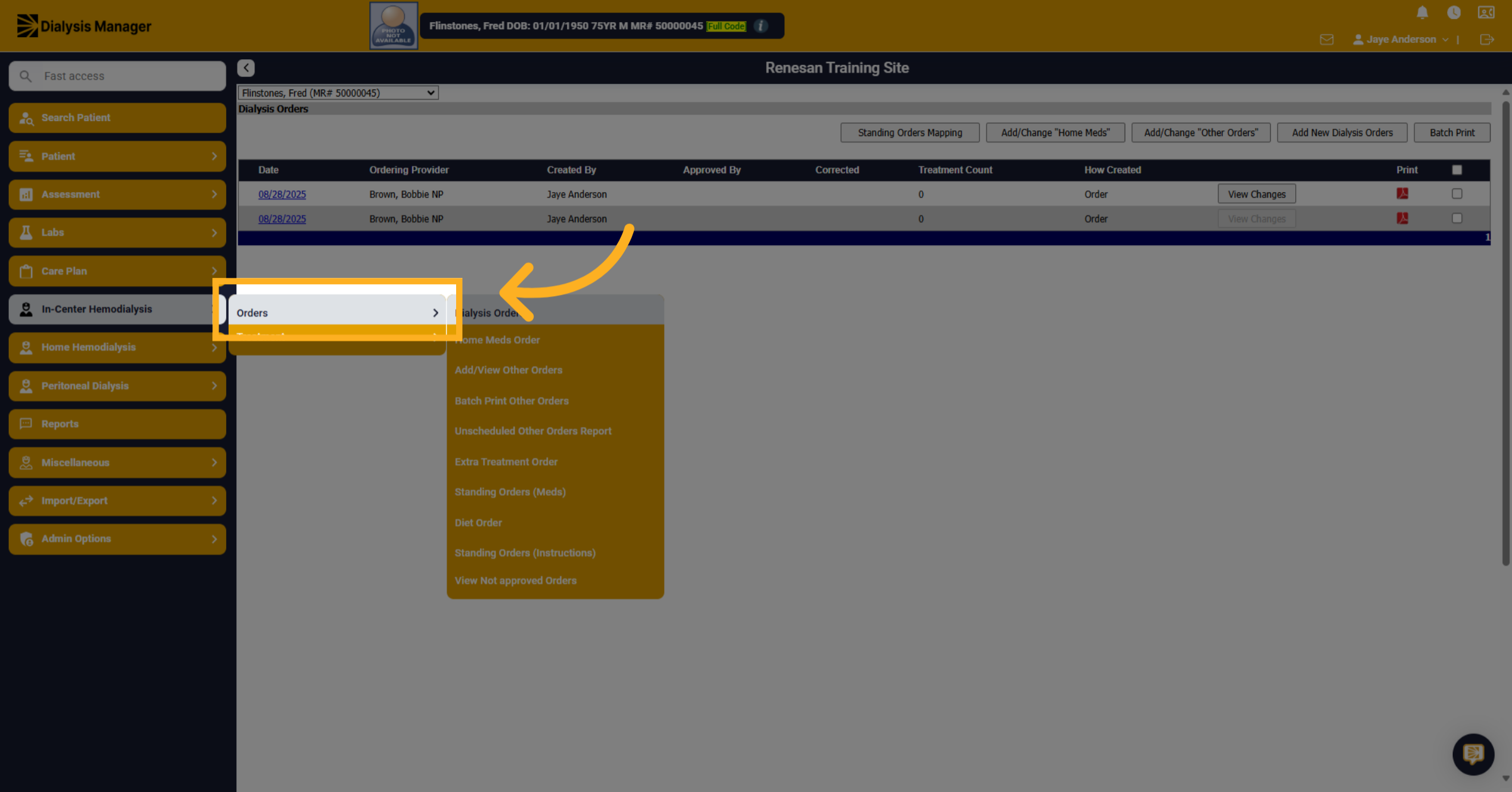
3. Click "Orders"
Click on the Orders tab to access order-related options.
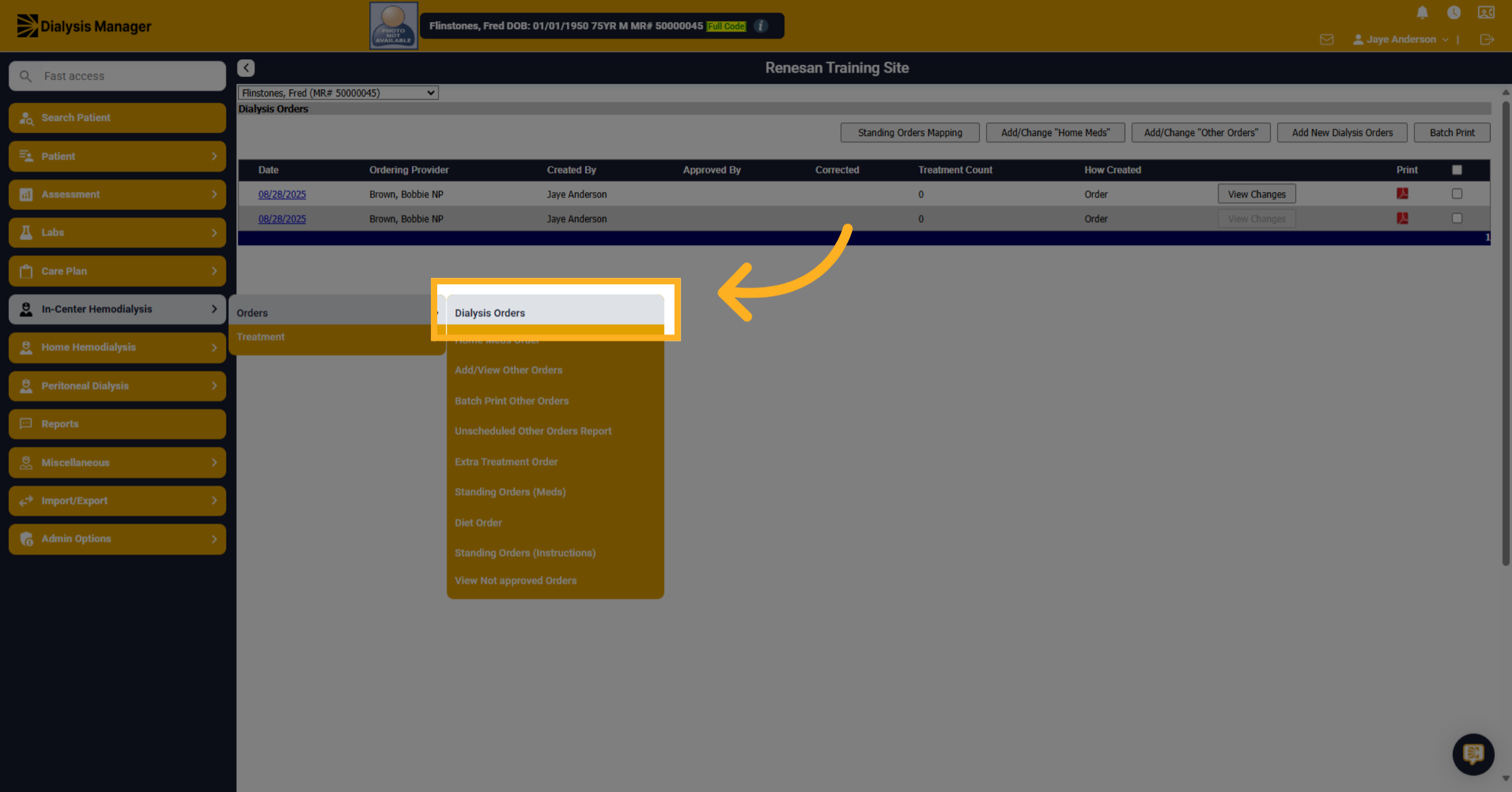
4. Click "Dialysis Orders"
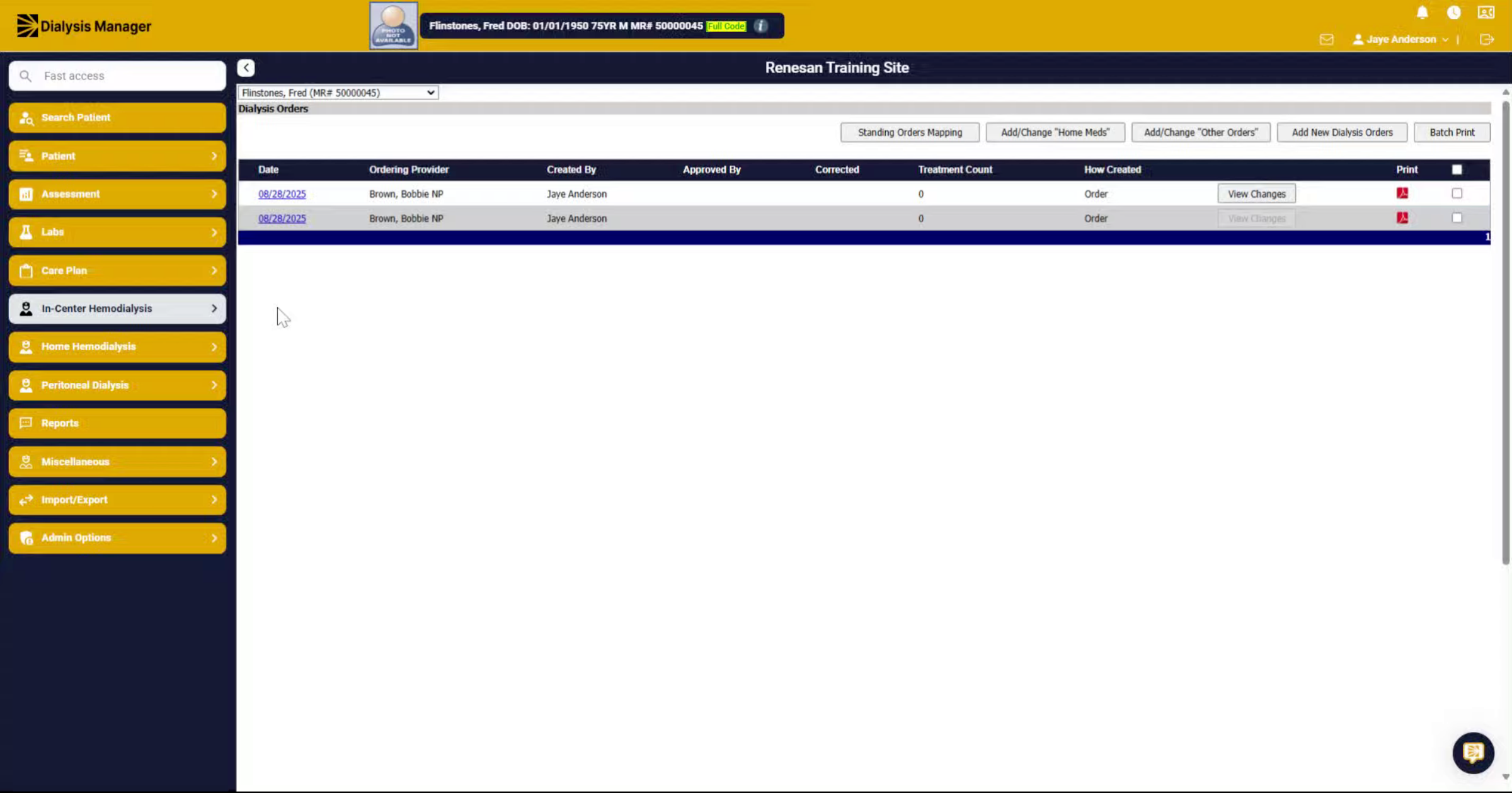
Select Dialysis Orders to view existing dialysis orders.
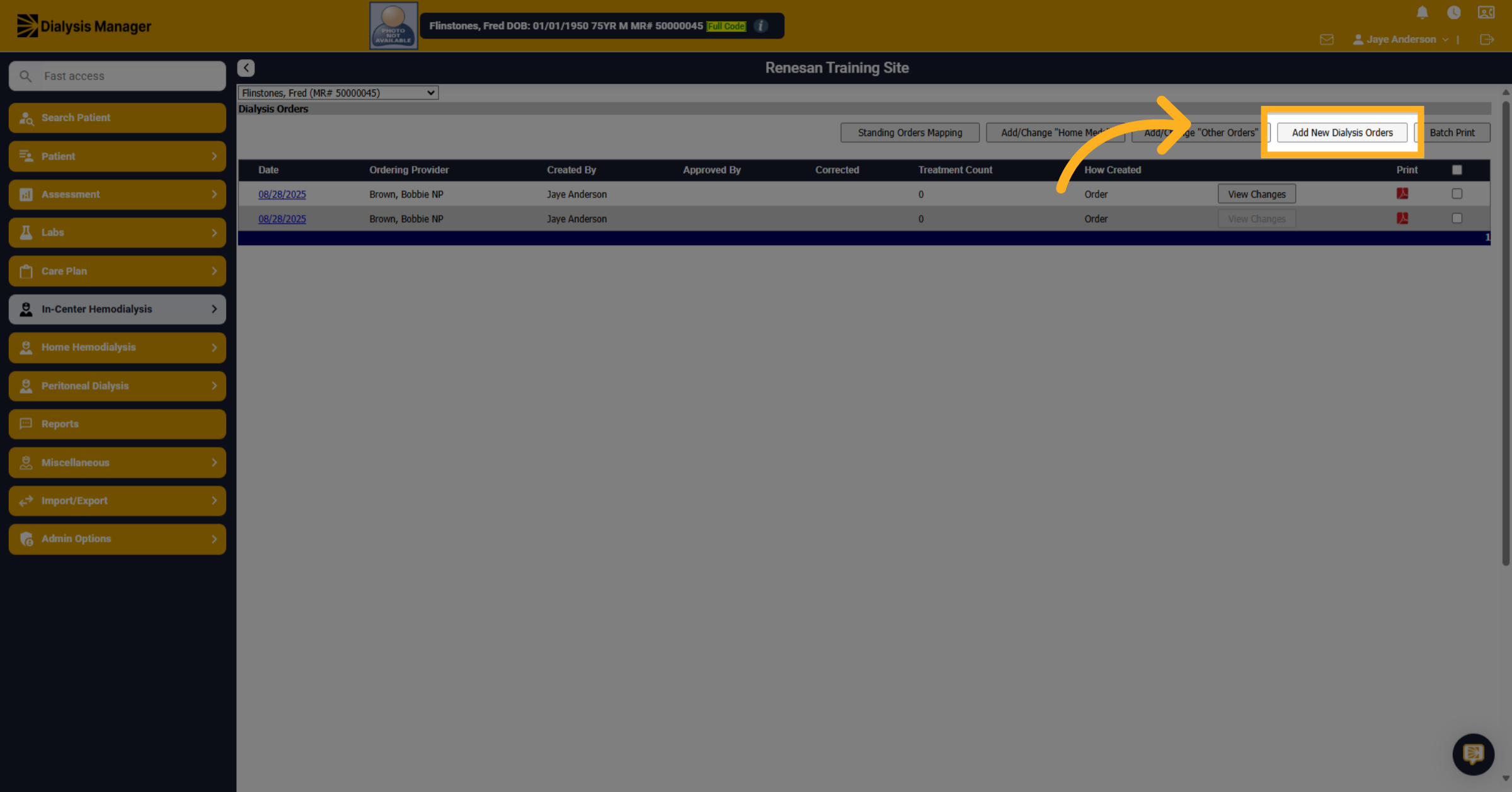
5. Click "Add New Dialysis Orders"
Click Add New Dialysis Orders to update the current order entry. Clicking the hyperlink or date will edit the previous dialysis order entry.
6. Click "[Select Order Type]"
Click the Order Type dropdown to view available order types. Select the appropriate order type from the list, such as Per Protocol or Telephone Order.
![Click '[Select Order Type]'](https://knowledgetest.renvio.com/hubfs/Intercom%20knowledge%20base/qg-2FIroXeNJHrNYcFwtsPJSFDGN82g23-2FcY2AC3F7Lr5YDuu7XxWAnG-2F9PrssVXRbPKhJpTYWvH55c_doc.png)
7. Click "[Select Ordering Provider]"
Click the Ordering Provider dropdown to choose the provider responsible for the order. Select the ordering provider from the list of available providers.
![Click '[Select Ordering Provider]'](https://knowledgetest.renvio.com/hubfs/Intercom%20knowledge%20base/qg-2FIroXeNJHrNYcFwtsPJSFDGN82g23-2FcY2AC3F7Lr5YDuu7XxWAnG-2Fs9ftKYz75xLGzADsk5La8N_doc.png)
8. Fill "32"
Fill in the new value as needed to update the order details.
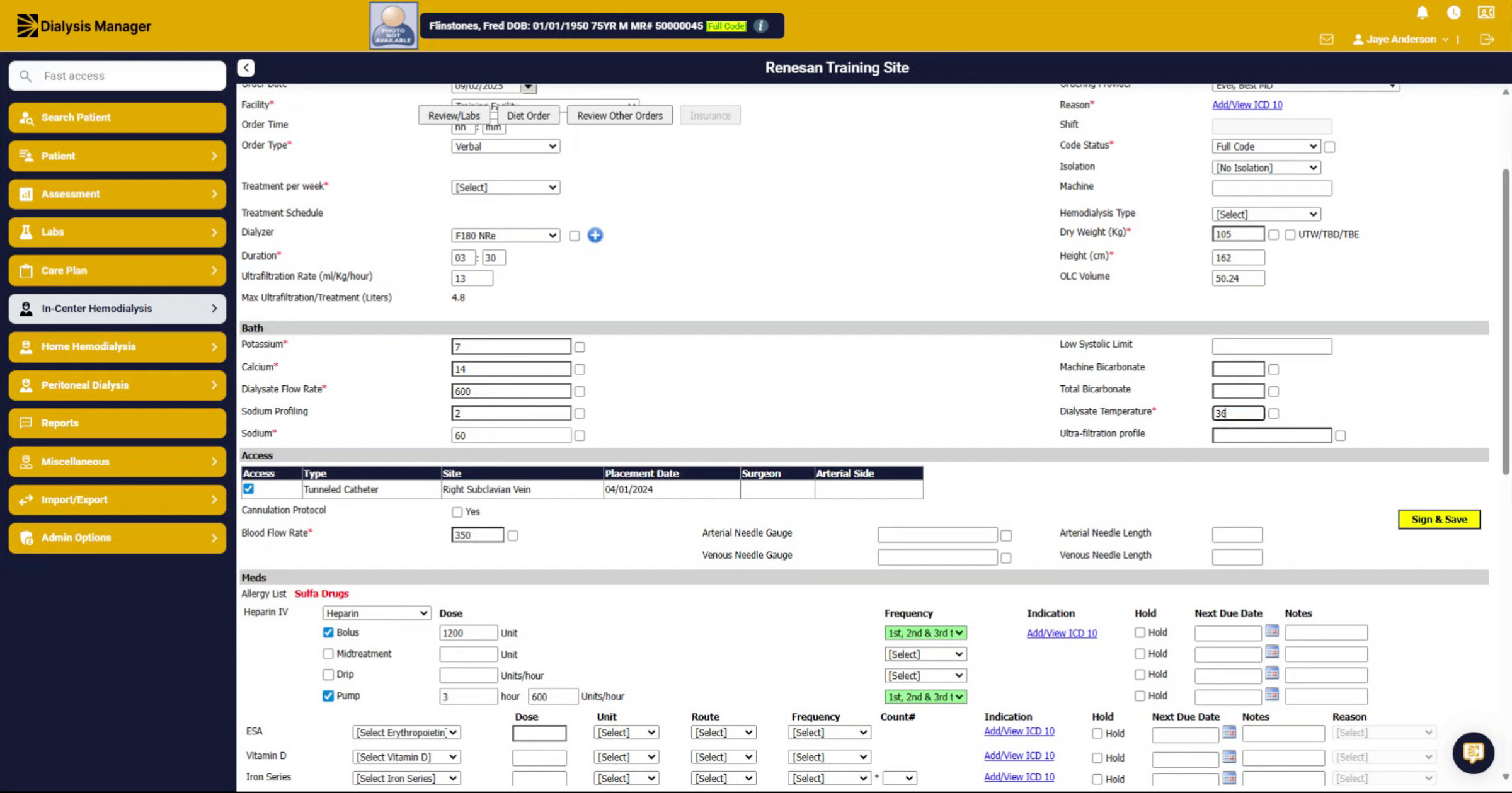
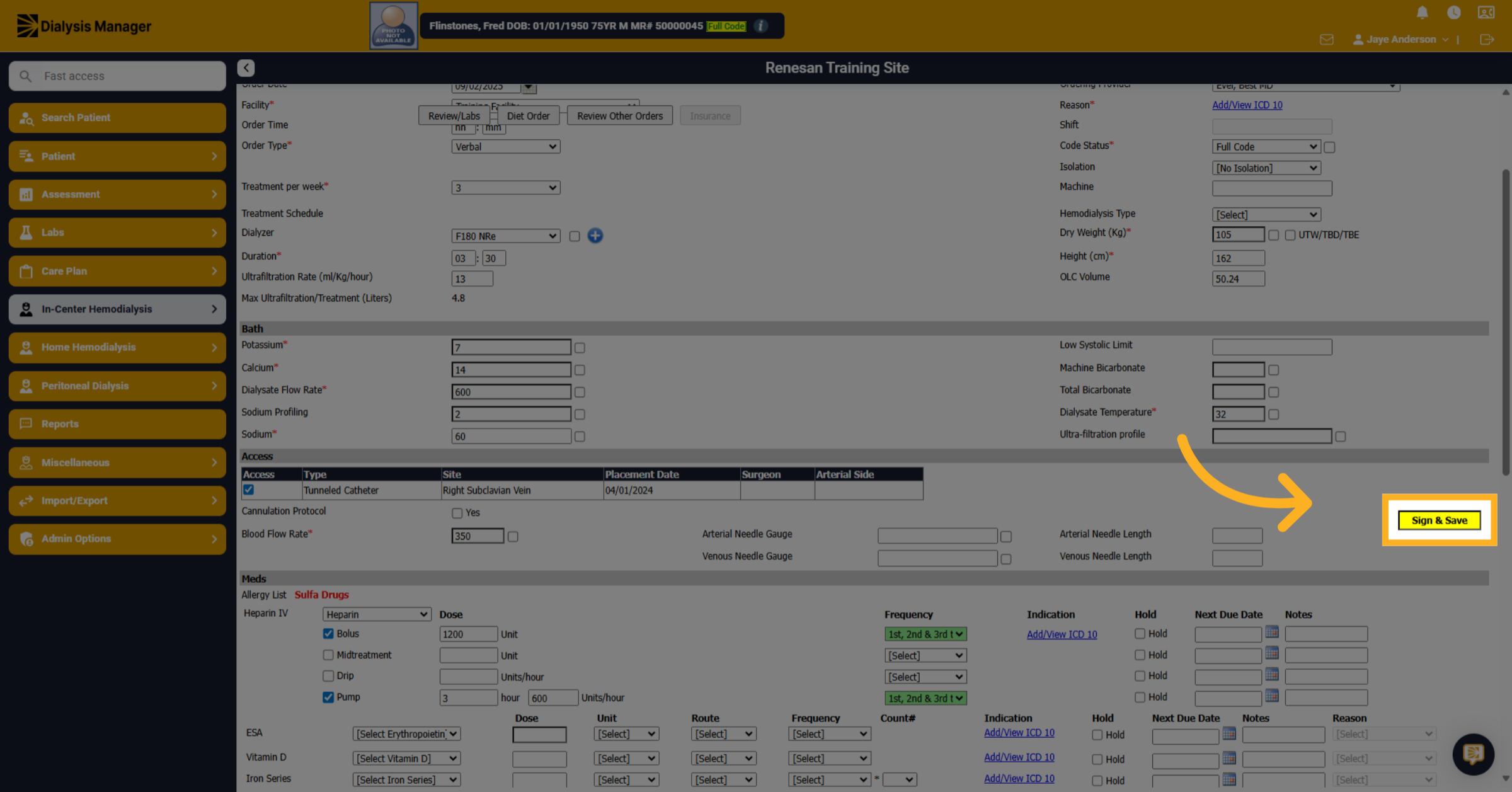
9. Click "Sign & Save"
Click Sign & Save to finalize and save all changes to the dialysis order.