Capturing the Post Treatment Information..
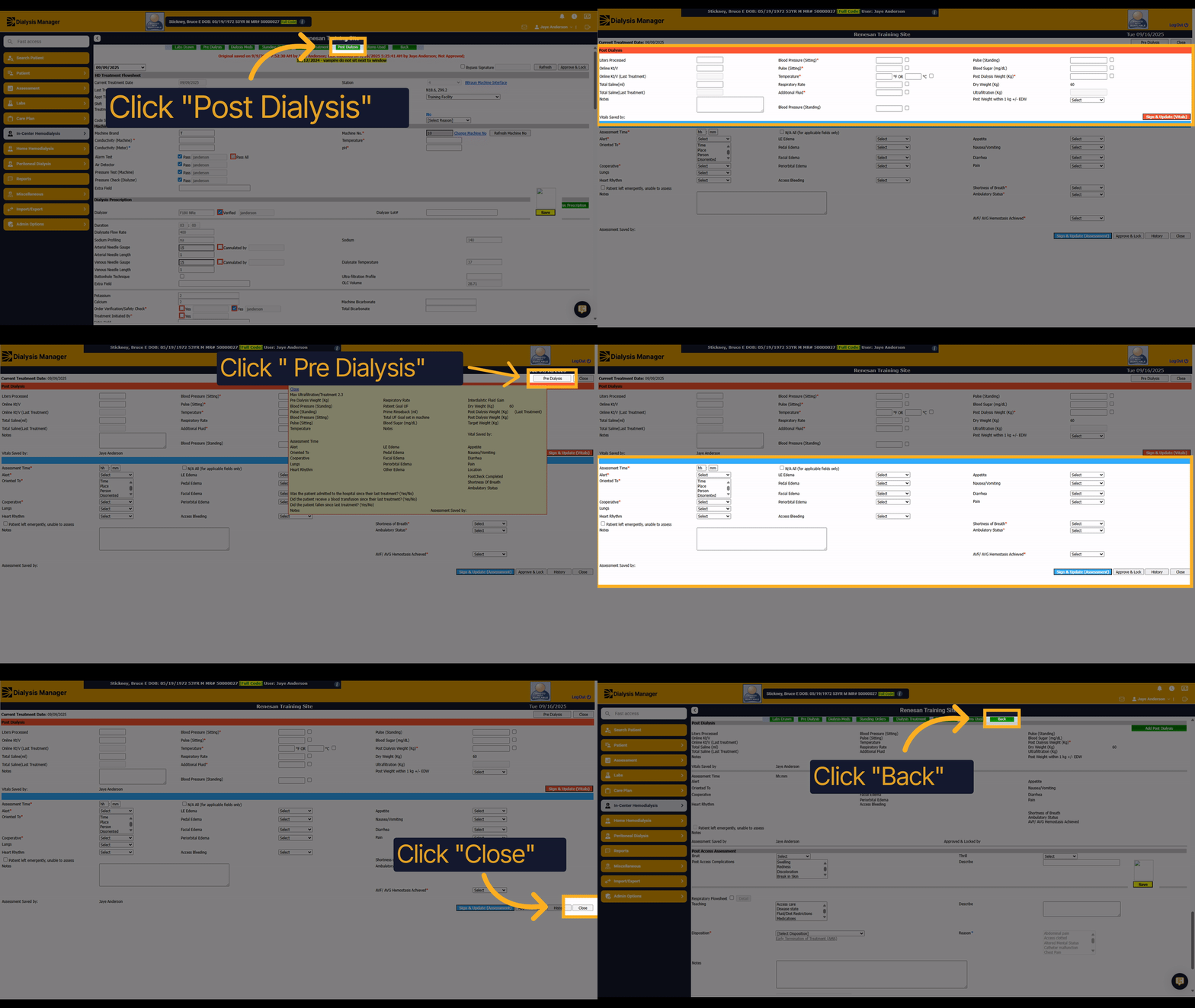
1. Click "Post Dialysis"
Click "Post Dialysis" to access the post dialysis section.
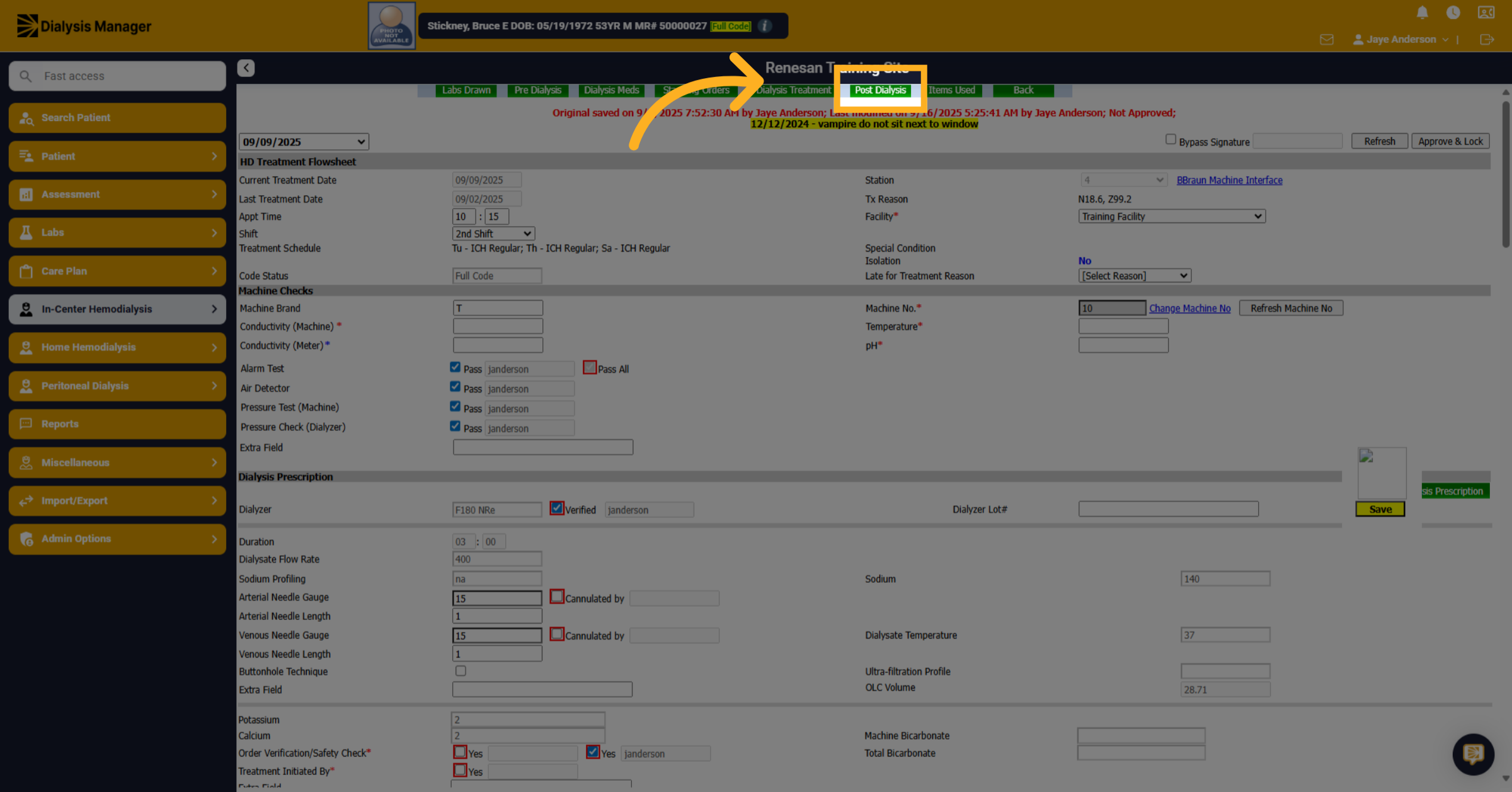
2. Click "Post Dialysis"
The top Red section is typically completed by the dialysis technician. Keep in mind, anything that has a red asterisk will be required before the nurse is able to Approve and lock the flow sheet.
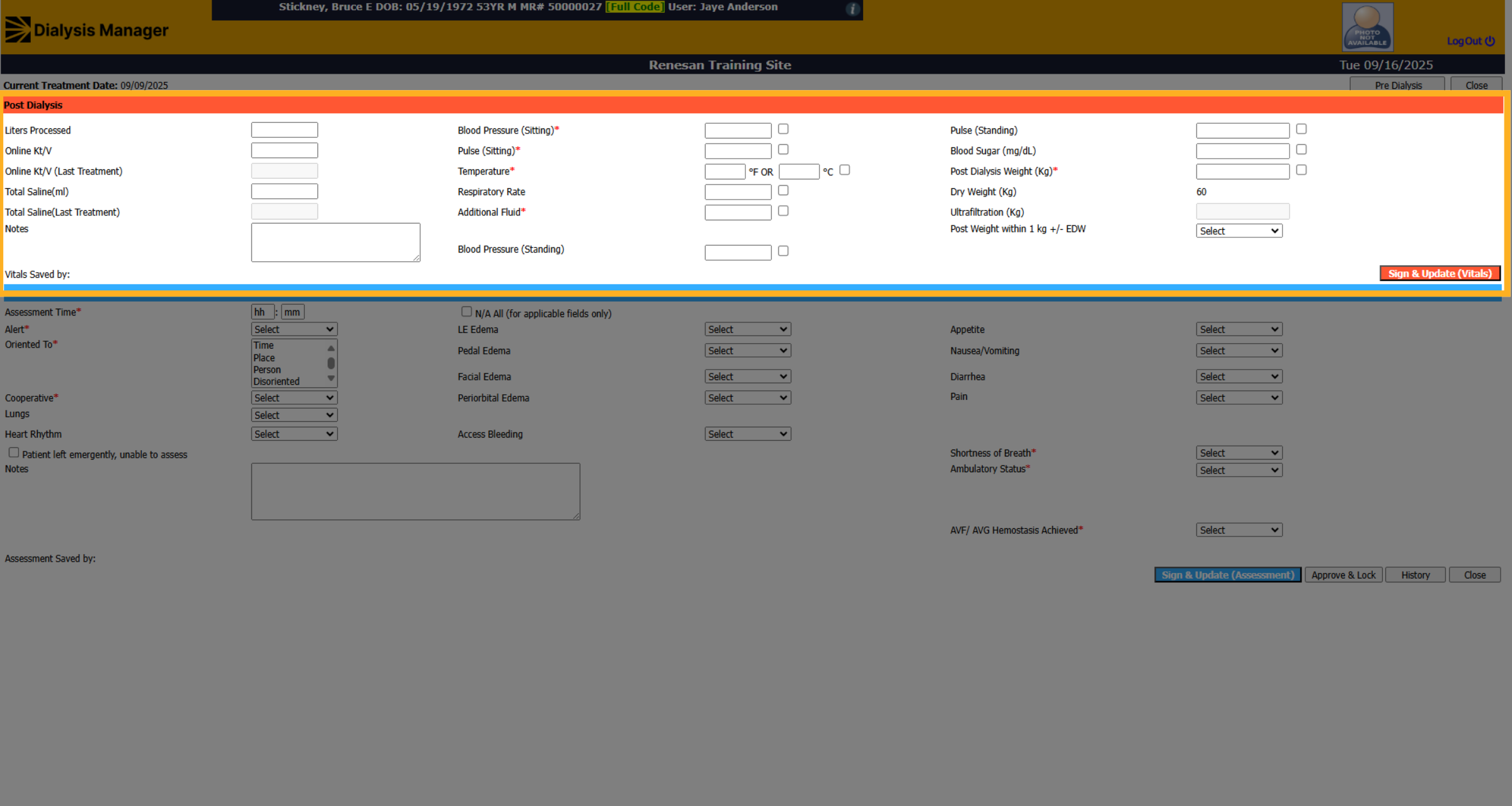
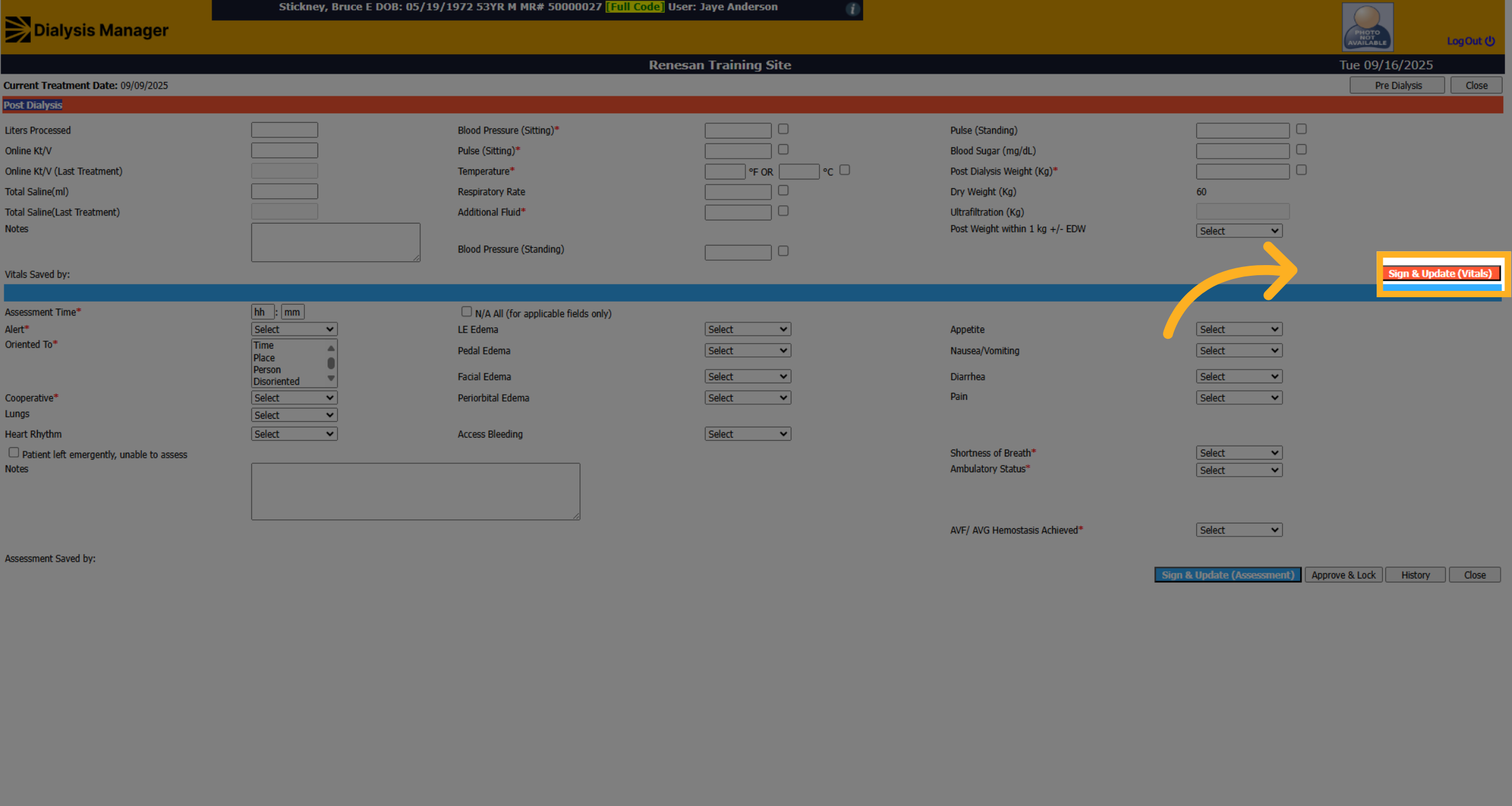
3. Click "Sign & Update (Vitals)"
Click "Sign & Update (Vitals)" to sign and save the top red section.
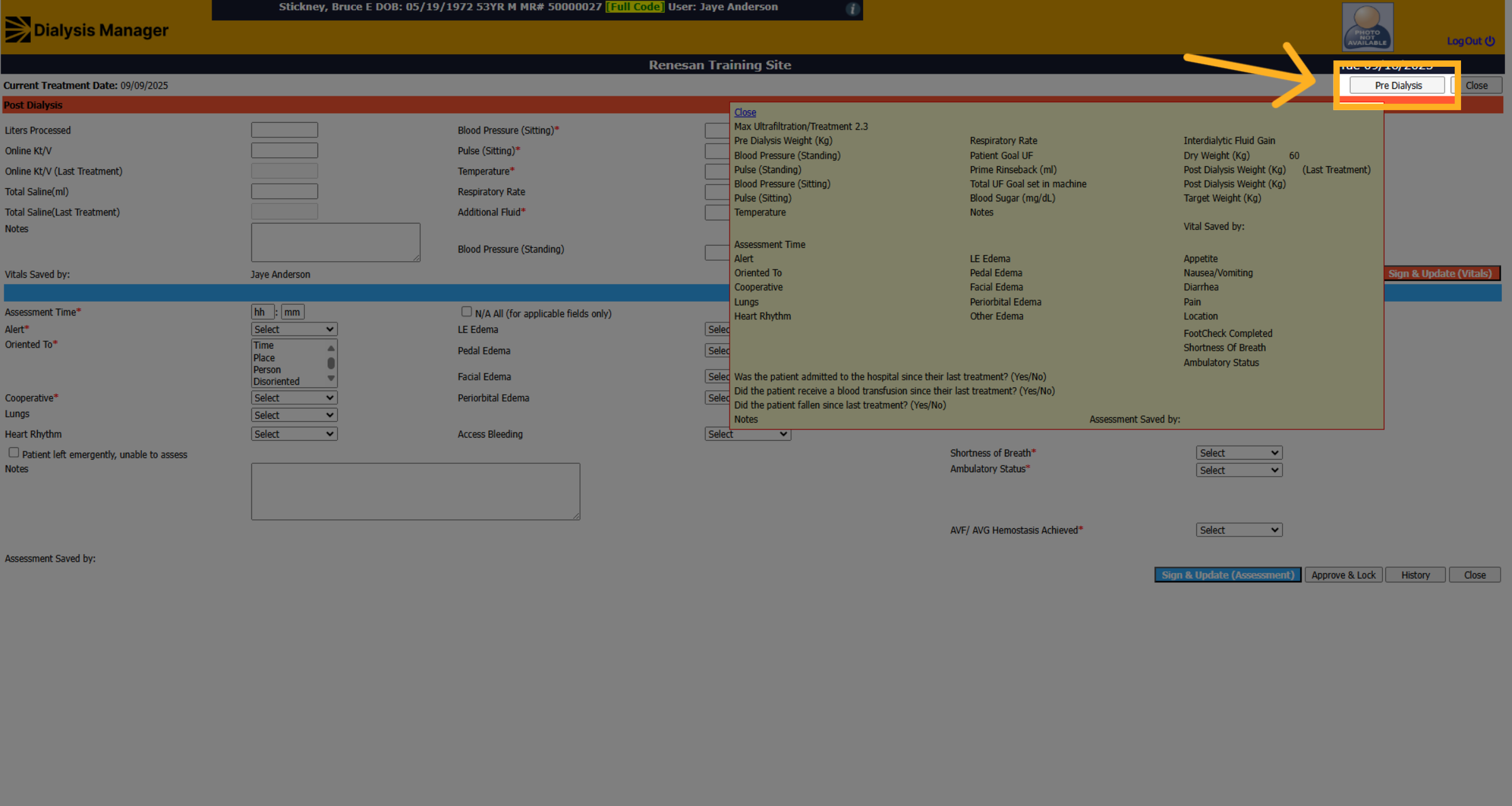
4. Click " Pre Dialysis"
Click or hover over the " Pre Dialysis" button to view the pre-dialysis information you may want to review.
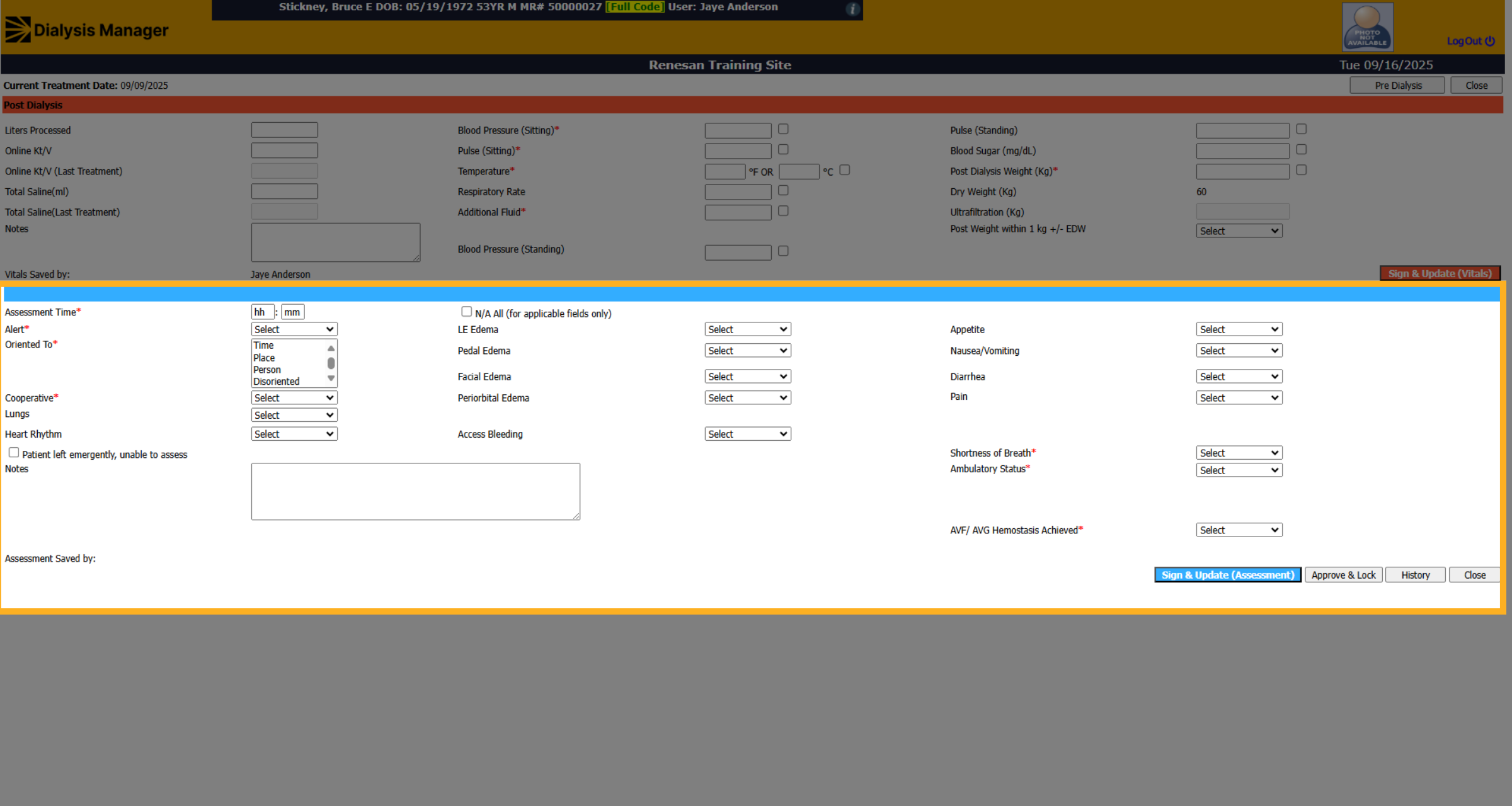
5. Click "Assessment Time*"
The bottom section, marked in blue, is typically completed by a nurse. Again, anything with a red asterisk is required before the flow sheet can be approved and locked.
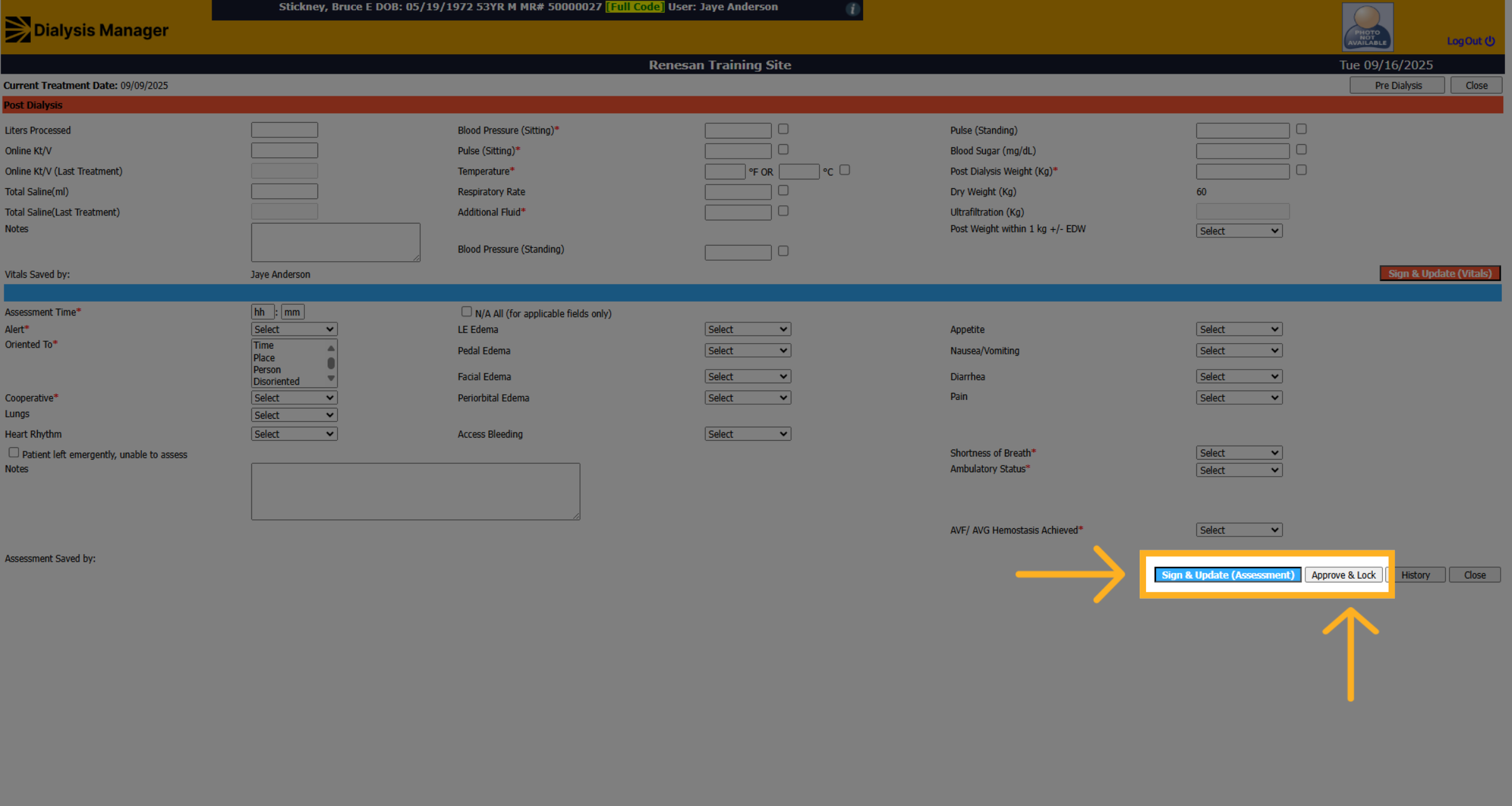
6. Click "Sign & Update (Assessment)"
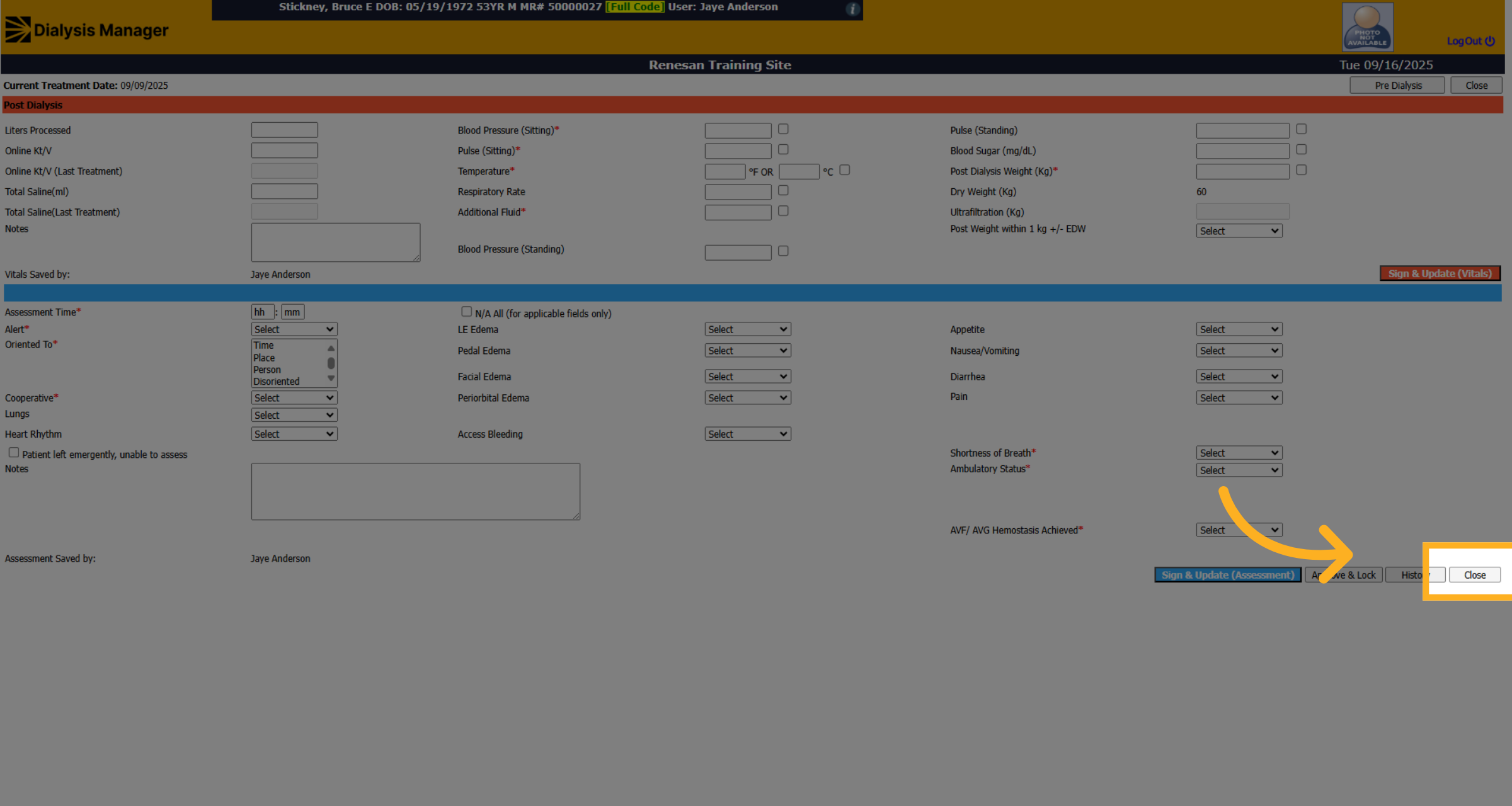
Click the Blue "Sign & Update (Assessment)" to sign and save the blue assessment section. Then Click "Approve & Lock" to finalize and secure the Post Dialysis Section. This ensures no further changes can be made without proper authorization.
7. Click "Close"
Click "Close" to exit the current window after locking the flow sheet.
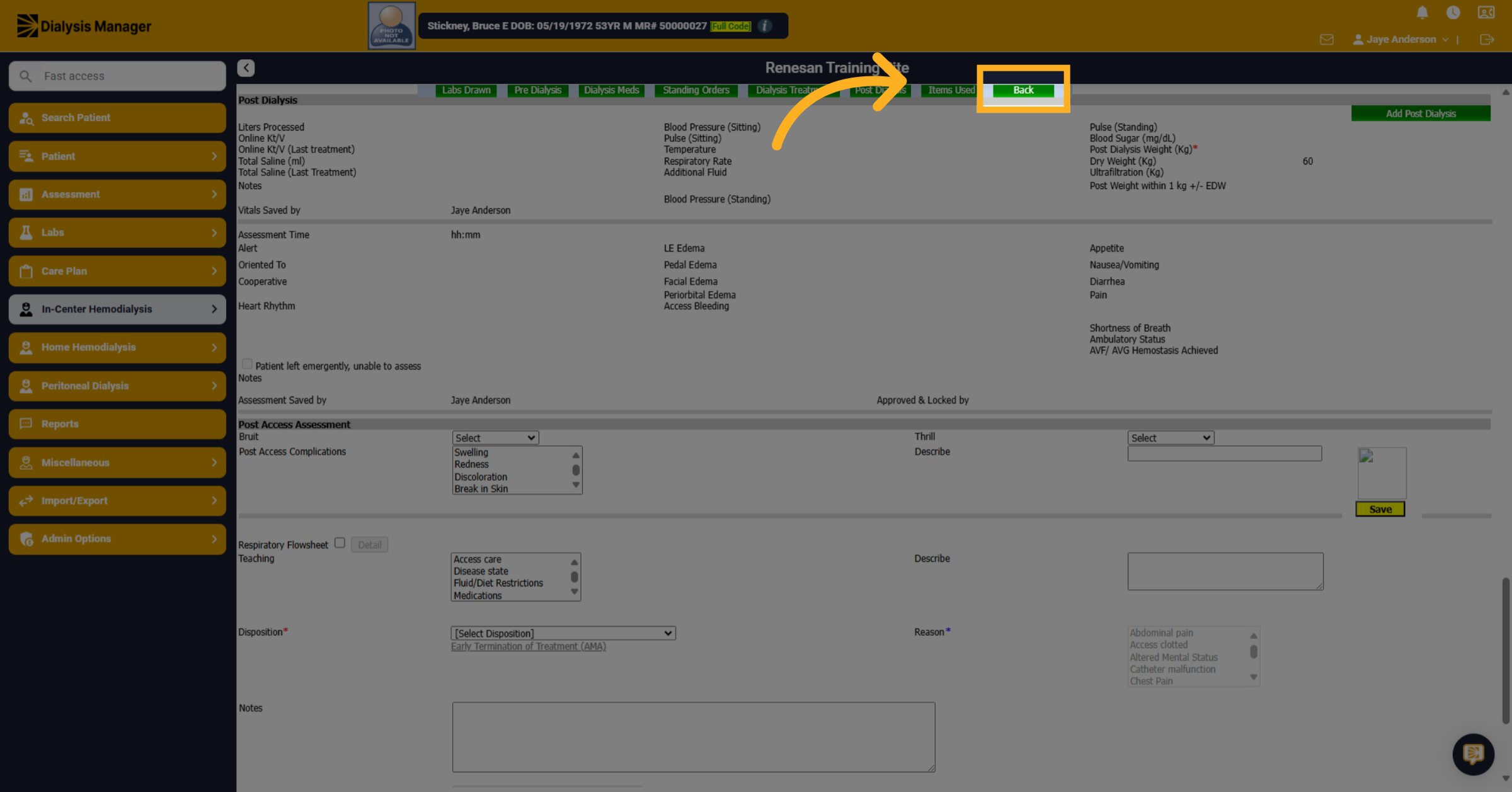
8. Click "Back"
Click "Back" to return to the treatment by date screen.