Batch Print Labs.
1. Introduction
This tutorial guides you through the process of batch printing lab results.
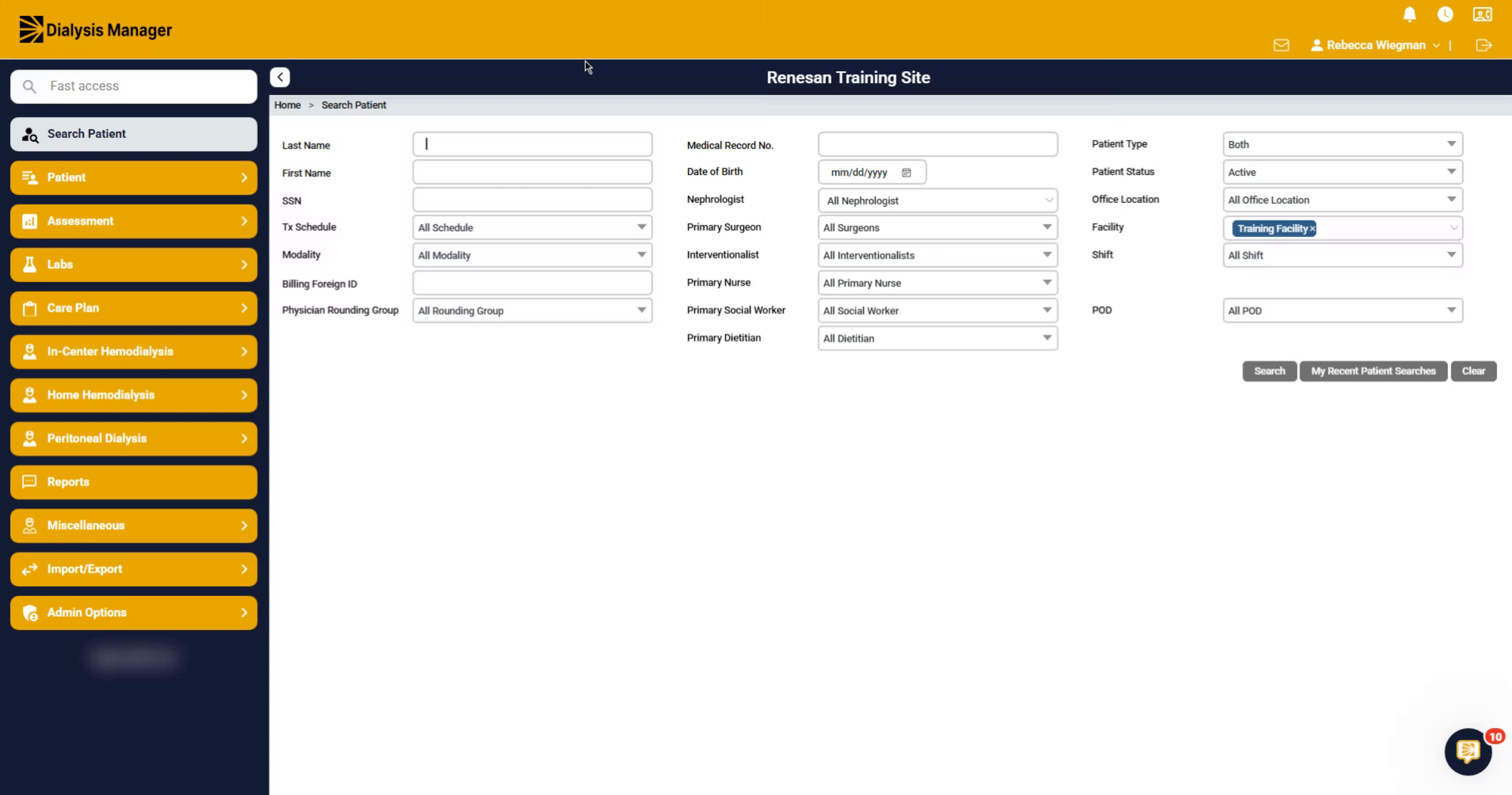
2. Navigate to
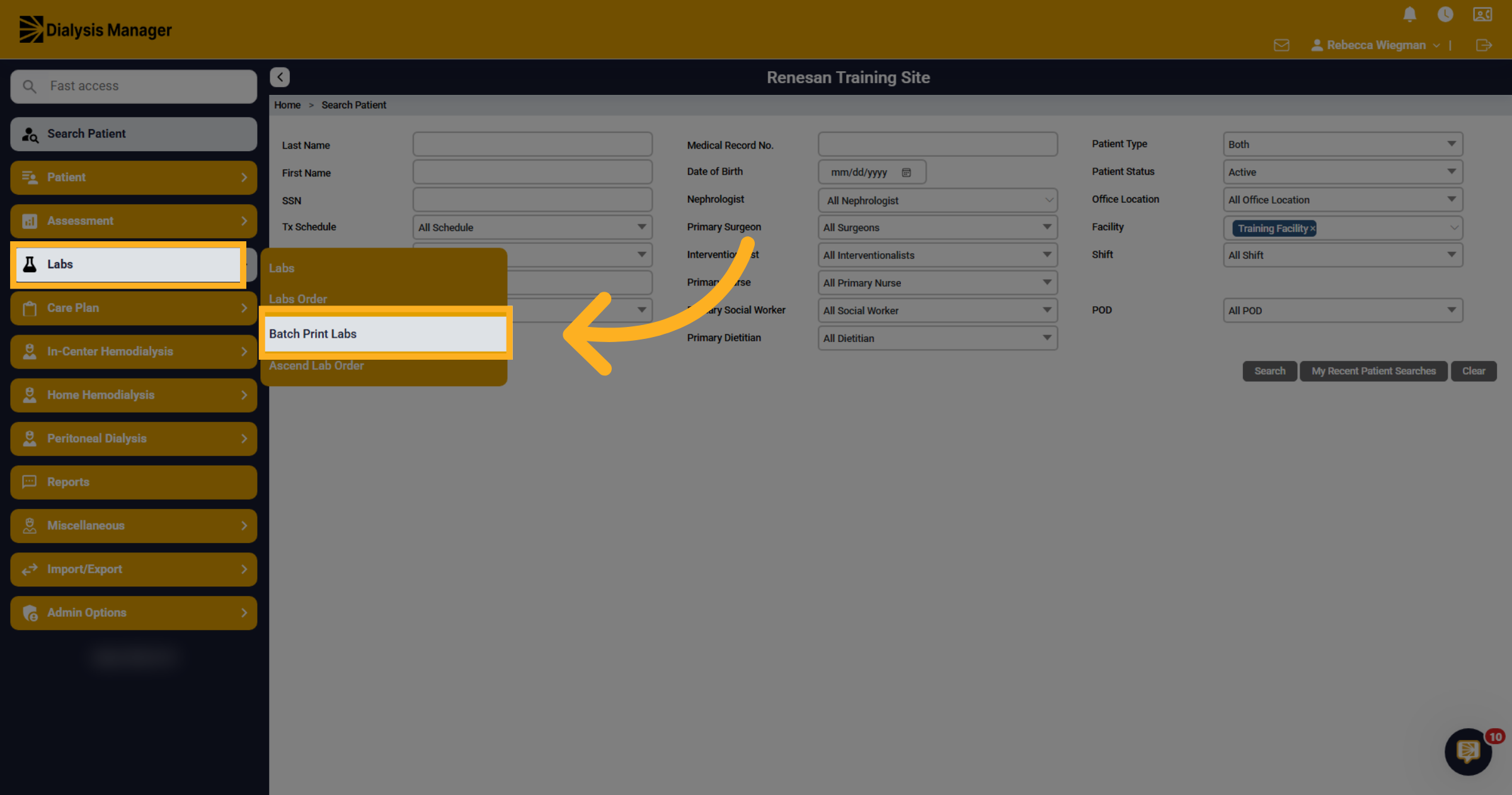
Open Labs and then click Batch Print Labs to begin the batch printing process for lab results.
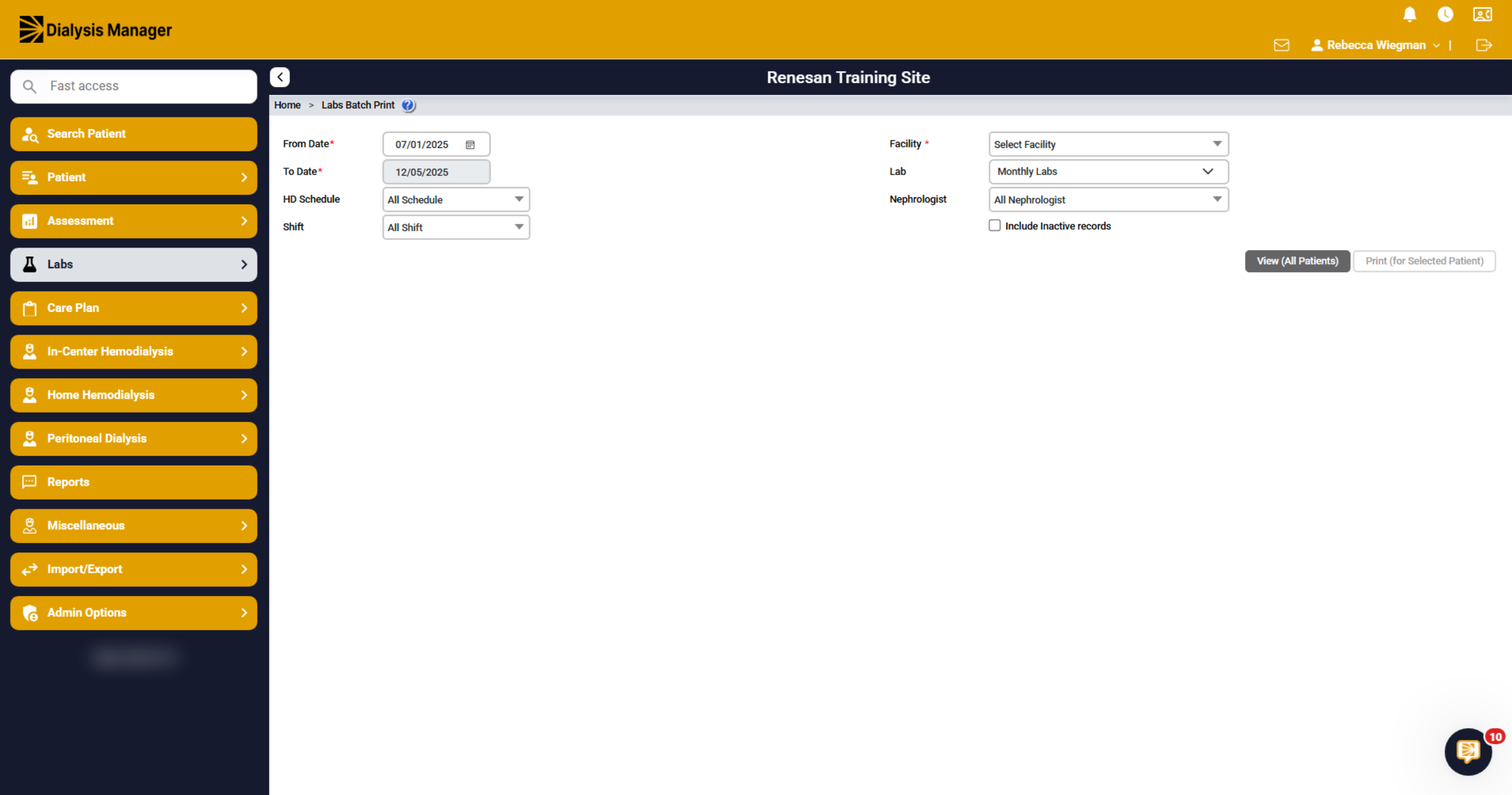
3. Batch Print Labs
You'll be able to select a 6-month date range for the information you would like to see.
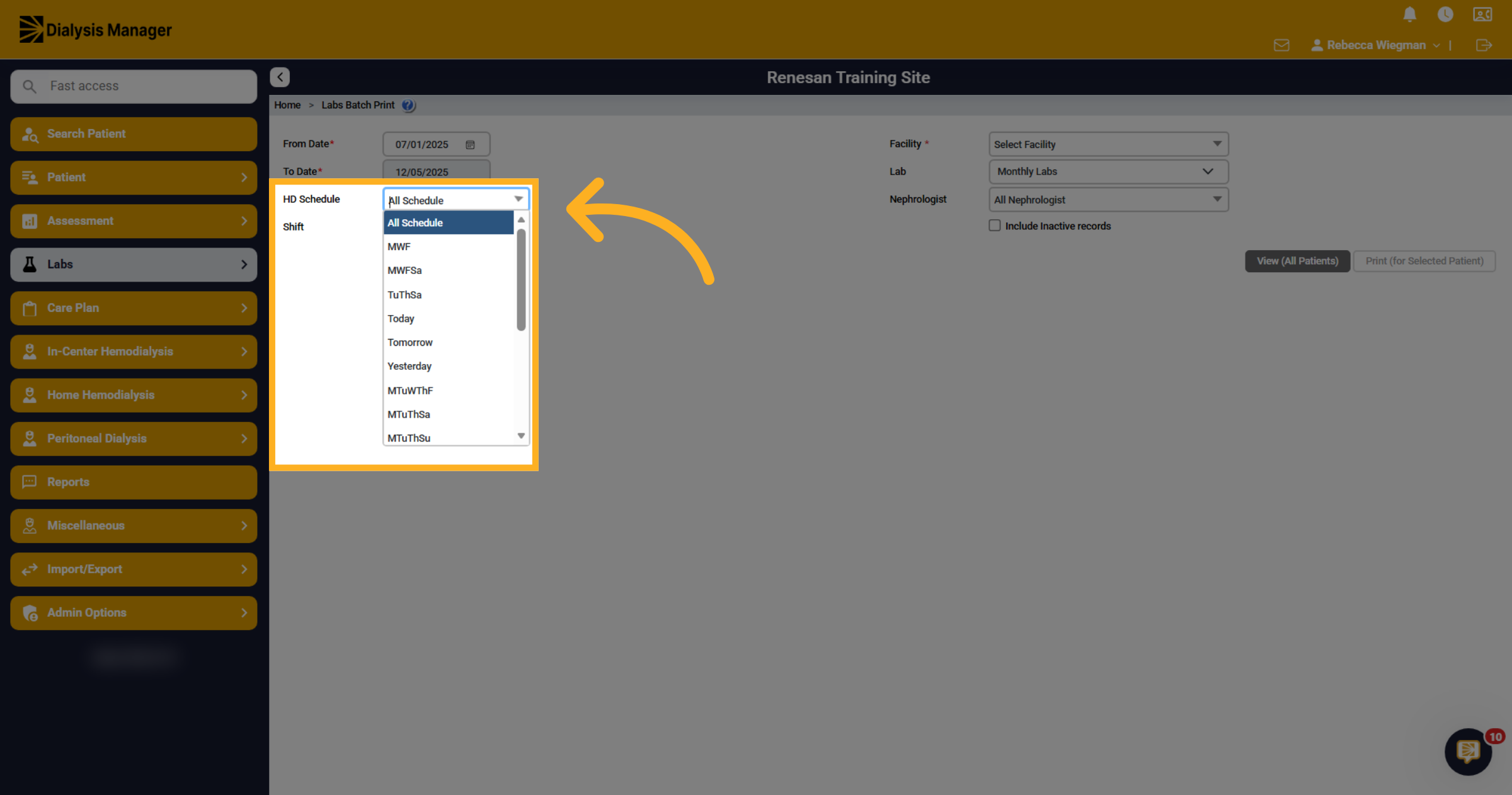
4. HD Schedule
You can choose to select a specific HD Schedule or leave defaulted to All Schedule.
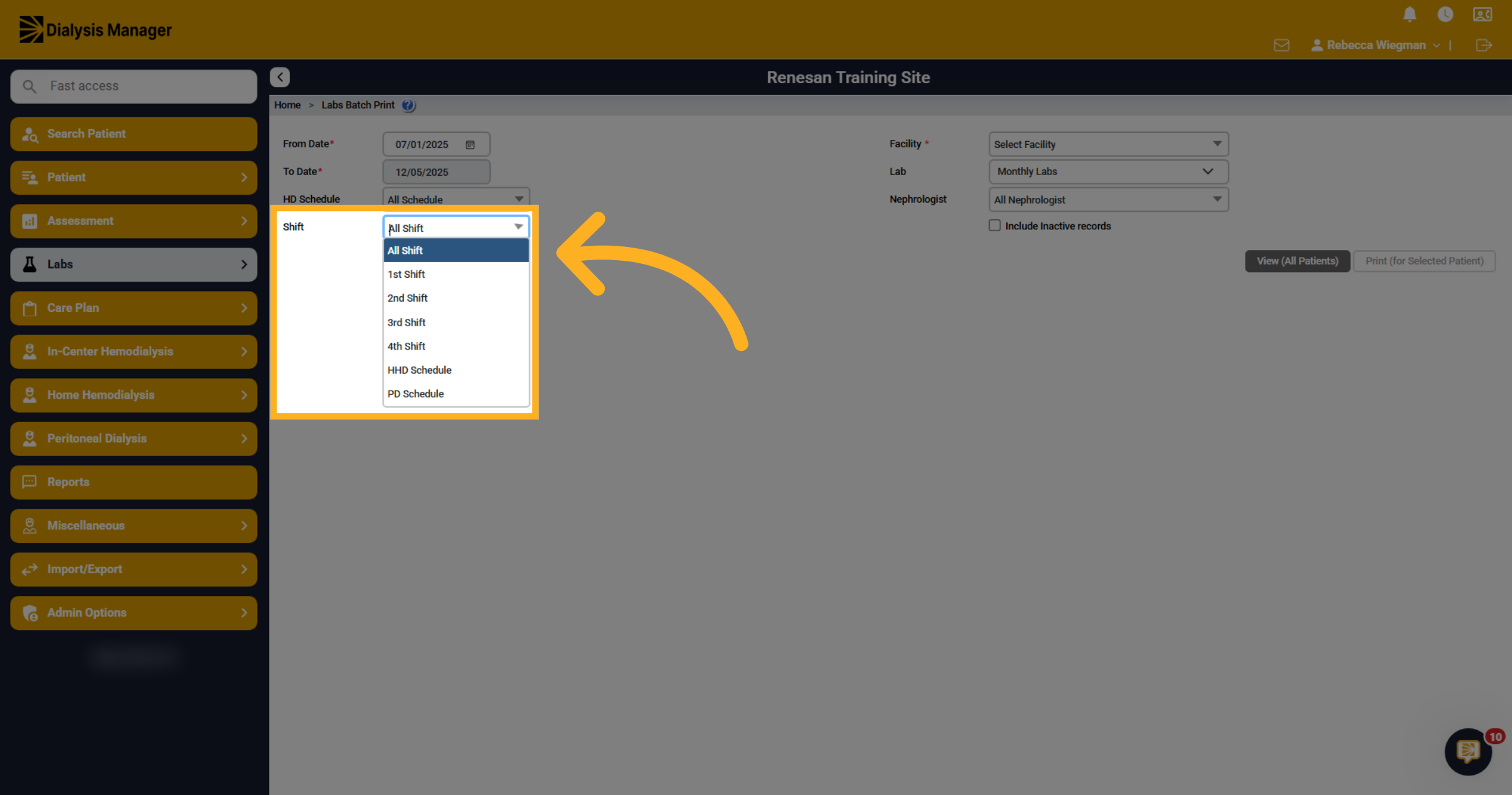
5. Shift
The Shift is defaulted to All but your able to narrow it down to a specific shift.
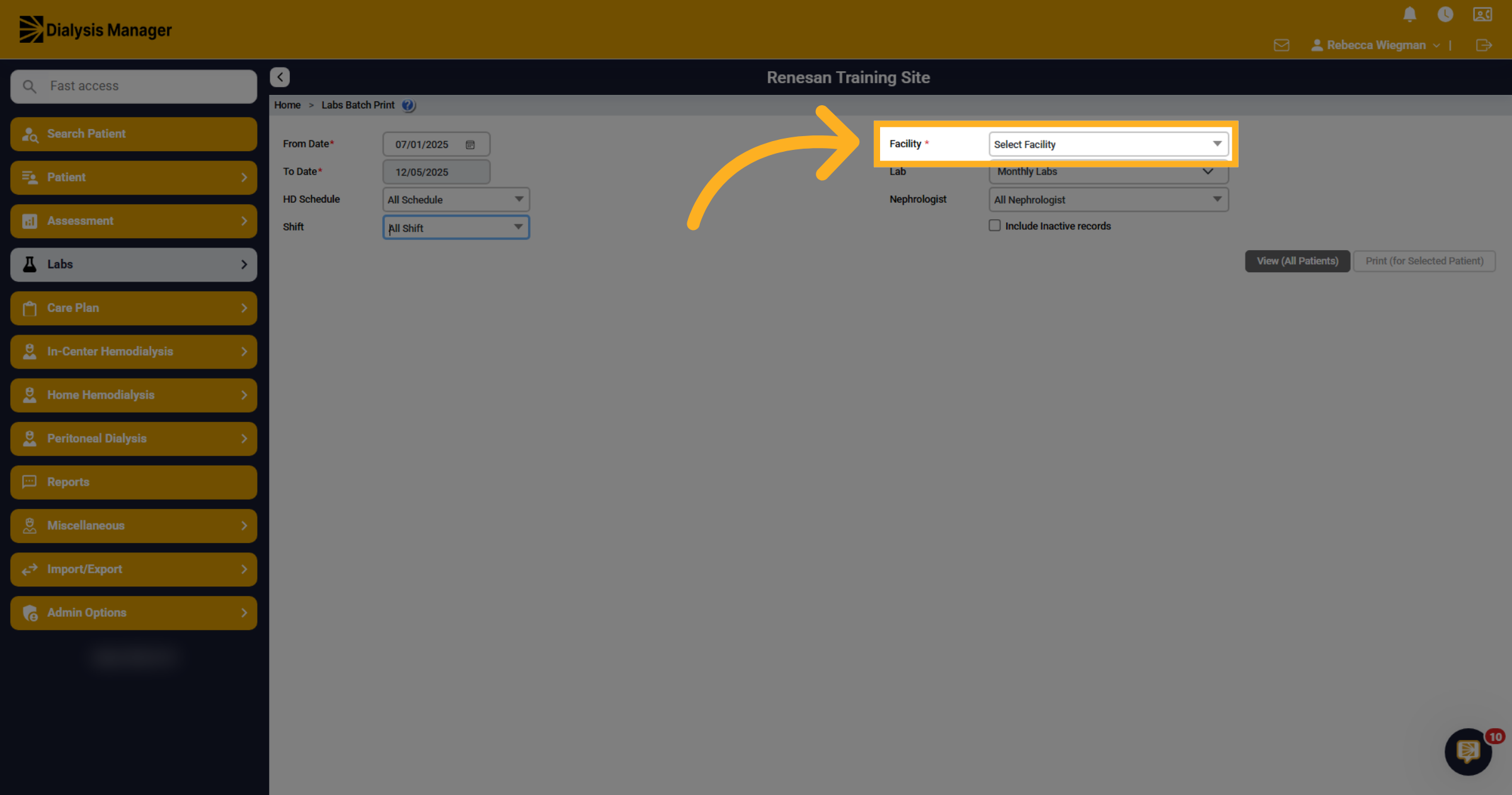
6. Facility
If you are associated to more than one facility, you'll need to select a Facility.
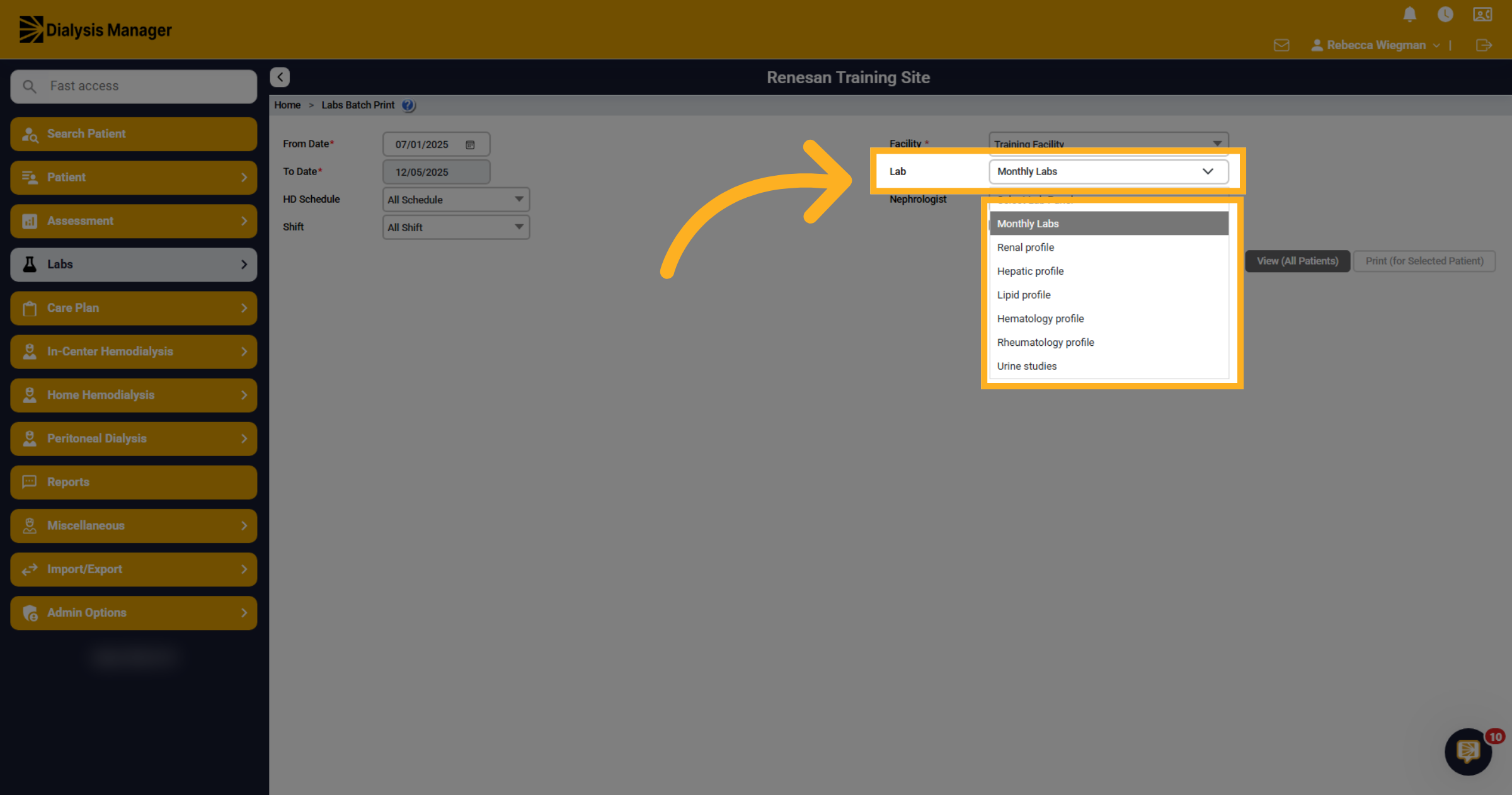
7. Choose Lab Panels
Select the lab panels such as Monthly Labs, Renal profile, Hepatic profile, Lipid profile, Hematology profile, Rheumatology profile, and Urine studies for specific lab results.
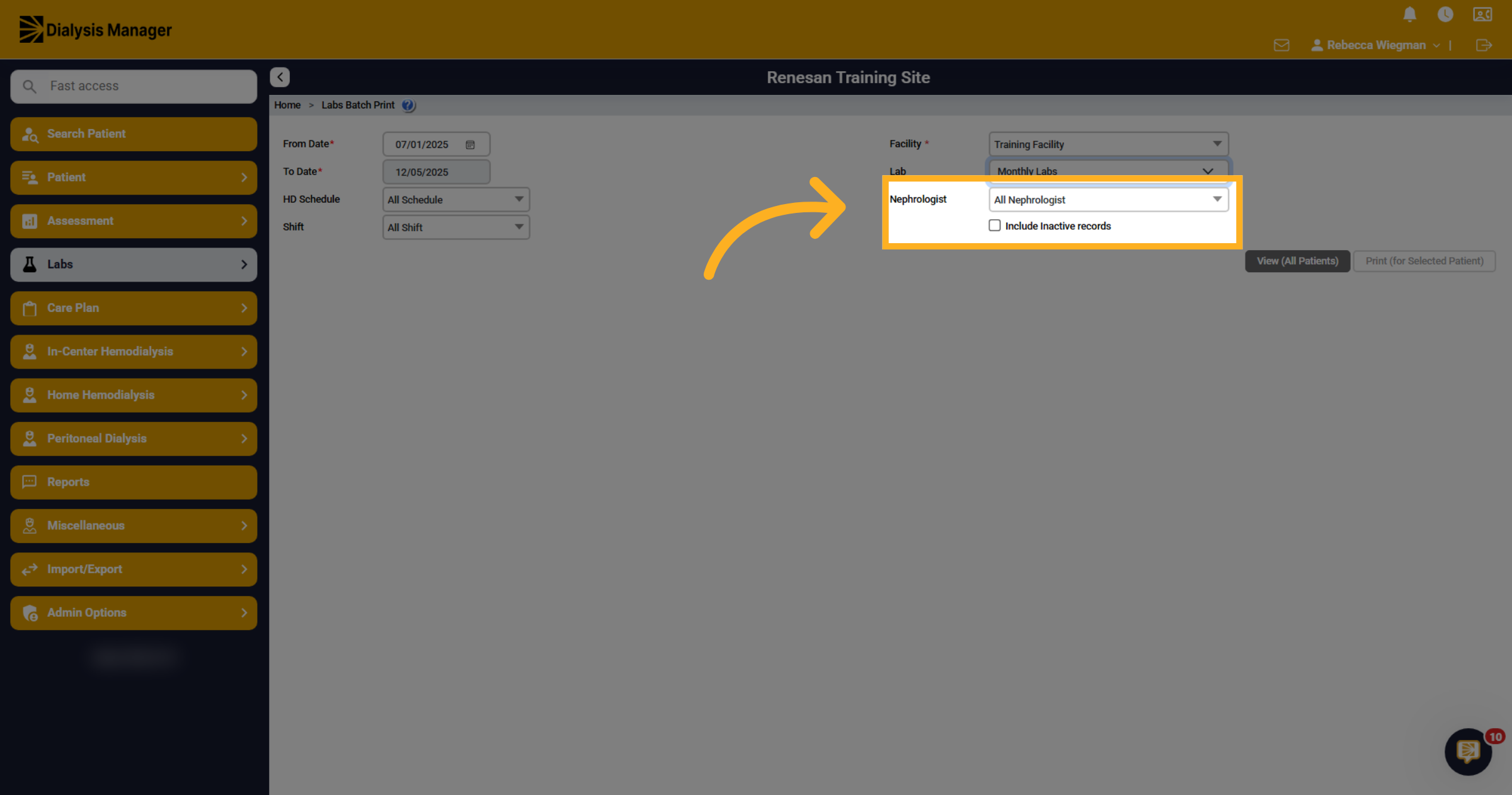
8. Enable Inactive Records
You can select a specific Nephrologist and also select to Include Inactive records to ensure all relevant patient data is included.
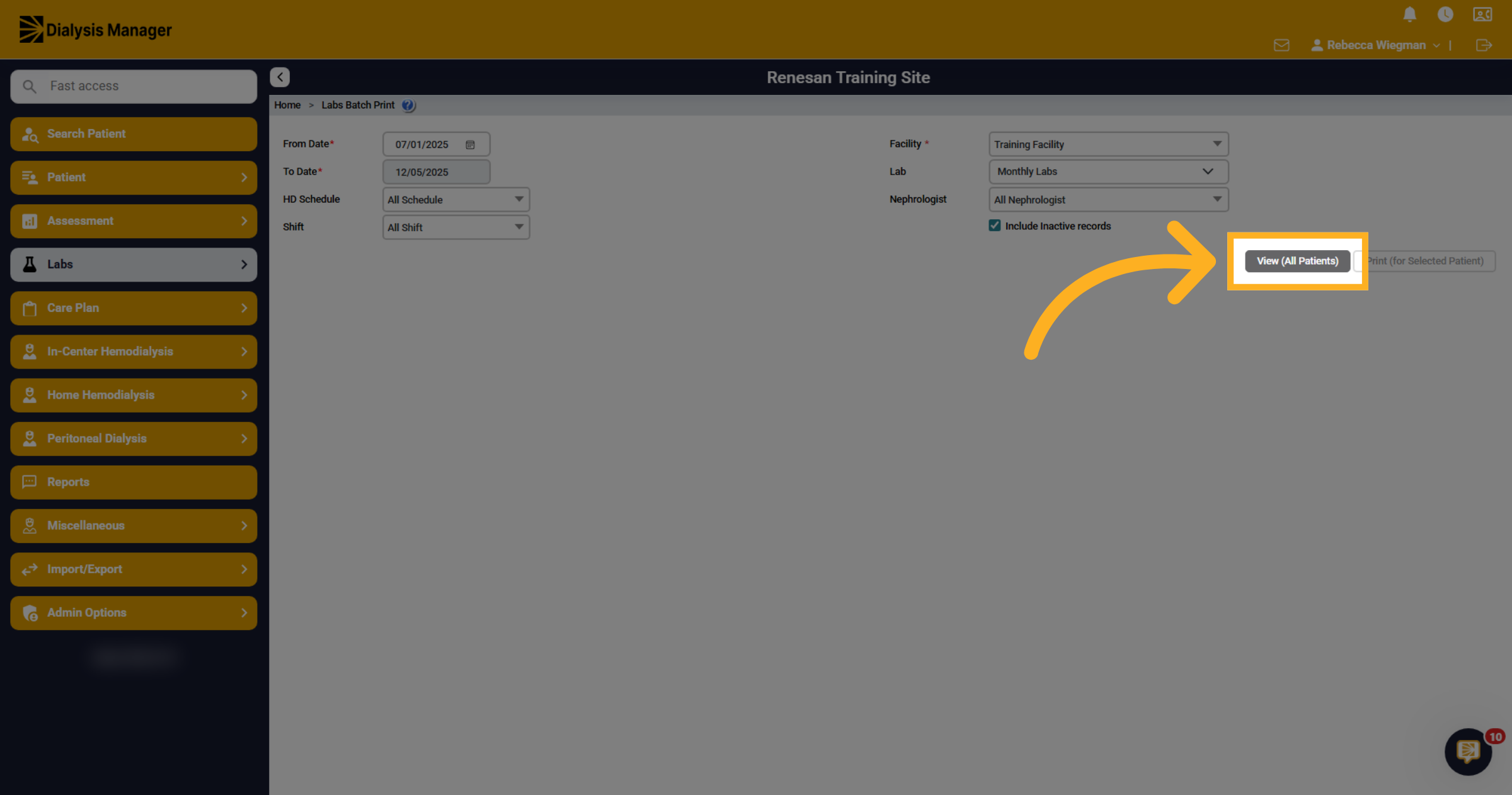
9. View All Patients
Click View (All Patients) to display the complete list of patients for batch printing.
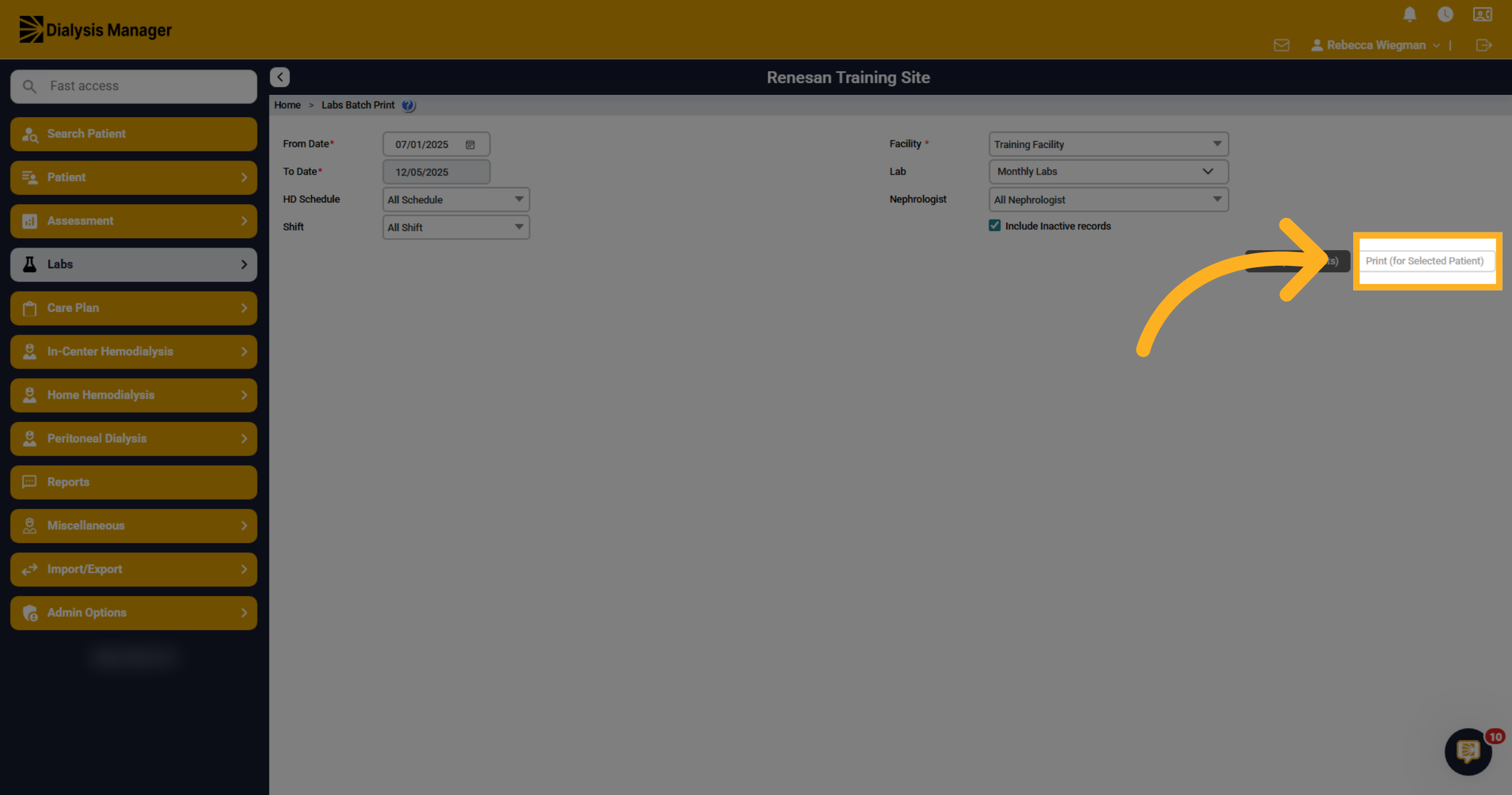
10. Print (for Selected Patient)
If you have a patient selected from the Search Patient screen, you'll be able to select Print (for selected patient).
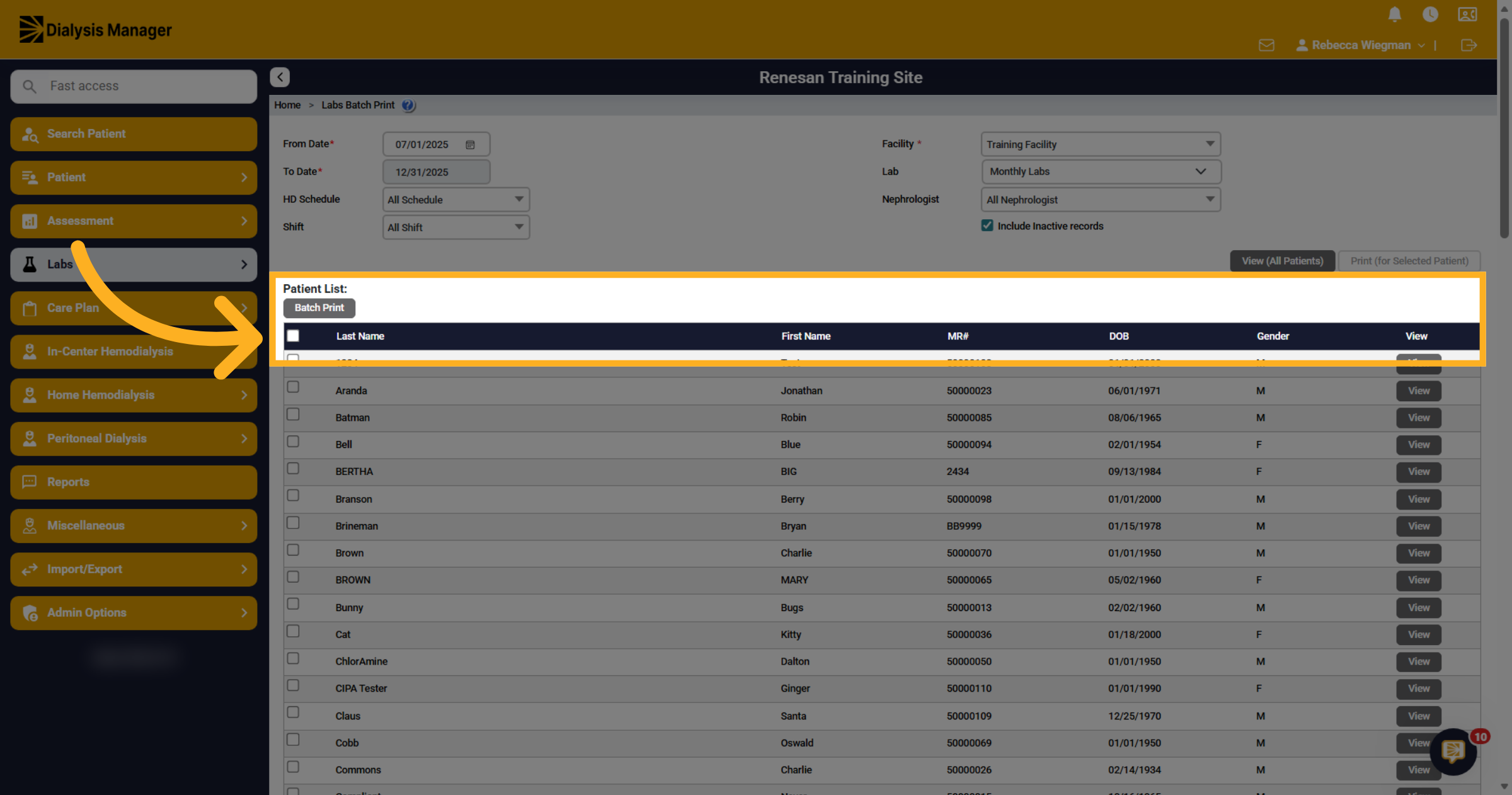
11. Sort by Last Name
Patients will appear alphabetically, displaying their medical record number, Date of Birth and Gender.
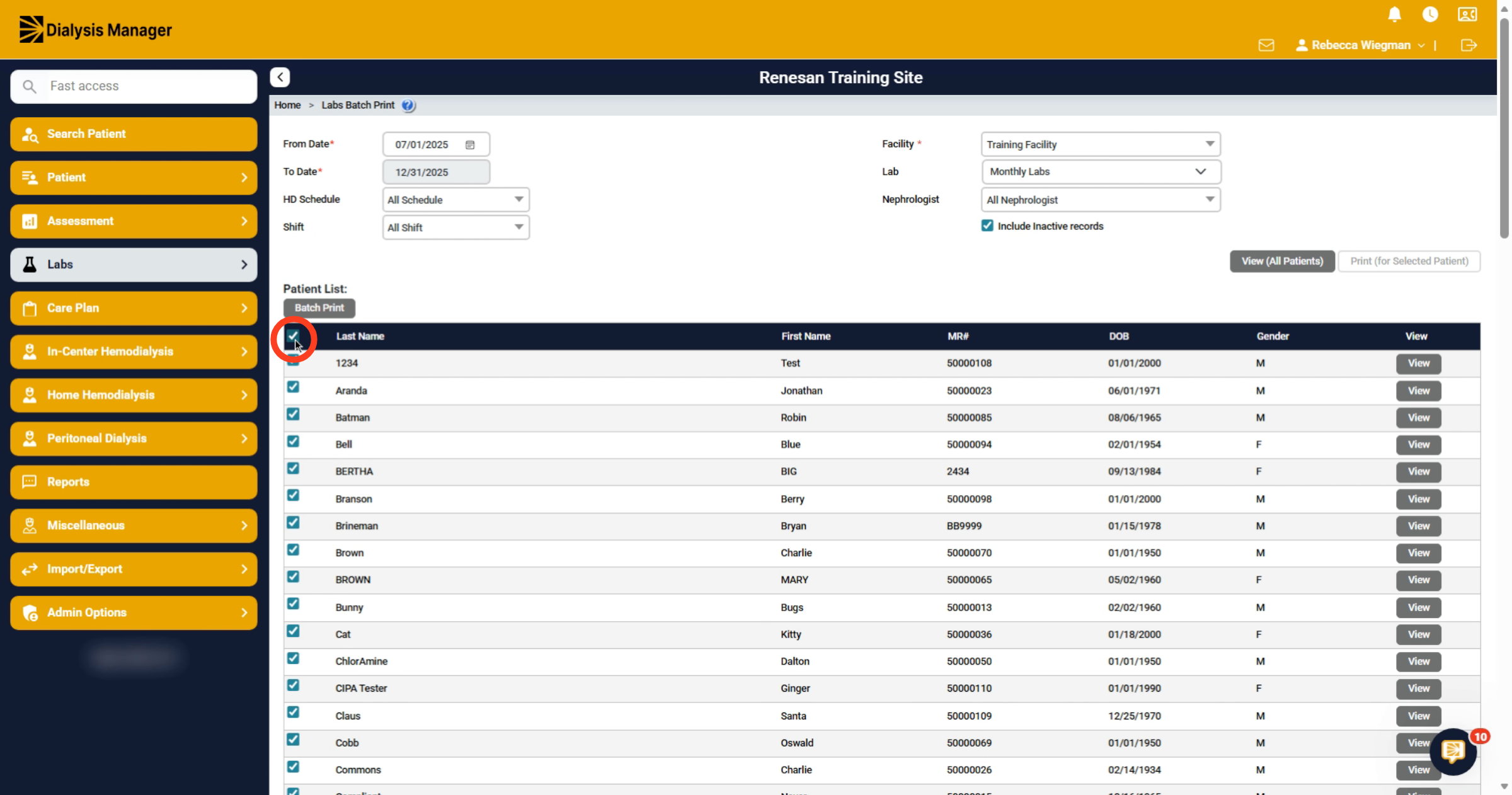
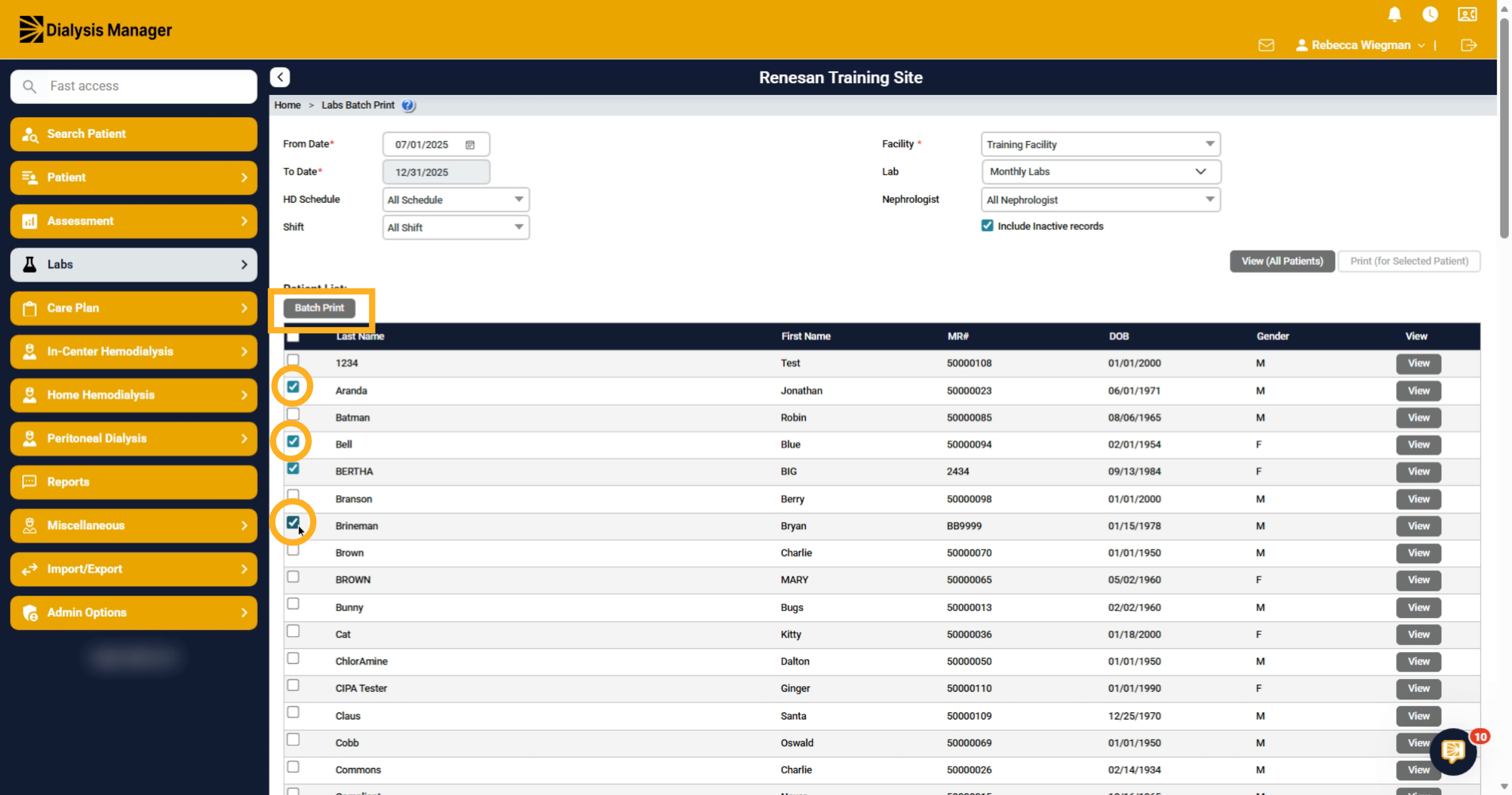
12. Selecting All
Click the box along the top header to select all patients. You can then select Batch Print.
13. Selecting specific patients
You also have the ability to select specific patients by checking the box next to their name. Once all patients are selected, you can select Batch Print which will only pull the patients you've selected!
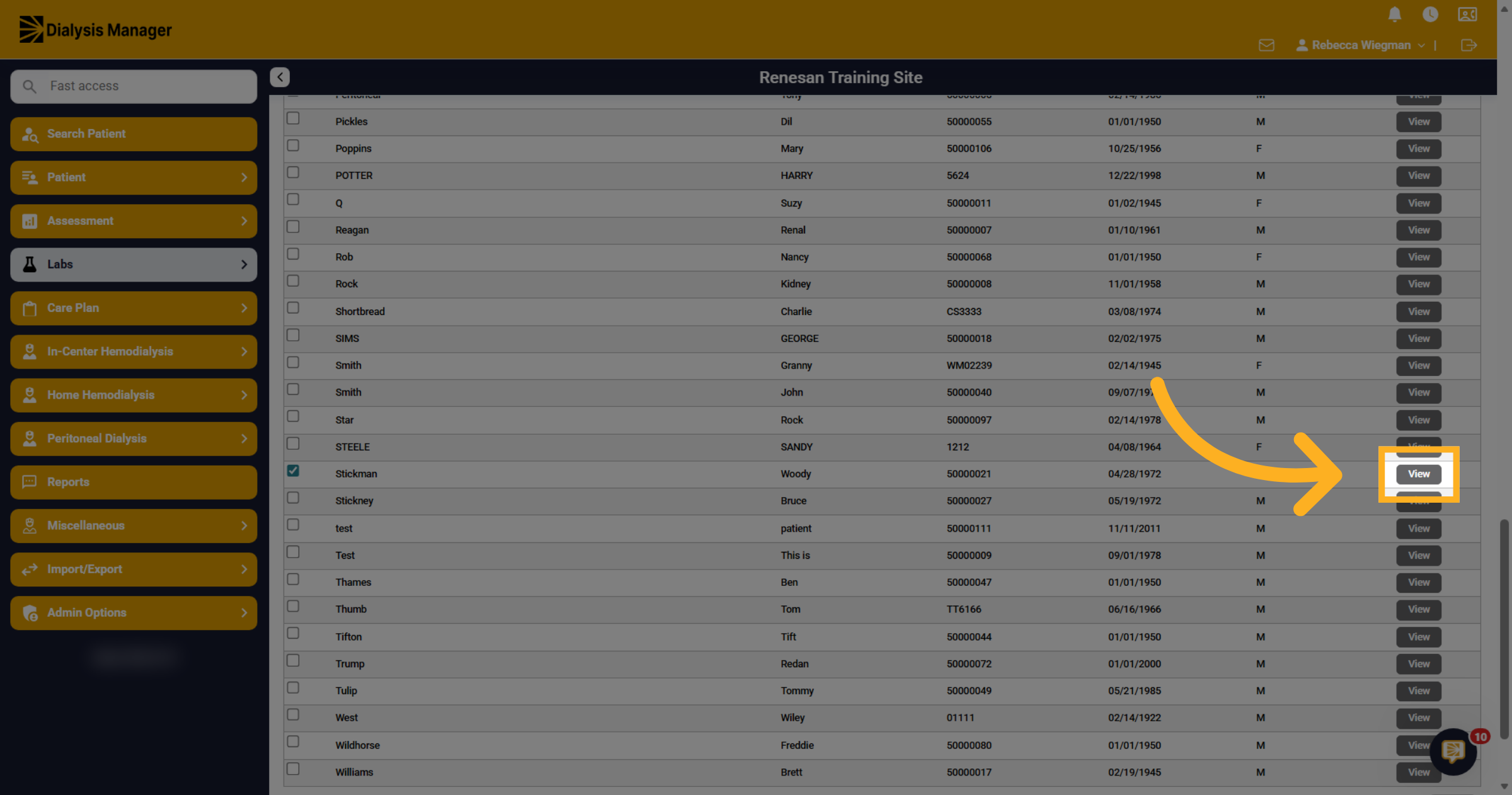
14. Selecting single patient
Click View to the right of the patient information to view only that specific patient information.
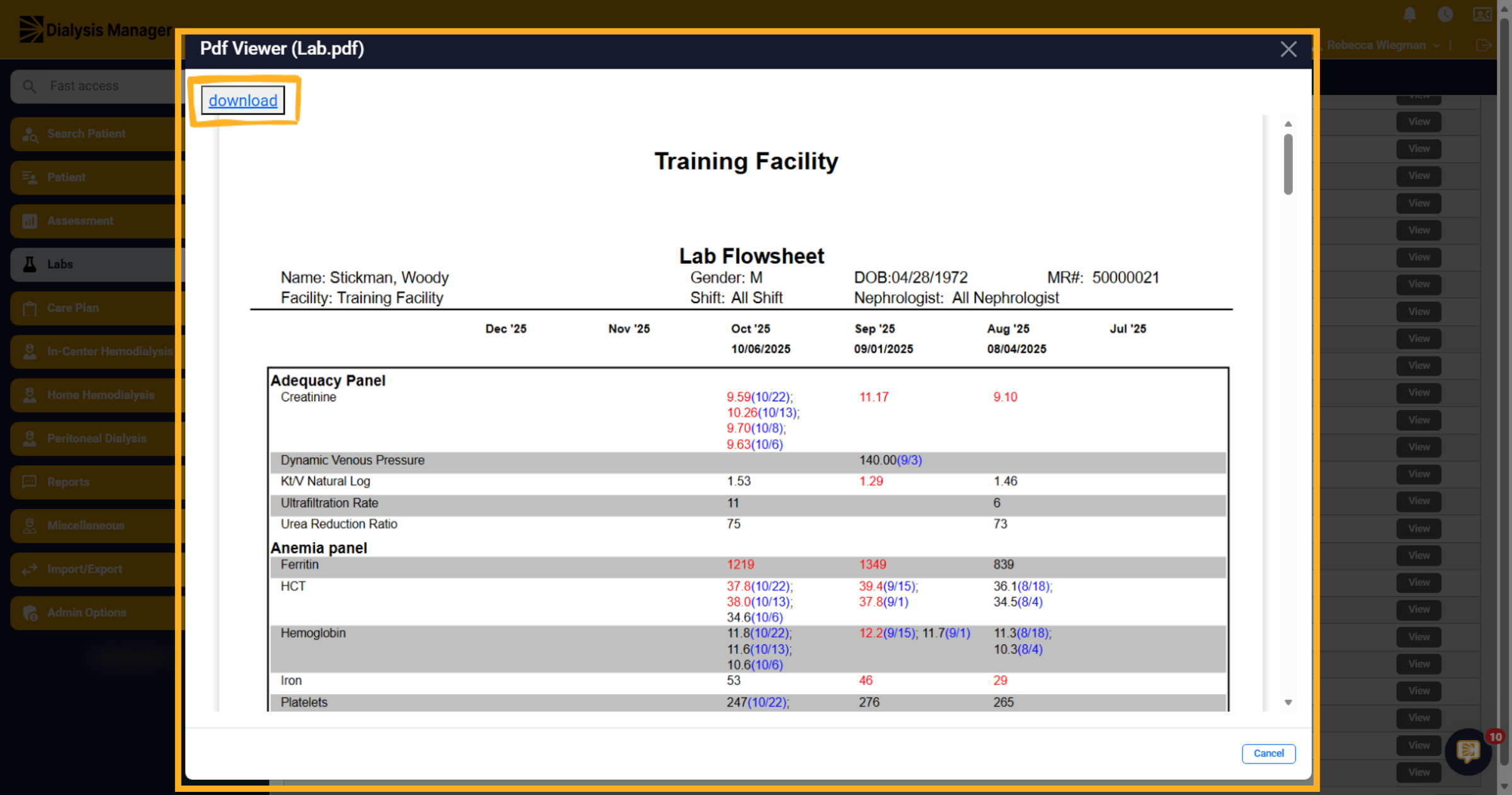
15. Open Lab Flowsheet
The report will open with the patient information showing at the top. You'll have the ability to click "download" to print the report.
16. Select Patient Flowsheet
The date range you selected will appear across the top. The labs will be categorized by panels.
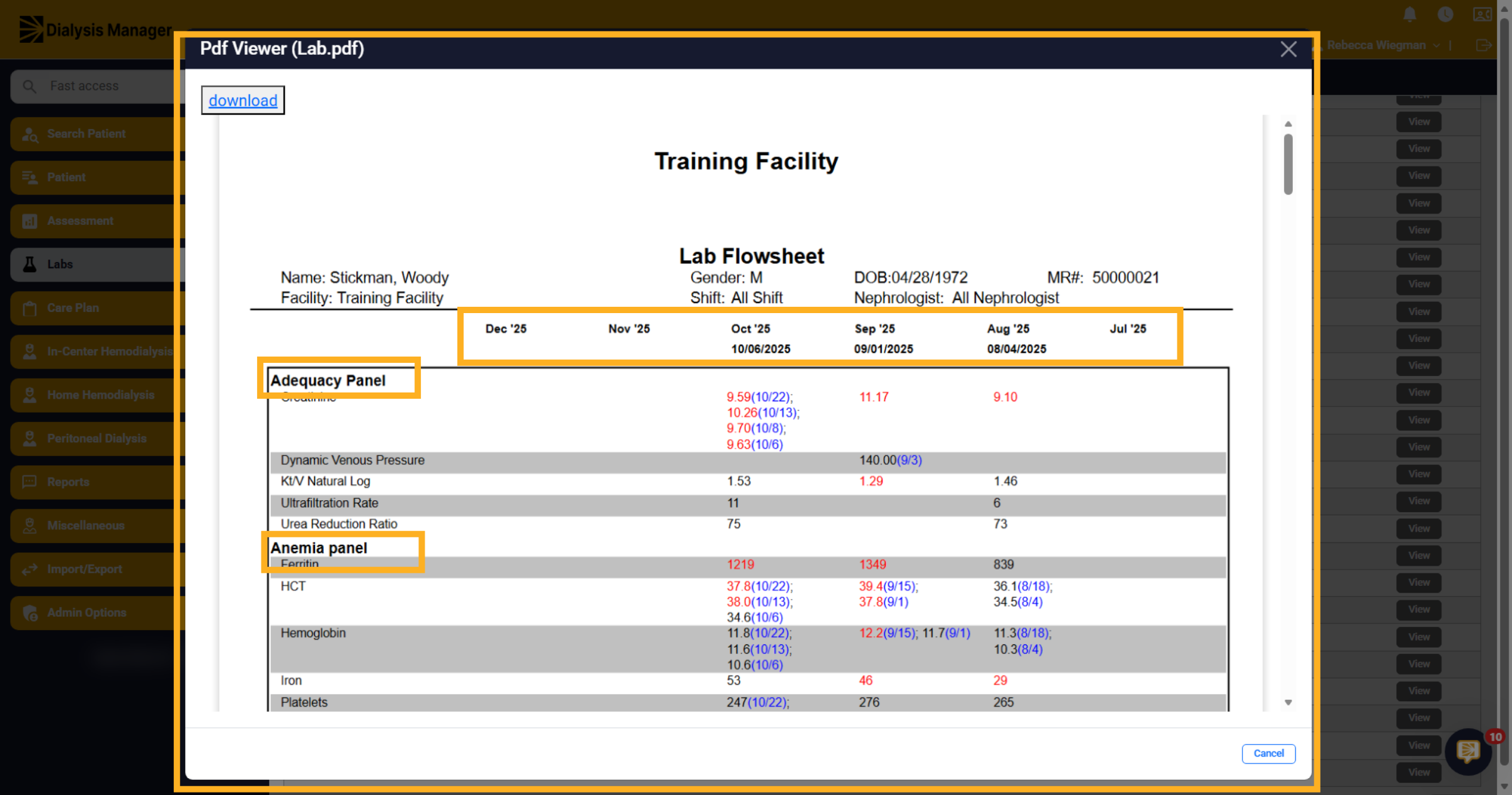
17. Other sections
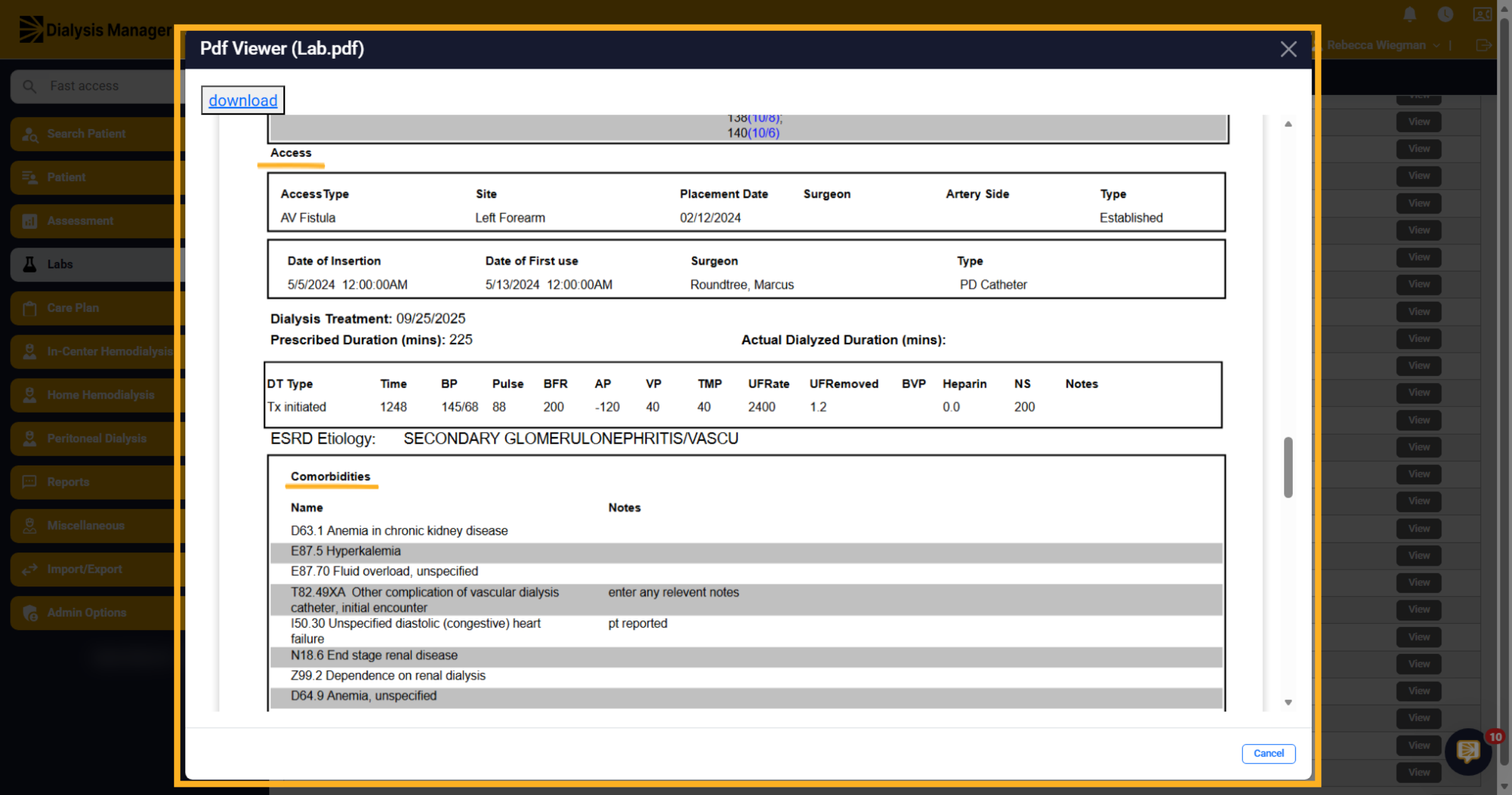
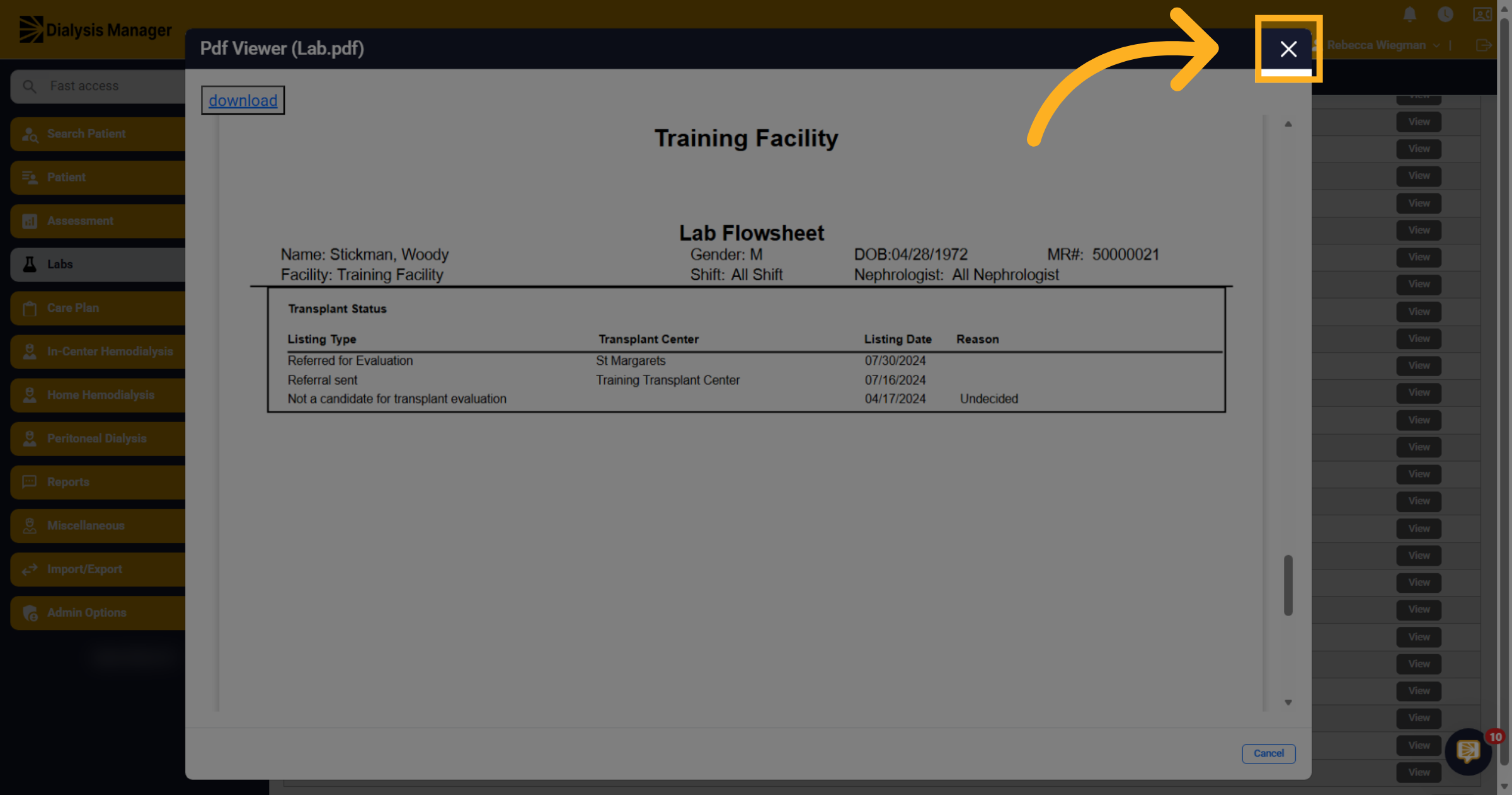
You will also see other sections within the report such as Access, Comorbidities, Surgical History, Transplant Status, etc.
18. Close Lab Flowsheet
Once you've printed the report or reviewed the information you can click the X to close.
How to Troubleshoot Missing Lab Data During System Integration
When lab results or similar data do not appear in a receiving system, such as during integration with a source system, it is often due to a mismatch in patient identifiers. Below is a step-by-step guide to identify and resolve this issue.
Key Steps to Resolve Missing Data Issues
1. Verify Patient Identifiers
2. Correct Any Mismatched Information
3. Escalate if the Issue Persists
Additional Tips
By following these steps, you can address the common issue of missing data during integration and ensure smooth data synchronization between your source and receiving systems.