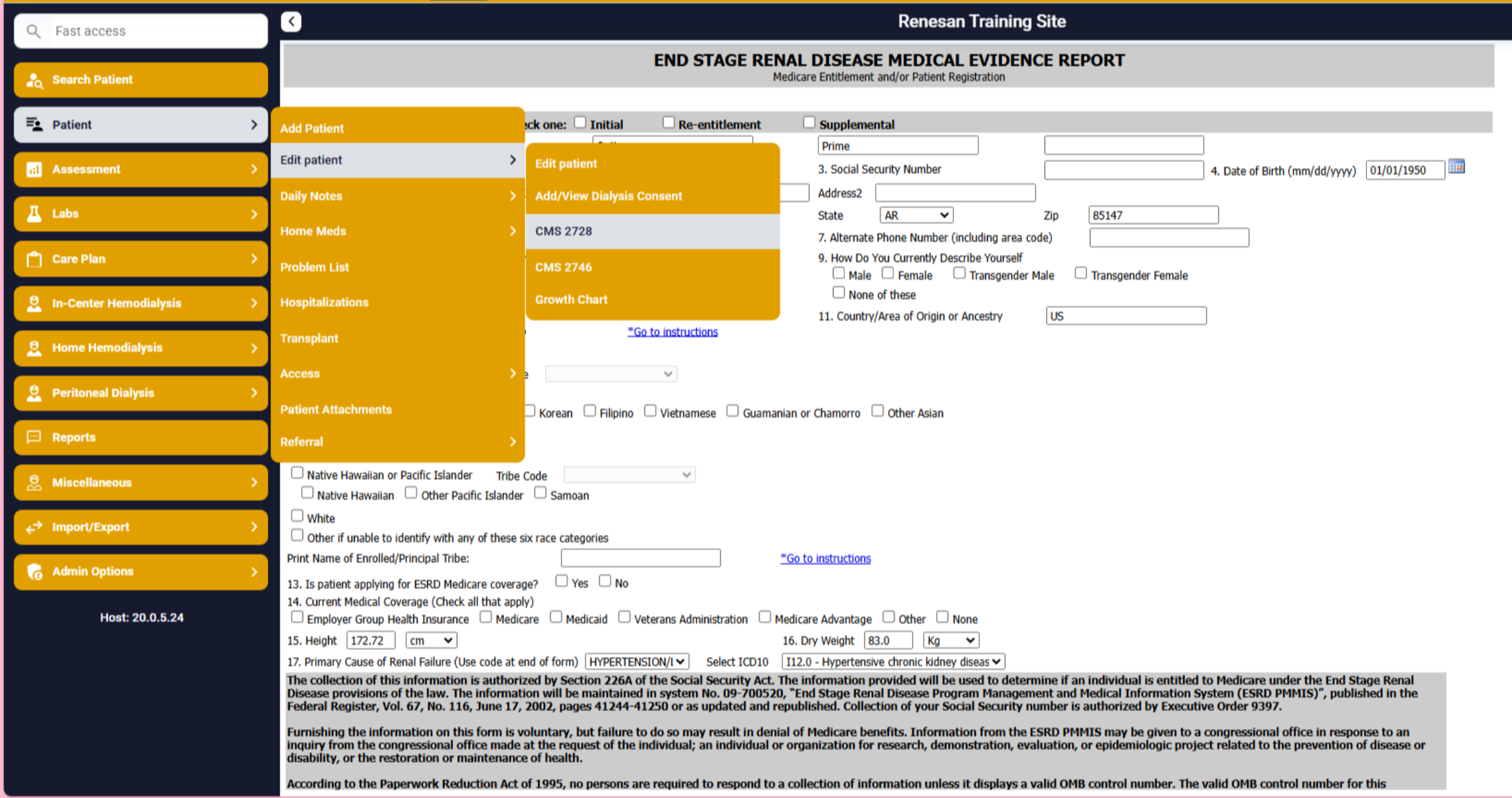
AKI Modality Change to ESRD.
1. Introduction
This tutorial guides you through transitioning a patient from AKI modality to ESRD within the Renvio application. You will learn how to update patient admission, discharge, and modality details accurately to reflect this change.
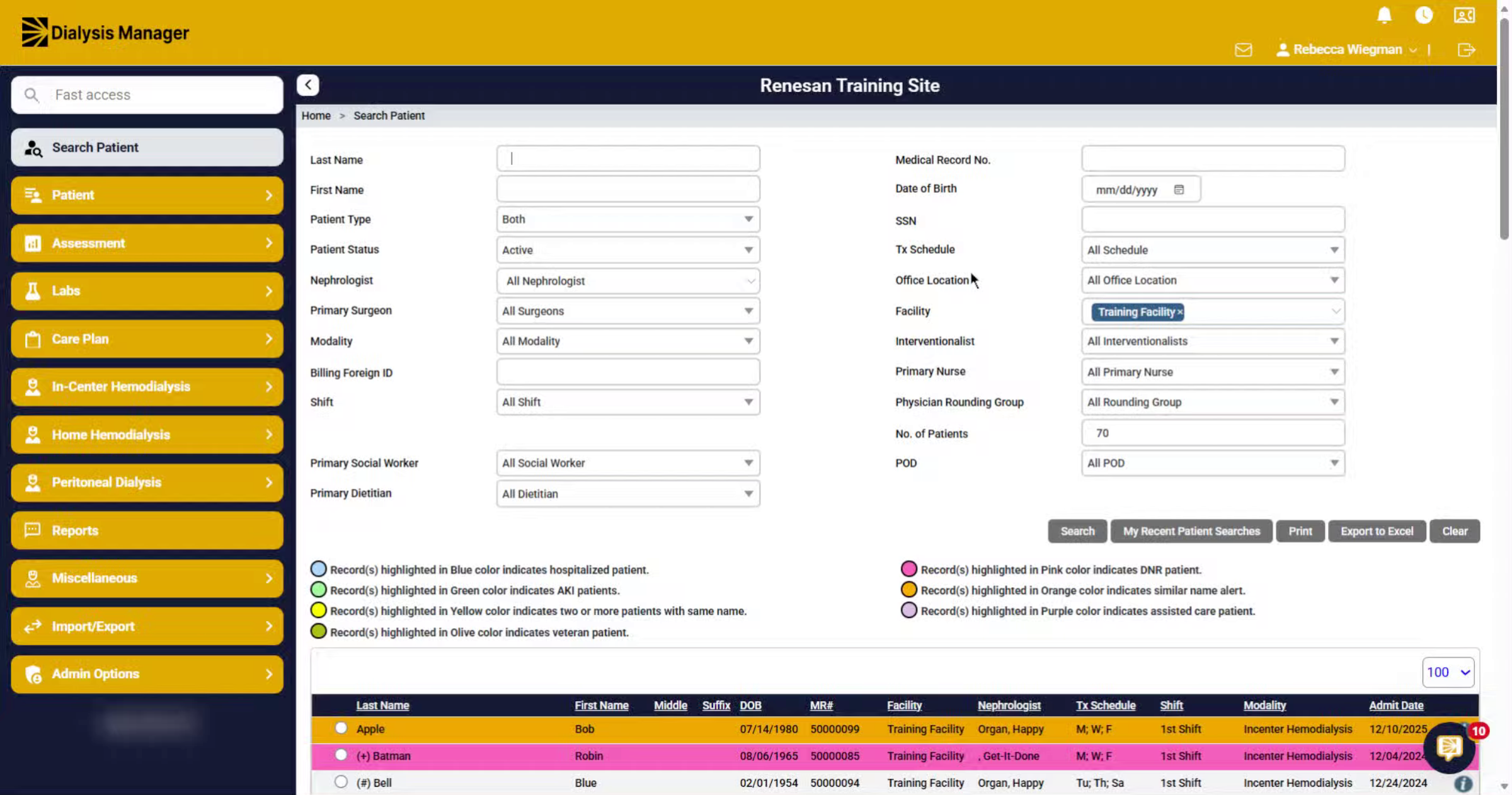
2. Initiate Patient Search
Select AKI In-Center Hemo for your modality and click search to locate your patient.
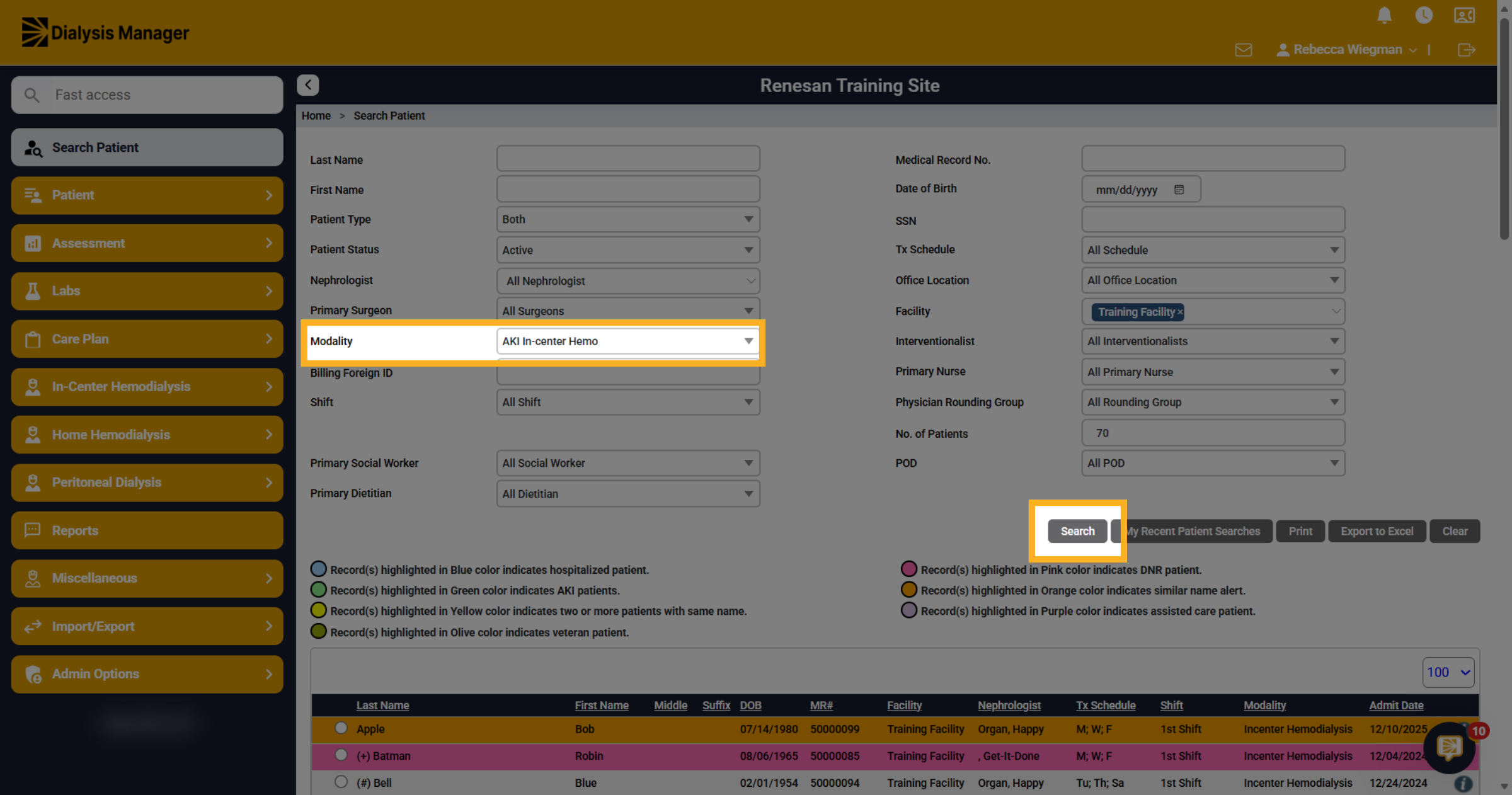
3. Select your patient
Find your patient and select the radio button to the left of the patient name
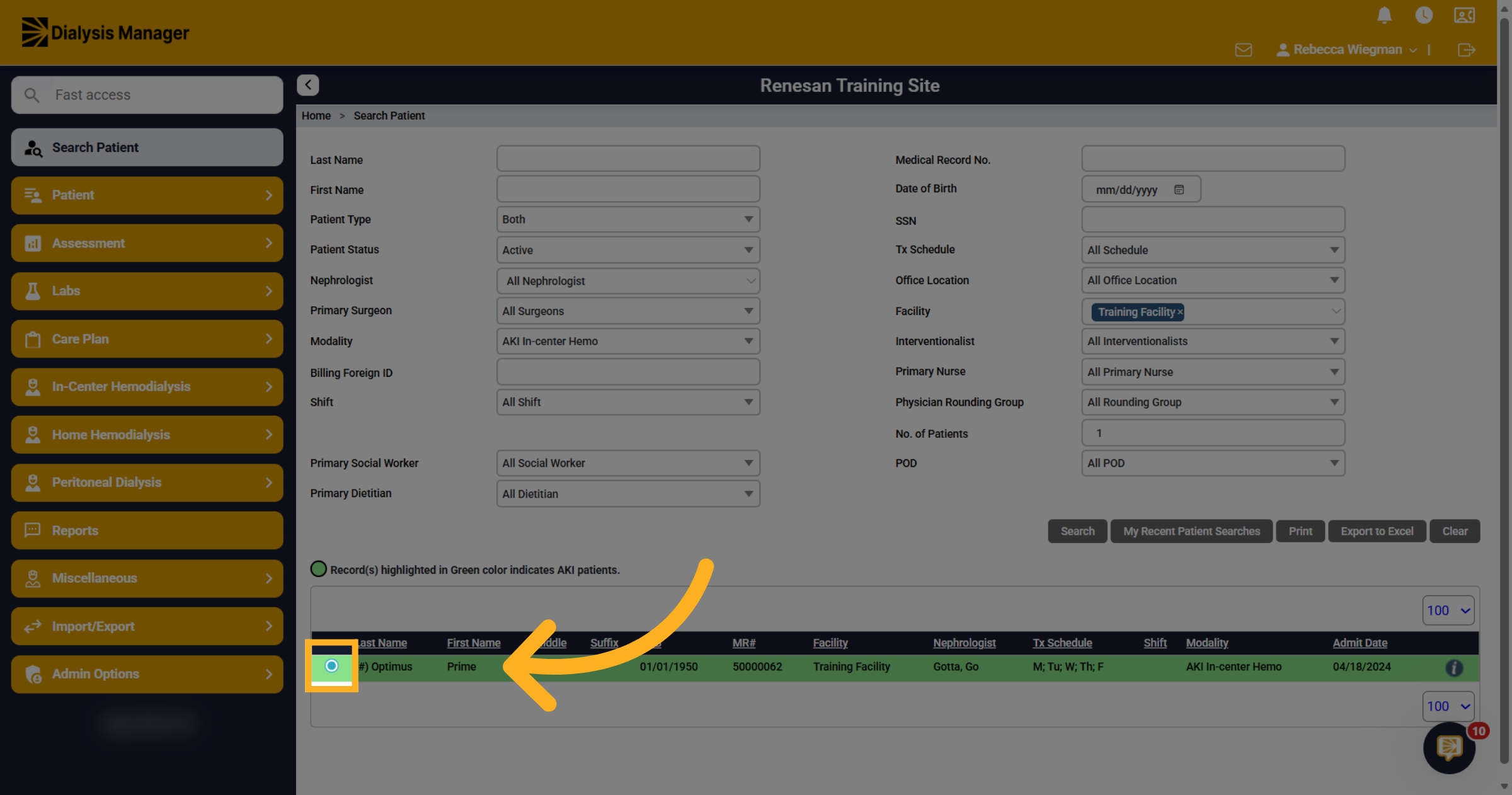
4. Edit Patient
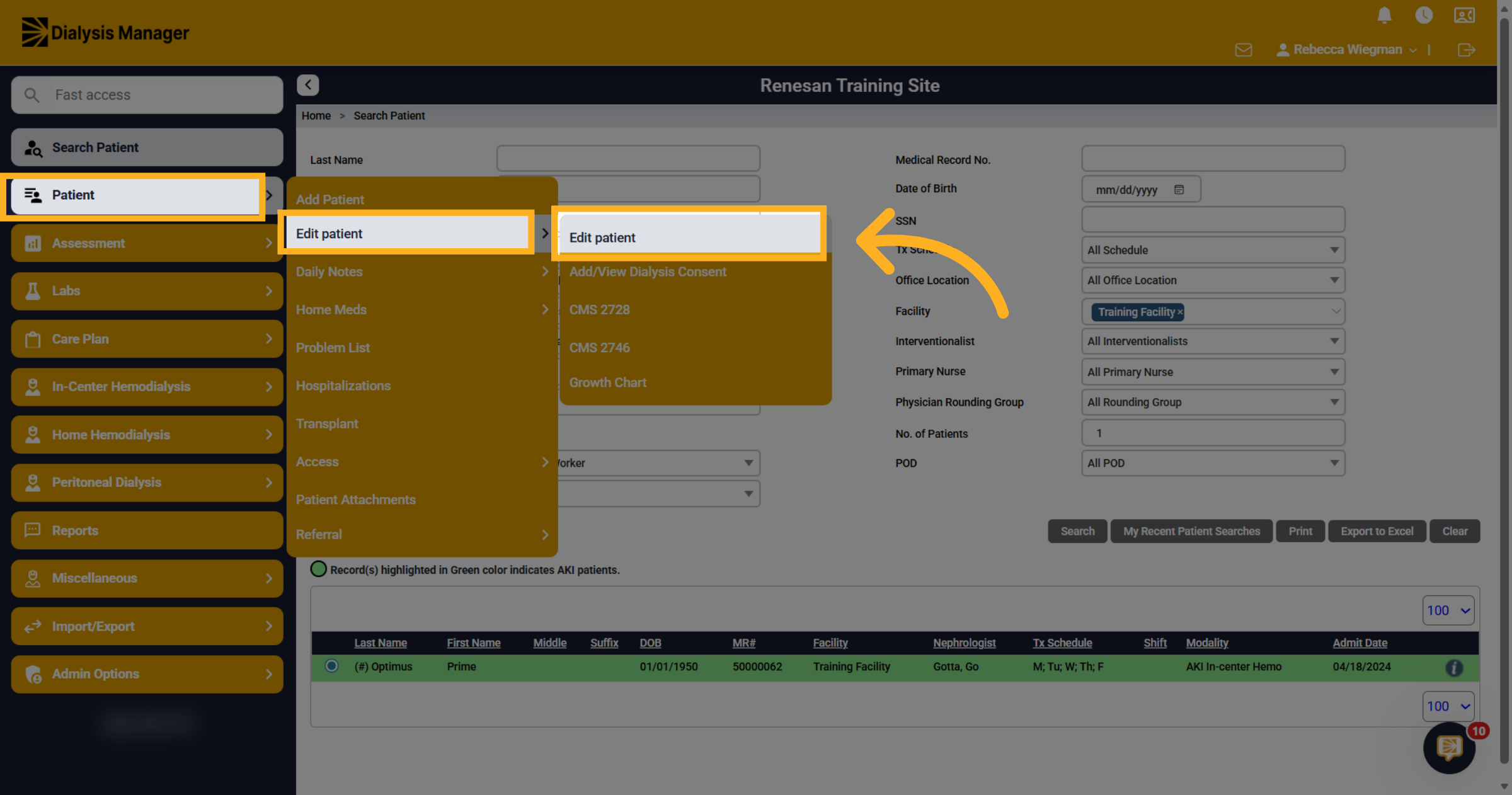
Now select Patient, Edit Patient and finally Edit Patient to look at the patient's demographics.
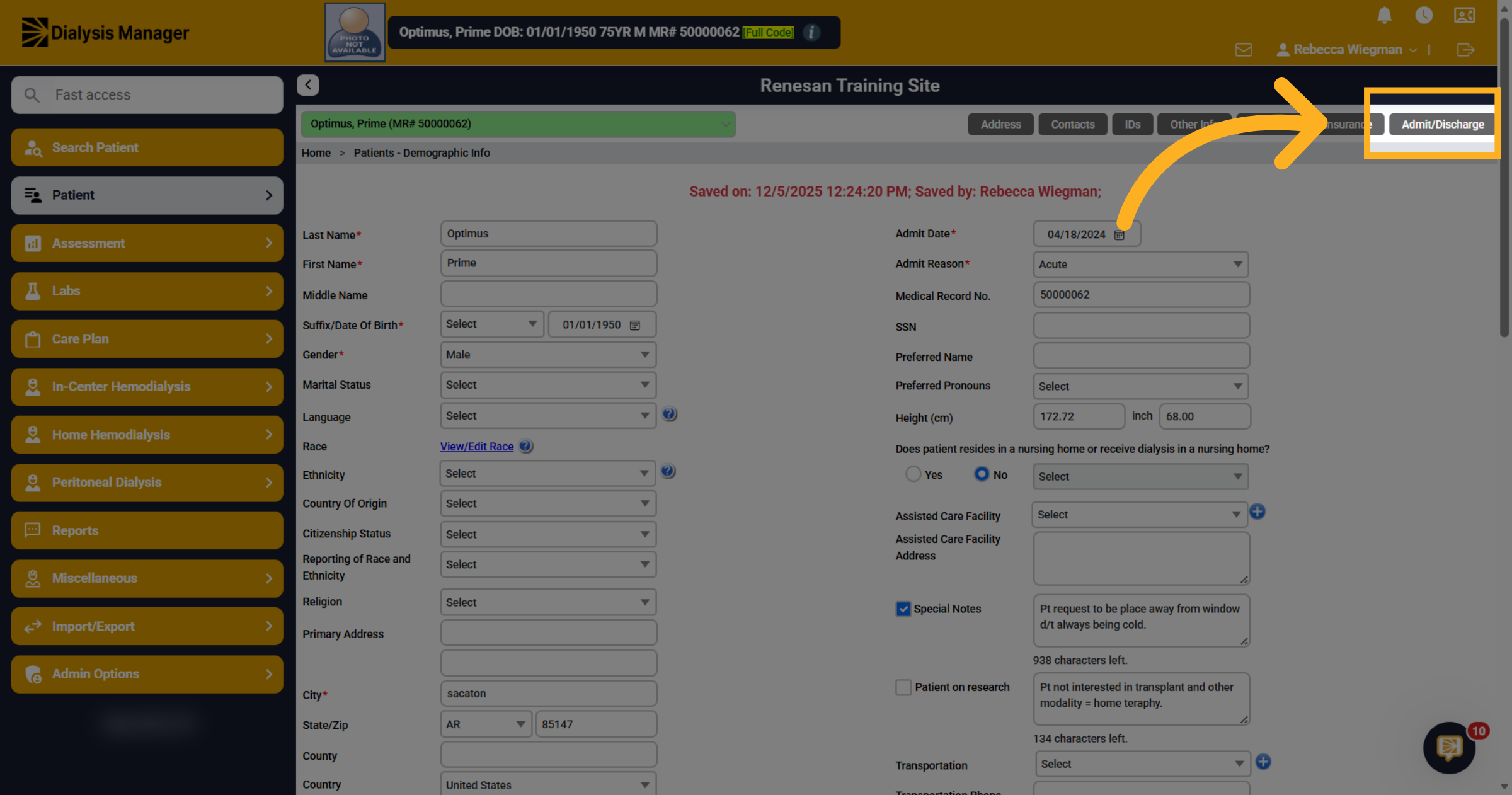
5. Admit/Discharge
Click "Admit/Discharge" to manage admission and discharge details.
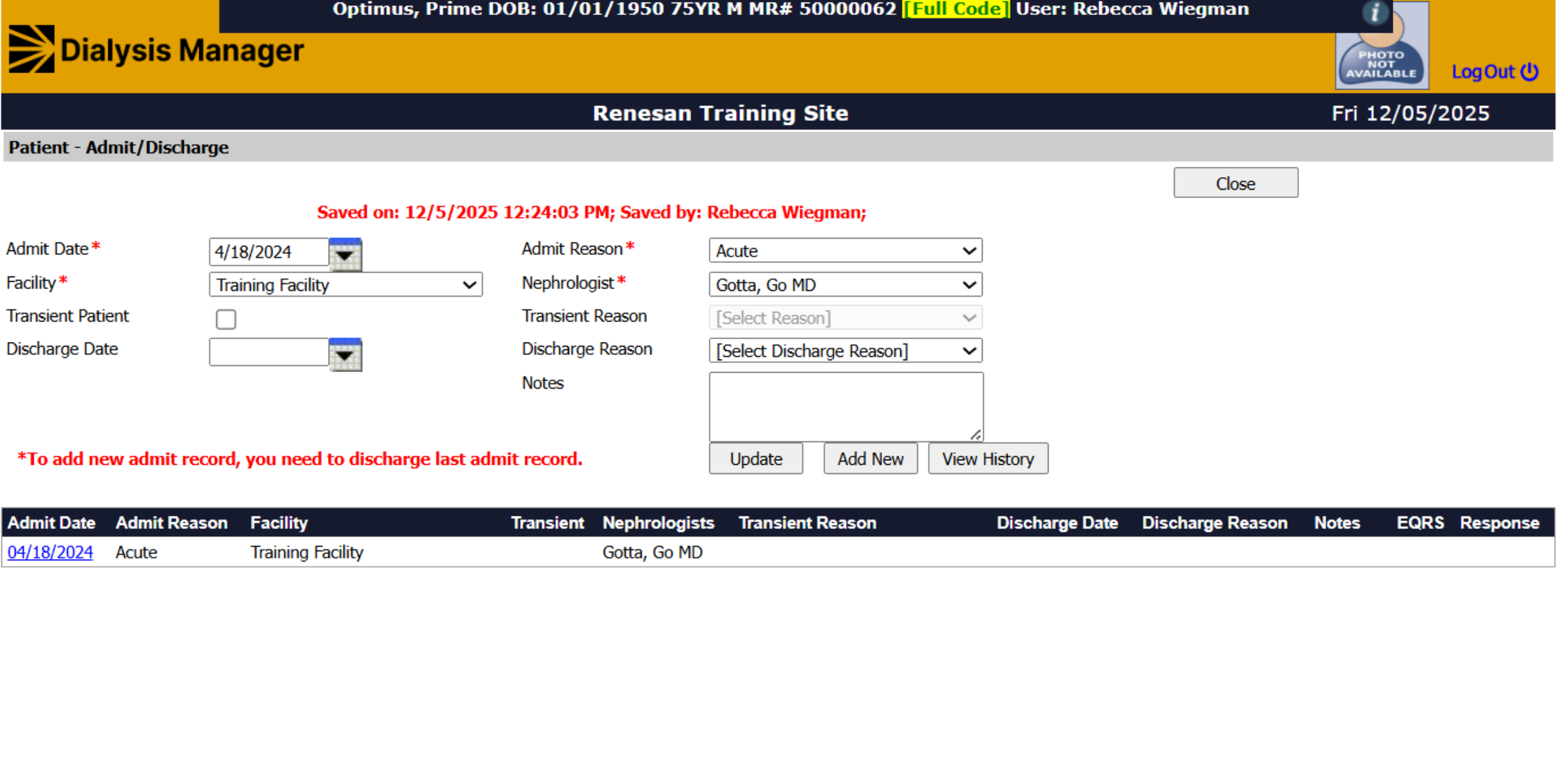
6. Select Admit Date Field
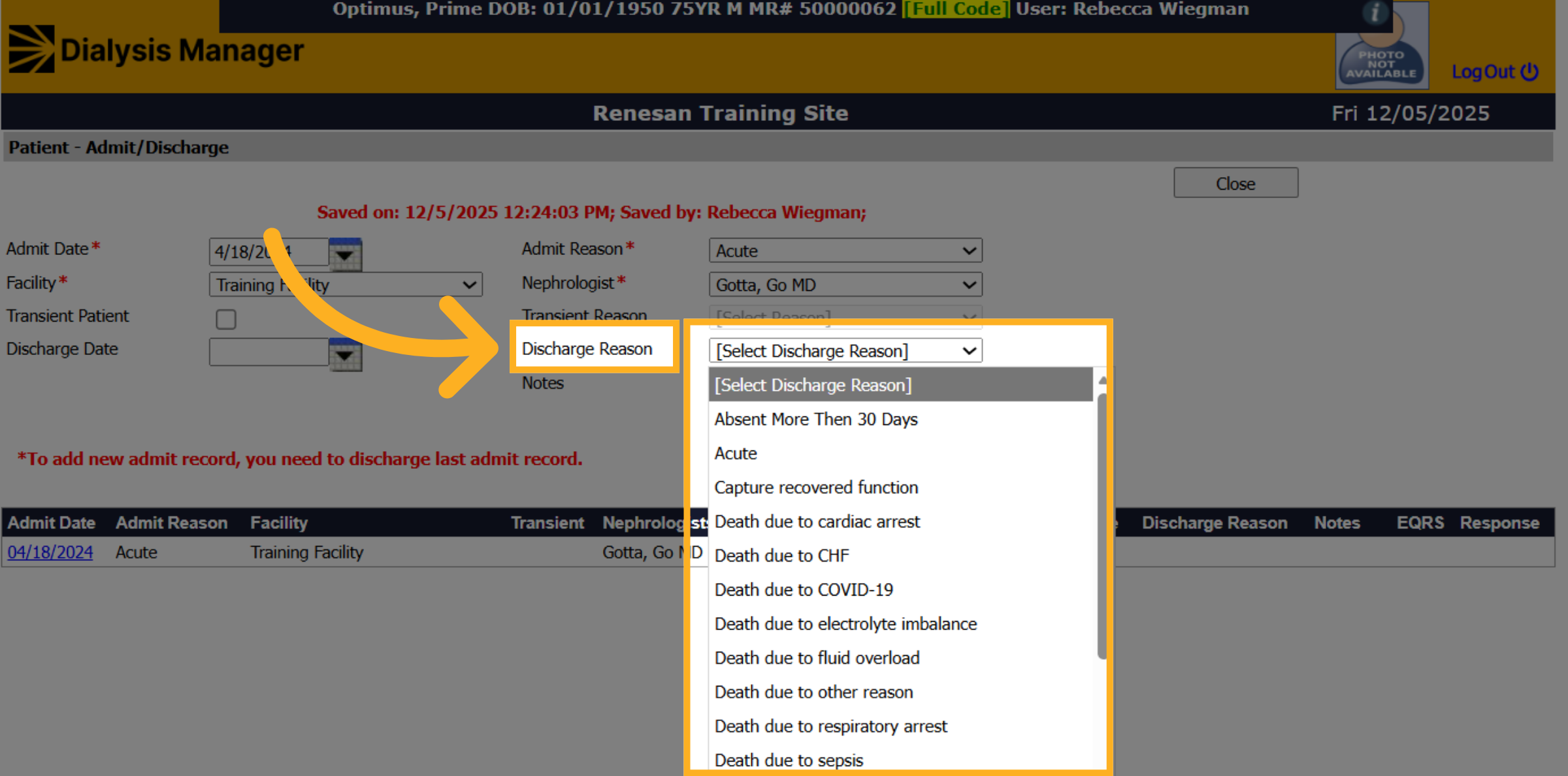
Inside the Admit/Discharge screen you'll see all prior discharges listed below. The current admit will display at the top. Note that the patient's Admit Reason is "Acute"
7. Enter Discharge Date
You will need to enter the discharge date. This date will be the date that the patient changes modality.
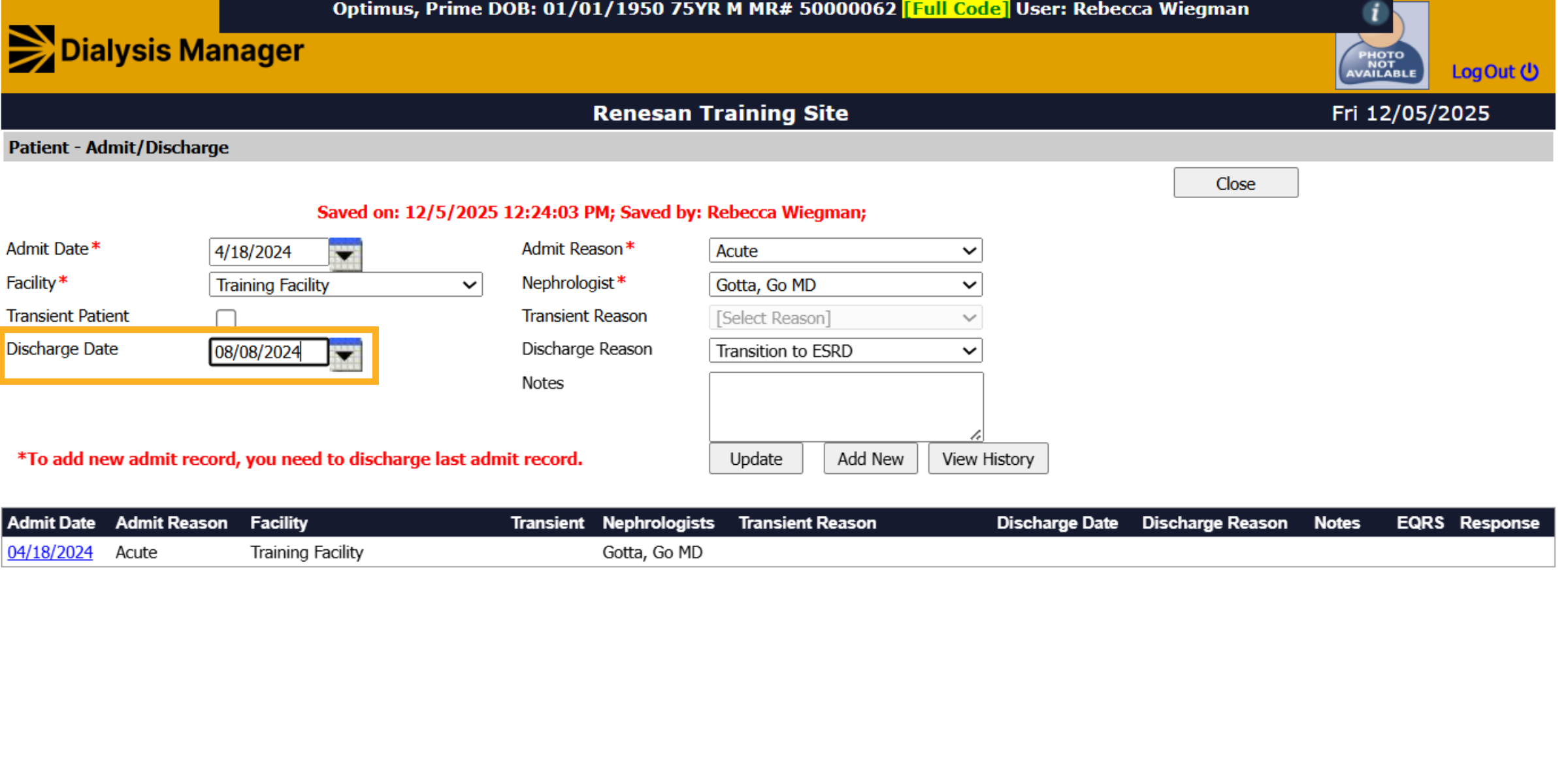
8. Discharge Reason Dropdown
Click the discharge reason dropdown to select the patient's discharge cause. Typically, an AKI patient transferring to In-Center Hemo, the discharge reason would be Transition to ESRD.
9. Update
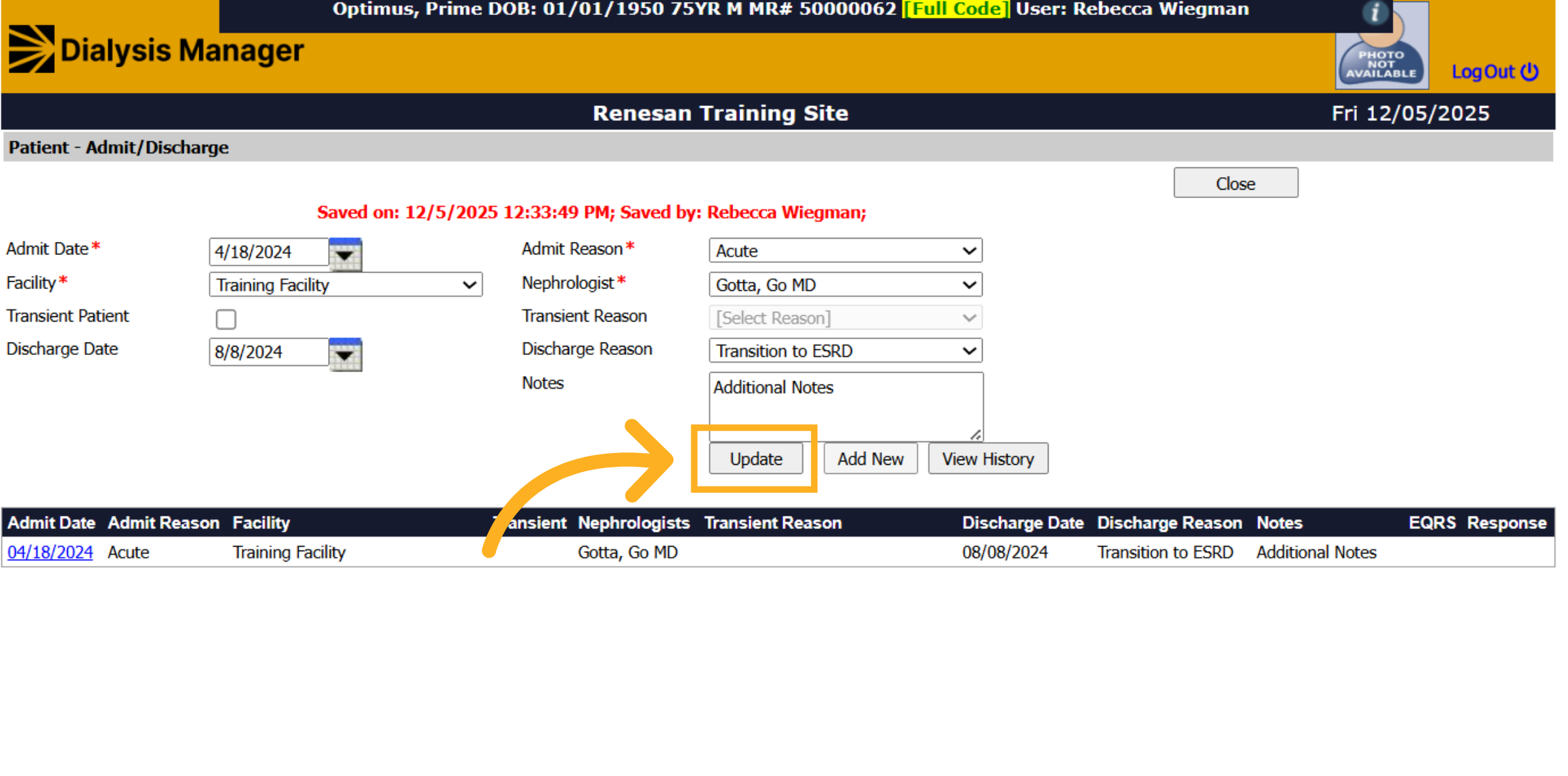
Once all information has been reviewed click Update.
10. Add New
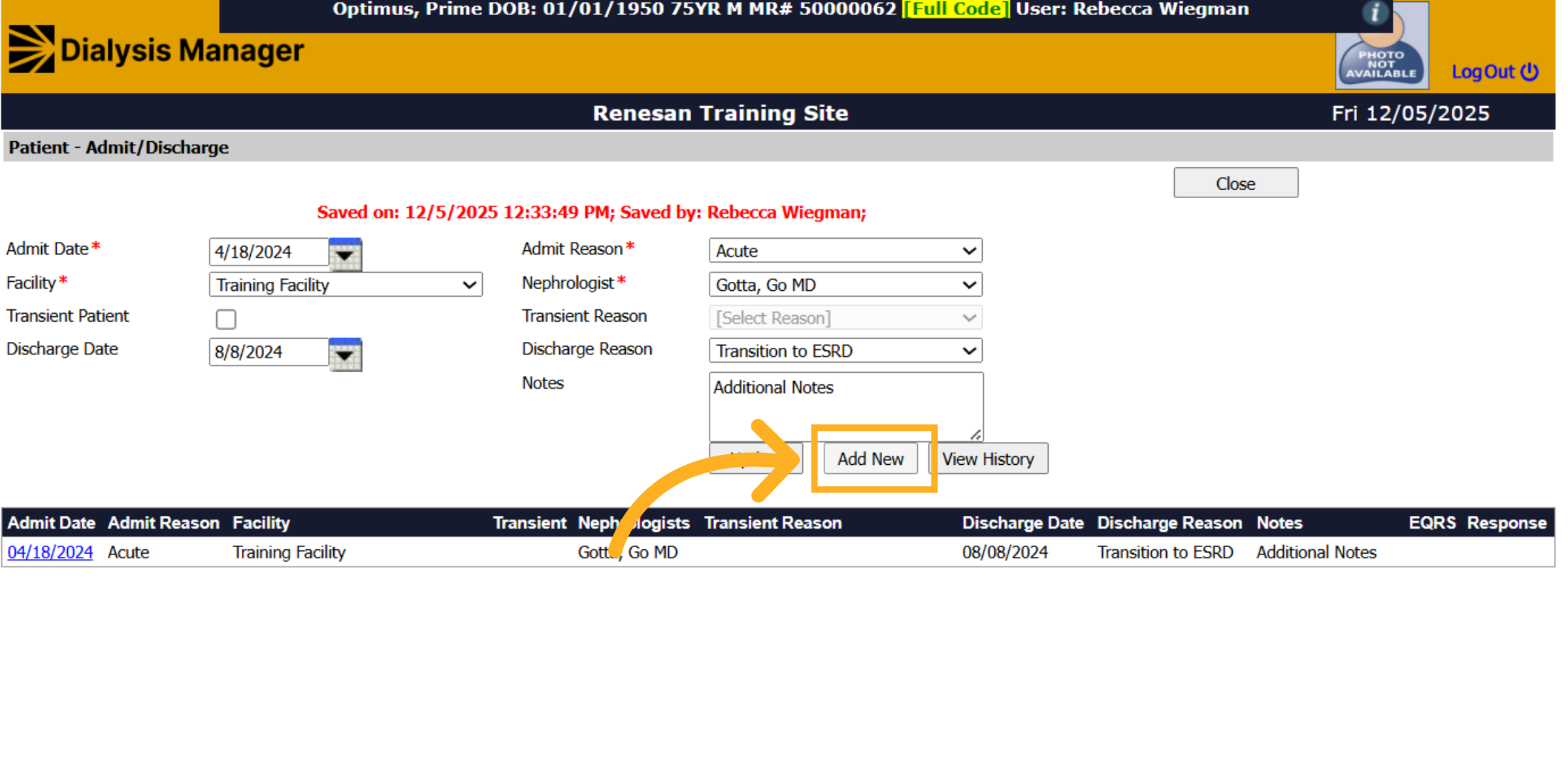
Now on that same screen that you just updated, you'll want to select Add New.
11. Select New Admit Date
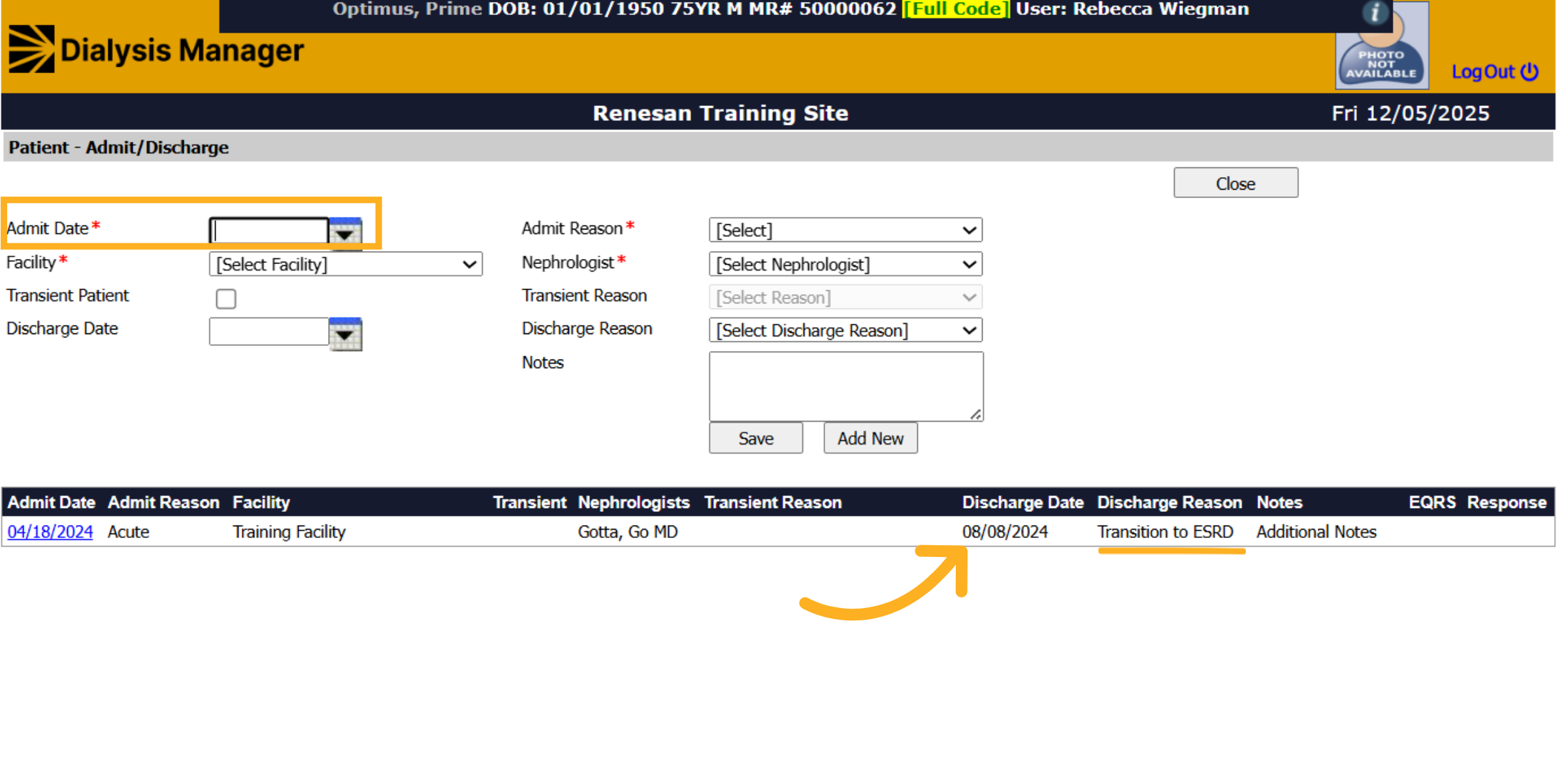
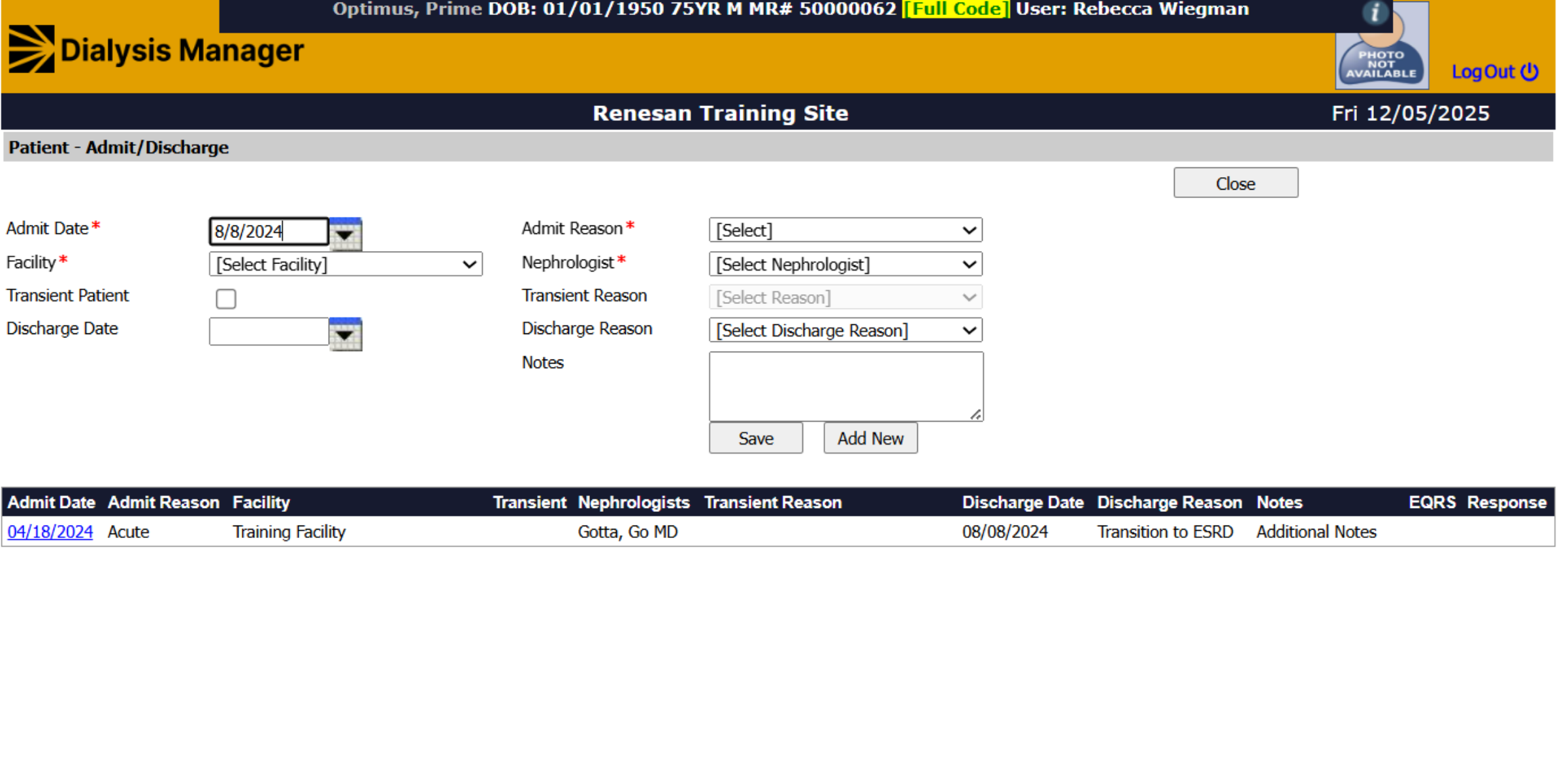
Towards the bottom you'll see the admit record we just updated, now displaying a discharge date! At the top you'll want to enter the Admit Date, this is the date the patient will start the new modality. (This date will typically match the discharge date just entered).
12. Enter Information
Continue to work through the form entering all information! Reminder that anything with a red asterisk is required.
13. Admit Reason
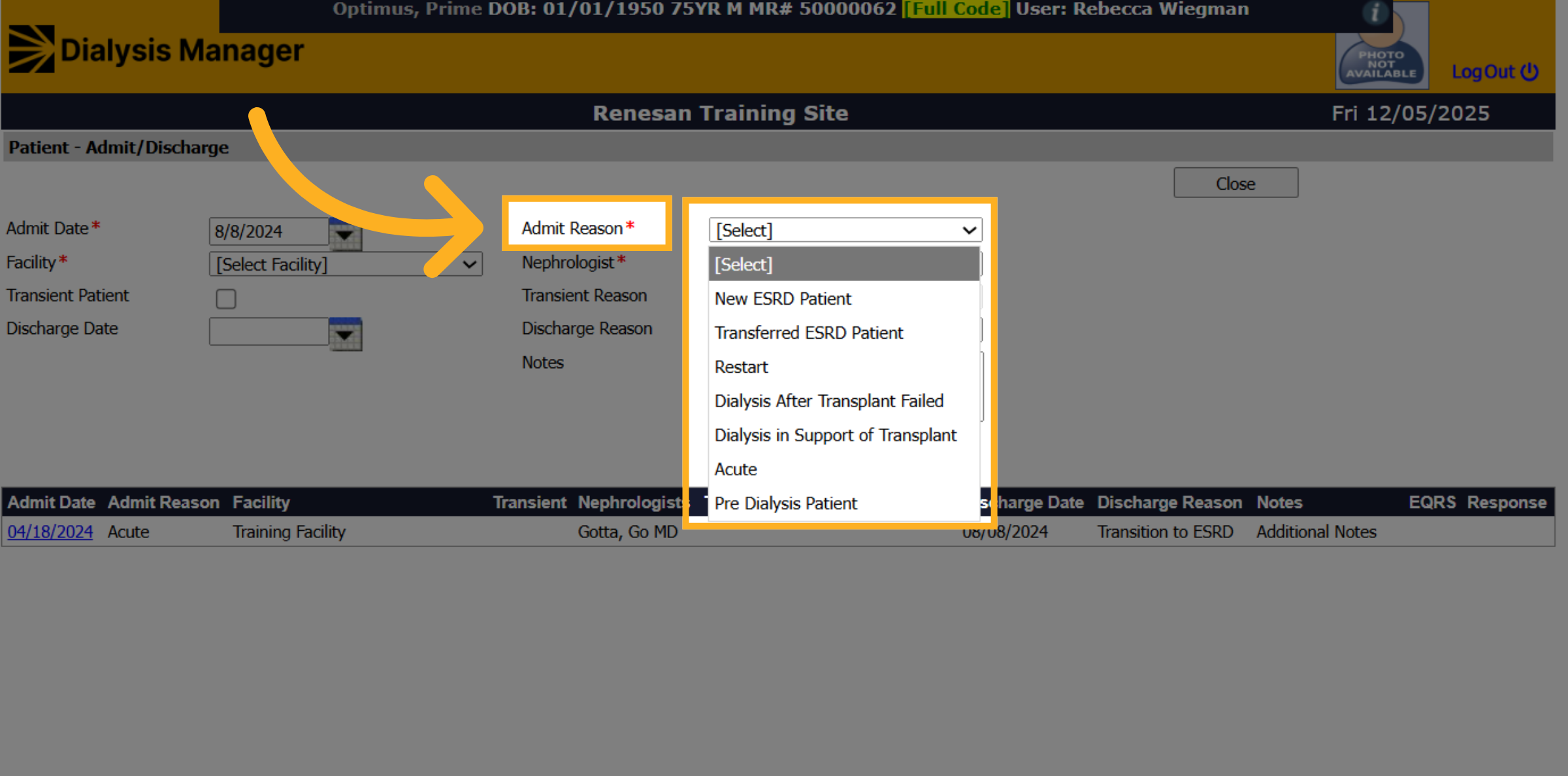
Inside the Admit Reason dropdown you'll select "New ESRD Patient".
14. Save
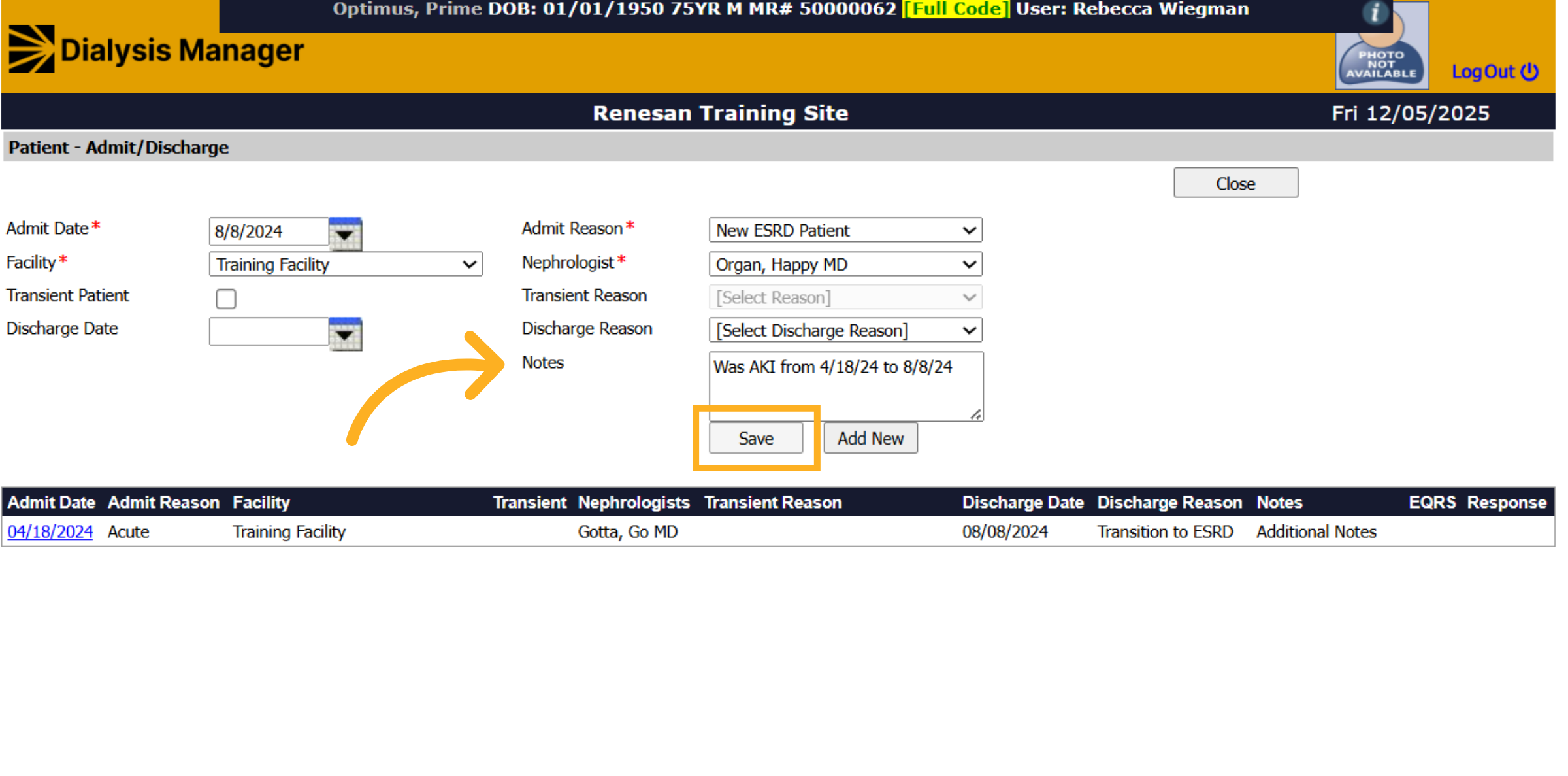
After entering the date, facility, reason and Nephrologist, along with any notes click Save!
15. Close Admission Window
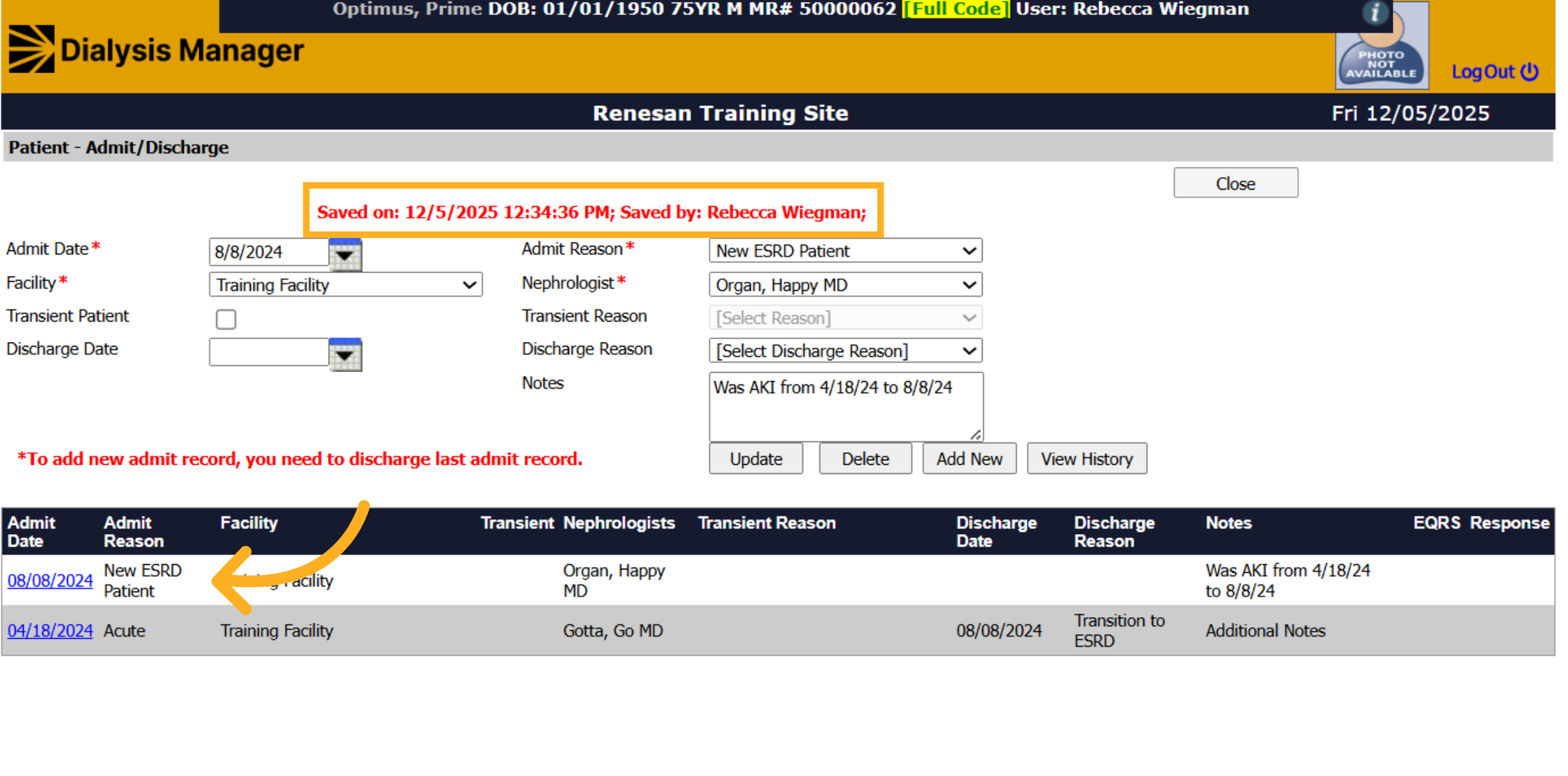
Verify that the information saved! You'll see a Saved On date and time with your name. At the bottom you'll see the new Admit reason! You can now click Close.
16. Open Other Info Section
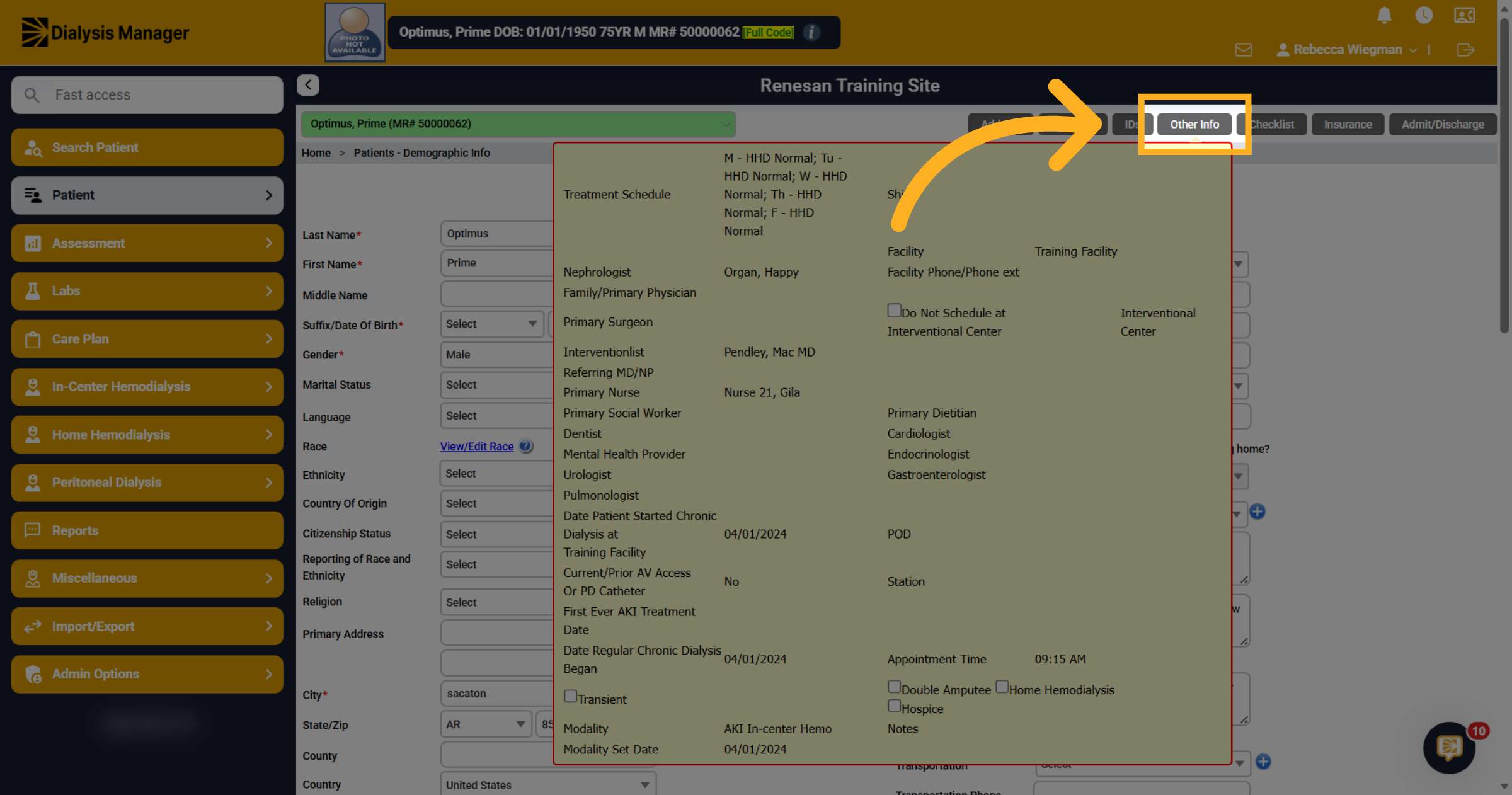
At the Edit Patient screen, you'll want to select "Other Info" to update the patients schedule and modality!
17. Update the Schedule and Shift
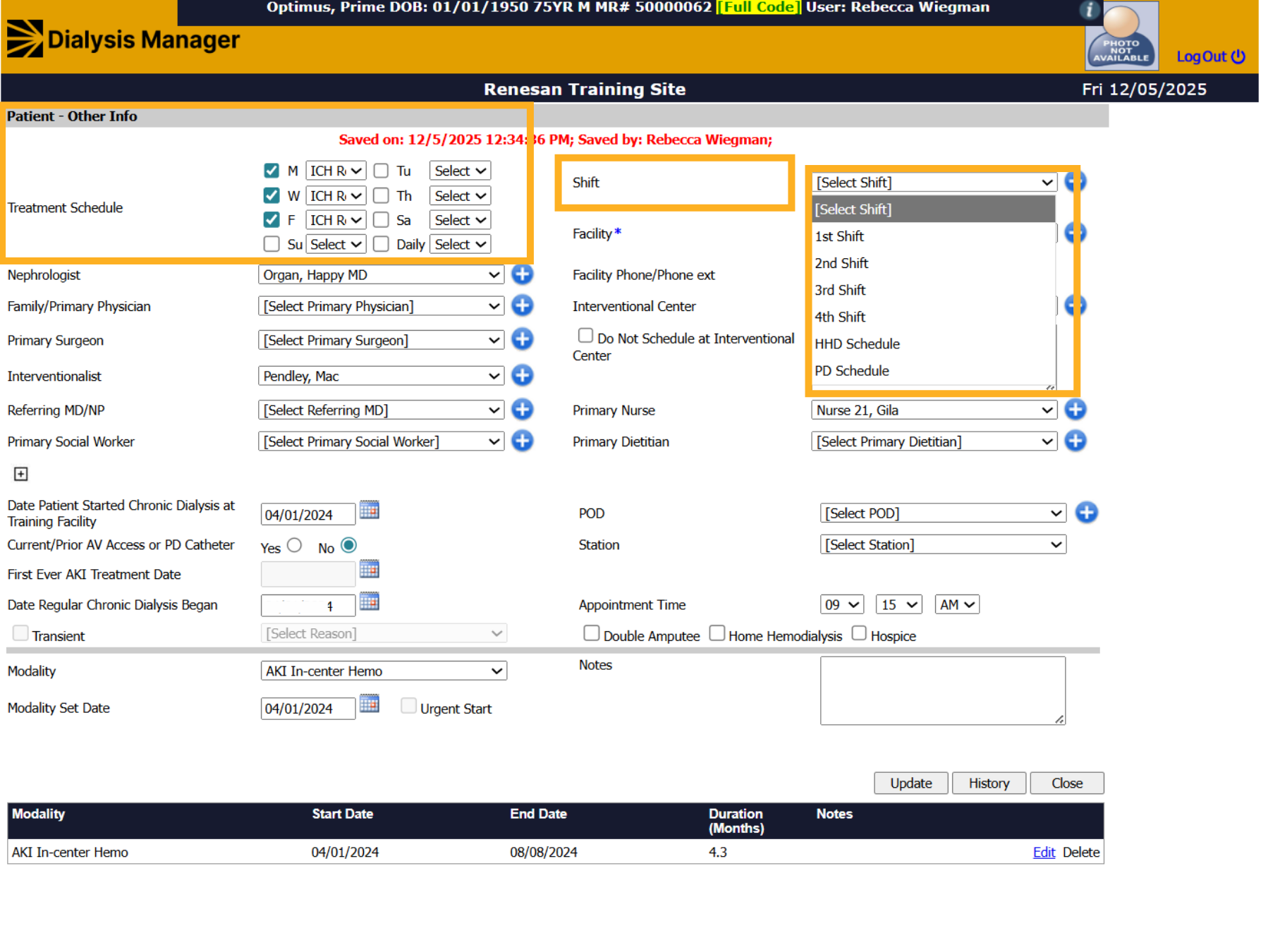
You'll want to update the patients scheduled treatment days.
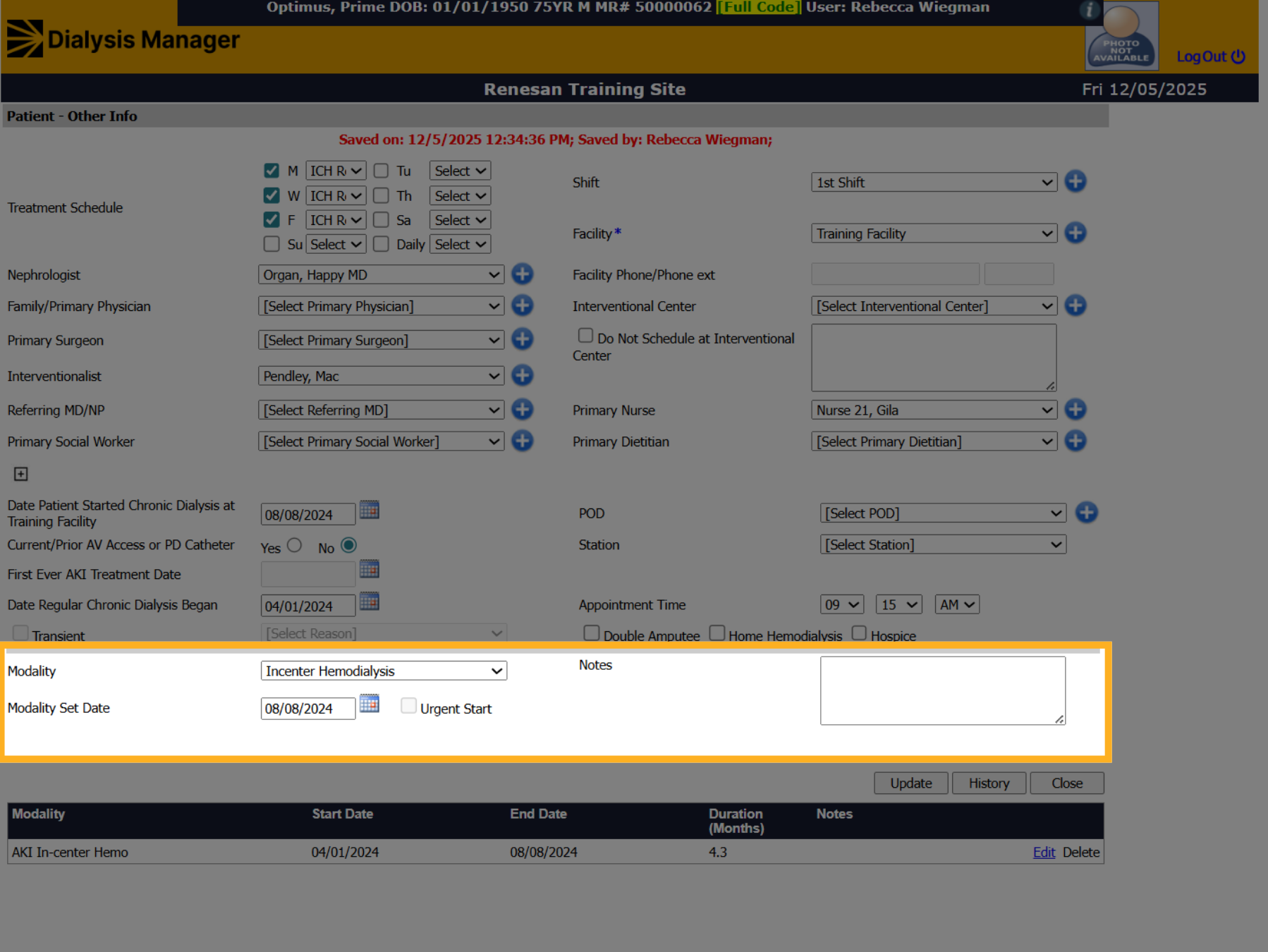
18. Date Patient Started Chronic Dialysis at Facility
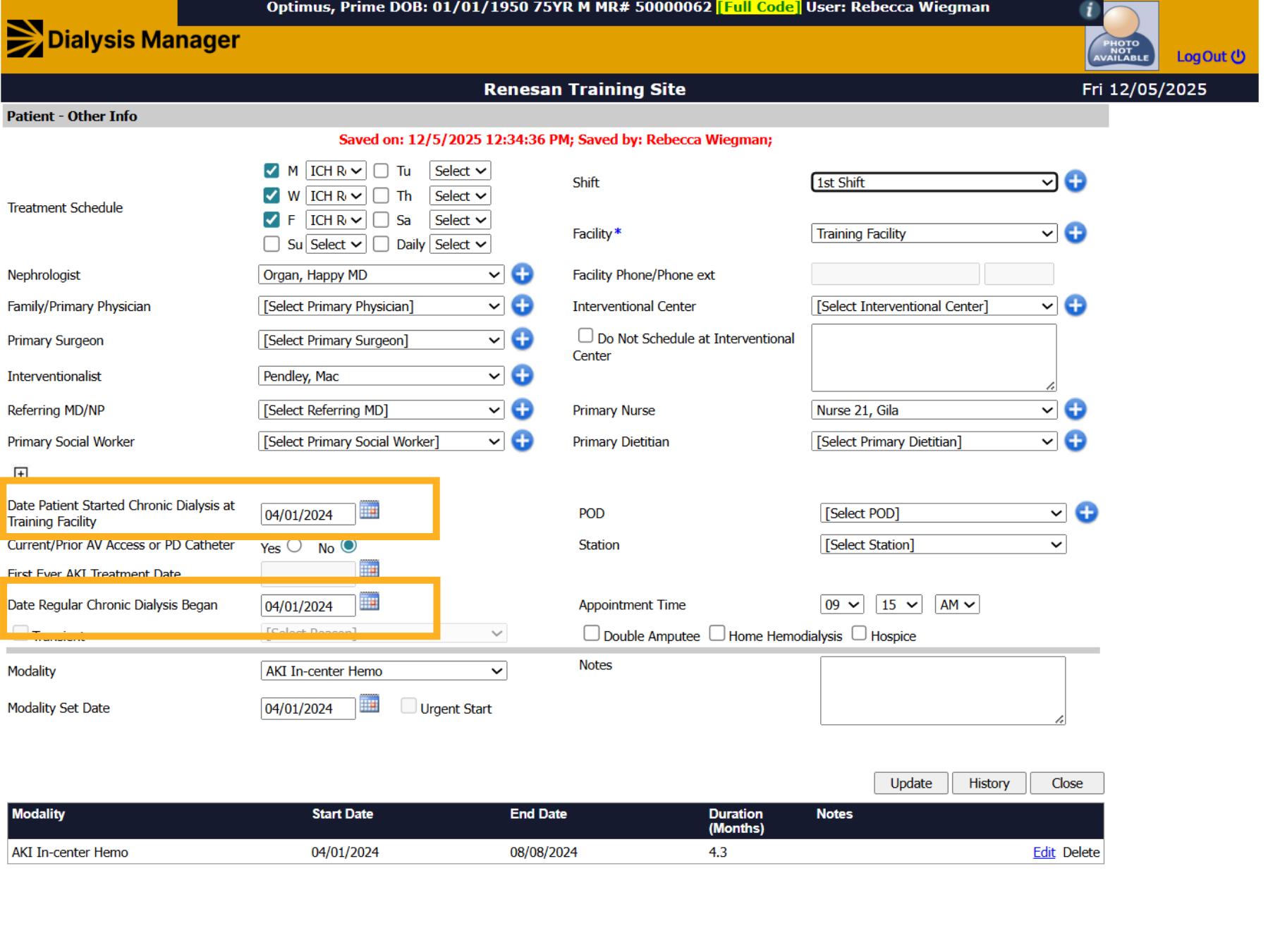
"Date Patient Started Chronic Dialysis at Facility" will remain unchanged. However, "Date Regular Chronic Dialysis Began" should reflect the first treatment date for patients diagnosed with ESRD. This date should match the patient's CMS 2728.
19. Modality
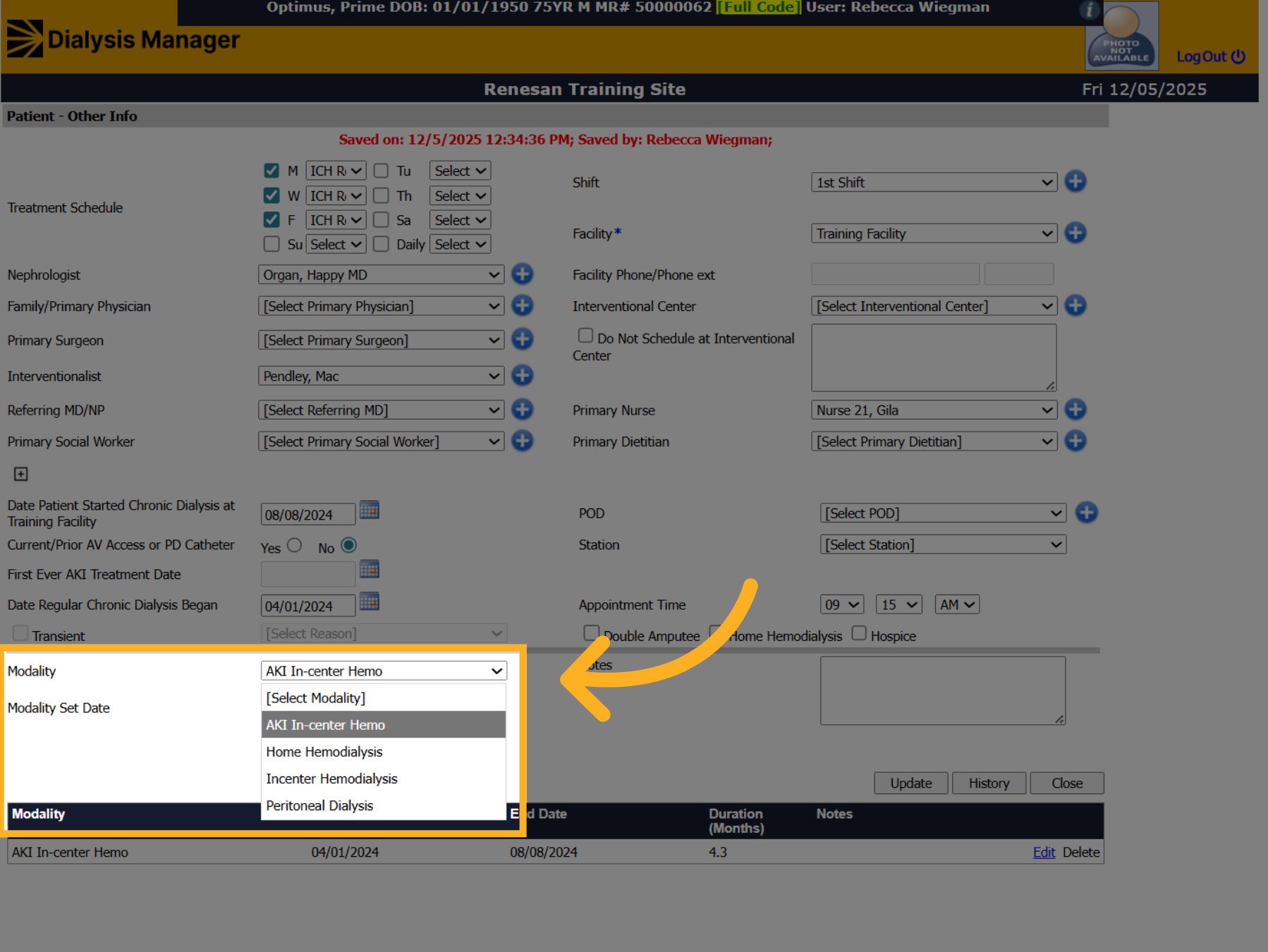
Update the modality dropdown to Incenter Hemodialysis.
20. Open Update Button
Enter the Modality Set Date. This date should mimic the Date Regular Chronic Dialysis Began.
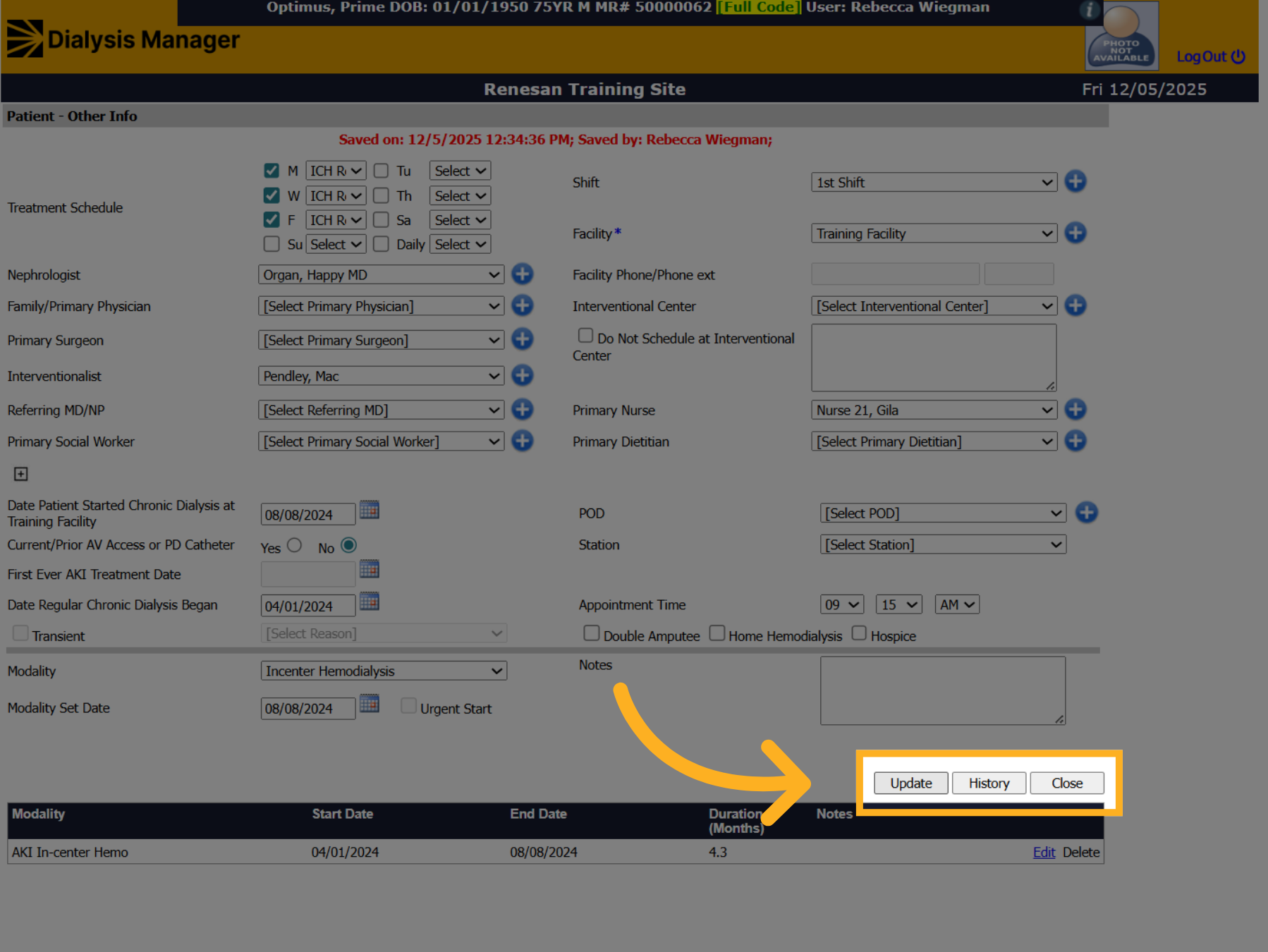
21. Save Modality Changes
Once all information has been reviewed and verified click "Update" wait until information saves and click Close.
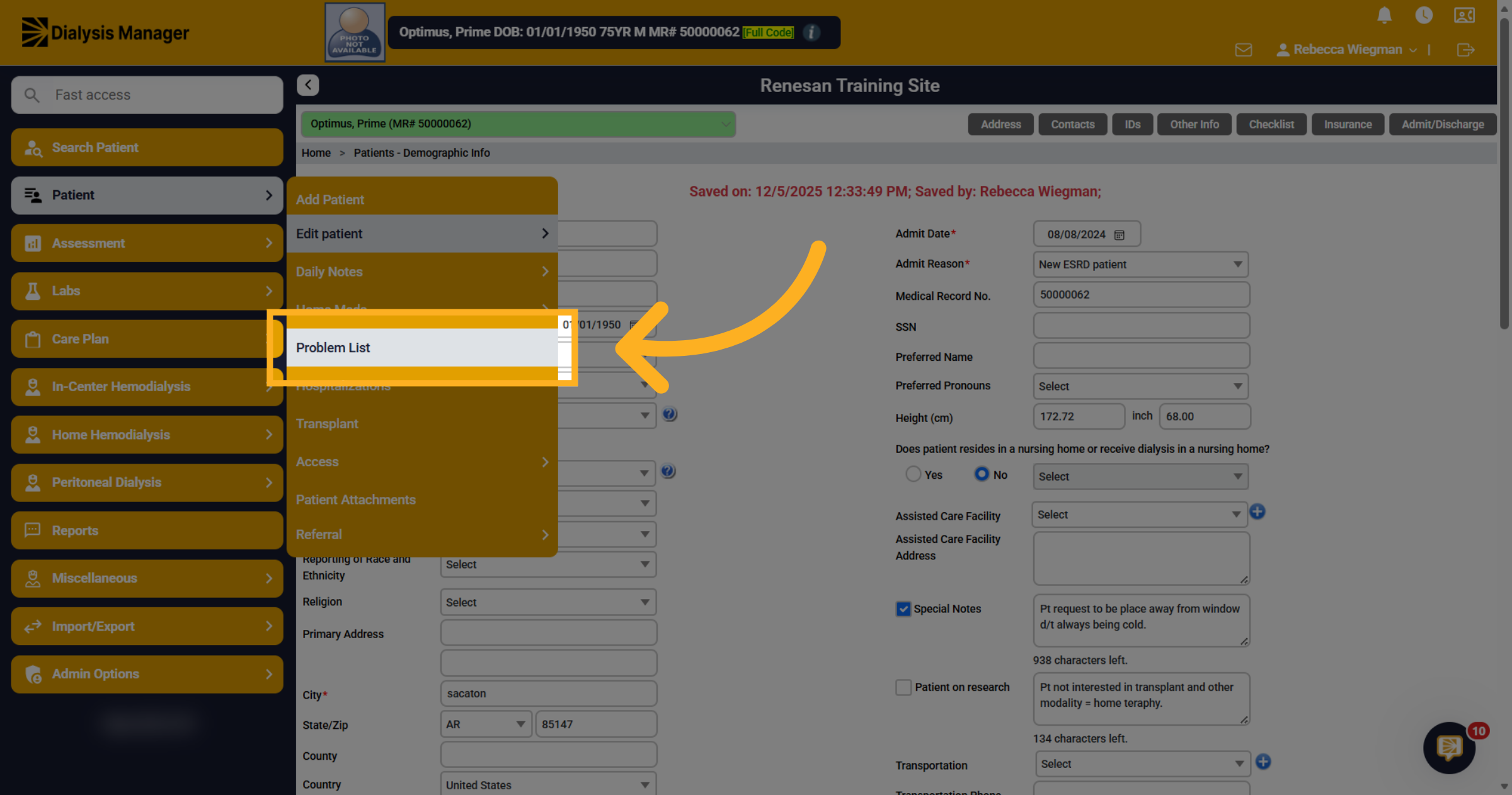
22. Open Problem List
Click "Problem List" to review and update patient problems.
23. Ending the Primary Acute Diagnosis
For the Primary Acute Diagnosis, you'll want to enter the End Date then click Update!
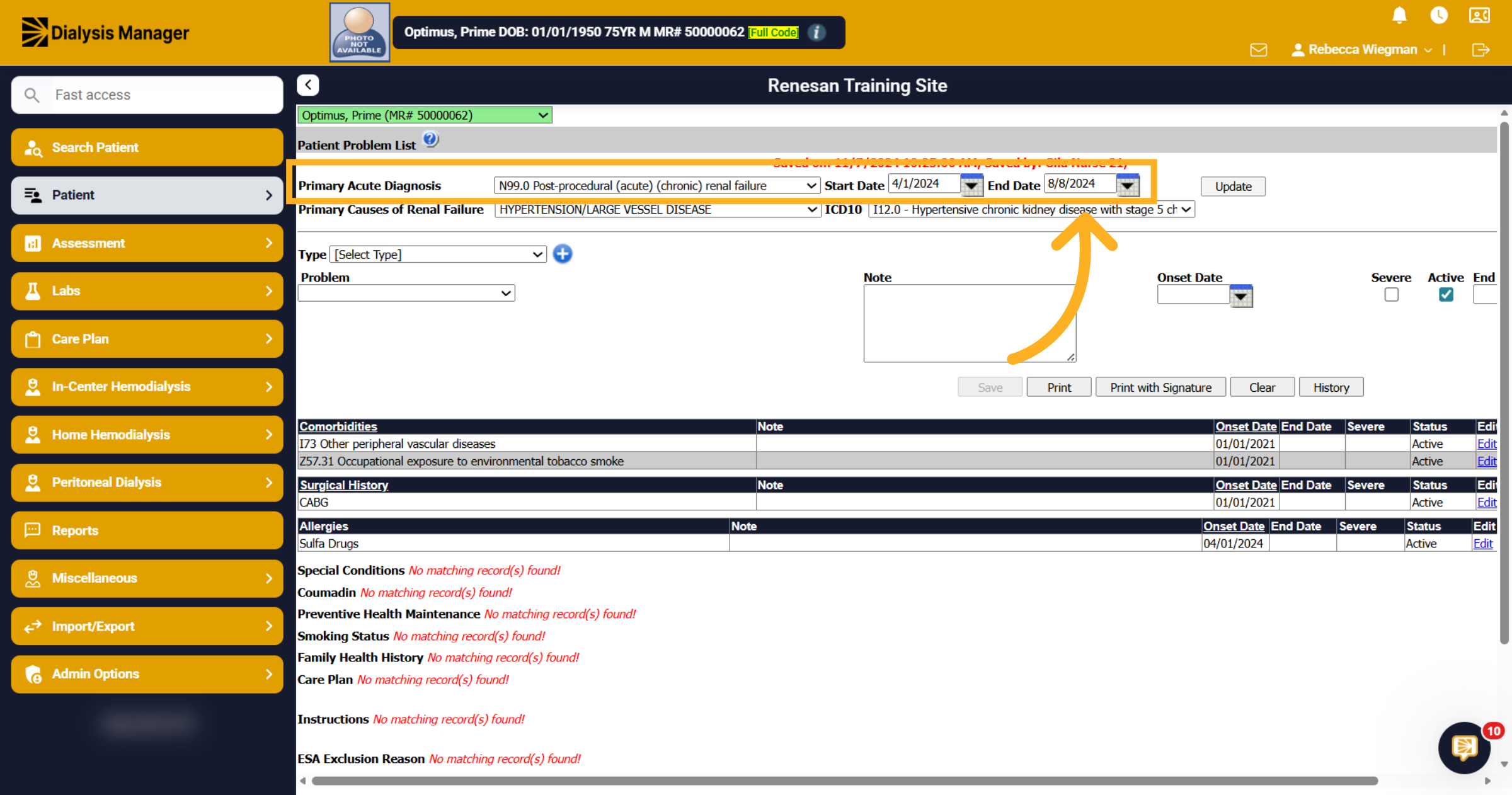
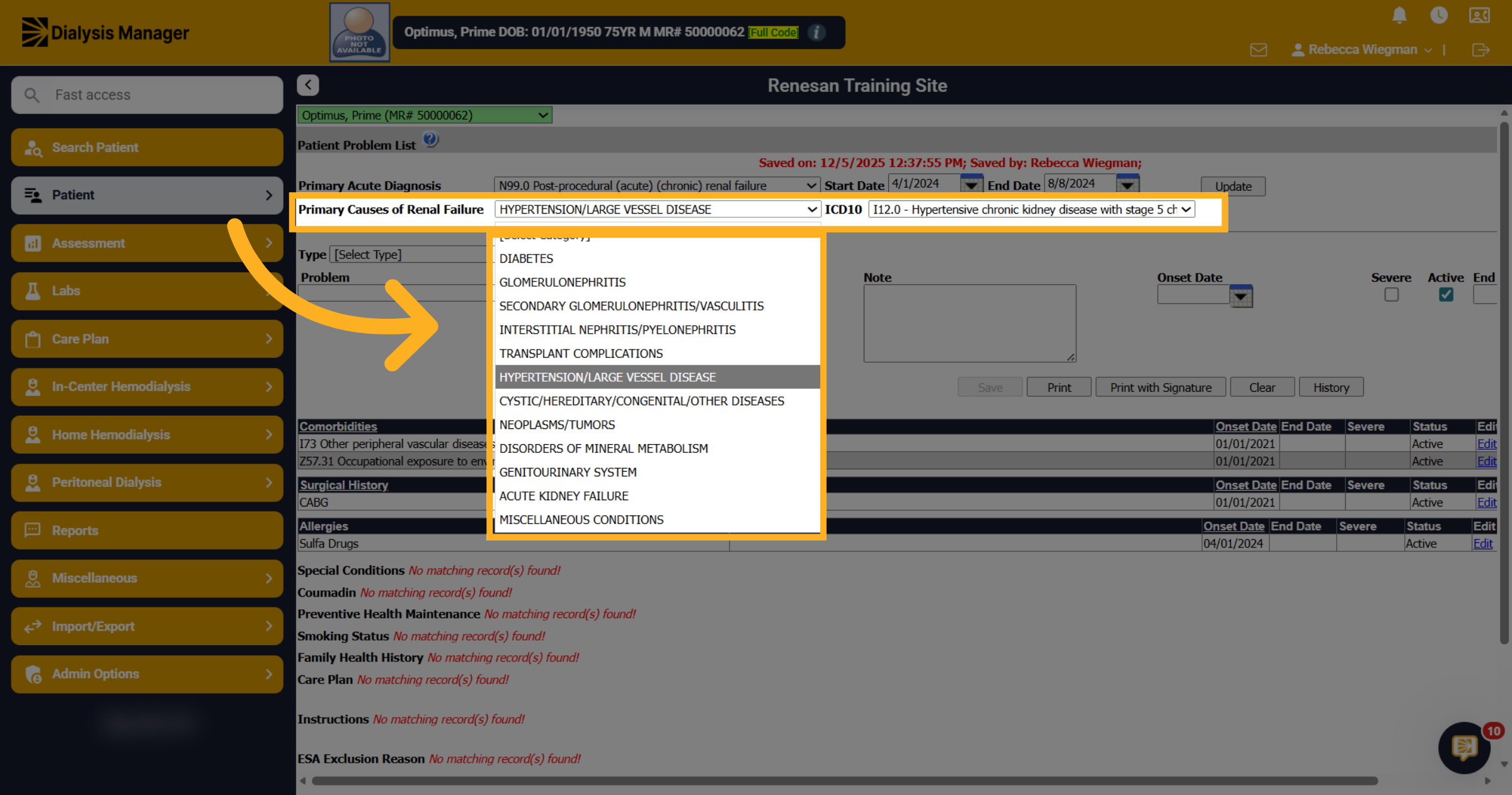
24. Primary Causes of Renal Failure
Click the category dropdown to select the Primary Causes of Renal Failure then select the ICD-10 Code associated with the primary cause.
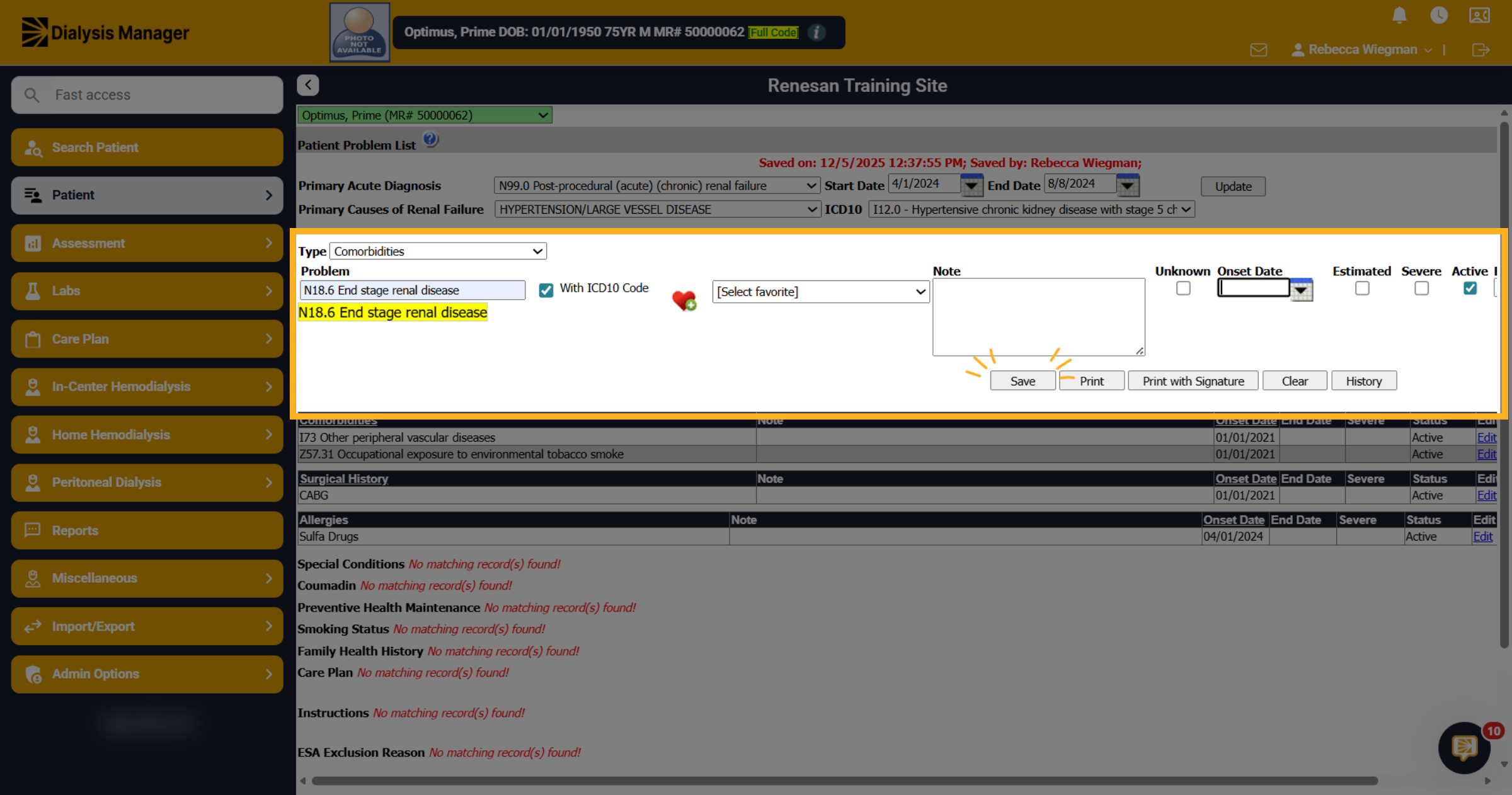
25. Add/Update Comorbidities
Add additional Comorbidities such as N18.6 End Stage Renal Disease, entering the Onset Date and marking that it is now Active. After entering any notes be sure to click Save.
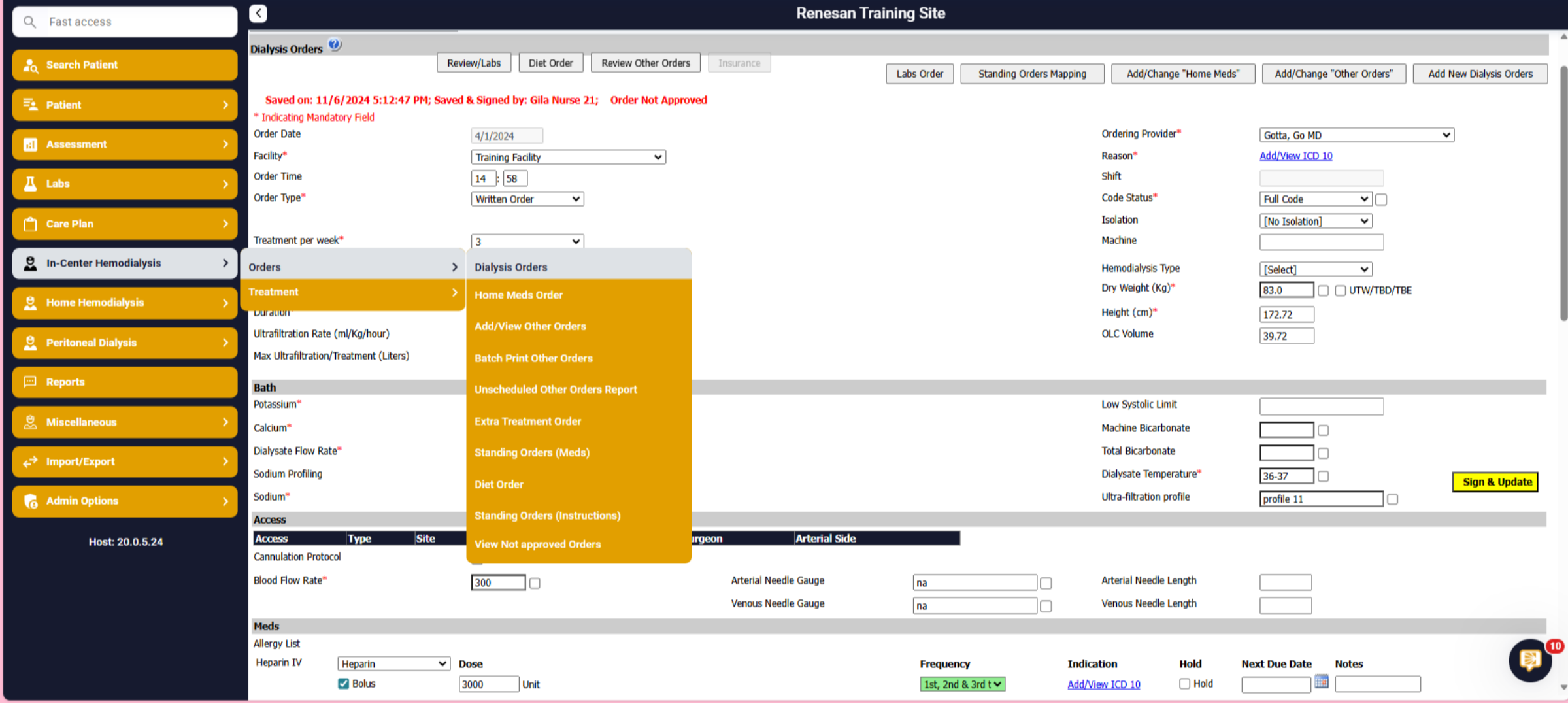
26. Dialysis Order
Now that you have changed the patient's modality, admit date and problem list, you'll want to go into the menu In-Center Hemodialysis then Orders and select Dialysis Orders to enter the patient's new Dialysis Order.
27. CMS 2728
You will also want to enter the Patient's CMS 2728, by going to the Patient menu, Edit Patient and CMS 2728.