Enter Co-Morbidities into Dialysis Manager
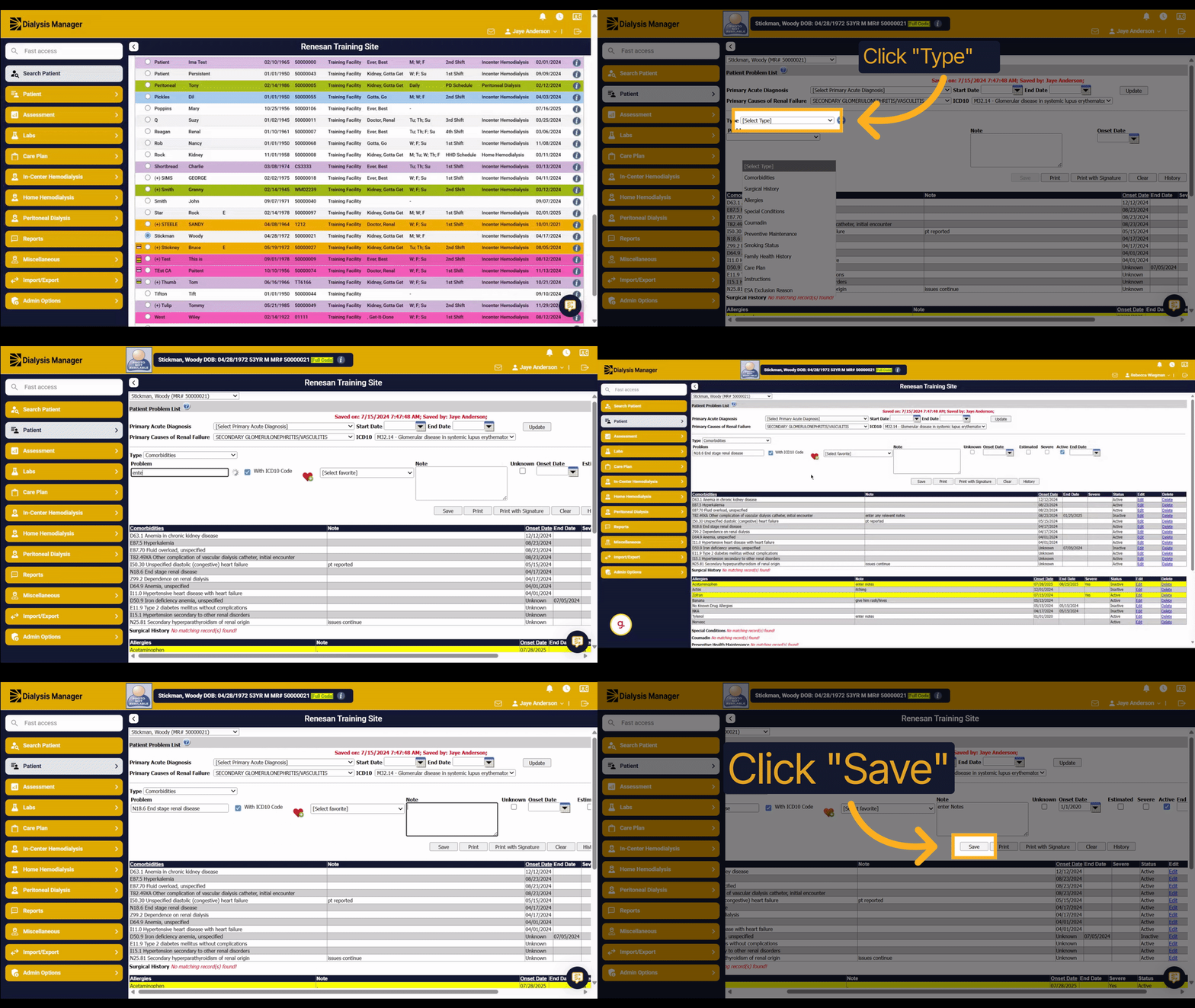
1. Introduction
This guide will show you how to enter co-morbidities into Dialysis Manager. You will learn how to select the condition type, add diagnosis details, and save the information efficiently.
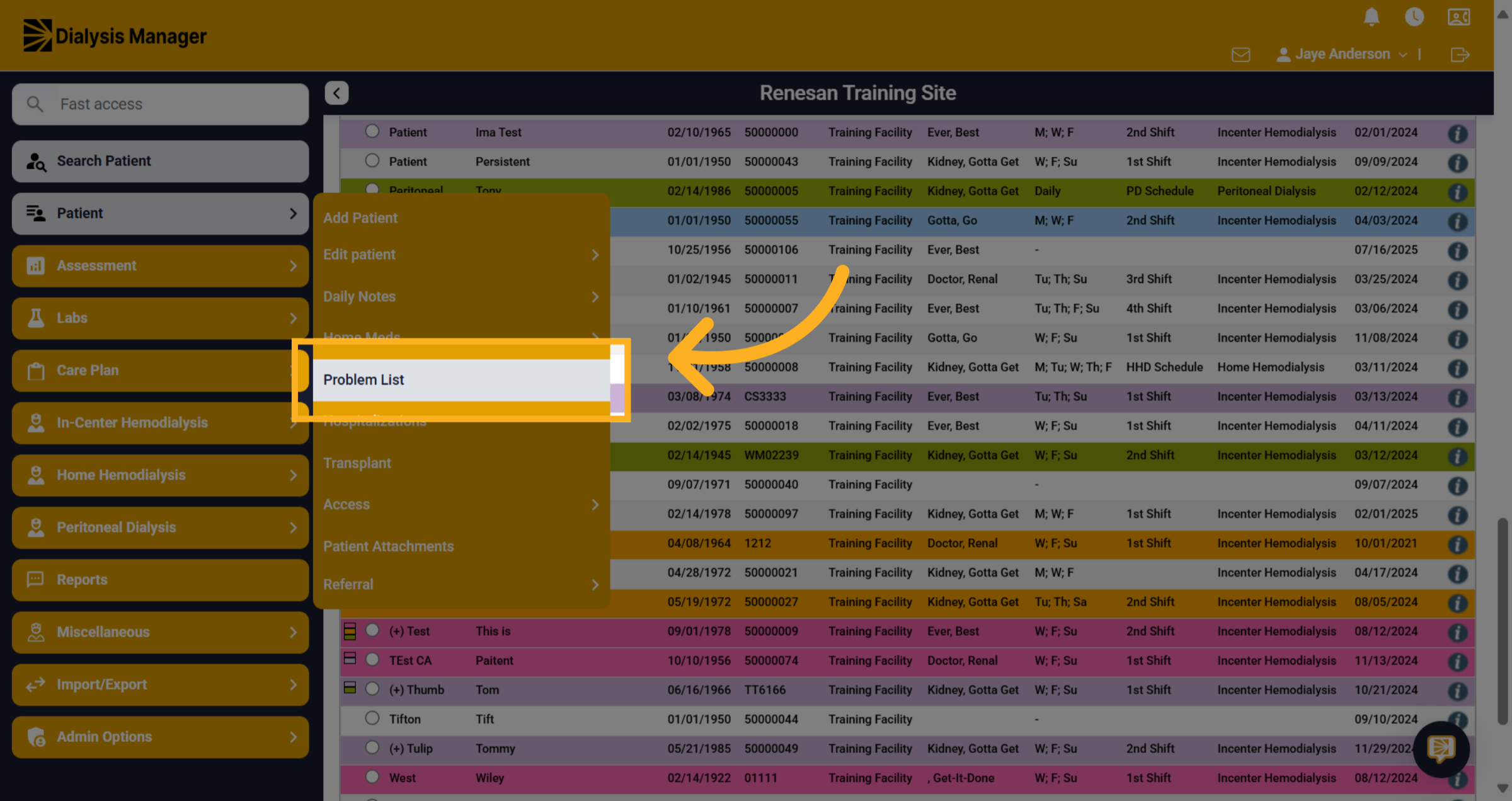
2. Click "Problem List"
Click the "Problem List" tab to begin managing patient conditions.
3. Select a Type
Click the dropdown menu labeled "Type" to view available categories such as Comorbidities, Surgical History, Allergies, and others.
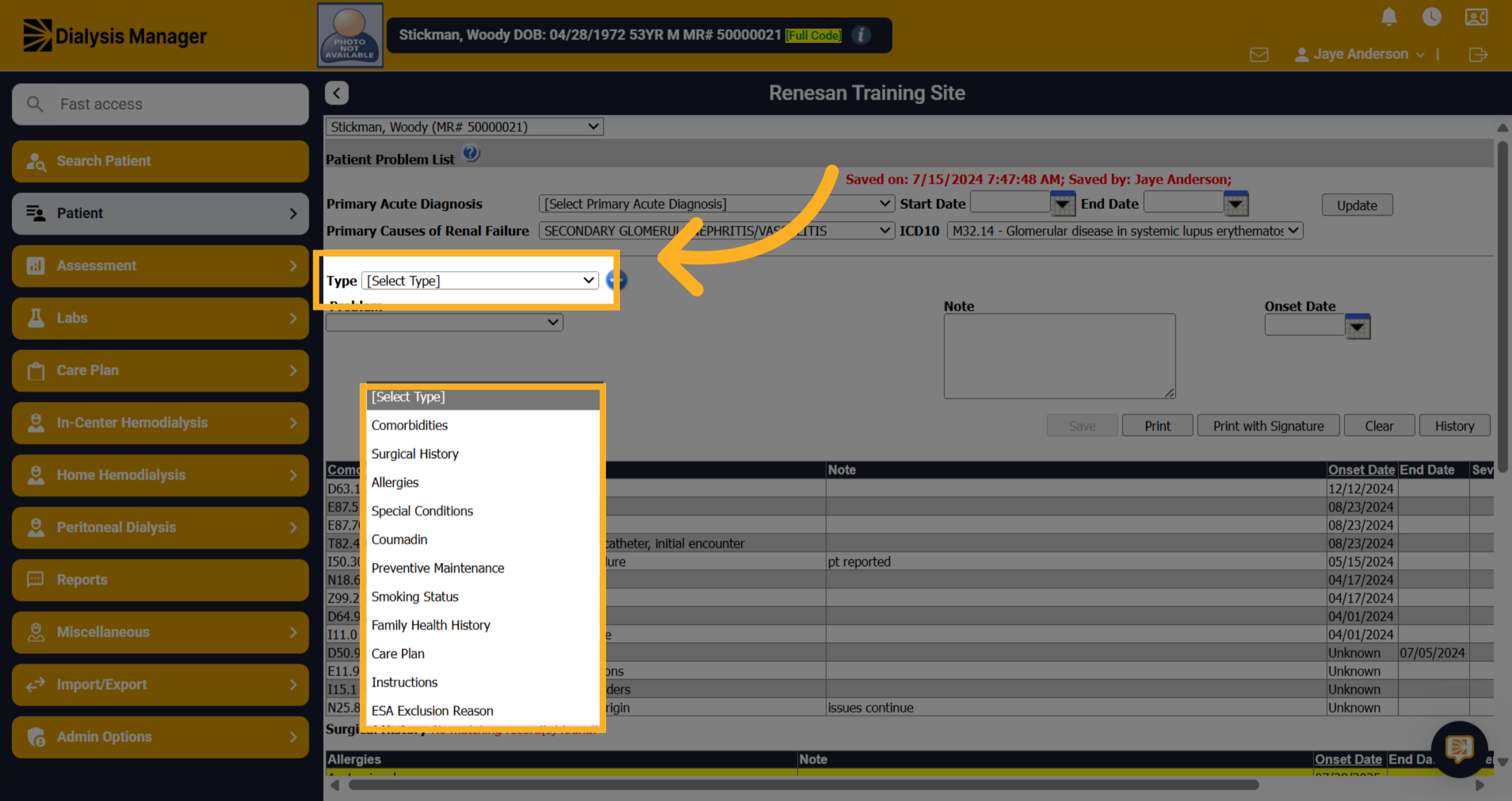
4. Co-Morbidites
Select Comorbidities from the dropdown.
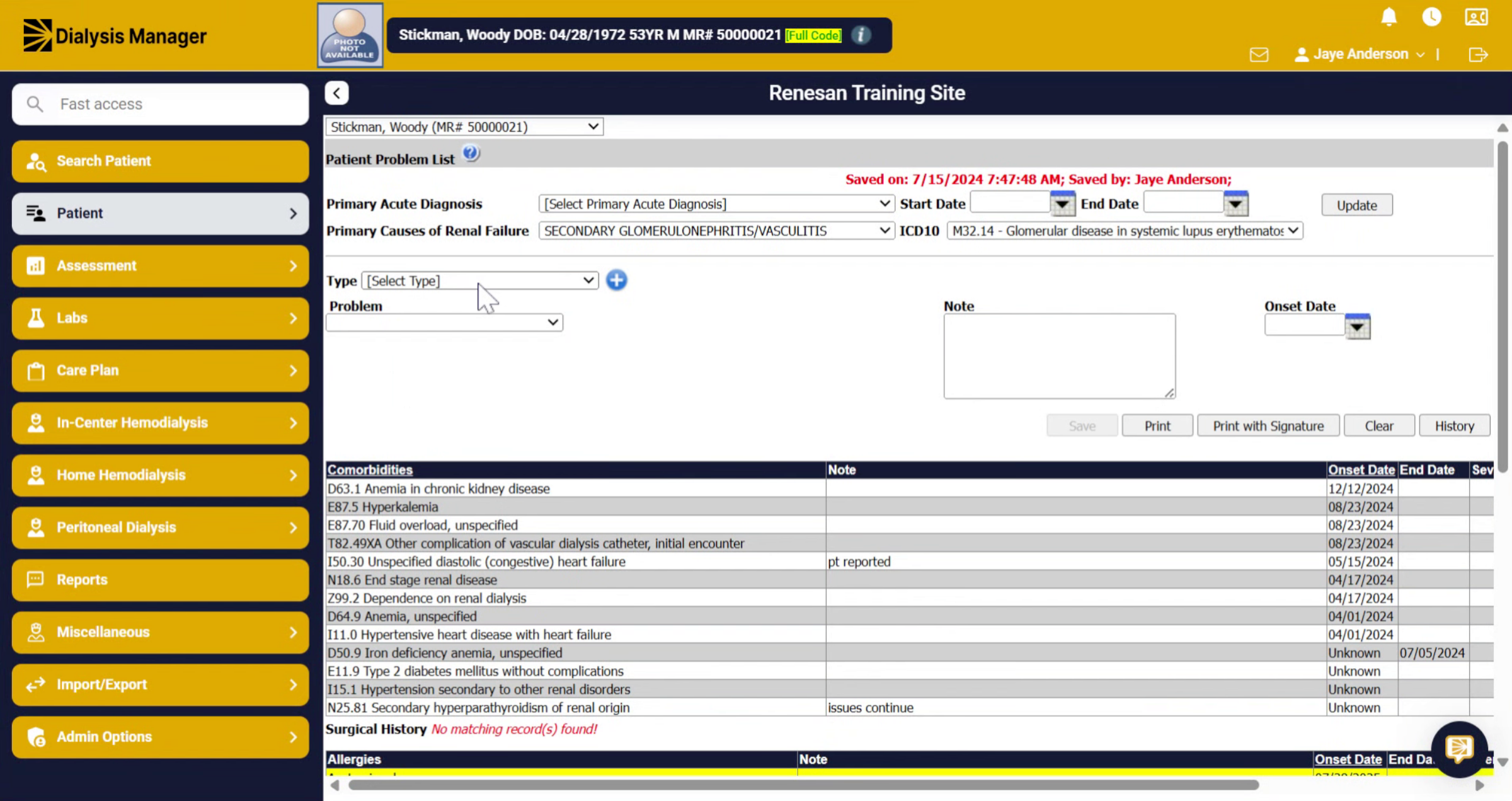
5. Enter your problem or the ICD 10 code
Click the input field to start entering the condition details.
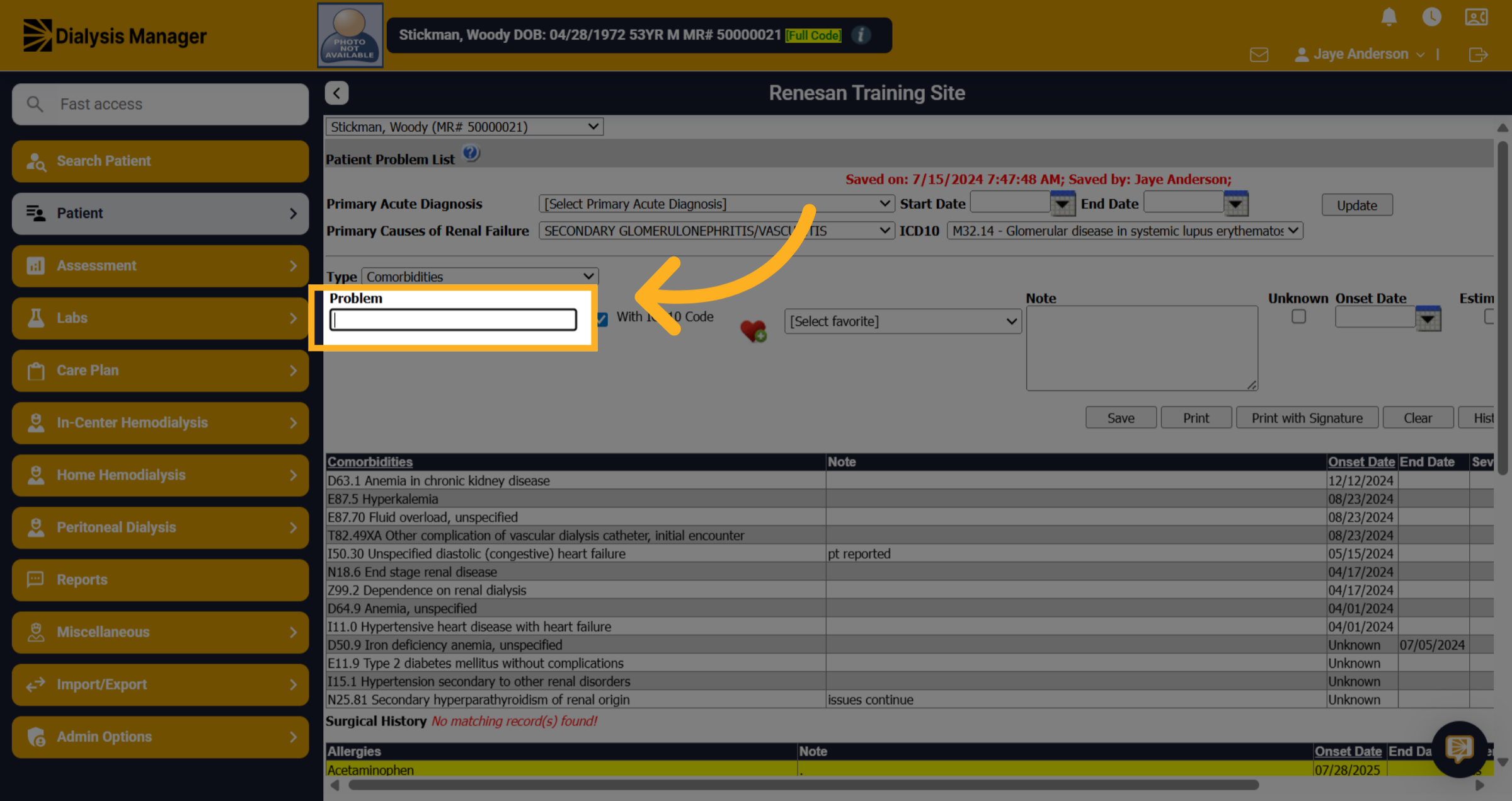
6. Renal Conditions
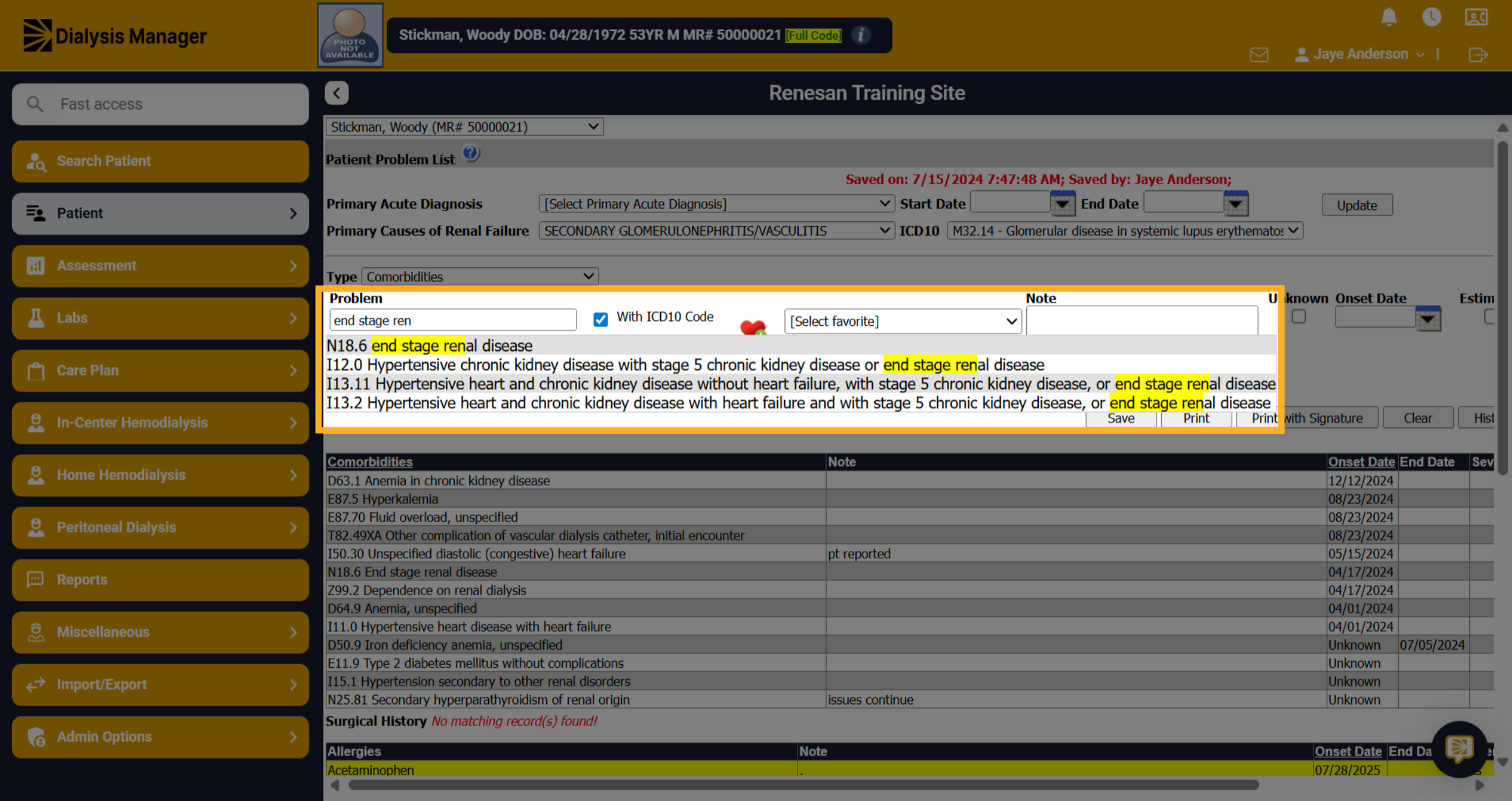
Type the name of the condition you want to add, for example, a specific renal condition.
7. Select the Problem
Click the specific diagnosis code, such as "N18.6 end stage renal disease," to assign it to the condition.
8. Add to Favorites
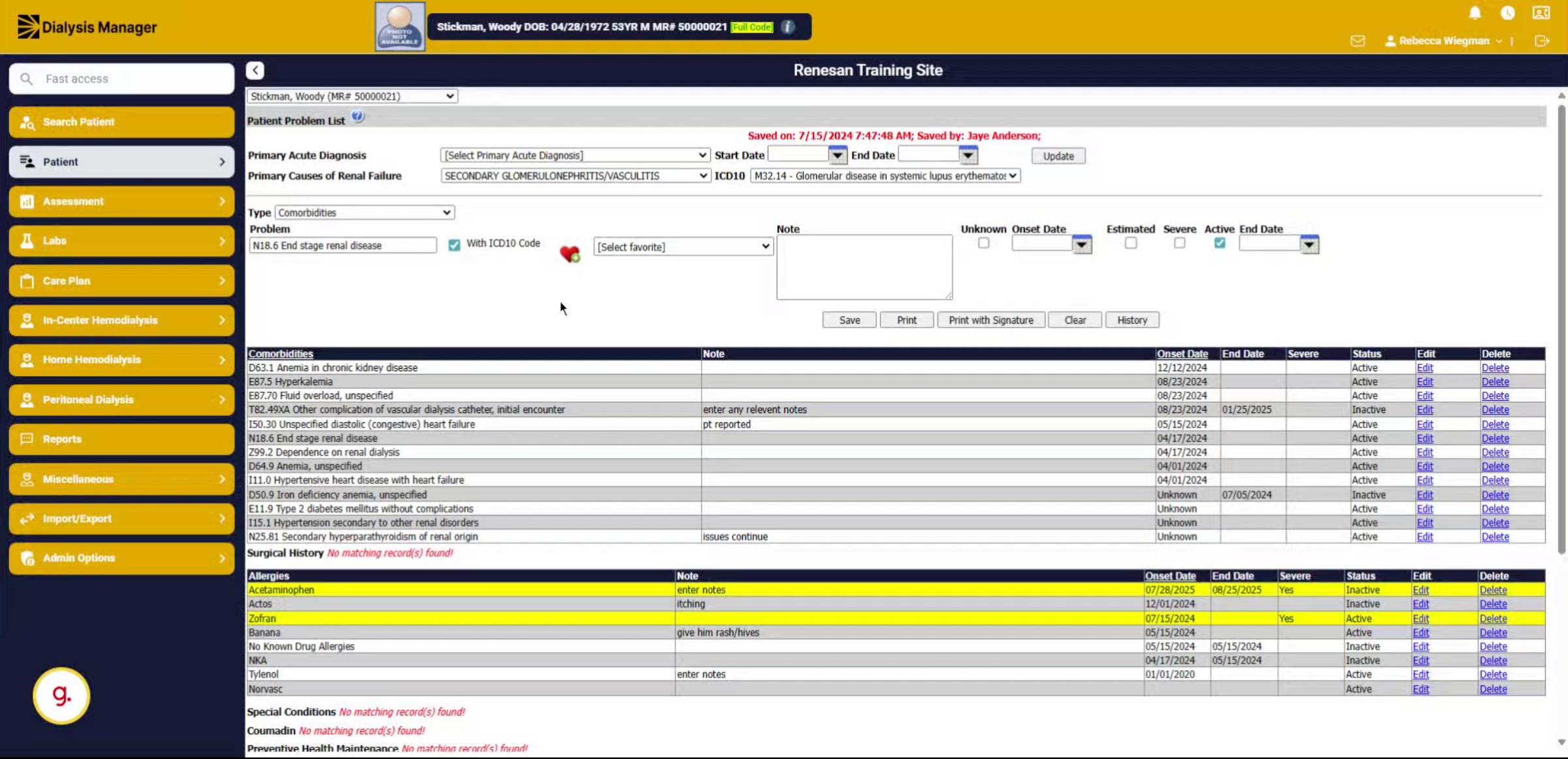
When selecting the heart icon, it will add your problem list into the favorite drop-down. This allows you to quickly access common comorbidities without searching through the entire list every time.
9. Heart Icon
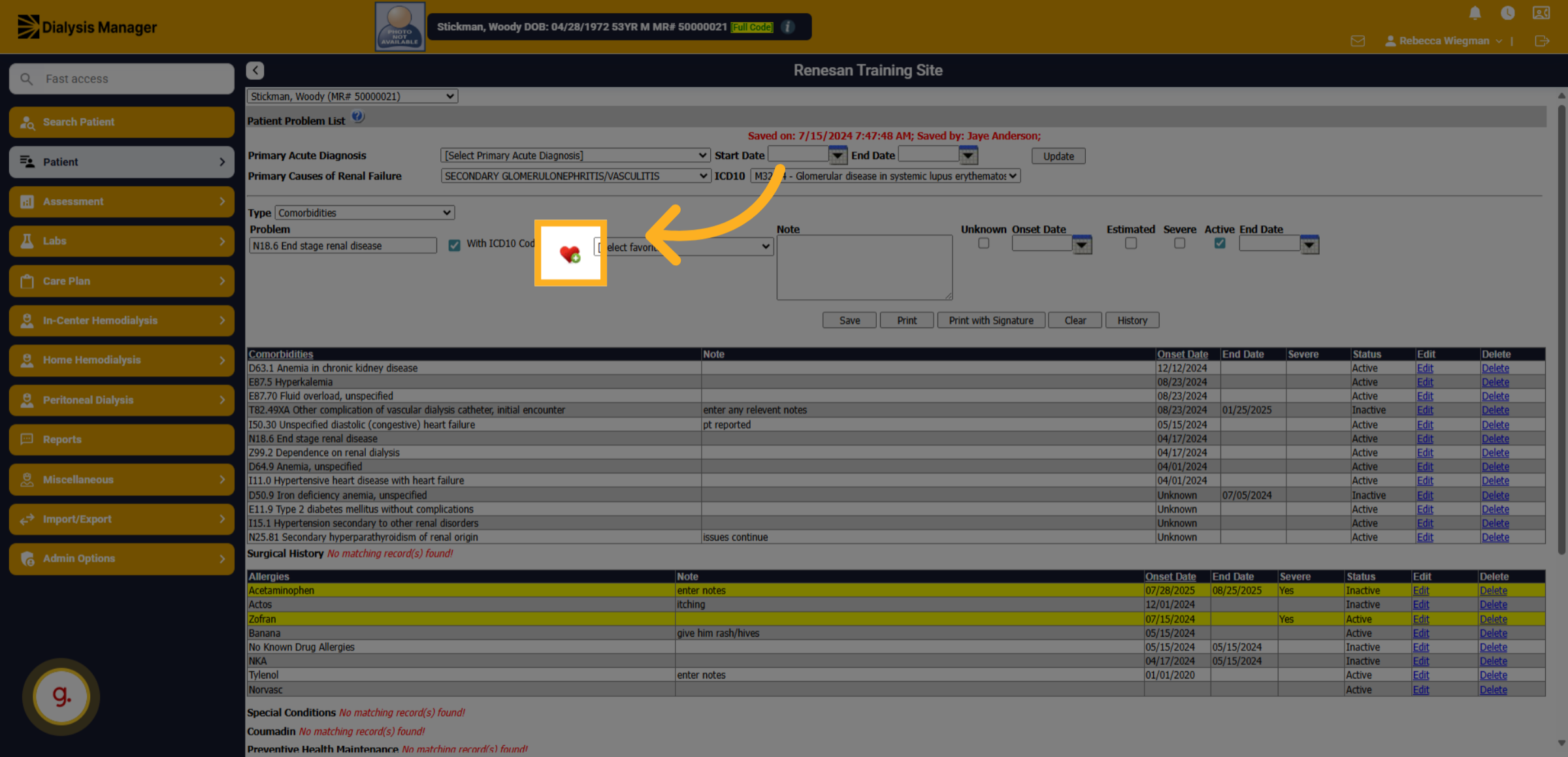
Click on the heart icon to add a problem to your favorites list.
10. Favorites dropdown
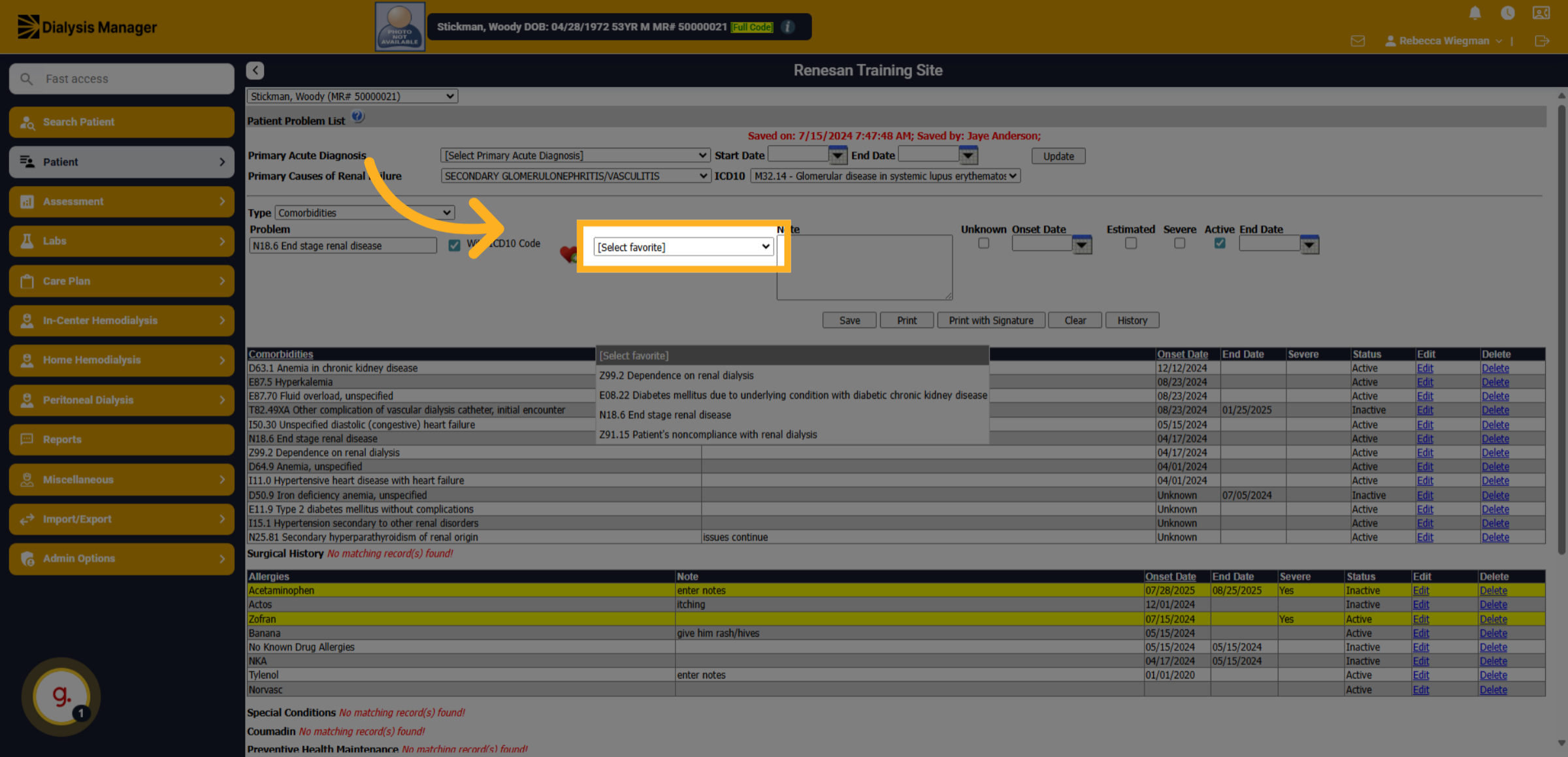
You'll now be able to view those favorites for future patients to be selected.
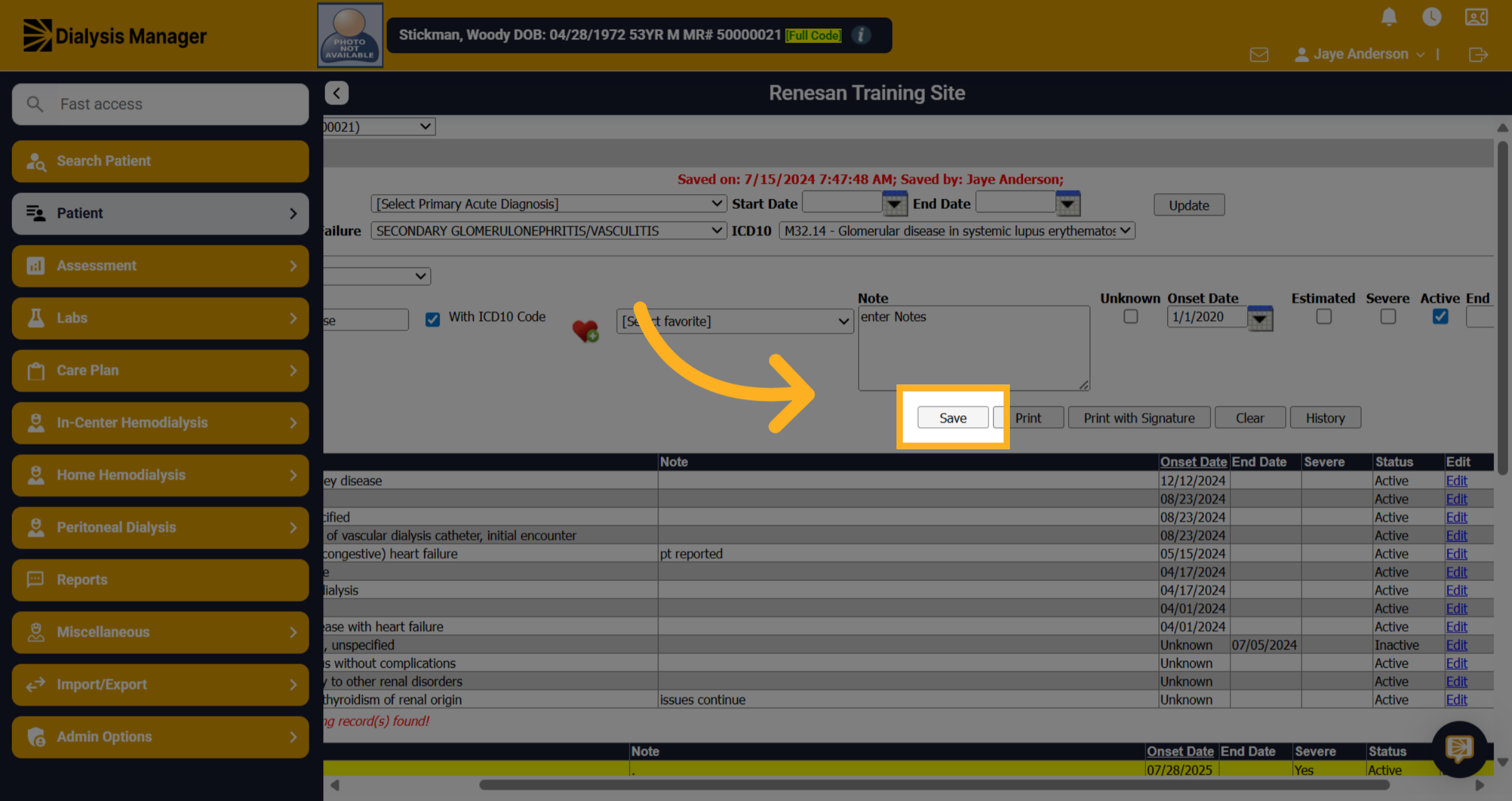
11. Enter Notes
Type any relevant notes or additional information about the condition.
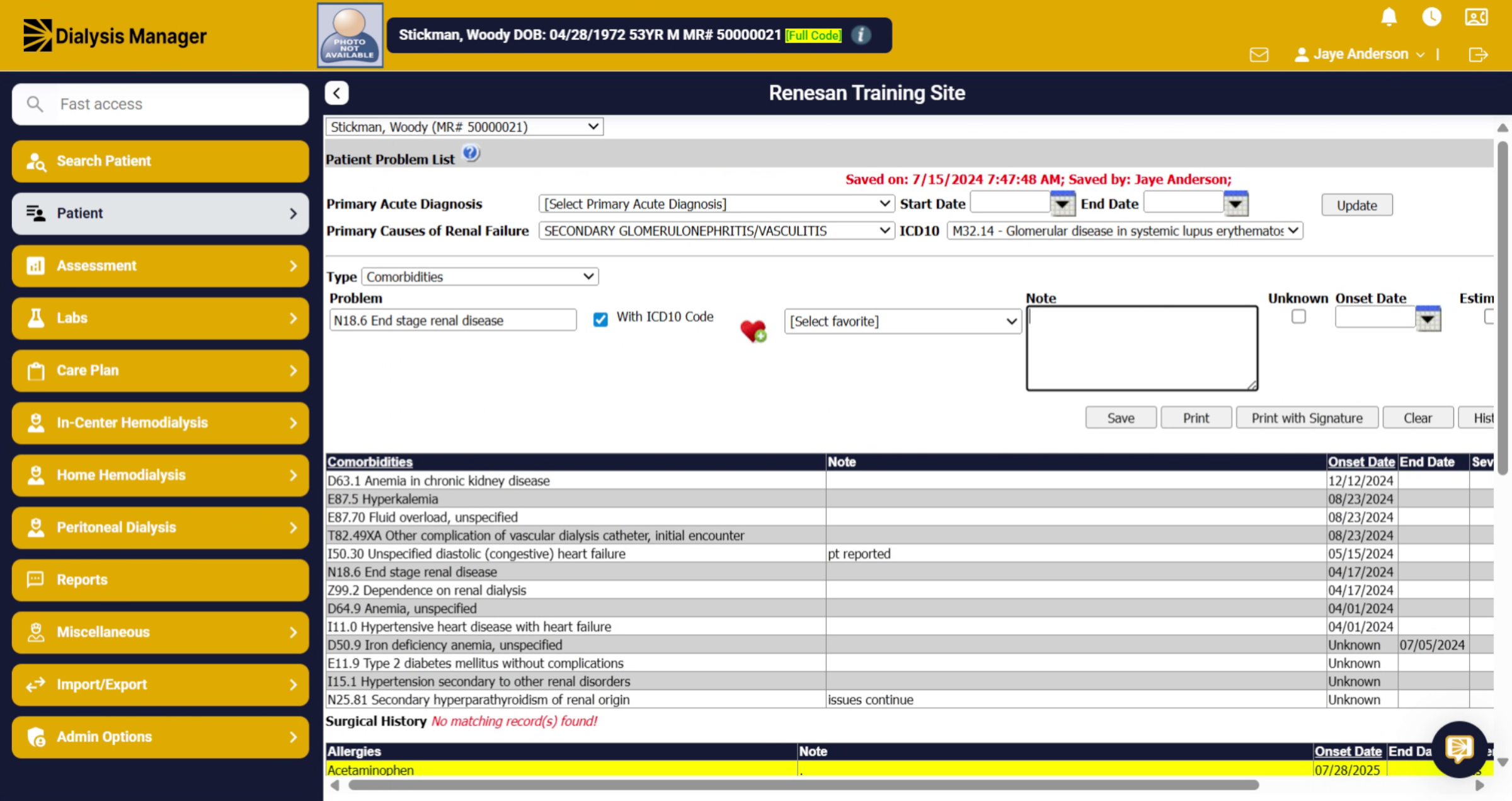
12. Onset Date
Click and enter the date field to specify when the condition was diagnosed or noted.
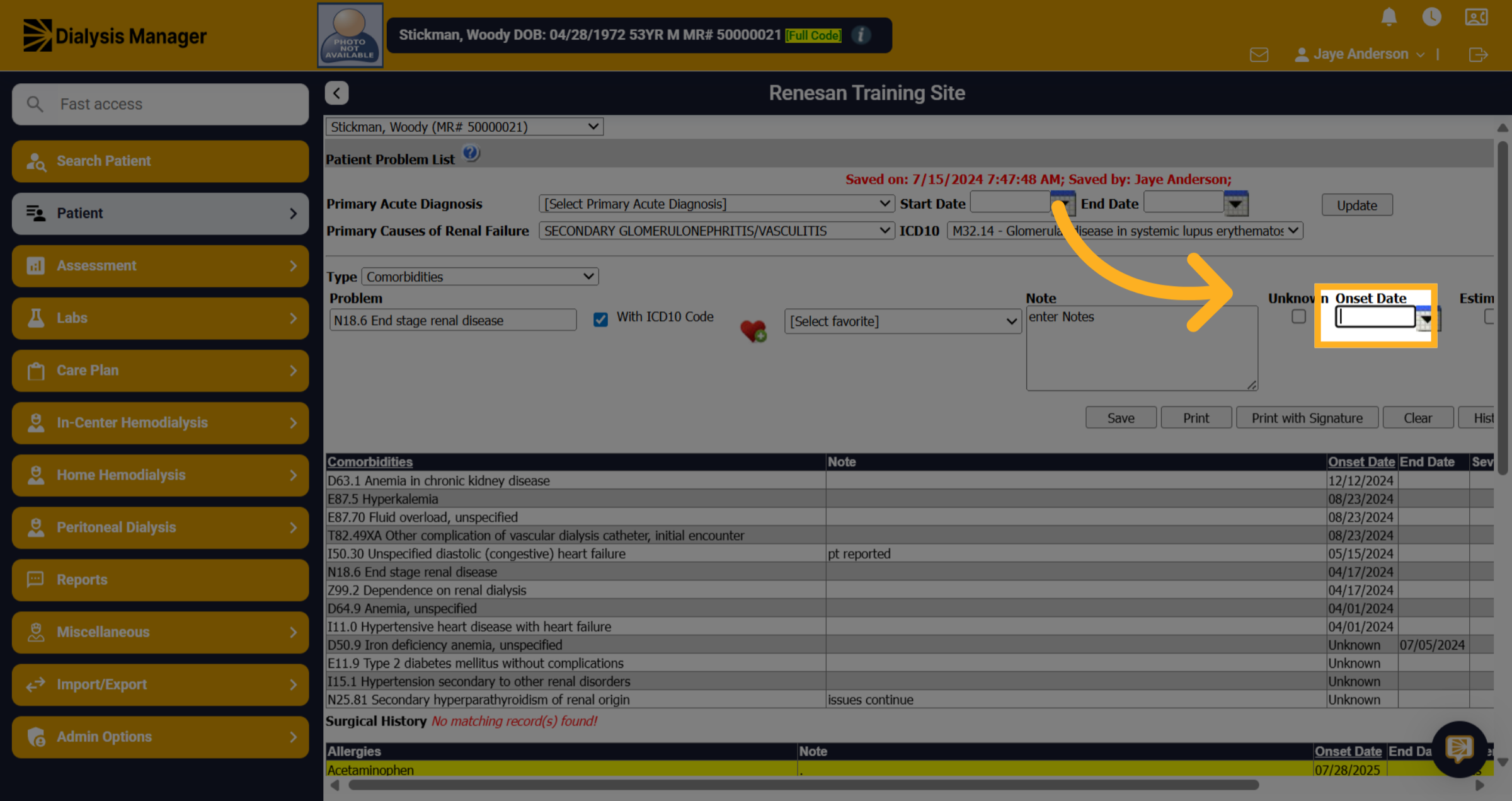
13. Click "Save"
Click the "Save" button to finalize and save the entered condition and its details.