
1. Know the DOS of the flowsheet to be corrected.
2. navigate to In-center Hemodialysis> Go to Orders > Dialysis Orders
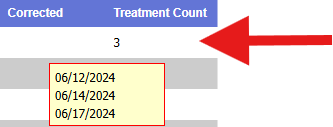
a. Hover over the number in the Treatment Count column to find which order date is associated with the flowsheet to be corrected.
Change the Order for the DOS
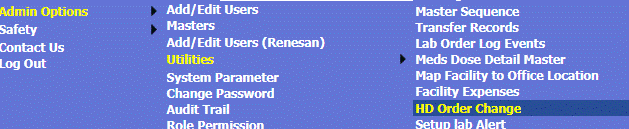
After Selecting patient > Admin Options → Utilities → HD Order Change
2. Select DOS from above
Make necessary order changes
Provide the following medication details when making changes:
Drug
Rate
Dose
Unit
Route
Frequency
ICD-10 Code: Use the “Add/View ICD-10 Code” option to include the appropriate diagnostic code.
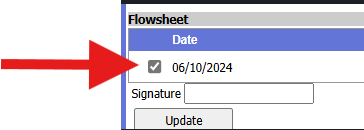
In the Flowsheet section, at the bottom of the Dialysis Order being corrected, check box in front of the Treatment Date(s) > Click Update > Sign and Save
Add your signature at the end of the changes before clicking Update to save the entry.
Document the correct information for the DOS
1. Incenter Treatment > HD Flowsheet
a. Select Date hyperlink for the DOS to correct
b. Go to Dialysis Meds section
c. Document corrections to medication
If you encounter configuration errors (e.g., “Please set up med dose detail master before prescribing [medication]”), ensure the medication’s dose details and billing setup are correctly configured in the system before retrying.
d. Approve and lock Dialysis Meds section.
2. Approve and lock flowsheet.