Adding a Transplant Status
1. Introduction
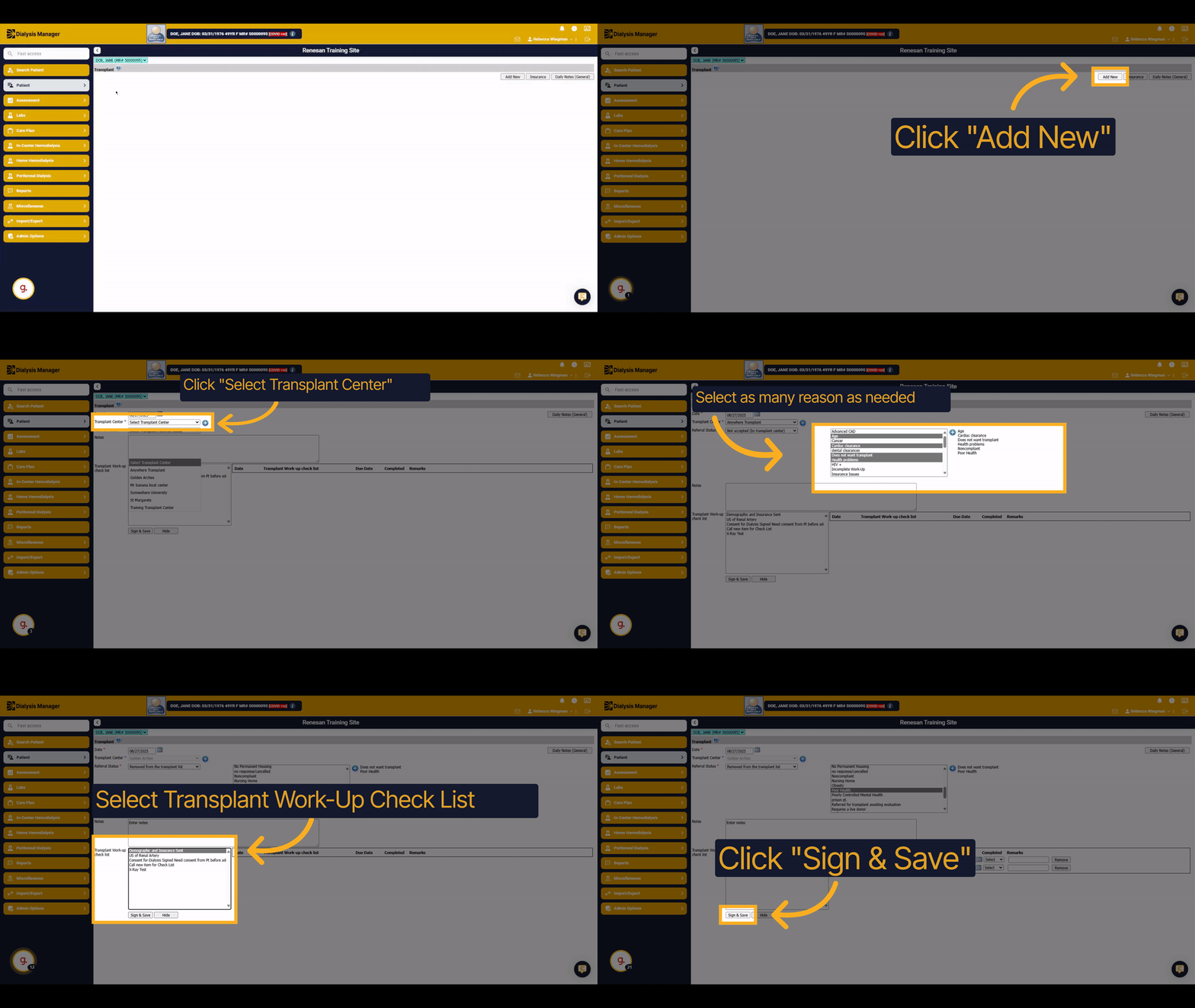
This guide explains how to add a transplant status in the system. You will learn how to select transplant centers, referral statuses, reasons, and update related checklists to manage transplant information effectively.
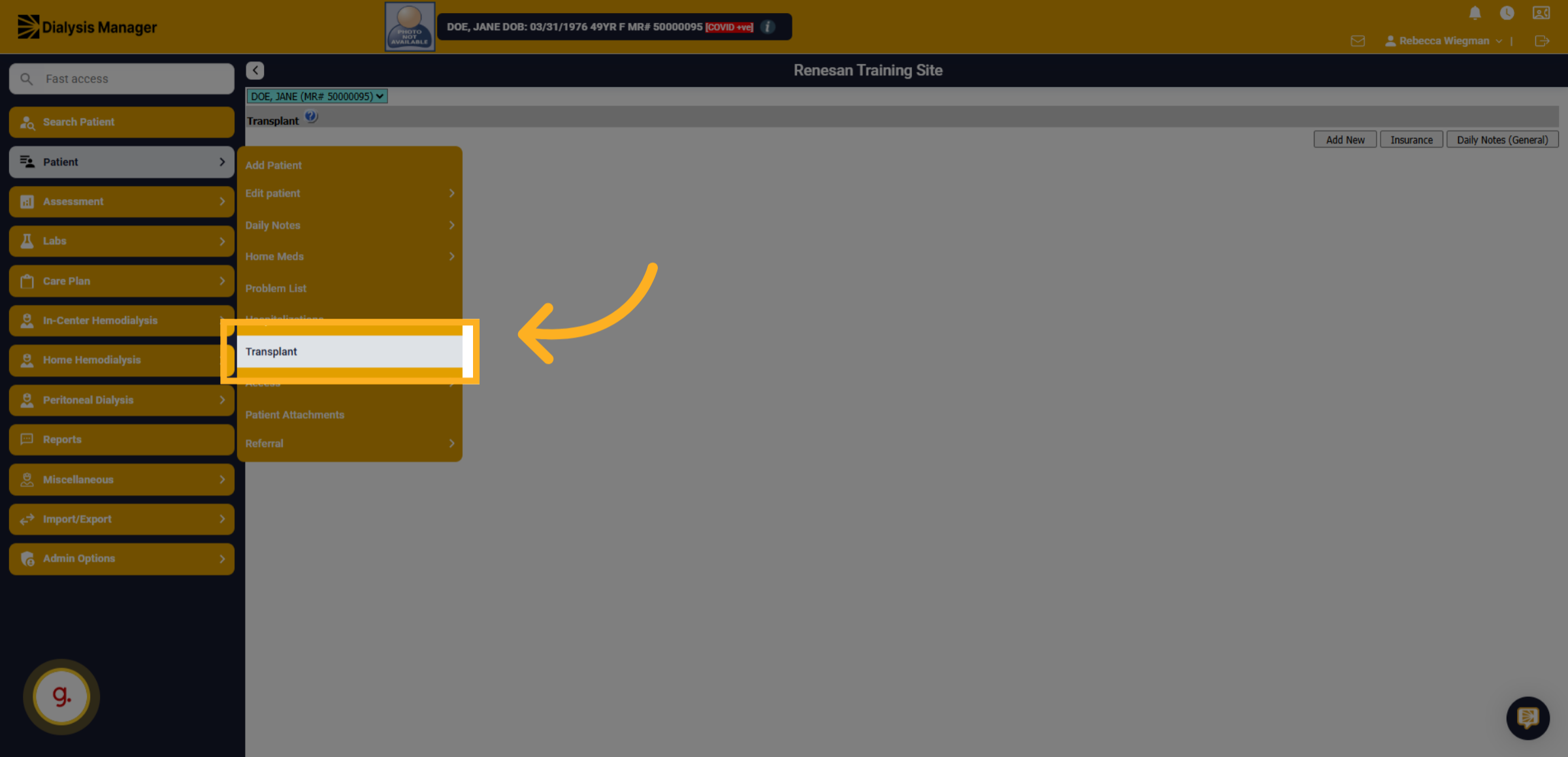
2. Click "Transplant"
Click the "Transplant" tab to begin managing transplant statuses.
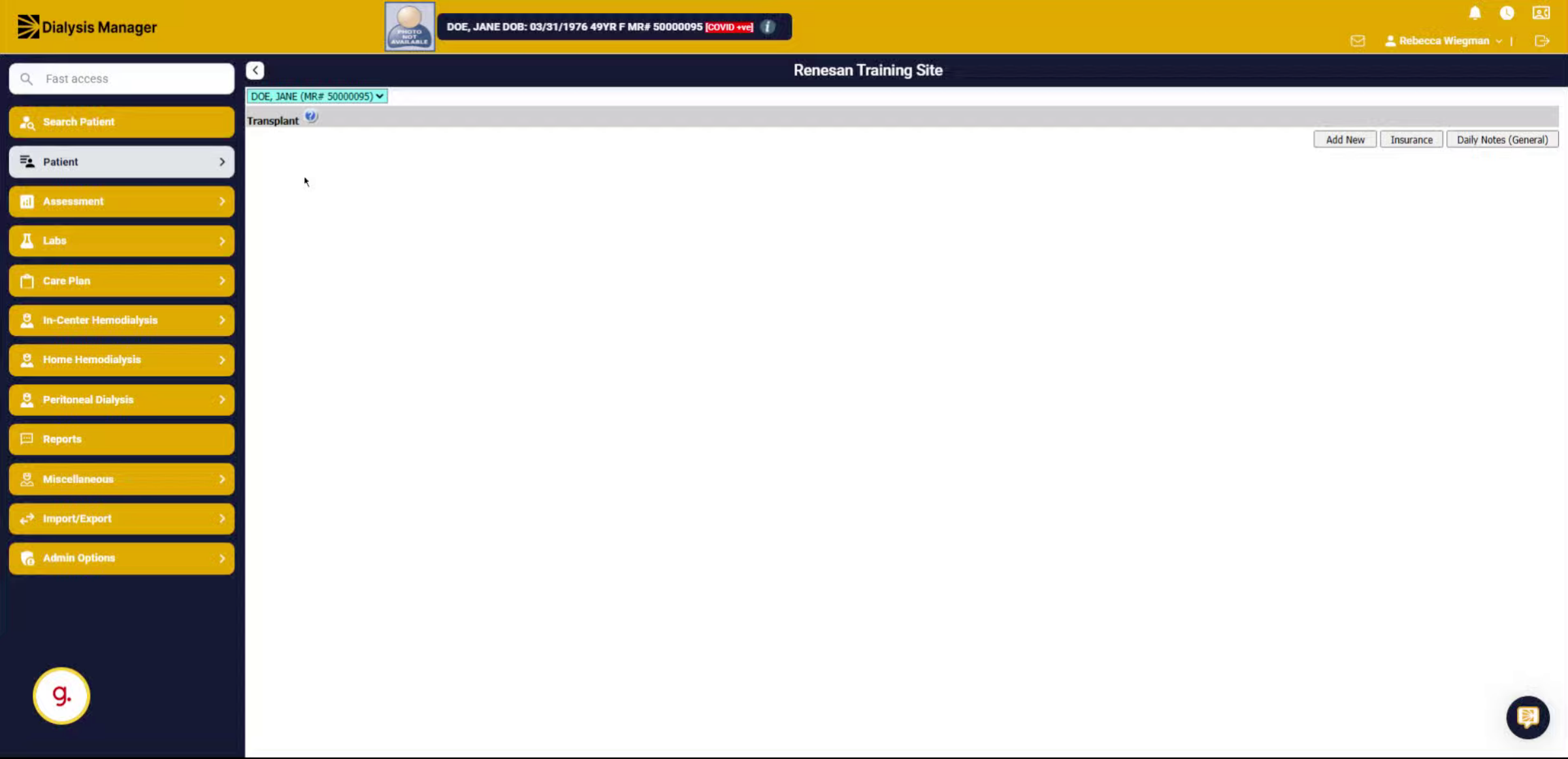
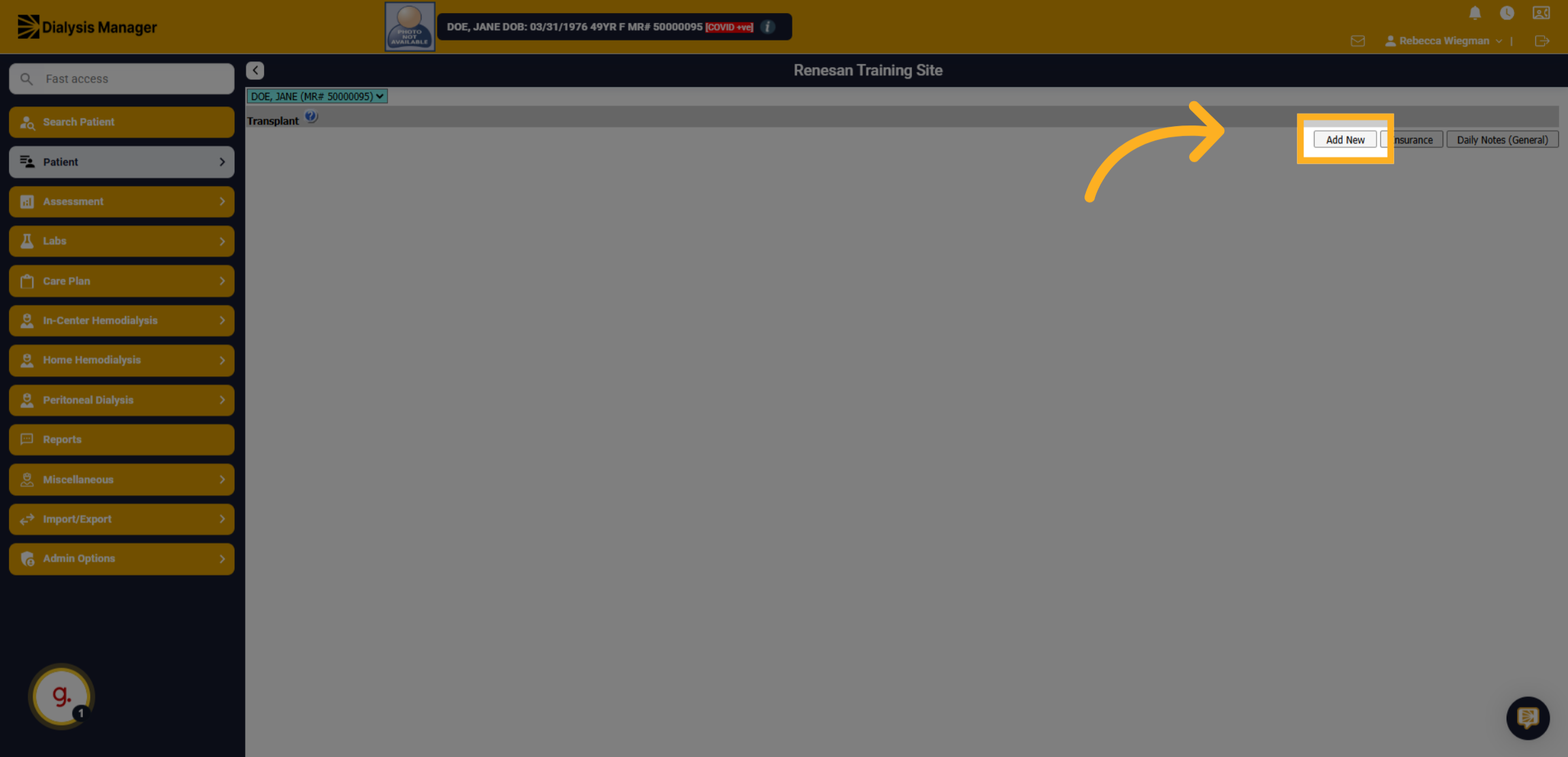
3. Click "Add New"
Click the "Add New" button to create a new transplant status entry.
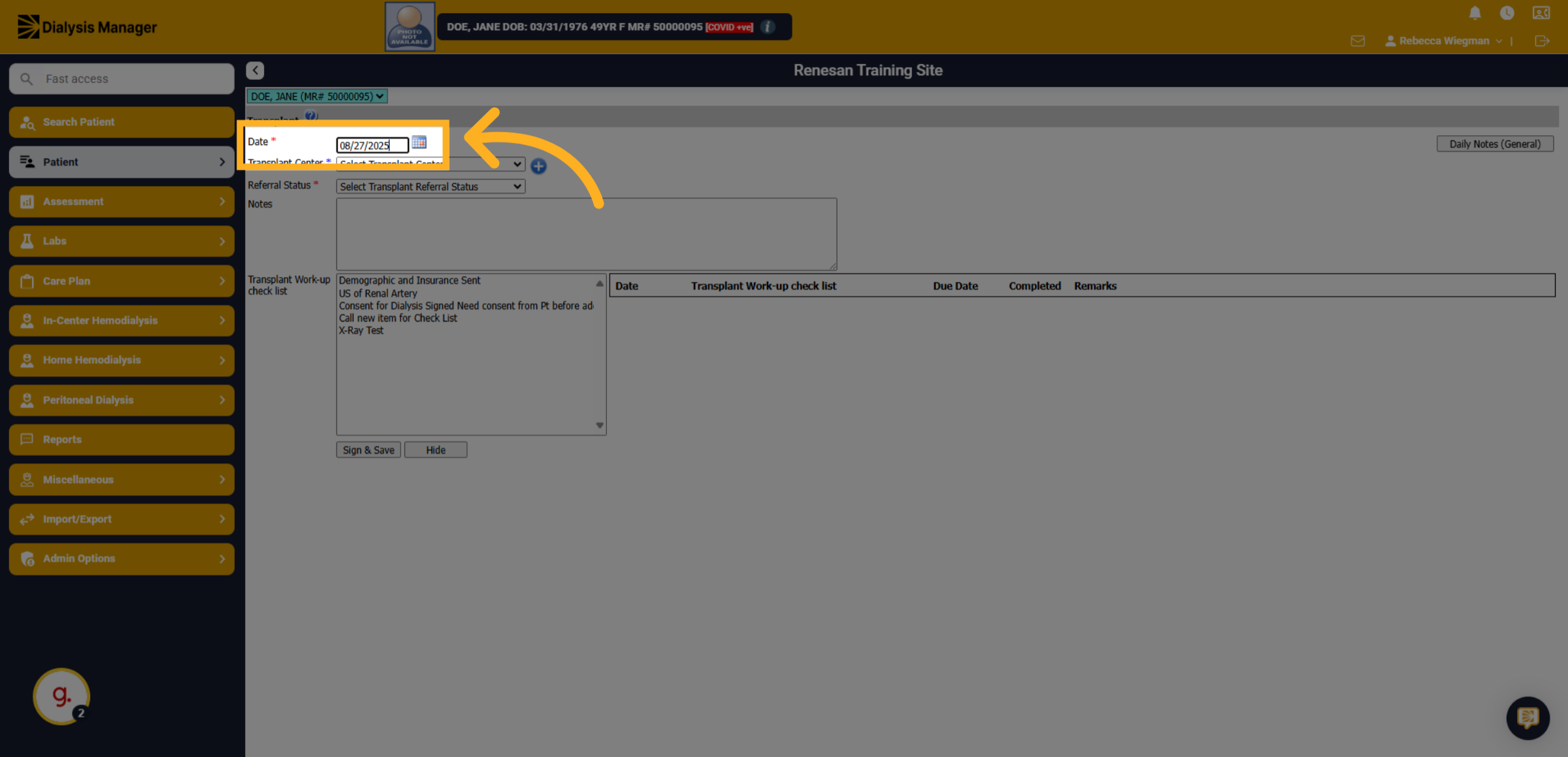
4. Select a Date
Enter the date of the transplant record.
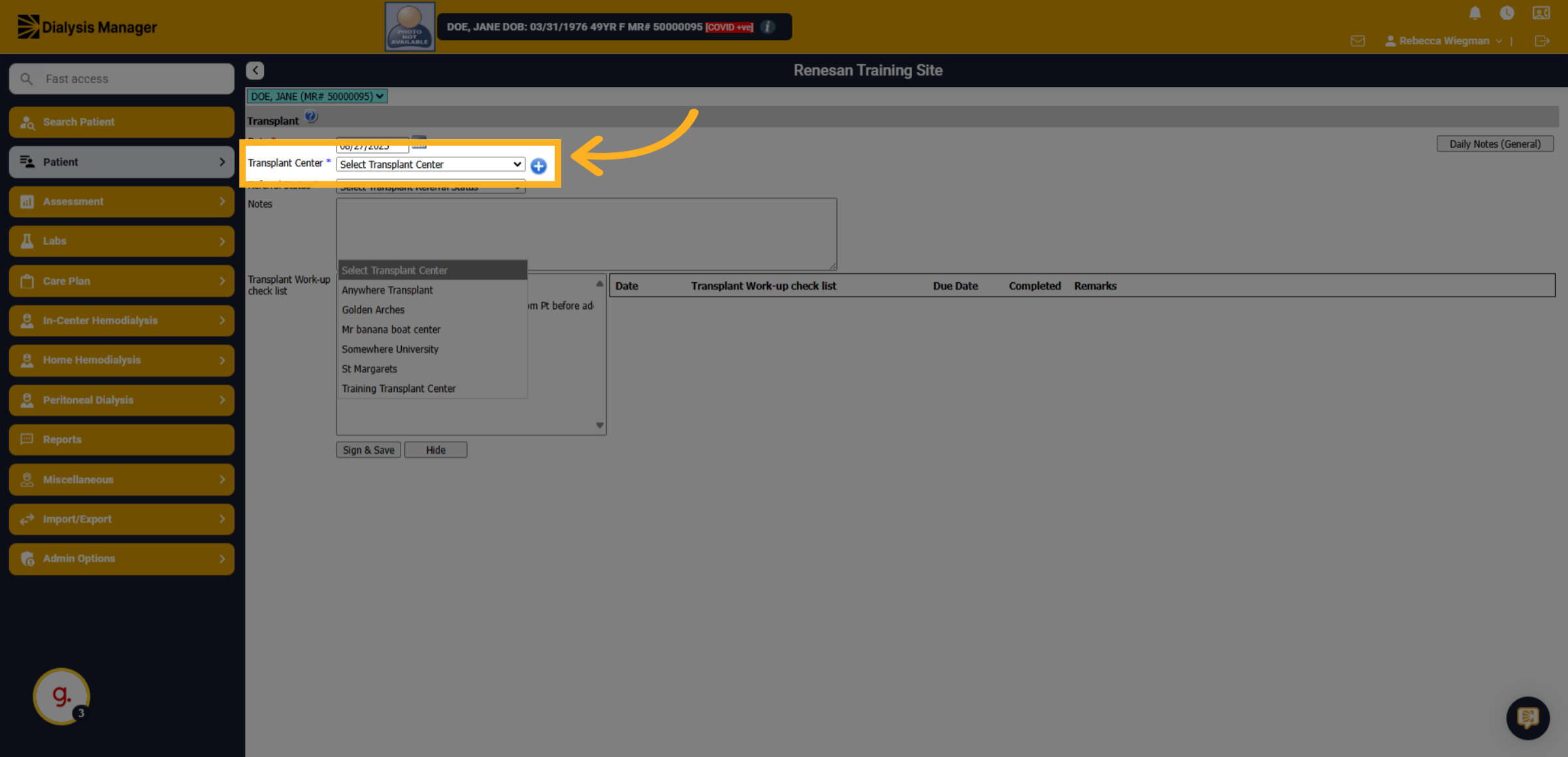
5. Click "Select Transplant Center"
Click the transplant center dropdown to view available transplant centers.
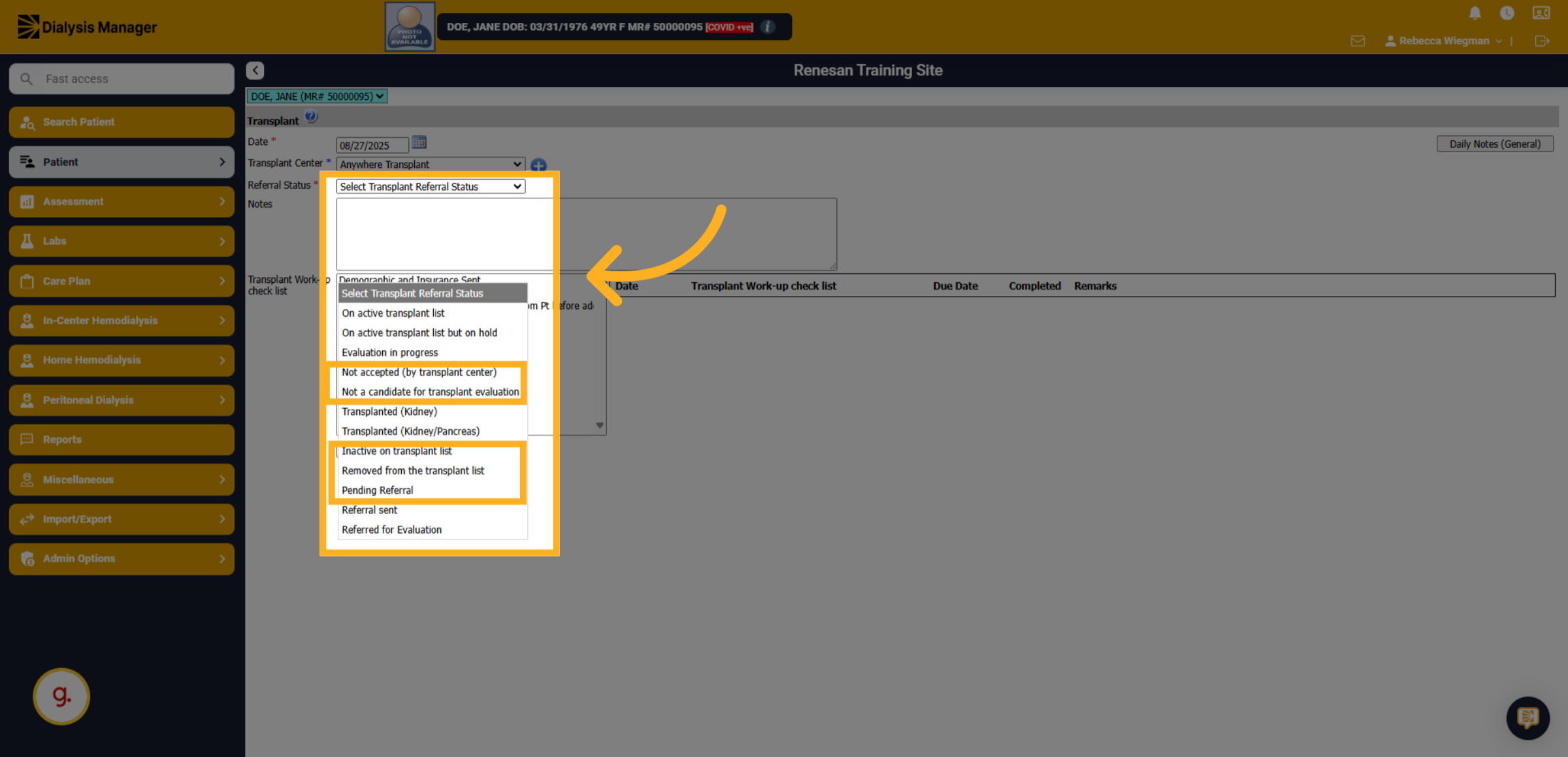
6. Click "Select Transplant Referral Status
Click the referral status dropdown to view and select a status options.
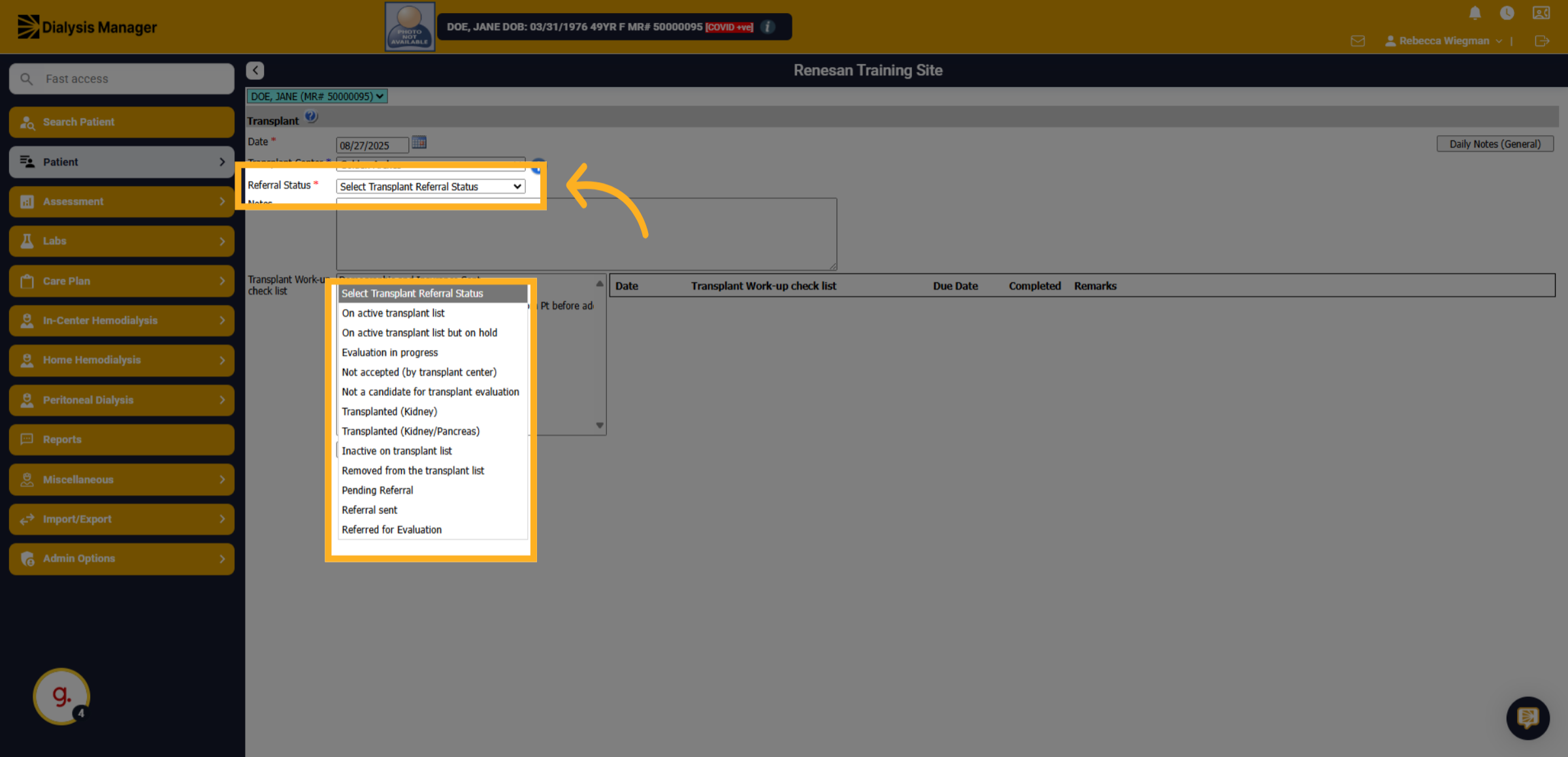
7. Click
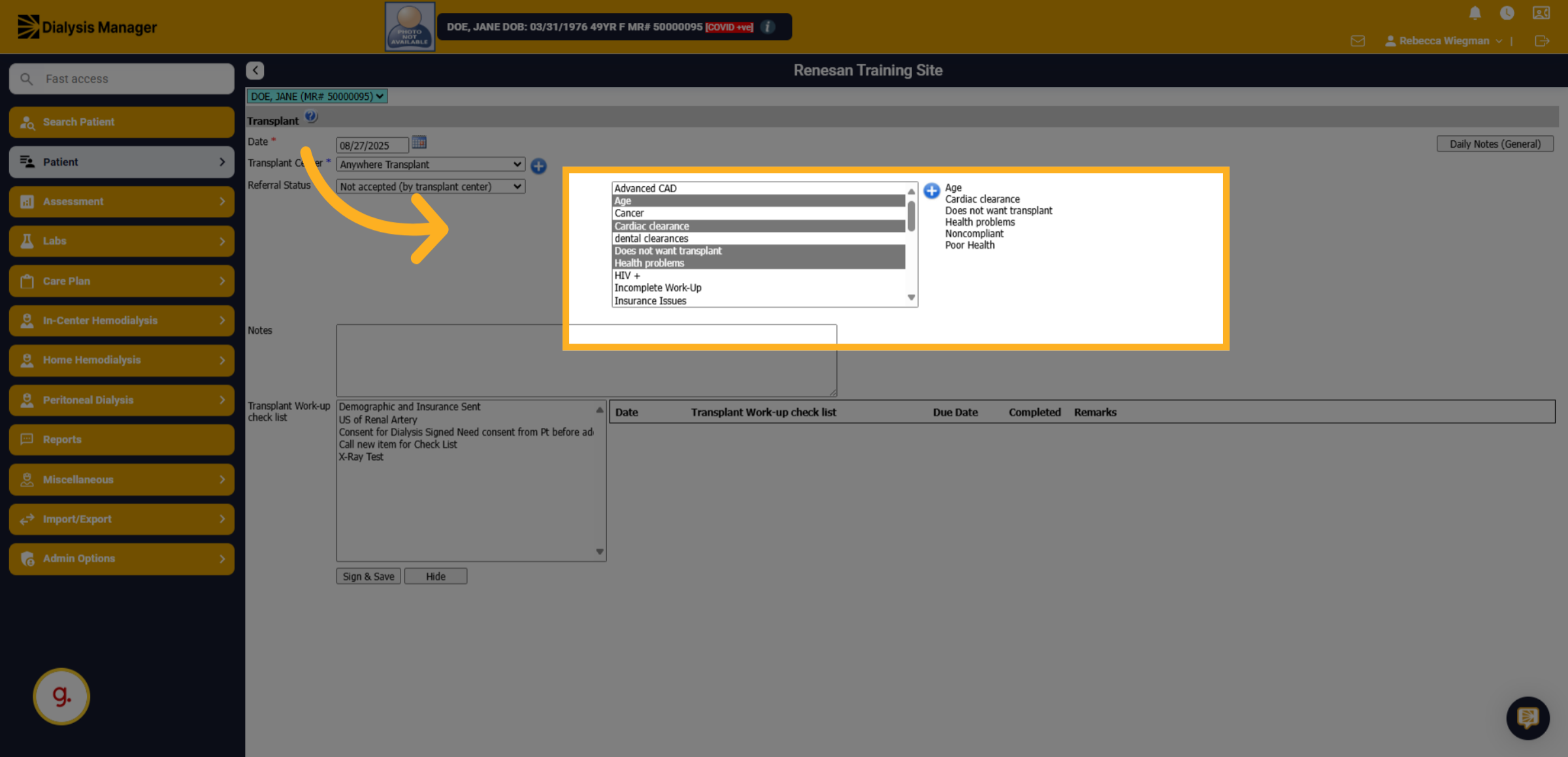
When selecting "Not accepted (by transplant center), Not a candidate for transplant evaluation, Inactive on transplant list, Removed from the transplant list, or Pending referral you'll have the ability to select reasonings.
8. Select as many reasons
Your able to select multiple reasons by holding down your "ALT" Key.
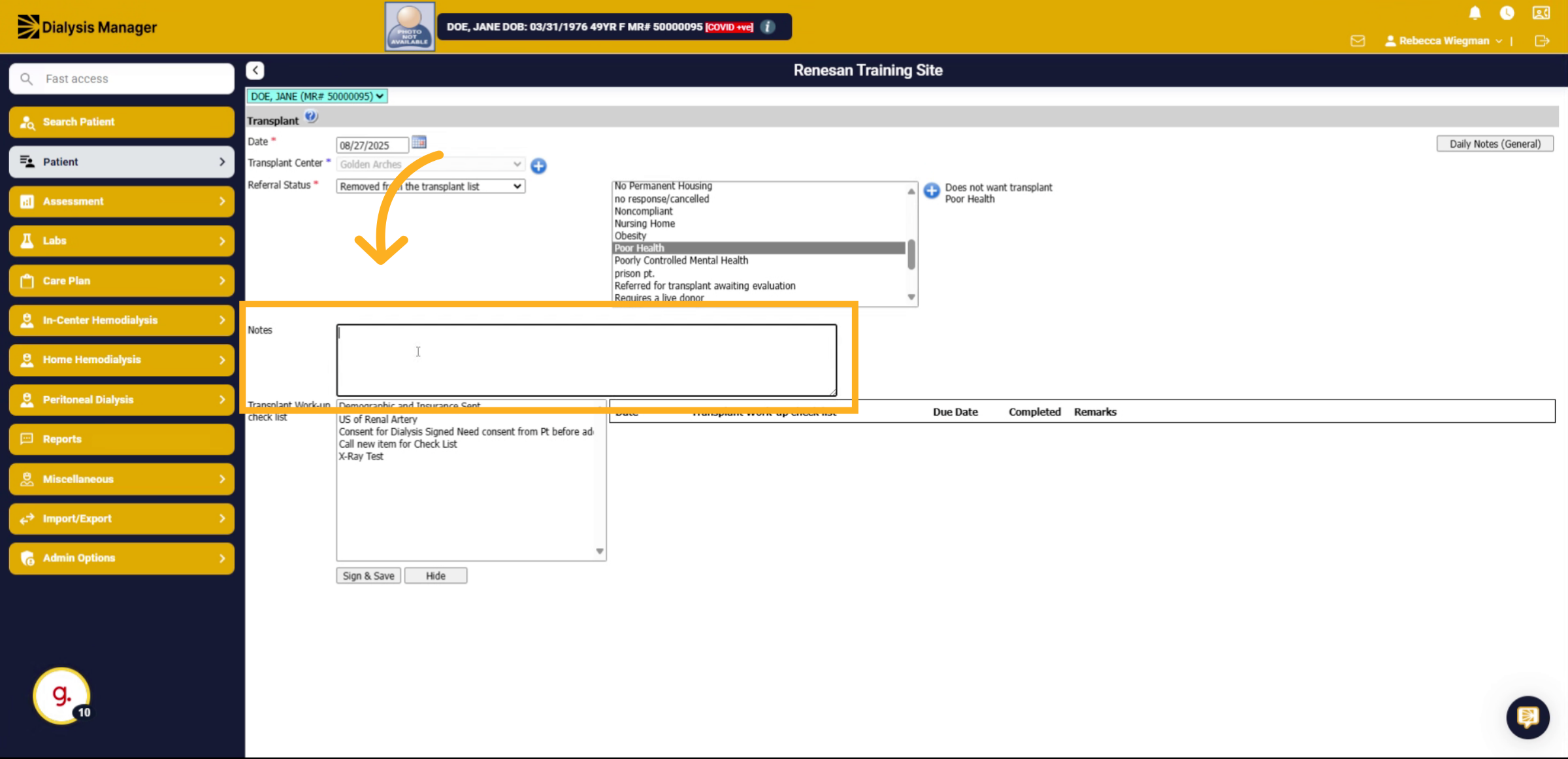
9. Fill "Enter notes"
Type any notes or additional information related to the transplant record.
10. Click Transplant Work-Up Check List
Select the applicable work-up selection from the Transplant Work-up Check List box.
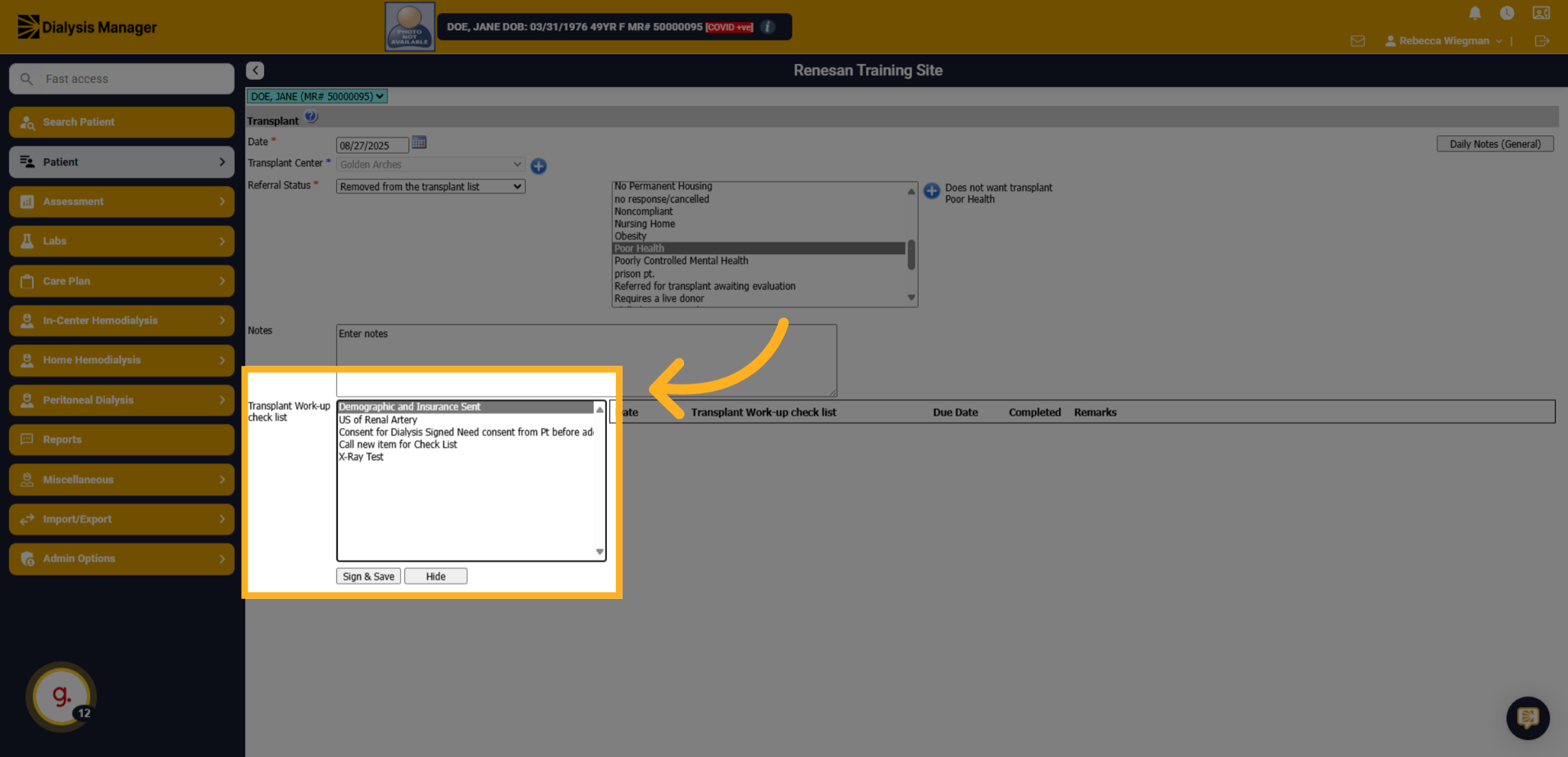
11. Click here
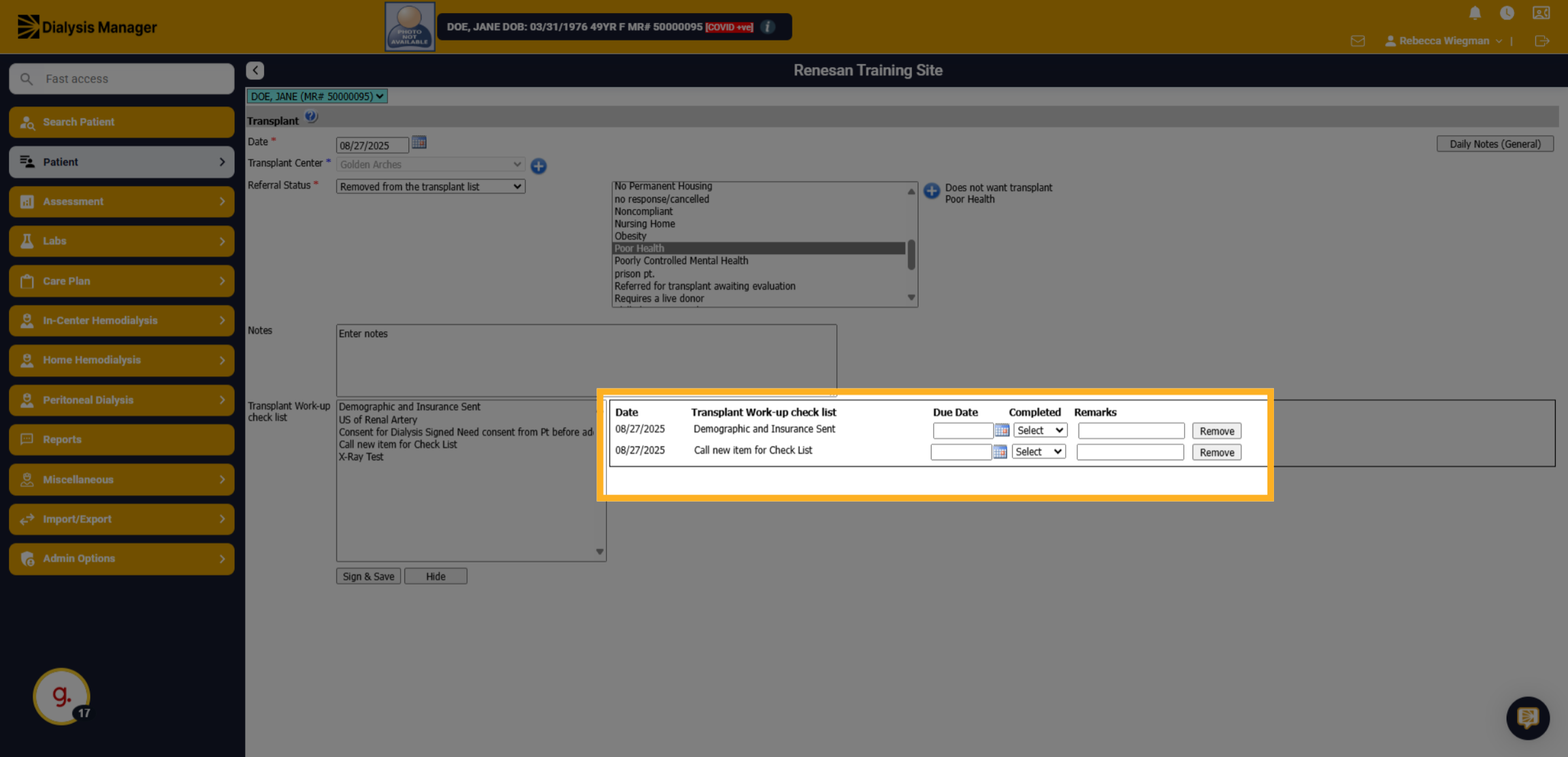
When you click on an item within the checklist, the following fields will display. Due Date, was it Completed and Remarks.
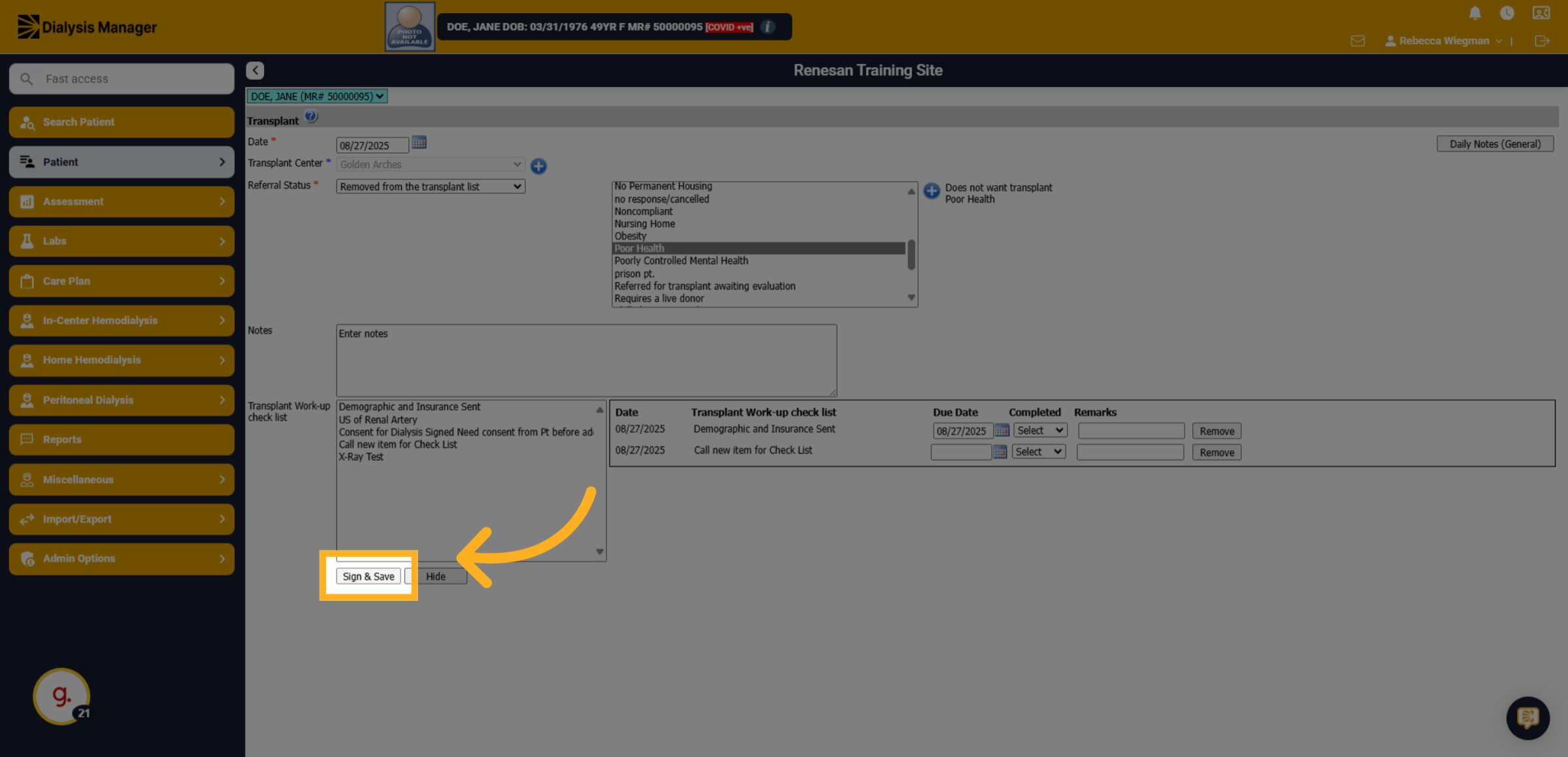
12. Click "Sign & Save"
Confirm that all transplant status information has been accurately entered to sign and save.