Adding a No-Show/Absence from Menu
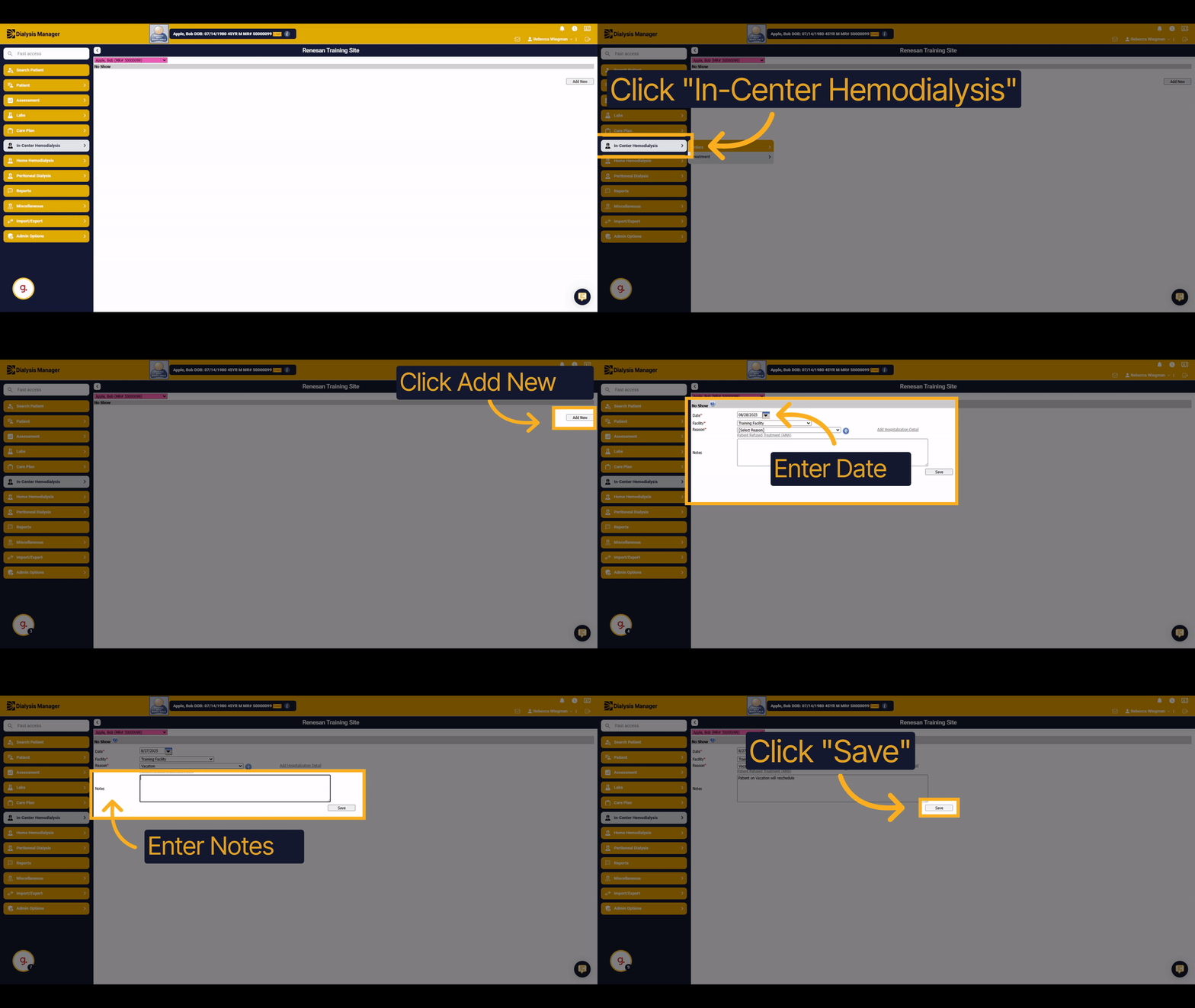
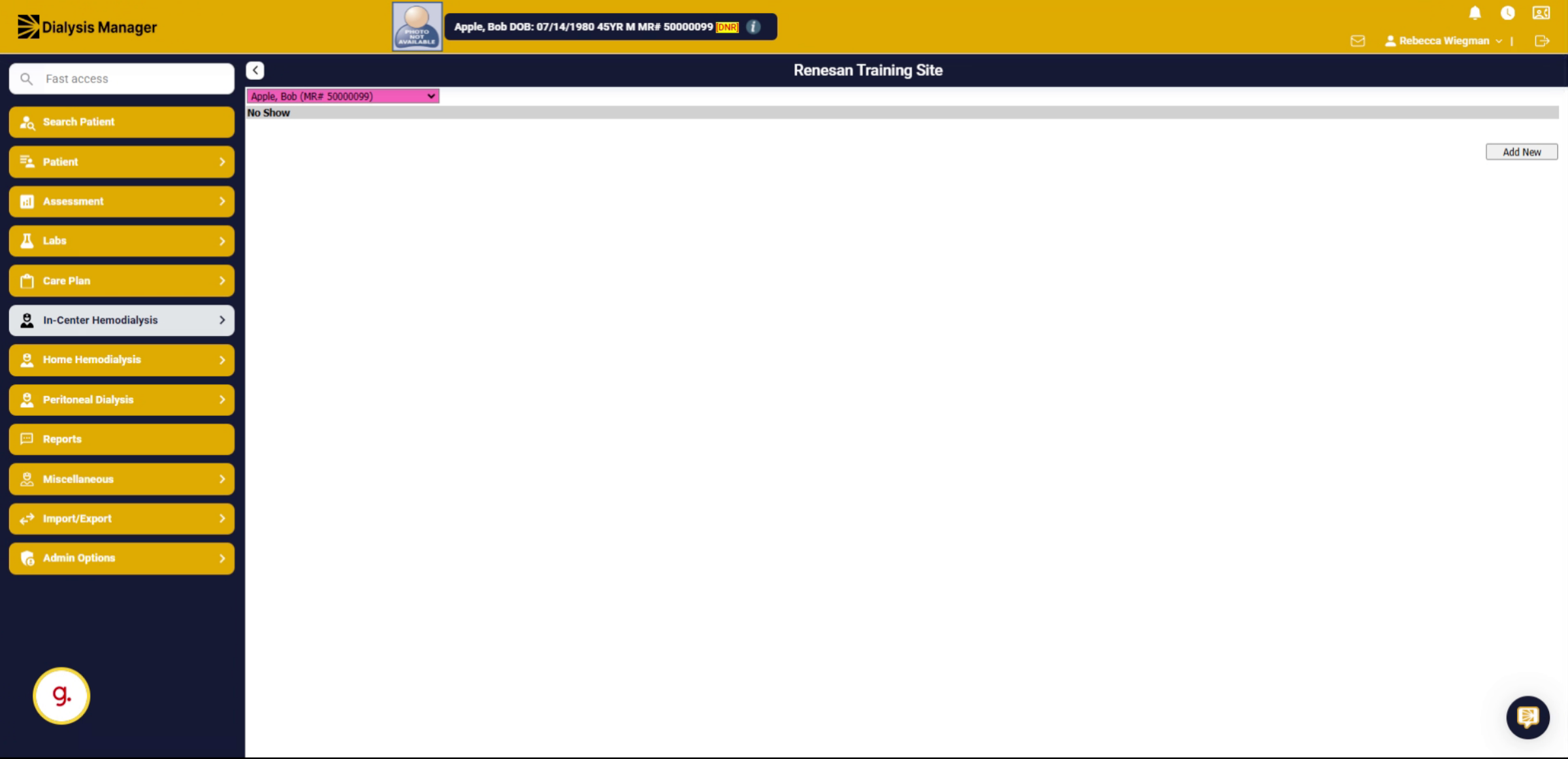
1. Introduction
Learn how to efficiently add a no-show or absence record for a patient in the In-Center Hemodialysis system.
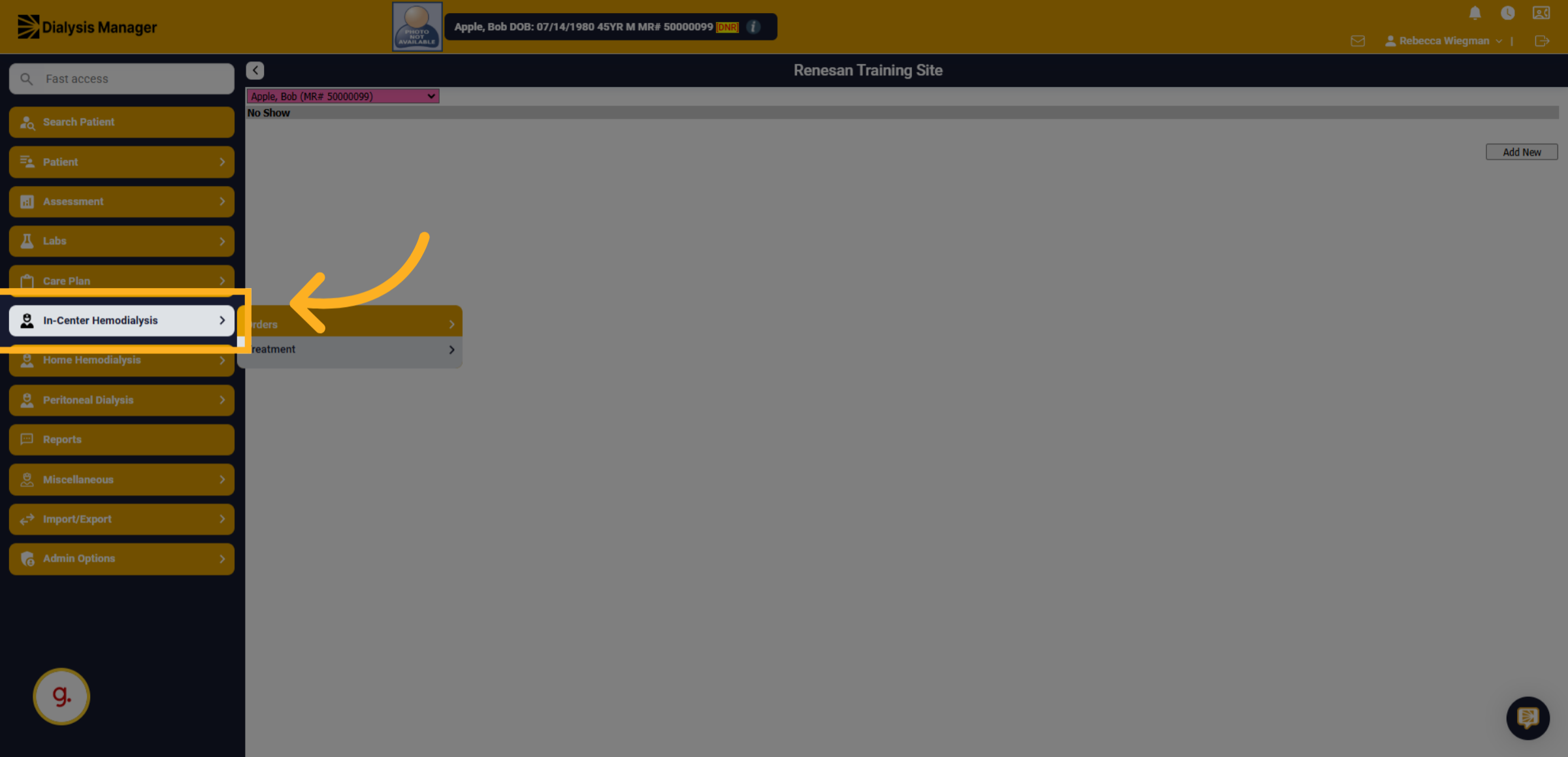
2. Click "In-Center Hemodialysis"
Navigate to the In-Center Hemodialysis section to begin managing patient treatments.
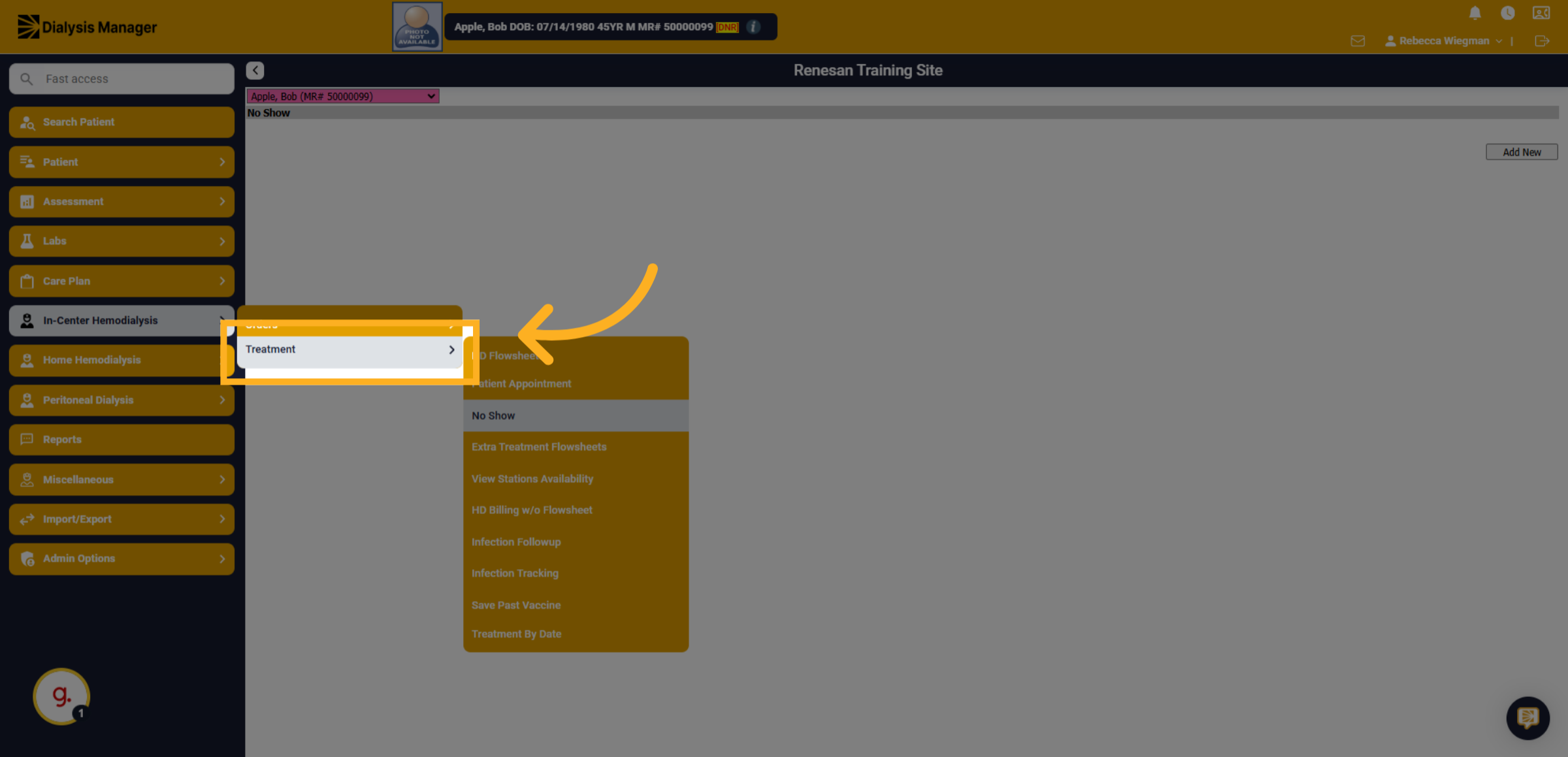
3. Click "Treatment"
Select the Treatment tab.
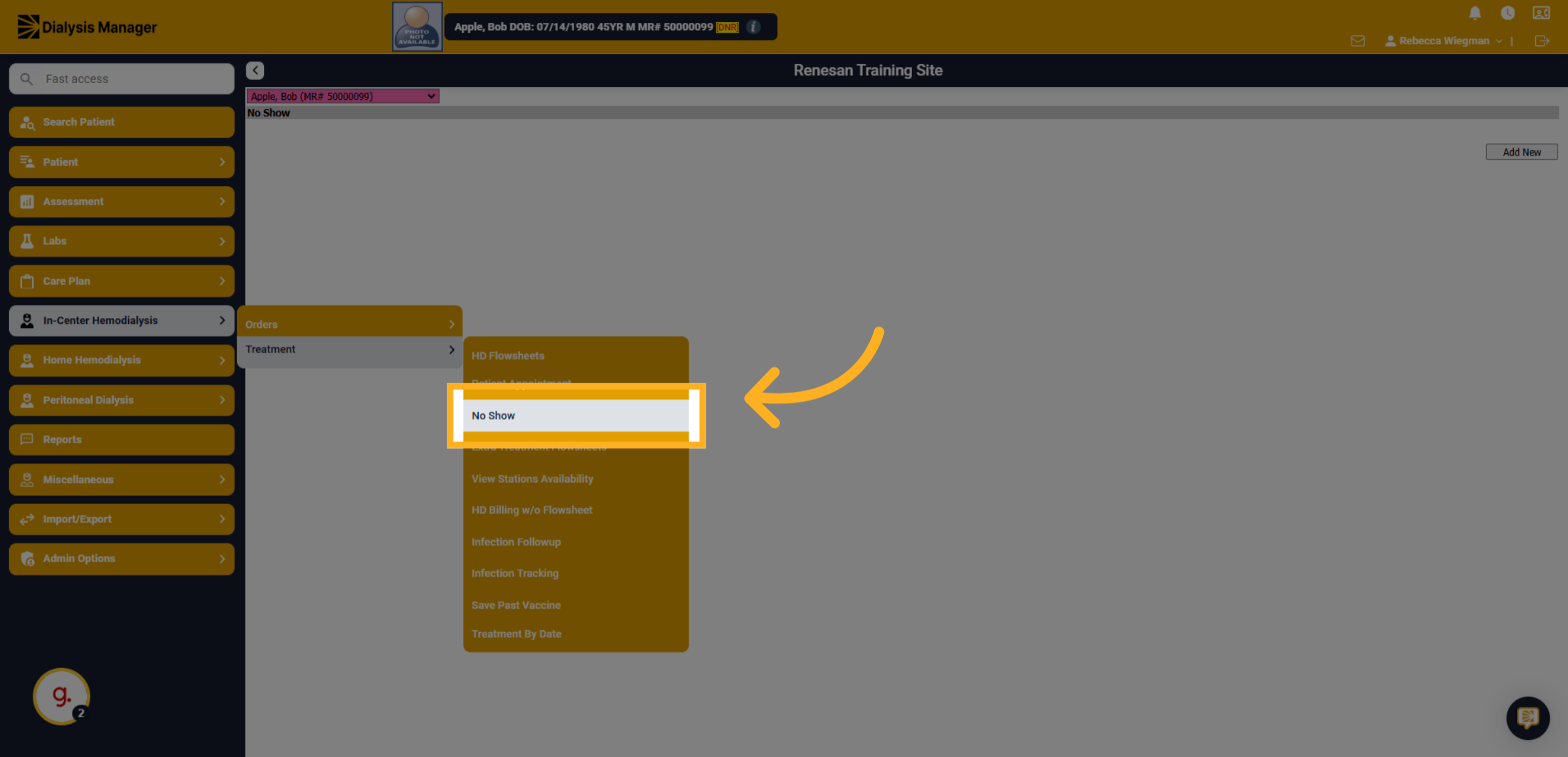
4. Click "No Show"
Choose the No Show option.
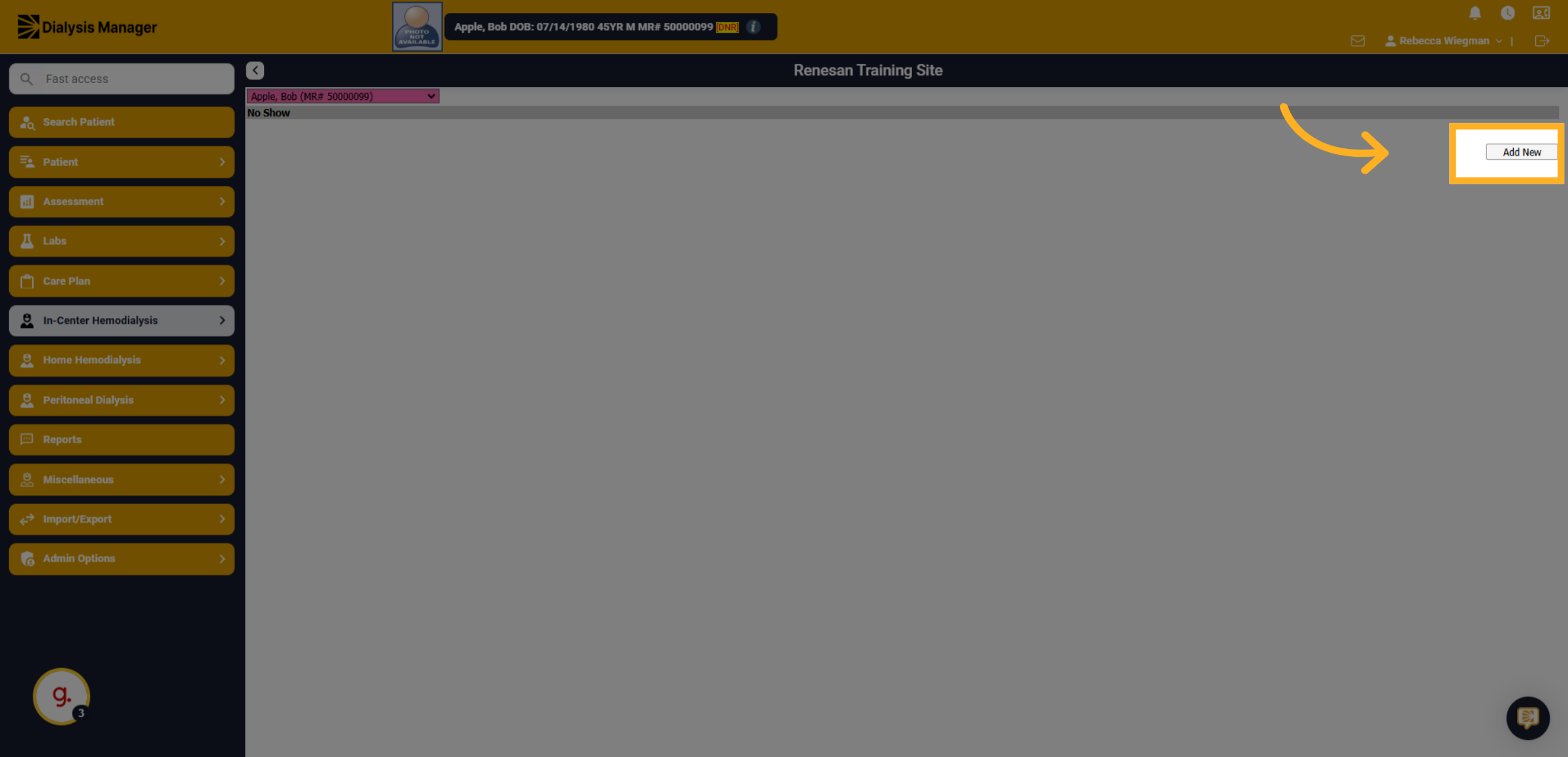
5. Click "Add New"
Initiate a new no-show entry by clicking the Add New button.
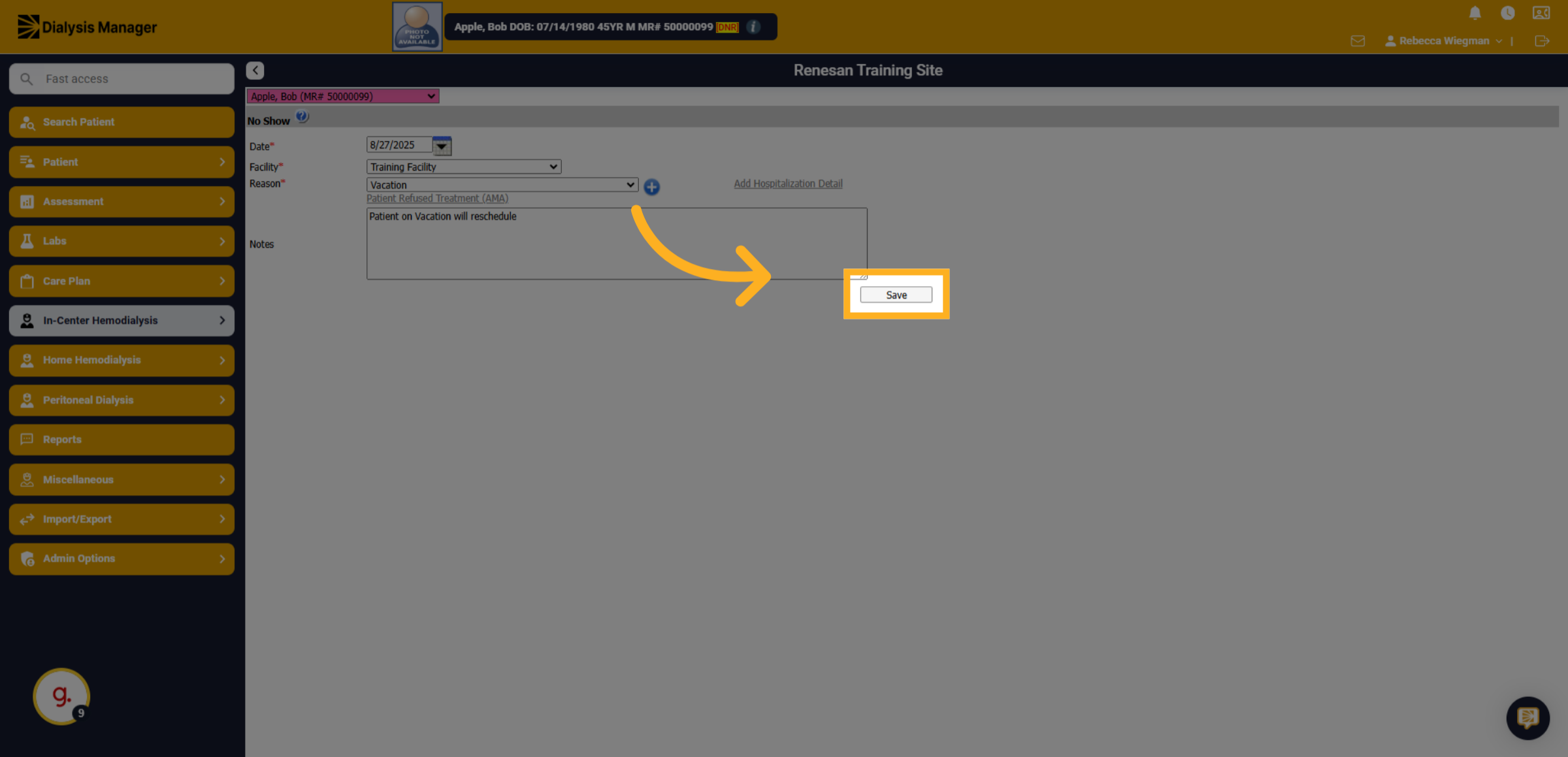
6. Date
Manually enter OR select the calendar icon to enter the date of the No Show.
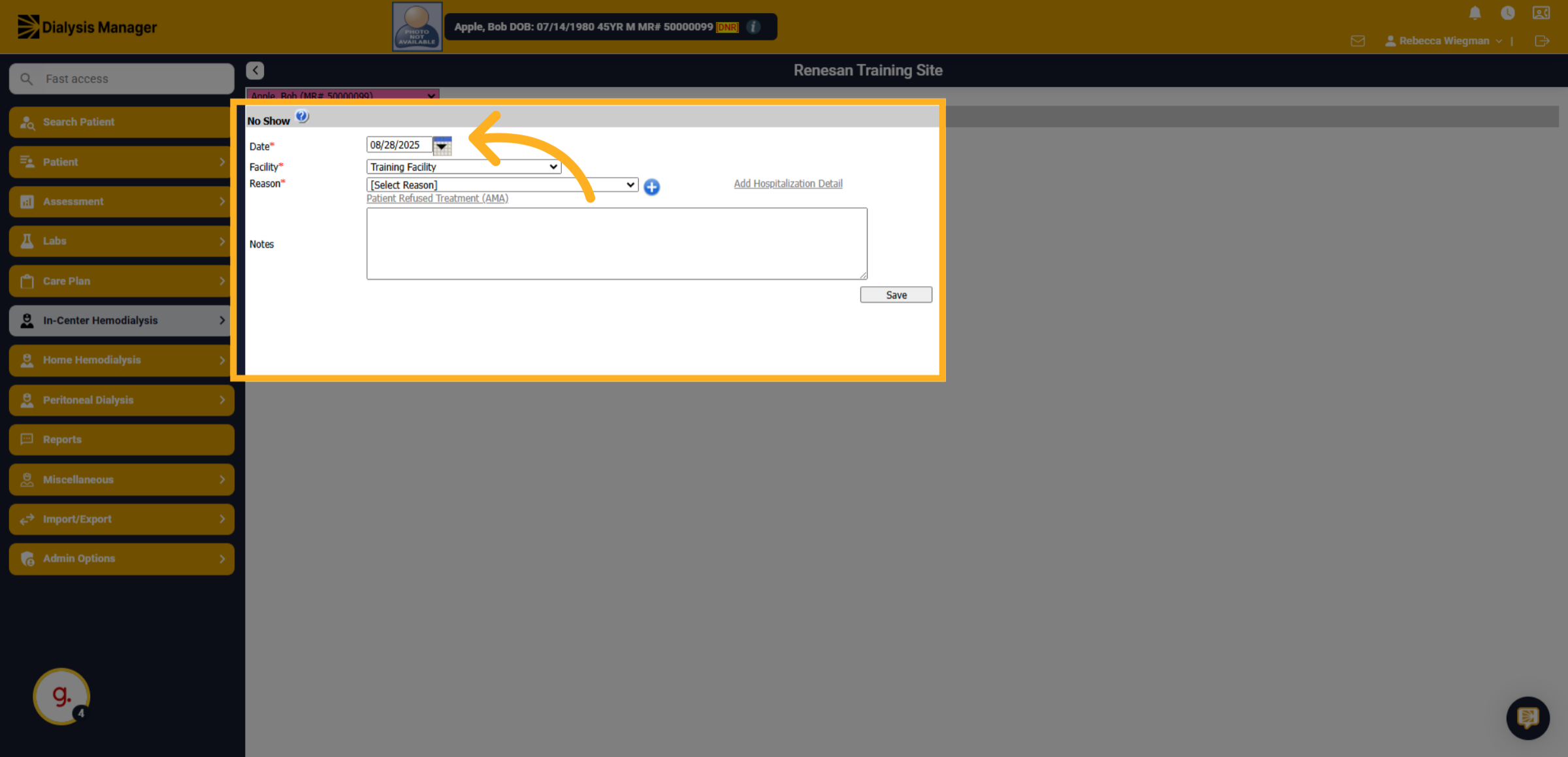
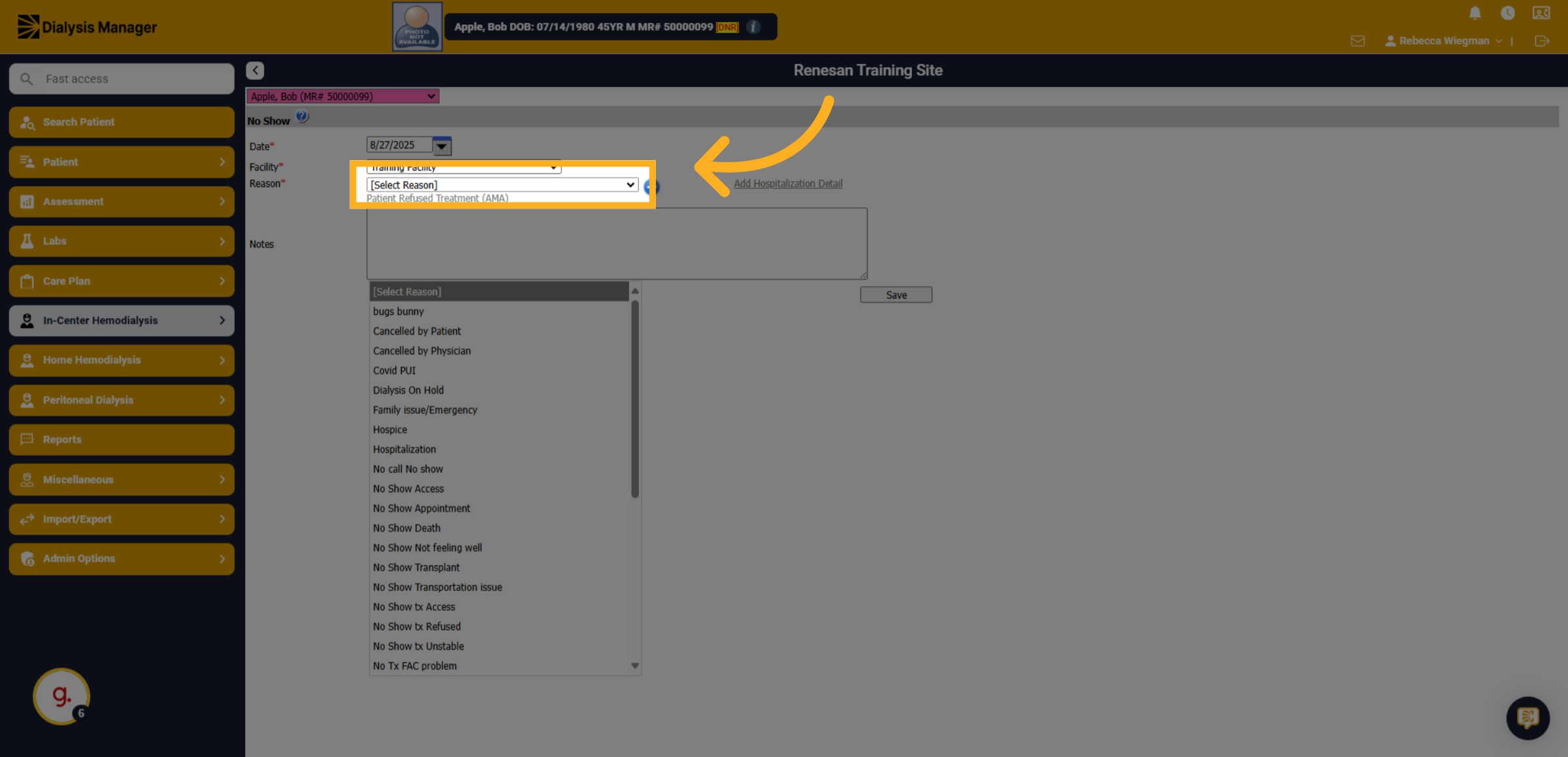
7. Reason
Open the reason dropdown menu to choose the appropriate reason that best describes the patient's absence from the list provided.
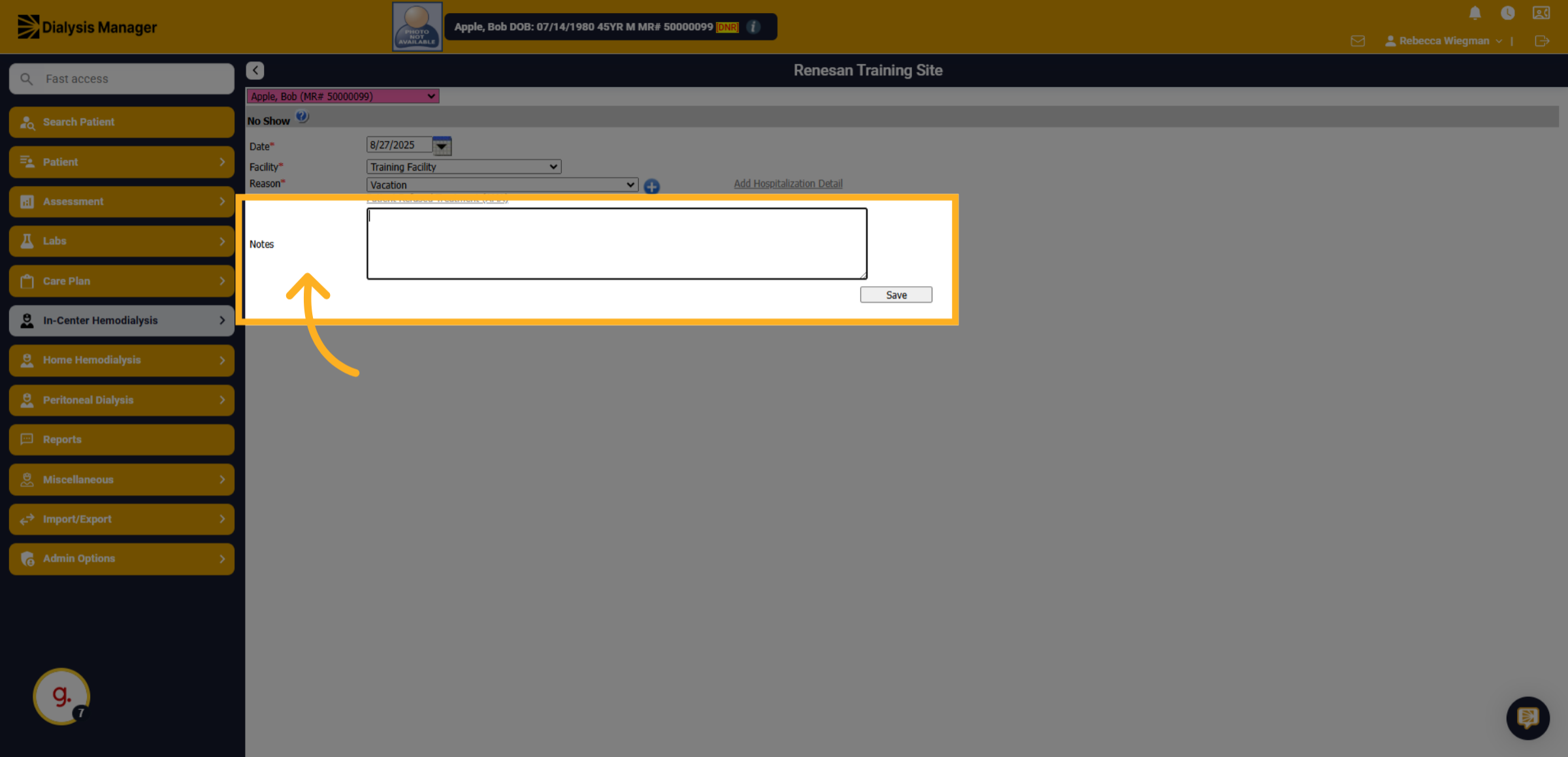
8. Notes
Click the notes field to add additional context or details about the no-show.
9. Click "Save"
Finalize the entry by clicking Save.