Adding a new insurance for a patient
1. Introduction
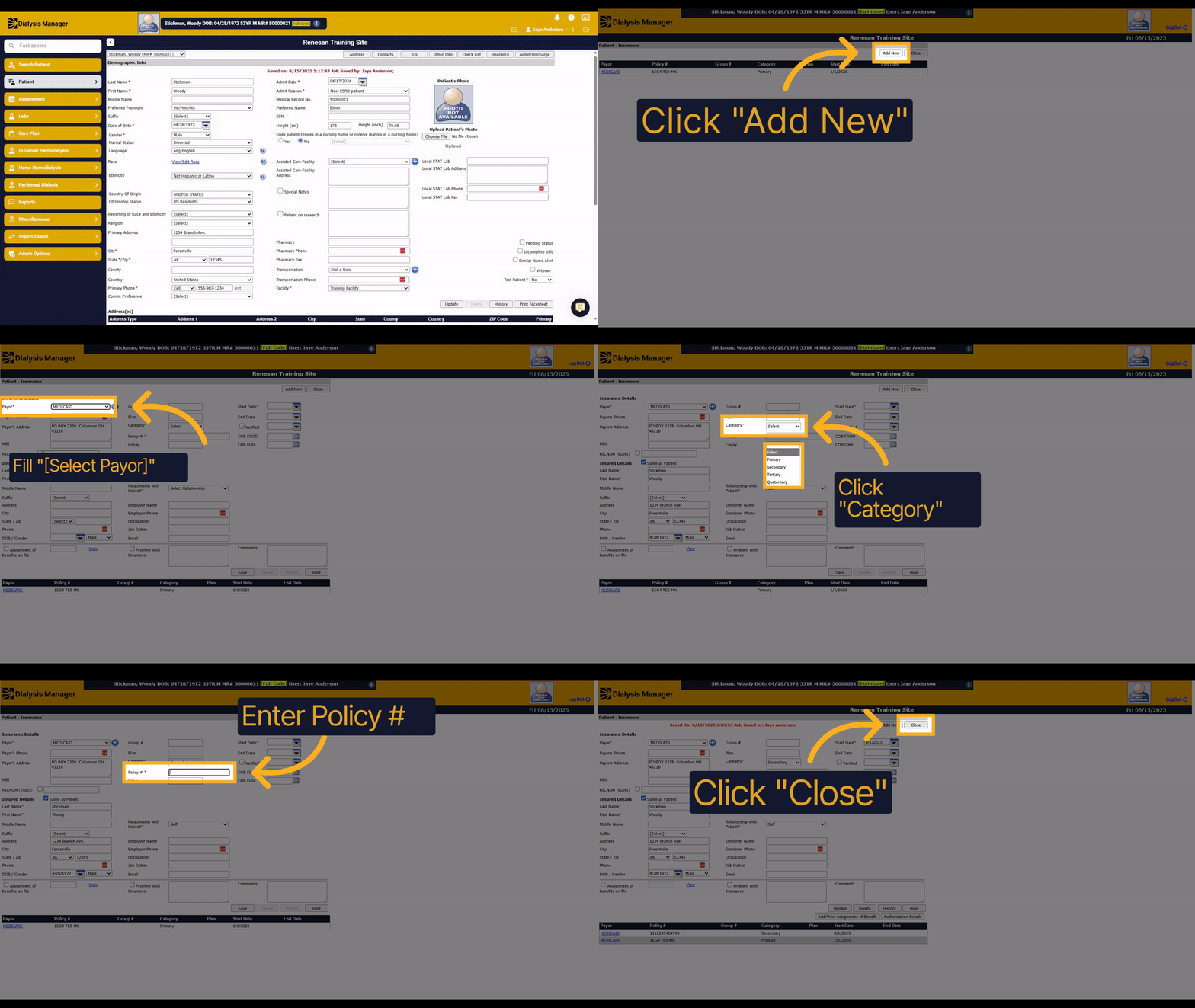
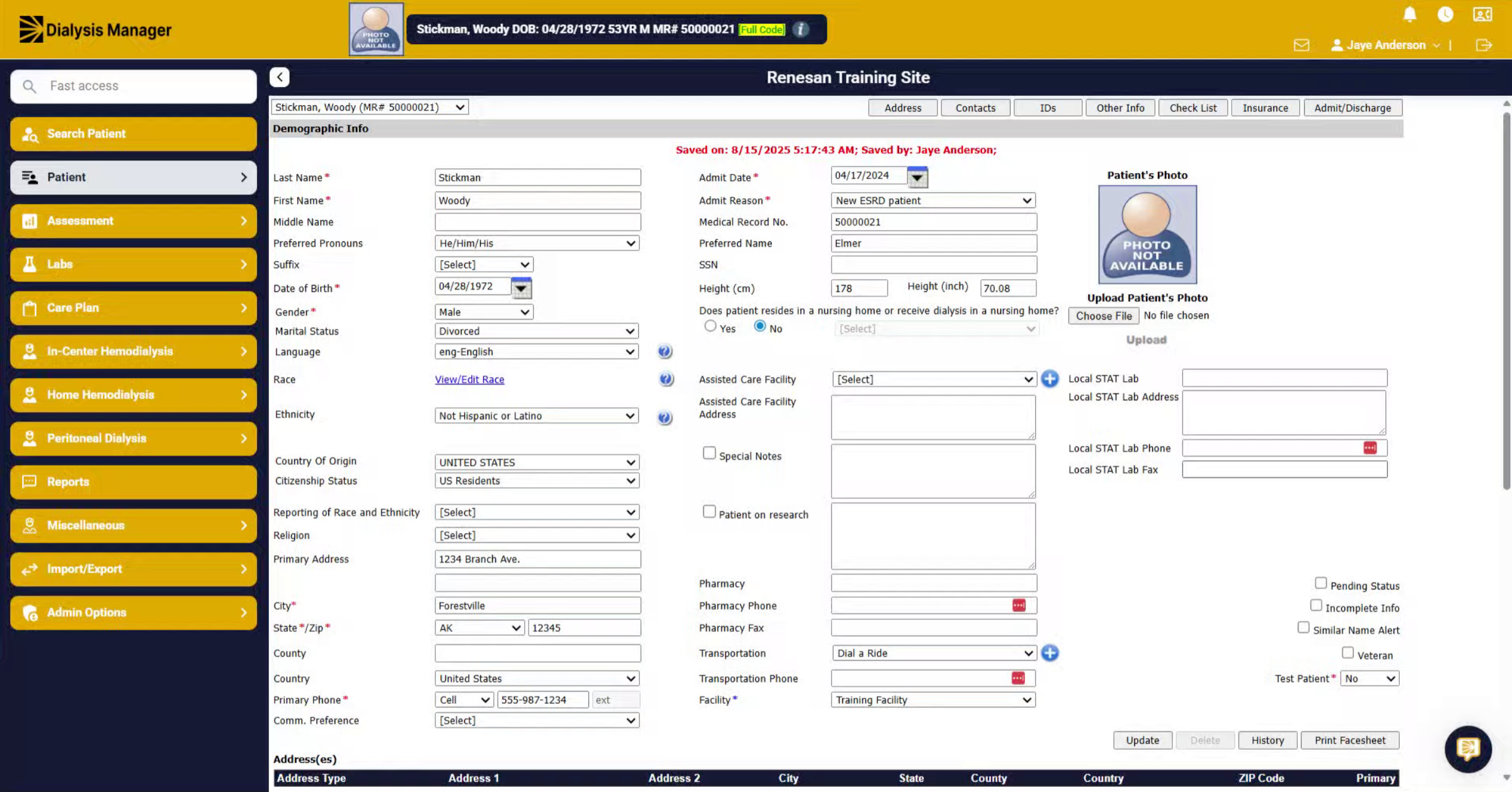
This guide will show you how to add insurance information in Dialysis Manager. You will learn how to select a payor, fill in required details, and save the insurance record efficiently.
2. Click "Insurance"
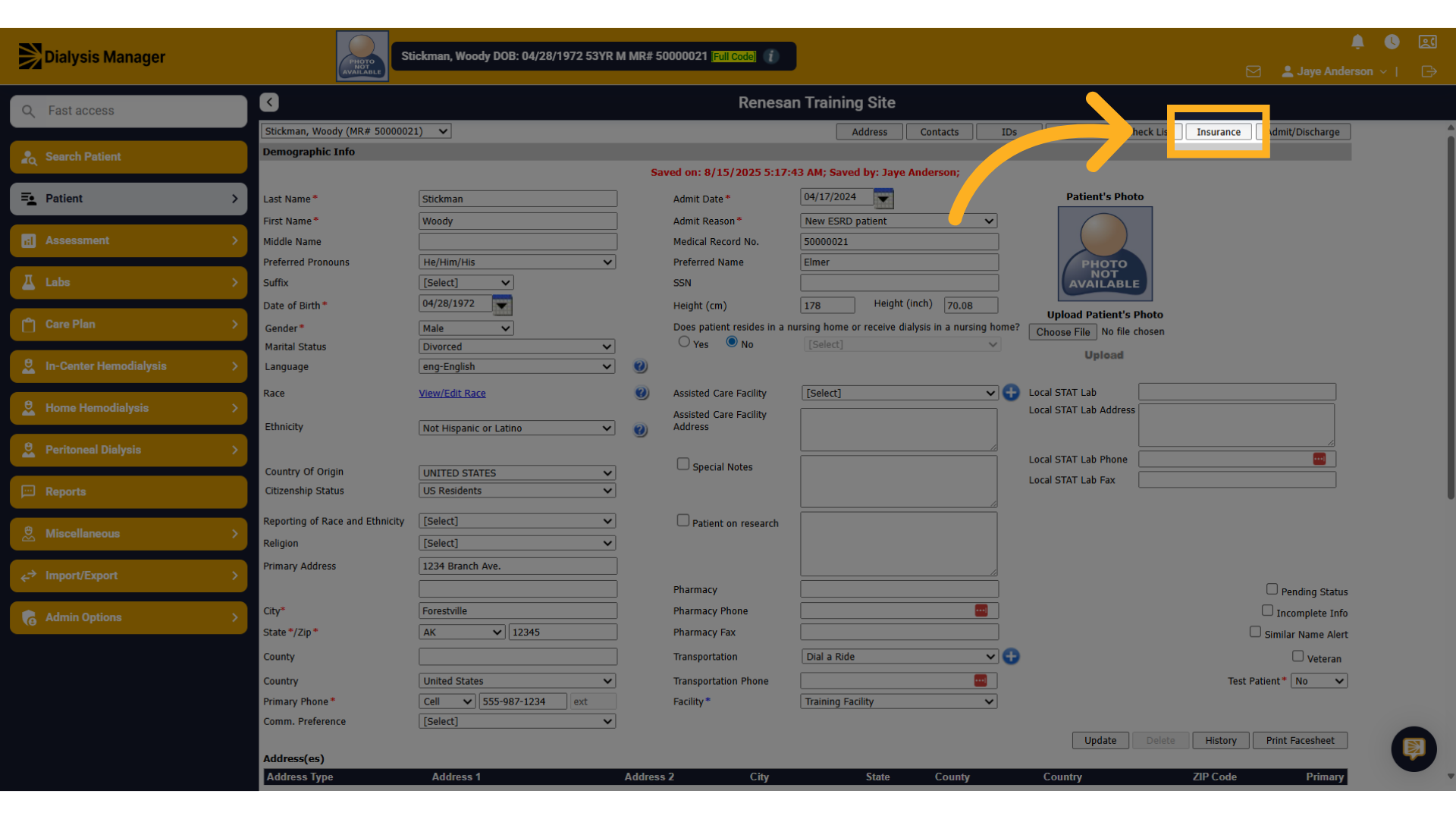
From the Edit Patient Screen, Click on the Insurance tab to begin managing insurance information.
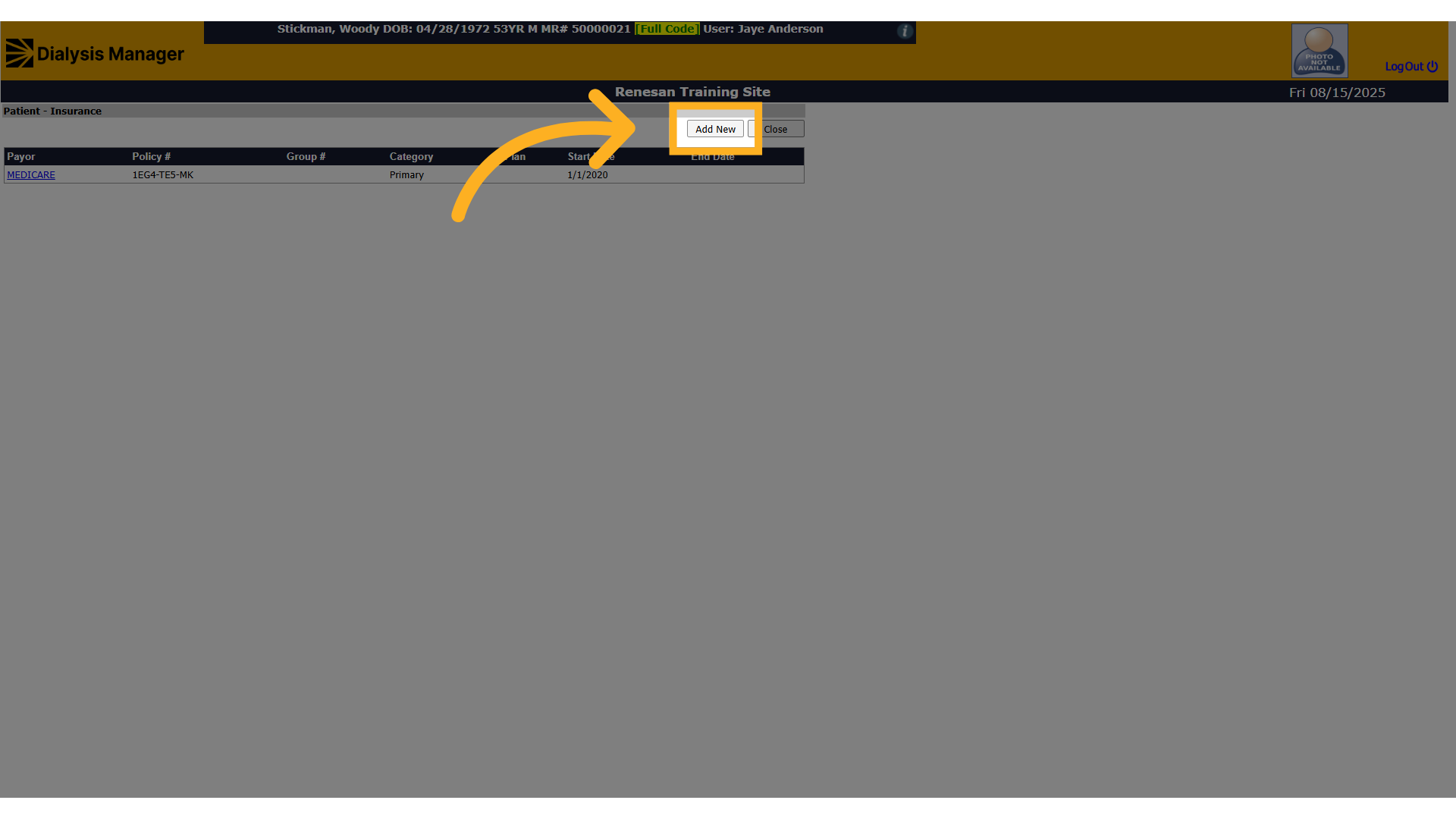
3. Click "Add New"
Click the Add New button to add a new insurance entry.
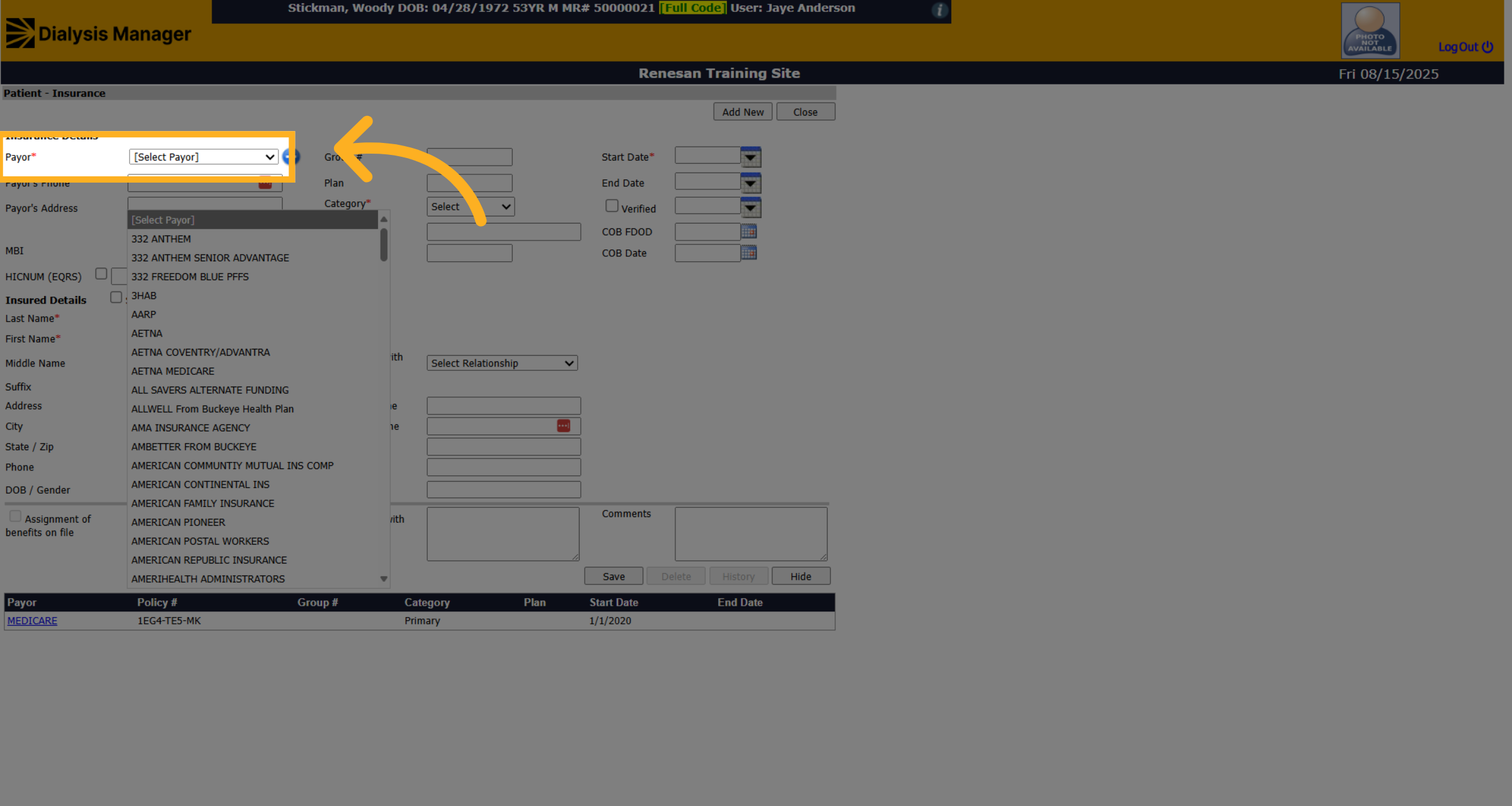
4. Click Payor
Click the Select Payor dropdown to view available insurance payors.
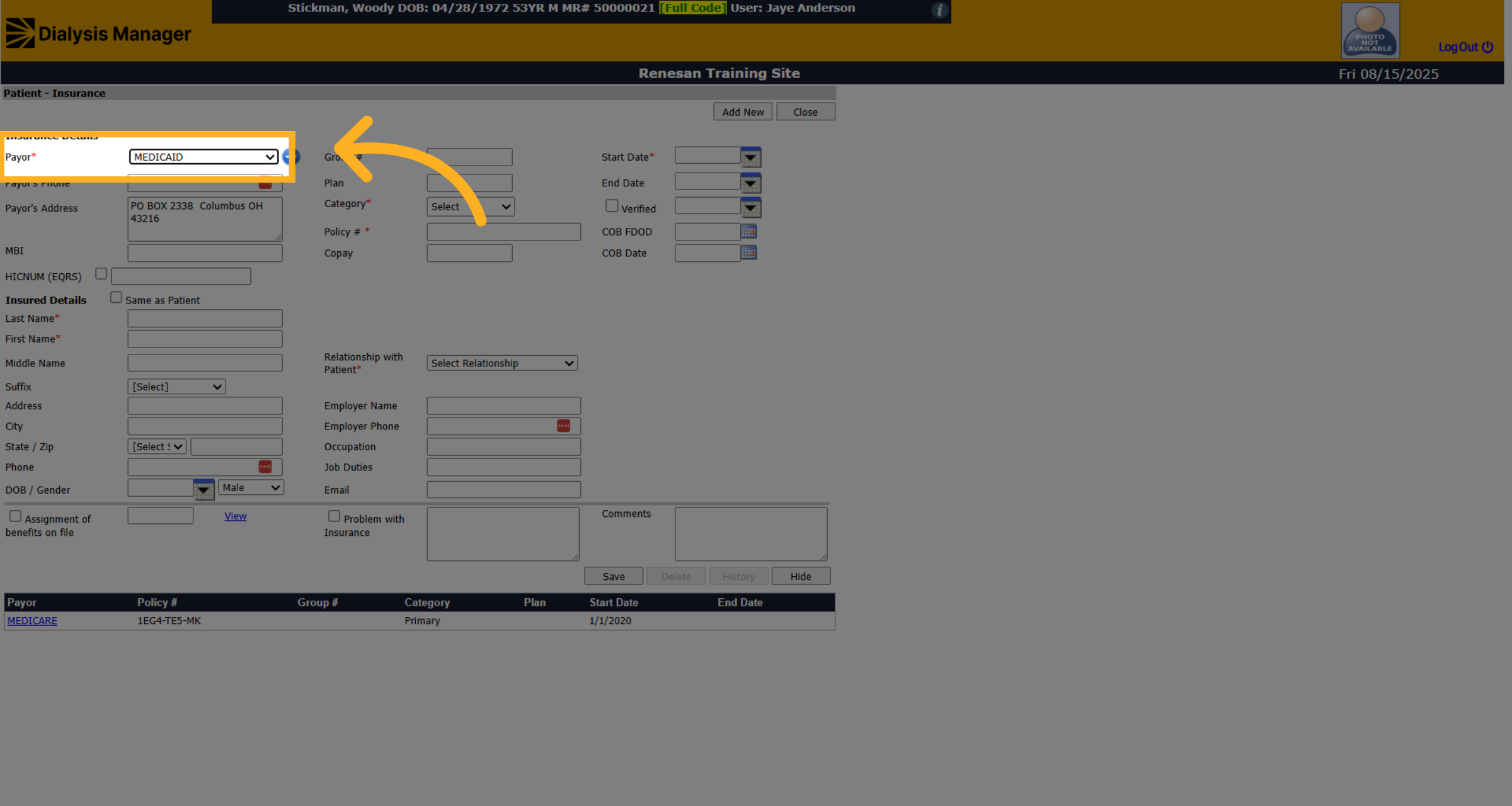
5. Fill
Select the appropriate payor from the list to associate with the patient.
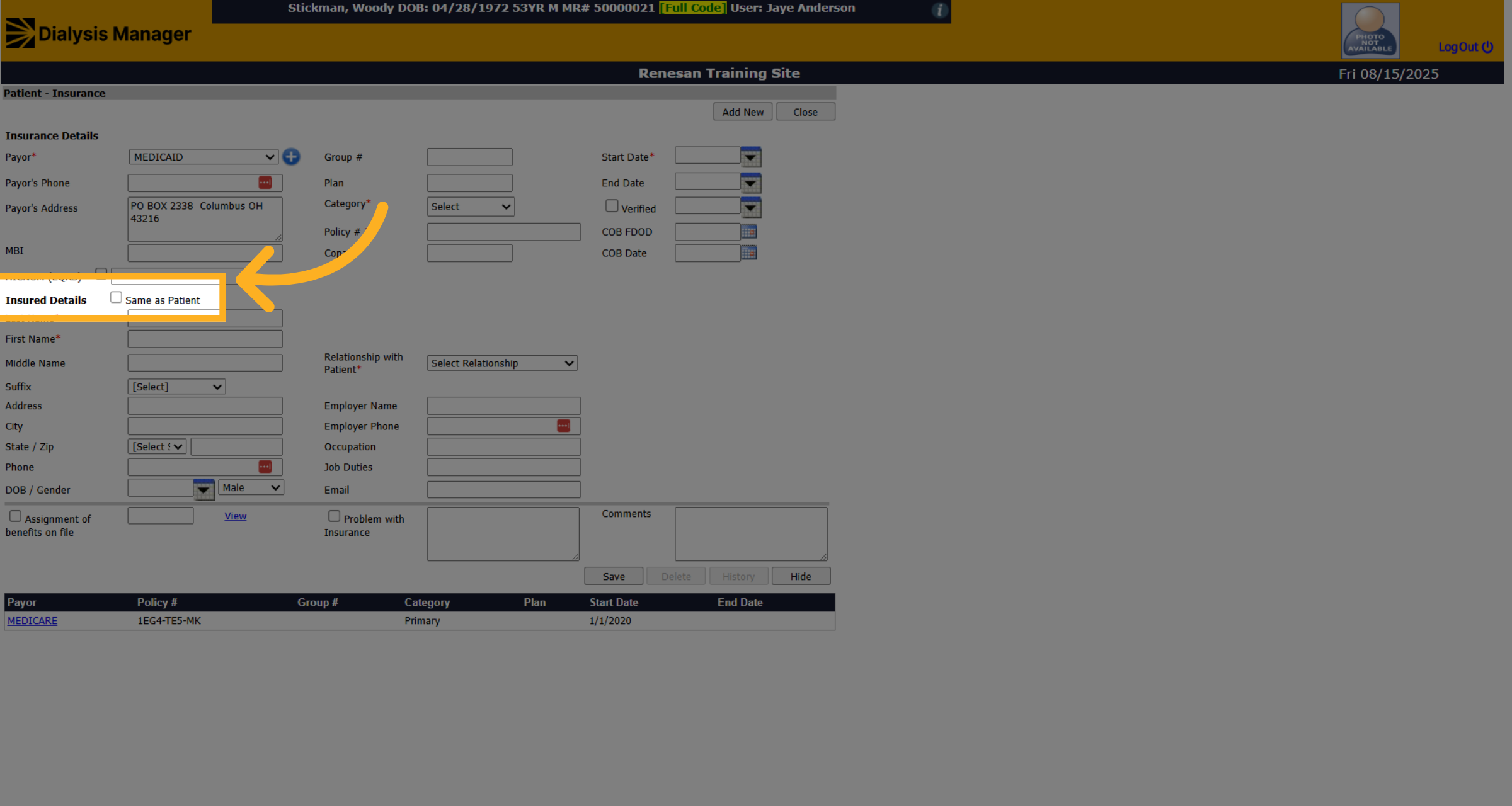
6. Click "Same as Patient"
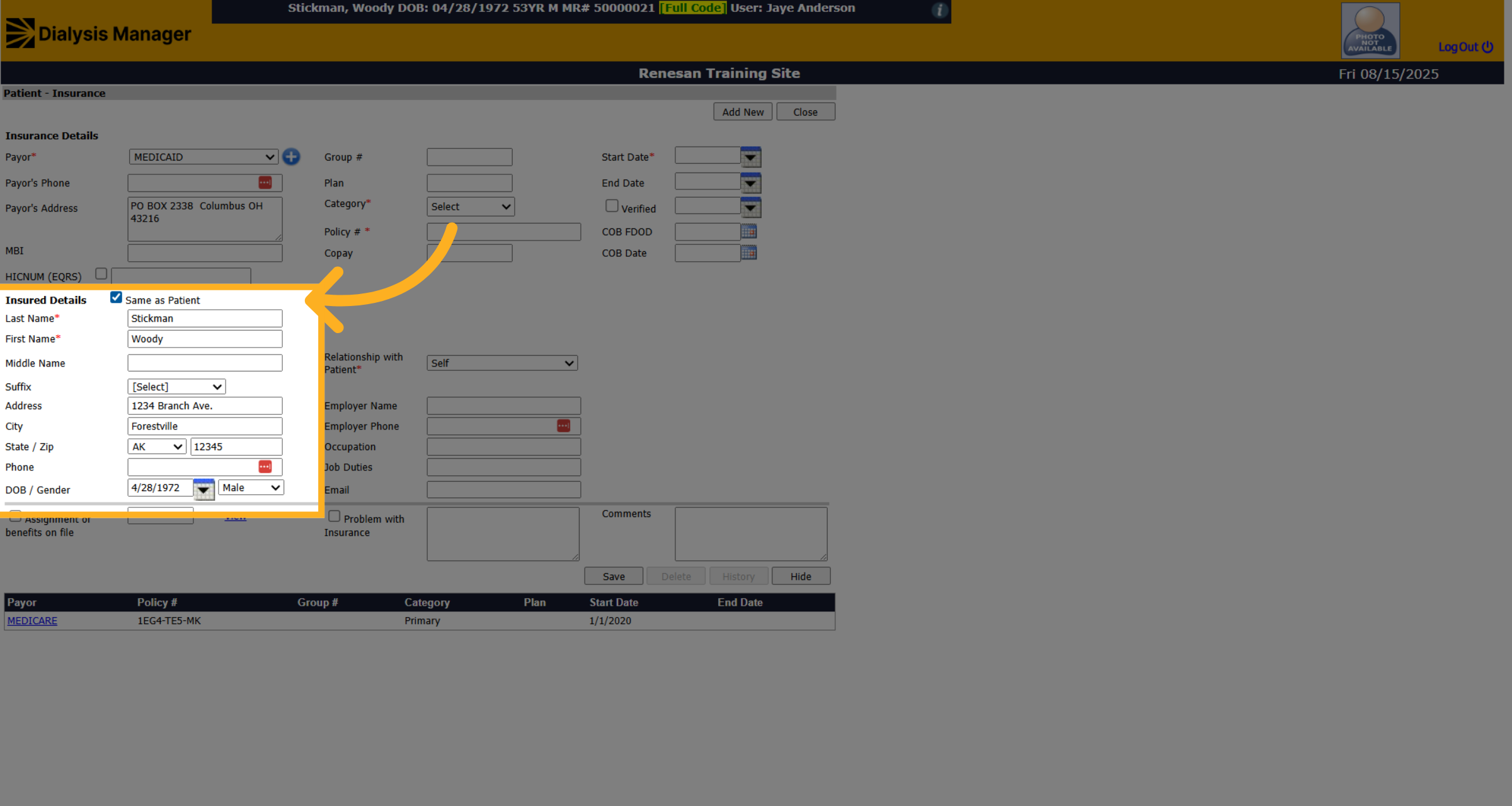
Click the Same as Patient checkbox if the insurance subscriber is the same as the patient.
7. Fill "on"
Fill in the subscriber's information as required.
8. Click "Category"
Click the dropdown to select the insurance Category type such as Primary, Secondary, Tertiary, or Quaternary.
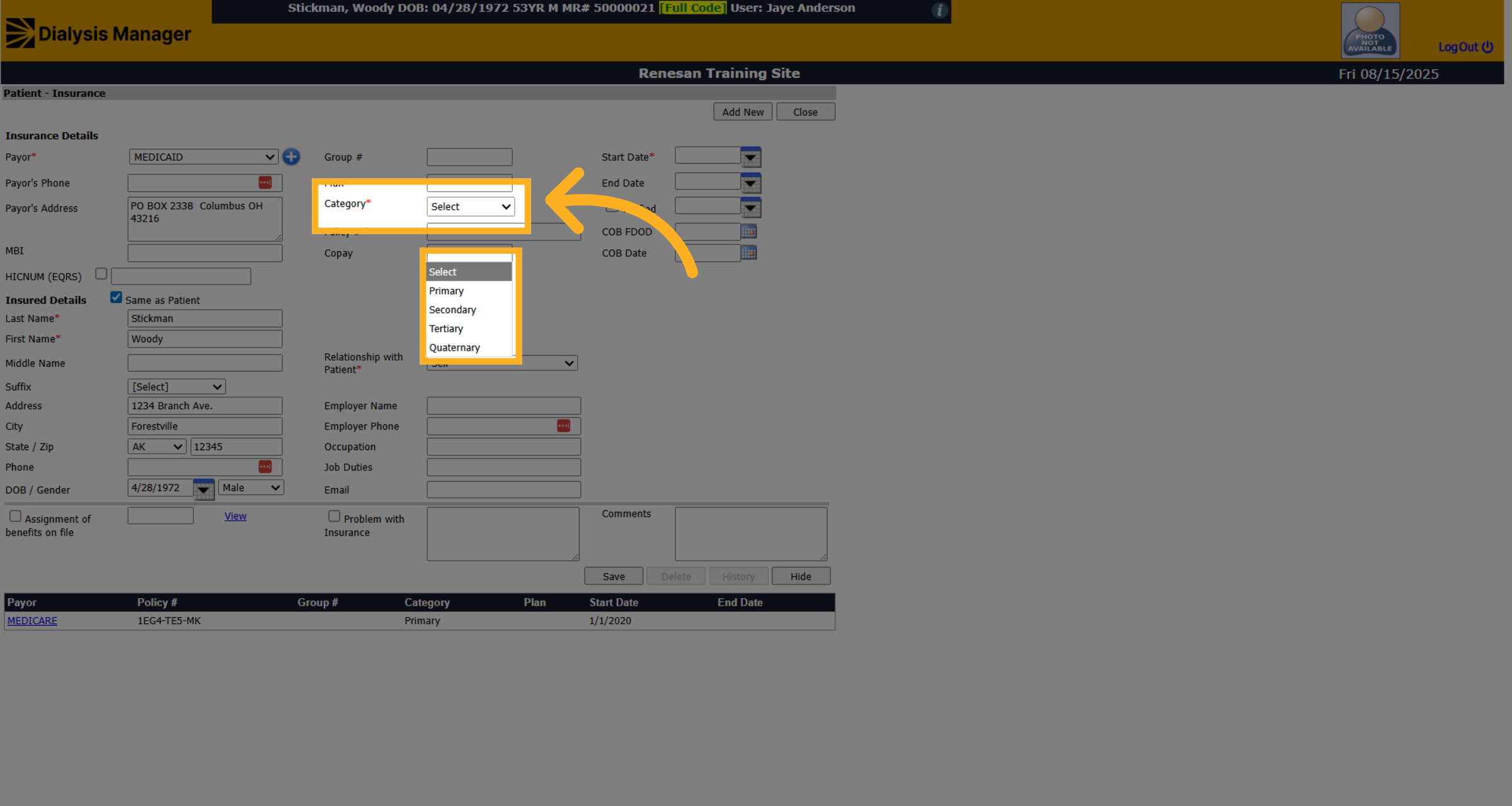
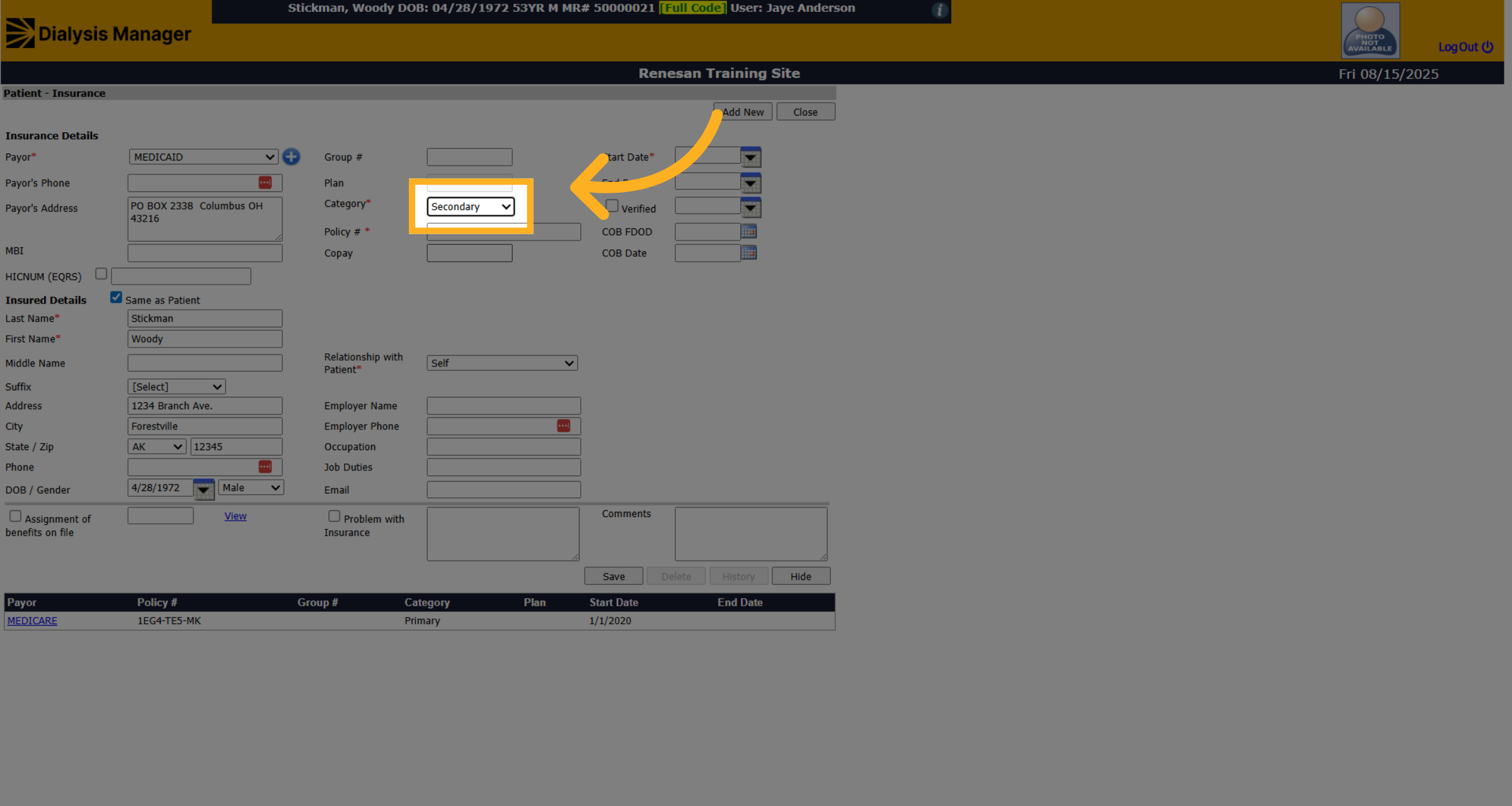
9. Fill
Choose the appropriate insurance category type from the dropdown list.
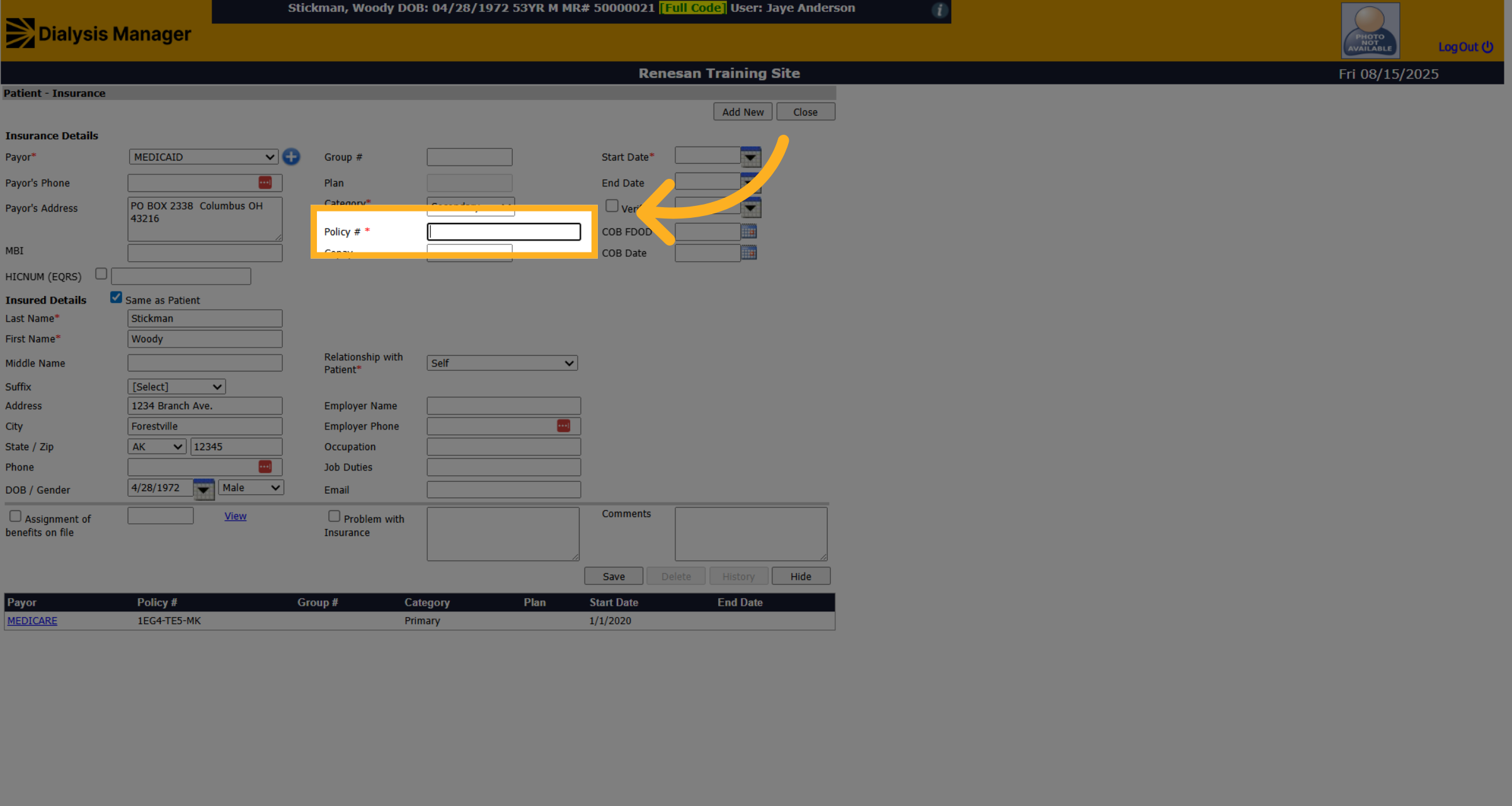
10. Enter Policy Number
Enter the insurance Policy ID Number
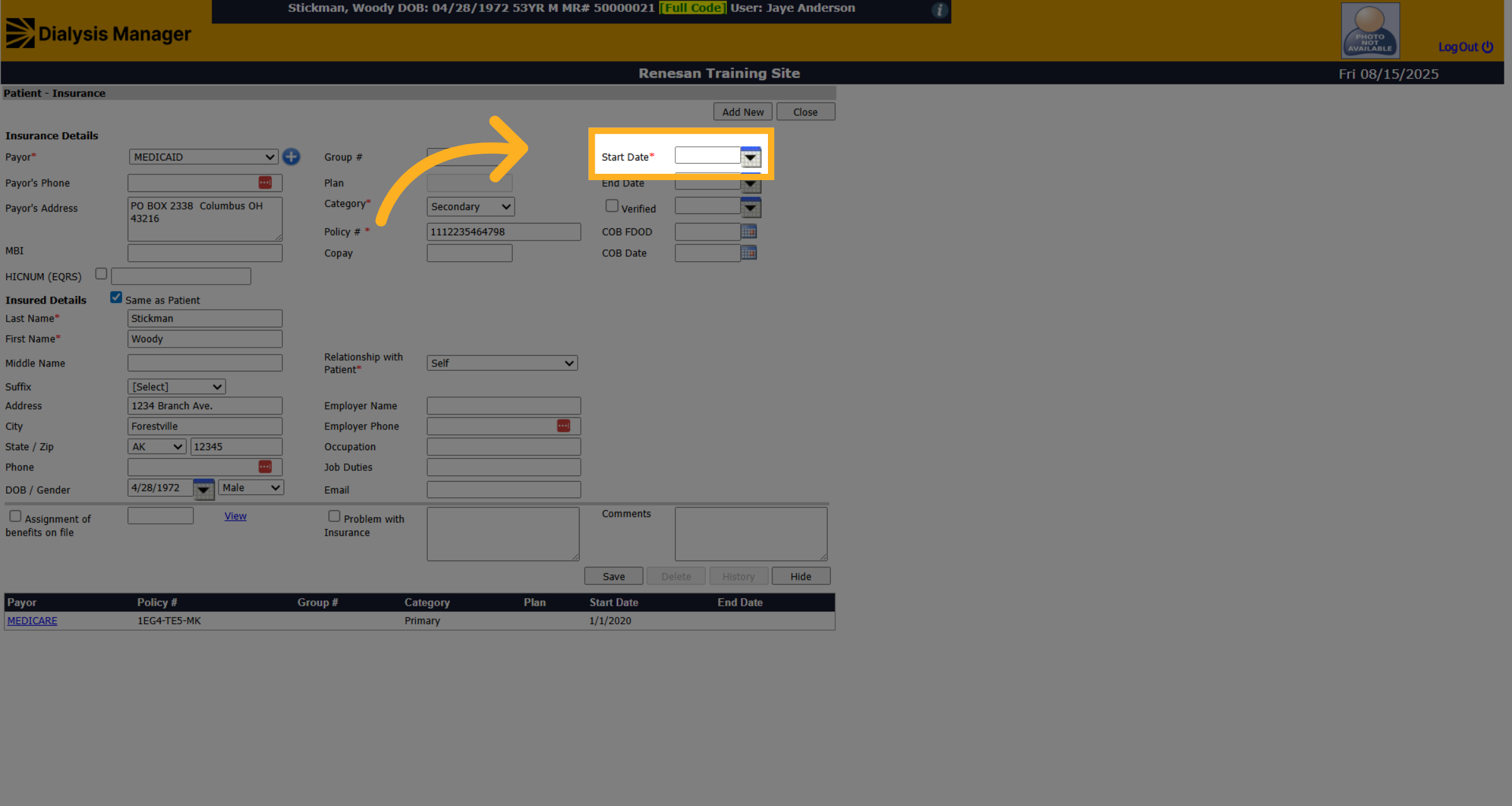
11. Click here
Click the field to enter the Start Date.
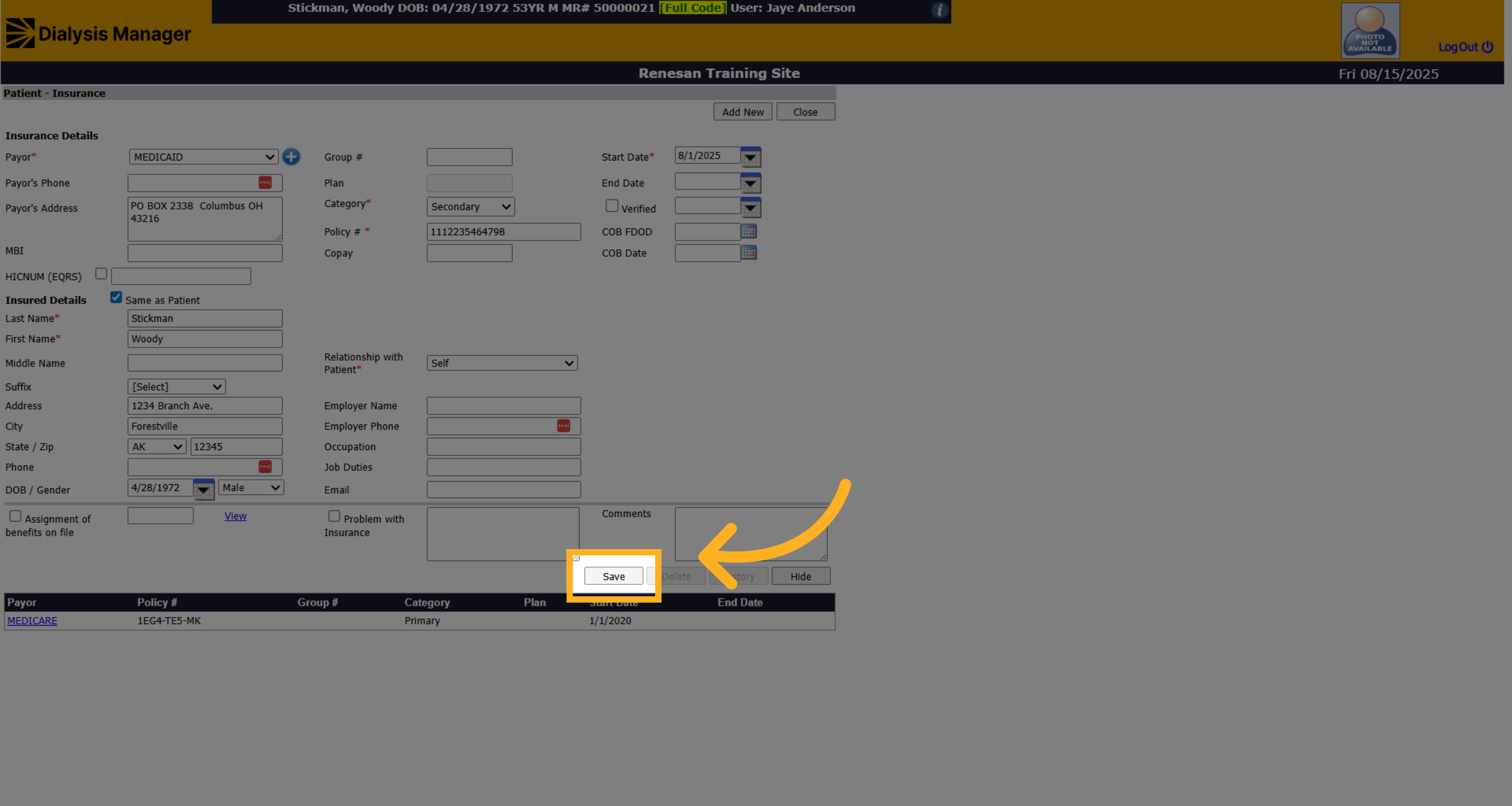
12. Click "Save"
Click the Save button to save the new insurance information.
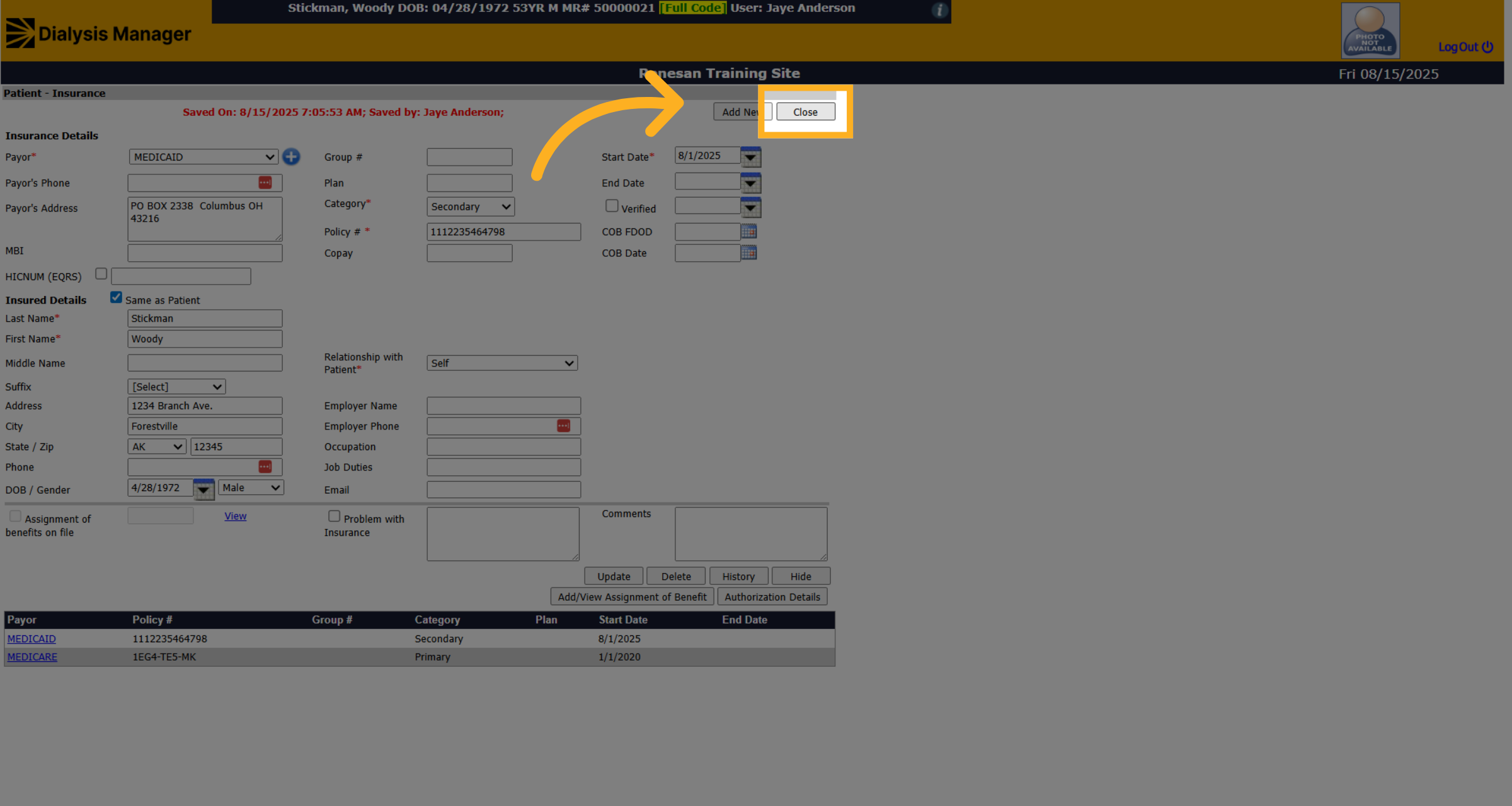
13. Click "Close"
Click the Close button to exit the insurance entry screen.