Adding a New Medication
1. Navigate to Admin Options > Masters > Masters List.
2. Click on Meds.
3. Put in the medication name in the Trade Name field.
You can opt to specify the Route and Unit for the med as required.
4. Select the correct Charges for the med.
5. Select the Category of the med.
6. Click on Save.
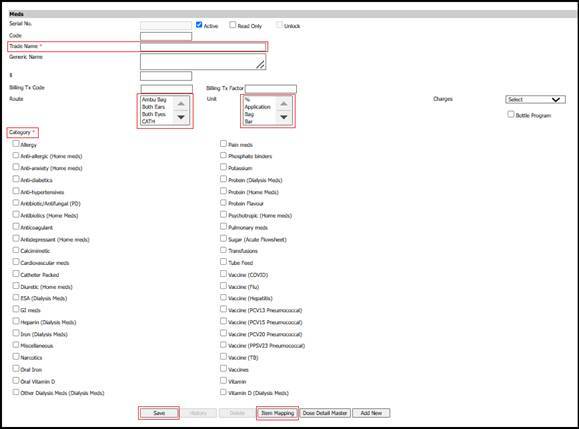
After the med has been saved, you can opt of show the med in particular facilities by using the Item Mapping button.
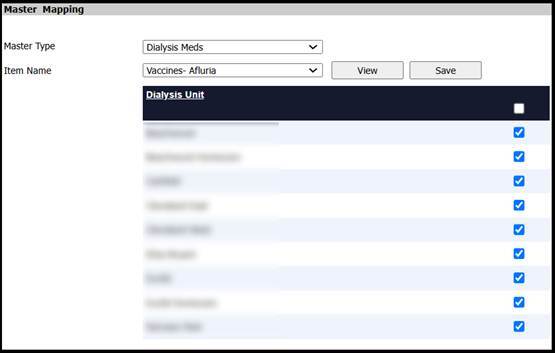
7. Click on Item Mapping button and select the med in the Item Name dropdown.
8. Click on View. You can now select the facilities under which this med needs to be visible.
9. After selecting the required facilities, click on Save.
Note: For billing configuration, please reach out to the support helpdesk to avoid any discrepancies.