Adding a Hospitalization
1. Introduction
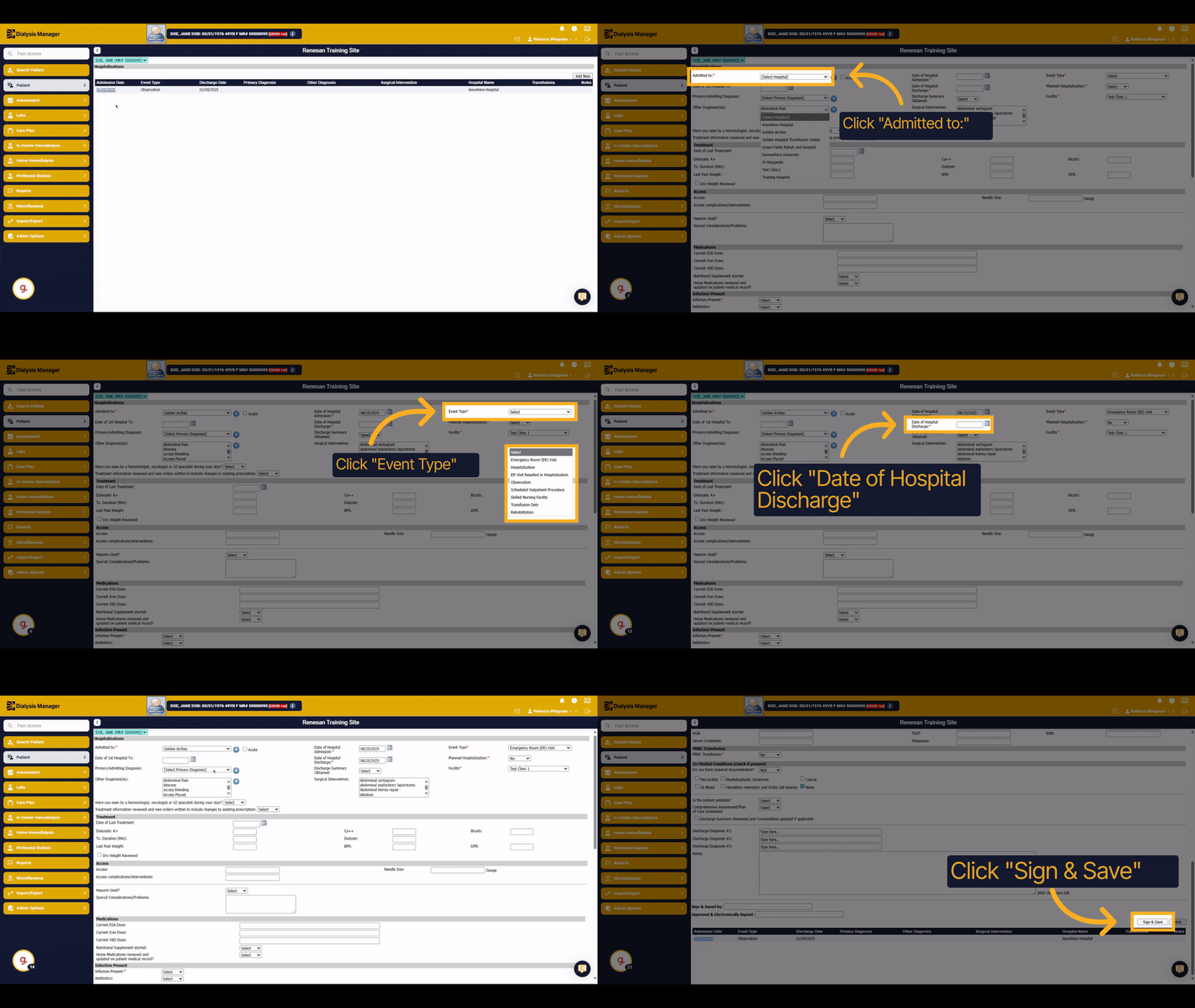
In this guide, you will learn how to add a hospitalization record in the system. We will walk through entering all mandatory fields marked with a red asterisk to ensure accurate and complete data entry.
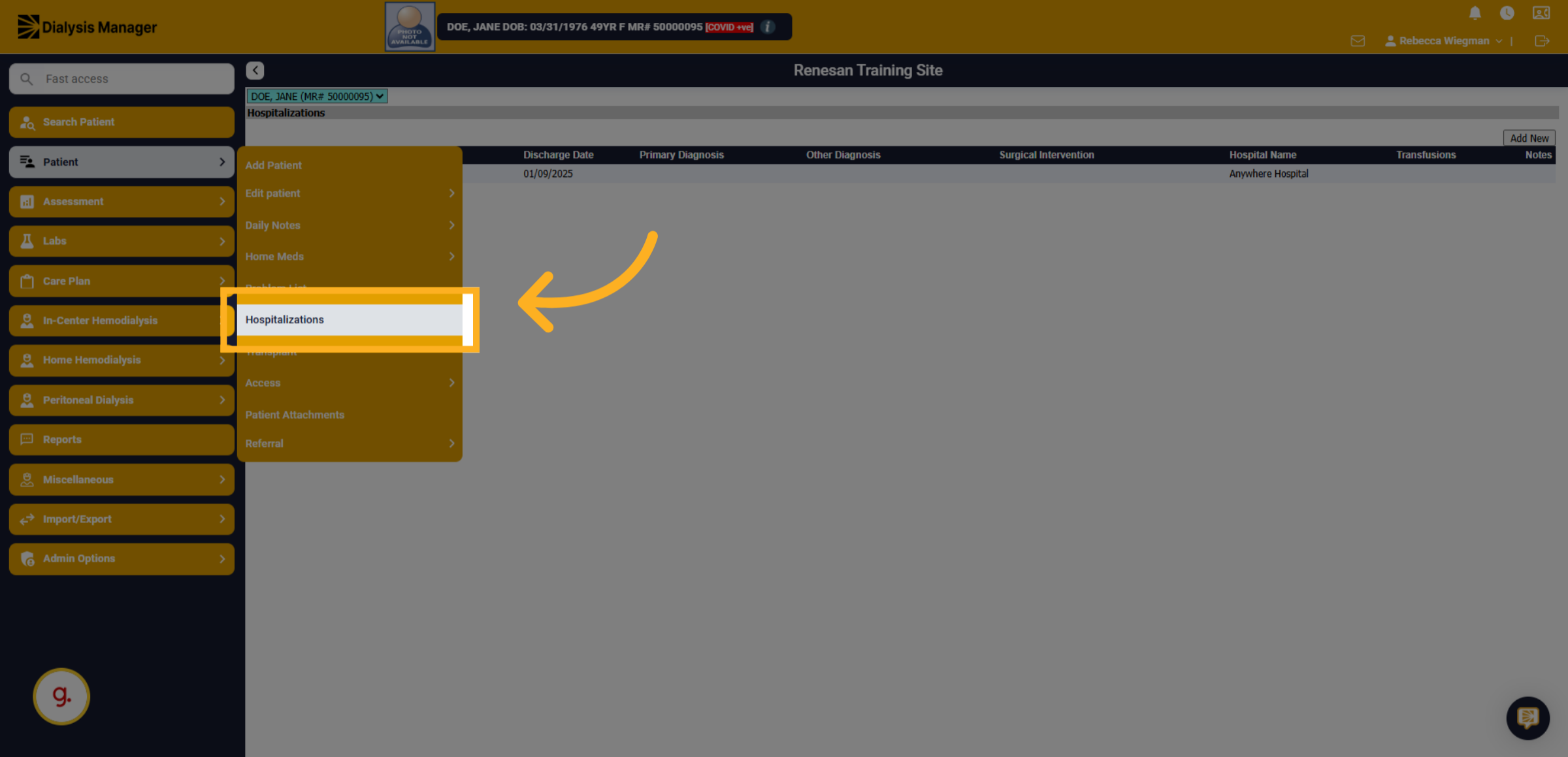
2. Click "Hospitalizations"
Click the "Hospitalizations" tab to begin managing hospitalization records.
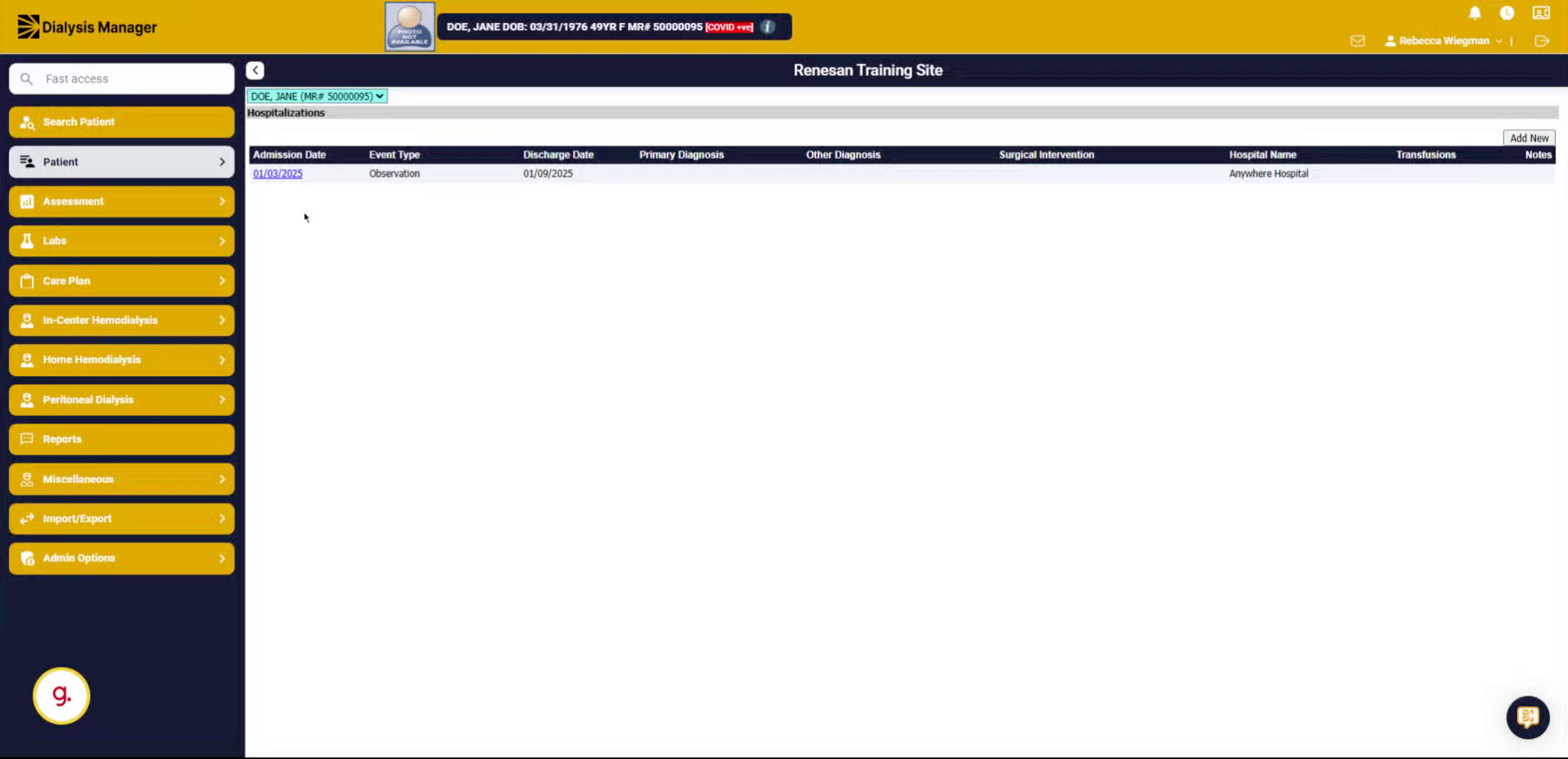
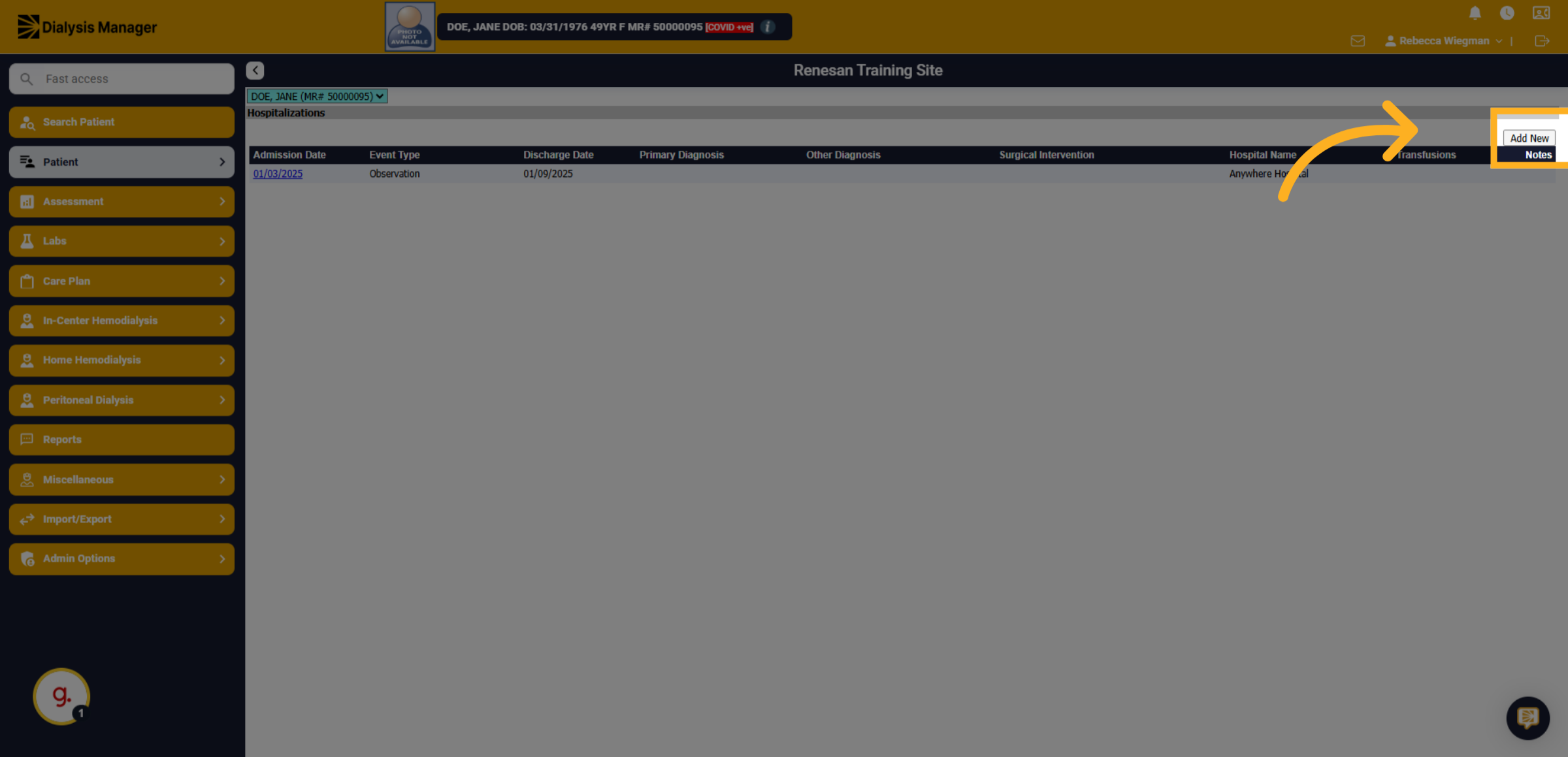
3. Click "Add New"
Click the "Add New" button to create a new hospitalization entry.
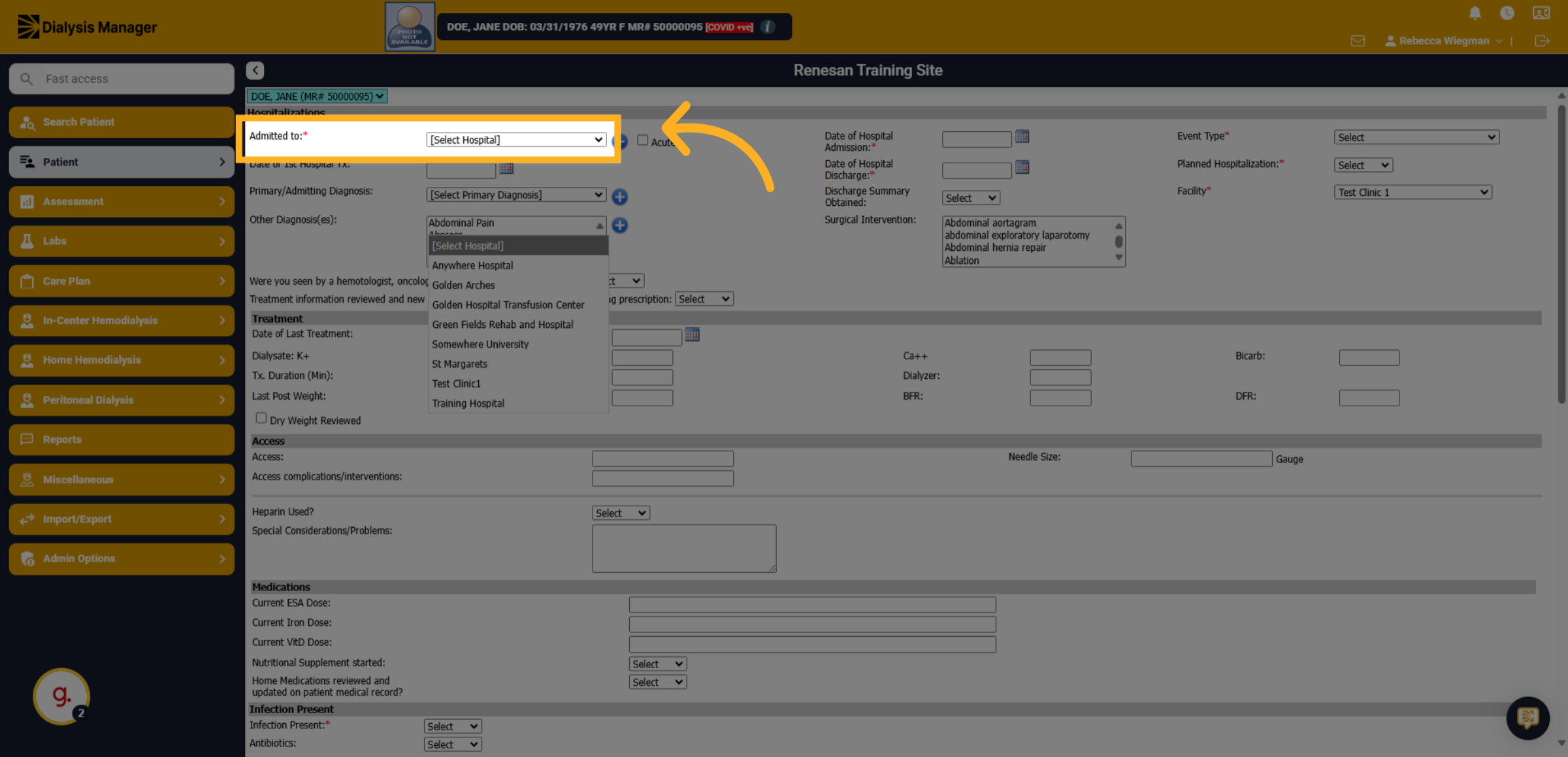
4. Click "Admitted to:"
Click the hospital selection dropdown to choose the hospital associated with the hospitalization.
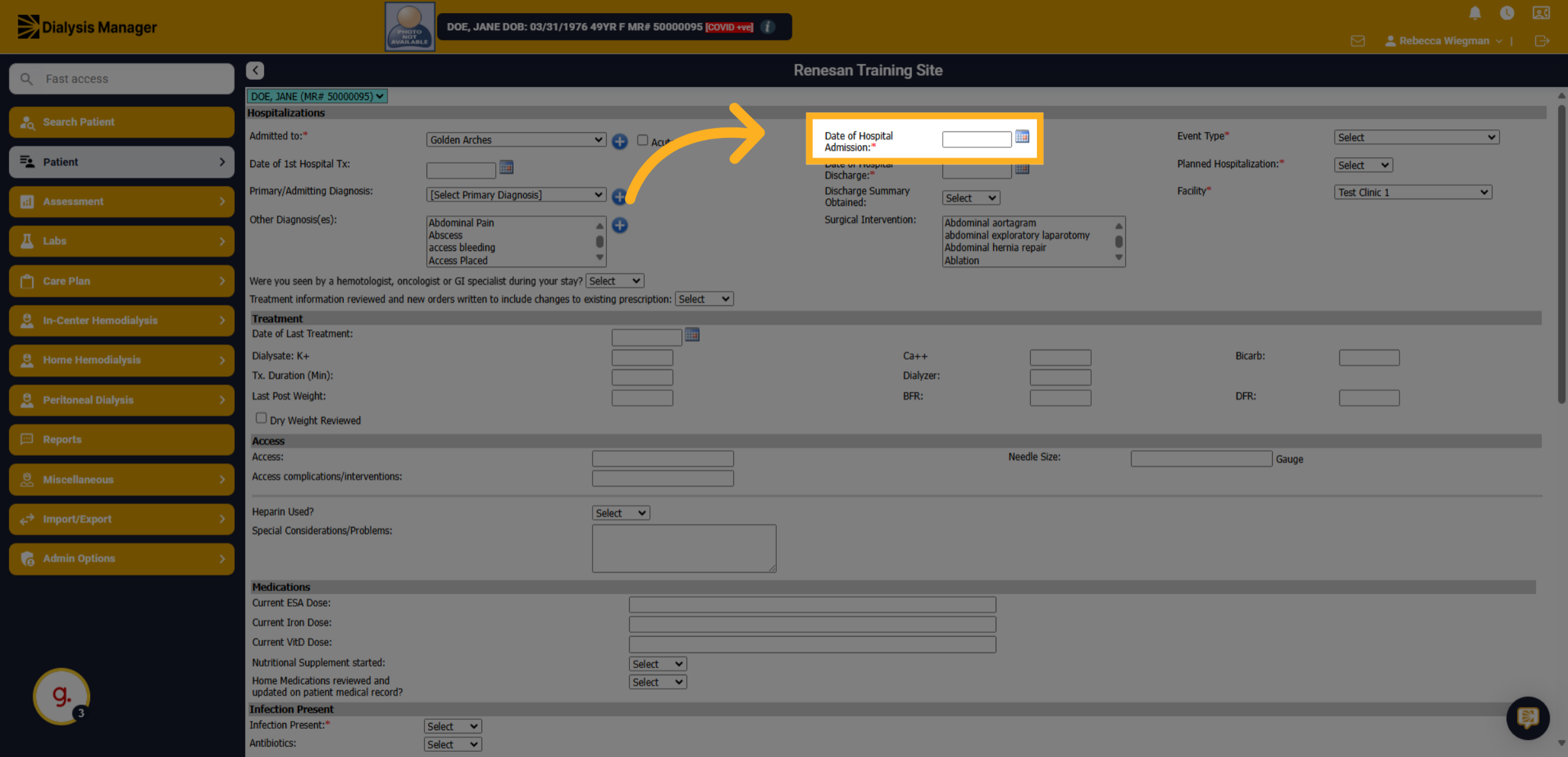
5. Click "Date of Admission"
Click the date field to specify the hospitalization date.
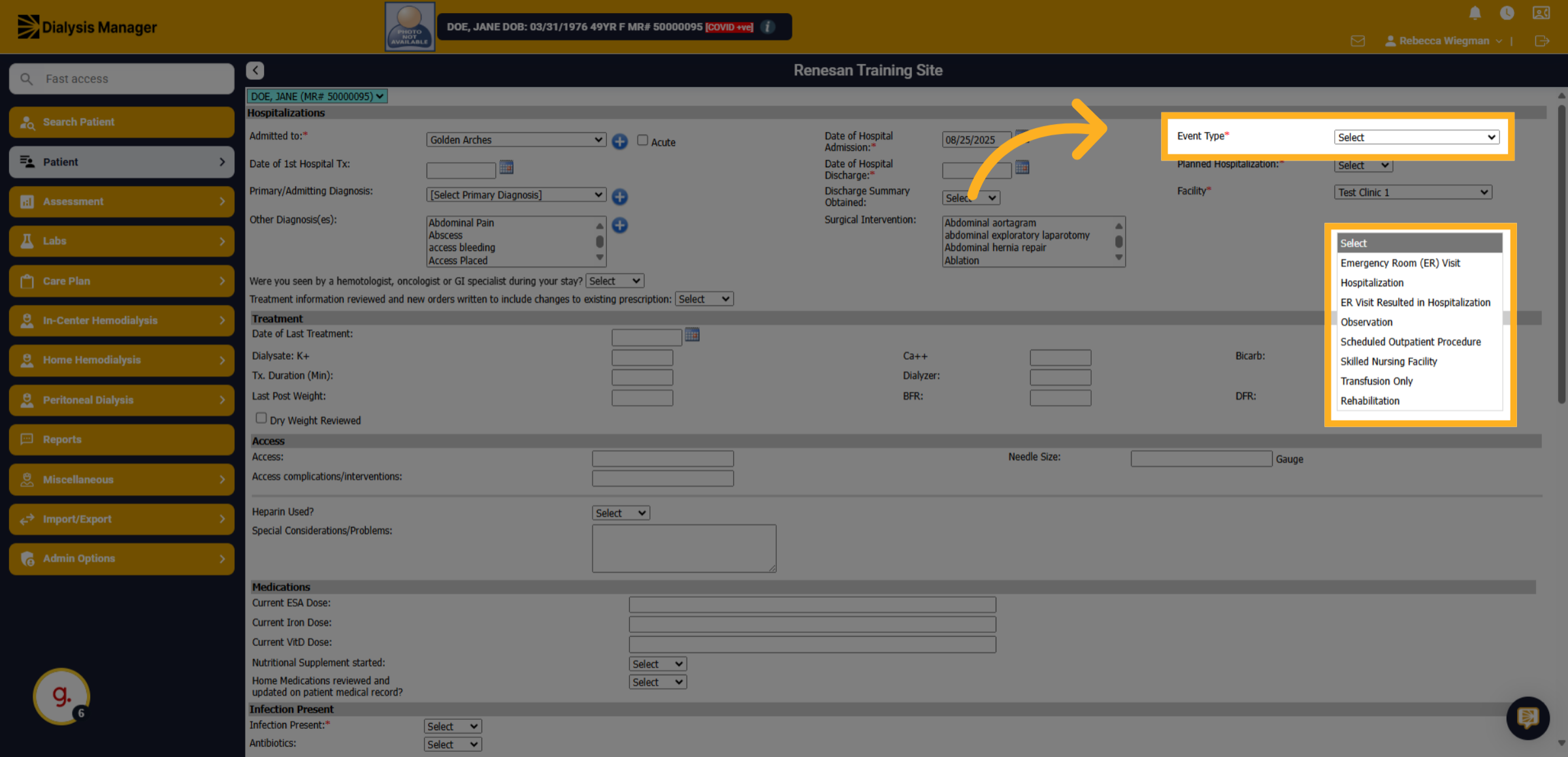
6. Click "Event Type"
Click the visit type dropdown to specify the type of visit.
7. Click "Planned Hospitalization"
Click the dropdown to indicate if the hospitalization was planned or unplanned.
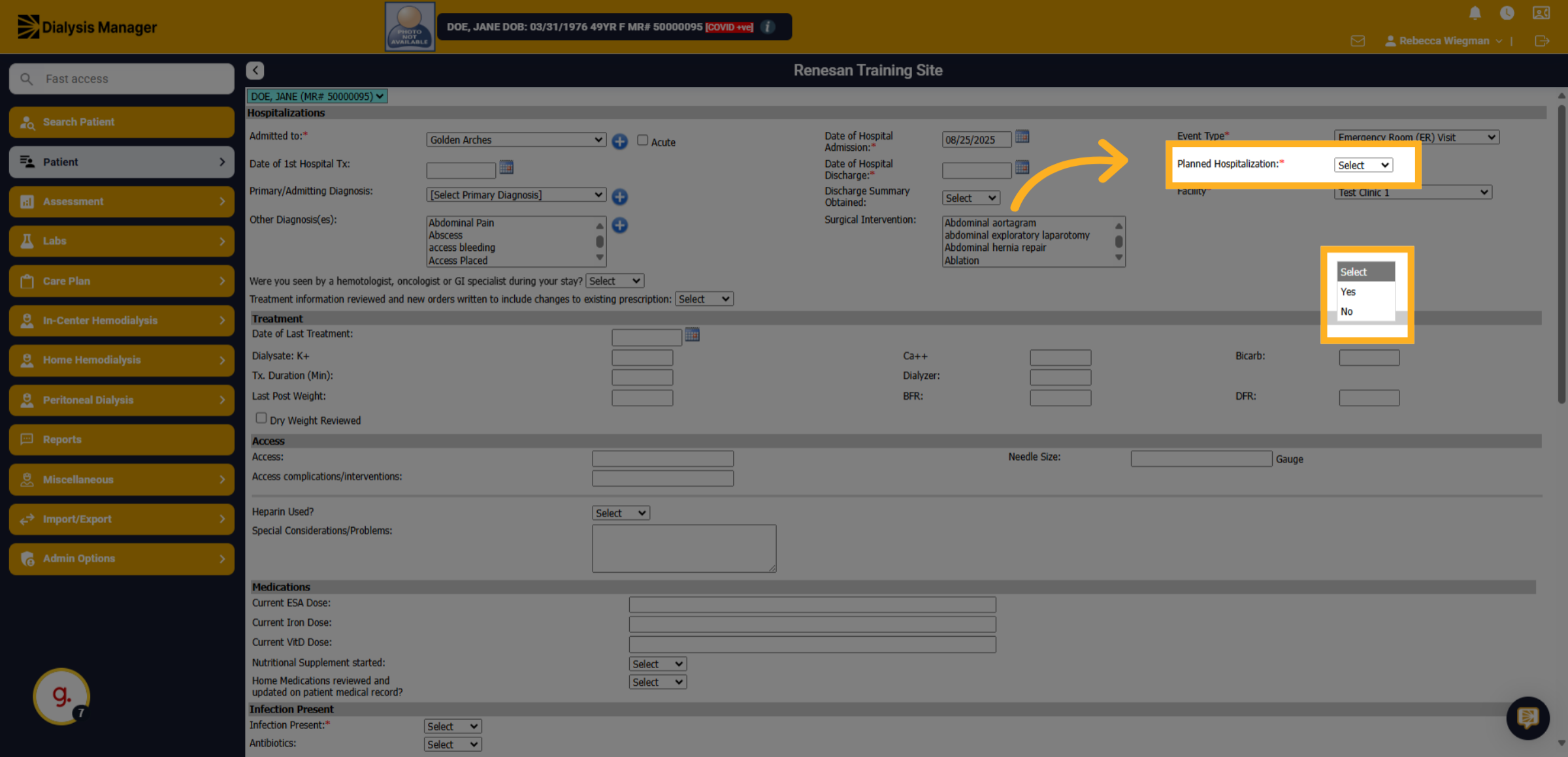
8. Facility
The Facility drop down will automatically pull from the patient's demographic information
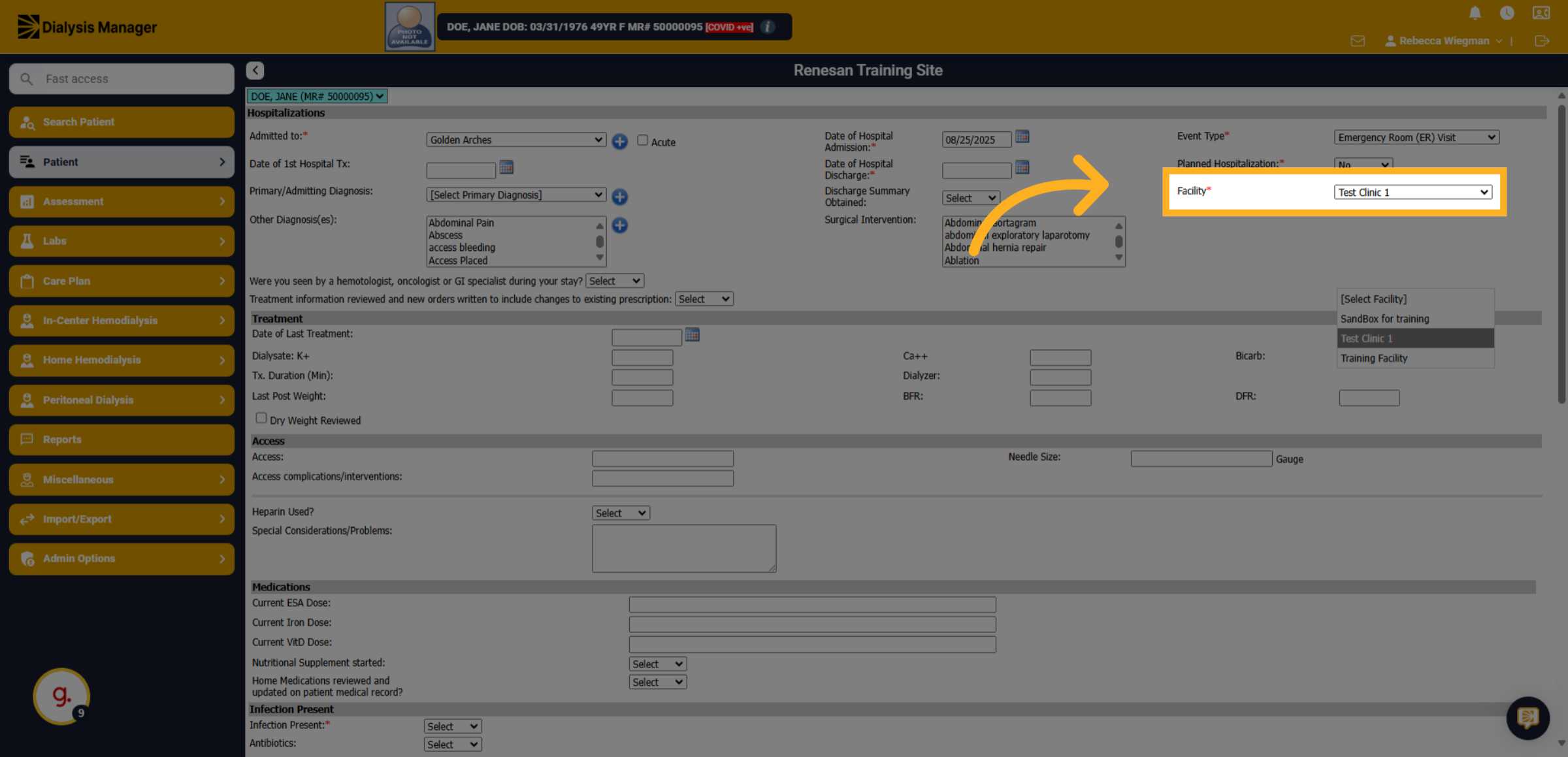
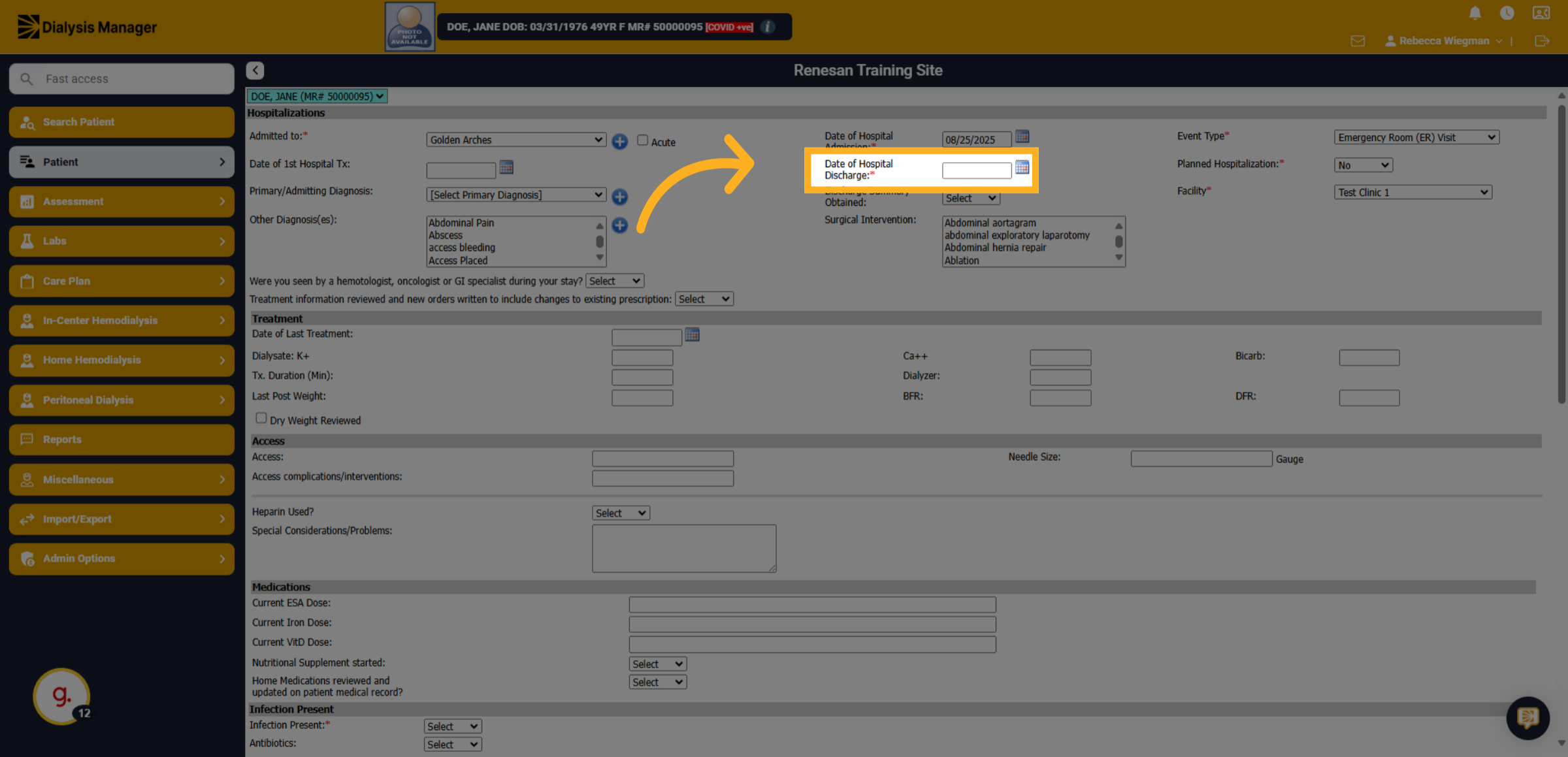
9. Click Date of Hospital Discharge
Click the date field to specify the discharge date if it is known.
10. Click "Primary/Admitting Diagnosis"
Click the primary diagnosis dropdown to select the main diagnosis related to the hospitalization. NOTE: If the diagnosis is not available, users who have access to the Masters list will see a blue + sign. This will allow those users to have the ability to update the system to contain those diagnosis in the future. This list also controls Problem List selection.
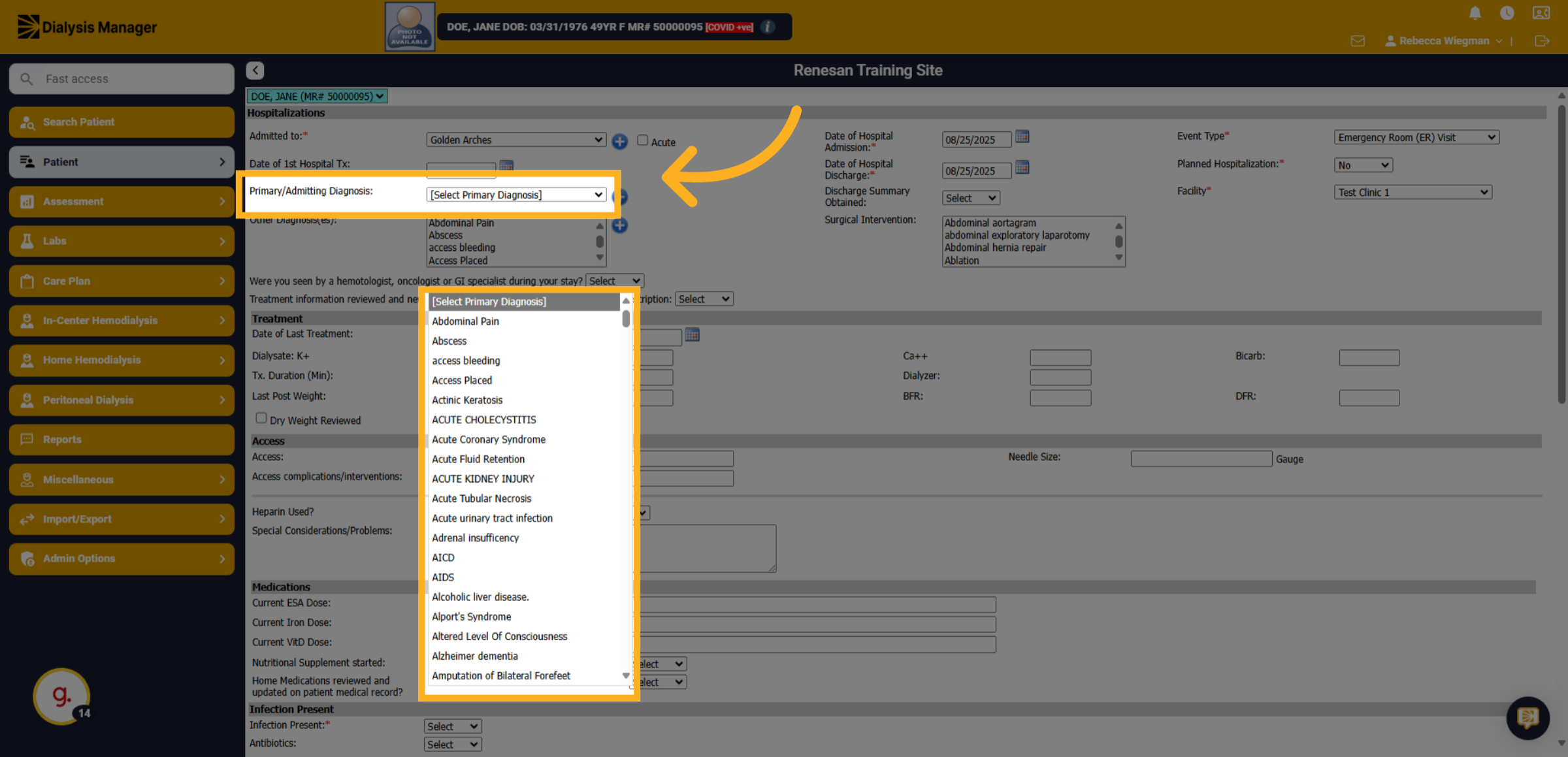
11. Fill "[Select Primary Diagnosis]
Type to search and select the primary diagnosis from the list.
![Fill '[Select Primary Diagnosis]](https://knowledgetest.renvio.com/hubfs/Intercom%20knowledge%20base/qg-2Fu0GlpTxg3KQGmZcWU2NCVw7aI4i1-2Fa7MrW4s2444p7Sw6yec7m8-2F1J1NVjt9BLmt4f5FHGPexB_doc.png)
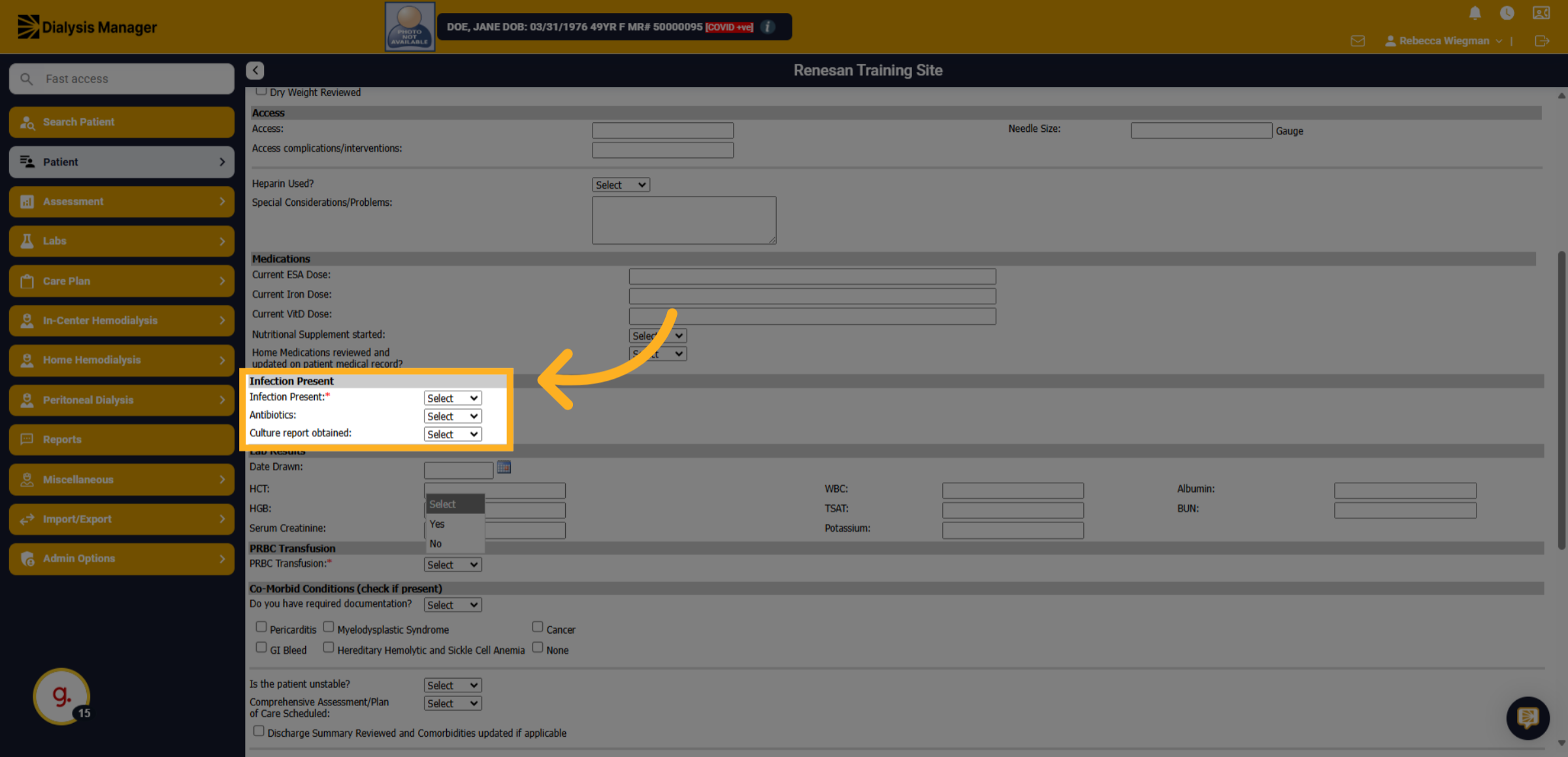
12. Click "Infection Present"
Select Yes or No if Infections were Present
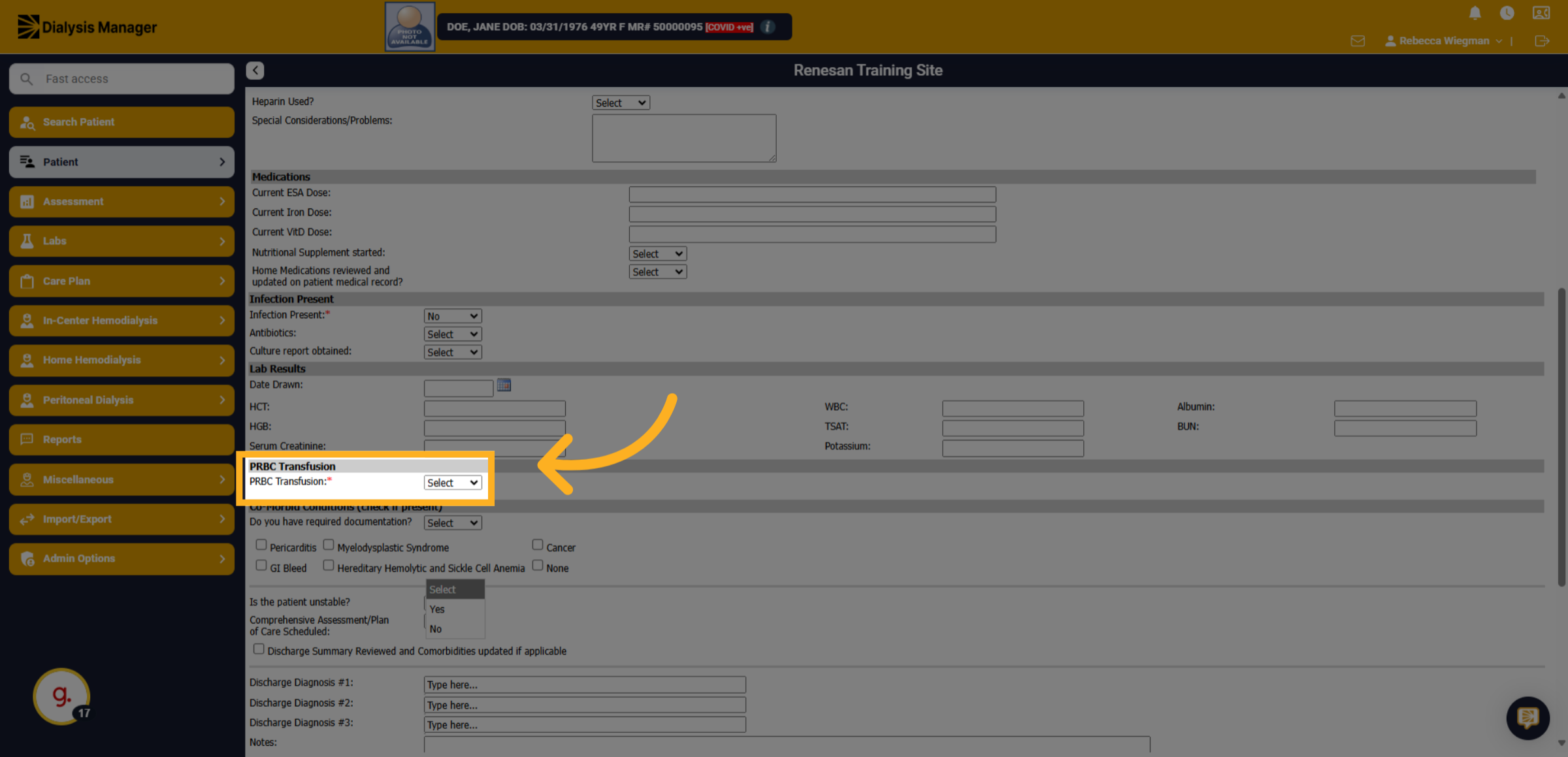
13. Click "PRBC Transfusion"
Select Yes or No if a PRBC transfusion was completed.
14. Click "Sign & Save"
Click the "Sign & Save" button to save the hospitalization record.