Add/edit patient contact information.
1. Introduction
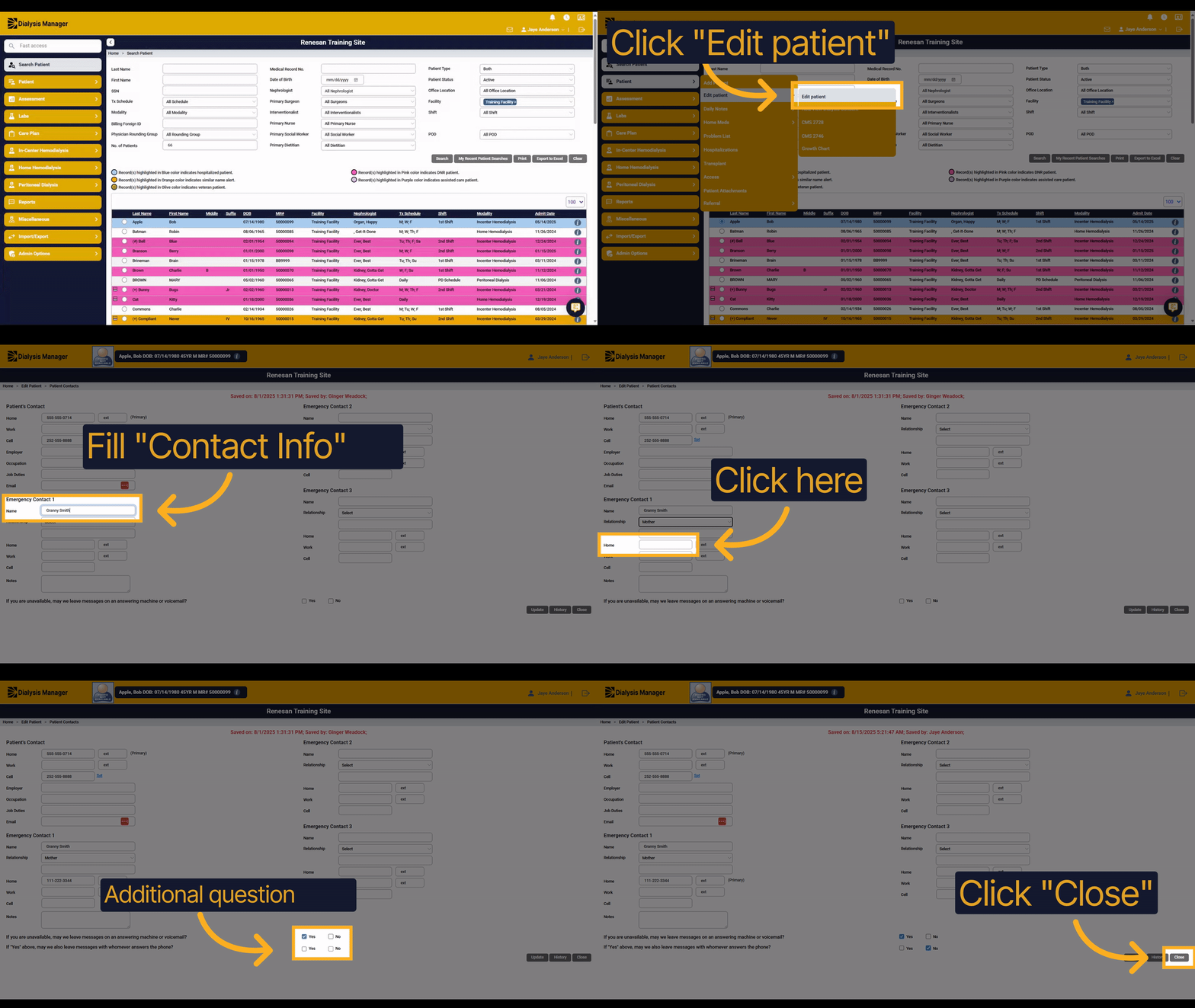
In this guide, we will show you how to add or edit patient contact information in the system. You will learn how to navigate to the patient edit screen and update contact details efficiently.
2. Click "Edit patient"
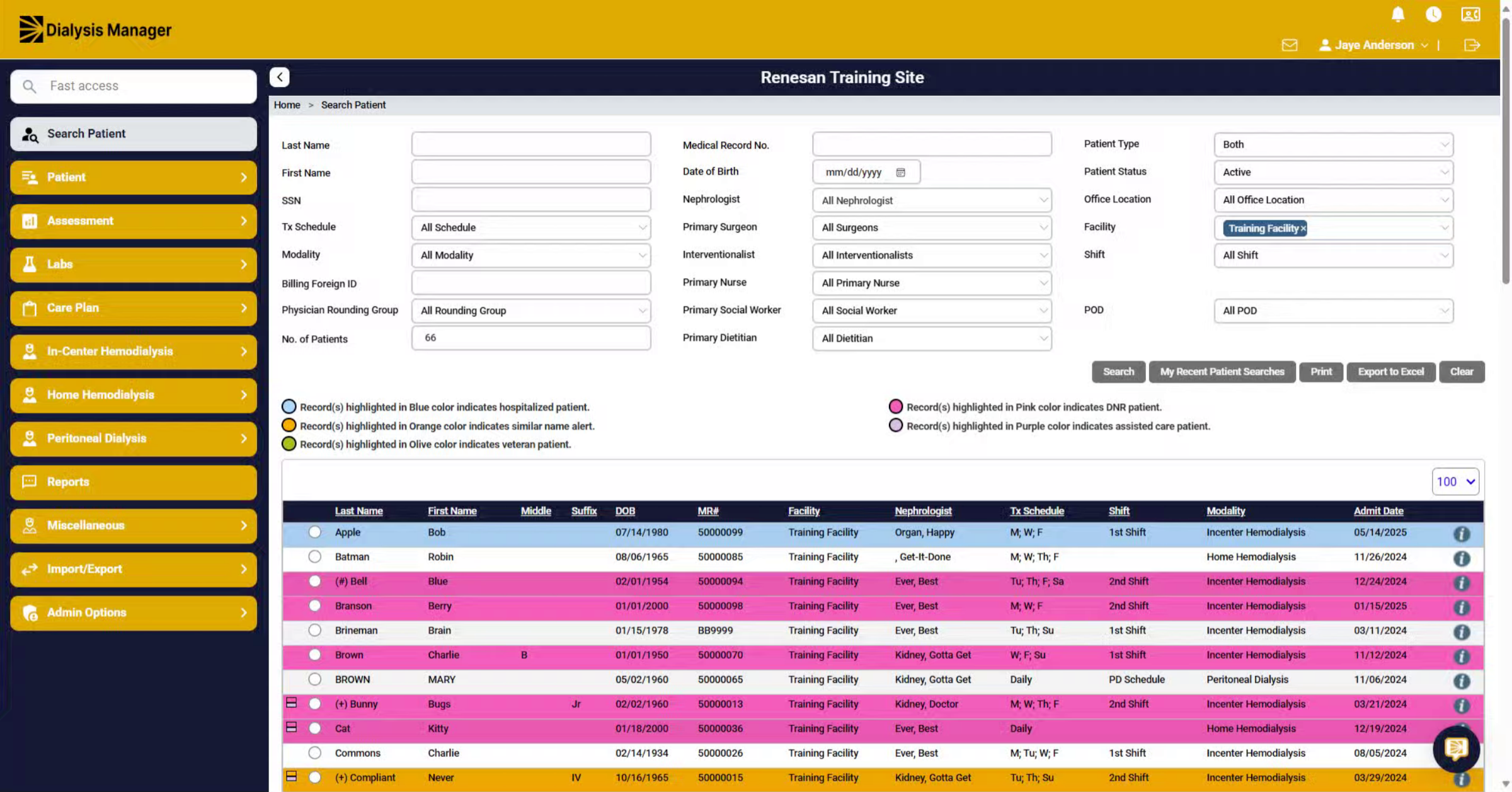
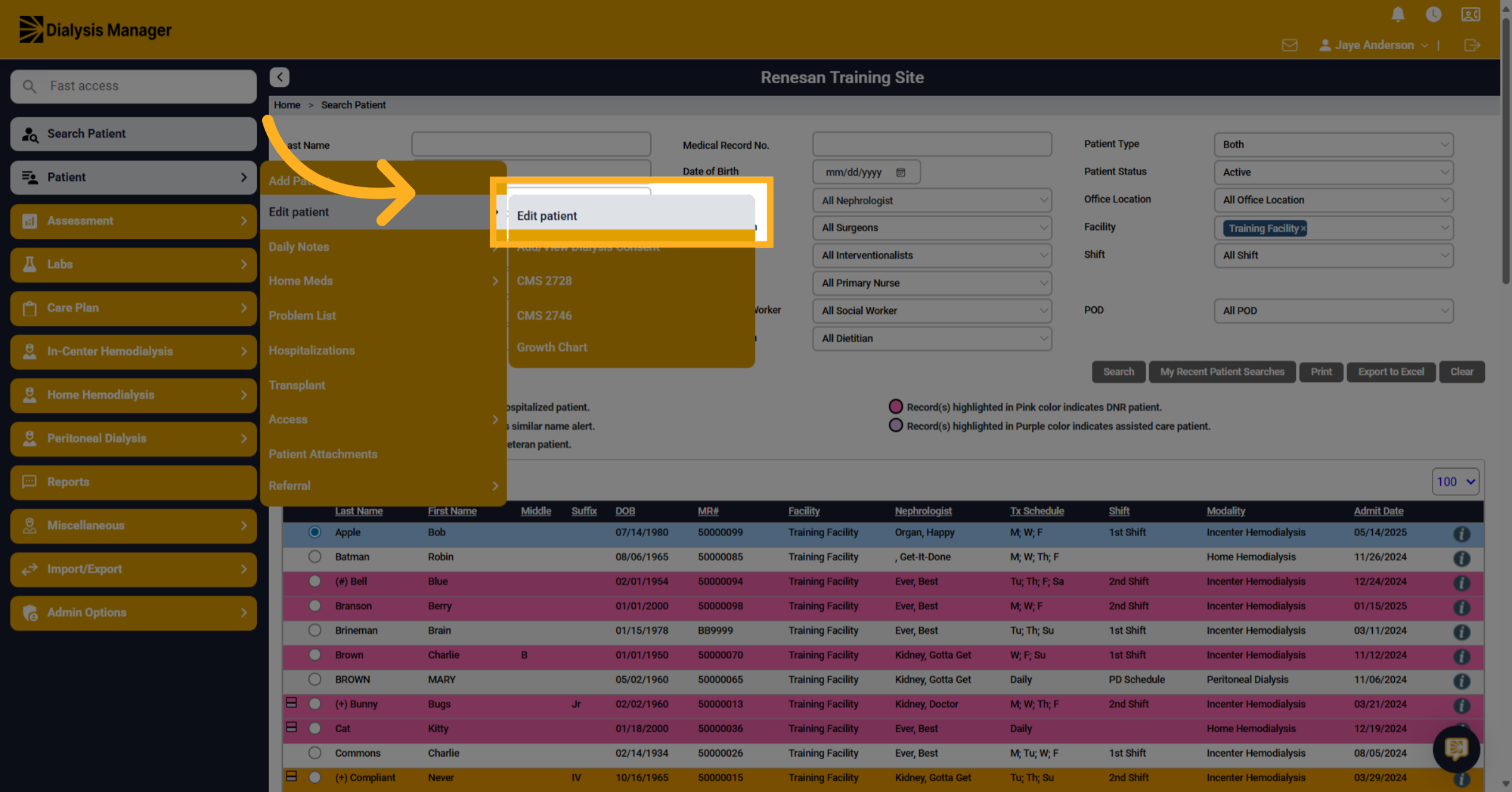
Click the Patient menu, Edit Patient, Edit Patient button to open the patient's details.
If the edit interface does not appear, ensure that your browser's pop-up settings allow pop-ups for Renvio’s site.
3. Click "Contacts"
Select the Contacts tab to view contact information.
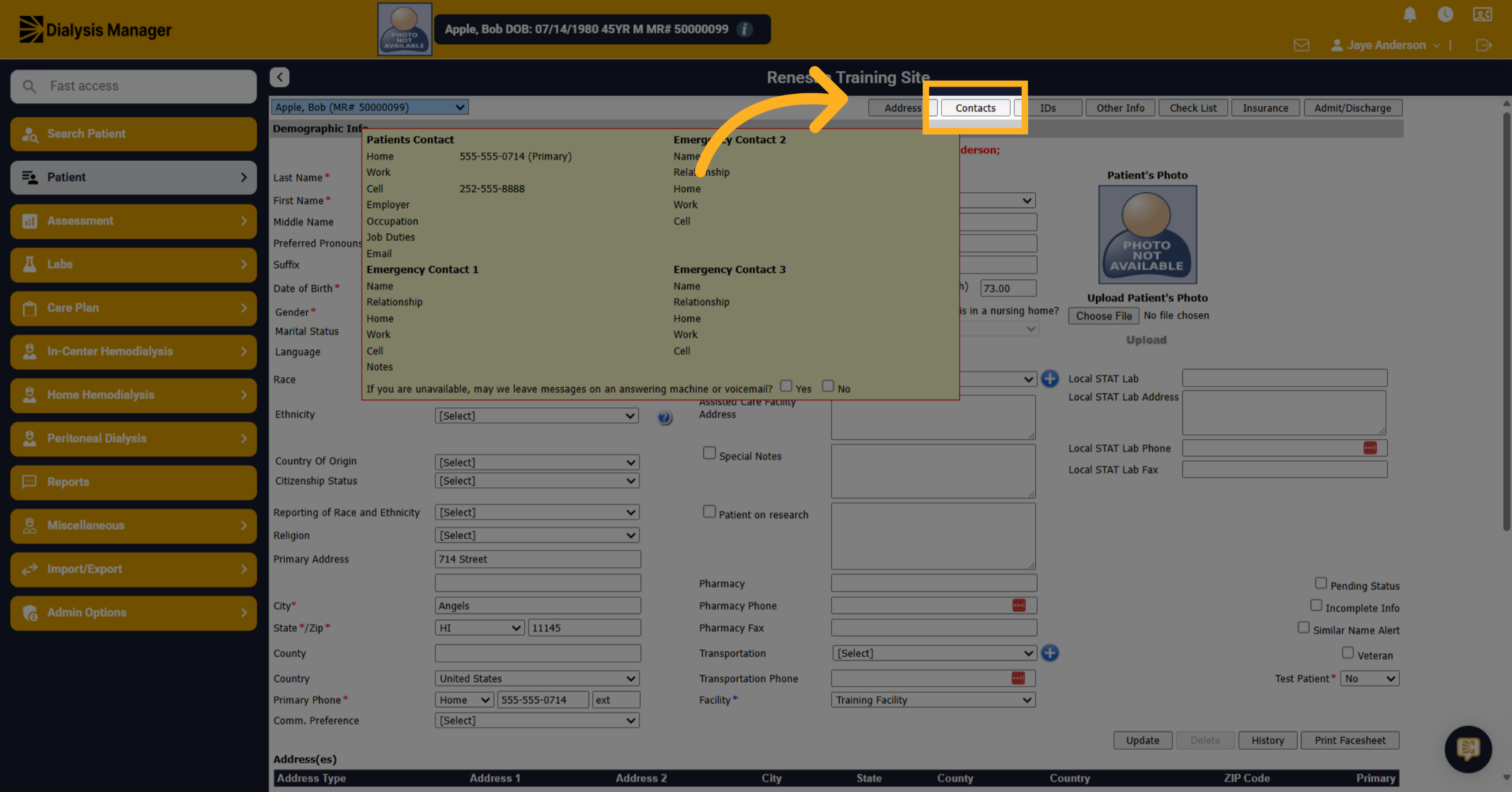
4. Enter Name
Enter the contact's name in the provided field.
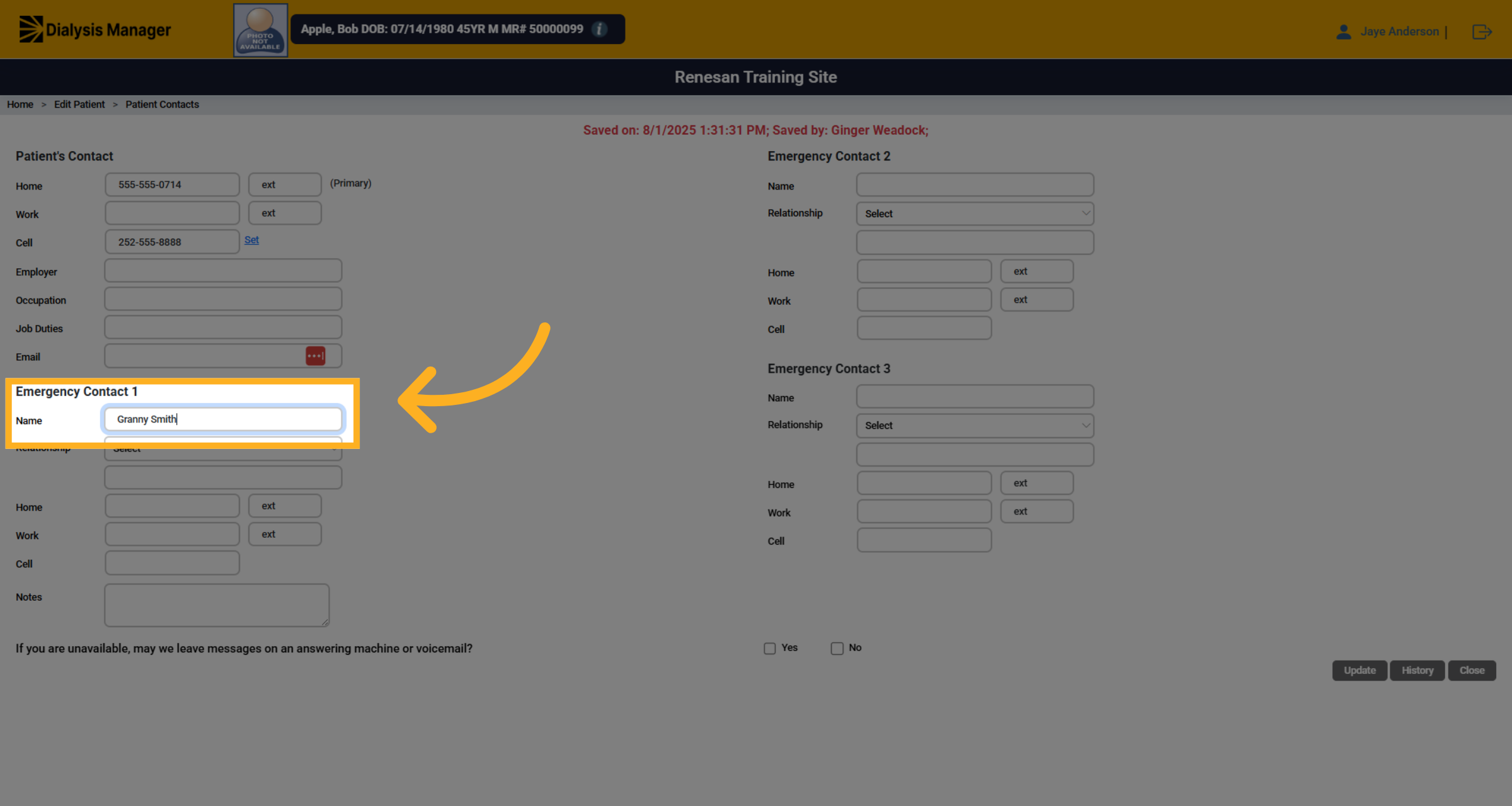
5. Click "Select Relationship"
Click the Select button to confirm the relationship to the patient.
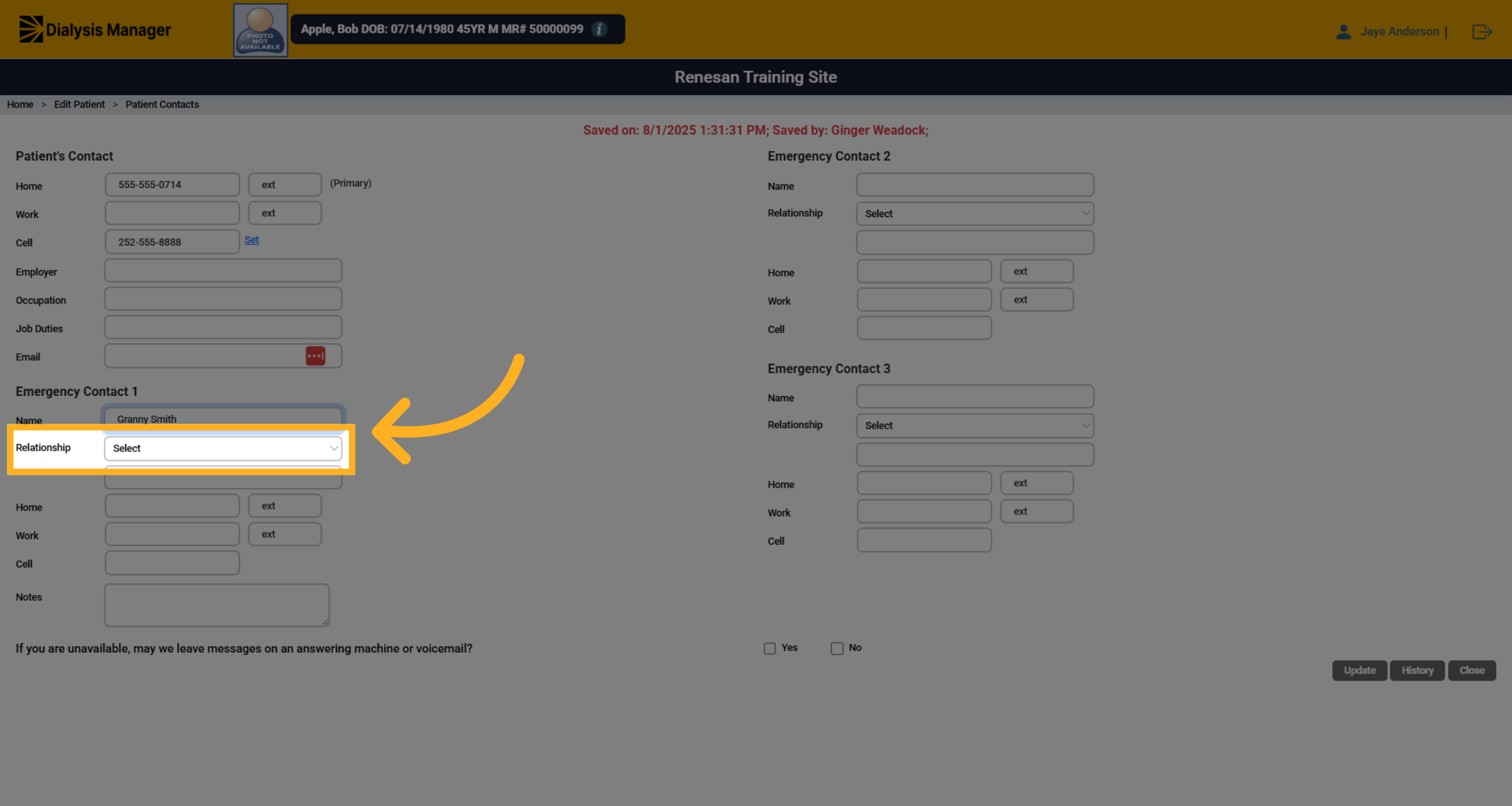
6. Enter Phone Number
Click the phone number field to add a contact number.
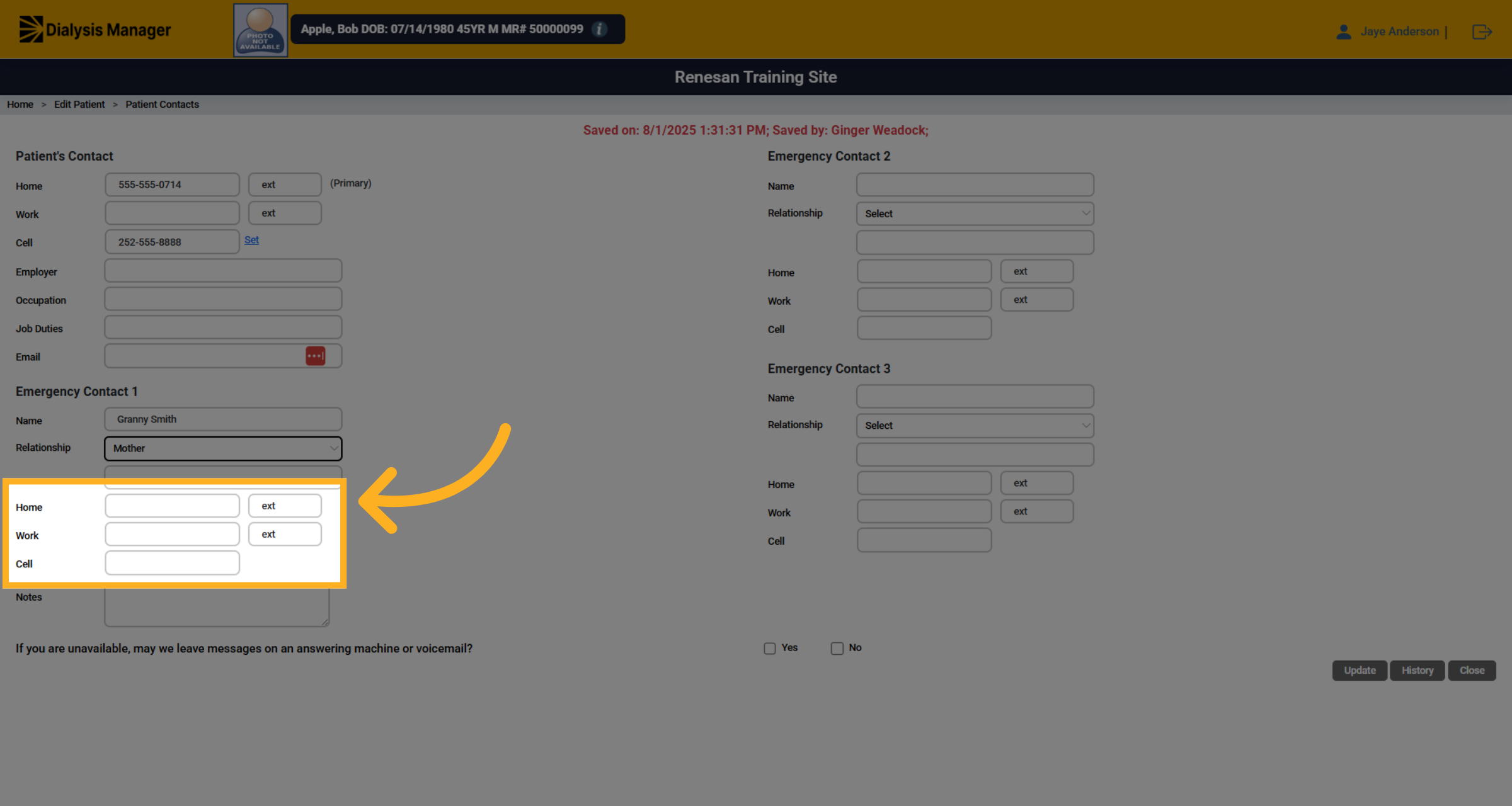
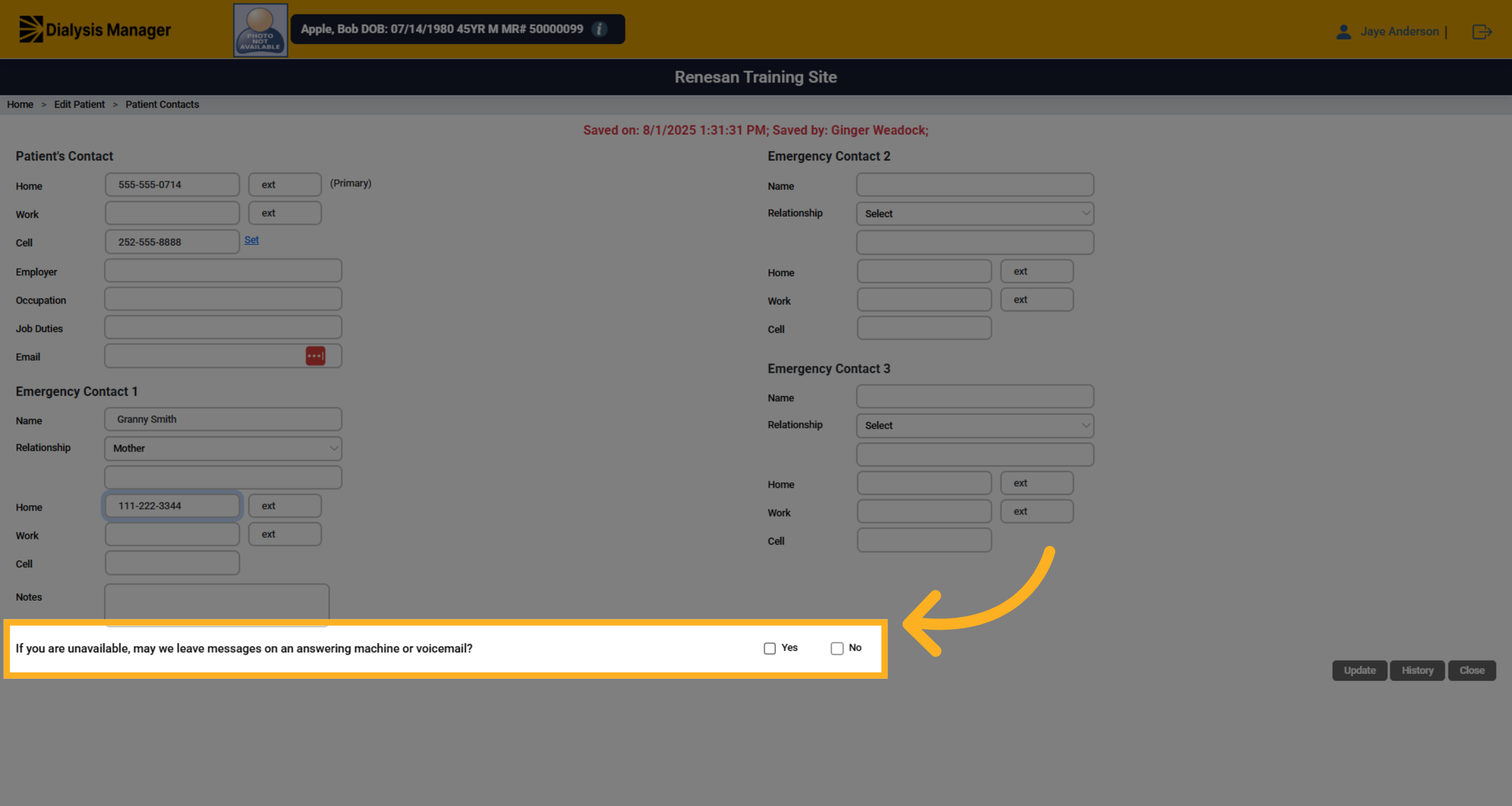
7. Leaving messages
Select yes or no, If a message can be lef on an answering machine or voicemail?
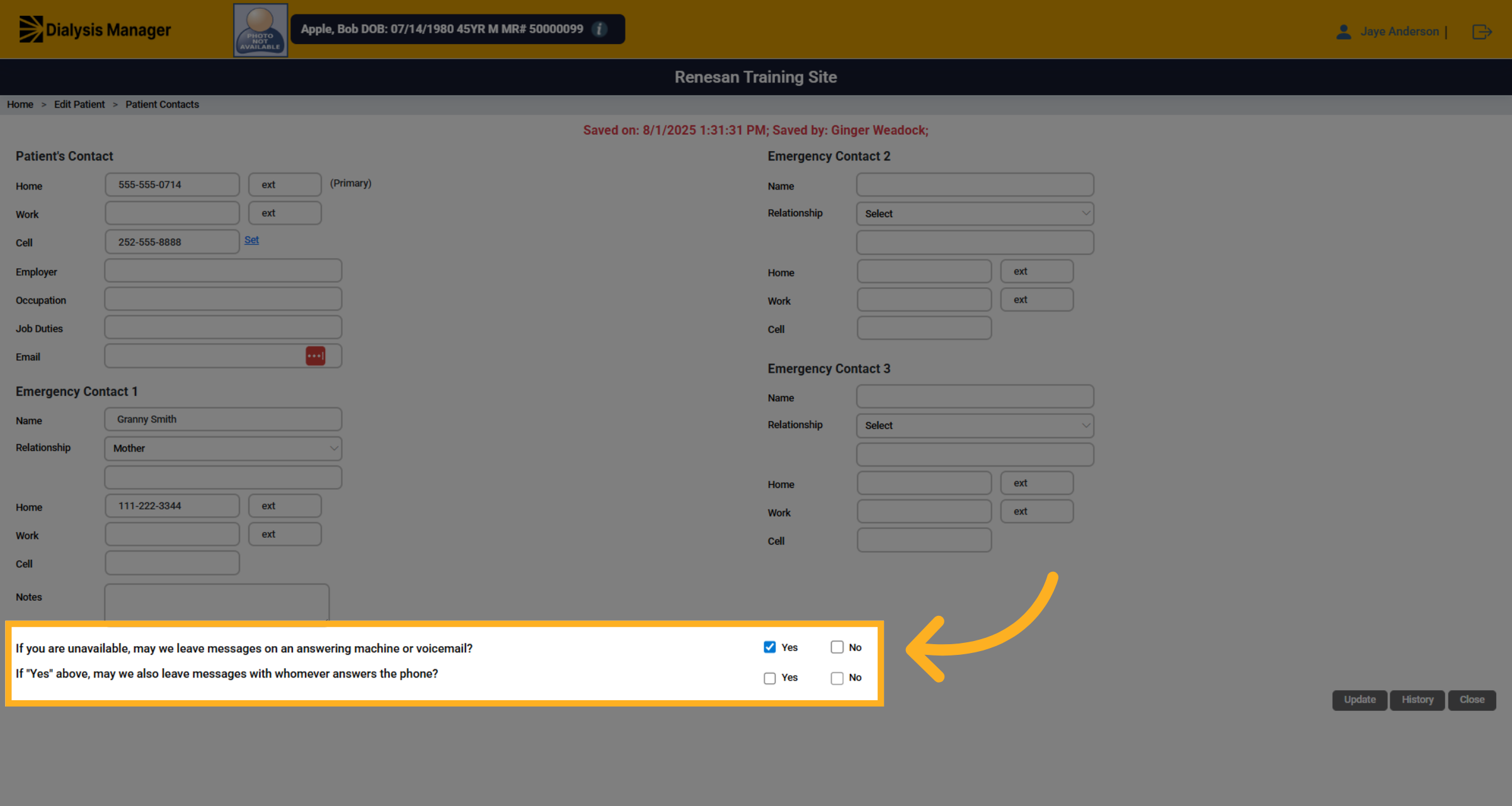
8. Leaving messages with others
If you answer yes to the first questions, you'll need to answer yes or no if we can leave a message with whomever answers the phone.
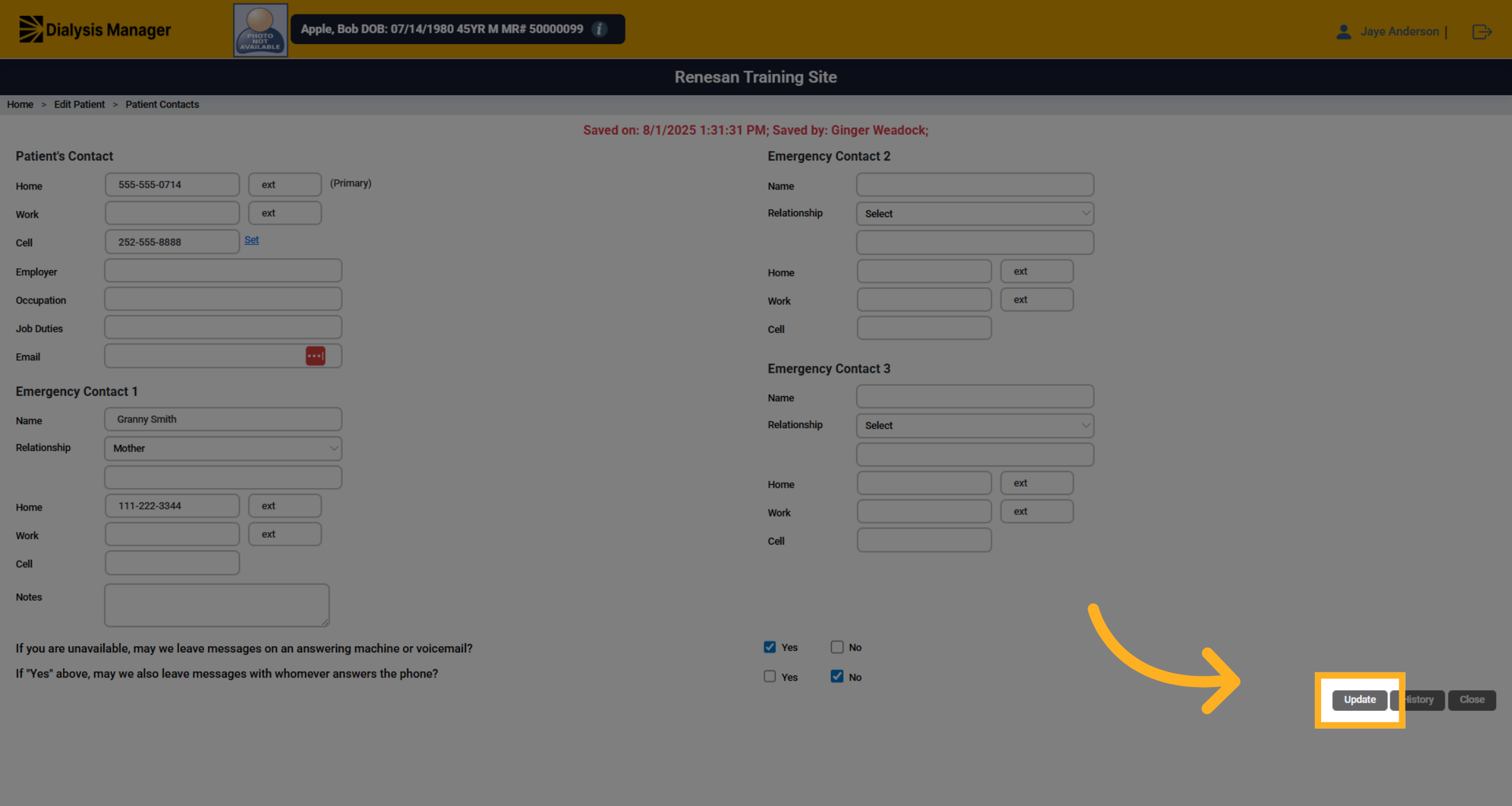
9. Click "Update"
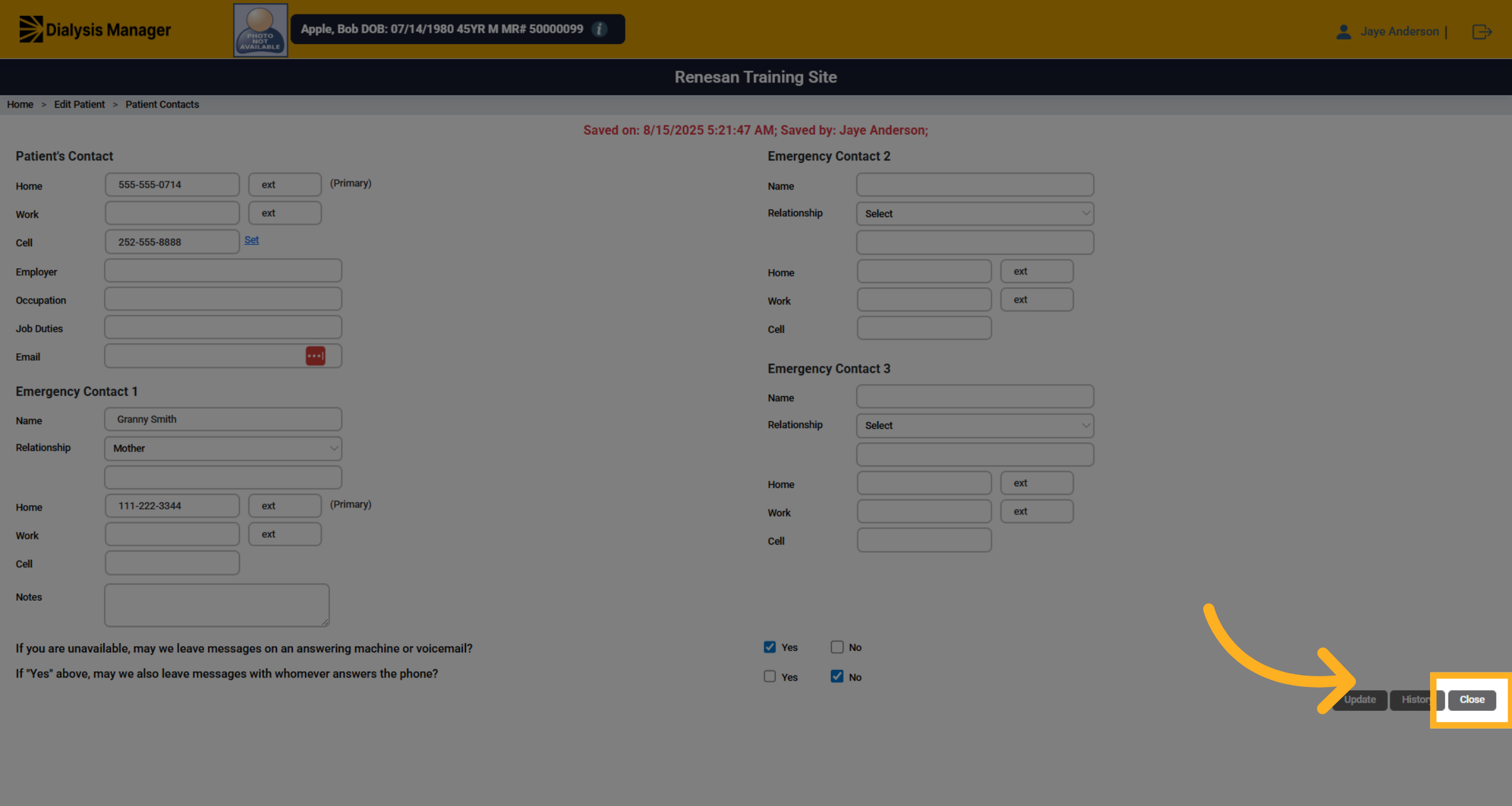
Click the Update button to save the changes made to the contact information.
10. Click "Close"
Click the Close button to exit the patient edit screen.