Add/Edit Patient Care Teams.
1. Introduction
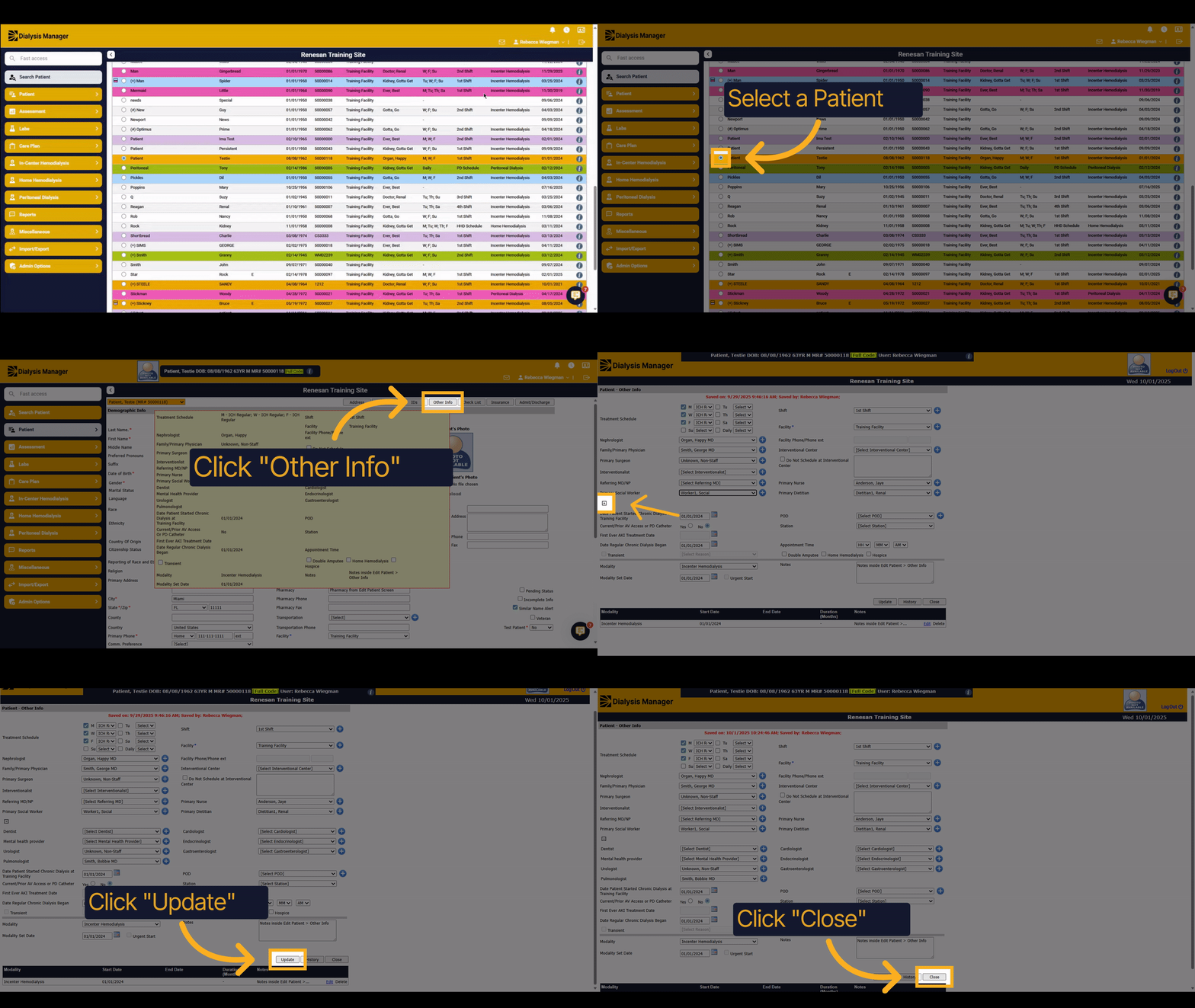
This tutorial guides you through adding or editing a patient care team.
2. Select Patient
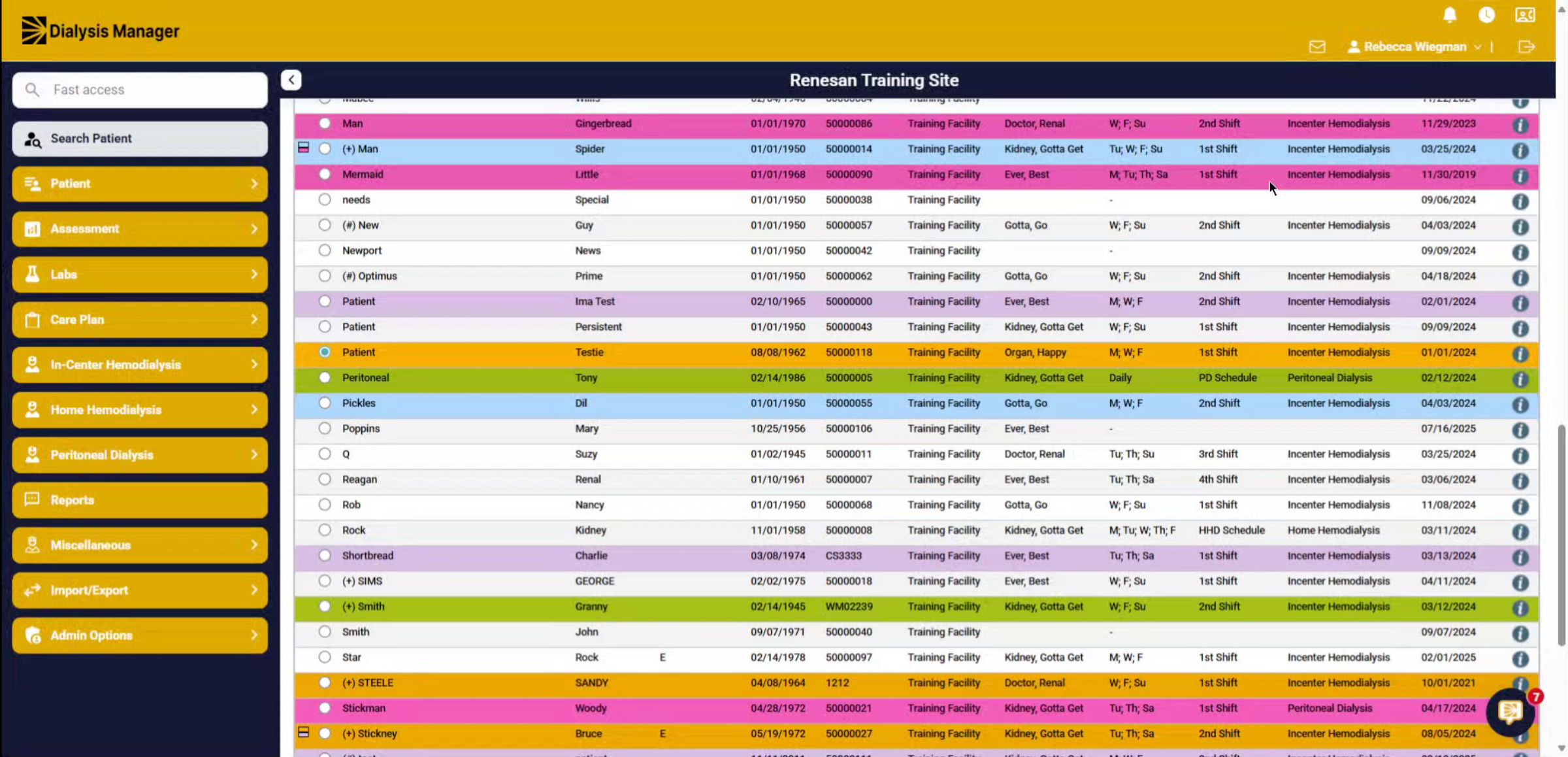
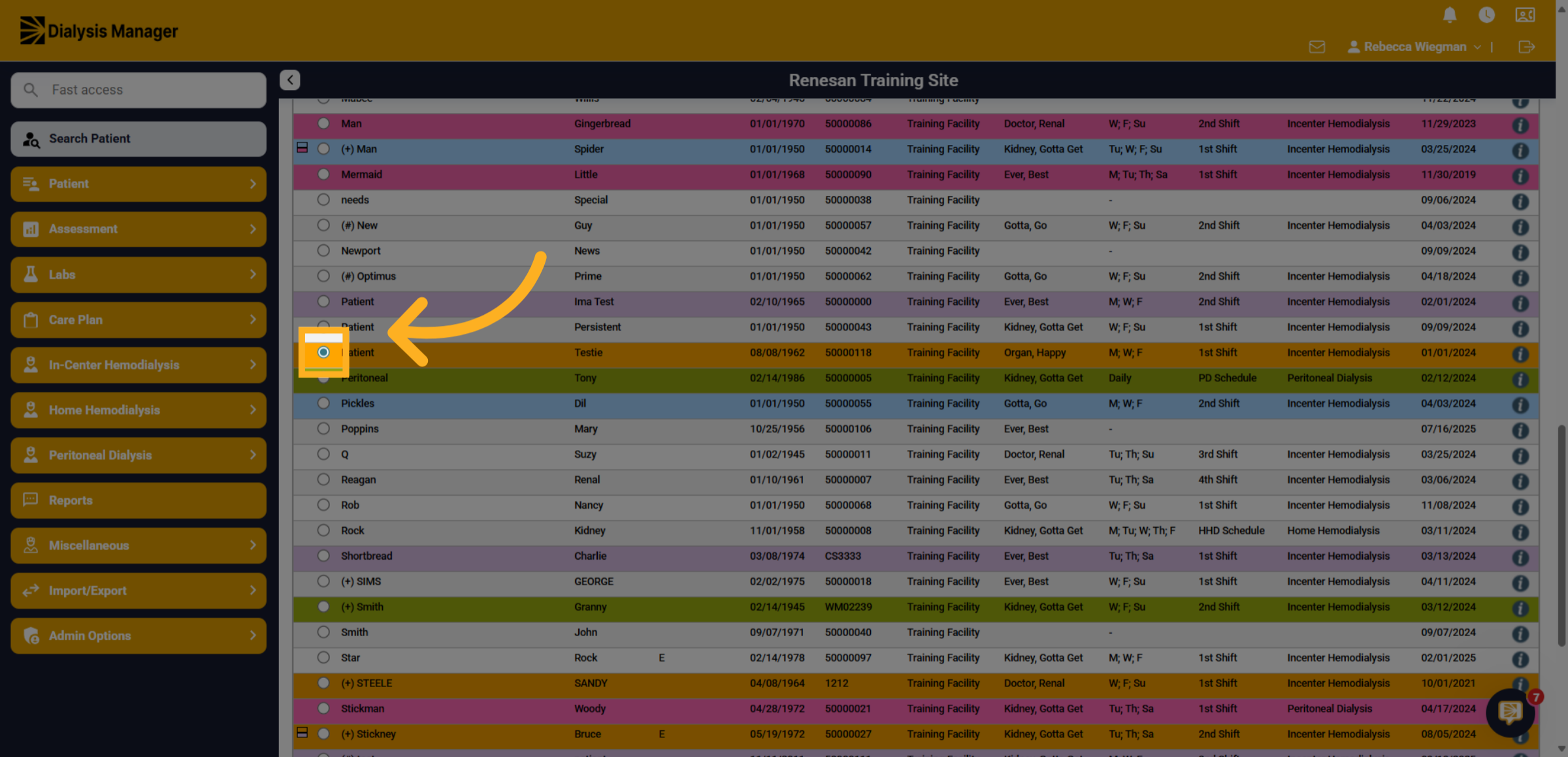
Search and select your patient by clicking the radio button to the left of the patients name.
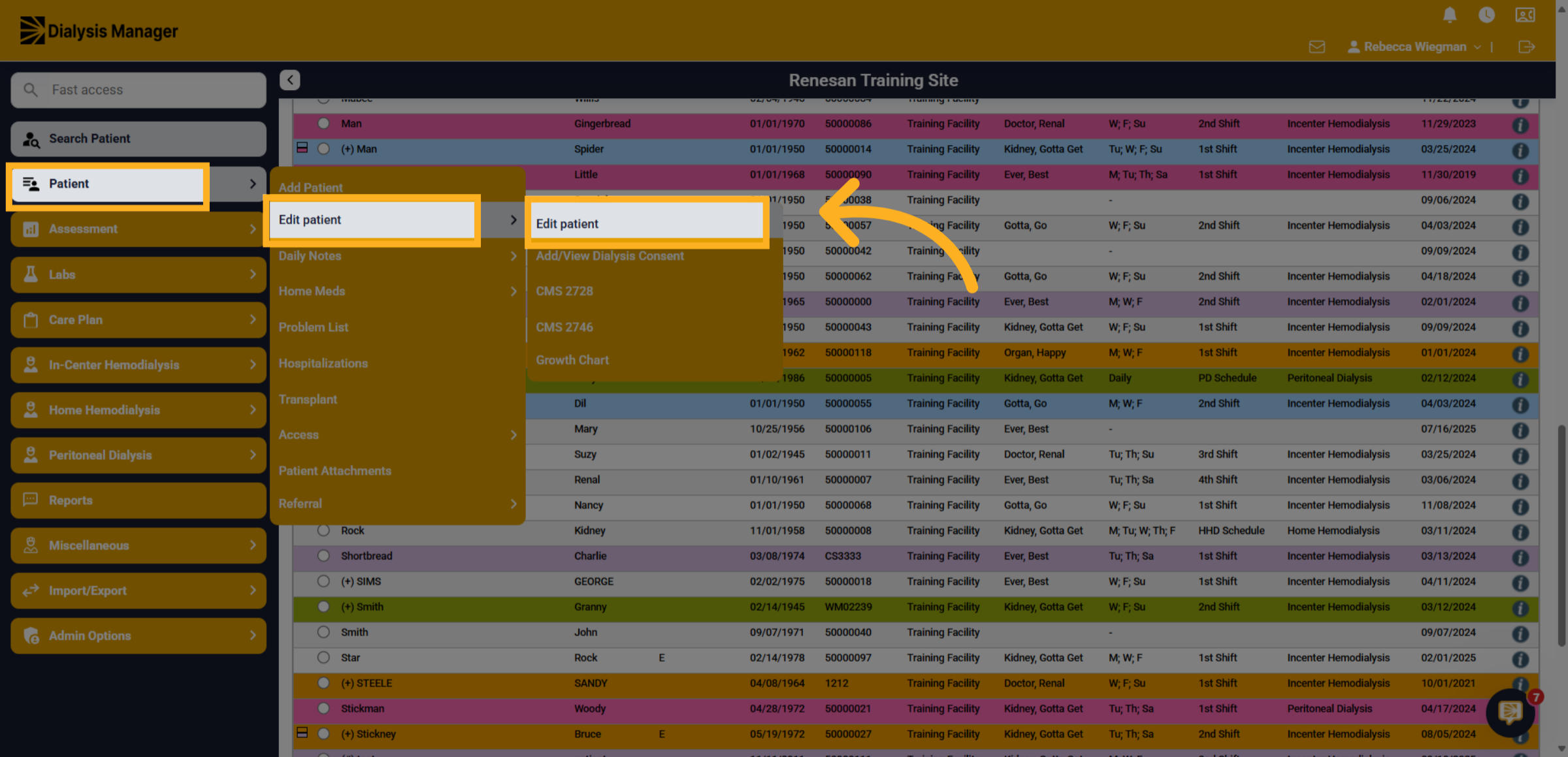
3. Click "Edit patient"
Click into the Patient menu, Edit Patient and Edit Patient.
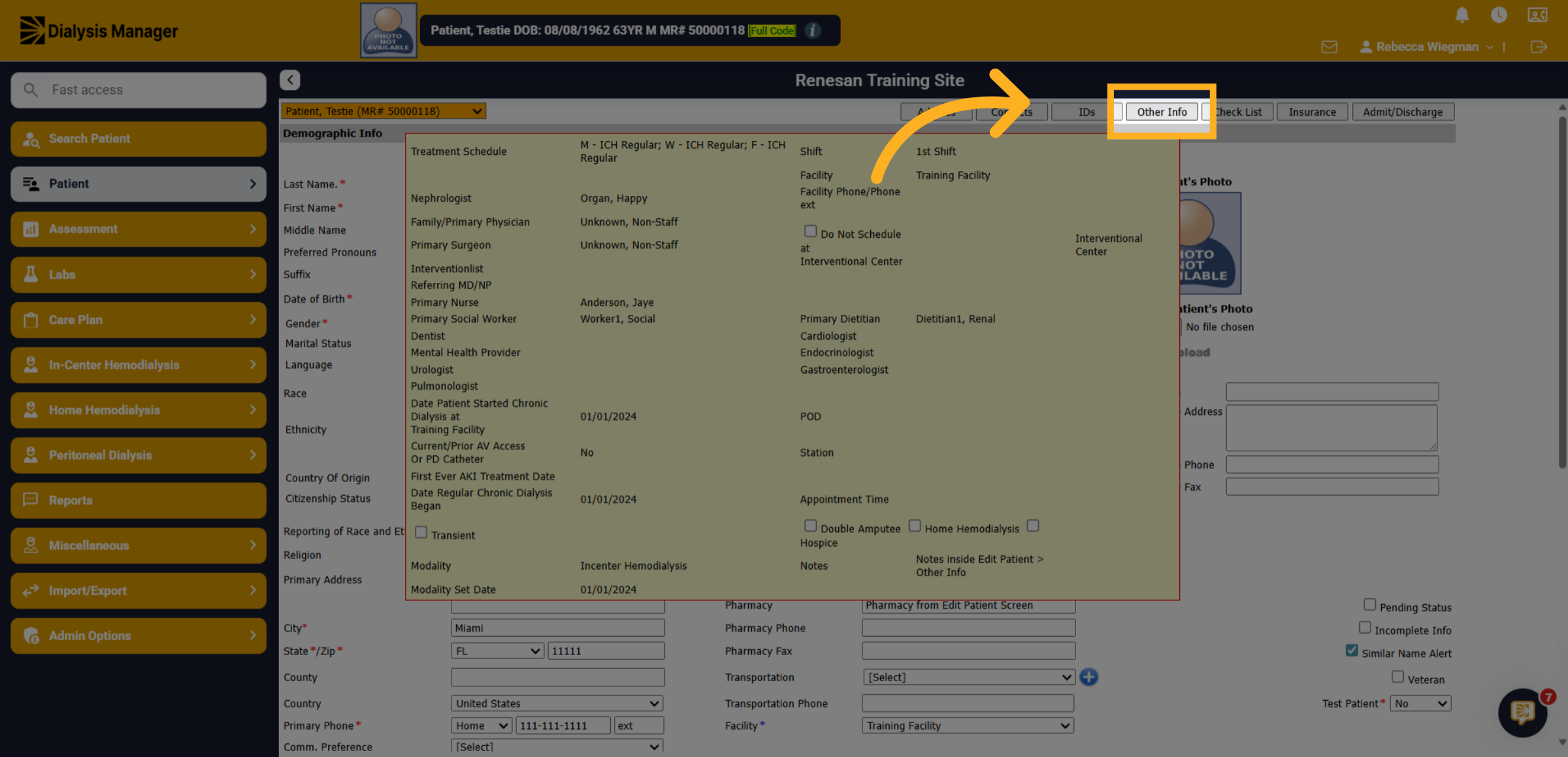
4. Click "Other Info"
Click the "Other Info" tab to begin entering Patient Care Members.
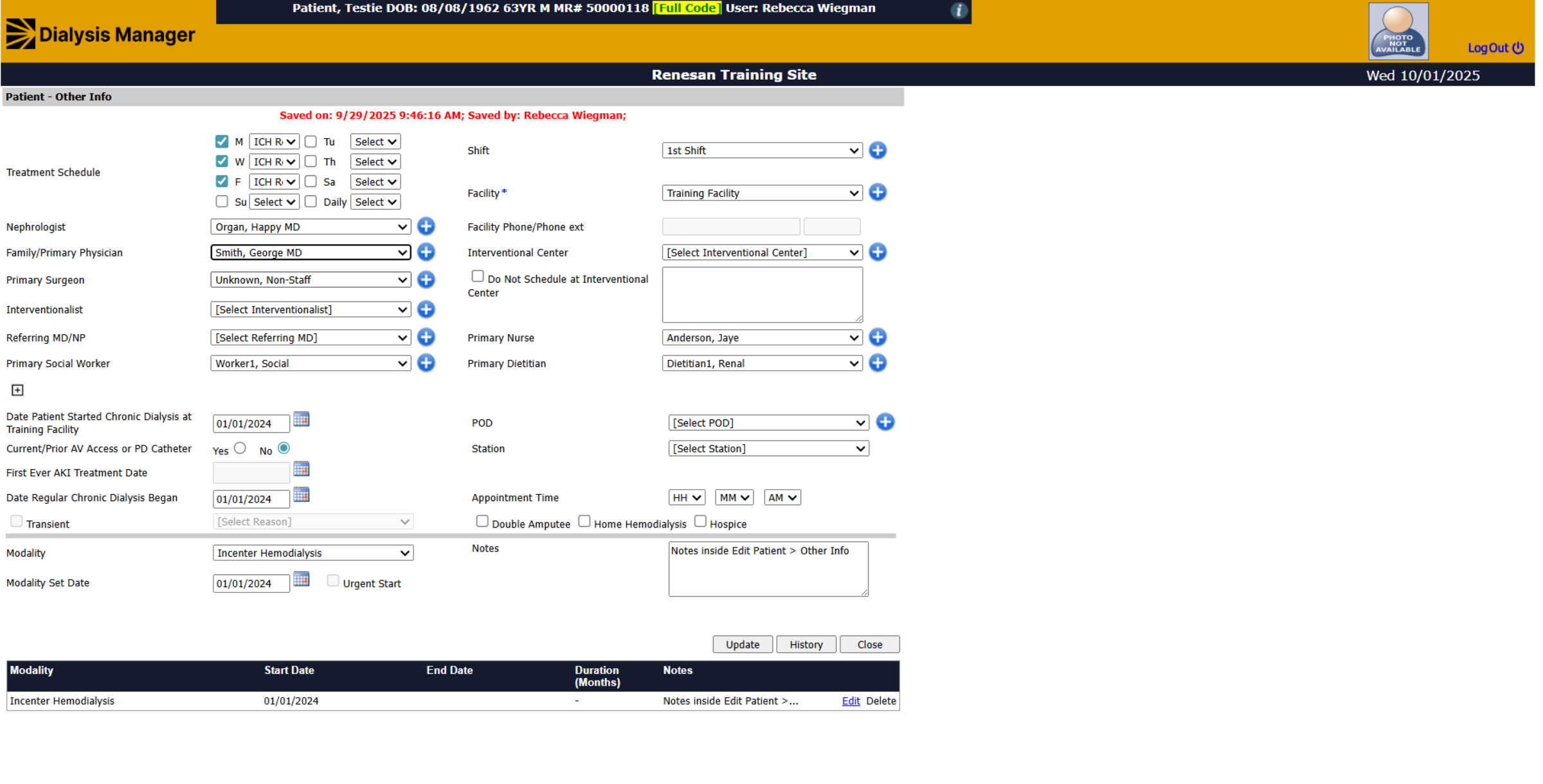
5. Care Team
You'll see dropdowns for Primary Physician, Surgeon, Interventionalist, Primary Nurse, etc.
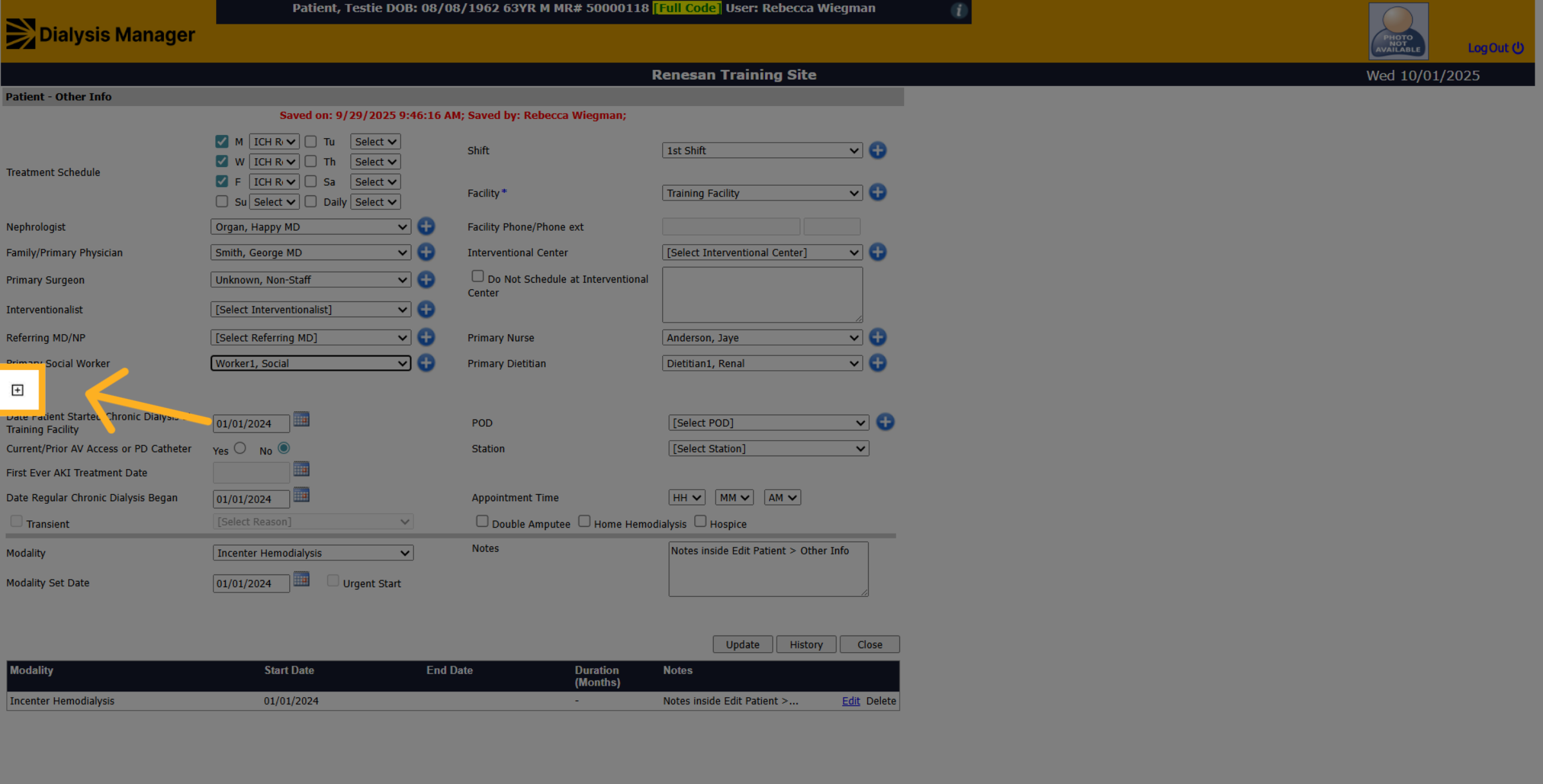
6. Plus Symbol
When selecting the Plus Symbol, it will expand the form to show additional healthcare providers that may be associated with the care of the patient. These are not required to complete the registration process.
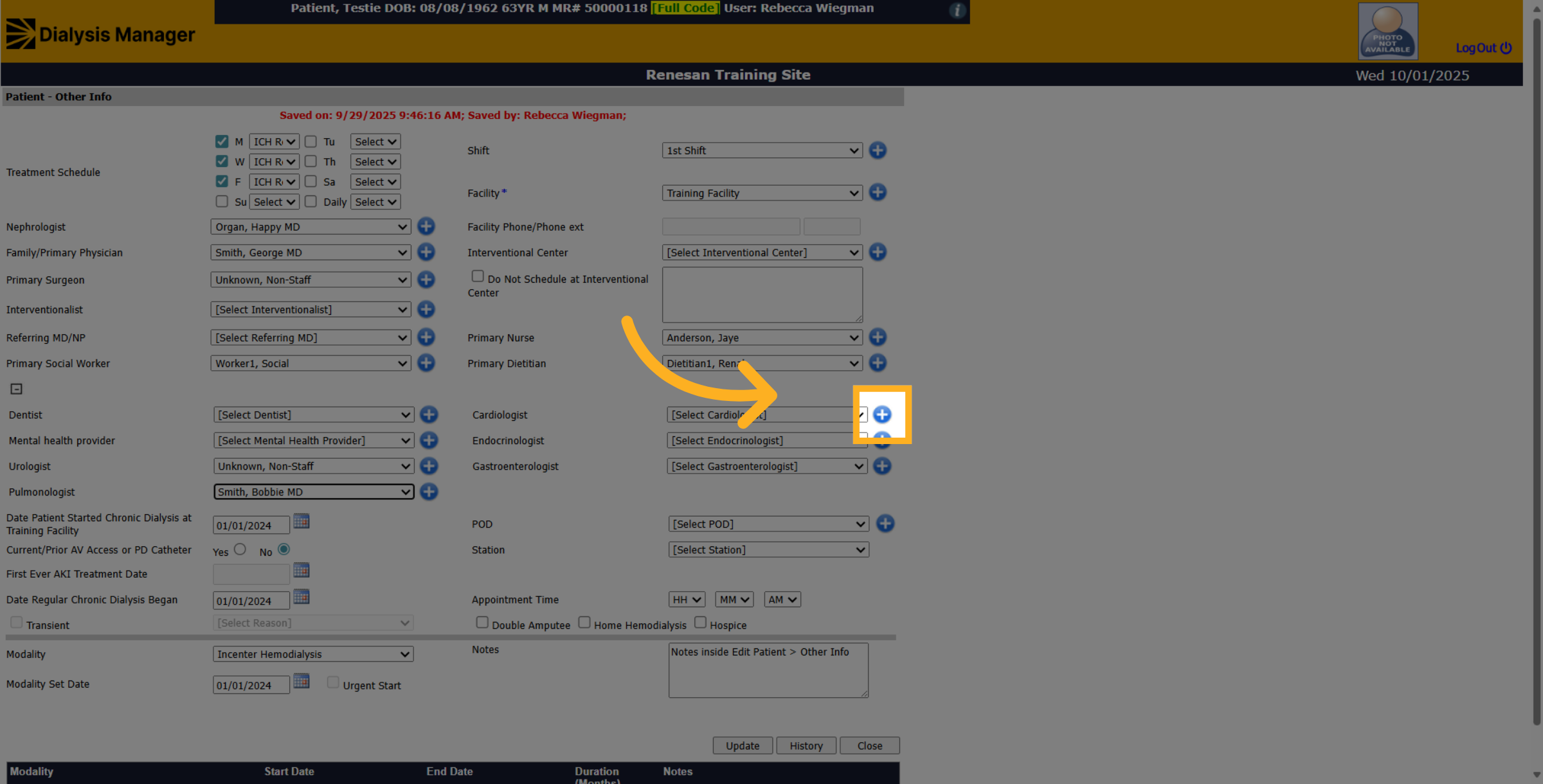
7. Blue Plus Icon
Users with specific roles will also see a Blue Plus icon. They would be able to select the icon and add additional personnel to the dropdown list!
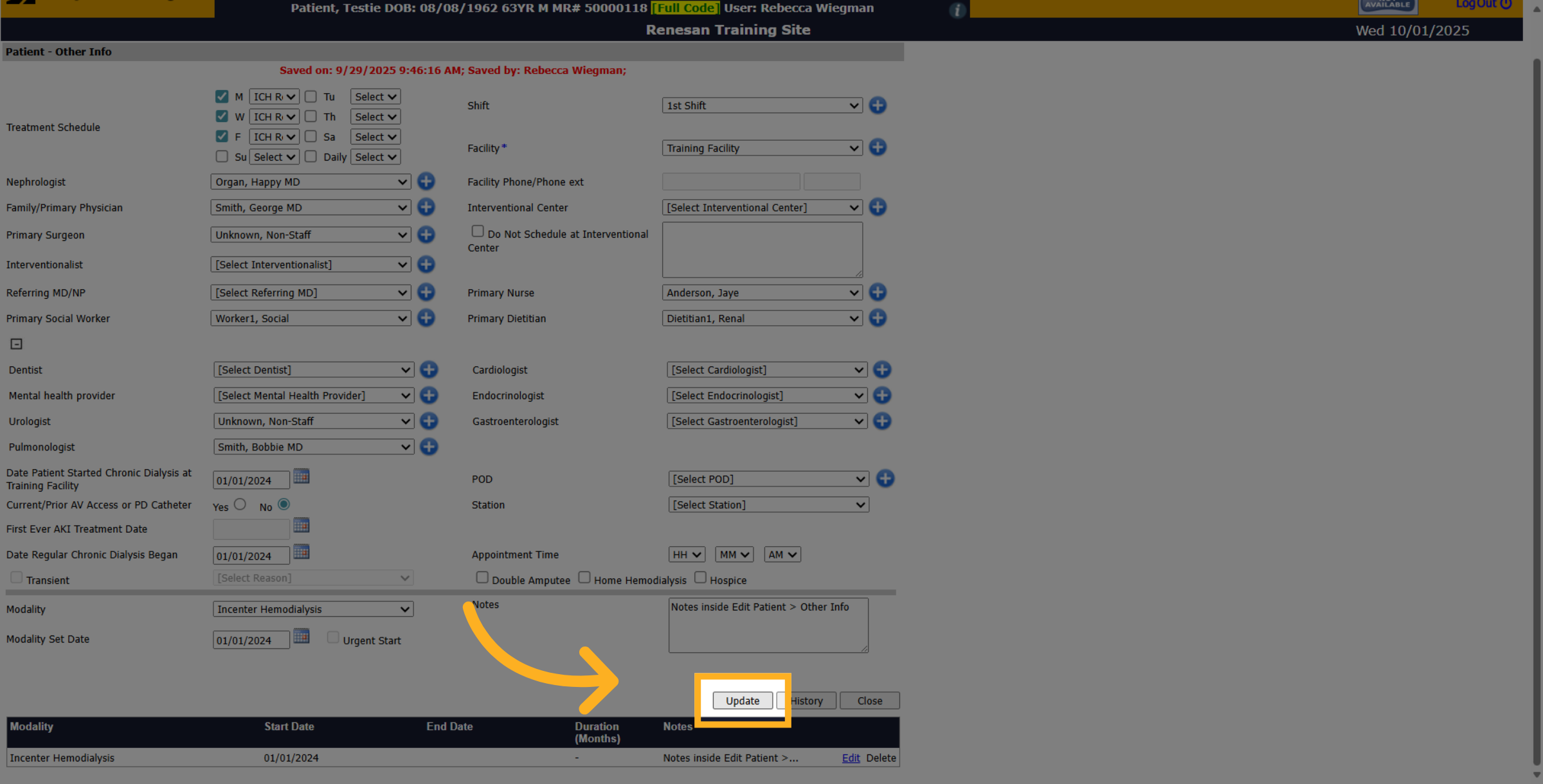
8. Click "Update"
Finalize the changes by clicking "Update" to save the modifications to the patient care team.
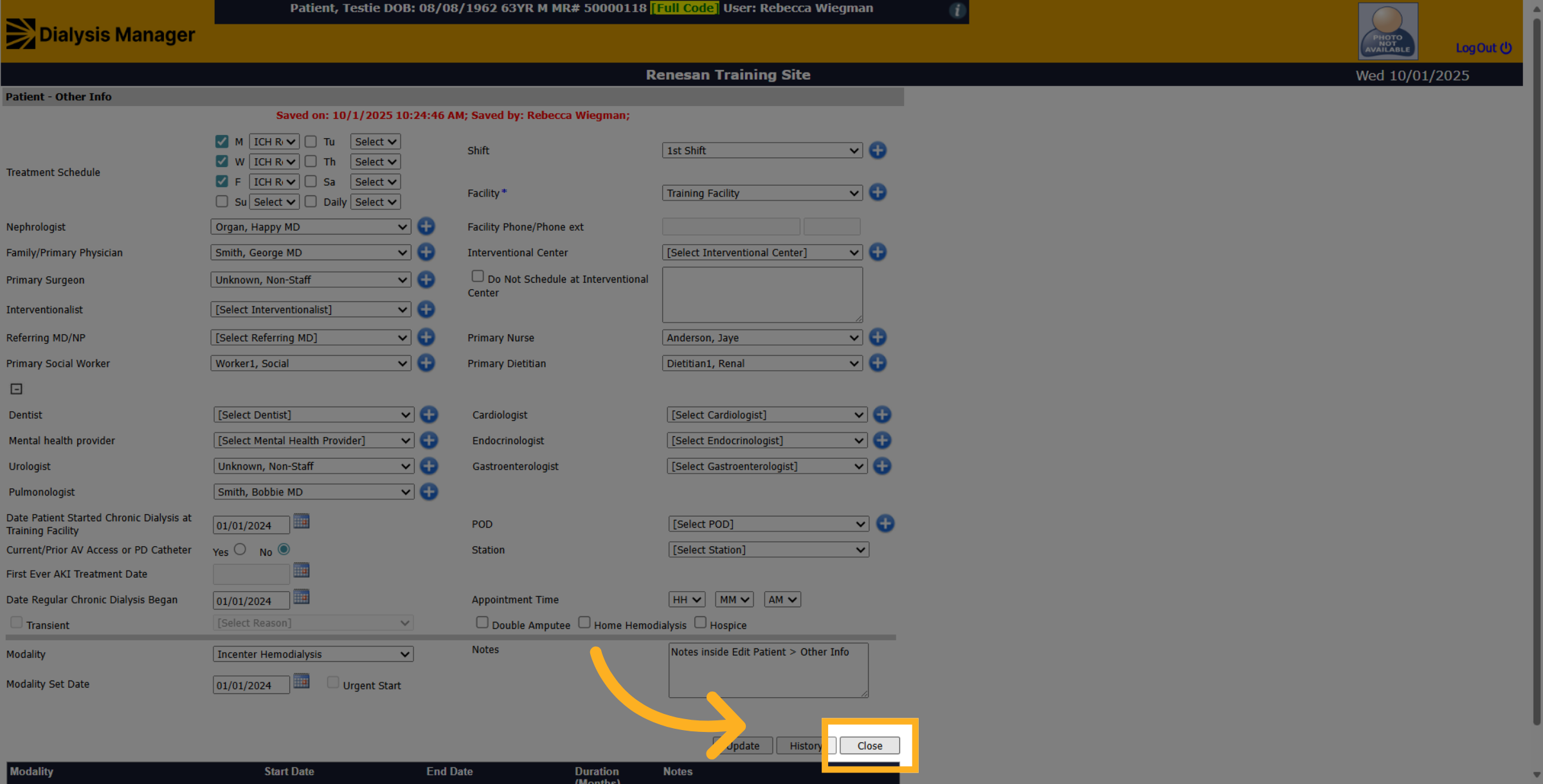
9. Click "Close"
Click close to return to the main view.