Add Bottle Program Medication And Document In Dialysis Manager.
1. Introduction
This tutorial shows how to add a Bottle Program medication to a dialysis order and document it as given in Dialysis Manager. You will learn to navigate the system and accurately record medication administration details.
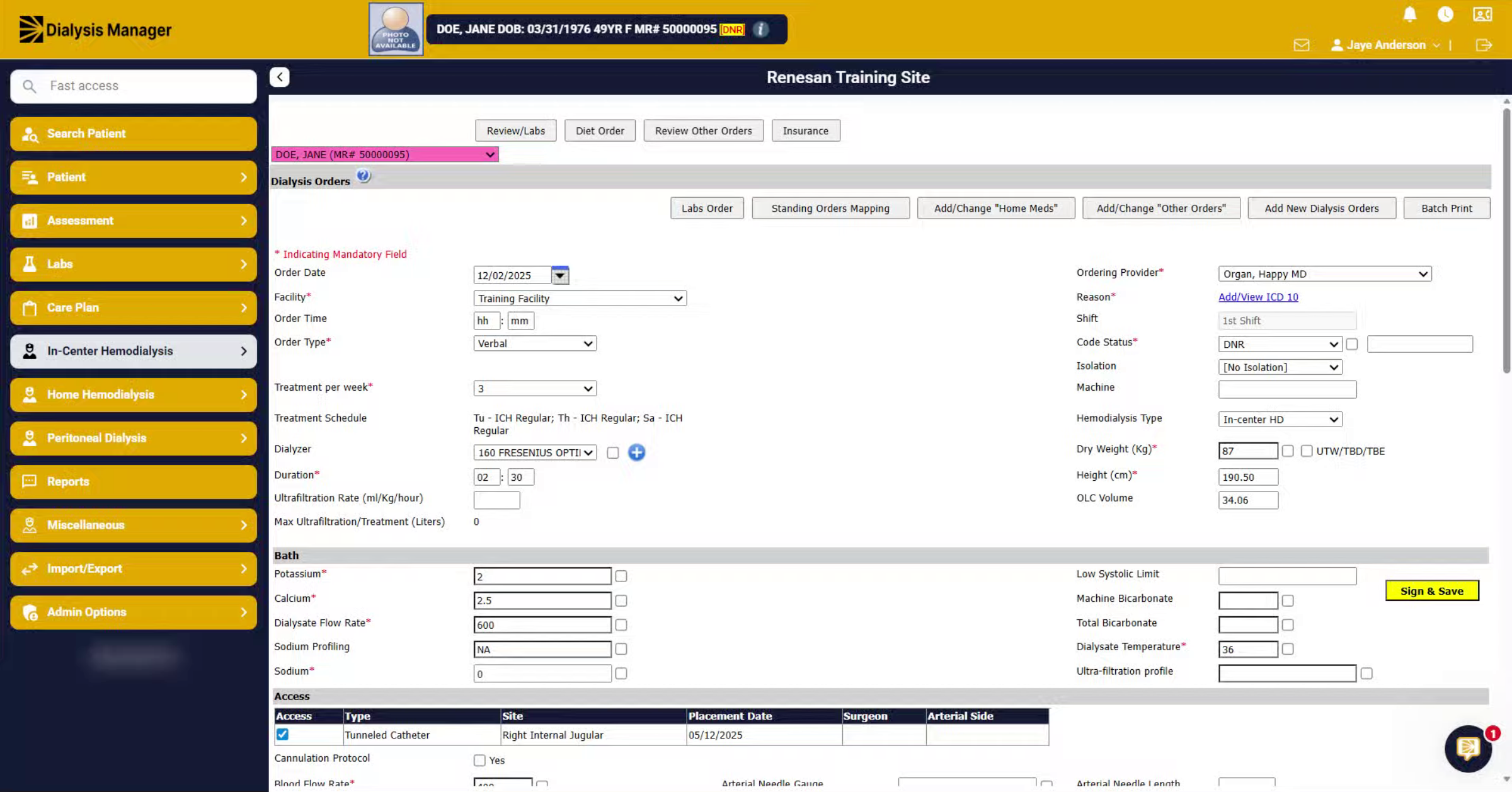
2. Select Patient In Hemodialysis
First, select your patient, then go to the In-Center Hemodialysis section and access the dialysis orders.
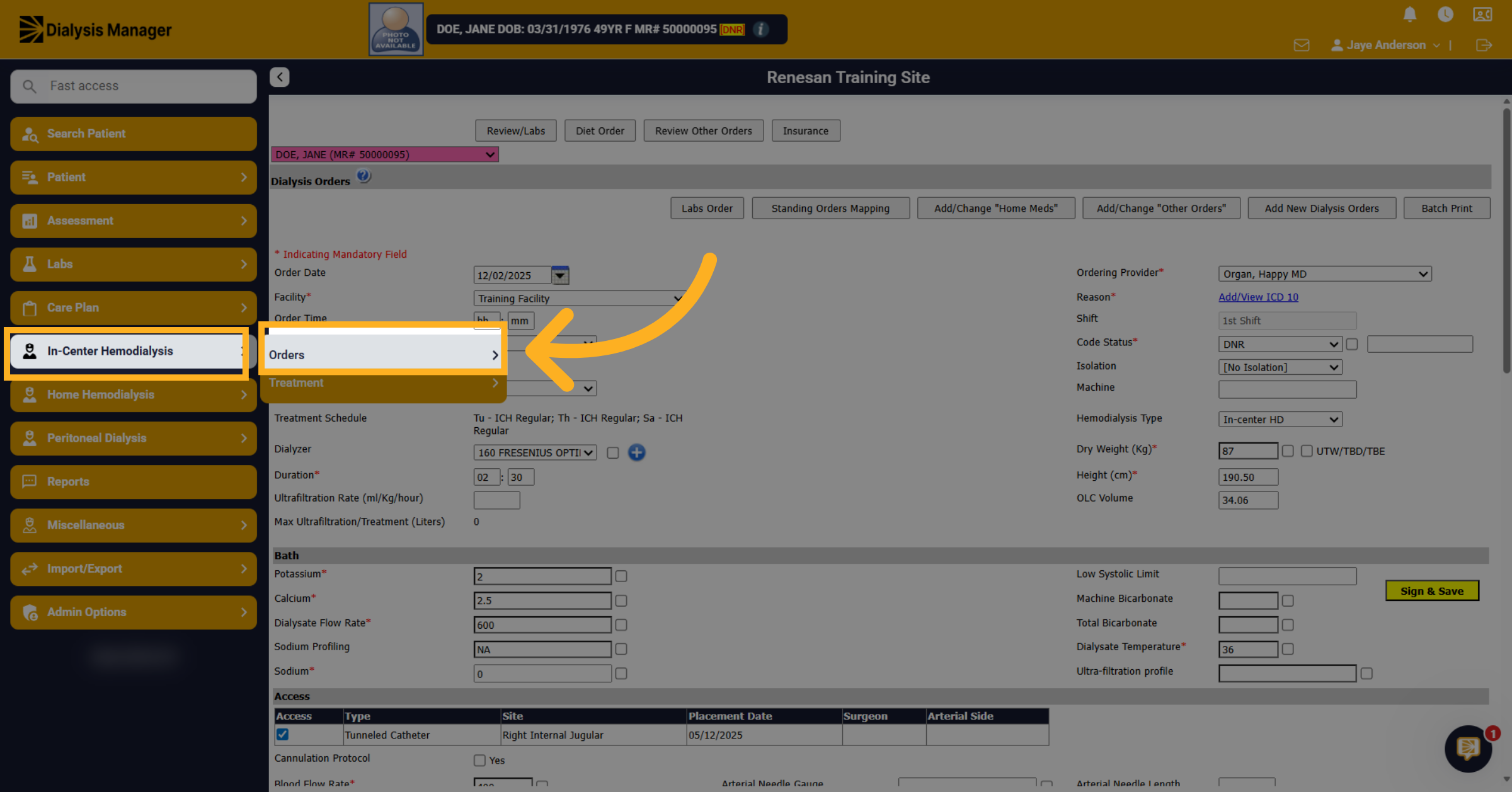
3. Click Add New Dialysis Order
Click on Add New Dialysis Order to begin creating a new order for the patient. If the patient has already started treatment you will need to add the medication order from the Flowsheet.
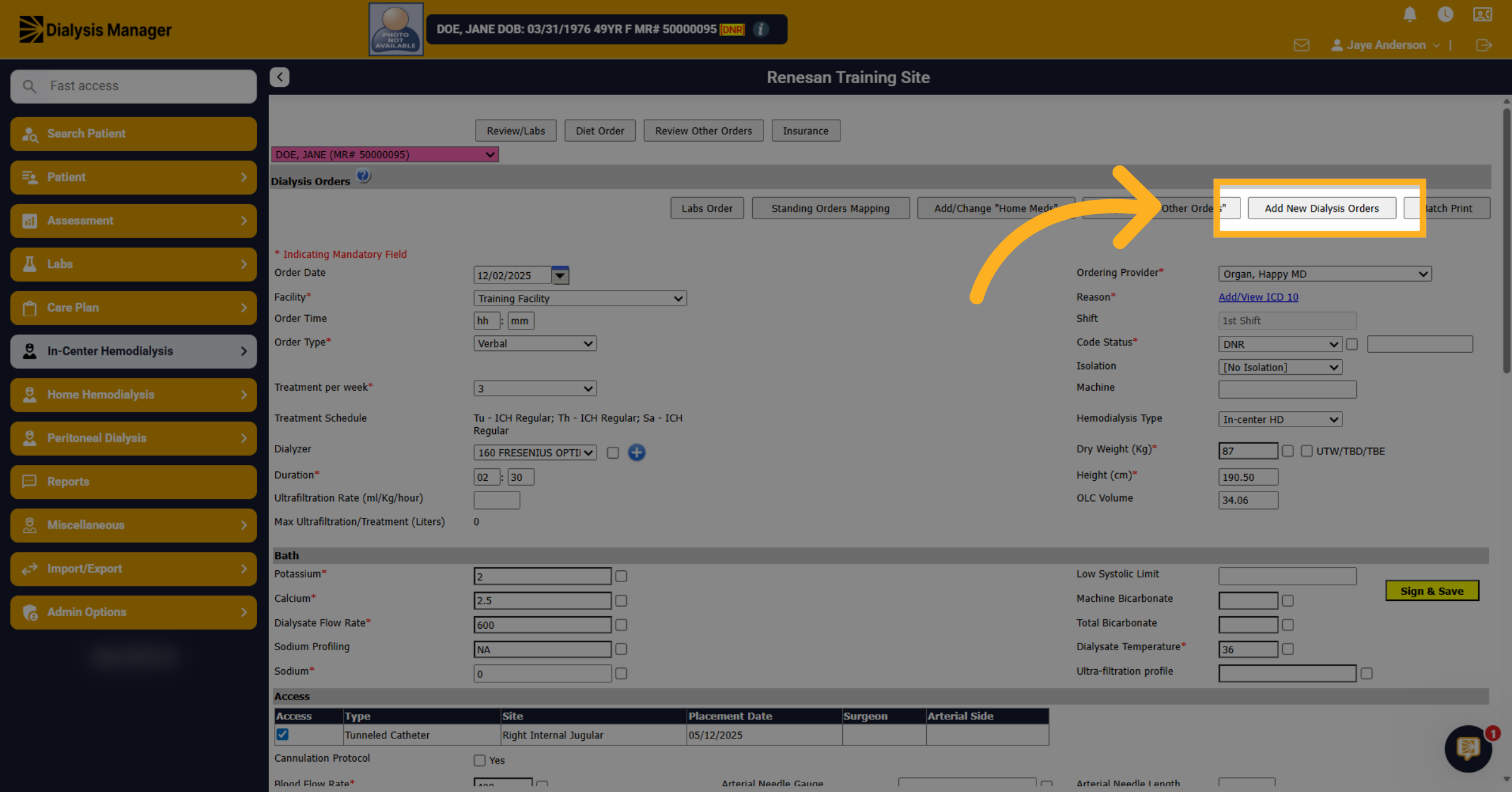
4. Navigate To Other Medications Section
From here, scroll down to the Other Meds section to manage additional medications.
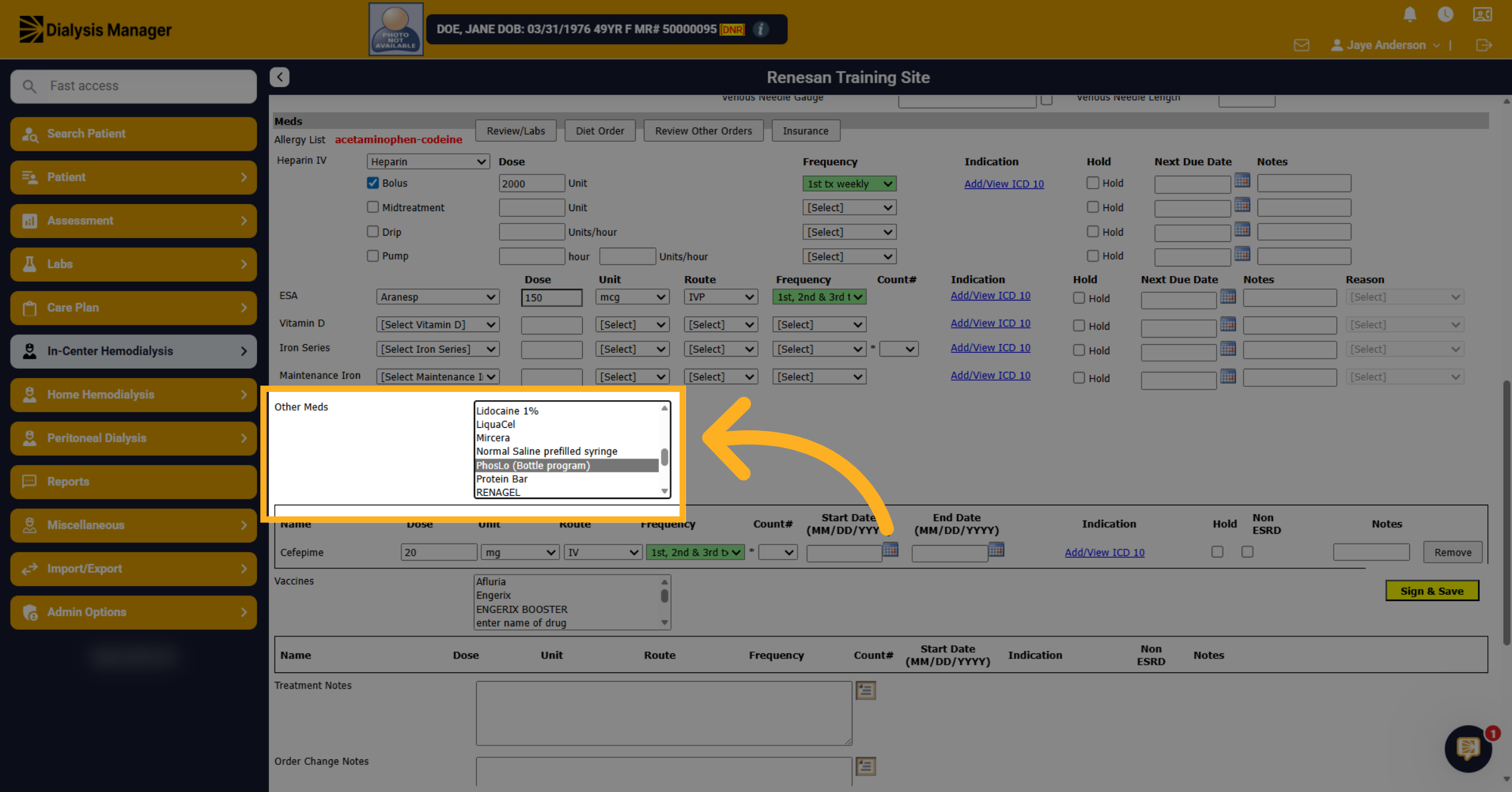
5. Find Bottle Program Medication
Find and click to add the Bottle Program medication to the order.
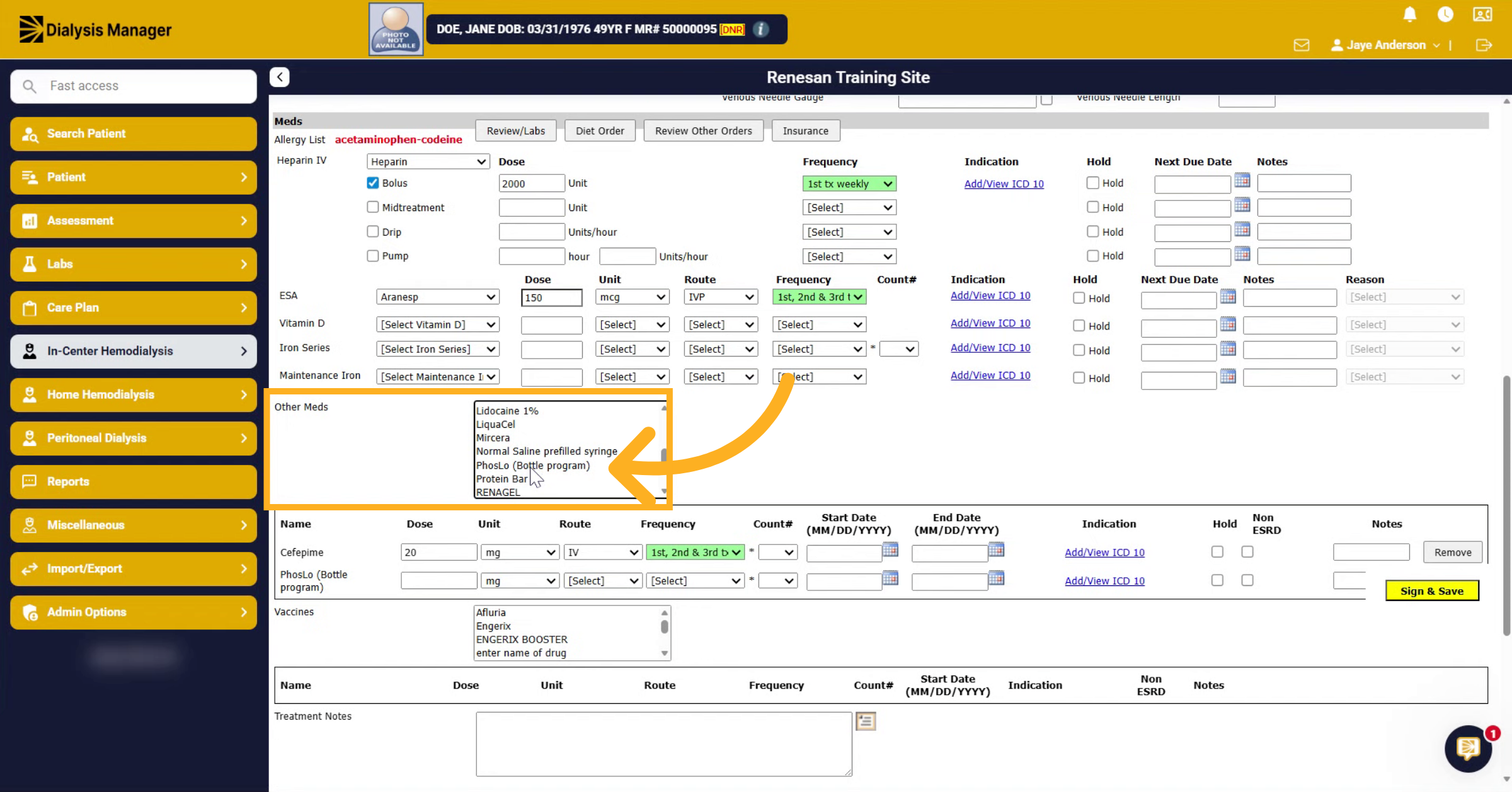
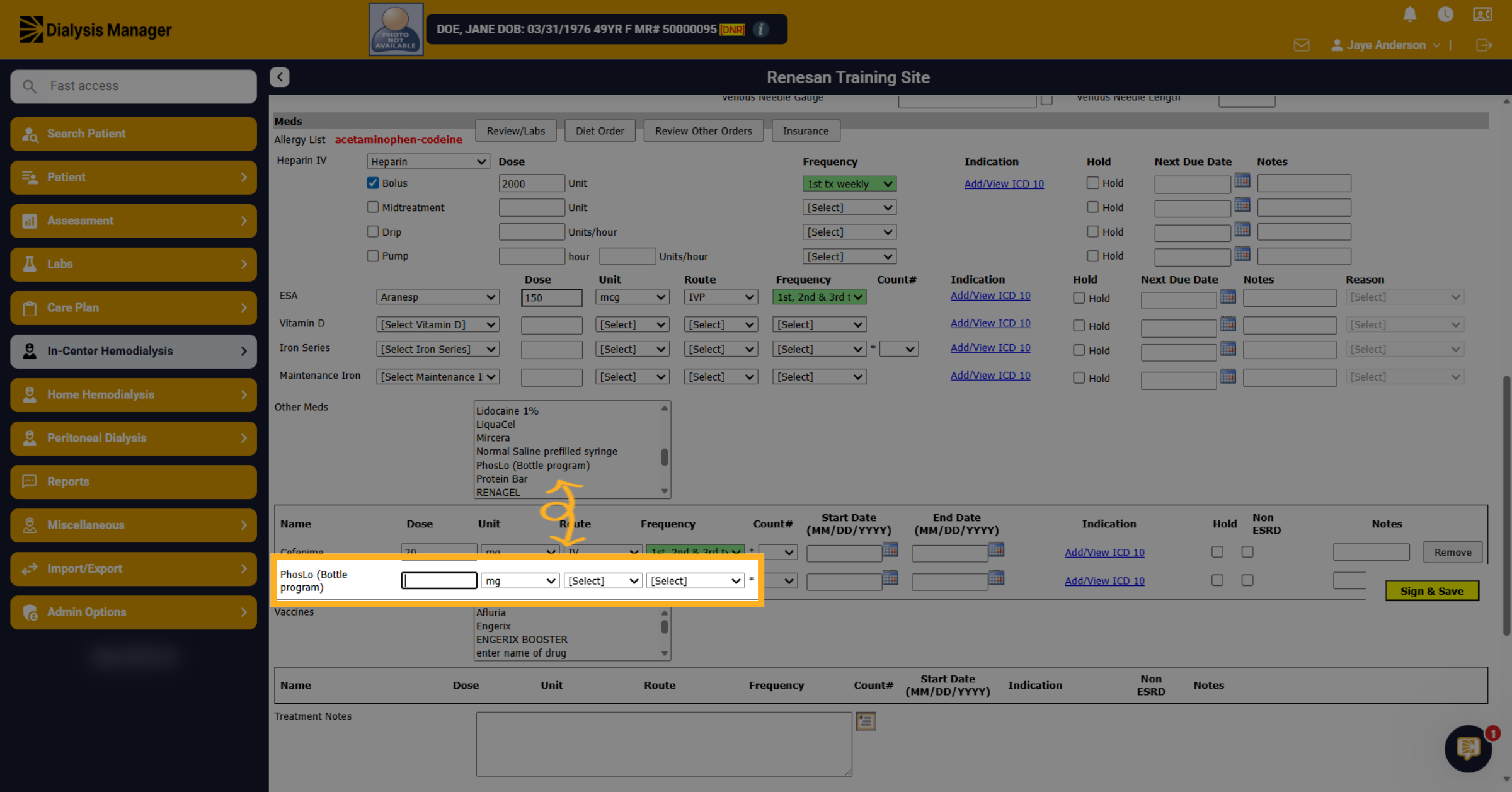
6. Enter Medication Details
After clicking the medication, it will move below. Now you can enter the medication details as required for the Bottle Program.
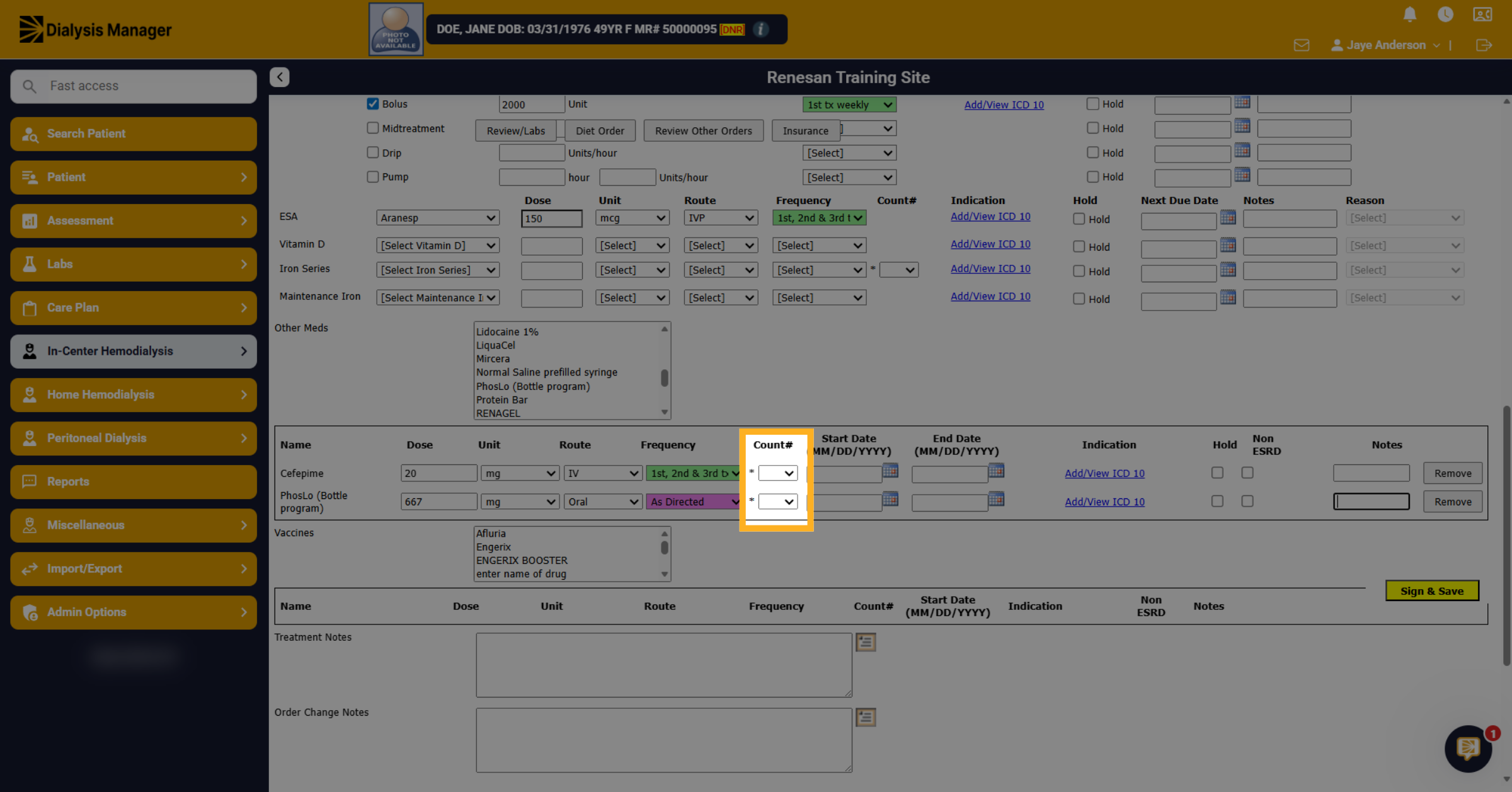
7. Skip Adding Medication Count
You do not need to add a count for the medication in this section. The count is used to count down a series of medications that are given
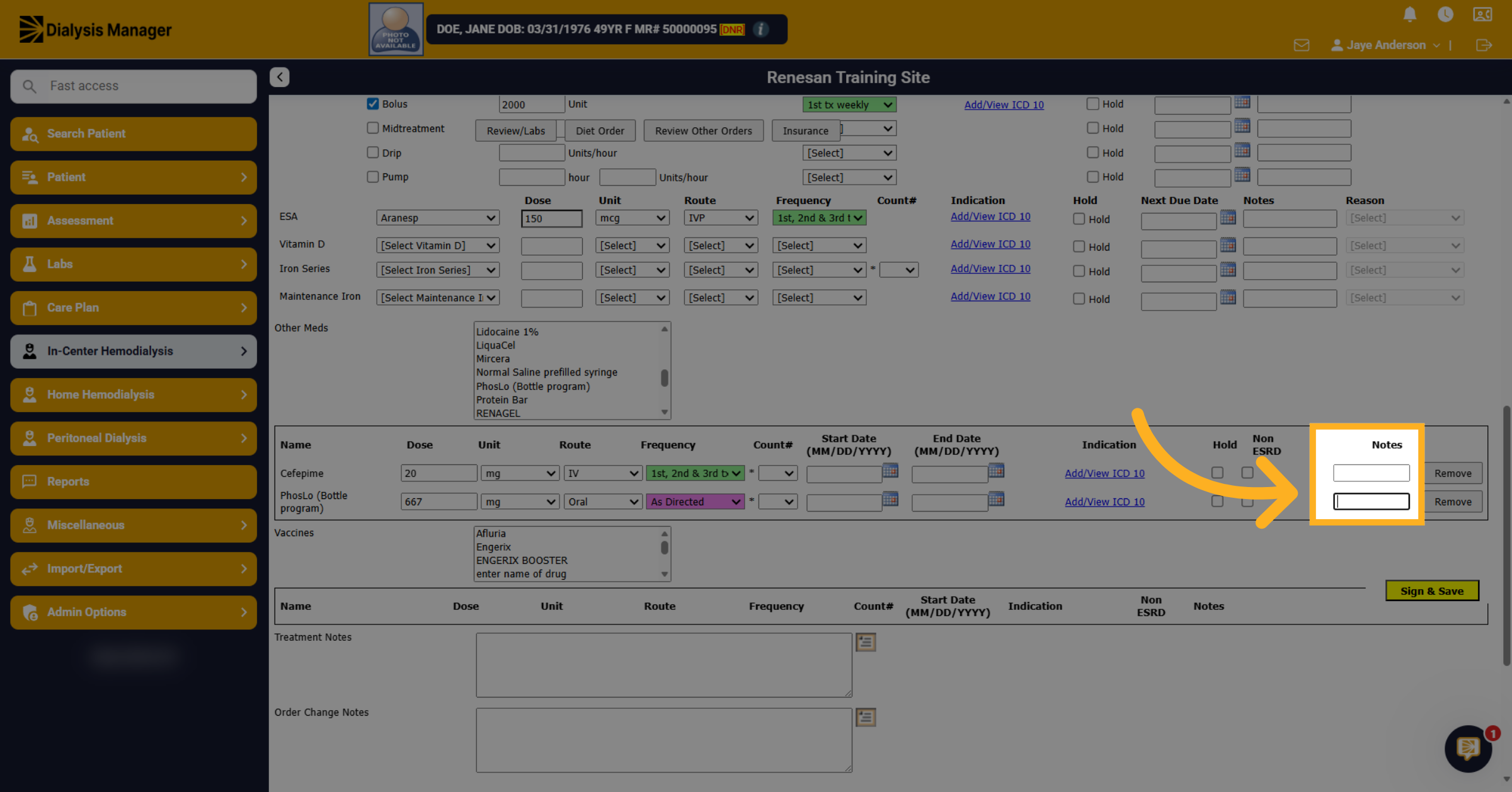
8. Enter any Notes
Enter any notes relevant to the medication order for documentation purposes. For example, you might want to note take 3 pills with meals and 1 with snacks.
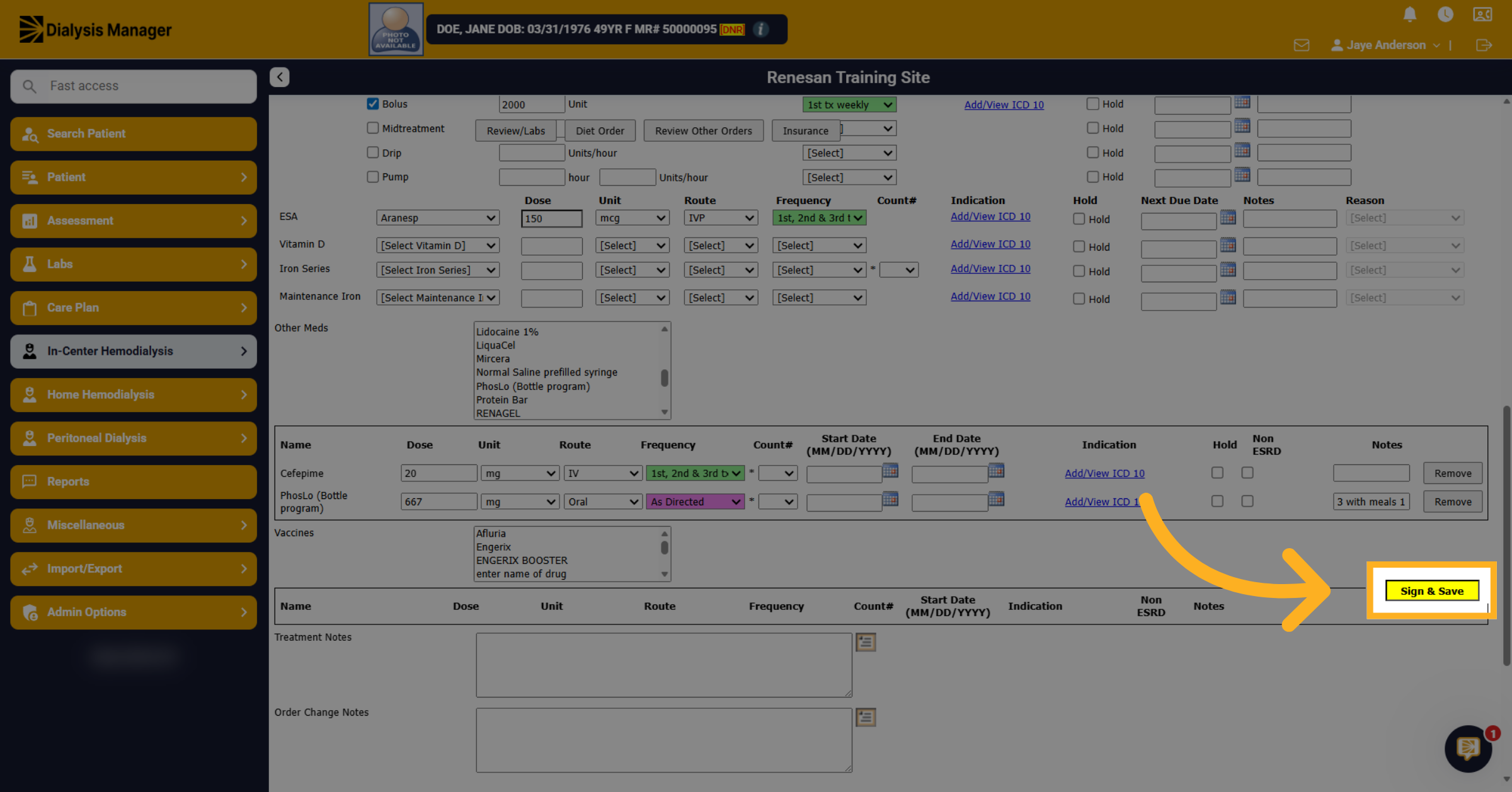
9. Save Order Documentation
Click Sign & Save to save the order entry.
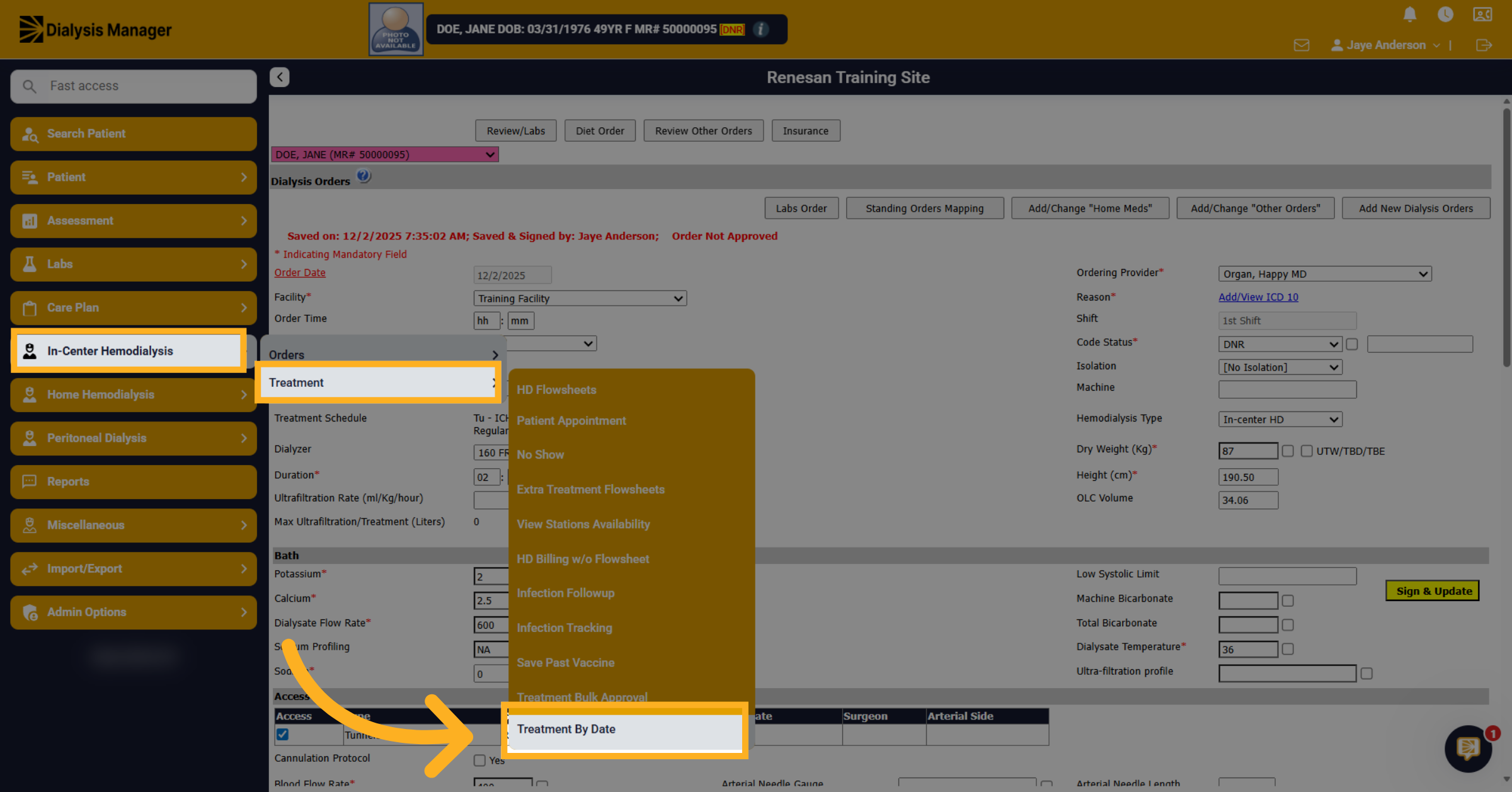
10. Add Hemodialysis Flowsheet
Navigate to the Treatment by Date screen to open/create the flowsheet.
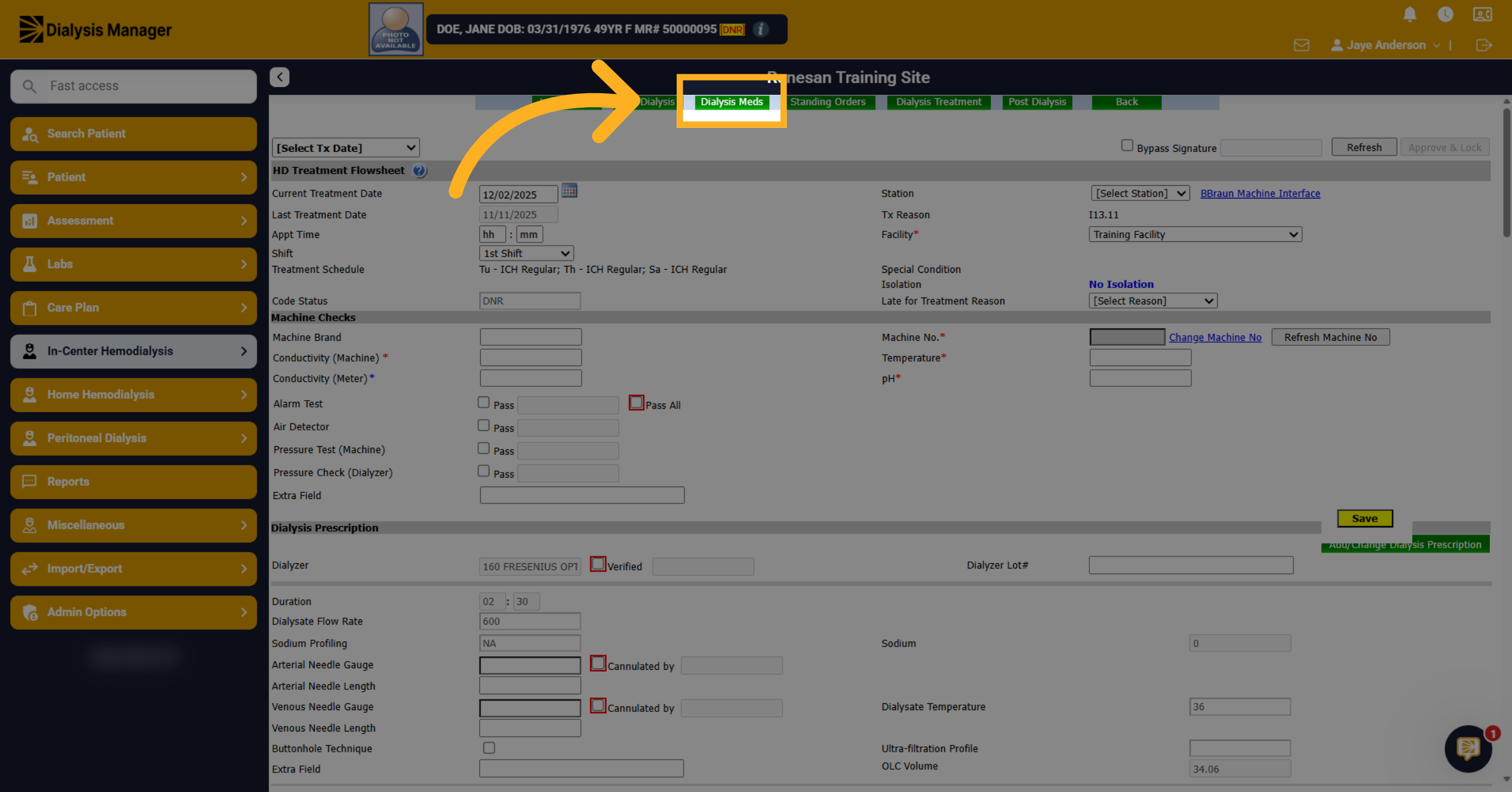
11. Open Medication Section
Open the Dialysis Meds section within the created flowsheet.
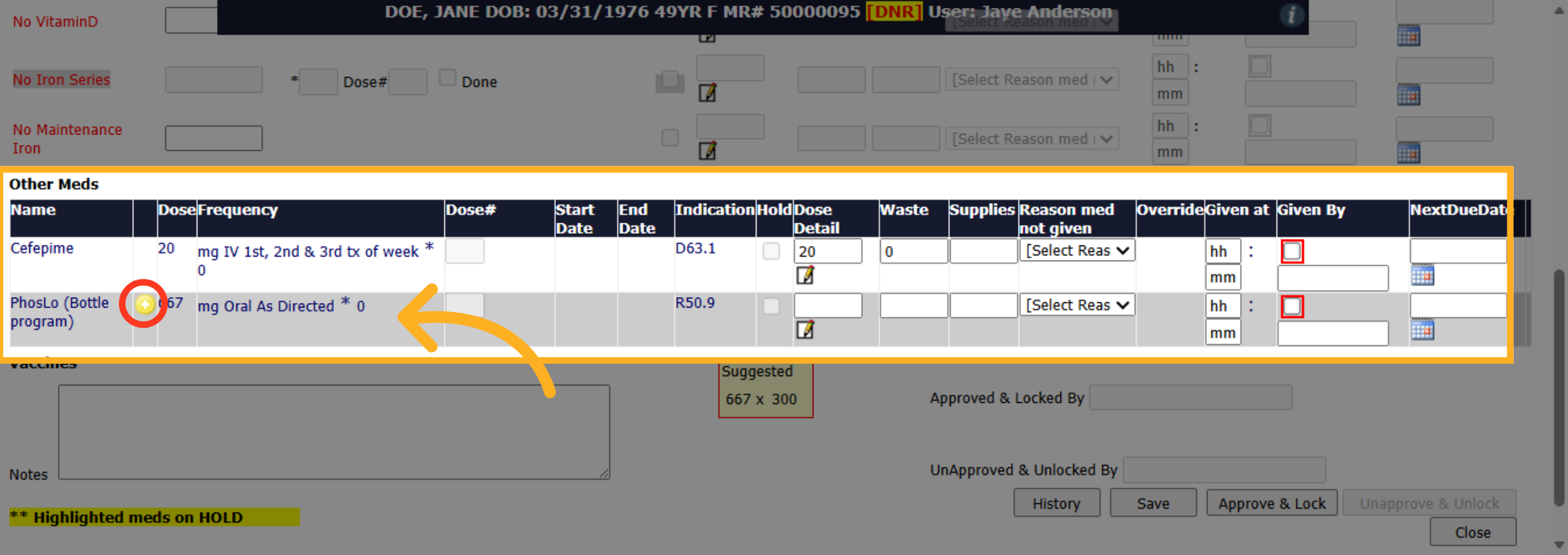
12. Locate Bottle Program Med
Locate the bottle program medication order you just created. When hovering over the yellow plus sign, it'll show you the Notes added from the order.
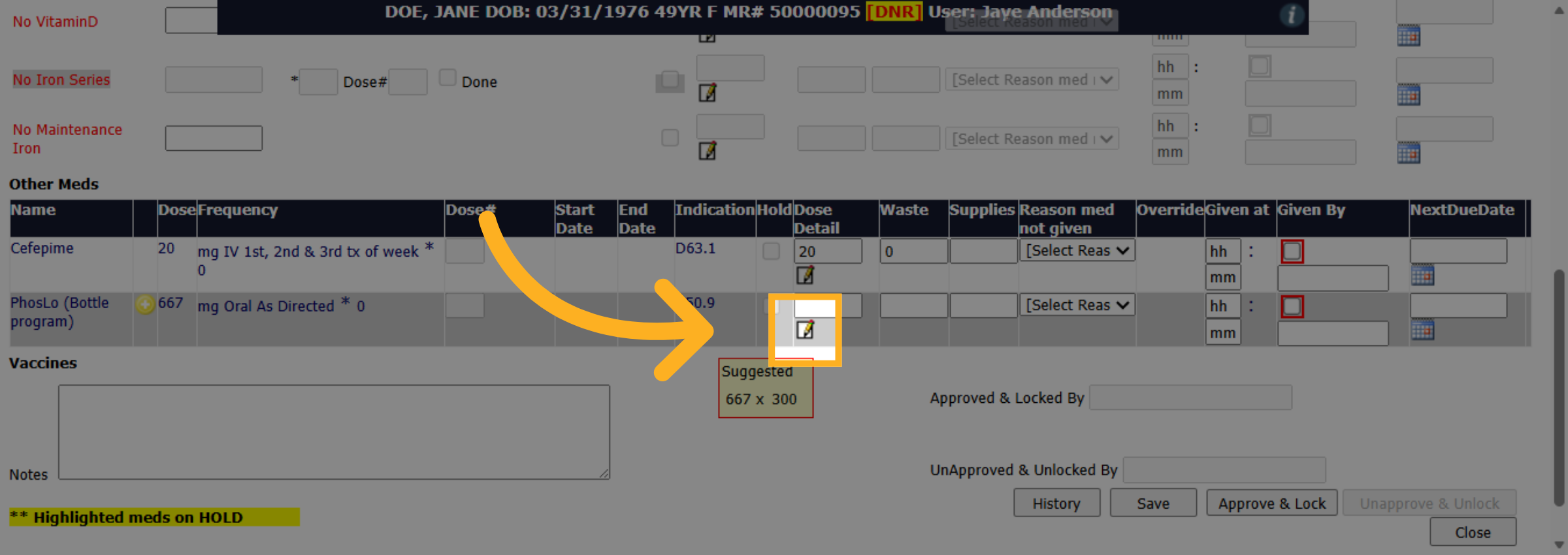
13. Adjust Quantity If Needed
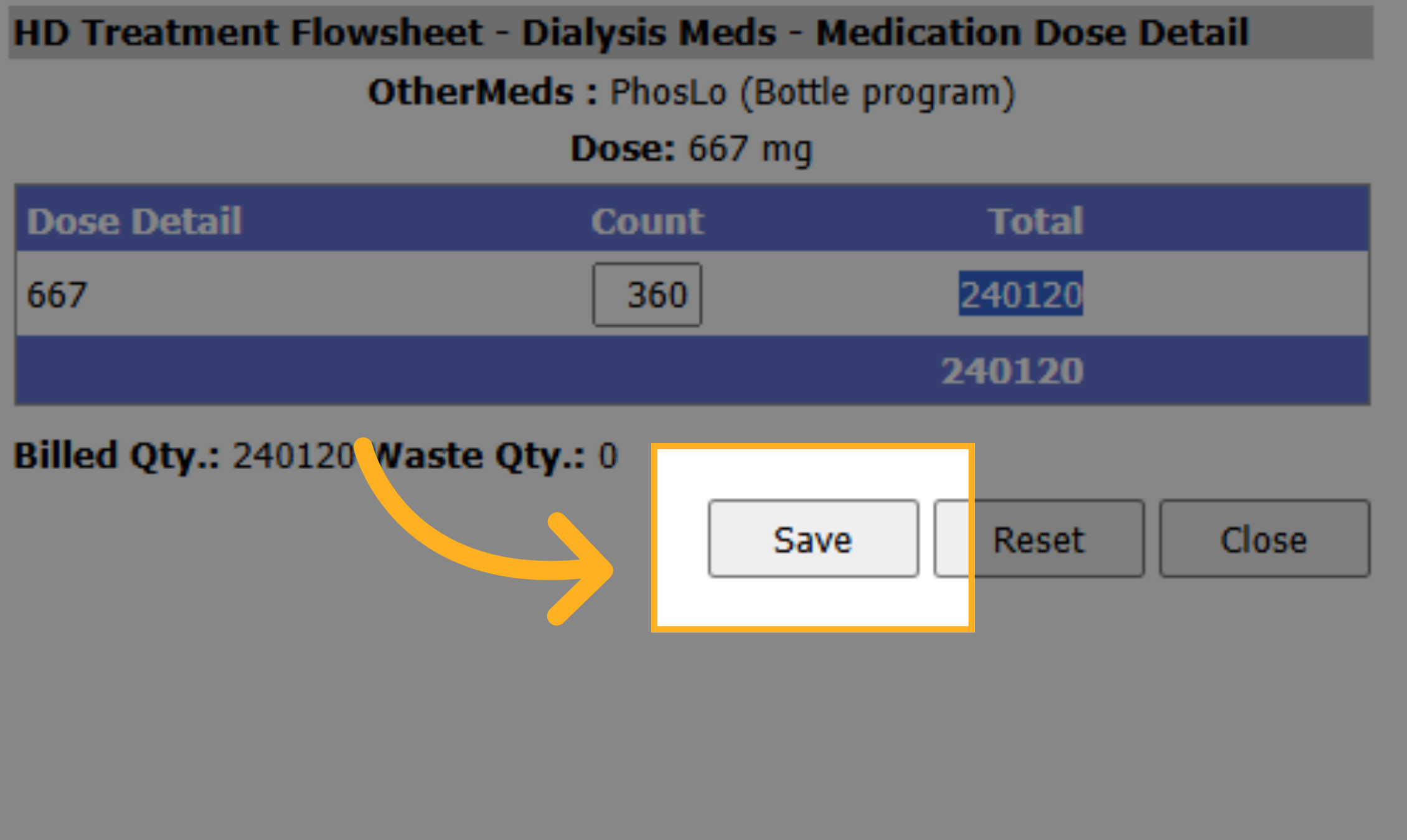
Click on the dose detail. This looks like a notepad with a pencil
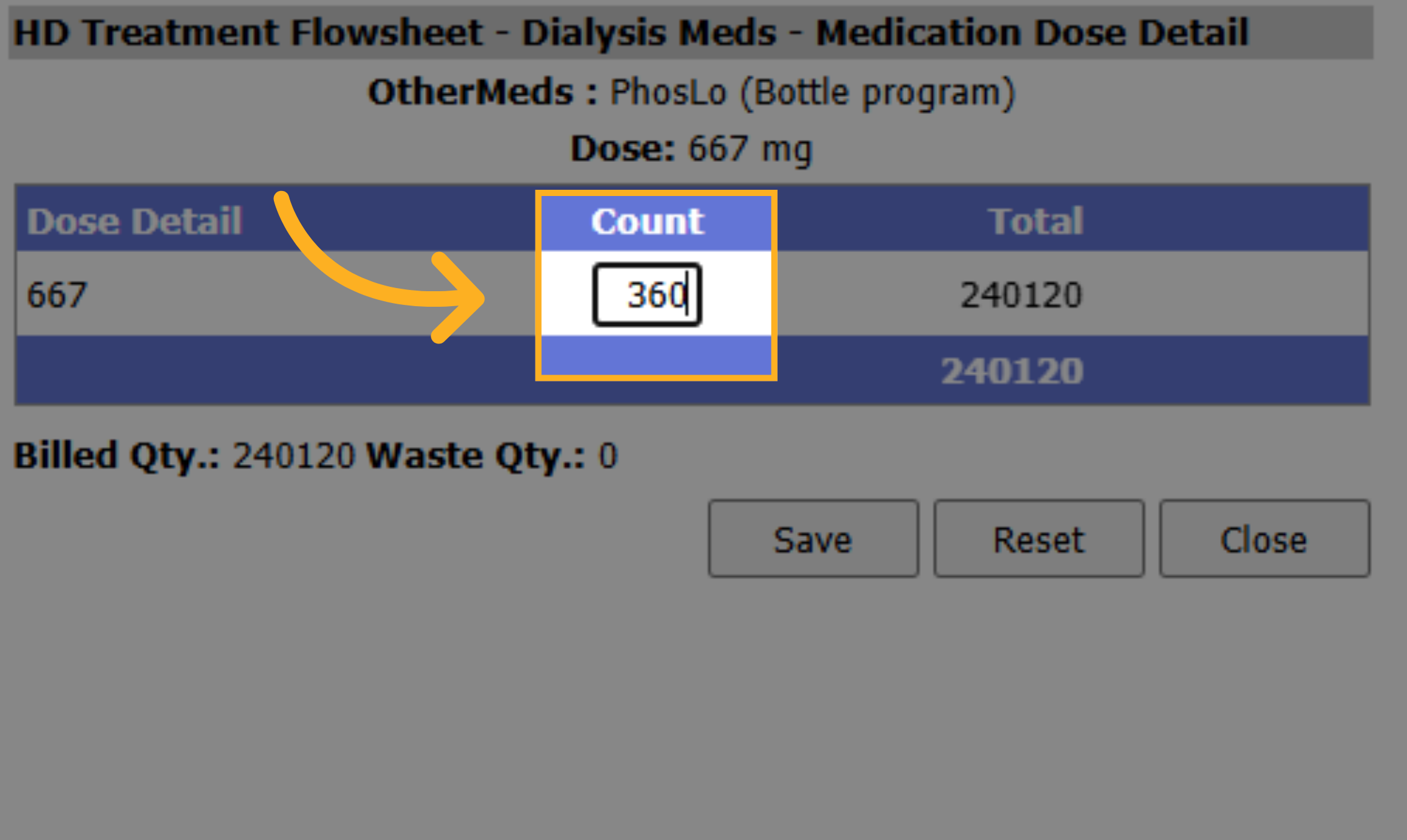
14. Open Medication Details
Enter in the correct quantity. This is the number of pills you are providing the patient. Or how many pills are in the provided bottle.
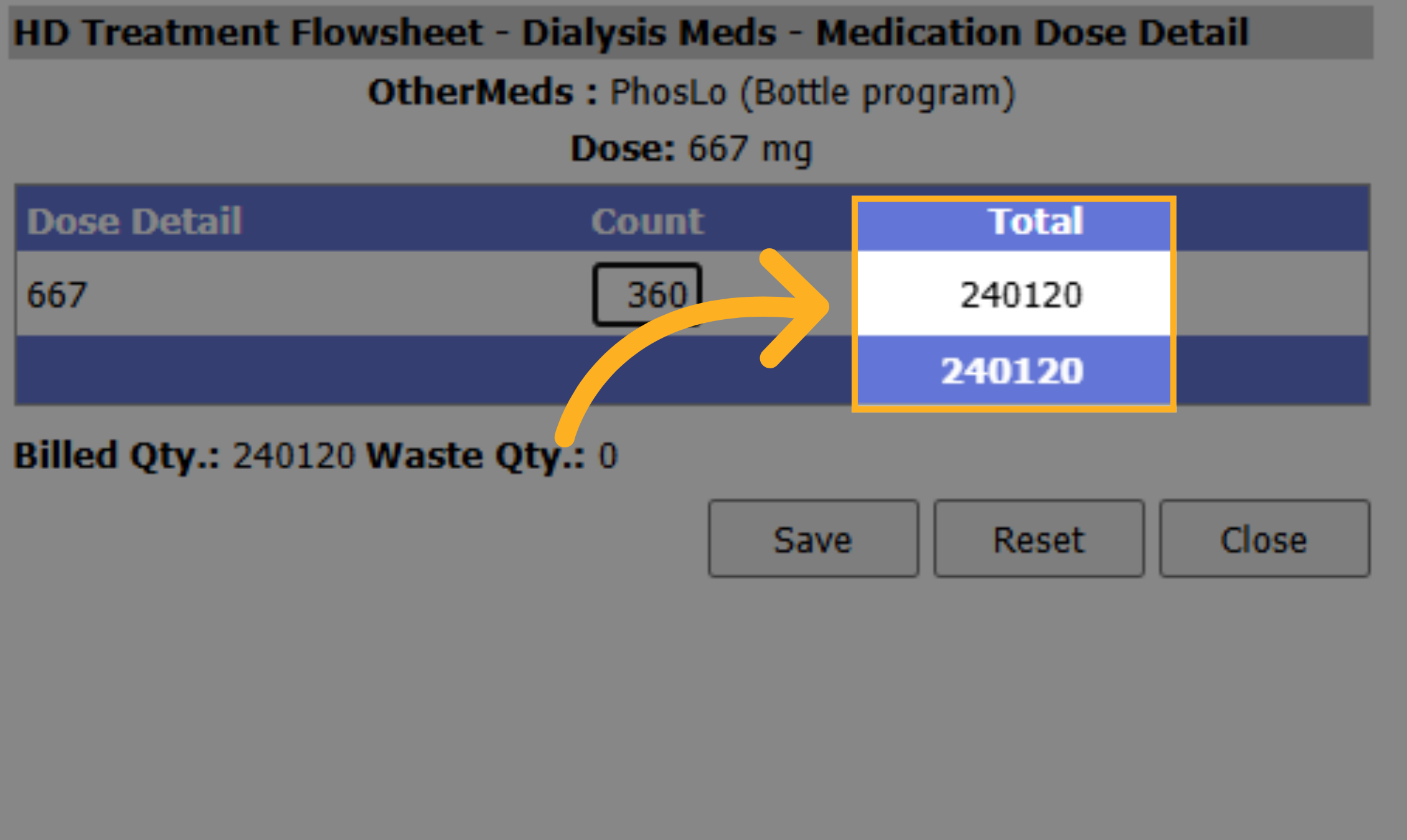
15. Total will automatically add
Notice the total will automatically add for you.
16. Click Save
Click Save to save your entry.
17. Enter the Given Time and Given By
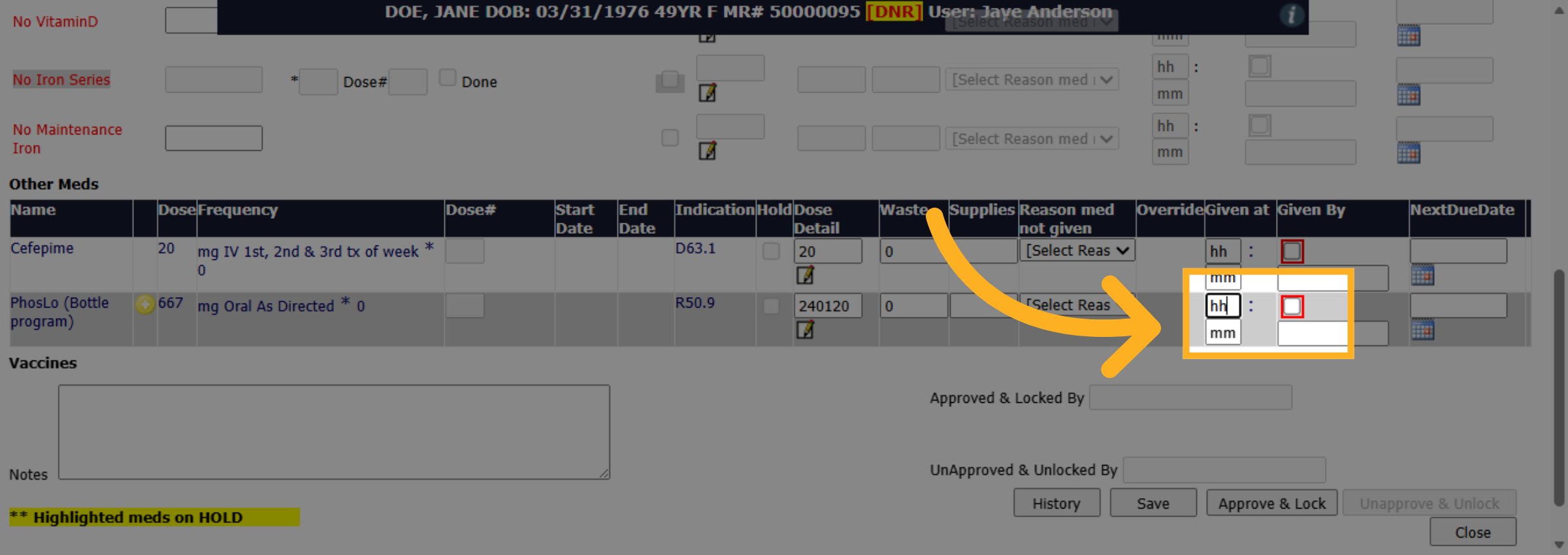
Enter the time given and check the given by box to enter your username and password
18. Next Due Date
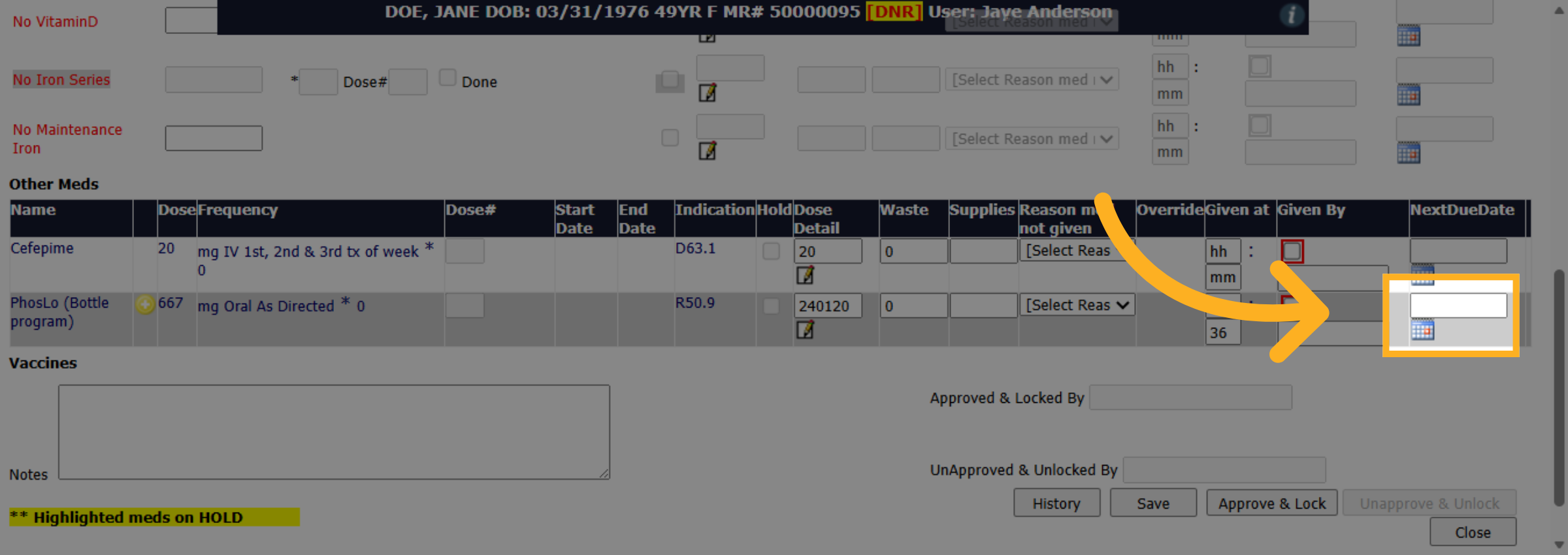
Click and enter the next due date. This will then be set to show on that treatment flowsheet date as due.
19. Click Save
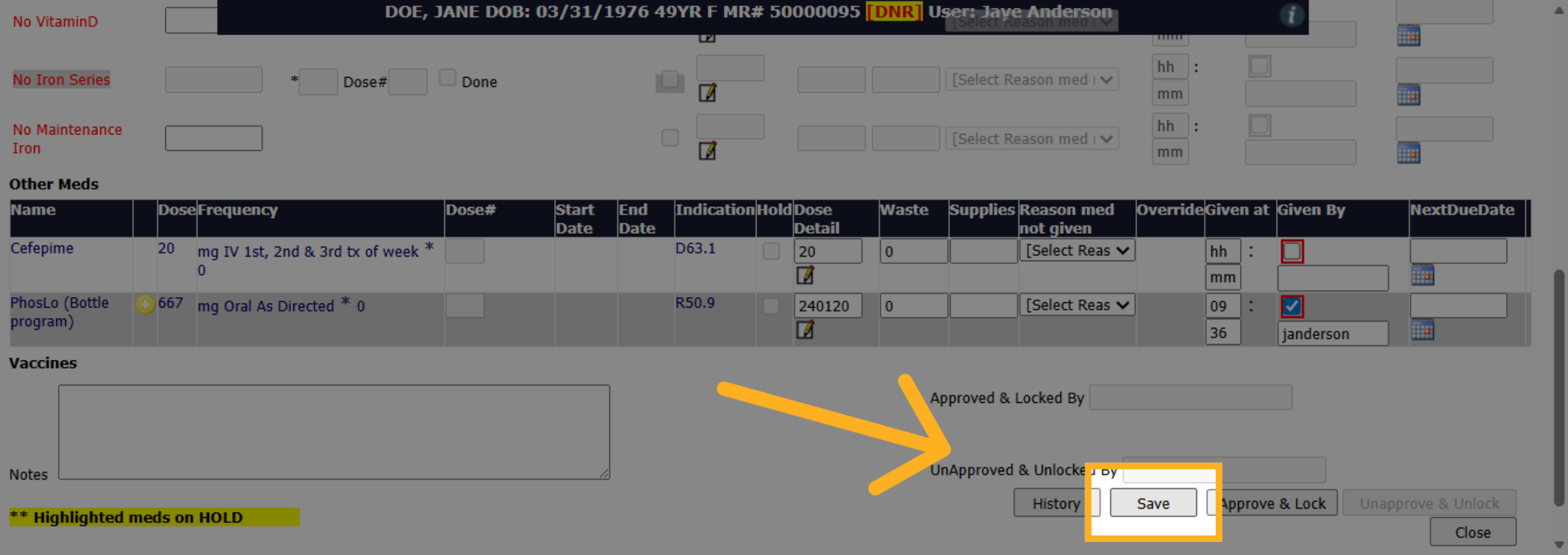
Click Save to save your entries.
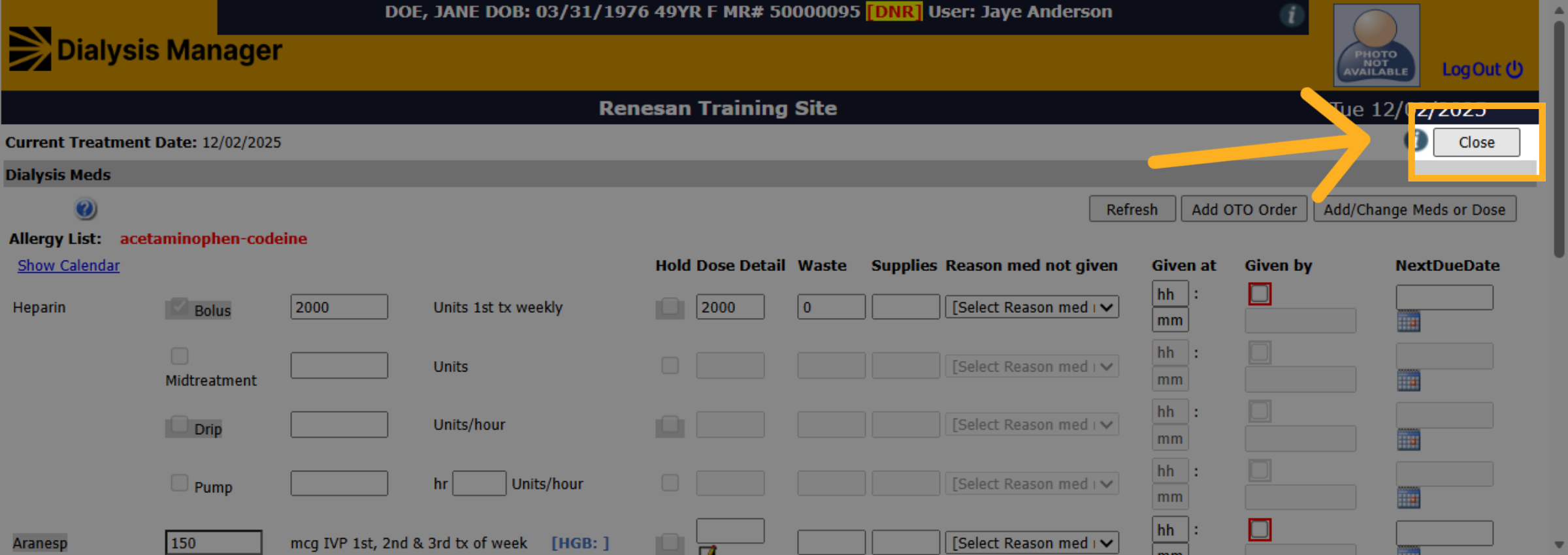
20. Click "Close"
Navigate to "Close" Medication section.