Add a Hemodialysis Access in Dialysis Manager
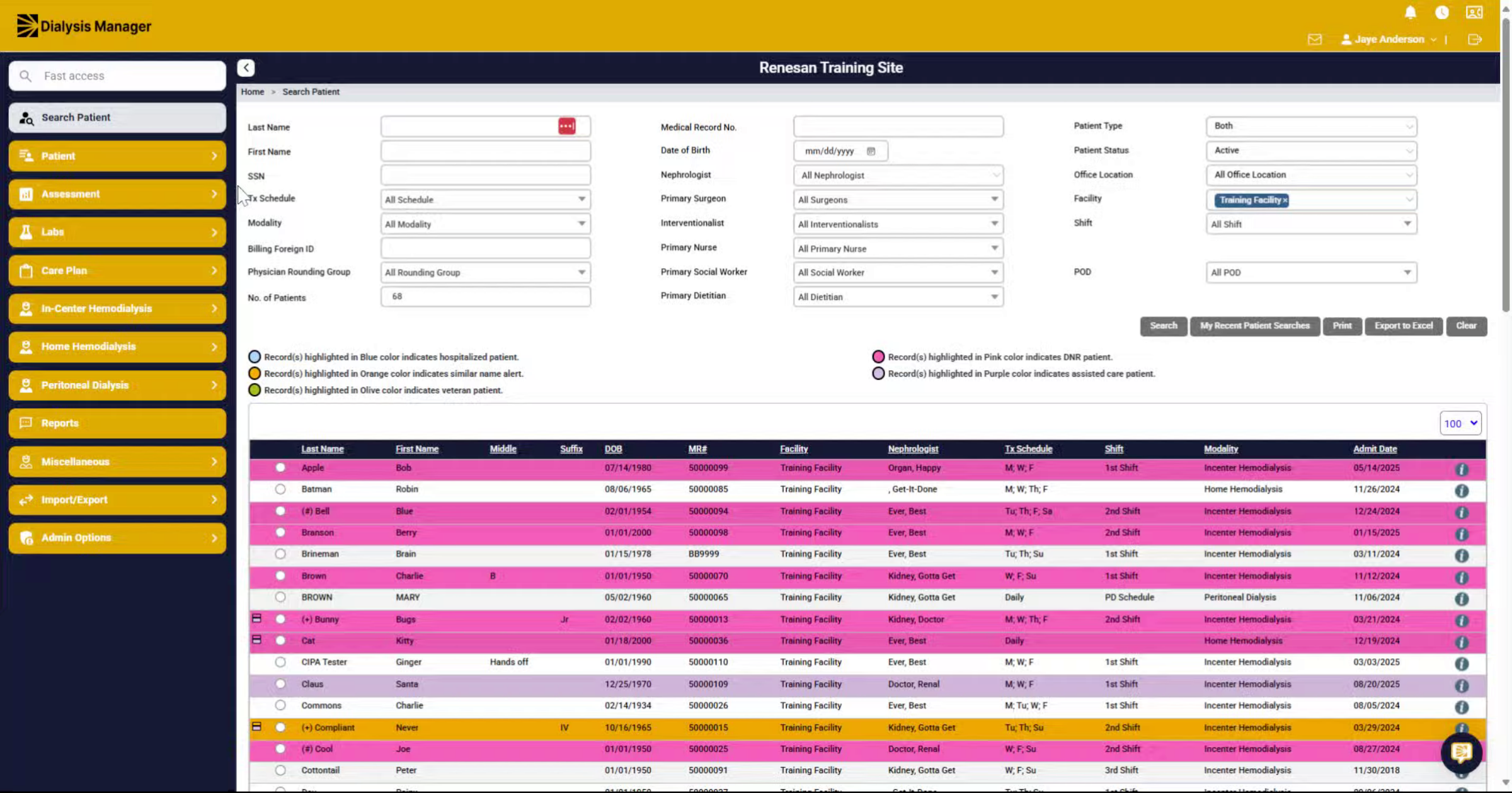
1. Introduction
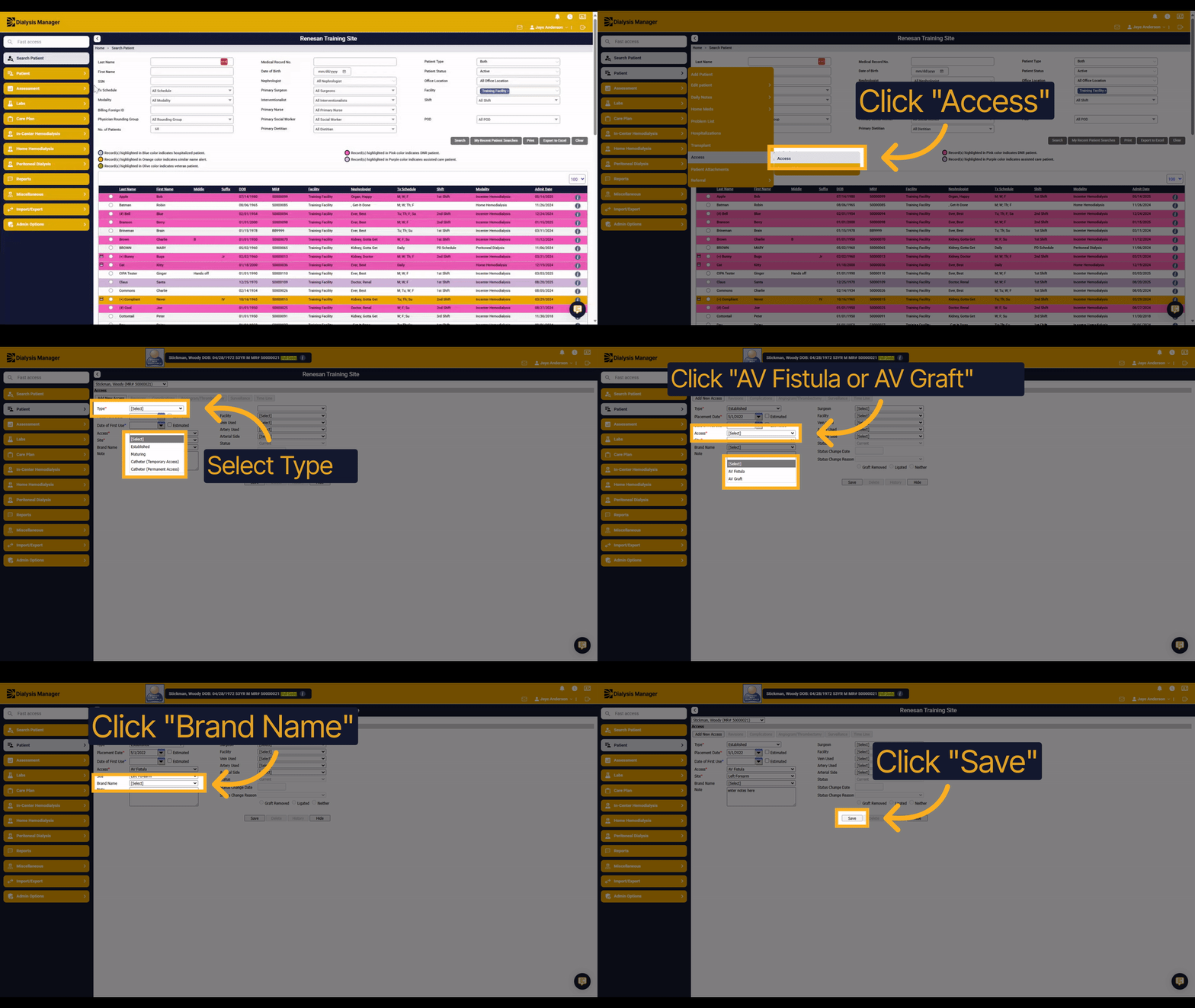
This guide explains how to add a hemodialysis access in Dialysis Manager. You will learn how to choose the access type, enter placement details, and save the record efficiently.
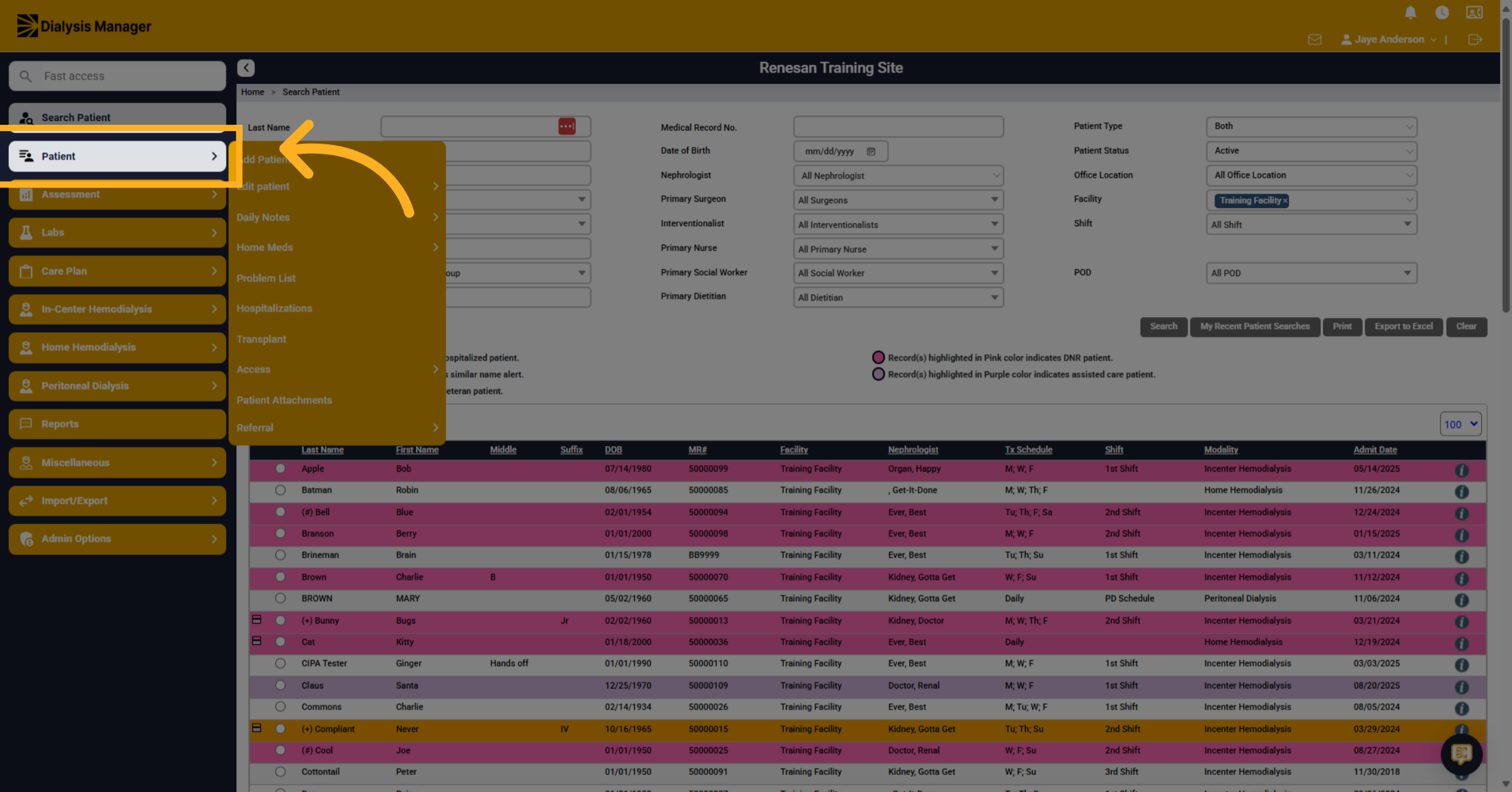
2. Click "Patient"
Click on the "Patient" tab to begin managing patient information.
3. Click "Access"
Click on "Access" to enter the access management section.
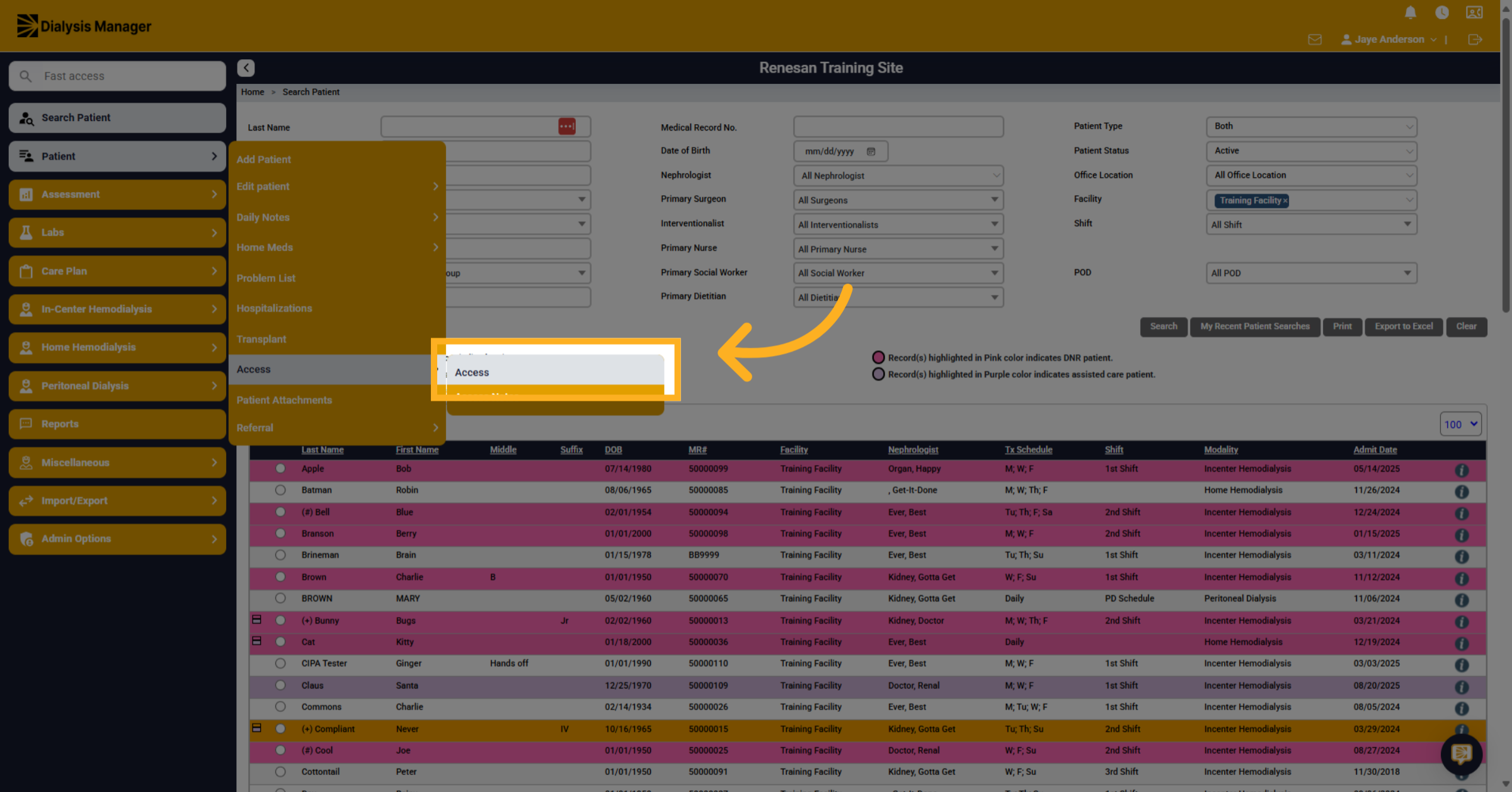
4. Click "Add New Access"
Click on "Add New Access" to start adding a new hemodialysis access record.
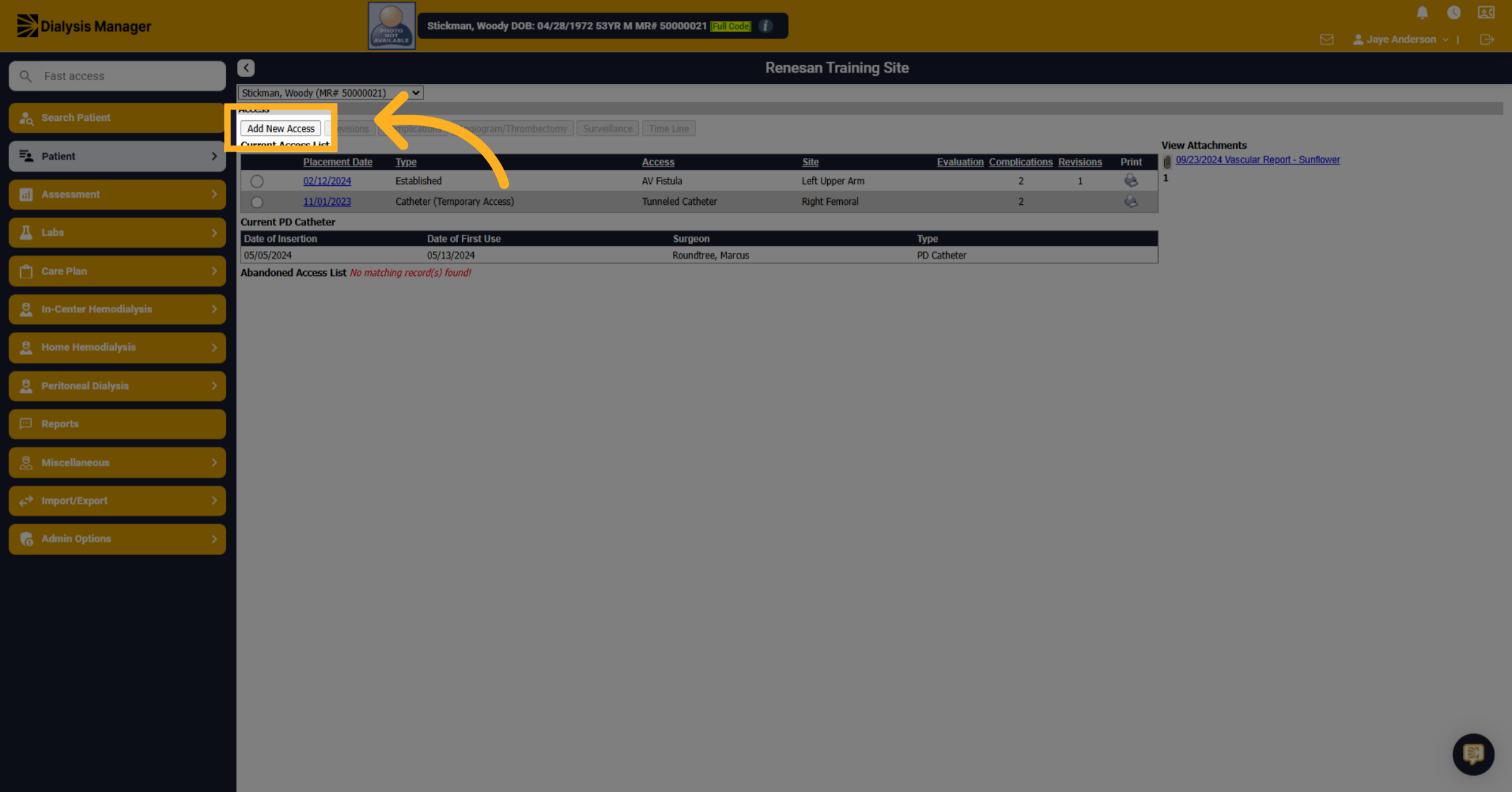
5. Click "Select"
Click on the access type dropdown to choose the type of access. Such as "Established", "Maturing", "Catheter (Temporary Access)", or Catheter (Permanent Access).
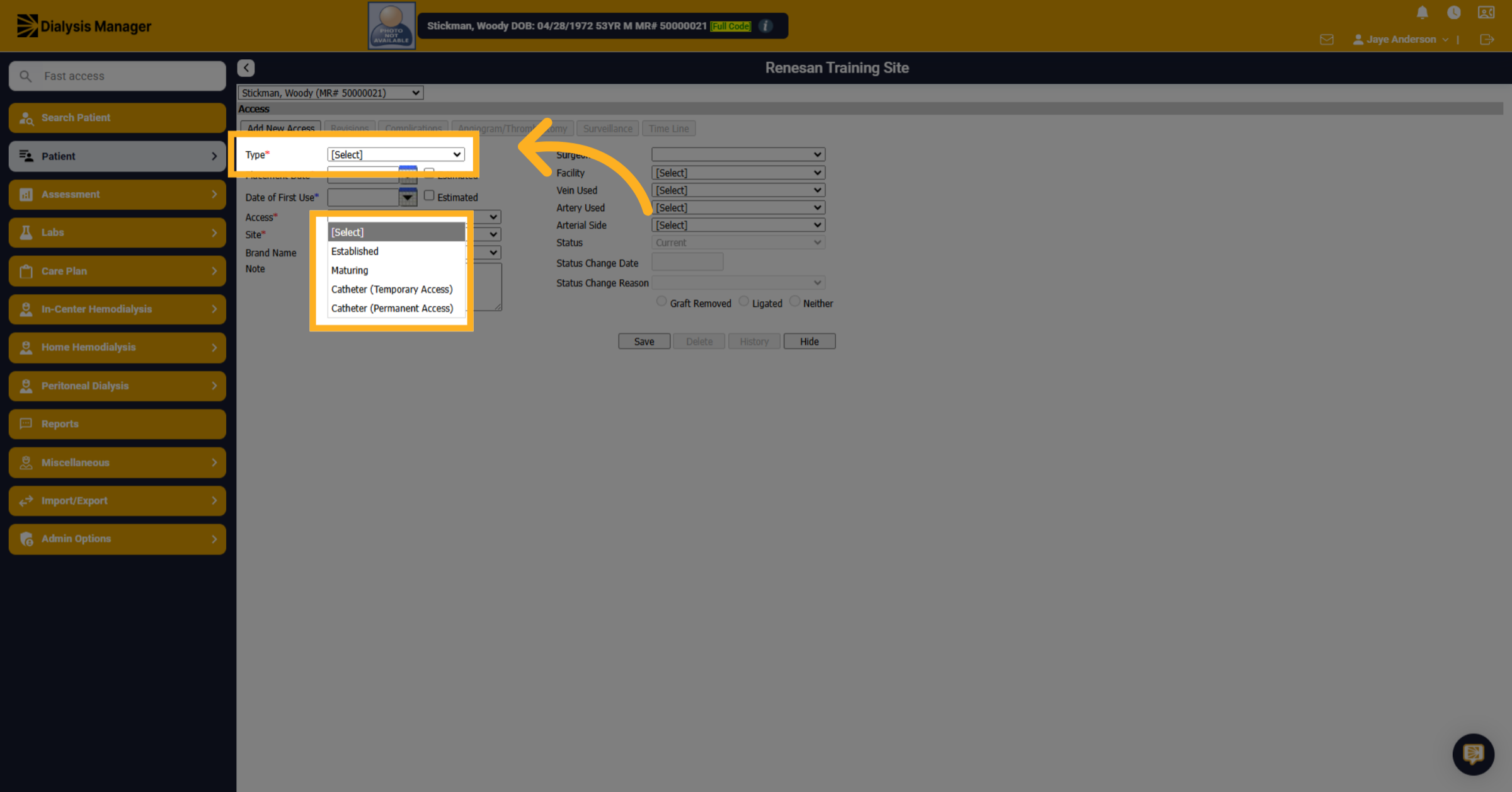
6. Click here
Click on the placement date field to enter the date the access was placed.
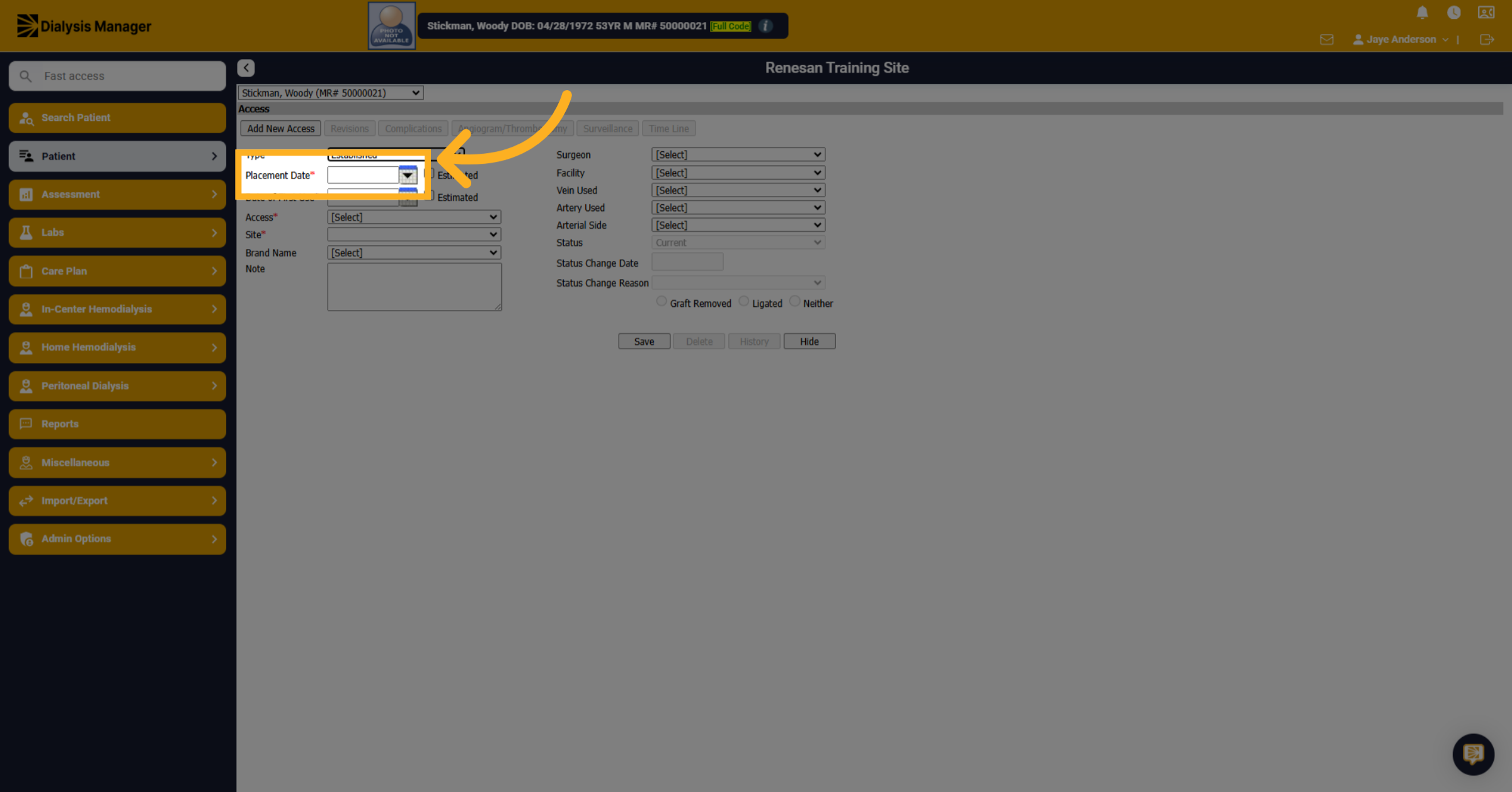
7. Click "[Select]AV FistulaAV Graft"
Click on the access type dropdown to specify the type of access. Select either "AV Fistula" or "AV Graft" as the access type.
![Click '[Select]AV FistulaAV Graft'](https://knowledgetest.renvio.com/hubfs/Intercom%20knowledge%20base/qg-2FIroXeNJHrNYcFwtsPJSFDGN82g23-2Fw7cdNceGVijSwJtRpqamqe-2F4sGnFsCU7zEecjmrcVzD7B_doc.png)
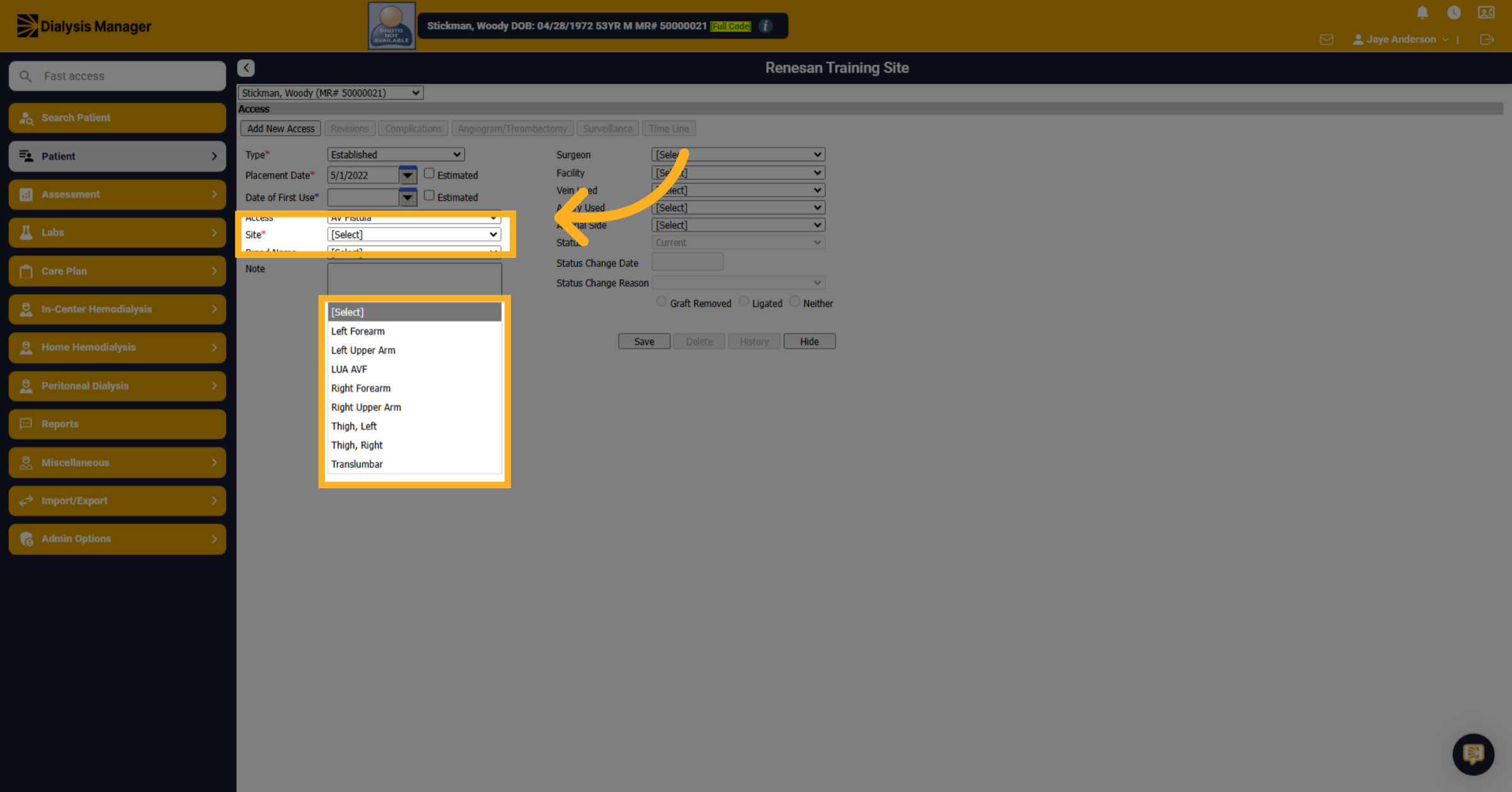
8. Click "Site"
Click on the location dropdown to specify the access location. Select the location of the access, such as left forearm or right upper arm.
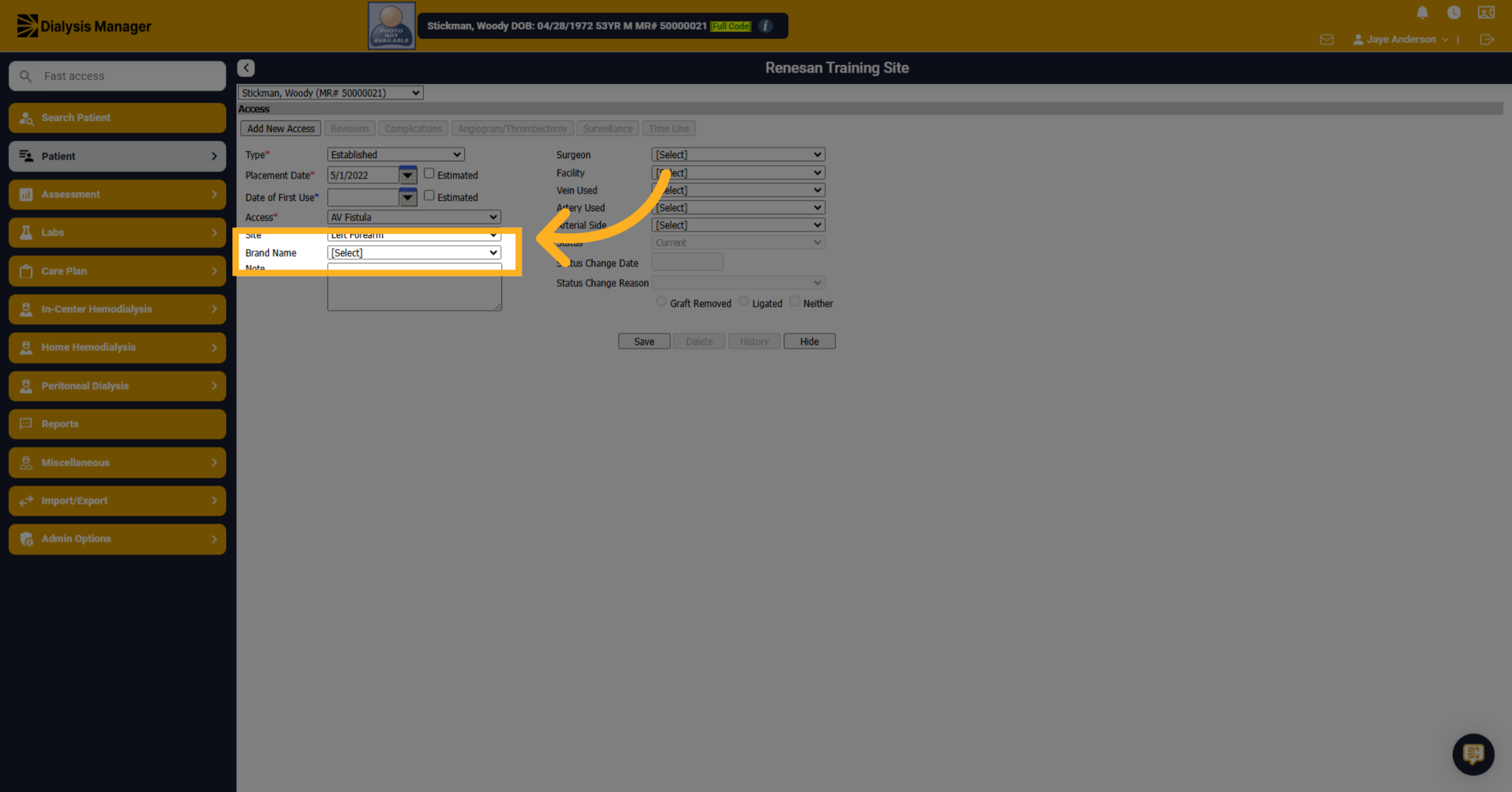
9. Click "Brand Name"
Click on the "Brand Name" field to enter the brand information.
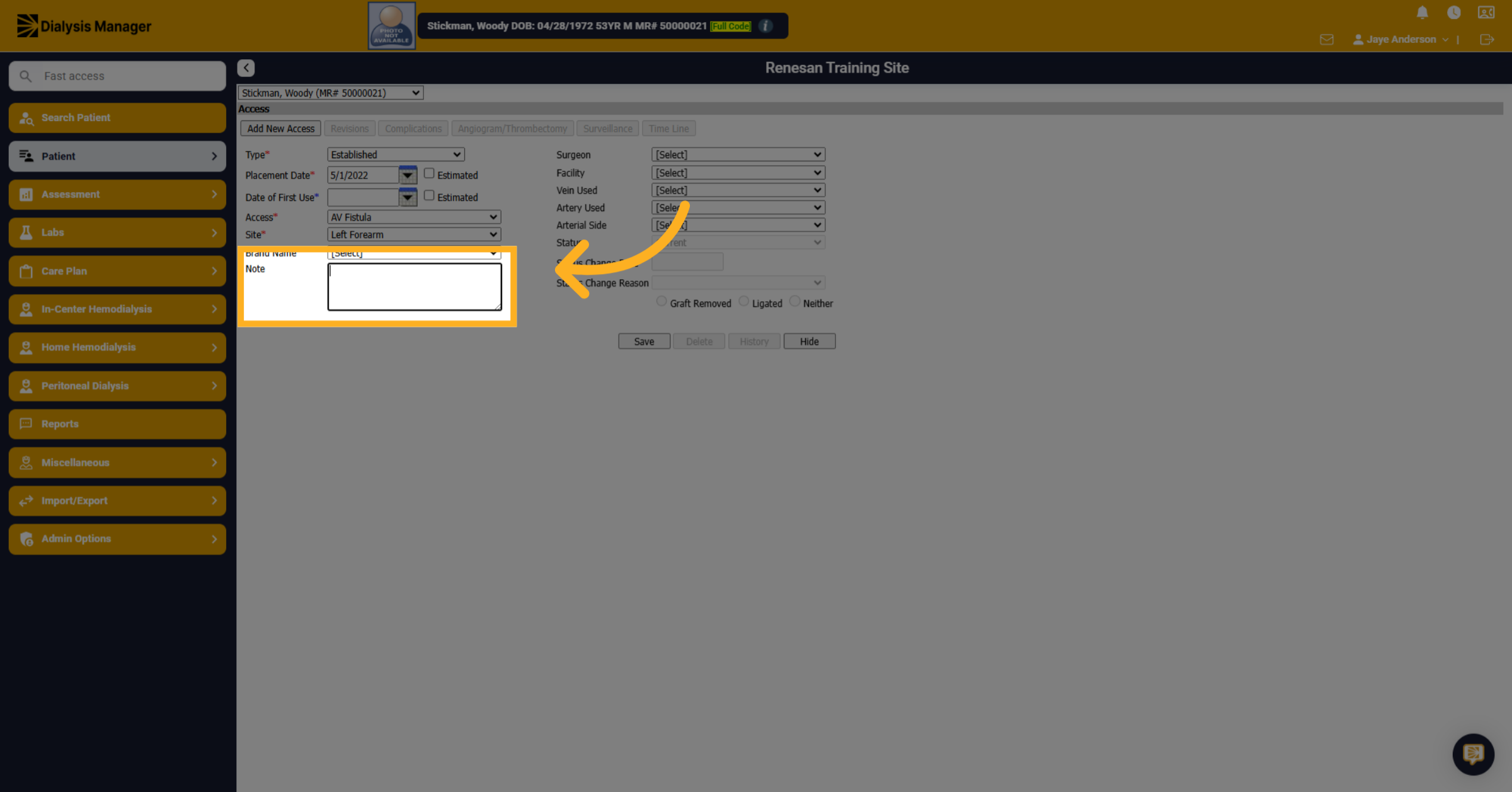
10. Click here
Click on the notes field to add any related access notes.
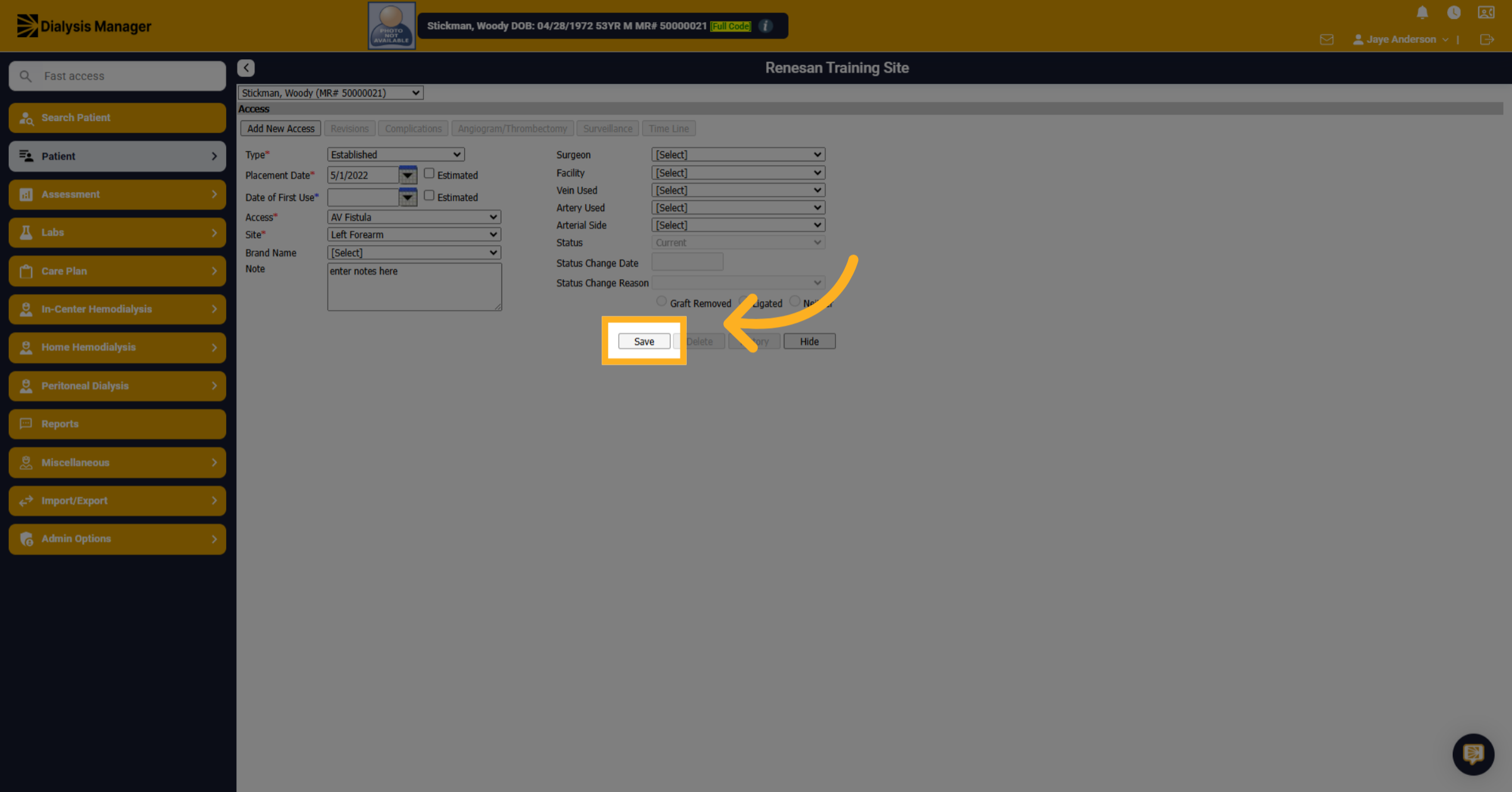
11. Click "Save"
Click the "Save" button to save the access information.