Access Physical Exam Documentation.

1. Introduction
There are two ways to document an access Physical Exam inside Dialysis Manager.
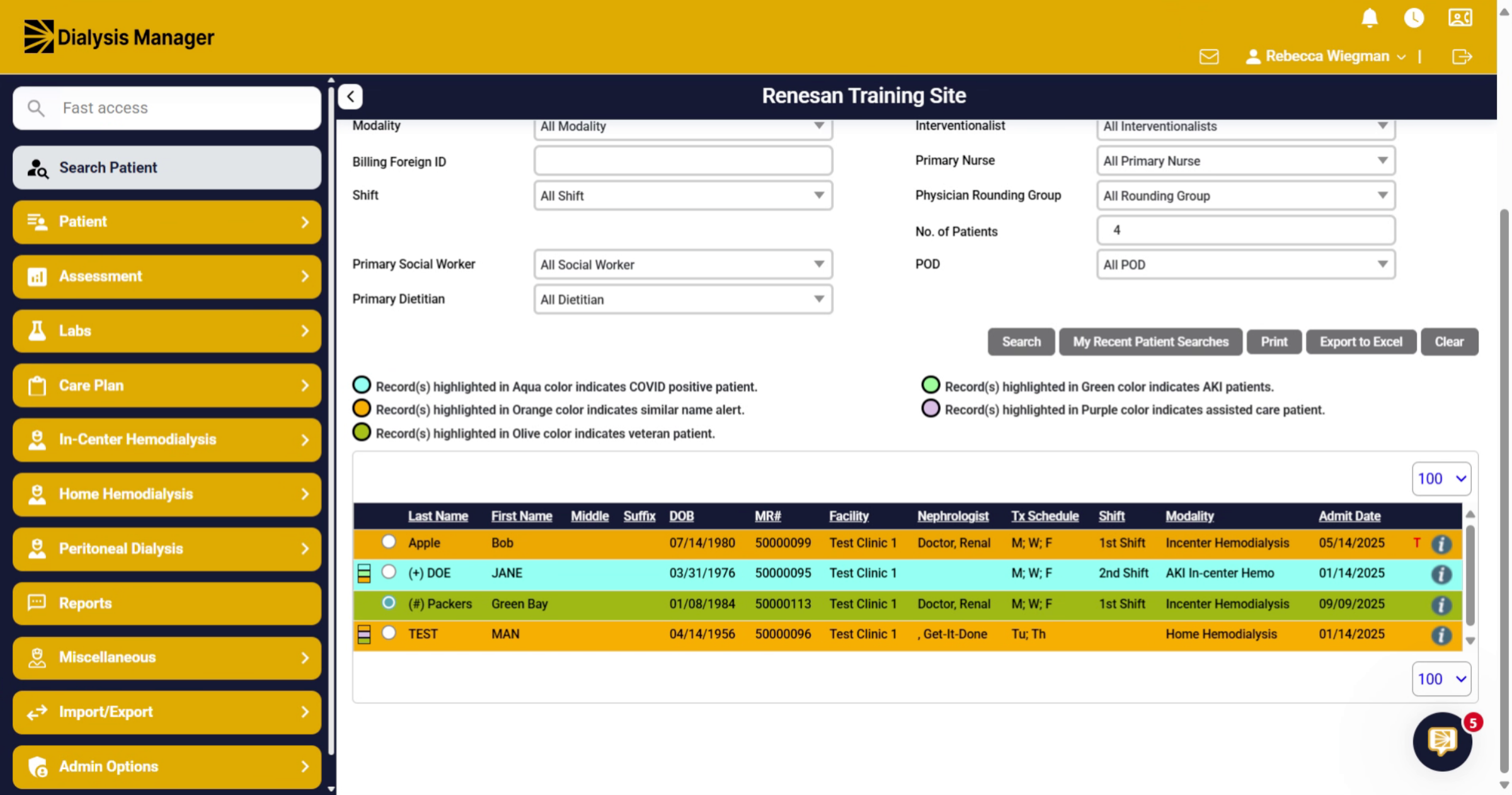
2. Click "HD Flowsheets"
Click "HD Flowsheets" to navigate to the hemodialysis flowsheets section where treatment data is recorded.
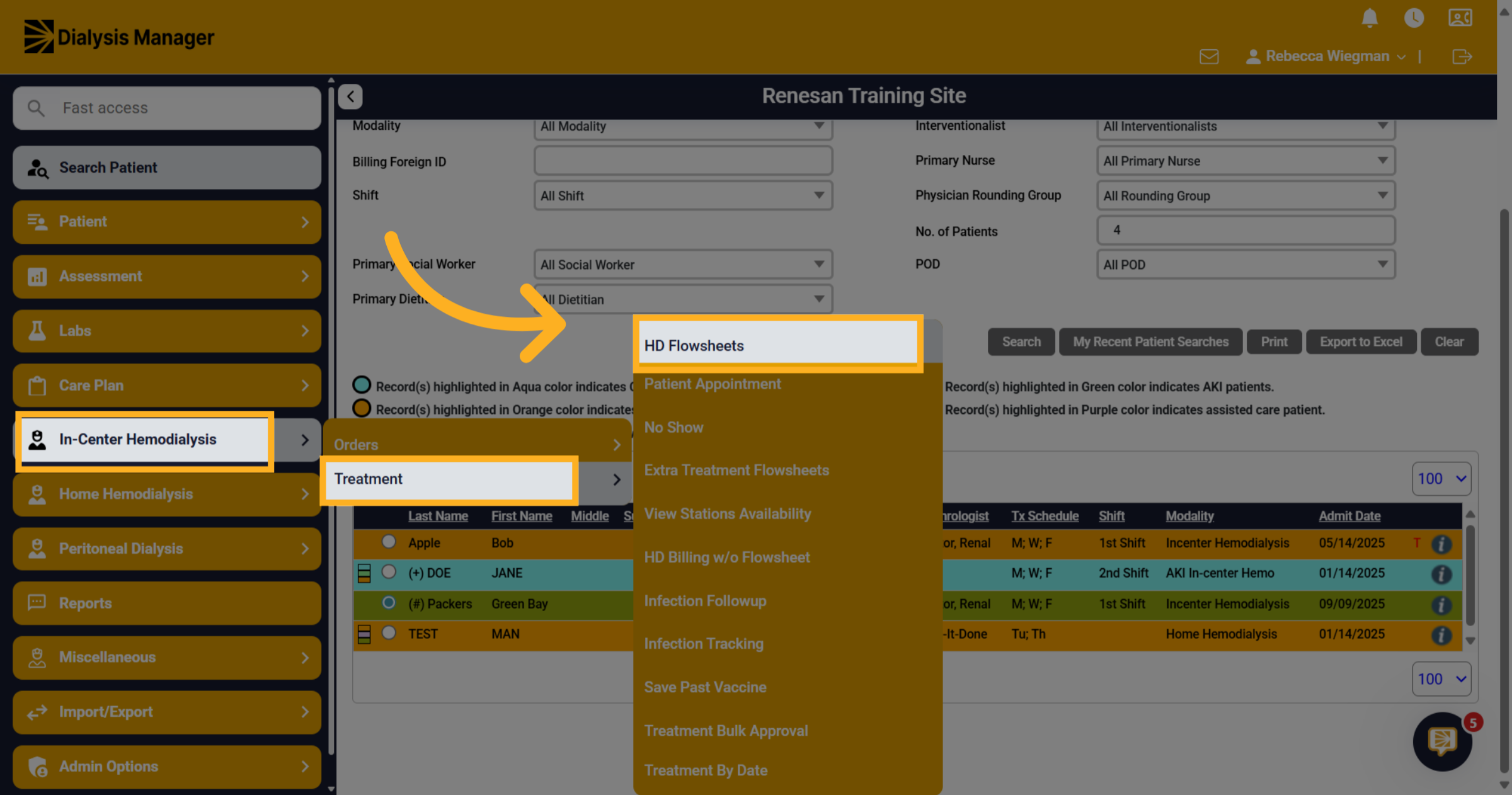
3. Select the date
Select the treatment date
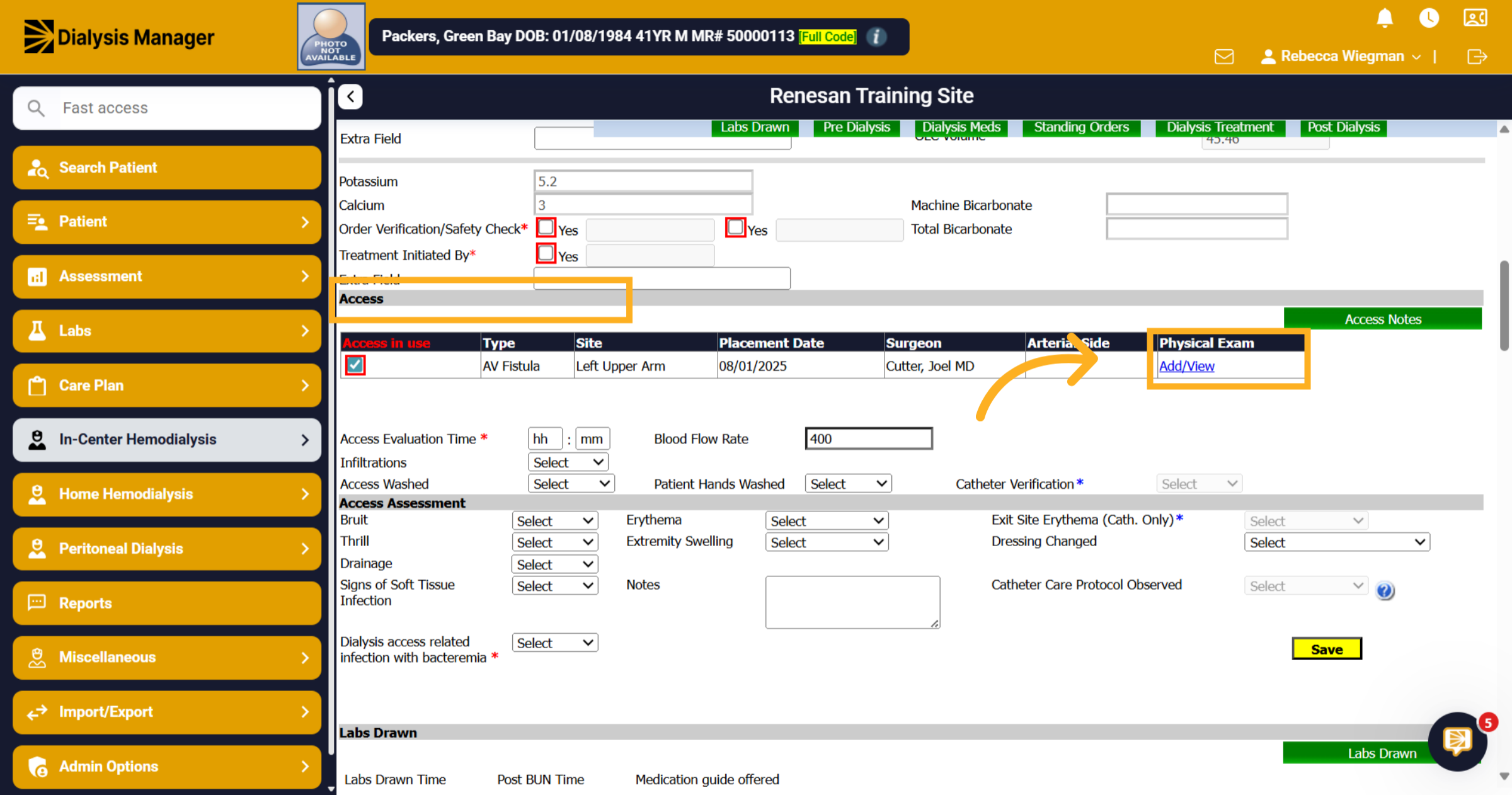
4. Under the Access Section
Under the Access section of the Flowsheet you'll need to click on the blue add/view hyperlink under Physical Exam
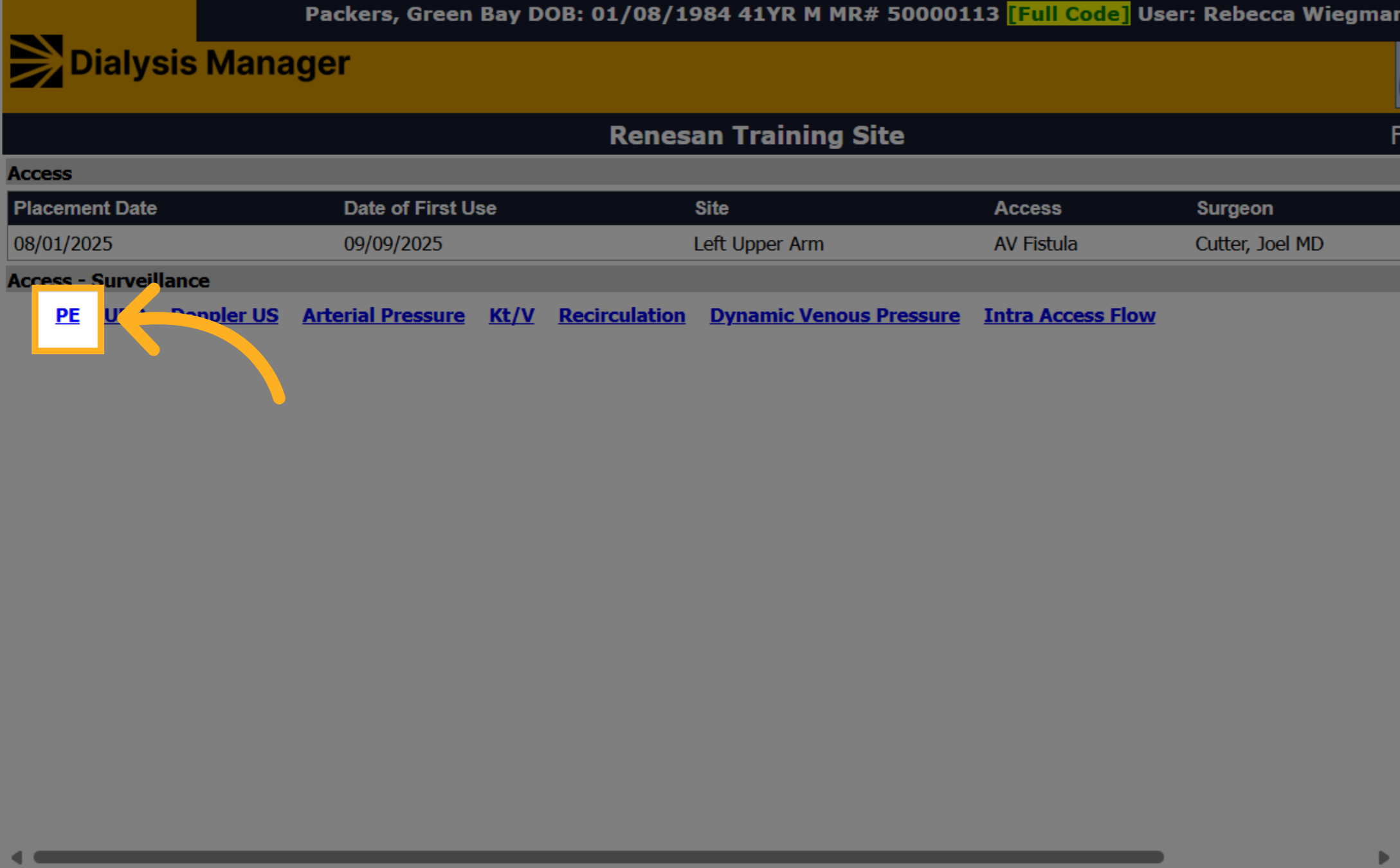
5. Click PE
Click "PE" to select the option for documenting the physical exam.
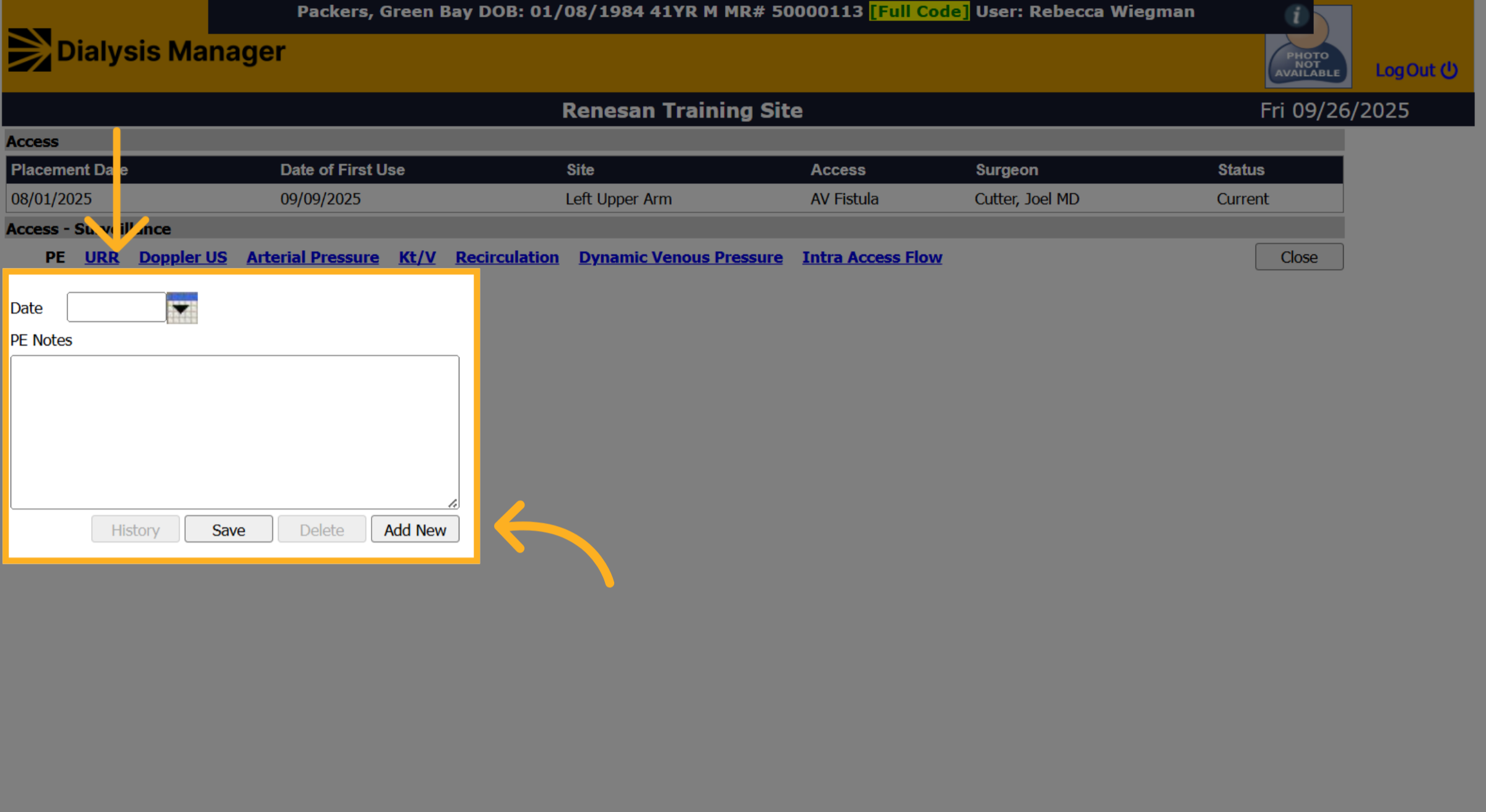
6. Enter the Date
To avoid overwriting any prior information, first click "Add New." Then, enter the date of the physical exam.
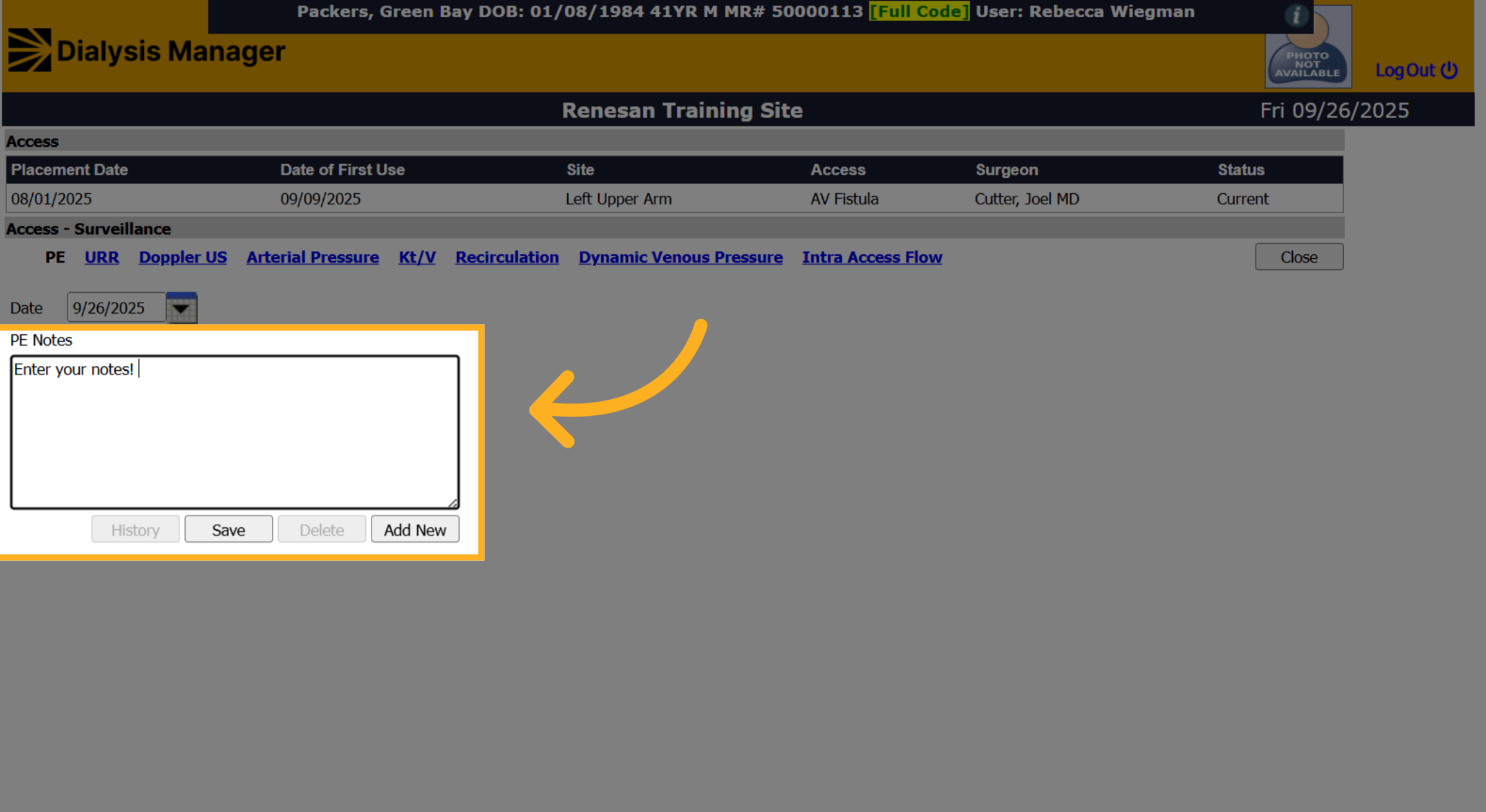
7. Fill "Enter your notes! "
Fill in the notes field by entering your observations or relevant information to document the physical exam properly.
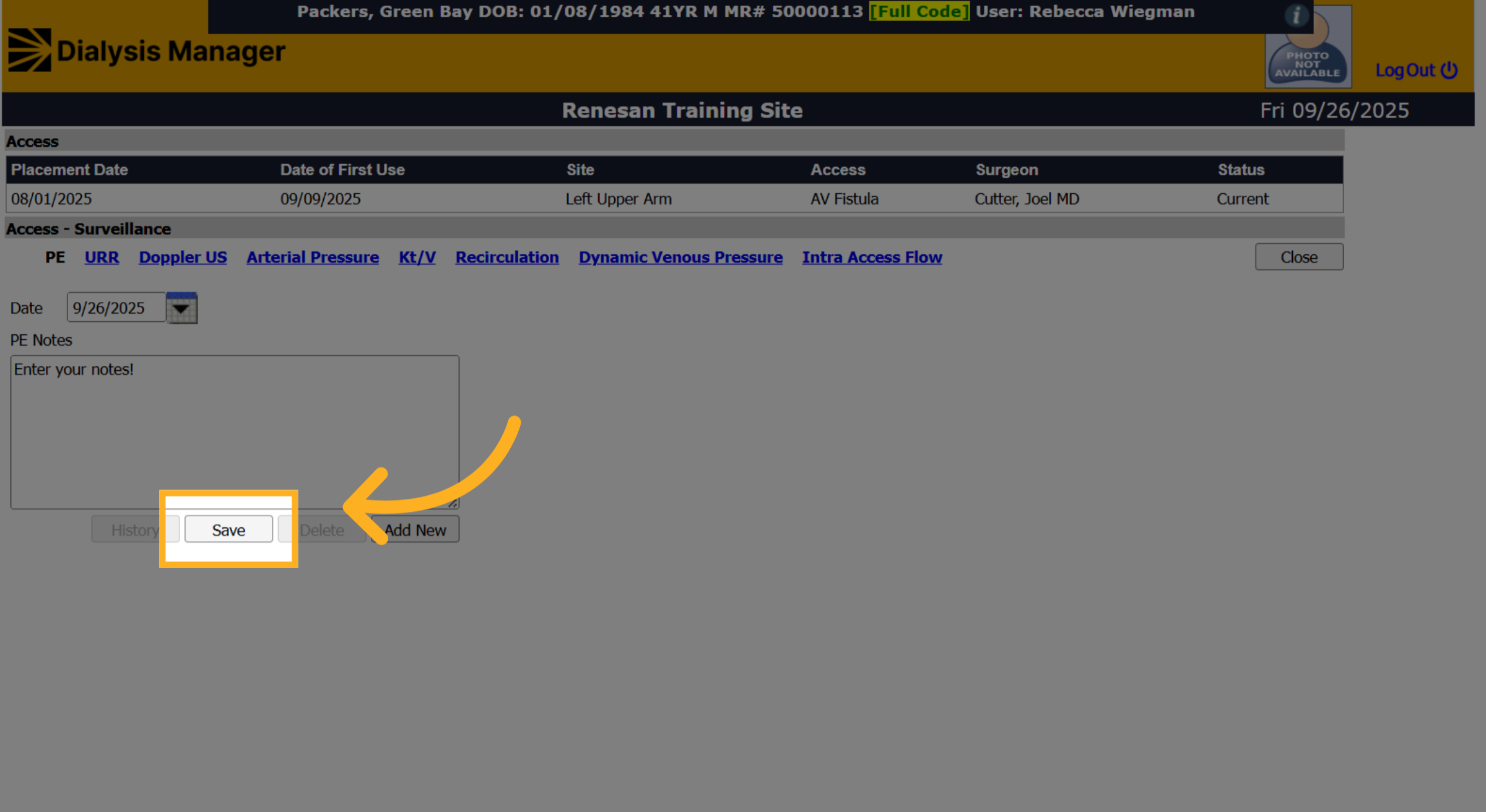
8. Click "Save"
Click the "Save" button to store your entered notes and ensure that the information is recorded in the system.
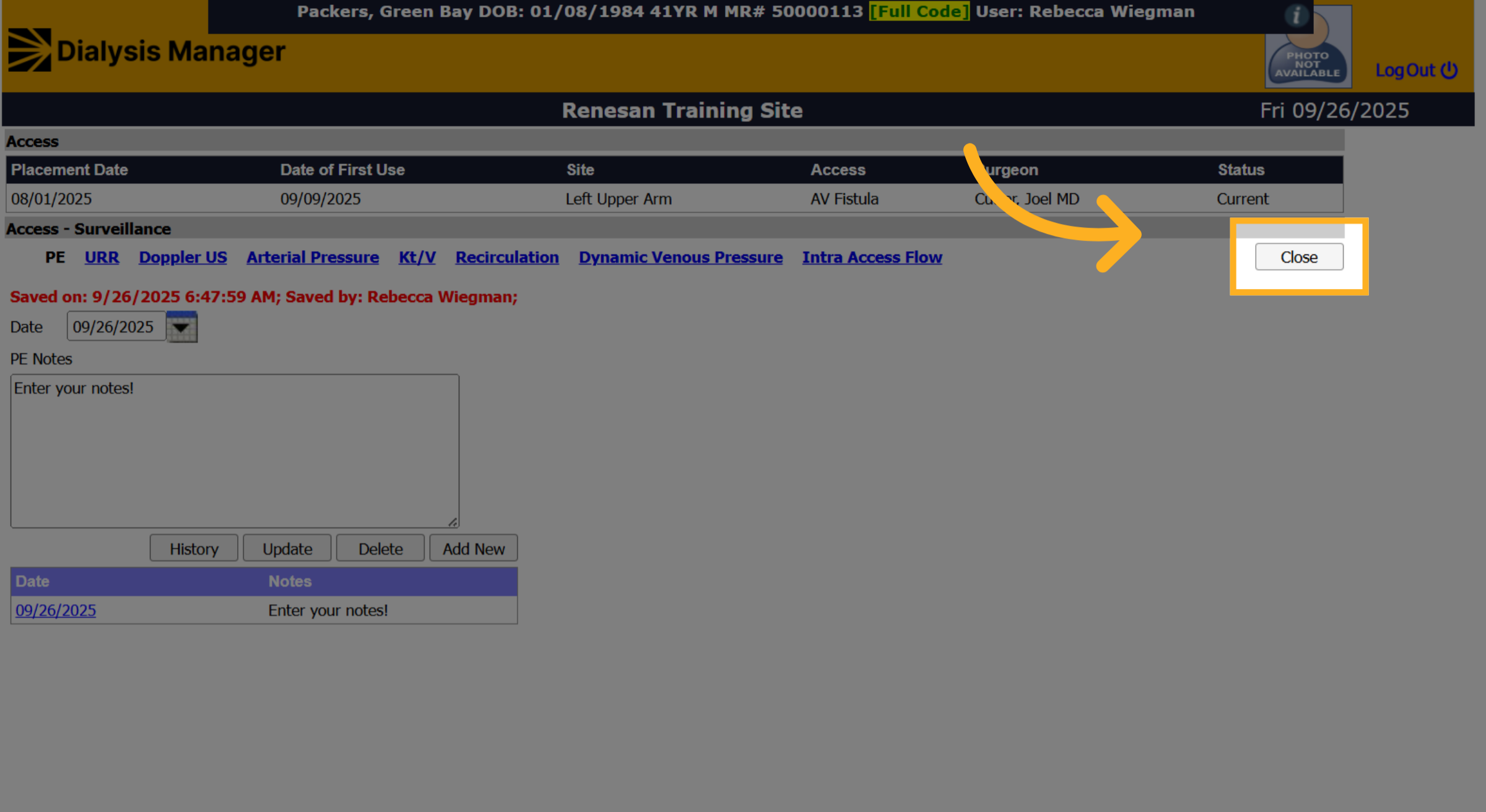
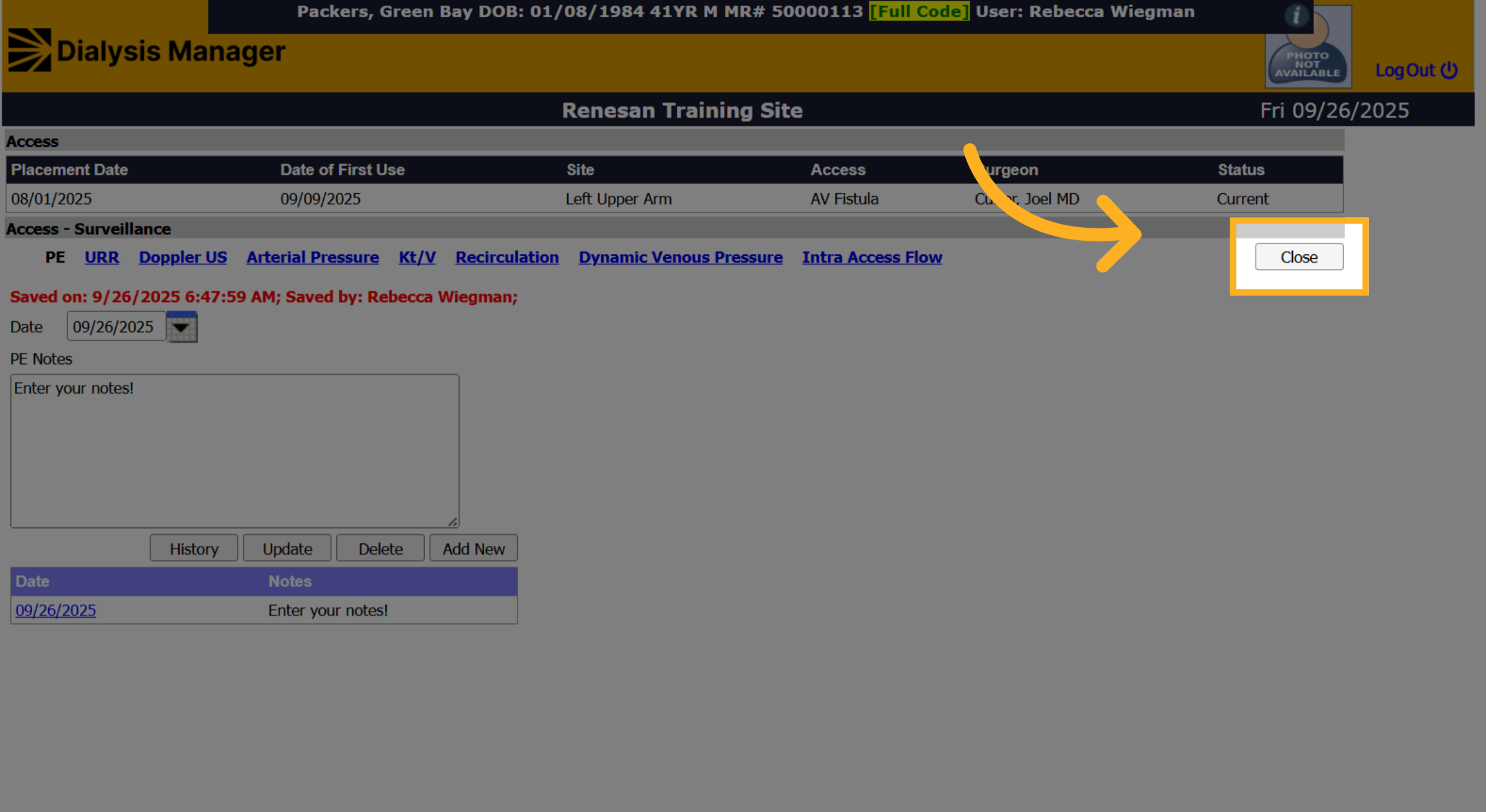
9. Click "Close"
Click "Close" to exit the Physical Exam section and return to the patient flowsheet.
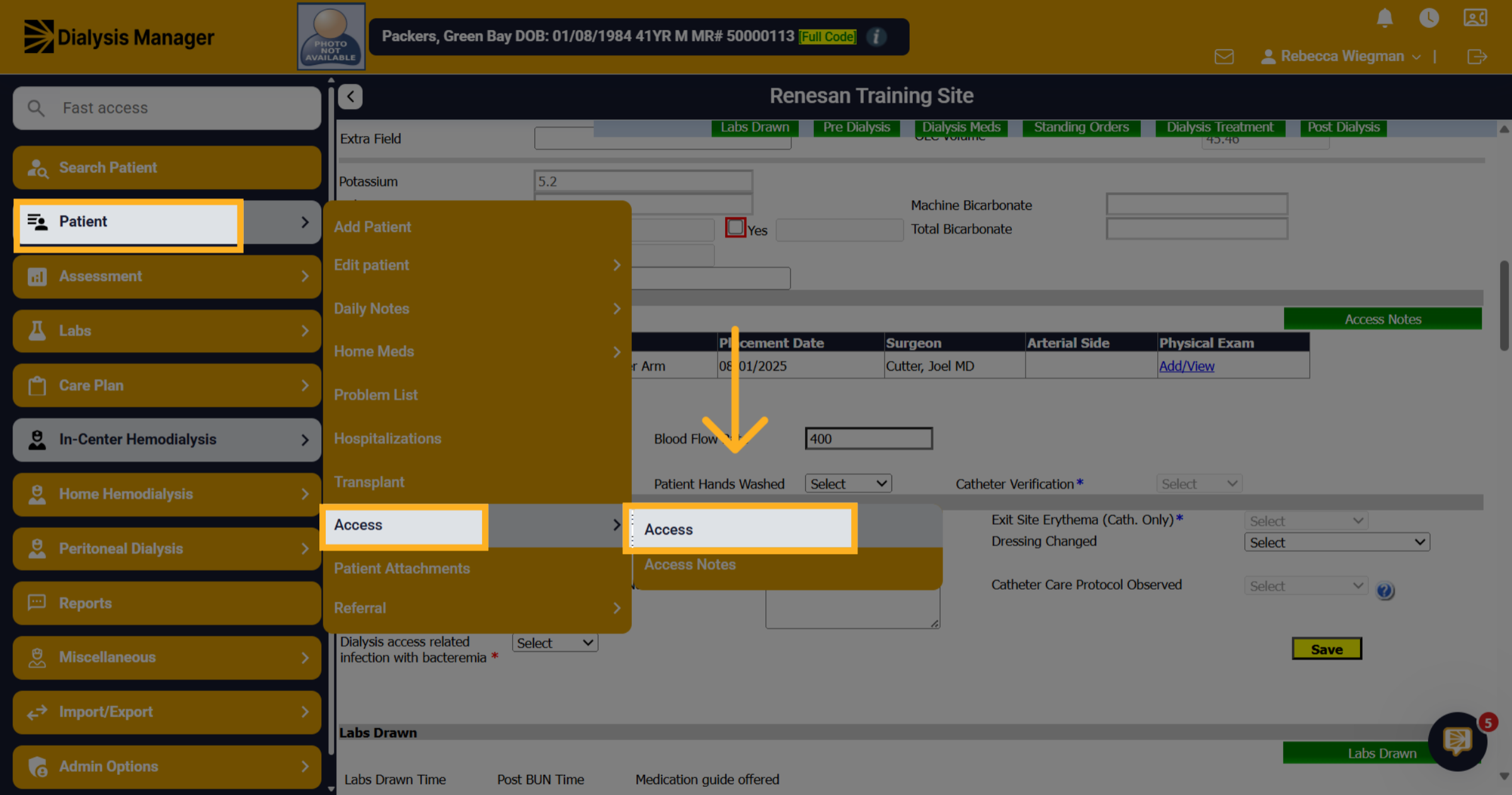
10. Click "Access"
The second option to document a Physical Exam is through the Access tab. Click into Patient, Access, and Access
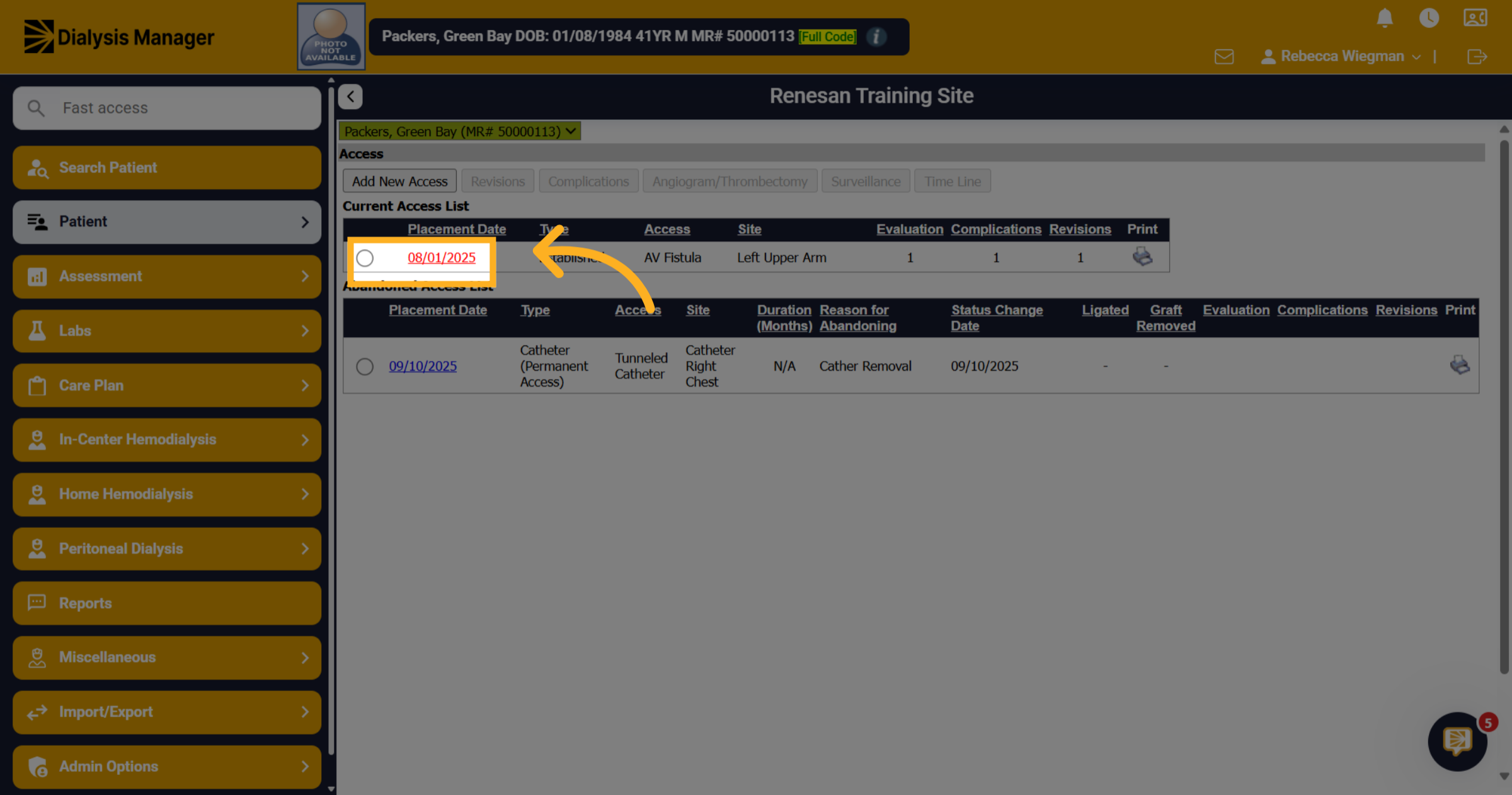
11. Select the date
Select the access by clicking on the blue hyperlink date.
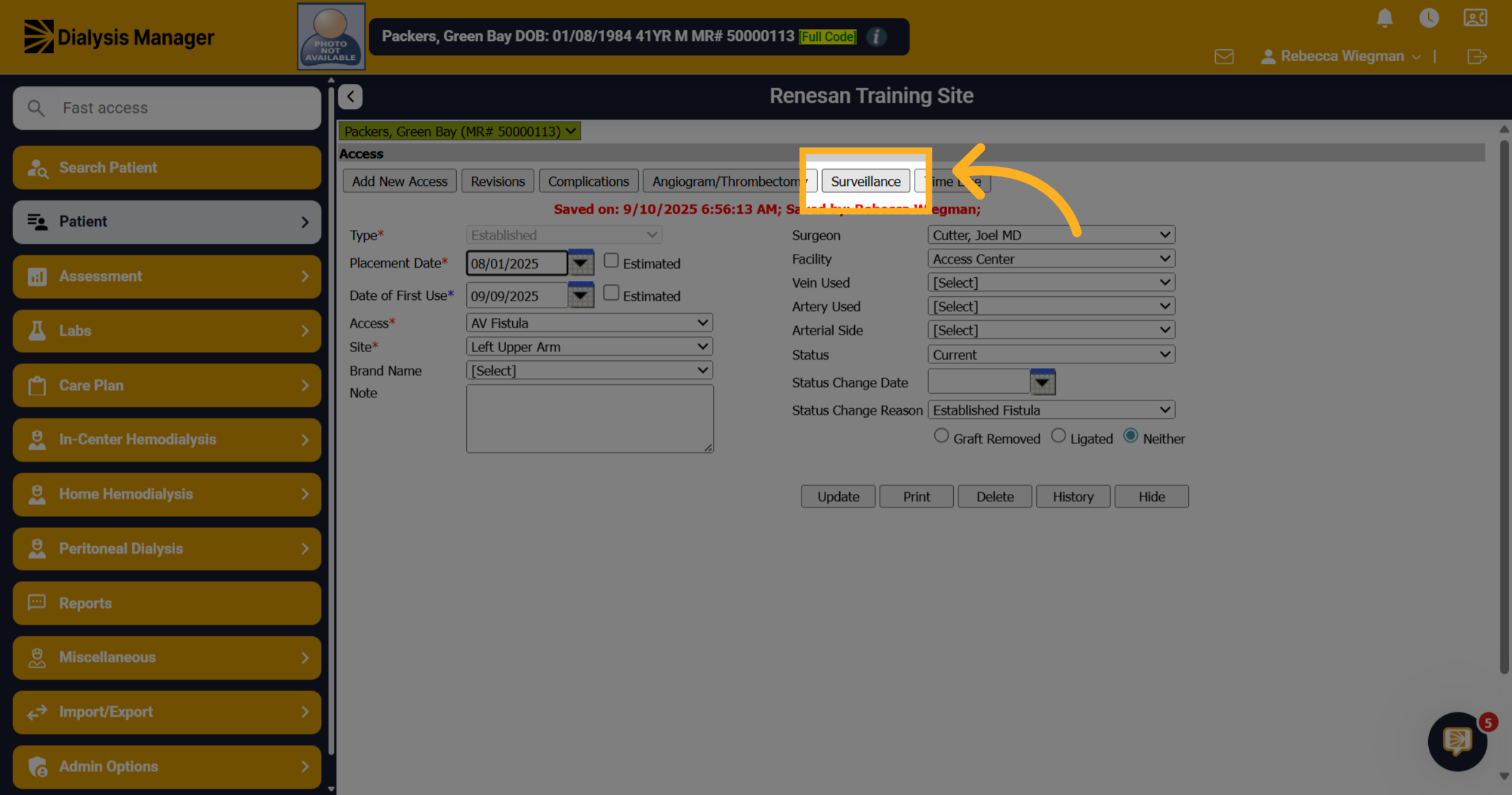
12. Click "Surveillance"
Click "Surveillance" to access the surveillance data related to the dialysis access.
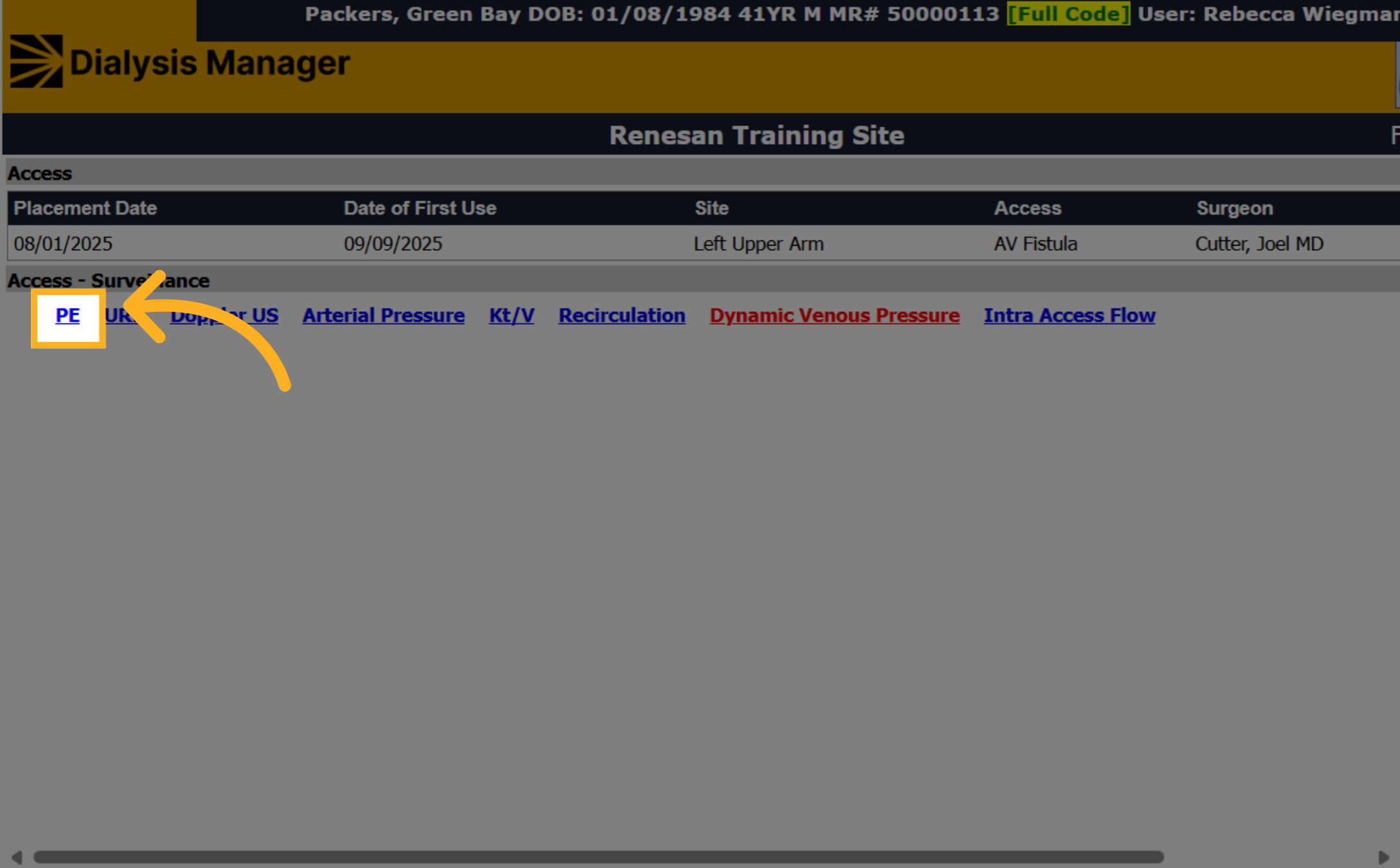
13. Click PE
Click "PE" to open the detailed view for entering your Physical Exam.
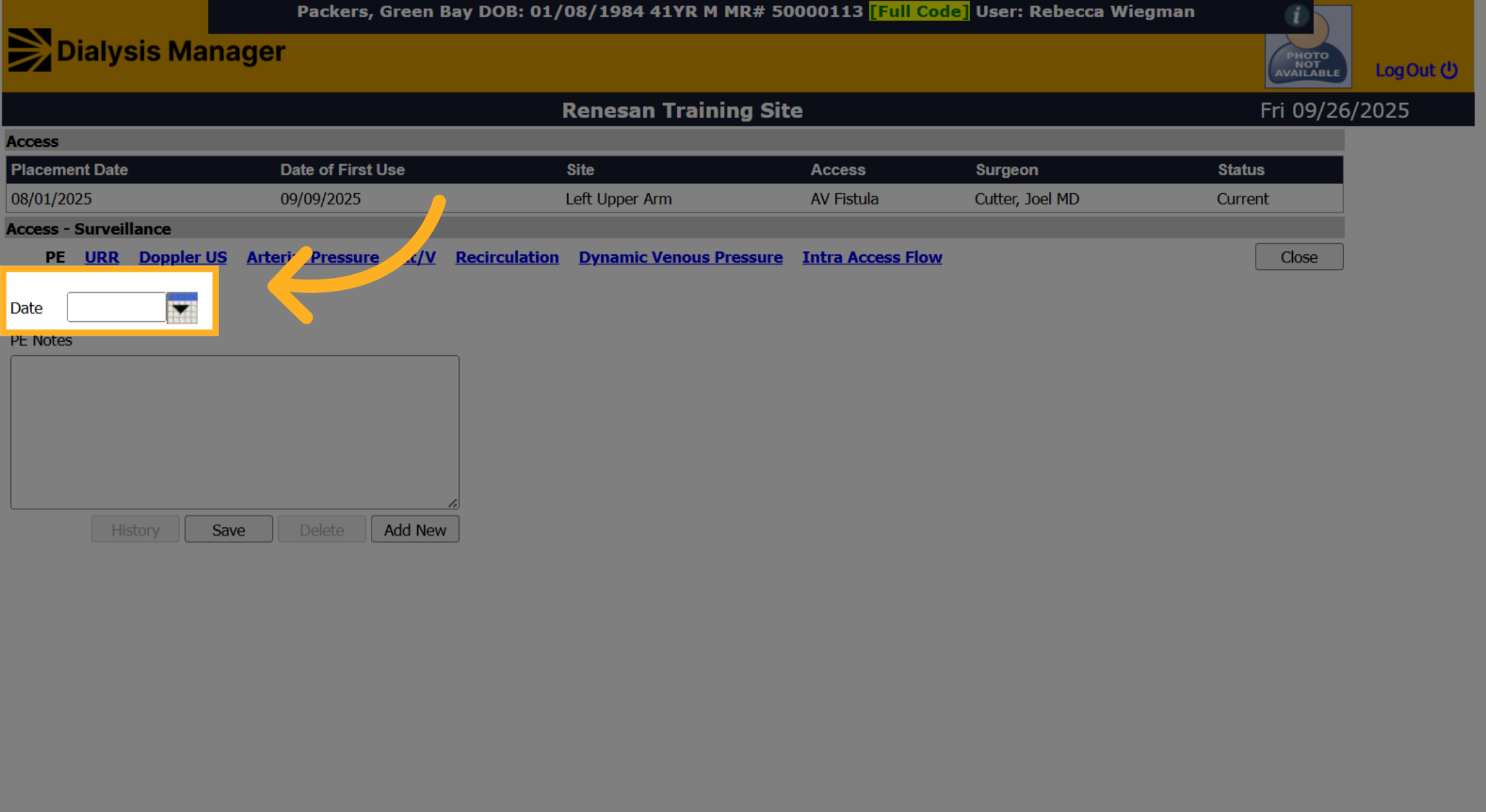
14. Date
Enter the Date of the Physical Exam.
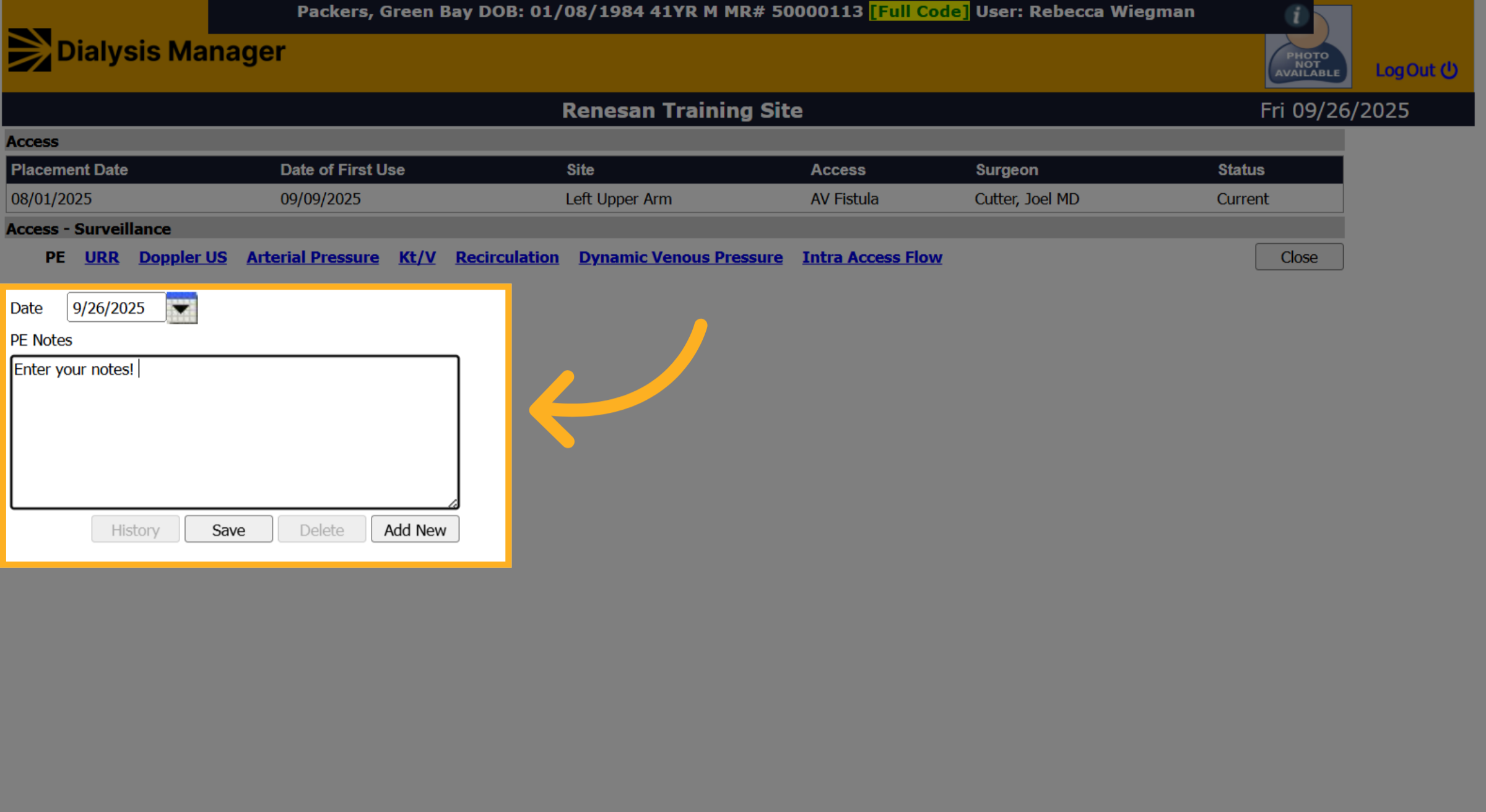
15. Fill "Enter your notes! "
Fill in the notes field by entering your observations or relevant information to document the physical exam properly.
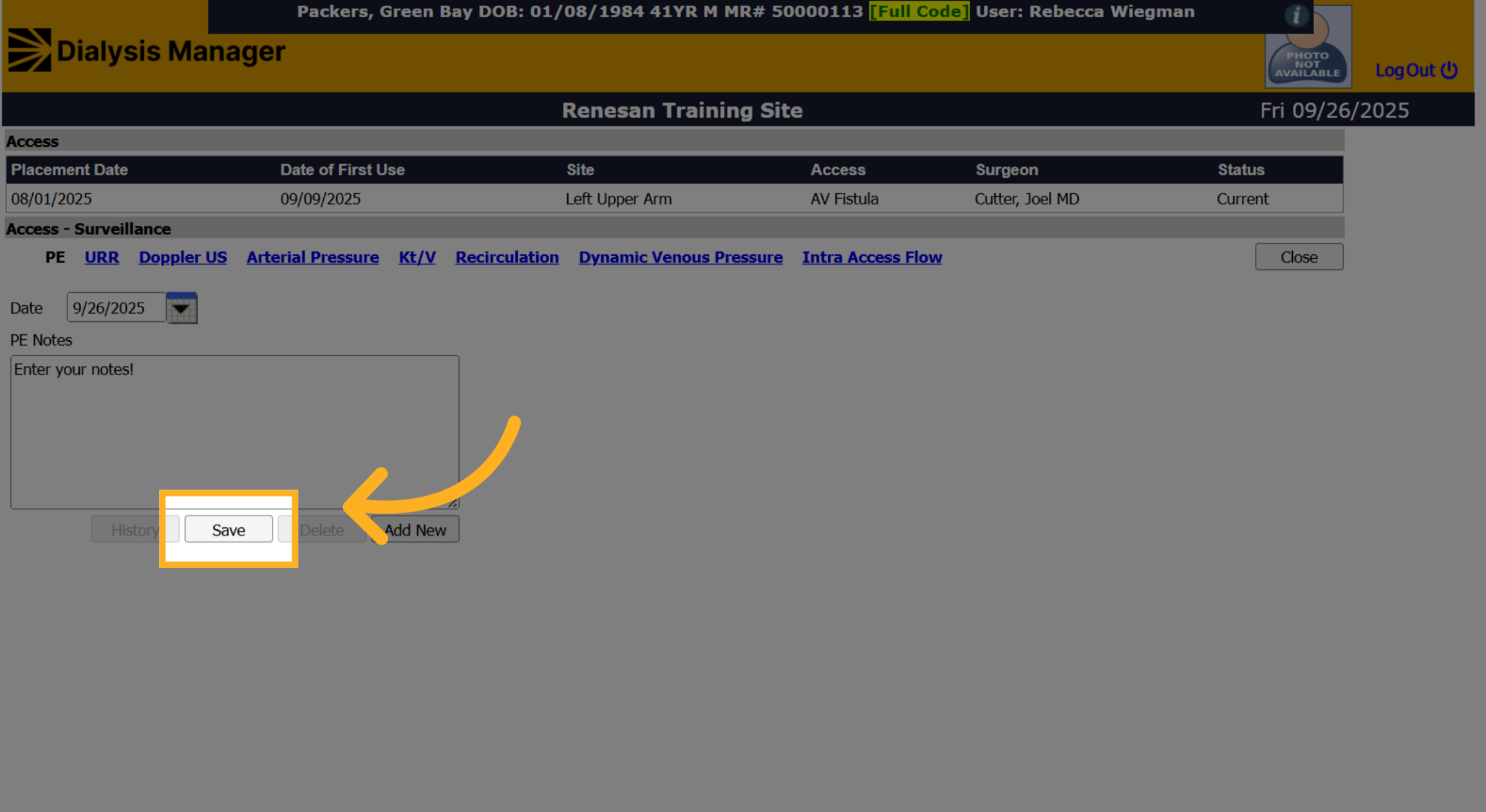
16. Click "Save"
Click the "Save" button to store your entered notes and ensure that the information is recorded in the system.
17. Click "Close"
Click "Close" to exit the Physical Exam section and return to the patients access screen.