Access Notes.
1. Introduction
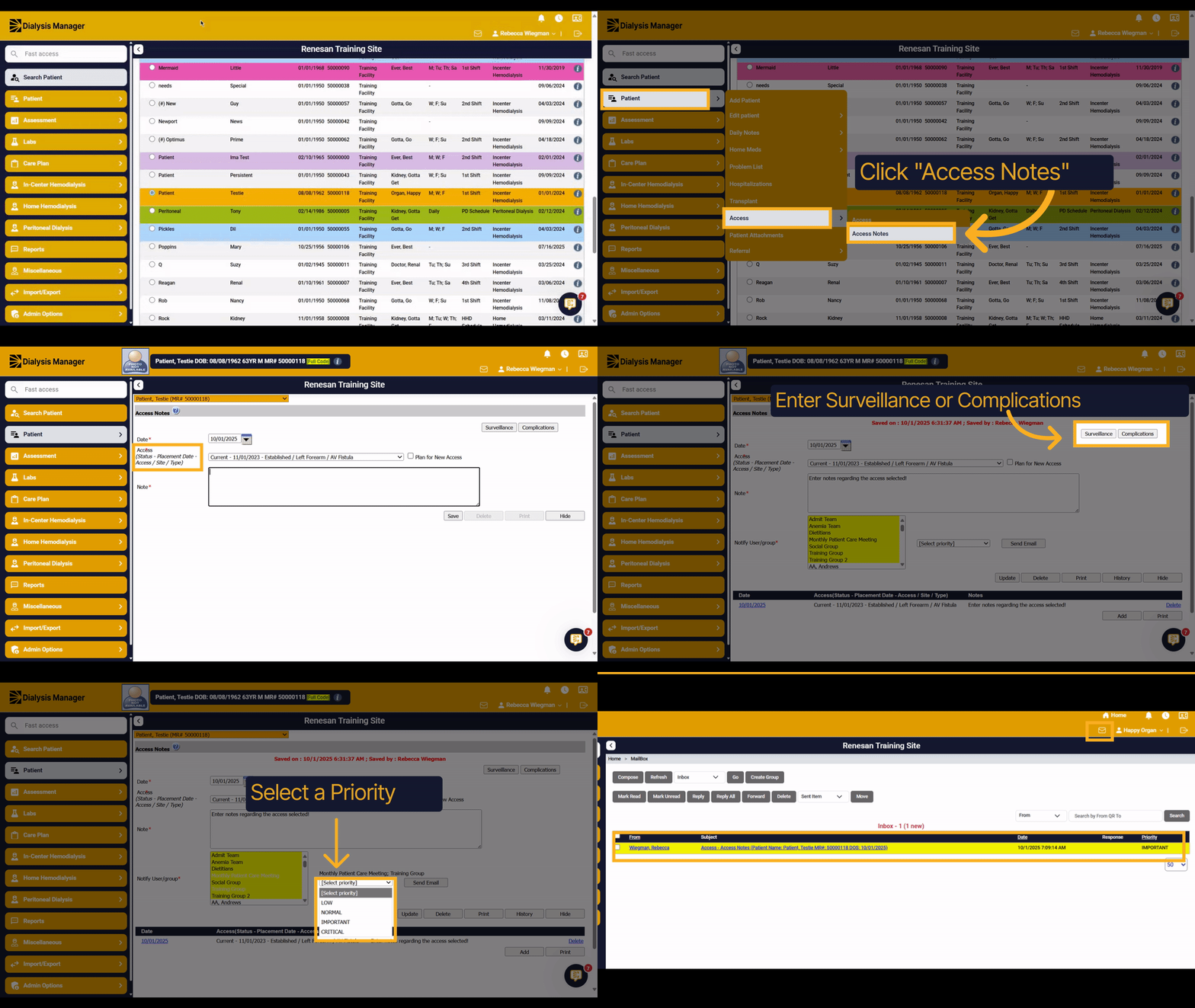
This tutorial guides you through entering an access note on a patient.
2. Select your patient
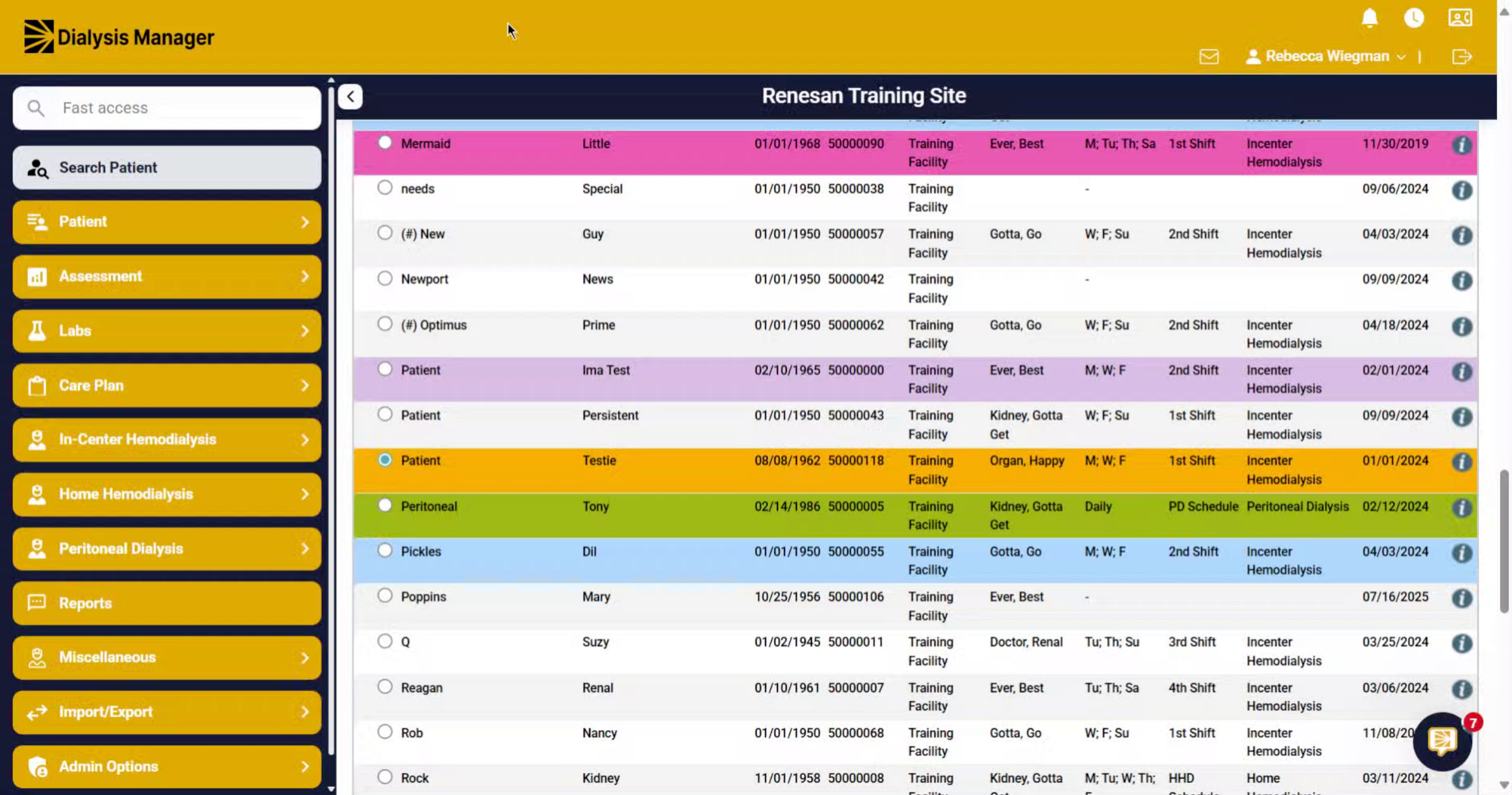
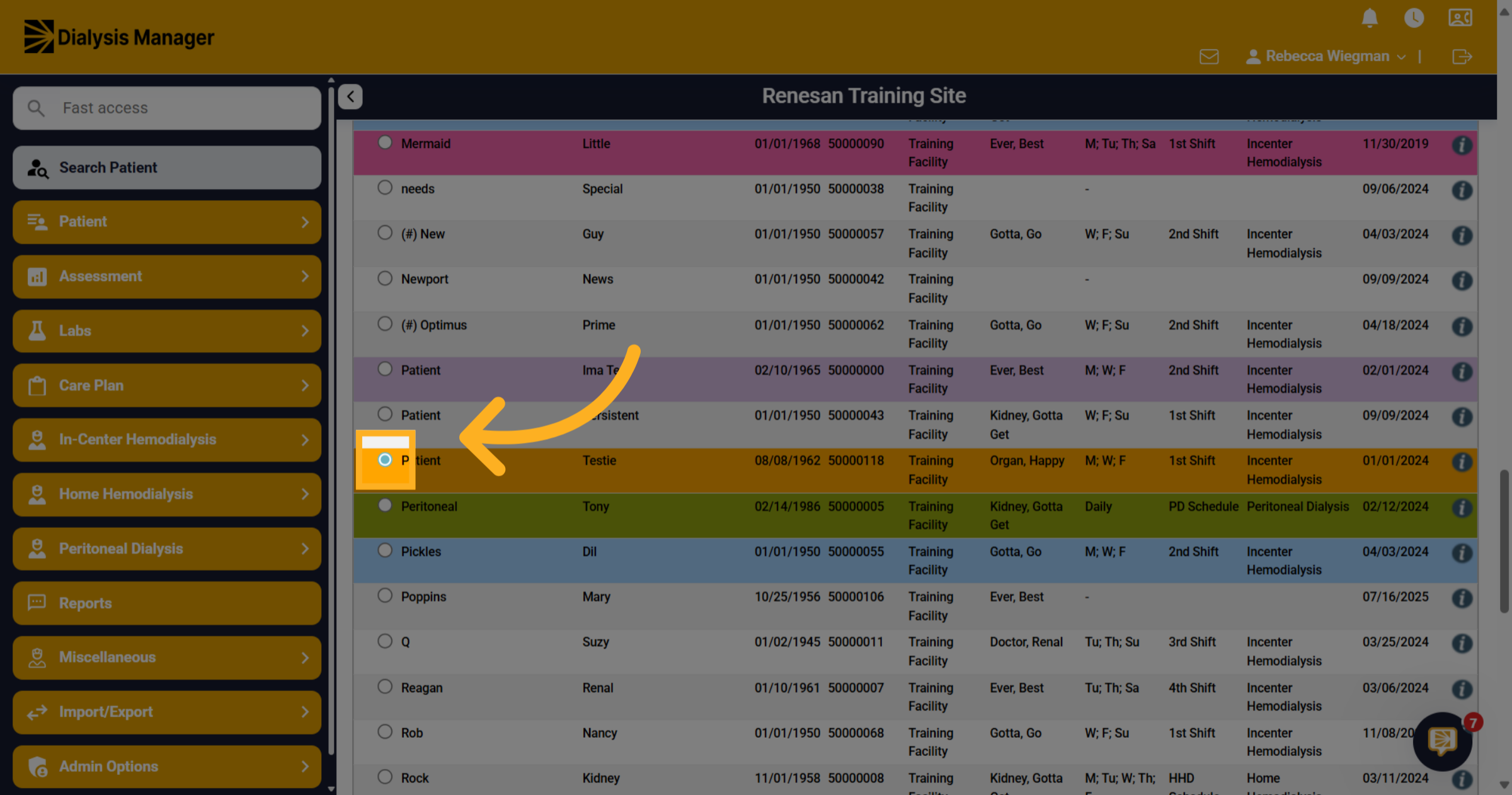
Search for your patient and select the radio button to the left of their name.
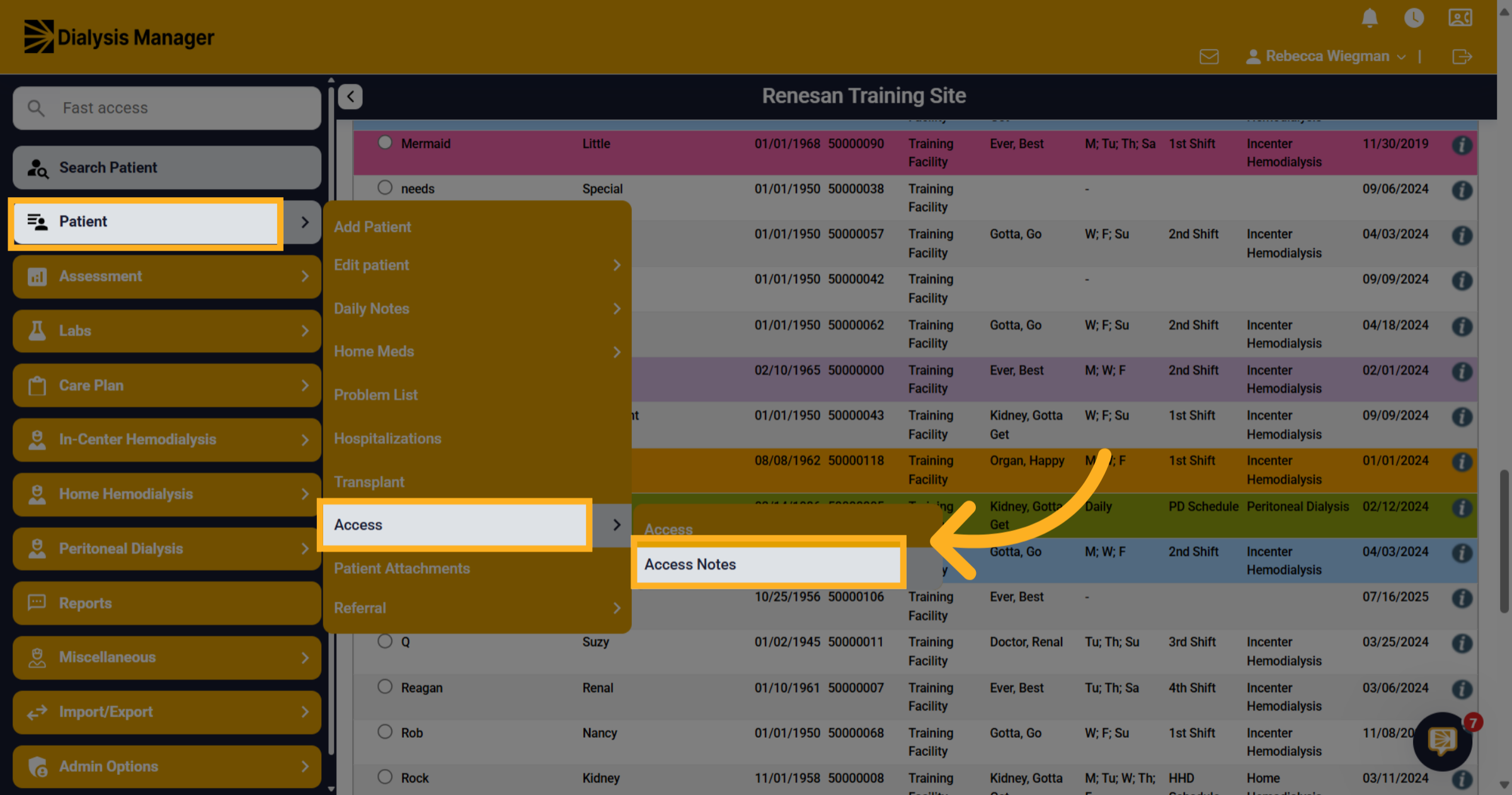
3. Click "Access Notes"
Navigate to the Patient menu, Access and Access Notes.
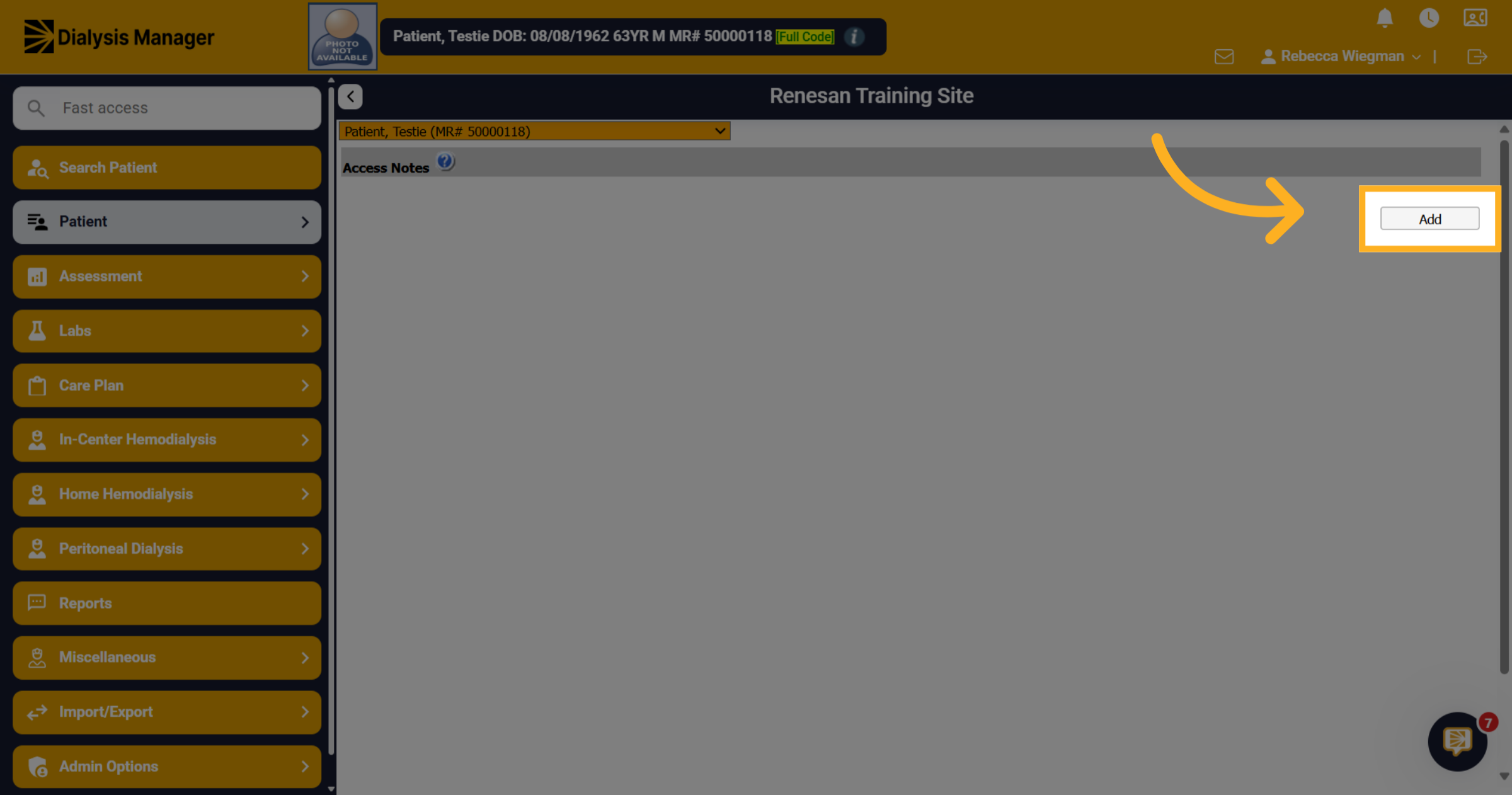
4. Click "Add"
Click Add to create a new note entry for the selected access.
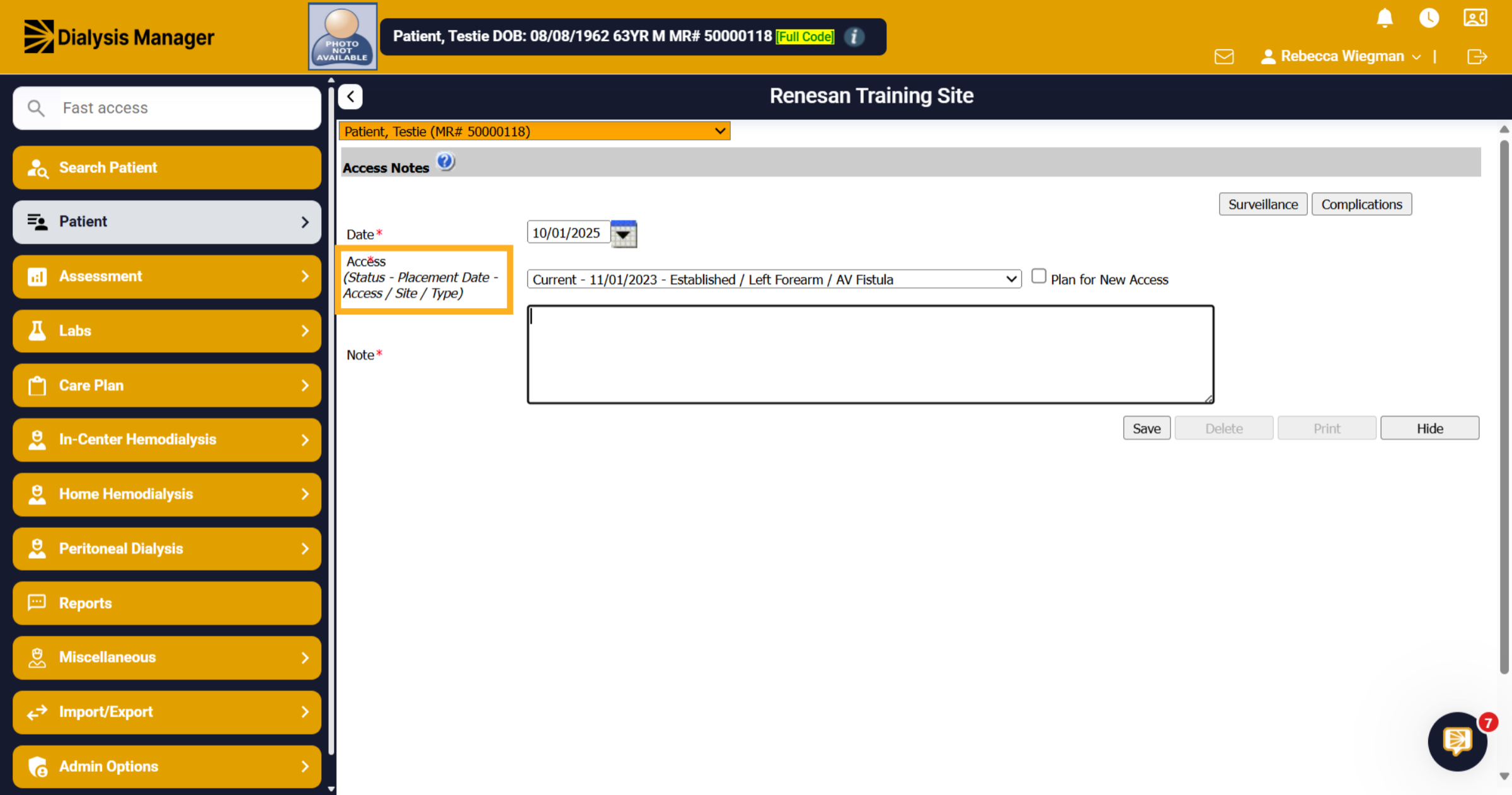
5. Select the Access
The date will auto populate. Click the Select Access dropdown and choose the access your would like to make a note on.
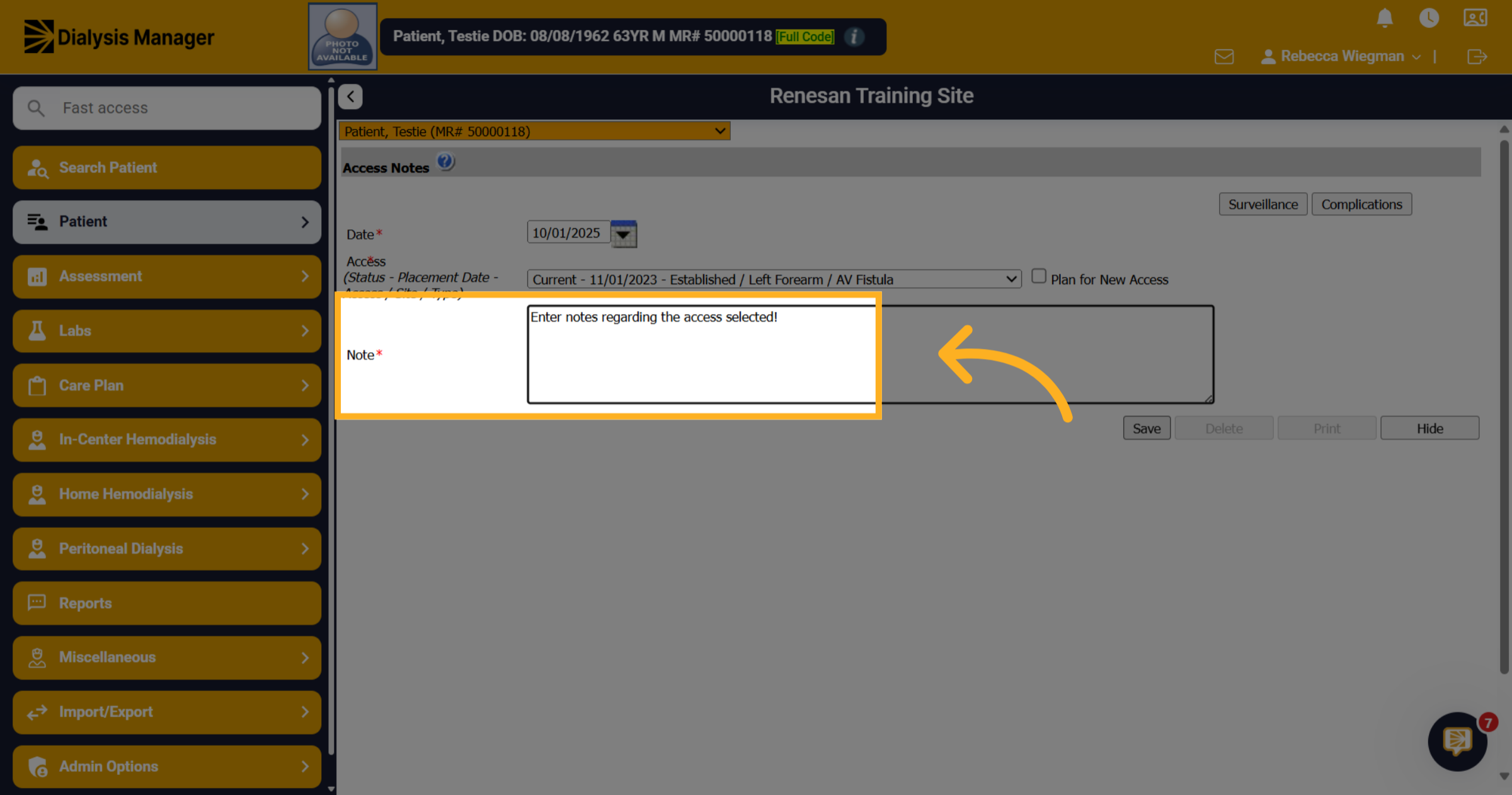
6. Enter "Notes"
Enter Notes related to your access.
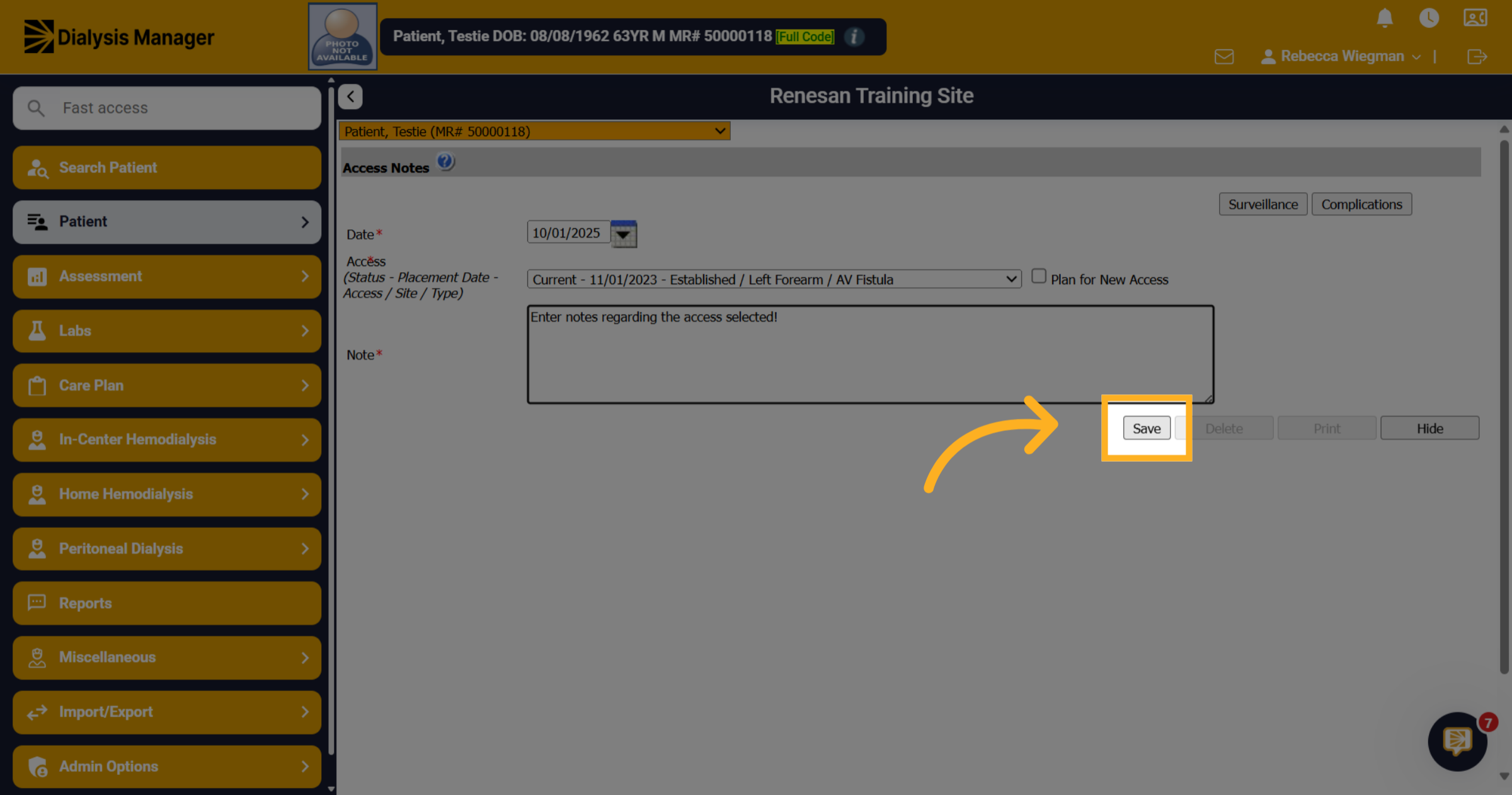
7. Click "Save"
Click Save to store the newly added notes. You will be asked to enter your username and PIN or password!
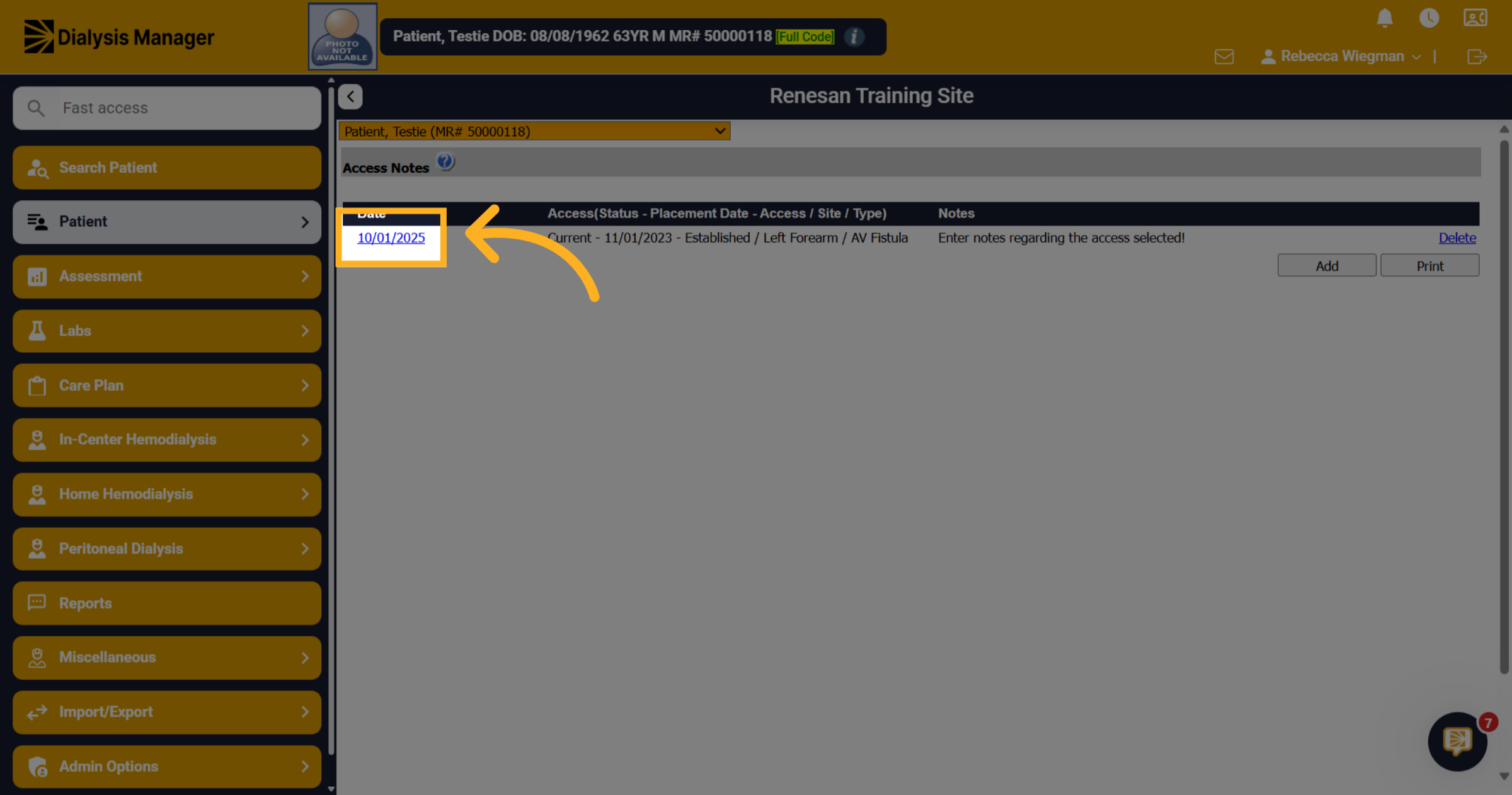
8. Updating notes
To make changes to the note select the date of the note inside the Access Notes section.
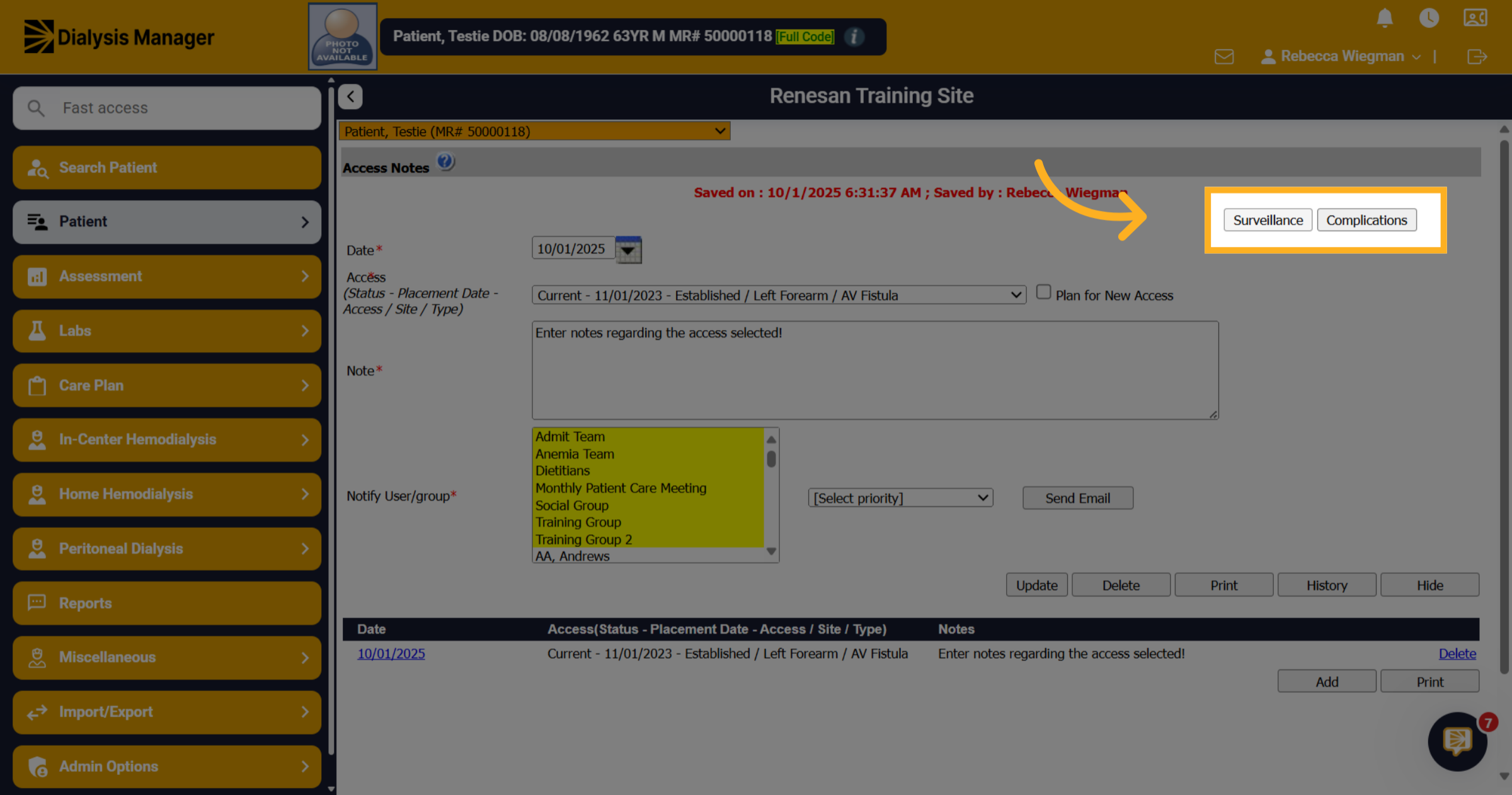
9. Click Surveillance and Complications
Click Surveillance to access monitoring details related to the access. Click Complications to review or add any issues associated with the access.
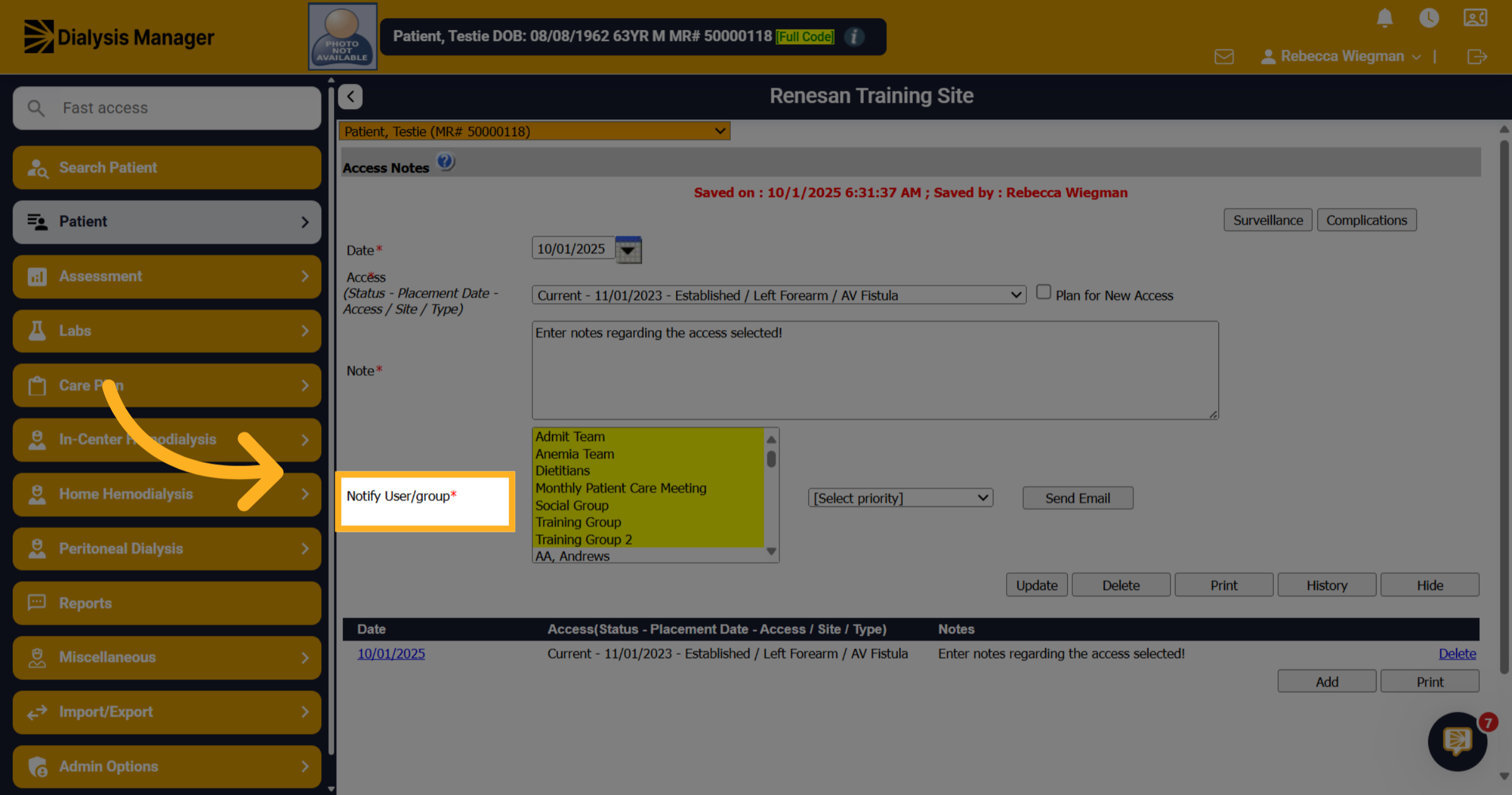
10. Notify other staff
Your also able to select multiple users or groups to notify them of the access note! Hold your "Control" key down on your keyboard and select multiple users.
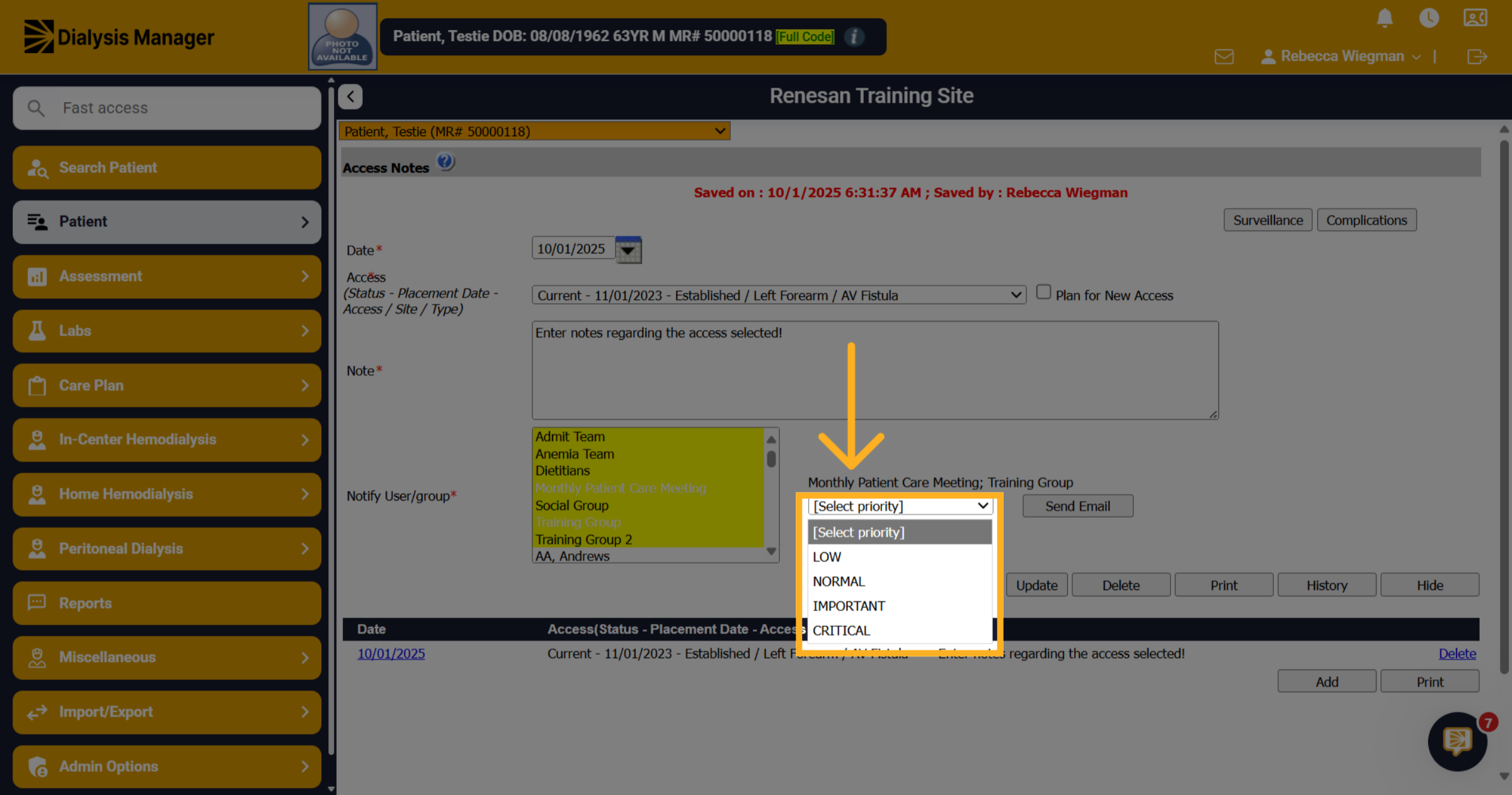
11. Select Priority
You will need to select a Priority from the dropdown.
12. Click "Send Email"
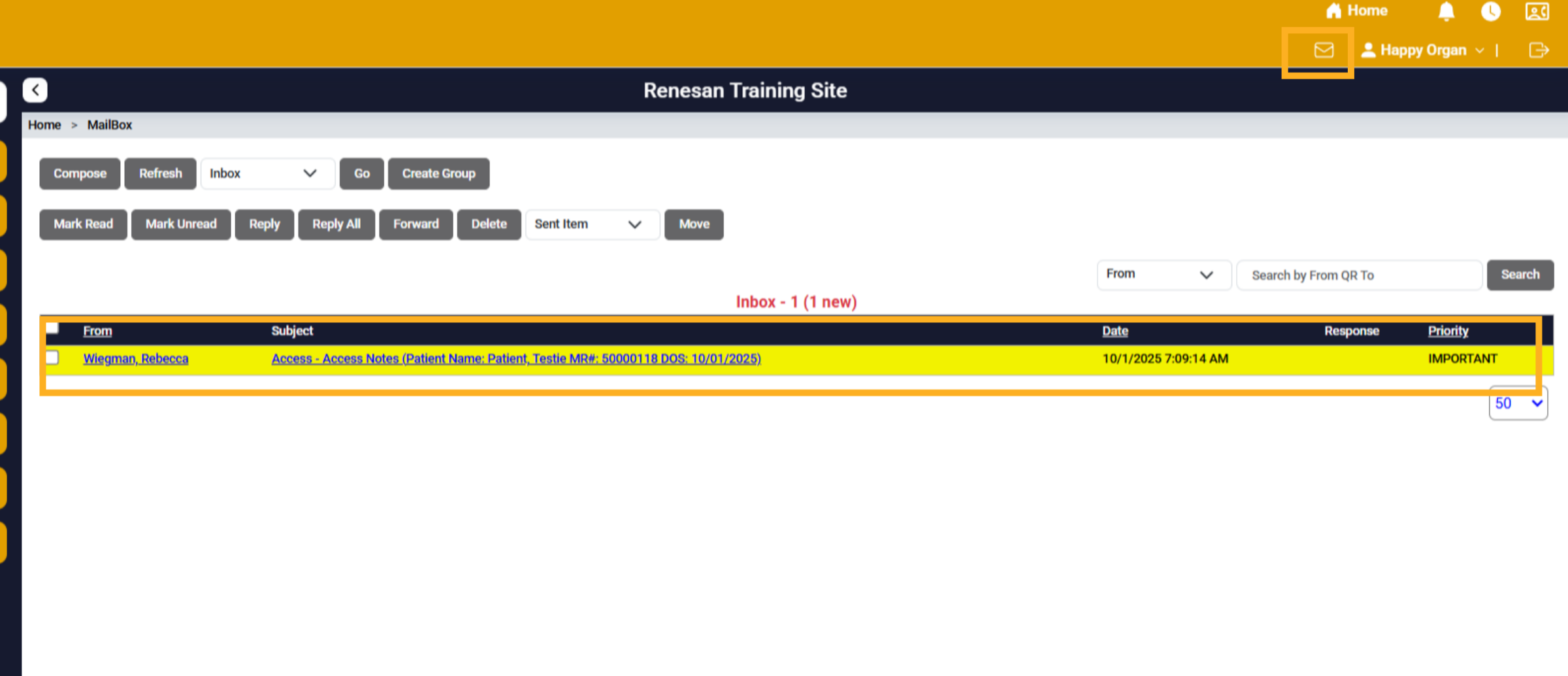
Click Send Email to distribute the note or information to the selected groups and recipients which will appear in their mailbox.
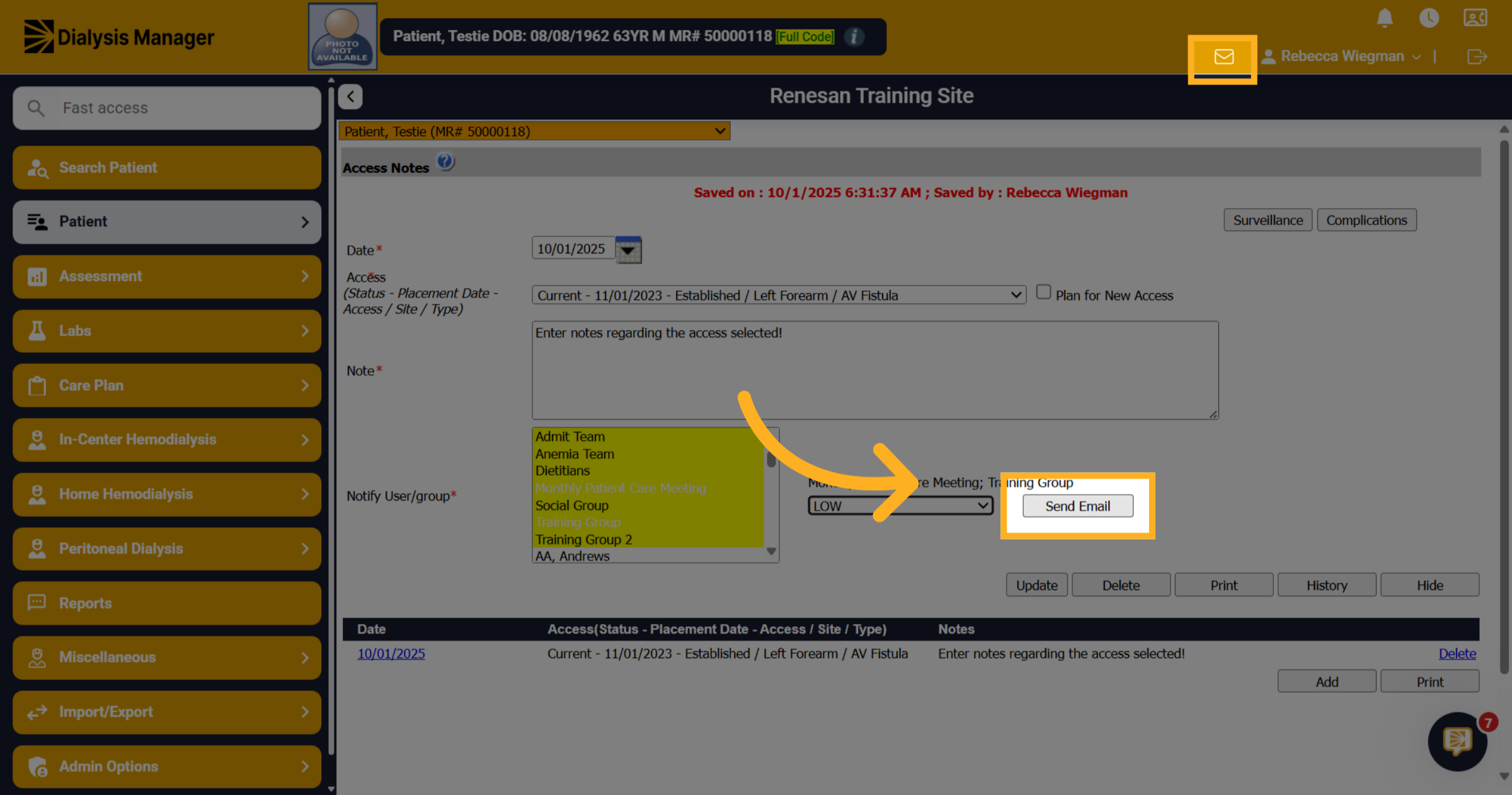
13. Mailbox
The note will be sent to the user's mailbox where they will be able to reply or forward to others!