Our new UF calculator allows facilities to take information stored within the system such as target weight (Dry Weight order), prosthetic/mobility device weight, dialysis treatment time and add measure weight along with fluid to be administered (IV or oral) and calculate both the UF Goal Volume and UF Rate prior to treatment.
Using the UF Calculator in RTC
1. Go to Treatments > Real Time Charting.
2. Select the clinic/patient from the drop down(s).
3. Populate the required items; Treatment Type, Location, Dialysis Prescription, and Pre Weight (kg).
4. Save Changes.
5. Select UF Calculator link.

6. Target Weight pulls in the Dry Weight from the selected Dialysis Prescription.
Note: This can be manually adjusted.
7. Enter the Measured Weight (weight of the patient at arrival).
8. Mobility Device/Prosthesis auto populates from the Patient's Height & Amputation History.
Note: This can be manually adjusted.
9. Pre-Weight field pulls in from the current RTC.
10. Enter the Total Fluid Admin in cc.
11. Click Calculate under the UF Goal Volume (cc).
12. UF Goal Volume will copy into the UF Rate Calculation.
Note: Click the Reset button to clear the Measured Weight or Total Fluid Admin or change the values and Press Calculate to adjust.
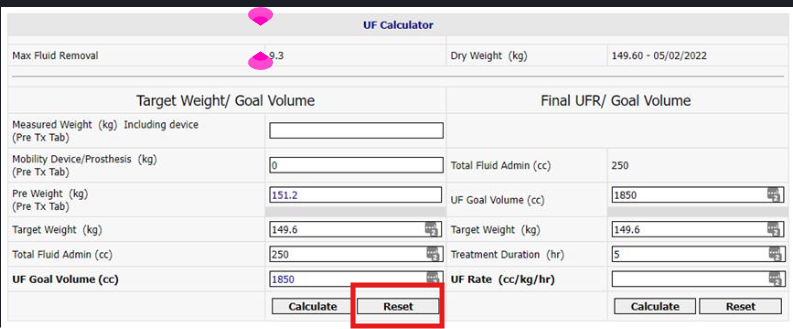
13. Treatment Duration auto populates from the selected Dialysis Prescription.
Note: This can be manually adjusted.
14. Click Calculate under the UF Rate.
Note: Click the Reset button to clear fields or change the values and Press Calculate.
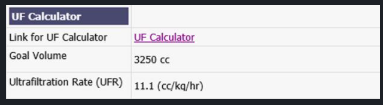
15. Enter Username & Password; Click Submit to save; or Cancel to close without saving.
How to add Mobility Device/Prosthesis Weight
1. From Clarity go to Registration > Patient Height & Amputation History.
2. Click Add New.
3. Enter Current Height, Measure Date, Mobility Device/Prosthesis, Device Weight.
4. Click Add.
Note: Only the current mobility device weight will populate to the calculator
UF Alert
UF Rate (calculated value) will appear in red if it is over the Organization's Set Value. This will display in red in the calculator and in RTC.
1. Within Clarity go to Organization > Preferences > Report Preferences
2. Update the Average UFR Over Threshold and Pop-up in RTC
3. Click Submit (at bottom of form)
