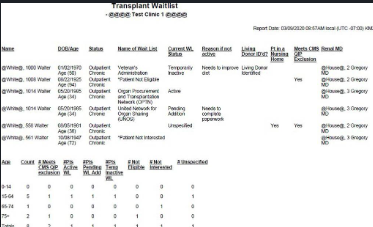
This QRG will assist users in adding or updating a patient's transplant status.
Documenting transplants has been broken up into three different sections.
Transplant Information to document any transplants the patient has had.
Transplant Waitlist is where you can document the activity of the waitlist.
Transplant workup pulls into here from any assessment (RIA, CIA, etc.) where staff document the process of patient getting transplant. (See Documenting a Transplant Workup below)
Adding Transplant Information
1. Click Registration > Transplant Management > Transplant Information
Note: Ensure the current patient is the correct one to view or modify (see the patient's name at the top left of the screen). If not, click CHANGE and select the appropriate patient.
2. Click Add New.
3. Enter Donor Type, Transplant Date and Hospital
- Note: If a hospital is not listed go to Organization > Hospitals. Make sure the Transplant Hospital option is checked.
4. If transplant is not functioning, select No and enter in date of return to regular dialysis
5. Comments can be added for any additional information
6. Click Add.
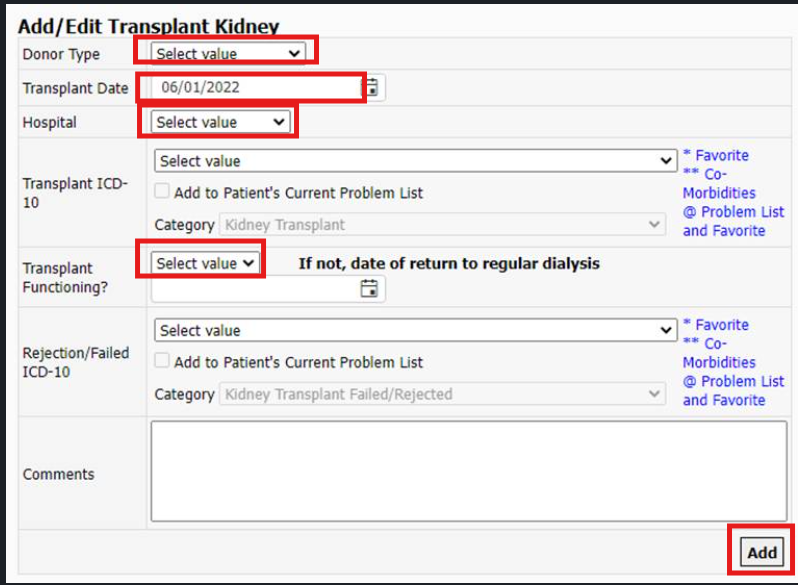
Note: If a transplant date is entered and the If not, date of return to regular dialysis is blank you will receive two messages.
Change the patient's status to Received Transplant
Discontinue ALL orders on the patient.
7. After clicking Add, you will receive these two pop-ups:
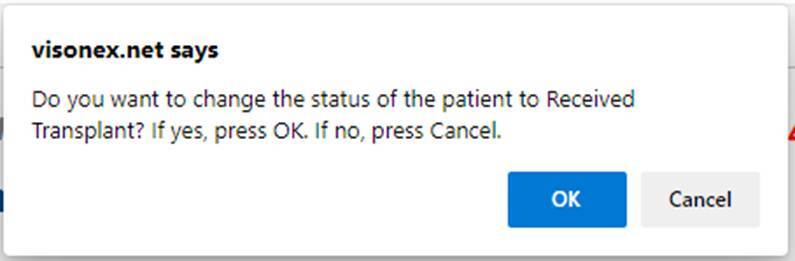
- If you select Cancel, you will need to go to Registration > Patient Status History to update the status.
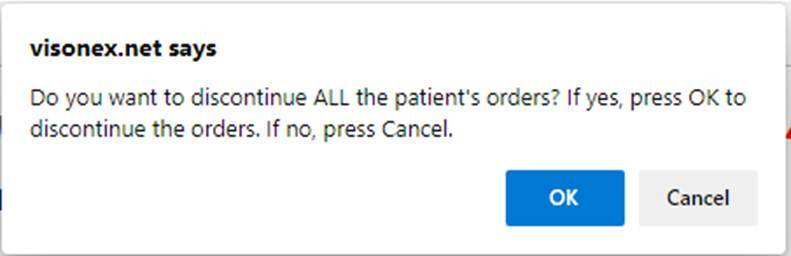
- If selecting Cancel, you will need to update Patient > Patient Schedule.
Reminder: for EQRS submission clients: Go to Registration > Patient Clinic History to add the loss and Network Event of: 5A=LOSS: transfer out of TRPLNT in US.
Editing Transplant Information
1. Click Registration > Transplant Management > Transplant Information.
Note: Ensure the current patient is the correct one to view or modify (see the patient's name at the top left of the screen). If not, click CHANGE and select the appropriate patient.
2. Select Date of Transplant that you want to edit.
3. Make the desired changes.
4. Click Submit.
Transplant Waitlist
1. Click Registration> Transplant Management > Transplant Waitlist
Note: Ensure the current patient is the correct one to view or modify (see the patient's name at the top left of the screen). If not, click CHANGE and select the appropriate patient.
2. Click Add New.
3. Select Name of Wait List.
a. List can be updated by Super User, Maintenance > Lists > Transplant Wait List Name.
4. Select Status, and appropriate fields.
5. Click Add.
Editing Transplant Waitlist
1. Click Registration > Transplant Management > Transplant Waitlist.
Note: Ensure the current patient is the correct one to view or modify (see the patient's name at the top left of the screen). If not, click CHANGE and select the appropriate patient.
2. Select Updated Date of the Waitlist you would like to edit.
3. Make the desired changes.
4. Click Submit.
Add Transplant Workup to assessment
Note: The Transplant work up section can be added to any assessment in Clarity by a Super User or by contacting Renvio Support Services.
1. Click Maintenance > Checklist Edit > Patient Assessment Editor > select Assessment Items of the desired assessment.
2. Add New Section.
3. Select Transplant Workup.
4. Select Placement Order.
5. Click Submit.
Documenting a Transplant Workup
1. Patient > Patient Assessments > select desired assessment.
2. Select Clinic and Patient or type in patient's name.
3. Document Transplant Workup.
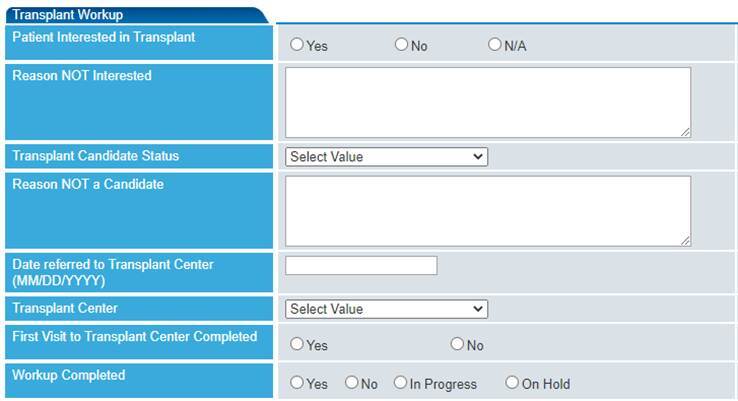
4. Enter Username/ Password, Save Changes
There are two configurable dropdowns
1. Transplant Candidate Status Maintenance > Report Configuration > Transplant Categories
2. Transplant Center - Organization > Hospitals

Note: To view Previous Transplant Work up add checklist library item Last Transplant work up. This line item will pull the last Transplant work up from the Transplant work up form.
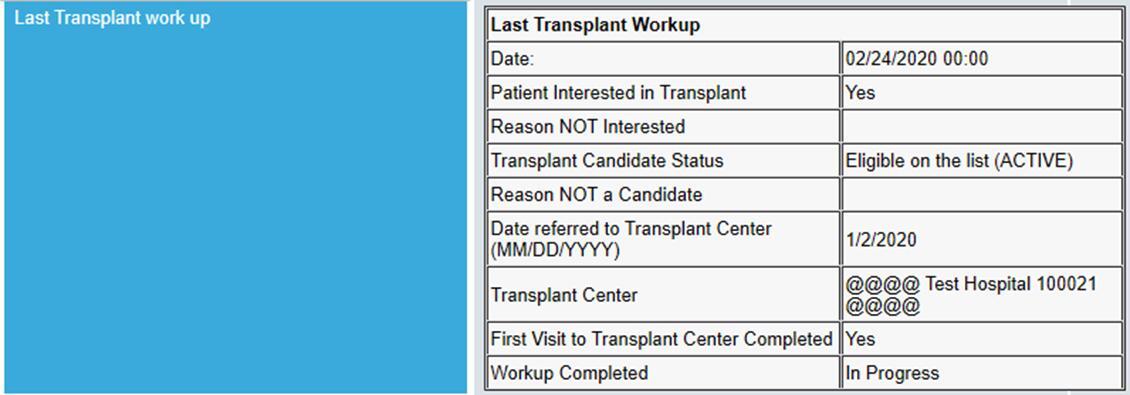
Note: Screenshot below from Registration > Transplant Information > Transplant Workup.
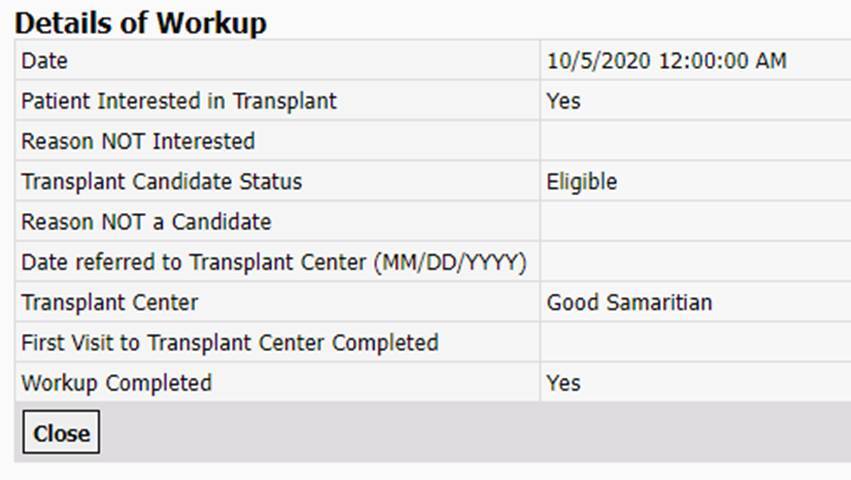
Viewing Transplant Workup
1. Click Registration > Transplant Management > Transplant Workup
Note: Ensure the current patient is the correct one to view or modify (see the patient's name at the top left of the screen). If not, click CHANGE and select the appropriate patient.
2. Select Date of Checklist to open the Transplant Workup Details
3. To add or edit the current Transplant Workup, select link to Assessment. The Date of the checklist will not change
4. If you want a history of changes, open new assessment to document Transplant Workup.
Transplant Reports
1. Patients by Transplant Status
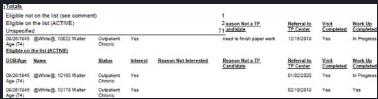
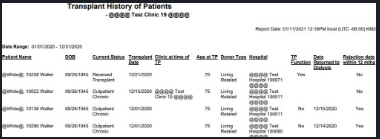
2. Transplant History of Patients
3. Patients Transplant Waitlist