Use this QRG to explain the difference between report types in Clarity.
Clinic Reports
1. Go to Reports > Report Wizard.
2. Report Wizard will default to Clinic reports.
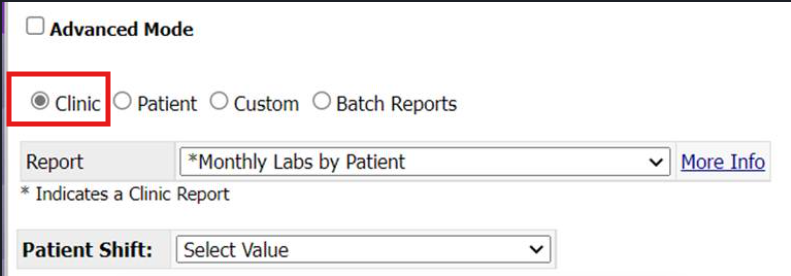
3. Clinic reports show users how all their patients are doing collectively, give totals of clinic patients, what patients are due for updates, etc.
Some reports are configurable, you can easily tell if they are by clicking the More Info after selecting a report.
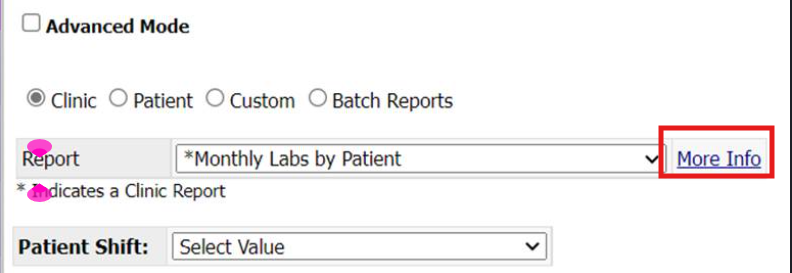
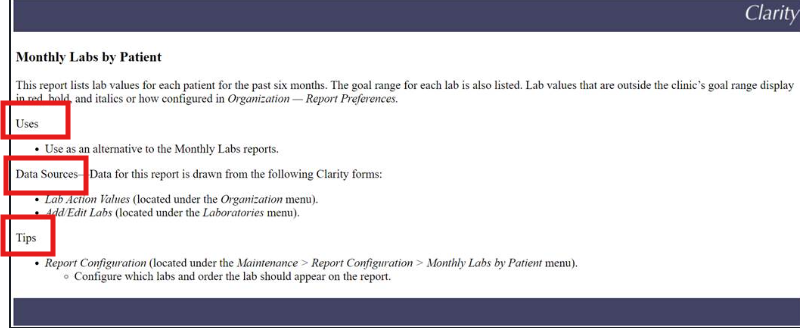
4. The More Info button will provide users with an explanation of the report, its uses, where it pulls its data from, and some have Tips that will let the user know any calculations, where it can be configured, or if a support member will have to help them configure it.
5. To quickly find what a report is and what it looks like, go to Help > Checklist/Report Samples to see a generic copy of the report. In that screen, you can search specific words to have it pull up different reports that can help the user find the information they are looking for.
Patient Reports
1. Under the Patient option, there are reports that are specific to one patient. When the Patient option is chosen, either a patient will show up at the top, or it will ask you to Select a Patient by clicking Change.
Some users want to run patient reports for all patients; by not having a patient selected, it will run for every patient in the facility after clicking Run Report then saying Ok to this dropdown
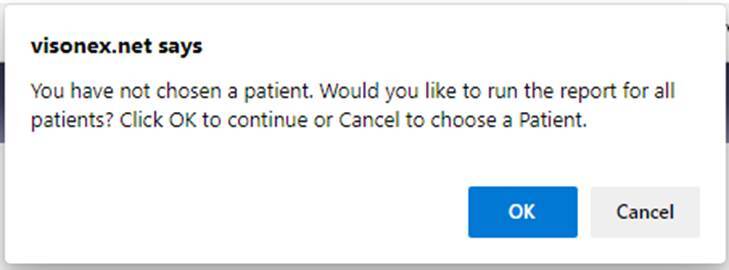
If a patient is already selected but they want a report for all patients, click Change, then go back to Reports > Report Wizard without selecting a patient.
Custom Reports, Batch Reports, and Advanced Mode
1. Custom reports are reports created by users under Reports > Create Custom Reports or Custom Checklist Reports.
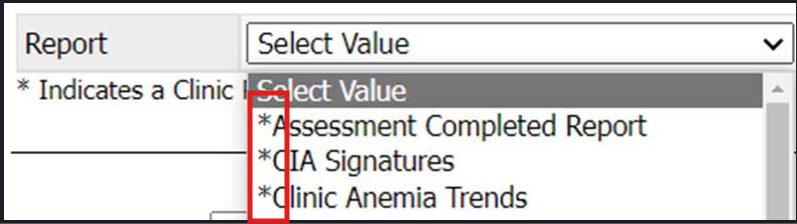
If a report is a clinic report, it will have * before the title.
2. Batch reports are reports that have saved configurations or a group of reports to be ran all at once. When a user configures a report or reports by selecting a specific shift, date range, or status, they can save those changes and give them a name. To create a batch report, users must go into Advanced Mode.
3. Advanced Mode is an area where uses can configure their reports to meet specific needs, such as having different patients, statuses, clinics, providers, etc.
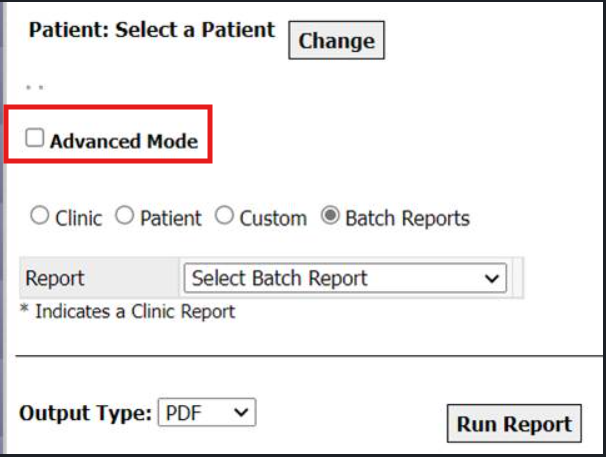
a. Using Advanced Mode for Clinic reports and Patient reports.
i. After users select a clinic report, shift (by leaving the shifts as Select Value, it will automatically choose all shifts), and date range (if applicable), then clicking Advanced Mode, it will take them to a page that displays report names, ignore this page and click Next in the bottom right corner.
ii. This page will allow the user to run reports for multiple clinics, specific shifts, patient statuses, care providers, and allow users to display all patients. Users can remove specific patients if need be.
iii. If running a patient report, by displaying all the patients in the right box by clicking Show Patients, this will cause the report to run for all patients.
b. Using Advanced Mode to edit a Batch report.
i. Choose the Batch report option then click Advanced Mode.
ii. Choose a Batch report in the Select Batch Report dropdown.
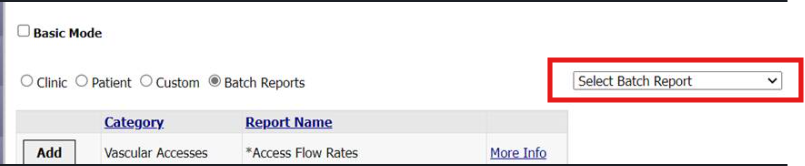
iii. This will display all reports associated with the Batch.
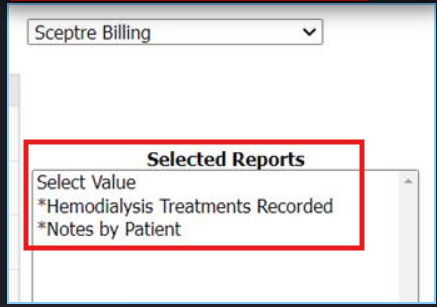
iv. Next.
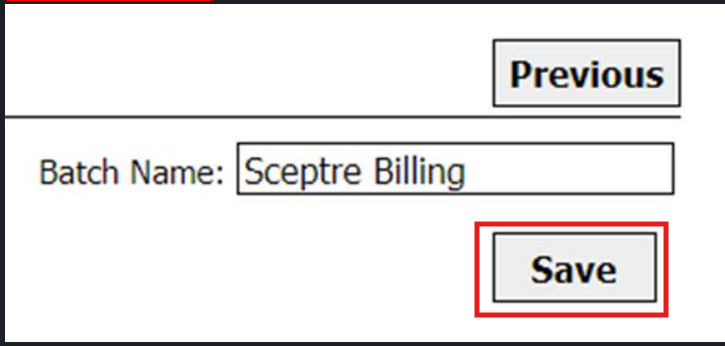
v. Make desired changes to the current configurations. To save the new configurations, scroll to the bottom of the page and click Save under the batch name.
d. Using Advanced Mode to create a Batch report.
i. Choose desired report, shift, and date range > Advanced Mode.
ii. If the user is wanting multiple reports to pull in, add them in using this screen.
1. Not any report can be added to the batch, reports must be on the same framework to be able to create a batch.
2. Can only pull in 5 reports at a time.
iii. Once all reports have been selected, create a name at the bottom in the Batch Name box, then click Save.
iv. To create further configurations, click Next, make changes, then click Save.