Users can use this guide to assist on how to use the Patient Infection area in Clarity.
Entering in a Patient Infection
1. Go to Patient > Patient Infection.
2. Add New.
3. Enter in a Suspected Infection Start Date and, if applicable, a Date Infection Confirmed.
Note: Once a Date Infection Confirmed is entered, users will be unable to change Suspected Infection Start Date, Date Infection Confirmed, or Infection Source.
4. Fill out required fields > Add.
5. If Patient did NOT have symptoms was selected, all other options are greyed out. To be able to add symptoms, uncheck Patient did NOT have symptoms > select symptoms > Submit.
Note: This can be changed after Date Infection Confirmed is entered.
6. Filling out Infection Requiring Hospitalization will not update the patient status nor add in a hospitalization.
If patient was hospitalized, go to Patient > Hospitalizations & Consultations to enter in the hospitalization.
7. Add.
Entering in an Infected Dialysis Access.
1. Go to Patient > Patient Infection.
2. Add New.
3. Enter in a Suspected Infection Start Date, and if applicable, a Date Infection Confirmed.
Note: Once a Date Infection Confirmed is entered, users will be unable to change Suspected Infection Start Date, Date Infection Confirmed, or Infection Source.
4. For the Infection Source, choose the dialysis access.
Update Access information as needed, this will update the status of the dialysis access. These changes can be seen and updated in Patient > Dialysis.

5. Under Problems/Symptoms, check Vascular Access Site pus, redness, or increased swelling (NHSN Dialysis Event) > check access option that is displaying symptoms.
6. Fill out required fields.
7. Add.
Ending an Infection.
1. Go to Patient > Patient Infection > choose the infection.
2. Scroll to the bottom > fill out the Outcome section.
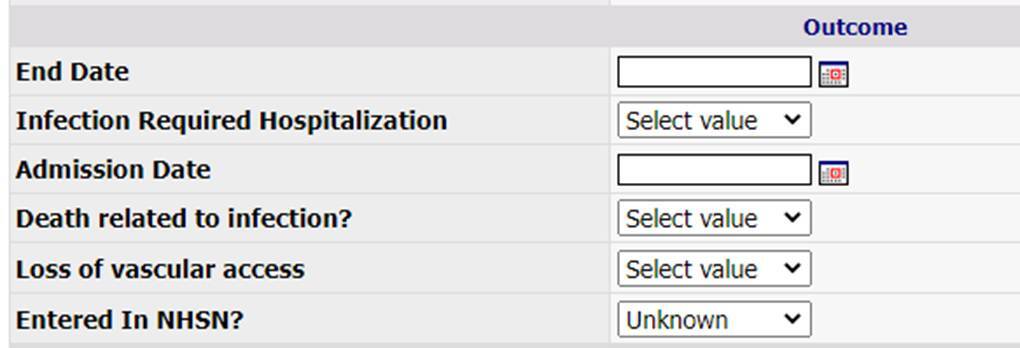
3. Add.
Ending an Infected Dialysis Access.
1. Go to Patient > Patient Infection.
2. Choose the infected dialysis access.
3. Scroll to the bottom > fill out the Outcome section.
4. Add.
5. Go to Patient > Dialysis Accesses > select the dialysis access.
6. Under Access Events, in the dropdown box, choose Other/Status Change > Add New.

7. Update the access to the proper status, if it is active, and if it is the primary access > Add.