Void and Copy Claim: A Quick Reference Guide for Billers
1. How to Void and Copy a Claim
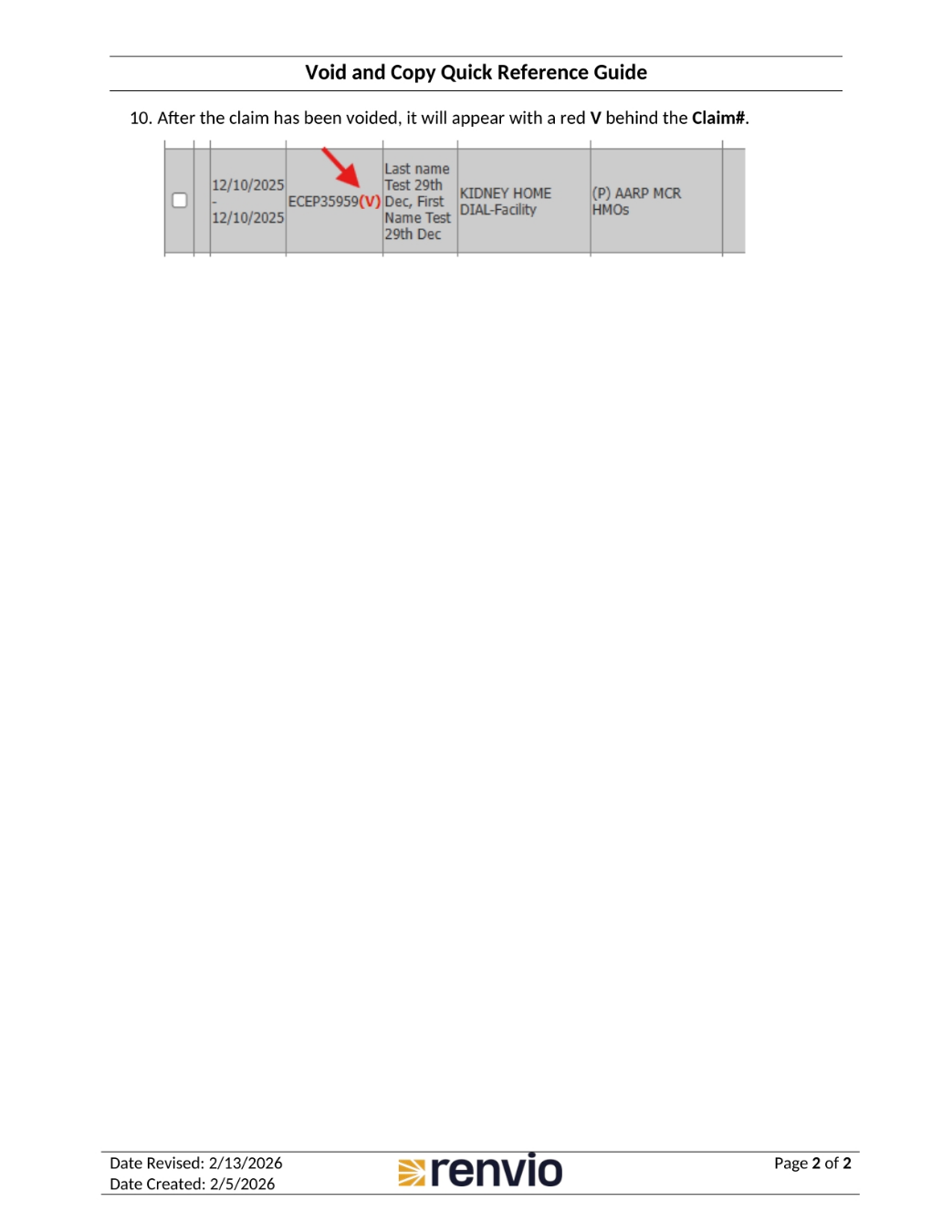
This guide outlines the steps to void and copy a claim within Renvio. This process is applicable only to claims that are part of a monthly financial hard lock. If the claim is not part of a monthly financial hard lock, you'll need to archive it and create a new one by navigating to Billing, then Add/View Claim Institutional. For additional assistance, consult our chat bot, located in the bottom right corner of your screen. First, go to Billing and then Claim Processing. Next, update the search criteria to locate the claim and click View. On the right side of the screen, click the dollar sign icon. At the bottom of the popup, click Void and Copy. Then, click OK on the popup.
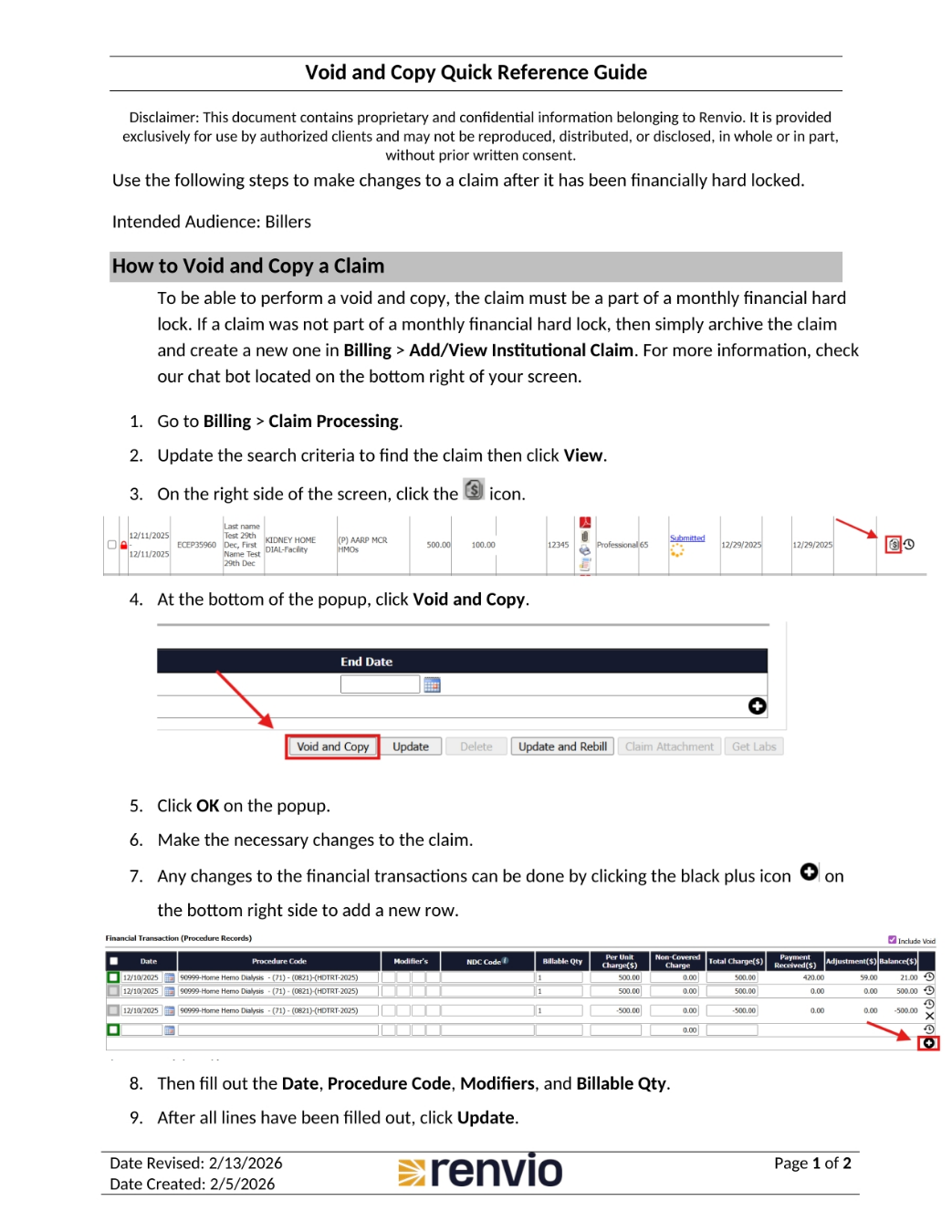
2. Voided Claim Indication
After clicking OK, make the necessary changes to the claim. Any changes to the financial transactions can be made by clicking the black plus icon on the bottom right side to add a new row. Fill out the Date, Procedure Code, Modifiers, and Billable Quantity. After all lines have been filled out, click Update. After the claim has been voided, it will appear with a red V behind the Claim number.