Setting Up an Antibiotic for Billing: A Step-by-Step Guide
1. Adding a New Medication in Dialysis Manager
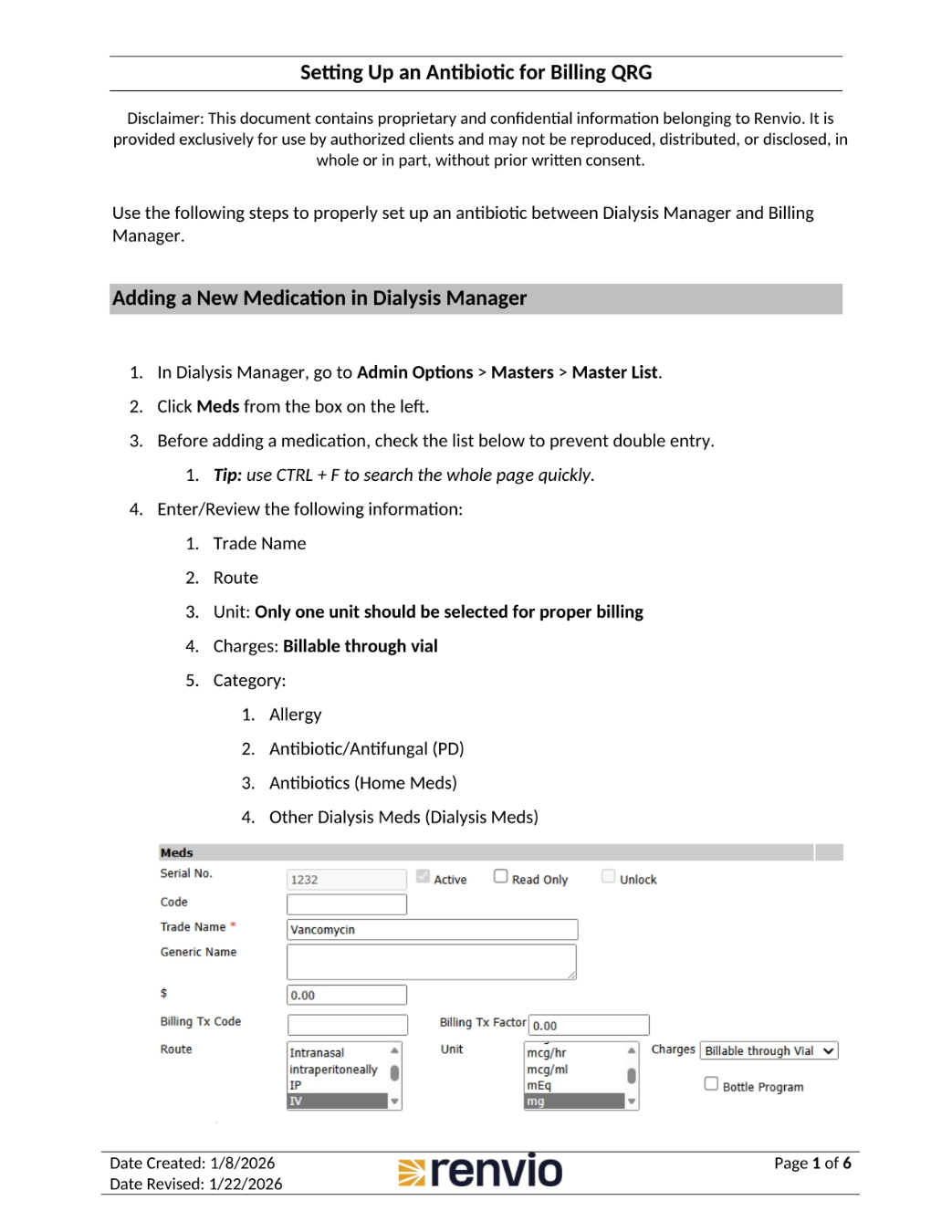
This document outlines the steps to properly set up an antibiotic for billing between Dialysis Manager and Billing Manager. First, in Dialysis Manager, navigate to Admin Options, then Masters, and select Master List. Next, click Meds from the box on the left. Before adding a medication, check the list to prevent duplicate entries, using CTRL plus F to quickly search the page. Finally, enter or review the trade name, route, and unit, ensuring only one unit is selected for proper billing. Also, confirm charges are billable through vial and select the appropriate category.
Additionally, it is important to verify the HCPCS code and billing unit for the medication being added. HCPCS codes are used to identify specific drugs and their billing units, which may differ from the product's labeled strength. For example, J3376 represents a 10 mg billing unit, not a 500 mg unit. Confirming the product strength and matching it to the appropriate HCPCS code ensures accurate billing and compliance.
2. Configuring Dose Details and Billing Setup
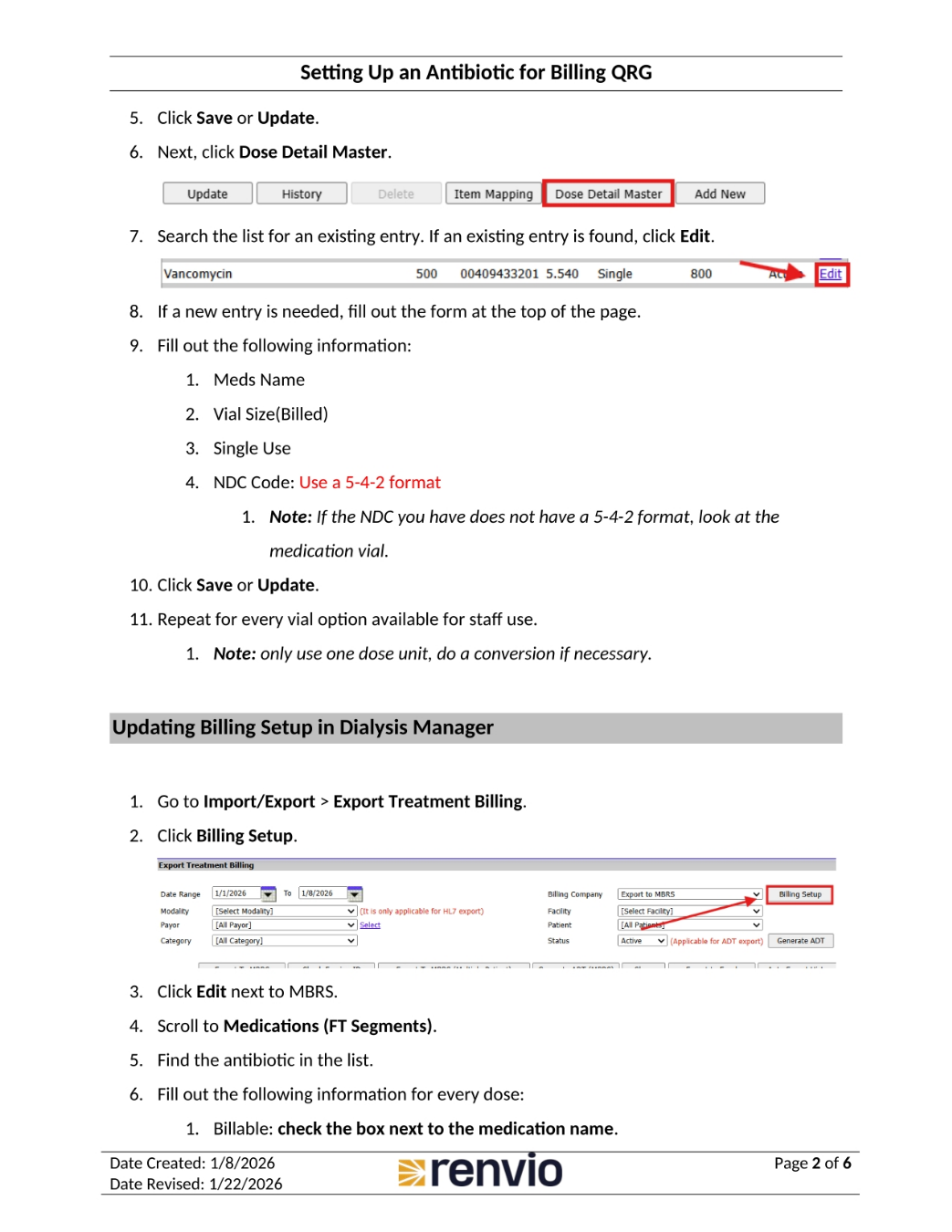
Click Save or Update, then click Dose Detail Master. Search the list for an existing entry; if one is found, click Edit. If a new entry is needed, fill out the form at the top of the page with the Meds Name, Vial Size, and Single Use details. Enter the NDC Code using a 5-4-2 format, referencing the medication vial if needed. Click Save or Update, and repeat for every vial option available for staff use, ensuring only one dose unit is used, with a conversion if necessary. To update the billing setup, go to Import/Export, then Export Treatment Billing, and click Billing Setup. Click Edit next to MBRS, scroll to Medications, find the antibiotic, and check the box next to the medication name to make it billable.
When entering the NDC Code, also consider the HCPCS code and its associated billing unit. For instance, if the HCPCS billing unit is 500 mg and the medication vial contains 1 gram (1,000 mg), you would need to report two billing units. This ensures that the billing aligns with the administered dose and avoids discrepancies.
3. Completing Billing Setup and Revenue Master
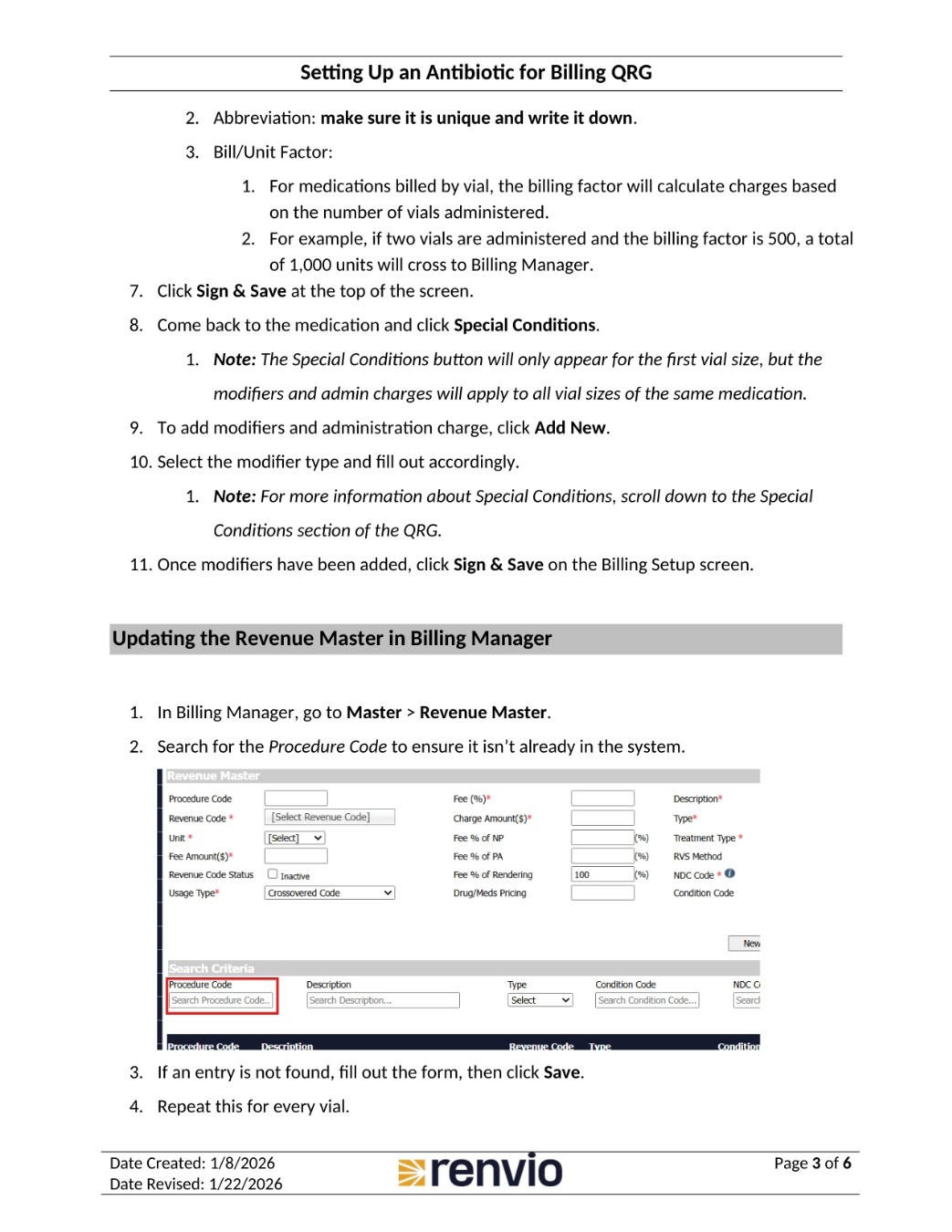
Ensure the abbreviation is unique and written down. For medications billed by vial, the billing factor will calculate charges based on the number of vials administered. For example, if two vials are administered and the billing factor is 500, a total of 1,000 units will cross to Billing Manager. Click Sign and Save at the top of the screen. Return to the medication and click Special Conditions. To add modifiers and administration charges, click Add New, select the modifier type, and fill it out accordingly. Once modifiers have been added, click Sign and Save on the Billing Setup screen. To update the Revenue Master in Billing Manager, go to Master, then Revenue Master. Search for the Procedure Code to ensure it isn't already in the system. If an entry is not found, fill out the form, then click Save. Repeat this for every vial.
To further ensure accuracy, calculate the billing units based on the HCPCS code and the administered dose. For example, if the billing unit is 500 mg and two vials of 1 gram each are administered, report 4 billing units. This step is crucial for compliance and proper reimbursement.
4. Updating Charge Master and Special Conditions
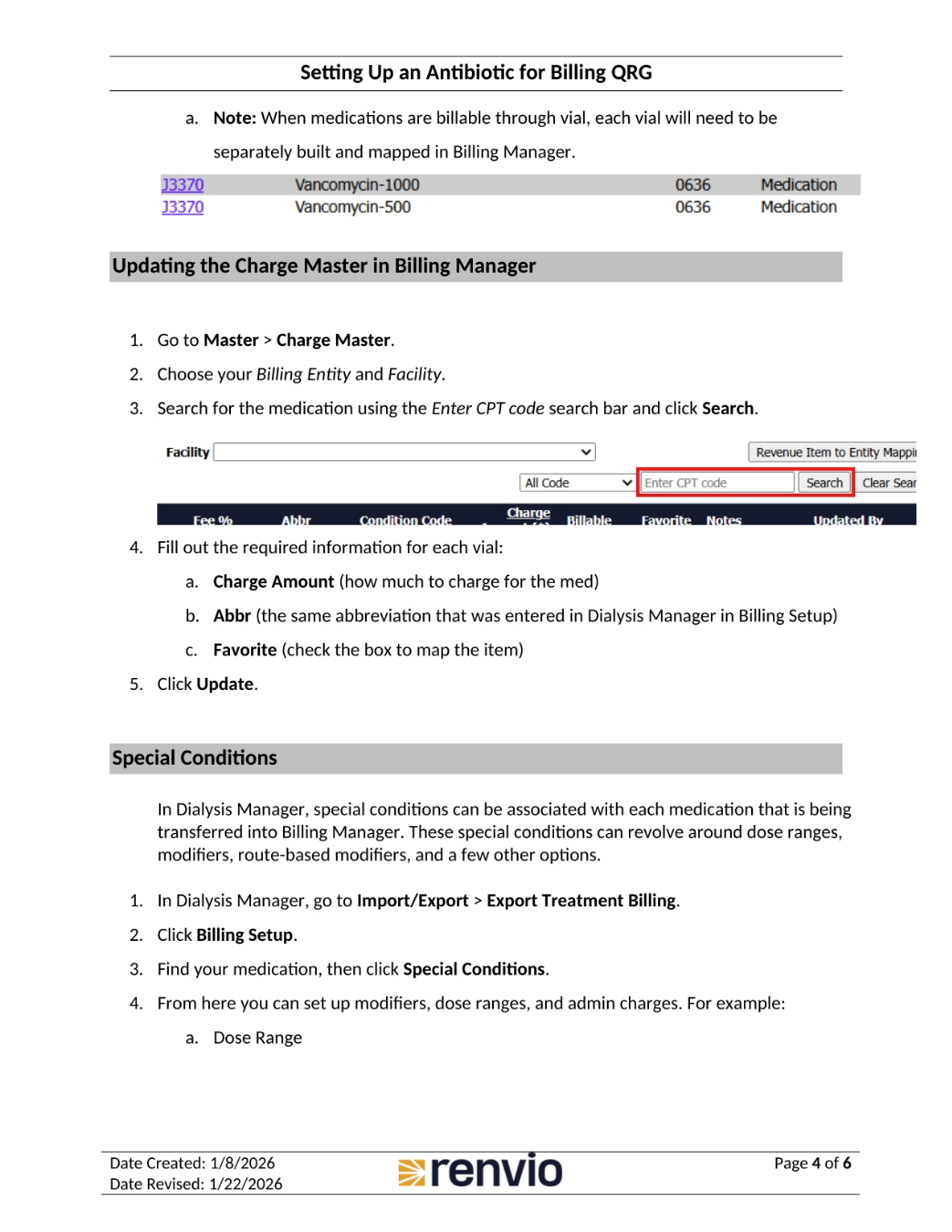
When medications are billable through vial, each vial will need to be separately built and mapped in Billing Manager. To update the Charge Master in Billing Manager, go to Master, then Charge Master. Choose your Billing Entity and Facility. Search for the medication using the Enter CPT code search bar and click Search. Fill out the required information for each vial, including the Charge Amount, Abbreviation, and Favorite. Click Update. In Dialysis Manager, special conditions can be associated with each medication being transferred into Billing Manager. To set these up, go to Import/Export, then Export Treatment Billing. Click Billing Setup, find your medication, then click Special Conditions. From here, you can set up modifiers, dose ranges, and admin charges.
Before updating the Charge Master, verify that the HCPCS code and billing unit for the medication are correct. This step ensures that the Charge Master reflects accurate billing details and prevents errors during claim submission.
5. Setting Up Modifiers and Admin Charges
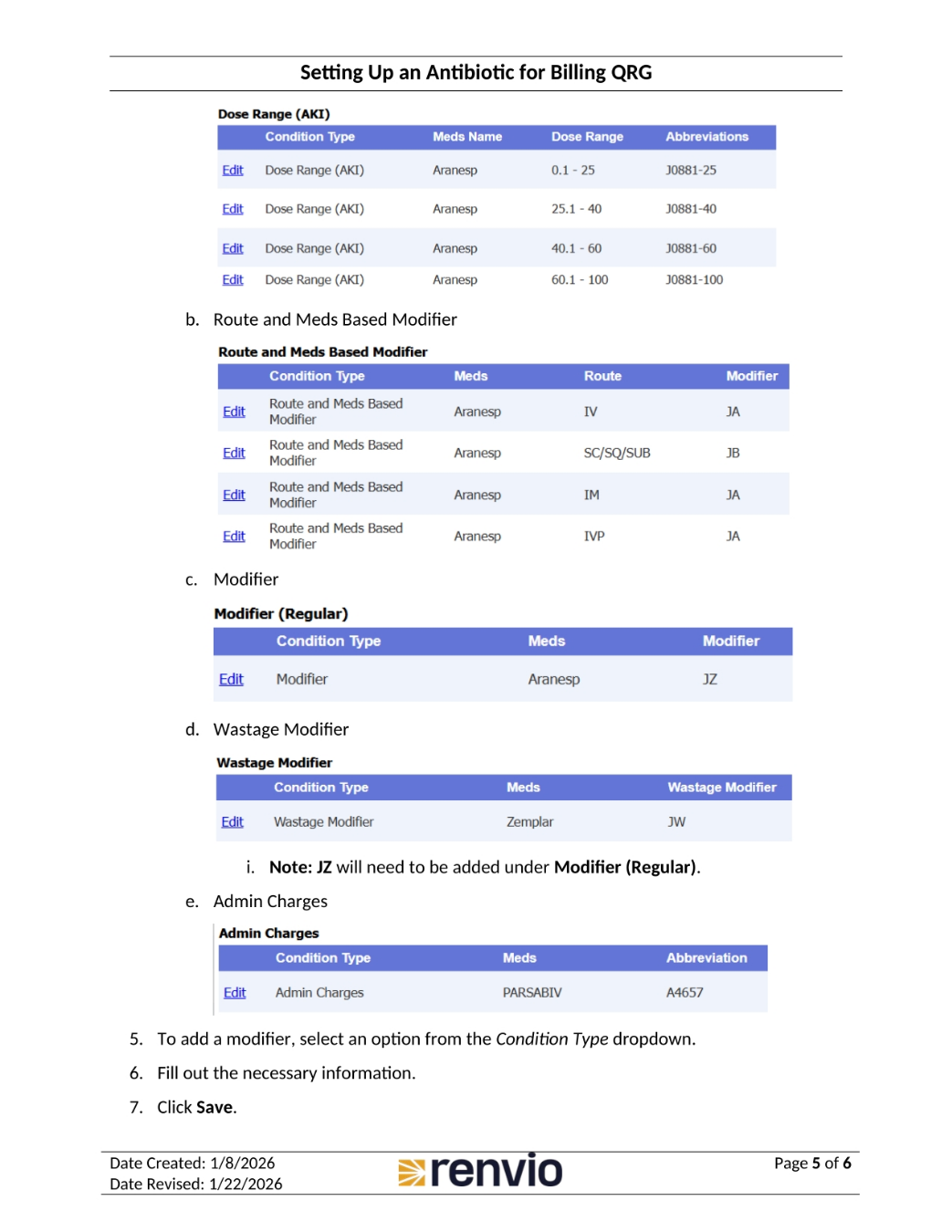
You can configure dose range, route and meds based, and wastage modifiers. Note that JZ will need to be added under Modifier (Regular). To add a modifier, select an option from the Condition Type dropdown. Fill out the necessary information and click Save.
6. Setting Up an Antibiotic for Billing QRG
Accurate billing of medications using HCPCS (Healthcare Common Procedure Coding System) codes is essential for ensuring compliance and proper reimbursement. This guide provides a step-by-step approach to selecting the correct HCPCS code, verifying product strength and billing units, and updating billing systems.
Overview of HCPCS Codes and Billing Units
HCPCS codes are used to identify specific drugs and their billing units. Each code corresponds to a defined billing unit, which may differ from the product's labeled strength. For example, J3376 represents a 10 mg billing unit, not a 500 mg unit. It is crucial to confirm the product strength and match it to the appropriate HCPCS code to avoid billing errors.
Steps to Verify Product Strength and Billing Units
Check the Vial Label: Review the medication's vial label to determine the product's strength (e.g., 1 gram or 10 mg).
Understand the Billing Unit: Identify the billing unit associated with the HCPCS code you plan to use. For instance, if the billing unit is 500 mg, a 1 gram (1,000 mg) dose would equal two billing units.
Calculate the Total Units: Based on the administered dose, calculate the total number of billing units required. For example, if the administered dose is 1 gram and the billing unit is 500 mg, report 2 units.
Guidelines for Selecting the Correct HCPCS Code
Match the HCPCS code to the product's strength and the billing unit.
Ensure the selected code accurately reflects the dose administered and billed.
Double-check the code and billing unit to prevent discrepancies.
Updating Billing Systems
To ensure seamless billing, update the following systems:
Revenue Master: Add the new drug code and ensure it aligns with the HCPCS code and billing unit.
Charge Master: Update the Charge Master with the correct drug code and billing details.
Dispensing/Medication Module: Verify that the dispensing system reflects the updated HCPCS code and billing unit before submitting claims. By following these steps, you can ensure accurate billing and compliance with HCPCS coding requirements.