Creating a New Role in Billing Manager: Quick Reference Guide
1. Adding a New Role
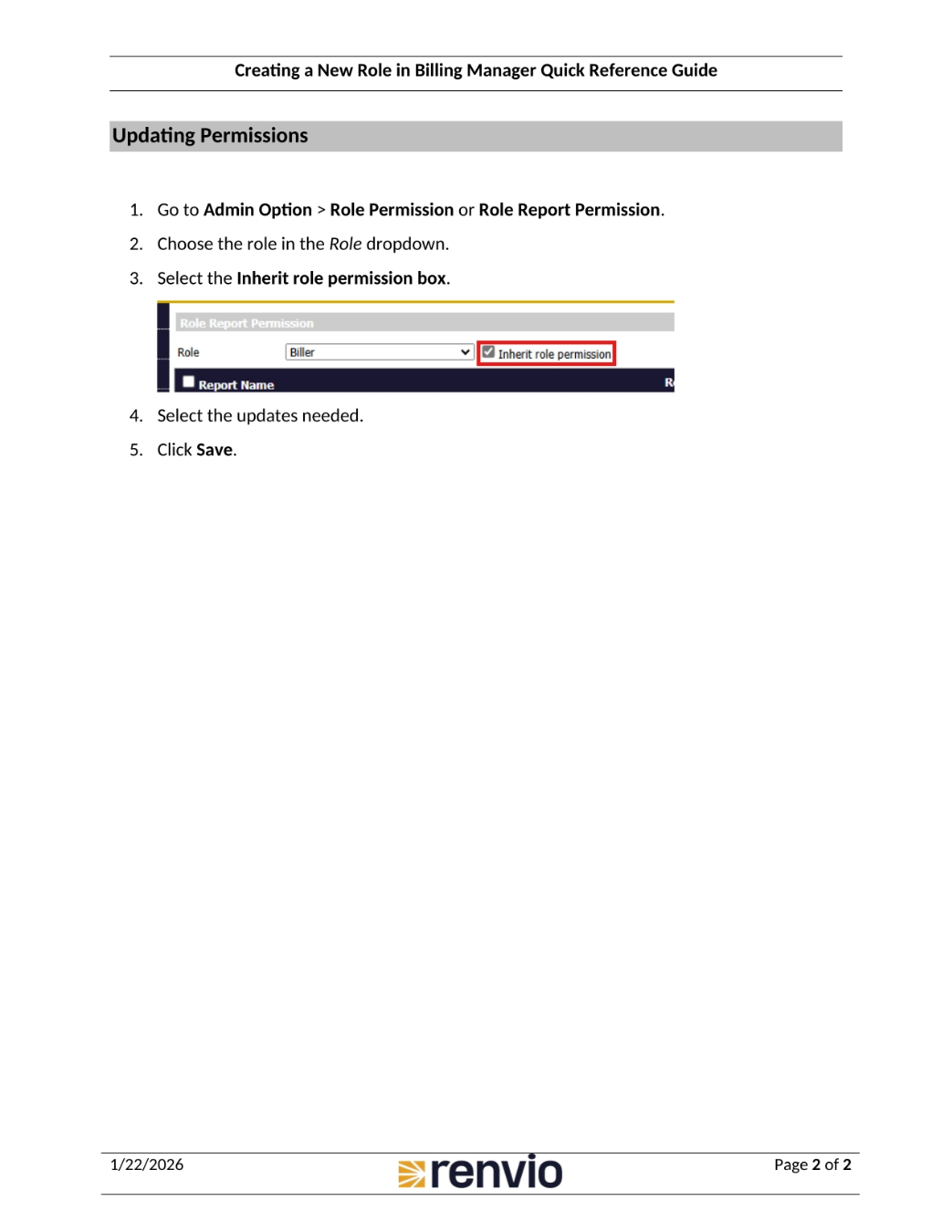
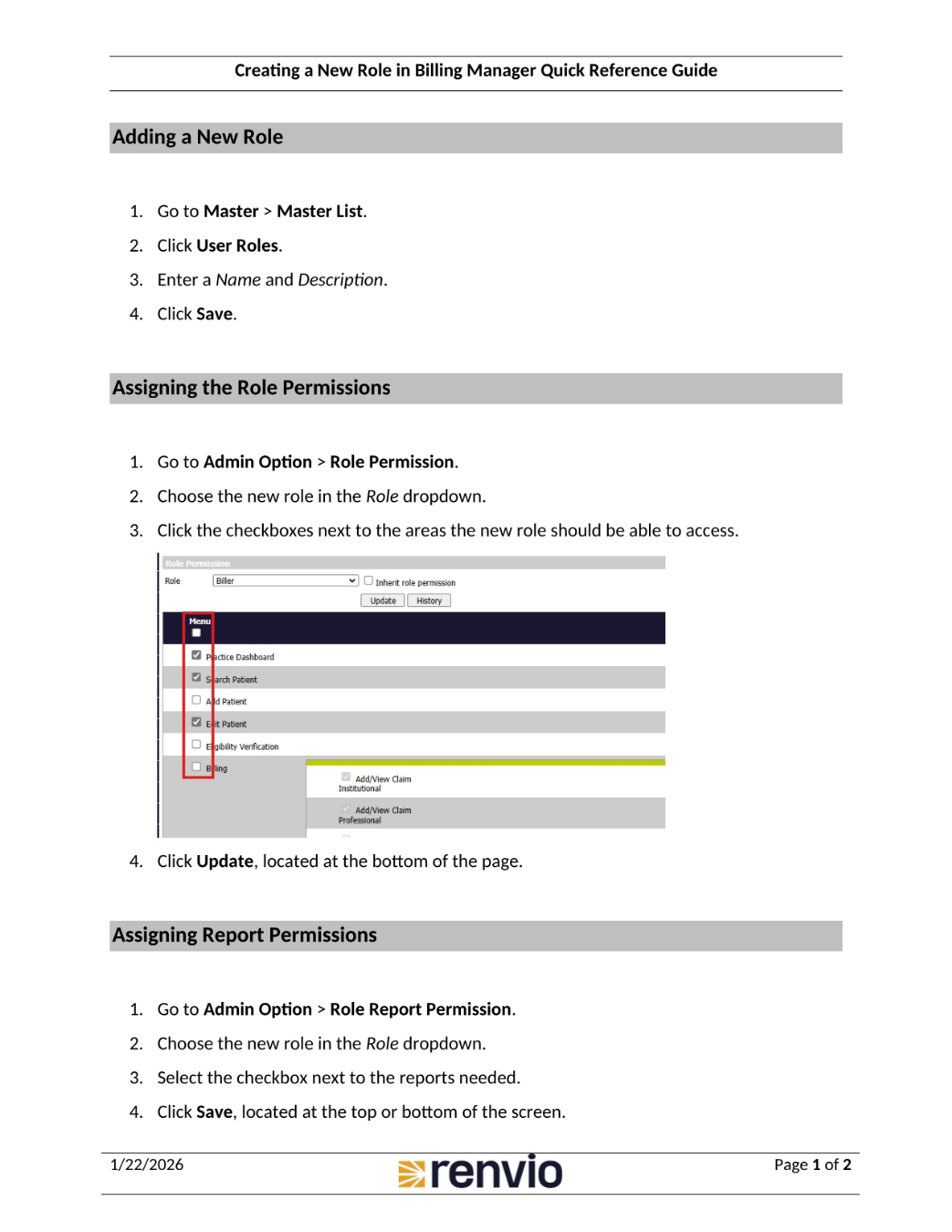
To add a new role, first navigate to Master, then Master List. Next, click User Roles and enter a name and description for the new role. Finally, click Save. To assign role permissions, go to Admin Option, then Role Permission. Choose the new role in the Role dropdown and click the checkboxes next to the areas the new role should access. Click Update at the bottom of the page. To assign report permissions, go to Admin Option, then Role Report Permission. Choose the new role in the Role dropdown, select the checkbox next to the reports needed, and click Save.
2. Updating Permissions
To update permissions, go to Admin Option, then Role Permission or Role Report Permission. Choose the role in the Role dropdown. Select the Inherit role permission box. Select the updates needed and click Save.